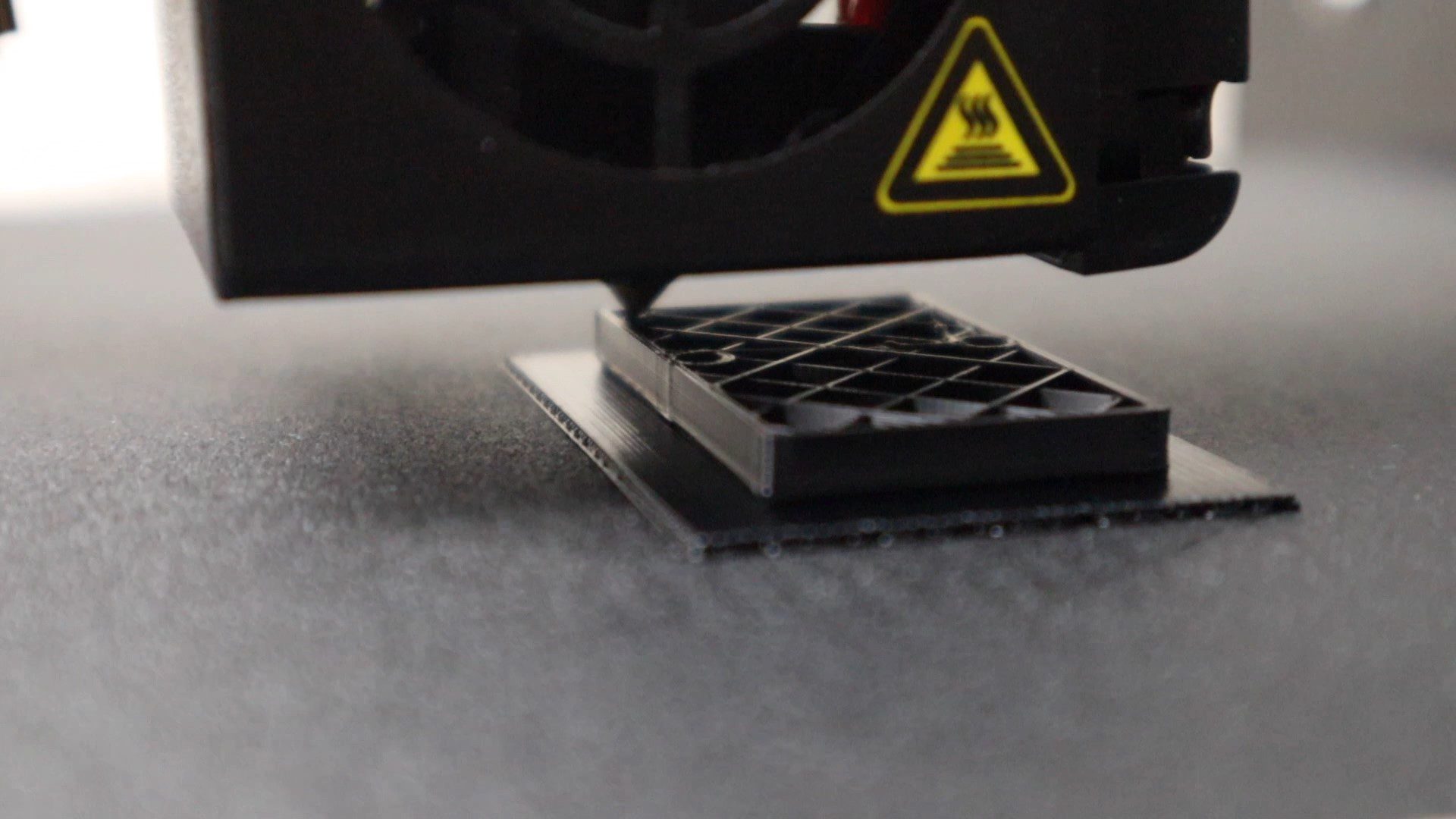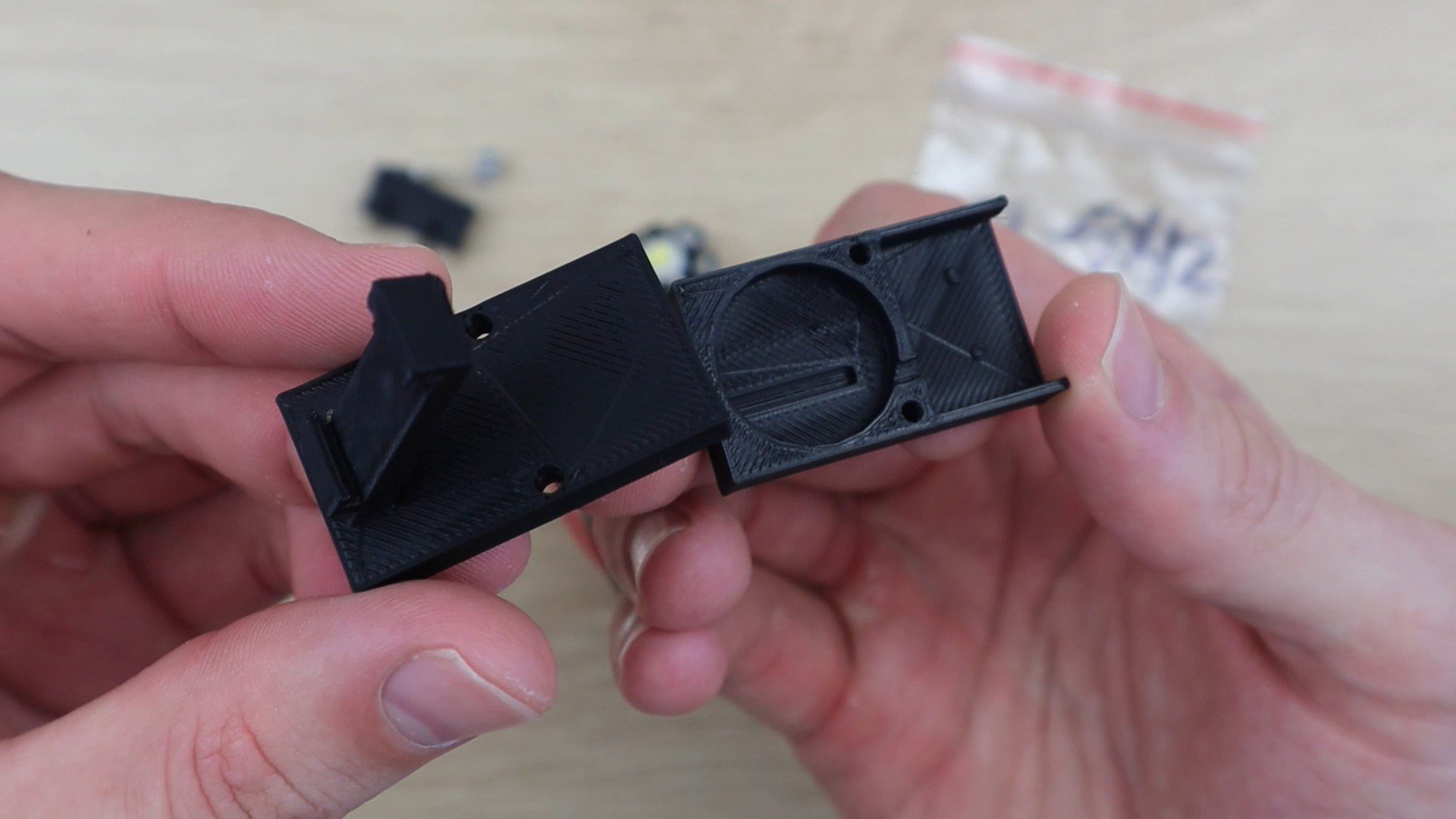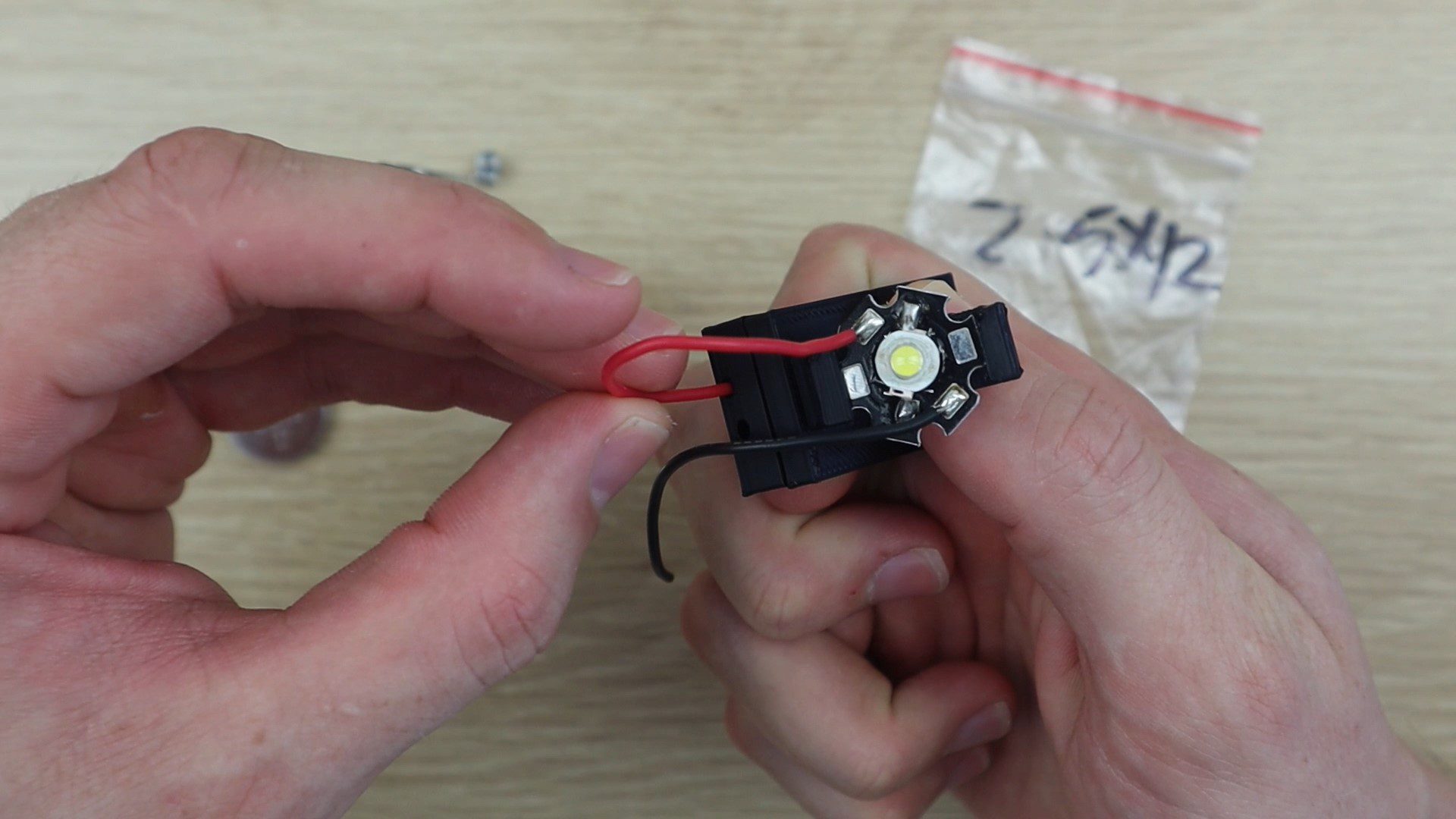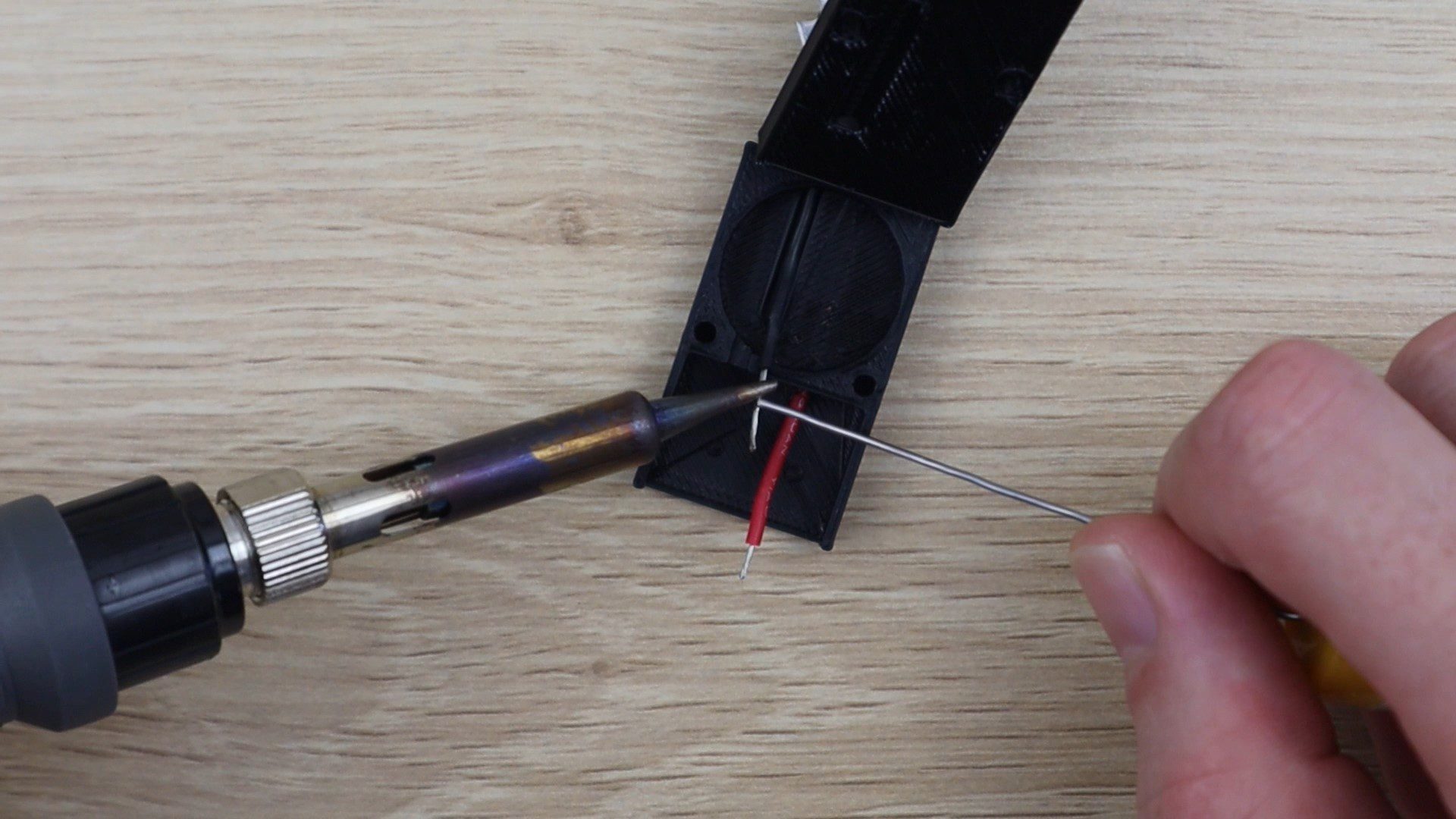
If you’ve got a Raspberry Pi and you’re wondering what to build with it, here are some great ideas. We’ve found 5 of our favourite Raspberry Pi projects which vary in complexity, so there’s something for you to start with and a few to really challenge your Pi abilities.
Pi Powered Productivity Tracker
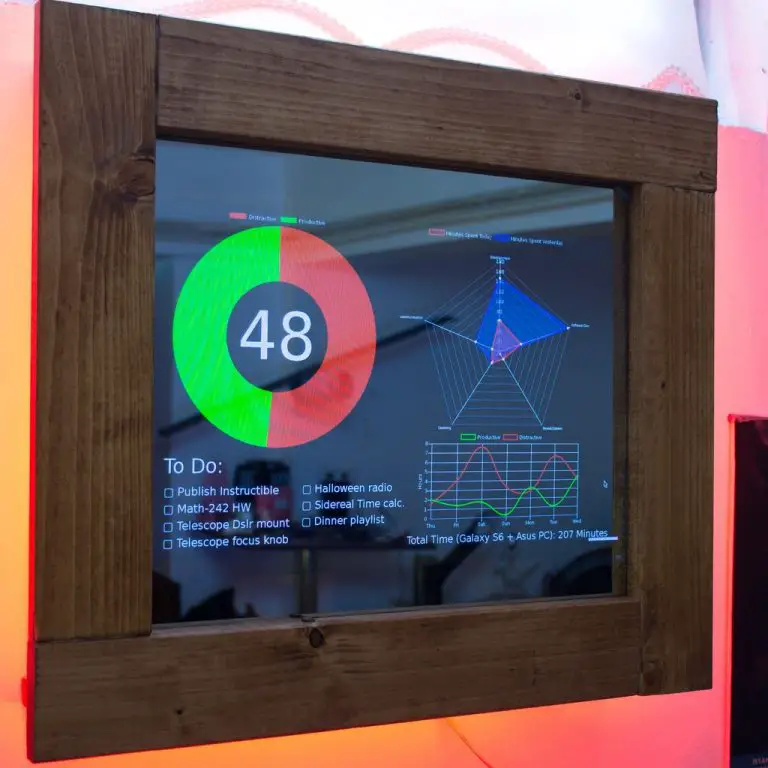
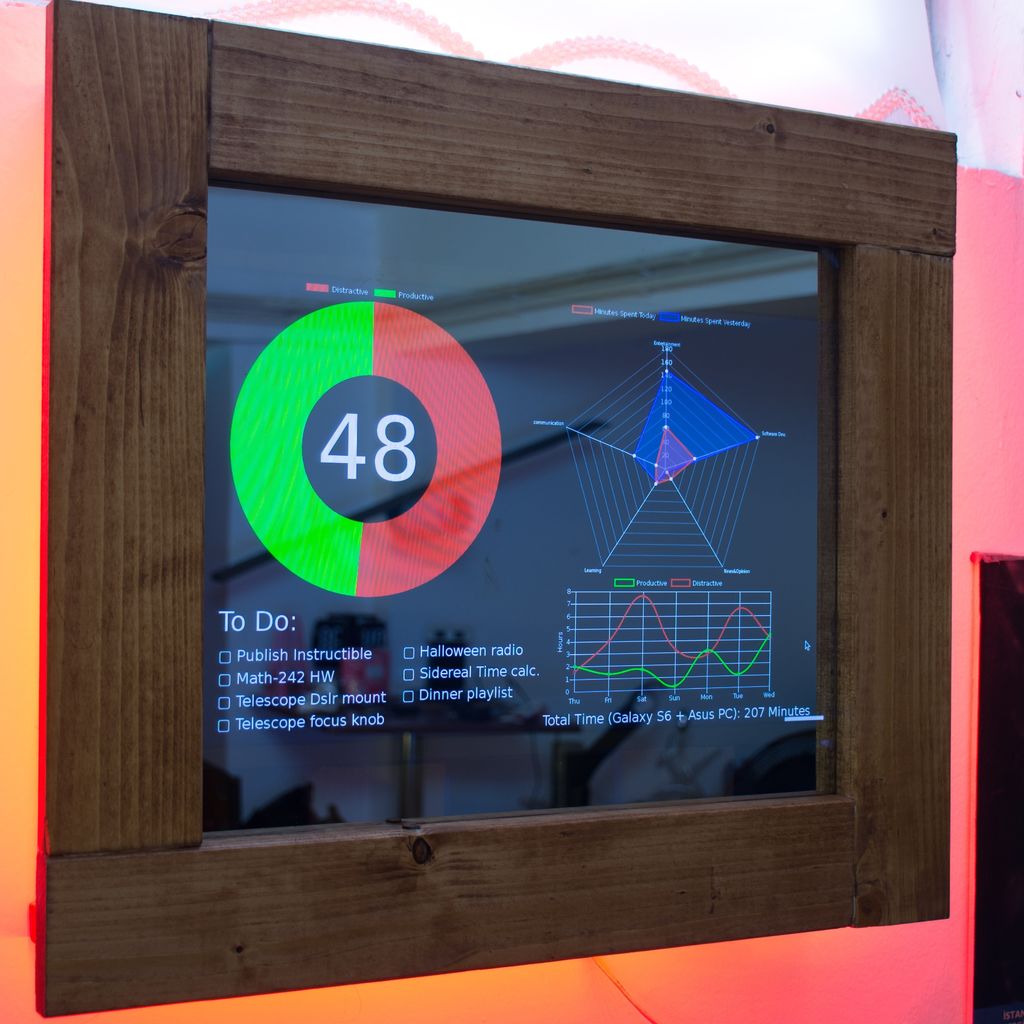
This Raspberry Pi based productivity tracker by Gocivici collects productivity data from your PC and mobile phone to display a chart showing the percentage of time you’ve spent on productive activities for the day, your to do list, a radar graph showing the time spent using certain categories of programs and a weekly productivity overview.
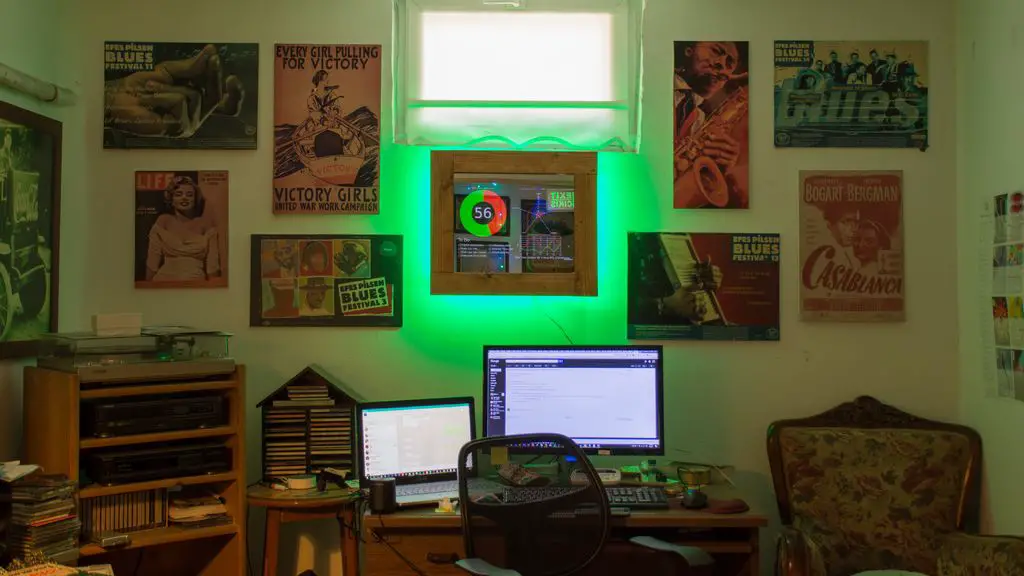
It also features a bright ambient backlight which illuminates the wall in green when your productivity is over 50% and goes red when your productivity falls below 50%. It’s a great motivational tool! Or a device to keep an eye on you if you need to practise a bit more self control.
Picroscope
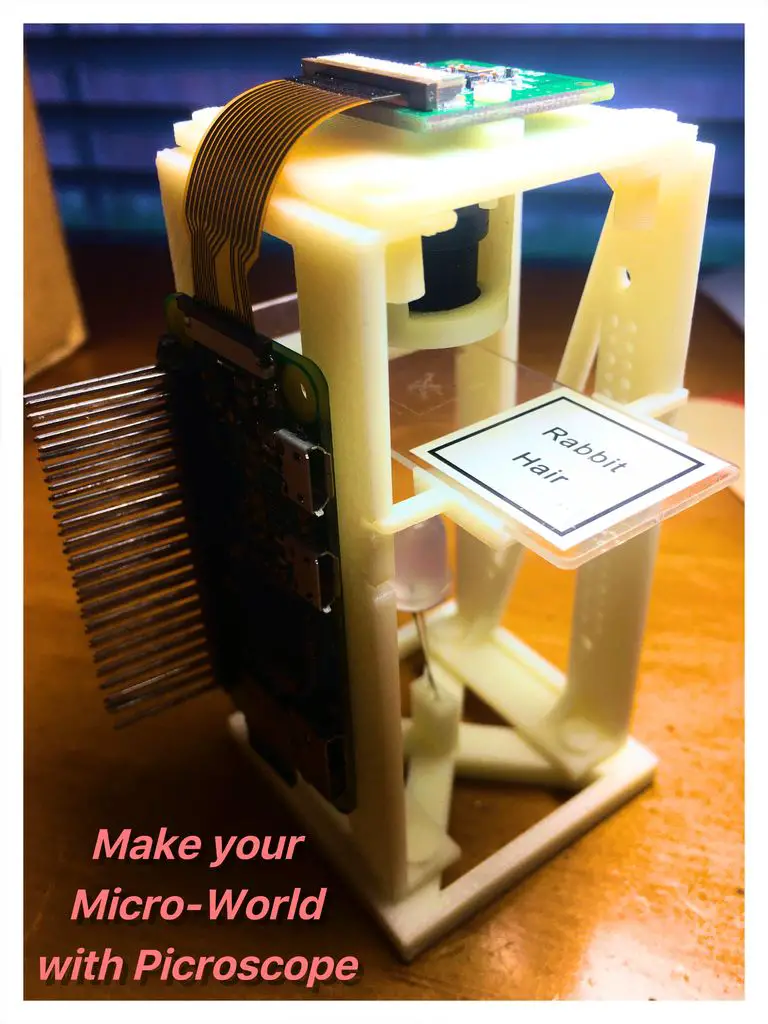
If you haven’t guessed from the title, the Picroscope is a Raspberry Pi based digital microscope by RiksEddy which enables you to learn about microbiology, optics and DIY electronics all in a single project.
This is a great project if you’re on a budget as it makes use of a Pi Zero (the cheapest of the Pis) and only requires a few other inexpensive components and some 3D printed parts.
The magnification is achieved using a cheap CCTV lens and lens holder and produces amazingly clear results, like this image of rabbit hair:
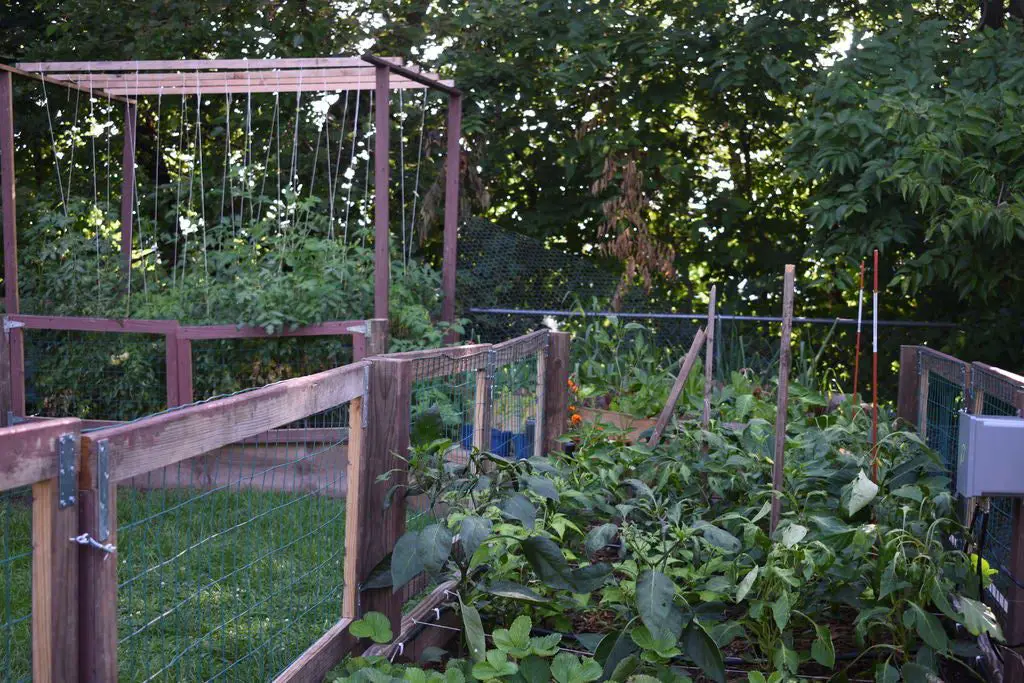
MudPi – An Automated Indoor & Outdoor Garden System
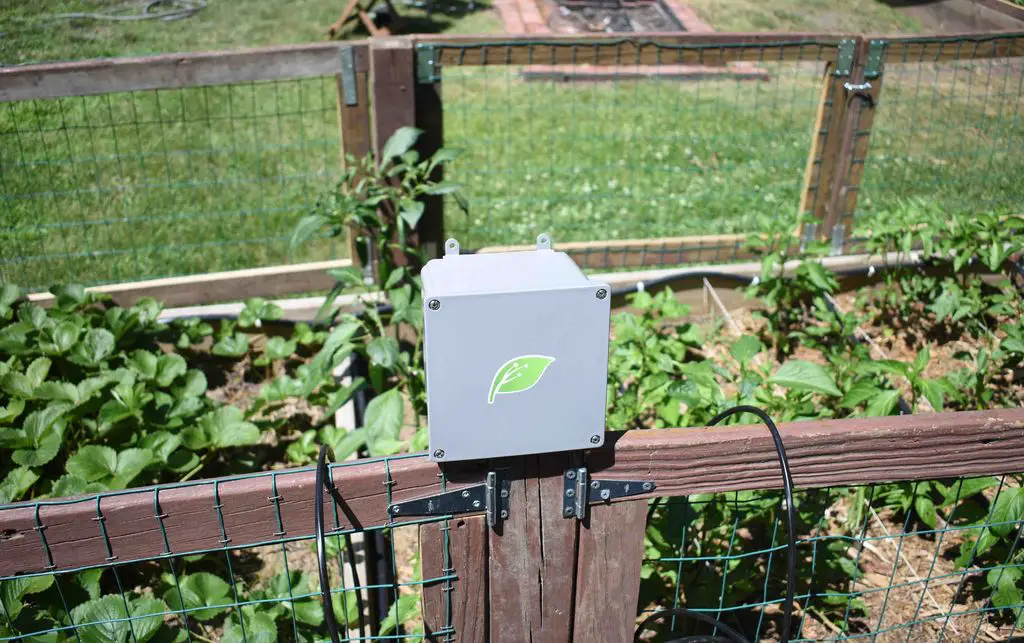
The system monitors the outdoor temperature and humidity as well as the moisture levels in the soil and automatically waters your plants.
The best part is that it can be connected up to the internet to allow you to monitor your garden from a web page or through an app on your mobile phone.
Pi-Hole Ad Blocker
The Pi-Hole Ad Blocker by Puffball101961 is a really awesome ad blocker for your home or small office network. The Raspberry Pi runs software called Pi-Hole and PADD to block ads and a display connected to the front of the Pi displays statistical data on the number of ads blocked, and the Pi-Hole’s IP address.
This is quite a nice starter project as you’ll learn a lot about programming your Pi without having to worry too much about additional IO and electronics hardware.
Raspberry Pi Laser Scanner
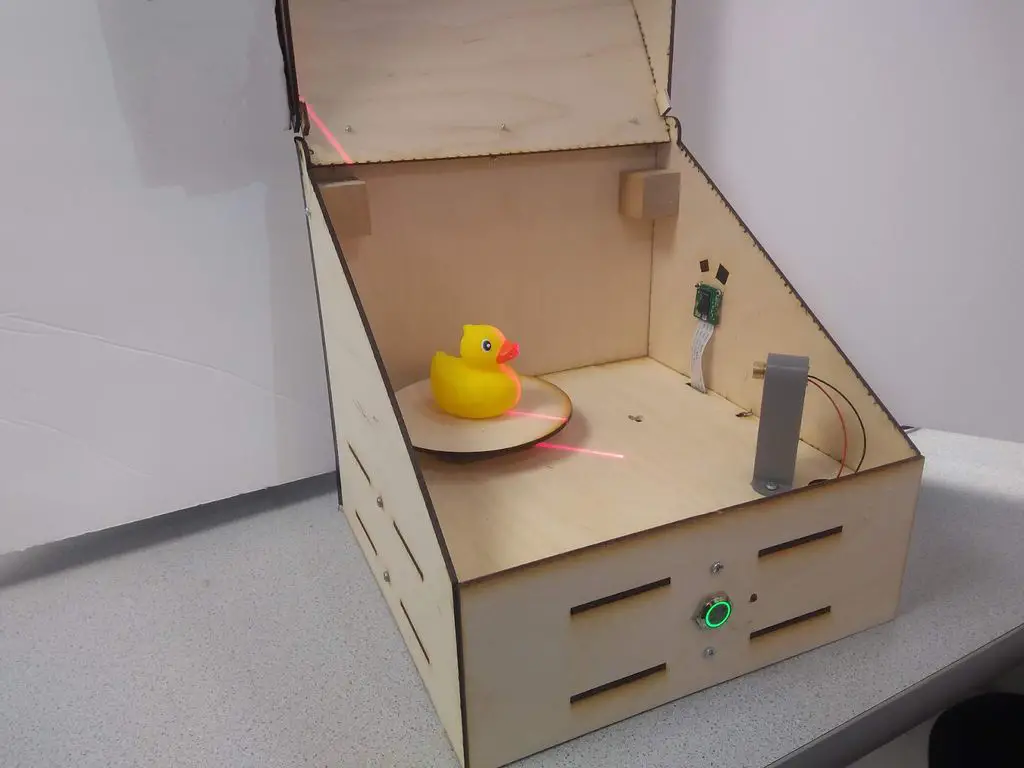
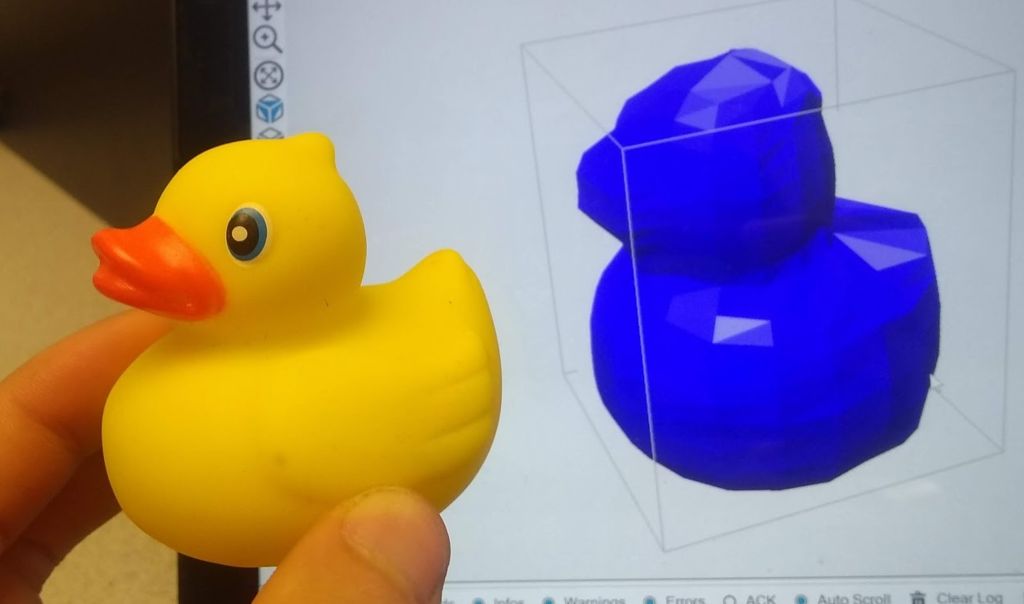
We’ve seen a couple of 3D scanners for Raspberry Pi’s which are photo or video based, but this cool 3D scanner makes use of a laser line and a clever algorithm to convert the line data into a 3D model which is then emailed to the user, meaning it can be a complete stand alone system.
The end results are still a bit rough but this is mostly to do with the post processing. 3D scanning software has come a long way in the past few years and there are a number of free or affordable software packages available to convert imagery into 3D models with continually improving results.
Let us know in the comments section below which one of these Raspberry Pi projects you’d like to try first.
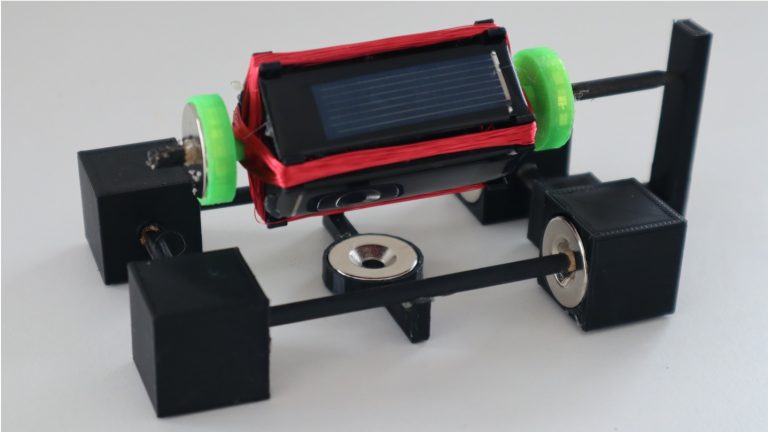
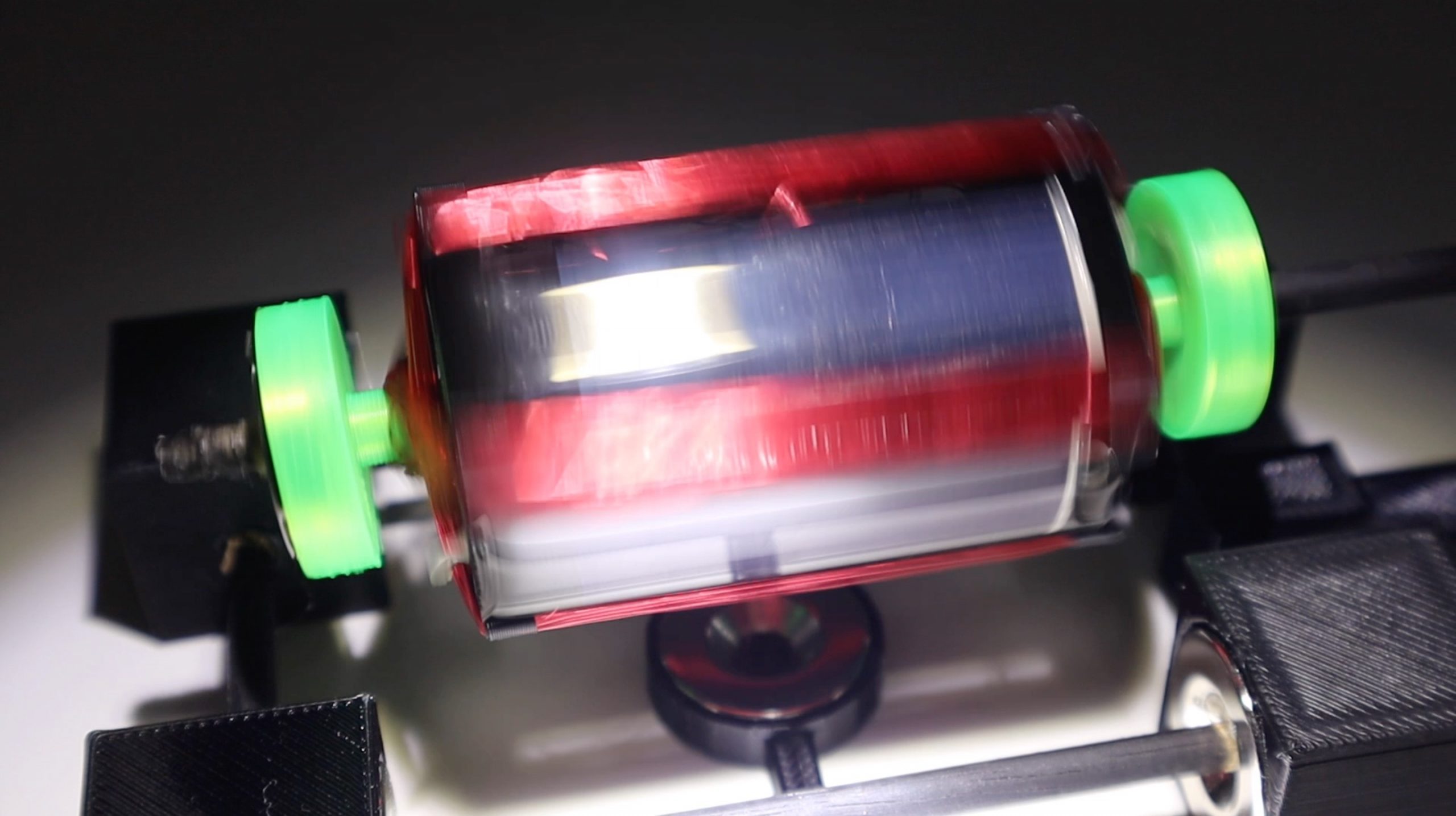
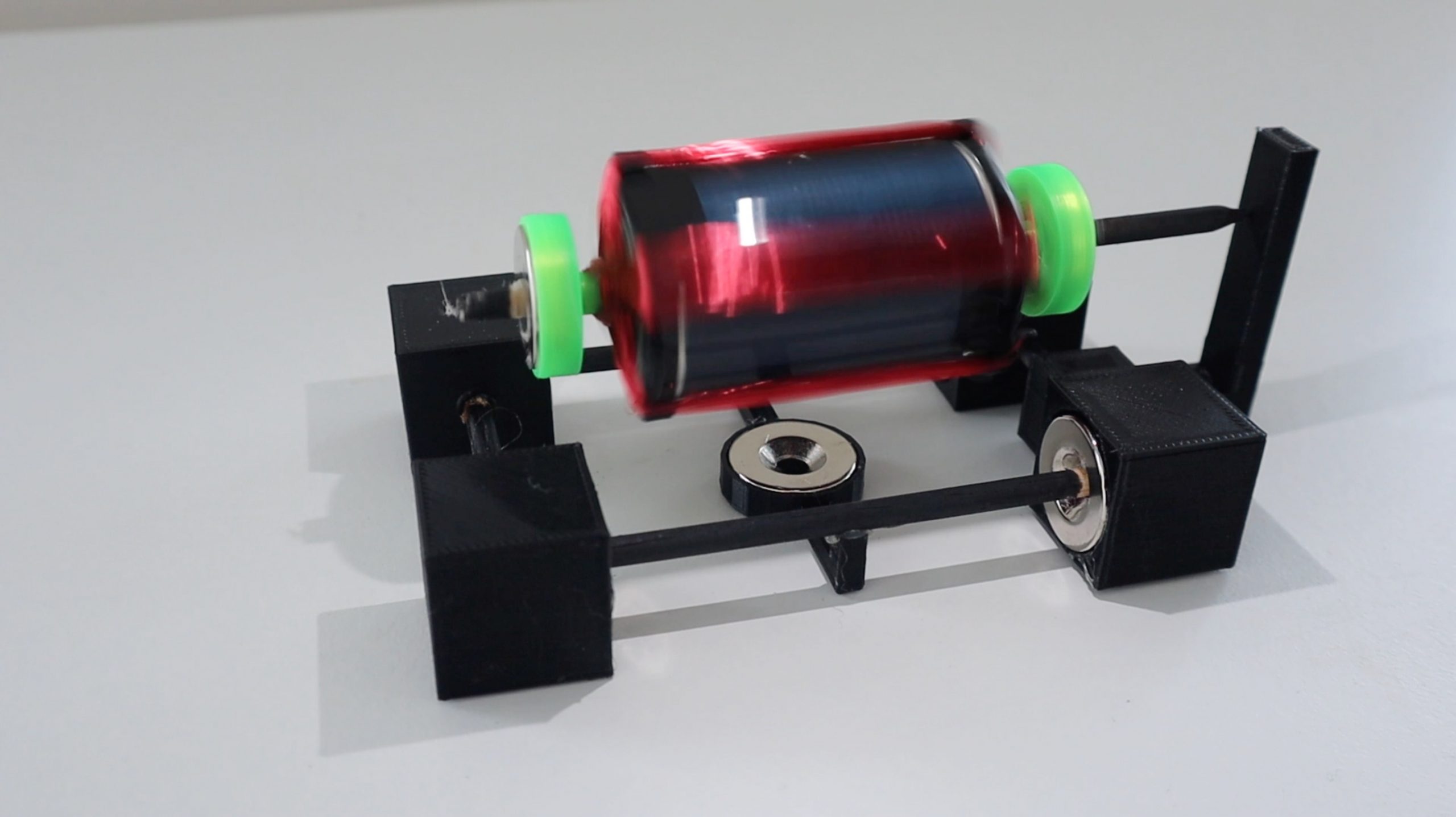
A Mendocino motor makes an intriguing desktop toy. The magnetically levitated rotor and lack of any batteries or power supply add to the allure. While they look quite sophisticated, Mendocino motors are actually one of the most simple forms of brushless motor. They rely on solar panels mounted directly onto the rotor and connected in opposite polarities to automatically reverse the current flowing through the windings, thereby negating the need for a commutator or any electronic control circuit. We’ll discuss this in a bit more detail further along.
Due to the relatively small size of the solar panels which are able to be mounted onto the rotor, this motor doesn’t produce much power and you won’t be able to connect it up to drive something useful. Some people have added a small fan to the end of the rotor, which looks quite nice, but also doesn’t really produce much air movement.
Here’s my video of the build and the Mendocino motor in operation, read on for the parts list and instructions.
What You’ll Need To Build Your Own Mendocino Motor
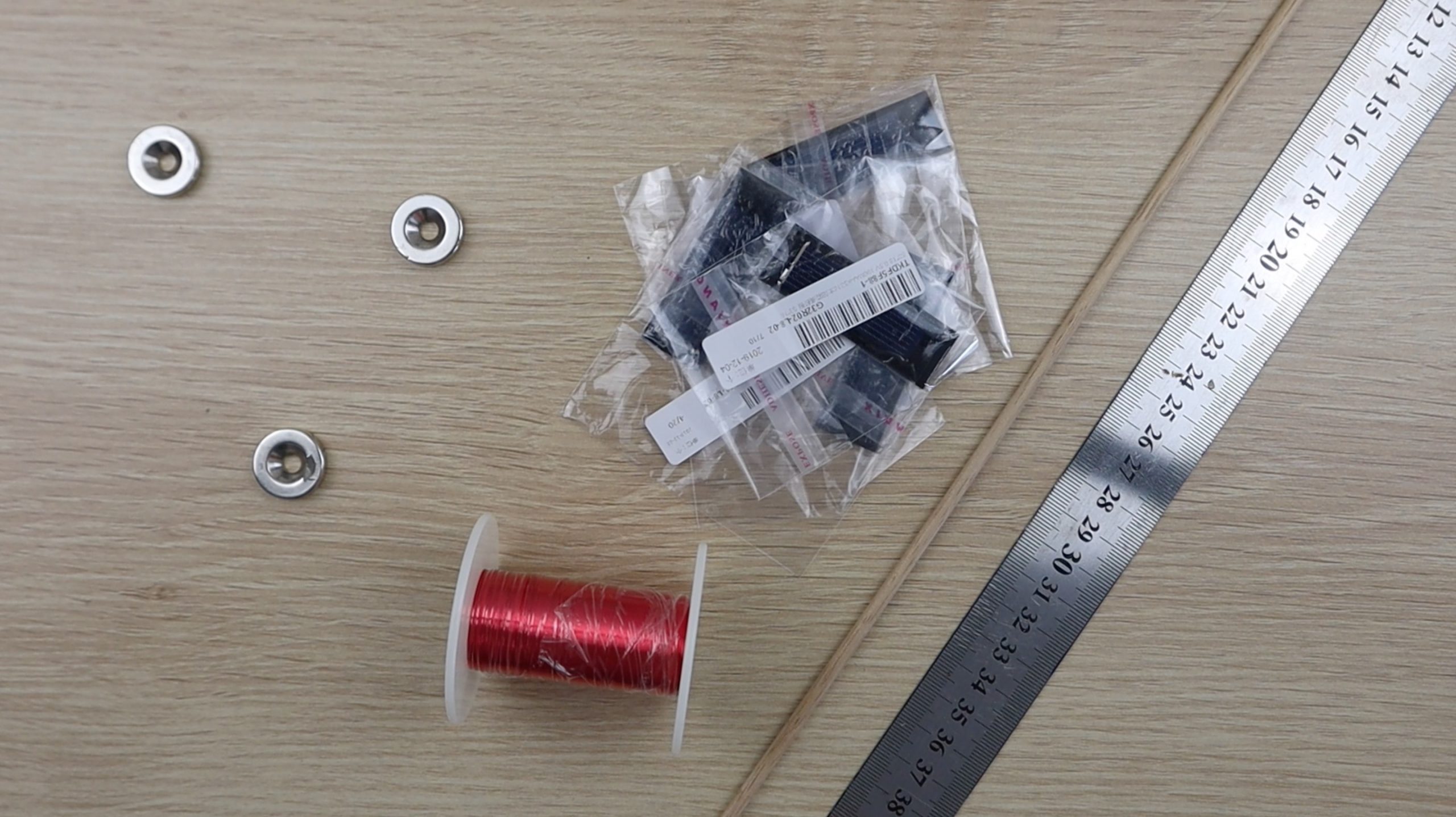
In addition to these, you’ll also need to 3D print some plastic components for the frame and rotor. You could also make these components out of cardboard or wood if you don’t have a 3D printer.
You’ll also need some basic tools such as a ruler, pencil or marker, craft knife, side/wire cutters and a soldering iron.
How To Build Your Mendocino Motor
We’ll build the Mendocino motor in three stages, first building the base, then the rotor and windings and then finally testing the rotor and finishing off the motor.
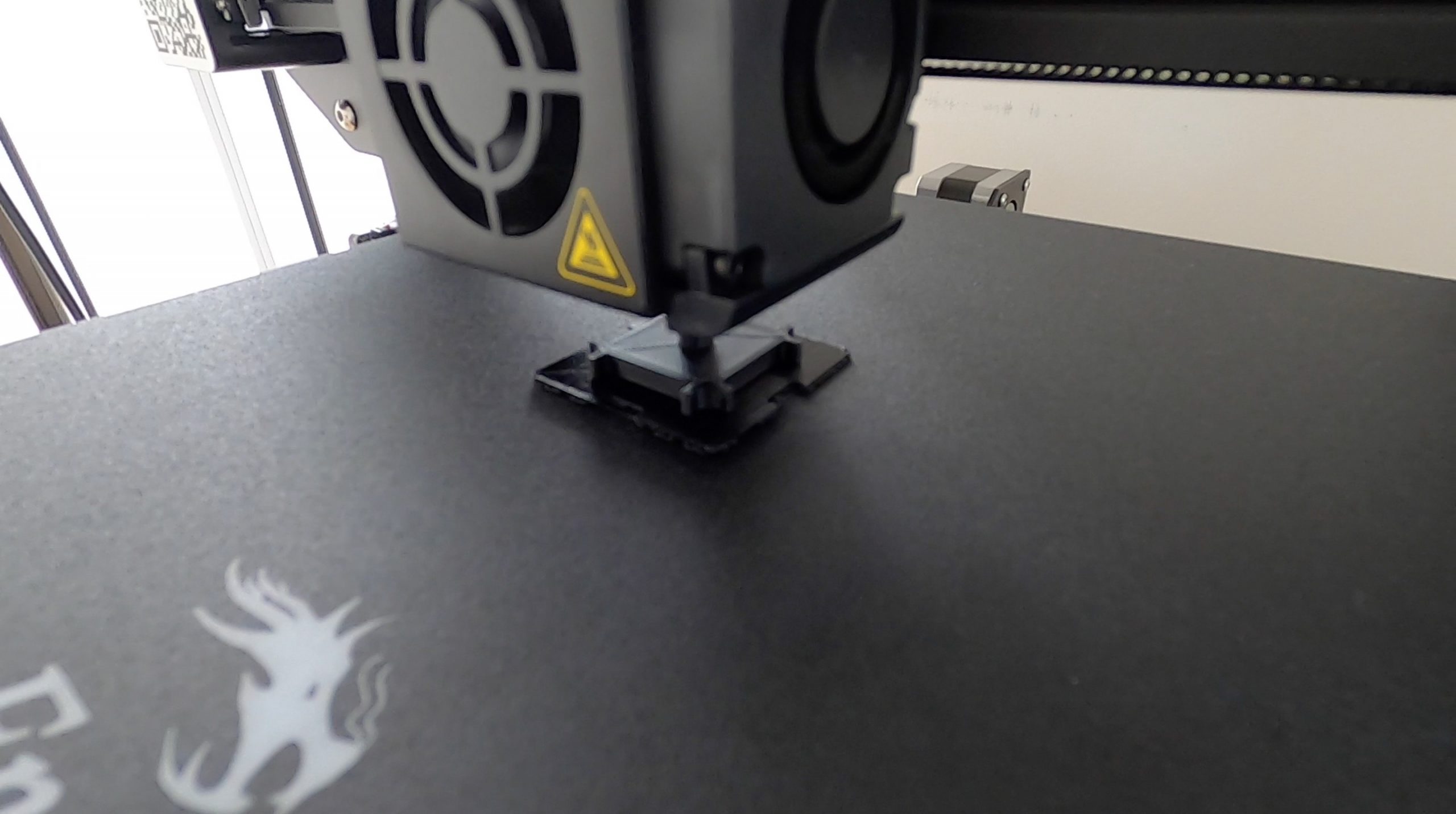
Start off by 3D printing all of the components in the download folder – 3D Print Components.
You’ll need the following quantities:
4 x Base Corner Blocks
1 x Bottom Magnet Holder
2 x Rotor Half
2 x Rotor Magnet Holder
1 x Rotor Reaction Support
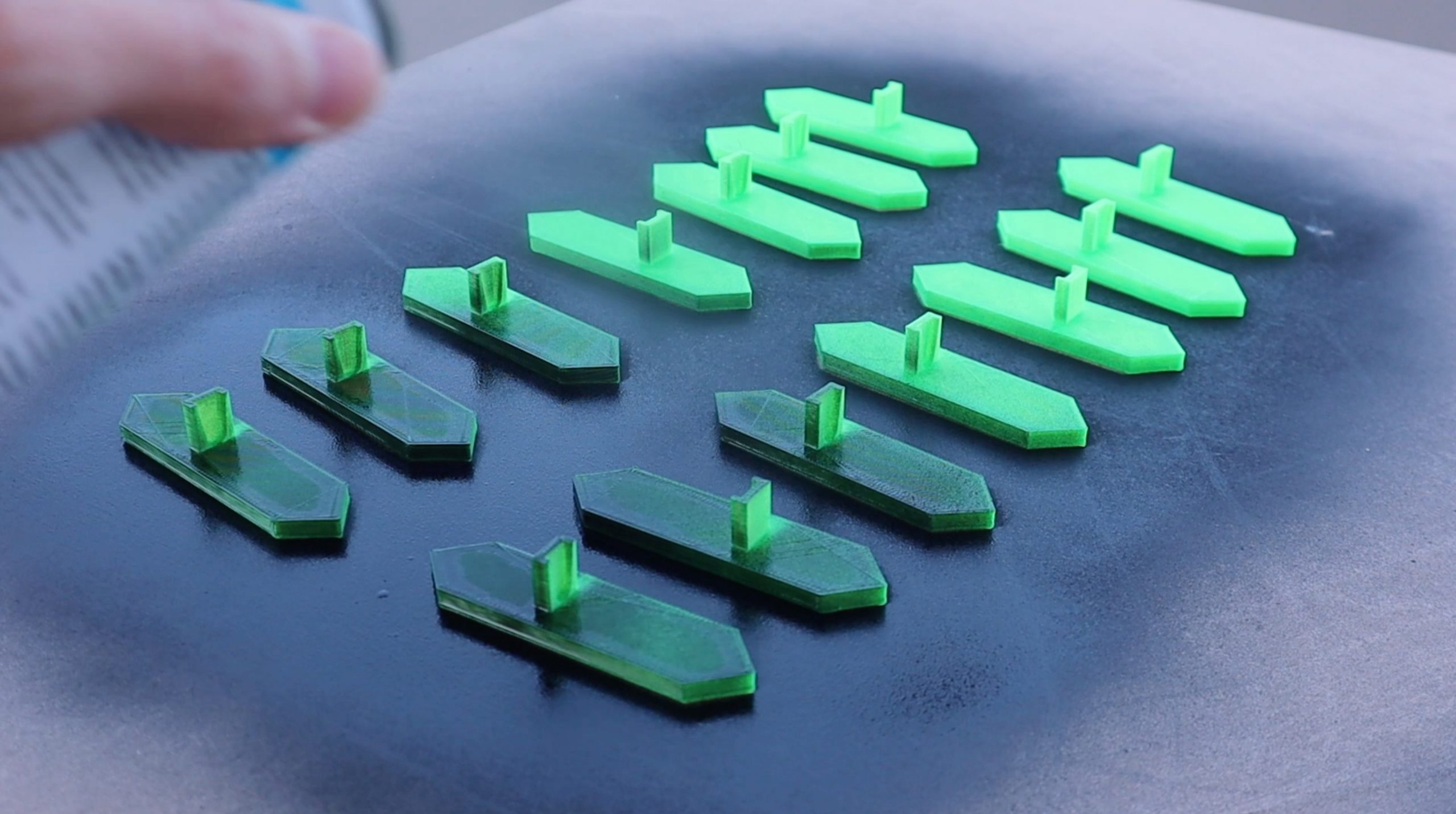
I printed the components in black and green PLA at 195°C and 15% infill. The green PLA was only used for the rotor magnet holders, just to give the motor a bit of colour. You can use any colour or combination of colours of PLA or ABS for the components.
Assemble The Base Frame
Start off by measuring and cutting the dowel for the base, you’ll need two lengths of 9.5cm (3.75″) and two lengths of 5cm (2″).
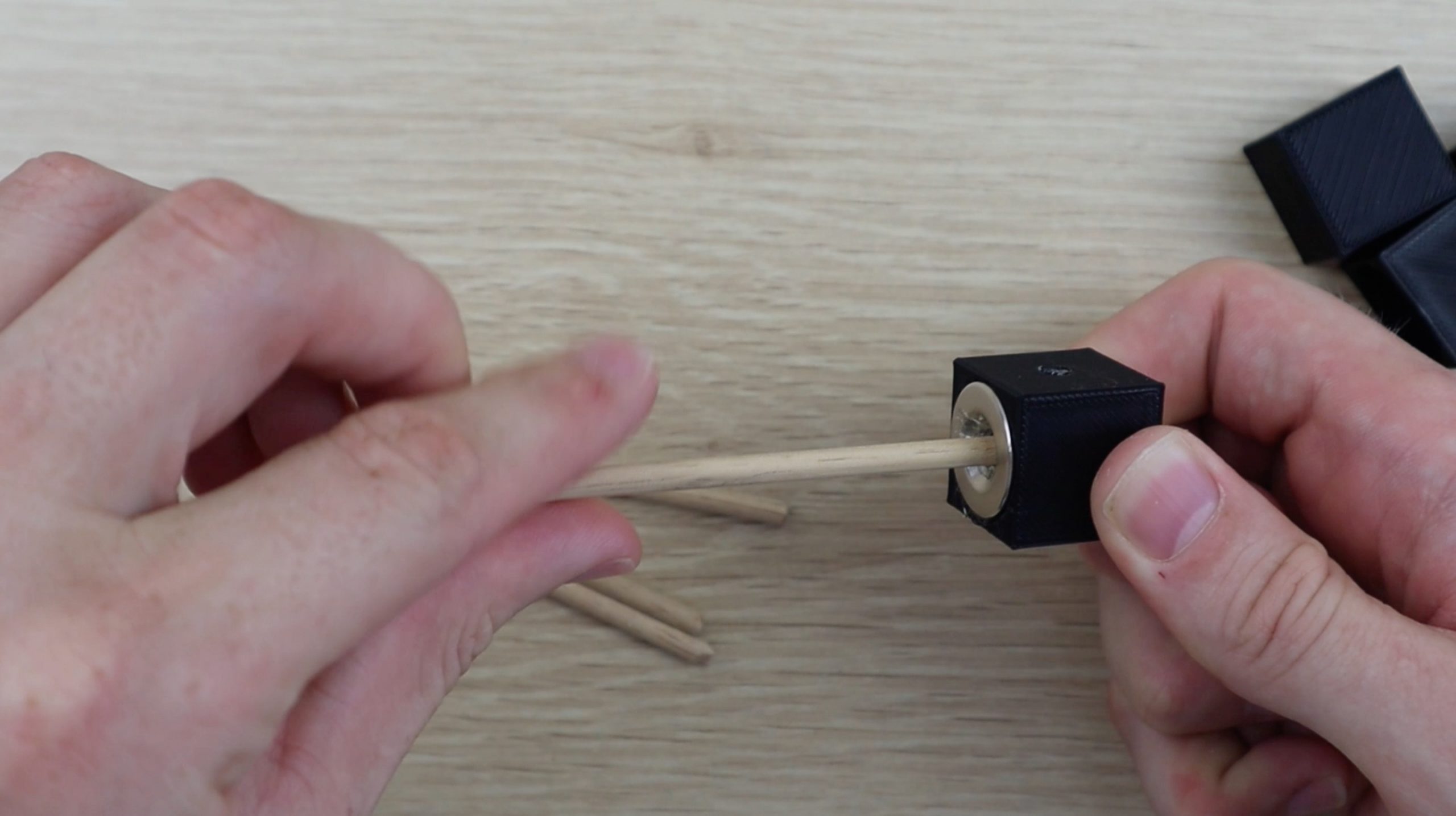
Glue a magnet into the first corner block with the flat side inwards and then glue one of the longer dowels into the centre.
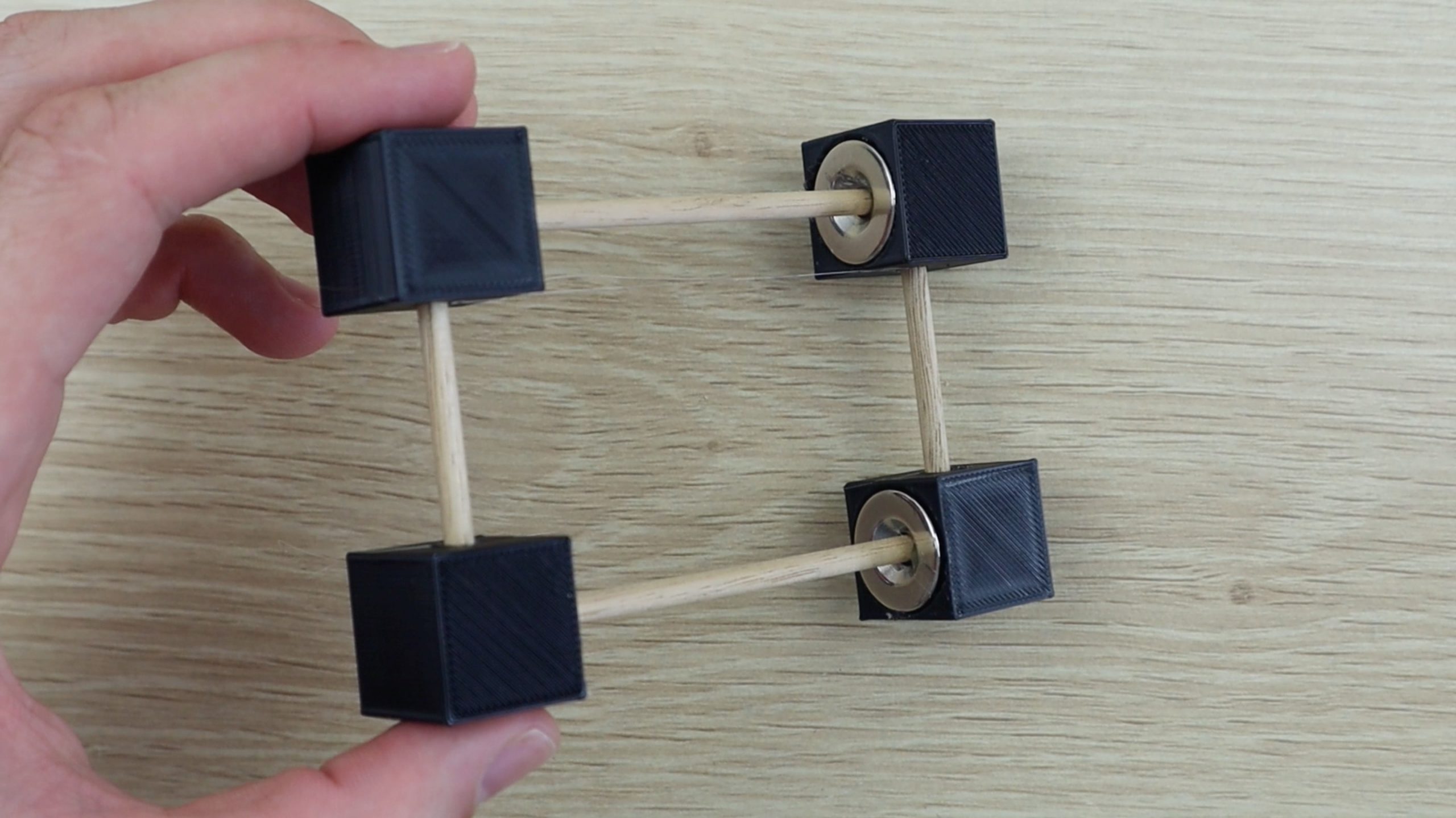
Next glue a magnet into a second corner block in the same orientation and then glue this block onto the same length of dowel. Make sure that the holes on the side of the two corner blocks face in the same direction. Also make sure that the magnets are facing each other with the same polarity, i.e. the two flat sides facing outwards (they should repel each other).
Repeat the process to make the second base length.
Next, glue one of the shorter dowels into each of the corner blocks on one length and then push the other ends into the second length. Don’t glue these into place yet, as you still need to install the rotor reaction support.
If you’re using the same components as I’ve used then you’ll want to glue the rotor reaction support into place during this step as well. I didn’t do so as I had to measure the floating height of the completed rotor once it was complete in order to design the reaction support to the correct height and distance away from the base.
Assemble The Rotor
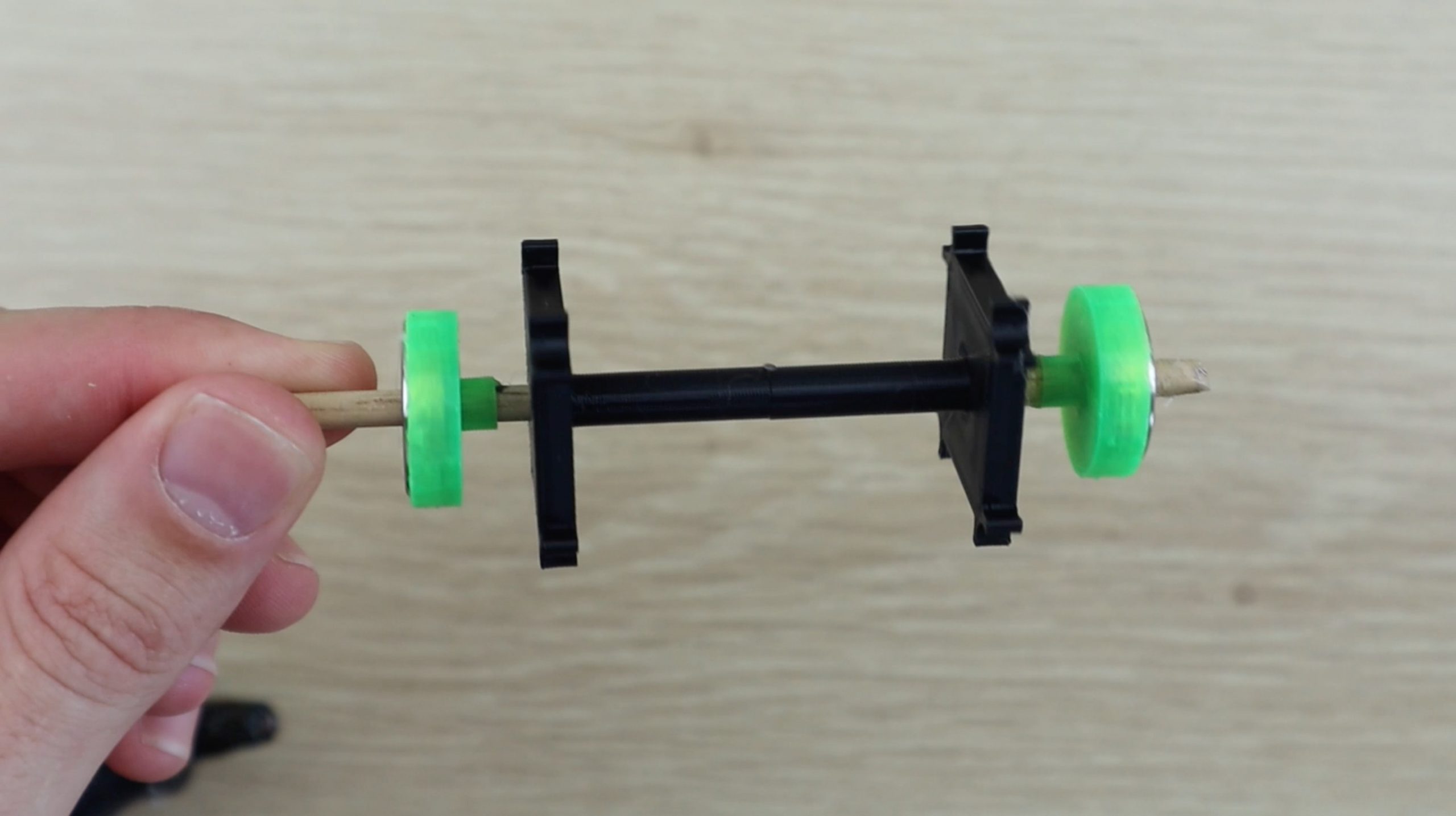
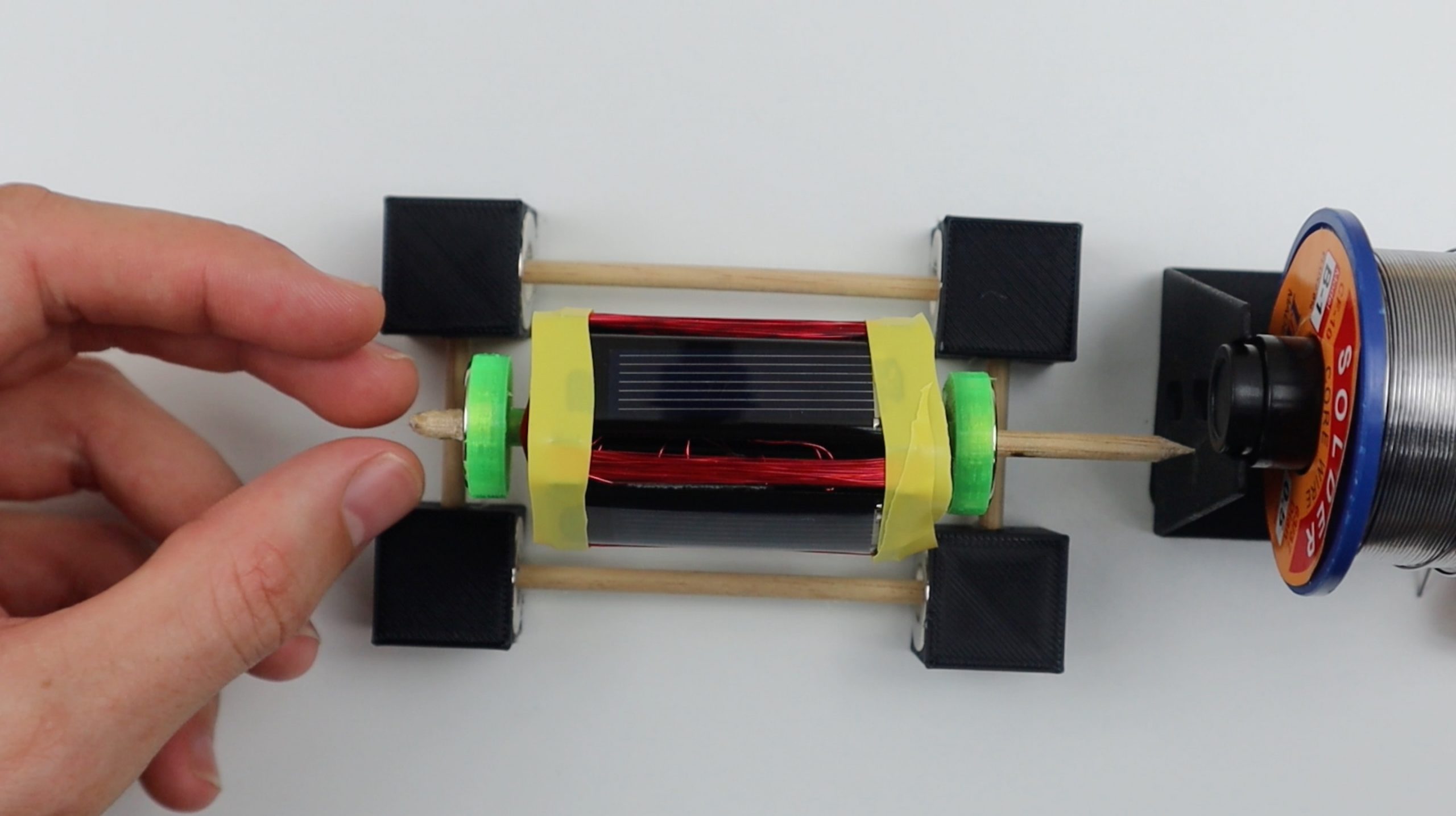
Next, measure a 12cm (4.75″) length of wooden dowel for the rotor. Cut one end square and use a craft knife to sharpen the other end to a point in order to minimise the contact area with the reaction support, minimising friction.
Mark the wooden dowel at 2cm (0.75″), 5cm (2″) and 8cm (3.25″) as guides for gluing the 3D printed rotor components into place.
Glue the rotor components into place as shown below. The magnets go into the magnet holders on both sides with the flat side facing outwards (away from the centre). Again, these two magnets are assembled wit the same poles facing each other (they repel each other).
It may help to watch the video at this stage to make sure that your orientations and positions are correct.
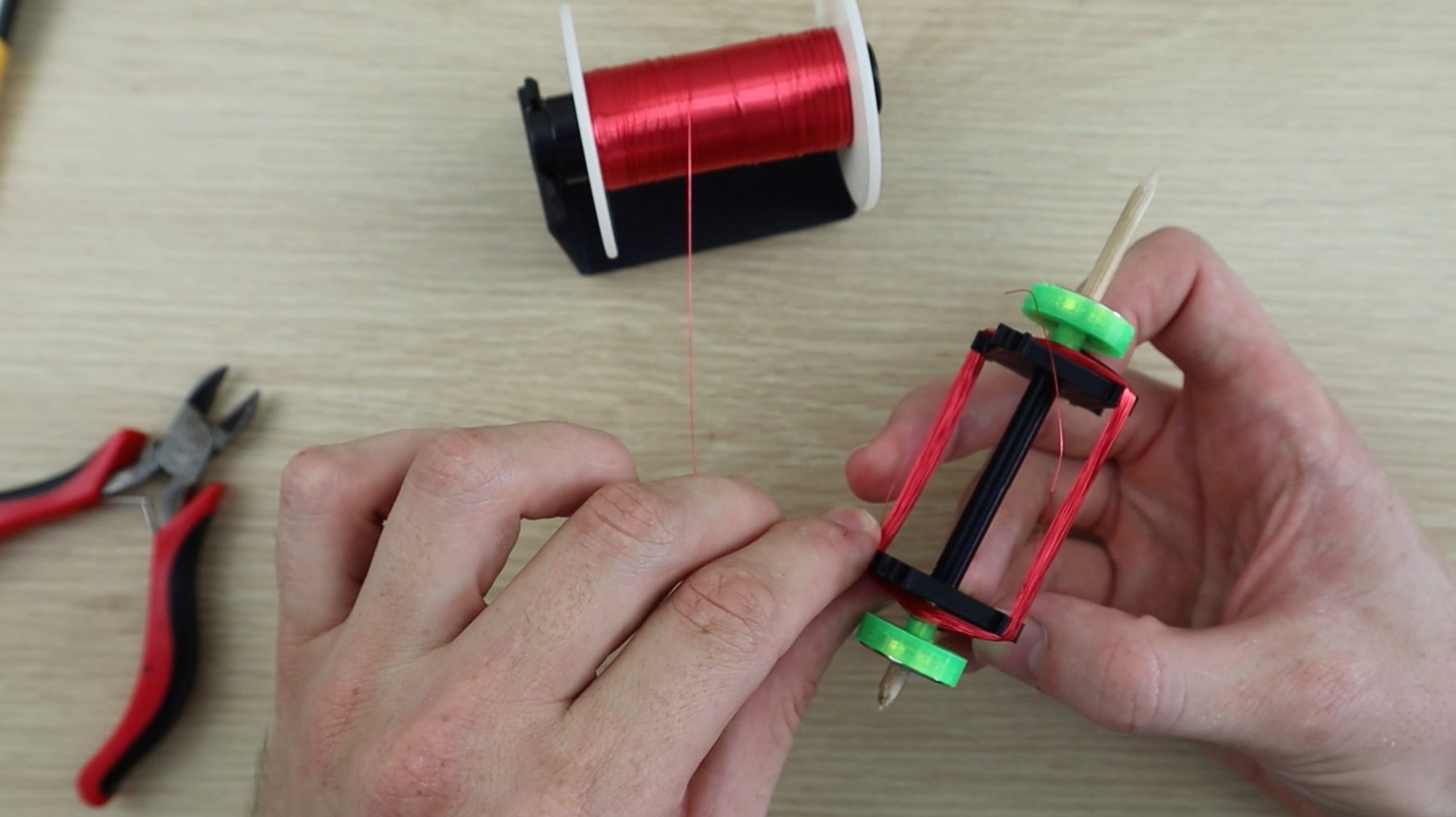
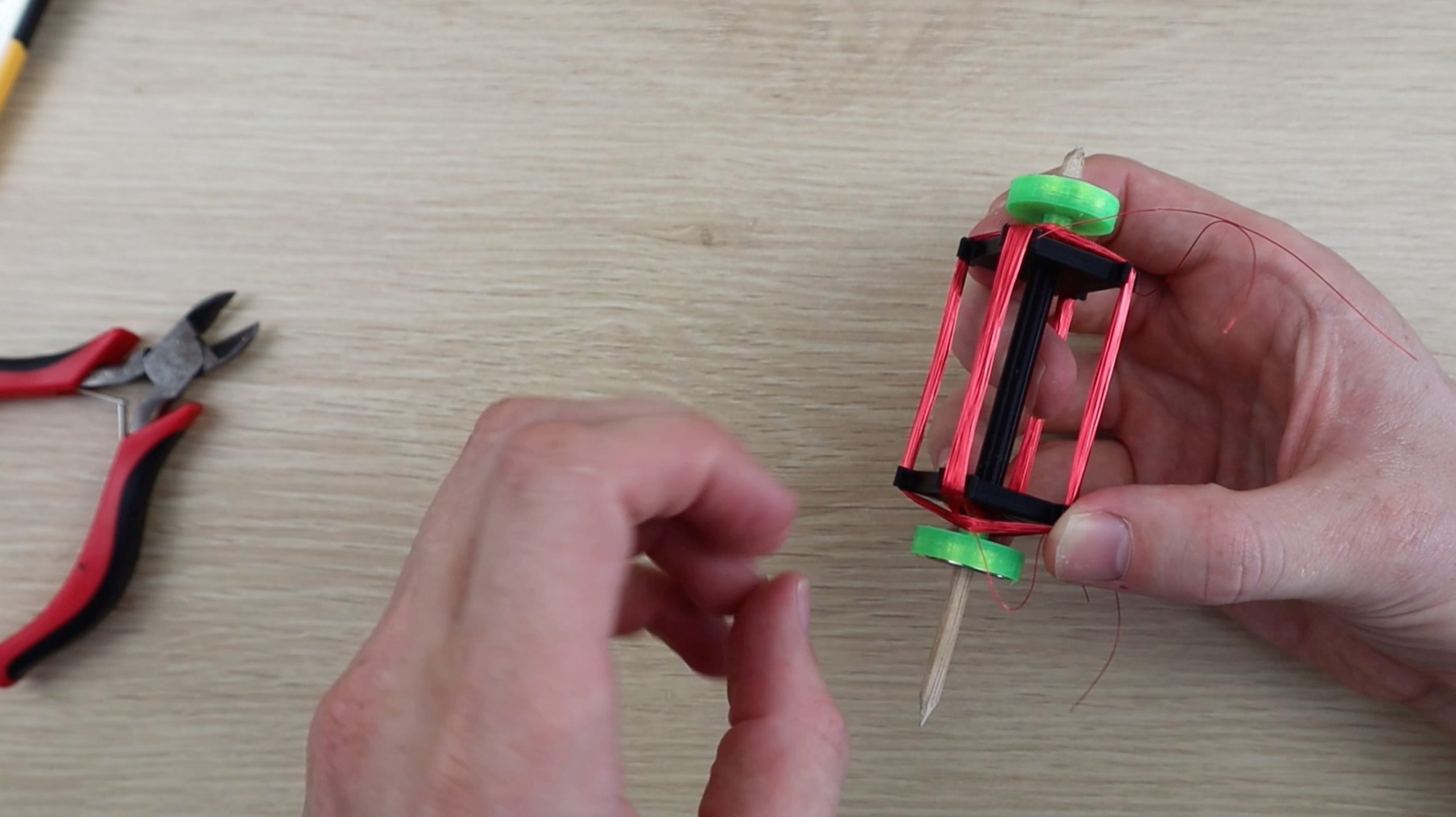
Once the plastic components are assembled, you can start making the windings. You’ll need to wind around 60-100 turns of wire for each of the two windings. Make sure that you change the rotor shaft side after every ten or so windings so that the rotor stays reasonably well balanced.
Once the first winding is complete, leave a lead on the end for connecting it to the solar panel, and then start the second winding. Make sure that you wind the same number of turns onto the second winding.
When your two windings are complete, use your craft knife to scrape some of the plastic coating off of the ends of the winding leads, so that you can make a good solder connection.
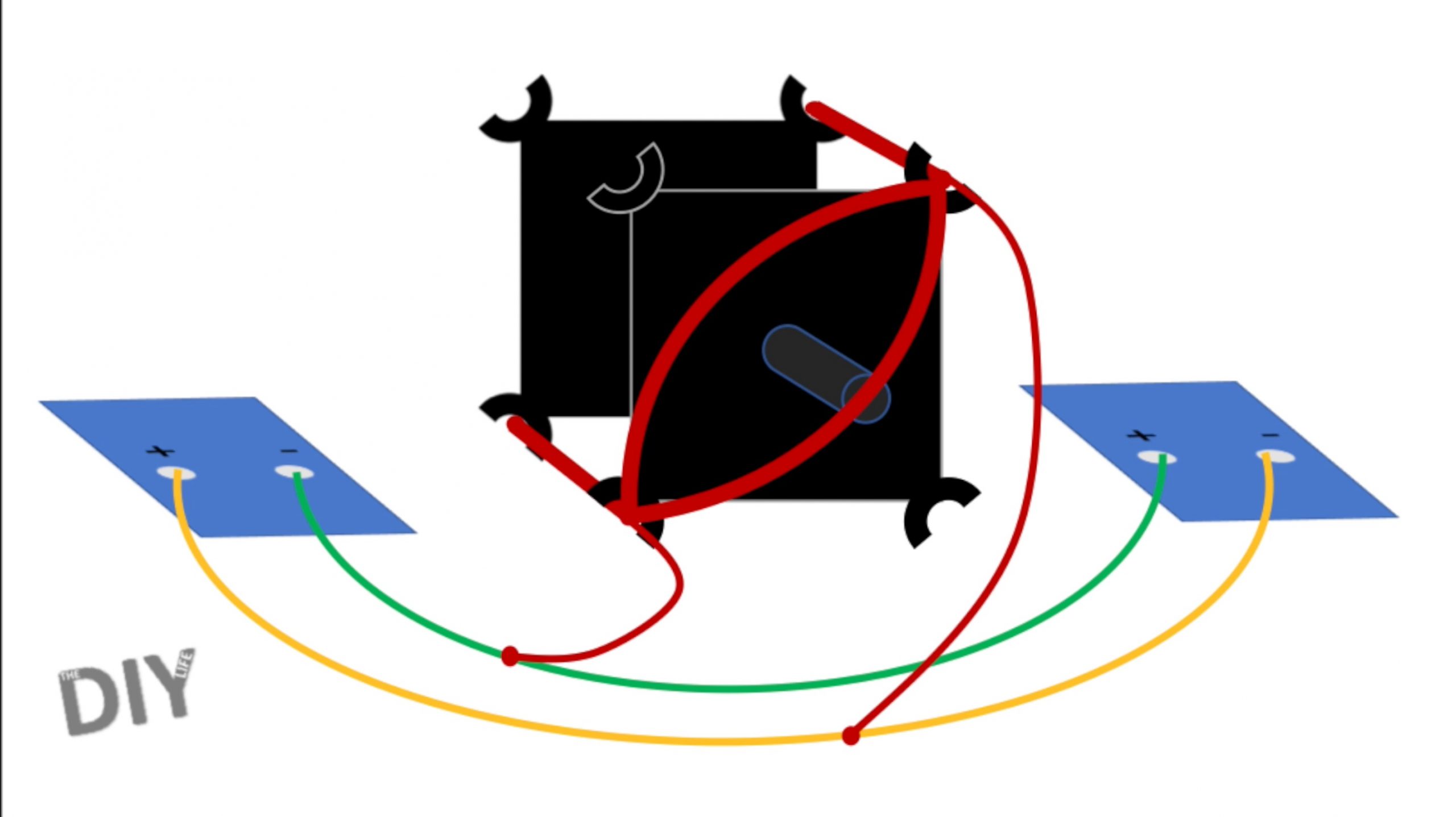
Then solder each winding as shown in the below diagram. The positive and negative terminals of opposite solar cells are soldered together and the two leads of the windings are soldered to each of these leads.
Repeat this for both sets of windings. Don’t worry about which way around the windings are connected, you’ll test this in the next step and make any changes if required.
Use some thin tape or an elastic band to temporarily hold the solar panels in place while you test the rotor and connections.
How Does A Mendocino Motor Work?
In principle, this motor produces torque by relying on one panel, the one on the opposite side of the straight section of the rotor winding which is overhead the stator magnet, producing current in the winding due to a directional light source. The current produces a magnetic field around the winding which opposes the stator magnet’s field and causes it to move away from the magnet. Because all of the components are mounted on the moving rotor, this cause the panel to move out of the light, stopping the flow of current, and the next panel into the light, producing current in the next winding. The panels are connected in opposite polarities such that current always flows in the same direction relative to the stator magnet, producing torque in the same direction. When viewed from the winding’s point of view, current is constantly changing directions, depending on which panel is under the light. This is a very simple way of replacing the need for a commutator or electronic control circuit, although it doesn’t produce much torque due to the cell’s low power to weight ratio.
You can read up a bit more on how Mendocino motor’s work on their Wikipedia page.
Testing Your Rotor & Soldered Connections
Now you’ll need to test your rotor. Glue the stator magnet into place on a flat surface and then place the base centred over the magnet. You can use the 3D printed magnet holder if you’d like.
I then used the roll of solder as a temporary reaction point as I needed to measure the floating height of the rotor in order to design a 3D printed reaction arm. You can use the 3D printed one if your components are identical.
Float the rotor on the bearings. You may need to make some adjustments to the positions of the magnets in order to get it to float correctly. The rotor magnets should be almost directly overhead the base magnets but slightly towards the reaction point, so that the magnetic force keeps the rotor pushed up against the reaction point. This step can be quite frustrating to get right. If you’re using different magnets then you’ll need to play around with the base magnet width spacing as well to ensure that you find the “sweet” spot where the rotor is suspended high enough that nothing touches the base and that the base magnets are far enough away from each other that the rotor is stable.
Now you need to check that your panels are wired correctly. Each pair of solar panels will produce a torque in one direction. You need to make sure that both sets are producing this torque in the same direction or your motor won’t turn. Start with one winding directly overhead the stator magnet in a dark area and shine a light onto the top panel (opposite this winding). You should notice the winding gently deflect away from the magnet in one direction. Make a note of the panel and this direction. Then rotate the rotor 90 degrees so that the next winding (half of the second winding) is overhead the stator magnet. Repeat the process with the light and make sure that the rotor deflects in the same direction. If it does, then you’re good to balance the rotor and glue the panels into place. If they deflect in opposite directions then you’ll need to swap the winding connections on one set of panels. This can be done on either set, and you’ll just need to swap the two winding connections around. Don’t change the connections between any of the solar panels or on the second winding. If nothing happens in this step, then you’ll need to check your winding connections again or potentially add more windings to your rotor.
Next check your rotor balancing. Your rotor should turn freely and shouldn’t have any significant heavy spots which it tends to fall to. You most likely won’t be able to get this perfect but you should minimise any heavy spots as far as possible. This can be done by gluing small pieces of solder onto the inside face of the panel opposite to the heavy side until it is properly balanced.
You can then glue the solar panels into place. This may need to be done in conjunction with the rotor balancing step as an iterative process as you’ll change the balancing by adding glue and removing the tape, but this will also limit your access to the back of the panels to add more solder.
Finally, glue the rotor reaction support into place and glue the remaining connections on the base if you haven’t done so already. You can also glue your stator magnet into the magnet holder and onto the base in order to make the whole motor portable.
You should now be able to run your Mendocino motor. The motor will run best in a dark area with a directional light source shining down on it at about 30 degrees off vertical. You’ll need to play around with the light source a bit to get it into the correct position to produce the most torque and therefore the highest speed. You may also need to adjust the balancing again if it turns too quickly and becomes unstable.
The balancing of my Mendocino motor in the video is not great at lower speeds and could do with a bit more time spent adjusting it.
If you ask any good Real Estate Agent, they’ll tell you that an empty house is much harder to sell or rent out than a furnished one. Virtual staging is becoming a popular tool for the real estate industry and private sellers/renters due to its ease of use and attractive pricing with potential for significant returns. The International Association of Home Staging Professionals carried out a survey which showed that, on average, a staged home sold for 17% more than a non-staged home and often sold more quickly too.
So let’s have a look at what it is and how you can use it to your advantage.
What Is Virtual Staging?
Let’s start a couple of years ago. Real Estate companies quickly realised that well decorated and furnished homes sold for better prices and sold faster than empty ones, and the same was true for rentals. So they put together dedicated teams of home stagers and photographers who’s job it was to decorate and prepare a home for sale. This was an expensive process, involving moving large volumes of furniture, and was quite time consuming. So, naturally, this process was reserved for higher end homes where the expected return was worth the additional cost and effort.
Fast forward to the dawn of apps and the powerful digital processing available on modern mobile devices and we’ve now got the opportunity to stage an empty home digitally, by artificially placing images of furniture and decor into 3D scans or photographs of rooms in our homes. And it’s amazingly affordable! As always, there are a couple of free apps available, but these can be quite limited. Better options include staging onto images which you’ve taken, typically costing around $20-$50 per room, and professional photographs, 3D scans and staging which can cost around $70-$150 per room. This may seem expensive, but it is substantially cheaper than physical staging. And, considering that you could increase your home’s value by 17%, the returns would far outweigh these staging costs. Even for entry level homes.
How Can You Use Virtual Staging When Selling Or Renting Your Home?
There are a couple of options available, depending on your budget and time allowance.
The quickest and cheapest would be through an app. There are a number of home design and home staging apps available for free or small fees, such as Design Home. These offer various levels of home staging tools and guidance, but you’ll essentially do all of the work yourself and you’ll have the most control over the final product. Provided of course that the app gives you enough options for furniture and decor. Some of the free and cheaper ones offer quite limited image databases.
If you’ve got a higher budget, you could make use of professional staging services, like that from Box Brownie. You take photos of your empty rooms and send the photos through to them to virtually stage. This service typically costs around $20-$50 per room (depending on the company and level of service required) and usually takes two to five days to complete.
The results are fantastic, have a look at these examples from Box Brownie:
The last and most expensive option is to make use of a professional service which would send their own crew to your home and take their own photographs and 3D scans of each room. These services typically produce a 3D virtual tour of the home which can be viewed online through a browser or even with Virtual Reality goggles. These are great for very high end homes which are typically on the market for much longer periods of time.
Is It Legal?
There is some debate around the legality of virtual staging, with people accusing Real Estate Agents of misrepresentation and intentionally misleading buyers. As with most technology, there are always people who take it too far.
The key takeaways of these debates are:
Virtual staging is a great tool, but it should be limited to the addition of furniture and decor. The scans or images should not be digitally enhanced to remove or cover up flaws in the property, such as cracks in walls, discolouration or staining, marks on carpets etc.
Virtual staging should never be used to remove or alter permanent fixtures such as light fixtures, outlets or light switches, or to cover up power lines and cables.
Where marks or cracks are covered by furniture, it’s a good idea to make the unedited image available as well so that any potential defects are clearly conveyed to the potential buyer.
All of the images which have been virtual stages should be clearly stated as such to the potential buyer or renter.
It’s a good idea to include a set of unaltered/unstaged images in the set as well, this will give potential buyers a clear understanding of the current condition of the home.
Have you tried home staging or virtual staging? Let us know in the comments section below.
Every home needs a laundry area but not every home has enough space for a full sized laundry room. Most modern apartments only have a small closet or an area in a passage or the kitchen dedicated to doing the laundry, and that’s all you really need. Here are some great tips and ideas to get the most functionality out of your small laundry room or area, maximising space efficiency.
You don’t need a whole room for your laundry, but most people don’t want their laundry area to be visible either. This solution tackles both problems by making use of a storage cupboard or old closet to conceal your laundry area. Any closet deep enough to accommodate your washer and dryer will do. A plumber and electrician may need to be called in to put outlets and drains into the closet.
A great additional to a kitchen renovation project is an ironing board cabinet or drawer. The cabinet can be designed to blend in with your other cabinets and offers a functional ironing space with shelves for your other laundry equipment and an outlet for your iron.
By stacking your washer and dryer, you minimise the floor space required for your primary laundry appliances. This means that they could even fit into a kitchen cupboard, similar in size to your refrigerator area. When closed, it’ll look like your pantry.
For really compact apartments, the best solution is often to build your washer into a cupboard in your bathroom. You’ve already got plumbing close by, so it won’t be an expensive addition and your towels and linen will benefit from the handy storage space above the washer.
Just like a kitchen island, a laundry island is a multi-purpose and portable space for you to tackle all of your laundry related tasks. It incorporates and ironing board and folding area on the top as well as storage and shelves underneath. The best part being that it can be wheeled out of the way and into a storage cupboard or your garage when not in use.
If you live in a multi level home, or one with a basement, then you’ve probably got a large wasted space under your stairs. Most people turn this into some kind of storage cupboard, but it also makes a great space for a functional laundry area as it is often the perfect depth for large appliances.
Some Inspiration For Compact Laundry Rooms or Areas
Here are some more of our favourite ideas for compact laundry rooms and spaces. Be sure to have a look at our Pinterest Laundry Board for more ideas an inspiration.
You use your iPhone on a daily basis, so you probably know your apps, organisers and messengers backwards. But most people don’t like playing around with their phone’s settings. We found a few of the lesser known iPhone settings which can actually be really useful in terms of protecting your privacy, making travel easier and making things quicker to reach.
Here are ten of our favourite lesser known iPhone settings which we’d like to share with you:
Do Not Disturb While Driving
This is quite a useful safety feature if you’re on the road often and find yourself tempted with distracting notifications on your iPhone. Head to Settings -> Do Not Disturb and scroll down to Do Not Disturb While Driving. Here you’ll have to option to automatically switch your iPhone into do not disturb mode (which silences incoming calls, messages and notifications) with detected motion, or when connected to your car’s Bluetooth system or when your iPhone is plugged into your car’s Apple CarPlay system.
Limit Ad Tracking
This setting allows you to automatically opt out of receiving ads which are targeted to your interests or location. Go to Settings -> Privacy -> Advertising and use the toggle to turn it on or off. You’re also given an option to reset your advertising identifier which should erase any information which has been historically stored and used by advertisers to serve you targeted advertising.
Limit Your Location Tracking
You may not be aware, but your iPhone keeps a very detailed list of all of the locations which you’ve recently been to and the ones which you frequently visit. Have a look at our previous article linked which goes into detail on all of the location information available. Fortunately, you can turn this “feature” off by going to Settings -> Privacy -> Location Services -> System Services ->Significant Locations. As you can see, it’s quite well hidden! Under this tab, you can turn the tracking on or off and see all of the tracking data which is available.
Push Calls From Other Devices
If you’re often around your Mac or iPad or you carry two phones (a work and personal phone), then this is a really useful feature which I’ve found myself using over and over. It gives you the option to automatically push calls to other devices signed in with your iCloud account and on WiFi so that you can answer the call on any of your devices. This way, you can leave one of your phones on your desk while you’re around the office and not have to worry about missing a call. Head to Settings-> Phone -> Calls on Other Devices to turn this option on and set which devices you’d like to receive calls on.
Text Message Forwarding
Similar to the above with calls, you can also allow your other devices signed into your iCloud account to send and receive text messages from your iPhone. Go to Settings -> Messages -> Text Message Forwarding to choose which devices you’d like to give access to send and receive text messages from your iPhone.
WiFi Calling
WiFi calling is a great feature if you’re in an area with poor mobile network coverage, such as remote locations or in the basement of a building etc.. The call is transmitted over the WiFi network and doesn’t require any network signal to operate. It’s usually billed at the same rate as your standard calls and sometimes free, depending on your carrier. This setting can also be found under Settings -> Phone -> WiFi Calling.
Customise your Control Centre
Your iPhone’s control centre is a quick single screen settings page allowing you to toggle your most commonly used settings on and off. Things like WiFi, Bluetooth, Music Player quick controls, Volume and some quick app launch icons. Most people have used this screen but not everyone knows that it can be customised. Head over to Settings -> Control Centre -> Customize Controls for a list of available controls and icons which can be added and removed from your Control Centre page.
Magnifier For Reading Documents
This is not really a setting but its a useful tool which can be found under settings. Go to Settings -> Accessibility -> Magnifier to turn it on. This allows you to triple press the side button (on iPhone X and later) to bring up a magnifier which uses your iPhones camera to act as a magnifying glass, enlarging text or notes and displaying them on your screen to make it easier to read.
Have you got any other useful iPhone settings which you’ve found and you’d like to share? Let us know in the comments section below.
One of the questions which come up quite often on some of my earlier articles about solar installations is, “how many batteries will I need?”. There are a couple of factors which you’ll need to consider when working out how many batteries you will need for your solar installation, but I’ve tried to simplify it as far as possible.
To start off, you’ll need to know what size inverter you’re going to be using, you’ll need it’s rated power in watts [W]. If you’re not yet sure what inverter you’re going to be using, here is a guide on selecting the correct inverter size for your solar or backup power system.
Next you’ll need to decide which table to work with, and this depends on how significant the load on your inverter is going to be during normal operation. If you expect your inverter to be running at near it’s rated power, so the continuous load on your inverter will be close to it’s rated power output, then use Table 1. The second table, Table 2, is more realistic for household use and is calculated with a continuous load of 60% of the inverter’s rated output. If you’re unsure then rather use Table 1, it will give you a more conservative estimate.
Lastly, you’ll need to know what the capacity of your batteries are and how long you’d like them to last for. A standard 12V deep cycle battery is usually 105Ah, this figure can be found on your battery data sheet or on the label on the battery. The duration in minutes is how long you’d like your batteries to last for. So if you’re going to be using the system in the evenings, then you’d probably want power from 5pm to 10pm, for a total of 5 hours which is 5 x 60 = 300 minutes. If it’s just for a short hour or two backup then you’ll only need them to last for 60-120 minutes.
In order to use the table, you start by looking for your inverter’s power in the left column. Say ours is 1000W and we’re working in Table 1. We then move along this row until we find the number of minutes closest to the figure which we calculated in the previous step, so 300 minutes is closest to 287 minutes. We then then move up this column to the battery capacity row, in this case we get 600Ah. This means that we require 600Ah worth of battery capacity to provide 1000W of inverter power for 5 hours. If we’re using 105Ah batteries then we would need 600 / 105 = 5.7, so 6 batteries of 105Ah to provide the required power.
We can do a similar example using Table 2, for operating at only 60% of the inverter’s rated power. Let’s use the same figures from above and say our inverter’s power is still 1000W. We then move across the row to find the closest figure to 300 minutes, which is 302. We then move up the column to find the battery capacity and find 400Ah. This means that we’ll only need 4 batteries of 105Ah if we’re only running at 60% of the inverter’s rated power, rather than the 6 calculated using Table 1 at 100% of the inverter’s rated power.
Table 1 – Operating At The Inverter’s Rated Power
Table 2 – Operating At 60% Of The Inverter’s Rated Power
Some additional notes on the figures calculated in the tables.
The inverter efficiency is assumed as 95% for Table 1, being a pure sine wave inverter operating at near it’s rated power output. The inverter efficiency in Table 2 is reduced to 90% as inverters are typically less efficient when producing power below their rated output.
In both cases the batteries are assumed to be discharged to 30% of their original capacity. This affects the life of the batteries, the deeper the discharge, the shorter the life of the battery. Some people prefer to design their systems to only allow for discharge to 50% or even 60% of their original capacity in order to extend the life of the batteries.
Do you have any tips, comments or suggestions? Please share them with us in the comments section below, we would love to hear from you.
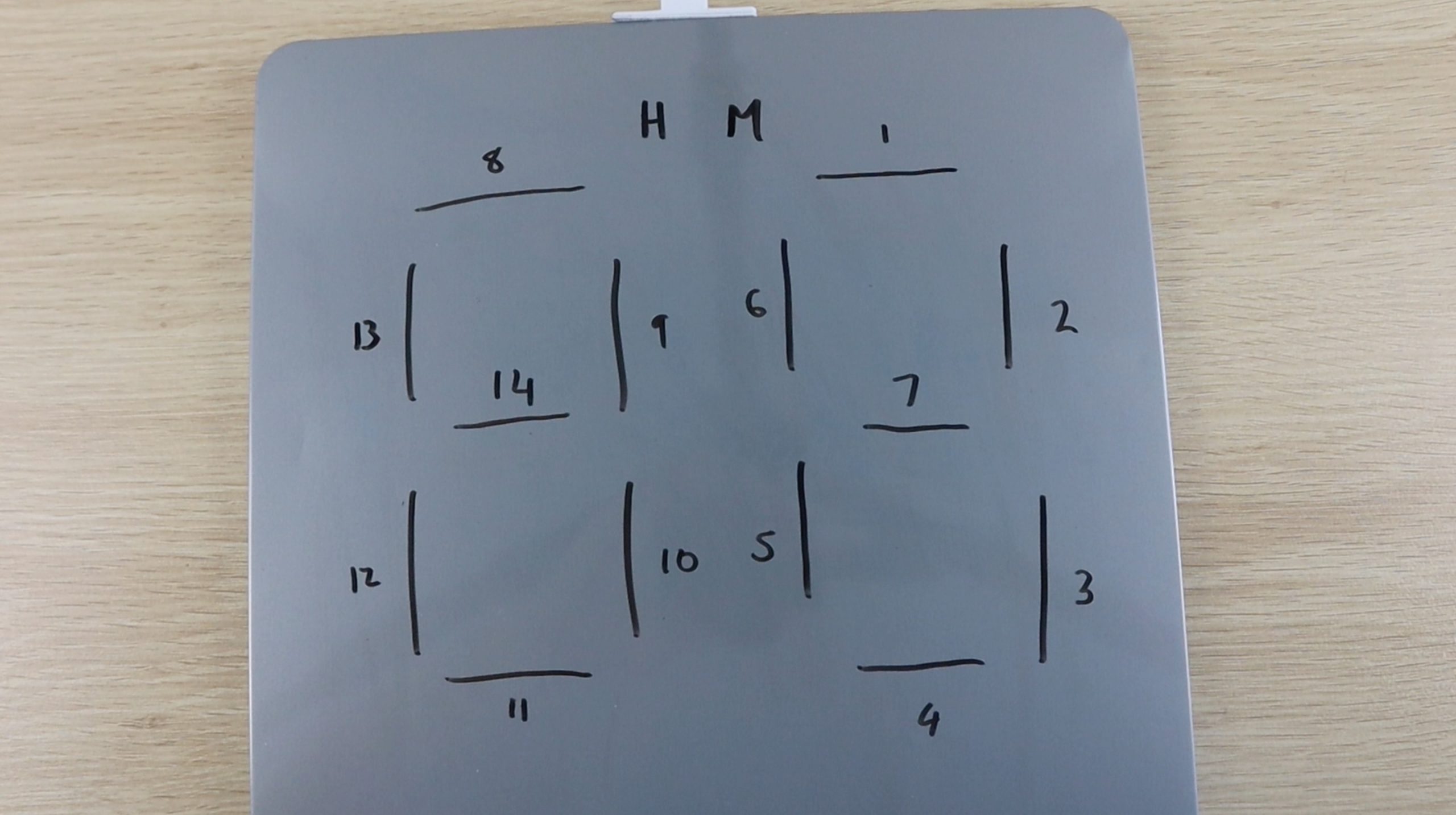
If you’re looking for your next woodwork project and you’ve also got a fascination with puzzles and locks, then this project is definitely one you’ll want to check out. This wooden keepsake box, designed by Peter Olsen features a cryptic pattern on the lid which requires magnets to align four tumblers into one of nine different locations to unlock. It’s a really clever and interesting spin on a combination lock type box which is entirely made from wood and a couple of magnets. I also really like the way the magnet pins are able to be stored in the sides of the wooden box and are pushed out using the box handles.
Peter says that he intentionally didn’t put any further markings on the lid as he didn’t want it to be immediately obvious that the box requires some kind of combination in order to unlock.
You’ll need a fairly comprehensive wood working set up to be able to build the box to the level which he has, and I love the look of the final product. If you don’t feel like your wood working skills are up to this level, then you could also design a similar mechanism using 3d printed or laser cut components.
Here is his video of the keepsake box and it’s locking mechanism:
Have a look at his Instructable’s page for the full build instructions for the wooden keepsake box along with parts lists and dimensions for all of the components. With some time and a lot of patience, as quoted by Peter, you should be able to build your own as well. You’ll also learn a lot about locking mechanisms and magnets while you’re busy with this project.
Here are a couple of pictures of the final product:
Have you built your own wooden keepsake box? Let us know how it went for you in the comments section below.
I’ve been wanting to get an Oscilloscope for my work bench for some time now, but they’re generally quite expensive for the amount of use I’m actually going to be getting out of it. I was finding it difficult to justify the cost, and then I found the DSO138 Digital Oscilloscope kit online, which was on sale for just under $20. It looked very basic, but it would do everything I wanted it to do. I also picked up the acrylic case. The case cost almost as much as the oscilloscope did, I paid around $16 for it. But I figured that since I’d be using it around electronics on my work bench, its probably better to protect the circuit board in some way.
If you’re not up for the challenge in soldering and assembling the oscilloscope yourself, they are also available pre-assembled and ready to use.
DSO138 Oscilloscope (Assembled) With Case – Buy Here
Assembling The Oscilloscope
Here’s the video of my unpacking, assembly and testing of the DSO138 oscilloscope and acrylic case. I’ve also put together a write up of the important parts and problems which I encountered during the assembly which follows the video.
As expected, two packs arrive in the delivery, one containing the DSO138 oscilloscope components, manual and PCB and the other containing the acrylic case – with no manual. I’ll start with the assembly of the oscilloscope and then move on to the acrylic case.
The PCB comes with the surface mounted components already soldered in place, but there is still a fair amount of work to be done to complete it.
The manual which comes with the DSO138 digital oscilloscope is quite good, its actually one of the better ones I’ve seen with these types of DIY electronics kits. It has a detailed schematic, components list and assembly procedure as well as a few checks to do before powering it up and a fault finding or trouble shooting guide. It leaves you feeling quite confident that you’ll be able to get the kit working.
I then started with the build. The most cumbersome part was measuring and sorting the resistors, which took quite a bit of time.
The actually build process went quite smoothly. The manual guides you through the sequence and gives you small notes on what to look out for. It also has a check box next to each component to mark them off as they are installed.
I then checked the PCB and components again before powering it up. The manual then guides you through testing a few voltages at various test points before plugging the display in. My test voltages were all correct but I still had a couple of issues to resolve before it started working properly.
My DSO138 digital oscilloscope started up perfectly the first time, but there was no trace visible. I initially thought that this was because the trace was just off the screen and I tried flipping through the switches and connecting the test leads but this didn’t help. This also lead me to discover that the push buttons on the right side were not responding. I switched the scope off and put a multimeter across the push buttons and found that one was short circuit. I replaced the faulty push buttons and then cursor then moved around the display but there was still no trace visible.
After a bit more investigating and testing various voltages, I found that one of the resistors was faulty. I replaced it and the trace then appeared.
I then got to work putting the oscilloscope into the acrylic case.
The acrylic case was a bit frustrating to assemble. As mentioned before, there were no instructions provided with the kit and although there are numerous video and pdf instructions available online, almost all of them have notes saying “this is wrong” or “don’t do this” somewhere in them. And they’re all a little different.
If found two main issues with assembling the case.
The first was the component clearances. The bottom inside plate is designed to fit around the PCB components, but the clearances are unnecessarily tight. If any components were skew, as was the case with my power socket, it won’t fit. I tried to trim a piece off and landed up cracking the top corner. This doesn’t really affect the build but it is noticeable through the other clear layers.
The second was the headroom above the components. There is not much headroom allowed for the PCB components beneath the inner acrylic layers. If your PCB components are not all completely flush with the PCB then you’ll probably have a difficult time trying to get the internal layers into place without bending or forcing them. This is particularly true for the ceramic capacitors.
Overall, I think that the DSO138 digital oscilloscope is quite a useful and functional scope for it’s price. It’s great for home and hobby use and does everything you’d expect from a small and basic digital oscilloscope.
I’m not sure that the success rate is for this kit, but there seems to be a large number of people complaining on forums that their scope is dead, display is dead or that there is no trace visible. This seems to suggest that it’s not the easiest kit to get working, but it also may just be that it’s quite popular and there are a large number of people who have tried putting one together.
Have you build this kit or any other oscilloscope kit? Let us know how it went for you in the comments section below.
Modern homes are becoming smaller and smaller and many people are choosing apartments over free standing homes. This usually means sacrificing on space, particularly in your outdoor and garden areas. Fortunately, you don’t need a lot of space to grow your own veggies, herbs and plants. You don’t even really need a garden at all. Small space gardening is an increasing trend and there are a wide range of plants and veggies which have been specifically developed to be grown in confined spaces and containers.
Choosing Your Garden Type
The first step in starting with small space gardening is deciding what type of garden you’d like to create. There are typically three main types of small space garden:
A small garden bed.
A garden bed is the largest of the small space gardening options and is suited to those who have a small outdoor section to their home which includes some lawn, a paved section or an existing small garden bed. The area doesn’t need to be particularly big, a 2m x 1m (6′ x 3′) or even a 1m x 1m (3′ x 3′) section of garden bed is more than adequate to grow your own plants and veggies in.
A garden box or large planter.
For those who don’t have a garden or outdoor area as such, but still have some form of balcony or patio, you may want to consider getting a garden box or planter. This is essentially a wooden or plastic container designed to be filled with soil to create a free standing garden bed. You’ll want to give some thought to the type and positioning of the planter as they can be heavy to move around once filled and often require water runoff for their drainage holes.
Individual containers.
The final and most compact solution is best suited for those with a really small patio or balcony or those who need an indoor solution. This option involves setting up a shelf, desk or bench with a container or multiple containers in which to grow your plants and veggies. You can even get free standing trays or indoor grow houses which are specifically designed to hold potted herbs and veggies and manage water runoff/drainage.
Location Considerations
The next consideration is where to place your small space garden. If you’re using individual containers or a garden box, then you’ll have some choice in where it can be placed. You may be a bit more limited if you have a fixed garden bed. Either way, you’ll need to either decide where to place your garden in order to grow certain types of plants or veggies or decide on which types of plants or veggies can be grown given a certain placement.
The following aspects will determine where or what can be grown:
Sunlight
Herbs and veggies typically require a lot of sunlight, often at least 6 hours a day. Some plant varieties require much less and can cope with being in low light indoor areas. Just because you don’t have a sunny spot, doesn’t mean you can’t grow veggies, some varieties of lettuce, broccoli and kale can survive in limited light conditions.
Water Access
Herbs and vegetables also require regular watering and smaller gardening areas are more sensitive to watering frequency as they have less capacity for water storage. Drip irrigation systems are a popular choice for small space gardening as they are quite clean and deliver water directly to the plants roots rather than spraying the leaves and top soil. It’s also easy to add nutrients to the water in drip irrigation systems.
Space
While you can grow veggies almost anywhere with the right equipment, you can’t grow any type of veggie anywhere. You’ll need to be realistic in your expectations with regards to the size and quantity of your herbs, veggies and plants. You won’t be able to grow a tomato vine, pumpkins or a row of corn in your apartment. You’ll need to select plants which are specifically cultured to grow in small spaces, especially if you’re using smaller grow containers indoors. Most packets of seeds or seedlings will give you some information on the size of the full grown plant as well as its water and sunlight requirements.
Soil Type
The final consideration, and one of the easiest to control, is the soil type. Once you’ve decided on what type of plants you’d like to grow, you’ll need to get the correct soil for them. Soil is an important part of growing herbs and vegetables as it contains important nutrients and can affect the taste of the final produce. This is one of the reasons why fruit tastes different in different regions (think of wines).
Succession Planting Is Key For Small Space Gardening
Succession planting is a great technique for small space gardening whereby new seeds or seedlings are planted every few weeks in limited quantities throughout the growing season. This way you stagger the ripening or fruit bearing stage so that you’ve always got just enough produce at just the right time for your family to consume.
There is no point in planting a bed of lettuce when you know that your family won’t be able to consume the 50 heads of lettuce which are finally produced in a two week period before they spoil. So rather stagger the planting phase such that your garden produces a head or two a week for three to four months and you’ll get much better value out of your garden.
Don’t Discount The Windowsill
Growing veggies, and particularly herbs, indoors on a windowsill is a fantastically easy and low cost option for plants which are frequently harvested. It’s a really easy option for beginners and putting the herbs in a prominent place in your kitchen not only looks attractive but also means that they’re less likely to be forgotten and left unwatered. You can even build your own cheap windowsill greenhouse so you don’t have to worry too much about watering them at all.
So what are you waiting for? Get started with small space gardening today and you could have your own home grown produce in just a few weeks. Let us know your tips and tricks for your small space veggies or herbs in the comments section below.
Your home office is a great space for you to focus on your work without distractions. A functional and organised home office will make you feel more energetic and productive. So how about getting started with your own home office makeover? It doesn’t need to be complicated or expensive.
Here are some great tips and steps to follow to give your home office a fantastic makeover without breaking the bank.
Organise Your Existing Office
Before you start buying anything new, you’ll need to organise the old. Work through any old paperwork and equipment and decide whether you really need it and how or where it should be stored. Sort your paperwork into piles, one for trash and a few to be filed. If you don’t have any files or folders, add these to your makeover shopping list. The same goes for your equipment. Place any equipment you need into one area of the room and make piles for trash, donation or storage. I’m usually quite sceptical about storage, don’t just put things into storage because you’re afraid of throwing them out. Only keep equipment which you are genuinely going to use.
Find A Style Which Inspires Your Work
Next you’ll need to decide what type of work area you’d like to create. Have a look online for some ideas for furniture, storage and functional components which you’d like to include in your home office space. This will help you to create an end goal so that you have a clear idea of what you are working towards in your end product.
Keep in mind that you don’t need to buy everything new. You can probably reuse your old desk and chair, even if they just need a varnish or a fresh coat of paint. You can easily turn and old wooden desk into one which looks brand new by spending a day sanding and repainting it.
Decide How To Separate The Area Or Room
A home office or work space needs to be an area which is free from distractions. Ideally, it needs to be isolated from the rest of the house, such as a room with it’s own door. A lot of people don’t have a whole spare room which can be dedicated to an office, so think about how you could include a room divider, a book shelf or indoor plants to close the area off from the rest of the room.
Start With The Walls
Now comes the time to actually get to work on your makeover. You’ll want to do the larger items first, so the walls are a good place to start. Get these touched up or re-painted first, then work on any fixtures such as built in cupboards or shelves, then add the furniture and finally finish off with the decor.
Invest In More Compact Tech
If you tend to hold on to your tech related equipment quite long, you’ll probably have a lot of bulky and outdated things cluttering up your work space. An office makeover is the perfect opportunity to upgrade a few of these items to minimise their footprint. Get rid of out dated equipment like fax machines and replace desktop scanners and printers with all in one units. Ditch the old wired keyboard and mouse for wireless ones. You’ll be surprised at how much space you can save by simply switching to newer technology, it doesn’t even need to be the latest.
Make Sure That You Have Good Lighting
Lighting is one of the most important parts of a functional work space, you don’t want to be straining your eyes to read or see your keyboard. If your work space is not near large windows or you do a lot of work at night, then you’ll want to install a couple of lights in and around your work space. The best lights for a work space are overhead LED strips or integrated tubes which can be mounted to the underside of overhanging shelves or cupboards. If you don’t have either of these, then consider installing LED down-lights in the ceiling above the desk.
Get An Office Plant
Plants are a great way to decorate an office space. They’ll dampen sounds and purify the air around your work space. Find small, low maintenance, potted plants to put on your desk or a slightly larger one for the floor next to your desk. They also make great room dividers.
Keep Your Area Organised
Clutter doesn’t lend itself to a productive work environment. You’ll want to invest in a couple of home and office organisation products. These can include filing cabinets, storage boxes, monthly planners etc.. There are loads of ideas for home office organisation online, so start searching for some ideas.
Have you done your own home office makeover? What are some of the ways in which you made it into a more functional and organised space? Let us know in the comments section below.