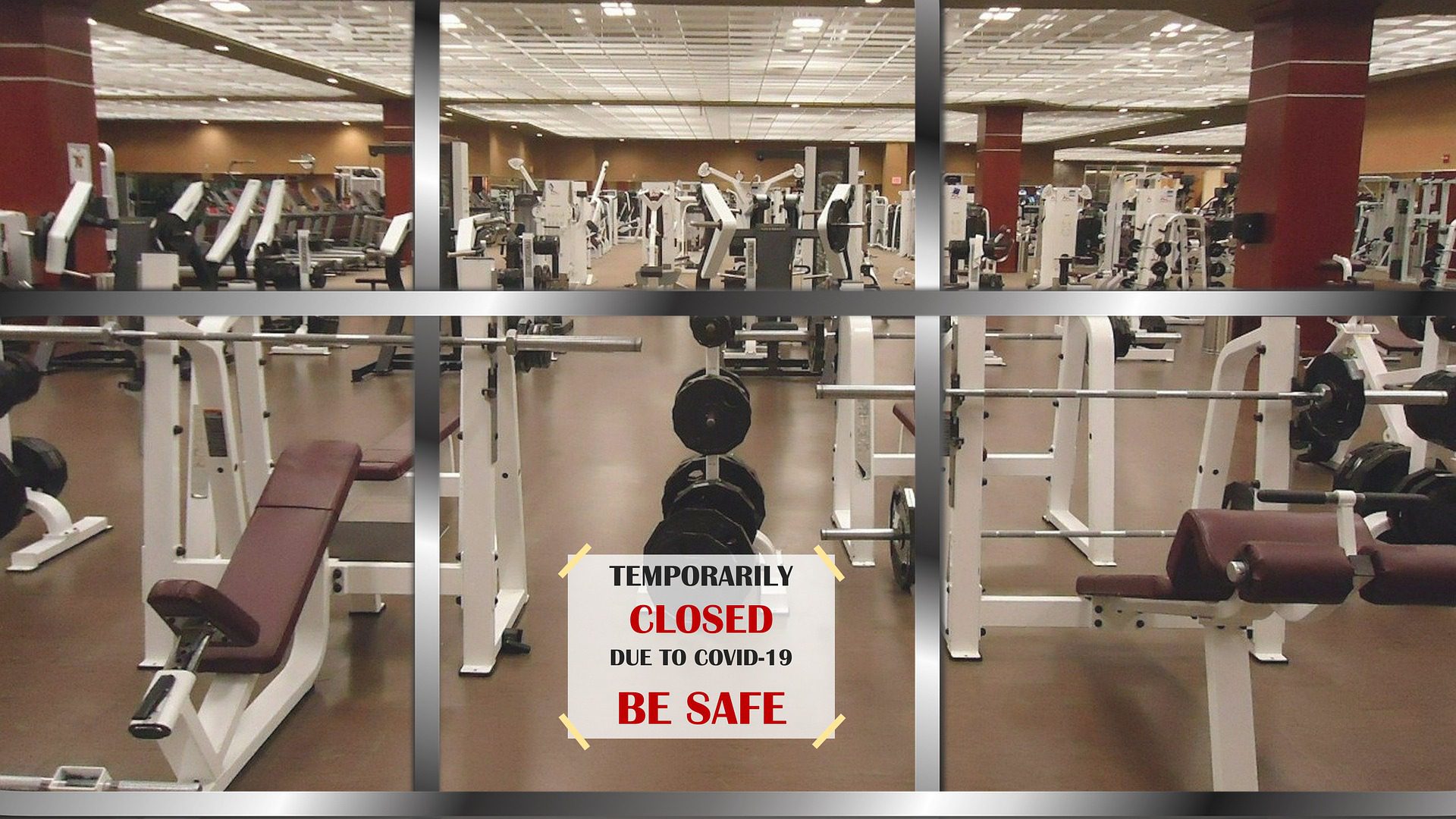
So we all thought that summer this year has been cancelled and that the ‘’New Year, new me’’ mantra is not working out in the time of COVID-19. If you’re sitting on your couch, playing video games or gorging yourself with snacks that you’ve generously supplied yourself, then, in the end, you will have done more damage to yourself than you would have by catching this virus. So take the first step and set up a home gym to get yourself off the couch and start being more active.
You may not feel the effects of this behaviour right now, but possibly in a few years. A sedentary lifestyle is not natural for us, and scientists say that we are still months away from finding a vaccine. When it comes to your physical wellbeing, the only remedy is to start acting now. Your muscles, joints, and overall wellbeing will improve and you’ll improve your immunity to various diseases.
Home gym for homemade muscle mass
Quarantine might inspire you to create your own home gym. In future, you’ll save money on a gym membership and you’ll feel more inspired to workout – there are no other people around to make you feel awkward or people who just came to take a selfie. There is also a psychological aspect – if you decided to spend your money on creating the ultimate home gym experience, you will probably feel guilty about not exercising.
Use the space you already have
Most of us have a spare room or space we simply don’t use as well as we could. So make use of it! You could even set up a gym in your garden. That means that it may be time for a serious remodel of your basement, attic, your garage or your spare bedroom. Of course, you could also make a space in your living room or your bedroom for your cardio equipment.
Equipment for cardio training is not always bulky and can often fit it to a corner you like. You can even set it up right in front of the television while watching an episode of your favourite show – you’ll burn off some serious of calories while watching tv. This also applies to your bedroom – a quick and intensive cardio training workout when you wake up will make you feel more energized for the rest of the day.
If you don’t like clutter, our recommendation is to dedicate one room to create your own fitness zone.
You are probably thinking about how many items of training equipment you will need, but the truth is – you don’t need that much.
There are loads of fitness programs promising you quick results and there is a ton of fake and gimmicky exercise equipment which you’ve probably seen on TV. The truth is – everything revolves around cardio training, which increases your durability, burns calories and keeps your muscles healthy.
You don’t have to break the bank – for a basic home gym setup, you will need a bench press, a kettlebell, a barbell, and a set of adjustable dumbbells. A squat rack is also a great investment for your fitness if you’ve got the extra money and space – it will help you significantly with building up your leg strength.
For cardio, you can buy a treadmill, stationary bike, elliptical machine, or even just a jump rope. Choose which one suits your energy and fitness style best and you’ll have your home gym complete.
Remember that you don’t have to buy new equipment, secondhand equipment works the same magic.
Stay safe and sound
Safety first, ladies and gentlemen. Make sure that you inspect your gym equipment before use and make sure that it is working properly and safely. Another great addition to a home gym is a large mirror in the area where you are doing weight lifting exercises. These enable you to practice the correct form, your reflection will be the best judge of that. A mirror shouldn’t be too expensive either because you don’t need a fancy Venetian style baroque mirror – just a large mirror that will see you both in the best and the worst shape.
When it comes to sound and additional safety – it would be great to soundproof your home gym. Load noises from weights can be both distracting and annoying to yourself while training and the other members of your home trying to get on with their daily activities. So soundproof doors and walls to keep yourself and others more focused.
Also, if you drop your weight it could cause damage to the floors and your neighbours will soon be complaining about the noise. So make sure that you protect your home gym floor by adding appropriate flooring. Gym floors made of rubber or foam will help keep you and your neighbours safe and sound.
Fitness is a lifestyle!
Why stop with a home gym? If you’re starting out making new and healthy choices, the next logical step is to do a quick makeover in your kitchen. If you go on eating junk food and sweets – you’re not going to see any progress.
Start preparing your own meals, buy as much fresh food as you can and have fun finding new and interesting ways of preparing healthier food.
When is the better time to experiment than now? It will also have a positive impact on your family. When you are all quarantined together, they’ll be compelled to share your healthy lifestyle, no running away.
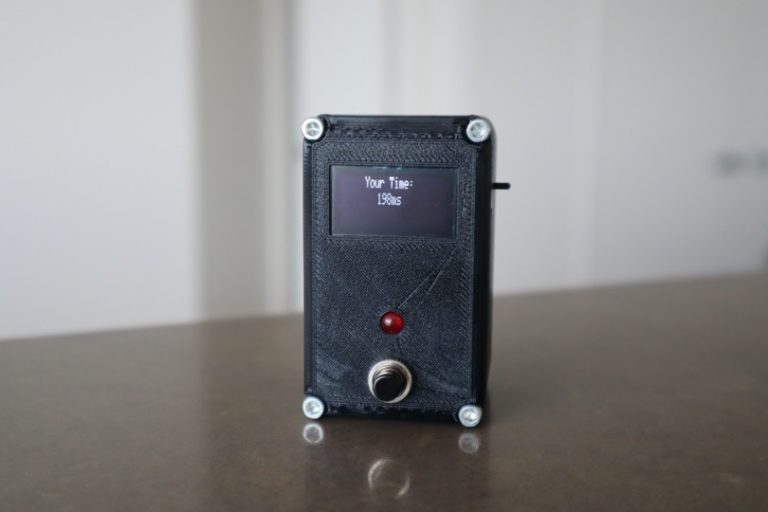
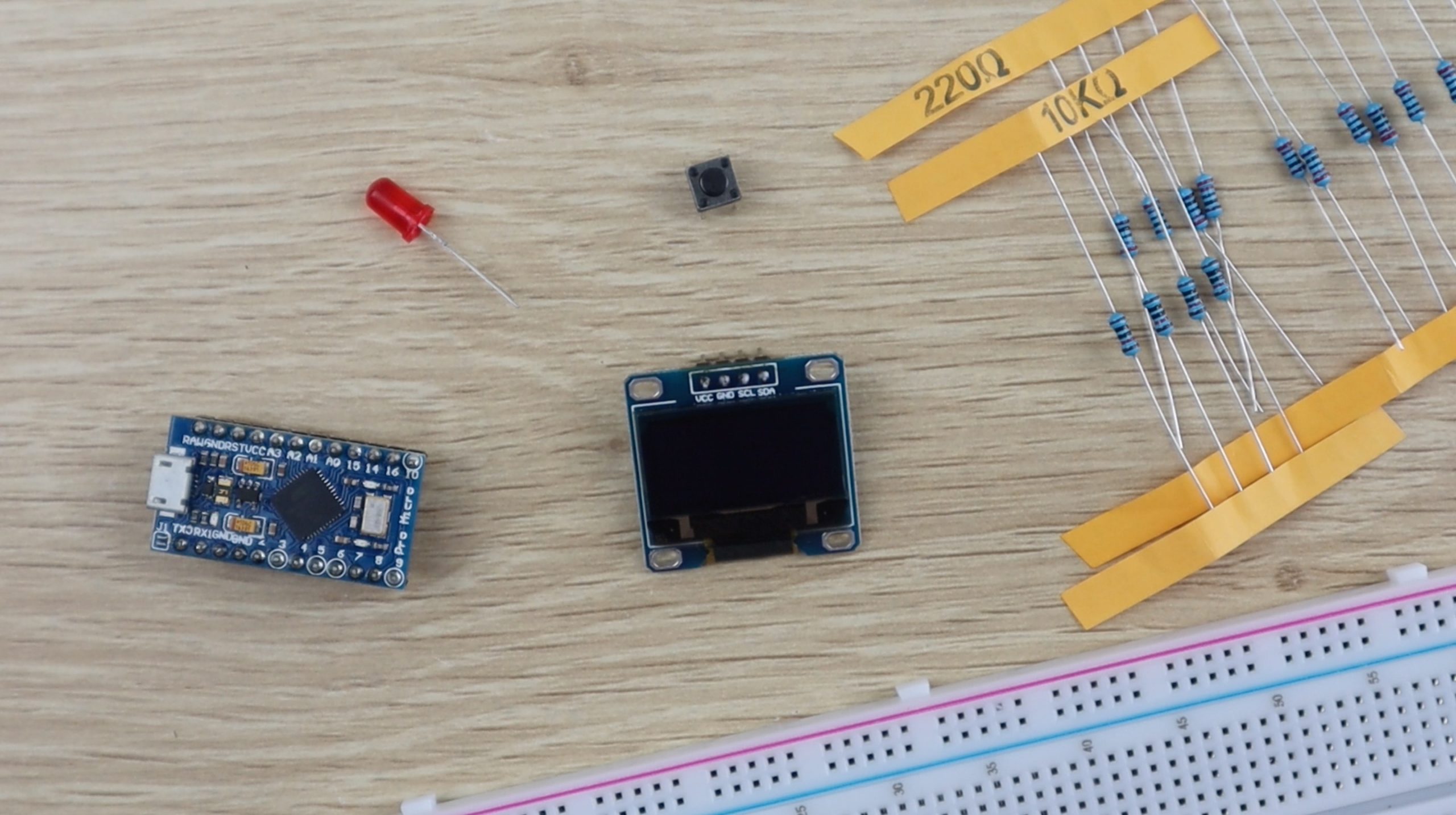
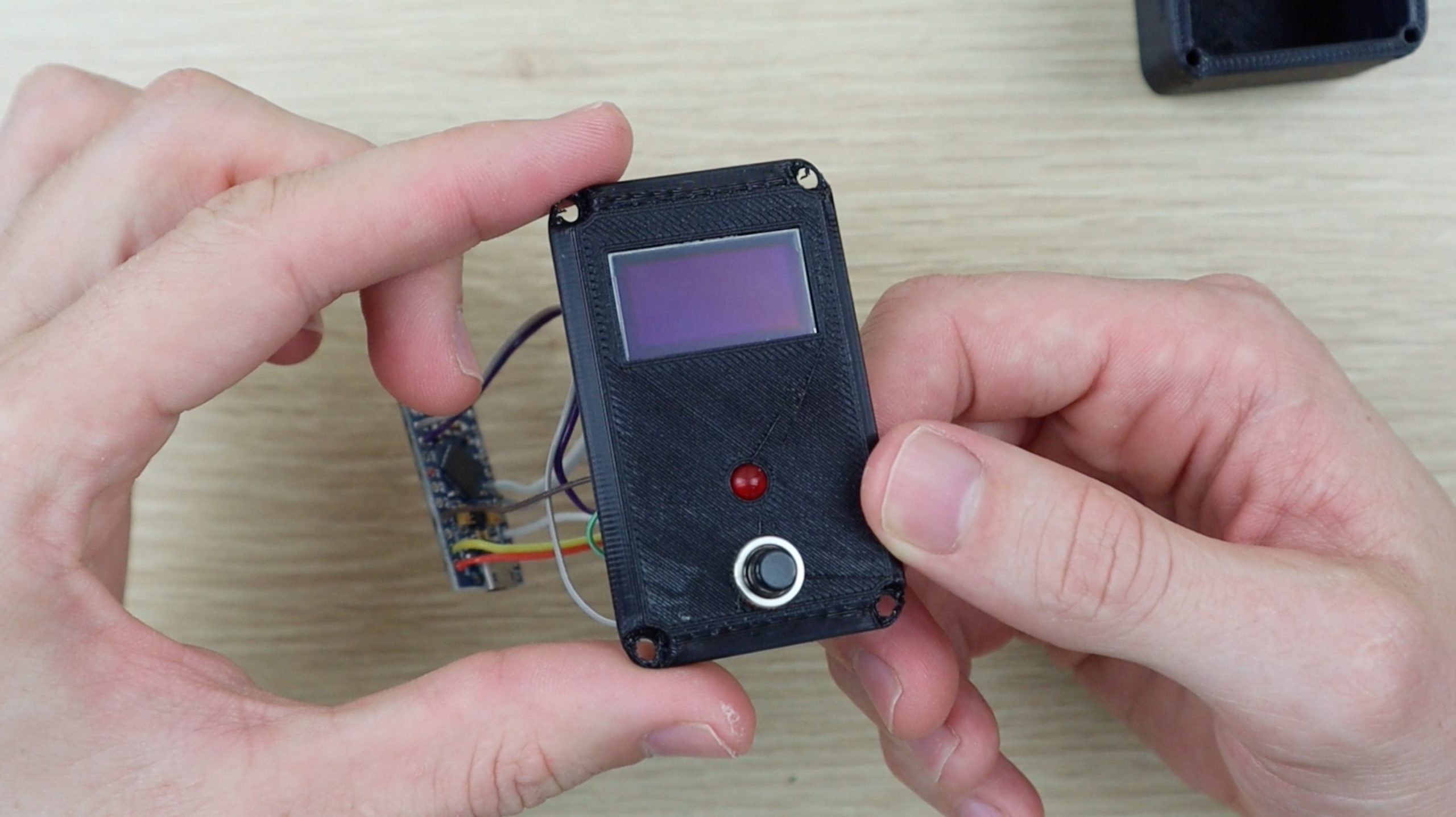
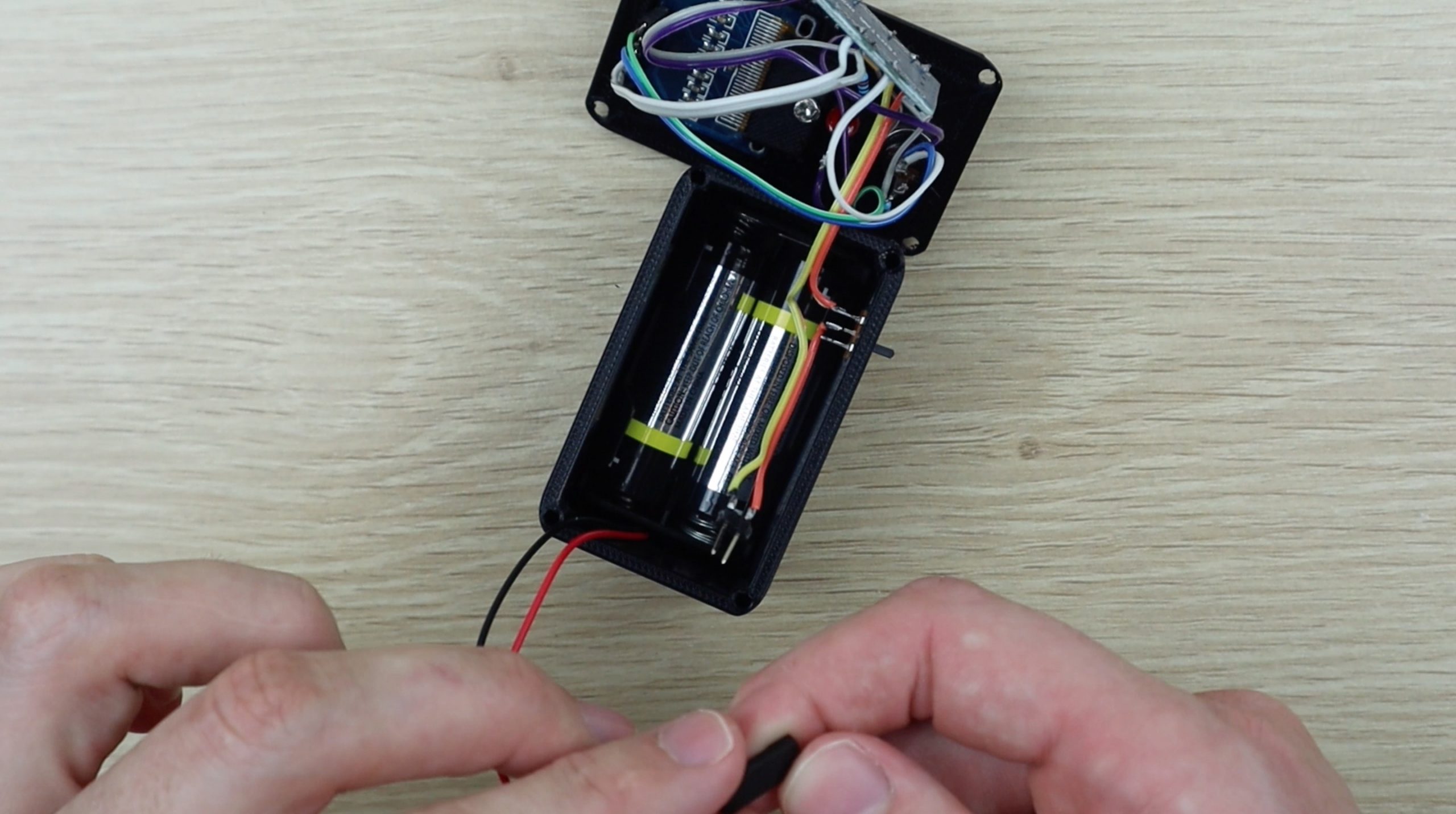
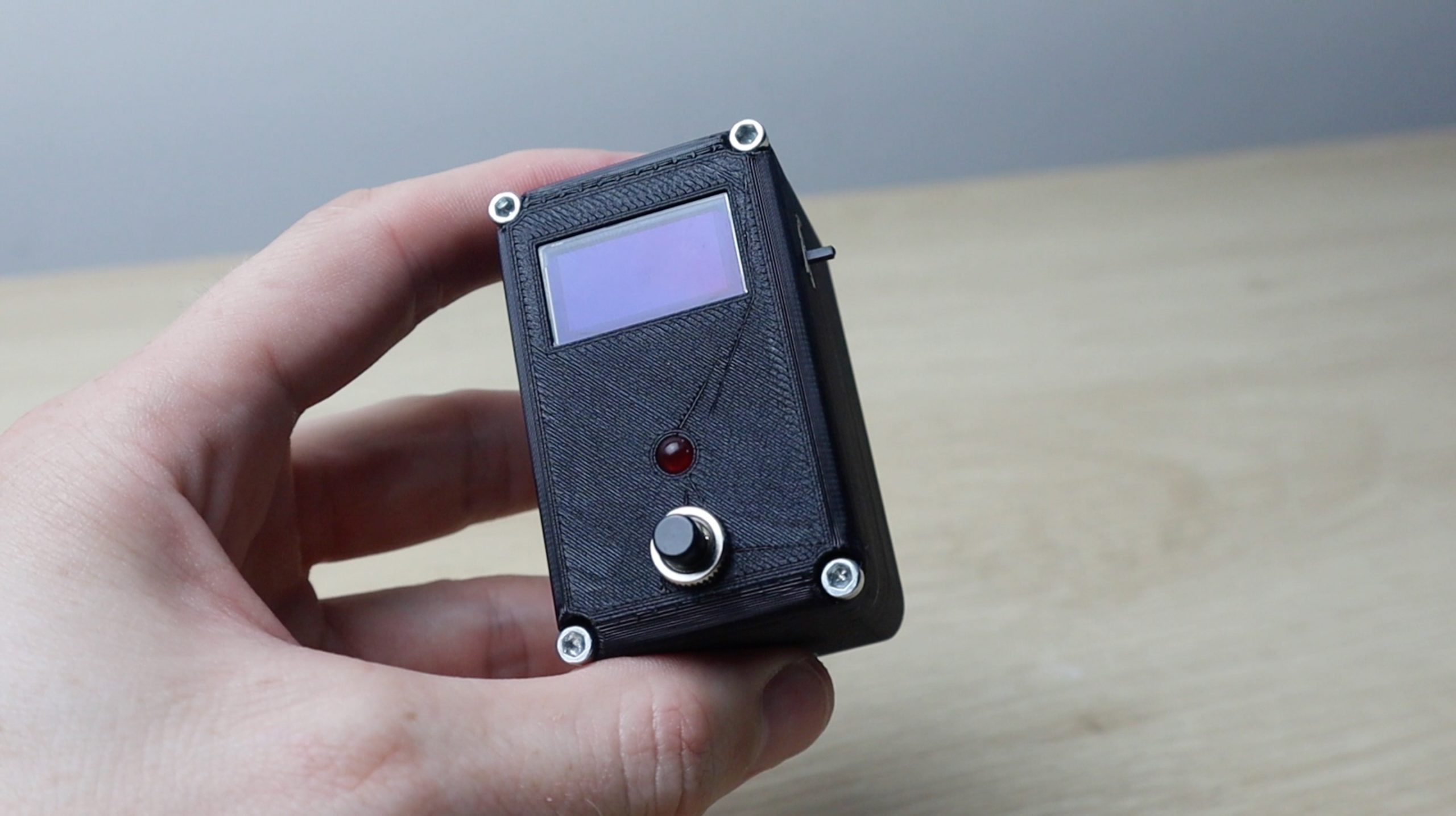
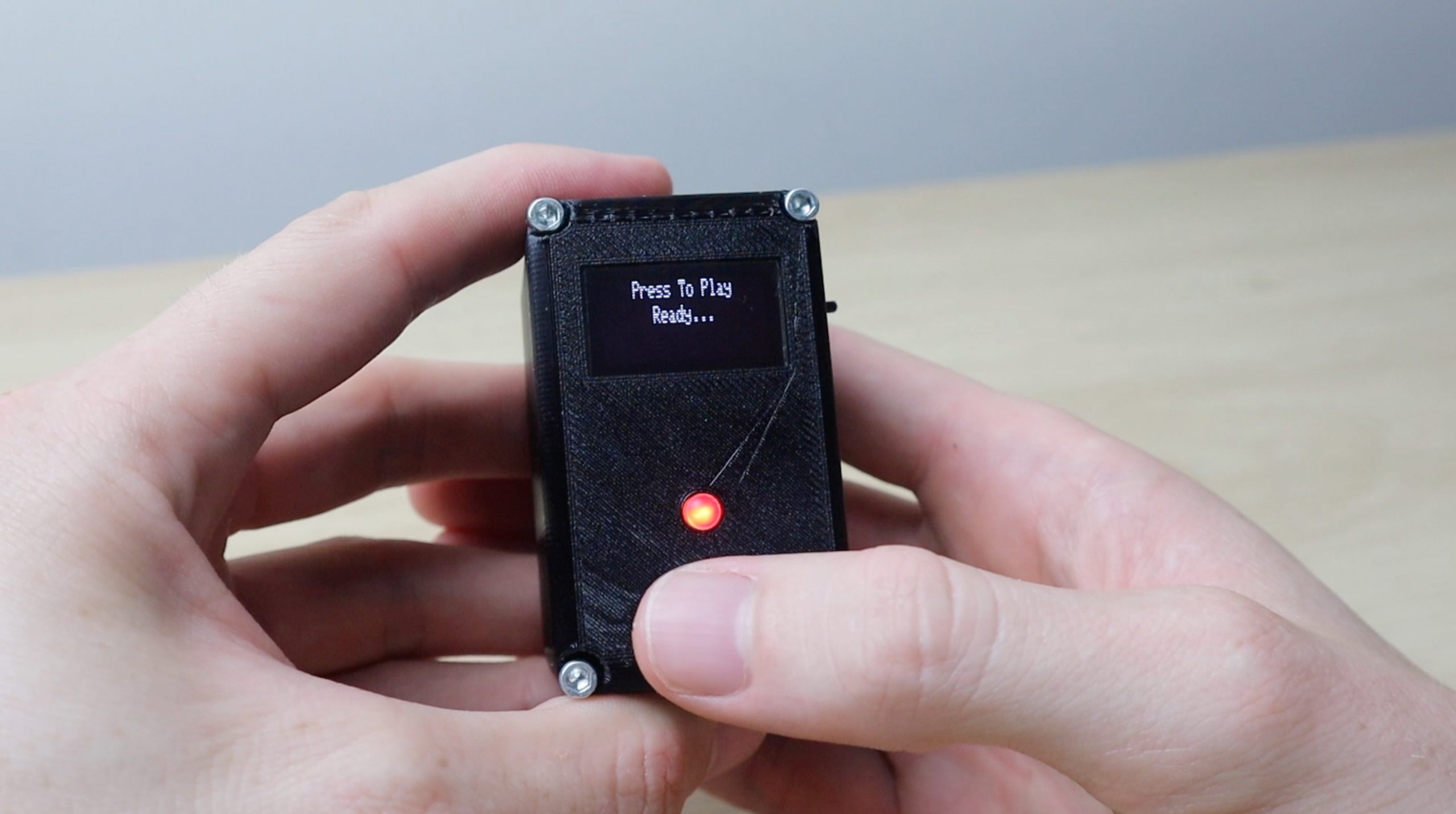
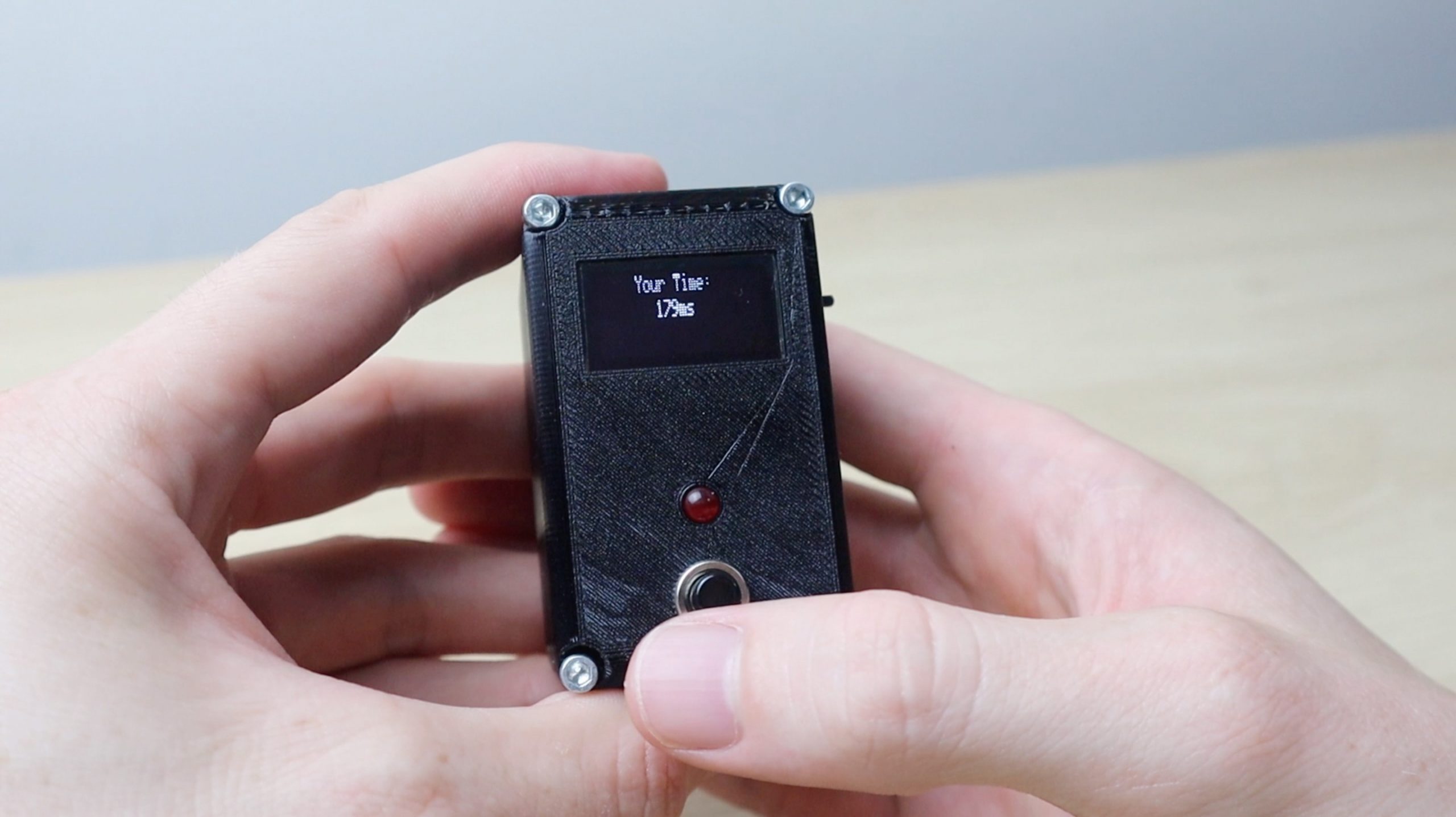
Have you ever wanted to test your reaction time or see which one of your friends has the fastest reaction time? In this project, I’ll be showing you how to build an Arduino based reaction timer. The timer lights up a red LED and then measures how long it takes you to respond to the light by pushing a button. The initial time it takes to turn the LED on is randomised to eliminate guessing and the timer disregards the input if you hold the button down before the LED comes on to stop cheating.
It’s powered by 2 AA batteries and is completely portable, making it a great coffee table or desktop toy to play around with when you’re bored or to challenge your friends and family with.
This project assumes you know the basics of Arduino programming, otherwise read our guide on getting started with Arduino.

Here’s a video of the assembly and the reaction timer being used. Read on for the full step by step instructions, code and 3D print files.
You’ll also need to 3D print some plastic components for the housing. If you don’t already have a 3D printer and you enjoy making things, I recommend you have a look at getting one. They’ve come down in price a lot and you can get one which produces good quality results for a few hundred dollars. If you’re not ready for one then make use of an online 3D printing service, there are loads of them available and they’ll print and deliver the components to your door. This is the printer and filament I used:
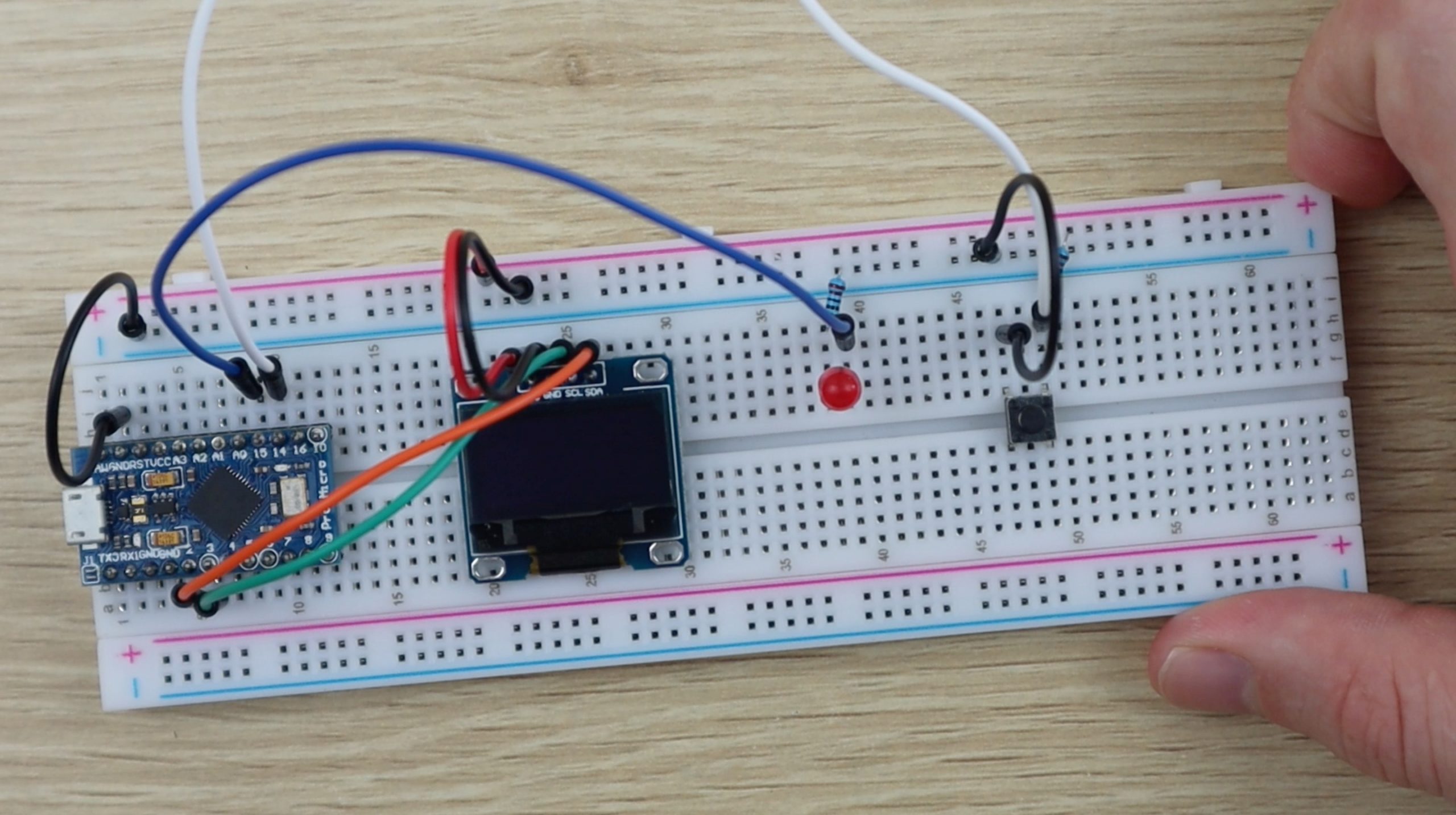
You can assemble the timer on a breadboard using jumpers just for fun or 3D print the enclosure to make it into a more permanent handheld game. I started out on a breadboard to test the circuits and code before assembling them.
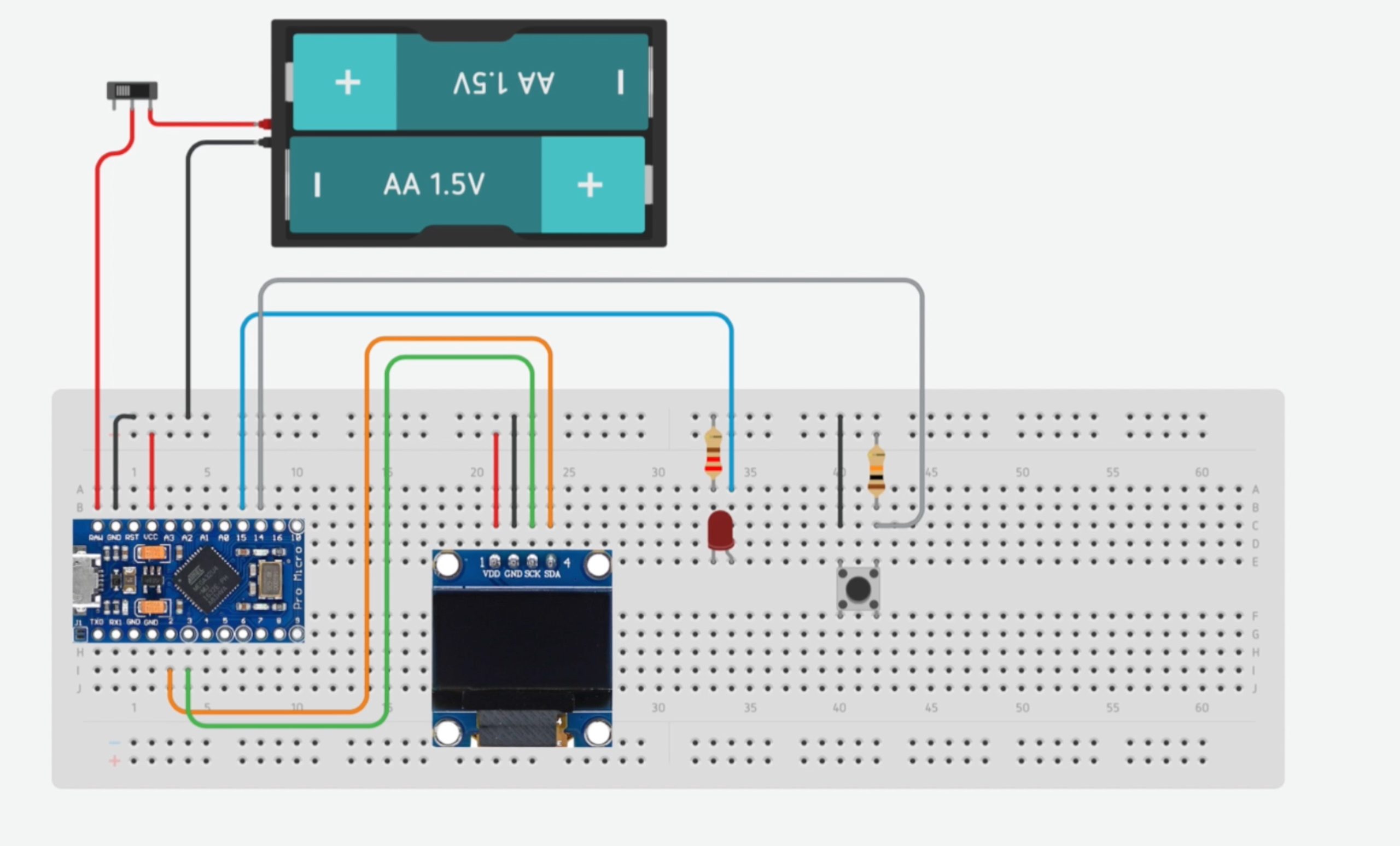
Here’s the circuit diagram.
If you’re just assembling the components on a breadboard for fun then you won’t need the batteries, the power supplied through the USB connection to your Arduino Pro Micro is sufficient to power the components.
If you’re using a different Arduino board, make sure that the I2C interface to the display is connected to the correct pins. On the Pro Micro, these are pins 2 and 3, but on an Uno they are pins A4 and A5.
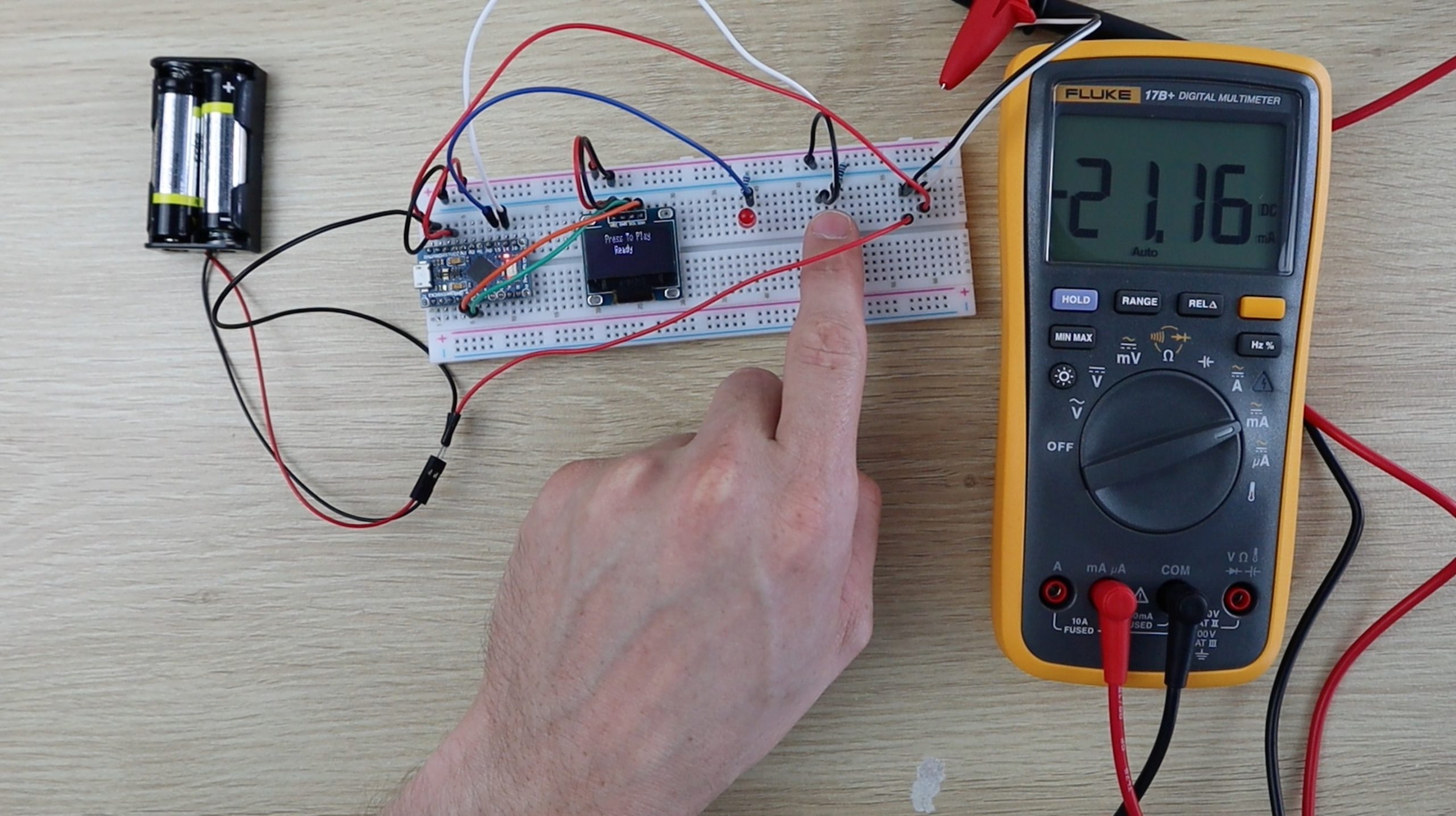
I also wanted to see if the reaction timer could be powered by batteries and how long they would last. I hooked up two AA batteries to supply 3V to the timer and measured the current being drawn.
The current fluctuates slightly based on how much text is displayed and it spikes to around 25 milliamps when the LED is on. AA batteries vary quite a lot but by my estimation you should get around 70 to 100 hours of on time from a fresh set of alkaline batteries.
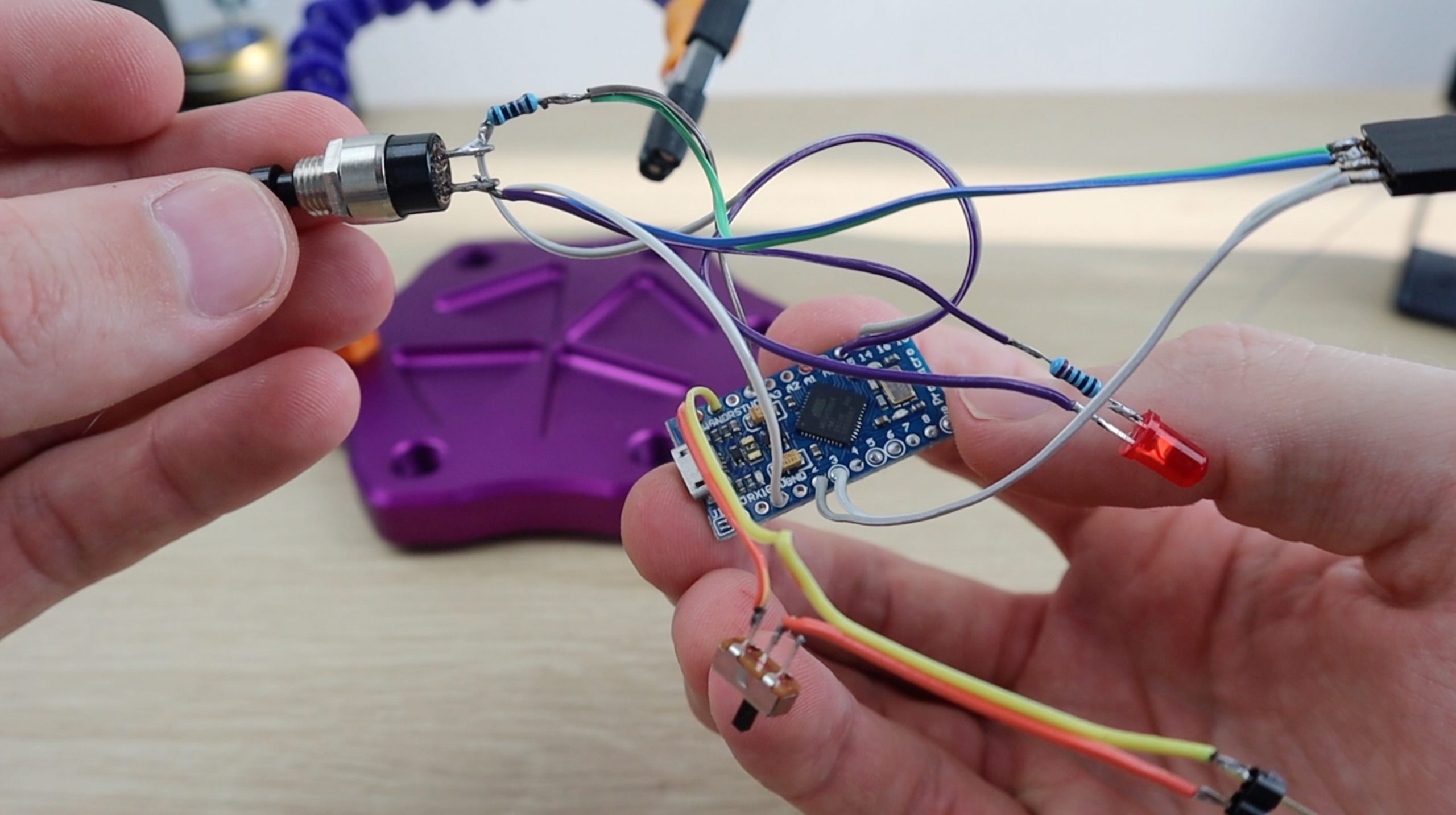
To make the permanent handheld game, I soldered the components together using ribbon cable and some pin headers for the battery and display connections. You can solder these connections as well as they don’t need to be disconnected.
Programming The Arduino
Once you’ve got the circuit assembled, you can load the sketch onto your Arduino and test it.
Lets have a look at the sketch:
//The DIY Life
//Michael Klements
//19 April 2020
#include <SPI.h> //Include the libraries for the display
#include <Wire.h>
#include <Adafruit_GFX.h>
#include <Adafruit_SSD1306.h>
#define SCREEN_WIDTH 128 //OLED display width, in pixels
#define SCREEN_HEIGHT 32 //OLED display height, in pixels
Adafruit_SSD1306 display(SCREEN_WIDTH, SCREEN_HEIGHT, &Wire, -1); //Create the display object
int pinButton = 14; //Define the pins for the Button & LED
int pinLED = 15;
int startTime = 0; //Define variables for the start and end time
int endTime = 0;
void setup()
{
pinMode (pinLED, OUTPUT); //Assign the LED & button pins
pinMode (pinButton, INPUT);
if(!display.begin(SSD1306_SWITCHCAPVCC, 0x3C)) //Start communication with display, address 0x3C for 128x32
{
for(;;); //Don't proceed, loop forever if display communication fails
}
}
void loop()
{
display.clearDisplay();
display.setTextSize(1); //Set the display text size
display.setTextColor(SSD1306_WHITE); //Draw white text
display.setCursor(25,0); //Start at top-left corner, 25 pixels in
display.println(F("Press To Play")); //Display text on screen
display.display(); //Update display
if (digitalRead(pinButton) == LOW) //If button to start game is pressed
{
display.setCursor(40,10); //Display "Ready" countdown with 3 sequential dots
display.print(F("Ready"));
display.display();
delay(1000);
display.print(F("."));
display.display();
delay(1000);
display.print(F("."));
display.display();
delay(1000);
display.print(F("."));
display.display();
int delayTime = random(2000,7000); //Wait a random amount of time between 2s and 7s so that users can't guess the start time
delay(delayTime); //Delay the random amount of time
digitalWrite(pinLED, HIGH); //Light up the LED
startTime = millis(); //Record the start time
while (digitalRead(pinButton) == HIGH) //Wait for the user to push the button
{
}
endTime = millis(); //Record the button push time
digitalWrite(pinLED, LOW); //Turn off the LED
int totalTime = endTime - startTime; //Calculate the total response time
display.clearDisplay(); //Display the results
if (totalTime <= 20) //Check for cheating by holding the button down
{
display.setCursor(20,0);
display.println(F("Don't Hold The"));
display.setCursor(20,10);
display.print(F("Button Down"));
}
else //Display the results
{
display.setCursor(30,0);
display.println(F("Your Time:"));
display.setCursor(45,10);
display.print(totalTime);
display.print(F("ms"));
}
display.display();
delay(5000); //Wait 5 seconds on results before restarting
}
delay(100);
}
We start by importing the libraries required for the OLED display, you’ll need to install the adafruit_SSD1306.h and adafruit_GFX.h libraries. These can also be installed directly from your library manager in the Arduino IDE.
We then define the display’s width and height in pixels and create the display object. Then define the pins for the push button and LED and create variables to record the start and end time to measure the reaction duration.
In the setup function we define the pin modes for the LED and button and then start the display. If there’s a problem with communicating with the display, the program won’t continue into the loop function.
In the loop function we clear the display, then set the font size and colour before displaying the text “Press to Play”.
If the button is pressed, we start the reaction timer routine. A countdown is started in the form of displaying “Ready” and three dots/periods in one second increments. After the last dot is displayed, we generate a random delay between 2 seconds and 7 seconds. This is to eliminate the possibility of the user learning the timing in the routine and trying to time their press to guess at when the LED is going to light up.
We wait this period of time, turn the LED on, record the start time and wait for the user to push the button. Once the button is pushed we record the end time, turn the LED off and then calculate the total reaction time.
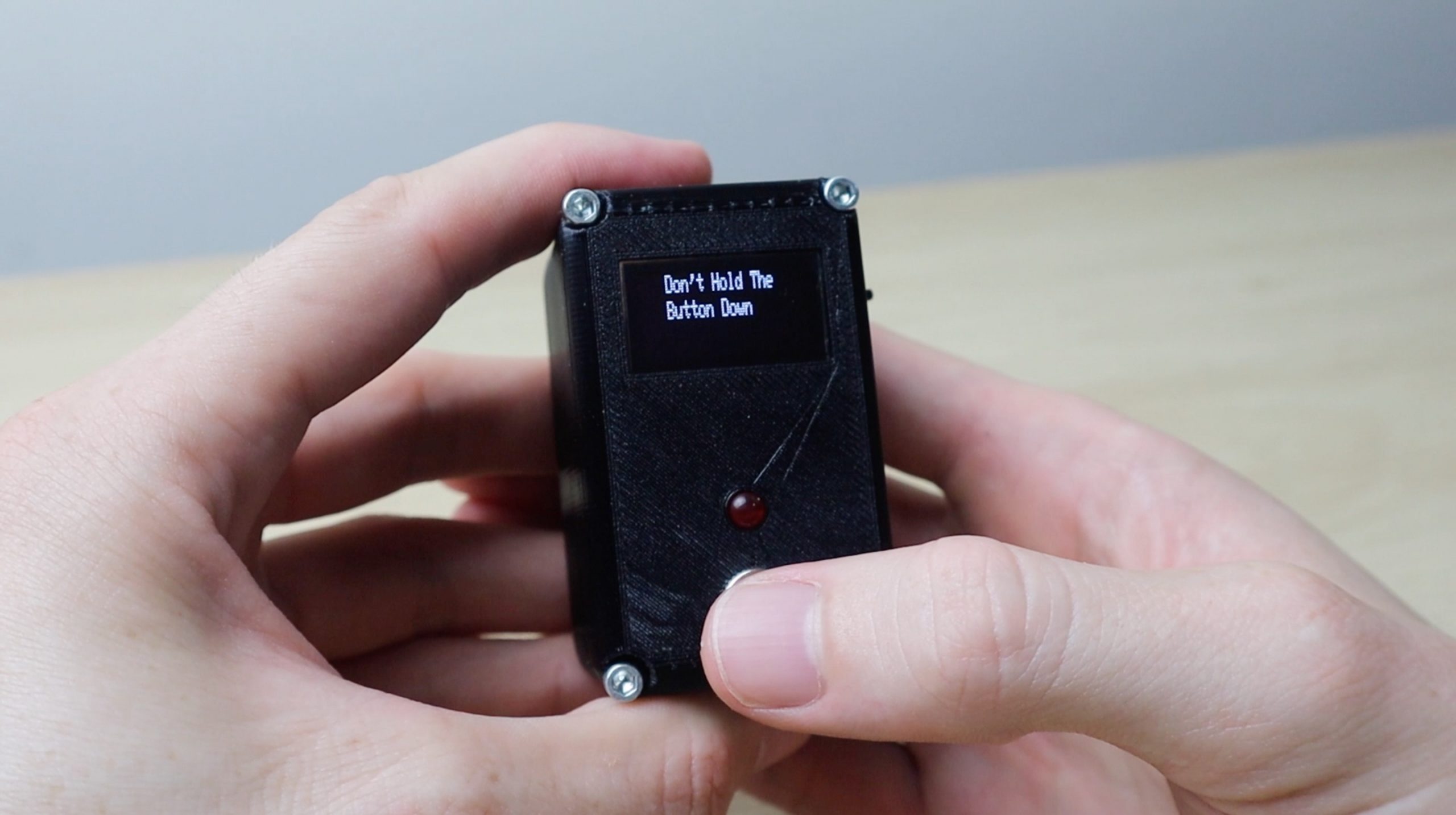
I’ve included a section to disregard the input if the response time was less than 20 milliseconds. After doing a bit of research online, it seems like most people’s response time is about 200 milliseconds, with professional athletes and gamers able to reduce this to around 120 milliseconds. In fact the IAAF defines a false start as an athlete responding to the gun in under 100 milliseconds. So 20 is well under this threshold and is mainly in place to make sure that the button is initially released and not just held down the whole time.
If the reaction time was considered to be valid, then it is displayed on the screen for 5 seconds before the code returns to the initial screen.
Now upload the code and try it out.
Assemble The Components Into The Housing
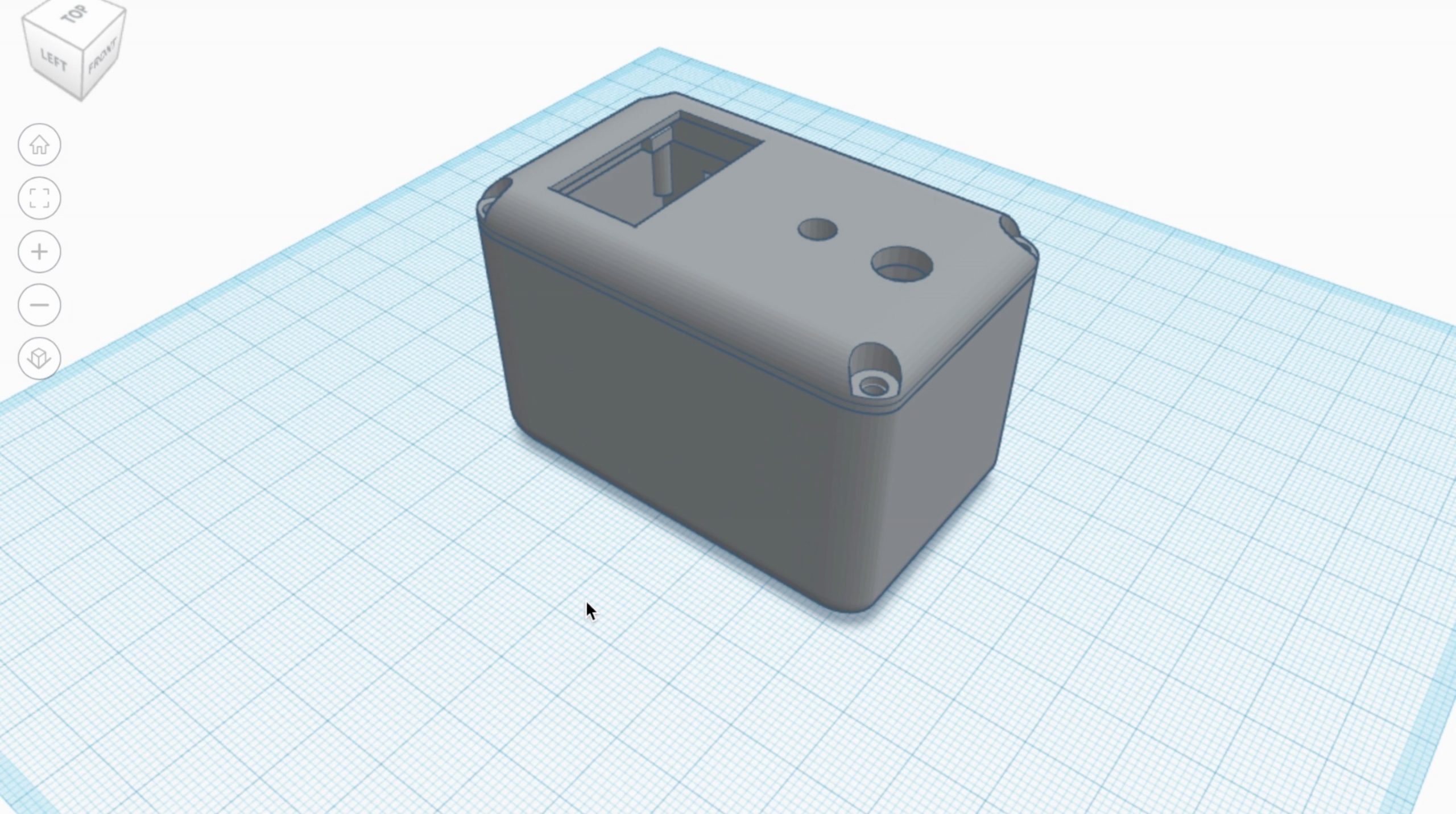
I measured up the components and designed a small 3D printable housing for them.
The housing has cutouts for the display, LED and push button on the top and a slot for the power switch on the side. To replace the batteries, you’ll need to remove the front cover, but you shouldn’t have to do this very often.
Download the Reaction Timer 3D print files – 3D Print Files
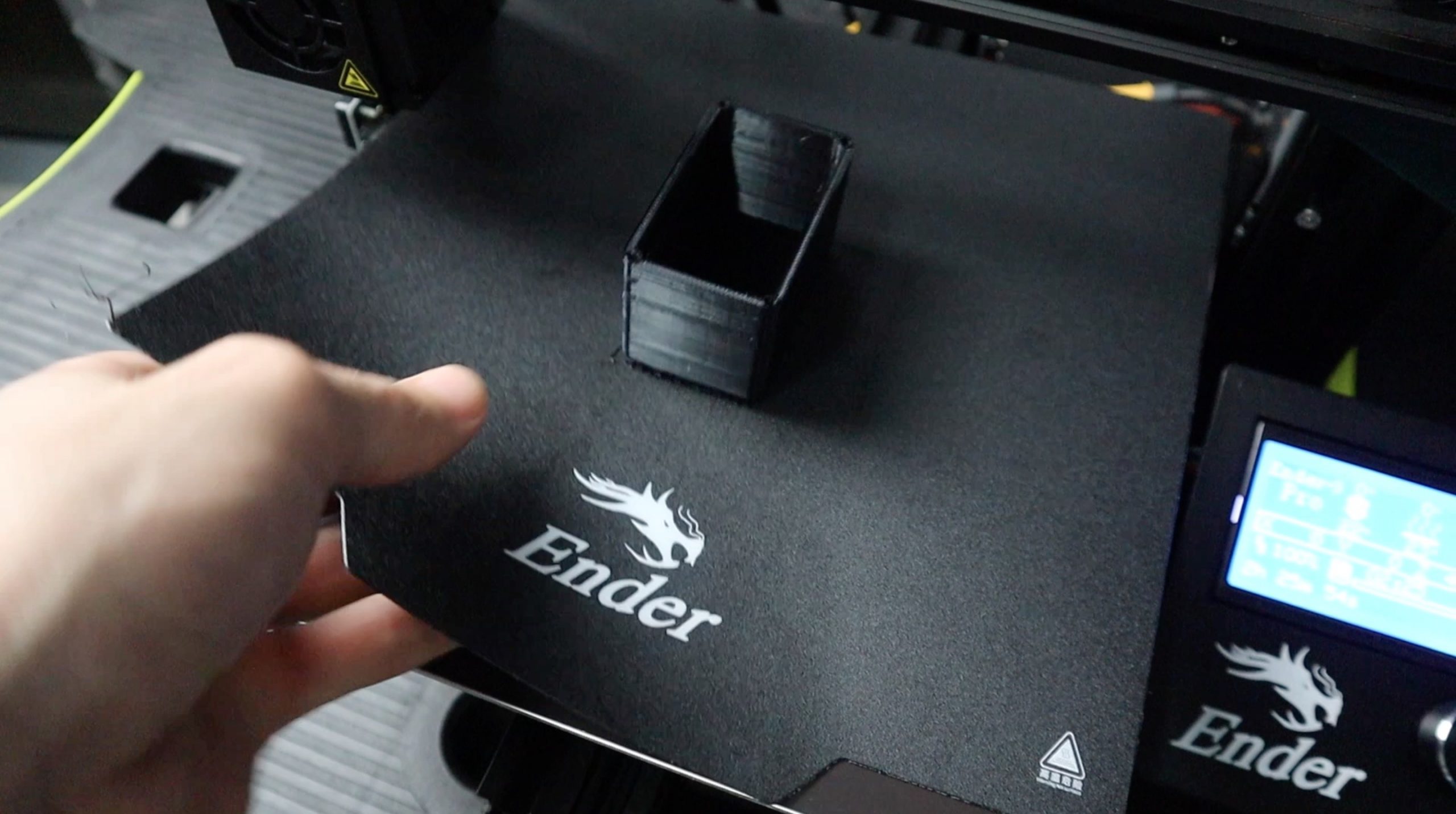
I printed the components using black PLA at 210°C with a 15% infill. The wall thickness is set to 1.2mm and the print speed was 25mm/s.
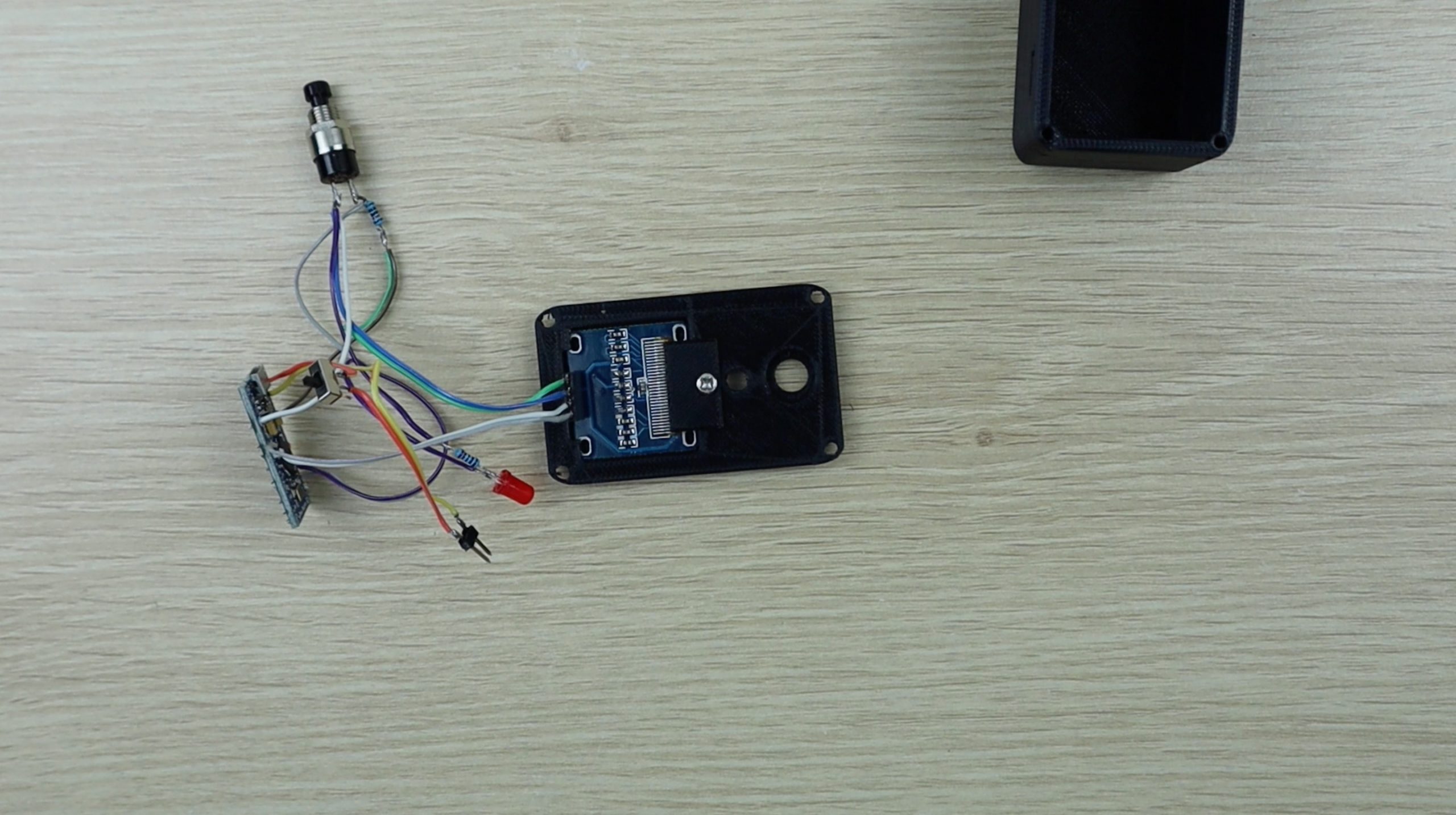
The OLED display is held in place with clips along the top edge and using the plastic clamp and an M3 x 6mm screw on the bottom edge.
The LED just presses into place and the push button is held in place using the ring nut which is supplied with it.
Push the power switch through the side of the housing, it can be held in place with a drop of super glue if it is loose. Next, slide the battery holder into the bottom of the housing and then connect the power cable, making sure that you get the polarity correct.

It’s also a good idea to use heat shrink tubing around your exposed connections or cover them up with a bit of insulation tape. You don’t want any terminals or leads shorting out once you’ve placed the into the housing together.
Attach the front cover and secure it with 4 – M3 x 12mm cap screws. I’ve used 12mm screws so that I didn’t have to use threaded brass inserts in the housing. The 12mm length on the screws is enough to get a good grip on the housing without pulling through the plastic, just don’t over tighten them.
Using Your Arduino Based Reaction Timer
Once the screws are secure, slide the switch on the side to turn on your reaction timer and try it out. Press the button once to start the game and then wait for the red LED to light up.
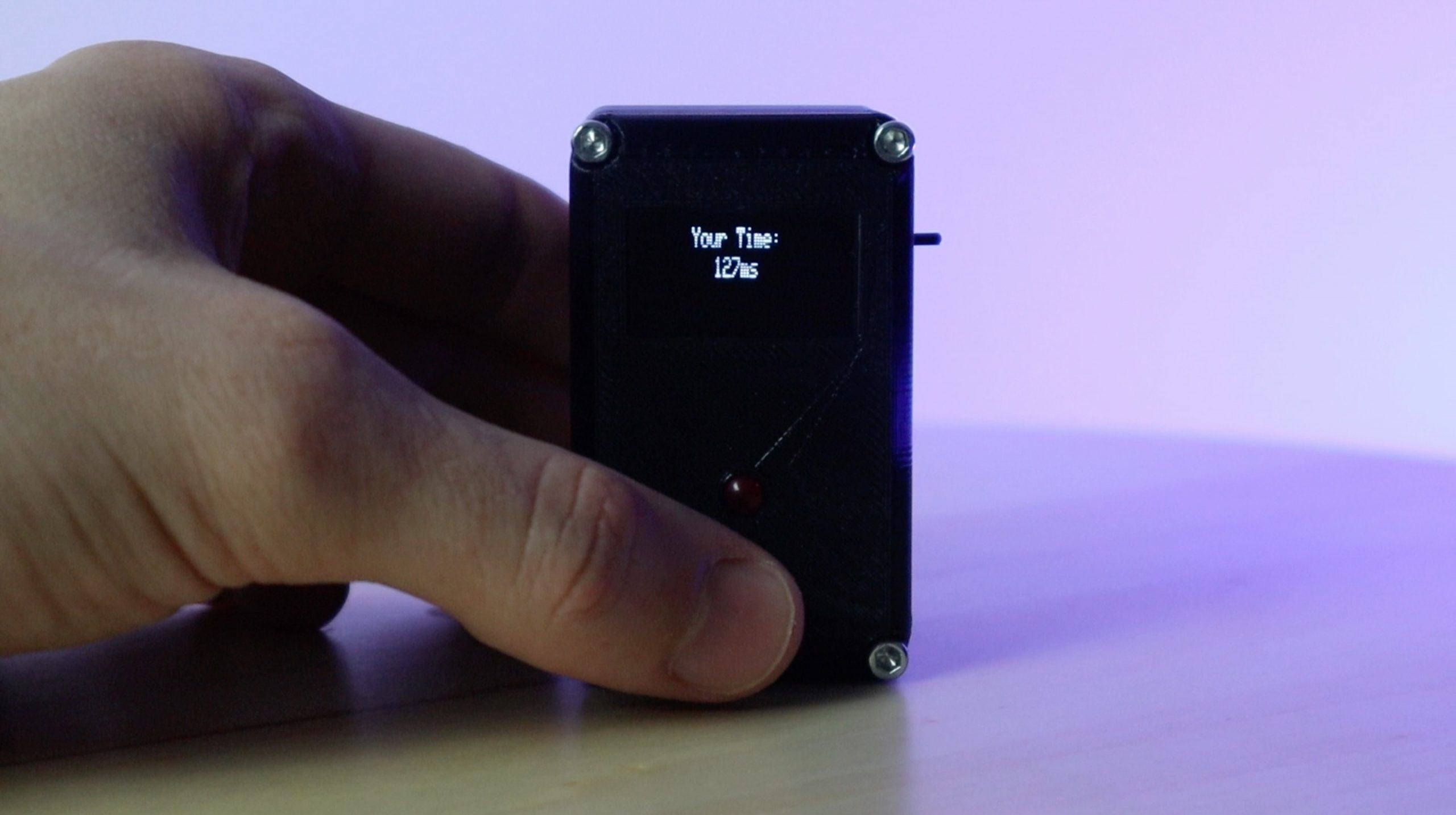
Once the LED lights up, push the button again as quickly as possible. Your reaction time will then be calculated and displayed on the screen. Typical reaction times are between 200 and 250 milliseconds, you’re doing well if you can get under 200. Some professional athletes and gamers are able to get as low as 120 milliseconds.
Don’t just press and hold the button. The game detects this and will discard your results.
Have fun improving your reaction time by trying to beat your personal best and challenging your family and friends. Let me know what your best reaction time is in the comments section.
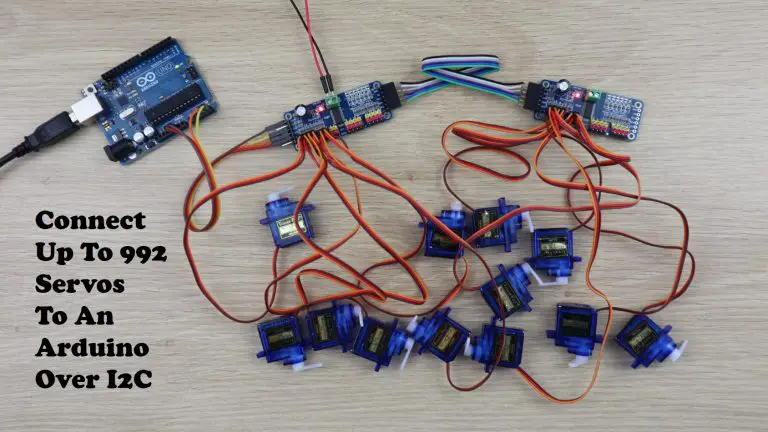
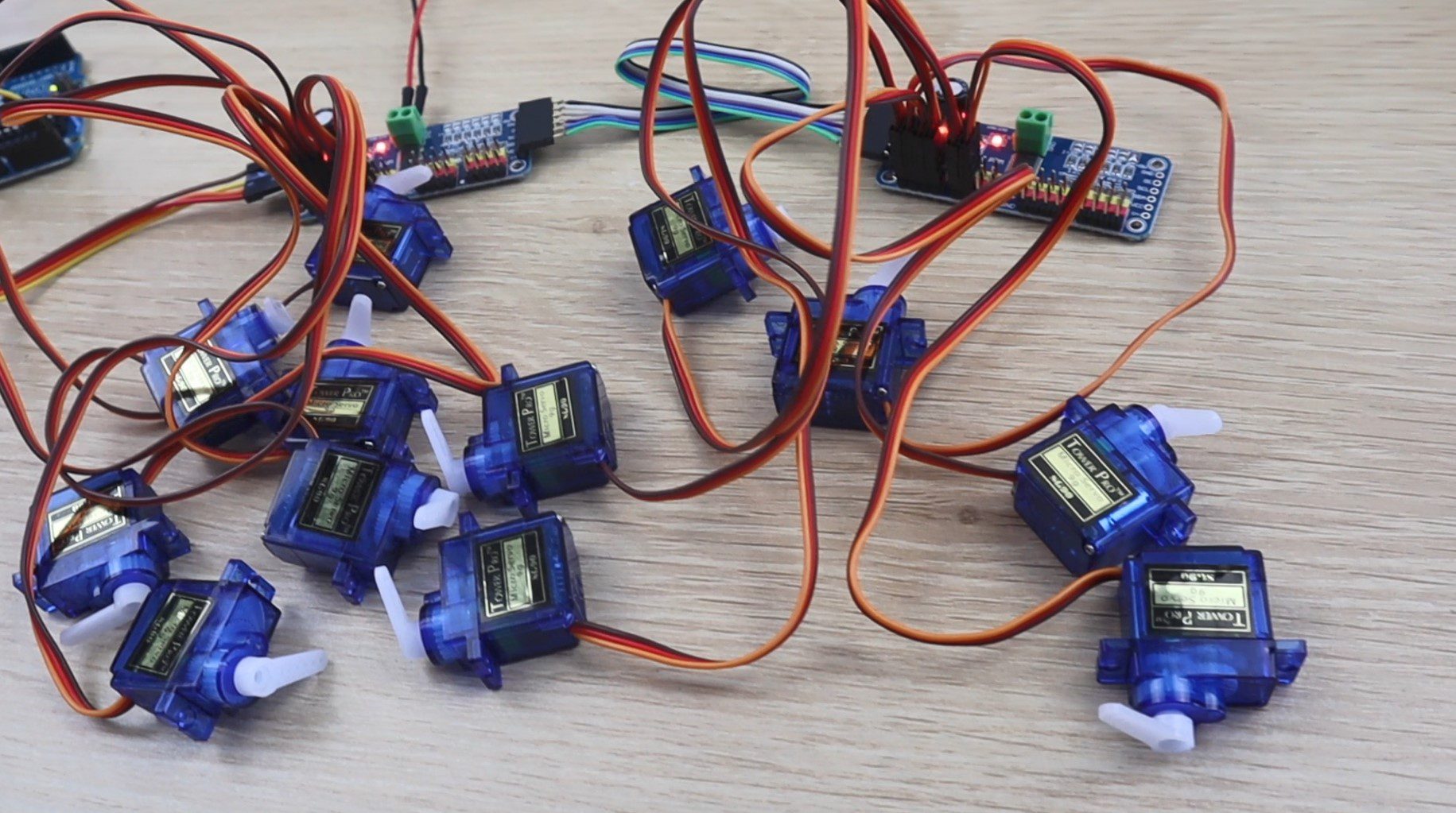
I built a countdown timer a couple of months ago using a two digit mechanical 7 segment display which was driven by 14 servos and an Arduino Mega. It came out quite well and a number of people suggested doubling up on the display to build a clock. The only problem was that the Arduino was already running short on PWM IO and I needed to double up on the outputs. Fortunately, someone pointed me in the direction of these PCA9685 16 channel PWM drivers, so I used them and a DS1302 real time clock module to build a mechanical 7 segment display clock which uses 28 servos and is now driven using an Arduino Uno.
Here’s a video of the build and the clock in operation, else read on for the full step by step instructions, code and 3D print downloads.
What You Need To Build Your Own Mechanical 7 Segment Display Clock
You’ll also need to 3D print some components. If you don’t have a 3D printer and you enjoy making things, you should definitely consider getting one. The one below is affordable and produces pretty high quality prints for the price. If you don’t want to get a 3D printer yet, there are a couple of online services which will print components for you and ship them to you.
I started off by designing an individual 7 segment display numeral which could be actuated using a micro servo for each segment. The micro servos move each segment vertically when on and 90 degrees to the side when off.
The segments are designed to glue straight onto the standard servo arm so that no additional hardware is required.
You’ll need to 3D print the 28 segments using a translucent green PLA with 15% infill. You’ll also need to print out the 28 base blocks to support the servos as well as the two dots for the centre and their bases. You could use any brightly coloured PLA for the segments, red would create a more traditional looking 7 segment display. Use black PLA for the spacer blocks and bases so that they’re not visible on the black background.
Solder The Wiring Harnesses
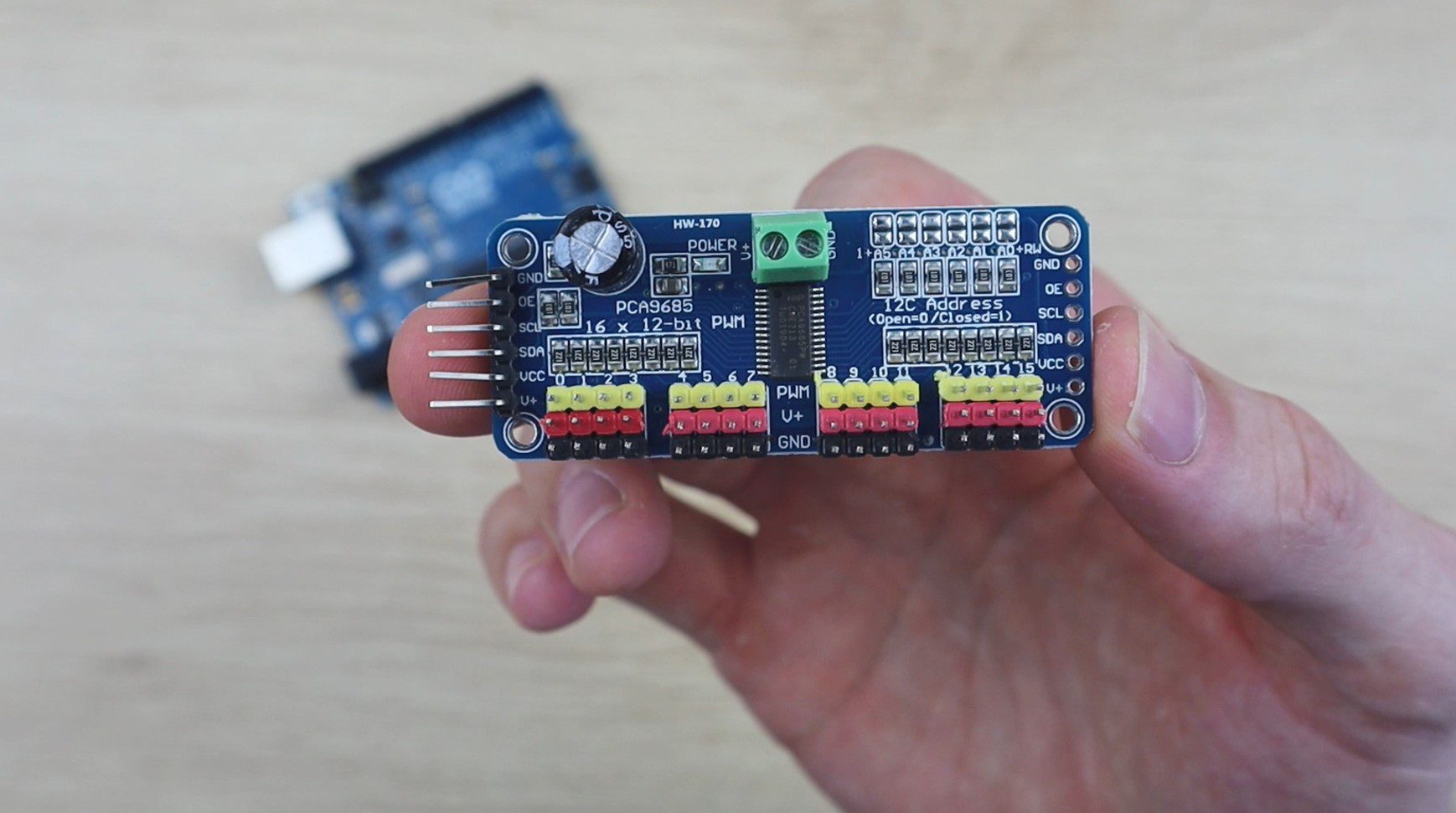
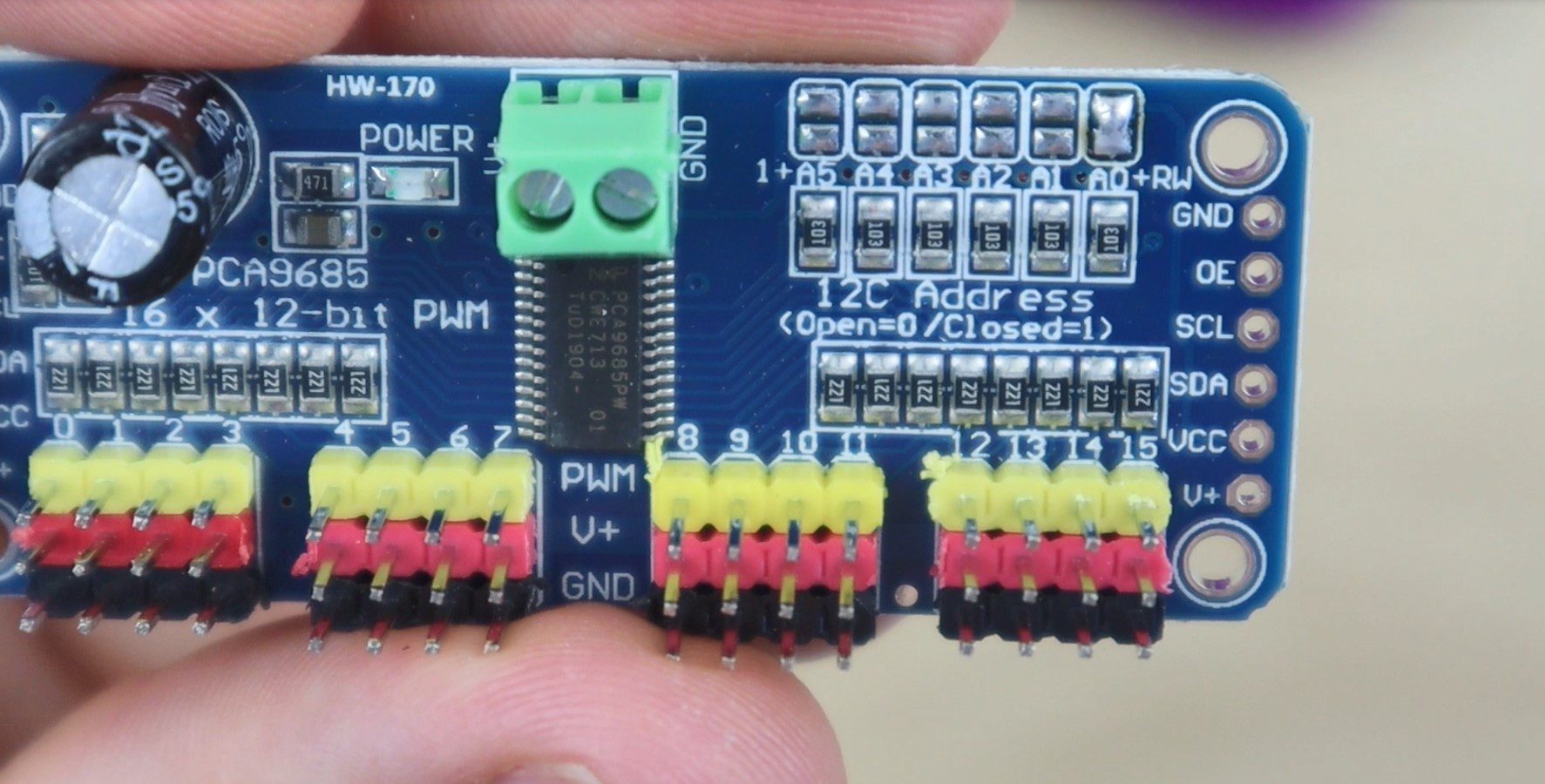
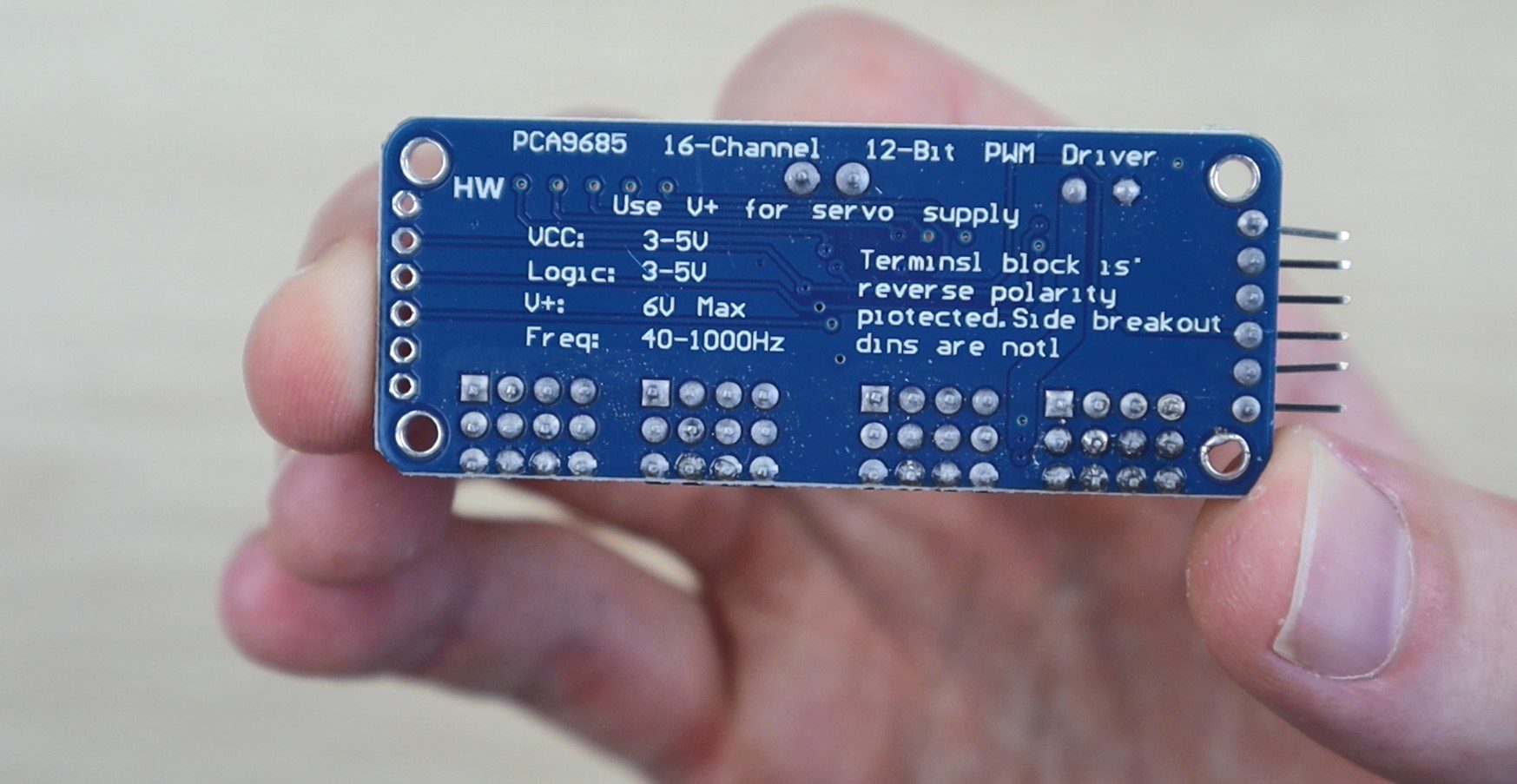
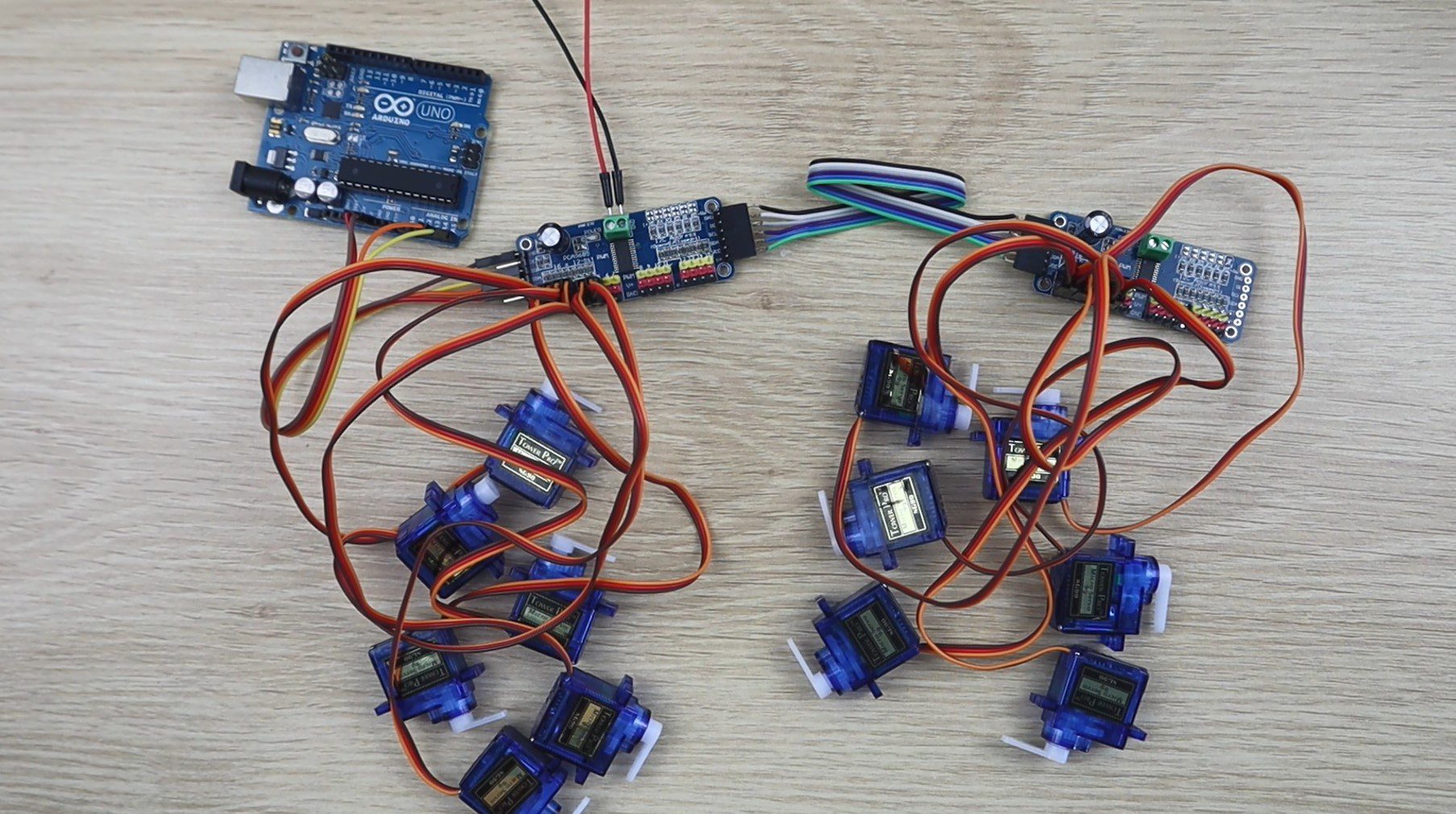
I used two PCA9685 16 channel PWM drivers which allow you to control up to 16 servos on each board and chain up to 62 boards together over an I2C interface, which uses only two IO pins on your Arduino. This means that you could theoretically independently control up to 992 servos with just two IO pins. We’re going to be using one for the two hour digits and one for the two minute digits.
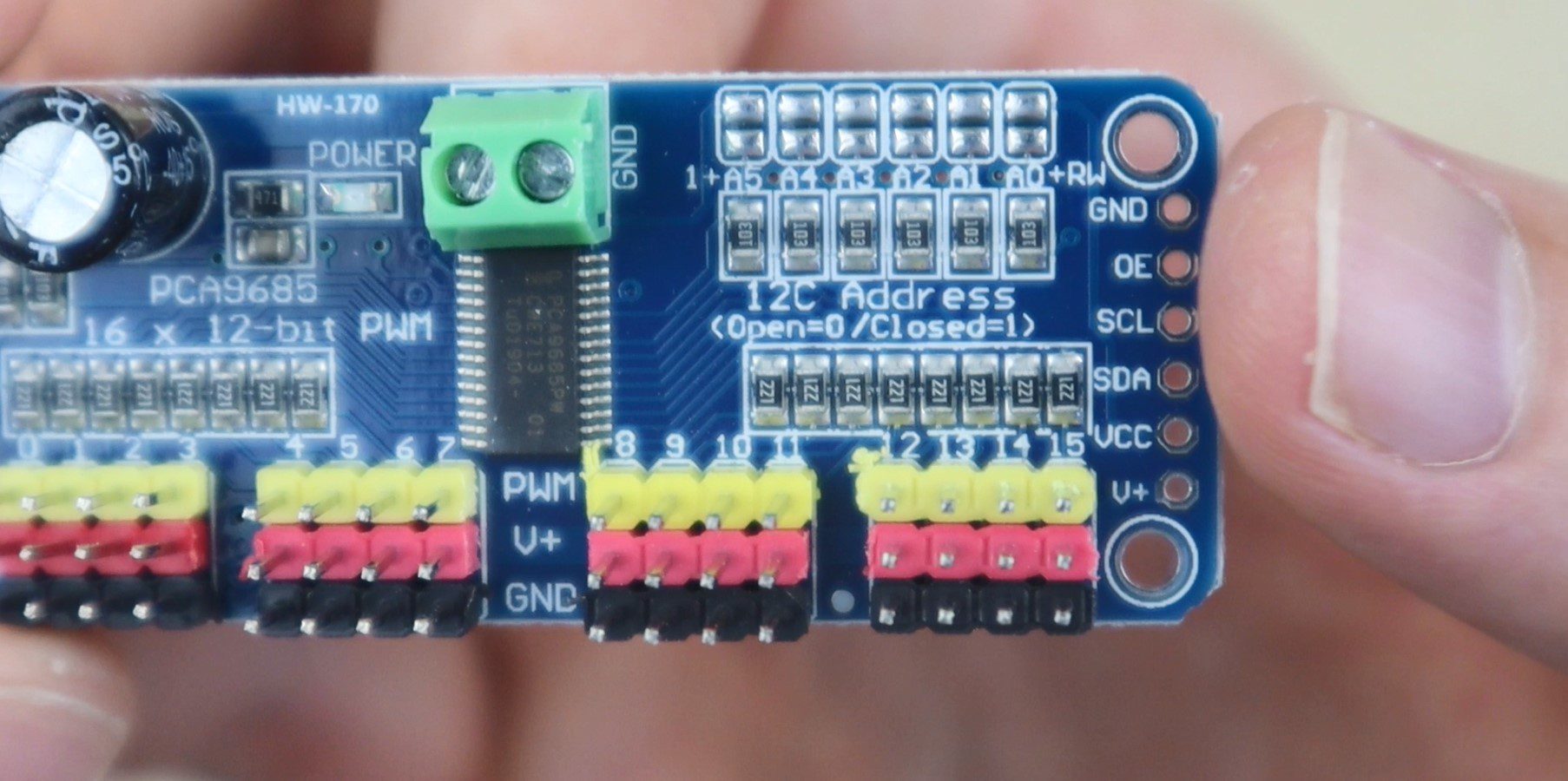
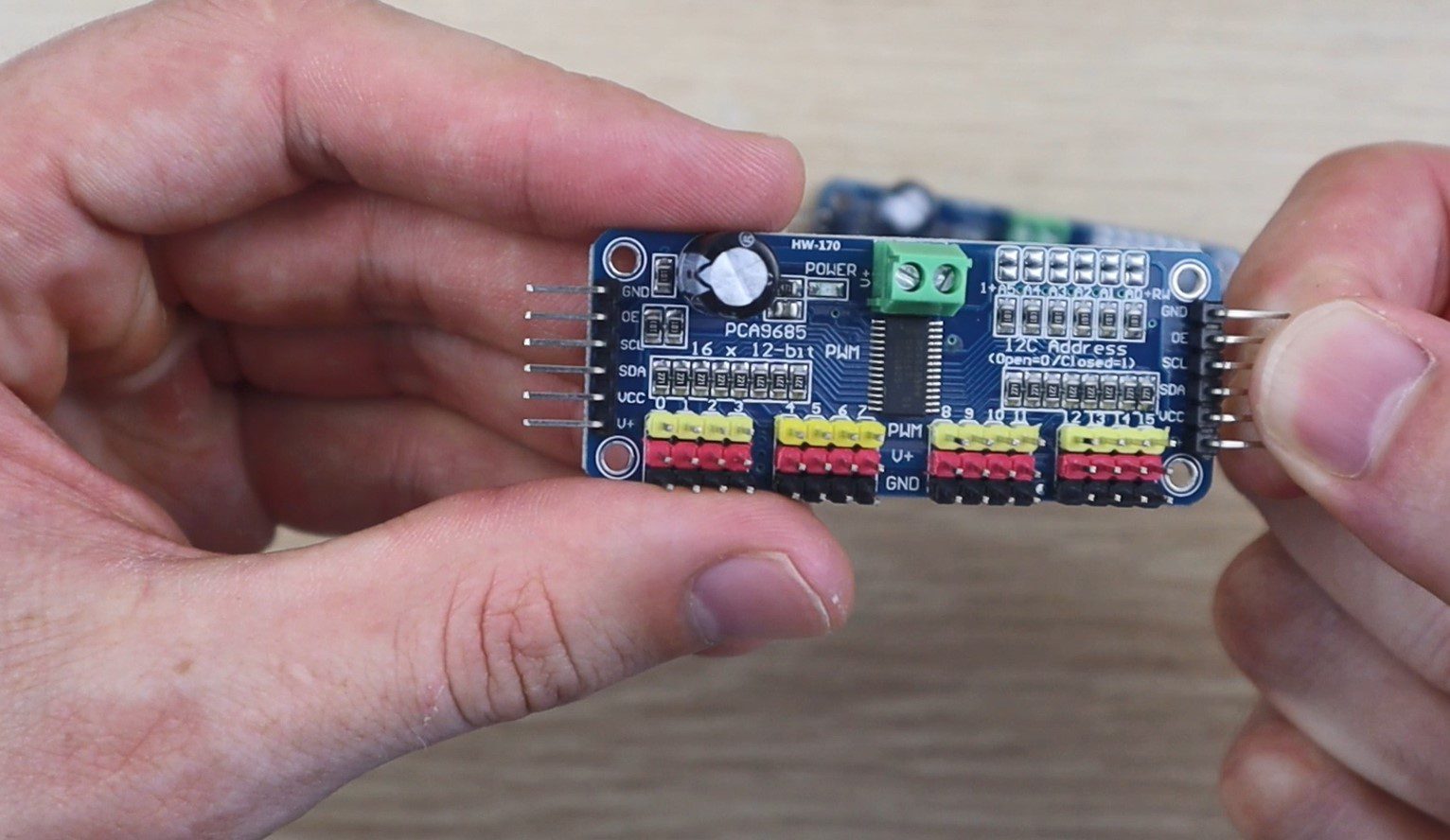
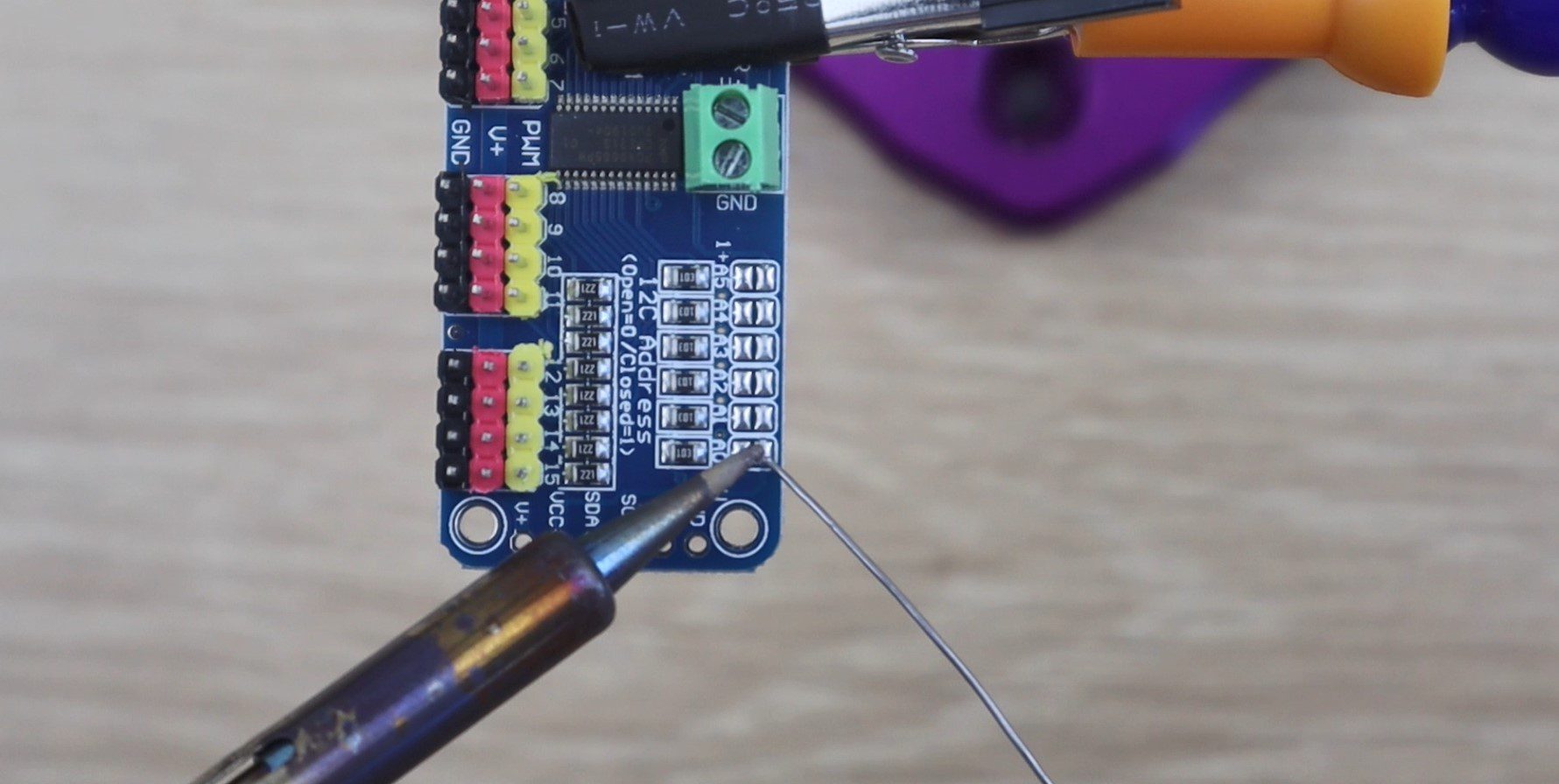
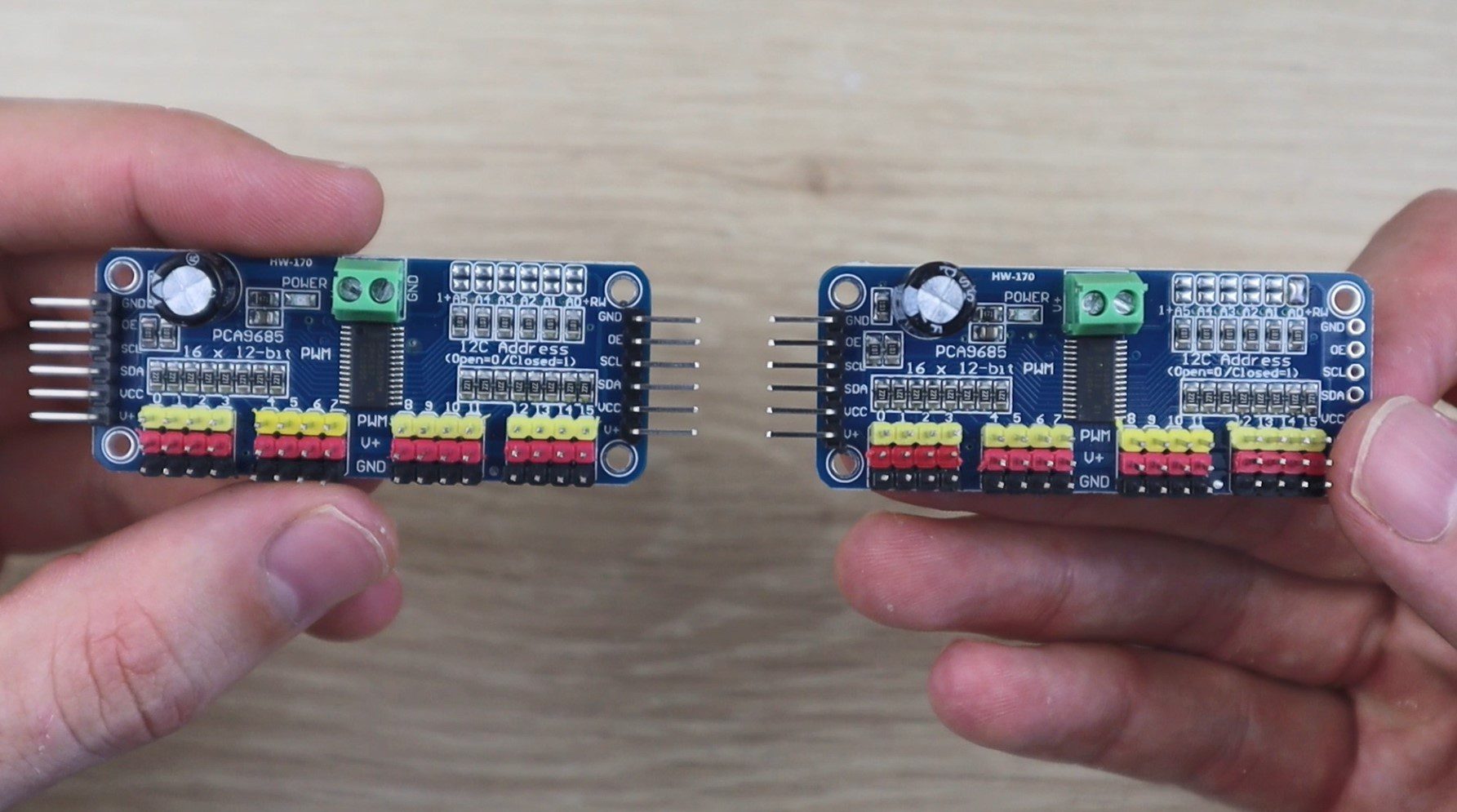
To chain the two together, you need to first add a pin header to the other side of the first board and then change the address on the second board so that it’s uniquely identified.
This is done by bridging the small terminals on the top right of the board. They work like dip switches, allowing you to set a different address for each board. You only need to bridge one set of terminals on the far right for this project.
Once you’ve added the header strip and changed the address on the second board, you’ll need to make up the cable to chain the two together.
You’ll also need a wiring harness to connect these two boards to the Arduino along with the clock module.
Here’s the circuit diagram:
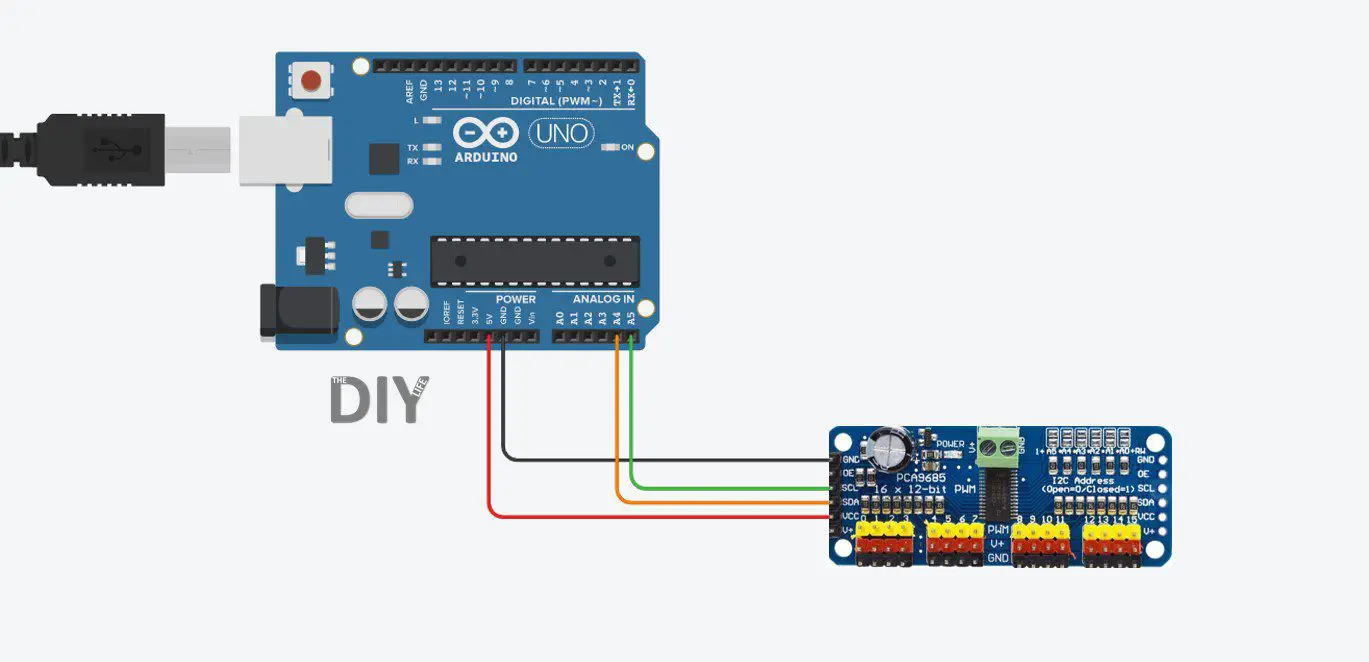
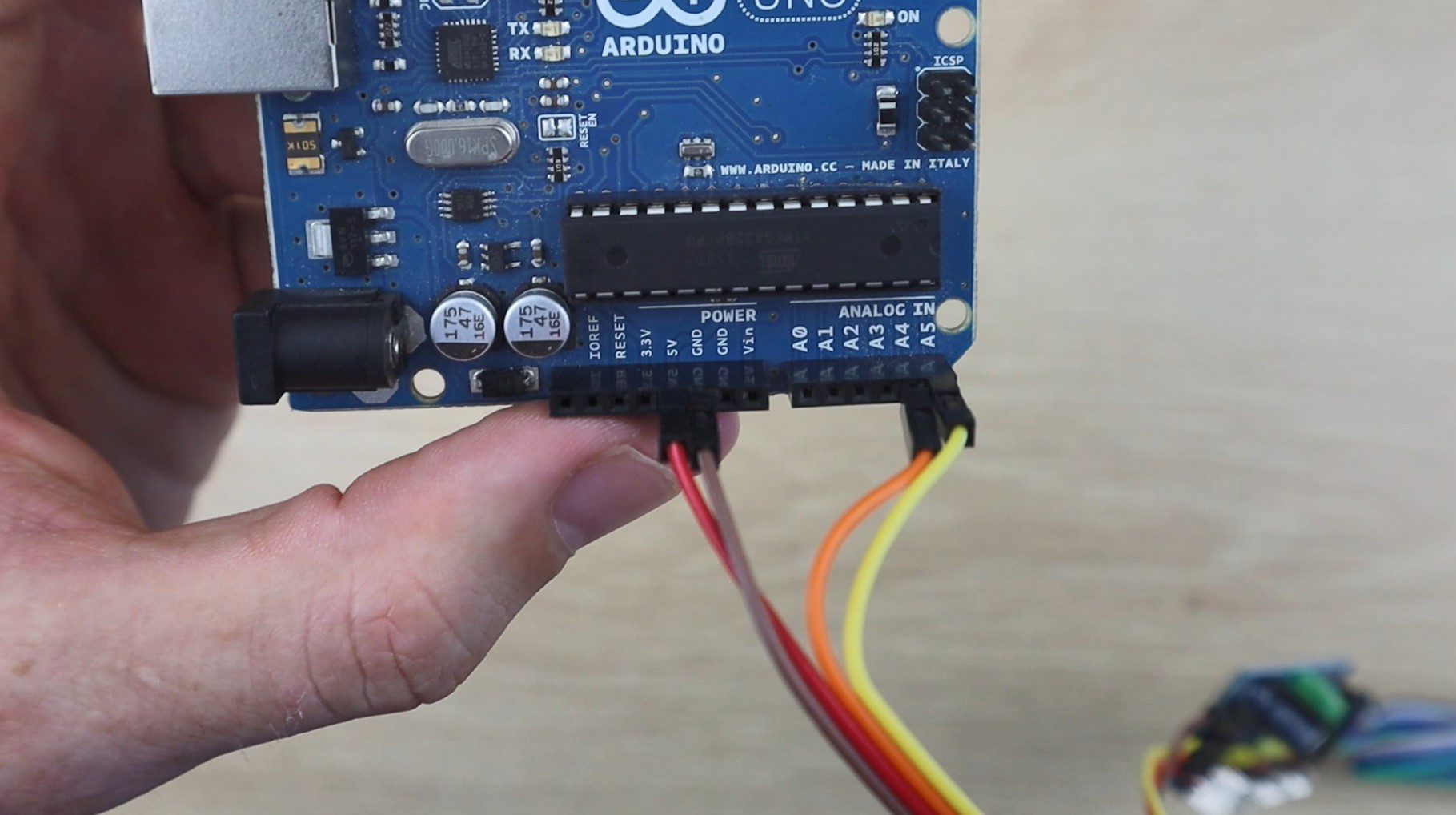
You’ll need to connect both the clock and the servo control boards to your Arduino’s GND and 5V pins to supply them with power. You’ll also need to connect the I2C interface on the servo control boards to your Arduino pins A4 and A5 (SDA and SCL respectively). Note that you’ll only connect one board to the Arduino, the second board is connected to the first board and will access the Arduino through this connection. Lastly, you’ll need to connect your real time clock module pins CLK, DAT & RST to pins 6, 7 & 8 respectively.
Power is supplied to the servos through the terminals on the servo driver boards. You’ll need to connect your 5V 5A BEC to your 12V power supply and then connect the leads to the terminals on one of the boards. You don’t need to connect both, if you’ve connected all of the pins between the two boards together then power will be supplied across your connection as well. You’ll also need to power your Arduino, this can be done from the same 12V power supply.
Assemble The Clock Display
Once the 3D printed segments are complete, you’ll need to spray the back and sides of the segments black to match the background so that they’re less visible when turned away. If you leave them green then you’re still going to land up with a thin visible line when the segment is turned 90 degrees. Also spray the back and sides of the dots so they’re less visible from the side.
Next glue the segments onto the servo arms using hot melt glue. It’s easiest to put the arms onto the servos and then glue the segment onto the servo and arm assembly, this also allows you to check that you glue it on straight.
You’ll also need to glue the small 3D printed spacer blocks to the bottom of each servo as well, these help the servo to stand upright when you glue them onto the back board.
I numbered each segment to keep track of them in the code. I started with the top segment in the units digit being 1 and worked around to the tens digit for all fourteen segments. They are connected to each driver board in this order as well, although the driver board numbering starts from zero. I duplicated this numbering for each of the hour and minute boards. If you’re struggling to keep track of each servo, write these numbers onto the leads as well.
Before gluing the digits onto the back board, I laid them out on a flat surface to test them. This allowed them to move without the fear of them moving in the wrong direction or too far and bumping into each other, which may damage the segments or strip the gears on the servos.
Once I was happy with the movement of the digits, I got to work on the board.
You’ll need a back board which is at least 600mm (24″) long by 240mm (10″) high. The light grey larger boxes are the areas in which the segments move when they move out of the way, these need to be at least 210mm (8 1/4″) by 135mm (5 1/3″) so that adjacent segments don’t touch when they both move outwards to their off positions. The inner darker rectangles are the centre lines for the 6 servos which make up the outside of each digit. Lastly, leave 30mm between the inner digits for the dots.
Measure and cut the back board from a piece of 3mm MDF and spray it black as well.
Mark the segment positions on the back board as per the diagram and then start gluing them in place. The dots are supported on their bases using short sections of 4mm dowel or kebab sticks. Measure and cut the sticks such that the dots are at the same level as the segments once they are glued onto the back board.
Once the digits are done, you’ll need to hide the wiring. Drill holes through to the back of the board near each servo to feed the servo wires through, this is when it helps to have numbered the leads beforehand. Put a small drop of glue onto each to keep them in place.
Stick the four electronics boards onto the back of the clock using double sided tape. You could also mount them with screws, just make sure that the screws don’t go all the way through the MDF to the other side.
I removed the arms from the servos before loading the final version of the software so that I could make small adjustments to the upright positions without worrying about them hitting each other. It’s a good idea to remove the arms from your servos and keep them off until you’ve powered your board up at least once and got the servos all in their On positions, 88:88 displayed. This way you can put them back into place without worrying about them moving and bumping into each other.
Uploading The Sketch
Now that you’re done building your clock, lets have a look at the code:
//Michael Klements
//The DIY Life
//8 February 2020
#include <virtuabotixRTC.h> //Include library for clock module
#include <Adafruit_PWMServoDriver.h> //Include library for servo driver
Adafruit_PWMServoDriver pwmH = Adafruit_PWMServoDriver(0x40); //Create an object of Hour driver
Adafruit_PWMServoDriver pwmM = Adafruit_PWMServoDriver(0x41); //Create an object of Minute driver (A0 Address Jumper)
int servoFrequency = 50; //Set servo operating frequency
int segmentHOn[14] = {385,375,385,375,382,375,354,367,375,385,375,368,371,375}; //On positions for each Hour servo
int segmentMOn[14] = {382,395,378,315,375,340,345,380,385,365,290,365,315,365}; //On positions for each Minute servo
int segmentHOff[14] = {200,200,550,480,200,520,200,200,200,480,550,200,515,200}; //Off positions for each Hour servo
int segmentMOff[14] = {200,200,550,440,200,480,200,200,200,550,450,200,430,200}; //Off positions for each Minute servo
int digits[10][7] = {{1,1,1,1,1,1,0},{0,1,1,0,0,0,0},{1,1,0,1,1,0,1},{1,1,1,1,0,0,1},{0,1,1,0,0,1,1},
{1,0,1,1,0,1,1},{1,0,1,1,1,1,1},{1,1,1,0,0,0,0},{1,1,1,1,1,1,1},{1,1,1,1,0,1,1}}; //Position values for each digit
virtuabotixRTC myRTC(6, 7, 8); //Create a clock object attached to pins 6, 7, 8 - CLK, DAT, RST
int hourTens = 0; //Create variables to store each 7 segment display numeral
int hourUnits = 0;
int minuteTens = 0;
int minuteUnits = 0;
int prevHourTens = 8; //Create variables to store the previous numeral displayed on each
int prevHourUnits = 8; //This is required to move the segments adjacent to the middle ones out of the way when they move
int prevMinuteTens = 8;
int prevMinuteUnits = 8;
int midOffset = 100; //Amount by which adjacent segments to the middle move away when required
void setup()
{
pwmH.begin(); //Start each board
pwmM.begin();
pwmH.setOscillatorFrequency(27000000); //Set the PWM oscillator frequency, used for fine calibration
pwmM.setOscillatorFrequency(27000000);
pwmH.setPWMFreq(servoFrequency); //Set the servo operating frequency
pwmM.setPWMFreq(servoFrequency);
//myRTC.setDS1302Time(00, 10, 16, 5, 8, 4, 2020); //Only required once to reset the clock time
for(int i=0 ; i<=13 ; i++) //Set all of the servos to on or up (88:88 displayed)
{
pwmH.setPWM(i, 0, segmentHOn[i]);
delay(10);
pwmM.setPWM(i, 0, segmentMOn[i]);
delay(10);
}
delay(2000);
}
void loop()
{
myRTC.updateTime(); //Update the time
int temp = myRTC.hours; //Get the hours and save to variable temp
hourTens = temp / 10; //Split hours into two digits, tens and units
hourUnits = temp % 10;
temp = myRTC.minutes; //Get the minutes and save to variable temp
minuteTens = temp / 10; //Split minutes into two digits, tens and units
minuteUnits = temp % 10;
if(minuteUnits != prevMinuteUnits) //If minute units has changed, update display
updateDisplay();
prevHourTens = hourTens; //Update previous displayed numerals
prevHourUnits = hourUnits;
prevMinuteTens = minuteTens;
prevMinuteUnits = minuteUnits;
delay(500);
}
void updateDisplay () //Function to update the displayed time
{
updateMid(); //Move the segments out of the way of the middle segment and then move the middle segments
for (int i=0 ; i<=5 ; i++) //Move the remaining segments
{
if(digits[hourTens][i]==1) //Update the hour tens
pwmH.setPWM(i+7, 0, segmentHOn[i+7]);
else
pwmH.setPWM(i+7, 0, segmentHOff[i+7]);
delay(10);
if(digits[hourUnits][i]==1) //Update the hour units
pwmH.setPWM(i, 0, segmentHOn[i]);
else
pwmH.setPWM(i, 0, segmentHOff[i]);
delay(10);
if(digits[minuteTens][i]==1) //Update the minute tens
pwmM.setPWM(i+7, 0, segmentMOn[i+7]);
else
pwmM.setPWM(i+7, 0, segmentMOff[i+7]);
delay(10);
if(digits[minuteUnits][i]==1) //Update the minute units
pwmM.setPWM(i, 0, segmentMOn[i]);
else
pwmM.setPWM(i, 0, segmentMOff[i]);
delay(10);
}
}
void updateMid() //Function to move the middle segements and adjacent ones out of the way
{
if(digits[minuteUnits][6]!=digits[prevMinuteUnits][6]) //Move adjacent segments for Minute units
{
if(digits[prevMinuteUnits][1]==1)
pwmM.setPWM(1, 0, segmentMOn[1]-midOffset);
if(digits[prevMinuteUnits][6]==1)
pwmM.setPWM(5, 0, segmentMOn[5]+midOffset);
}
delay(100); //Delay allows adjacent segments to move before moving middle
if(digits[minuteUnits][6]==1) //Move Minute units middle segment if required
pwmM.setPWM(6, 0, segmentMOn[6]);
else
pwmM.setPWM(6, 0, segmentMOff[6]);
if(digits[minuteTens][6]!=digits[prevMinuteTens][6]) //Move adjacent segments for Minute tens
{
if(digits[prevMinuteTens][1]==1)
pwmM.setPWM(8, 0, segmentMOn[8]-midOffset);
if(digits[prevMinuteTens][6]==1)
pwmM.setPWM(12, 0, segmentMOn[12]+midOffset);
}
delay(100); //Delay allows adjacent segments to move before moving middle
if(digits[minuteTens][6]==1) //Move Minute tens middle segment if required
pwmM.setPWM(13, 0, segmentMOn[13]);
else
pwmM.setPWM(13, 0, segmentMOff[13]);
if(digits[hourUnits][6]!=digits[prevHourUnits][6]) //Move adjacent segments for Hour units
{
if(digits[prevHourUnits][1]==1)
pwmH.setPWM(1, 0, segmentHOn[1]-midOffset);
if(digits[prevHourUnits][6]==1)
pwmH.setPWM(5, 0, segmentHOn[5]+midOffset);
}
delay(100); //Delay allows adjacent segments to move before moving middle
if(digits[hourUnits][6]==1) //Move Hour units middle segment if required
pwmH.setPWM(6, 0, segmentHOn[6]);
else
pwmH.setPWM(6, 0, segmentHOff[6]);
if(digits[hourTens][6]!=digits[prevHourTens][6]) //Move adjacent segments for Hour tens
{
if(digits[prevHourTens][1]==1)
pwmH.setPWM(8, 0, segmentHOn[8]-midOffset);
if(digits[prevHourTens][6]==1)
pwmH.setPWM(12, 0, segmentHOn[12]+midOffset);
}
delay(100); //Delay allows adjacent segments to move before moving middle
if(digits[hourTens][6]==1) //Move Hour tens middle segment if required
pwmH.setPWM(13, 0, segmentHOn[13]);
else
pwmH.setPWM(13, 0, segmentHOff[13]);
}
I have created a GitHub repository for this code to allow others to share their changes and improvements.
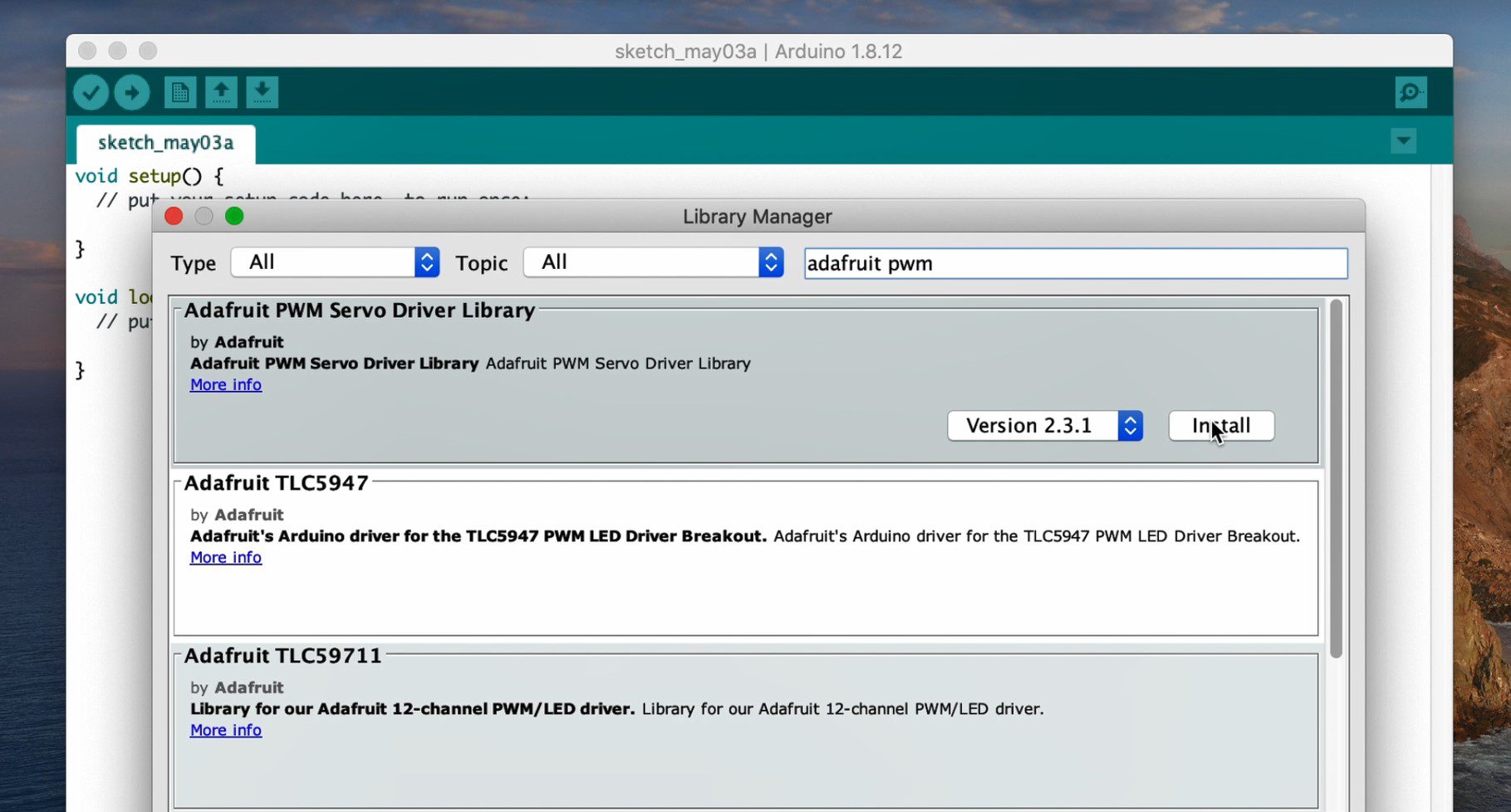
We start by importing two libraries, <virtuabotixRTC.h> for the clock module and <Adafruit_PWMServoDriver.h> for the servo drivers. The Adafruit library can be downloaded and installed directly through the library manager in the IDE.
We then create an object for each of the servo drivers, one for the two hour digits and one for the two minute digits. Note that we’ve changed the address in the second to match the jumper we’ve soldered onto the board.
We then have four arrays to store the on and off positions for each servo, this allows you to fine tune the travel limits so that the digits are all straight and don’t over or under travel when they move to the off position. You’ll need to adjust these values for each of your servos before using your clock. Adjust the on positions so that the segments are completely upright and as horizontal as possible and then adjust the off positions so that the segments are turned at least 90 degrees but are not over travelling.
We then have an array to store the segment positions for each digit from 0 to 9. There are ten digits and seven segments for each digit, where a 1 represents ON or upright and a 0 represents OFF or turned 90 degrees.
We then assign the clock pins and create variables for each digit, hour tens and units and minute tens and units. We’ll need the time split into these individual digits so that we know what each 7 segment display should be showing.
We also need to know what the previously displayed digit was so that we know whether the middle segment is going to be moving, and if so, we may need to move the two adjacent segments out of the way a little so that it can pass by without hitting them.
The variable midOffset defines by how much these adjacent segments should move out of the way.
We then start with the setup function. Here we start each of the PWM servo boards, set their oscillator frequency and our servo frequency.
We then have a line to update the clock time, which is only needed once to set the time on your clock and can then be removed or commented out. You’ll need to set the time to an upcoming time and then time your upload so that the time update is run at the same time as that time is reached in reality so that your clock module is correctly set. This sounds more complicated than it actually is.
Finally, we run through a loop which sets each servo to it’s on position so that 8 8 : 8 8 is displayed on the clock. This ensures that we have a known starting position for each servo and where possible, you should try and start your clock with the segments as close to these positions as possible in order to avoid having them bump into each other, particularly with the middle segments.
We then move on to the main loop where we get the updated time from the real time clock module, then split the hour and minutes into their tens and units. We then check to see if the time has changed since the last cycle and only if the time has changed, do we need to update the display.
Once the display is updated, then we update the previously displayed variables to record the changes.
Now let’s have a look at the update display function. We start by updating the middle segments. We do this so that we are able to move the adjacent segments out of the way if the middle segments need to move. We then move all of the middle segments and then finally move the remaining segments so that they’re moved back into place if the previous step moved them out of the way for the middle segment. In summary, we move the adjacent segments out of the way, then move the middle segment and then update the other 6 segments, this is done for all four digits.
There is an if statement for each digit which essentially looks up the required segment positions from the array and then moves them on or off accordingly. The delays just aid with stability in the code.
The update mid function is probably the most complex portion of the code, although there is a lot of repetition for each of the four digits. This function looks at whether the middle segment of the digit needs to move. If it does, it then looks at whether either of the adjacent digits are going to be in the way of this movement and if they are, it then moves them out of the way before moving the middle segment. The delays here are to allow the adjacent segments to move out of the way before moving the middle segment.
Thats the code, now upload it to your Arduino and see what it looks like.
Using Your Mechanical 7 Segment Display Clock
The segments jitter slightly when they are initialised and then move to display the current time. As mentioned previously, you should always try to power your clock on with the segments in the 8 8 : 8 8 positions so that they don’t bump into each other when initialising. This is usually only an issue when the digits 1 or 7 have been displayed and power is lost as the middle segment then needs to move back into place and the code doesn’t know that the adjacent sections are in the way.
It takes a bit of patience in the beginning to get each segment’s travel limits set up correctly so that the segment is upright when on and moved far enough when off so that the top is no longer visible. Most of my segments required adjustment and there were quite a few cases of servo arms popping off and servo’s over travelling during this setup process. It can be quite frustrating to get right, but once you’re done, you’re left with a great looking clock with a unique twist on a 7 segment display. Time spent setting your clock up will result in a much better looking end product.
I’ve left mine plugged in with the 12V power adaptor. The real time clock has a battery backup, so if the power goes down then the clock should automatically reset itself and resume displaying the correct time when the power returns.
I hope you enjoy building your own mechanical 7 segment display clock. Let me know how it goes for you, or any tips and suggestions in the comments section below.
Community Builds
Tony Johnson from Ontario, Canada has made some neat additions to the clock by designing a 3D printed sub-base in Sketchup to easily position the servos for each digit as well as the center dots.
He also printed holders for the electronics. Tony initially used an LM2596 voltage converter to power each of the PWM driver boards but said that they failed after only a few hours of operation. They may have been damaged during setup when the servos are more likely to overtravel and stall, but it’s worth keeping in mind if you’re looking at alternatives to power your clock. He has since replaced these boards with a 5V, 10A transformer which has been working well.
He also added some covers to blackout the servos and hide them a bit better.
You use your iPhone for multiple hours every day, so it’s bound to give you some trouble every now and again. So we’ve put together a list of some of the most common iPhone problems along with some easy fixes and some guidance to fix more stubborn problems.
My Storage Is Full
Almost all iPhone owners, especially those who owned a 16Gb model, have experienced an iPhone storage full notification. Fortunately, there are a couple of ways to fix this.
The first step is to figure out what is using the most storage, most likely your photos and videos. Go to Settings -> General -> Storage -> Manage Storage to get a list of applications from most to least storage usage.
If it’s your photos and videos, try an alternate cloud storage platform such as Google Photos to upload your photos and remove them from your phone. You’ll also benefit from having your photos backed up in case you every lose your iPhone or encounter more severe iPhone problems.
Another problem might be that your iCloud storage is full. This is usually filled up with either your photos or with device backups. You can have a look at your iCloud storage space by going to Settings -> iCloud -> Storage -> Manage Storage. If your photos are filling it up, try using a service mentioned before, otherwise try deleting old or outdated backups. You can also backup your iPhone through your computer and store the backup locally instead of through iCloud.
My WiFi Isn’t Working
Unreliable WiFi can be frustrating, but follow these three easy steps to get it running again:
First check that you’ve got sufficient signal, at least two or three bars. Even at two bars, the WiFi can be significantly slower than at full signal. Also make sure that your WiFi network is still running, test it on other devices and restart the router if possible.
If that doesn’t work, go to Settings -> WiFi, tap on the WiFi network you’re connected to and tap on Forget This Network. Return to WiFi and re-select the network, you’ll need to re-enter the WiFi password.
As a last resort, go to Settings -> General -> Reset -> Reset Network Settings, then try reselect the network and enter the password. Only do this as a last resort as this will erase all of the saved network information and passwords.
My Battery Is Running Low
This is probably on of the most common iPhone problems and there are a couple of things you can do to improve and extend your iPhone’s battery life if you find yourself away from a charger for a bit too long. Start off by turning on Low Power Mode, this is done through your Control Centre or by going to Settings -> General -> Battery and enabling Low Power Mode.
Once you’ve done that, there are a couple of other ways you can further reduce your iPhone’s battery consumption if you’re getting desperate.
Go to the Control Centre and turn your display brightness down as far as possible.
Go to Settings -> Cellular and turn off WiFi assist.
Go to Settings -> Accessibility and turn Grayscale on.
Keep your iPhone steady and face down or in your pocket so that notifications don’t light up the display.
You can also head over to Settings -> Battery and see which applications are using the most battery life. Try disabling or closing these applications to further save your battery.
If your iPhone battery is dying more often than it should or doesn’t last very long, you may want to get it replaced, you can even replace your iPhone battery yourself.
My iPhone Won’t Charge
This problem could either be the cable or the lightning port on your iPhone. To rule out the cable, try it on another iPhone or try a different cable on your iPhone. If it’s not the cable then there may be a fault with the port. First have a look into the port and make sure there isn’t any debris/lint/fluff stuck in it, this can gently be removed with a toothpick. If not then you may need to replace you iPhone’s lightning port.
My Home Button Isn’t Working
The easy fix is to turn on a virtual home button on the display called Assistive Touch. Open Settings -> Accessibility -> Assistive Touch to turn it on. The greyed out square on the screen is your new home button, and it can be moved around on your screen as well.
iPhones don’t often freeze, but when they do, its usually a pretty easy one to fix, depending on your model.
On Old iPhones – hold down the home button and the power/wake button for 10 seconds until you see the Apple logo appear.
On Modern iPhones (iPhone X and later) – press and release volume up, then volume down and then press and hold the power/wake button for up to 10 seconds until the Apple logo appears.
Your iPhone should reboot and be back to normal again.
My Screen Is Cracked
There aren’t really any quick fixes for this problem, but the good news is that if you’re even slightly handy or technically inclined, you’ll probably be able to replace your iPhone screen yourself and you can typically do it for less than $50.
I Dropped My Phone In Water
Apple has been trying to get rid of these common iPhone problems by making their more recent iPhone’s water resistant. This mean that most of their newer models can survive a quick dip in a bath, pool or toilet without much more effort than cleaning and drying them off.
If you have an older iPhone, your iPhone’s best chance of survival is if it was off when it fell in. If it was on, try to turn if off as quickly as possible if the display is on, if the display is not on then don’t risk turning the display on and rather proceed to trying to dry it. Towel dry your iPhone first and try get any leftover water out of the charger port, speakers, microphone and audio jack with some paper towel or a dry cloth. Don’t apply too much pressure as you don’t want to force the water further into the iPhone.
Next leave the iPhone in a sealed box with silica gel packets or a product like DampRid to draw out and absorb the moisture. You’ll need to leave it for a couple of days before attempting to turn it on again.
If your iPhone no longer turns on, it is likely water damaged and unfortunately Apple won’t cover this under warranty. You can open your iPhone up to have a look at the water damage indicators to be sure, but don’t do this if your iPhone is still under warranty as this will void it even if water damage was not the case.
I Forgot My Passcode
Unfortunately this is also one of those iPhone problems which doesn’t have an easy solution. The good news is that you can reset the passcode through iCloud or iTunes and make the device usable again, the bad news is that the reset also involves erasing all content and settings as well, so you’ll lose your data.
I’ve Misplaced My iPhone
If you’ve misplaced your iPhone and you’ve got Find My iPhone enabled (which is usually on by default) then you can log into iCloud.com, go to Find My iPhone and click on the missing device to see where it was last located on a map. If your iPhone still has a network connection, you can also get the phone to play a sound, display a message or lock it with a passcode. The sound option is particularly useful if you’ve misplaced it around your office or home, it also overrides the mute function on the iPhone so it will ring even if it is in silent mode.
If you suspect that your iPhone has been stolen, do not attempt to recover it yourself. Report it stolen to the Police and provide the tracking information. Also report it to your carrier to suspend the service and blacklist the device.
Have you experienced any other iPhone problems? Let us know in the comments section below.
In this project, I’m going to be showing you how to make your own Arduino based Automatic Blind Opener which is operated using a remote control or through a smart home device, such as an Amazon Echo. This allows you to also set timers and build the opening and closing of your blinds into your routines. It not only makes your life easier, but can also improve your home’s security by automatically opening and closing the blinds at certain times in the day to create the impression that someone is at home when you’re away.
The design uses an Arduino pro micro and a A4988 driver to drive a stepper motor which turns a plastic gear which can be fitted onto most plastic ball chains, making it suitable for vertical and horizontal blinds. An infrared sensor is used to receive signals from a remote control or from an Alexa controlled infrared transmitter to partially or fully open and close the blinds.
Have a look at my video of the assembly with clips of the automatic blind opener in use or read on for the step by step instructions which include the 3D print files for download as well as the Arduino code.
What You Need To Build Your Automatic Blind Opener
You’ll also need to 3D print some components. If you don’t have a 3D printer, I recommend that you have a look at buying one, they have become relatively inexpensive and are a powerful tool for your work space. There are also a number of online 3D printing services which will print and deliver the components to your door in a few days.
I designed the housing to be as compact as possible so that you don’t have a bulky box underneath each blind. These can be neatly tucked into a corner along the window frames and can be printed in a filament colour to match your walls or frames.
I printed the components in PLA using a 15% infill. I printed the housing in black and the gear in white, just so that there was some contrast between components for the project. It would be best to match the filament colour to your walls or frames.
The housing walls are quite thick so that you can easily drill holes through the back or sides to mount it to a wall or frame. The best would be to edit the model file and add your holes before 3D printing, depending on how you’re going to be mounting it. You can screw the back part of the housing in place and then add the front cover with the motor and components onto it so that the screws are hidden.
Start by mounting the motor onto the front cover using two M3 x 8mm screws in the top two holes.
You may need to modify the the gear if your chain is spaced differently or if your motor shaft is a different diameter. Secure the gear using a M2 grub screw which sits on the flat side of the motor shaft.
Now put the gear cover on and use two M3 x 15mm screws through to the motor to hold it in place.
The front cover screws onto the back with more M3 x 15mm screws. I’ve put it together here to check that everything fits correctly, you won’t need to do so until you’ve put your electronic components together.
Solder The Wiring Harness
There are not a large number of connections to be made to the Arduino, so you only need to use the terminals down the one side. I decided that it would be easier to connect all of the components together using some ribbon cable and female header strips rather than destining a PCB. This also makes it easier for others to replicate the project without having to try and get PCBs made up.
In addition to your Arduino and stepper motor driver, you’ll need an infrared receiver, a 10K resistor and a 100 micro farad capacitor.
Here is the schematic:
The resistor goes across the infrared sensor’s 5V and data pins and the capacitor across the power supply to the stepper motor driver. You can use a supply voltage between 5 and 12 volts, but a higher voltage produces power from the motor. The motor drive will accept up to 36V, but you can’t go above 12V with this format as the Arduino Pro Micro is limited to a 12V supply voltage.
The connections to the sensor and boards are all made on sections of header strips which are cut to size according to the components. You’ll need two 8 pin strips for the stepper motor driver, one 12 pin strip for the Arduino, as you’re only using pins on one side, and one 3 pin strip for the infrared sensor.
You’ll need to figure out which of the stepper motor leads belong to each of the two coils in order to connect them to the driver terminals. If you’re not using the same motor as I’ve used, use a multimeter to measure the resistance across each wire pair. The pairs associated with each coil should read about 4-5 ohms (this figure is usually on the motor data sheet as well) while you should get a mega-ohm reading for the other combinations. On this motor, one coil is connected to the blue and black leads and the other to the green and red.
Once your wiring harness is complete, you can connect it to your motor.
There is one more thing to set up before powering up your Arduino. You need to set the motor current limit on the driver. To do this, you’ll need to power up the driver, which can be done by supplying 5V to the logic circuit using the supply from your Arduino.
Then calculate your reference voltage using the following formula.
V(ref) = I(mot) x 8 x R(sen)
Your reference voltage is calculated by multiplying your motor’s maximum current, by 8 and then by your driver’s current sensing resistance. Your motors maximum current can be found on its data sheet, ours is .9 amps. The drivers current sensing resistance is .068 ohms for most newer drivers. You can find more information on using these motor drivers and setting them up properly here – Using An A4988 Motor Driver With An Arduino.
Using this formula, we calculate that our reference voltage should be about 0.49V.
This voltage is measured and set on the pot on the bottom of the motor driver using a small screwdriver to make the adjustments.
Start by measuring the reference voltage using your multimeter. Then make small adjustments, clockwise to increase and anticlockwise to decrease the voltage until this matches your calculated reference voltage. If you have clips on your multimeter leads, clip the positive on onto the metal part of your screwdriver and you’ll be able to see the voltage change and you adjust the pot.
Once your current limit is set, you’re ready to power up your Arduino and upload the code. Connect your boards, stepper motor and IR receiver to your wiring harness and plug it into your computer to upload the code.
Upload The Code To Your Arduino
Here is the final version of the Arduino Automatic Blinder Code which I have uploaded to my Arduino:
//The DIY Life
//Michael Klements
//26 March 2020
#include <IRremote.h>
int iRPin = 10; //IR sensor connected to Pin 4
IRrecv irrecv(iRPin); //Create an IR object of the class
decode_results results;
int stepPin = 15; //Define stepper motor step pin
int dirPin = 14; //Define stepper motor direction pin
int blindDir = 0; //Reverse default up direction if needed
int blindLength = 80000; //Number of steps for full blind length
int blindPosition = 0; //Initial blind position, 0 is fully open
int blindSpeed = 1; //Delay between pulses, smaller delay, higher speed
void setup()
{
Serial.begin(9600); //Only used to get HEX value for each button
irrecv.enableIRIn(); //Start the IR receiver
pinMode(stepPin, OUTPUT); //Define the stepper motor pins
pinMode(dirPin, OUTPUT);
}
void loop()
{
if (irrecv.decode(&results)) //Wait for an IR signal to be received
{
Serial.println(results.value, HEX); //Only used to get HEX value for each button
driveMotor(results.value); //Change the LED accordingly
irrecv.resume(); //Wait for next signal
delay(200);
}
}
void driveMotor(unsigned long value) //Function to read the IR code and decide what the motor should do
{
switch (value) //Determine which button has been pressed
{
case 0xFF02FD: //Button + Pressed - Open Slightly
if (blindPosition >= 2000)
{
moveMotor(0,2000);
blindPosition = blindPosition - 2000;
}
break;
case 0xFF9867: //Button - Pressed - Close Slightly
if (blindPosition <= blindLength-2000)
{
moveMotor(1,2000);
blindPosition = blindPosition + 2000;
}
break;
case 0xFF6897: //Button 0 Pressed - Open Fully
moveMotor(0,blindPosition);
blindPosition = 0;
break;
case 0xFF30CF: //Button 1 Pressed - Close Fully
moveMotor(1,blindLength-blindPosition);
blindPosition = blindLength;
break;
case 0xFF18E7: //Button 2 Pressed - Blind Preset 2 (1/4 Closed)
if (blindPosition > blindLength/4)
{
moveMotor(0,blindPosition-(blindLength/4));
}
else if (blindPosition < blindLength/4)
{
moveMotor(1,(blindLength/4)-blindPosition);
}
blindPosition = blindLength/4;
break;
case 0xFF7A85: //Button 3 Pressed - Blind Preset 3 (1/2 Closed)
if (blindPosition > blindLength/2)
{
moveMotor(0,blindPosition-(blindLength/2));
}
else if (blindPosition < blindLength/2)
{
moveMotor(1,(blindLength/2)-blindPosition);
}
blindPosition = blindLength/2;
break;
}
}
void moveMotor(int moveDir, int noSteps) //Function to move the motor in direction moveDir and number of steps noSteps
{
if (moveDir == blindDir)
digitalWrite(dirPin, HIGH);
else
digitalWrite(dirPin, LOW);
for(int i=0 ; i<=noSteps ; i++)
{
digitalWrite(stepPin, HIGH);
delay(blindSpeed);
digitalWrite(stepPin, LOW);
delay(blindSpeed);
}
}
The code makes use of the IRRemote library for the infrared sensor inputs, creating an infrared object with pin 10 as the sensor’s input pin.
The stepper motor driver is connected to pins 14 and 15 to control the direction and provide the pulse signals respectively.
We then have a couple of parameters for the blinds which will need to be adjusted.
The first is for the blind movement direction, with zero being the default and 1 being reverse. You’ll need to test this out on your blinds to make sure that when you push the down button, the blinds close and visa versa.
The second is the blind length, which is the numbers of motor pulses to drive the full length of the blind. You can calculate this by equating the motor pulses per revolution (taking into account the motor driver mode) to the number of balls on the gear and then to actual blind movement. The easiest would be to use the default as a starting point, see how far it moves up or down and then adjust it accordingly.
The next parameter is the blind’s initial position, 0 being fully open. This doesn’t really need adjustment, unless you want to “power on” with the blinds closed rather than open. It’s important to note here that the opener remembers the blind position based on the number of pulses given, so if the power to your Arduino is interrupted, you’ll need to reset the blind position to the correct initial position before operating it again. You could overcome this by installing a limit switch at the fully open or closed positions for calibration but this would involve extra wiring external to the actual opener, which I wanted to avoid.
Finally, the blind speed which is essentially the the motor speed,a lower number is a shorter delay between pulses, which is a faster speed.
You can also increase the motor speed by changing the delay to microseconds instead of milliseconds or running the driver in full step or quarter step modes. Full step mode would be the fastest.
In the setup function we start the serial communication. This is initially used to get the infrared codes from your remote in order to add them to the code and can be commented out once you’ve done this. We then start the infrared receiver and assign the motor driver output pins.
The loop function waits for a single to be received from the infrared remote, then displays it on the serial monitor. This can also be commented out after setup. The driveMotor function is then called to drive the motor before waiting for the next infrared signal. The delay is just added for stability.
The drive motor function gets the infrared signal as an unsigned long variable type. A switch statement then decides what the motor should do based on the signal received. The hex codes in this section need to be changed according to what was shown in your serial monitor when you push the corresponding button on your own remote. You can use the remote which came with your sensor or an old TV remote or a universal remote, as long as your Arduino can read the signal from it.
You can decide what you’d like to be able to do with the remote control, I’ve set up the up and down arrows on my remote to open or close the blinds in small increments, allowing me to position them as I’d like. I’ve then set up the 0 and 1 buttons to fully open or fully close the blinds and I’ve got two more presets, one for 1/4 of the way closed and one for 1/2 way closed. You could set up as many presets as you’ve got available buttons on your remote.
Each case in the switch statement decides on the motor movement based on the blinds current position and the desired position and then tells the motor how to move by calling the move motor function, giving it a direction and number of steps.
The move motor function then sets the direction on the motor driver and generates the pulses to the motor.
It’s a good idea to test this out, get your code working properly and make any adjustments to travel limits before putting the electronics into the housing.
Once you’re happy with the code, stick the Arduino and motor driver to the supports on the housing using double sided tape. Don’t forget to add your heatsink to your motor driver too. Don’t worry about needing to make adjustments to your code, the USB port on your Arduino is still accessible with it stuck in place.
The IR sensor gets stuck into the aperture in the side of the back part of the housing. This is why we have a header strip on it, so that it can be disconnected from the electronics mounted to the front cover to attached it to a wall or frame.
You can now upload the final version of your code and close up the housing.
Using Your Arduino Automatic Blind Opener
I haven’t put any holes into the housing to mount it as there are a number of different ways this automatic blind opener could be mounted and I didn’t want the housing to be full of spare holes. The most simple would be to use two screws through the back or sides of the housing. You should be able to mount the back of the housing using one of the back or side faces and then screw on the front face with all of the electronics, so that the screws are no longer visible. You can drill holes through the back or sides, the best would be to add the holes to the model before 3D printing it.
Once the opener is mounted, use your remote control to open and close your blinds using the buttons which have been set up in the code. You should be able to open or close the blind in small increments as well as press a button for fully open, fully closed, 1/4 open and 1/2 open positions.
Have a look at the video in the introduction for the Automatic Blind Opener in action.
I may look at trying to dampen some of the sound from the stepper motor with a rubber pad in future, as it is quite noisy when running.
Use Your Automatic Blind Opener With A Smart Home Device
One of the great things about controlling your Automatic Blind Opener using an IR remote is that you can use a smart home universal remote to operate it as well. This allows you to open and close your blinds using voice commands through an Amazon Echo or Apple Home Pod or set up routines to automatically open and close your blinds at certain times in the day.
To operate your opener with an Alexa enabled amazon device, you’ll need a smart home universal remote like this RM Mini 3 which is linked in the parts list. The RM Mini 3 is not the best smart home remote control but it is quite cheap and easy to use.
If you do get this remote control, use the Intelligent Home Centre app (not the one in the user manual) to teach the remote the signals from your existing remote and you’ll then be able to add these commands to your echo devices and integrate the opening and closing of the blinds into your routines or using timers.
Good luck with this project and le us know what functionality you’ve added or changes you’ve made in the comments section below.
Today we’ll be looking at how to make your own easy DIY automatic cabinet lights which can be stuck in place using a small strip of double sided tape and automatically switch on and off when you open and close your cabinet doors. This switch is really cheap and easy to make and works well on kitchen or bathroom cabinets, bedroom cupboards, drawers or even storage rooms without their own lighting.
Here’s the video guide, otherwise read on for step by step instructions:
What You Need
You’ll need the following to make one light. Keep in mind that most of these are cheaper to buy in packs of 5 or 10 so it may be worth making a couple of them at once.
You’ll also need a 3D printer and some filament to print the components. If you don’t have access to a 3D printer, there are a number of online printing services which can print out the components and deliver them to your door in a few days.
Start off by 3D printing the two components. I printed them using black PLA with 15% infill. You could also use white, brown or grey to match your cabinets.
Once you’ve got your parts and 3D printed components, lets put the cabinet lights together.
Slide the LED under the clips on the top bracket to hold it in place. If it is loose then add a few drops of superglue to the back or edges to hold it in place. Then feed the wires through the two holes in the base. Make sure that you get the polarity correct as you need the negative lead to be in the bottom of the battery holder.
You don’t have to use these LEDs, they’re just the most effective one’s I’ve found. They’re bright enough for a medium sized cabinet and because they’re just a single LED, they’re reasonably power efficient. You could use standard white LEDs as well, you’ll just need to modify the top cover to hold them.
Trim your two leads to the correct length and strip the ends. Strip a slightly longer section on the black lead as this is going to be the negative battery terminal. Solder/tin the ends of the leads to make it easier to solder onto the switch and to prevent the end in the battery compartment from fraying.
You’re going to connect your leads to the two outer terminals on your switch, the common and normally closed terminals. Use one of the pieces of the leads which you cut off the LED to make up the section between the limit switch and the positive battery terminal. Again, strip a slightly longer section on the black lead to make the positive battery terminal.
Make sure that the insulated portion of the lead in the bottom of the battery compartment is inside the groove and that a portion of the exposed wire sits on the bottom of the battery compartment.
Insert the CR2032 battery into the holder face up (positive up). When you push the top lead onto the battery, the LED should turn on. You should then be able to turn it on and off using the limit switch.
Use your two machine screws to screw the two halves together which presses the leads onto the battery. You’ll now need to turn the LED on and off using the limit switch.
Use a strip of double sided tape to stick the limit switch in place. I used these removable ones with a pull tab so that I can easily remove them if I need to. You could also use slightly longer screws and screw the light into place using the two holes already in the parts.
You can now stick the light into place on any edges of your cabinets which are close enough to almost touch the door when closed.
Make sure that when your door is closed, it is fully compressing the limit switch arm and the LED is actually being turned off or your battery will die quite quickly.
You should be able to easily replace the batteries without completely removing the cabinet lights by simply unscrewing the screws and removing the top covers.
Have you made your own automatic cabinet lights? Let us know in the comments section below, we’d love to see your designs.
Here are 10 home gadgets you have to have, available online and each costing less than $10. From your kitchen to your bathroom and your fluffy friend – there’s something for everyone and they’ll certainly make your life easier!
Fluff Up Your Towels With Dryer Balls
Throw these balls in the dryer with your towels to help fluff them up and soften them. Your guests will soon be asking for your secret.
Extend The Life Of Your Fruit & Veggies
Keep your fruit and veggies fresher for longer in your refrigerator with a mat which is specially designed to wick away moisture and allow airflow underneath the produce. They can even be cut to size to fit into a drawer or container.
Ultimate Lint Remover
If you find that you clothing, furniture and car have become a magnet for fluff and fur, these awesome lint removers will sort them out in now time. And they come in a two pack, perfect to leave one in the car.
Keep Your Toothbrush Clean
Keep your toothbrush head clean when you travel or just away from any airborne particles and germs in the bathroom with a Steripod. They simply clip over the head of your toothbrush to keep them clean and germ free, absorbing moisture and odours as well.
Turn Any Surface Into An Ironing Board
If you do a lot of travelling then you’ll know that no matter how well you fold your shirts, they always end up creased. Hotel ironing board covers don’t do too much, so bring your travel ironing mat own along and your pants and shirt will look like they’re fresh from the laundry.
What could be easier than popping your angry momma steamer into the microwave and allowing her to do all of the hard work? This is one of the most useful home gadgets on this list. The steam loosens all of the dirt and grime in your microwave so that you can just give it a wipe down with a paper towel and it’ll look new again.
Deodorise Your Refrigerator
While your angry momma is cleaning out your microwave, let your chilly momma take care of the smells emitting from your refrigerator. Just add baking soda and she’ll keep your refrigerator smell free for a few weeks at a time.
Doggie Waste Bags & Holder
No-one wants to be holding onto plastic bags while walking their dog, this neat bone shaped bag holder clips onto their lead and holds a roll of 20 bags at a time, with 9 rolls (180 bags) as part of the pack.
Even Out Your T-Shirt Pile
A t-shirt folding board might seem like a gimmick, but once you’ve tried it you’ll never fold a shirt without one again. A folding board keeps the size of your folded shirt and t-shirts consistent so that the end pile is even, coordinated and won’t topple over or look scruffy.
Hang Up Your Jewellery
Are you tired of having your jewellery slide around in a drawer or getting tangled in a container or box? Keep your collection organised in a hanging organiser with 32 pockets so you’ll never have another tangled chain.
What are some of your favourite cheap home gadgets that you often find yourself using? Let us know in the comments section below.
In areas such as fashion, makeup and even interior design, various trends seem to come and go with each passing season. However, architecture is an area that doesn’t seem to be as easily affected by passing trends. That being said, if you are building a house, there are some architectural features you may want to pay special attention to. These features mostly revolve around some of the architectural elements that seem to be quite popular currently but whose popularity will only continue to grow. Let’s see what are some of the best residential architecture trends you should be focusing on when designing a house.
Consider the open floor plan
The open floor plan seems to be one of the hottest residential architecture trends for quite some time now. This beautiful architectural feature is in pretty high demand among home buyers. So, no matter if you are building your future home or you’re simply creating a property you intend to sell, make sure you don’t overlook this popular trend. Properties that feature an open floor plan offer plenty of flexibility to their future owners. Here, the only thing you really need to consider is just how open you want your space to be. Discuss your plans with the contractors and see how open you can go.
Go with multiple master suites
Furthermore, since you have the chance to create the house of your dreams, you should look into the option of creating master suits instead of simple bedrooms. This type of layout will make far more sense, especially for bigger families as every bedroom will have an en suite, which will significantly boost the functionality of the space. Furthermore, these types of rooms tend to instantly look and feel more luxurious. When you really think about it, why shouldn’t you create a luxury hotel experience in your home if you already have a chance to do so?
Make the space feel luxurious
On a similar note, you certainly don’t want to create a home that feels too bland and dull. Instead, your new property should ooze with luxury and style wherever you turn. That’s why, when designing your new home, you should turn to professionals and look into properties designed by luxury mansion builders. By drawing inspiration from such properties and getting help from true experts in order to include all the features you’ve found particularly interesting, there’s really no way you can go wrong when creating the plans for your new home.
Focus on sustainability
Another important aspect of your future home you should pay attention to is your new home’s sustainability. This may not seem too important to you now, but if you ever decide to sell your new home, sustainability will play a huge part in determining the price. Simply put, future homeowners feel more inclined to choose properties that are sustainable, energy-efficient and eco-friendly. Additionally, they won’t even mind paying a bit more for such a property as they’re aware of all the benefits it brings. To ensure that your home is more sustainable and energy-efficient, consider building it up instead of out. What this means is that taller homes are generally considered to be more efficient than wider, single-level homes. Furthermore, you should also pay attention to the structure of the property. For example, even though the majority of homes are built with wooden construction frames, a structural steel frame is a way better option. Not only are these significantly lighter – believe it or not – but they’re also far more eco-friendly as they’re commonly produced from recycled steel.
Use basement and attic space wisely
In the end, when building your home, make sure you show some love to your attic and basement. These areas people usually leave looking raw and seemingly unfinished as they most commonly use them as additional storage. But if you’re already building your home from scratch, you can choose to adapt these areas as well. The attic can easily be turned into a functional loft later on, so why not do it now? When it comes to the basement, you can choose to turn it into a gaming room, wine cellar, workshop, creativity hub or a good old traditional man cave. By adapting these areas of your home and turning them into functional areas right off the bat, you’ll eliminate the need to have your home under construction on a later date. Besides, if you’re already building your home make sure you fill it with all the functional features.
These were just some of the hottest residential architecture trends you should keep in mind when building your home. Implementing them in your house’s design will not only provide you with a beautiful and functional living space you can enjoy for many years to come. They can actually boost the value of your property significantly if you ever decide to sell it.
For nearly 20 years, Roombas have been working hard to make our homes tidy. Made by iRobot, Roomba robotic vacuum cleaners use sensors to detect walls and items in a room, becoming smarter the more frequently they clean. And as Parks and Rec taught us, they make for great DJs, too.
In the age of smart TVs, smart refrigerators, and soon-to-be smart cities, the Roomba is probably the robot we know the best (Sorry, Rosey!). You’re likely familiar with an iRobot Roomba and may even own one already. But how does a Roomba actually work? What’s the secret science behind how it magically avoids walls and furniture? If you’ve ever wondered how a Roomba “thinks”, well, you’re in luck. We’ll discuss the robotic programming behind the cleaning patterns of a Roomba, as well as provide an in-depth look at its special features that tidy up dirt and dust. Finally, we’ll show you the latest and greatest improvements recent Roomba models have been given over the years.
The Jetsons had Rosey, but now you have a cute little buddy, who maybe just as smart — and arguably a lot cuter!
How does a Roomba work?
Just as humans have values we live by, there are set rules of Roomba. These rules determine how the Roomba functions. For example, the robot vacuum might start in the middle of a room, vacuuming in an outward spiral pattern to clean a concentrated area, rather than moving in a straight line. It then heads to the walls of a room.
As CNET notes: “Roboticists call these rules “behaviors,” and they are simple things like if you hit a wall, turn away from it.”
Roombas move entirely independently, and rely on different features (we’ll get to that later) in order to move around. Their patterns of movement are so seemingly preternatural that it’s easy to think your Roomba is alive. And humans being the pack animals we are, many Roomba owners have named their Roombas, just like you would a living, breathing pet.
There are four main parts to Roomba: sensors, bump, wheels, and brushes. These parts work in tandem to tackle tile, hardwood floors, carpet, and anything in between.
Robot vacuums can thank ants for their creation – the initial patent iRobot filed in 2002 references ants as an inspiration for Roomba. Though ants don’t have much brain capacity, they have a similar set of behaviors that help dictate their actions.
Diving into Roomba Sensors
Roomba’s most innovative features are its sensors, which help as it navigates around a house. How do all of these sensors work to let Roomba operate smoothly and efficiently?
Infrared waves, also known as infrared (IR) light, are a part of the electromagnetic spectrum. Though humans can’t see IR light, we can sense it as heat. Common uses of infrared include night vision (the ability to detect objects in dark environments), as a tool for predicting weather patterns, and as tracking technology.
A photoelectric cell (or photocell) emits a visible or infrared light beam from its light-emitting element. A reflective-type photoelectric sensor can then detect the light beam that the target reflects. Another sensor measures the change in light quality.
A Roomba contains both infrared sensors and photocell sensors, which work in combination to clean a room. The infrared sensor at the very front of the Roomba allows the vacuum to bounce light off an object to detect its presence, even if it’s cleaning after dark and there’s limited natural light. A Roomba measures how long it takes for an emitted infrared beam to bounce back to the photocell sensors, which provides more precise object detection. In essence, the photocells measure changes in light levels, while the infrared sensors can detect changes in motion.
Features of newer models
After nearly two decades on the market, Roombas have seen upgrades over the years. Newer models offer several advantages over older ones.
Battery life/power is also more efficient with newer Roombas. iRobot products are powered by rechargeable ion or NiHM batteries (with newer models adopting ion batteries), which can usually last for about 90 minutes before recharging. However, as they are entirely self-charging, Roombas are smart enough to head towards a charging station when their battery life is running low, and will dock as they regain a charge.
Though newer Roombas can function without WiFi, the iRobot Home app available on the iPhone and Android app stores adds extra convenience for newer models. After connecting to your home network, you can program a cleaning schedule through your smartphone, as well as learn more info and set up behavioral rules for your Roomba, such as actions to take when the dustbin is full.
It’s not only our vacuums that are getting smarter. Connect your Roomba to the same network as your Google Home and you can delegate scheduling a cleaning session to your smart home. Also available to Amazon’s Alexa, you can tell Google Assistant to “start”, “continue”, and “stop” cleaning and your Roomba will resume those functions and return to home base when it’s done.
Since their first launch in 2002, Roombas have helped revolutionize the robot vacuum industry. iRobot and other companies are continuing to innovate and grow our robot helpers. And vacuums aren’t the only innovation worth watching. With the internet of things growing at such a rapid pace, in 10 years, we’ll be able to turn on our Roombas from our driver-less, completely automated cars. Okay, maybe, not 10 years, but we’ll continue seeing automation and technology developing in new ways to improve our lives at home.
For an animated look at how all the Roomba sensors work, check out our guide at The Zebra.
In the recent weeks we’ve all been stepping up our general household and personnel hygiene, one of the most frequent recommendations being to wash our hands often and thoroughly. This is a great first step, but you probably handle your phone before and after washing your hands as well, transferring germs to and from your phone each time. So its best to give your mobile device a wipe down at least once or twice a day too. Cleaning your iPhone is not as simple as giving it a spray of disinfectant as harsh chemicals may permanently damage the oleophobic coating on the display, and older, non-water resistant models may be susceptible to moisture ingress. So here’s a useful guide to clean and disinfect your iPhone while minimising the risk of damaging it.
It is important to note that using harsh chemicals to disinfect your iPhone, especially those containing bleach, will damage the coating on your iPhone’s screen. Apple’s official recommendation is to use either 70% alcohol wipes or Clorox disinfecting wipes. These are the only disinfectants or cleaning products which you should use on your iPhone.
Start by removing your iPhone’s cover and lay them down onto one of the microfibre cloths. If you’ve got a cover which is not designed to be easily removed, then rather clean the outside of the cover and use the cotton swabs (as mentioned below) to clean along the edges. Repeated removal of covers which are not designed to be removed may damage them and cause them to become loose around your iPhone. Also, don’t remove your tempered glass screen protector, if installed.
Carefully and gently remove any dirt or lint which has been caught in your iPhone’s lightning port or in your microphone and speaker grills with a toothpick. It is important to be very careful when working in and around the lighting port. Only use the toothpick to gently lift dirt or lint out of the port, do not scrape, scratch or rub the inside of the port or you risk damaging the terminals.
Use a Clorox wipe or a 70% rubbing alcohol wipe and give your iPhone and cover a wipe down to clean and disinfect it. Be thorough and make sure that you wipe down the front and back surfaces as well as around the sides. Don’t use a lot of pressure and be especially careful when wiping down the screen. Never press the wipe or cloth down over the speaker grills, buttons or microphone ports as you risk forcing moisture into the openings and into your iPhone which may permanently damage it.
Use a cotton swab with a small amount of rubbing alcohol from a wipe to get in around the buttons, switches and grills. Again, it should be slightly damp, not soaked in alcohol or you risk getting moisture into your iPhone.
Once done, wipe your iPhone and cover down with the dry cloth on which they have been resting and replace the cover.
If your iPhone case or cover has any signs of advanced wear, deep scratches or cracks then you’ll want to throw it away and get a new one. Cracks and crevices are great hiding places for germs.
You’ve now successfully managed to clean and disinfect your iPhone, leaving it germ free.
What are some of the other personal and household items which you’ve found important to keep clean? Let us know in the comments section below.