Home Blog Page 13

Ortur Laser Master 2 Pro Unboxing and Review

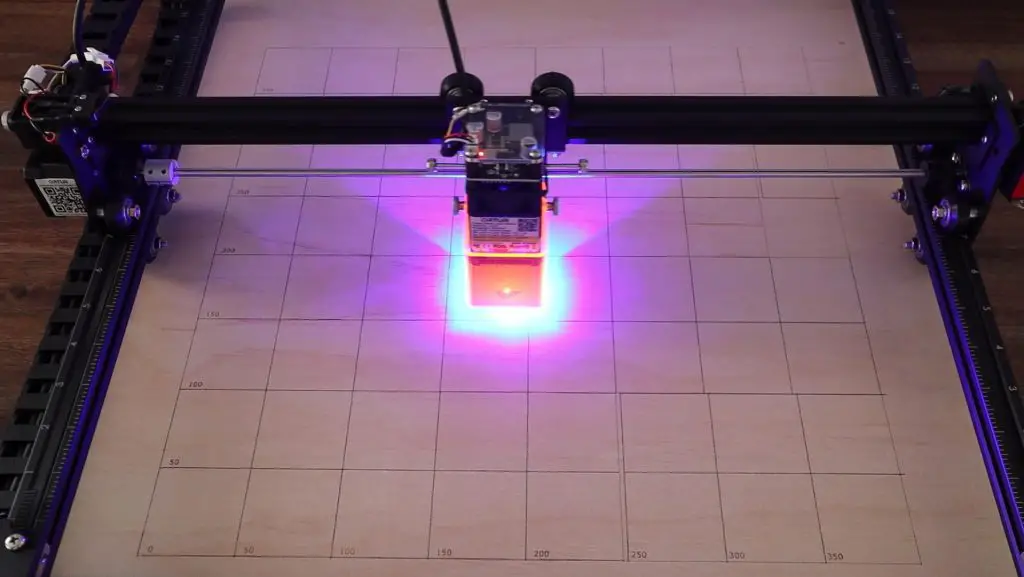
Today we’re going to be taking a look at the Ortur Laser Master 2 Pro which the guys at Ortur have sent through to me to try out and review.

Ortur are a popular CNC laser engraver manufacturer and have been around for a number of years. They are one of the most reputable brands in the space and have shifted their focus towards making better quality and safer laser cutting and engraving systems that are centred around diode lasers, with their core products being these gantry-style engravers.

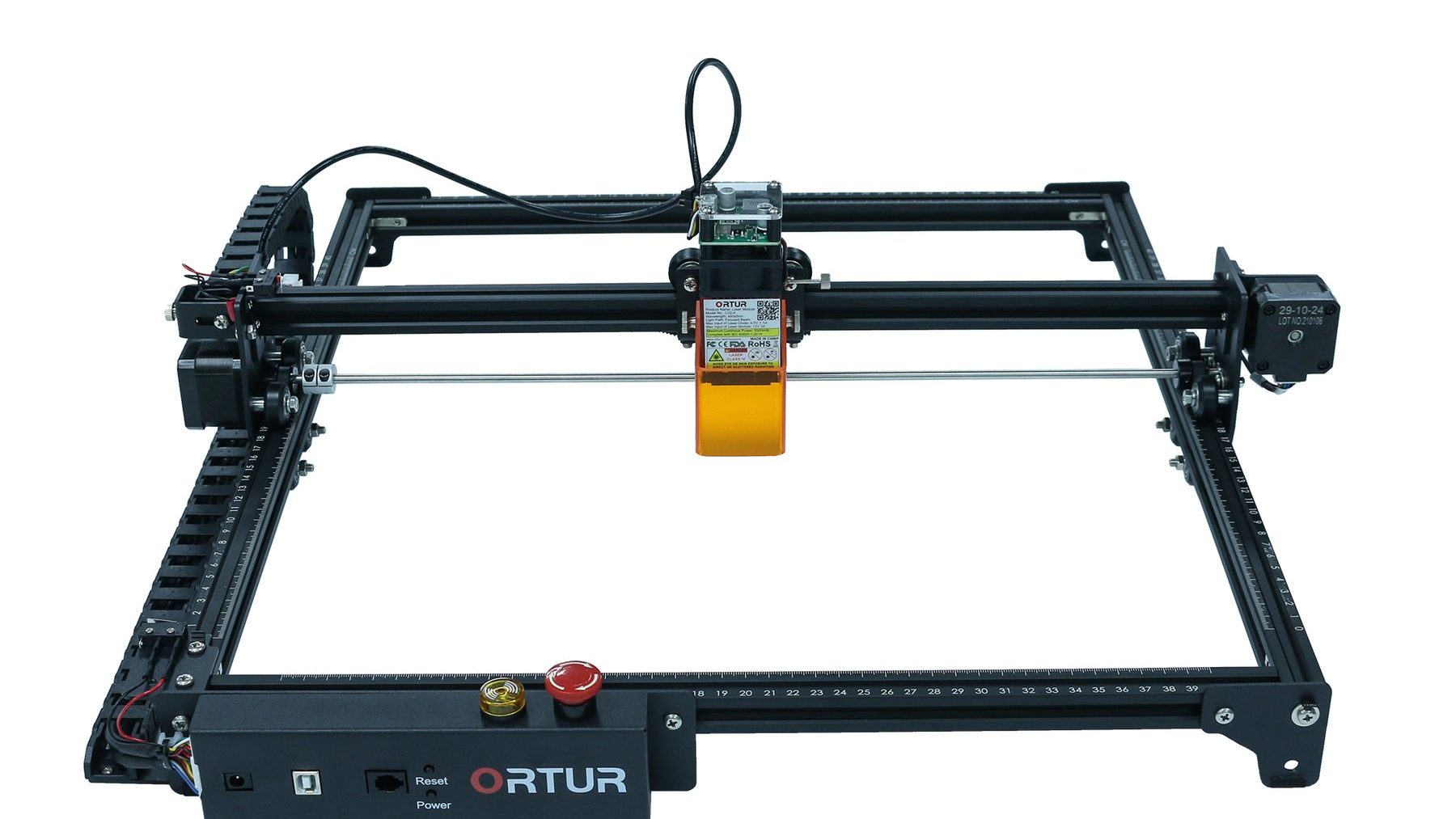
Ortur Laser Master 2 Pro

The Laser Master 2 Pro is their latest upgrade to their popular Laser Master 2 and is available for purchase from the web store, Made The Best, for around $460 at the time of this review.

They also sell a number of accessories and upgrades for the Laser Master 2 Pro, including an offline controller, full metal enclosure, Z-axis height adjuster, and even a Y-axis roller for engraving on cylindrical objects.

Here is my video review, read on for the full written review.

Laser Master 2 Pro Specifications

Laser ModuleLU2-4 24V/2A (Electric Power 20W, Optical Power 5W)
Engraving Area400mm x 400mm
Mechanical PrecisionX & Y Axis – 12.5µm
Pixel Accuracy300 pixels per inch
Wavelength445+-5nm
Focal Length50mm Fixed Focus
Engraving Speed0-10,000mm/min
Adaptor Input Voltage110V-220V
Controller Input Voltage24V/2A
Gantry ConstructionAluminium & Powder Coated Steel
MotorsNema 17 Stepper Motors
Safety FeaturesPosition Protection, Exposure Duration Limitation, Laser Beam Safety Guard, Flame Detector, Emergency Stop
Engraving MaterialsWood, Paper, Black Acrylic, Leather, Food, Stainless Steel, Powder Coated Metal
Cutting MaterialsWood, Paper, Black Acrylic, Leather, Felt, Dark Plastic

Unboxing The Laser Master 2 Pro

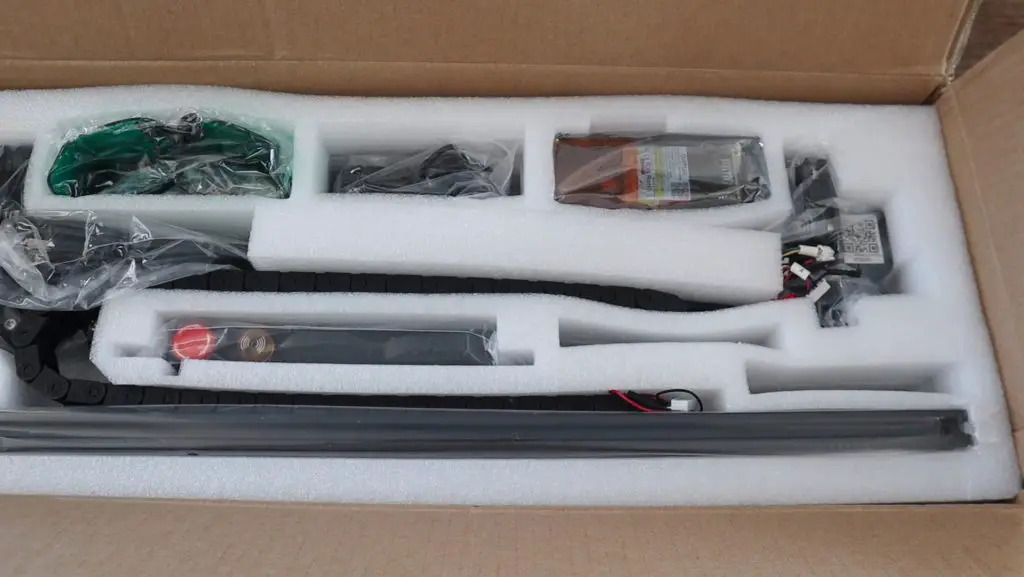
Shipping from Ortur is really fast. The kit arrived after about 6 days in a relatively large box as it is partially assembled – which is not often the case with cheaper gantry style engravers. Inside the box, the components are really well packed and protected using formed foam inserts. The components are also individually wrapped in plastic for additional protection.

Ortur Laser Master 2 Pro Box

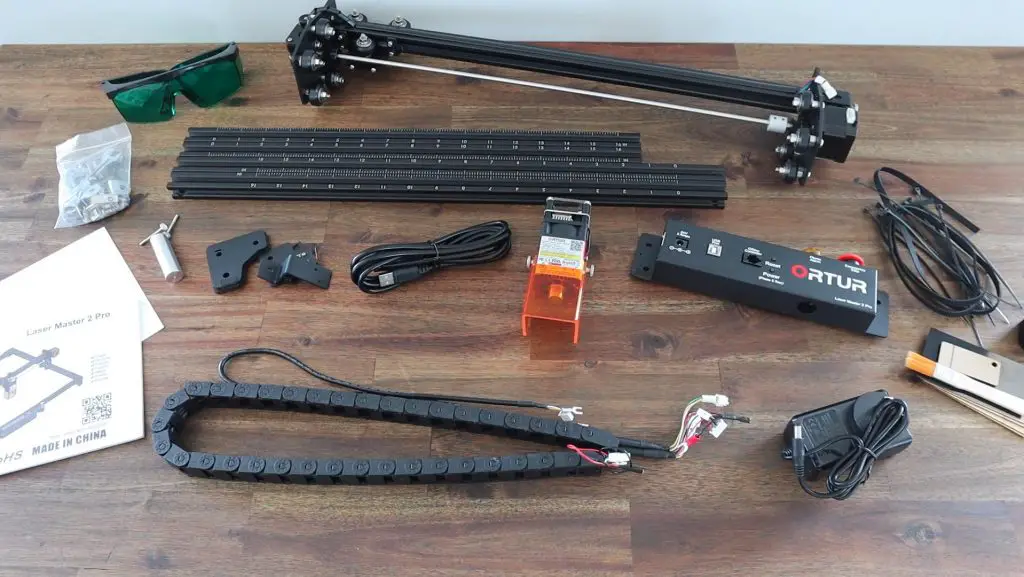
It comes with everything you need to assemble it, including zip ties for cable management, a small tool kit and even some sample pieces of wood and acrylic to experiment with. The x-axis gantry is pre-assembled and the drag chain is also pre-wired with connectors on each end.

Unboxing The Ortur Laser Master 2 Pro

Also included in the box is an assembly manual, power adaptor, USB cable, focus gauge, and some safety glasses.

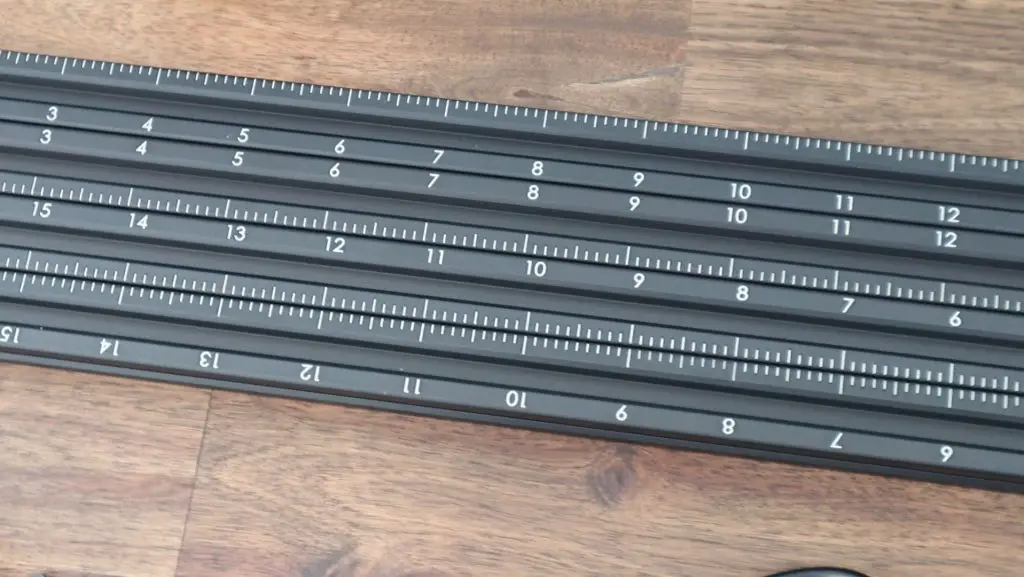
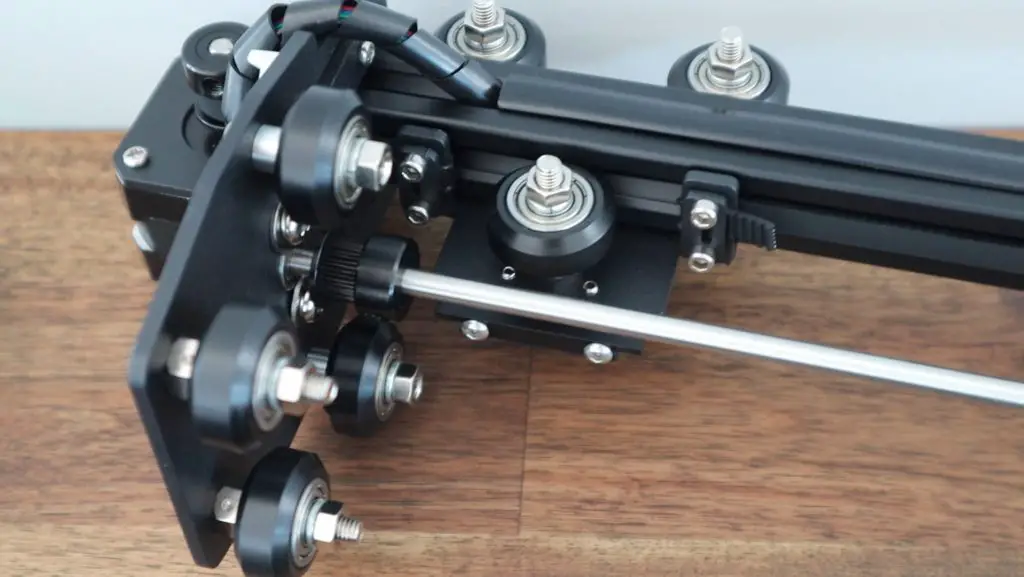
Some nice features that you’ll notice right away are the measurement scales on the aluminium extrusion and the all-metal gantry construction. In fact, aside from the components that really need to be other materials (like belts, clear covers, wheels etc.), almost everything on this laser engraver is metal. You’ll also notice that the metals have been painted or anodized after being drilled, which is also great for a good quality look and feel.

Measurements Etched Into Aluminium Extrusions
All Metal Gantry

Safety Features

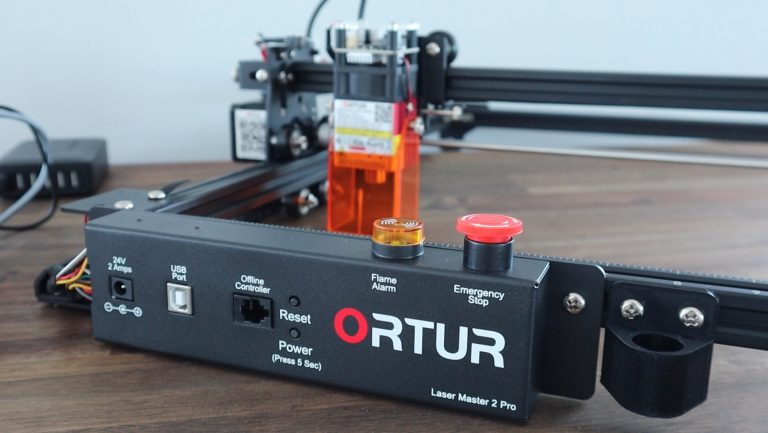
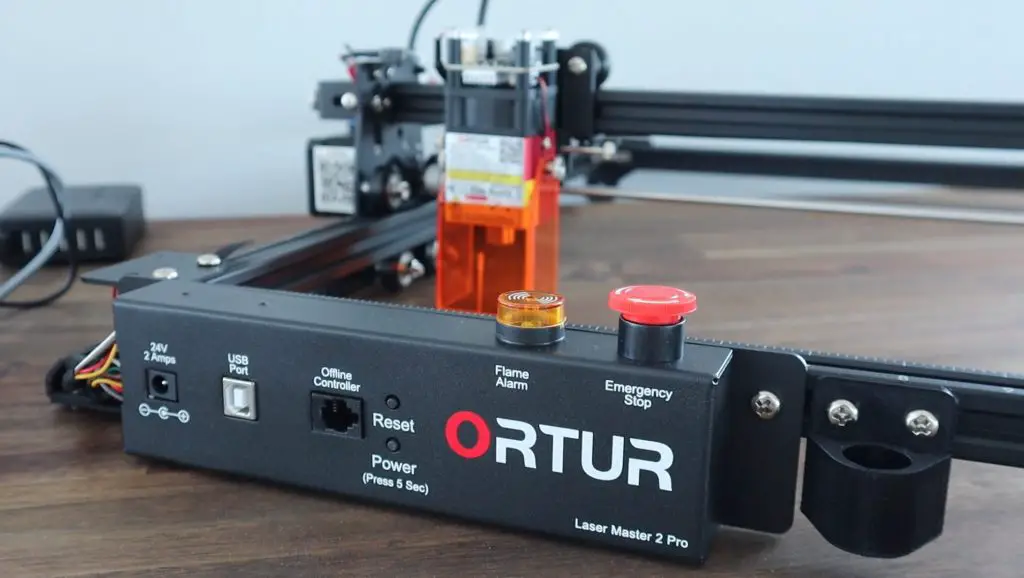
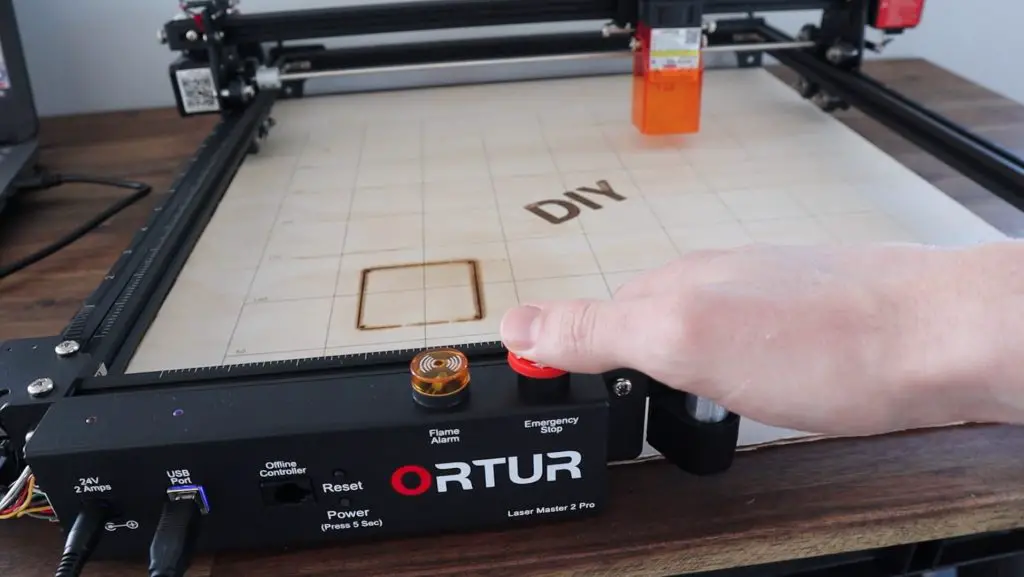
Before we get into the assembly of the Laser Master 2 Pro, let’s have a look at its safety features. The control board is where the Laser Master 2 Pro really stands out from the competition. It’s got a number of safety features built-in, which most others don’t have.

Ortur Laser MAster 2 Pro Front Panel

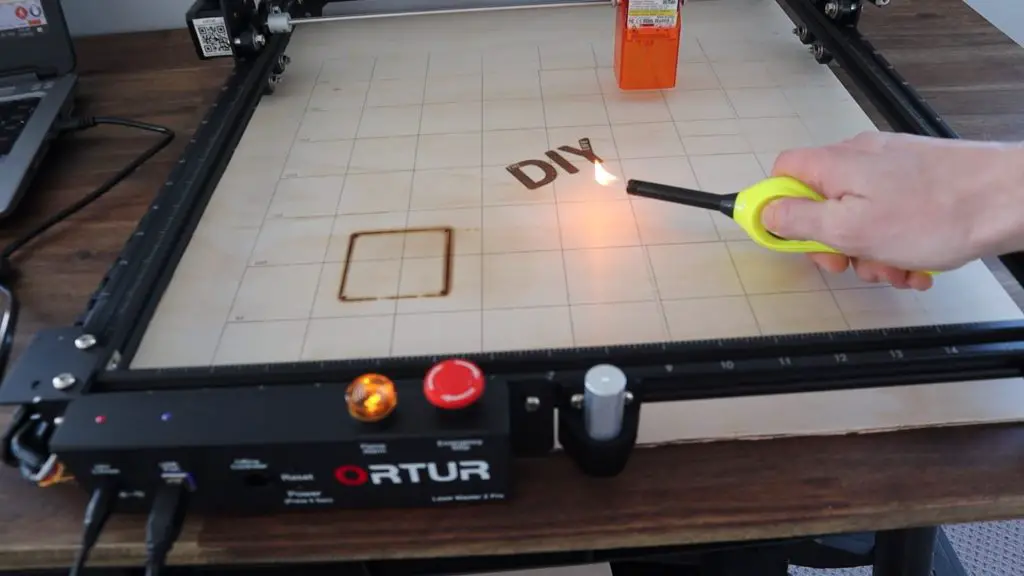
It’s got built-in flame sensing, which stops the laser if it detects that the material has caught on fire and sounds an alarm.

Ortur Flame Detection

It’s got a tilt sensor to detect if the laser has been bumped or knocked off the desk. It’ll also stop the laser if it has been burning in the same spot without movement for over a minute and it’s got a prominent e-stop on the top.

Ortur Estop

There is also a protective shroud around the laser beam to prevent the beam from reflecting onto the other surfaces and to protect objects (and fingers) from getting in its path.

Assembling The Laser Master 2 Pro

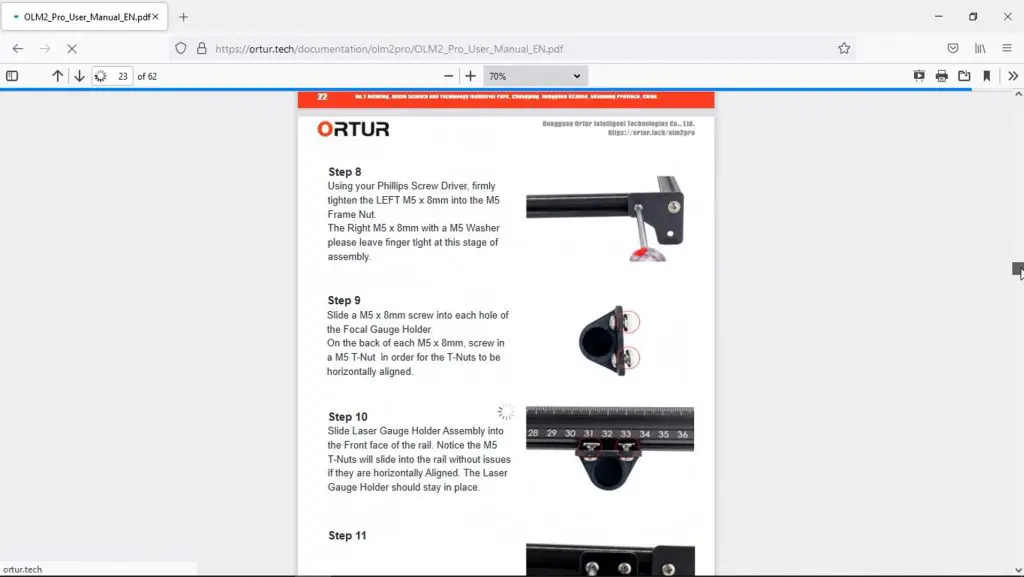
When it comes time to assemble your kit, it’s definitely worth heading over to their technical documentation link to download the pdf version of their manual. It’s much better quality than the included one and is more up to date with better pictures. I put mine together with the included manual and the images are a bit small to really see what is going on. There are a couple of changes that have been made to the construction that haven’t been updated in this printed manual – like the wiring to the limit switches being incorrect.

Ortur Online Assembly Manual

In any case, it is relatively easy to put together.

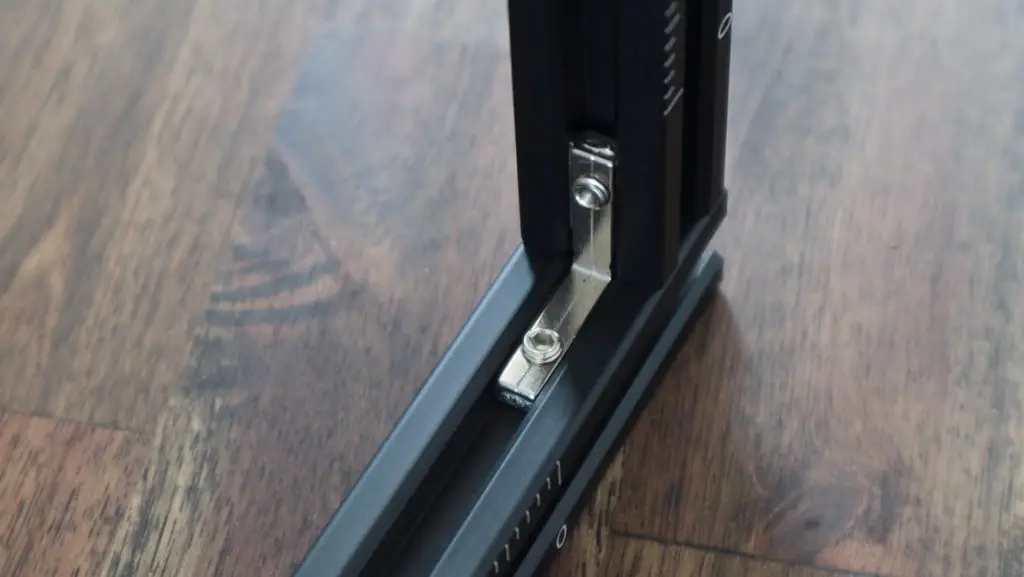
While assembling your laser engraver, you’ll again notice a few extras like these additional L-brackets in the corners – which really go to show that they’re determined to give you a good quality product.

Corner Re-enforcement Pieces

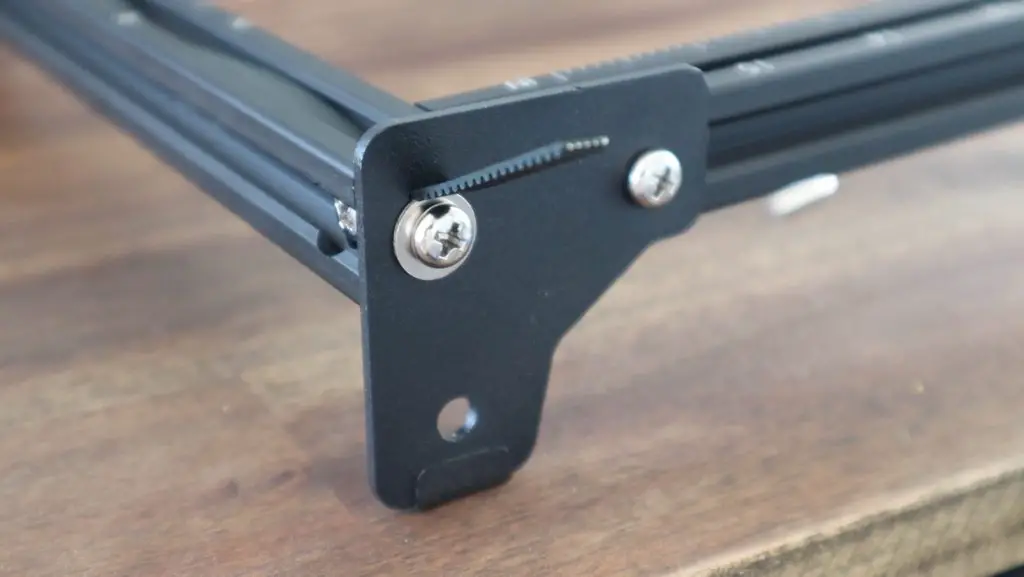
One thing I don’t really like is the belt tensioning on the y axis. You pull the belts through slots in the legs and secure them with a screw and washer. It works fine, but you really need to pull on them to get them tight. They also don’t look good when finished off and you can’t make adjustments to the belt tension very easily. They would have been fine for an anchor point at the back, but it would be nice to have some sort of screw tensioning mechanism on the front ends.

Legs with Belt Tensioning

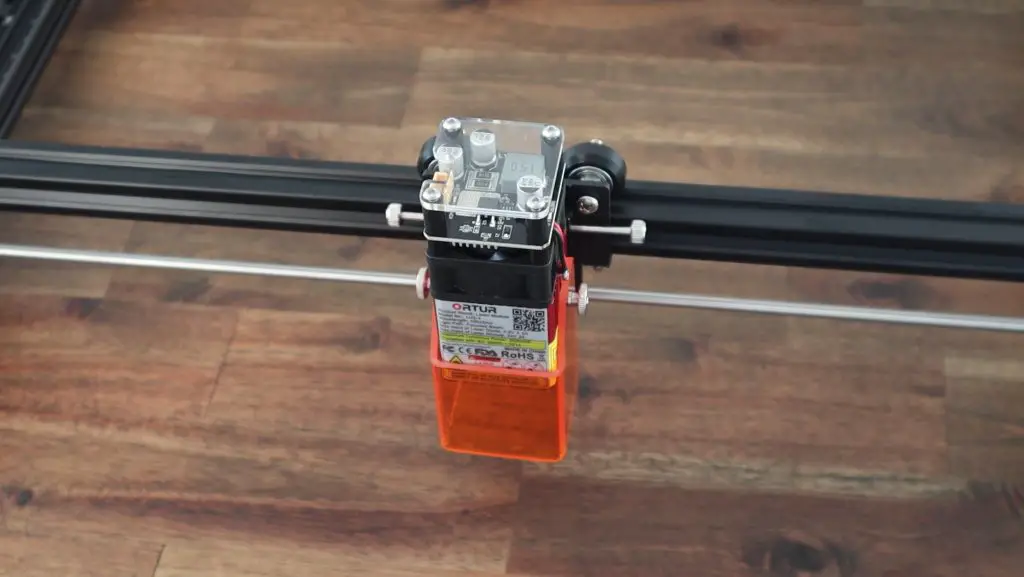
The diode module is mounted onto a dovetail slider and is secured with a thumbscrew on either side. If you land up engraving different thickness materials quite often then you’ll want to get the adjustable z-axis as it can be quite cumbersome to hold the module at a precise height while tightening the two thumbscrews.

Ortur 20W Diode Laser

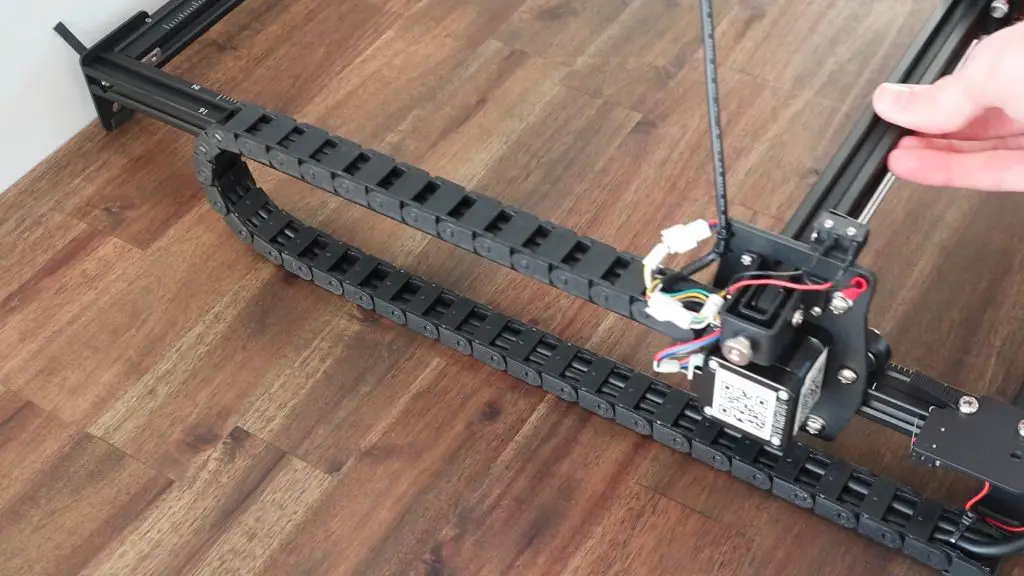
The drag chain is great for cable management to the motors and laser module. Most of these style laser engravers just leave the cables hanging free on one side, which obviously opens up to the risk of getting them caught in the gantry or running the laser over them and melting the insulation.

Cable Management

There isn’t really much to say about the actual assembly process. It is about as simple as it can be made (without arrival completely assembled) and the online manual is really helpful with the more complex parts.

As I mentioned earlier, the only issue I had was with the wiring to the switches – but I have worked with these on numerous 3d printers, I knew they were incorrect and fixed them up before turning it on.

Testing Engraving and Cutting

With the laser engraver assembled, I downloaded LaserGRBL and tried a couple of test engraves and cuts. Having never used LaserGRBL before, I had to do a bit of playing around first in order to familiarize myself with it. LaserGRBL is quite a simple package, which I like, but if you’d like more functionality then you’ll probably want to rather use Lightburn – which you need to pay for. I tend to use Inkscape for all of my 2d design work, so only having the laser functionality without the drawing tools is fine for me.

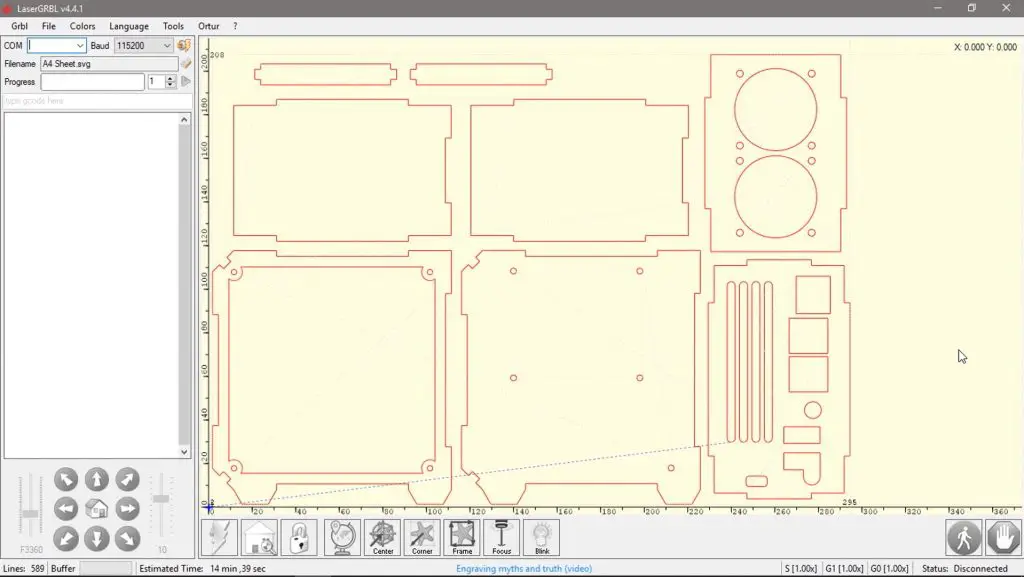
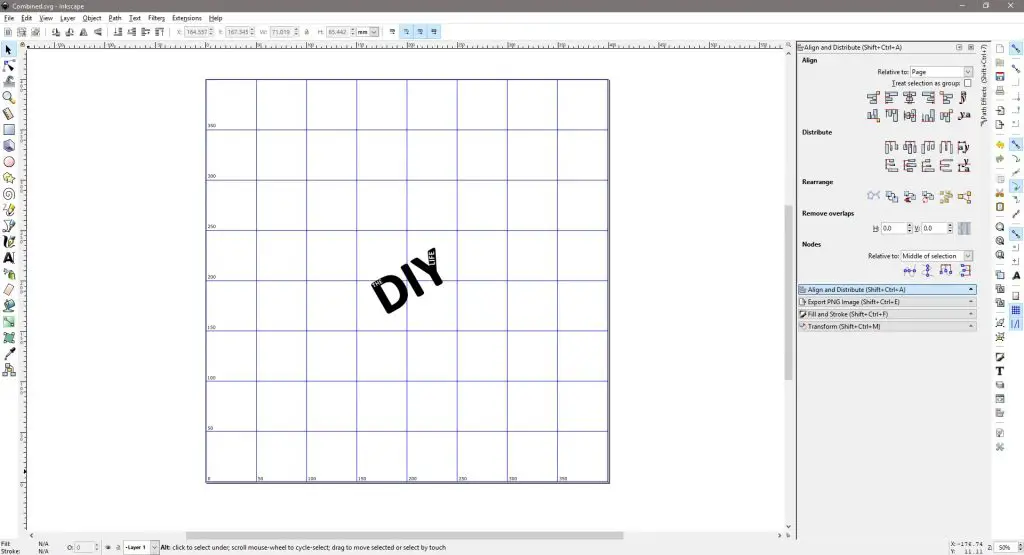
Laser GRBL Pi Case Layout

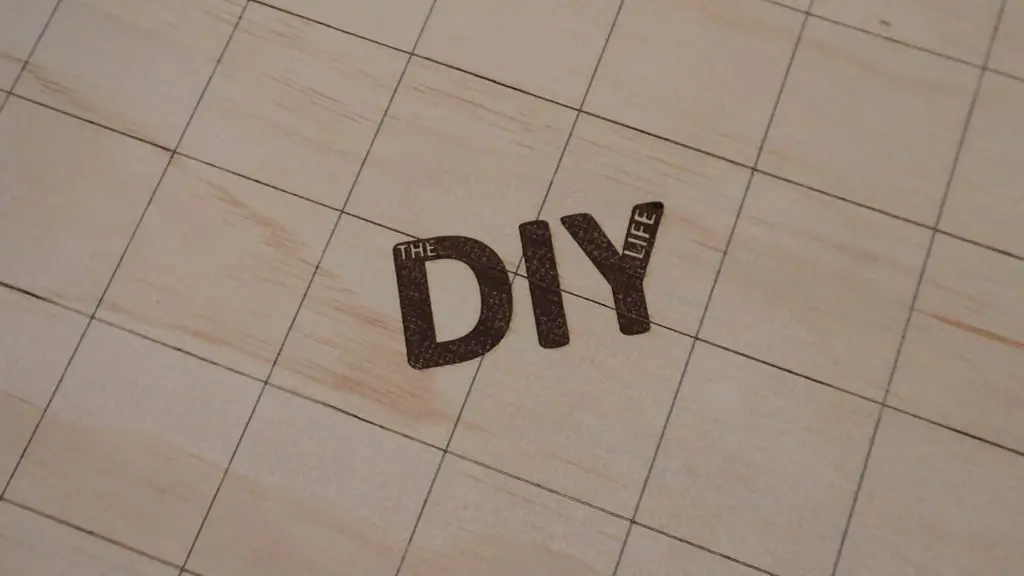
To start off, I drew up a cutting area grid with some dimensional markings along the two axis and The DIY Life logo in the centre.

This came out really well with the sample speeds and powers that Ortur suggests in the software.

Laser Master 2 Pro Engraving

I didn’t have any issues with engraving during my first few tests, although I did accidentally stop the laser while engraving the grid when I was familiarising myself with the software. When I restarted it, the laser homed to a slightly different position so you’ll notice some of the squares engraved in the second half are off by a few millimetres along the x-axis. But for the most part I was really impressed with the results.

Laser Operating

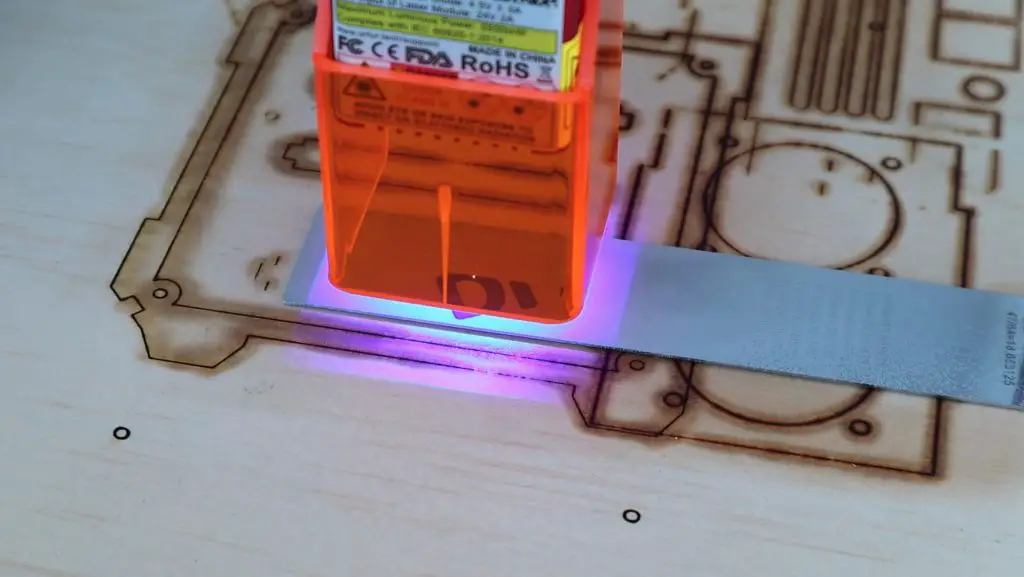
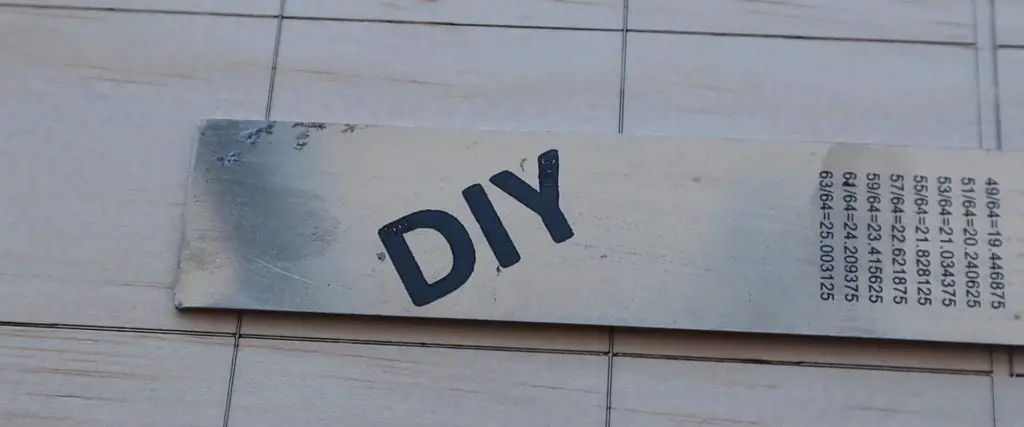
I then also tried engraving on some metal. You can’t actually etch the surface of metals, but I’ve used this product called CerMark to engrave on metals. You spray it onto the surface to be engraved, then engrave over it, and then wash it off with water. It leaves a durable black marking that works on a range of metals and glass.

Steel Etching With Laser Master 2 Pro
Ruler Engraving Afterward

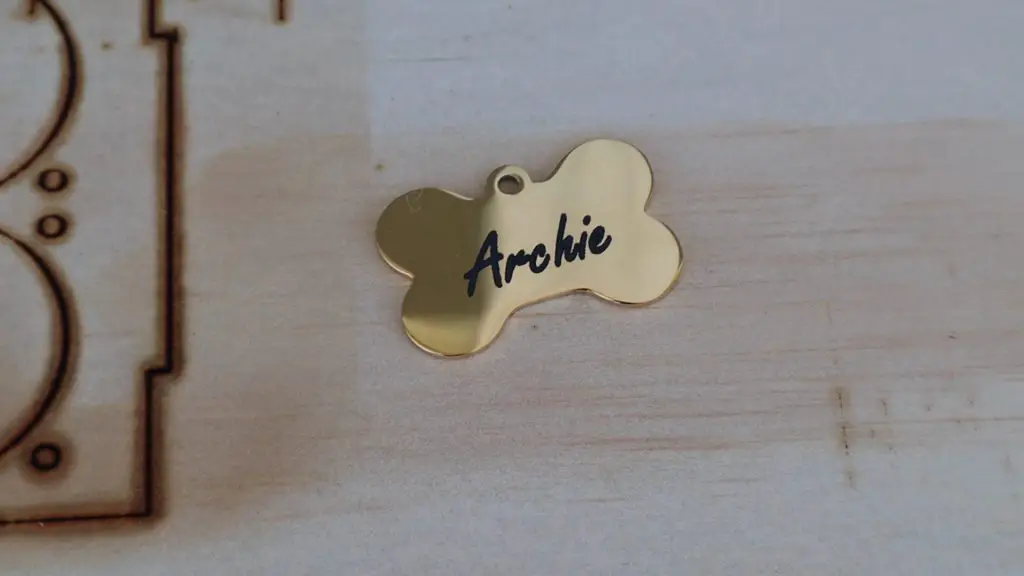
This worked quite well on a stainless steel ruler and even on a dog tag. It’s worth mentioning that CerMark is quite sensitive to using the correct laser power and speed. If you don’t use enough then the marking washes off afterward or wears out quickly and if you use too much then you lose resolution. The ruler engraving was probably a little overdone.

The dog tag below is gold plated, so it can’t just be engraved like painted ones.

Engraving A Dog Tag

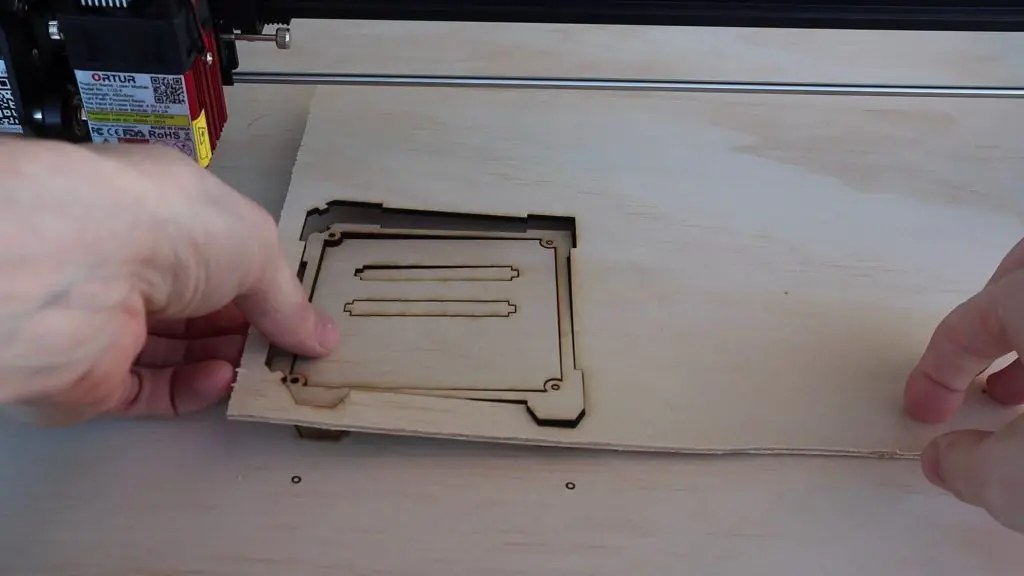
I then tried cutting some 3mm plywood and that worked quite well too. I’ve seen a lot of complaints about diode lasers not being powerful enough to cut wood, but this laser had no trouble cutting through 3mm plywood in just two passes. As with the engraving, it took a bit of experimenting to get right, but once the settings were dialed in it cut effortlessly.

Ortur Laser Master 2 Pro Cutting 3mm Plywood

You can’t really see in the photos or video, but cutting produces a lot of smoke. You’ll definitely need to use an extractor or ventilation fan to remove it or cut in a covered outdoor area. Just be careful outdoors as the flame sensor can be set off by the sun’s UV rays which will then stop the laser and potentially ruin your cut.

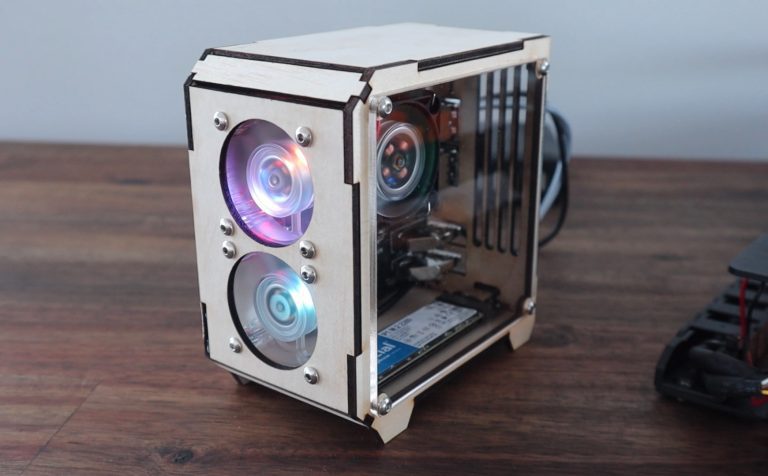
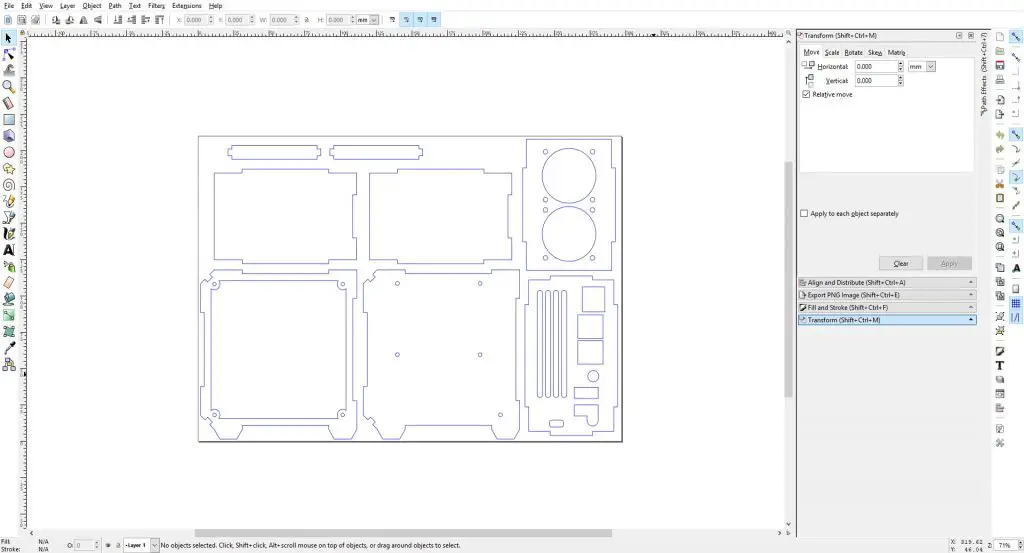
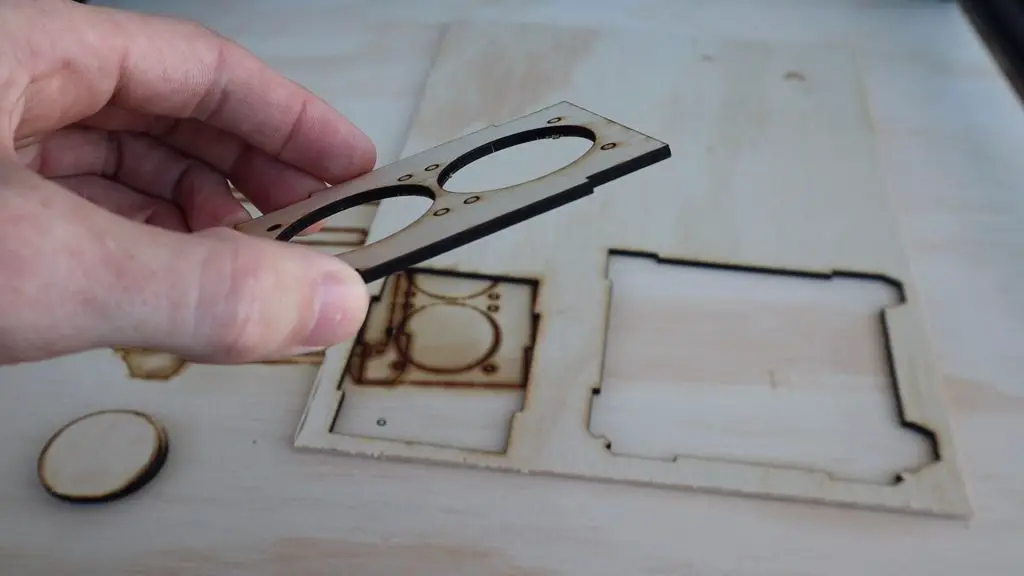
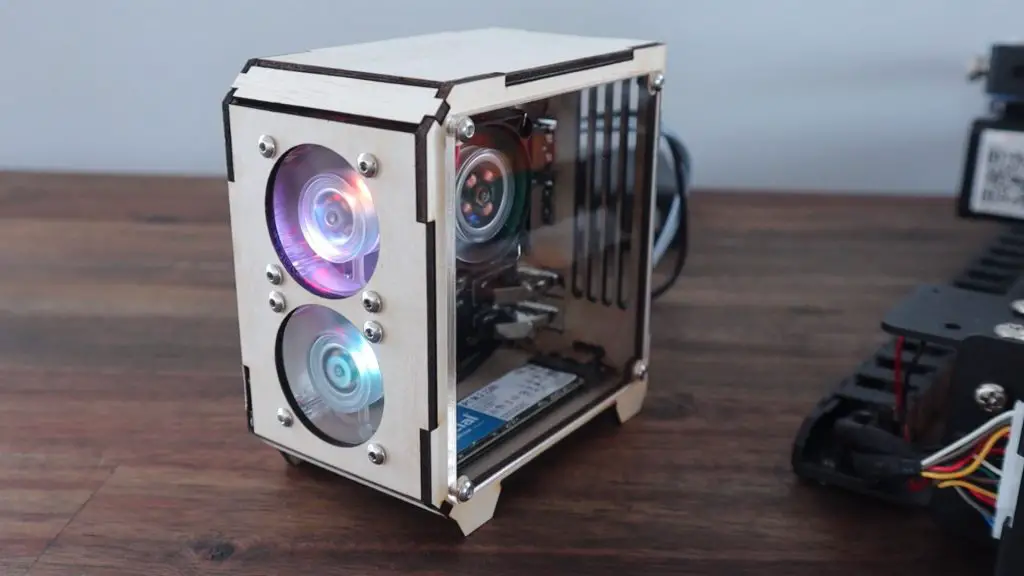
I then decided to try to make up a new plywood case for my Raspberry Pi, so if you’re interested in following that project, head over to the build post – Plywood Raspberry Pi Case.

I Made a New Raspberry Pi Case using the Ortur Laser Master 2 Pro

Final Thoughts On The Ortur Laser Master 2 Pro

Being around as long as they have, Ortur have had the time and resources to put a lot of effort into making a good quality and reliable product. They have taken a lot of the safety concerns people have had with diode laser engravers and have tried to address them. I say tried because there are still inherent safety risks with using a laser that is not entirely enclosed. It doesn’t take much to not tighten one of the thumbscrews properly and have the laser module fall off the gantry during a burn and you’ve got a rogue laser traveling around your workshop. If you’re looking to do a lot of work with your laser then I’d definitely recommend buying or building an enclosure for it. At the very least you’ll want to always use your safety glasses when working with the Laser Master 2 Pro.

This brings me to a point about the glasses that I raised in my video. I haven’t done a lot of research on these (so I might be completely wrong), but I suspect that they’re not the correct ones for this particular laser. In order to block certain wavelengths, the colour of the lenses is usually the complementary colour of the laser. This is a blue laser, so the complementary colour is orange. This explains why the shroud around the laser is orange. The glasses included with the kit are green, so are actually best for red light. They’re probably better than nothing, but I’d be looking to replace them with some better-quality ones quite soon.

At $460, the Laser Master 2 Pro is certainly not cheap, but you do get what you pay for. This engraver is a substantial upgrade over the cheaper ones available online, and the power 20W diode laser has no trouble engraving and cutting a wide range of materials. That being said, if you do intend to do more cutting than engraving then you’ll probably want to look at getting a CO2 laser rather than a diode laser – they’re just better suited to the application.

Overall I think the Laser Master 2 Pro is about as good as it gets for a diode laser setup. There are a couple of areas that could still be improved upon, like belt tensioners and the included manual, but these are really looking for faults. I have no doubt that you’d be happy with your purchase of the Laser Master 2 Pro

Ortur Laser MAster 2 Pro Front Panel

Trying Out The RasPad 3, My Unboxing & Review

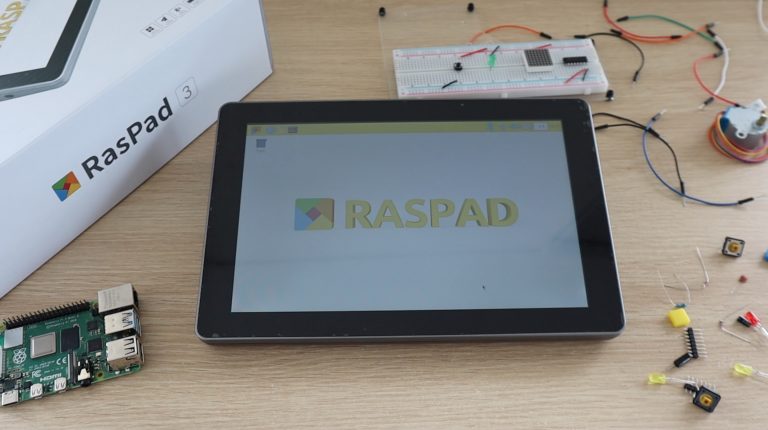
Today we’re going to be taking a look at the RasPad 3, an all-in-one tablet-style device designed around the Raspberry Pi 4B that Sunfounder have sent me to review and share with you.

The RasPad 3 was brought to life through a successful Kickstarter campaign in October 2020 which saw almost 2000 backers pledge over $300,000, so it definitely gathered a lot of early interest.

Raspad 3 In Box

Watch my unboxing and review video below, or read on for my write-up.

Where To Get Your Own RasPad 3

The RasPad 3 sells for around $250 on Amazon or $220 from their web store, each often having discounts of $10 to $40. I’ll talk about the price a bit more once we’ve had a look at what is included and what it does.

Amazon – Buy Here

Sunfounder – Buy Here

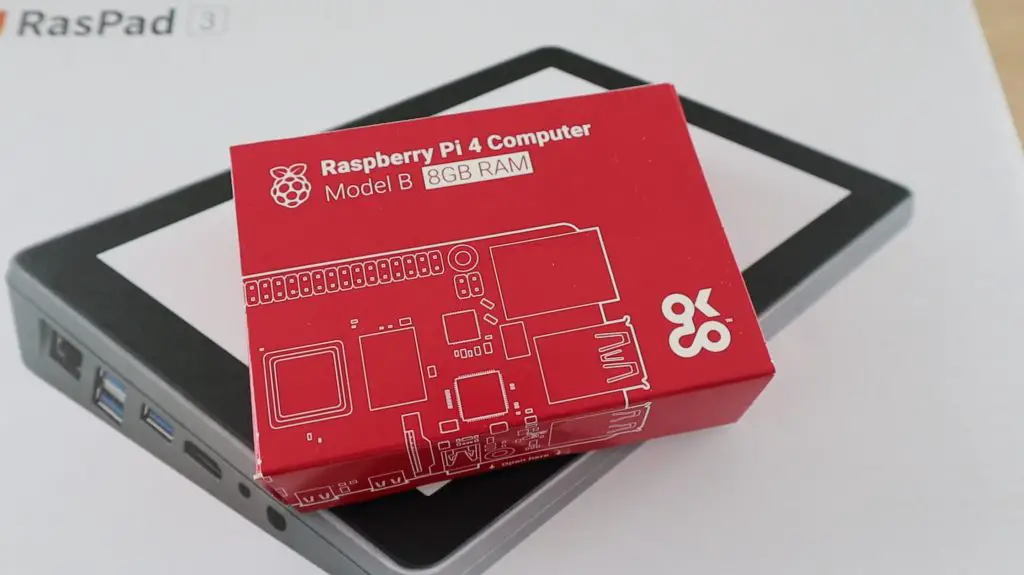
In addition to the RasPad, you’ll also need to get yourself a Raspberry Pi 4B and an SD card to complete the build. I’m going to be using an 8GB version in this review as this is one that I’ve got available at the moment, but you can use a 2GB or 4GB version as well.

Raspberry Pi 4B 8GB – Buy Here

Raspberry Pi 4B 4GB – Buy Here

Raspberry Pi 4B 2GB – Buy Here

Sandisk Extreme MicroSD Card 32GB – Buy Here

Raspberry Pi 4B 8GB For Raspad

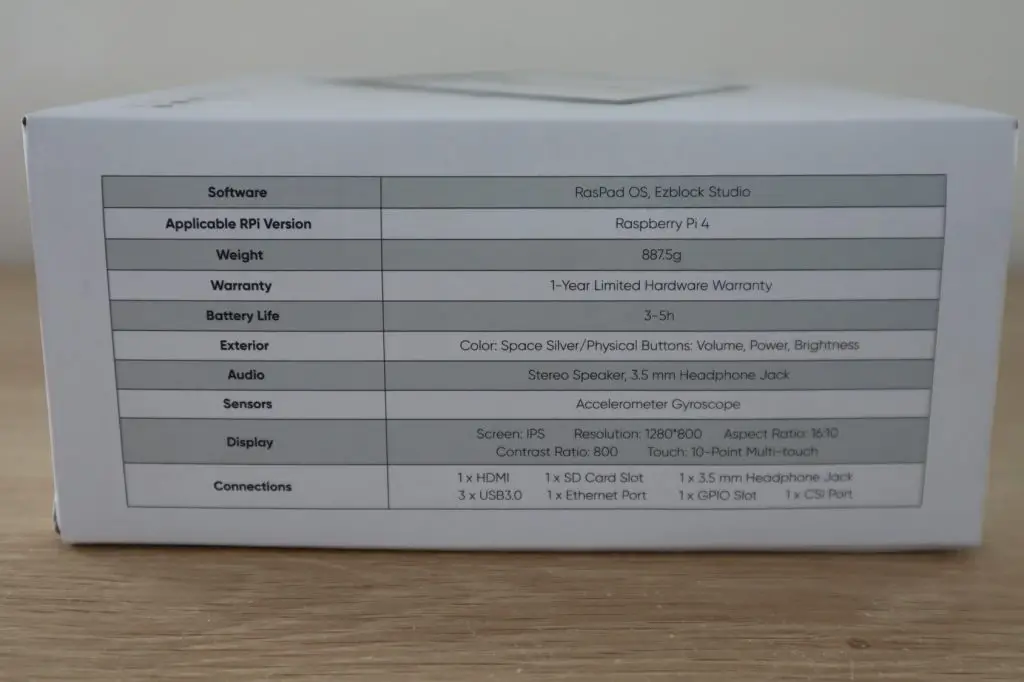
RasPad 3 Specifications

Raspad 3 Specifications

Sunfounder doesn’t really have a specification list or table on their product page for the RasPad, so I’ve summarized some of the key information below:

Dimensions 260 x 170 x 50mm
Weight890g
Display10.1″ Touch Display – 1280 x 800 Pixels
16:10 Aspect Ratio
SoftwareRasPad OS, Raspberry Pi OS, RetroPie, Raspbian
Ubuntu Desktop, Chromium OS, Android
Compatible BoardsRaspberry Pi 4B
Battery3 Cell 11.1V Lithium-Ion 3200mAh
Battery Life3-5 Hrs
PortsEthernet, 3 x USB 3.0, HDMI, 3.5mm Headphone Jack
5.5mm Barrel Power Jack, MicroSD Card Slot
FunctionsPower, Volume, Brightness, Auto-rotate Display
Built-In SensorsAccelerometer Gyroscope

Unboxing The RasPad 3

Let’s open it up and take a look at what’s included in the box.

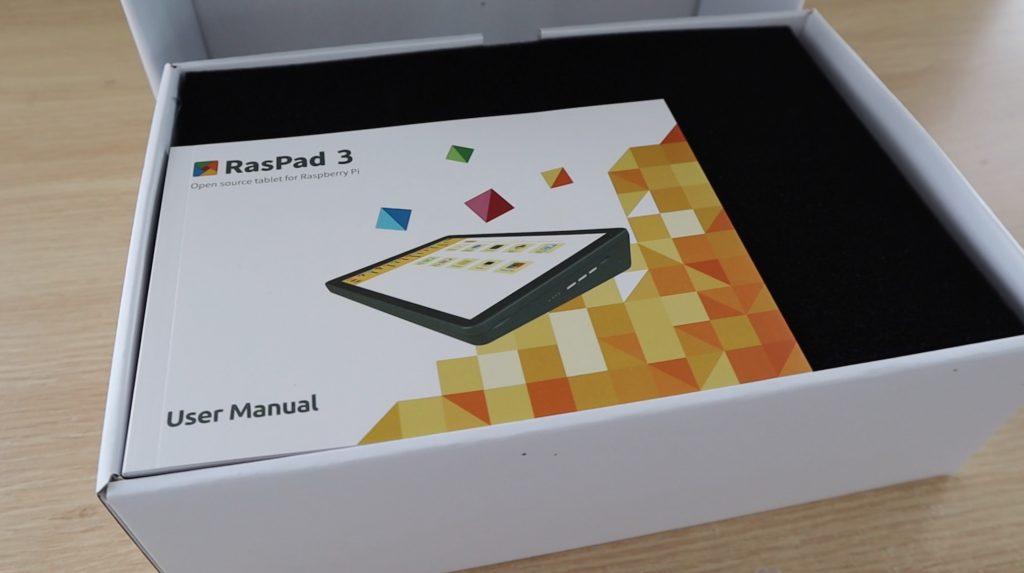
First up is the user manual.

Raspad User Manual

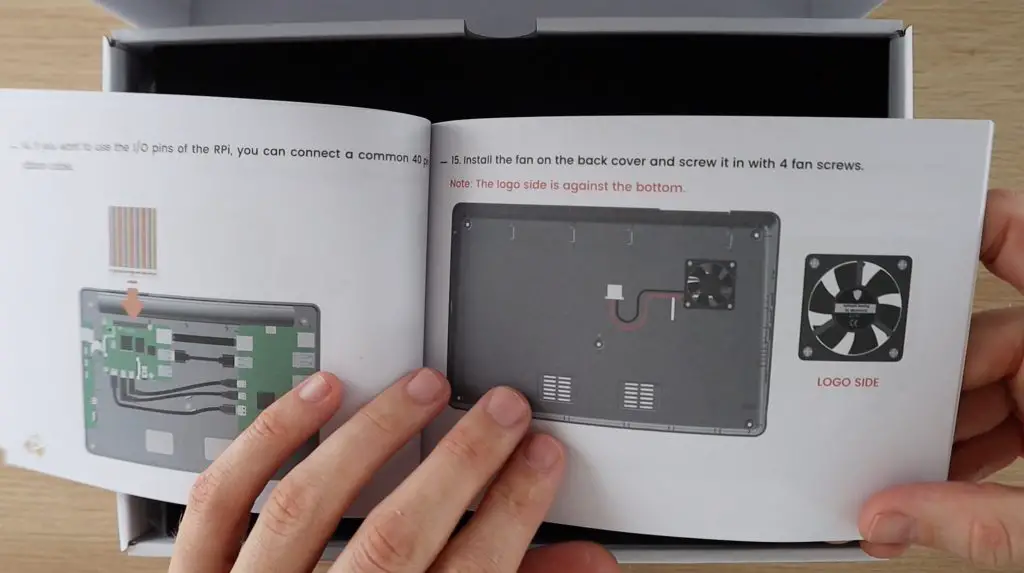
It’s is one of the better ones I’ve seen for these types of kits. It is very well presented, with illustrations for each step, and I’m pretty sure that even a child of around 10 years old wouldn’t have much trouble following the instructions to put it together. The English is also pretty good for the most part, but there are a few gems along the way.

RasPad User Manual Inside

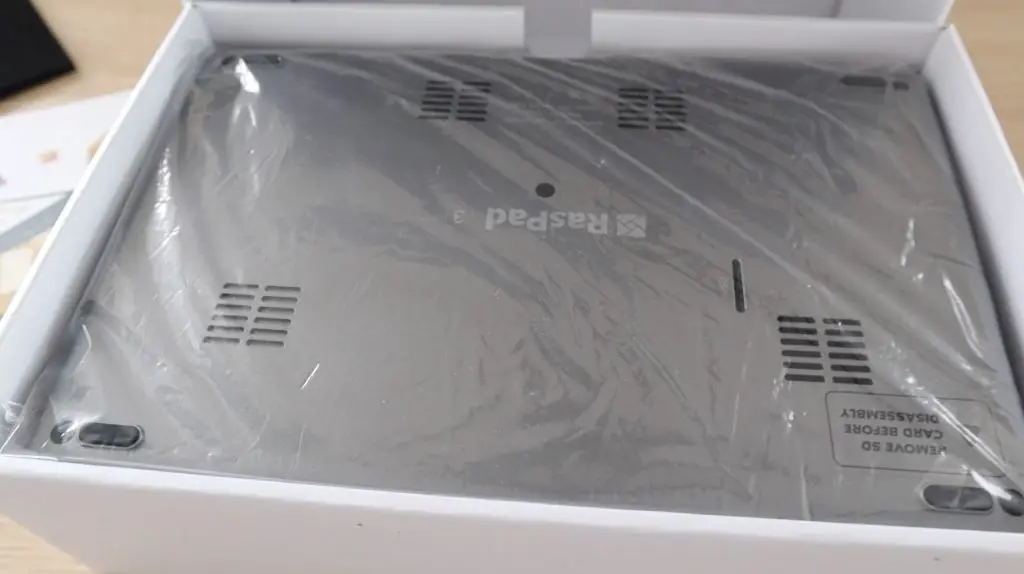
Underneath the sponge protector, we’ve got the RasPad in a plastic sleeve.

Plastic Sleeve Over Raspad

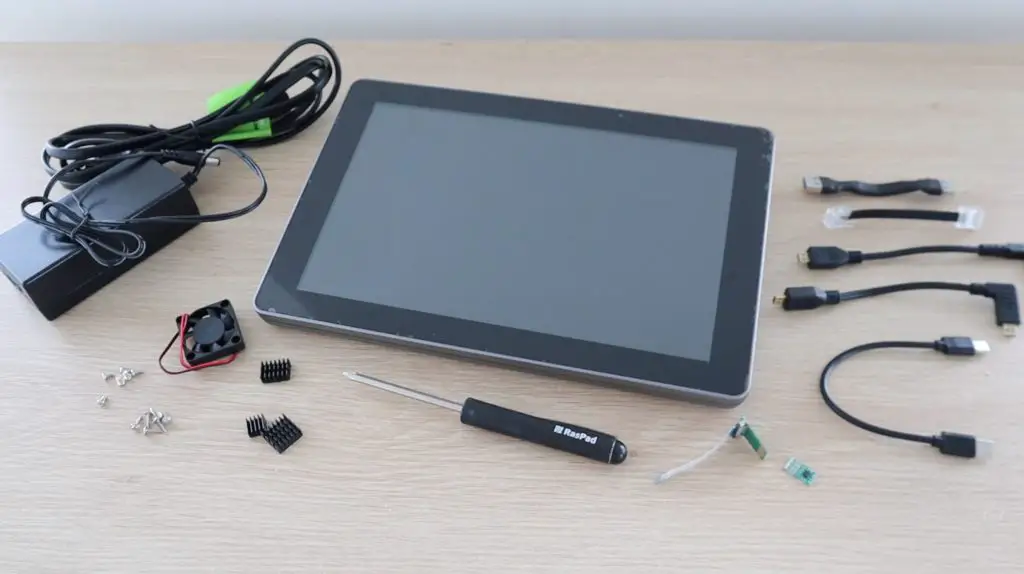
And under that, we’ve got a compartment with the power cable, internal cables, and accessories and even a screwdriver to put it together with.

Included In The Box

So the RasPad includes everything you need to get it running, even the heatsinks for your Pi. You literally just need to your Raspberry Pi and an SD card.

From the manual (on flashing the image) it looks like there is a version available with a pre-flashed microSD card included but I couldn’t find an option for this on their website or on Amazon, so this is possibly a carryover from a previous version.

So that’s what’s included in the box, now let’s take a look at the device.

RasPad 3 First Impressions

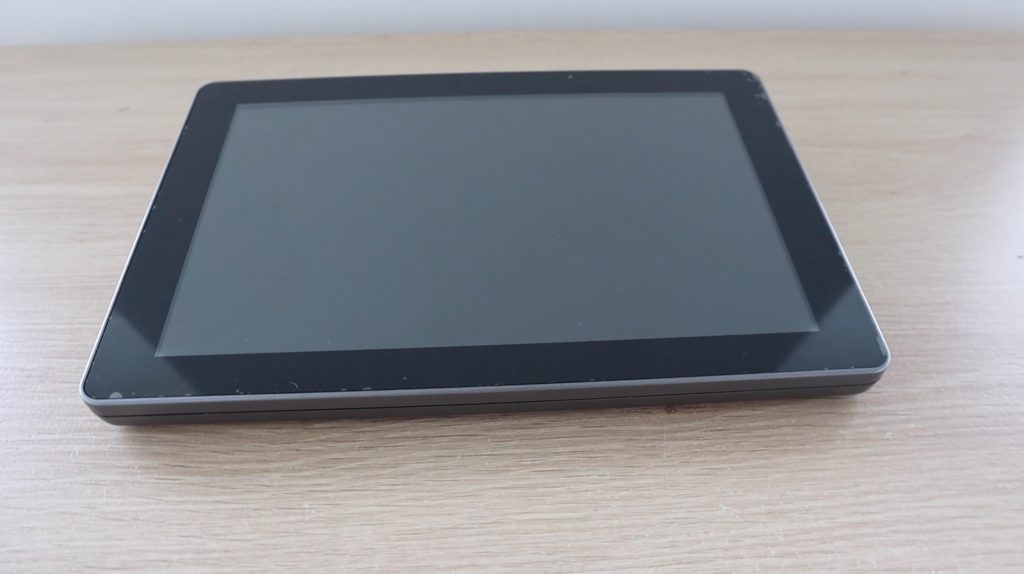
Taking a look at the RasPad device, on the front we’ve got the large 10.1” touch display. It’s surrounded by a prominent black bezel, similar to other 10″ tablets. There are no additional buttons, no camera lens, or mic or speaker holes on the front.

RasPad 3 Tablet

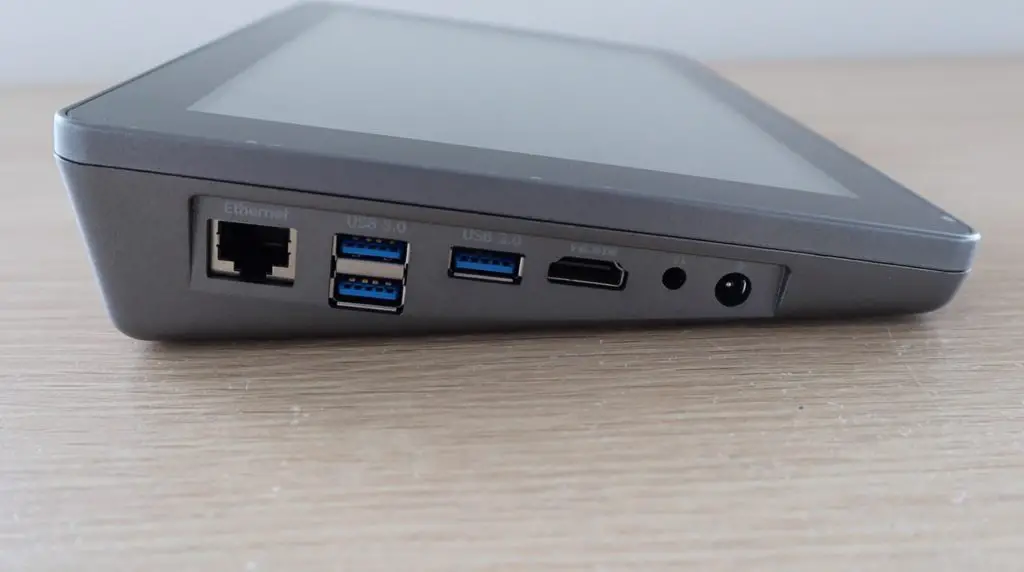
On the left side, we’ve got an Ethernet port, 3 x USB 3.0 ports, a full-size HMDI port, a 3.5mm headphone jack, and a 5.5mm barrel power socket. You’ll notice side-on that the tablet is much thicker on the back than it is on the front and that it sits on the table with the display tilted at an angle.

Left Side Ports

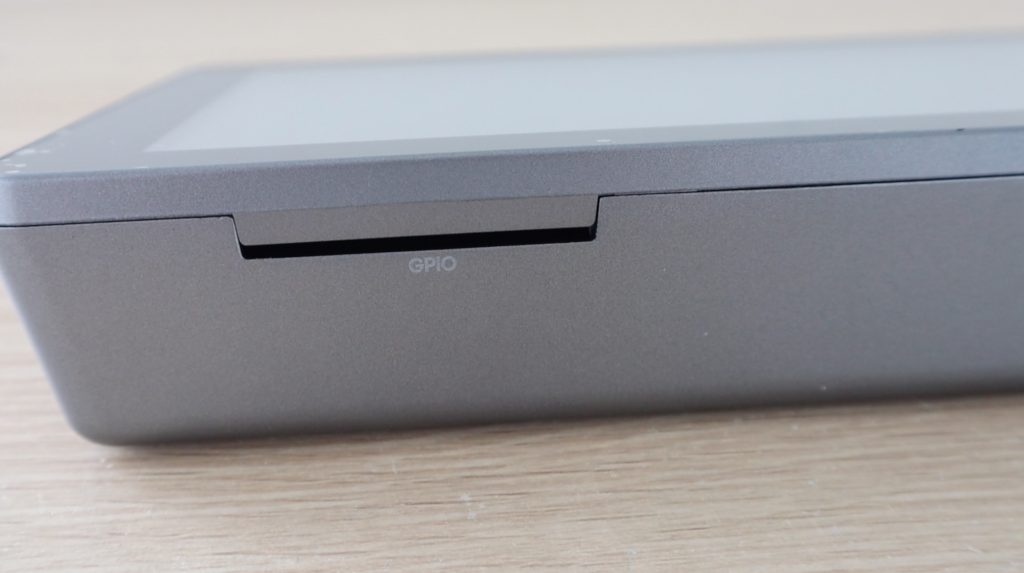
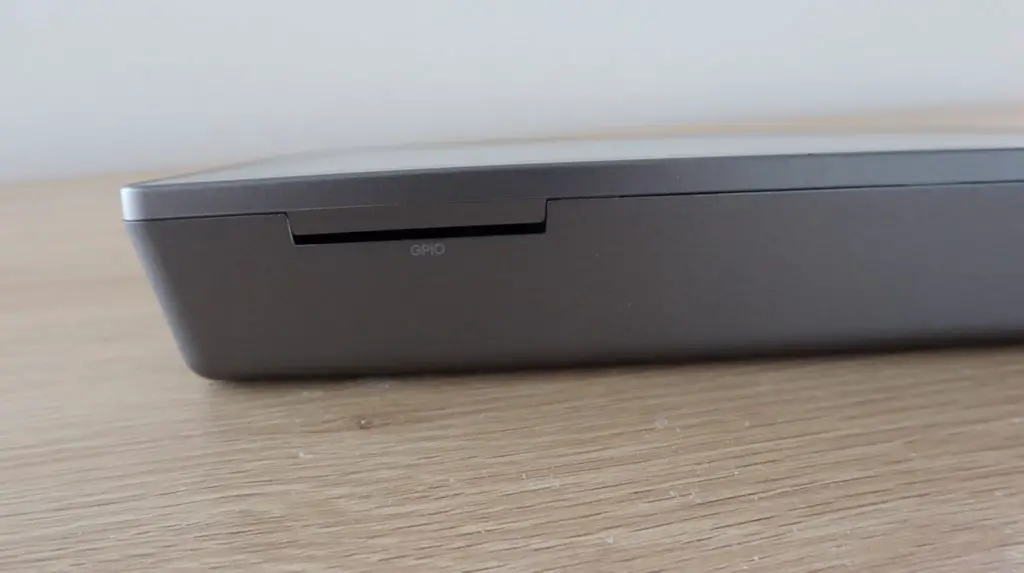
On the back is just a thin slot to pass a GPIO ribbon cable through so that you can access the Pi’s GPIO pins.

Rear GPIO Slot

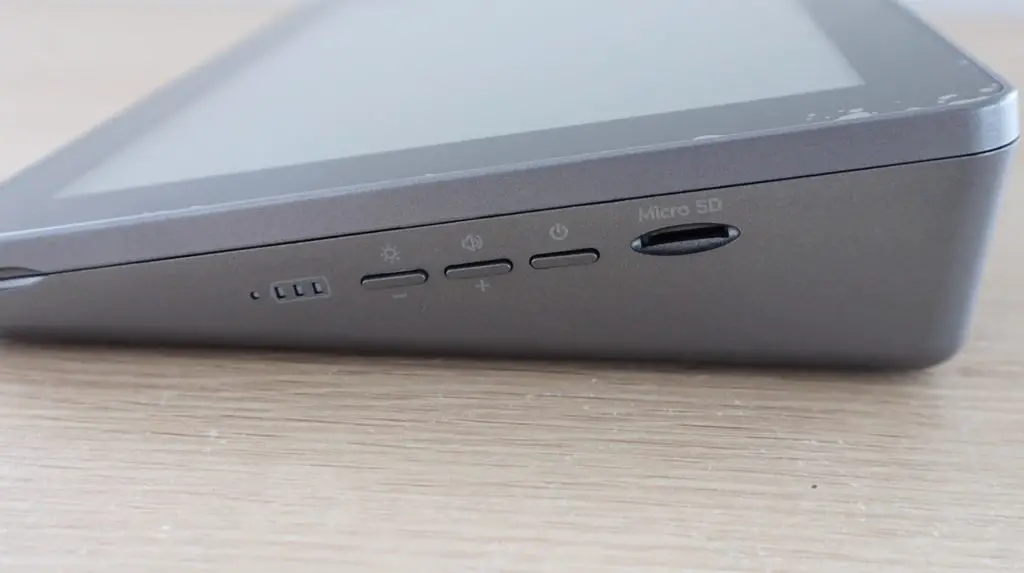
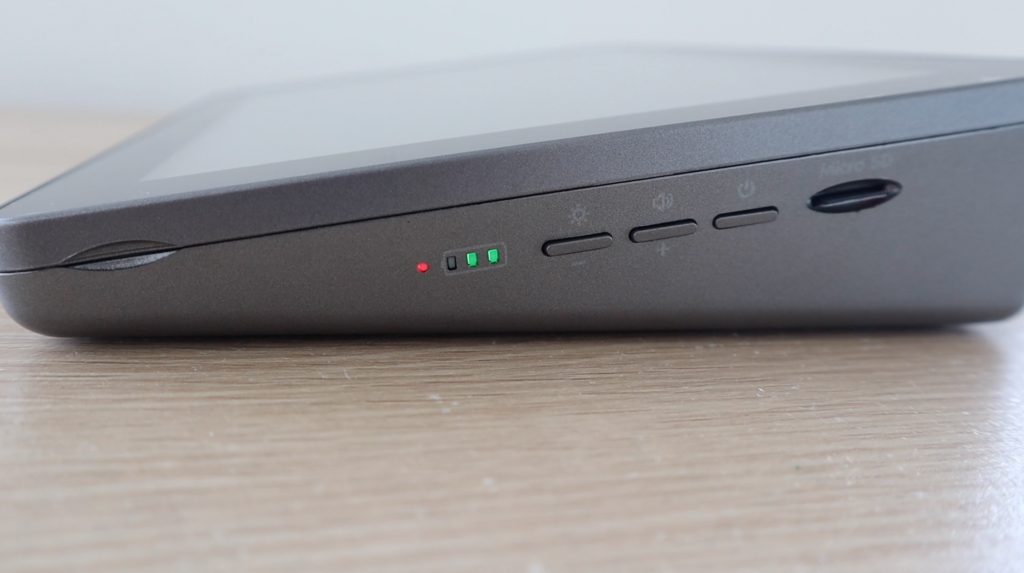
And on the right side, we’ve got a battery indicator, buttons to control the volume and brightness, a power button, and a microSD card slot.

Right Side Buttons and Indicators

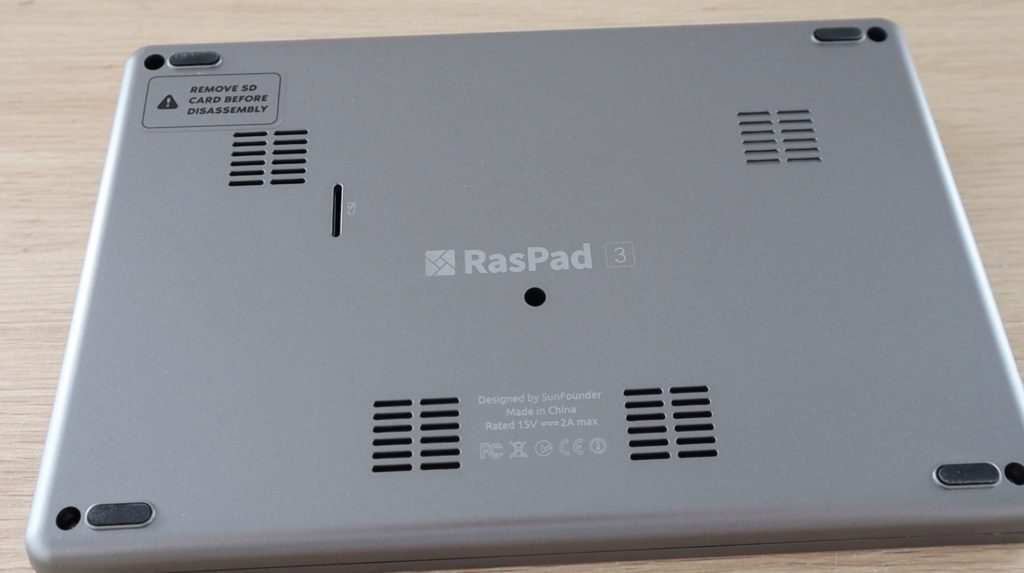
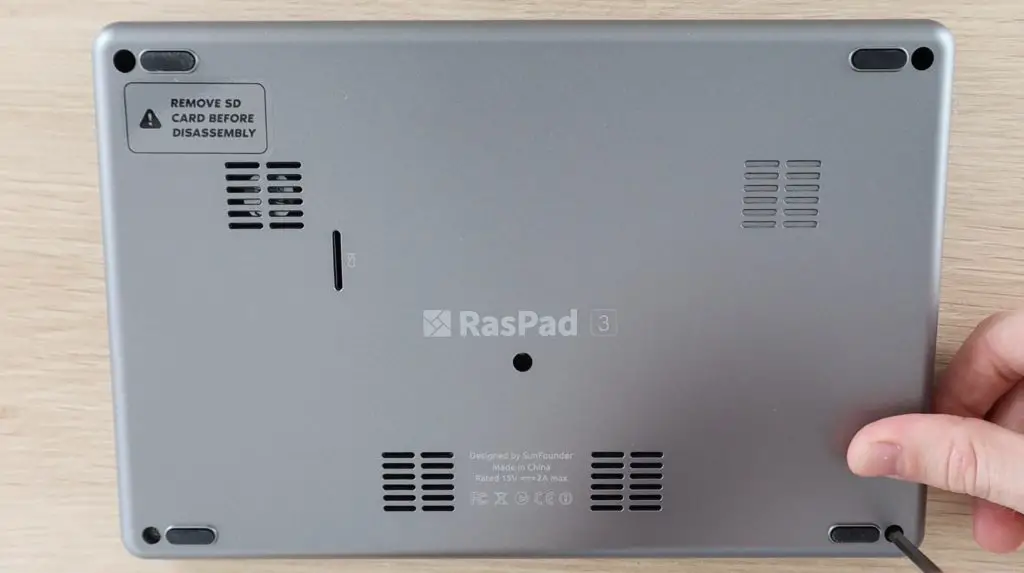
There isn’t really much on the bottom. We’ve just got 5 screw holes which hold the bottom cover in place as well as some ventilation holes and speaker grills. It’s also got rubber feet on each corner to rest on to elevate it slightly for ventilation.

Bottom Ventilation and Speaker Holes

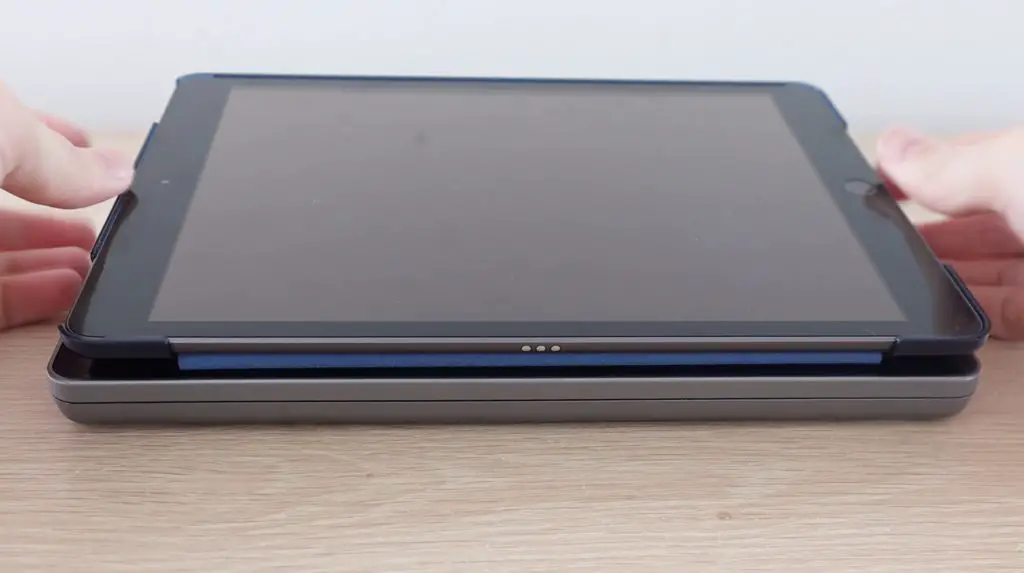
The RasPad is roughly the same size as the 10.2” iPad although it is obviously quite a bit thicker, especially along the back edge.

RasPad Compared to iPad Size

Overall, the RasPad feels like a reasonably well-built, good-quality product. The glass touch display looks and feels like a higher-end tablet and the plastic case is sturdy and sits perfectly flat on the desk. There is a prominent join line around the edge between the bottom and top halves, but this is to be expected on a device that is intended to be taken apart and re-assembled.

Assembling The RasPad and Raspberry Pi 4

Now that we’ve had a look at the outside, let’s use the included screwdriver and put the Raspad together.

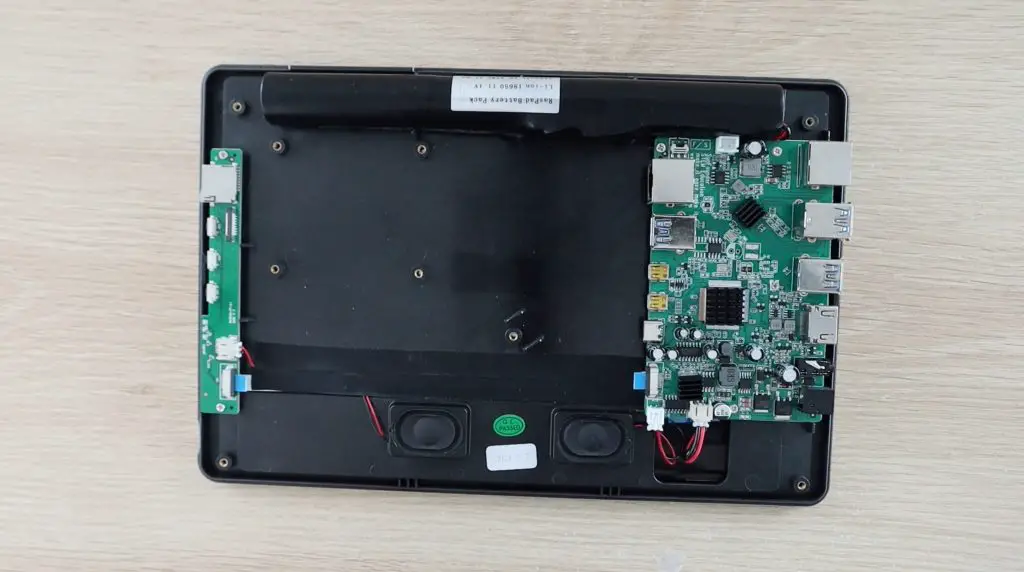
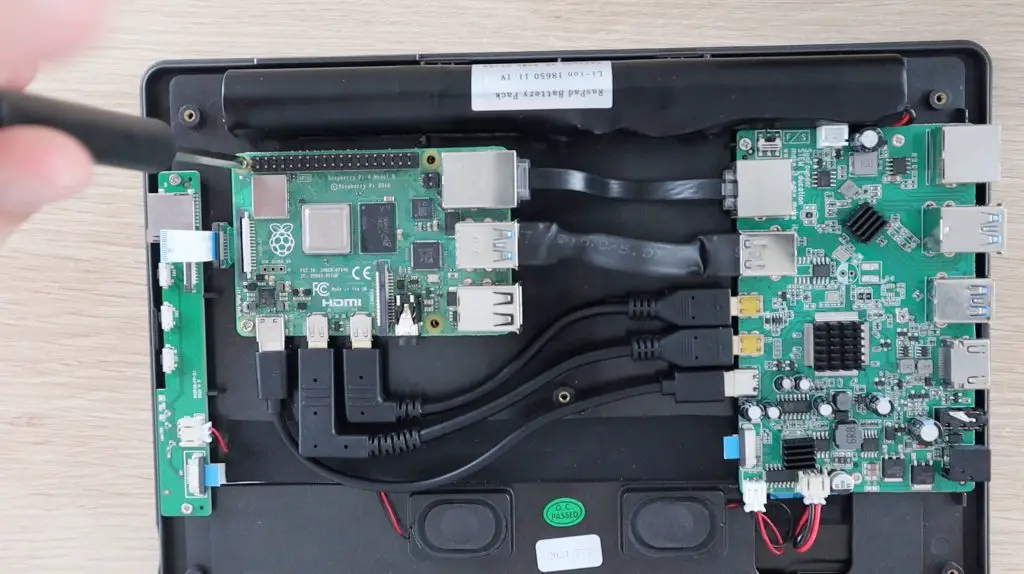
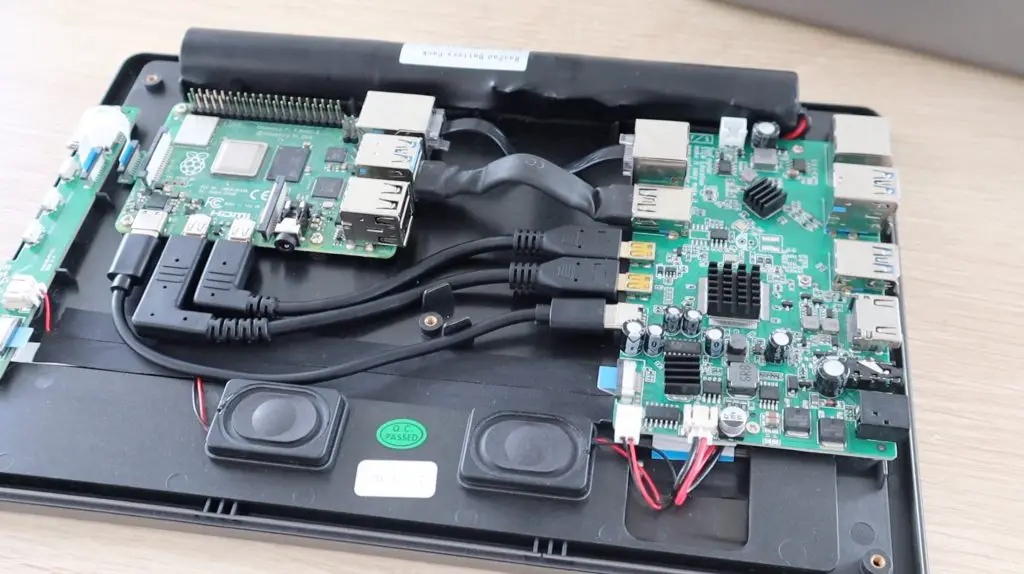
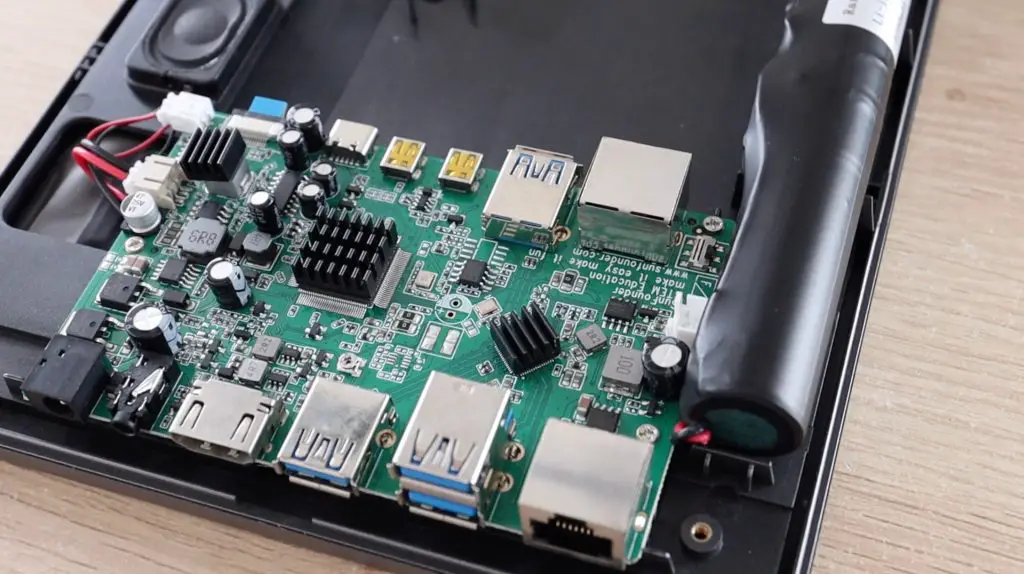
Underneath the back cover, you’ll see the relatively large breakout board on the right side, a pair of speakers on the bottom, a second smaller breakout board on the left side, and a 3-cell 3200mAh battery pack along the top.

Inside the RasPad

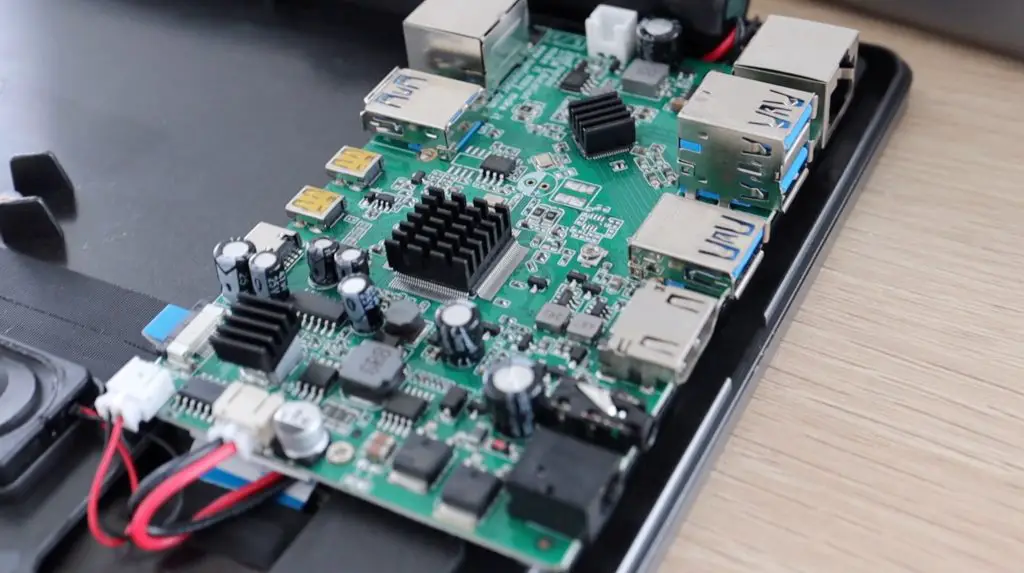
The main breakout board on the right is responsible for power management, sound, control of the fan, management of the touch display, and the control buttons.

Primary Breakout Board

We start off by plugging the USB and Ethernet cables into the Pi, then add the HDMI and power cables. These fit really well between the Pi and the control board and there are even small tabs for cable management to prevent the cables from covering the center screw hole. We then add the SD card adapter and screw the Pi down.

Raspberry Pi 4B Instaled Inside RasPad

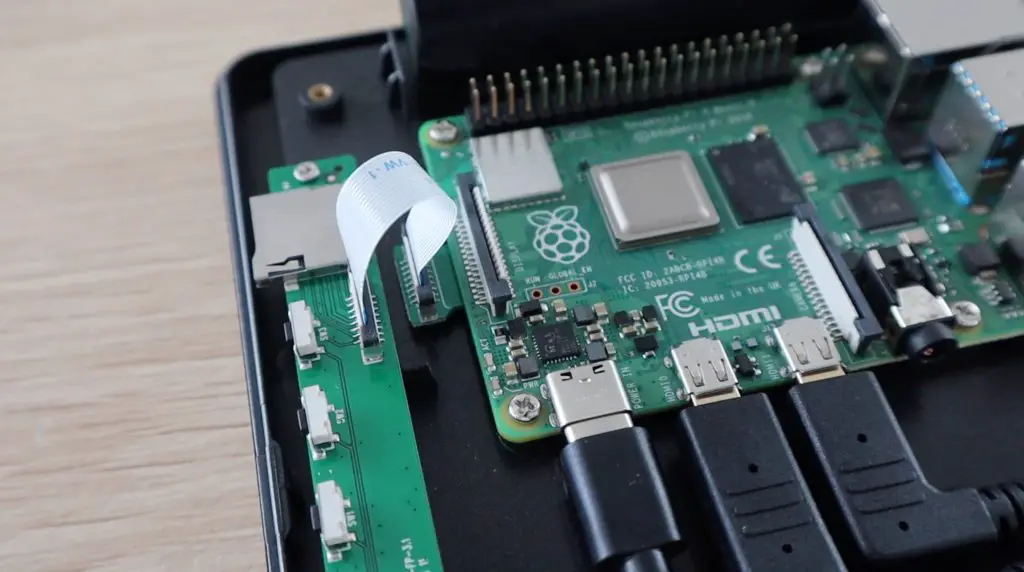
The SD card adaptor plugs into the Pi’s SD card slot and brings the slot out to the side of the case so that you can change or modify the operating system without having to take the back cover off.

SD Card Connected To Breakout Board

We then stick the three heatsinks onto the Pi.

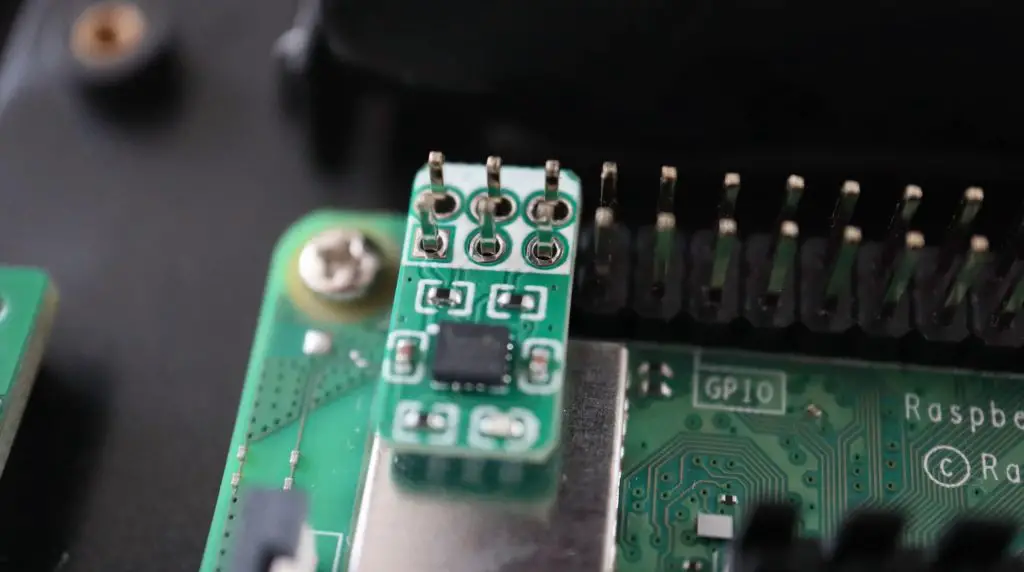
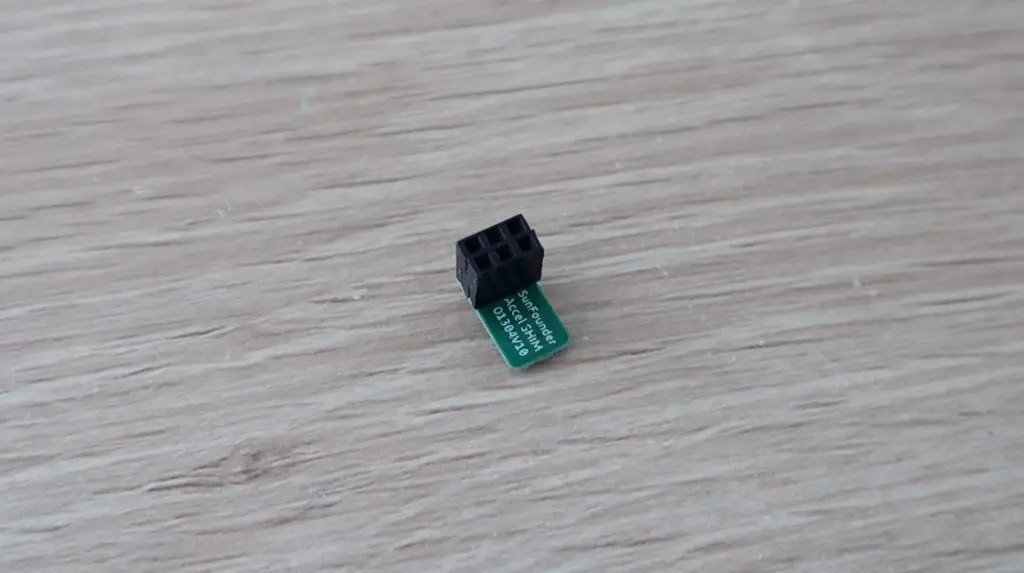
There is also an accelerometer shim to push onto the GPIO pins to auto rotate the display. I’m not sure why they don’t have proper female header pins on the shim, it’s just supposed to be pushed onto the exposed pins as shown below. I don’t really like this design as it feels like the shim can just fall off if the pad is bumped and you aren’t sure that all of the pins are actually making contact with the pins. The centre pins for example could be exactly in the centre of their holes and would then be making very poor contact with the pins if any at all.

Accelerometer Shim Connected To Raspberry Pi

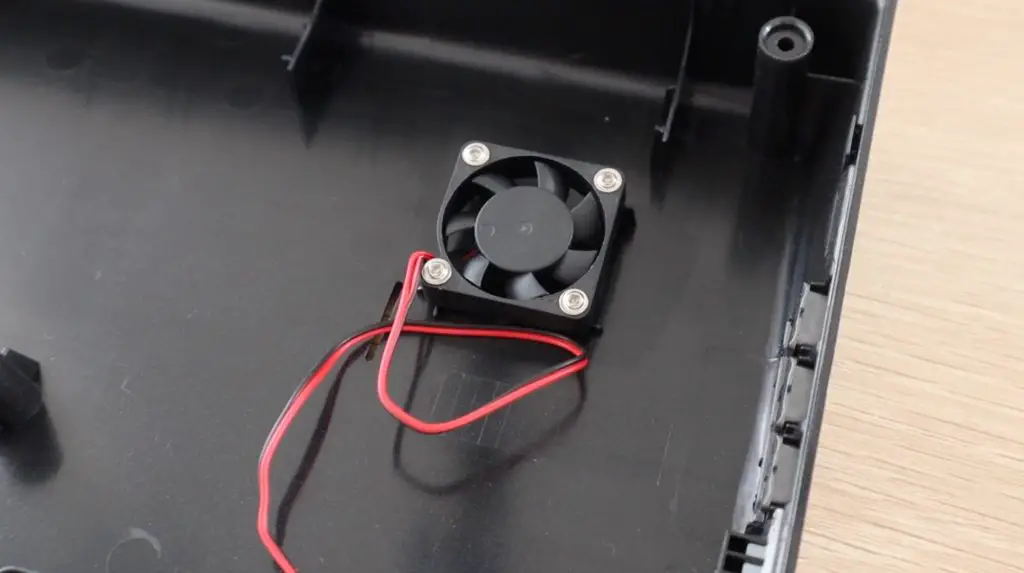
Lastly, we need to add the fan to the back cover. This is mounted directly onto the cover and pushes the air out of the case rather than pulling air in. When the case is closed, the fan is positioned directly above the Pis heatsink.

Cooling Fan To Draw Air Out Of RasPad

Once we’ve got everything installed, we can close it up.

Replacing The Bottom Cover

Flashing RasPad OS To The SD Card

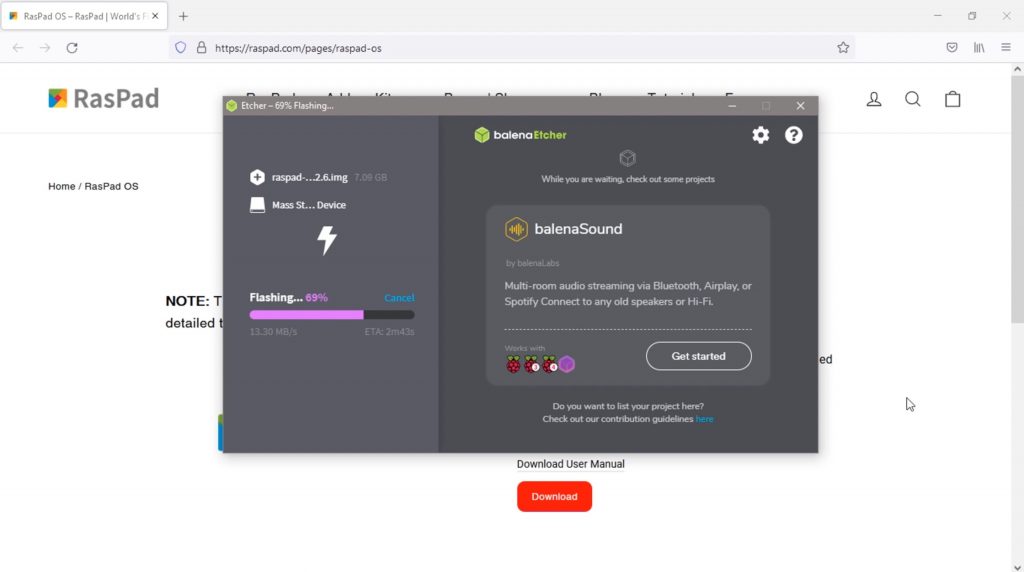
Next, we need to burn the operating system image to our SD card. They have their own operating system, RasPad OS, which I’m going to try first. This can just be downloaded from the RasPad website and is then flashed with a utility like Balena Etcher.

Flashing The RasPad OS to SD Card

Once the SD card has been flashed, we can insert it into the microSD card slot and plug in the power adaptor. The power adapter is a bit bulky, but it needs to provide quite a lot of power to the Raspad to power the Pi, the display, and charge the battery when empty.

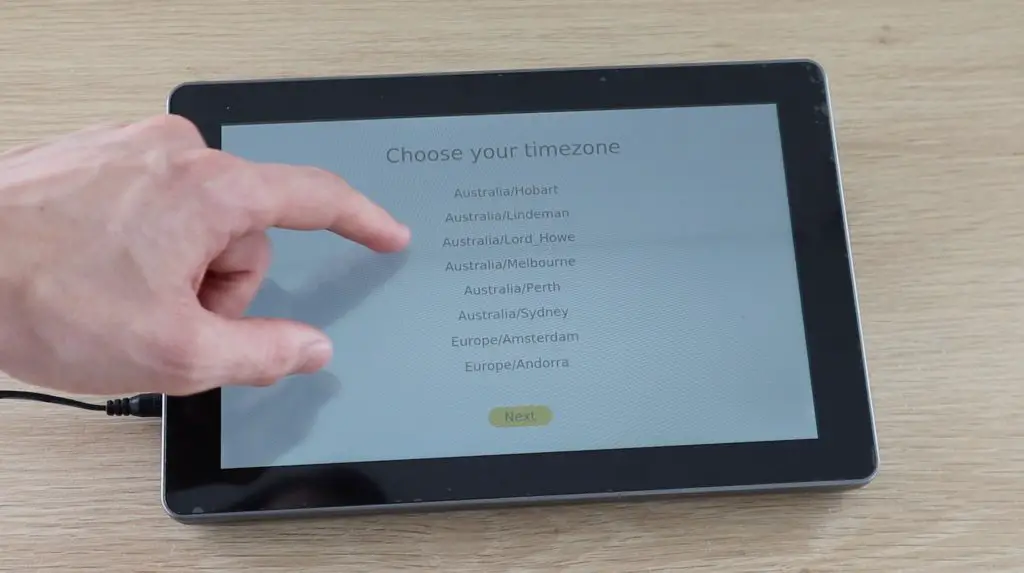
The first boot takes about a minute to complete and you’ve then got a couple of settings to get through. It would have been nice if this step included setting up a WiFi network as well, but you can just head over to the WiFi menu in the taskbar to set that up afterward.

RasPad OS Setup

Subsequent boots take a little under 30 seconds on RasPad OS and they do have an option to just turn off the display with a short press of the power button if you’re going to be away briefly. This obviously doesn’t turn the Pi off though, so you won’t want to do this if you’re not using it for longer than about 10-15 minutes.

Using The RasPad 3

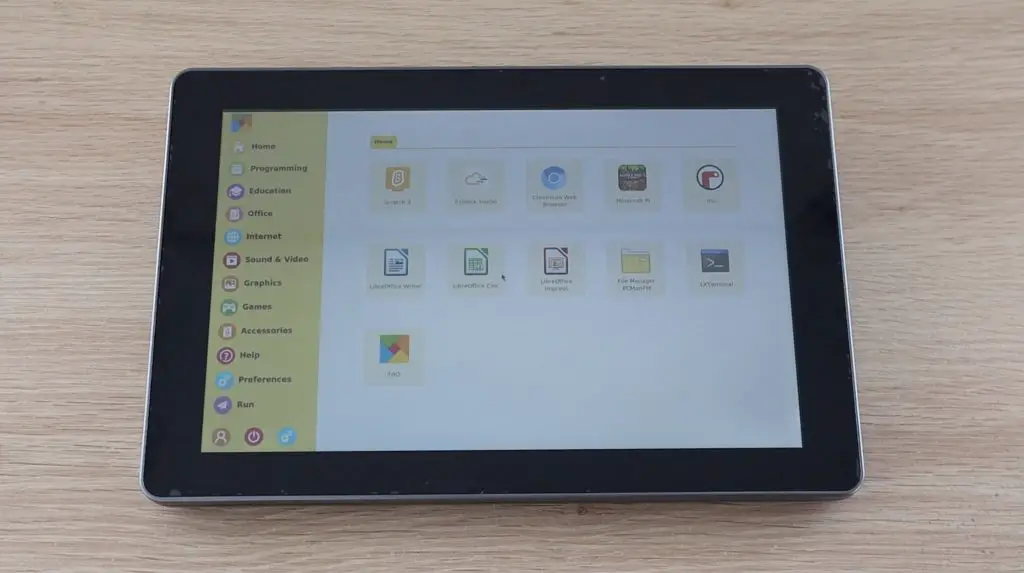
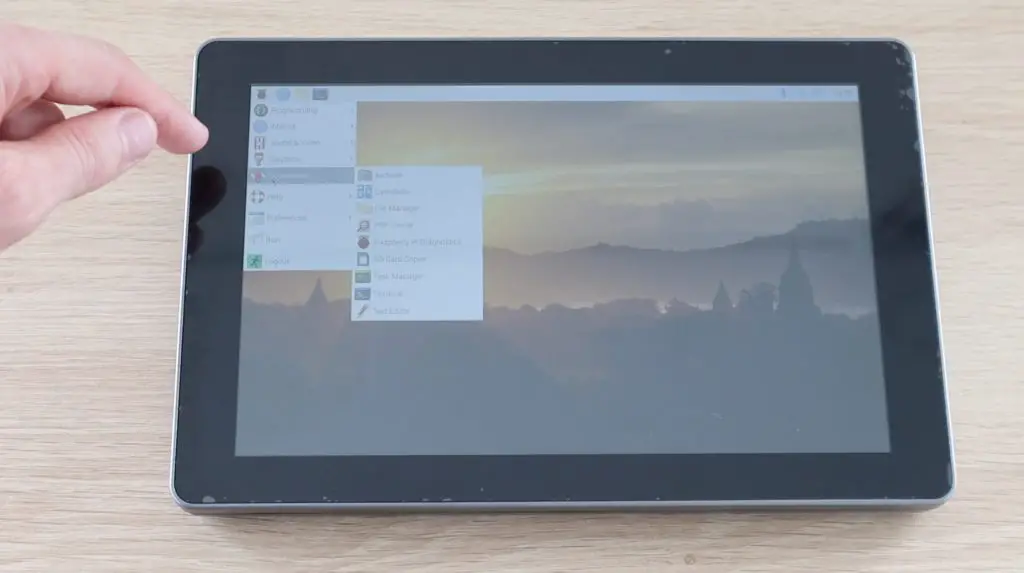
Their operating system looks quite similar to Raspberry Pi OS, but it does have a custom menu, which they call RasPad Launcher. This launcher suits a tablet-style interface a bit better and makes it easier to open applications on the touch display.

RasPad OS Homescreen
RasPad OS Main Menu

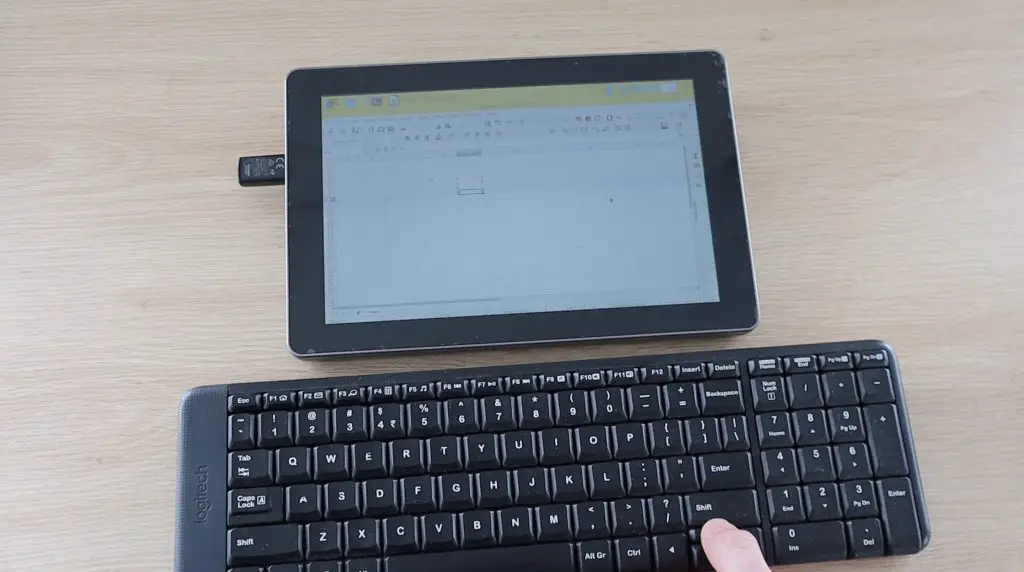
They’ve tried to make their operating system reasonably touch-friendly and you are able to get through tasks like using a spreadsheet or word processing app using the onscreen keyboard, but the keys are quite small and it’s just not anywhere near as easy as just using a keyboard and mouse.

This isn’t a fault with the hardware, the touchscreen on the Raspad is pretty good, it’s responsive and fairly accurate. These apps are just inherently designed to be used with a keyboard and mouse and so there are things that can’t be done easily with the touch screen, like a right click, and the small icons are difficult to press accurately.

Their documentation does guide you through installing a script to allow a long press to register as a right-click, but this needs to be installed as an extra on most operating systems.

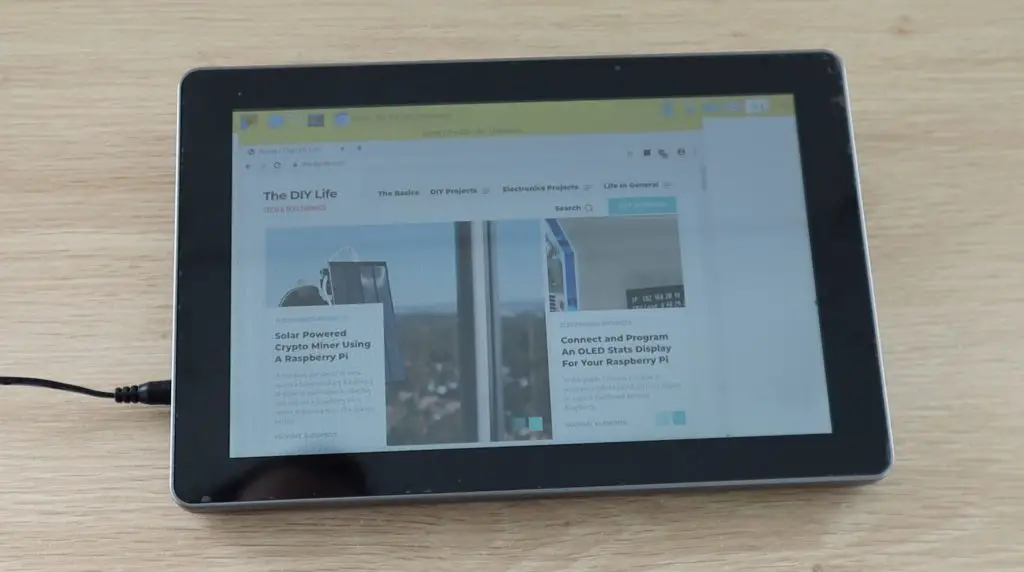
Loading Websites on the RasPad Browser

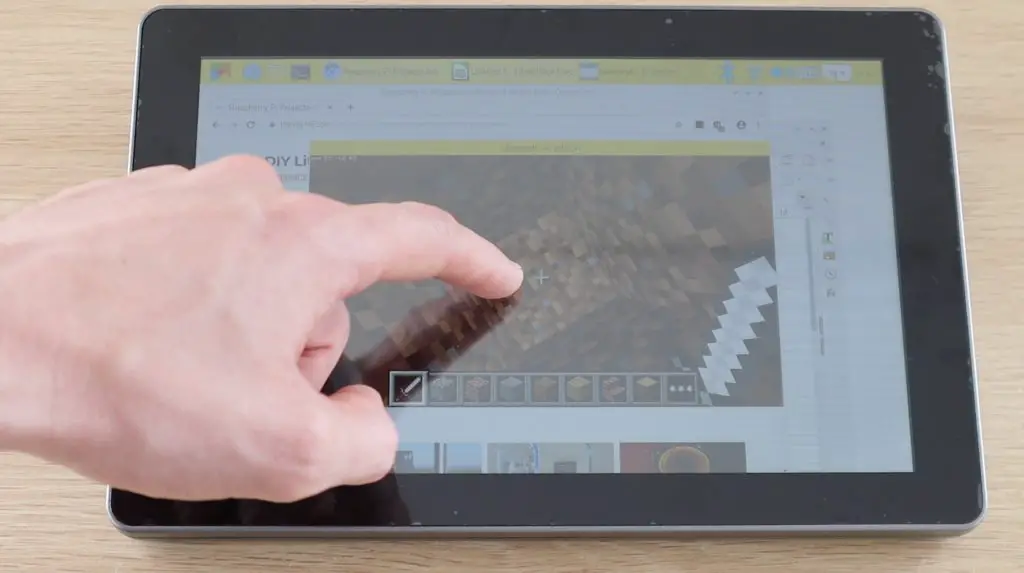
Take an app like Minecraft for example, if you attempt to do anything on the touchscreen, it just results in downward digging. You’re also unable to close the app as clicking on or around the window just results in further downward digging.

Playing Minecraft on the RasPad

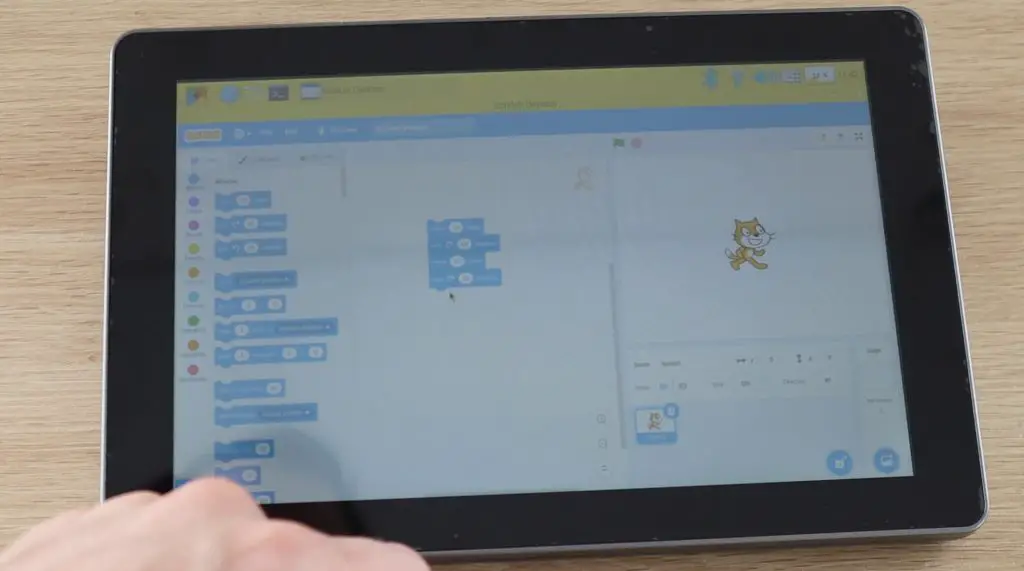
It does work well with some games and I think the tablet would be well suited to education where students do drag and drop programming. It would also work well or for home automation apps with a touch interface or other purpose-built touch screen apps. I’m thinking of registration systems for buildings/businesses, point of sale systems, questionnaires, and surveys – the ones with tick boxes and yes/no answers.

Drag and Drop Programming on the RasPad

I think you’d have a hard time using the tablet for apps that require regular text input without using an external keyboard. Fortunately, this is quite easy to add and works just like a regular keyboard and mouse on a Raspberry Pi.

Keyboard and Mouse on the RasPad

The speaker quality is also not bad if you’re using it to play or stream music or videos.

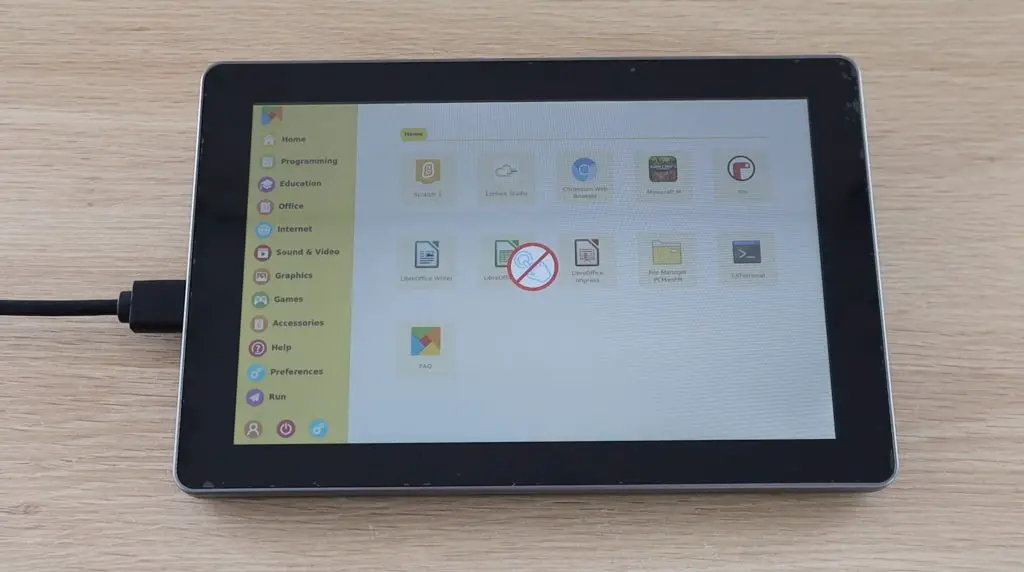
I tried connecting an external display to the Raspad and while this works well, it does disable the touchscreen. I’m not sure why they have done this as it would still be useful to use touch inputs with an external display, but that’s just something to be aware of if you’re planning on using it in this way.

Touch Display Is Disabled When An External Display Is Plugged In

The specs claim 3-5 hours of battery life. I managed to get a little under 4 hours, but this obviously depends on how you use it. If you’re running apps that don’t require much processing and you’ve dimmed the display then you’ll get better battery life.

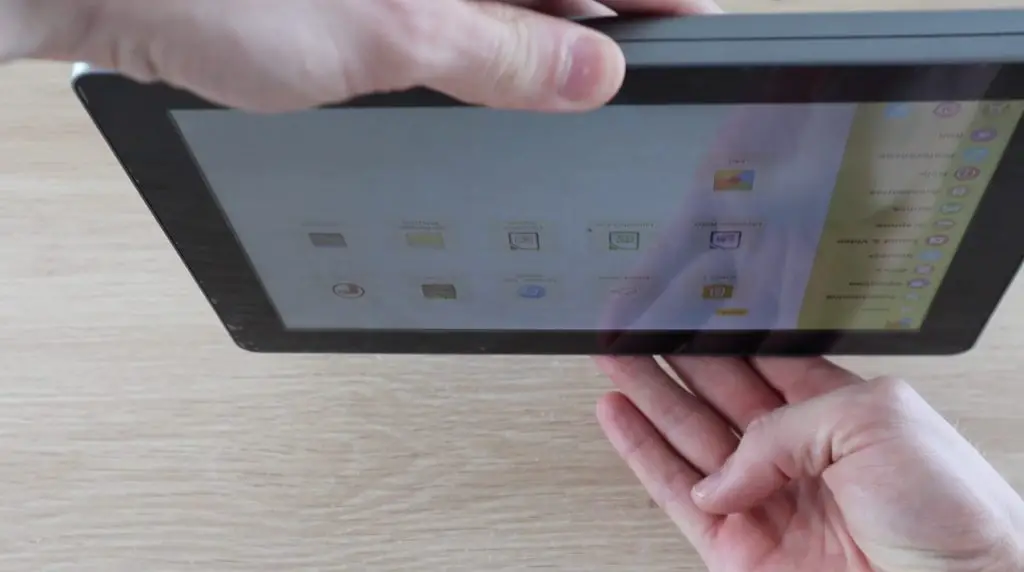
I then tried the auto-rotate function and that didn’t seem to work. There isn’t anything mentioned in the manual about setup or use conditions, so I assume that this should just work when using their operating system.

Accelerometer Not Working

I wondered if the shim that I was initially concerned about wasn’t connected properly, so I opened it up and added my own header pins to it. I then closed it all up again and this didn’t work either, so I think my auto-rotation shim is just faulty.

Accelerometer Shim Header Pins

Running Different Operating Systems on the RasPad

Another great feature of the RasPad is that you have the option to run different operating systems or flavours of operating systems on it quite quickly and easily. They have listed a couple of options on their product page, but I would imagine that any operating system that runs on a Raspberry Pi would run on the RasPad as well.

I tried booting up Raspberry Pi OS and that worked perfectly, including with the touchscreen input, without any additional setup.

Running Raspberry Pi OS

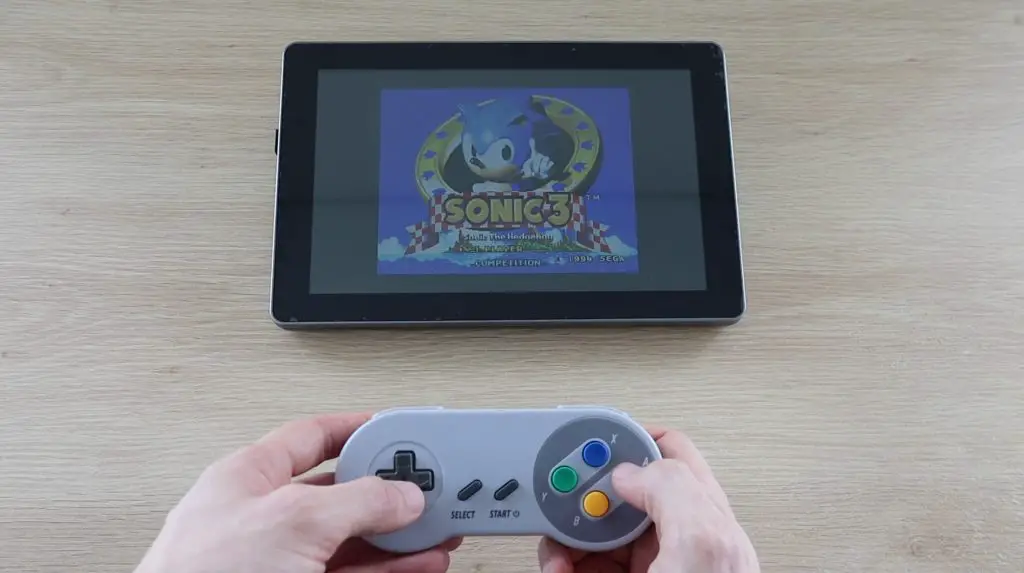
I also tried running RetroPie and that worked well too. It’s actually quite a nice package for a RetroPie system as you’ve got a portable battery-powered display and speakers all in one unit. Just plug in a controller and you’ve got a portable console that’s ready to go.

Running RetroPi

Suggestions For Future Versions Of The RasPad

After using the RasPad for a couple of days, I got to thinking of a couple of things that I would like to see on future versions.

One of the first that came to mind was battery level feedback to the operating system. There is a battery level indicator on the side and the device overlays a low battery level warning on the display when it gets low, but if you don’t actually turn the Raspad off then it just eventually dies. I would like to see a low-power shutdown script integrated into the operating system.

Battery Indicator on the Side

Next would be an option to add an internal SSD. There is a lot of free space inside the Raspad, and there is even a free USB 3.0 port. It would have been pretty easy to add a space or adaptor to add a small SSD, a slot built into the control board for an NVME drive would be even better.

Main Internals of the RasPad

Although there is a slot on the top for a GPIO ribbon cable to pass through, you either have to open up the case up every time you want to connect something to the GPIO pins or have a ribbon cable dangling out the back permanently. I would have preferred to see a set of GPIO pins (male or female would work) brought out to the side of the case, like the M5 Stack Modules, which can then be plugged into and removed easily.

GPIO Ribbon Cable Slot on the Back

My last suggestion is not so much a change to the Raspad but perhaps a future variant, and that would be to create a CM4 version. I get why they have designed the Raspad around the much more common Raspberry Pi 4B board, but given that it’s mounted inside and has a number of cables connected to it, it would be a lot simpler to just plug in a CM4 module. It could just be an easy option for those who want a Raspberry Pi tablet and intend on leaving their Pi inside the tablet permanently.

Main Control Breakout Board

Final Thoughts On The RasPad 3

Getting back to the price point I mentioned earlier. At around $220 to $250, once you’ve added a Pi to it you’re pretty close to $300. This does seem quite high if you consider that you can get other tablets for around $200, but I think you need to take into account the use cases for the RasPad. There are definitely better options if you’re looking for a cheap tablet, but the RasPad offers makers the same level of flexibility and adaptability that a Raspberry Pi comes with. Being centered around a Raspberry Pi, you have a world of possibilities for operating systems, peripherals, sensors, adaptors, and input devices, which typically don’t exist on other platforms. How many tablets do you know of that have GPIO pins available to directly connect a moisture sensor to or drive a servo with?

With the RasPad, you’re paying for the convenience of the Raspberry Pi platform in a compact, all-in-one form factor, and that’s pretty cool!

Let me know what you think of the RasPad in the comments section below.

Automated IoT Indoor Hydroponic Farm Using Quantum Integration

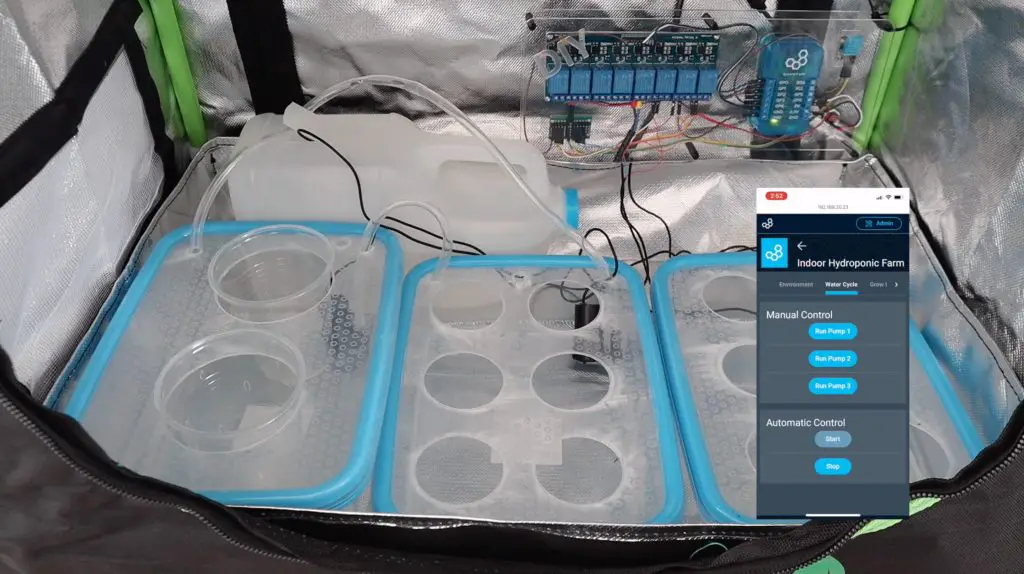
In this project, we’re going to be building an automated IoT indoor hydroponic farm using the Quantum Integration system. We’re going to try to automate the grow house so that the flood cycles and grow light timing happen automatically, all we’ll need to do is keep an eye on the nutrient solution level.

Here’s my video of the build, read on for the detailed written instructions:

What Is The Quantum Integration System?

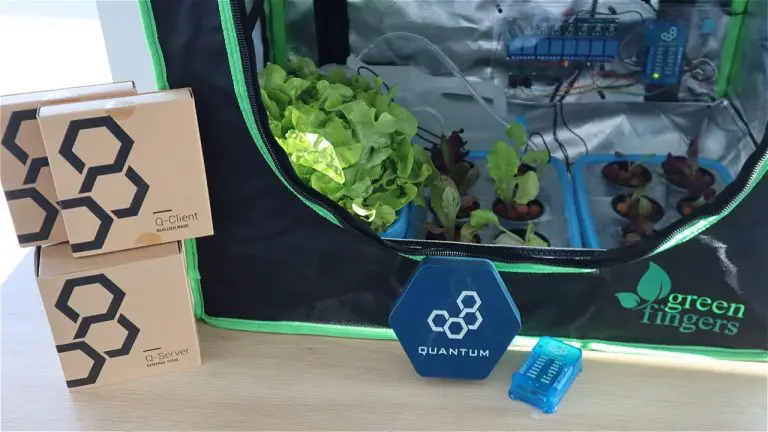
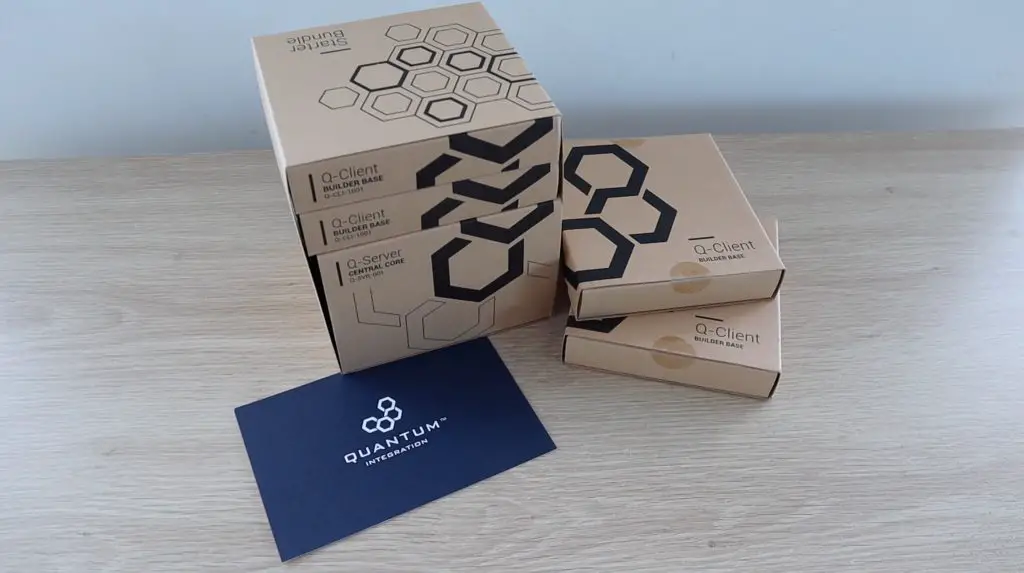
The guys at Quantum Integration sent me their starter kit and some additional builder bases to share with you. You can buy your own bundle through their Quantum Integration web store or through Amazon.

Quantum Integration Starter Bundle & Builder Bases

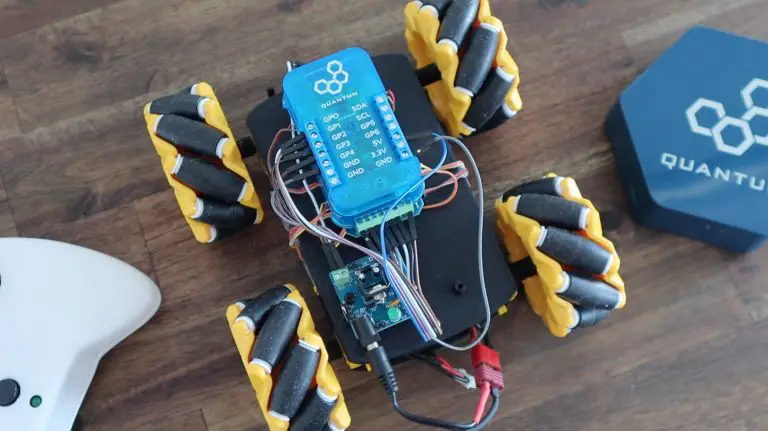
The Quantum Integration system is a wireless electronics platform that enables you to build IoT devices and apps quickly and easily thanks to an easy-to-use set of hardware and a drag and drop programming interface.

The heart of the system is a central server, this is where all your apps are stored and run. You can also access your apps and their control dashboards from any device on your network with a web browser.

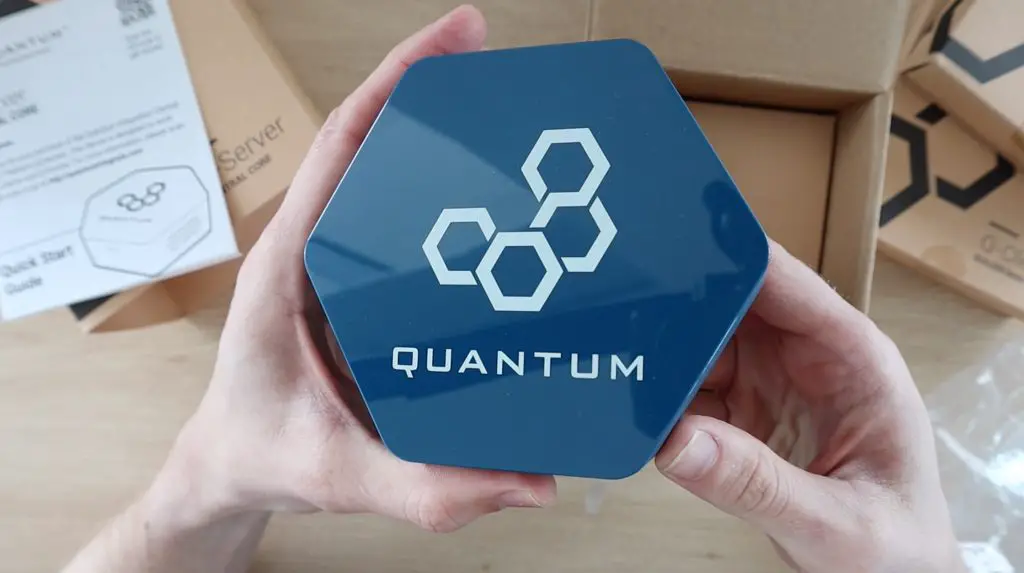
Quantum Integration Q Server

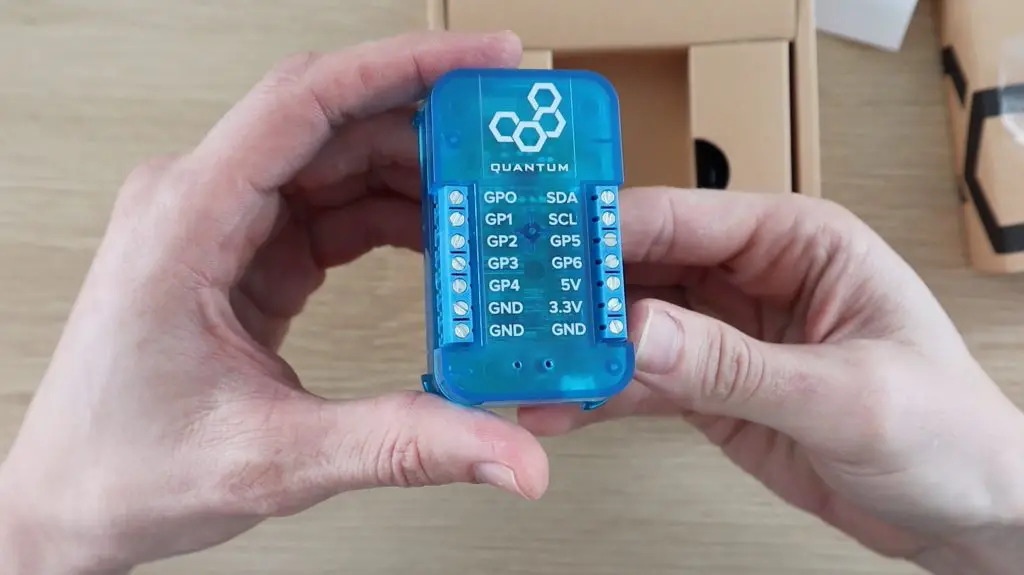
You use these Q-client builder bases on your projects and devices to bring them to life. Each builder base has 7 GPIO pins as well as a dedicated I2C interface. They’re also designed to be able to be used in low power applications, so are able to run for months on a single small battery.

You can currently connect up to 5 builder bases to your server at once and these can then be used on the same project or on different projects.

Quantum Integration Builder Base

One of the strengths of the Quantum Integration system is its seamless wireless connectivity. You can easily build projects that communicate wirelessly between builder bases or between one or more builder bases and a customised web dashboard through your browser on a laptop, tablet, or phone.

What You Need To Build Your Own Indoor Hydroponic Farm

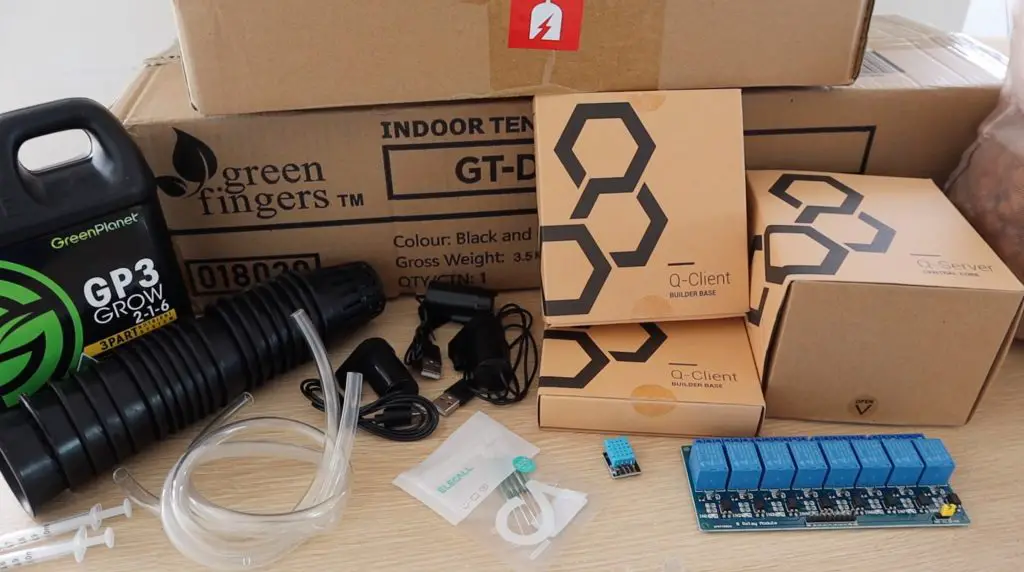
There are quite a few parts to this hydroponic project and a number of them may vary, depending on what you have available locally. I’ve put together this parts list that matches what I bought as closely as possible.

Indoor IoT Hydroponic System Parts
  • Quantum Integration Starter Bundle – Buy Here
  • 60 x 40 x 60cm Grow Tent (Similar Size) – Buy Here
  • 600W LED Grow Light – Buy Here
  • 2-3 x Storage Containers (Either Same Capacity or One Double The Other Two)
  • 50mm Mesh Grow Pots – Buy Here
  • Clay Grow Beads – Buy Here
  • 1L Nutrient Solution – Buy Here
  • 3 x 5V Pumps – Buy Here
  • Flexible Tubing To Suite Pumps – Buy Here
  • 8 Channel Relay Board – Buy Here
  • DHT11 Temperature & Humidity Sensor – Buy Here
  • I2C 16×2 LCD Display – Buy Here
  • Breadboard Jumpers – Buy Here
  • 3mm Acrylic (Optional) – Buy Here
  • Nylon Standoffs (Optional) – Buy Here

How To Make Your Indoor Hydroponic Farm

Assembling The Grow House & Containers

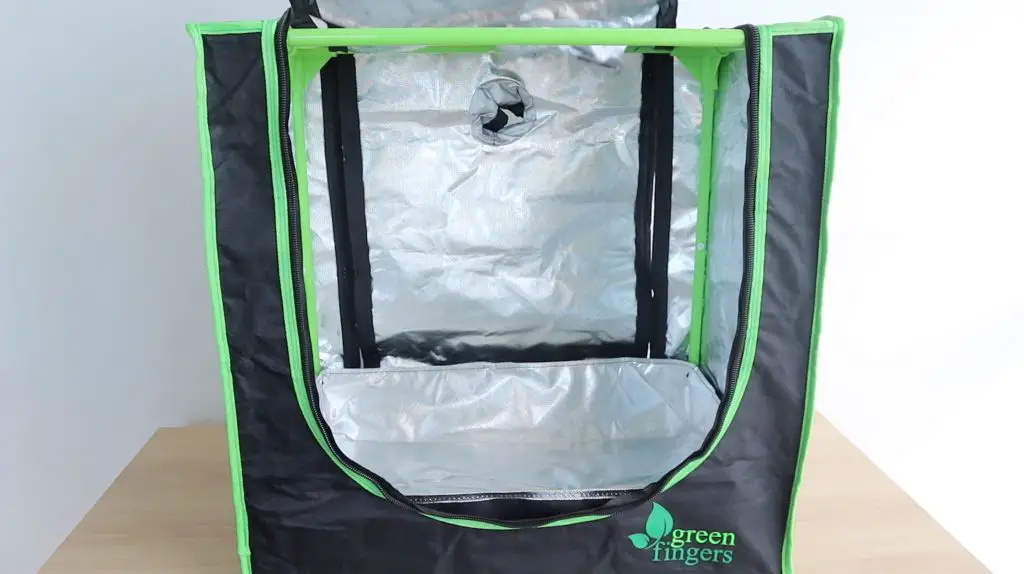
I started out by assembling the grow house. Mine is just a generic 60x40x60cm tent-style grow house which is quite commonly available online. You might not be able to find the exact same size as mine, but any similar size will do. I chose this smaller one because I intend growing lettuce and other small leafy vegetables that don’t need a lot of headroom.

Hydroponic Grow Tent

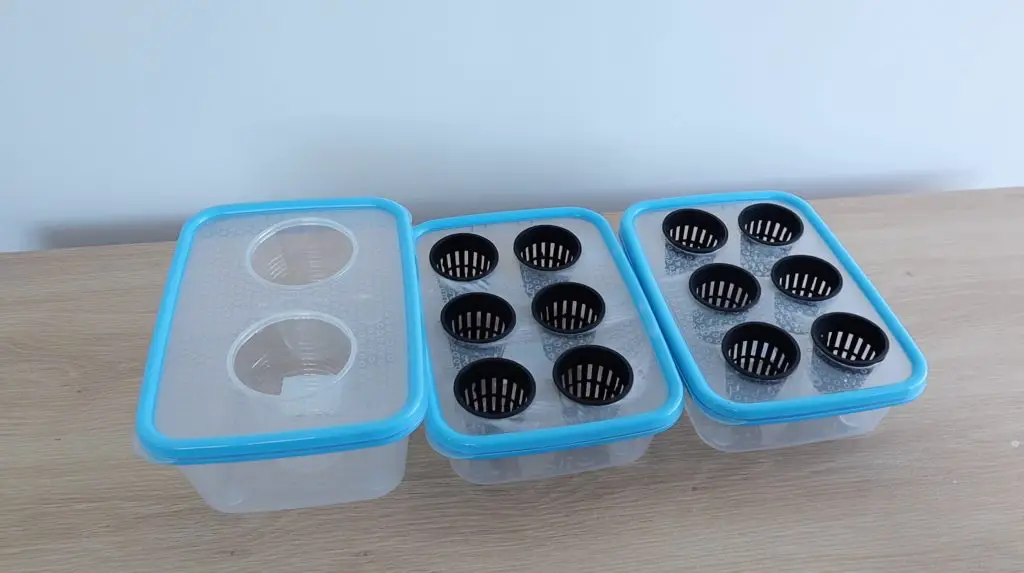
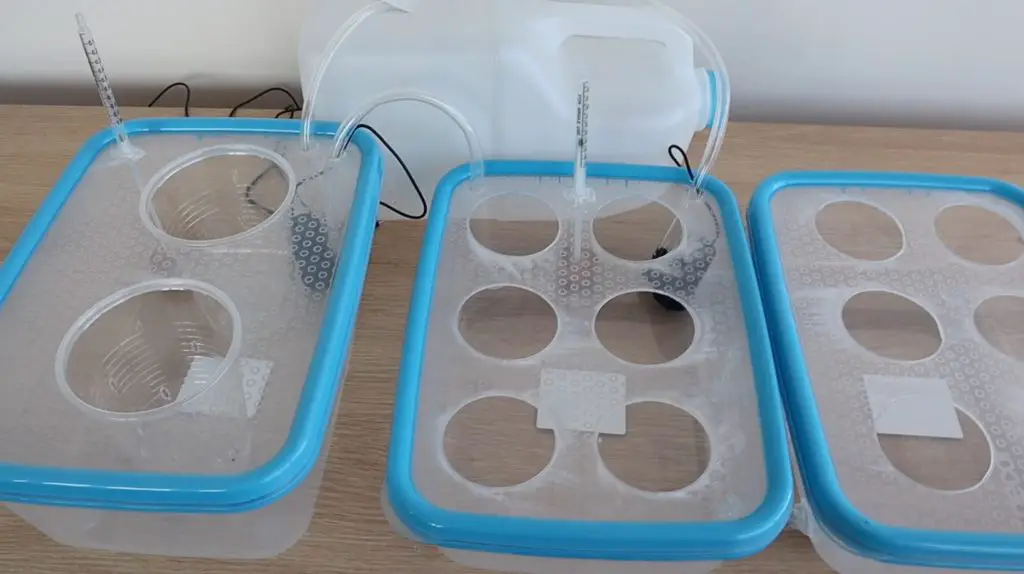
I bought three containers to use to hold the grow pots. Two smaller ones that could each hold six small hydroponic grow pots and one larger one for two larger grow pots. You can use any individual containers or combination of containers with the same volume as the nutrient solution will be pumped from one to the next. My large one holds 6 litres and my two smaller ones 3 litres each. I connected the smaller ones together with a couple of sections of tubing, so when one fills the other does too.

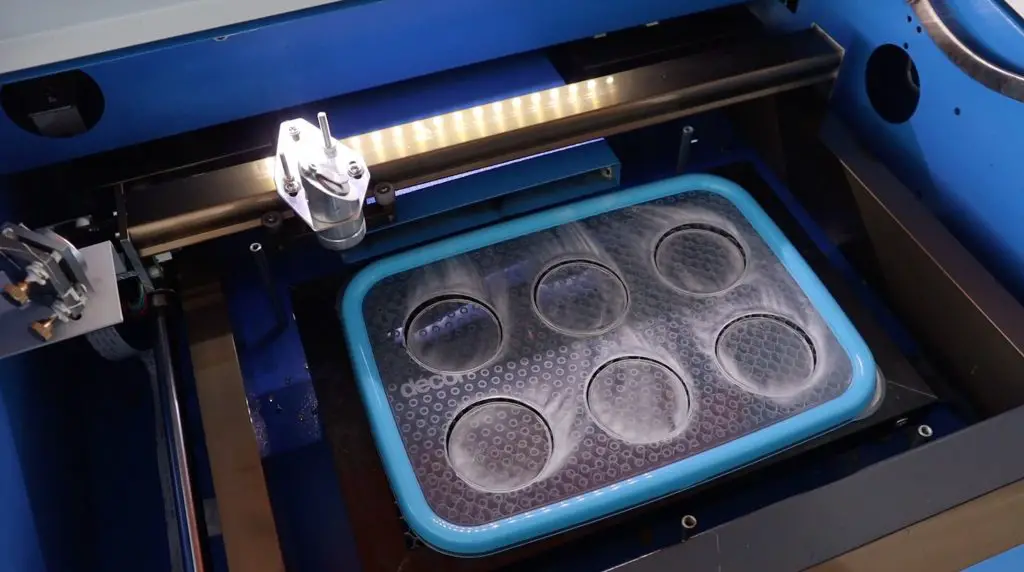
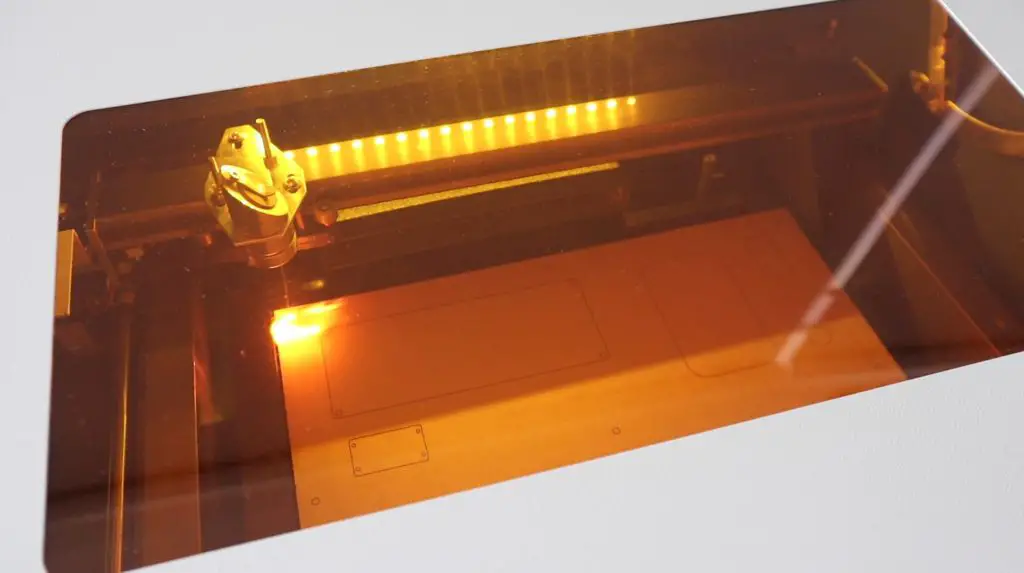
I measured the rim of my pots and then used a laser cutter to cut the lids of the containers to hold them.

Laser Cutting Grow Pot Holder Lid

I just used two plastic cups for the larger grow pots and used a soldering iron to make some holes in them for the nutrient solution to fill and drain from.

Grow Pots Installed on Grow Beds

Attempting To Make Float Switches

My initial intention (and probably still my long-term goal) was to use float switches to control the levels in the containers. This would ensure that each container was properly filled and that the pumps wouldn’t run dry.

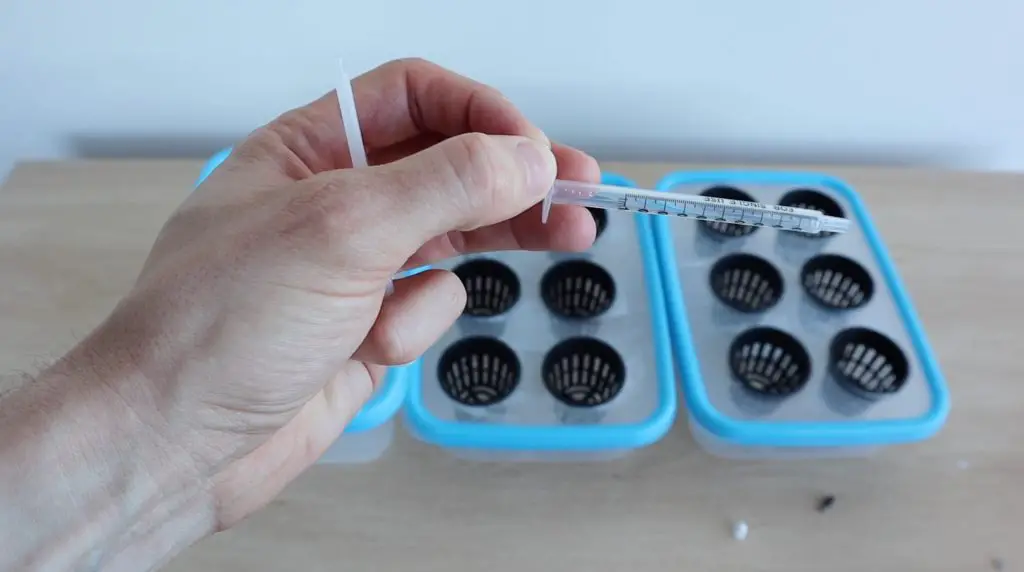
I looked at some local stores for small float switches but couldn’t find anything small enough for my containers, so I decided to try to make my own using some syringes, magnets and reed switches.

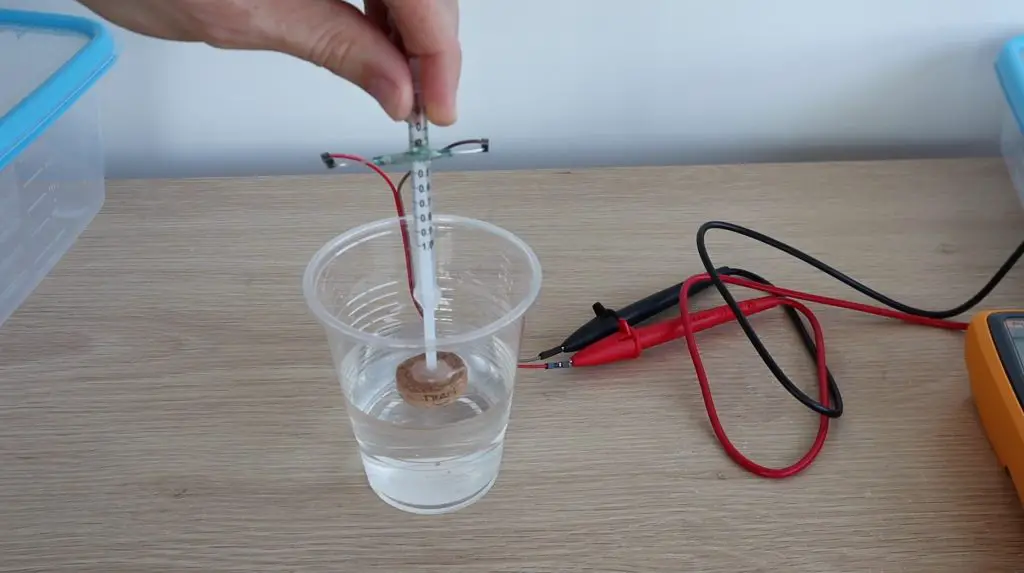
The basic idea was to use the syringe without the rubber seal as a guide for the float and to stick a magnet onto the end of the plunger to close the reed switch at a certain limit.

So I took the rubber part out of some small syringes I found and added a magnet to the end of the plungers.

Making Syringe Level Sensor

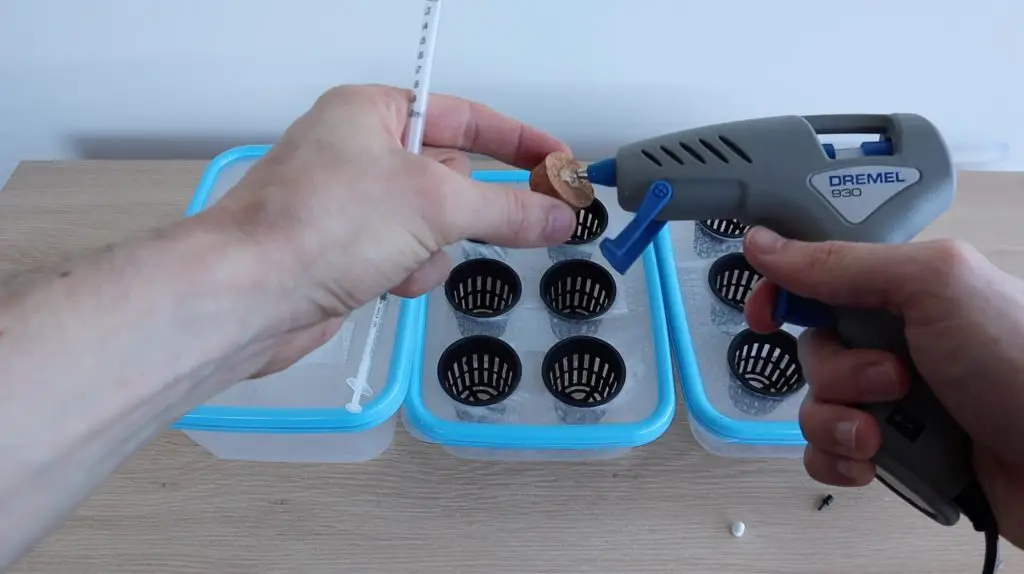
I then glued a cork float onto the bottom of each plunger.

Gluing Float To Level Sensor

I then also glued a reed switch onto the side of the syringe to pick up on the position of the magnet and close the circuit when the water level gets to a certain point. This setup can be adjusted by moving the reed switch up and down on the syringe.

Level Sensor Operating

This worked pretty well for my cup test, but once installed on my containers I noticed that if the small magnets were rotated to a certain point, the magnetic field was no longer strong enough to close the reed switch. I also couldn’t use larger magnets as these were as big as could fit into the syringe already.

Preparing The Hydroponic Flood System

Now that the containers are prepared, we need a way to move the nutrient solution from the reservoir to container one, from container one to container two, and then back from container two to the reservoir. To do this, we’re going to use three small 5V pumps.

I just used a 3-litre milk bottle as my reservoir. You need to use a container that isn’t too tall or you put extra pressure on the small pumps and reduce the flow rate.

Put a pump into each of the containers and then connect them up with some flexible tubing. The ends of each tube should be pushed through the lids of the containers, but shouldn’t protrude too far as they might then siphon the solution back into the original container when the pumps are turned off. You want them each to pull in air when the solution runs back through the tube to the container it’s being pumped from.

Pumps Connected Up To Grow Beds

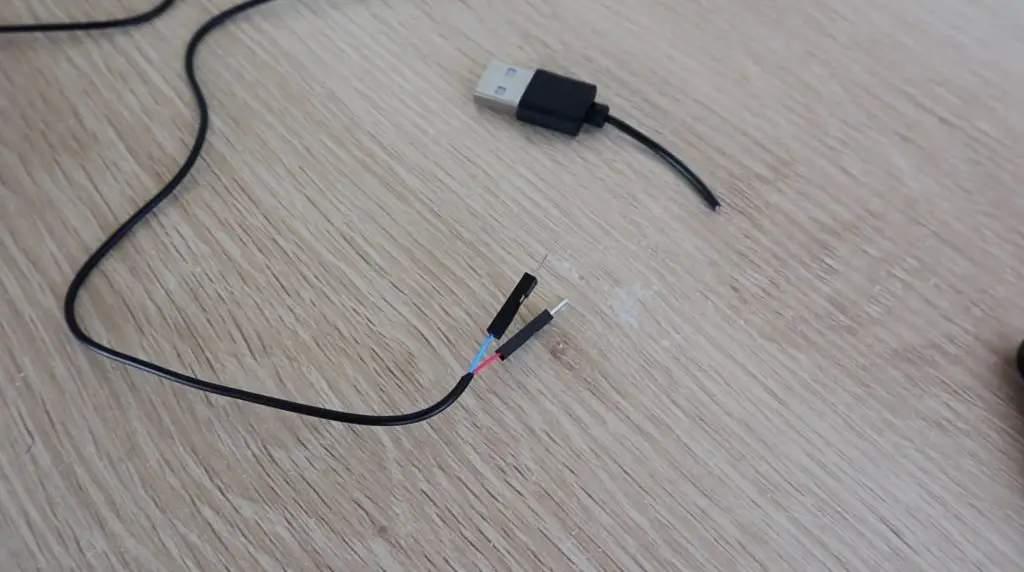
I cut the USB connectors off the ends of my pumps and replaced them with some Dupont connectors which can then be screwed into the terminals on the relay board.

Dupont Connectors On Pump

Connecting The Builder Base Control System

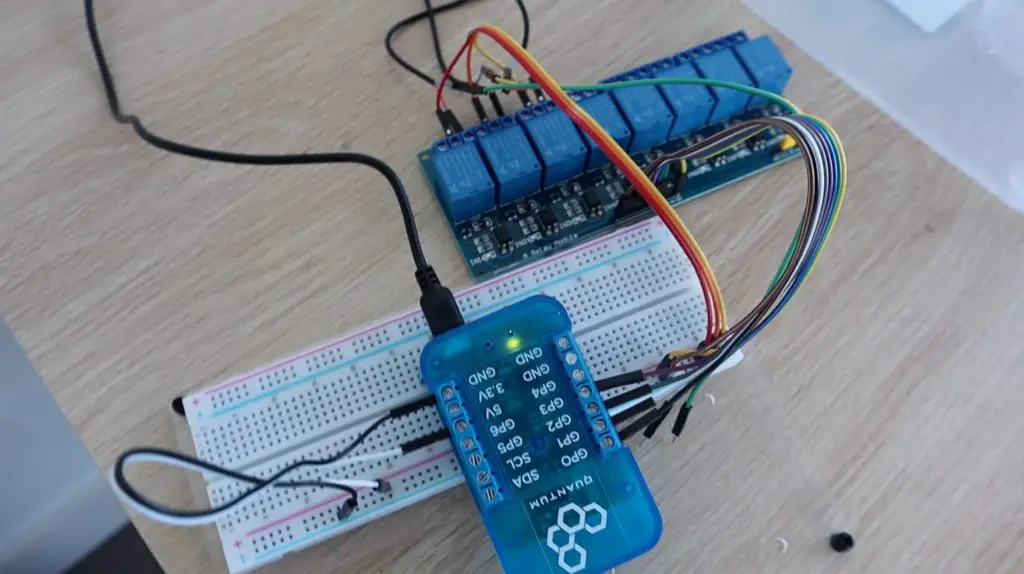
Now we need to automate the flood cycle using one of our builder bases and the relay board. The pumps are connected to individual relays and the builder base then drives the relays to turn each pump on and off.

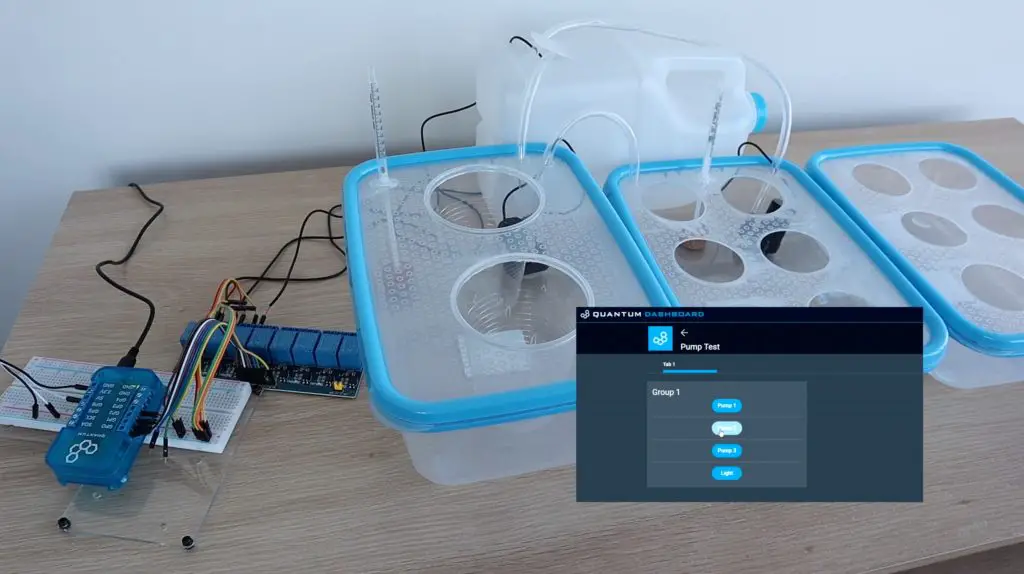
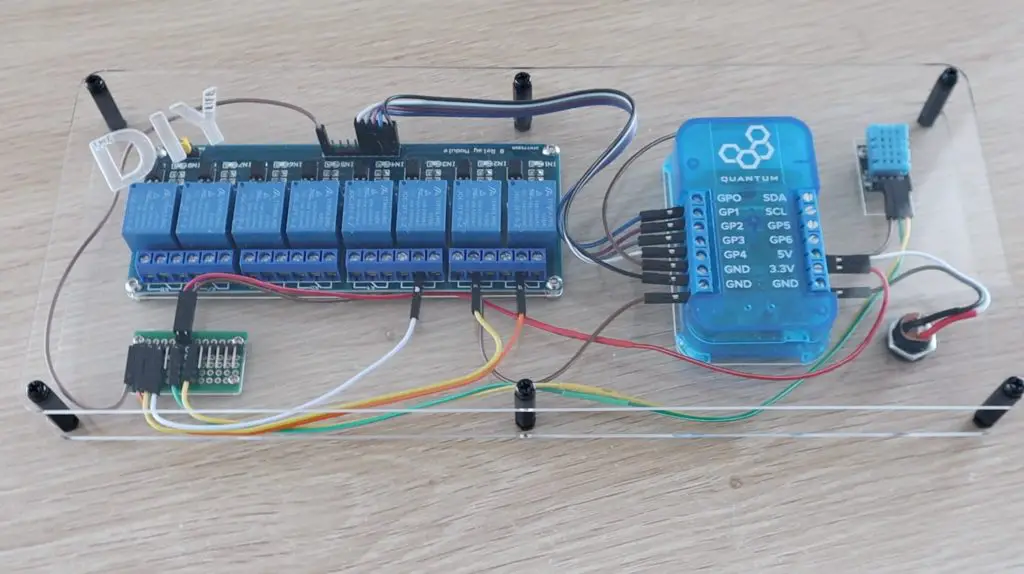
Builder Base Driving Relay Board

I have connected all of the negative terminals of the pumps to GND and the positives to the relay terminals which in turn then go to 5V. The relays act as a switch to turn the 5V on and off to each pump.

The builder base is connected to the input side of the relay board as follows:

  • VCC to 5V
  • GND to GND
  • Relay 1 to GP0
  • Relay 2 to GP1
  • Relay 3 to GP2
  • Relay 4 to GP3

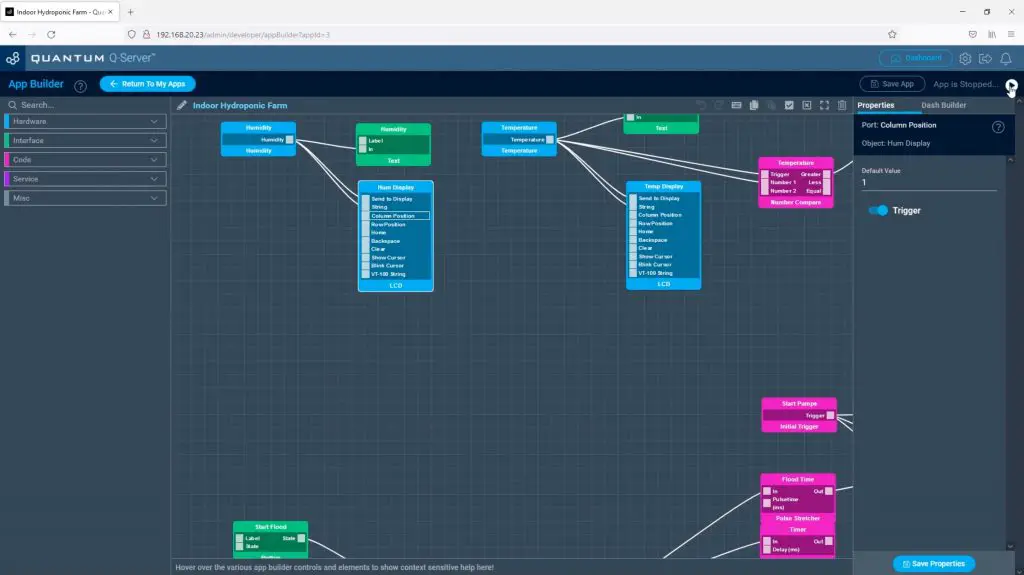
I then made up a quick demo app to test each pump and the grow light relay using a button on the web dashboard.

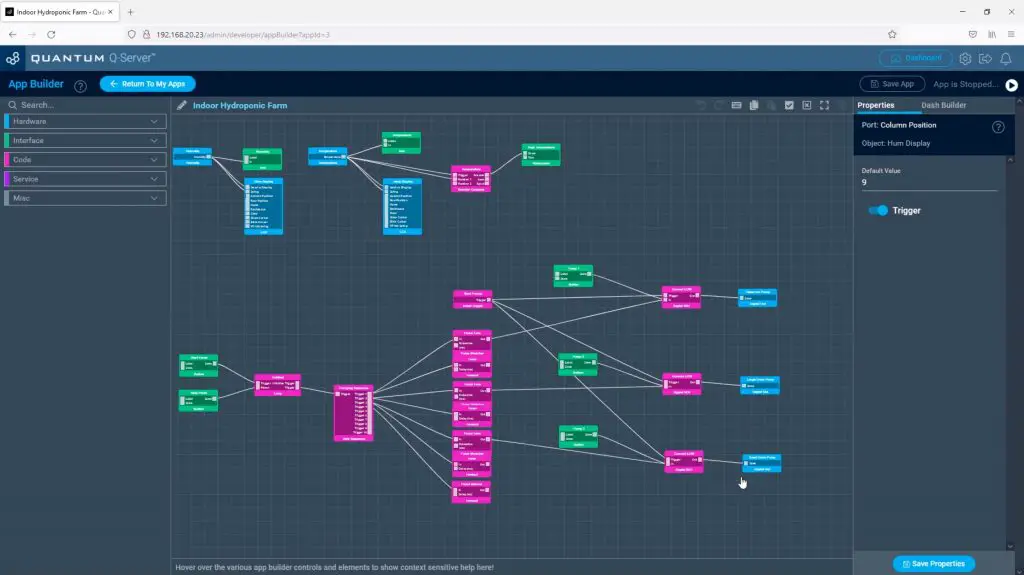
There was one minor complication that I found during this step. My relay board energises each relay by grounding the input pin, which is the inverse of my individual relay boards. So they are off with a 5V signal and on with a 0V signal. This requires the logic in the code to be flipped as well, so you’ll see a NOT gate ahead of each relay output in the app.

Running Pumps Manually

Automating The Hydroponic Grow Cycle

Once the pumps were working, I started working on the automated app.

The app consists of three sections:

Quantum Integration Hydroponic Farm App

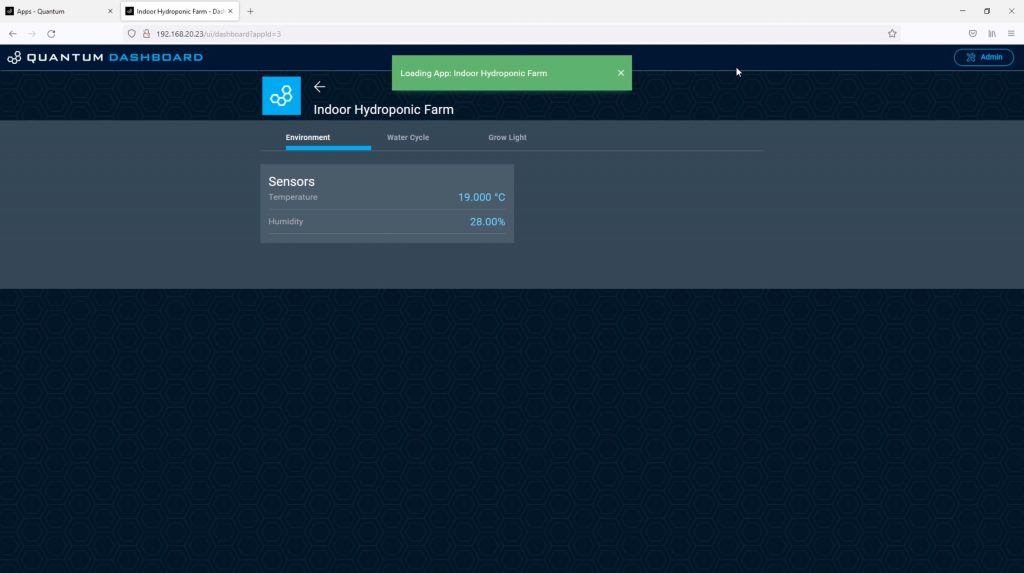
An environment tab, which displays the current temperature and humidity using the DHT11 sensor, as well as creates a notification alert if the temperature exceeds 30 degrees.

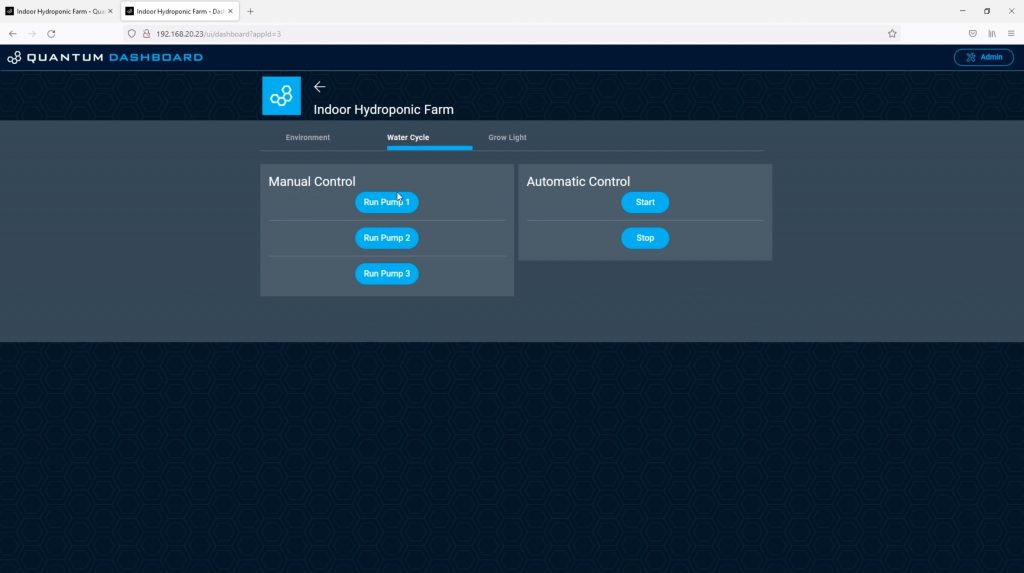
A pump tab, which has manual controls for each of the three pumps, similar to the test example, but also includes controls for the automated cycle. This runs each pump in sequence for the flood cycle and then waits for a period of time before executing the next flood cycle. From what I’ve seen online it looks like a good starting point is to flood your beds for around 5-10 minutes at a time and to repeat this every 2-3 hours.

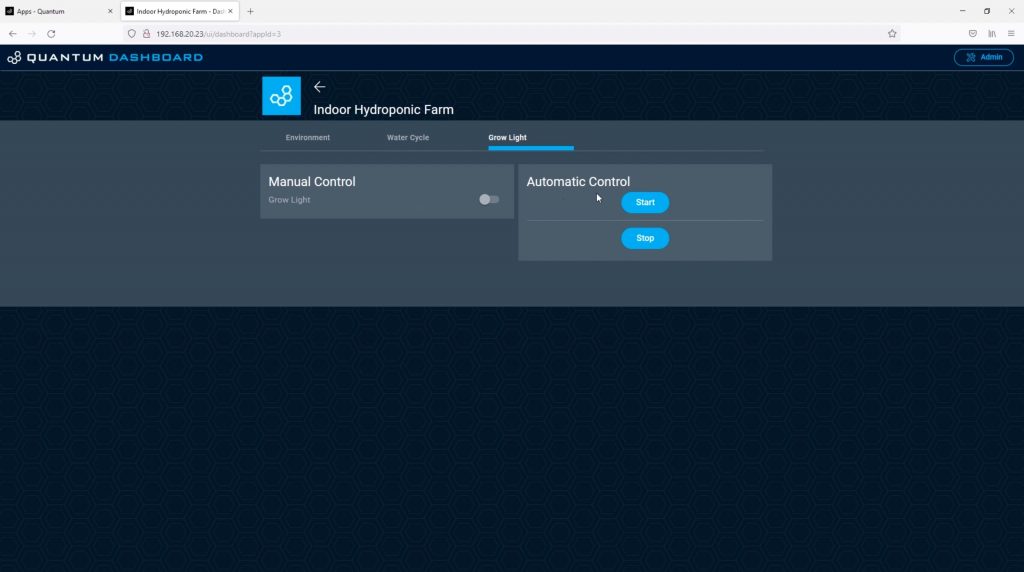
Lastly, there is a grow light tab. The grow light tab has a slide switch to turn the grow light on or off and also has an automated cycle that turns the grow light on for a 10 hour period and then off for a 14 hour period.

There is a bit more to do than just create the app, you also need to generate and upload the firmware for each builder base, but this is quite straightforward and in essence just tells the builder bases what is connected to which pins.

You can download the app and firmware to import into your Quantum Cloud here.

Once this is done, the dashboard can be accessed through the server and we can start using the controls.

The environment tab has the temperature and humidity readings from our DHT11 sensor.

Environment Temperatures

The water cycle tab has the three manual pump control buttons as well as the buttons to start and stop the automatic flood cycle. It’s worth mentioning here that if you push stop midway through the flood cycle, it’ll still complete that cycle before stopping.

App Dashboard

The grow light tab has a slider to turn the light on and off as well as buttons to start and stop the automatic light cycle.

Grow Light Dashboard

You can see a clip of the automatic flood cycle running in my video at the beginning of the post.

As mentioned earlier, after a lot of trial and error, I couldn’t get the float switches to operate reliably. There wasn’t enough space in the small syringes to put a large magnet and the small magnets only triggered the reed switch when they were in a particular orientation. This was fine 90% of the time, but on the odd occasion when the switch didn’t close properly, it either flooded my desk or left one pump running dry. I did eventually found some small float switches online, but they’re on a long delivery, so I’ll only be able to put them in in a couple of weeks’ time. So the system runs on a time-based cycle at the moment. This works well for about two to three days and then needs a couple of minutes of adjustment using the manual pump controls, which is alright as a temporary solution.

Installing The Grow Light

The final part of our system is the grow light. We’ve already got the controls on our dashboard and the relay wired up to our builder base to turn the light on and off.

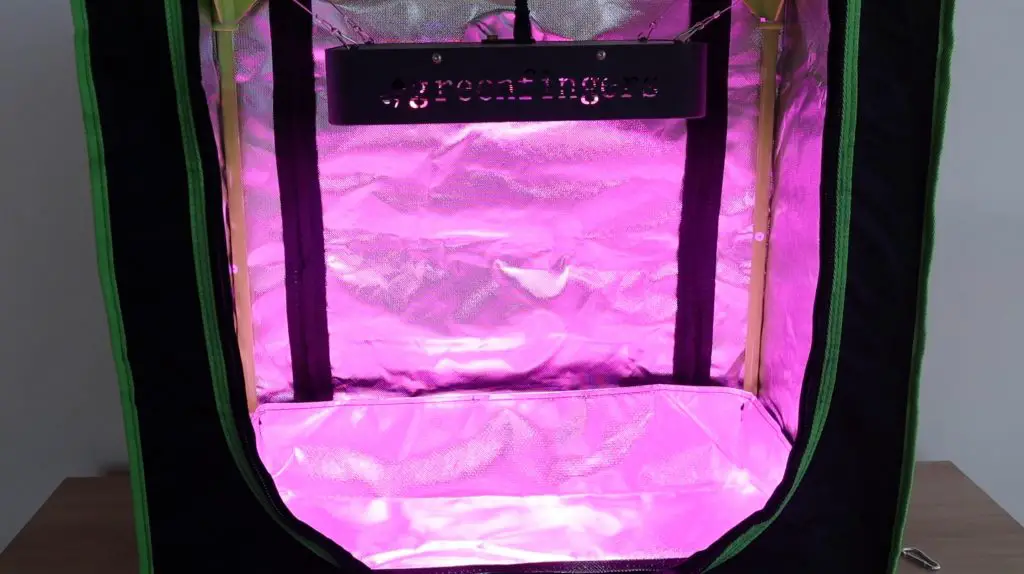
I hung the light in the grow tent using the included wire hanging loops.

Grow Light Running

Both the light and the light’s built-in switch operate at 220V. I made up a new power lead to replace the included one which had a branch off to the relay to enable it to be switched on and off remotely.

Note: Check your local regulations before modifying any cables or appliances, this often requires qualifications and/or permits. Also, do not attempt to do work on 110V or 220V AC supplies if you are not qualified or competent to do so, you run the risk of electric shock, which may result in injury or death, and you risk starting an electrical fire.

Making Up The Control System Housing

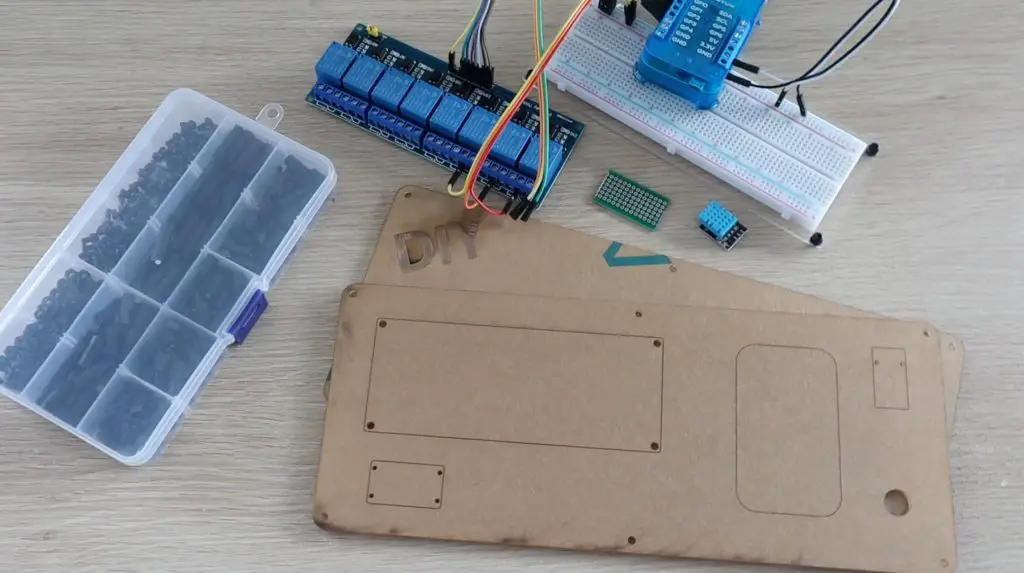
To support and protect the electronics, I made up some laser-cut acrylic panels to mount them onto. This panel could then be installed on the side of the grow tent.

Laser Cutting The Back Board

There is a back panel to mount the components onto and then a front cover plate to protect the wiring. The cover plate will be mounted onto 6 nylon standoffs.

Control System Base Assembly

You could use a similar setup for a range of home automation projects as well. You’ve got a temperature and humidity sensor and also a relay board with up to 8 usable relays on it – although you’d need to use some relays together as you’ve only got 6 free pins on the builder base after the DHT11 sensor is connected.

Assembled Builder Base Control System

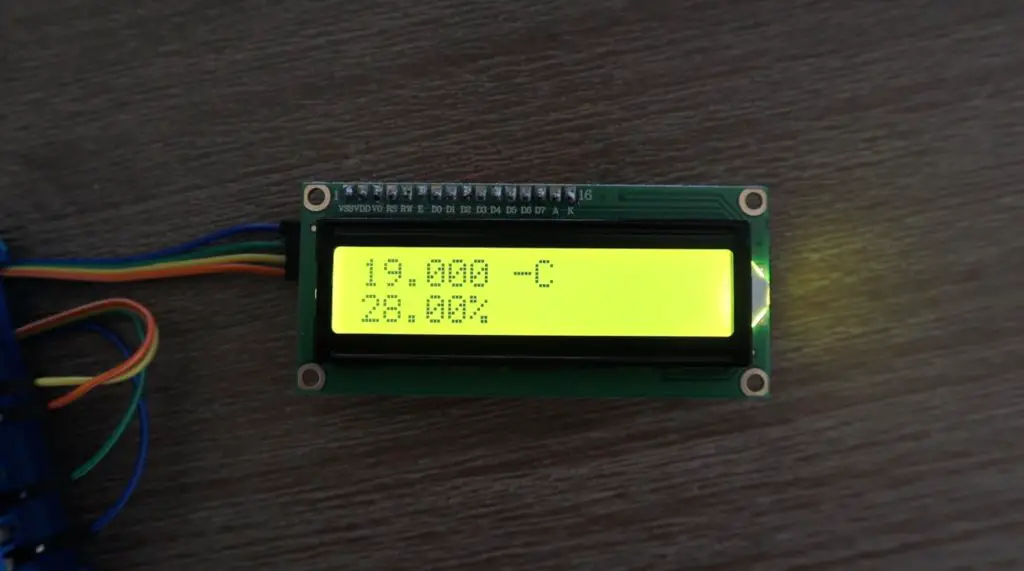
Adding A Remote LCD Display Panel

The last thing I’m going to do is to add a remote LCD display panel that can be used to keep an eye on the temperature and humidity in the grow tent from a different location. This will also be useful once my level sensors are installed.

This is as easy as dragging two LCD blocks into the app and dragging the sensor outputs to them.

Adding The LCD Display To The App

We can then connect the display to another builder base’s I2C interface and it’s ready to go.

  • SDA to SDA
  • SCL to SCL
  • VCC to 3.3V
  • GND to GND
LCD Display Running

Finishing Off The Hydroponic System

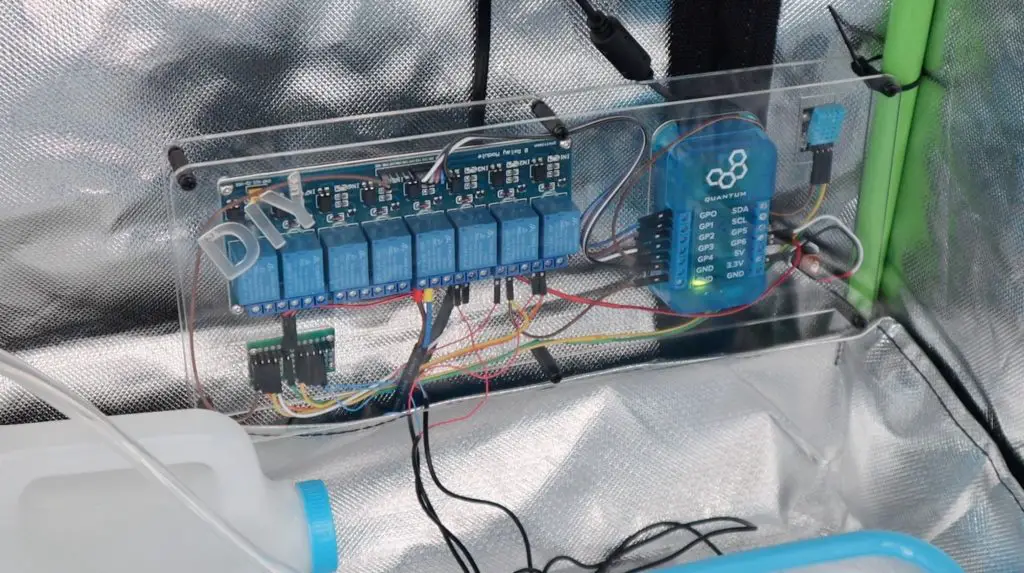
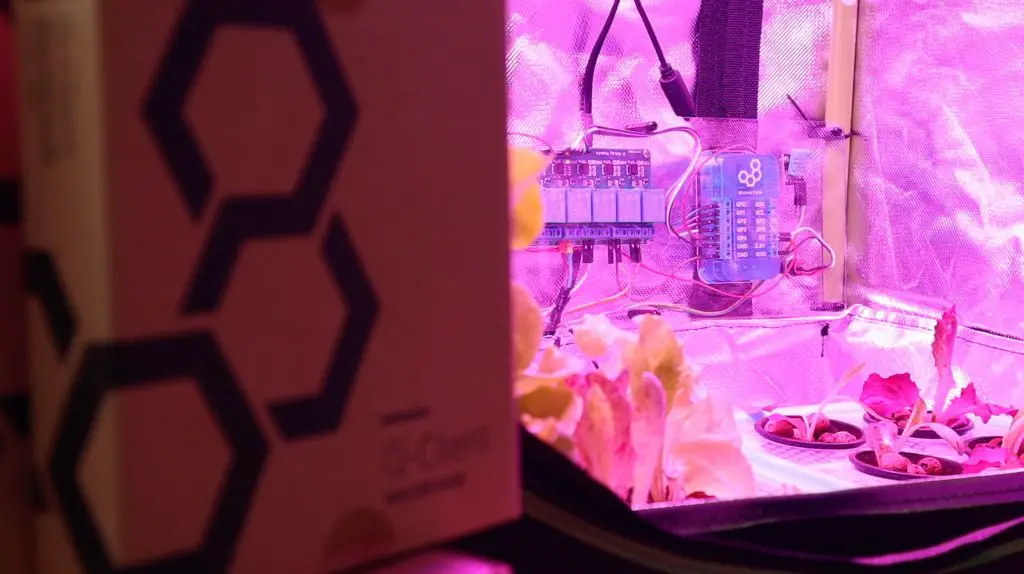
I connected the board to the pumps and grow light and then mounted it in the back of the grow tent.

Control System Mounted Into Grow Tent

I then started up the server and tested the pumps again, this time from my phone.

Testing Pumps In Grow Tent

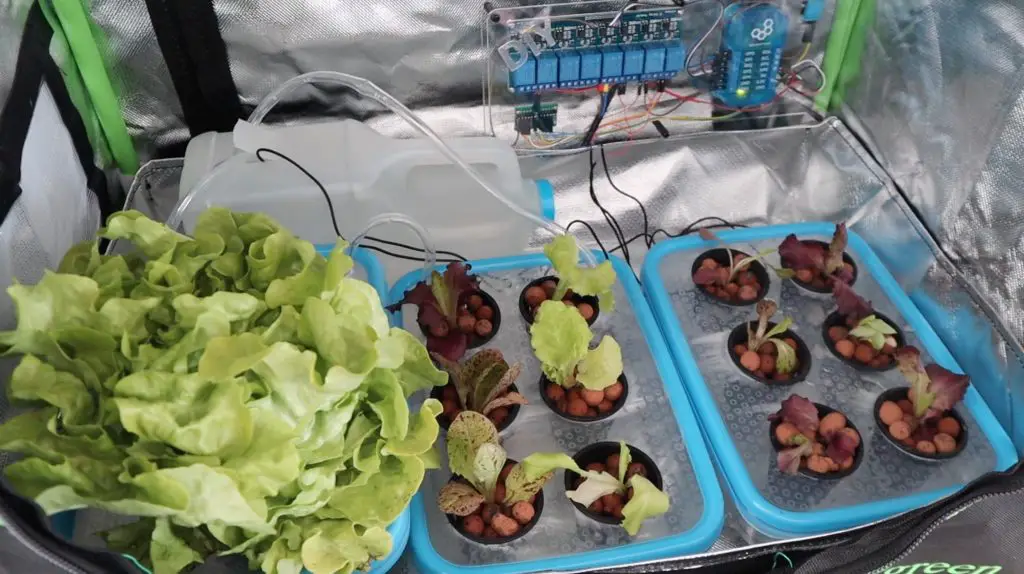
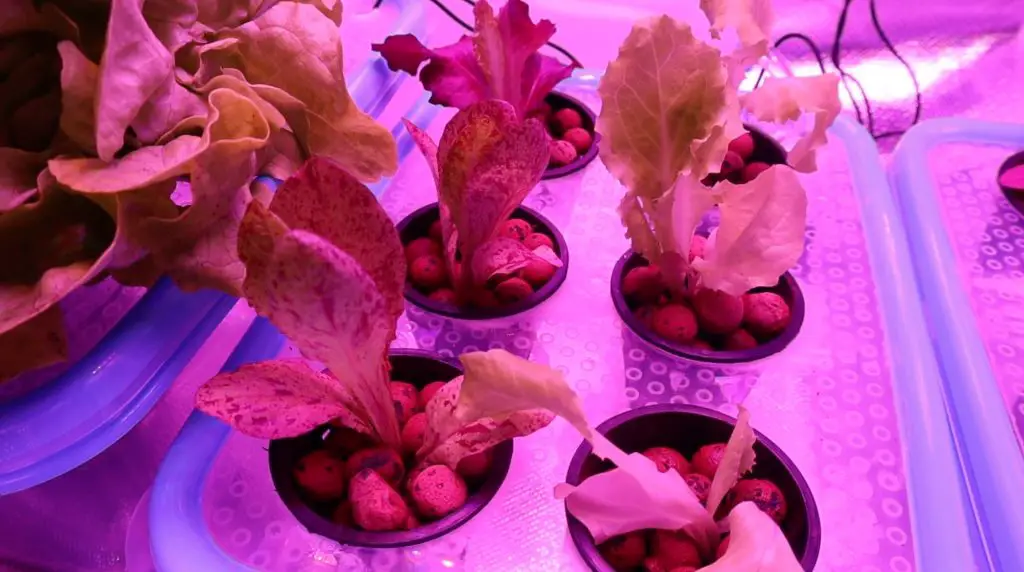
Once I was happy with the way the hydroponic system was working, I added the plants. As mentioned earlier, I’m going to be starting off by growing a few different types of lettuce. I’m pretty new to hydroponics as well, so I expect that it’s going to take some experimenting to see what works and what doesn’t. But I think the basics are all here and this will be a good start to indoor farming.

Lettuce Growing In Hydroponic Grow Bed

I hope you enjoyed this project. Let me know what you think of it in the comments section below and have a look at the Quantum Integration system if you’re looking at getting into building wireless or IoT projects.

If you’d like to build a simpler version of an indoor smart garden, have a look at my Micro:bit smart garden project.

Quantum Integration Hydroponic Farm
Grow Light On Lettuce

DIY 3D Printed IoT Weather Station Using an ESP32

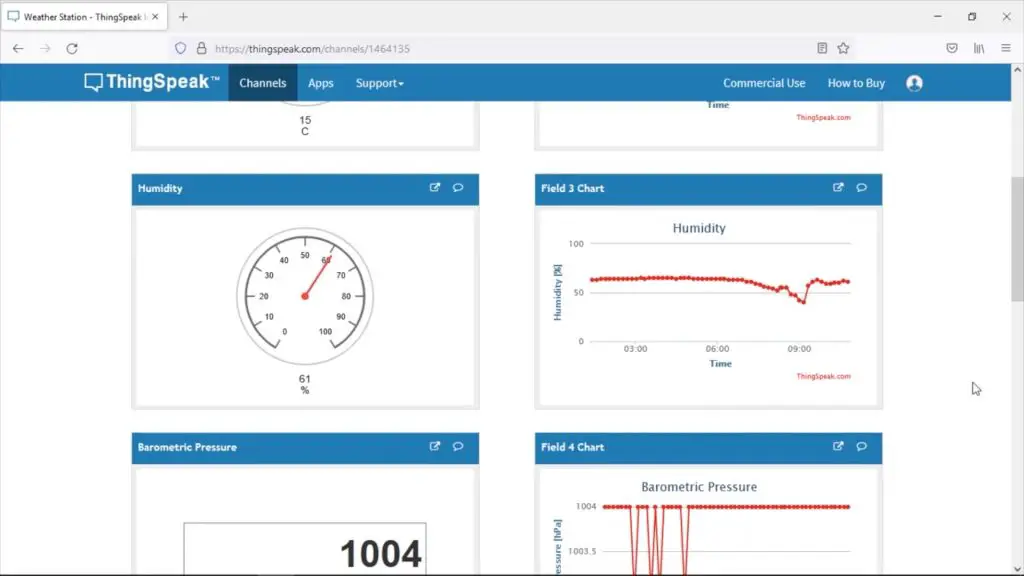
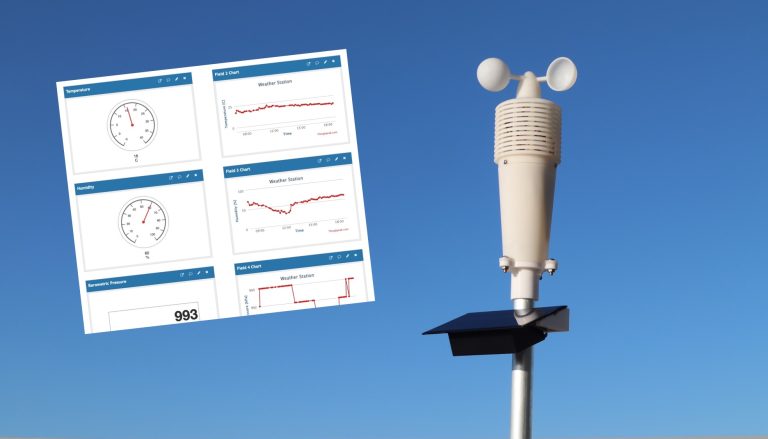
Today we’re going to be building a wireless outdoor weather station that takes temperature, humidity, barometric pressure, light and wind speed readings. The data is then posted to the cloud and can be accessed through a Thingspeak dashboard on an internet-connected computer, tablet, or mobile phone.

Thingspeak IoT Weather Dashboard

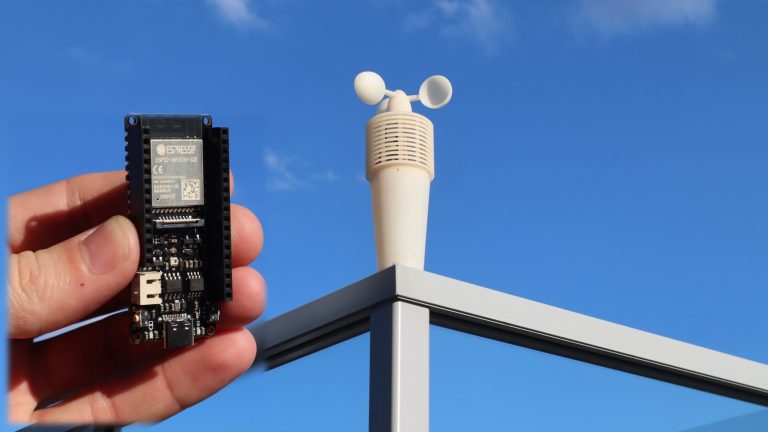
I’m going to use a development board from DF Robot called a Firebeetle ESP32-E IoT. I’ve chosen this particular board because it is inherently designed for low-power applications and can be powered by a lithium-ion battery directly. It’s got an onboard battery plug and supports charging through the USB C port.

For the sensors, I’m going to be using grove sensors by Seeed Studios. They integrate all of the required supporting components onto the sensor, so you just need to make the connections between each sensor and your microcontroller. They use 4-wire grove cables to plug into supported hats and boards, like the Arduino MKR IoT Carrier board. I’m going to modify one end of each cable to make up a harness that plugs into the pins on the Firebeetle board.

Update: I’ve made some upgrades to this weather station since building it, you can have a look at these on my follow up guide.

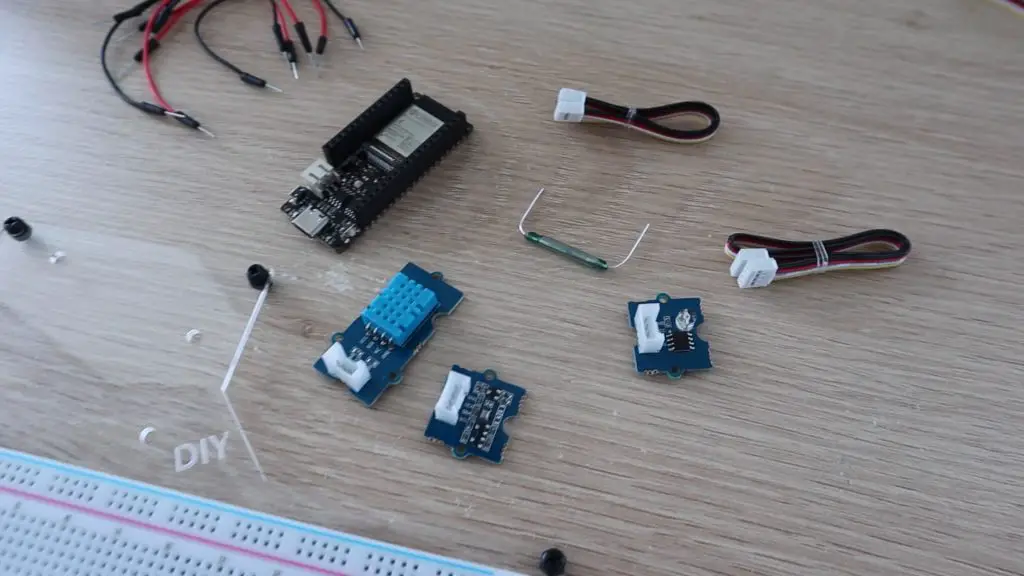
Grove Sensors, Firebeetle and Reed Switch

Here’s a video of my build, read on for the full step by step instructions:

What You Need To Build Your Own Weather Station

Equipment Used

  • Voxelab Proxima 6.0 3D Printer (Amazon) – Buy Here
  • Voxelab Proxima 6.0 3D Printer (Voxelab Direct) – Buy Here
  • Fluke Multimeter – Buy Here
  • TS100 Soldering Iron – Buy Here
  • Dremel Versatip Heat Gun / Soldering Iron – Buy Here

Some of the above parts are affiliate links. By purchasing products through the above links, you’ll be supporting my projects, with no additional cost to you.

How To Make Your IoT Weather Station

Prepare Your Components

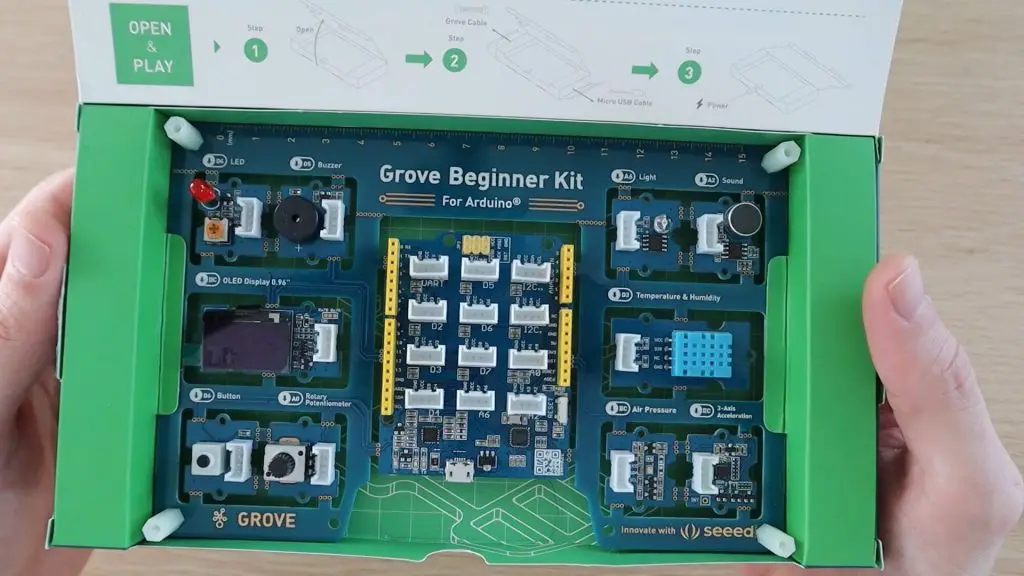
Lets start by removing the grove sensors we’re going to be using from the Grove Beginner Kit. You’ll need to cut through the tabs that join the sensors to the surrounding board. I used a sharp craft knife to cut each side and I then pushed the sensors out.

Grove Beginner Kit Inside

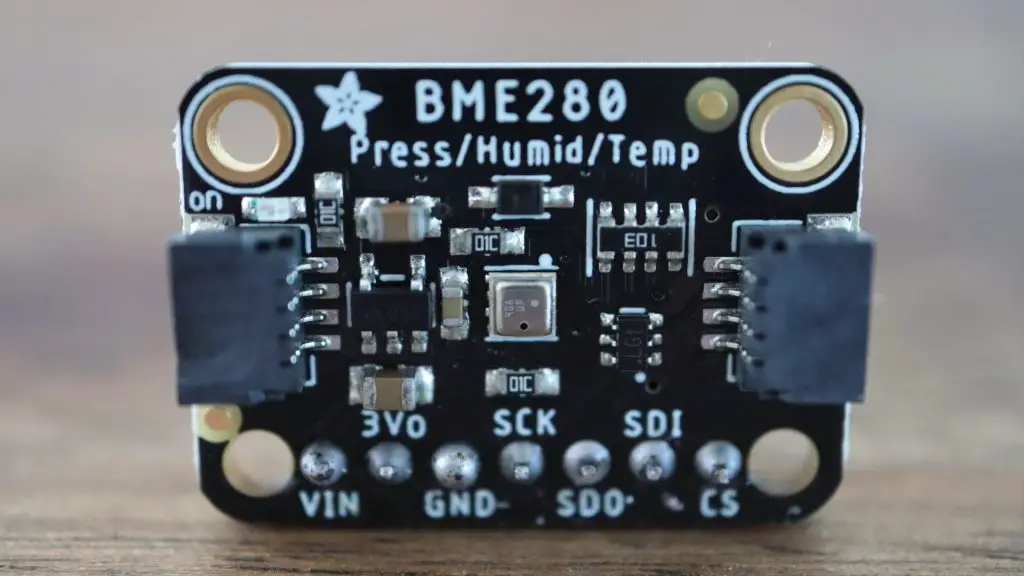
We’re going to use the pressure sensor that uses I2C communication, the DHT11 sensor that uses a digital pin and the light sensor that uses an analogue pin. You can leave the other sensors in place as we’re not going to be using them in this project.

We’re also going to make up an anemometer or wind speed sensor on top of the weather station that uses a reed switch to trigger an interrupt routine for each rotation.

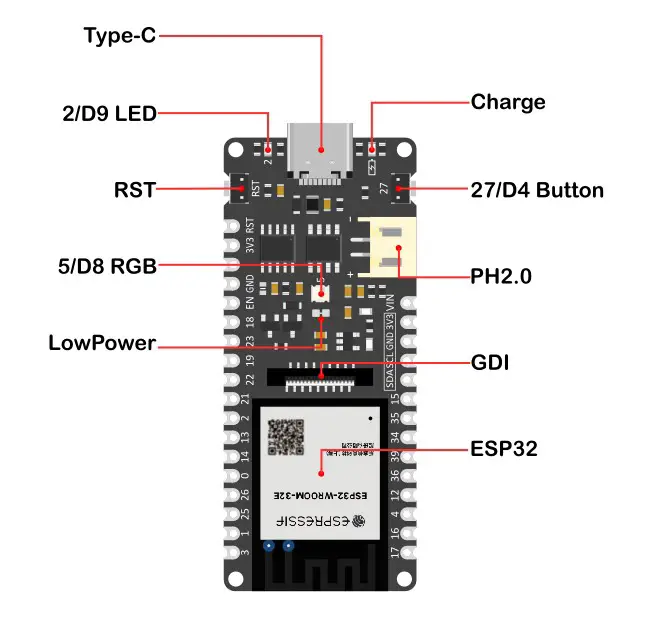
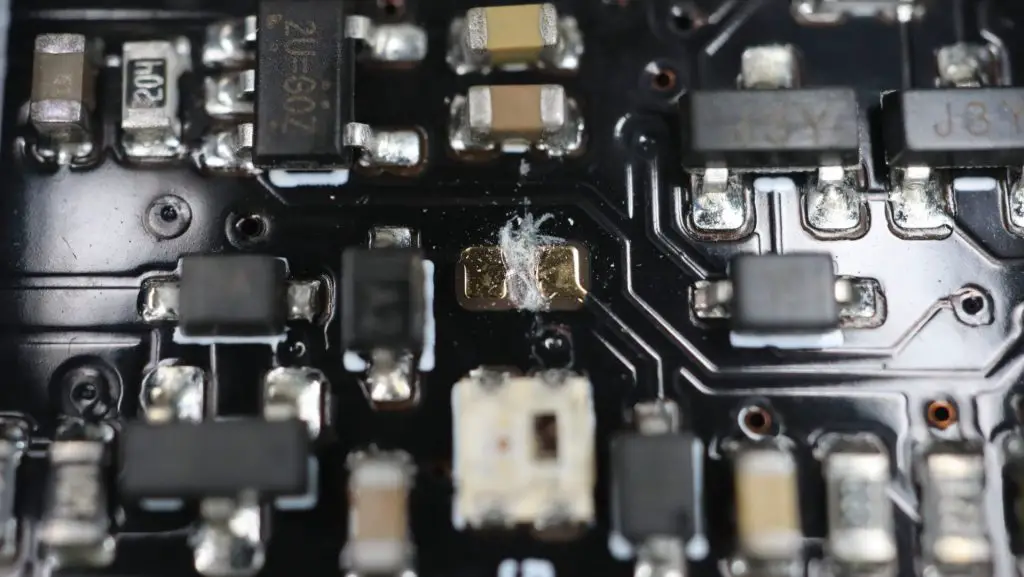
Next, we need to prepare the Firebeetle board. It has a small jumper on it which DF Robot recommend breaking if you’re going to be using the board for low power applications. I couldn’t find any information in the documentation on exactly what this does or disables but I presume it disables things like the on-board power led in order to save power.

Low Power Mode Jumper Firebeetle

Assemble The Components On A Breadboard

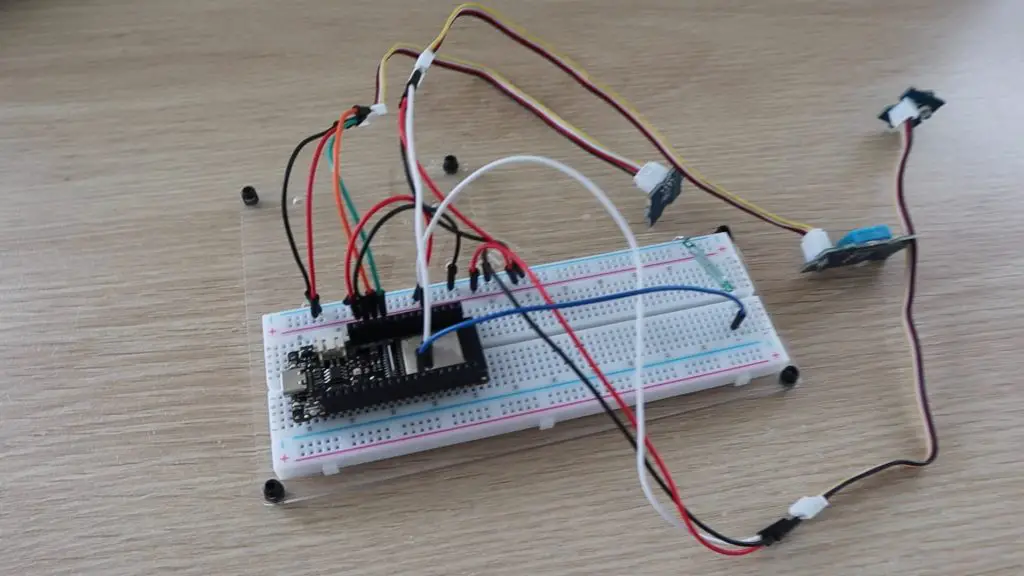
This step is not required, but it is helpful to check that your sensors and connections are working properly before soldering the wiring harness. So let’s assemble the components on a breadboard to test the connections to each sensor and to get the code working.

Assembled Breadboard

I’ve connected each of the sensors as follows:

  • Pressure Sensor to I2C Interface
    • VCC – 5V
    • GND – GND
    • SCL – SCL
    • SDA – SDA
  • DHT11 Temperature & Humidity Sensor to Pin 14
    • VCC – 5V
    • GND – GND
    • Sig – Pin 14
  • Light Sensor to Pin 36
    • VCC – 5V
    • GND – GND
    • Sig – Pin 36
  • Reed Switch to Pin 0
    • Side 1 – GND
    • Side 2 – Pin 0

You should be able to push the end of a male jumper into the grove connectors to pick up on each required wire. Make sure that you pick up the correct wires by tracing the wire colours back to the sensors.

Program The Firebeetle Board

Now that the sensors are connected to our board, we can write up a sketch to take readings from the sensors and post the data to Thingspeak. Between readings, we’ll put the ESP32 into deep sleep mode in order to save power. This shuts down the WiFi and Bluetooth communication modules as well as the CPU.

The Firebeetle board can be programmed in the Arduino IDE by adding the Firebeetle series of boards as an additional board type through the boards manager tool.

Here is the sketch:

//Weather Station
//The DIY Life by Michael Klements
//11 August 2021

#include <Wire.h>                                                   //Import the required libraries
#include "DHT.h"
#include "Seeed_BMP280.h"
#include <WiFi.h>
#include "ThingSpeak.h"

#define lightSen 36                                                 //Define pin numbers
#define windSen 0
#define uS_TO_S_FACTOR 1000000ULL                                   //Conversion factor for micro seconds to seconds
#define TIME_TO_SLEEP  570                                          //Time ESP32 will go to sleep (in seconds) - 9.5 minutes

DHT dht(14,DHT11);                                                  //DHT and bMP sensor parameters
BMP280 bmp280;

WiFiClient client;                                                  //WiFi connection details
char ssid[] = "WIFI SSID";                                          //WiFi Name
char pass[] = "WIFI PASSWORD";                                      //WiFi Password

unsigned long myChannelNumber = YOUR CHANNEL ID;                    //Thingspeak channel number
const char * myWriteAPIKey = "YOUR WRITE API KEY";                  //Thingspeak API write key

int light = 0;                                                      //Variables to store sensor readings
int temp = 0;
int humid = 0;
int pressure = 0;
int wind = 0;

unsigned long firstMillis = 0;                                       //Timers for the wind speed calculation
unsigned long lastMillis = 0;
unsigned long lastIntTime = 0;
int counter = 0;                                                     //Counter to keep track of the number of wind speed revolutions 

void IRAM_ATTR isr ()                                                //Interrupt routine, run with each reed switch interrupt
{
  unsigned long intTime = millis();
  if(intTime - lastIntTime > 150)                                    //Debounce the reed switch input
  {
    if (counter == 0)
      firstMillis = millis();
    counter++;                                                       //Count each revolution
    lastMillis = millis();
    Serial.println(counter);
  }
  lastIntTime = intTime;                                             //Capture the first and last revolution time
}

void setup()                                                         //Setup function - only function that is run in deep sleep mode
{
  Serial.begin(9600);
  if(!bmp280.init())                                                 //Connect to pressure sensor
  {
    Serial.println("bmp280 init error!");
  }
  pinMode(lightSen, INPUT);                                          //Define pin functions
  pinMode(windSen, INPUT_PULLUP);
  attachInterrupt(windSen, isr, FALLING);                            //Define interrupt pin
  WiFi.begin(ssid, pass);                                            //Connect to WiFi network
  while (WiFi.status() != WL_CONNECTED)
  {
    delay(500);
    Serial.print(".");
  }
  Serial.println("");
  Serial.println("WiFi connected");
  esp_sleep_enable_timer_wakeup(TIME_TO_SLEEP * uS_TO_S_FACTOR);     //Initialise deep sleep mode parameters
  ThingSpeak.begin(client);                                          //Initialise ThingSpeak
  delay(10000);                                                      //Wait for wind speed readings to be taken
  recLight ();                                                       //Take readings from other sensors
  recTempHumid ();
  recPress ();
  calcWind ();
  counter = 0;
  Serial.print("Light: ");                                           //Display readings on serial monitor
  Serial.println(light);
  Serial.print("Temp: ");
  Serial.println(temp);
  Serial.print("Humidity: ");
  Serial.println(humid);
  Serial.print("Pressure: ");
  Serial.println(pressure);
  Serial.print("Wind: ");
  Serial.println(wind);
  updateThingSpeak ();                                               //Post the data to Thingspeak
  Serial.println("Going to sleep now");
  Serial.flush(); 
  esp_deep_sleep_start();                                            //Enter sleep mode
}

void loop()                                                          //Loop function - unused
{

}

void recLight ()                                                     //Function to record the light level
{
  light = analogRead(lightSen);
}

void recTempHumid ()                                                 //Function to record the temperature and humidity
{
  temp = dht.readTemperature();
  humid = dht.readHumidity();
}

void recPress ()                                                     //Function to record the pressure
{
  pressure = bmp280.getPressure()/100;
}

void calcWind ()                                                     //Function to calculate the wind speed
{
  int ave = 5000;
  if(counter != 0)
    ave = (lastMillis - firstMillis)/counter;
  Serial.print("Average Tick Time: ");
  Serial.println(ave);
  if (ave < 200)
  {
    ave = 200;
    wind = map (ave,200, 4000, 16, 3);
  }
  else if (ave > 4000)
    wind = 0;
  else
  {
    wind = map (ave,200, 4000, 16, 3);
  }
}

void updateThingSpeak ()                                             //Function to post data to Thingspeak
{
  ThingSpeak.setField(1, light);
  ThingSpeak.setField(2, temp);
  ThingSpeak.setField(3, humid);
  ThingSpeak.setField(4, pressure);
  ThingSpeak.setField(5, wind);
  int x = ThingSpeak.writeFields(myChannelNumber, myWriteAPIKey);
  if(x == 200)
  {
    Serial.println("Channel update successful.");
  }
  else
  {
    Serial.println("Problem updating channel. HTTP error code " + String(x));
  }
}

Before uploading the code to your Firebeetle, you’ll need to add your network and Thingspeak channel details.

Your network name (SSID) and password need to be added to the fields in lines 20 and 21.

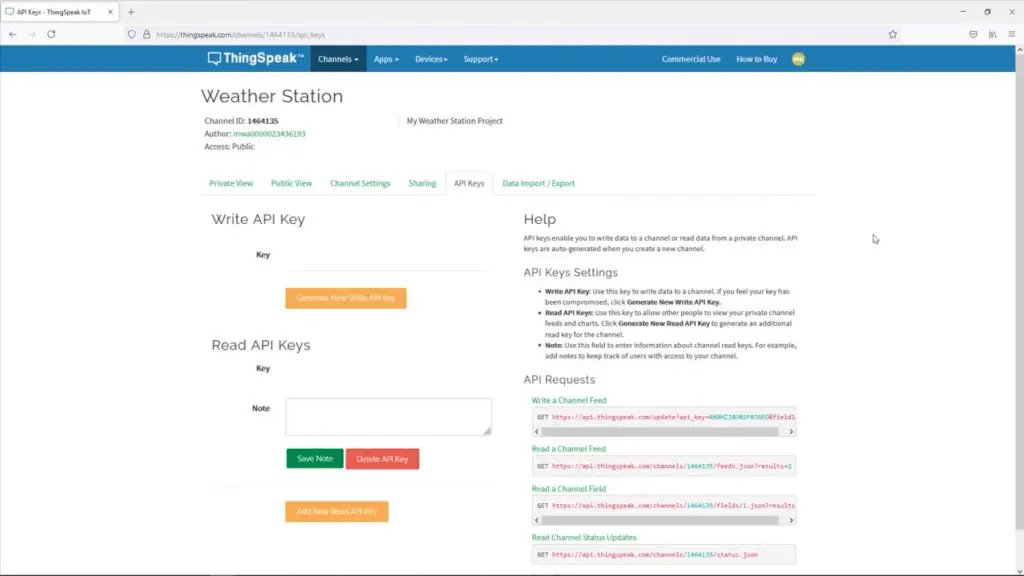
You’ll also need to create an account on Thingspeak and then create a channel for your data. You’ll then be able to generate a write API key for your channel. The API key is effectively the password your ESP32 uses to be able to post data to your Thingspeak channel, so that Thingspeak knows that the data is coming from the correct source. Add your channel name to line 23 and your write API key to line 24.

Thingspeak API Keys

On my Thingspeak account, I’ve created a weather station channel and then made a dashboard to view the channel data which I’ve put a gauge and a trend chart onto for each field.

It’s important to keep track of which fields are receiving which data sets from your weather station, they are posted to a field number in your code (lines 136 to 140) and you’ll need to use the field number to display data on your charts and gauges on your dashboard.

You’ll notice that all of the code is in the setup() function and that the loop() function is left empty. This is because the ESP32 only runs the setup() function when operating in deep sleep mode, so only the code in this function is executed each time it wakes up.

In the setup function, connections are made to the sensors and the pin modes are defined. The board then connects to the WiFi network and starts a new Thingspeak client. There is then a 10 second delay to allow the anemometer to increment the reed switch counter in order to calculate the current wind speed. The board then takes readings from all of the other sensors, calculates the wind speed based on the number of revolutions and the time, then posts the data to Thingspeak and enters deep sleep mode. I’ve added some output lines to the Serial monitor to assist with debugging while you’ve got your board connected to your computer.

The entire wakeup cycle takes about 20-30 seconds to complete including the 10 seconds that the ESP32 waits to measure the wind speed data.

Soldering The Wiring Harness

To make the weather station a bit more resilient, it’s a good idea to make up a permanent wiring harness to connect the sensors to the Firebeetle board.

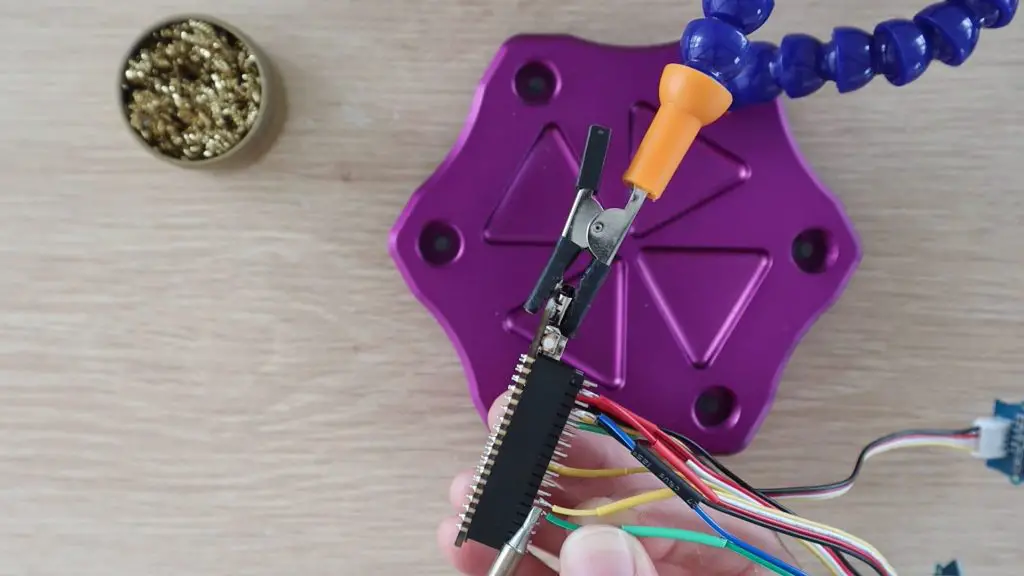
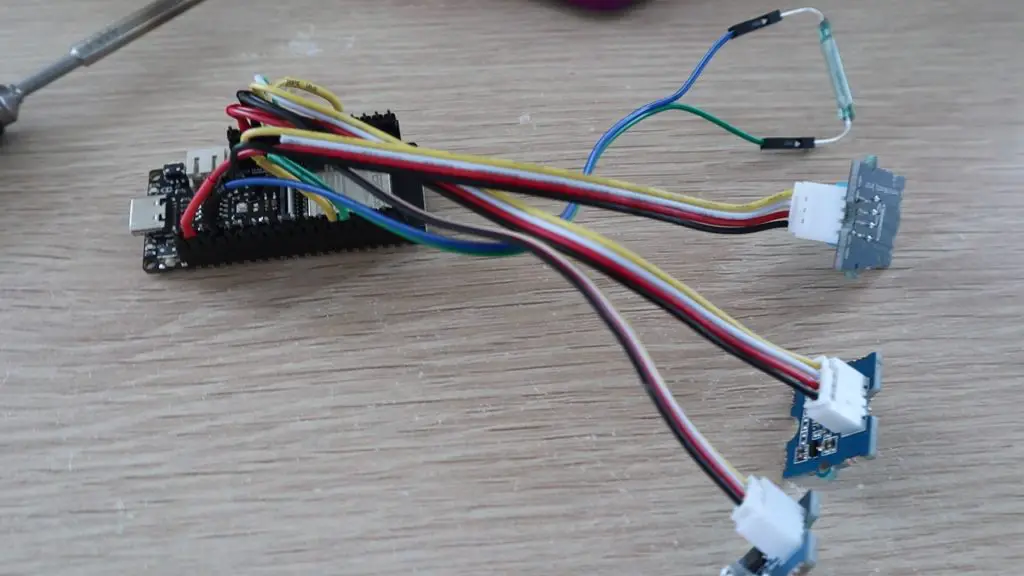
I cut the ends off of one side of the grove cables and soldered these along with two female jumpers for the reed switch onto some male header pins.

Soldering Wiring Harness

The grove plugs are still on the other end of the grove leads, so they can be plugged in or removed as needed.

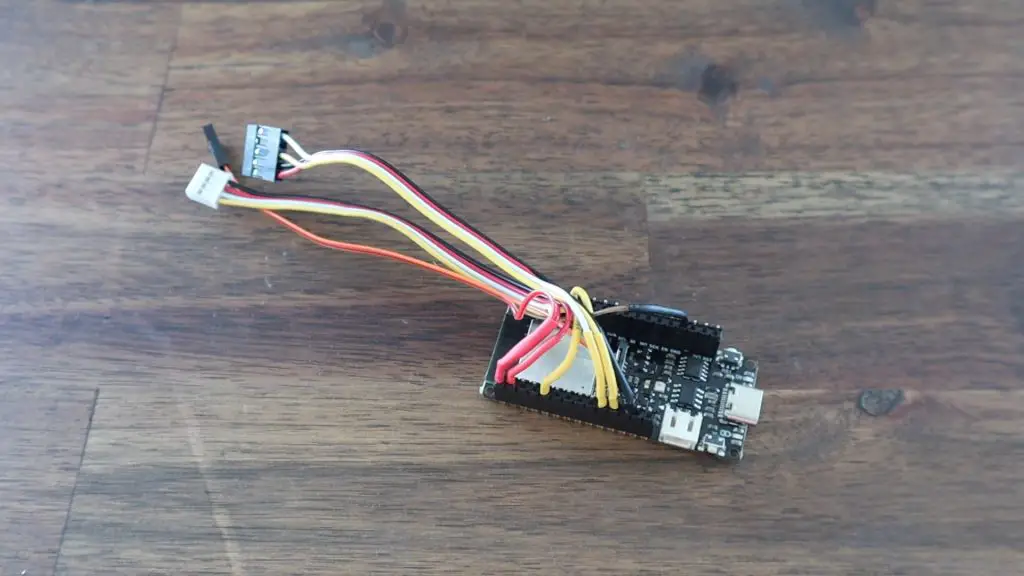
Connecting Sensors To Firebeetle Board

I also marked the plugs with a TH, P, and L to keep track of which sensor they plug into.

Designing and 3D Printing The Weather Station Housing

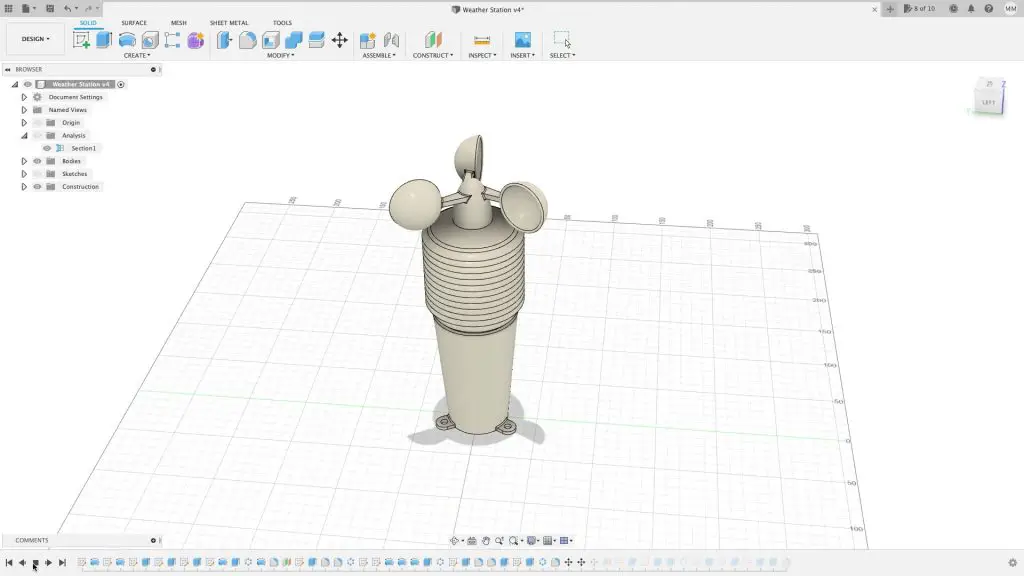
Next, we need to design a housing to protect the components when they’re mounted outdoors. The sensors can’t be completely enclosed as this will interfere with their accuracy, but they need to be protected from direct sun and rain. I wanted the weather station to be as compact as possible, so I wanted to integrate the sensors and the anemometer into a single assembly.

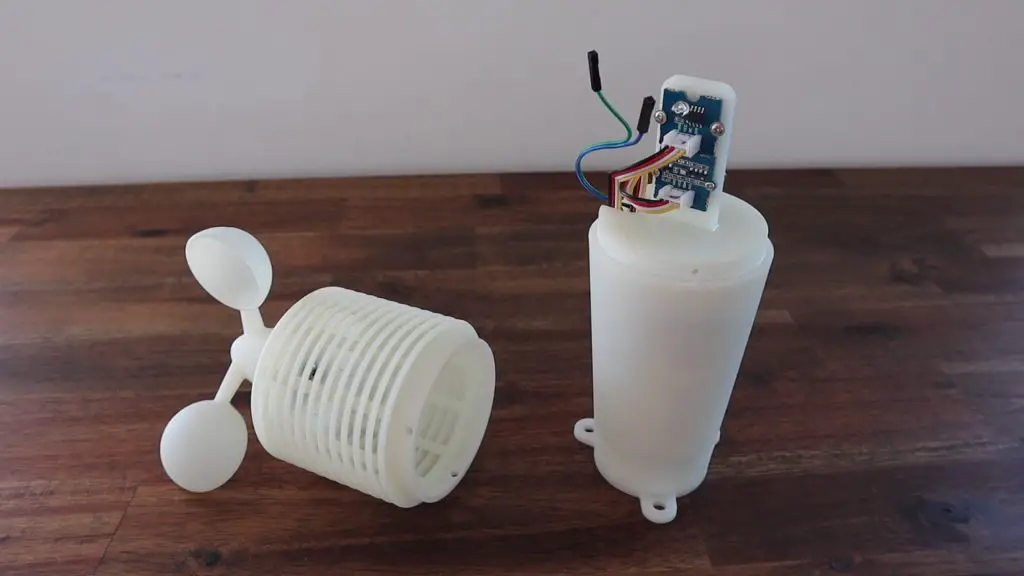
The design I came up with housed the ESP32 and battery in the base, with the sensors in a vented centre compartment and the anemometer on top. I used Fusion 360 to model the four components that make up the housing.

DIY 3D PRinted IoT Weather Station

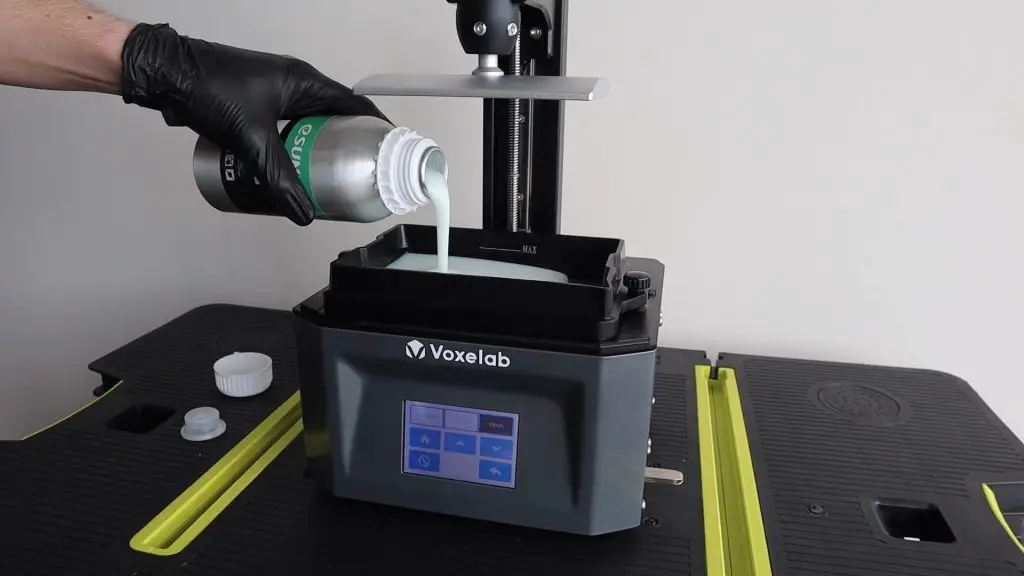
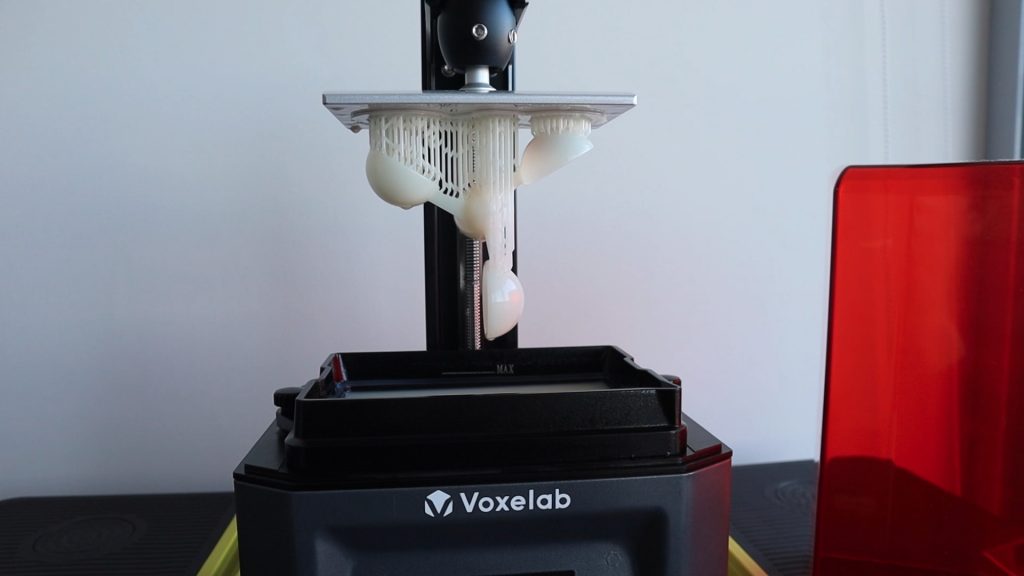
I wanted to 3D print the components in resin so that I could print the sensor housing as a single piece and I wouldn’t have to build it up with each ring as an individual print. You can experiment with printing the components on an FDM printer as well, you’ll just need to play around with the orientation and print speeds to get right.

Pouring Resin Into SLA Printer

I’m not yet sure how well resin prints will hold up in the sun. I’ve done a bit of research on it and most articles I’ve found say that it’s a bad idea, listing brittling and UV damage as likely to lead to failures, but I’ve also seen a couple of tests where people have actually left prints outside through sun, rain, and snow and they didn’t seem to have any visible damage. So I thought I’d give it a try and see how long it lasts.

3D Printed Anemometer on Build Plate

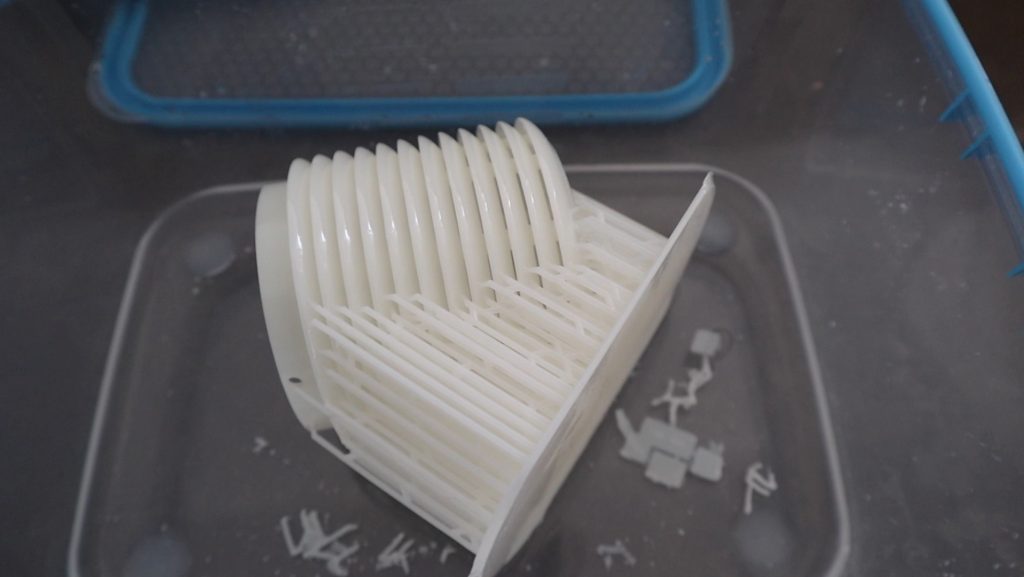
I printed them in regular pla style white resin, then cleaned them up and removed the supports. I printed the base and sensor holder vertically and the sensor housing at a 45 degree angle with supports.

Cleaning Up Resin 3D Prints

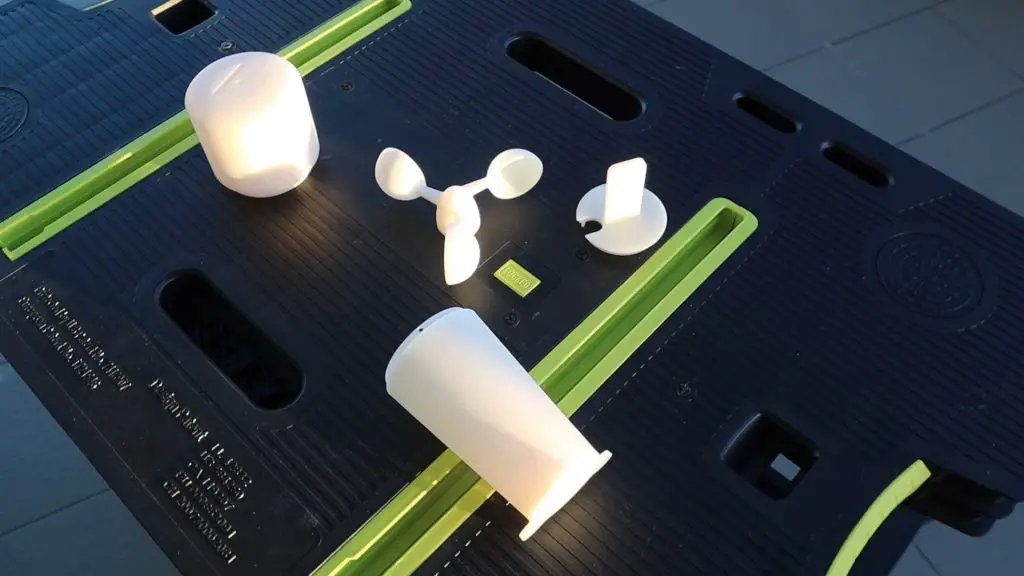
I allowed the parts to cure in the sun for a day as I don’t yet have a UV curing chamber.

Curing Resin Prints In Sun

I’ve recently reviewed the Voxelab Proxima 6 sla printer that I used for these prints. It’s a really good quality entry-level resin printer. If you’re looking at getting into sla printing I’d definitely recommend checking it out.

Now that all of the housing components are ready, we can start assembling the weather station.

Installing The Components In The Weather Station Housing

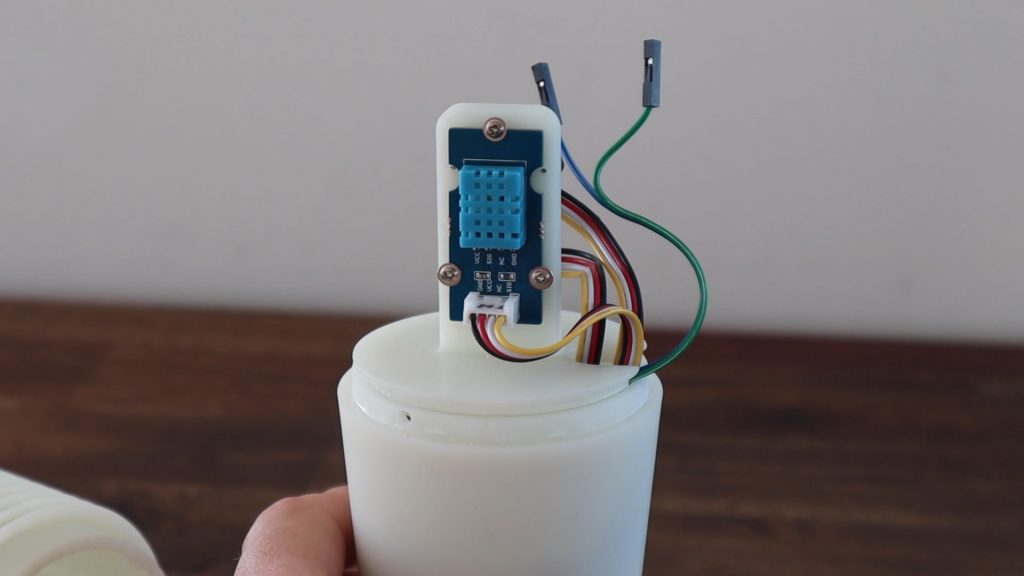
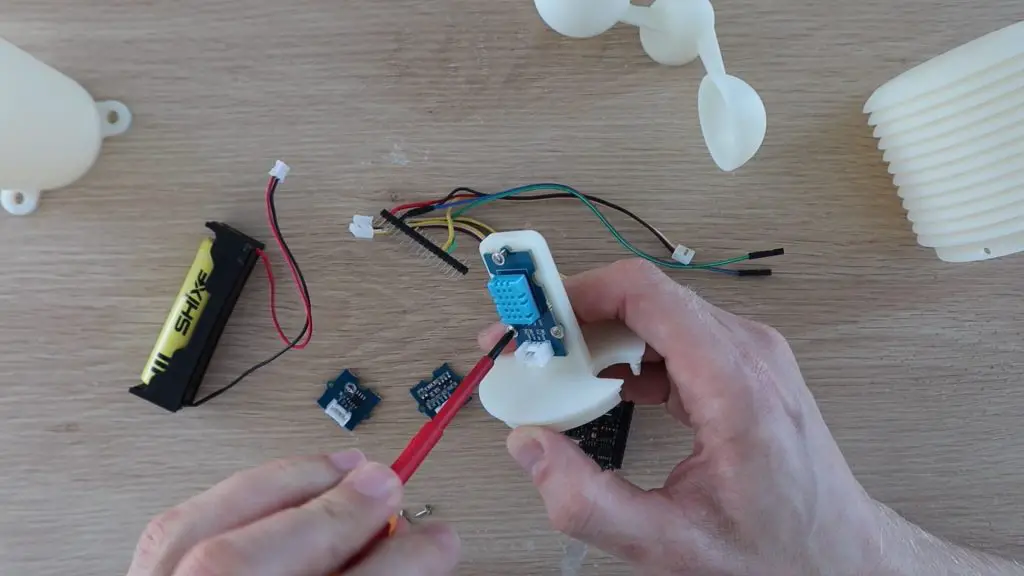
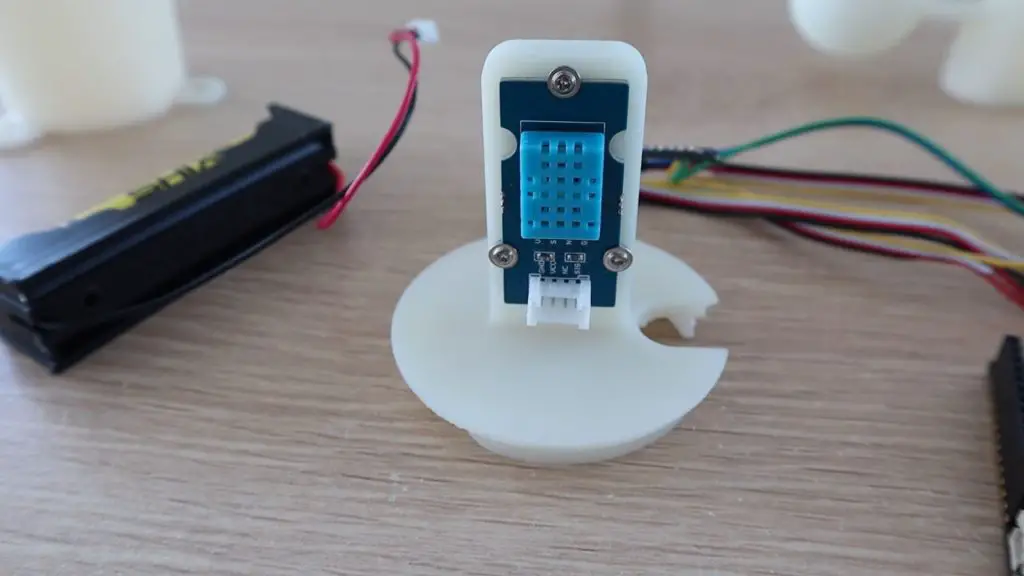
We’ll start out by mounting the temperature and humidity sensor on one side of the sensor stand. I’ve already added the mounting holes into the 3D print, so each sensor just needs to be screwed into place. I just used some small screws that I had lying around my workshop from some servos.

Screw Sensors Onto Sensor Stand
Temperature and Humididty Sensor

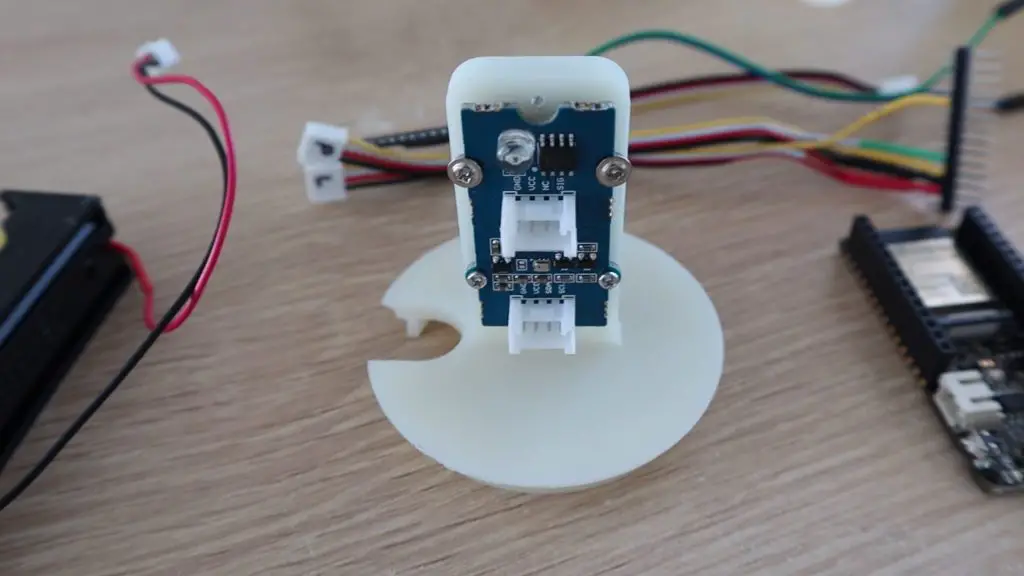
We can then mount the pressure and light sensors onto the other side of the stand.

Light and Pressure Sensors

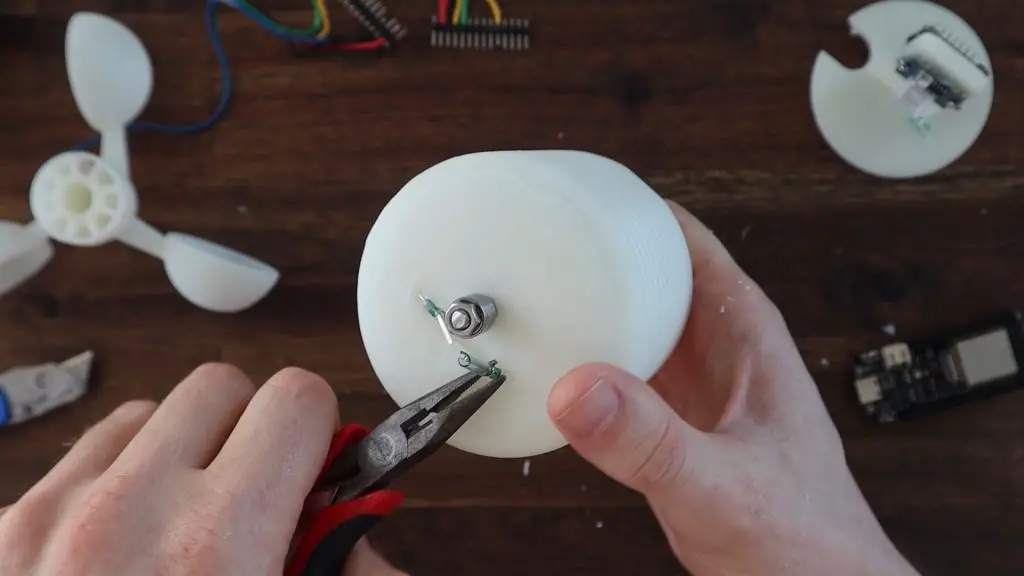
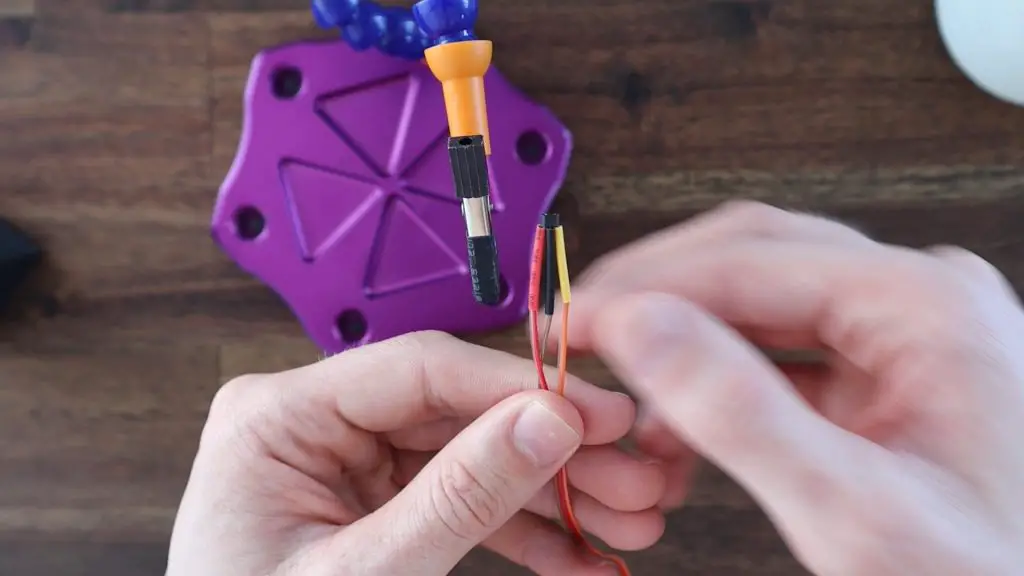
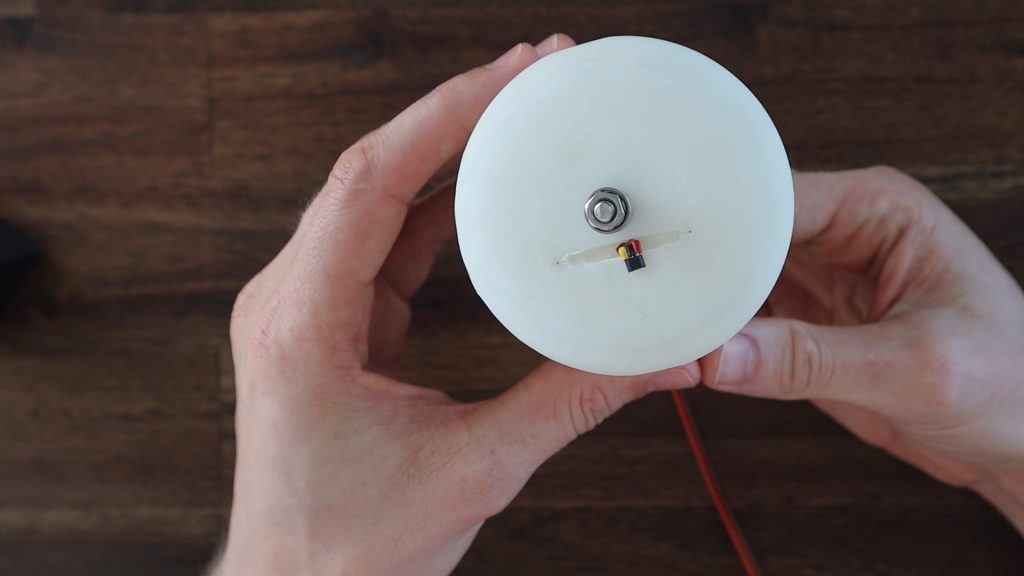
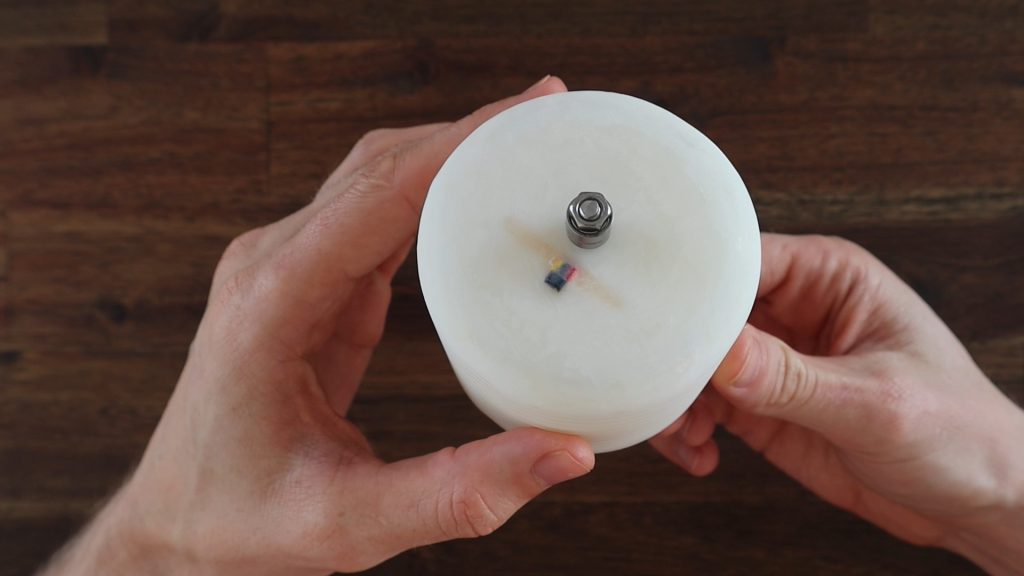
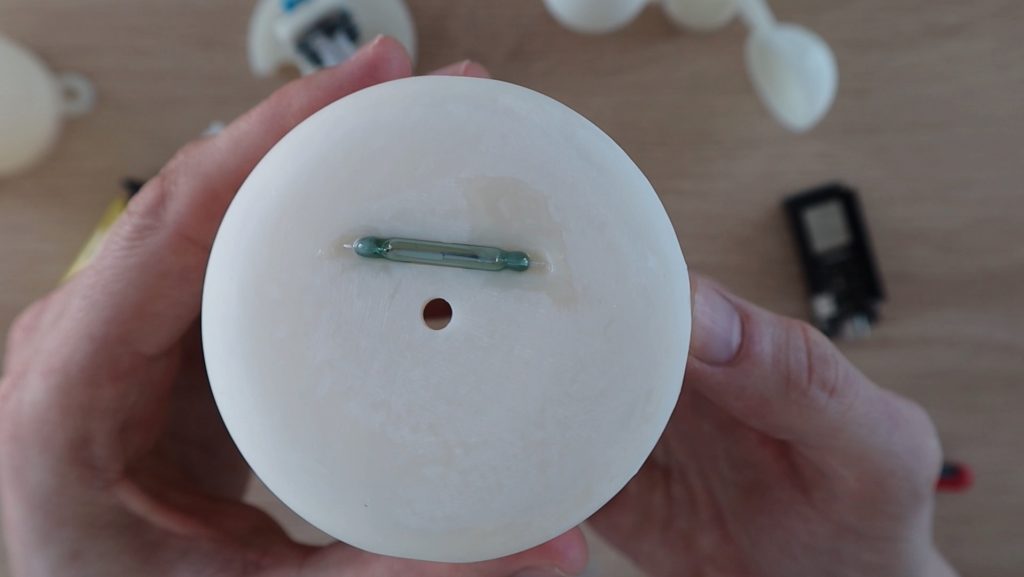
Next, let’s install the reed switch on top of the sensor housing. You’ll need to bend the legs 90 degrees to fit into the premade holes through to the inside of the housing. I added some print resin to fill up the void and seal the holes through the top and then cured it will a small UV light.

Reed Switch Installed On Housing

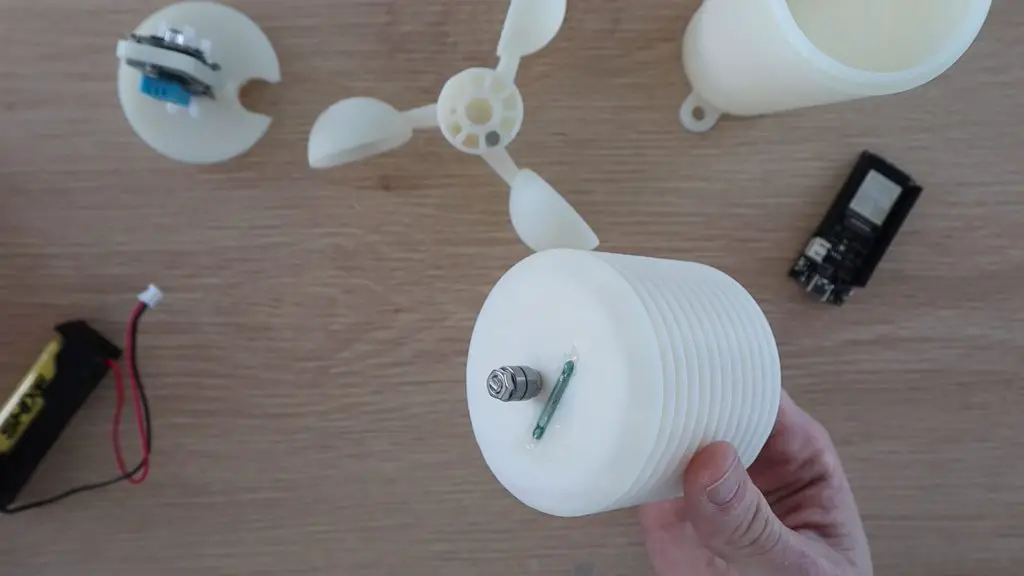
The anemometer is mounted onto the top of the weather station using an M5x20mm screw, two nuts and two small bearings.

Push the screw through the hole in the top (from the inside), then secure it with the first nut. Place the two bearings onto the screw and the second nut then holds them in place, but shouldn’t squash them.

Bearings Installed On Top of Sensor Housing

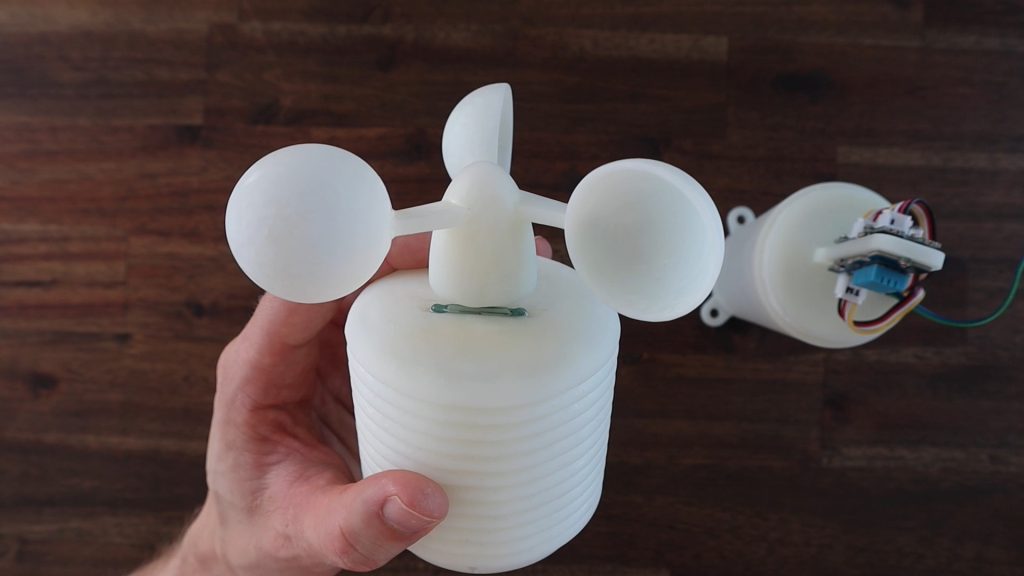
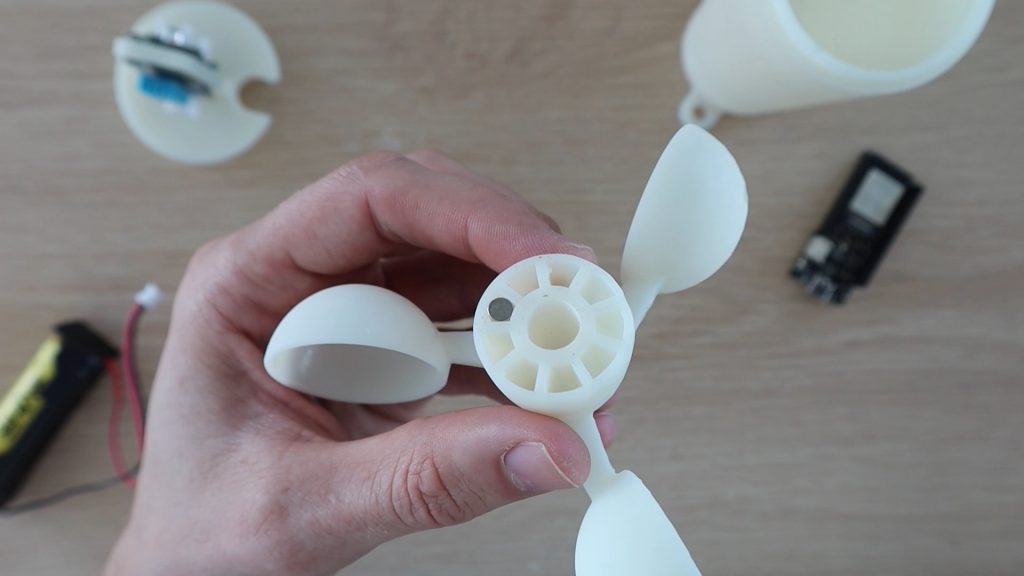
We need to add a small stack of magnets into the anemometer to activate the reed switch on each turn. Push a couple (4-5) into one of the gaps so that they sit flush with the base of the anemometer.

Magnet on Bottom of Anemometer

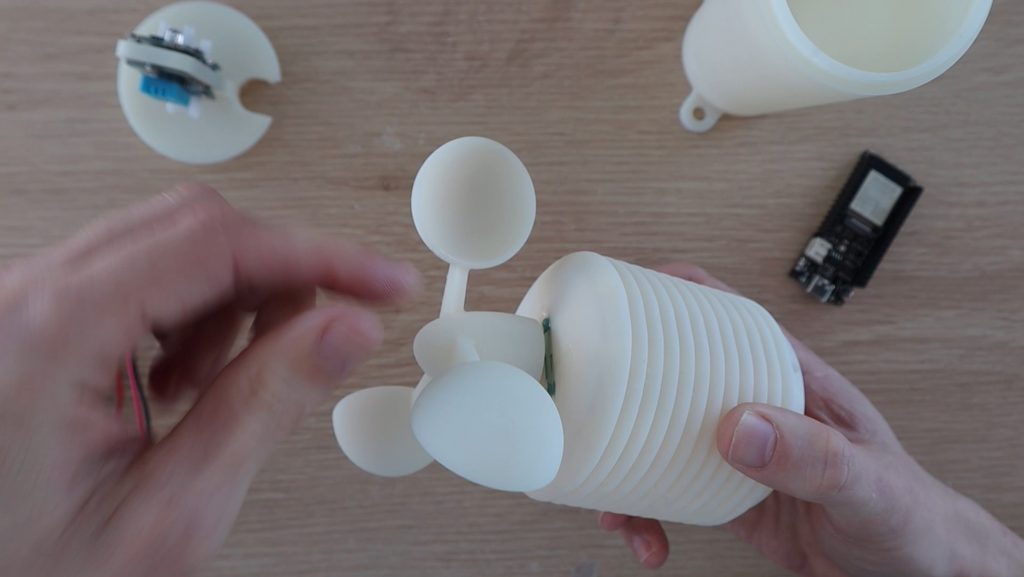
The anemometer is then just pushed onto the bearings. If your bearings are tight, put a drop of thin oil on them first and make sure that they’re not being clamped too firmly by the top nut. They should turn freely.

Press Anemometer onto Bearing Support

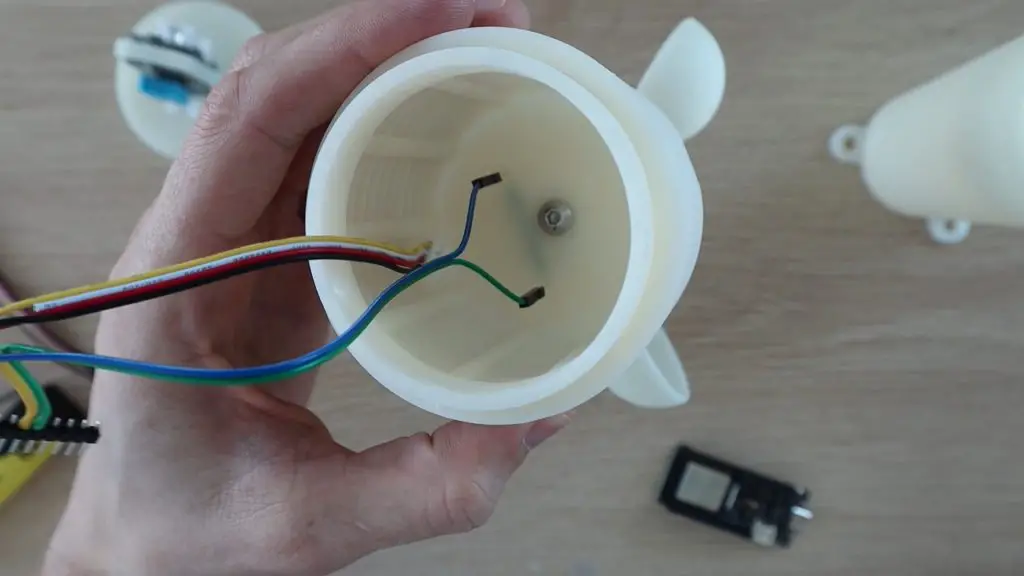
We can then plug the wiring harness onto the legs of the reed switch for the wind speed sensor.

Attach Jumpers To Reed Switch Legs

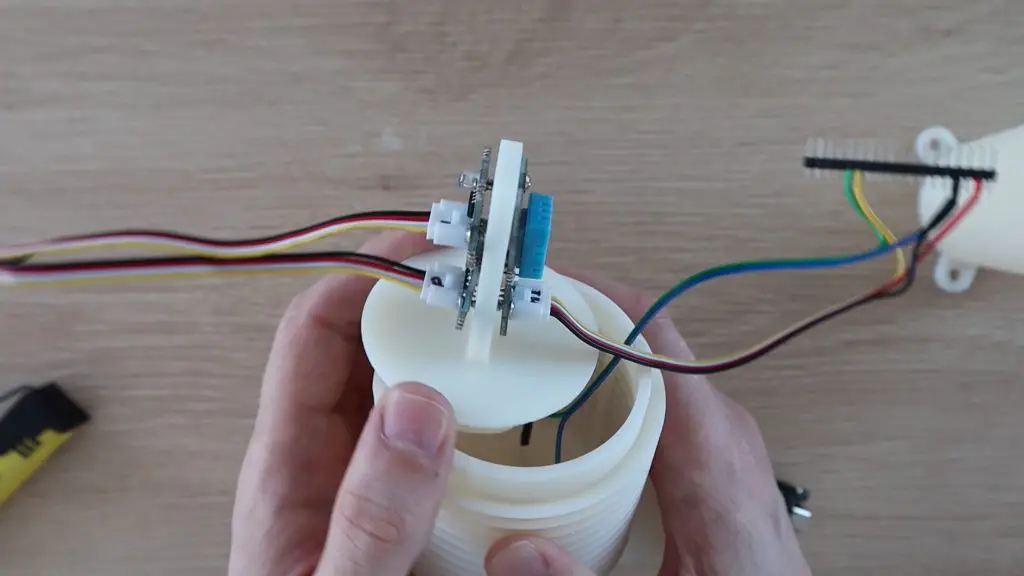
Finally, connect the sensors to the Firebeetle board.

Plug Cables Into Sensors

There is one last thing we need to check before putting the sensor housing on over the sensors, the power consumption.

How Long Will The Battery Last?

Since this project is battery-powered, we’d obviously like to know how long the battery is going to last. So, I measured the power consumption for the whole setup using a multimeter.

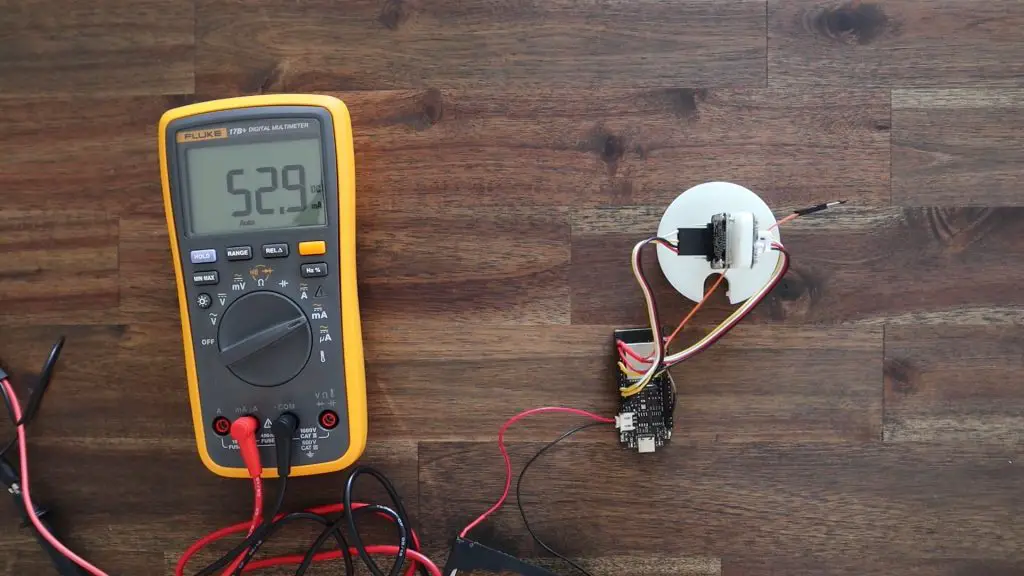
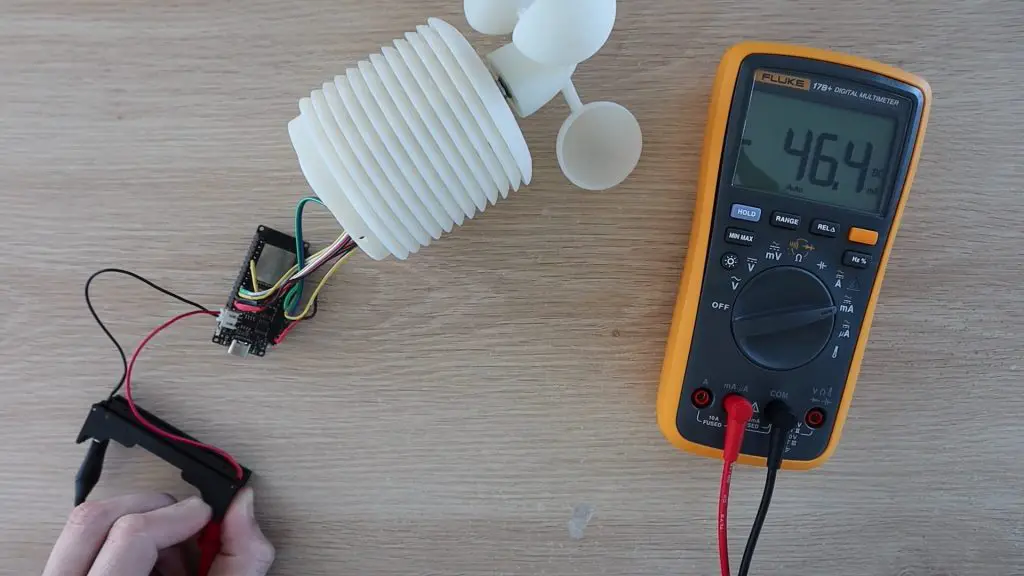
The board and sensors use about 30-60mA when running and this momentarily spikes to just over 120mA when connecting and posting data over WiFi.

Measuring Firebeetle Current - While On

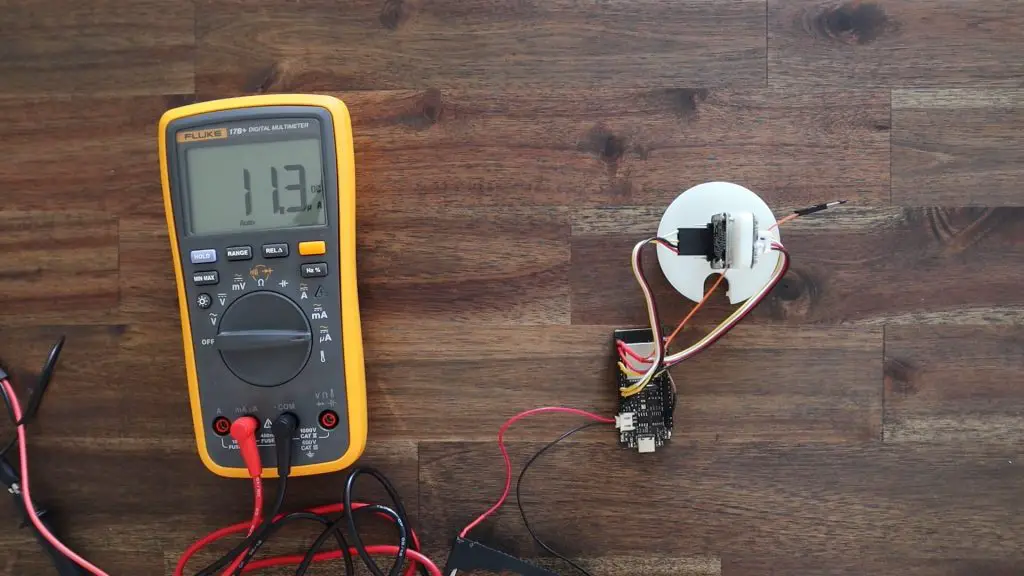
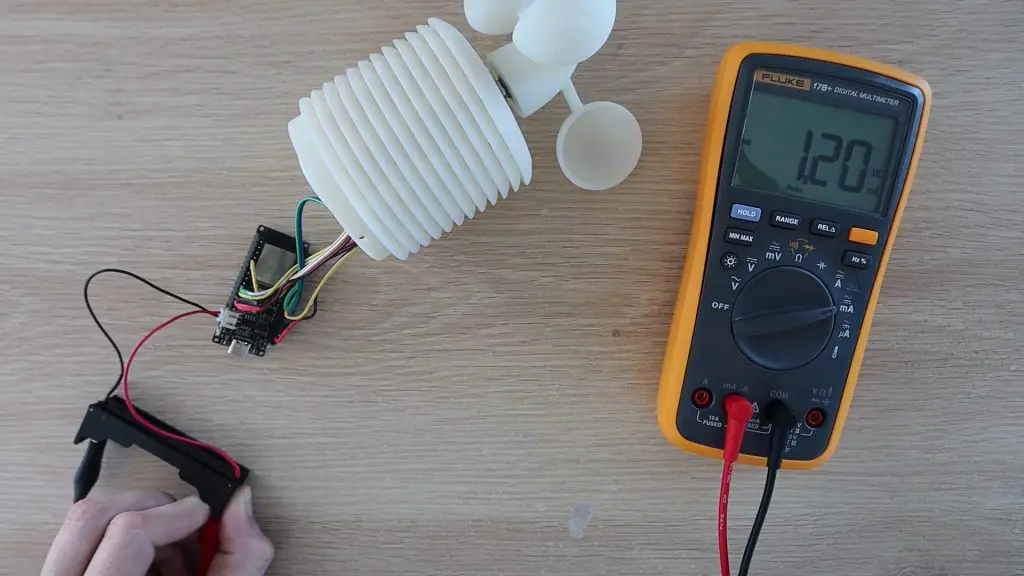
When in deep sleep, this goes down to about 1.2mA.

Measuring Firebeetle Current - Deep Sleep

This is still higher than I was hoping for but seems to be related to the power being drawn by the components on the sensors in addition to the Firebeetle board. I’ll be looking into a way to use an optocoupler to turn the sensors on only when the board is awake.

With this setup, the weather station should run on a single 2500mAh battery for a little under 2 months. This is not too bad but is still a hassle to remember to charge. I could also get around this by adding a small solar panel to the weather station to charge it every day.

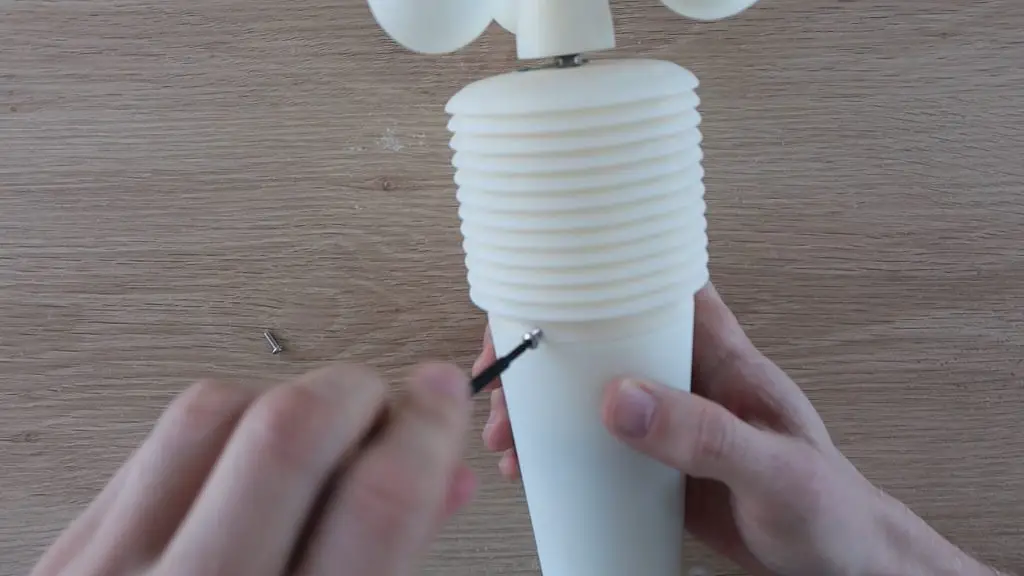
With that done, we can close up the base with three M3x8mm screws.

Screws Into Housing

Testing The IoT Weather Station

The weather station can be mounted with some screws or cable ties through the feet in the base. Screws are a better long-term solution if you’ve got a suitable material to mount it onto.

IoT Weather Station Installed

Now I just need to leave it out and see how well it records the weather.

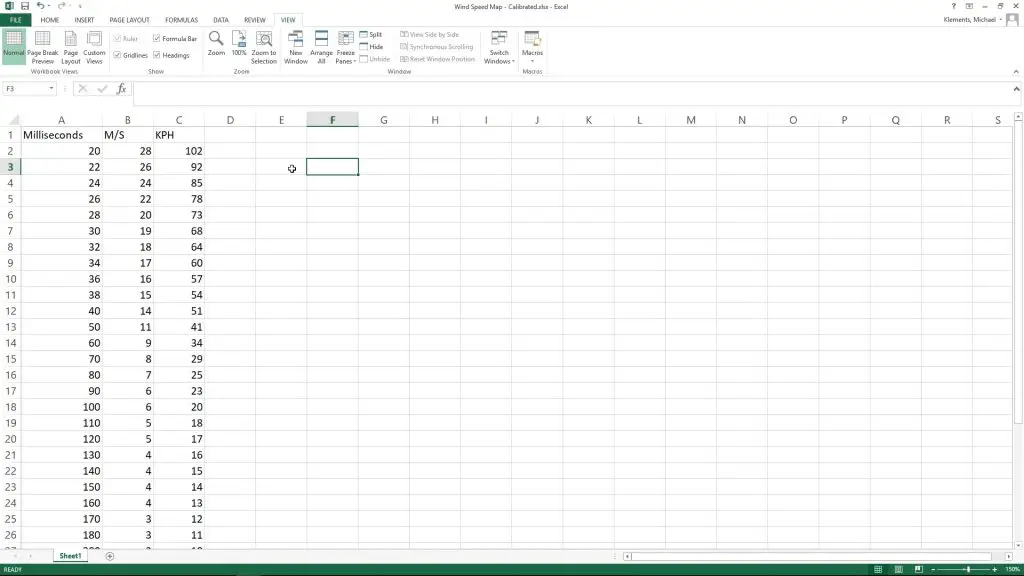
After a couple of hours, it all looked like it was working well. As luck would have it, this was the most still weekend we’ve had in months, so there was no wind to test. There was a light breeze once or twice that got it turning, and it did register a reading, but this reading was way higher than the actual wind speed, so it needs some adjusting.

Thingspeak IoT Weather Dashboard

I’ll need to do some further testing on the actual wind speed to calibrate the anemometer, but for now it registers each revolution and is able to turn in a light breeze, which is a good start.

I then left it overnight.

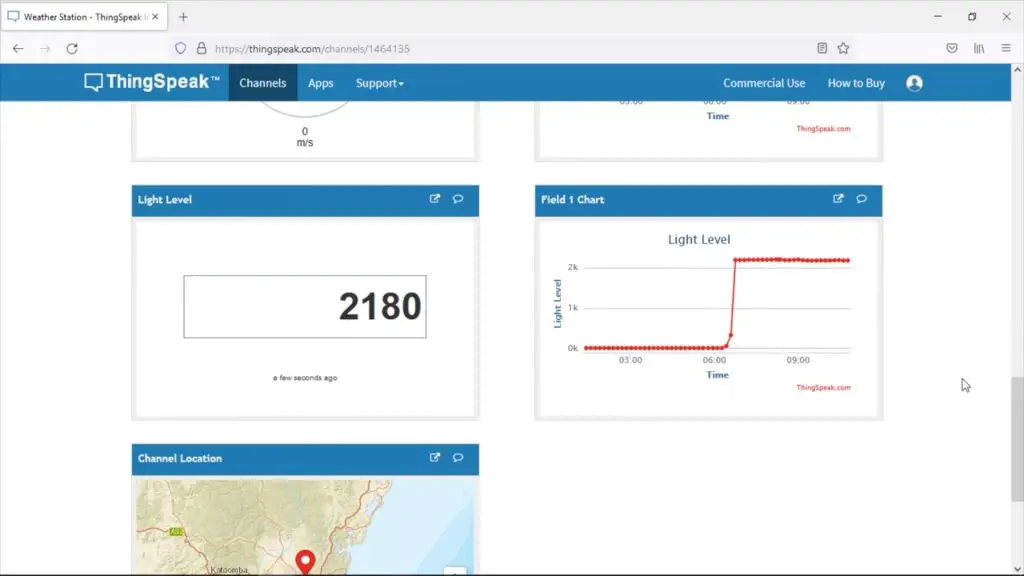
Thingspeak Dashboard Overnight

I got some consistent results overnight and the light sensor picked up the sunrise quite sharply. Again, there were one or two wind spikes in the morning, way higher than the actual wind speed would have been.

View the weather station dashboard here.

Overall I’m really happy with how it came out. I’ll post an update on how the resin print is holding up in a month or two’s time – if it doesn’t break before then. Hopefully, we’ll have a few windy days soon and I’ll then be able to adjust the timing to get reliable wind speed results too!

Let me know what you think of the weather station and what you would add or do differently in the comments section below. Enjoy the project!

Voxelab Proxima 6.0 SLA 3D Printer Unboxing and Review

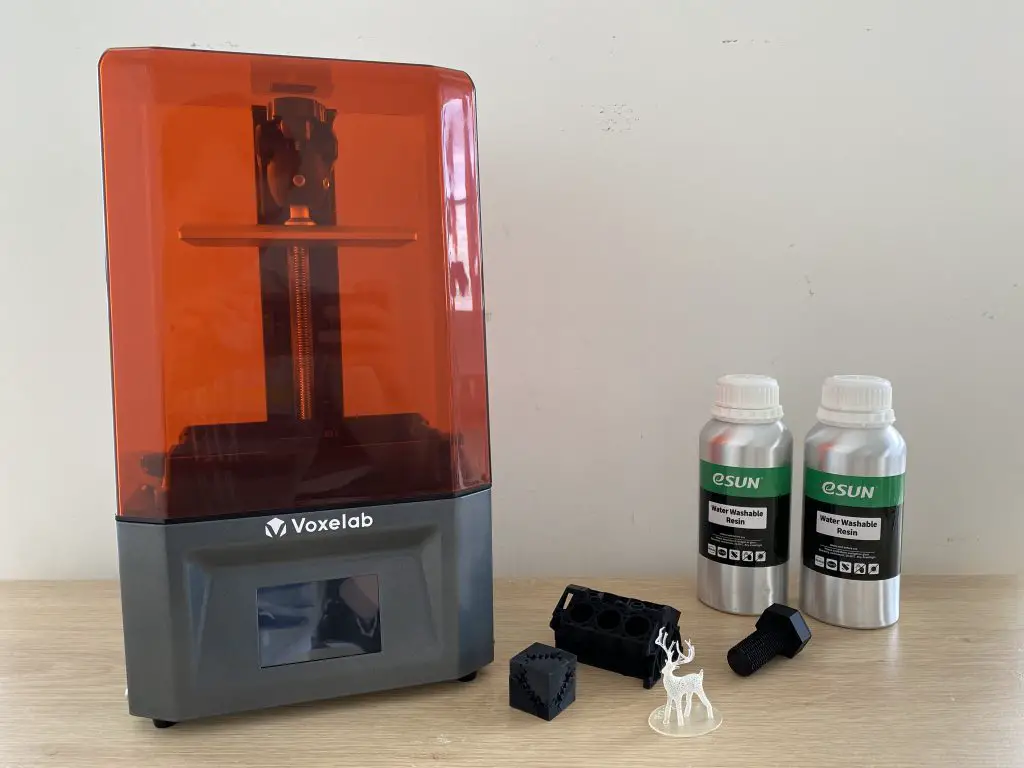
Today I’m going to be unboxing and reviewing the Voxelab Proxima 6.0, which Voxelab sent to me to share with you.

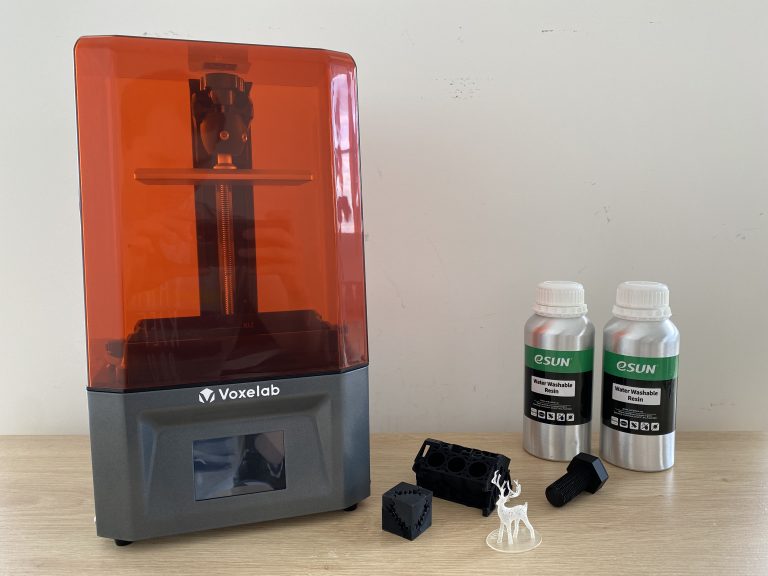
The Proxima 6.0 is their mid-range of three SLA 3D printers that they currently have available and retails (at the time of writing) for $189 to $219 on their website, depending on your shipping location. Within the SLA printer range, they also have the smaller 2K Polaris model and a larger 4K Proma 8.9.

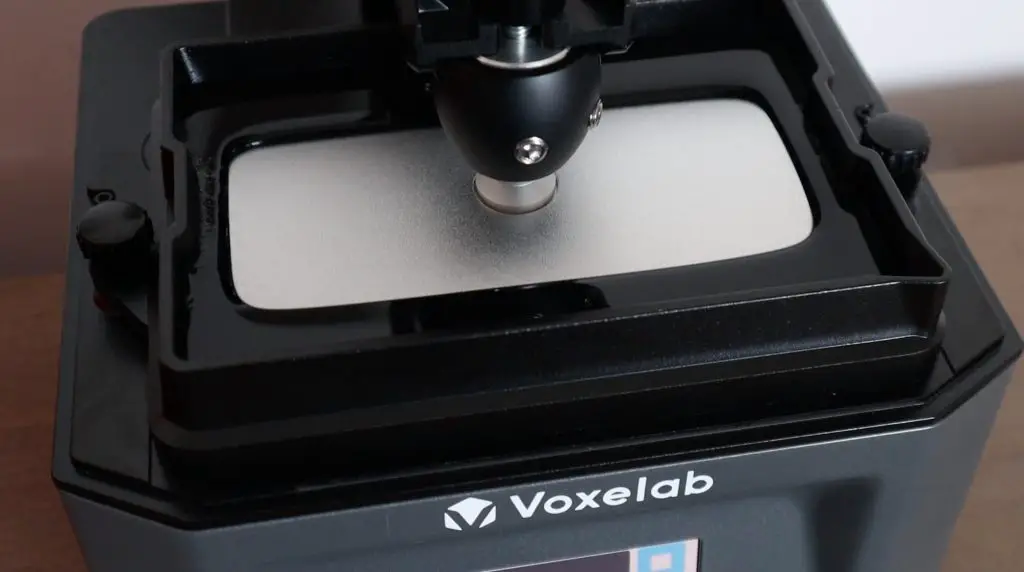
Voxelab Proxima 6.0 Box

Where To Buy One

Unboxing the 3D Printer

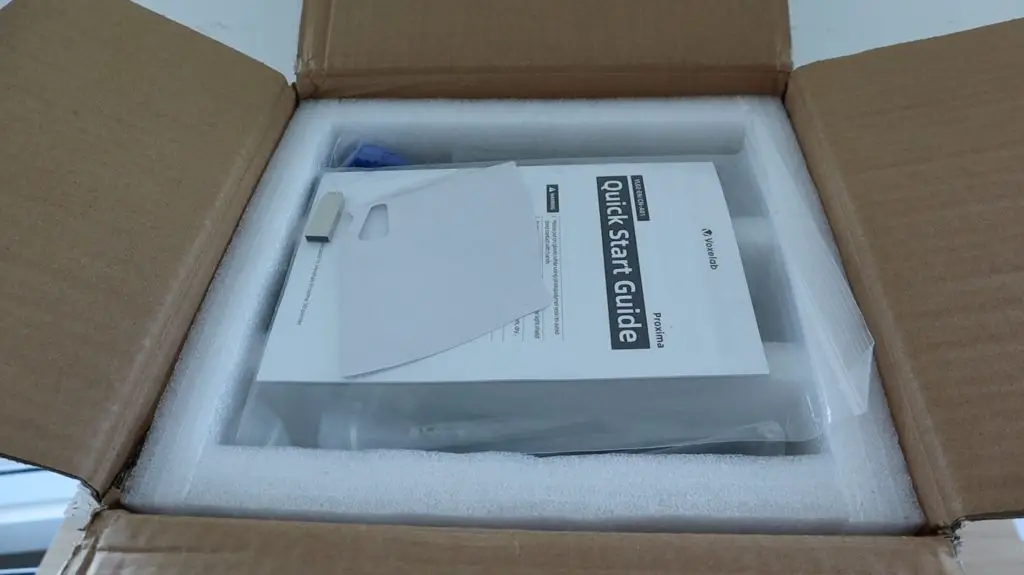
The printer arrived really well packaged in a sturdy cardboard box with no sign of loose or rattling components inside.

Proxima Quick Start Guide

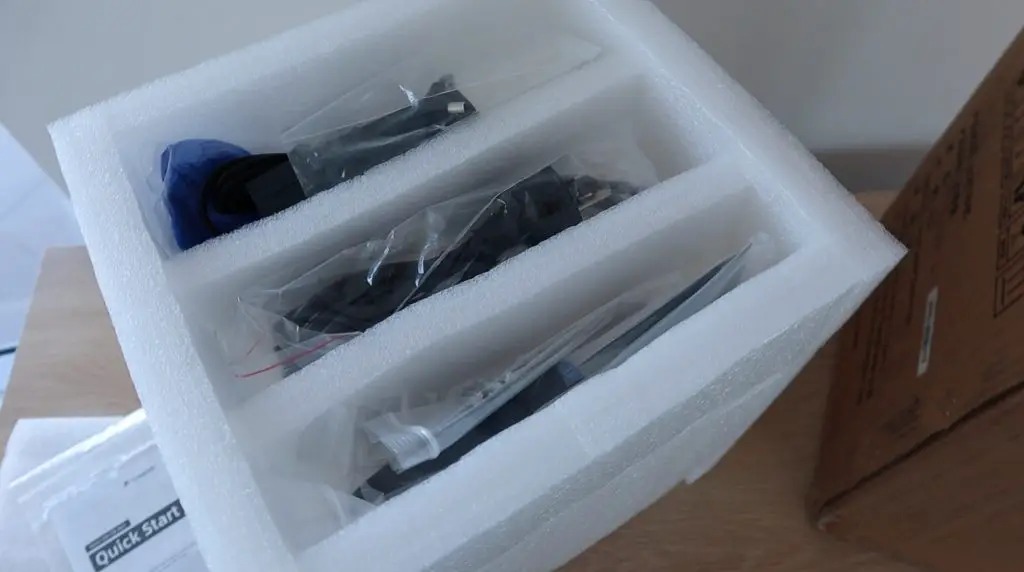
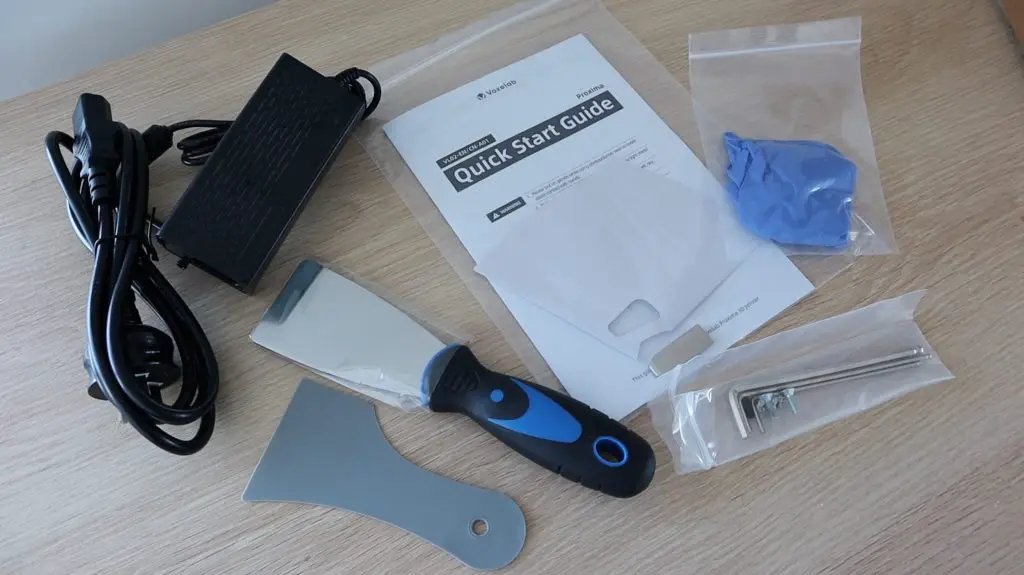
When you open the top of the box you’ve got a compartment that contains the Quick Start Guide, and some other components, including:

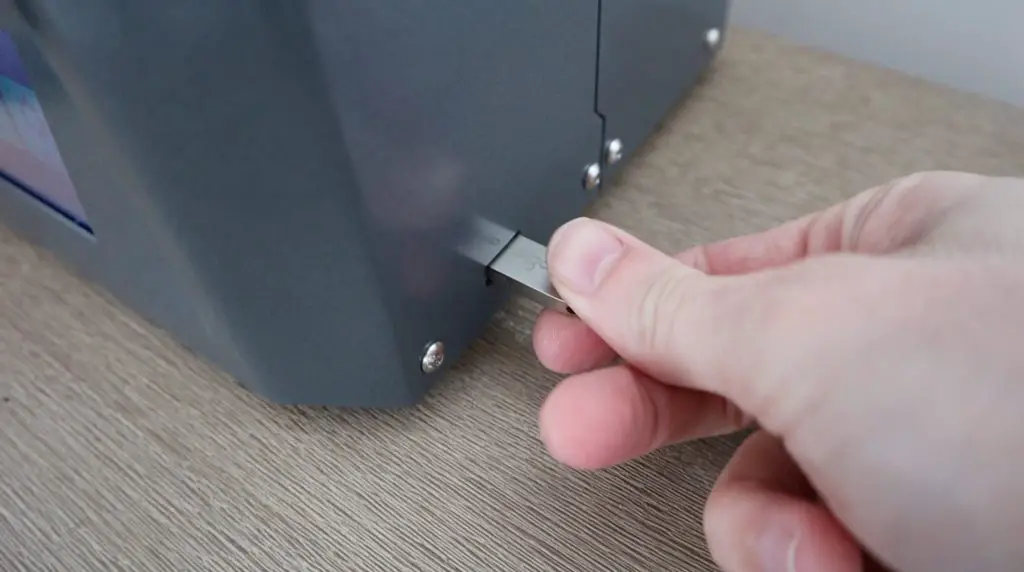
  • Two spatulas – one plastic and one steel
  • A set of rubber gloves
  • A set of hex keys and some spare screws
  • The power supply and power cable
  • A resin filter
  • A USB flash drive
Tools and Accessories Included
Tools and Accessories Unpacked

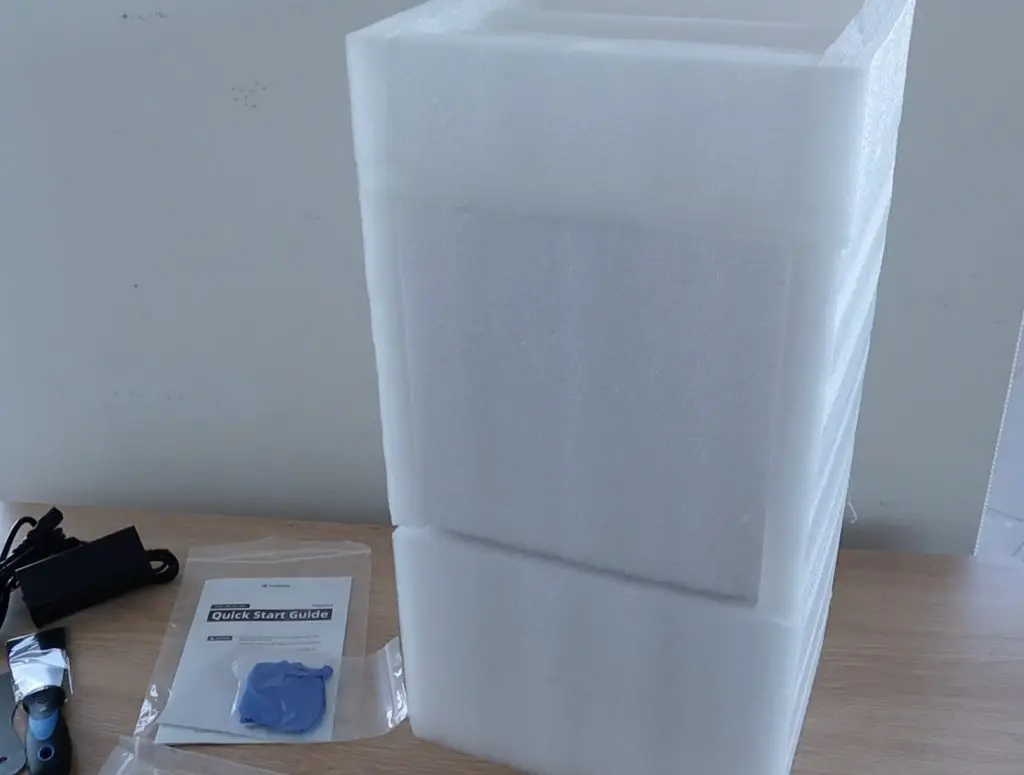
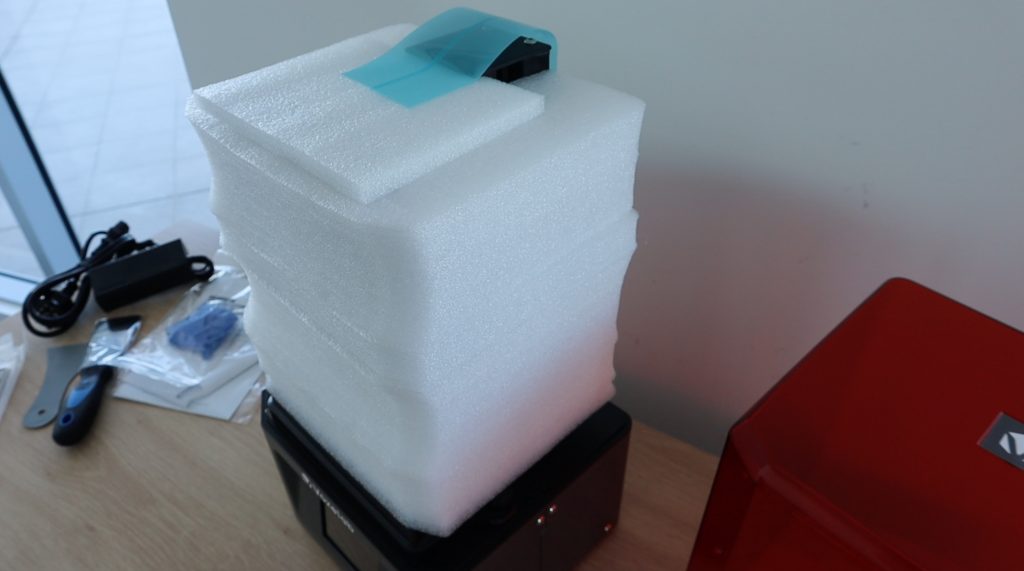
Within the box, the entire printer is surrounded by a fitted foam shell that is split roughly in the same spot as the transparent orange cover within it.

Proxima 6.0 In Protective Foam

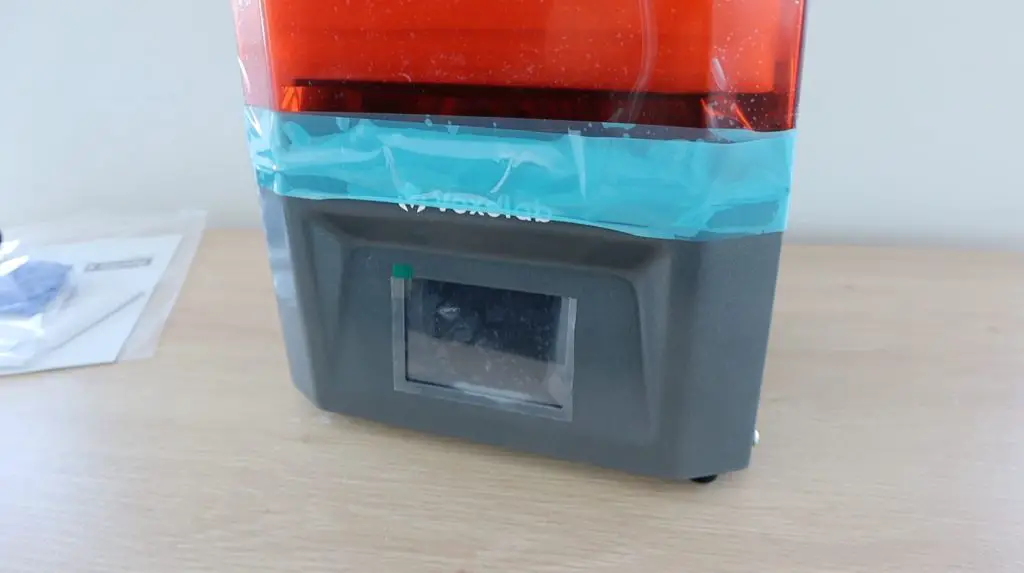
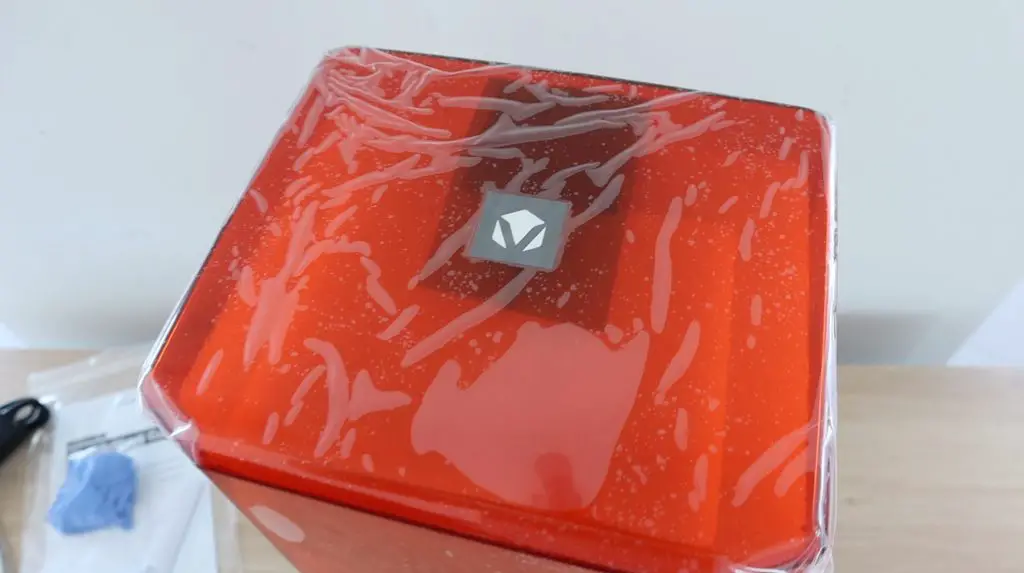
Underneath the foam, the lid of the printer is held in place with removable tape and is covered in a protective film.

Film To Hold Cover Down
Voxelab Cover With Film Over Cover

There is another set of foam inserts underneath the orange cover. This supports and protects the linear rail system and contains the build plate and resin vat.

Foam Protection Under The Cover
Metal Build Plate and Resin Vat

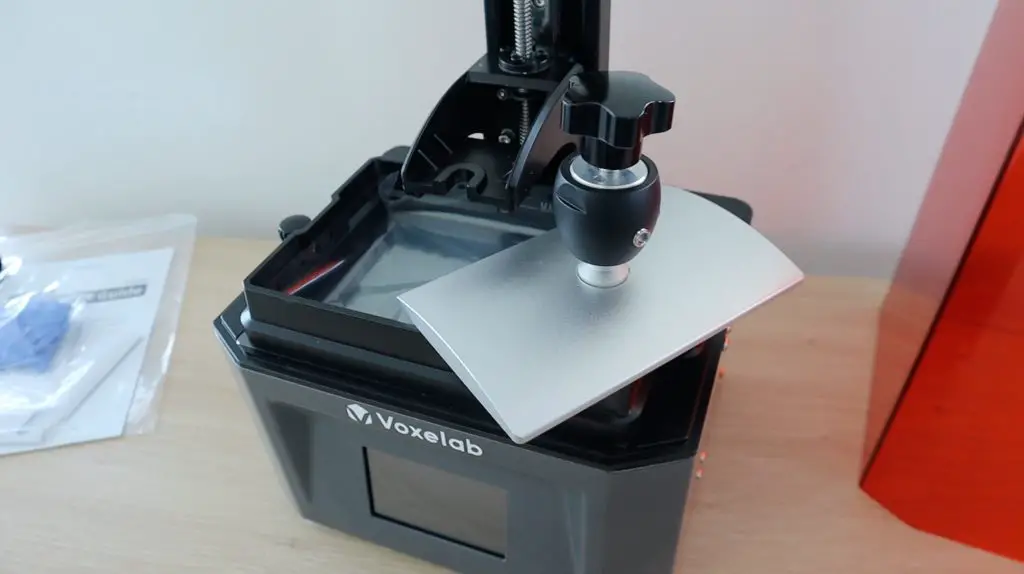
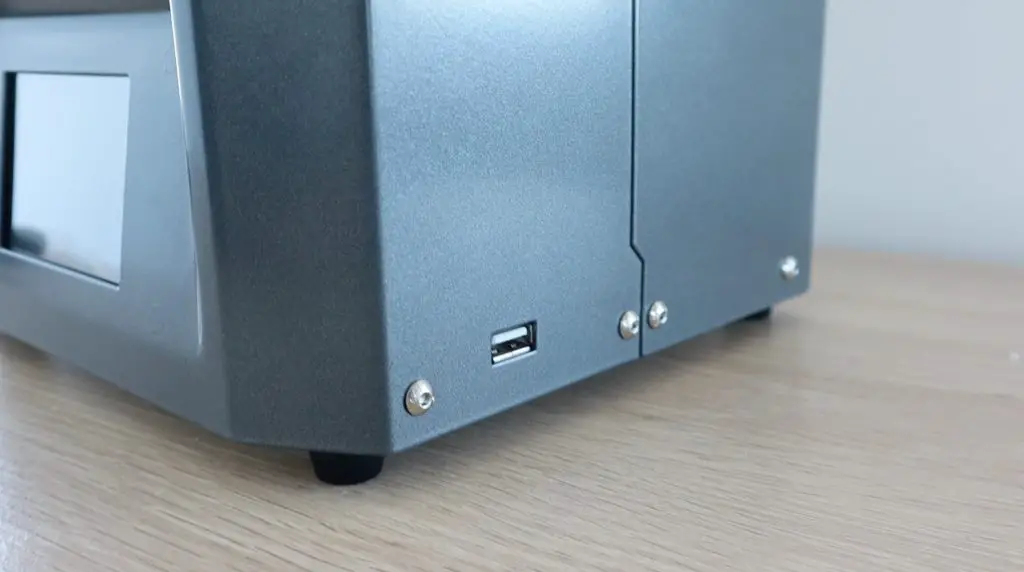
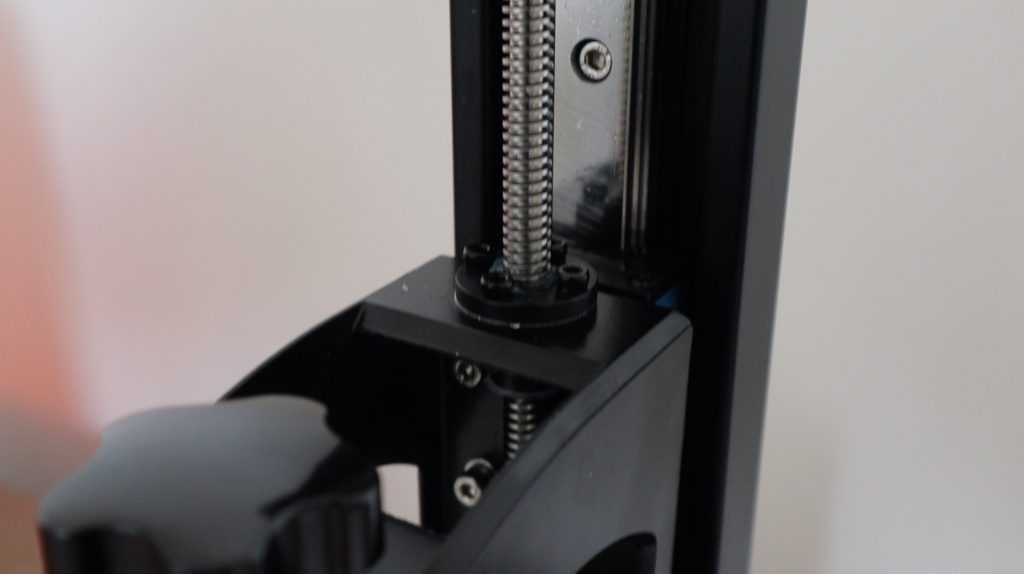
One thing that stood out for me right out of the box is that it just feels like a really good quality product. Almost everything that you unpack is metal, the printer base, the linear rail support, the overhanging support arm, the whole build plate assembly, the resin vat, even the included USB flash drive is metal.

Given that this is one of the cheapest SLA 3D printers that is currently available on Amazon, it’s quite impressive that they haven’t cut down on building a quality product. This really looks and feels like it is a high-end, albeit small, resin 3D printer.

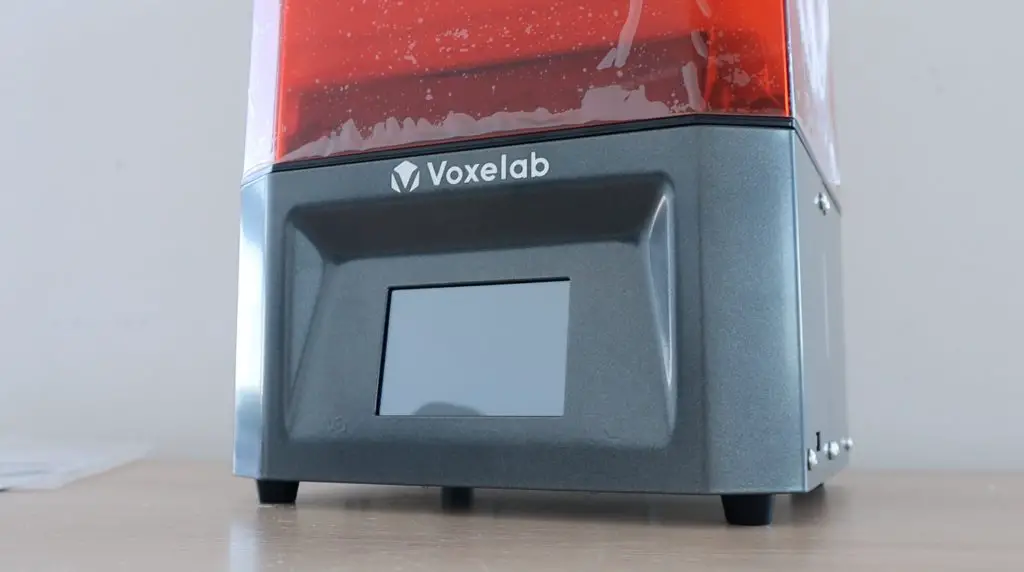
Proxima 6.0 Display
All Metal Construction
Metal Build Arm and Linear Rail

Voxelab Proxima 6.0 Specifications

Now that we’ve got the printer unpacked, let’s have a look at its specifications.

  • Printer Size: 230mm x 200mm x 410mm
  • Printer Weight: 6.8kg
  • Build Volume: 130mm x 82mm 155mm
  • Print Speed: 17-22mm/h
  • 2K Monochrome LCD Screen (2560 x 1620) with a pixel size of 50 microns
  • 405nm LED Light Source
  • Layer Height: 0.025-0.1mm
  • Linear Rail Z-Axis
  • Ball Joint Easy Bed Levelling
  • Colour Touchscreen Display

The specifications are fairly typical for this size resin printer. Some standout items would be the monochrome LCD screen which results in faster and better quality prints and also a longer display life, the linear rail system instead of rollers which improves print quality, the colour touch display to display printing status and change parameters or settings and the ball joint on the print bed which makes levelling a lot easier and faster.

First Print on the Proxima 6.0

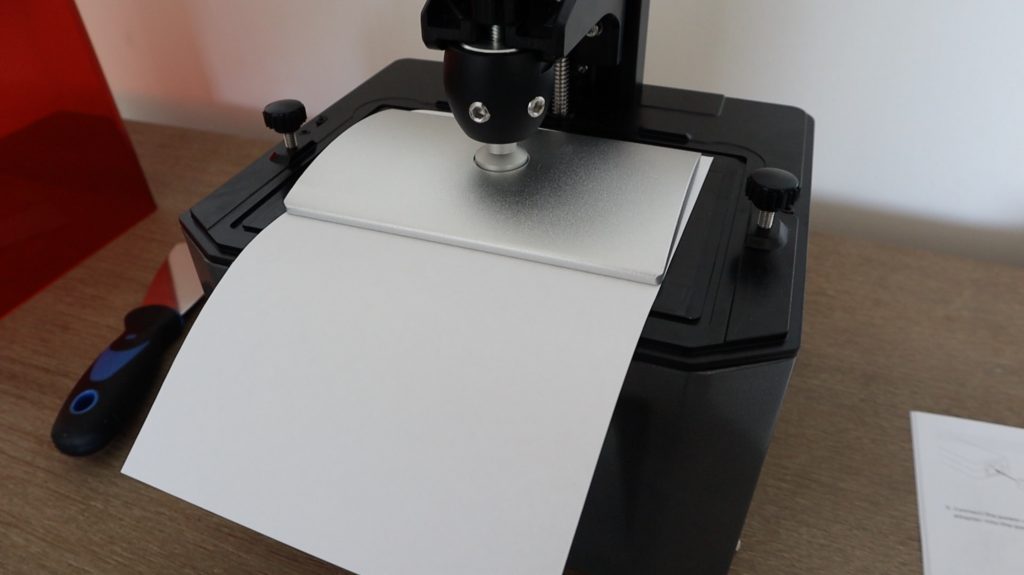
Before printing anything, we have to level the build plate. This is a pretty easy process and is well described in the quick start guide. Essentially you need to loosen the build plate screws, then lower the build plate onto a sheet of paper between the display and the bottom of the plate (with the resin vat removed) and then put some light pressure on it and tighten the screws. There’s also a video included on the USB flash drive to help you.

Bed Levelling With Paper

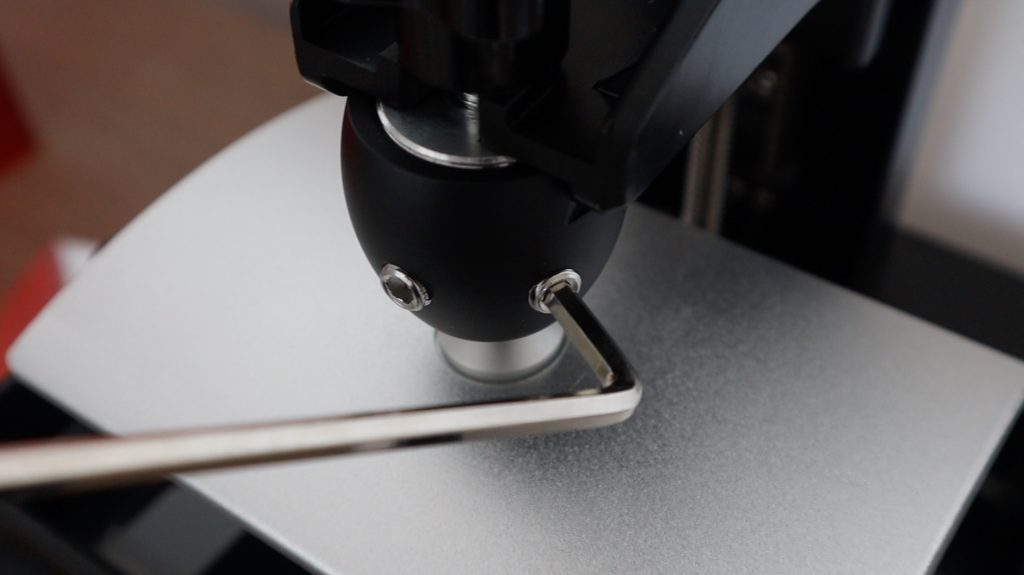
This is where the ball joint on the print bed makes things easier. Instead of having to adjust the bed along two axes individually, you just loosen the two screws and you can then adjust both axes at the same time at a single point.

Bed Levelling

If you’re new to 3D printing or you’re struggling with the information in the Quick Start Guide, there is a lot more information on the included USB drive. Plug that into your computer and have a look at what’s on there. There are some links to really useful videos on using the slicing software, levelling the build plate, removing prints from the build plate and even replacing the resin vat film.

I’m going to be using two different colour resins for my test prints. They’re both E-Sun Water Washable Resins.

The above links are Amazon Affiliate links

ESun Resin Water Washable

I got these water washable resins because they simplify the clean-up process quite a bit as you then don’t have to worry about different containers of alcohol for cleanup.

Just a word of caution on water-washable resins. They’re still toxic, so you should still wear gloves with them and you shouldn’t pour the resin or the water that you’ve used for washing parts down the drain. The best thing to do is put water you’ve used out in the sun on a tray to evaporate. This will also cure any resin in the water and allow you to safely dispose of the residue that is left over.

The first print I’m going to be trying is one that comes on the USB drive and is already sliced with the manufacturers recommended settings. So we just need to plug the drive into the printer and select the file to print.

Plug USB Flash Drive Into Printer

The display can be a bit small to navigate, particularly with the text for the filenames, but the menu options are intuitive and the graphics illustrate each function quite well too. I also like that the display shows a small rendered image of each 3D print as an icon above the filename.

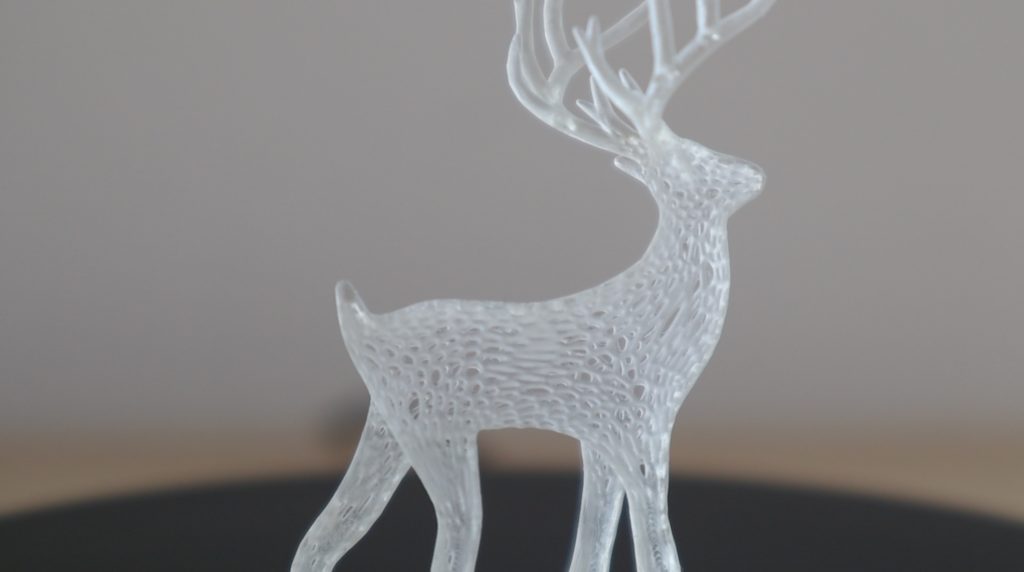
Clear Resin Test Print

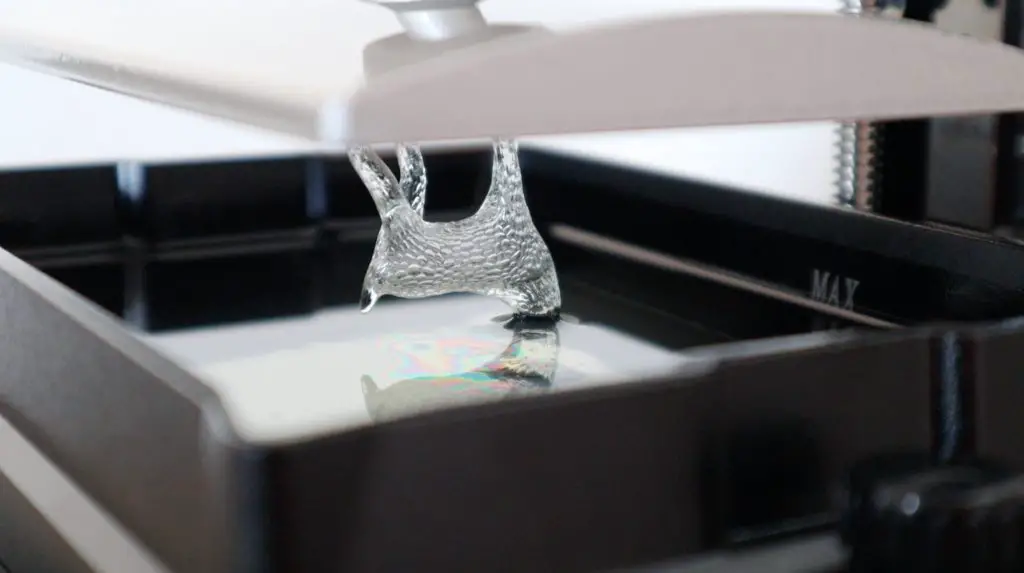
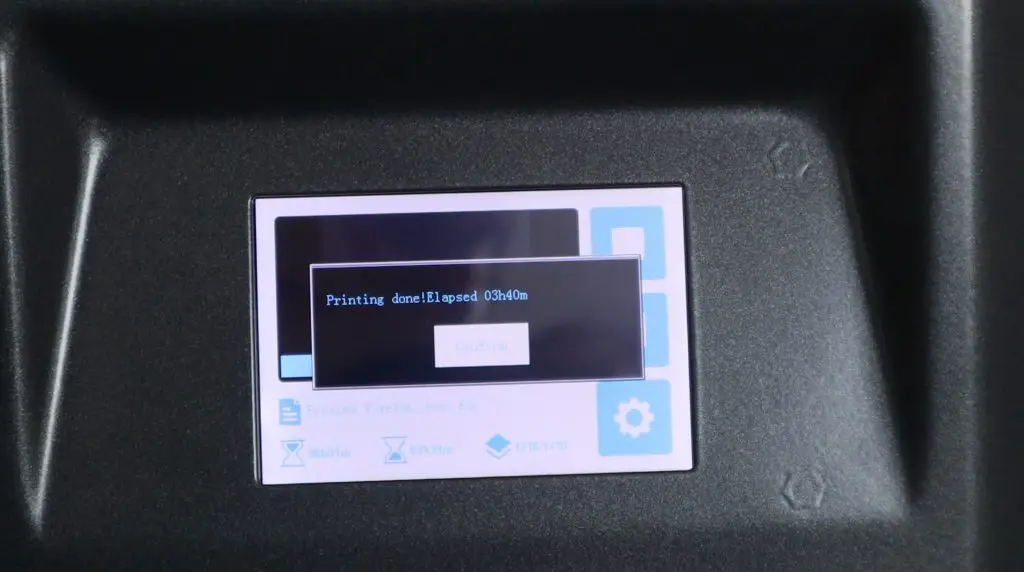
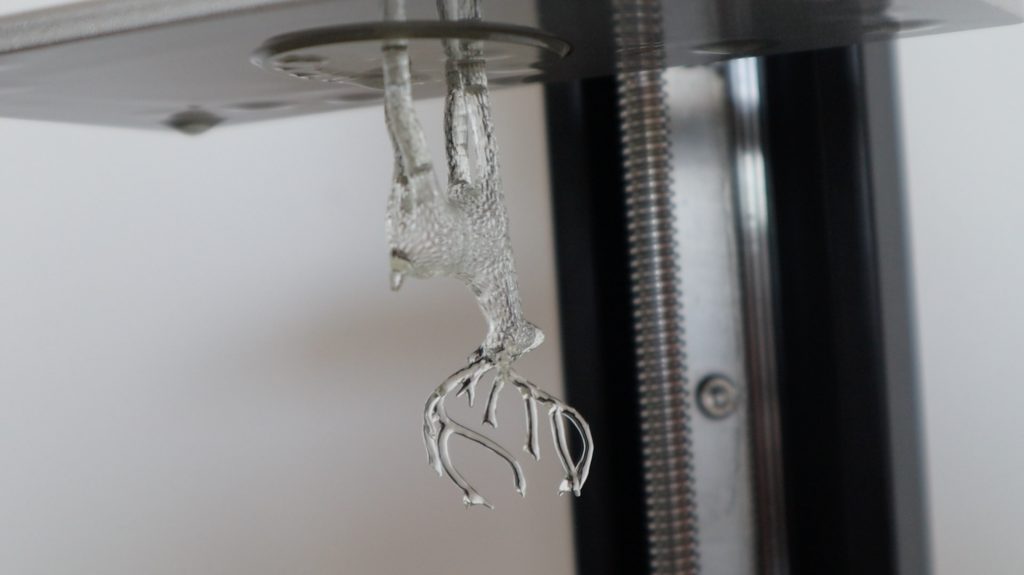
The test print is a detailed deer and I printed this the clear resin. It took a little over three and a half hours to complete.

Test Print Complete
Test Print Complete In Clear Resin

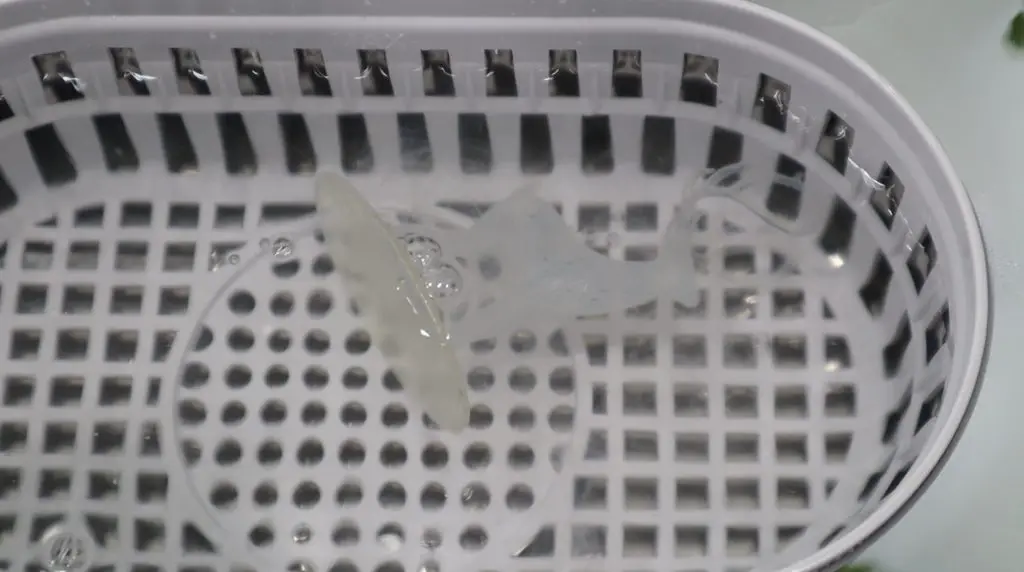
Once the print was finished, I removed it from the build plate and cleaned it up in an ultrasonic cleaner. You can clean it up in a jar or bucket, an ultrasonic cleaner just helps to agitate the water on the surface of the print and “scrub” the resin off it.

Cleaning Test Print In Ultrasonic Cleaner

I dried the print with a heat gun on a very low setting and finally cured it under a small UV nail lamp. You can just leave the print out in the sun to dry and cure or use a purpose-built resin curing chamber.

The test print came out pretty much perfectly on the first attempt and with no supports that required removal. I’m quite impressed by the level of detail that the printer is able to achieve on a fairly small print.

Clear Resin SLA Test Print On Voxelab Proxima 6.0

Trying Out Some Other Test Prints

I then printed out a couple of additional files that I found on MyMiniFactory and Thingiverse, I’ll include their links as well.

Using Chitubox Slicer

To start, you’ll need to install the Chitubox slicing software that is included on the USB flash drive. Voxelab have also included a profile for the Proxima 6.0 that can be imported into Chitubox. Chitubox is a generic slicing tool that can be used with a number of different 3D printers from a range of manufacturers. This profile loads the settings specific to the Proxima 6.0 so that you can start slicing your model right away.

I moved on to trying out the black water washable resin for these test prints. Cleaning out the resin vat was pretty easy, I just poured the unused resin through the filter and back into the container and then washed the vat out in some water in a small bucket.

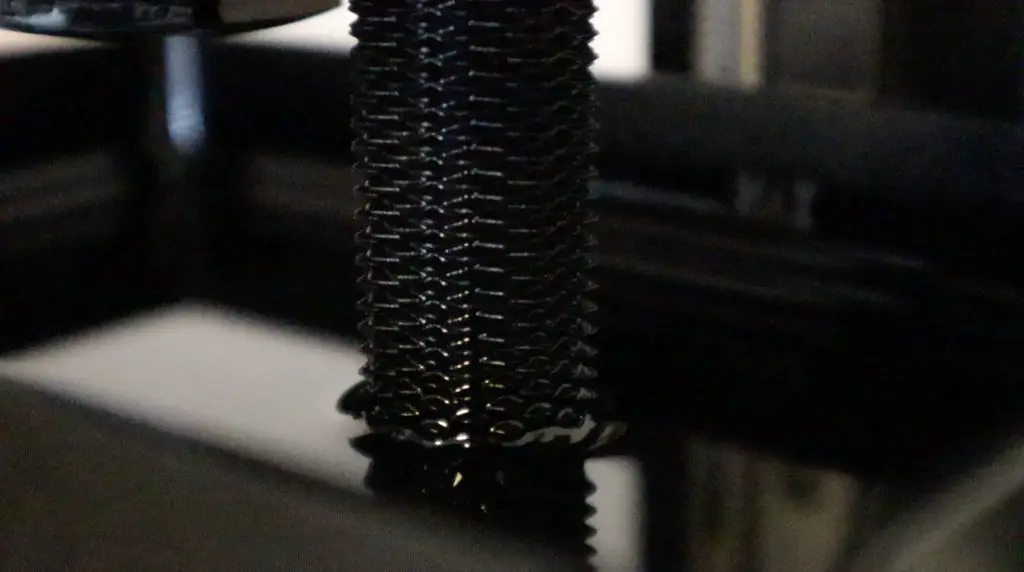
Build Plate Being Submerged In Black Resin

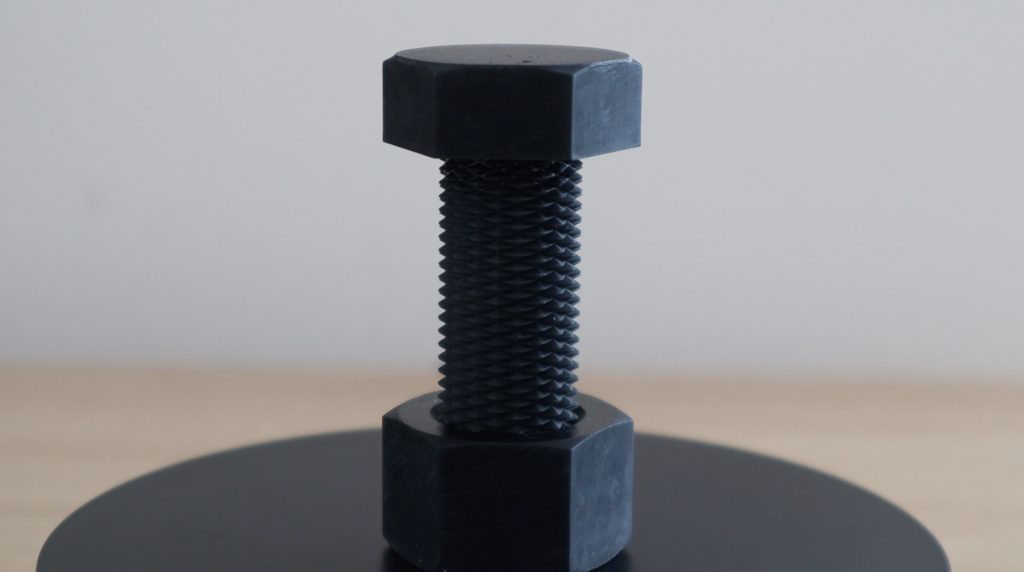
I printed the left and right hand threaded bolt and nut first.

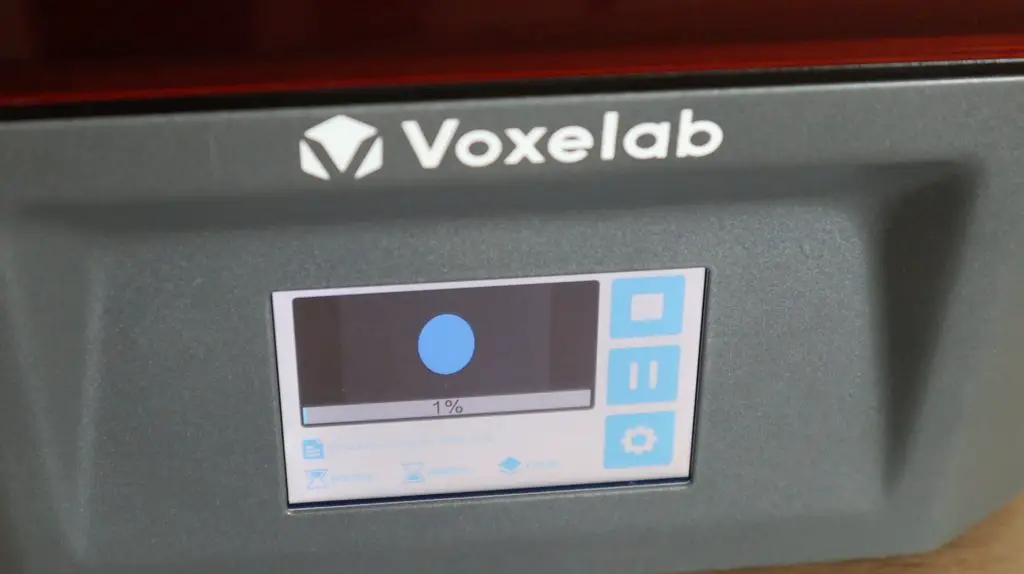
Proxima 6.0 Colour Touchscreen

It was quite mesmerizing to see the bolt thread slowly emerge from the resin vat.

Printing Left and Right Threaded Bolt

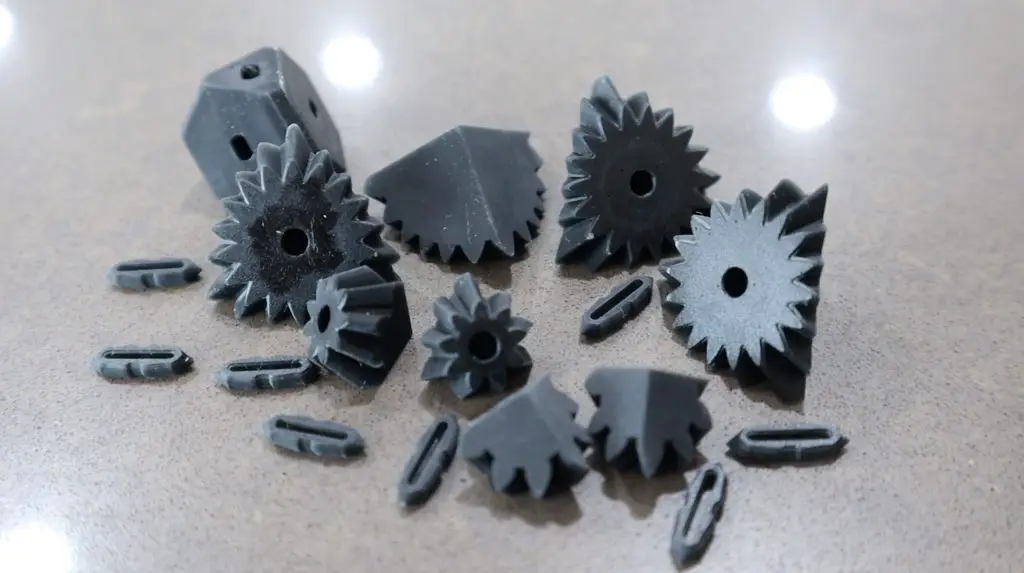
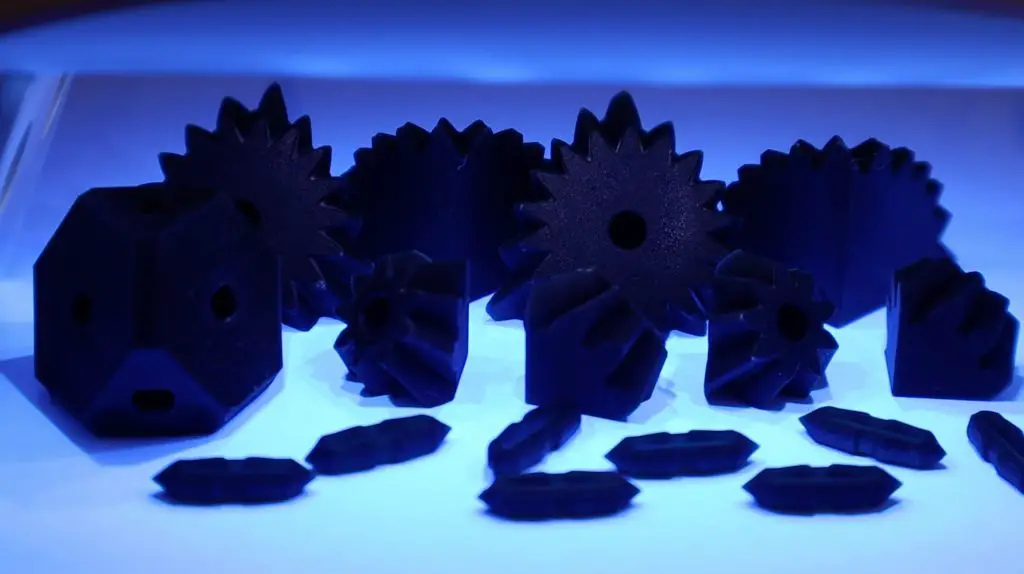
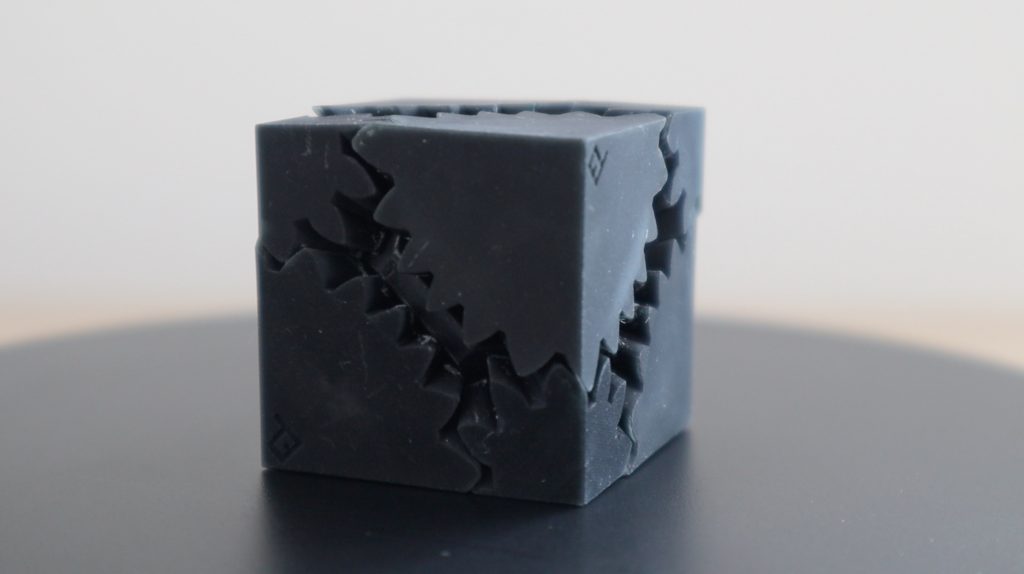
I then printed out the components for the gear cube. I printed these all out in a single print, so I had to scale the model down to 60% of the original size in order to fit.

Gear Cube Components Finished

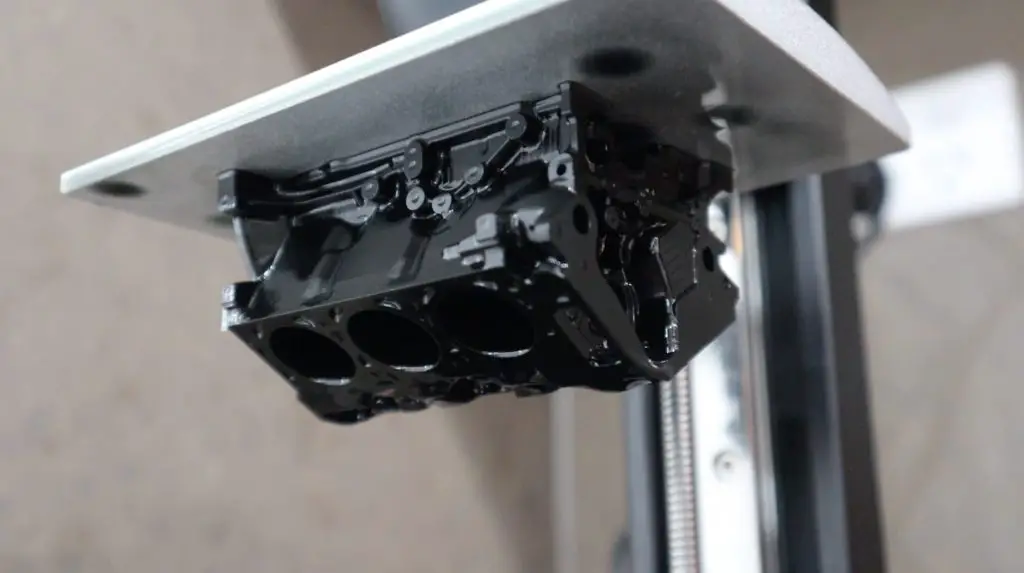
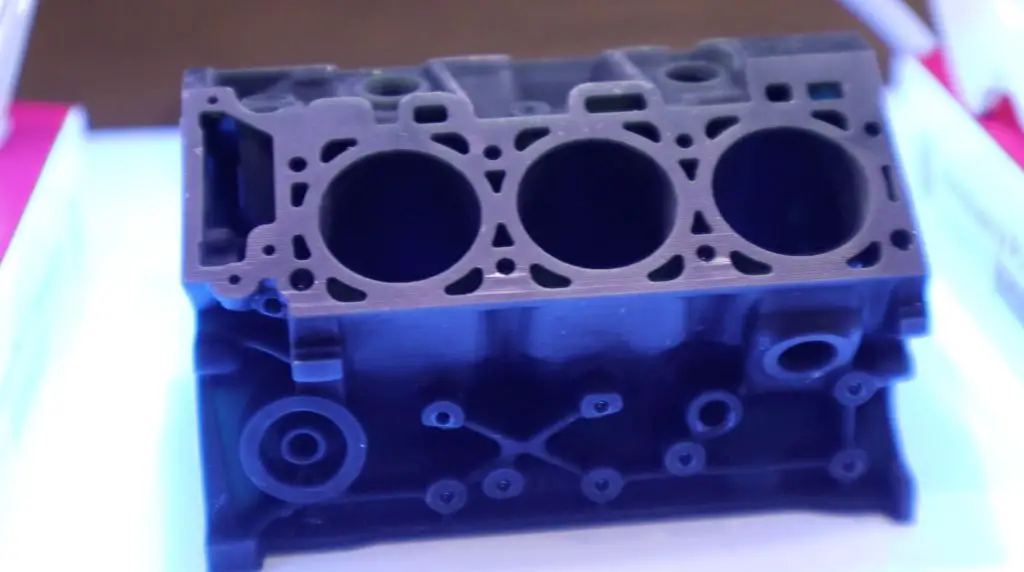
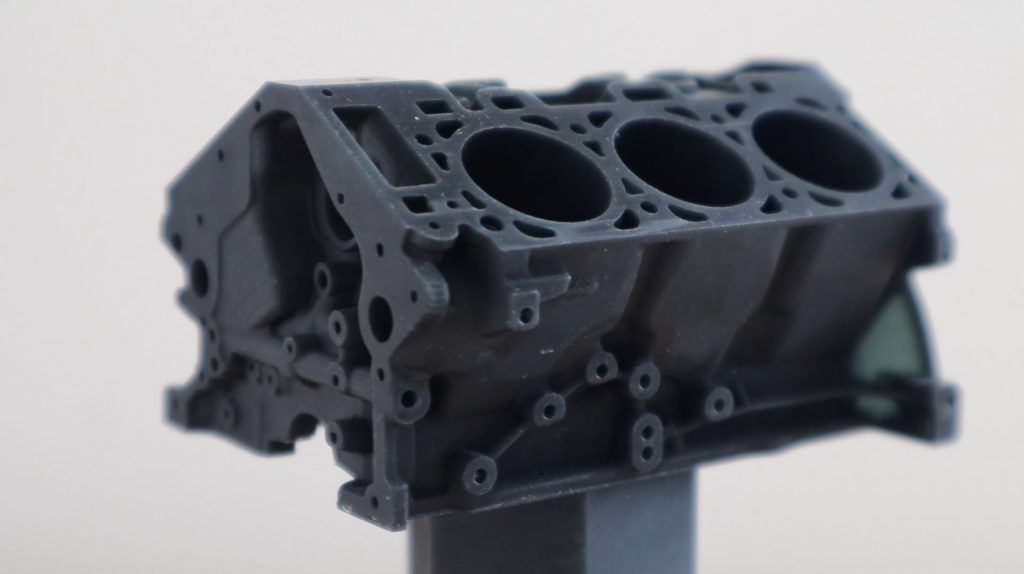
Finally, I printed out the ford engine block model. I also had to scale this down a bit to fit onto the build plate.

Ford Engine Block SLA Print

After printing each of the models, I washed them off in the ultrasonic cleaner, then dried them off and cured them under the nail lamp. The nail lamp is not ideal as it only lights up one side of the model at a time, so you have to keep rotating them. I cured them for about 5 minutes a side and about 30 minutes in total.

Gear Cube Components UV Curing
Ford Engine Block UV Curing

One thing you’ll notice, or rather not notice, is that there are almost no visible layer lines on the prints. On the larger angled edges on the engine block you can make a couple out, but for the most part, they’re almost non-existent, which is great.

Left and Right Hand Threaded Bolt SLA Printed
Gear Cube 3D Printed on SLA Printer
Ford Engine Block SLA Test Print

Final Thoughts on the Proxima 6.0

After using the printer for the couple of test prints I’ve done so far, these are my thoughts on it.

The Proxima 6.0 is a really good value for money printer. You’re getting an almost all-metal construction printer with a great print resolution on a monochrome display and linear rail system for an entry level price. It produces fantastic quality prints right out of the box, which you’ll really appreciate if you’ve had an FDM printer and have spent countless hours trying to get your first few prints to come out correctly.

The design focuses on ease of use. You have a ball joint for easy levelling and the resin vat just slides out from underneath two thumbscrews for emptying and cleaning. A lot of other SLA printers require the screws to be removed entirely in order to remove the resin vat, which is not a big deal until you accidentally drop one into the resin.

The printer is quite noisy. I’ve got a couple of Creality Ender 3 V2s and an Ender 3 Pro that I’ve upgraded to use silent stepper motor drivers and the use of these drivers makes a substantial difference to the noise that the motors produce. The Ender 3 Pro is almost completely silent when the fans aren’t running. I’m not sure if it’s possible to use a silent driver on a SLA printer, but making it a bit quieter would definitely be beneficial if it’s running in an area where you’re spending a significant amount of time.

The only thing that I found a bit cumbersome was having to manually travel the build plate more than 10mm. In order to fill the resin vat or remove it (after levelling or a failed print), you need to first move the arm and build plate out of the way. The manual controls only have options to move a maximum of 10mm, which you have to do a number of times to get the build plate moved up enough to clear the vat nicely. It would be much easier to have a single button that did this automatically. This could move the build plate up halfway or at least enough to clear the vat.

With all that said, I’d definitely recommend this printer to anyone looking to get started with resin 3D printing. It’s affordable, includes everything you need to get started (excluding your resin) and produces prints that you’ll be proud of. As with most resin printers, they’re better suited to producing small models with intricate details. So the Proxima 6.0 is best suited for figurines, game pieces and small display objects. If you’re looking to print larger components then you’d probably want to have a look at one of Voxelab’s FDM printers.

Voxelab Proxima 6.0 SLA 3D Printer Unboxing and Review

Mini Raspberry Pi Server With Built In UPS

Today we’re going to be building a mini Raspberry Pi server with a built-in UPS and OLED stats display. A Raspberry Pi makes a great server for a NAS or for media streaming, home automation, or even a home security hub for your cameras. All of these projects would benefit from having a built-in UPS to ensure that the Pi is kept running in the event of a power interruption.

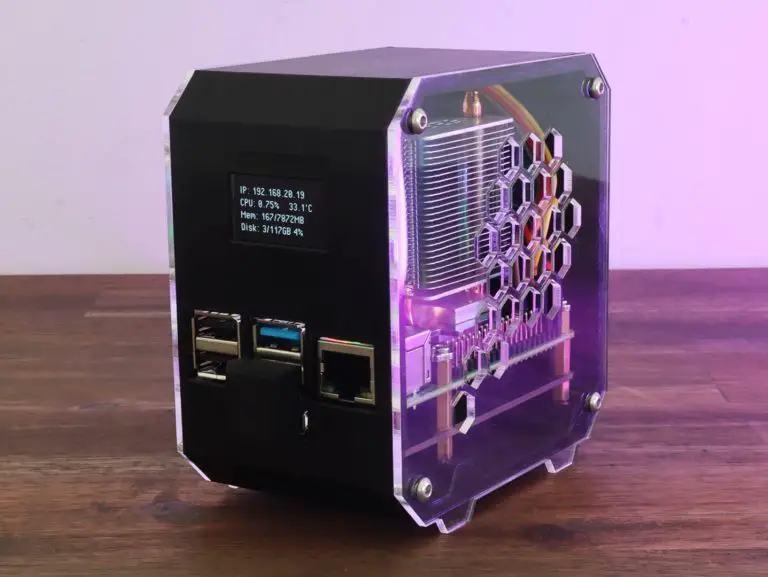
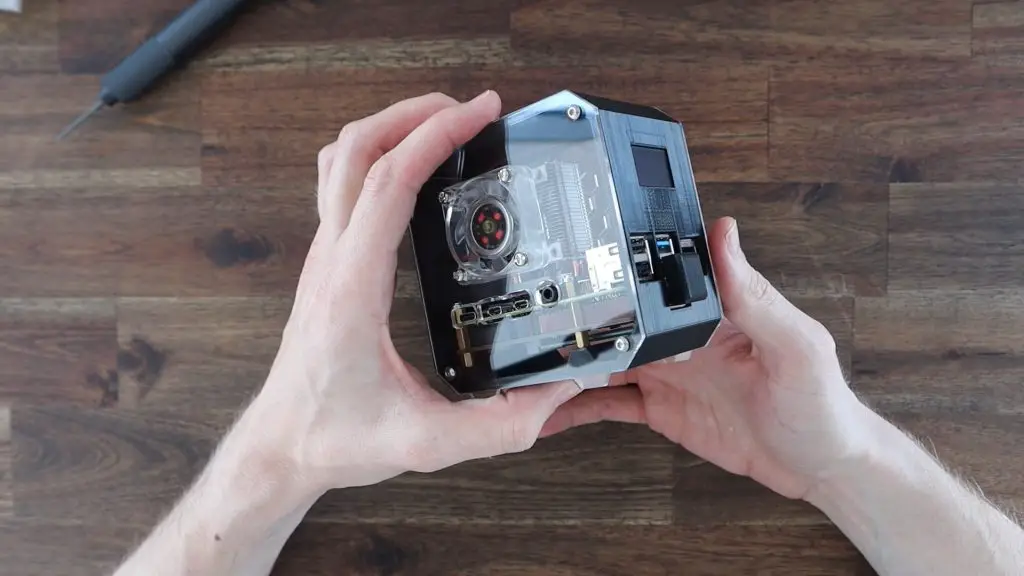
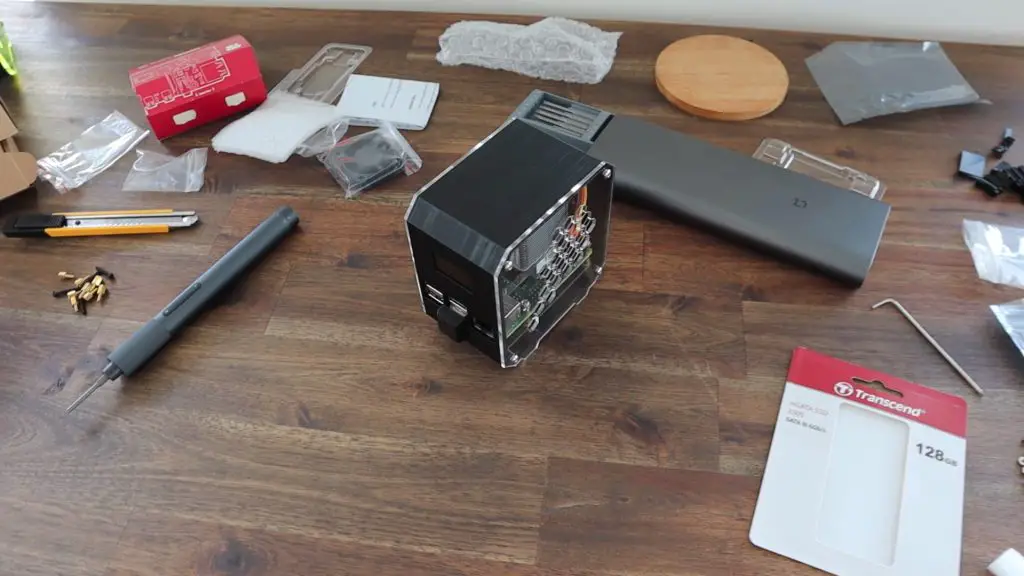
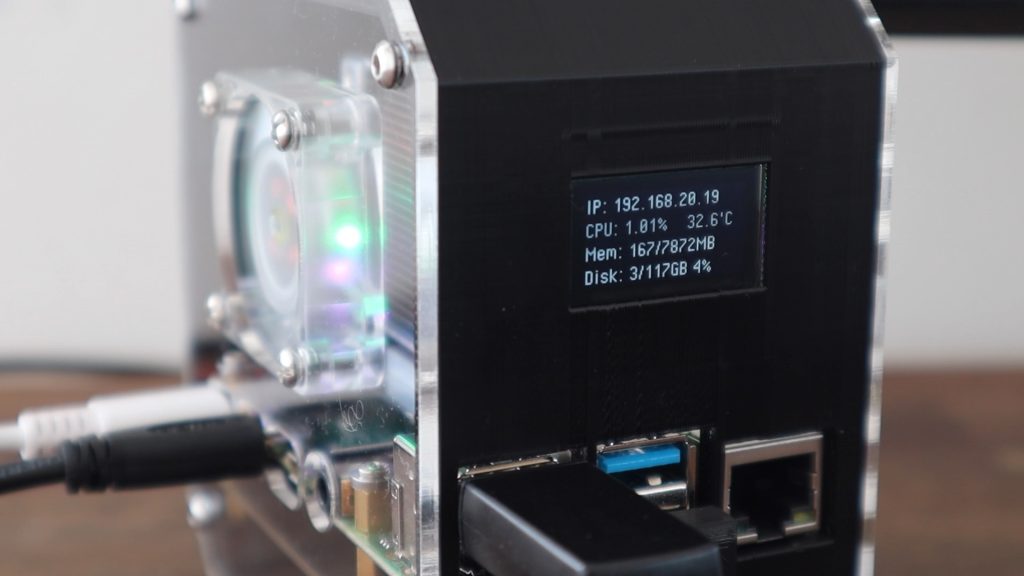
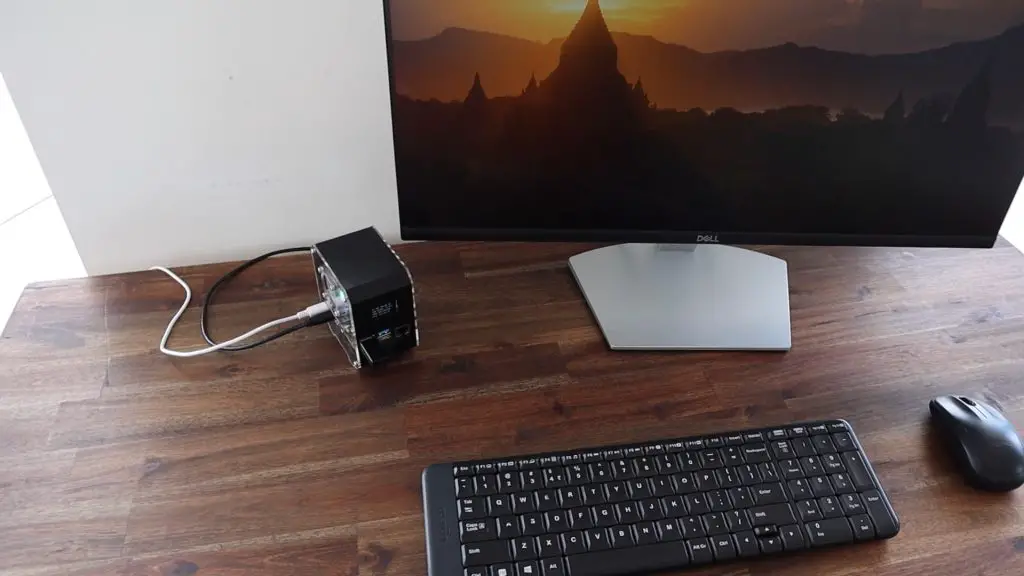
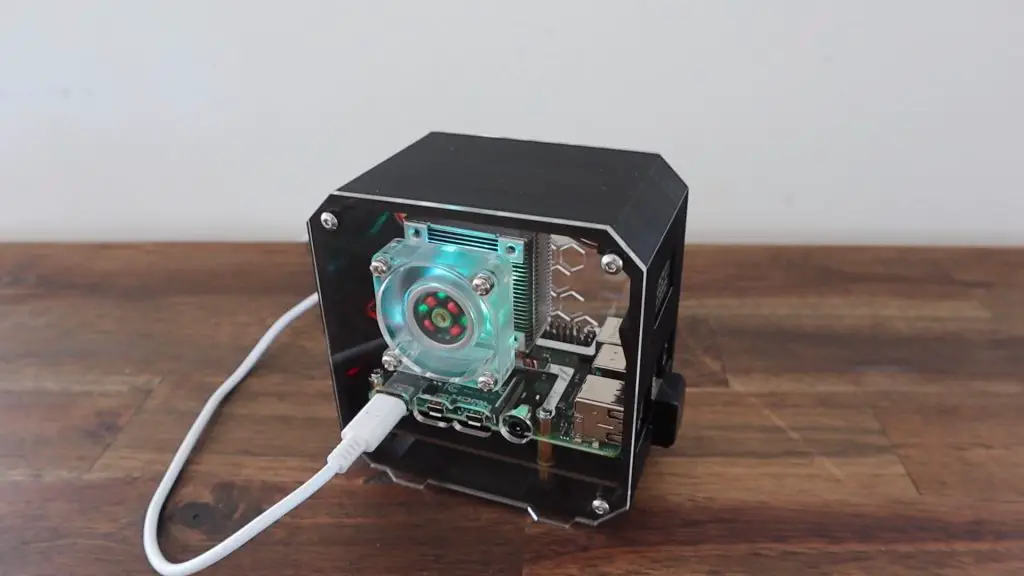
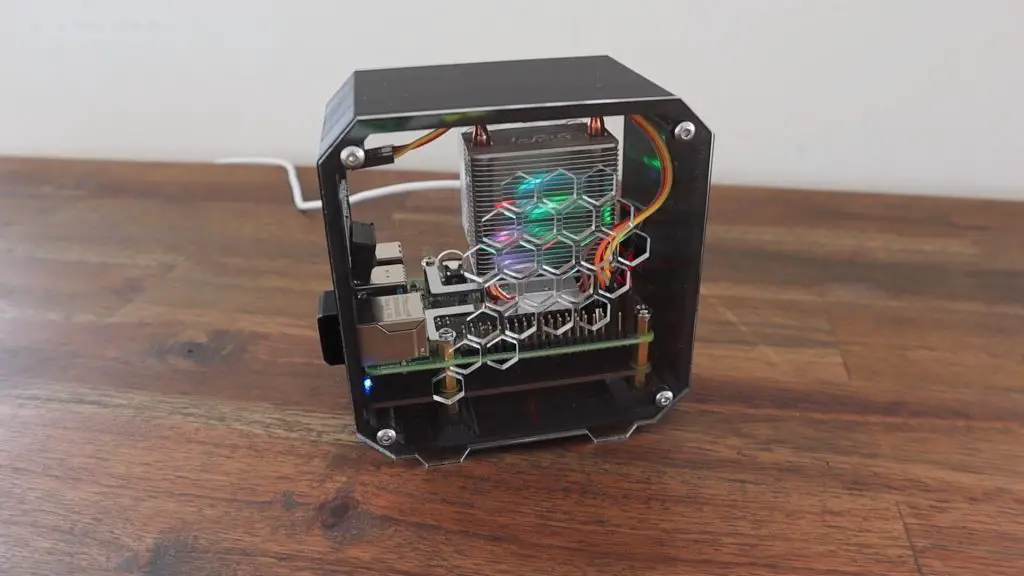
Pi Server With UPS

Here’s a video of the build and the UPS running, read on for the full write-up. You can also buy a case kit, which includes all of the components you need to assemble your own mini server.

What You Need To Build Your Own Mini Server With UPS

Other Equipment Used:

Some of the above parts are affiliate links. By purchasing products through the above links, you’ll be supporting my projects, with no additional cost to you.

Unboxing The GeeekPi UPS Plus Module

The UPS we’re going to be using is this UPS module that GeeekPi sent to me to share with you.

Pi UPS Plus

It looks like a relatively simple board, with a prominent battery holder on one side, but it actually has a number of great features, including power management circuits and I2C communication, enabling low voltage safe shutdown and automatic restarts.

Battery Holder

Power is supplied to the UPS through either USB C or a micro-USB port, with the board taking advantage of the USB 3.1 protocol to allow a higher input power through a higher charging voltage. 

The board also has three USB ports on the front, two full-size ports and one USB C port, that allow a combined output of up to 4A including the Pi’s consumption. There is also a battery monitor in the form of four blue LEDs that light up and/or flash to indicate the current battery level. And lastly, it has a function button on the side.

This is the most recent 5th revision of this board, which was completed in December of last year.

Screw on Brass Standoffs

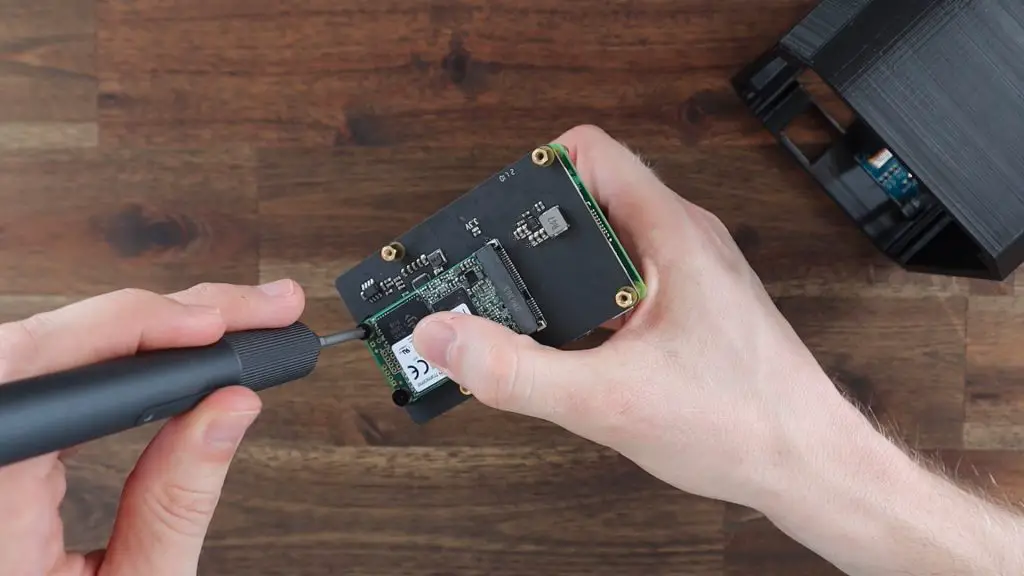
The UPS is mounted onto the PI using some supplied brass standoffs and nuts. Unlike most Raspberry Pi hats, the UPS is designed to mount underneath the PI and has these little spring-loaded gold contacts that make contact with the underside of the header pins. This is a really nice feature as it keeps all of your GPIO pins available for other connections.

Gold Terminal Contacts

The board takes two 18650 cells that are connected in parallel, so the UPS boosts the voltage of the cells to the 5V required by the Pi. I’m going to be using some 2500mAh cells that I have left over from a previous project.

You may have also noticed in the video that the UPS turned on as soon as the first battery was inserted. You can then turn it on or off using the function button.

The UPS also includes an acrylic base plate to mount it onto. We’re not going to use this as we’re going to be building the Pi and UPS into a custom case.

PI UPS Plus On Stand

Building The Mini Raspberry Pi Server

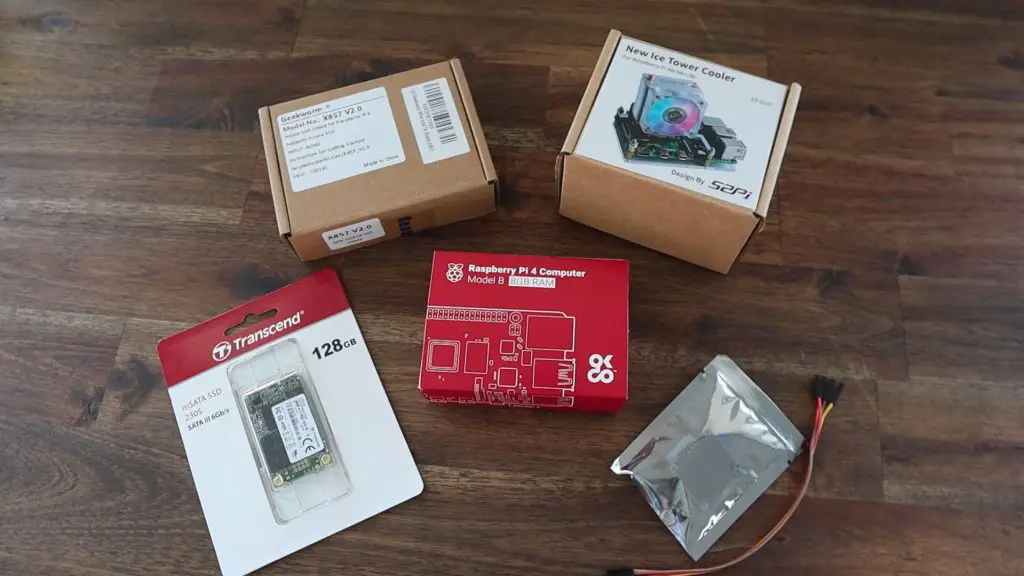
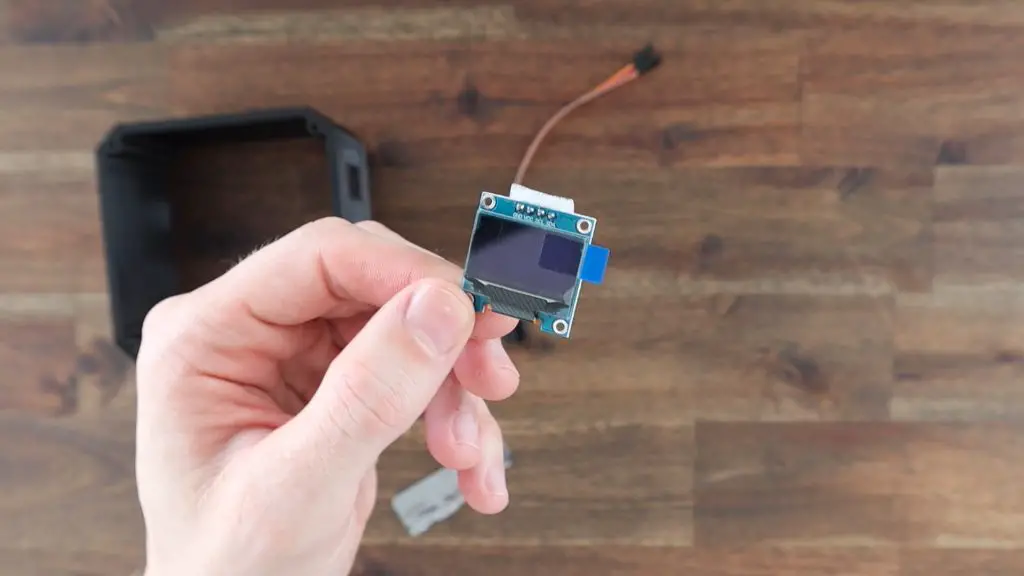
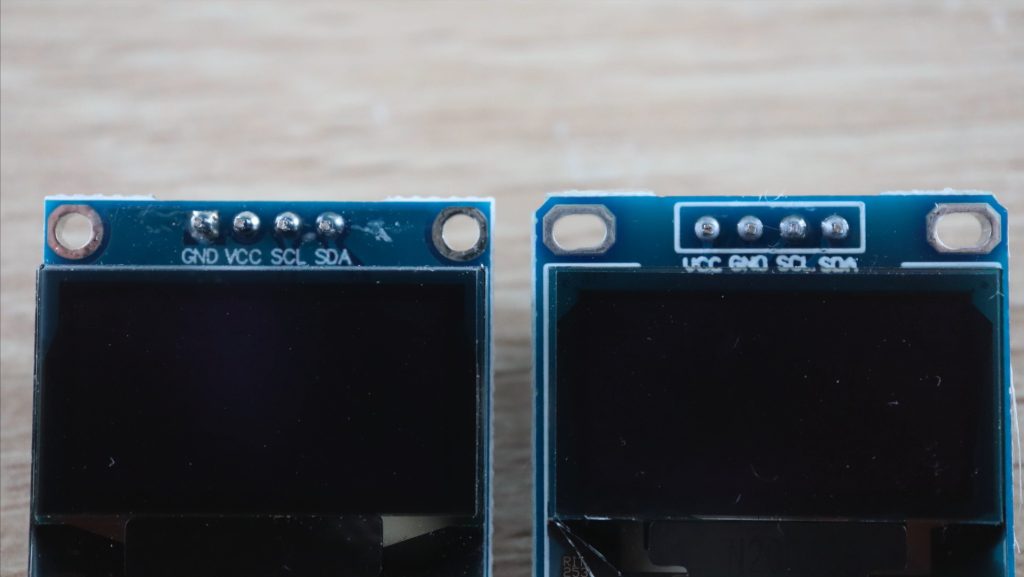
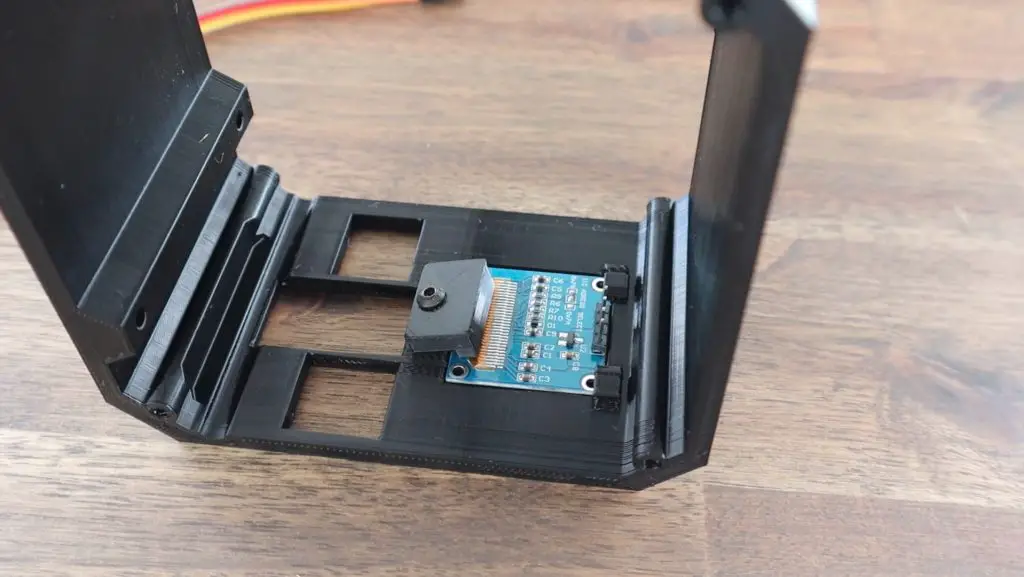
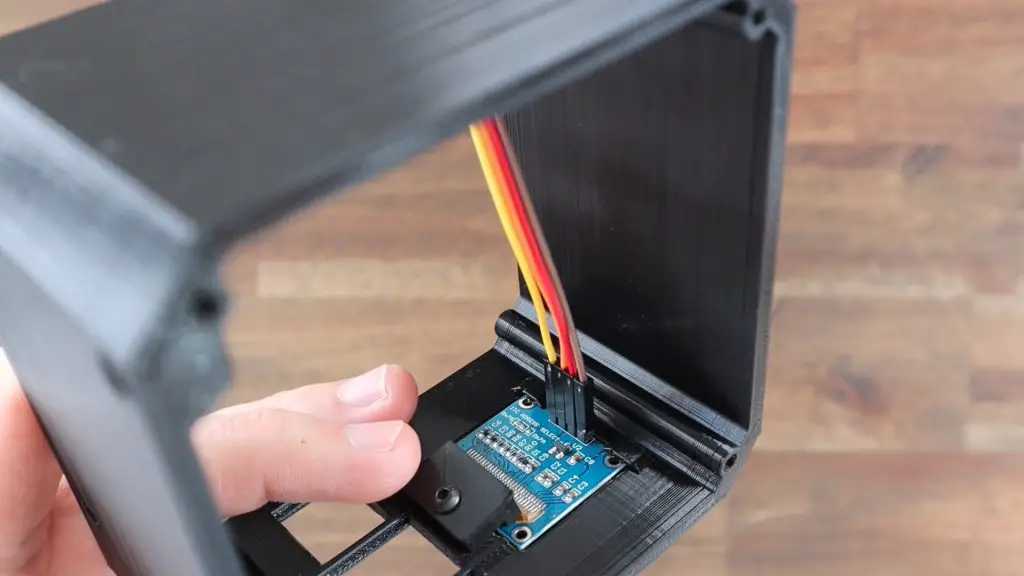
To build the mini server, I’m going to use a low-profile Ice Tower to provide cooling to the Pi and I’m going to add an I2C OLED display to the front of the case to display some performance stats for the Pi as well as stats for the UPS.

Components, Ice Tower and Display

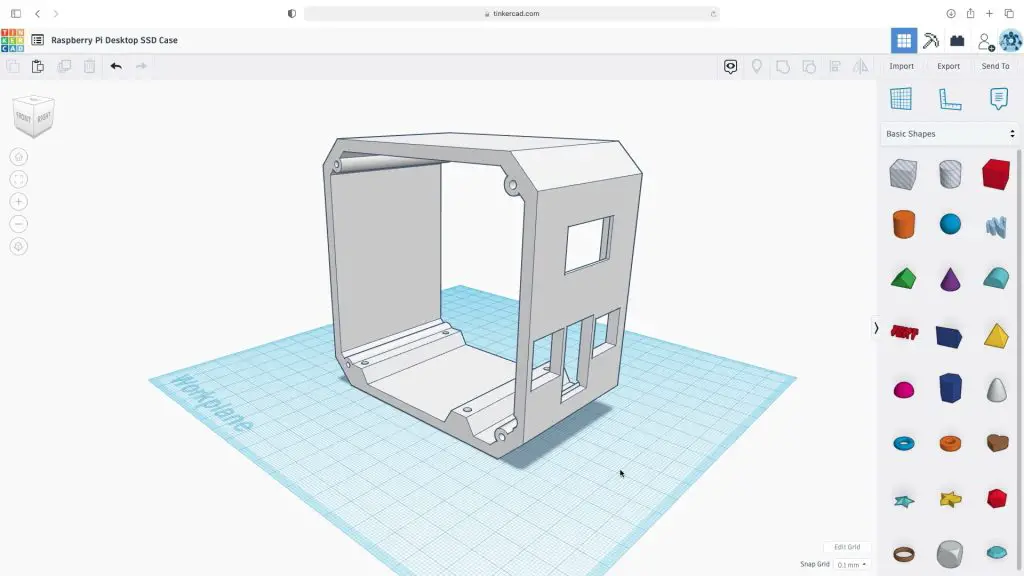
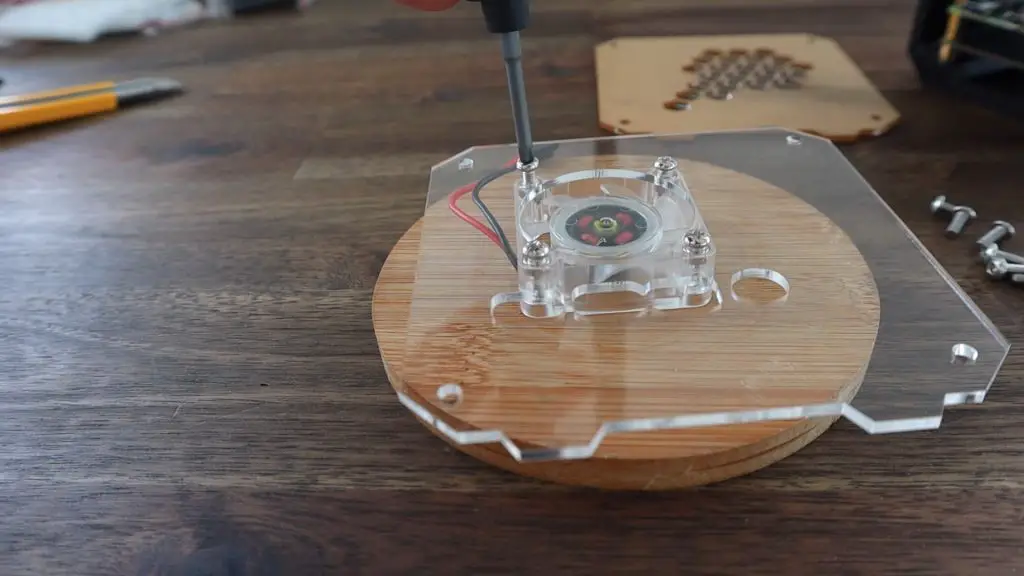
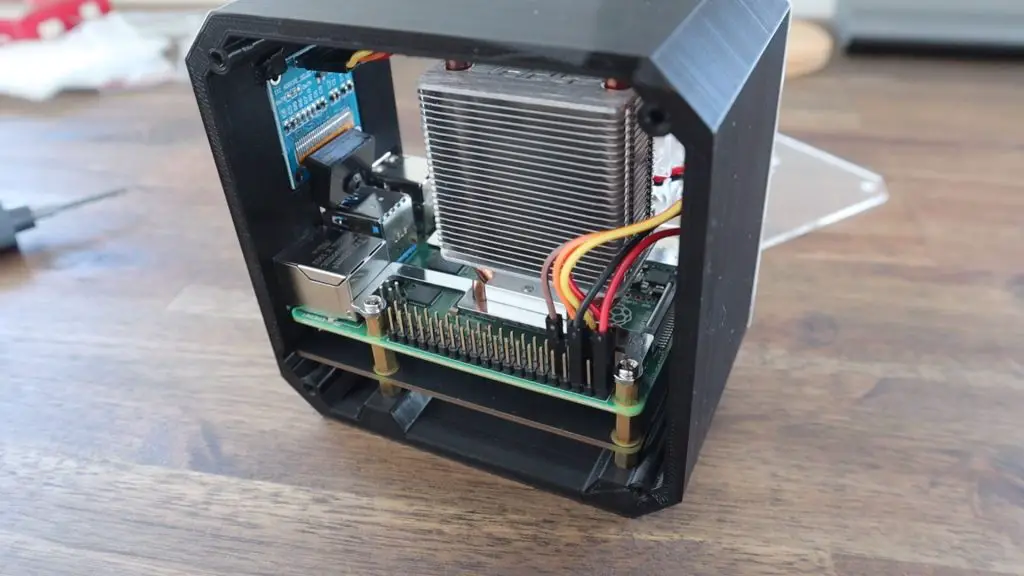
I used my previous Ice Tower Pi case as a starting point and then modified it to accommodate the UPS underneath the Pi. I had to move the OLED display up a bit to clear the top of the Pi’s USB ports. 

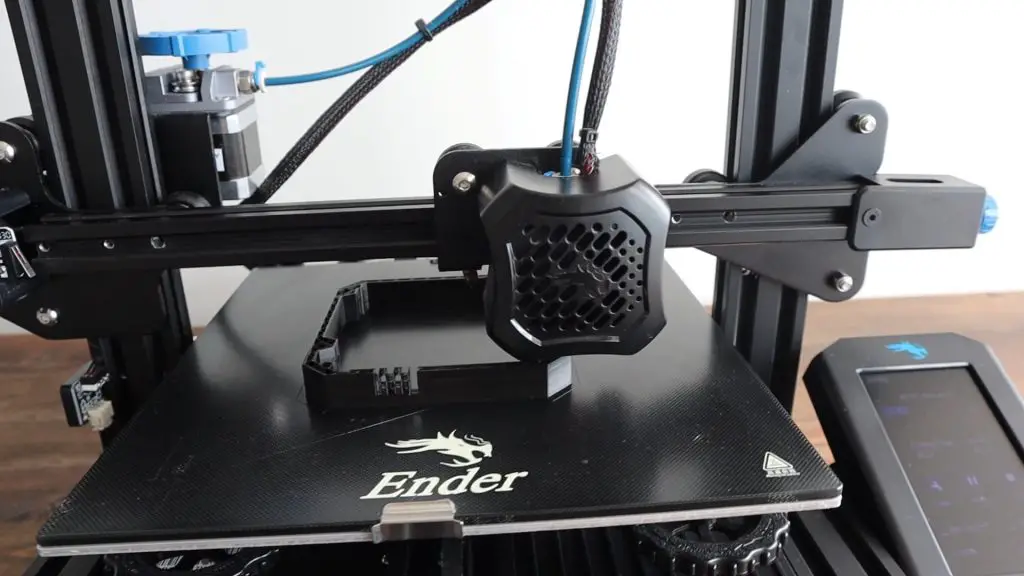
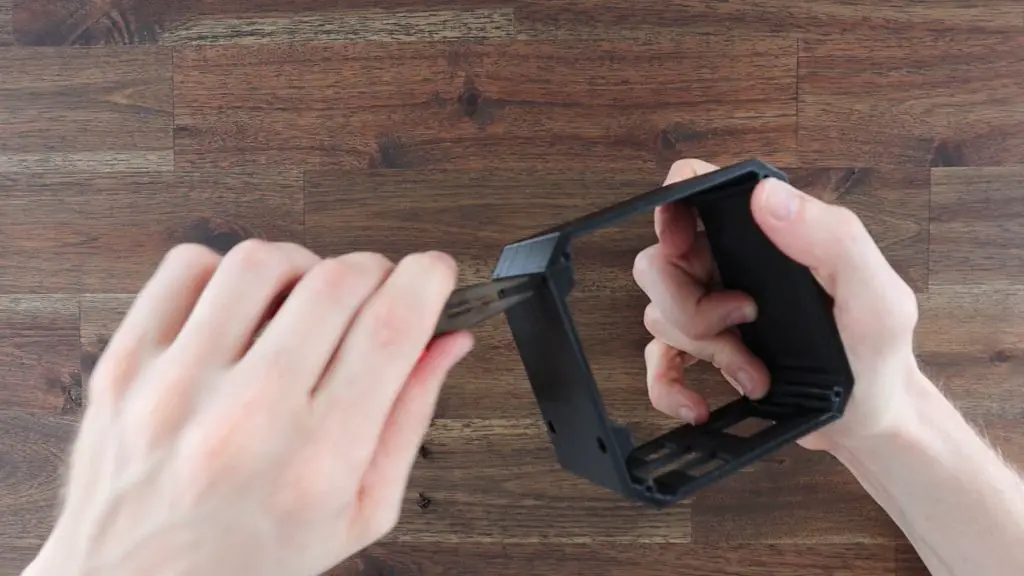
Designing The Server Case To House The UPS

Pi Server Case Tinkercad

Download the 3D print and laser cutting files or buy a complete case kit.

I then 3D printed the case on my Creality Ender 3 V2 in grey PLA with a 15% infill.

3D Printed Case

I then also had to make some modifications to the clear acrylic side panels. I moved the Pi ports higher up and added the additional cutouts for the UPS underneath them. I also added a couple of vent holes along the bottom so that air would be forced around the Pi to cool the UPS and batteries.

Side Panel Design

With the case and side panels made up we can start installing the components into the case.

Assembling The Server With UPS

I started by screwing the longer brass standoffs into the base of the case. These are quite tight initially, but need to be so that they don’t move when plugging or unplugging peripherals into the Pi’s ports.

Screw In Brass Standoffs

I then put the batteries into the holder and mounted the UPS. You need to be careful from this point as there isn’t any way to physically isolate the batteries, so some parts of the UPS are powered and you risk shorting and potentially damaging the board if it touches the metal standoffs in any area it’s not supposed to.

Insert Batteries Into Holder

The smaller brass standoffs then hold the UPS in place and we can then mount the PI onto them, making sure that the terminals are properly seated on the GPIO pins.

Hold UPS In Place With Brass Standoffs

The Pi is then held in place with the standoffs from the Ice Tower. 

Pi Mounted Onto UPS

Before installing the Ice Tower, I’m going to install the OLED display.

This just pushes into the holder in the case and I’ll connect a ribbon cable to the pins on the back to plug it into the Raspberry Pi. These provide power to the display and connect to the Pi’s I2C pins.

The connections are typically:

  • GND to Pin14 Ground
  • VCC to Pin1 3.3V Power
  • SCL to Pin5 SCL (GPIO3)
  • SDA to Pin3 SDA (GPIO2)

Have a look at my detailed guide on Connecting an OLED Stats Display to your Pi for more information on this.

OLED Display Connect To Pi

Now we can install the Ice Tower. I removed the fan from the heat sink as I’m going to move this onto the side panel to push air into the entire case. I’m going to use the RGB fan that was supplied with the Ice Tower as an alternative to the plain black one.

Screw the Ice Tower onto the Pi, again making sure that you don’t touch the metal bracket onto any of the components on the Pi or the GPIO pins. Although the Pi may look like it is still off, rather be cautious.

Ice Tower Intalled On Pi

Installing The Side Panels

I mounted the fan onto the side panel by pressing some M3 nuts into the pockets on the fan and then screwing the fan into place with some M3x8mm button head screws.

Side Panel Wont Fit, Fan To Deep

I then tried to fit the side panel. It was at this point that I saw that the Ice Tower is wider than the standard Ice Tower and clashed with the back of the fan. So I had to redesign the side panels to move the fan to the other side.

Moving Fan To Back Side Panel

I then mounted the fan onto the modified side panel, again using the M3x8mm button hex head screws.

Screwing Fan Onto New Panel

I screwed the two side panels onto the case using some more M3x8mm screws.

Screwing On Side Panel

The last thing to do was to put the SD card into the Pi and power it up. I’m using a fresh install of Raspberry Pi OS.

Programming The Raspberry Pi

With the mini server all assembled, we now need to program the Raspberry Pi so that the automatic shutdown works and to get the UPS stats to show up on the OLED display.

The Pi booted up as soon as the power cable was plugged in, so it looks like the UPS was working correctly so far.

Plugging In Power Cable

I’m going to go over to the UPS Plus Wiki to see how to install the script that allows automatic shutdown and see what other UPS information is available on the Pi. 

52Pi Pi UPS Plus Wiki

You can see all of the information that is available to be read by the Pi on the Register Mapping chart. It’s a pretty comprehensive list. All of these metrics can be accessed by the Pi through the I2C interface, we can then display the ones we’d like to on the OLED display.

Pi UPS Plus Register Mapping

It’s a pretty straightforward process to download the example script that allows you to make changes to the general settings and access the available data on the UPS.

First, ensure that I2C communication is enabled in your preferences menu. Then install the smbus2 library by entering the following command in a new terminal window:

pip install smbus2

You can then download the GitHub repository by entering:

git clone https://github.com/geeekpi/upsplus.git

Installing The UPS Automatic Shutdown Script

The install the automatic shutdown protection that signals the Pi to shutdown when the battery level becomes critically low, we just run a single line.

curl -Lso- https://raw.githubusercontent.com/geeekpi/upsplus/main/install.sh | bash
Automatic Shutdown Script Install

Displaying The UPS Stats On The OLED Display

Next, we’ll have a look at the example script and the script that I used previously to display the Pi’s performance stats and integrate the two to produce a second stats display for the UPS that will show us some key UPS information. I’ll also add some code to switch between the two display screens every few seconds.

If we run the example script in the GitHub repository that we downloaded earlier, we get a printout of almost all of the stats available on the UPS.

Pi UPS Example Script

The information I’m going to put on the UPS display is the Pi’s voltage and current being drawn, the battery voltage and capacity, and lastly the charging current and power and charging status. This will allow us to keep an eye on how much power the Pi is using, the state of the UPS battery, and whether we’re charging or discharging the battery.

You can download my script below. You’ll need to also download the font PixelOperator.ttf from https://www.dafont.com/pixel-operator.font and then unzip the contents of the download and paste the font into the same folder as the stats.py script.

Dan has made some tweaks to the script to improve stability and has documented the automatic startup of the script on boot, you can find these in his Github repository – danb35/raspi-ups-stats.

Let’s try and run the script and see what we get on the display.

UPS Stats on I2C OLED Display

Next let’s test the UPS by pulling out the power cable and make sure that the Pi keeps running and that the display shows us the battery level and correct charging status.

Not Charging Status Shown

So it looks like that’s all working correctly.

Further Testing The UPS Plus Module

I was able to get just under an hour and a half of runtime from a fully charged set of batteries. This would obviously depend on the capacity of your batteries. For most people, this would be long enough to ride out a short power interruption and your Pi would be safely shut down if the interruption lasted longer than this.

I also wanted to see if I could plug the display’s power cable into the UPS as well, powering my whole setup from the UPS.

Display Running On UPS As Well

The display came on and it looked like the UPS had enough capacity to power the display as well, although this is pretty close to its 4A limit.

There were two issues that I found with the UPS through my testing. Both of them probably won’t affect you if you plan to run the UPS continuously, like most people do, but would also have a common and fairly simple solution.

The first is isolating the batteries. If I designed that case a bit better I’d be able to install the batteries after installing the UPS, but it would be nice to have a physical switch to isolate the batteries from the board when you didn’t want any power on the board. At the moment, when the batteries are in the UPS, you need to be careful not to touch any of the components or PCB traces or you might damage it.

Battery Holder Under Pi

The second is a physical means to turn off the UPS, which could be done with the same isolation switch. The board has a function button on the side, but I haven’t been able to find any information on what it is actually supposed to do.

The board does turn off or on if you push the button, but on two occasions I’ve turned the board off using this switch and come back after 10-15 minutes and the board has come back on again and powered the Pi up.

Function Button Switching UPS On and Off

If the UPS does startup accidentally while the batteries are low then there might be a situation where the Pi hasn’t finished booting up and the batteries die completely. This interruption during booting might result in corrupting the SD card. A physical switch would just provide that extra level of protection against an accidental startup.

Other than the isolation of the batteries this UPS is a really neat and compact solution to provide a reliable battery backup to your Pi with automatic safe shutdown and stats available.

Let me know what you think of it in the comments section below.

Fan Side of Server
Pi Server With UPS

Make An Arduino Tic Tac Toe Game With An AI Opponent

Today we’re going to be building a Tic Tac Toe or Noughts and Crosses shield for an Arduino. The game board is made up of a 3×3 grid of RGB LEDs that light up green or blue to indicate the naughts or crosses. A keypad at the bottom of the shield, that corresponds to the game board positions allows you to input each move. A status LED underneath the gameboard shows you which player’s turn it is and allows you to select one of the three game modes using the start button alongside it.

Tic Tac Toe Arduino Mega Shield

The game has 3 selectable game modes, the first is a turn-by-turn two-player mode that allows you to play against another person, the second is an easy level AI opponent and the third is an expert level AI opponent that is impossible to beat.

LED Gameboard on Tic Tac Toe Shield

You can watch my video of the build below, or read on for the full instructions to make your own Tic Tac Toe game shield.

How The AI Algorithm Works

The AI works on a minimax algorithm, which is a recursive algorithm aimed at minimising the possible loss for a worst-case scenario. The algorithm calculates the value of each state of the game by looking at all of the possible outcomes following each move.

For example, the top game board below represents the current state of the game, with the green player to play next. The second line indicates the three possible moves that the green player can make. Two of these states result in the green player winning, these are awarded a score of 10. The third state allows the game to continue, with blue taking their turn. There are two possible spots for blue to play, the first does nothing (nothing in this move, although we can see that in the next move green would win) and then second results in blue winning. So, a score of -10 is given as this is against the green player who is currently playing. A state which results in an eventual draw is given 0. The algorithm would therefore favour one of the first two game moves, and work against playing the third move which allowed the opportunity for the blue player to win.

Minimax Algorithm To Play Tic Tac Toe

This is an old algorithm which was been around since the early 1900s and can be applied to many two-player, turn-based games. It’s commonly used in computer-based chess games to this day.

AI Winning Game

With the AI running the minimax algorithm on the Arduino, it’ll always play the best possible move, so regardless of who starts, you won’t be able to beat it.

To make the game a bit more fun, as it’s not much fun losing or drawing games all the time, I’ve added a second mode that plays random moves for the first two plays before allowing the AI algorithm to finish off the game. This drastically reduces the AI’s ability to win and you’re left with the possibility of winning most games that you start and a fair number of games that the AI starts.

What You Need To Make Your Own Tic Tac Toe Shield

Amazon Affiliate Links

Banggood Affiliate Links

Making The Tic Tac Toe Shield

There are ways to use addressable LEDs to condense the IO to fit onto an Arduino Uno, but I already had a bunch of these RGB LEDs and an Arduino Mega lying around, so that’s what I used for this project. The shield makes use of 21 digital outputs for the LEDs and 10 digital inputs for the pushbuttons.

Arduino Mega

It is important that you get common cathode RGB LEDs as the PCB design incorporates a common GND and the IO switches high to turn them on. You can use common anode LEDs if you’ve got them already but you’ll need to modify the PCB to suit.

Designing The PCB

I sketched the circuit in Easy EDA and then designed a PCB as a shield that clips onto an Arduino Mega.

Schematic For Tic Tac Toe Shield

Each pushbutton has a corresponding 10-20K resistor and each LED has a 220-500 ohm resistor in series with it. I usually use slightly higher value resistors for the green legs of the LEDs as I find these are usually brighter than the blue and red legs. I didn’t connect the red legs of the LEDs on the gameboard as you only need to indicate two on states for each position.

Designing The PCB in EasyEDA

You can download my PCB gerber files to have your own PCBs made up:

I got the PCBs made up by PCB Way. They have a really easy-to-use instant quote and ordering system and you can get simple PCBs under 100mmx100mm made up from just $5 for 5 pieces.

The Finished PCBs from PCB Way

Soldering The Components Onto The PCB

Once the PCBs arrived, I got to assembling them.

LEDs, Pushbuttons and Resistors

I used 15K resistors for the switches, 390-ohm resistors for the blue and red LEDs, and 470-ohm resistors for the green LEDs.

I soldered all of the resistors in place first and then trimmed the legs off the back of the PCB.

Soldering Resistors
Cutting Off Resistor Legs

I then soldered the RGB LEDs into place. Make sure that the cathode (long leg) on the LEDs is placed into the hole with the small arrow underneath it.

Tic Tac Toe Shield PCB

Check all of the solder joints on the LEDs afterwards to make sure that there are no bridges across the pads or legs, they are really close together.

Soldering RGB LEDs Into Place

I also added some header strips to plug into all of the pins on the Arduino so that the shield is held in place firmly.

Arduino Mega Shield
Tactile Pushbuttons Soldered Into Place

Lastly, you need to solder the tactile pushbuttons into place. Make sure that you’ve got the orientation correct before you solder them.

Programming The Arduino

With the PCB done, we can get started with the programming.

I started out by getting a game board set up in a 3×3 array and adding some logic to get the two player mode working. This allowed alternating green and blue inputs until the board was full or one player had won across the rows, columns or two diagonals.

I used the number 0 to indicate a blank space, 1 to indicate player 1’s moves and 2 to indicate player 2’s moves. I set up the board to be displayed in the serial monitor for debugging.

Manual Game Mode Working In Arduino IDE

Once this was working I got started on the AI’s minimax algorithm. If you’ve ever used this algorithm before then you’ll probably know that it’s not that easy to debug. It took me a couple of hours to get it working, and it finally started producing meaningful results.

I had to add some simple logic to the first AI move in order to reduce the first move’s processing time. The Arduino, being a relatively slow computer, was taking a significant amount of time to work through all 255,168 possible game outcomes if it was to play the first move and also took a consiberable amout of time if it was playing the second move.

Minimax Algorithm Playing Tic Tac Toe On Arduino Mega

With my modification, the AI essentially now plays a corner as its first move unless it goes second and the human player has already played a corner, in which case it plays the center position. This logic reduces the number of possible game plays to a couple of thousand, which the Arduino has no problem calculating in a few milliseconds. You’ll notice in my video of the gameplay that the Arduino takes a bit longer to play its second move than it does to play subsequent moves. This is the Arduino “thinking” through all possible moves.

Once the AI player was working, I added the final game mode that just chooses random board positions for its first two moves and then allows the AI to take over. This results in a game in which you can quite easily win if you play first and still allows the AI to occasionally win if it goes first or you make a silly mistake. You could add a fourth mode that only randomly places the first AI move. This would increase the difficulty quite a lot but still allow you some chance of winning if the AI got unlucky with the placement of this move.

I then added a start animation and code to highlight or flash the winning lines and the programming was then complete.

You can download the final version of the code here:

Playing Tic Tac Toe On The Shield

You can now select a game mode when the Arduino is powered up by using the center top and bottom buttons on the gamepad to scroll up and down through the three modes and pressing the start game button to confirm the mode. The current mode is indicated by the RGB status LED:

  • Easy AI Mode – Green
  • Expert AI Mode – Red
  • Two Player Mode – Blue

Once in a game mode, the Arduino stays in the mode and just keeps refreshing the game board after each play. You can then keep playing in this mode until you reset it again.

Status LED and Game Mode Selection

Once a game mode is selected, the RGB status LED indicates which player’s turn it is. This is randomly generated for each game so that you don’t always have one player starting.

Playing Against The AI Opponent

You can then play out your game and the Arduino will highlight a winning line once it is reached or flash the whole game board if it is a draw.

AI Opponent Draw

Let me know what you think of the game and what you would do differently in the comments section below. Enjoy making your own one!

Solar Powered Crypto Miner Using A Raspberry Pi

A common question I’ve seen across a number of my Raspberry Pi projects and videos is whether you can use a Raspberry Pi to mine cryptocurrency. The answer to this question is yes, it is technically possible, but probably not in a way that is going to make you any amount of money. In fact, you’ll be lucky if you ever make enough money to even recoup the hardware cost.

With that said, instead of just showing you how to mine cryptocurrency on a Raspberry Pi, I thought why not make it a bit more interesting and make it solar powered as well. That way we don’t even have to worry about offsetting the electricity costs associated with running the crypto miner. So in this project, we’re going to be building a solar powered crypto miner using a Raspberry Pi.

Now since we’re already heading down a road to no profit, there’s not much point in going overkill and trying to solar power a cluster of Pis or even a single Pi 4. I’m rather going to try and get away with building the cheapest setup possible to show you how long it would take to pay it back and start making some money.

Here’s a video of my build and setup of my solar powered crypto miner using a Raspberry Pi, read on for the full write up.

What You Need To Build A Solar Powered Crypto Miner

Note: The above parts are affiliate links. By purchasing products through the above links, you’ll be supporting this channel, with no additional cost to you.

Assembling The Solar Powered Crypto Miner

The brain behind this project is a Pi Zero W. It’s one of the most power-efficient Raspberry Pis available and it’s got built-in WiFi, so we don’t need to worry about powering any external dongles or running network cables.

Raspberry Pi Zero W

What Size Solar Panel Do We Need?

To start out we need to figure out how much power our Pi Zero W uses when it is running and connected to WiFi so that we know what size solar panel we’re going to need to power our crypto miner.

We’re going to install Raspberry Pi OS Lite as we’ll be running this as a headless setup and we’ll access the Pi over our WiFi network for any additional work we need to do in order to set it up.

I usually just use Raspberry Pi imager to burn the image to the SD card. Select Raspberry Pi OS Lite as the operating system, then choose your connected SD card as your storage location and then click on write to begin burning it to your card.

Raspberry Pi Imager

When this is done, you’ll need to remount the disk and open the boot directory. Next, create a next blank text file in the boot directory and rename it “ssh” with no extension.

Adding SSH To Boot Directory

You’ll also need to set up a “wpa_supplicant” configuration file that tells your Pi how to connect to your WiFi network. You can download the template below, then just update your network name and password and save the file.

WPA Supplicant File

The last thing to do is to change the extension from .txt to .conf and then copy it into the boot directory as well.

Adding WPA Supplicant To Boot Directory

I’m going to boot the Pi up and use a USB power meter to measure the amount of power the Pi uses when idling and when transferring data over WiFi.

Testing Pi's Power Consumption

It looks like our Pi uses just under 100mA when idling and this spikes to about 130mA when using WiFi. So we need a panel that is able to produce at least 1W and we need a little extra for when a cloud comes over or it’s not in full sun.

USB Solar Panel

I’m going to use this 5W panel which is designed to charge mobile phones. This will provide up to 1A at 5V, which should be more than enough to keep the Pi powered and will produce a bit extra to power the Pi during times when it is overcast or not in full sun.

Adding A Charge Controller And Battery

Now that we’ve got our Pi and our solar panel, we just need to add a charge controller and a battery.

Charge Controller And Battery

Now you might be thinking why don’t I just plug the Pi directly into the USB port on the solar panel. I could do that and it would probably work when the panel is in full sun, but if there is a disturbance to the light on the panel, then the panel would immediately stop providing sufficient power to the Pi and the Pi would turn off or reboot. Obviously, this would only need to happen a couple of times before the SD card is corrupted.

USB Cable On Solar Panel

So we add the solar charge controller to take the power from the panel and use it to charge a battery and then use the battery to power the Pi. This way when there is an interruption to the solar panel’s power, the Pi is still powered by the battery.

DF Robot Solar Charge Controller

This charge controller comes from DF Robot, it takes the input from the solar panel and uses it to charge a 3.7V lithium-ion or lithium-polymer cell. It then uses the battery to provide a regulated 5V supply to the USB port and some header pins. It’s also got a number of safeguards and an over-discharge feature to protect the battery.

I’m using a single 2500mAh 18650 lithium ion battery, which should be able to power the Pi for a maximum of about 8 hours. If you want the rig to be able to run through the night then you’ll need to add a second or third battery in parallel to store the additional energy from the solar panel.

The 5W solar panel should provide enough power to run the rig continuously through the day and night with some buffer for short overcast periods of a couple of hours if you add two additional 18650 batteries (3 in total) in parallel.

I’m going to connect new leads directly onto the tabs on the panel as I suspect that there is a regulator between the USB lead and the tabs which we don’t need. I’m going to test these tabs first using my multimeter in order to get the polarity correct when connecting it to the charge controller.

Testing Solar Panel With Multimeter

Next, I’m going to use a soldering iron to solder the new leads directly onto the tabs.

Soldering Leads Onto Solar Panel

We can then connect the solar panel and the battery to the charge controller. I’ve used a battery holder which has a built-in USB charging circuit, which I’m not going to use for this project. The one linked in the parts list is just a standalone single cell holder.

Connecting Panel and Battery To Charge Controller

I then glued all of the components onto the back of the solar panel using some nylon standoffs so that I can mount it onto the GoPro suction cup mount and stick it onto an outdoor window.

All Components Connected On Solar Panel

Once this is all done, we’re ready to plug in the micro USB cable between the charge controller and the Pi and let it boot up.

Pi Plugged In And Booting Up

Stick the crypto miner up in a sunny spot so that the solar panel starts charging the battery and supplying power to the Pi.

Back Of Solar Powered Crypto Miner

Setting Up The Mining Software

Now that your solar powered crypto miner is in the sun and plugged in, your Pi should boot up and connect to your WiFi network automatically. You’ll need to find its IP address, which can be done in a number of ways. The easiest I find is to log into my router and find it in the DHCP table.

You can then access the Pi through an SSH connection using a utility like Putty. Type in your Pi’s IP address, make sure that SSH is selected and then click on open to open a new terminal window.

Putty to SSH Into Pi

Login with the default username (pi) and password (raspberry), which you should probably change if you’re going to be using your Pi for any period of time, and then run the usual updates and upgrades by typing in the following command:

sudo apt-get update && sudo apt-get upgrade -y
Raspberry Pi Update and Upgrade

While your Pi ticks away at the updates, head over to Minergate to create an account to join a mining pool. If you don’t know what a mining pool does, it’s essentially a group of people who put all of their resources together to collectively mine cryptocurrency, and the profits are then divided among participants based on their level of contribution to the pool.

Once the updates are complete, install the below dependencies by running this command:

sudo apt install git automake autoconf libcurl4-openssl-dev libjansson-dev libssl-dev libgmp-dev

We’re going to be mining for Monero using cpuminer-multi. So we’ll need to download the GitHub repository by running this command:

sudo git clone https://github.com/carolinedunn/cpuminer-multi
Get cpuminer multi

When the repository has been downloaded, navigate to the directory:

cd cpuminer-multi

We then need to compile the code using the following commands:

sudo ./autogen.sh
sudo ./configure
sudo ./build.sh

These do take a while to get through, particularly the last one.

Mining Monero On A Solar Powered Raspberry Pi

Once this is all done, we’re finally ready to start the crypto miner and start contributing to the pool. Enter the following command to start mining on your Pi:

./cpuminer -a cryptonight -o stratum+tcp://xmr.pool.minergate.com:45700 -u MINERGATE_EMAIL_ADDRESS

When it starts running, you should see some figures being displayed alongside “CPU #0”. This is the hash rate of your Raspberry Pi.

Running The Miner

Ours is sitting at a dismal 1.47 hashes per second. Which is really bad!

In order for you to be making any meaningful money from mining Monero, you need to be above about 100 kilohashes per second. So we’re sitting at almost 100,000 times less than this limit at the moment.

Let’s use CryptoCompare’s profitability calculator to have a look at how much money we’d make if we could leave this setup running for a month or a year.

Monero Earnings Conversion Chart

So at 1.47 hashes per second, we would be earning $0.0057 per month or $0.069 per year. So it would take almost 220 years of mining just to pay off the Raspberry Pi.

So you can see that crypto mining on a Raspberry Pi, even with free electricity, is just not that practical. Your Pi would need to run far longer than the expected life of the equipment to even pay back the hardware cost associated with it.

I’m going to try to set something similar up on my water-cooled Pi cluster as well to see how many years that would take to pay off. So, subscribe to my newsletter or my Youtube channel so that you don’t miss out on that, and let me know your comments and thoughts on my solar-powered crypto miner in the comments section below.

Connect and Program An OLED Stats Display For Your Raspberry Pi

In this guide, I’ll show you how to program a 128×64 I2C OLED stats display as a quick dashboard for your Raspberry Pi. I use this script on my Raspberry Pi Desktop Case and a lot of people have asked me for some more in-depth setup and programming instructions to get it running.

You can make your own Raspberry Pi Desktop case by following my build guide, or buy a premade kit from my Etsy store.

This guide is written specifically for a Raspberry Pi 4B running Raspberry Pi OS Buster, although you should be able to work through it for other Raspberry Pi models.

Update: For those running Raspberry Pi OS Bullseye, please use my revised guide.

Raspberry Pi Desktop Case

Here’s a video guide to connect and program the OLED stats display, read on for the full written guide and script modifications.

What You Need For This Project

Amazon Affiliate Links

Banggood Affiliate Links

Connecting Your I2C OLED Stats Display To Your Raspberry Pi

We’ll start by hooking the display up to the Raspberry Pi. To do this, you’ll need a 4 wire female to female jumper cable. The colours on the cable don’t matter, they’re just there to help you keep track of which wire goes to which terminal.

I2C OLED Display and Ribbon Cable

The OLED display’s pins are labeled on the front, which seems to confuse a lot of people, especially when they’ve installed the display into a case or housing and the front area above the screen is no longer visible.

I2C OLED Display Front and Pin Labels

These are most commonly GND, VCC, SCL, and SDA. Don’t just copy this arrangement though, make sure you check your own display as there are versions of this display that have the VCC and GND pins the other way around.

OLED Display Pinout

These displays don’t have reverse polarity protection, so if you connect them incorrectly (even just once) then it’s quite likely that they’ll be damaged and will no longer work, even if you correct the wiring afterward.

I2C OLED Display Rear

Plug your ribbon cable into these pins and then make a note of which colour you’ve got connected to which of the four pins. If you’re installing the display into your case before connecting it then it’s a good idea to write down which colour is connected to which pin so that you don’t forget.

Plug Ribbon Cable Into Display

Next, you need to plug the other ends of the jumpers into your Raspberry Pi’s GPIO pins. The Pi’s GPIO pinout diagram can be found quite easily online and is available on the official Raspberry Pi website.

Raspberry Pi 4 Pinout
Source: RaspberryPi.org

Make sure that your Pi is off and the power is disconnected before plugging or unplugging jumpers from the GPIO pins. You don’t want to short a connection or plug a lead into the incorrect pin by mistake and not have a chance to check your connection before powering it up.

You’ve got a few options for the GND and VCC jumpers. I usually plug the GND jumper (mine is green) into Pin 14, but you can use any pin labelled Ground. I plug the VCC jumper (mine is blue) into Pin 1, which is a 3.3V power pin. Again, you can use any of the 3.3V or 5V power pins as this display can run on both 3.3V and 5V.

Connect Power Cables To Raspberry Pi

Next, we need to connect the communication jumpers SCL and SDA, which just get plugged into the corresponding GPIO pins. Plug SCL (mine is purple) into Pin 5 and SDA (mine is white) into Pin 3. Don’t get confused between the GPIO numbers and the Pin numbers, ignore the GPIO numbers on the diagram and just go by the SDA and SCL labels and the corresponding pin numbers.

Connect Communication Cables To Pi

Check all of your connections again and you’re then ready to power your Pi up and get started with programming the display.

Connections Between Pi and OLED Display

Programming The OLED Stats Display

Once you’ve booted up your Pi, you should be on the Raspberry Pi OS desktop. It’s possible to do this installation on a headless Pi as well, it’s just easier to make the required layout changes to the script in the full version first.

Enabling & Testing I2C Communication

To get the display to show our Raspberry Pi’s performance stats, we’re going to be running a Python script. Before we do this we need to enable I2C communication on the Pi as this is how it communicates with the display. You can either do this through the preferences menu or by typing this command into a new terminal window:

sudo raspi-config
Enable I2C Communication

Select interfacing options, then I2C and then select Yes and then reboot the Pi by typing in the following command:

sudo reboot

Once your Pi has rebooted, you need to check that the following 3 libraries have been installed. You may already have them installed, but it’s worth checking. Run each one of these commands individually in your terminal:

sudo apt-get install python-smbus
sudo apt-get install i2c-tools
sudo pip3 install Adafruit_BBIO
Install The Required Libraries

Once you’ve done that then you can check that your Pi is able to see that your display is connected. You can do this by typing in the following command:

sudo i2cdetect -y 1

You should then see a table, similar to the below, that shows a single pair of characters in it. This code indicates the I2C address of your display.

0 1 2 3 4 5 6 7 8 9 a b c d e f
00: -- -- -- -- -- -- -- -- -- -- -- -- --
10: -- -- -- -- -- -- -- -- -- -- -- -- -- -- -- --
20: -- -- -- -- -- -- -- -- -- -- -- -- -- -- -- --
30: -- -- -- -- -- -- -- -- -- -- -- -- 3c -- -- --
40: -- -- -- -- -- -- -- -- -- -- -- -- -- -- -- --
50: -- -- -- -- -- -- -- -- -- -- -- -- -- -- -- --
60: -- -- -- -- -- -- -- -- -- -- -- -- -- -- -- --
70: -- -- -- -- -- -- -- --
I2C Detect Table

If your table is returned blank then you’ve either got a wiring issue or I2C communication isn’t turned on. If you get a table full of characters then you’ve probably made a wiring mistake as this happens if SDA is shorted to ground. Go back and re-check your connections to your Pi and display and re-check that you’ve got I2C communication enabled after a reboot.

Don’t proceed with trying to get the script to work if you don’t get the correct response in this step, if your Pi isn’t able to see the display thats connected to it then it won’t be able to communicate with it to get anything displayed.

Downloading And Running The Adafruit Stats Script

Next let’s have a look at the python script and how to install it.

The script is one of the example scripts provided in the Adafruit Python SSD1306 library, with some tweaks. There is a note on the Github page to say that this is a depreciated library, but that doesn’t mean that you can’t use it or that it will no longer work. It just means that they have developed a better or more recent set of libraries. We’re not so much interested in the library as we are in the stats example script, so we’re going to use it anyway.

Download the script by typing in the following commands:

sudo python -m pip install --upgrade pip setuptools wheel
git clone https://github.com/adafruit/Adafruit_Python_SSD1306.git
Download The Adafruit OLED Display Library

Next, navigate to your library’s directory:

cd Adafruit_Python_SSD1306

Then run the setup script to install the library. Make sure that the python version you choose here matches the version you are going to run the actual script in.

sudo python3 setup.py install
Run The setup Script

Next navigate to the examples directory in the Adafruit directory:

cd examples

Then execute the stats script:

python3 stats.py

You should then see your Pi’s stats shown on the display.

Basic Stats Example Script Running

You can see the text isn’t that clear, there are a few weird characters on the display and the CPU temperature isn’t displayed. So we’re going to try and fix those in the following section.

Adjusting The Display Content & Layout

The following steps are done on the Raspberry Pi OS desktop and edits to the script are made in Thonny Python IDE (which comes pre-installed).

Open up the examples folder in the Adafruit library which you were working on in the previous step and use the Thonny Python IDE to open up the stats script so that you can edit it.

Copy these two portions of the script below and paste them into your script on your Pi.

Add the following two lines to the script at the end of the “# Shell scripts for system monitoring from here” section

cmd = "vcgencmd measure_temp |cut -f 2 -d '='"
temp = subprocess.check_output(cmd, shell = True )

Replace the following lines in the “# Write two lines of text” section.

draw.text((x, top), "IP: " + str(IP,'utf-8'), font=font, fill=255)
draw.text((x, top+8), str(CPU,'utf-8') + " " + str(temp,'utf-8') , font=font, fill=255)
draw.text((x, top+16), str(MemUsage,'utf-8'), font=font, fill=255)
draw.text((x, top+25), str(Disk,'utf-8'), font=font, fill=255)
Editing The Content of the Script

Have a look at the video at the begining if you’re unsure about which lines to replace or change.

Running the script you can now see that the characters are gone and the temperature is being displayed alongside the CPU load:

Display adjusted to remove characters

This is where I left the display in my original video, but it looks a lot better if you use a better font, which allows the text to fit into the width limit and uses the full height of the display, so let’s look at that next.

First, let’s change the display size so that we’re using all of the display’s pixels so that the text is a bit clearer. This display is actually a 128 x 64 display, not the 128 x 32 display which is set by default.

Comment out the line near the top which sets the display size to 128 x 32:

# disp = Adafruit_SSD1306.SSD1306_128_32(rst=RST)

And then uncomment the line which sets the display size to 128 x 64:

disp = Adafruit_SSD1306.SSD1306_128_64(rst=RST)
Editing the Display Size

If you run the script you’ll now see that the text is much clearer, but it all bunched up in the top half.

OLED Stats Display Squashed Into Top Half

We can play around with the spacing, but this font is just not great for this stats layout. So let’s now look at changing the font.

Download the font PixelOperator.ttf from https://www.dafont.com/pixel-operator.font and then unzip the contents of the download.

Downloading The New Font

Look for the standard pixel operator font and copy the font into the same directory as your stats script.

You’ll then need to copy the filename of your font, along with the extension, to put into the script.

Comment out the line which loads the default font:

# Load default font.
# font = ImageFont.load_default()

Uncomment the line which loads the replacement font and paste your filename into it, keeping the inverted commas on either side. You can also play around with the font size by editing the number after the font name, I’ve used 16 here.

# Alternatively load a TTF font.  Make sure the .ttf font file is in the same directory as the python script!
# Some other nice fonts to try: http://www.dafont.com/bitmap.php
# font = ImageFont.truetype('PixelOperator.ttf', 16)
Copying New Font In Script

If you now run the script you’ll see that the text is a bit taller and is in your new font, but it’s still bunched up at the top of the display. So the last thing we need to do is adjust the layout.

New Font Being Displayed on OLED Stats Display

Adjusting the layout is a bit of a guessing game until you get it looking the way you’d like it to, or just copy the numbers I’ve used:

draw.text((x, top+2), "IP: " + str(IP,'utf-8'), font=font, fill=255)
draw.text((x, top+18), str(CPU,'utf-8') + " " + str(temp,'utf-8') , font=font, fill=255)
draw.text((x, top+34), str(MemUsage,'utf-8'), font=font, fill=255)
draw.text((x, top+50), str(Disk,'utf-8'), font=font, fill=255)
Editing The Display Spacing

When you’re done, you should now have a clear OLED stats display running on your Pi.

OLED Stats Display Now Showing The Correct Items and Spacing

This script will continue to run and update the display as long as you’ve got your IDE open. But we want it to run all the time and run on startup, so there’s one last thing to do.

Setting The Script To Run Automatically On Startup

Copy the OLED stats display script and the font into your home directory.

Copy Script and Font Into Home Directory

Open crontab by typing the following command into your terminal:

crontab -e

If this is the first time you’re opening crontab then select 1 as your editor and hit enter.

Add the following line to the end of the file to run the script:

@reboot python3 /home/pi/stats.py &
Edit Crontab To Automatically Run On Startup

You might need to change the directory to suit the directory that you’ve got your script saved into.

Also don’t forget the & at the end to tell the Pi to continue starting up and run the script in the background.

Save the file when you exit and then try rebooting your Pi to see if it is working correctly.

If it is all working correctly then you should have a working stats display which starts up automatically each time your Pi boots up.

Programming An OLED Stats Display For Your Raspberry Pi

If you’re using an Ice Tower with your stats display, plug the fan’s power cables in to the 5V and GND GPIO pins next to the display’s connections as shown below.

Plug Ice Tower Fan Into Available IO Port

Let me know what you think of this OLED stats display in the comments section below and let me know what you’re using it for. Have you built it into your own case?

Bitcoin Ticker Using An ESP32 and OLED Display

Today we’re going to be making a desktop Bitcoin ticker using an ESP32 development board and an OLED display. This one has been programmed to display the current Bitcoin price in US dollars, but you could set it up to display any cryptocurrency or even multiples cryptocurrencies in any local currency, as long as there is an API available for it on one of the exchanges.

Bitcoin Cryptocurrency Ticker

Along with the price, it displays the percentage change from yesterday’s closing price. It also lights up either a red or green LED underneath the display depending on whether the price has increased or decreased.

Bitcoin Price

The ticker is powered by an ESP32 development board, which has built in WiFi. It connects to your WiFi network and fetches the updated Bitcoin price through the Coindesk API every 15 minutes. The code is based on Andrew Budziszek’s version on GitHub, with some added functionality for the LEDs and the Bitcoin logo on startup.

If you enjoy cryptocurrencies, then have a look at my recent Bitcoin Full Node which I built on a Rapsberry Pi.

Here is my video of the build and the ticker running, read on for the written instructions to build your own:

What You Need To Build Your Own Bitcoin Ticker

To build one of these, you’ll need an ESP32 development board, an I2C OLED display, a green and red LED and two resistors. I had 100ohm resistors here, but landed up using 330ohm ones for the final assembly.

You can buy a kit for this project, which includes the electronic components, PCB and faceplate here – Crypto Ticker Kit

Components Required

Amazon Affiliate Links

Banggood Affiliate Links

Connecting The Components On A Breadboard

As with most of my projects, I started out by assembling the components on a breadboard to test the connections and the code. My breadboard isn’t big enough to access the pins on both sides of the ESP32, so I just tested the OLED display as LEDs are quite straightforward to connect and program.

There are only four connections to be made, two for power and two for the I2C connection to the display.

One thing to be aware of is that there are two different versions of these displays available on the internet, one which has the GND and VCC pins the opposite way around. Make sure you check the polarity before supplying power to the display or you might damage it.

Assembling Components On Breadboard

Once you’ve connected the display, you just need to upload the code using the Arduino IDE. If this is the first time you’re using an ESP32 board in your Arduino IDE then you’ll need to install some additional software first.

I uploaded the original version of the code along with my network name and password and the Bitcoin ticker came to life.

Designing And Assembling The PCB

I then designed a PCB to mount the components onto. I drew up a circuit diagram and added the LEDs to the circuit. I use Easy EDA to design my PCBs as it is free and web-based, so you don’t need to download or install anything on your computer.

Circuit Diagram

PCBs are a great way to neaten up your projects and make them a lot more durable. I always add a couple of power connections and some additional IO access holes onto my PCBs in case I want to add something at a later stage.

I drew up the PCB, added the traces, silkscreen and some mounting holes.

Bitcoin Ticker PCB Design

PCB Way provided the PCBs for this project for me to share with you. They offer quick turnaround times and are really affordable, with basic PCBs like these from just $5 for 10 pieces and they’re made up in a day or two.

PCB Way Manufactured PCBs

If you’re interested in getting your own PCBs made up, you can use their online quote tool to get an instant price before you place your order.

Bitcoin Ticker Black PCB With White Silkscreen

I ordered these in black as the PCB is going to be visible in the final design of the Bitcoin ticker. I didn’t want to design a case to cover the whole board. As you can see, they’re really good quality boards and they’re well finished off.

Now lets get our components mounted onto the PCB.

The assembly of the PCB is really straight forward. The orientation of the components is shown on the silkscreen. The only part you need to be careful with is the polarity of the LEDs, the flat side of the LED (negative or cathode) should be lined up with the flat side on the silkscreen.

Soldering Components Onto Ticker

Once you’ve got all of your components mounted, you can trim the ESP32 and OLED display pins sticking out of the back of the PCB if you’d like. This is not entirely necessary though.

Making A Cover Plate For The Bitcoin Ticker

Next, I designed a cover plate to protect the PCB. This just protects it from accidental bumps when the Bitcoin ticker is on your desk and prevents a short circuit if anything metallic comes into contact with the pins on the display or ESP32.

I designed the cover plate to be cut from a piece of 2mm clear acrylic.

Designing The Bitcoin Cover Plate

I also added the Bitcoin logo to the cover. I designed a couple of other cryptocurrency options to play around with, so I could convert the ticker to show pricing for Ethereum or Dogecoin as well.

I made up a set of legs that are just cut from some scrap acrylic. They’ll need to be bent at 90 degrees at the indicated markings and these then fit onto the back of the brass standoffs behind the PCB.

I then laser cut and engraved the cover plate.

Laser Cutting The Cover Plate
Laser Cut Bitcoin Ticker Cover Plate

The cover is mounted onto the PCB using some M3 x 10mm brass standoffs and M3 x 8mm button head screws.

I mounted a set of standoffs onto each side of the PCB so that the ticker can then be mounted onto a stand, bracket or shelf.

Brass Standoffs Added
Cover Plate Added

Modifying The Code To Use The LEDs

Now that the Bitcoin ticker is complete, we just need to modify the code to make use of the two LEDs as well. Fortunately, there is already a test in the code to see whether the price has increased or decreased in order to calculate the percentage, so we just need to add the LED pin IO lines to these sections to get them to turn on and off. I also added a line to put the ESP32 to sleep for 15 minutes between updates to save power.

You can download the code from my GitHub Repository.

Once you have downloaded the code, you’ll need to upload it to your ESP32.

Start by selecting the correct board. In Tools > Board select DOIT ESP32 DEVKIT V1.

If this is the first time you’re using an ESP32 board in your Arduino IDE, you probably won’t have the above option, so you’ll need to install some additional software first.

Important – some of the libraries used below (HTTPClient.h) are packaged and installed with the specific ESP32 board installation process outlined above. Please make sure that you follow this process to install the ESP32 board option in your Arduino IDE or you’ll get compilation errors identifying missing libraries.

Select the correct port that your ESP32 is plugged into via Tools > Port.

Windows 11 – Some Windows 11 installations might not have the CP2102 USB to UART driver installed and your COM port won’t show up in the IDE. If you open Device Manager then you’ll see it listed with an error. You can download the driver from Silicon Labs.

You might also need to install a couple of libraries if they’re not installed by default. These are listed in the sketch after //Include the required libraries. If you try compiling the code and are given an error mentioning any of these libraries not being found then try searching for them in the Arduino IDE Library Manager by going to Tools > Manage Libraries. They are all standard libraries found in the library manager.

Also, make sure that you set your WiFi Network Name and Password to your own network. Make sure that these match exactly, they’re case-sensitive and need to include any spaces or characters as well.

Finally, click Upload to upload the sketch.

xreactx has also provided an alternative sketch for Cardano.

I uploaded this modified version of the code and the Bitcoin ticker was then complete.

Bitcoin Logo Displayed On Startup
Connecting To WiFi Network
Bitcoin Price Running On Ticker

Let me know what you think of this Bitcoin ticker in the comments section. Are you going to try to build your own?