Home Blog Page 38

A Full DIY Guide to Water Damage Restoration

Plumbers and home builders spend countless hours trying to keep homes protected from water damage. Most areas inside your home are simply not built to withstand high amounts of moisture.

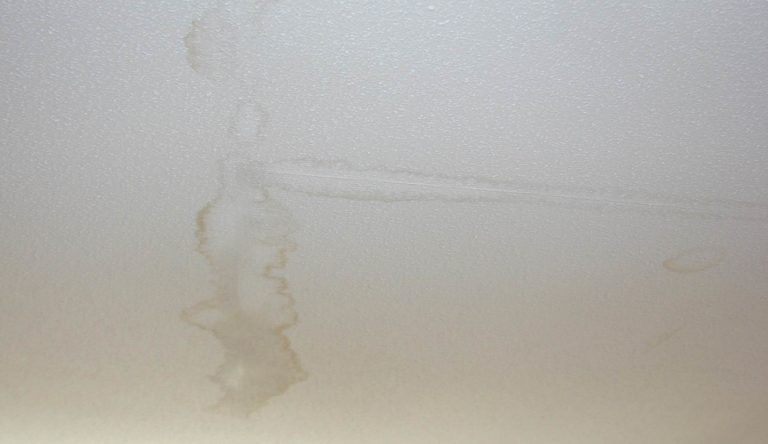
When water leaks occur, it causes unsightly stains on your drywall ceilings and interior surfaces. In severe cases, it can even cause the drywall to crumble and fall apart.

If you’re planning on selling your home or getting an inspection for any other reason, water damage represents a huge home inspection red flag. You will definitely want to complete the repairs beforehand.

The good news is that, with the right knowledge and tools, you can do some water damage restoration on your own. This step-by-step guide will help you accomplish a DIY repair the right way.

Step #1 – Finding the Leak

In some cases, you may notice visible signs of moisture on your ceilings or walls. There may be dripping water, sagging drywall panels or other obvious signs. In other cases, there may just be small water stains on your drywall that get larger over time.

Before you can start any actual repairs, you must find the water leak’s source. Repairs won’t do you any good if the source of the leak remains. Unfortunately, the source of a leak can be quite difficult to find. Water can travel throughout your home and cause damage in unexpected places.

To find a water leak, you should prepare yourself to do some thorough investigation and exploration.

You may need to remove some damaged drywall to help you find the leak. This is where Step #2 comes in.

Step #2 – Removing Damaged Drywall

Before you start prying away at your damaged drywall, you should always consider your safety. If the leak has been there for an extended period of time, there could be a significant amount of mold inside or on-top of the drywall. You should stop and call a professional if a large amount of mold is present.

In cases where there is only a small amount of mold, you can safely remove the drywall as long as you take precautions such as safety goggles, a dust mask and gloves.

Before you begin, place tarps and drop-cloths down to catch the drywall dust and debris that you’ll create during the removal. This will help to protect other interior surfaces and make the clean-up process much easier.

Take a good look at the drywall to determine the severity of the water damage. Drywall will sag or crumble when it is full of water. You can removed all the compromised portions with a wrecking bar, the claw of your hammer or by hand.

If your drywall panels are just stained and not structurally compromised, you may be able to repair them by simply cutting out the stained area. You can use a keyhole saw to cut a rectangular or square-shaped hole around the stains. Then, you can use another drywall piece to patch the opening.

Step #3: Performing the Repairs

If you just need to do a patch repair to replace stained areas of your drywall, start with these mini-steps:

  1. Measure the area of wall that you cut out from the previous step.
  2. Cut a replacement piece of drywall that is 2” longer and wider than those measurements.
  3. Lay your replacement piece on a flat surface (backside up).
  4. Measure 1” from all edges and make a pencil line.
  5. Use a utility knife and a straightedge to cut the backside paper and gypsum material. DO NOT CUT THE FRONT-FACING PAPER LAYER!
  6. Peel away the gypsum and backside layers with a putty knife.

For openings between 6 and 12 inches:

  1. Drill two small holes in your replacement board.
  2. Pull some string through the holes and tie the ends to a stick.
    1. Try to leave about 8 inches of string between the stick and board.
    2. The front of the board is considered the “stick side.”
    3. The stick is used to hold your patch in place.
  3. Carefully twist the stick until it applies pressure to the rear of the replacement board.
  4. Smoothly apply cement adhesive around the edges of the board.
  5. Place the patch into the drywall hole while positioning it so that the adhesive grips the area around the rear of the hole.
  6. Turn the stick in the clockwise direction to increase the pressure and ensure the board holds firmly until the adhesive dries.
  7. After the cement adhesive dries completely, apply joint compound and smooth out the area.
  8. Allow the area to thoroughly dry again, then sand down any high spots.

For openings smaller than 6 inches:

  1. Apply joint compound around the drywall opening.
  2. Insert the patch.
  3. Use a putty knife to work the edge of the paper into the compound.
  4. Feather the compound edges so that it will dry effectively.
  5. Use fine-grit sandpaper to lightly sand the area before applying a second layer of compound to finish.

If you still need help, check this page out to learn more about patching drywall like a pro.

If the water stain on your drywall is over 12 inches, you should consider the total replacement of the panel. Large portions of drywall should always be anchored to the ceiling joists or wall studs.

If the area you remove exposes a joist or stud that will allow you to anchor your patch, you should be fine by doing that. If there is not joist or stud available, replacing the entire panel may be your best option.

Removing an entire sheet:

  1. Remove the drywall panel and drywall screws that anchored the panel to the studs or joists.
  2. Get accurate measurements of the opening.
  3. If your measurements require a custom-sized panel, use a drywall saw or utility knife to cut a patch to fit the opening.
  4. Align the new drywall panel with your studs or joists.
  5. Secure the new panel to the studs or joists with drywall screws.
  6. Apply joint tape at all the exposed seams.
  7. Apply joint compound over the tape with a putty knife.
  8. Allow the compound to dry and then sand down until all the seams are flush with the panels.

Step #4: Priming and Painting

Before you start priming, make sure that the area is well ventilated. Open windows and use fans if necessary.

With a large paintbrush or paint roller, apply interior primer to the entire wall or ceiling surface. After the primer dries, apply the interior paint in square 6-foot sections. Use a continuous pattern of overlapping “W” strokes while you move from right to left and then back to spread evenly. Then use a small paintbrush to fill-in the areas where your roller couldn’t reach.

If necessary, apply another coat on the entire surface.

Water damage restoration can be a long and frustrating process, but following these steps will help you save big money by doing-it-yourself!

Make Your Own Jute Rope Rug

Here’s a guide to making your own quick and easy jute rope rug with a few inexpensive materials. This is a great hour or two weekend project, perfect for a rainy day. Take your time with the glue process and you’ll have a sturdy rug which will last in even a busy corridor or entrance.

If you enjoy this project, here’s a no sew rope basket which can also be made from a scrap piece of natural fire rope.

What You Need To Make Your Own Jute Rope Rug

  • A Piece of Cloth Large Enough to Fit Under the Finished Rug, An Old T-Shirt Works Well
  • Jute/Natural Fibre Rope (14mmx20m) – Buy Here
  • Construction Adhesive – Buy Here
  • Scissors – Buy Here

What You Need For Your Jute Rope Rug

How To Assemble Your Jute Rope Rug

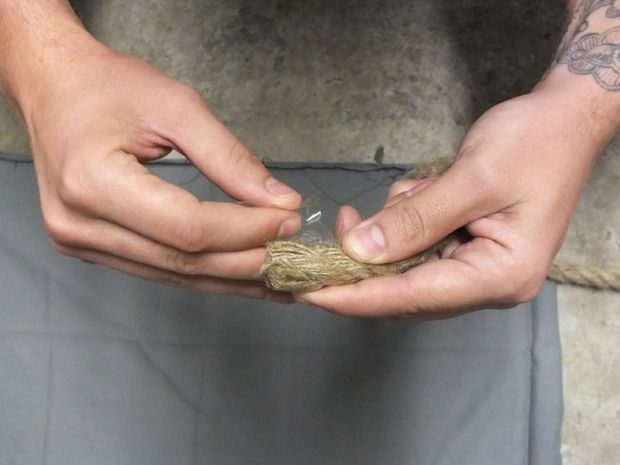
Unravel the ends of the rope carefully and add a bit of adhesive to the inside. Press it together firmly until it is secure. This prevents fraying. Put a lot of glue around the end of the rope, you don’t want it to work loose over time.

End Preparation

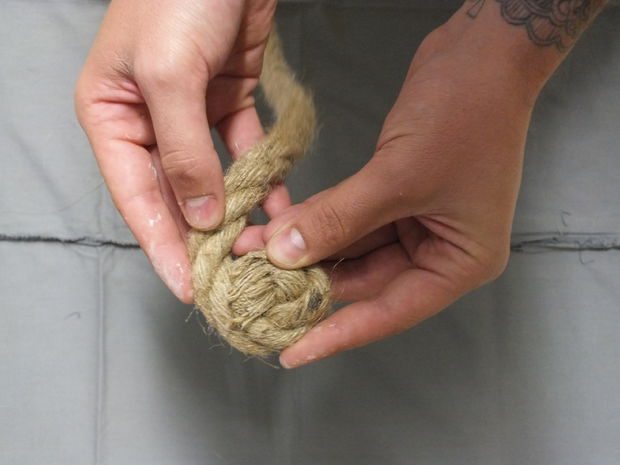
On a large flat surface, place the piece of cloth down. Adhere the one end of the rope tightly to itself.

Starting The Rug

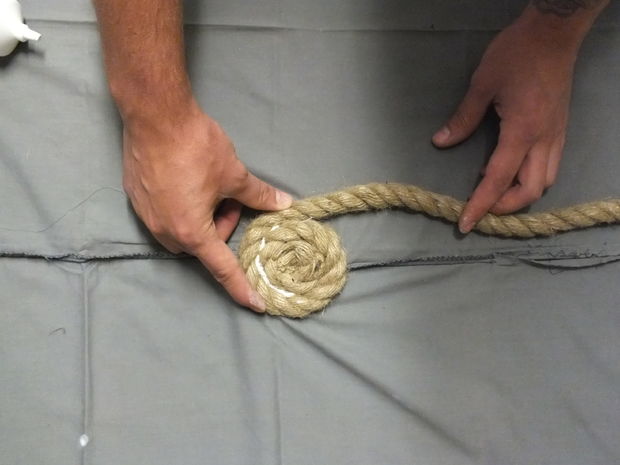
Draw a small spiral with the glue in the centre of the cloth. Press the coiled rope down onto the adhesive.

Glue it Bigger

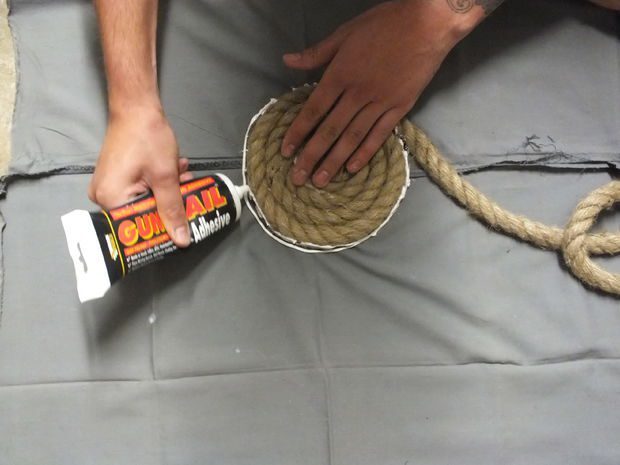
Add adhesive to both the edges of the rope and the cloth as you are coiling the rope up.

Keep Adding GLue And Rolling

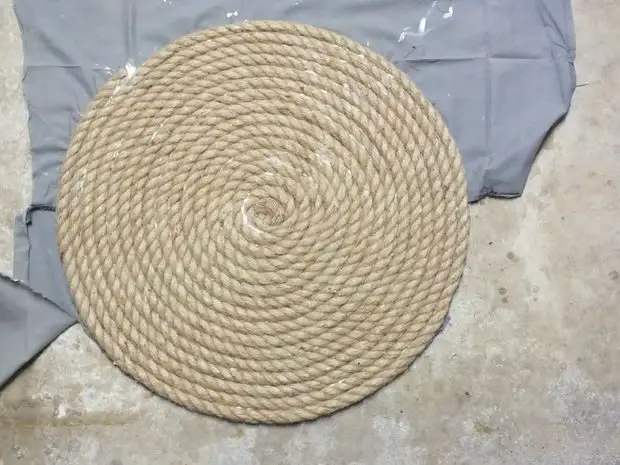
Repeat this process until all of the rope is used up.

Roll To The End

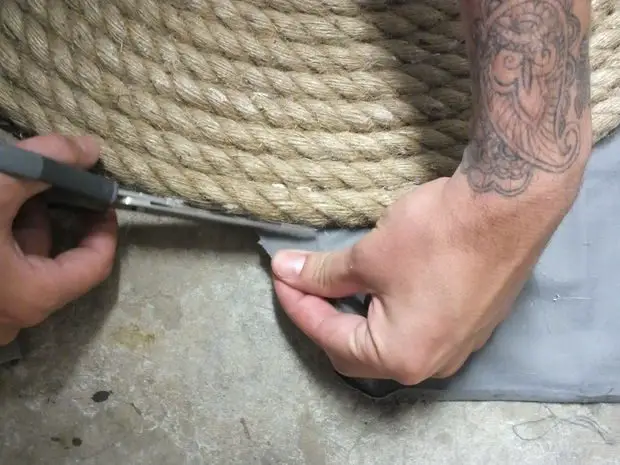
Cut off the excess cloth to finish up the rug and use the adhesive to adhere any loose parts around the edges for a better finish. Allow the glue to dry overnight before using it.

Trim The Excess

Trim The Excess 32

Find a suitable place or person to give this RUGged mat to, it makes the perfect gift.

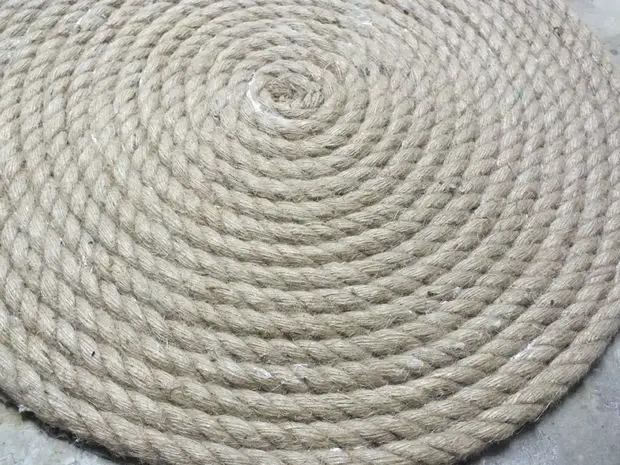
Completed Rug

This post is based on Jute Rope Rug by Emile09080 and has been modified and used under the Creative Commons License CC-BY-NC-SA 2.5.

Have you made your own rug? Let us know in the comments section below.

10 Invasive Plants You Need To Avoid Planting In Your Garden

0

As a garden lover, we know you placed a lot of effort into maintaining and beautifying your garden. Maintaining your luscious green grass, healthy plants, and alluring flowers requires a lot of effort; which is why you must be careful in keeping out invasive and dangerous plants which might destroy the green paradise you have created. Did you know that there are plants which may look pleasing but can actually destroy your garden? Looks can be deceiving, and with these 10 plants this is no exception. In this post, we’ve listed 10 common plants which you need to avoid to keep your garden safe from invasion and damage.

Make your garden more appealing, find out how to attract butterflies to your garden.

invasive creeper

1. Bamboo

Although a bamboo can give your backyard an exotic look, there are measures that you as a gardener need to take to control it. It is in the nature of bamboo to grow and spread rapidly throughout their surroundings. This is what you need to avoid.

If you happen to have bamboo in your backyard, you need to apply plastic or concrete root barriers to prevent its rhizomes from spreading. There are types of bamboo that grow less rapidly and aren’t too invasive. These species include the Bambusa, Borinda, Chusquea, Fargesia and Otatea. The following bamboo types are extremely invasive: Chimonobambusa, Indocalamus, Pleioblastus and Sasa. Of course, if you don’t want to go through the hassle of making barriers then it’s best to avoid planting bamboo.

2. Japanese Stiltgrass

An unstoppable grass that originated from the Eastern part of Asia is the Japanese Stiltgrass. This plant spreads widely and above the ground through seeds and rhizomes. When left unchecked, it creates a grass web trap, causing the other plants around it to starve. Keep in mind that the more you dig the grass out, the more it grows. The reason for this is that the seeds of this plant grow best in loose soil.

3. Purple Loosestrife

It makes sense to grow a purple Loosestrife in your yard as it treats intestinal problems but you need to take a look at the bigger picture. This plant has “Marsh Monster” and “Beautiful Killer” as its nicknames which are already a red flag itself. Purple Loosestrifes invade other vegetation and  can also spread very fast. If you find these grasses growing in your yard, dig it out and burn the remains.

4. Chinese Wisteria

A very pretty looking vine which deceives a lot of homeowners. It has a similar appearance to its cousin the Japanese Wisteria which can grow up at least 2 feet in diameter; making it easier to wrap itself tightly around the trees. This wrapping habit is enough to kill some tree species and other plants. If you are able to find this in your garden, remove it immediately from the trees, arbours, and pergolas; and then spray it with a systemic herbicide for a sure kill.

5. Trumpet Vine

Another nosy plant you must avoid in your garden is the trumpet vine. Also known as the trumpet creeper, it can creep up trees and walls tightly. Removing this plant is also a nightmare since it can send shoots very far from the main plant — making it hard to control. Attempting to cut the vine is just a temporary solution. The best way to get rid of this plant is to firmly dig up its mother plant and shoots to clear it from any blooms.

6. Mint (Mentha)

Everyone uses mint to add flavour to their food; plus the fact that it also smells good. However, mint is actually invasive and can cover your whole garden. Avoid this kind of plant if you do not have enough time to take care of it. You can still grow this plant but be sure to place it in a container and keep it in a sunny window indoors. Keep it away from any other garden plants.

7. Japanese Honeysuckle (Lonicera Japonica)

These vines commonly cover the ground, wetlands, roadsides, and forest floors. It can climb for more than 80 feet. If you want to get rid these in your garden, you can pull it out using a shovel. Destroy all of its remains so that it won’t grow again. Never buy it unless you have plenty of time to trim the vines and avoid it from enveloping your garden and home.

8. English Ivy (Hedera Helix L.)

They grow fast on walls, can reach over your fence, and even cover your ground. It also climbs and chokes your trees. What makes it worse is that it can spread bacterial leaf scorch which is a plant disease that kills maples, oaks, and other native plants.

You can kill English ivy by prying the vines away from the tree or wall. If it is on the ground, you can dump several inches of mulch and leave it there. Many plant lovers love to grow these for decorative purposes; however, they forget how destructive it is because of its rapid growth. Save yourself the trouble and avoid this one in your garden.

9. Belladonna

The common name for this plant is ‘deadly nightshade’ which is a hint that you should stay away from it. Don’t be tricked by its pretty purple flowers and green-rich leaves because it’s actually harmful and toxic. Belladonna has toxic black berries which can be mistaken as an edible fruit by your kids or pets.

10. Mimosa Tree

It’s easy for homeowners to find this tree aesthetically pleasing due to its plumed fern leaves and pink flowers, but you should really think twice if you’re considering to plant this tree in your garden. The mimosa tree is very invasive and can easily spread its seedlings not only in your garden but to your neighbours as well.

If you have any of these plants mentioned, its best to start avoiding them. You should also be vigilant with the plants already growing in your garden.

If you’re looking for alternatives for these plants, have a look at these six plants which naturally repel mosquitoes.

Visit www.drdripplumbing.com.au for more information blogs on home improvement and plumbing.

Make Your DIY Work Easier With 7 Power Tools

One of the many reasons why DIY is widely favored nowadays is because of convenience. Without the actual aid of experts and professionals, anyone could finish a project such as building, repairing and reconstructing. But, DIY projects do not only focus on these aspects. There are quite a lot more that you could do with DIY.

Accordingly, executing these projects requires the use of certain tools. These tools, however, need not be in full sight. While completing your set can be very beneficial on your end, there are only specific tools that you need to get you going. These are what is known to be the power tools of today since almost all DIY projects can be easily done with the use of these things.

1. Nail Gun

When you are working with metals and woods, the first power tool that you will be needing is a nail gun. Framing together sides and parts of your materials entail the use of nails. Now, having a nail gun in your toolbox will certainly make your job a lot easier.

Aside from being handy and portable, you can easily achieve a precise nail work with a nail gun. In addition, you will save a lot of time and effort by simply having a nail gun to do the nail work for you.

2. Paint Sprayer

DIY projects always have something to do with painting works. If you are really that good and confident in handling paints and brushes, then you could do the job manually. However, it is seen that a painting work would be much easier and convenient when you utilize paint sprayers. Moreover, paint sprayers can help you arrive at a very neat and flat painting job. Hence, having a good paint sprayer in your DIY toolbox is an advantage on your end.

3. Miter Saw

If most of your DIY projects will require cutting of raw materials, especially wood – then a miter saw is a great tool to obtain. This power tool can accurately cut pieces of any raw material. In the recent times, it is considered to be one of the greatest hacks of many carpenters due to its efficiency of cutting wood.

Consequently, this is also the reason why the availability of miter saw in the market today is quite apparent. Perhaps a top miter-saw buying guide will help you locate the most appropriate one for your unique needs and projects.

4. Cordless Drill

A cordless power drill is the most frequently-used tool in almost all DIY projects. Alongside the convenience and portability of being a cordless equipment, power drills are very much efficient in drilling holes to different kinds of materials.

While it is quite pricey than a corded type, a cordless drill will help you save much time and effort with your DIY projects.

5. Circular Saw

There are times that you will deal certain materials that are difficult to cut. Metals especially lumber are a real challenge to manage which is why circular saws are highly recommended to be a must-have power tool. Although a circular saw pretty much does the same job as what a miter saw would do, the design, output, and type of cut are the things that set a circular saw apart from a miter saw.

It would bereally time efficient if you have a circular saw when you are doing DIY projects.

6. Band Saw

DIY projects that usually deal with smaller pieces of wood are used with aband saw. A band saw is pretty much similar to atable saw. The only difference is that band saws are much better to utilize when dealing smaller pieces of wood. In addition, this saw is typically used to cut materials in the middle if you want equal sizes of materials.

7. Sander

Before you reach the painting job in a DIY project, sanding your subject is usually required for a smooth finish. Imagine painting a material with uneven surfaces and edges, certainly, it won’t come out as a very astonishing product. (not unless of course if it is done on purpose!) Hence, a sander is highly recommended if you are to smoothen the surfaces of your product.

In conclusion, having these power tools will enable you to finish DIY projects in no time. While other DIY projects may require additional tools and equipment, owning these 7 tools will help you save much time and effort.

If you found this article useful, have a look at these 10 Essential Tools For Beginner DIY’ers, or transform your workshop with these 5 projects.

Make Your Own Gravity Defying Levitating Top

Make your own gravity defying levitating top using some magnets and some common household items.  This is a nice quick weekend project and is great for science projects on magnetism.

What You’ll Need To Make Your Own Levitating Top

  • 13 1/2″ x 1/8″ Grade N52 Disc Neodymium Magnets
  • 1 3/4″ OD x 3/8″ ID x 1/8″ Thick Ring Grade N52 Magnet
  • 4″ (100mm) Square Piece of Wood At Least 1/4″ (6mm) Thick
  • 1/2″ Forstner Drill Bit
  • Pencil
  • Electrical Tape
  • Plastic or Brass Washers
  • 4″ (100mm) Square Plastic or Cardboard Sheet

How To Make Your Own Levitating Top

Make The Magnet Ring Base

You’ll need a nice and sturdy 4″ square piece of wood. If you’re using a scrap piece of wood, use a handheld or electric saw to cut a 4″ (100mm) square from it.

cut a 4 inch square from the wood

The disc magnets are going to be arranged in a perfect circle on one side of the wood. You can either measure out and mark the wood or print out the diagram below and trace the markings through the paper.

magnet layout drawing

If you’re tracing out the layout, make sure that the scale you’ve printed aligns with the scale on the ruler shown in the diagram. If you have one, use a center punch to mark out the centers of the circles, this makes it easier to drill in the correct place.

use a center punch to mark the circles

Now you can drill out the holes. Use the 1/2″ forstner drill bit to create a nice flat bottomed hole. Drill the hole as deep as possible into the wood without breaking through the other side, make sure they are all consistent. The holes side of the wood is going to be the bottom of the base.

drill out the holes

Once you have drilled all of the holes, you can insert the magnets. You want all of the magnets to be facing in the same direction, with the north pole face down in the hole.  Use a small marked magnet to help you determine which is the north pole, the north pole of a magnet will be attracted to the south pole of another magnet. Press each magnet in using a dowel or pencil.

add the magnets

Make The Top

Cut a pencil down to around 1 1/2″ (40mm) length, keeping the sharp end as the tip of the top. Wrap some electrical tape around the pencil to increase the diameter until the ring magnet fits snugly around the pencil. The north pole must be facing down – towards the tip of the pencil.

make the top

Finally, add some plastic or brass washers on top of the magnet to increase the weight of the top.

Test It Out

Cut out a piece of plastic or cardboard to create the spinning surface. You’ll place this surface on top of the base, spin the top on it and then raise it up to get the top into the “sweet spot”.

test out the levitating top

This is really tricky and can be frustrating to get right. There are a few factors which come in to get your top spinning correctly.

  • The base needs to be perfectly level. Use post it notes to jack up the sides of the base to level it if the top keeps falling to one side.
  • Play around with the weight added to the top until it stays in the sweet spot. If the top flies off straight away, it needs more weight. If the top doesn’t lift off the plate then it is probably too heavy.

Check out this video to see how it works:

Interested in how/why this top works? Check out this blog article.

This post is based on Levitating Top by KJMagnetics and has been adapted and used under the Creative Commons 2.5 license: CC-BY-NC-SA.

Have you made your own levitating top? Let us know in the comments section below!


How To Replace An iPhone 6 Battery

Here’s a full guide to replacing the battery in an iPhone 6. This works for batteries which have failed due to overcharging, through over use or those which have just swollen up over time, like the one in the video. You can save a lot of money by doing this easy and relatively quick repair at home by buying your own inexpensive replacement parts and tools, linked to below. The replacement battery costs between $10 and $20 and you can get the toolkit for a further $5 to $15.

If you’ve shattered you iPhone screen, here’s our guide to replacing the screen on an iPhone 6 or 6s.

What You Need To Replace Your iPhone 6 Battery

The iPhone 6s is very similar internally to the iPhone 6 and this guide can be used for both models.

  • iPhone 6s Replacement Battery – Buy Here

How To Replace Your iPhone Battery

Find yourself a nice, flat desk or counter to work on as you’ll need a bit of space to lay out the components as you take them out. Make sure to keep track of each screw as you’re taking them out as they are different lengths and sizes and you don’t want to damage components by putting long screws in the wrong place. It helps to draw a small sketch of the components and place each screw on the sketch as you remove them, this way you’ll always remember which one goes where.

The battery is held in place with a really strong double sided tape. Gently heating up the back of the iPhone case with a hair dryer or heater softens the adhesive a bit and makes it easier to remove. Be careful not to damage any of the ribbon cables for the side buttons near the top of the phone when you are prying underneath the battery.

Good luck and enjoy the repair. If you found this video helpful, please like it and subscribe to my channel for more tech videos.

Build Your Own Arduino On A Breadboard

Within a few minutes you could have a fully functional Arduino platform running from a breadboard. This is the perfect project for testing out new ideas and adding your own functionality to an Arduino board. Plus it looks neat with all the components laid out on the breadboard.

Arduino is an open-source electronics prototyping platform based on flexible, easy-to-use hardware and software. It’s intended for artists, designers, hobbyists, and anyone interested in creating interactive objects or environments.

Arduino can sense the environment by receiving input from a variety of sensors and can affect its surroundings by controlling lights, motors, and other actuators. The microcontroller on the board is programmed using the Arduino programming language (based on Wiring) and the Arduino development environment (based on Processing). Arduino projects can be stand-alone or they can communicate with software on running on a computer (e.g. Flash, Processing, MaxMSP. [1] www.arduino.cc

With a few inexpensive parts and a solderless breadboard you can quickly and easily build your own Arduino. This concept works great when you want to prototype a new design idea, or you don’t want to tear apart your design each time you need your Arduino.

If you are wanting to design and build your own Arduino PCB, we suggest reading our post on Building your own Xduino as this covers more of the PCB design and component selection side of the project.

What You’ll Need To Build Your Own Arduino On A Breadboard

Atmel Atmega168 Chip – Buy Here

Breadboard (440 or 840 Tie Point) – Buy Here

22 AWG Wire (Various Colours Help) – Buy Here

7805 Voltage Regulator – Buy Here

2 x 5mm LEDs (Any Colour) – Buy Here

2 x 220Ω 1/4 Watt Resistors – Buy Here

10K 1/4 Watt Resistor – Buy Here

2 x 10uF Capacitors – Buy Here

16 MHz Clock Crystal – Buy Here

2 x 22pF Capacitors – Buy Here

Small Momentary Tact Switch – Buy Here

1 Row Male Header Pins – Buy Here

TTL-232R-3V3 USB to Serial Converter Cable – Buy Here

How To Build Your Own Arduino On A Breadboard

Before we get started, make sure you have all the necessary items in the component list box.

Assemble The Components

Power Circuit

The first thing you need to do is set up power. With this step, you will be setting the breadboard Arduino up for constant +5Volts power using a 7805 voltage regulator.

building your own arduino - power layout

In order for the voltage regulator to work, you need to provide more than 5V power. A typical 9V battery with a snap connector would work just fine for this.

Power is going to come into the breadboard where you see the red and black + and – squares. Then add one of the 10uF capacitors. The longer leg is the Anode (Positive) and the shorter leg is the Cathode (Negative). Most capacitors are also marked with a stripe down the negative side.

Across the empty space on the breadboard (the channel) you will need to place two hook-up wires for positive (red) and ground (black) to jump power from one side of the breadboard to the other.

Now add the 7805 voltage regulator. The 7805 has three legs. If you are looking at it from the front, the left leg is for voltage in (Vin) the middle leg is for ground (GND) and the third leg is for voltage out (Vout). Make sure the left leg is lined up with your positive power in, and the second pin to ground.

Coming out of the voltage regulator and going to the power rail on the side of the breadboard you need to add a GND wire to the ground rail and then the Vout wire (3rd leg of the voltage regulator) to the positive rail. Add the second 10uF capacitor to the power rail. Paying attention to the Positive and Negative sides.

It’s a good idea to include an LED status indicator which can be used for troubleshooting. To do this you need to connect the right side power rail with the left power rail. Add positive to positive and negative to negative wires at the bottom of your breadboard.

For the LED status indicator, connect a 220& resistor (colored as: red, red, brown) from power to the anode of the LED (positive side, longer leg) and then a GND wire to the cathode side.

Congratulations, now your breadboard is set up for +5V power. You can move onto the next step in the circuit design.

Arduino Pin Mapping

arduino pin mapping

Now we want to prepare the ATmega168 or 328 chip. Before we begin, let’s take a look at what each pin on the chip does in relationship to the Arduino functions. NOTE: The ATmega328 runs pretty much the same speed, with same pinout, but features more than twice the flash memory (30k vs 14k) and twice the EEPROM (1Kb vs 512b).

The ATmega168 chip is created by Atmel. If you look up the datasheet you won’t find that the above references are the same. This is because the Arduino has its own functions for these pins, and I have provided them only on this illustration. If you would like to compare or need to know the actual references for the chip, you can download a copy of the datasheet at www.atmel.com. Now that you know the layout of the pins, we can start hooking up the rest of the components.

Supporting Components

To start, we will build the supporting circuitry for one side of the chip and then move on to the other side. Pin one on most chips has an identifier marker. Looking at the ATmega168 or 328 you will notice a u-shaped notch at the top as well as a small dot. The small dot indicates that this is pin 1.

Supporting circuitry pins 1-14

Arduino supporting components side 2

Above the ATmega168 chip near the pin 1 identifier, place the small tact switch. This switch is used for resetting the Arduino. Right before you upload a new sketch to the chip you will want to press this once. Now add a small jumper wire from pin 1 to the bottom leg of the switch then add the 10K resistor from power to the pin 1 row on the breadboard. Finally add a GND jumper wire to the top leg of the switch.

Add power and GND jumpers to pin 7(VCC) and pin 8 (GND). Add the 16MHz clock crystal to pin 9 and 10 and then the two .22pF capacitors from pins 9 and 10 to GND. (See note below for alternative method).

Your basic breadboard arduino is now complete. You could stop right here if you wanted to and swap an already programmed chip from your Arduino board to the breadboard, but since you came this far, you might as well finish off by adding some programming pins. This will allow you to program the chip from the breadboard.

NOTE: Instead of using the 16MHz clock crystal, you can use a 16 MHz ceramic resonator with built-in capacitors, three-terminal SIP package. You will have to arrange your breadboard a little differently, the resonator has three legs. The middle leg will go to ground and the other two legs will go to pins 9 & 10 on the ATmega168 chip.

Referring to Figure 1-7, locate a spot where you have 6 columns on the breadboard that are not in contact with anything else. Place a row of six male header pins here.

With the breadboard facing you, the connections are as follows:
GND, NC, 5V, TX, RX, NC, I am also calling these pins 1,2,3,4,5,6. From your power bus rail, add the GND wire to pin 1 and a wire from power for pin 3. NC means not connected, but you can connect these to GND if you want to.

From pin 2 on the ATmega168 chip, which is the Arduino RX pin, you will connect a wire to pin 4 (TX) of your programming headers. On the ATmega168 chip, pin 3 Arduino TX gets connected to pin 5 (RX) on your header pins.

The communication looks like this: ATmega168 RX to Header Pin TX, and ATmega168 TX to Header Pin RX.

Supporting circuitry pins 15-28

Arduino supporting components side 1

From the GND power bus, add a jumper wire to pin 22. Next, from the positive power bus, add jumper wires to pin 20 (AVCC – Supply voltage for the ADC converter. Needs to be connected to power if ADC isn’t being used and to power via a low-pass filter if it is (a low pass filter is a circuit that cleans out noise from the power source, we aren’t using one)
Then add a jumper wire from the positive bus to pin 21 (Analog reference pin for ADC).

On the Arduino, pin 13 is the LED pin. Note that on the actual chip the pin is number 19. When uploading your sketch code and for all projects you will still reference this as Pin 13.

To hook up the LED, add a 220& resistor from GND to the cathode of the LED. Then from the anode of the LED add a jumper wire to pin 19.

The Complete Breadboard

building your own arduino - breadboard layout

Now you can program your breadboard Arduino.

Programming Your Arduino

Double check your connections, make sure your 9V battery is not connected and hook up your programming option. Open up the Arduino IDE and in the Example sketch files, under Digital, load the Blink sketch.

If you are new to using and programming an Arduino, read through our guide on Programming Your Arduino For The First Time.

programming your Arduino

Under the file option Serial Port, select the COM port that you are using with your USB cable. i.e. COM1, COM9, etc.

Under the file option Tools/Board, select either:
Arduino Duemilanove w/ATmega328
Arduino Decimila, Duemilanove or Nano w/ATmega128
(depending on which chip you are using with your breadboard Arduino)

Now press the upload icon and then hit the reset button on your breadboard. If you are using one of the SparkFun breakout boards, you will see the RX and TX lights blink. This lets you know that the data is being sent. Sometimes you need to wait a few seconds after pressing the upload button before pressing the reset switch. If you have trouble, just experiment a little with how fast you go between the two.
This sketch if uploaded properly will blink the LED on pin 13 on for one second, off for one second, on for one second… until you either upload a new sketch or turn off the power.

Once you have uploaded the code, you can disconnect the programming board and use your 9V battery for power.

Troubleshooting

  • No Power – Make sure your source power is above 5V.
  • Power but nothing works – recheck all your connection points.
  • Uploading error – Refer to www.arduino.cc and do a search on the particular error message you receive. Also check the forums as there is a lot of great help there.

Build Your Arduino Onto A PCB

Once you’ve got your Arduino board up and running on a breadboard, you may want to try and turn it into a PCB. If anyone is interested in etching their own PCB (printed circuit board) I have included the component and solder side pcb files.

PCB component side

Homemade Arduino PCB Files

I have added a zip file which contains 300dpi JPG files of the component side and solder side.

Hope you’ve enjoyed this post, let us know if you’ve tried to build your own Arduino in the comments section below.

This post has been adapted from Build Your Own Arduino by ArduinoFun and have been modified and used under the Creative Commons License CC-BY-SA.

Simple 3 Phase Arduino Energy Meter With Ethernet Connection

One of our readers, Filip Ledoux, built his own 3 phase energy meter which is based on our original Simple 3 Phase Arduino Energy Meter. He however took the project one step further and integrated an Ethernet connection to enable the data to be seen via a web server. He also used a slightly larger 4×20 character display.

I’m not going to repeat the entire Energy Meter build here, if you’d like detailed instructions on how to build a 3 phase energy meter, visit the original article linked to above. I am rather going to highlight the equipment he has used, the changes and additions to the hardware and the program/sketch he has written.

Thanks again to Filip Ledoux for sharing his code and photos of his build with us! It is greatly appreciated!

What You Will Need To Build A 3 Phase Energy Meter With Ethernet Connection

  • An Arduino (Uno used in this guide) – Buy Here
  • 4×20 Serial LCD Display – Buy Here
  • Arduino Ethernet Shield – Buy Here
  • 3 x SCT-013-000 Current Transformers – Buy Here
  • 3 x 56Ω Burden Resistors – Buy Here
  • 3 x 10µF Capacitors – Buy Here
  • 6 x 100K Divider Resistors – Buy Here

How To Make The Energy Meter

There are essentially three elements to this project which you will need to assemble, the LCD screen, the Ethernet shield and finally the current sensors.

The Ethernet shield simply plugs into the Arduino board and picks up on the pins required through the pin headers.

The LCD screen can be mounted onto a board or breadboard. Filip has built a neat box around his Arduino and Ethernet shield with a panel on the front on which the LCD screen is mounted. The LCD screen is driven using the Arduino’s built in library and can be connected by following this guide – connecting and LCD screen to an Arduino. The LCD screen used here is slightly different as it is a larger, serial screen but the principle remains the same. You’ll also have to pick up on the pins which are not being used by the Ethernet shield.

Finally, you’ll need to add your burden resistor and voltage divider circuits to your current sensors.

The basic circuit for the connection of the CTs to the Arduino is shown below:

3 phase energy meter circuit diagram

Once you have connected all of your components, you need to connect your sensors onto the supply you want to monitor. For connection to a typical 3 phase mains supply, connect one CT around each of the phases as shown below.

3 phase energy meter connection diagram

NB – Be careful when connecting the CTs to your mains and make sure that the power to your board is switched off before doing anything in the mains box. Do not remove any wires or remove any screws before checking your local regulations with your local authority, you may require a certified electrician to install the CT for you.

If you’d like to measure a larger or smaller amount of power more accurately, you’ll need to select different CTs. There is a detailed guide to selecting different CTs and their associated burden resistors in the original post.

Upload the Sketch

Now you can upload your sketch onto your Arduino, if you haven’t uploaded a sketch before then follow this guide on getting started.

//Michael Klements
//The DIY Life
//26 February 2017
//7 September 2017 Modified by Filip Ledoux
//V2.2
//Serial Display 20x4
//Ethernet 

#include <Wire.h>
#include <LiquidCrystal_PCF8574.h>
#include <EEPROM.h>
#include <SPI.h>
#include <Ethernet.h>

LiquidCrystal_PCF8574 lcd(0x27);        // set the LCD address to 0x27 for a 16 chars and 2 line display

int show;

int currentPins[3] = {1,2,3};          //Assign phase CT inputs to analog pins
double calib[3] = {335.0,335.0,335.0};
double kilos[3];
unsigned long startMillis[3];
unsigned long endMillis[3];
double RMSCurrent[3];
int RMSPower[3];
int peakPower[3];

// Enter a MAC address and IP address for your controller below.
// The IP address will be dependent on your local network:
byte mac[] = { 0xDE, 0xAD, 0xBE, 0xEF, 0xFE, 0xEB };
IPAddress ip(192,168,1,12);
IPAddress gateway(192,168,1,1);
IPAddress subnet(255, 255, 255, 0);

// Initialize the Ethernet server library with the IP address and port you want to use (port 80 is default for HTTP):
EthernetServer server(80);

void setup() 
{ 
  Serial.begin (9600);         // set the serial monitor tx and rx speed
  EEPROM.read (1);             // make the eeprom or atmega328 memory address 1

  // start the Ethernet connection and the server:  
  Ethernet.begin(mac, ip, gateway, subnet);
  server.begin();
  Serial.print("server is at ");
  Serial.println(Ethernet.localIP());
    
  int error;
  
  lcd.begin(20, 4);          // initialize the lcd
  show = 0;

  lcd.clear();
  lcd.setBacklight(255);
  lcd.home();
  lcd.setCursor(0,0);         // set cursor to column 0, row 0 
  lcd.print("3 Phase");
  lcd.setCursor(0,1);
  lcd.print("Energy Meter");
  lcd.setCursor(0,2);
  lcd.print("IP");
  lcd.setCursor(3,2);
  lcd.print(Ethernet.localIP());
  lcd.setCursor(0,3);
  lcd.print("V2.2");
  delay(2000);
}

void readPhase ()      //Method to read information from CTs
{
  for(int i=0;i<=2;i++)
  {
    int current = 0;
    int maxCurrent = 0;
    int minCurrent = 1000;
    for (int j=0 ; j<=200 ; j++)  //Monitors and logs the current input for 200 cycles to determine max and min current
    {
      current =  analogRead(currentPins[i]);  //Reads current input and records maximum and minimum current
      if(current >= maxCurrent)
        maxCurrent = current;
      else if(current <= minCurrent)
        minCurrent = current;
    }
    if (maxCurrent <= 517)
    {
      maxCurrent = 516;
    }
    RMSCurrent[i] = ((maxCurrent - 516)*0.707)/calib[i];    //Calculates RMS current based on maximum value and scales according to calibration
    RMSPower[i] = 235*RMSCurrent[i];    //Calculates RMS Power Assuming Voltage 220VAC, change to 110VAC accordingly
    if (RMSPower[i] > peakPower[i])
    {
      peakPower[i] = RMSPower[i];
    }
    endMillis[i]= millis();
    unsigned long time = (endMillis[i] - startMillis[i]);
    kilos[i] = kilos[i] + (RMSPower[i] * (time/60/60/1000000));    //Calculate kilowatt hours used
    startMillis[i]= millis();
  }
}

void loop() //Calls the methods to read values from CTs and changes display
{
  readPhase();
  displayKilowattHours ();
  delay(3000);
  readPhase();
  displayCurrent ();
  delay(3000);
  readPhase();
  displayRMSPower ();
  delay(3000);
  readPhase();
  displayPeakPower ();
  delay(3000);
}

void displayKilowattHours ()	//Displays all kilowatt hours data
{
  lcd.clear();
    lcd.setCursor(0,0);
    lcd.print("L1->");  
  lcd.setCursor(5,0);
  lcd.print(kilos[0]);
  lcd.print("kWh");
    lcd.setCursor(0,1);
    lcd.print("L2->");
  lcd.setCursor(5,1);
  lcd.print(kilos[1]);
  lcd.print("kWh");
    lcd.setCursor(0,2);
    lcd.print("L3->");
  lcd.setCursor(5,2);
  lcd.print(kilos[2]);
  lcd.print("kWh");
  lcd.setCursor(5,3);
  lcd.print("Energy");
}

void displayCurrent ()	//Displays all current data
{
  lcd.clear();
    lcd.setCursor(0,0);
    lcd.print("L1->"); 
  lcd.setCursor(5,0);
  lcd.print(RMSCurrent[0]);
  lcd.print("A");
    lcd.setCursor(0,1);
    lcd.print("L2->");
  lcd.setCursor(5,1);
  lcd.print(RMSCurrent[1]);
  lcd.print("A");
    lcd.setCursor(0,2);
    lcd.print("L3->");
  lcd.setCursor(5,2);
  lcd.print(RMSCurrent[2]);
  lcd.print("A");
  lcd.setCursor(5,3);
  lcd.print("Current");
}

void displayRMSPower ()	//Displays all RMS power data
{
  lcd.clear();
    lcd.setCursor(0,0);
    lcd.print("L1->");
  lcd.setCursor(5,0);
  lcd.print(RMSPower[0]);
  lcd.print("W");
    lcd.setCursor(0,1);
    lcd.print("L2->");
  lcd.setCursor(5,1);
  lcd.print(RMSPower[1]);
  lcd.print("W");
     lcd.setCursor(0,2);
    lcd.print("L3->");
  lcd.setCursor(5,2);
  lcd.print(RMSPower[2]);
  lcd.print("W");
  lcd.setCursor(5,3);
  lcd.print("Power");
}

void displayPeakPower ()   //Displays all peak power data
{
  lcd.clear();
    lcd.setCursor(0,0);
    lcd.print("L1->");
  lcd.setCursor(5,0);
  lcd.print(peakPower[0]);
  lcd.print("W");
    lcd.setCursor(0,1);
    lcd.print("L2->");
  lcd.setCursor(5,1);
  lcd.print(peakPower[1]);
  lcd.print("W");
    lcd.setCursor(0,2);
    lcd.print("L3->");
  lcd.setCursor(5,2);
  lcd.print(peakPower[2]);
  lcd.print("W");
  lcd.setCursor(5,3);
  lcd.print("Max Power");

 // listen for incoming clients
EthernetClient client = server.available();
  if (client) {
    Serial.println("new client");
    // an http request ends with a blank line
    boolean currentLineIsBlank = true;
    while (client.connected()) {
      if (client.available()) {
        char c = client.read();

     Serial.write(c);
        // if you've gotten to the end of the line (received a newline
        // character) and the line is blank, the http request has ended,
        // so you can send a reply
        if (c == '\n' && currentLineIsBlank) {

              
          // send a standard http response header
          client.println("HTTP/1.1 200 OK");
          client.println("Content-Type: text/html");
          client.println();
          client.println("<HTML>");
          client.println("<HEAD>");
          client.print("<meta http-equiv=\"refresh\" content=\"2\">");//refresh page every 2 sec
          client.print("<TITLE />Zoomkat's meta-refresh test</title>");
          client.println();
          client.println("<!DOCTYPE HTML>");
          client.println("<html>");
          //client.println("<FONT SIZE=12>");
          client.println("<BODY TEXT=black BGCOLOR=white>");
          client.println("<b>""Energy Display""</b>");
          client.println("<hr />");


          client.println("<mark>""RMS current:""</mark>");
          client.println("<p>");
          client.println("<b>""L1:""</b>");
          client.println( RMSCurrent[0]);
          client.println("<p>");
          client.println("<b>""L2:""</b>");          
          client.println( RMSCurrent[1]);
          client.println("<p>");
          client.println("<b>""L3:""</b>");
          client.println( RMSCurrent[2]);
          client.println("<hr />");
          
          client.println("<mark>""KWH:""</mark>");
            client.println("<p>");
          client.println("<b>""L1:""</b>");
          client.println( kilos[0]);
          client.println("<p>");
          client.println("<b>""L2:""</b>");
          client.println( kilos[1]);
            client.println("<p>");
          client.println("<b>""L3:""</b>");
          client.println( kilos[2]);
          client.println("<hr />");

          client.println("<mark>""RMS power:""</mark>");
            client.println("<p>");
           client.println("<b>""L1:""</b>");
          client.println( RMSPower[0]);
          client.println("<p>");
          client.println("<b>""L2:""</b>");
          client.println( RMSPower[1]);
            client.println("<p>");
          client.println("<b>""L3:""</b>");
          client.println( RMSPower[2]);
          client.println("<hr />");

          client.println("<mark>""MAX power:""</mark>");
            client.println("<p>");
           client.println("<b>""L1:""</b>");
          client.println( peakPower[0]);
          client.println("<p>");
          client.println("<b>""L2:""</b>");
          client.println( peakPower[1]);
            client.println("<p>");
          client.println("<b>""L3:""</b>");
          client.println( peakPower[2]);
          client.println("<hr />");


   // give the web browser time to receive the data
   delay(100);
// close the connection:
   client.stop();
Serial.println("client disconnected");
       
      }
    }
  }
    }
}

Here is the link to download the code – EnergyMonitorEthernet

In order to get the Ethernet portion working for your meter, you’ll need to put in the mac address and IP address for your controller in lines 30-33. The mac address can in some cases be made up and in other cases will be printed on a sticker on the board, it depends on the manufacturer of your Ethernet shield. The IP addresses and port will depend on your local network. If you are unfamiliar with using an Ethernet shield with an Arduino board, have a look at this guide on how to set up an Ethernet connection on an Arduino.
Because your setup, CTs , resistors and input voltages may be different, there are scaling factors in the sketch which will need to be adjusted until you get the correct results. These values are stored in an array in line 20 – double calib[3] = {335.0,335.0,335.0}. If everything is connected correctly, at this point you should at least get some figures displayed on the screen although they will most likely be incorrect and some may be negative.

Calibrate the Current Reading

As mentioned above, because your setup, CTs , resistors and input voltages may be different, there is a scaling factor in the sketch for each CT which you will need to change before you will get accurate results.

To calibrate your energy meter, you need to be sure that the current that your meter says is being drawn on each phase is what you expect is actually being drawn. In order to do this accurately, you need to find a calibrated load. These are not easy to come by in a normal household so you will need to find something which uses an established and consistent amount of power. I used a couple of incandescent light bulbs and spot lights, these come in a range of sizes and their consumption is fairly close to what is stated on the label, ie a 100W light bulb uses very close to 100W of real power as it is almost entirely a purely resistive load.

Plug in a small light bulb (100W or so) on each phase and see what load is displayed. You will now need to adjust the scaling factors defined in line 20 accordingly:

double calib[3] = {335.0,335.0,335.0}

In this case 335.0 for phase 1, 335.0 for phase 2 and 335.0 for phase 3 have been used as a starting point. They may be higher or lower depending on your application. Either use linear scaling to calculate this figure or, if you’re not good with math, play around with different values until the load you have plugged in is shown on the energy meter’s screen.

The Energy Meter In Operation

Once you have your energy meter calibrated and the scaling factors have been uploaded onto the Ardunio, your meter should be ready to connect and leave to monitor your energy consumption. Here are some photos of Filips completed energy meter in operation.

Simple 3 Phase Arduino Energy Meter kWh Screen

Simple 3 Phase Arduino Energy Meter

Simple 3 Phase Arduino Energy Meter Total Power Screen

How did this project go for you? What have you used it to monitor? If you have any questions or would like to share your build of this three phase energy meter, please post a comment below or send a mail using the contact form.

How To Make Your Own Xduino Board

This guide takes you through all of the steps required to make your own Xduino board for your own custom projects. I had a project which required an Arduino board to control four servos. I considered using the Seeeduino Lotus because it had a number of Grove ports and I thought it might be convenient for my servo project. Unfortunately, there were a two major problems with using the Seeeduino Lotus:

  • The servos draw too much current from the board’s power supply which caused the board to reboot unexpectedly.
  • The cabling to the servos was a mess as the three pins on each servo had to be wired to different places on the board.

I therefore decided to build my own Arduino board for the project. I decided to call it Servoduino since it would be primarily used to control servos. The board would have the following features:

  • Arduino compatible and easy to program
  • Direct plug in for 8 servos
  • A strong enough power supply to drive the 8 connected servos

Initially, it seemed difficult and expensive to build my own Arduino board, but then I found out about Seed Fusion. They offer PCB and PCBA manufacturing and fabrication which is affordable, quick and of good quality.

Steps To Building Your Xduino

  • List Features Required By Your Xduino
  • Select Components
  • Draw Up A Schematic
  • Design The Component Layout
  • Manufacture The PCB and do PCBA
  • Upload The Bootloader
  • Upload The Servo Control Code

List the Features Required by your Xduino

To start with, you need to know what you’d like your Xduino to be able to do. You need to list the interfaces, number and type of inputs and outputs etc. Here is a list of the requirements for my Servoduino.

  • Arduino Compatible & Easy To Program
  • 8 Servo Connectors – 3 Pins Each
  • A Power Supply Sufficient For 8 Servos
  • 9-12V Input Power
  • Micro USB Programming

Selecting Components

Once you’ve decided on what you’d like your Xduino board to be able to do, you’ll need to choose your major components in order to enable this. The most important part of any Xrduino board is the MCU. For this, I have chosen to use the ATmega328P chip. For the USB to UART part, we commonly use the ATmega16u2 chip. Finally, for the power supply, we will need a strong DC-DC supply chip. I’ve chosen to use the MP1496DJ-LF-2 chip which is able to produce 2A current with a 4.5V-16V input voltage.

Draw Up A Schematic

For the schematic design, I’ve chosen to use Autodesk EAGLE. There are a large number of open source hardware projects which have been designed using EAGLE, it’s easy to use and the free version has enough functionality to suite most people’s requirements. You can download a free version of Autodesk EAGLE here.

If you have not used EAGLE before, then here is a nice guide to get started.

Thanks to the open source EAGLE platform, I don’t have to design the board from scratch, I can choose a similar design and modify it to suite my requirements. I decided to design my Servoduino based on Seeeduino v4.2, which also has an ATmega328P and ATmega16u2 chip and is more stable than the Arduino UNO R3. I downloaded the schematic for the Seeeduino v4.2 from Seeed’s Wiki.

I opened the schematic and found that I didn’t have to change too many things.

Seeeduino Board Schematic

Firstly, I needed to add the 8 3-pin headers for servo plugs. The 3 pins of the header are the VCC (5V), GND and SIG (PWM signal). The VCC pins will be connected directly to the second power chip and the SIG pins will be connected to D2-D9 of ATmega328P.

Servo Connector Pin Headers

Secondly, I added another MP1496DJ-LF-2 DC-to-DC chip to power the servos. The MVCC net is only for the servos and would not affect the system power supply.

Additional Power Supply Schematic

I also deleted the 3 Grove ports on Seeeduino because I would not need them.

I used as many parts as possible from the Seeed Open Parts Library throughout the design, this would enable me to make used of their PCBA service.

Design The Component Layout

Now that I have completed the schematic design, I could design the PCB layout. In this step, you could either make use of the CAD software to design your layout and base it upon an existing Arduino board or you could make use of a PCB layout services. I sent my schematic through to Seeed and they did my PCB layout for me.

Servoduino PCB Layout Design

Manufacture The PCB and do PCBA

Once your layout is complete, you’ll need to generate your Gerber files for manufacturing the PCB. You’ll then need to find a manufacturer who will be able to produce your board.

I chose to use the Seeed Fusion PCB service, they charged me $4.90 for 10 boards (10cm x 10cm in size) and provided me with great technical support and documentation.

Once you have received your completed boards, you’ll need to buy components and solder the boards. Here, again, I decided to use the Seeed Fusion PCBA service to assemble my boards. They charge a single fee of $25 to set up. Because I used parts from the Seeed Open Parts Library, the delivery time was only 7-15 days.

Servoduino PCB Complete

All you need to order your boards is to go to their website, uploaded the Gerber files and your bill of materials and then make the payment to them, it is that easy.

Upload The Bootloader

Now that your boards are complete, you’ll need to program them. The first step is to upload the bootloader to Servoduino using a AVR ISP (In-System Programmer). If you don’t have a AVR ISP, you can use any Arduino/Seeeduino board as an AVR ISP to upload bootloader to your Xduino by following these steps:

  1. Download the code
  2. Upload the code to your Arduino/Seeeduino board you are using as an AVR ISP
  3. Connect the two boards as in the list below:
    1. Seeduino/Arduino D11 – Servoduino/Xduino D11
    2. Seeduino/Arduino D12 – Servoduino/Xduino D12
    3. Seeduino/Arduino D13 – Servoduino/Xduino D13
    4. Seeduino/Arduino D10 – Servoduino/Xduino RST
    5. Seeduino/Arduino 5V – Servoduino/Xduino 5V
    6. Seeduino/Arduino GND – Servoduino/Xduino GND
  4. Open the Serial Monitor in Arudino IDE, type “U”, and then ”G”. If it doesn’t raise any errors, then the upload is successful.

Upload The Servo Control Code

Now that the bootloader has been uploaded, you can try and upload your first program using the Arduino IDE. Select “Arduino UNO” in the Tools>Boards menu and select the correct COM port before uploading. To start with, try and upload the Blink example code built into the Arduino IDE.

Servoduino Blink Test Code

Once you’ve connected power to the board and attempted to upload your test code, you may run into a problem as listed below:

  • Can’t find the COM Port after connecting the board
  • Upload fails
  • The board gets hot

These cases are almost always caused by bad soldering, check the board carefully if any of these happen. If you run the blink example and it works well, you can move onto uploading your servo code.

Four servos were attached to the Servoduino board and the following code was uploaded.

/* Sweep
 by BARRAGAN <http://barraganstudio.com>
 This example code is in the public domain.

 modified 8 Nov 2013
 by Scott Fitzgerald
 http://www.arduino.cc/en/Tutorial/Sweep
*/

#include <Servo.h>

Servo myservo;  // create servo object to control a servo
// twelve servo objects can be created on most boards

int pos = 0;    // variable to store the servo position

void setup() {
  myservo.attach(9);  // attaches the servo on pin 9 to the servo object
}

void loop() {
  for (pos = 0; pos <= 180; pos += 1) { // goes from 0 degrees to 180 degrees
    // in steps of 1 degree
    myservo.write(pos);              // tell servo to go to position in variable 'pos'
    delay(15);                       // waits 15ms for the servo to reach the position
  }
  for (pos = 180; pos >= 0; pos -= 1) { // goes from 180 degrees to 0 degrees
    myservo.write(pos);              // tell servo to go to position in variable 'pos'
    delay(15);                       // waits 15ms for the servo to reach the position
  }
}

When the upload was complete, the four servos moved as per the code.

Servoduino with Servos Connected

I can now use my Servoduino to complete my project, please visit my Instructables page to see me projects. My project is currently still made with Seeeduino Lotus but I will publish a new project based on my Servoduino soon.

Connecting An Ultrasonic Sensor To An Arduino

In this project, we will connect an ultrasonic sensor (HC-SR04) to an Arduino and use it to display a measurement on the serial monitor and then an LCD screen. This covers both the physical connections and the programming required to get the ultrasonic sensor to work. If this is your first project then we recommend that you familiarise yourself with programming an Arduino and connecting an LCD to an Arduino.

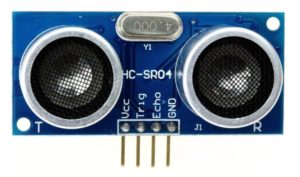
We will be using the HC-SR04 sensor (buy here). The sensor has four pins, the VCC and GND pins for power supply and the trig and echo pins for signal information. The sensor also has an ultrasonic transmitter and receiver with an oscillator to generate a 4 Khz Ultrasonic sound that allows you to measure distances up to 2 meters.

hc-sr04 ultrasonic sensor diagram

The sensor works by creating a 10 microsecond pulse and then measuring the duration taken by that pulse to reach the object then bounce back. Knowing the speed of sound in air, we can then calculate the distance of the object which reflected the pulse. Remember that the pulse travels to the object and then back again so we need to divide the time by two to calculate the distance.

What You’ll Need To Connect An Ultrasonic Sensor To An Arduino

  • Arduino (Uno Used in this Example) – Buy Here
  • HC-SR04 Ultrasonic Sensor – Buy Here
  • Breadboard – Buy Here
  • Jumper Wires – Buy Here
  • Optional – LCD Screen (Hitachi HD44780 Driver) – Buy Here
  • Optional – 10K Potentiometer (To change contrast) – Buy Here
  • Optional – 220Ω LED Backlight Resistor – Buy Here

How To Connect An Ultrasonic Sensor To An Arduino

Assembling The Circuit – Serial Monitor

The ultrasonic sensor has four pins, the first one is the GND pin, the second is the echo pin, we will read the reflection signal from it. Then we have the trig pin which we’ll use to transmit the ultrasonic wave and the last pin is Vcc which is used to provide 5V to power the sensor.

Ultrasonic Sensor Serial Monitor

Plug the sensor into your breadboard and then use the jumpers to connect the GND pin to 0V/GND and the Vcc pin to 5V. Make sure that you plug in leads from the Arduino to your 0V and 5V tracks as well.

Next connect the Trig pin to the Arduino digital pin 9 and the Echo pin to the Arduino digital pin 8.

Assembling The Circuit – LCD Display

If you’d like to display the distance measurement on an LCD display, connect the ultrasonic sensor as per the above arrangement.

Ultrasonic Sensor LCD Panel

Now connect the LCD screen as per the instructions in our guide on connecting an LCD to an Arduino.

Programming The Arduino

Displaying The Distance On The Serial Monitor

Now you can begin the coding. For the first example, we will display the measurement taken from the ultrasonic sensor on the Serial monitor facility.

// Michael Klements
// Ultrasonic Sensor
// 24 August 2017
// www.the-diy-life.com

int triggerPin = 9;      //Define IO pins
int echoPin = 8;

long duration;
double distance;

void setup()
{
  pinMode(trigerPin, OUTPUT);   //Define pin
  pinMode(echoPin, INPUT);
  Serial.begin(9600);           //Starts the serial communication
}

void loop()
{
  digitalWrite(triggerPin, LOW);   //Reset the trigger pin
  delay(1000);
  digitalWrite(trigPin, HIGH);     //Create a 10 micro second pulse
  delayMicroseconds(10);
  digitalWrite(trigPin, LOW);
  duration = pulseIn(echoPin, HIGH); //Read the pulse travel time in microseconds.
  distance= duration*0.034/2;        //Calculate the distance - speed of sound is 0.034 cm per microsecond
  Serial.print("Distance: ");        //Display the distance on the serial monitor
  Serial.println(distance);
}

You can also download the code here – UltrasonicSerialMonitor

First you have to define the Trigger and Echo pins. In this case they are the pins number 8 and 9 on the Arduino Board and they are named triggerPin and echoPin. Then you need a Long variable, named “duration” for the travel time that you will get from the sensor and a double variable for the distance which is measured in centimeters.

In the setup you have to define the triggerPin as an output and the echoPin as an Input and also start the serial communication to display the results on the serial monitor.

The code then runs through a continuous loop where the trigger is reset, the program waits one second and then creates a 10 microsecond pulse. The time it takes the pulse to return is then measured and this is used to calculate the distance. If the object is 10 cm away from the sensor, and the speed of the sound is 340 m/s or 0.034 cm/µs the sound wave will need to travel for 294 u seconds. But the time you will measure from the Echo pin will be double that because the sound wave needs to travel forward and be reflected backward. In order to get the distance in cm we need to multiply the measured travel time from the echo pin by 0.034 and then divide it by 2.

The result is then sent to the serial monitor. The serial monitor will display a newly measured distance every 1 second.

Displaying The Distance On An LCD Screen

In the second example, we will display the measured distance on an LCD screen which is connected to the Arduino.

// Michael Klements
// Ultrasonic Sensor
// 24 August 2017
// www.the-diy-life.com

#include <LiquidCrystal.h>

LiquidCrystal lcd(12, 11, 10, 5, 4, 3, 2);  //Assign the LCD screen pins

int triggerPin = 9;      //Define IO pins
int echoPin = 8;

long duration;
double distance;

void setup()
{
  pinMode(trigerPin, OUTPUT);   //Define pin
  pinMode(echoPin, INPUT);
  lcd.begin(16,2);              //Start the LCD screen, define the number of characters and rows
  lcd.clear();                  //Clear the screen
  lcd.setCursor(0,0);           //Set the cursor to first character, first row
  lcd.print("Distance:");        //Display this text
}

void loop()
{
  digitalWrite(triggerPin, LOW);   //Reset the trigger pin
  delay(1000);
  digitalWrite(trigPin, HIGH);     //Create a 10 micro second pulse
  delayMicroseconds(10);
  digitalWrite(trigPin, LOW);
  duration = pulseIn(echoPin, HIGH); //Read the pulse travel time in microseconds.
  distance= duration*0.034/2;        //Calculate the distance - speed of sound is 0.034 cm per microsecond
  lcd.setCursor(0,1);               //Set cursor to column 0, row 1
  lcd.print(distance);                     //Display the distance
  lcd.print(" cm");
}

You can also download the code here – UltrasonicLCD

Once you’ve got the basics working, you can try changing the measurement units and experiment with different timing. You could also mount the ultrasonic sensor onto a servo and rotate it to get measurements all around your Arduino.

If you have any questions or comments, please leave them in the comments section below.