Home Blog Page 14

The M5 Paper, A Tablet Style Development Board With An E-ink Touch Display

Today we’re going to be looking at the M5 Paper development board, which is essentially an ESP32 tablet with a 4.7” e-ink touch display. The combination of a WiFi-enabled tablet with accessible IO as well as an ultra-low power consumption touch display really opens up a world of possibilities for home automation, dashboards, monitoring and data logging.

If you’re interested in some other boards in the M5 range, I had a look at the M5Stack Core 2 and M5StickC Plus last week.

M5 Paper Unboxing

Here’s my video of the unboxing and tinkering with the M5 Paper development board:

Where To Buy The M5 Paper

This board was sent to me by Banggood to share with you, you can get your own through the below link:

You can also have a look at some of the other boards in the M5 range:

The above links are affiliate links. By purchasing products through these links, you’ll be supporting my projects, with no additional cost to you.

Unboxing The M5 Paper

Let’s open up the M5 Paper and take a look at it.

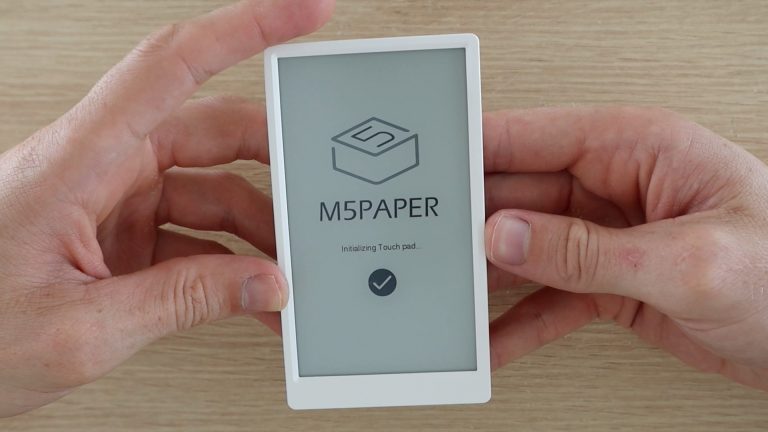
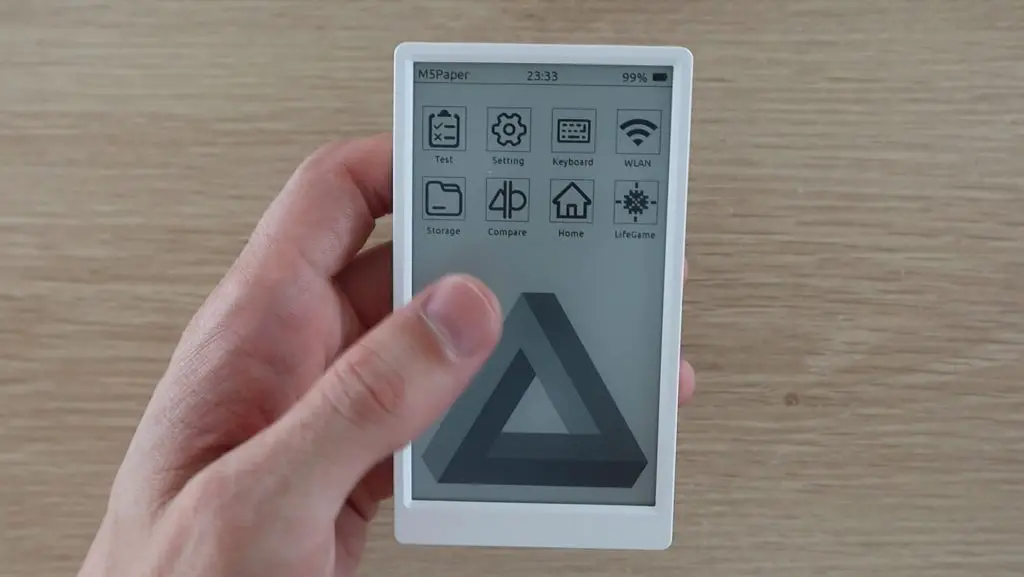
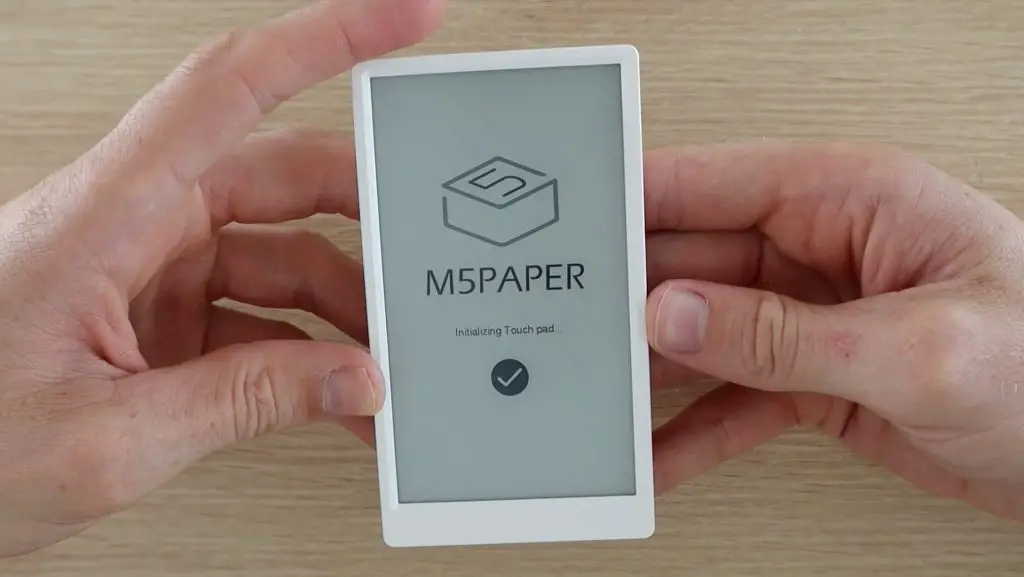
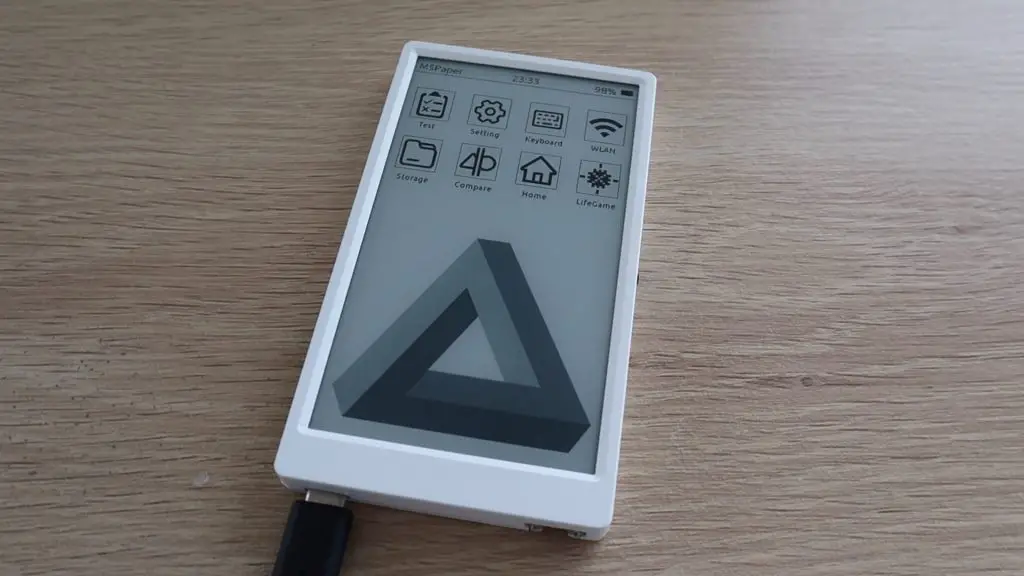
The device is shipped with the pre-loaded demo program being displayed. This is one of the benefits of an e-ink display, the image can continue to be displayed even when the device is off or the battery is dead. The touch functionality obviously only comes back on when the device is powered up though.

M5 Paper E-ink Display

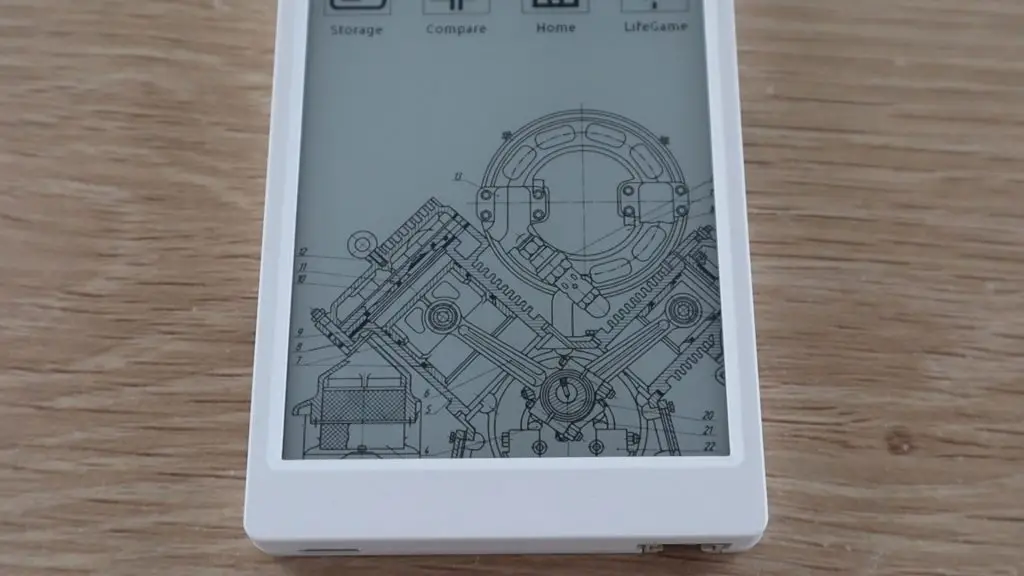
The 540 x 960 pixel e-ink display supports two touch points and 16 grey levels. The resolution is pretty good for a display of this size, the characters are crisp and clear and images look good as well.

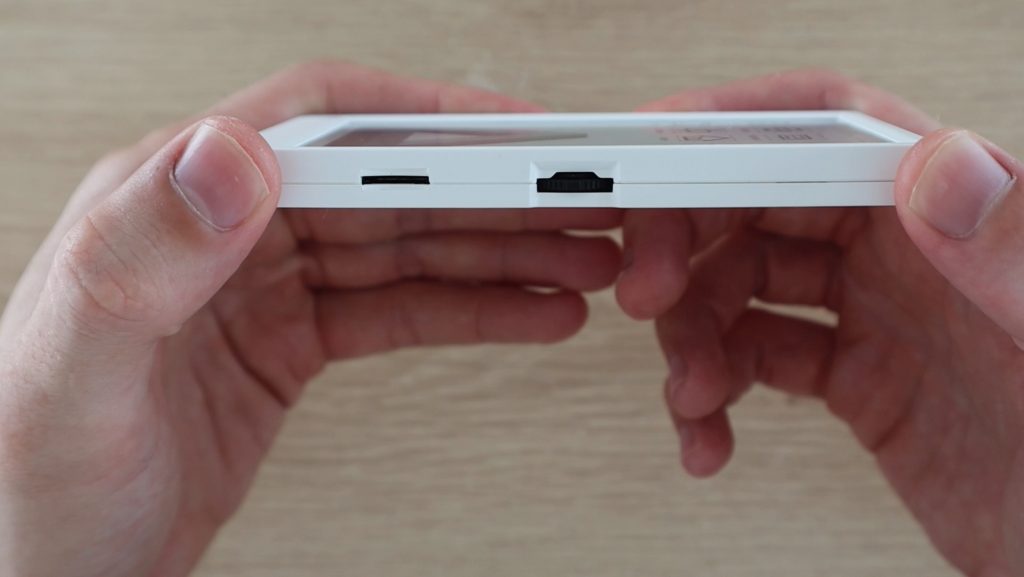
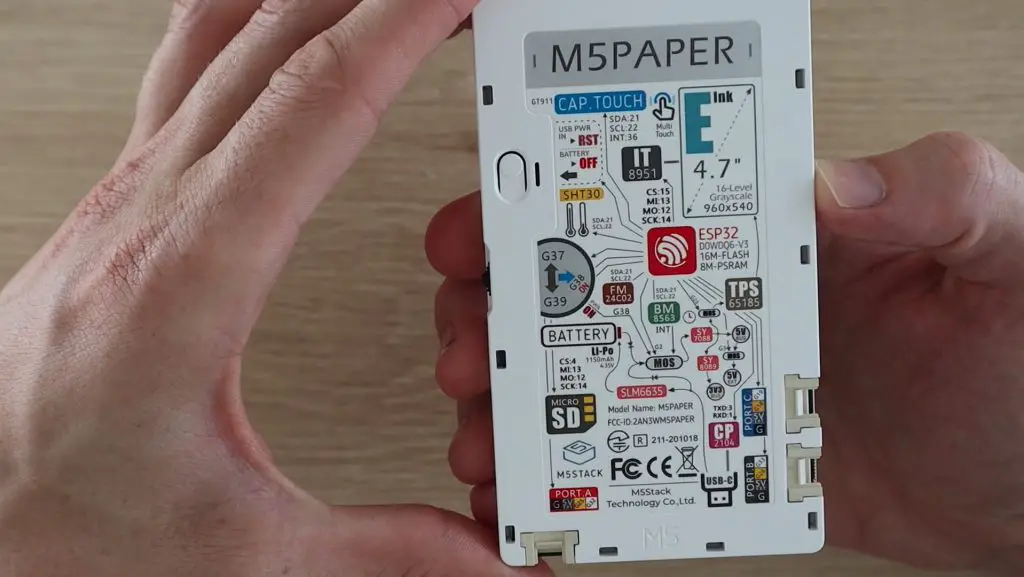
On the right side we’ve got a microSD card slot for additional storage and a multifunction button – up, down and centre press.

Micro SD Slot and Multifunction Button

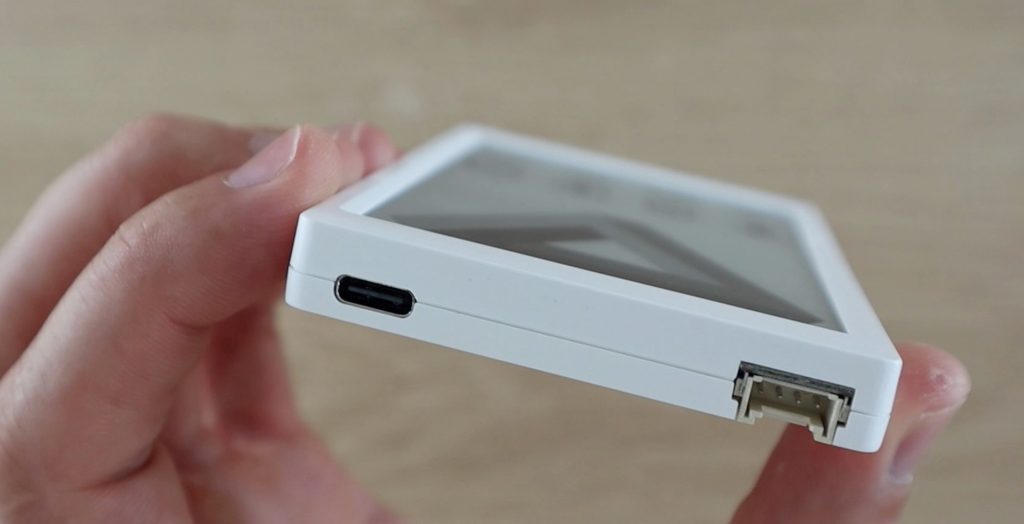
It is charged and programmed through a USB C port on the bottom alongside an IO expansion port.

USB C Port and Expansion Port

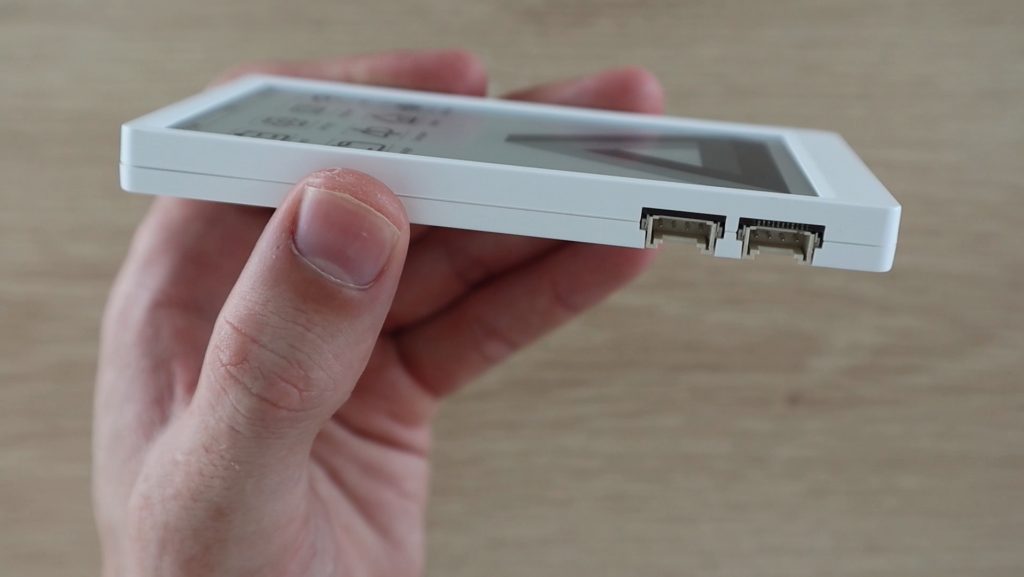
One the left side, we’ve got two additional expansion ports. Unlike the M5Stack and M5Stick boards, there are no accessible IO pins through a header pin arrangement, you’ve only got three IO expansion ports. But three ports seems like enough for what you’d be using on a device like this.

Second Two Expansion Ports

Like the other M5 boards, the M5 Paper has WiFi and dual-mode Bluetooth. It also has a realtime clock module and a built-in SH30 sensor that measures temperature and humidity.

M5 Paper Features

Specifications:

ESP32-D0WDQ6-V3240MHz dual-core, 600 DMIPS, 520KB SRAM, Wi-Fi, dual-mode Bluetooth
Flash16MB
PSRAM8MB
Input Voltage5V @ 500mA
Ports1 USB Type C, 3 x HY2.0-4P , TF-card (microSD) slot
E-Ink DisplayModel Number:EPD_ED047TC1 | 540*[email protected]″ | 
Grayscale : 16 Levels | Display area : 58.32*103.68mm | 
Display Driver : IT8951
Physical Button1 x Multi-function Button , 1 x Reset Button
RTCBM8563
Antenna2.4G 3D Antenna
PINSG25, G32, G26, G33, G18, G19
Battery[email protected]
Working Temp32°F to 104°F ( 0°C to 40°C )
Net Weight86g
Gross Weight100g
Product Dimension118*66x*10mm
Packaging Dimension120*70x*14mm
Casing MaterialPlastic ( PC )

Preloaded Demo Program

The M5 Paper comes with a pre-loaded basic demo program, there’s a sample clip of this program included in my video at the beginning.

You turn it on by pressing the centre button on the side, the device then boots up and re-freshes the home screen we saw earlier.

The M5 Paper, A Tablet Style Development Board With An E-ink Touch Display

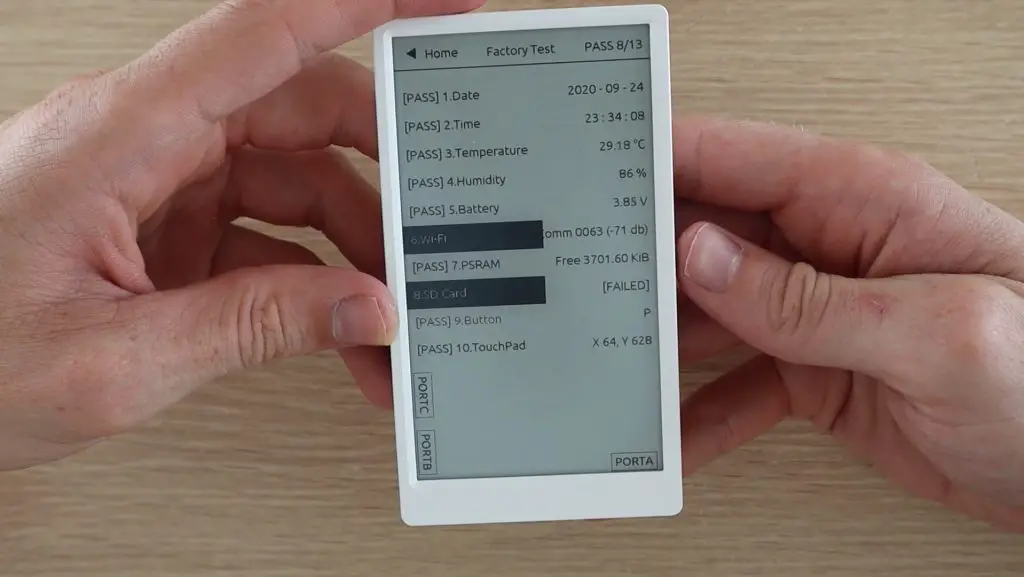
You can then open up a couple of mini-apps, one of which allows you to do a factory test of the sensors and IO. The system does a check on each device/sensor and reports the data back on the display. In our case there was no SD card plugged in and no WiFi connection, so those showed up as failed.

M5 Paper System Test

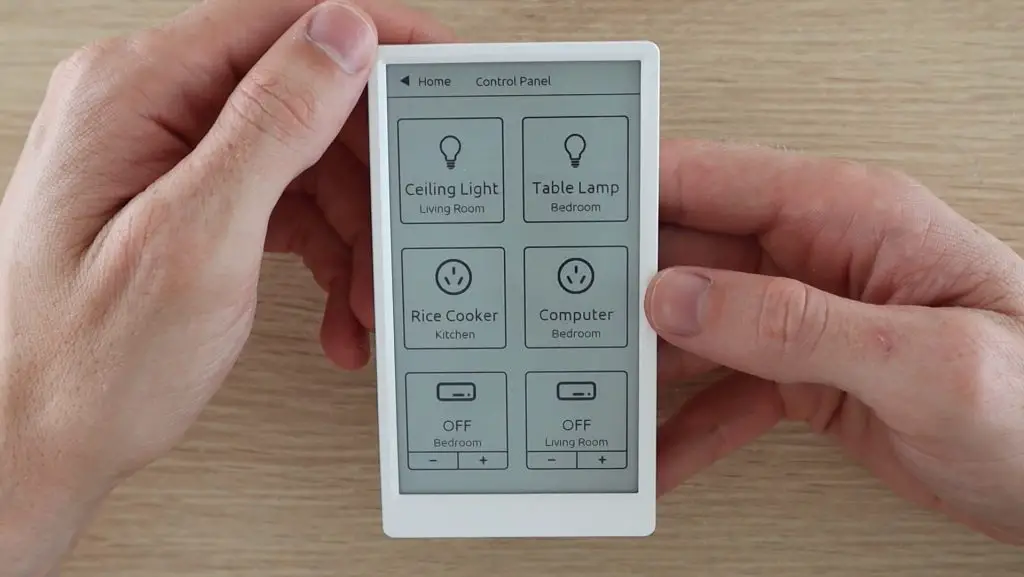
There are a few other mini-apps like this home automation dashboard. I’d definitely like to try and get this to drive my Phillips hue lights in future. This sort of app is one area where I think this device could really excel. I think a lot of people with various home automation devices would appreciate having a universal remote control for their system, which also lasts for a couple of weeks on a single charge.

M5 Paper Home Automation Control Panel

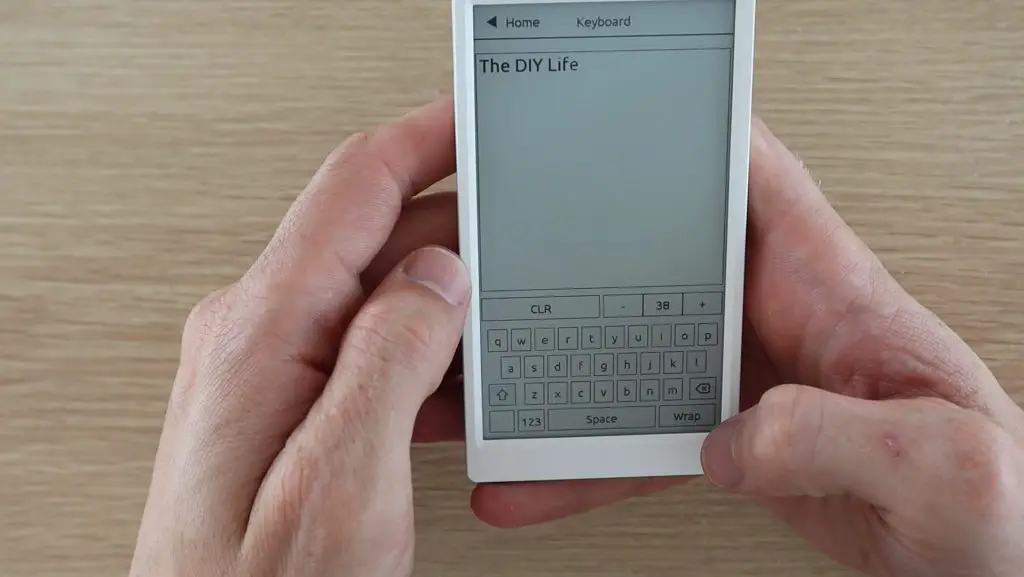
Using the text editor, I found that the display is amazingly responsive for e-ink technology and it does partial updates in well under a second. It’s still obviously a lot slower than an LCD or LED display, but if you’ve used an e-ink display before then you’ll really appreciate how well they’ve managed to get this one to work.

Typing on the M5 Paper

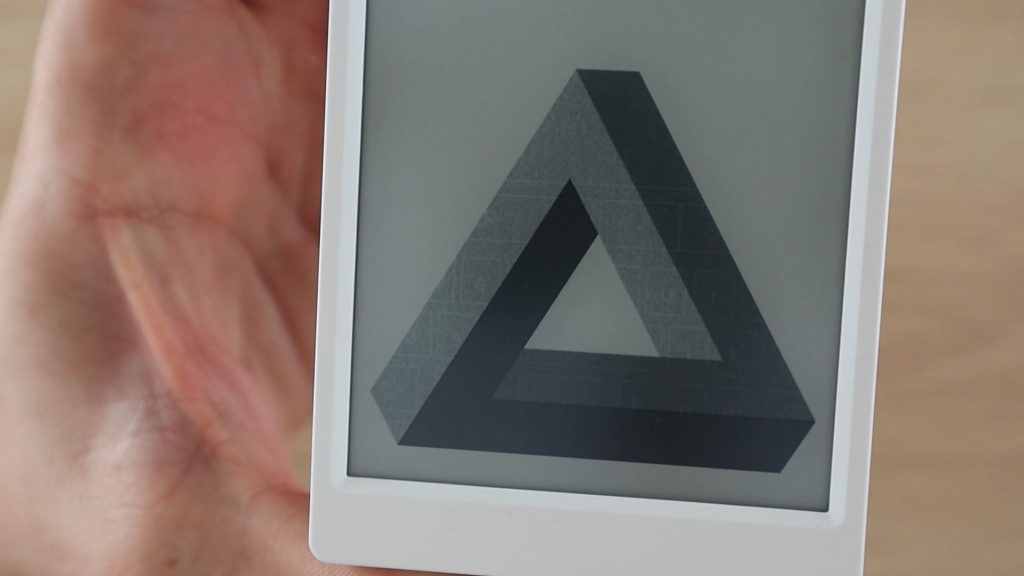
There are a few draw backs to the quick updates, you’ll see a bit of ghosting on more solid images, but you’ll hardly notice this through normal use. If you’re interacting with the display a lot, like during typing, then you’ll see that it partial updates small areas or it just does one refresh cycle at a time before waiting to see if you continue to interact with it. If you pause for one or two seconds then it’ll do another refresh to improve the image quality.

A Bit Of Ghosting On The M5 Paper

Overall, the image quality is crisp and clear, you can get quite a lot of detail out of it.

Display Details On M5 Paper

Pressing the power button on the back instantly turns it off, keeping whatever is currently displayed, but disabling the touch functionality.

You just push the middle button on the side to start it up again.

Programming The M5 Paper With Ui Flow

Now let’s try making and loading our own basic program onto the M5 Paper. It is compatible with the Arduino IDE, but we’re going to try and use Ui Flow to create a basic weather dashboard.

Ui Flow is a block coding and MicroPython IDE which allows you to drag and drop blocks to create basic programs in your browser and then wirelessly uploaded them to your M5 Paper device.

It’s got a reasonably long list of features and its really easy to use, so you can quickly and easily create your own programs with very little programming experience.  It’s definitely a bit limited for the M5 paper though, so you’ll probably want to use the Arduino IDE if you’ve got more ambitious plans for your programs.

To start, you’ll need to install a basic driver and then use M5 Burner to load the Ui Flow firmware onto the device.

M5 Burner For M5 Paper

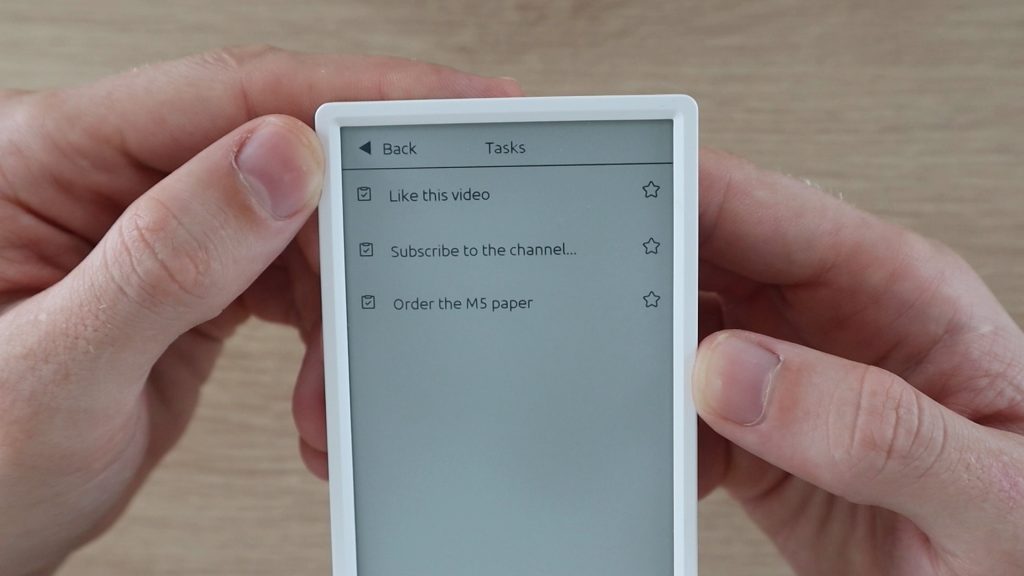
M5 burner also allows you to burn a couple of other pre-made programs onto it, like this Microsoft ToDo list dashboard. The dashboard connects to your Microsoft account and pulls your to-do list onto your device.

Microsoft ToDo List On M5 Paper

Now let’s install Ui Flow to try and build our own dashboard. You simply click on download, wait for it to be downloaded onto your computer and then click on burn to burn it to your M5 Paper. You might also be asked to enter your WiFi network’s credentials to allow the device to access the internet in order to communicate with Ui Flow on your computer.

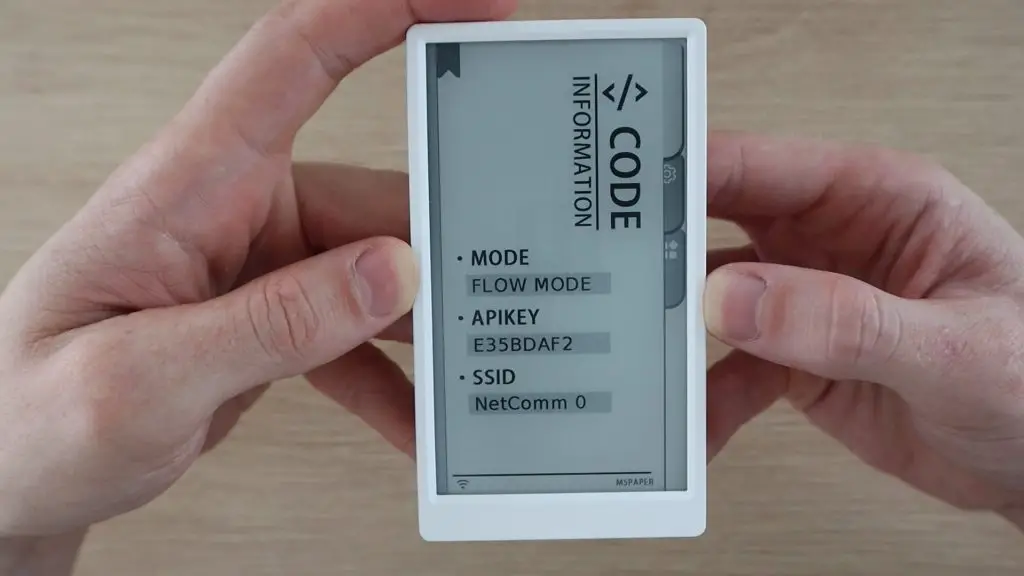
The Ui Flow firmware on your device then creates an API key which you’ll need to enter into Ui Flow in your browser to connect to your M5 Paper.

API Key For UI Flow

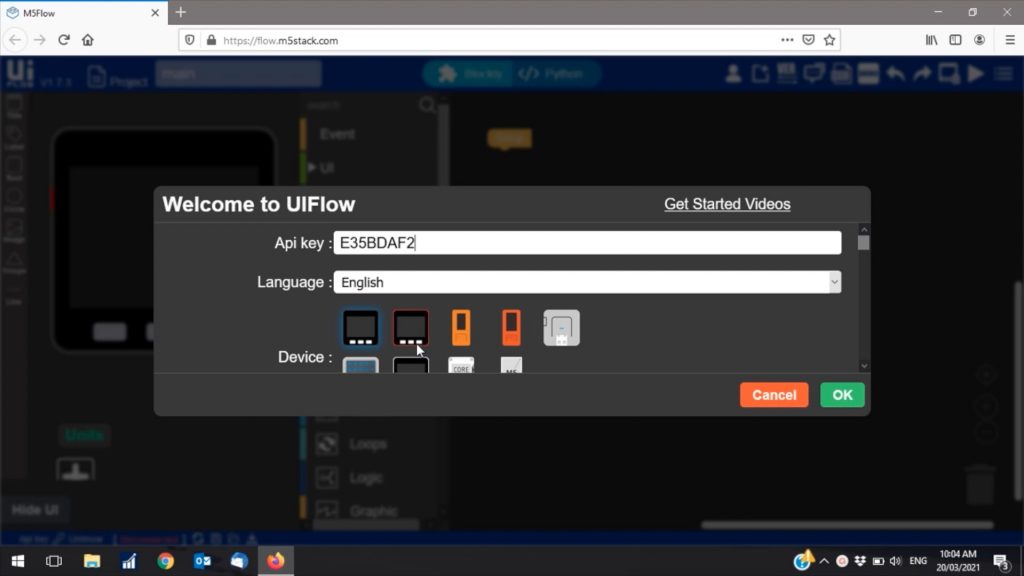
You then need to enter the API key into Ui Flow in your browser and then select the M5 Paper as your device.

Entering API Key Into Ui Flow

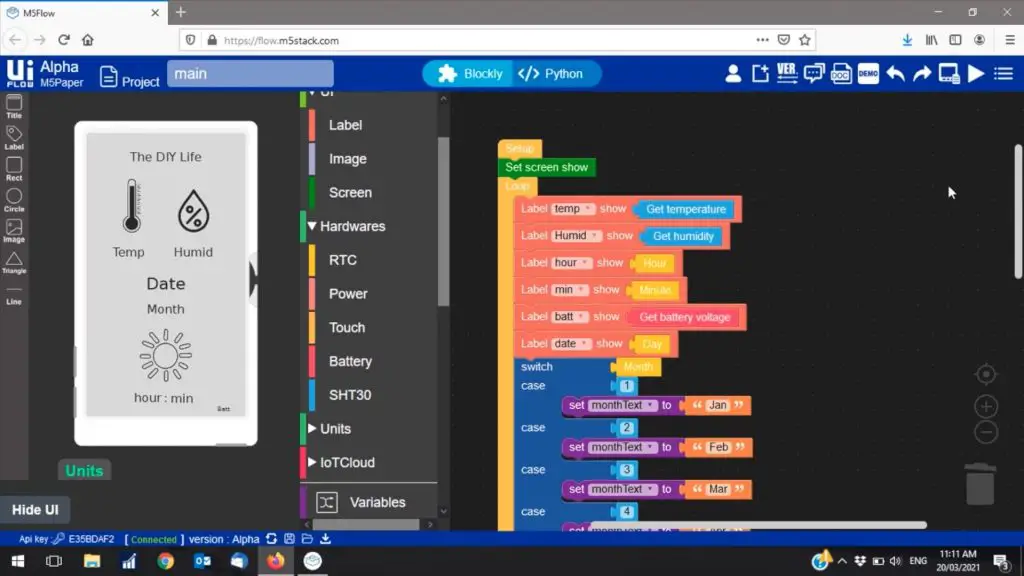
You’re then taken to the drag and drop block coding interface which allows you to start building your code.

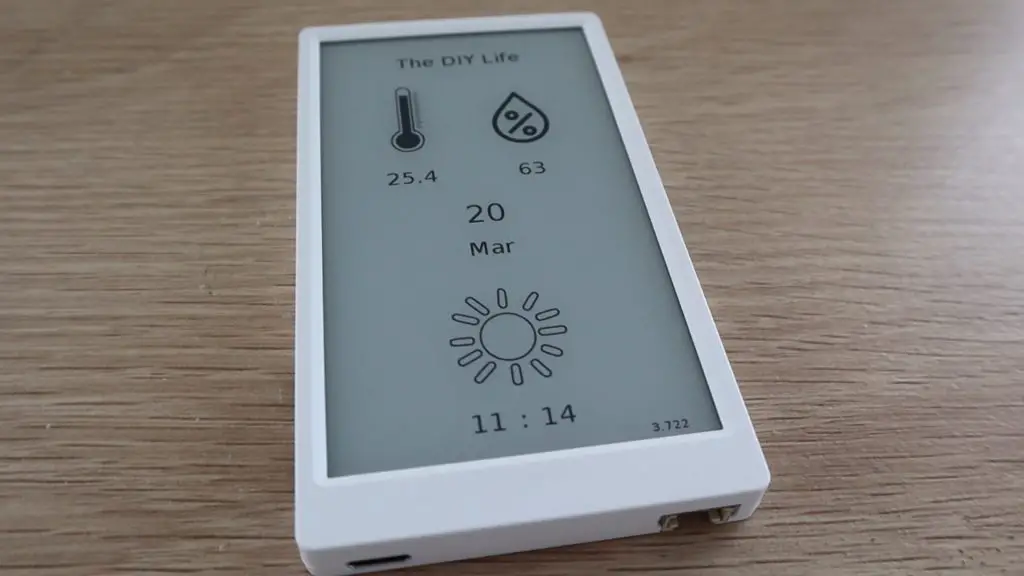
I’m going to create a basic temperature and humidity dashboard that shows the date and time as well as a sun or moon depending on whether it is day time or night time.

Creating A Basic Block Code Program

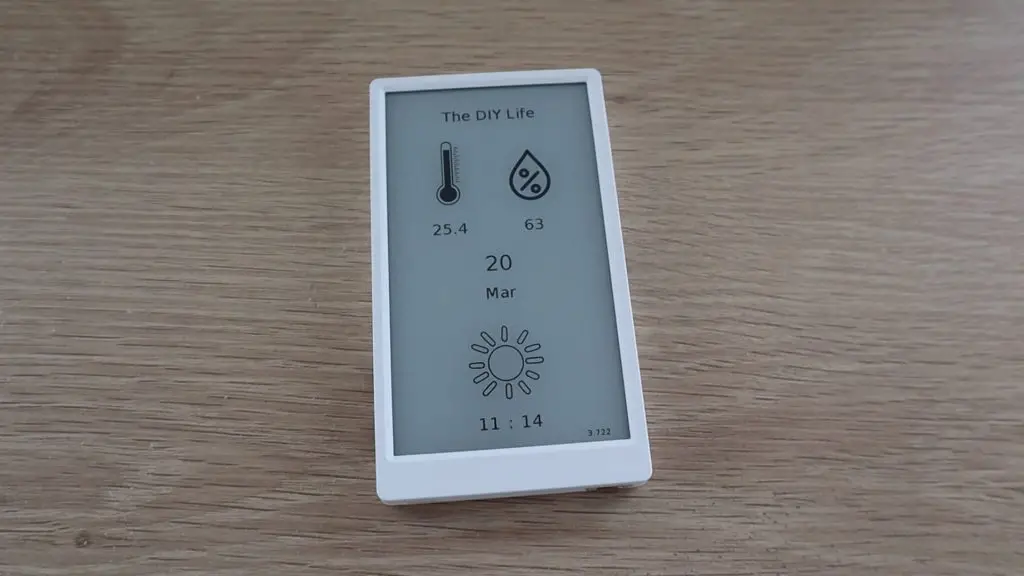
This dashboard took around 15 minutes to make and upload to the device. Once you’re happy with the code, you just click on the run icon in the top right corner and the code is wirelessly sent to your M5 Paper device.

Block Code Dashboard
Weather Dashboard

Ui Flow for the M5 paper has a lot of room for improvement to make it easier to use the touch display. For example, it would be a lot easier to enable touch inputs on shapes, buttons or images to build control panels.

Programming The Device

Final Thoughts

The M5 Paper is a fantastic device in terms of hardware. It’s got a lot of built in features and I can definitely see a lot of potential in it, especially for home automation, universal remotes and creating longer term dashboards which don’t need to update very often.

I think the software packages and documentation for the M5 Paper need some work. Ui Flow is really easy to use to create basic dashboards, but it’s a mission to get anything meaningful from the touch display. It would have been a lot simpler to use if you could program images and shapes to function as buttons. You can obviously use the Arduino IDE as an alternative, but it’s going to take some time for the documentation, community and forums to catch up.

So if you’re up for the challenge, then consider getting one to start tinkering with.

Let me know what you think of the M5 Paper in the comments section.

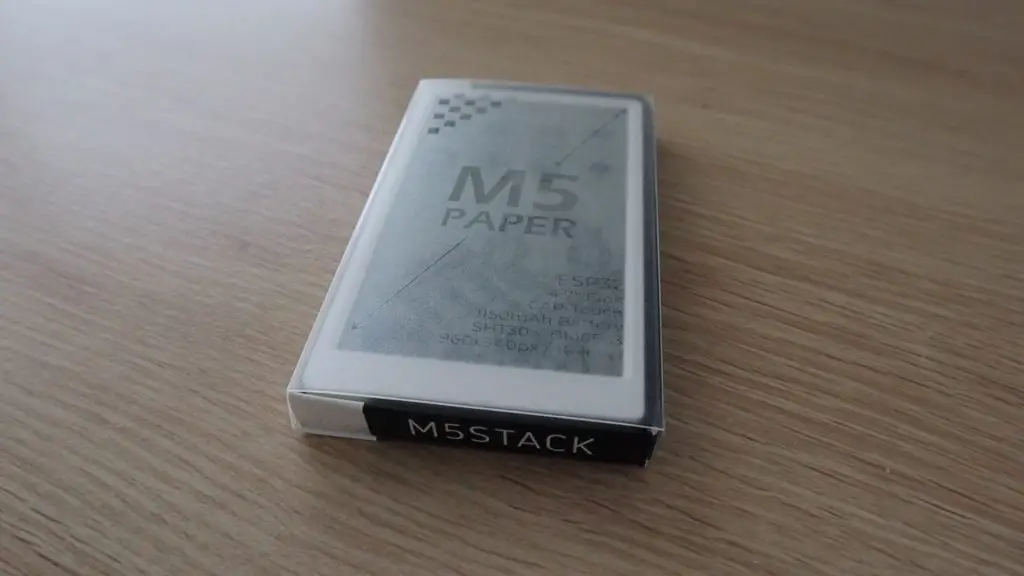
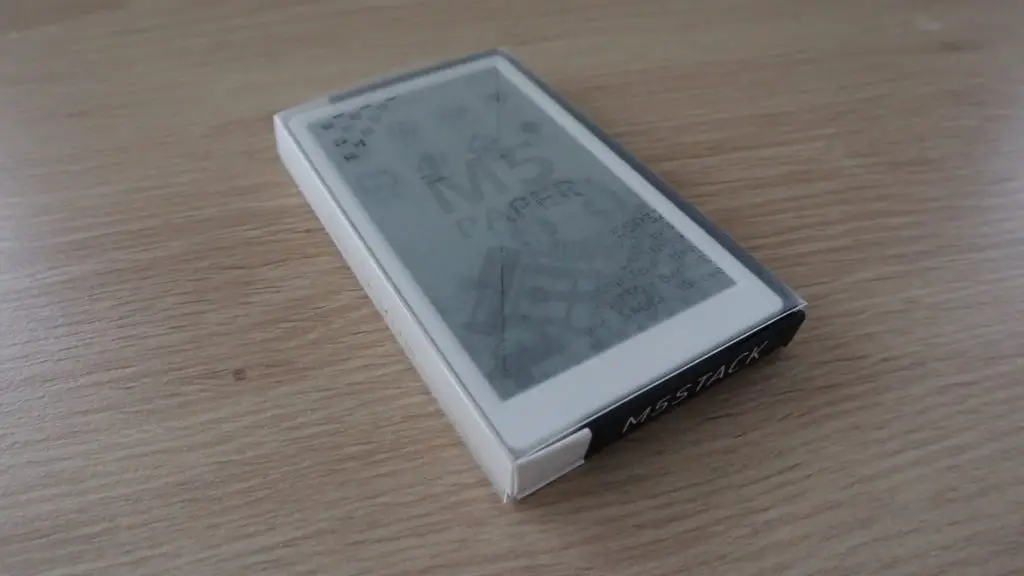
M5 Paper In Packaging

Reimagine Your Home With Multipurpose Spaces

Many of us have probably wondered at some point about what it would be like to have some extra space to put away all our belongings that we simply have nowhere to store. While your first thought would probably be to extend your home or add an extra room or two to create that additional storage space, these are not always the optimal solutions.

Sometimes, making your space work for you will simply be a matter of changing the way your living space is used and making small tweaks to make it more functional. With that in mind, let’s take a look at some of the ways you can reimagine your home and turn it into a beautiful and practical one by creating multipurpose spaces that you will love.

Use room dividers to create a sense of privacy

Use room dividers to create a sense of privacy

Open floor plans are still quite dominant in the world of interior design. However, there are instances when homeowners crave privacy in their open concept spaces. That’s when room dividers come into play. You can either purchase a divider, build one, or improvise with what you already got.

For instance, a carefully positioned bookcase is a DIY room divider solution that has been around for decades and is still equally effective nowadays. The unit will need to be secured so that it doesn’t tip over, though, so keep that in mind, especially if you have small children running around. If you are feeling particularly crafty and want to take the DIY route, you can use virtually anything to build your own room divider, from pallet wood and repurposed doors to vinyl records and license plates.

Use multifunctional furnishings to transform a room

A simple and effective way to keep your home tidy and neat at all times, adding multifunctional furnishings is the perfect solution for a multipurpose living space. They allow you to quickly and easily change the room’s function and purpose while keeping other functions hidden until they’re needed again.

You can use Murphy beds to save space and turn a bedroom into a multifunctional room in just a couple of seconds. Rely on dining tables that double as working desks complete with hidden features for power and storage to quickly transform your dining room into an office. Ottomans and benches with hidden storage make it easy to keep clutter at bay, and other than functioning as extra seating, they can also be used as coffee tables and footrests.

Rely on rugs to break up space into distinct zones

Rely on rugs to break up space into distinct zones

When working with multipurpose spaces, it’s important to create visual zones. This will help you distinguish the transition between different areas of the home. This can be achieved by choosing some of the stylish Miss Amara rugs that will inject just the right amount of coziness into your living space. Other than feeling soft underfoot, the rugs will anchor the room and help you create distinct zones for playing, relaxing, and working.

When combined with effective furniture placement and area-specific lighting, rugs can help you completely transform your space, dictating how each area of your living space is used. To retain a sense of cohesiveness, make sure that you use the same color palette in those zones while allowing yourself to experiment with different textures, fabrics, and accent pieces.

Turn to visual tricks and decorate strategically

Less is definitely more when it comes to multipurpose spaces, and being careful with how you decorate your living space can go a long way in making your home feel more spacious and functional. Getting back to basics while retaining homely accents is key to achieving minimalism with personality and will make your space feel cozy without being cluttered.

Think upholstery with simple design, clear floors, floating shelves, and transparent, flexible furnishings. Taking such a strategic approach to decorating will help expand the space visually and make a smaller living space feel open and airy. Sticking to a restricted color palette is also a great way to create a sense of spaciousness in your home and ensure that all the rooms flow together perfectly.

Don’t let any space go unused

Don’t let any space go unused

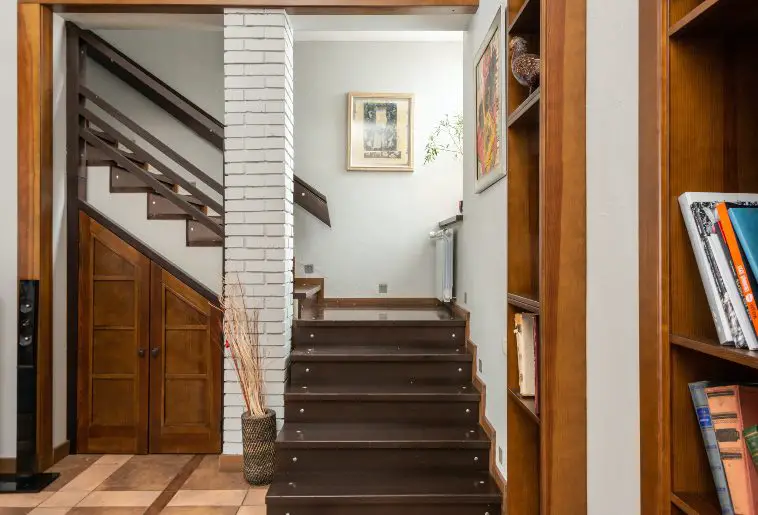
Another way to improve the functionality of your living space is to make sure that every inch of the available space is serving a particular purpose. For instance, instead of using the space under the staircase for storing random items around the house, put it to good use by transforming it into a small workspace or a study nook. Make sure to match the colors and materials to the rest of the space so everything looks cohesive and intentional. Creating dedicated zones for activities like these is a great place to start building a conscious living space and making it more mindful.

Other than that, consider making upgrades that will help put your vertical spaces to good use. Rooms with high ceilings will benefit from creating a mezzanine space while the clever use of joinery can help you turn your home into a multi-use space so you can make the most of it.

Wrapping up

Instead of tackling costly renovations and extensions, making your home more functional and flexible can simply be a matter of rethinking the way you use your existing space and finding ways to make the most of it. Use these tips as an inspiration to reimagine your home, create your own multipurpose spaces, and ensure that it is as functional as it is beautiful.

Trying Out The M5Stack Core 2 and M5StickC Plus With Ui Flow

Today we’re going to be having a look at two members of the M5 range, the M5Stack Core 2 and the M5StickC Plus. These are feature-rich ESP32 based development boards that enable you to develop and prototype your own projects and IoT devices without a significant learning curve.

M5Stack and M5Stick

These devices both have colour displays, with the Core 2’s being a touch screen, as well as some additional buttons, built-in batteries, IO headers and a range of sensors, like microphones and IMUs built into them.

M5Stack Core 2 and M5StickC Plus

Here’s my video of the unboxing and tinkering with the two development boards:

Where To Buy The M5Stack Core 2 and M5StickC Plus

These two boards were sent to me by Banggood to share with you, you can get your own through the below links:

In addition to these boards, the following accessories were used here:

The above parts are affiliate links. By purchasing products through the above links, you’ll be supporting my projects, with no additional cost to you.

Unboxing The M5StickC Plus

Let’s open up the M5StickC Plus first and take a look at that.

M5StickC Plus

I’ll start off by saying that this device is really small for what it is able to do. It’s a little bit bigger than an Arduino Nano, and obviously a bit thicker to accommodate the sensors and battery, but it’s really compact for what they’ve managed to fit into it.

It’s got a 1.1 inch TFT display, with two customisable buttons and a separate power button.

Back of M5StickC Plus

It’s got an IO expansion port on the top which has a range of power supply and input options as well as access to four IO pins. It’s also got a grove connector on the bottom to add compatible devices and sensors.

This USB C port is used to charge and program it.

Grove and USB on M5StickC Plus

In addition to these features on the outside, the stick has a built in LED, buzzer, 6 axis MPU, IR transmitter, microphone and real time clock. It also has both dual-mode bluetooth and WiFi connectivity.

So this is a really powerful little device.

Specifications:

ESP32240MHz dual-core, 600 DMIPS, 520KB SRAM, Wi-Fi, dual-mode Bluetooth
Flash Memory4MB
Power Input5V @ 500mA
PortsUSB Type C x 1, GROVE (I2C+I/0+UART) x 1
LCD Screen1.14 inch, 135*240 Colorful TFT LCD, ST7789v2
Button2 x Custom Buttons
LEDRED LED
MEMSMPU6886
BuzzerBuilt-in Buzzer
IRInfrared Transmission
MICSPM1423
RTCBM8563
PMUAXP192
Battery120 mAh @ 3.7V
Antenna2.4G 3D Antenna
PIN PortsG0, G25/G36, G26, G32, G33
Operating Temperature32°F to 104°F ( 0°C to 40°C )
Net Weight15g
Gross Weight21g
Product Size48.2*25.5*13.7mm
Package Size65*25*15mm
Case MaterialPlastic ( PC )

Preloaded Demo Program

The M5StickC Plus comes with a pre-loaded basic demo program, there’s a sample clip of this program included in my video at the beginning. The program demonstrates the use of the MPU, real-time clock, microphone, IR transmitter and Bluetooth connectivity.

Internal IMU on M5StickC Plus

Unboxing The M5Stack Core 2

Next let’s open up the M5Stack Core 2 – this is an upgrade to the original M5Stack Core.

M5Stack Core 2 In Box

The Core 2 has a 2-inch display, which is also a touch screen. It also has three capacitive touch button below the display, which replace the physical buttons on the original core.

M5Stack Core 2 Unboxing

We have two buttons on the side, one for power and one to reset the device. And then we also have a USB C port, Grove connector and microSD card slot.

USB and Grove on M5Stack Core 2

Beneath the case, we’ve also got an LED, microphone, vibration motor, speaker, 6 axis MPU and real-time clock.

Back of M5Stack Core 2

This cover on the back hides the 30 header pin socket which allows you to access a range of IO and communication pins, which are detailed in the diagram alongside it.

Cover Removed on M5Stack Core 2

This port also allows you to plug in other M5Stack modules to build a stack, which is where the device get’s it’s name.

The M5Stack Core 2 has got magnetic feet, so you can easily stick it to a white-board or your fridge as a control pane or dashboard.

Magnetic Feet on M5Stack Core 2

Specifications:

ESP32-D0WD-V3240MHz dual-core, 600 DMIPS, 520KB SRAM, Wi-Fi, dual-mode Bluetooth
Flash16MB
PSRAM8MB
Input Voltage5V @ 500mA
InterfaceUSB Type C x 1, GROVE(I2C+I/0+UART) x 1
IPS LCD Screen2.0″@320*240 ILI9342C
Touch ScreenFT6336U
Speaker1W-0928
LEDGreen Power Indicator Light
ButtonPower Button, RST Button, Virtual Screen Buttons * 3
VibrationInternal Vibration Motor
MICSPM1423
I2S Power AmplifierNS4168
6-axis IMUMPU6886
RTCBM8563
PMUAXP192
USB ChipCP2104
DC-DC BoostSY7088
TF card slot16G Max.
Lithium Battery390mAh @ 3.7V
Antenna2.4G 3D Antenna
Operating Temperature32°F to 104°F ( 0°C to 40°C )
Net Weight52g
Gross Weight70g
Product Size54 x 54 x 16mm
Package Size75 x 60 x 20mm
Case MaterialPlastic ( PC )

Preloaded Demo Program

The Core 2 also comes with a basic pre-loaded program that allows you to explore some of the features and sensors on the device, there is a clip of this program included in the video at the beginning of this post.

Front Display on M5 Stack Core 2

The program allows you to explore the IMU, touchscreen, microphone, SD card access, timer, clock and WiFi.

Getting Started With Ui Flow on the M5 Range

Next, let’s have a look at how to program these development boards. The boards are compatible with the Arduino IDE, and there is quite a lot of information on installing the boards into the IDE’s boards manager as well as programming them, but they are a bit easier to work with using micro-python.

The developer’s preferred method is to use a web-based IDE called Ui Flow.

Ui Flow To Program M5 Stack

To make use of this application, we need to download and install a driver on a computer and then flash the Ui Flow firmware to the device using M5Burner to enable it to communicate with the web application. You can also burn a couple of other pre-made programs to each device directly from the M5Burner tool.

M5 Burner To Install Ui Flow

M5Burner is pretty intuitive, especially if you’ve worked with the Arduino IDE before, you simply select your board, the COM port, baudrate, and then choose the software that you’d like to install on the device.

We’re going to burn the latest version of Ui Flow to both the Core and Stick devices.

Ui Flow on M5 Stack Core 2

One of the best features of Ui Flow is that it is able to be used wirelessly. The device connects to your WiFi network and generates an API key, and you can then program the device from your browser without any cables, even from a remote location.

API Key For M5 Stack Core 2

This sounded to me like it had the potential to be buggy and slow, but I’ve been really impressed with how well this works. I’ve used it to load a number of programs and revisions and I’ve never had any communication problems with it. It also uploaded the code to the device in just a couple of seconds, usually well under 5 seconds.

Ui Flow is an intuitive drag and drop, block coding IDE, which makes it really easy to get basic programs up and running. You can also switch between block and python modes to add functionality or edit the actual code being generated.

Basic Program In Ui Flow

We can literally make a program and have it running on the device in a couple of minutes. Here I just made a button to drive the internal vibration motor when it’s pushed.

When you click on upload or run, the device receives the code from the IDE and then starts running it.

Vibrate Button For Internal vibration Motor

Making A Basic Home Automation Control Panel On The M5Stack Core 2

Next, I wanted to try making a program that used some of the IO pins, so I decided to try and make a basic home automation control panel using a relay board which I had lying around.

8 Channel Relay Module for M5 Stack Home Automation

I dropped in four slider switches to drive a relay for each room and then added some digital IO blocks to set each pin high or low depending on the state of the button.

Basic Home Automation on M5 Stack Core 2

Never having used Ui Flow before, I did have to do some searching through the menus/options for certain blocks, but this whole program took around 5 minutes to make and get ready to upload to the device. It really is easy to use, even for a beginner.

I then plugged the relay module into the IO pins (pins 2, 27, 32 and 13) and uploaded the code to the Core 2.

Connecting Relay Module To M5 Stack Core 2

It looks like it’s all working the way it should. You can turn multiple rooms on at once and the sliders indicate the status of each switch or relay.

Switching Relays on and off Using Display

I didn’t want to plug all 8 relays in at once as I’m not yet sure what the Core 2’s power supply capacity is and this was being driven straight from the Core 2’s 5V supply, not an external supply. If you’re using a large relay module like this then it’s a better idea to supply the relays using an external 5V supply.

Home Automation on M5Stack Core 2

Connecting Sensors To The M5StickC Plus

Next, let’s look at running a program on the M5StickC Plus which uses the analogue inputs. The whole process is pretty similar, it’s just a matter of selecting a different device in M5Burner and then in Ui Flow.

API Key On M5StickC Plus

We’ll start by creating a program to display the X and Y co-ordinates from an external joystick. I’ve connected a basic two axis joystick to the grove port on the bottom of the M5Stick.

Adding Joystick To M5StickC Plus

Our block code just takes a reading from each of the analogue inputs, maps these to a range between -200 and 200 and then displays this on the M5Stick’s display.

Basic Block Codeing Program For M5 Stick C Plus

It’s obviously not scaled properly, but it works pretty well for a first pass.

Joystick Connection

We can also replace the joystick with a sensor, like this soil moisture sensor and modify the program to display the soil moisture level.

Soil Moisture Sensor On M5StickC Plus

We’re now just going to be using a single analogue input and we’ll also add a battery voltage indicator on the display.

Basic Block Code Moisture Program

So we’ve now got a basic soil moisture level and our battery voltage being displayed on our M5Stick.

Soil Moisture Level Sensor

Final Thoughts

I think these are great all-in-one devices to get started with electronics and rapid-prototyping. I like that they’ve included a couple of built-in sensors and IO options. These, along with the physical buttons and colour display mean that you can already start building some basic programs right out of the box. I also like that you’re able to use the Arduino IDE if you’re already comfortable with it, but there are also easier options available, like Ui Flow.

If you’d like to build more complex projects, then you have the option of using plug-and-play grove sensors, or take it a step further and use the built-in header pins.

Ui Flow’s block coding makes programming the M5 devices really easy, but you’re still able to access some more powerful options through the micro-python editor as well. You also really need to try the remote programming over WiFi feature as well, it’s fast and convenient.

If you’re looking for a basic device for tinkering then the M5StickC Plus will do just fine. If you’d like to get a bit more functionality and be able to add a wide range of sensors and devices later, then have a look at the M5Stack Core 2.

Let me know what you think of these two devices and Ui Flow in the comments section below.
M5Stack Core 2 and M5StickC Plus Review

Making An Ultra Low Power Arduino Pro

This 3.3V Arduino Pro Mini uses over 600 times less power than a traditional Pro Mini, using a couple of simple, low power, changes that cost around $2 to make.

Making An Ultra Low Power Arduino

If you’ve followed some of my previous projects, then you may have seen that I have tried something similar before. Last year, we stripped down an Arduino Pro Mini by removing the power LED and the onboard voltage regulator until we were able to achieve a standby current draw of just 5 microamps at 3.7V.

Original Arduino Power Test

This method would work well for a range of applications, but not having a voltage regulator onboard has complications for voltage-sensitive devices and circuits, so we’re going to look at replacing it with a regulator which has a much better quiescent current.

Arduino Pro Mini Regulator and LED

If you don’t know what this means, the quiescent current is basically the current than a device consumes with no load or in a non-switching condition. So for a regulator, this would be the current being drawn by the regulator with no load connected to it.

Here’s a video of the modification process and results, read on for the write up:

What You Need For This Modification

How To Modify Your 3.3V Arduino Pro Mini

The standard regulator on an Arduino Pro Mini is typically a Micrel MIC5205.

Micrel MIC5205

This regulator is reasonably efficient under load, but is quite poor at low load. Meaning that it waste’s quite a lot of energy when the Arduino isn’t drawing much current from it. This is usually fine for general battery powered projects which run for a few minutes or even an hour or two, but it becomes a problem if you’re trying to build ultra low power projects which need to last a few months on a single charge of a battery.

So lets start by having a look at where we got to previously.

Unmodified Arduino Pro Mini

We started off by testing a standard 3.3V Arduino Pro Mini with no modifications and found that it drew 4.5 milliamps, or 4470 microamps, from the 3.7V battery when running the pre-installed blink sketch.

Power Consumption Before Any Changes

This isn’t much, but it means that a 3.3V Arduino Pro Mini would run for just under a month on a single 3000mAh battery.

Using Low Power Mode

We then used a low-power script to put the Arduino to sleep between blinking. This script makes use of a low-power library to put the Arduino’s Atmega chip to sleep between operations, which uses significantly less power than when it is awake.

Arduino Low Power Mode Sketch

If you’re building ultra-low-power projects then a key part of getting longer battery life is to look at how often information is measured and updated and to make use of the time between these operations to put the Arduino into a low power state. I’m not suggesting that you only take measurements once a day or once an hour, but even waking up to take measurements or check conditions for 1 second in every 10 seconds will make your batteries last almost 10 times longer than without sleeping.

I used this low-power library in my soil moisture monitoring stick project.

Battery Operated Devices Required To Be Low Power

This low power mode modification reduced the current draw to just 1.5 milliamps, or 1500 microamps, so we’ve got around a 3 fold improvement without doing anything to the hardware. Our single 3000mAh battery would now power our Arduino for a little under 3 months on a single charge.

Looking At The Hardware Under A Microscope

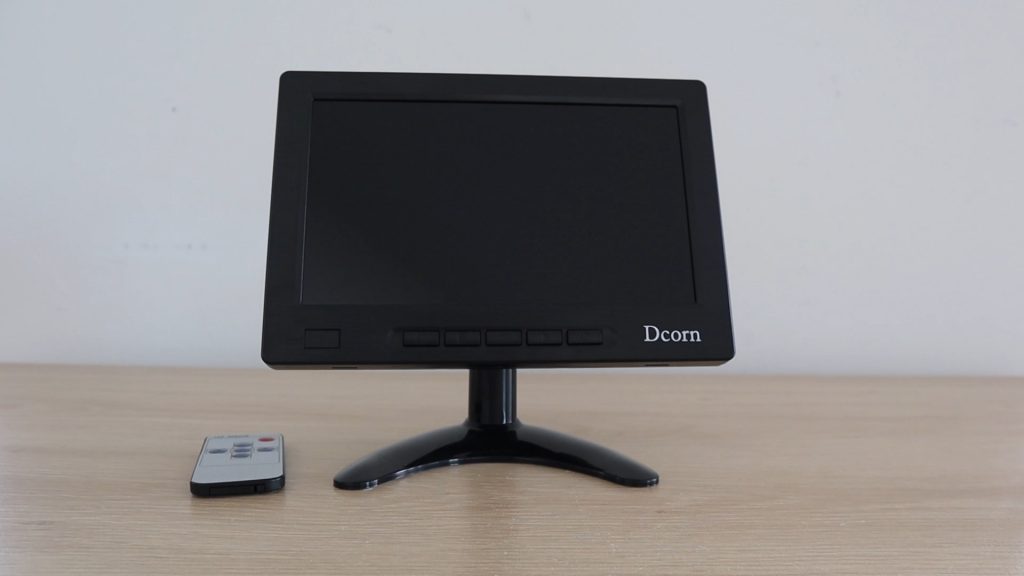
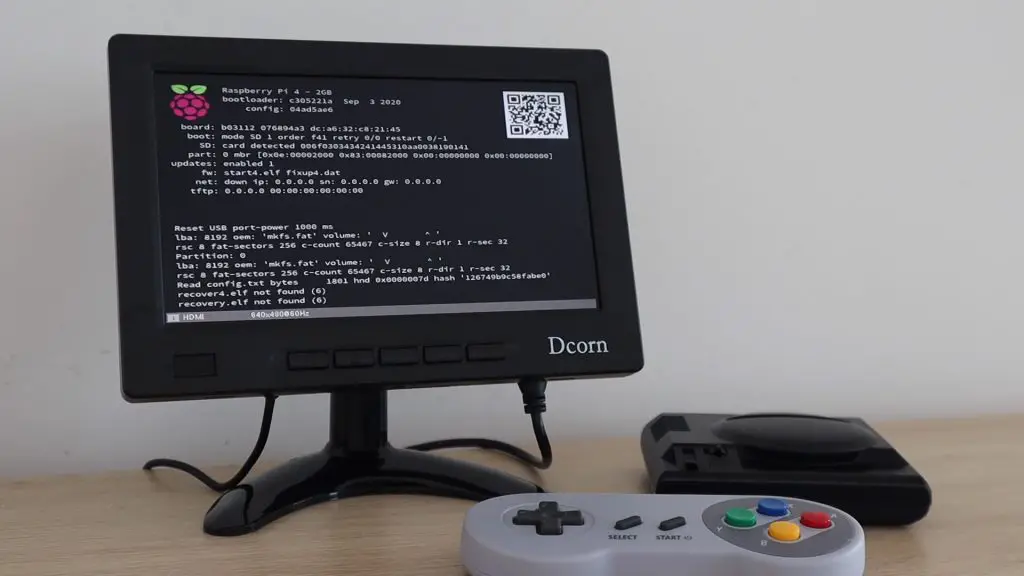
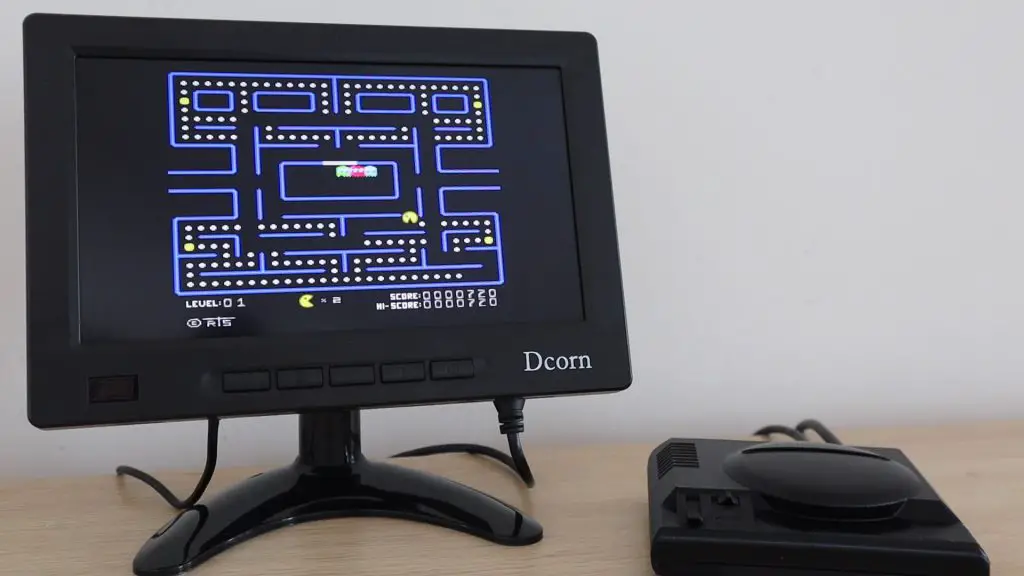
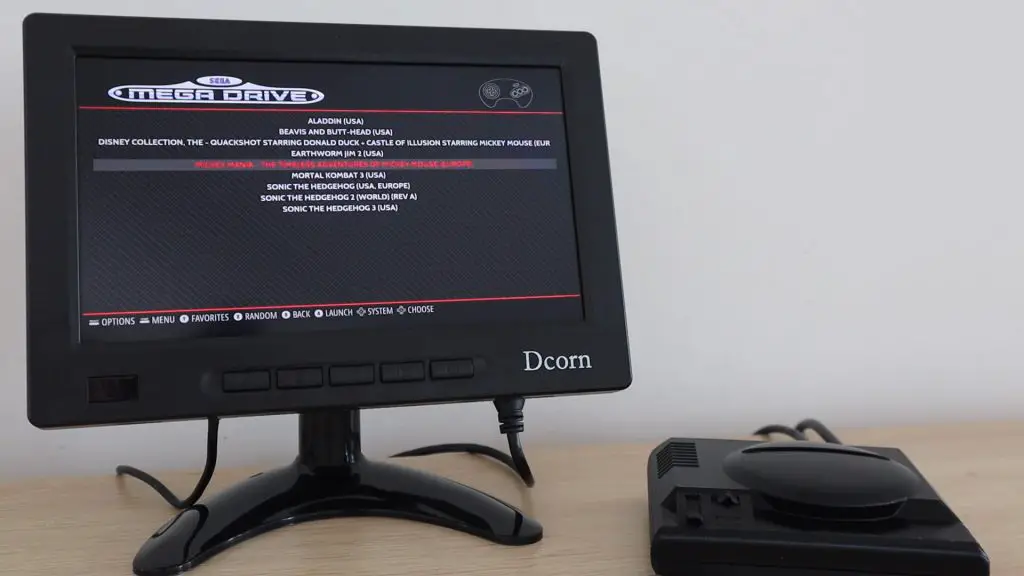
Next, we’re going to look at some hardware modifications which we can make to further reduce the power consumption. We’re going to be looking at the small surface mount components on the Arduino PCB, so I’m going to be using this 7″ LCD Digital Microscope which Dcorn have sent me to give you a closer look.

DCorn Microscope

If you enjoy tinkering with electronics and small PCBs then a microscope like this is a great workshop tool. Some of the close-up images and video footage has been recorded using this microscope.

Removing The Onboard Power LED

The next modification was to remove the onboard power LED. This little LED is on whenever the Arduino is powered, which is great when it’s on your bench, but just wastes power in an enclosure.

Arduino Pro Mini Power LED

Last time, we removed this LED by just clipping it off with some wire cutters, this time I’ll do it with a pencil heat gun.

Removing The Power LED With Heat Gun

This had a massive impact on the current draw, reducing it to 0.05 milliamps or 54 microamps. Which is a great result for something we probably wouldn’t have used anyway.

Power Consumption With Power LED Removed

So this was 25 times less power than in low-power mode. This translates to an additional 2900 days of run time on a 3000mAh battery, just by removing an LED which would have likely been covered anyway.

Removing The Voltage Regulator

We then found that removing the voltage regulator resulted in another significant improvement,

Arduino Pro Mini Power LED Removed

I removed the voltage regulator using the pencil heat gun again, taking care not to damage any of the surrounding components.

Removing Regulator With Heat Gun

The board now consumes just 6 microamps.

Power Consumption Without Regulator

So we can tell from this test that our regulator was using around 50 microamps by itself. So now we’re going to have a look at whether we can change this regulator for a more efficient one.

The regulator I’m going to be using is a Microchip MCP1700, which is a 3.3V 250mA regulator which is designed to have a low quiescent current.

MCP1700 Data

One thing to note with this regulator is that it is only rated for an input voltage of up to 6V, so you won’t be able to use it up to 12V like a standard Pro Mini. There is an alternative, the MCP1702, which has a slightly higher quiescent current but allows an input voltage of up to 13.2V. So if you need a higher input voltage then have a look at this as an alternative.

An issue with the onboard regulator on the Pro Mini is that it’s a bit of an uncommon form factor, having 5 legs. Most voltage regulators you’ll see look more like the MCP1700, having 3 legs. So we can’t just directly replace the one on board with a better one.

MCP1700 with MIC5205 Form Factor

But fortunately, there is an easy workaround. We’re just going to use a through-hole version of the MCP1700. It is a bit larger but has exactly the same characteristics as the smaller package.

Surface Mount and Through Hole Regulator

We still need to remove the surface mount one, which you can do with a pencil heat gun or just use clippers as I did previously.

We’re then going to connect the legs of the regulator to the VCC, GND and RAW pins on the Arduino.

Adding MCP1700 To The Arduino Pro Mini

Doing this takes the voltage supply being applied to RAW and GND and supplies the regulated 3.3V to the Arduino’s VCC circuit.

Now that we’ve done this, let’s have a look at whether our Arduino still works and how much power it now uses.

MCP1700 Installed On Arduino Pro Mini

So the blink sketch is still running and we’re now only using 7 microamps, which is substantially better than the 54 being used by the old regulator.

Power Consumption With MCP1700

So we’ve now got an Arduino that still has a regulated supply which is using 640 times less power than an original Arduino Pro Mini. This means that this Arduino would run for almost two years on a battery that would only power an original Pro Mini for a day, and it would run for almost 50 years on a single 3000mAh battery (if the battery would last this long)

Arduino Pro Mini Still Flashing

So you’ve now got more battery capacity available to power your other IO devices. You can also use batteries with a long shelf life, like non-rechargeable lithium batteries, to power your Arduino for 5-10 years without ever touching it.

Let me know in the comments section what you’d use one of these modified Arduinos to power.

DIY Motorised Camera Slider With Object Tracking

I’ve been wanting to build a motorised camera slider for a while now, so when some popped into my Amazon suggestions a week or two ago, it re-ignited the urge to build one.

So, in this guide, I’m going to be showing you how to build your own motorised camera slider which can pan, rotate and track objects for some really cool shots. It’s driven by an Arduino Pro Mini and some TMC2208 stepper motor drivers and can lift a mirrorless camera like the M50 vertically or in any other angle or orientation, even upside down.

Camera Slider Lift Camera Vertically

Here’s a video of the build and the slider in operation, read on for the step by step instructions:

What You Need To Build Your Own Camera Slider

There are quite a few parts to this build, but it isn’t actually that difficult to make. So don’t let the parts list intimidate you!

Parts From Amazon (Affiliate)

There are also a number of 3D Printed parts in this guide. I’ve used a Creality Ender 3 Pro to print my parts. If you don’t have a 3D printer, there are a number of online 3D printing services available to print and deliver your parts as well.

Parts from Banggood (Affiliate)

How To Make The Motorised Camera Slider

We’re going to build the camera slider in three stages. We’ll first assemble the extrusion mounted mechanical slider components and motors, then assemble the PCB and electronics case, and finally program the slider to perform our movements.

Assembling The Mechanical Slider

One of the cheapest and easiest ways to make sliding rigs is to use aluminium t-slot extrustions. These are widely used on 3D printers, laser cutters and other hobbiest CNC machines, so they’re pretty inexpensive and come in a range of sizes and lengths. They’re really useful for mounting components, you can buy special t-slot nuts which fit into the groves to clamp brackets and mounting plates onto.

Aluminium TSlot Extrusion

I picked out a 2040 extrusion and then a basic mount for the stepper motor, a sliding gantry, a belt tensioner and then the belt and pulley. I also picked up a ball joint camera mount so that I could position the camera at different angles.

Extrusion Components

If you don’t want to build a motorised slider and you’re happy to move your camera along the slider yourself, then you don’t even need the motor mount or the tensioner, just the extrusion and the gantry. An un-powered slider is just as useful to get some great footage, you just need a bit more effort and patience to get the shots.

I installed the components onto the extrusion, along with two stepper motors which I salvaged from an old 3D printer. These are just standard Nema 17 stepper motors with around 1-2A coils. I designed and 3D printed a basic housing for the motor as well as an adaptor for the camera mount and some belt clamps.

3D Printed Motor Mount & Adaptor

The motor mount is just screwed onto one end of the aluminium extrusion using some M5 button head screws and t-slot nuts and the pan motor is then mounted onto this mount with the motor shaft facing towards the extrusion and positioned in line with the top pair of side slots.

I then secured the pulley onto the motor shaft with the teeth lined up with the centre of the top slot.

Install Motor Onto Mount

Put the second motor into the 3D printed housing, securing it to the top cover plate with M3x8mm button head screws and close it up with some more M3x8mm button head screws.

Install Motors Into Housing

Screw the ball joint camera mount onto the 3D printed adaptor using some M4 button head screws and then secure this on the shaft with an M3x15mm cap screw.

Install Adaptor Onto Ball Joint Mount

You can then slide the rotation motor and gantry onto the aluminium extrusion and finish off the end by adding the belt tensioner, again using M5 button head screws and some t-slot nuts.

The “tightness” of the gantry can be adjusted using the nuts on the underside of one pair of wheels. These nuts move the wheel supports closer or further away from the slot, which tightens the grip on the slot. The gantry should be firm, without and rattling when moving, but shouldn’t be difficult to move along the guides.

Add Tensioner Onto TSlot Extrusion

Next I needed some legs to stand the slider onto, I also designed these along with a shoe for my tripod and then 3D printed them in black PLA to match the colour of the aluminium extrusion and the motor mount.

Designing Legs For Extrusion

I 3D printed all of my components using Black PLA with a 15% infill.

Once the legs were printed, I installed them on each end of the slider using two M5 button head screws and t-slot nuts on each.

Install Legs On Slider

Remember to put your tripod mount onto your extrusion (if necessary) before the second leg as this closes up the entry to the slot, so you won’t be able to get the nuts into place.

Add Tripod Mount To Underside Of Slider

Then add the second set of legs.

Add Second Set Of Legs

Once your legs have been added, you just need to add the belt from the motor to the gantry. Start on one side of the gantry, folding the belt over itself and securing it with a 3D printed clamp, then feed the belt around the motor, through the middle of the extrusion, around the tensioner and back to the opposite side of the gantry. The belt should be trimmed to length so that there is about 3-4cm of overlap near the gantry.

Install Belt Onto Motor And Tensioner

The belt needs to be pulled finger tight (with the tensioner completely loose) and you can then tension the belt by tightening the tensioning screw.

Adjust To Tension Belt

We’ve now got the basic slider together with our two stepper motors, so we need a way to get them moving.

Camera Motor Mount

Designing And Assembling The Electronics

To control the camera slider I’m going to use an Arduino pro mini. The Arduino will drive the motors using two silent TMC2208 stepper motor drivers. We also need a way to input the parameters for each movement, so I added an OLED display and a rotatary pushbutton.

Testing The Electronic Components

I set up a basic layout of my components on a breadboard first.

Electronic Components Layed Out On Breadboard

This was done to test that I had made the right connections and that the components all worked properly with the Arduino. I didn’t bother with both stepper motor drivers, if the one worked properly then the other one would too.

Wiring Connections Made On Breadboard
Temporary Wiring Connections

Designing The Circuit And PCB

Once I was happy with the connections to the electronic components, I drew up the circuit and a PCB to mount the components onto.

Camera Slider Schematic

You don’t have to use a PCB, you can mount your components onto a breadboard, but a PCB makes a stronger and more reliable build, especially for something that you’ll be moving around a lot.

Designing The PCB Layout

I got my PCBs made by PCB Way. They literally had them made and shipped out to me in 24 hours, which was quite impressive.

PCBs As Delivered From PCB Way

They did send me these PCBs for this project for free, but you can order your own PCBs from them from just $5 for 10 basic two layer boards. They’re really good quality and they also have a couple of different colour options, so you can really customize your projects.

Completed PCBs Brom PCB Way

Assembling The PCB

I then soldered the components and header pin connectors onto the PCB. I used a header pin connector for the display as well as I was planning on mounting it directly onto the case and having a short ribbon cable to the pins.

All Components Soldered Onto PCBs

I put the heat sinks onto both TMC2208 motor drivers, soldered the pins onto the display and Arduino and then pushed them into the sockets on the board.

You’ll also notice that there is a small jumper on the top right of the board, just above the motor drivers. This jumper selected between having the motors always energised (can be moved by hand) and energised on command by the Arduino i.e. the Arduino can enable or disable the motors. My code makes use of the drive enable function using the Arduino to control them.

Components Mounted

Making The Electronics Case

I then sketched the PCB into my CAD model and designed a case to house it and mount onto my slider.

Designing A Case To House The PCB

I 3D printed the case components again using Black PLA and a 15% infill.

3D Printed Case From Black PLA With 15% Infill
3D Printed Case Components

I installed the PCB into the case, holding it in place with some M3x3mm button head screws. My display is still shown plugged into the header pins here, it was removed for the next steps.

Installed PCB Into Case

I then made up a short power lead to a 5.5mm barrel plug socket (the same one used on the Arduino UNO) to mount onto the side.

I mounted to case onto the slider using some M5 button head screws and t-slot nuts.

Add Power Cable And Mount To Slider

I put a switch onto the PCB to use if you’d like to, but I prefer just having it on when its plugged in and off when its not. A switch is useful if you’re powering it from a battery pack or your’ve got it set up somewhere permanently. If you want to use the switch then you’ll need to modify the case so that it’s accessible through the side.

I connected my motors to the PCB ports alongside each driver and put the wires into some braided sleeving to keep it neat.

Programming The Camera Slider

With that all done, it was time to tackle the programming, which was a bit more of a project than I had anticipated.

Making menus with these rotary pushbuttons is a really neat way to input information with a single device, but you land up having to do quite a lot of coding to make up for it.

Rotary Pushbutton To Input Data

I got the pan and rotate functions working quite quickly and then came the object tracking. I simplistically, or rather stupidly, initially thought this was easy. The camera moves from A to B and rotates through a bit less than 120 degrees, so just divide up the movement and rotation and it’ll work perfectly.

Except that thats not how it works at all.

In order for the camera to stay fixed on an object, it needs to move slowly in the begining, quite quickly in the middle and then slow down at the end again. There’s a bit of trigonometry involved in getting the camera to follow the object properly.

Object Tracking Code

At least I had now realised what I had done wrong and could fix it, so after another few hours of coding, it was finally working.

Here’s my final version of the code. I usually go through the code in some detail for each project, but this project’s code is quite lengthy. I have added quite a few comments in the code to help you follow through it.

I have started a GitHub repository for the code if you’d like to share your adaptations and improvements. Some adaptations have been shared below as well.

Code Variations

Our community has also helped out with some useful additions to the code. Here are some of the modified versions. Note that I haven’t tested these versions of the code.

Limit Switch Inclusions by Paul Bartlett

Paul has added micro-switches to the two ends of the rail to act as limit switches to stop the motor. He has also added a short routine to move the motor back a little at the ends of travel to release the switches and added a routine to automatically home the gantry after running a movement.

Use A 1.3″ Display by Tony Tren

Tony has modified the code to work with the 1.3″ OLED display.

Closing Up The Case

Once I had programmed the Arduino, I closed up the case using four M3x8mm screws and then pushed the knob onto the rotary encoder.

Install Cover Onto Case

The motorised camera slider was now ready to be used.

Completed Camera Slider Ca

Using The Camera Slider

When you first put power onto the Arduino, a splash screen is briefly displayed.

Startup Splash Screen

You’re then presented with the main menu, which allows you to choose from four options – pan, rotate, pan and rotate and object tracking mode.

Camera Slider Main Menu

The options are selected by rotating the encoder and are selected by pressing the encoder. Once a mode is selected, a parameter input screen allows you to input the distance, angles, timing and directions for each movement.

Camera Slider Input Menu

Once all of the parameters have been input, you push the encoder button to start the movement and it then enables the motors and runs. The drivers then remain enabled at the end of the movement until you push the button again to release them. This is to ensure that the camera isn’t suddenly dropped once the movement is complete.

Camera Slider Object Tracking

The camera slider works pretty well, staying fixed on the object from one side to the other. There is one limitation in that you need to know the pan distance and the distance to the object quite accurately, otherwise you land up slightly over or under rotating the camera. This isn’t a big issue but it does mean that its difficult to keep the object exactly in the centre of the frame without getting a ruler out each time. I’ll probably look at designing an interface to a Raspberry Pi in future so that I can run TensorFlow to do real-time object tracking. This should give more reliable results without any measurements.

Camera Slider Mounted Onto Tripod To Work In Any Orientation

The TMC motor drivers were a great choice for this build as they are really smooth and quiet, so you bearly notice them running.

Opposite End Of Camera Slider

As always, let me know what you think of this motorised camera slider in the comments section and let me know what you would do differently. But most importantly, enjoy building your own!

Community Builds

Andrew Campbell has shared his camera slider build with some neat modifications, including adding the limit switches by Paul. Have a look in the comments section for his feedback and thoughts on the project.

Andrew Campbell Camera Slider
Andrew Campbell Camera Slider 2
Andrew Campbell Camera Slider 3

Thermal Testing My Water Cooled Raspberry Pi Cluster – Does Loop Order Matter?

Today I’m going to be thermal testing my water-cooled Raspberry Pi cluster to see if the water cooling system is effective with all of the Pi’s overclocked and running at full load, and to see if there is any significant temperature difference between the first and last nodes since they’re all connected in series.

The comments section on the build video was quite divided. Some suggested that the last Pi would start thermal throttling, some questioned having the radiator positioned first in the loop and others said that it doesn’t make any difference in what order the components are connected and mentioned a video done by JayzTwoCents on the loop order of PC components.

The only way to really be sure that the same is true for the cluster is to test it, so that’s what we’re going to do.

Here’s my video of the thermal testing, read on for the write-up:

Setting Up The Thermal Test

To test the Raspberry Pi Cluster, I’m going to connect a monitor, keyboard and mouse to the first node, which I’ll then use to control the other nodes in the cluster an I’ll use the onboard CPU temperature and a thermal camera to measure the temperatures of each node.

Pi Cluster Test Setup

The first thing we need is a means to get the Pis to all run at full load and produce as much heat as possible. For this, I’m going to be using a utility called CPU burn. Out of all of the CPU stress testing utilities I’ve used, this one seems to be the most intense and generates the most heat.

So I’m going to install this on each of the Pi’s and then run the utility along with a printout of the CPU clock frequency and temperature every 10 seconds. I’ll then leave this running until it looks like the temperatures have levelled off and aren’t increasing anymore and we can then compare the temperatures logged by each and see if there was any significant difference between the first and last nodes in the loop.

To install the CPU burn utility, we need to open a new terminal window and enter the following:

wget https://raw.githubusercontent.com/ssvb/cpuburn-arm/master/cpuburn-a53.S
gcc -o cpuburn-a53 cpuburn-a53.S
Installing CPU Burn

We’ll need to use SSH to install the utility on each of the 7 other nodes as well.

One thing to remember is that the nodes are numbered differently to their position in the loop. The nodes are numbered from top to bottom, left to right and the cooling water loop runs from the bottom right to the bottom left.

Cluster Node Layout

So the cooling loop order is actually 8,7,6,5,1,2,3,4. So if the loop order does matter, then we should have Node 8 being the coolest and Node 4 being the hottest at the end of the test.

To run the test, I’ll open up a new terminal window for each Pi and prepare the command line on each so that we can just hit enter in each window to start running. I’m doing it this way so that all of the node temperatures are being displayed on a single screen so that they’re visible for this video.

Preparing The Command Prompts For The Test

With that all prepared, it looks like the Pis have warmed up a bit when booting up, and we have a surface temperature of about 27 degrees on each Pi, and the room temperature is about 24 degrees.

Looking a bit closer at an individual Pi, we can see there’s definitely a cool spot where the cooling block is, so thats doing it’s job. The RAM, USB and Ethernet chips have warmed up quite a bit.

Running The Thermal Testing On The Cluster

Now let’s start the thermal testing and see how it goes. You can see each Pi started off with a CPU temperature of around 30 to 31 degrees, and this spiked quite quickly to 40 degrees once the test got running.

Running The Thermal Test

After around 8 minutes, you can see that the individual Pis and the combined cluster is quite a bit warmer than when we first started the test.

After running the test for about 10 minutes, there doesn’t look like there has been much increase in temperature over the last two minutes. So, let’s put the results onto a graph and have a look at the temperature of each Pi.

Cluster Thermal Test

I’ve renamed each node to the order that it sits in the loop to make it easier to follow. I didn’t think that there would be much difference across the loop, but I also didn’t expect there to be such a wide variance between each Pi.

From the graph, it looks like the Pi in loop position 4, which is node 5, ran the coolest and the Pi in loop position 1, which is node 8, ran the warmest.

This is what the results look like if we average out the last 4 minutes of the test.

Average Temperature Test

So there really doesn’t seem to be any correlation between the Pi’s position in the loop and its temperature. You can see here that the order in the loop and the average temperature of the node is pretty much random.

Average Re-ordered

If the loop order was significant, then we would have seen a descending pattern starting with 7 or 8 and ending with 1 or 2.

The 4 degree temperature variation between them is more likely caused by conductivity differences between the cooling blocks, thermal paste and CPUs and manufacturing differences between the Pis. The CPUs might also generate slightly different amounts of heat.

Running The Thermal Test Without The Cooling Water Circulating

There were also a couple of comments which suggested that Raspberry Pi’s are so underpowered that they don’t need any active cooling and that a simple heat sink on each would do. So next I’m going to try turning the pump off and leaving the CPU burn utility running to see if we even need the water flow through the heat sinks. Each cooling block is effectively a 30x30x10mm heat sink, so they do increase the surface area of the CPU and should help with cooling by themselves.

After 5 minutes of running, these were the results:

Cooling Water Power Off Test

So it’s pretty obvious that the cooling blocks heat up quite a lot without the water being circulated through them.

You can see from the thermal image that the circuit is much hotter than it was with the water flowing through it.

I turned the loop back on when the hottest Pi reached 65 degrees, and this was only a little over 5 minutes in. The individual Pis also look pretty cool under the thermal camera now, the emissivity difference between the acrylic and cooling blocks makes the Pi logo show up

It looks like the temperature would have levelled off somewhere around 72 degrees. So you could probably get away with running the Pis without the cooling water on without them thermal throttling, but it’s getting close, and they probably wouldn’t last very long if they’re frequenctly running at over 70 degrees.

Does Loop Order Matter?

So, from the thermal testing, it looks like the loop order has very little effect on the temperature of each component. And while this might seem like it doesn’t make sense, it’s actually got to do with the flow rate through the loop.

Single Water Cooled Raspberry Pi

If the loop were running at a really low flow rate, saying taking eight minutes for a millilitre of water to get from one end to the other, then the water would have almost a minute in each node to heat up – which it obviously would. This would have an additive effect, where each Pi would increase the temperature of the water by a couple of degrees and you’d land up with a pretty significant difference in temperature between the first and last nodes.

But in this case, as is the case with pretty much all PC water cooling loops, the flow rate through the loop is quite high. Water circulates from the first to last node in this loop in under 10 seconds. So there is very little time for the water to be heated up by each node.

This doesn’t mean that the water isn’t heated up, it just means that the difference between the first and last nodes is much smaller, so much so that it’s pretty much negligible. This basically means that the temperature of the whole loop remains fairly uniform and that the order of components within the loop doesn’t really matter.

As long as you’ve got a radiator which is removing more heat than what is being put into the loop, the loop will work effectively.

Running a loop in this way is actually more efficient as well, because the greater the difference in temperature between the cooling block and the liguid running through it, the more effective it is at removing heat.

Let me know your thoughts on my thermal testing of the cluster in the comments section. Have you tried different loop orders on your computer’s cooling circuit?

Water Cooled Raspberry Pi Cluster Being Tested

HT-02 Thermal Camera Unboxing & Review

Today I’m going to be unboxing and reviewing the HT-02 Thermal Camera, which Banggood have sent me to share with you. They’re currently selling for $200, which is really cheap for a thermal camera. If you’re not familiar with thermal cameras, entry-level ones from well-known brands typically start around the $1,000 mark and they easily go up to the $10,000 to $20,000 mark. So we’ll have a look at some of the features of this camera as well as what you can and can’t do with it.

Here’s my video review of the camera, read on for the written review.

Where To Get One?

If you’d like to get your own HT-02 thermal camera, you can get one from Banggood through this link – HT-02 Thermal Camera. They’ve got US and China shipping options, so you should get yours in a couple of days.

HT-02 Thermal Camera

Unboxing The HT-02 Thermal Camera

The camera comes in this black and yellow box which has a magnetic flap on the front.

HT-02 Thermal Camera Box

There isn’t much else to the box, it doesn’t give you much information on the specifications of the camera itself, but you can get all of that online on the product page. We’ll also have a look at some of the more important ones in the next section.

Side Of HT-02 Thermal Camera Box

Inside the box, you’ve got a nice hard shell carry case with the camera inside it.

HT-02 Thermal Camera Case In Box

The case zips closed and inside that we’ve got the manual right on top. So let’s have a look at that first.

Camera In Bag With Plastic

The Manual & Specifications

The manual is only in English, and it’s actually not that bad. There are one or two settings or sentences which don’t really make sense, but overall it’s pretty understandable and will get you through setting up and using the camera quite quickly.

Looking At Camera Manual, Specifications

Here are some of the main specifications for the HT-02 thermal camera:

  • Display: 2.4inch colour display
  • Thermal Image Resolution: 60 x 60 (3600 pixels)
  • Thermal Sensitivity: 0.15℃
  • Temperature Range: -20℃ – 300℃ (-4o℉ – 572℉)
  • Measuring Accuracy: ±2℃
  • Wavelength Range: 8-14μm
  • Image Frequency: 8HZ
  • Emissivity: 0.1-1.0 / Adjustable
  • Focus Mode: Fixed
  • Image Storage: SD card(MAX 32G)
  • Power Supply: 4 x AA batteries (NOT included)
  • Operating temperature: 0℃ – 50℃
  • Drop Resistance: 2m
  • Size: 230 × 80 × 52mm
  • Weight: 410g

It has an infrared image resolution of 60×60, which is a total of 3600 pixels. This is on the lower end for thermal cameras, but should still be good enough to get a fair amount of detail for objects when you’re not too far away. It also has a regular camera, with a resolution of 0.3 megapixels. The focal distance is 0.5m, this is the optimal distance between the camera and the subject. It has a temperature range of -20C to 300C, which is pretty good, it’s actually better than most other entry level thermal cameras. Its accuracy is claimed to be within 2% or 2C. It’s also got a range of colour palettes and includes an 8GB SD card. It is powered by 4 AA batteries, which give it a total run time of around 6 hours.

The manual runs you through all of the components, features and buttons.

Manual Menu Options And Settings

It also shows you the menu functions and how to replace the batteries.

Camera Menu Options

We then have a section on how to take measurements and change colour palettes.

Thermal Camera Palette Options

There is also a guide on how to mix images. This feature is quite useful, it enables you to overlay the thermal image and camera image so that you can better locate warm or cold spots on objects. You’re given 5 different levels of mixing from a complete camera image to a complete thermal image and 3 levels in between.

Image Mixing Settings

They also include a small guide on the emissivity of common materials. Different materials emit infrared energy at varying levels and this is the means to calibrate the thermal imaging on the camera to get more accurate results. The default is 0.95, which is a good starting point for most materials and for when you’re measuring a variety of materials in one image, but this is something to keep in mind when you’re taking measurements of certain materials, particularly with metals.

Emissivity Of Materials

That’s pretty much it for the manual. We’ll go over some of the features and operation of the camera while we try it out.

A Close Up Look At The Camera

The HT-02 thermal camera is packaged in a sealed plastic bag and is held in place with an elastic strap on the inside of the case.

Camera In Plastic Bag

The camera actually feels quite solid. It’s got a wrist strap which is tied to the bottom of the handle and there’s also a 3/8” thread on the handle which is useful to mount it onto a tripod or stand.

Threaded Tripod Mount

On the back we have the colour display and 6 buttons for navigating through the settings and menus.

Back Of Camera

The screws are all covered on the sides with small rubberized plugs. On the front we’ve got the thermal camera at the top, then the visual camera underneath it and lastly an LED light. We’ve also got a red trigger button on the handle which is used to take photos.

Front Of Camera

At the top of the camera is the micro SD card slot, which is again covered with a rubberised flap and you’ve given an 8GB micro SD card, which should be plenty of space for the resolution that the camera runs at.

SD Card Slot On HT-02 Thermal Camera

I’ve mentioned before that it feels quite solid and pretty well built. The yellow material on the outside has a rubbery feel to it, so it feels like something you could use around a workshop.

Rubberised Coating On Sides of HT-02 Thermal Camera

I wouldn’t chance dropping it from more than a meter or so, although the manual says it’s safe to drop up to 2m, but it feels like it would survive being bumped around a bit or thrown into a bag with some other measurement equipment.

Testing The Camera

Now that we’ve got the HT-02 thermal camera unpacked, let’s try it out.

We’ll need to put 4 AA batteries into the handle to power it. The battery compartment is in the handle of the camera and the cover just slides into place.

4 AA Batteries In Handle Of Camera

We then need to push and hold the menu button to turn it on. It takes a few seconds to power up and it then goes straight into the thermal camera mode.

Turning The Camera On

Navigating the Menus

Let’s take a look at the menu and some of the settings. To access the menu, you just press the menu button. You can then scroll up and down through the menu options using the up and down arrows and select menu options with the select button. You push the menu button again to exit the menu.

Thermal Camera Menu Options

The menu is pretty simple and is quite intuitive, for the most part.

There’s an option to switch between degrees Celsius and Fahrenheit.

Then there’s a setting called BG. I’m not really sure what this setting is for. The manual just describes it as Default Setting, it might be some sort of calibration offset value. I just left it alone for the test.

We’ve then got the storage space on the card, colour pallet options, emissivity settings, single or multi point measurement, ambient temperature, the time, the number of pictures taken and the display brightness.

The Thermal Imaging Screen

Outside of the menus, and when you turn the camera on, you’re taken to the measurement screen, which is where the thermal image and measurement values are shown.

Measurement Display Screen

You’ve got the thermal image in the centre, with the centre point temperature (defined by the crosshairs in the centre of the display) on the top left and then a battery level indicator along with the emissivity setting on the right. At the bottom you’ve got the colour pallete setting, the current time and then the minimum and maximum temperature in the current image.

The LED on the front is turned on by pressing and holding the trigger button and is turned off in the same way.

HT-02 Thermal Camera Sensor

Taking Measurements & Images

Let’s start off by looking at a Raspberry Pi.

This Pi hasn’t been turned on in a while, so it should be the same temperature as the rest of the room. So you can’t see anything on the thermal camera.

Looking At Raspberry Pi Thermal Image

If we switch to the visual camera you can see that the Pi is in the shot, it’s just not emitting any heat yet.

Looking At Raspberry Pi

Now let’s try plugging it in and watch it heat up a bit. After a few minutes, you can see we’re now getting a warm spot on the bottom of the Ice Tower.

Raspberry Pi Heating Up

If we try the multi-point mode we can see the points on the display where the highest and lowest temperatures are being measured. The highest temperature looks like it is on the bottom of the heat sink in the area in contact with the CPU, as expected, and the lowest temperature is on the desk around it.

The HT-02 thermal camera seems to take a screenshot of the display, so you get all of the information around the image saved with each photo as well. It doesn’t look like you can turn this on or off, but it is pretty important to have with each picture anyway.

Thermal and Visual Image Blending Options

There are 5 blending options for the thermal and visual camera images. 0%, 25%, 50%, 75% and the 100% thermal image and you can easily switch between them using the side arrows. This is useful to locate specific areas in your picture which are generating heat.

Thermal Image Mixing

You’ll notice that the thermal image of the Pi is slightly higher than the visual image. This is because the two cameras obviously have to be spaced slightly apart, and the camera’s alignment is set up for the 0.5m focus distance. So if you’re closer than this then you get a slightly misaligned image. This is going to happen on any camera though because you can’t have both cameras in the same position. Some other cameras do have a means to adjust the focus point, either optically or digitally to correct this and some even do it automatically

Thermal Signature On Objects

Let’s try looking at my hand placed on the desk through the camera. The colour display is bright and produces nice vibrant colours according to the colour palette you’ve got selected.

Looking At Hand Print On Desk

Even with the fairly low resolution of the thermal sensor, you still get pretty good definition and you can make out objects fairly well, as long as they’re not really small.

Hand Print Stays On Desk For A Few Seconds

You can see my hand’s thermal signature stays around for a while after I’ve removed my hand from the desk.

Comparing Hot And Cold Measurements

Lastly, let’s have a look at these two cups of water. The one is cold and the other is hot, which you can’t really tell from my camera unless you notice the thin wisps of steam above the one cup.

Cups Of Water Test Thermal Camera

Here’s what they look like from the thermal camera.

Looking At Cups Of Water Test On Thermal Camera

Here’s a look at the different pallet options available:

Colour Palette Options

You can also use this camera around your house or workshop to find gaps between doors and windows, or to see if equipment has been running or is still on.

Checking Electronics Around The House

Drawbacks and Suggestions

There are three main things I would have liked to have had on this camera, which all would have been relatively easy to add.

The first is that I would have liked to have a video option. It would be useful to see how objects heat up or cool down, like my 3D printer, and with the tripod mount already there, this would be a great tool for monitoring an object for a couple of minutes. You could also add a simple alarm which triggers if the temperature exceeds a certain high or low limit.

Video Of 3D Printer Heating Up

The next would be to be able to digitally adjust the alignment of the two overlaid images. It’s not always possible to get your object at exactly 0.5m and you’re then left with a slightly mismatched image. This doesn’t make the feature unusable, as you can still generally see where the overlay is supposed to be, but this would be pretty simple to do right on the camera and would give you much better quality images. Here’s an example of an image that I’ve fixed up, compared to the original image.

Digitally Aligned Image

Lastly, it would have been nice to have a rechargeable battery. People just don’t use AA batteries as often as they used to and it’s a bit of a mission to have to get to a store to get some more if they die while you’re busy using the camera. Obviously, an internal battery and charger would push the price up a bit, but I think the extra ten to twenty dollars would be worth it for the convenience. If you do use rechargeable AA batteries in the camera then it shows up a low battery warning and shuts down prematurely because rechargeable AA batteries are only 1.2V each and not the usual 1.5V.

Conclusion

Overall, I think the HT-02 thermal camera is a great value for money camera and I’d definitely recommend getting one to try out if you’re unsure about spending thousands of dollars on a more well-known brand. It has a few drawbacks, but none of them are serious. It’s still a perfectly functional camera and is great for getting started with thermal imaging. If you’re interested in getting one for yourself, here’s a link to the product page.

Can My Water Cooled Raspberry Pi Cluster Beat My MacBook?

I recently built a water-cooled Raspberry Pi cluster and a lot of people asked how the cluster would compare to a computer because Raspberry Pi’s themselves aren’t seen as being particularly powerful.

If you haven’t already, have a look at my post on building the Pi Cluster.

How the cluster compares to a traditional computer isn’t really an easy question to answer. It depends on a number of factors and what metrics you measure it against. So this got me thinking of how to fairly compare the cluster to a computer in a way that doesn’t rely too heavily on the software being run and uses my Pi Cluster in the way it was intended when I built it,.

Water Cooled Raspberry Pi Cluster Comparison

The cluster, and Raspberry Pi’s in general, aren’t designed for gaming or rendering high-end graphics, so obviously won’t perform well against a computer in this respect. But my intention behind building this cluster, apart from learning about and experimenting with cluster computing was to run mathematical models and simulations.

The Test Script

I initially thought of doing something along the lines of calculating Pi to a particular number of decimal places, but then I stumbled across a simple 4 node cluster setup mentioned in The Mag Pi which was used to find prime numbers up to a certain limit. This seemed like a good comparison as it is simple to understand and edit, it is easily adjustable and it can be run on Windows PCs, Macs and Raspberry Pi’s, so you can even join in and see how your computer compares.

Python Script For Finding Primes From The Mag Pi

The script just runs through each number, up to a limit, and checks its divisibility to figure out if it is a prime number or not. I have simplified their cluster script so that it can be run on a PC, Mac or single Raspberry Pi.

import time
import sys

#Start and end numbers
start_number = 1
end_number = 10000

#Record the test start time
start = time.time()

#Create variable to store the prime numbers and a counter
primes = []
noPrimes = 0

#Loop through each number, then through the factors to identify prime numbers
for candidate_number in range(start_number, end_number, 1):
    found_prime = True
    for div_number in range(2, candidate_number):
        if candidate_number % div_number == 0:
            found_prime = False
            break
    if found_prime:
        primes.append(candidate_number)
        noPrimes += 1

#Once all numbers have been searched, stop the timer
end = round(time.time() - start, 2)

#Display the results, uncomment the last to list the prime numbers found
print('Find all primes up to: ' + str(end_number))
print('Time elasped: ' + str(end) + ' seconds')
print('Number of primes found ' + str(noPrimes))
#print(primes)

I know that this is a very inefficient way of searching for prime numbers, but the intention is to make the script computationally expensive so that the processors have to work. There are some interesting thoughts and algorithms for finding prime numbers if you’d like to do some further reading.

For each setup, we’ll be testing the time it takes to find all prime numbers up to 10,000, 100,000 and 200,000.

I’ll be doing 5 comparisons, running the simulation on two laptops – a 2020 MacBook Air and a somewhat outdated HP Laptop running Windows 10 Pro. We’ll then compare these laptops to a single Pi 4B running at 1.5Ghz, then overclock the single Pi to 2.0Ghz, and then finally run the simulation on the Raspberry Pi Cluster with all of the Pis overclocked to 2.0Ghz.

There were a few requests on my build video to compare the cluster to a one of AMDs Ryzen CPU’s. So if any of you are running one, please try running the Python script which you can download above and share the results in the comments section. I’d also be interested to see how the Pi 400 performs if anyone has one of those.

Edit – Multi-process Test Script

Thanks to Adi Sieker for putting together a multi-process version of the script. This script makes use of all available cores and threads on the computer it’s being run on, so should give much better comparative results for multi-core processors.

I’ll add my updated test results for each system running this script at the end of this post.

import multiprocessing as mp
import time


#max number to look up to
max_number = 10000
#four processes per cpu
num_processes = mp.cpu_count() * 4

def chunks(seq, chunks):
        size = len(seq)
        start = 0
        for i in range(1, chunks + 1):
            stop = i * size // chunks
            yield seq[start:stop]
            start = stop

def calc_primes(numbers):
    num_primes = 0
    primes = []

    #Loop through each number, then through the factors to identify prime numbers
    for candidate_number in numbers:
        found_prime = True
        for div_number in range(2, candidate_number):
            if candidate_number % div_number == 0:
                found_prime = False
                break
        if found_prime:
            primes.append(candidate_number)
            num_primes += 1
    return  num_primes

def main():
    #Record the test start time
    start = time.time()

    pool = mp.Pool(num_processes)

    #0 and 1 are not primes
    parts = chunks(range(2, max_number, 1), 1)
    #run the calculation
    results = pool.map(calc_primes, parts)
    total_primes = sum(results)

    pool.close()

    #Once all numbers have been searched, stop the timer
    end = round(time.time() - start, 2)

    #Display the results, uncomment the last to list the prime numbers found
    print('Find all primes up to: ' + str(max_number) + ' using ' + str(num_processes) + ' processes.')
    print('Time elasped: ' + str(end) + ' seconds')
    print('Number of primes found ' + str(total_primes))

if __name__ == "__main__":
    main()

Testing The Laptops And Individual Pi

Now that we know what we’re going to be doing, let’s get started with testing the computers.

I’ll start off on my Windows PC. The windows PC has a 7th generation dual-core i5 processor running at 2.5GHz.

Outdated HP Laptop

Let’s start off by running the script to 10,000.

Windows 10000

So as expected, that was completed pretty quickly, 1.69 seconds to find 1230 prime numbers below 10,000.

Now let’s try 100,000. Remember that even though 100,000 is only ten times more than 10,000, it’s going to take significantly longer than 10 times the time, because there are exponentially more factors to check as the numbers get larger.

Windows 100000

So running the test to 100,000, we get a time of 73 seconds, which is a minute and 13 seconds and we found 9593 prime numbers.

Lastly, lets try 200,000.

Windows 200000

So it took 267 seconds or a little under 5 minutes to find the prime numbers to 200,00 and we found 17,985 primes.

Here’s a summary of the HP laptop’s results.

HP Laptop

Next, we’ll look at the MacBook Air. The MacBook Air has a 1.6 GHz Dual Core i5 processor, let see how that compares to the older HP laptop. We’d expect the MacBook to be a bit slower than the PC as it’s CPU is only running at 1.6GHz, while the PC is running at 2.5Ghz.

2020 MacBook Air

The MacBook Air was quicker to 10,000 but then took a little longer than the PC for the next two tests, taking just under 6 minutes to find the primes up to 200,000.

MacBook 10000
MacBook 200000
MacBook 200000

Here’s a summary of the results of the two tests so far:

Laptops

Let’s now move on to the singe Raspberry Pi running at 1.5Ghz.

Overclocked Pi 4B

The Pi 4B has a quad-core ARM Coretex-A72 processor.

Pi Running 1.5 Ghz

Even to 10,000, we can already see that the Pi is quite a bit slower than the other computers, taking 2 seconds for the first 10,000 and taking a little over 13 minutes to get to 200,000.

Next we’ll overclock the Pi to 2.0Ghz and see what sort of difference we see.

Pi Running 2.0 Ghz

Overclocking the Pi has made a bit of an improvement. It took 1.57 seconds to 10,000, and around 11 minutes to get to 200,000.

Here’s a summary of the results of our tests of the individual computers:

2 Ghz Pi

Setting Up The Raspberry Pi Cluster

Next, we need to get the Pi’s all overclocked and working together in a cluster. To do this, there are a couple of things we need to set up.

Setting Up The Raspberry Pi Cluster

I’ve installed a fresh copy of Raspberry Pi OS on the host or master node and then a copy of Raspberry Pi OS Lite on the other 7 nodes.

Prepare Each Node For SSH

Boot them up and then run the following lines to update them:

sudo apt -y update
sudo apt -y upgrade

Next, run;

sudo raspi-config

And change each Pi’s password, hostname. I used hostnames Node1, Node2 etc.. Also, make sure that SSH is turned on for each Pi so that you can access them over the network.

Changing Hostname And Password

Next, you need to assign static IP addresses to your Pi’s. Make sure that you’re working in a range which is not already assigned by your router if you’re not working on a dedicated network.

sudo nano /etc/dhcpcd.conf

Then add the following lines to the end of the file:

interface eth0
static ip_address=192.168.0.1/24

I used IP addresses 192.168.0.1, 192.168.0.2, 192.168.0.3 etc.

Then reboot your Pi’s and you should then be able to do the rest of the setup through Node 1.

We can now use the NMAP utility to see that all 8 nodes are online:

nmap 192.168.0.1-8
Using NMAP To See All Nodes Are Online

Overclock Each Node To 2.0 GHz

Next, we need to overclock each Pi to 2.0 GHz. I’ll do this from node 1 and SSH into each node to overclock it.

SSH into each Pi by entering into the terminal on Node1:

ssh [email protected]

You’ll then be asked to enter your username and password for that node and you can then edit the config file by entering:

sudo nano /boot/config.txt

Find the line which says #uncomment to overclock the arm and then add/edit the following lines:

over_voltage=6
arm_freq=2000
OverClocking Each Pi In Cluster Through SSH

Reboot each node once you’ve edited and saved the file.

Create SSH Key Pairs So That You Don’t Need To Use Passwords

Next, we need to allow the Pis to communicate with the host without requiring a password. We do this by creating SSH keys for the host and each of the nodes and sharing the keys between them.

Let’s start by creating the key on the host by entering:

ssh-keygen -t rsa
Creating Host Node's SSH Key

Just hit ENTER or RETURN for each question, don’t change anything or create a passphrase.

Next, SSH into each node as done previously and enter the same line to create a key on each of the nodes:

ssh-keygen -t rsa
Creating Individual Node's Keys

Before you exit or disconnect from each node, copy the key which you’ve created to the master node, node 1:

ssh-copy-id 192.168.0.1

Finally, do the same on the master node, copying it’s key to each of the other nodes:

ssh-copy-id 192.168.0.2

You’ll obviously need to increment the last digit of the IP address and repeat this for each of your nodes so that the key is copied to all nodes.

This is only done in pairs between the host and each node, so the nodes aren’t able to communicate with each other, only with the host.

You should now be able to SSH into each Pi from node 1 without requiring a password.

ssh '192.168.0.2'

Install MPI (Message Passing Interface) On All Nodes In The Raspberry Pi Cluster

Next, we’re going to install MPI, which stands for Message Passing Interface, onto all of our nodes. This allows the Pis to delegate tasks amongst themselves and report the results back to the host.

Let’s start by installing MPI on the host node by entering:

sudo apt install mpich python3-mpi4py
Installing MPI On Host Node

Again use SSH to then install MPI onto each of the other nodes using the same script:

Installing MPI On Other Nodes In The Raspberry Pi Cluster

Once you’ve done this on all of your nodes, you can test that they’re all working and that MPI is running by trying the following:

mpiexec -n 8 --host 192.168.0.1,192.168.0.2,192.168.0.3,192.168.0.4,192.168.0.5,192.168.0.6,192.168.0.7,192.168.0.8 hostname

You should get a report back from each node with it’s hostname:

Check MPI Is Running On All Nodes

Copy The Prime Calculation Script To Each Node

The last thing to do is to copy the Python script to each of the Pis, so that they all know what they’re going to be doing.

Here is the script we’re going to be running on the cluster:

The easiest way to do this is with the following line:

scp ~/prime.py 192.168.0.2:

You’ll again obviously need to increment the IP address for each node, and the above assumes that the script prime.py is in the home directory.

You can check that this has worked by opening up an SSH connection on any node and trying:

mpiexec -n 1 python3 prime.py 1000

Once this is working, then we’re ready to try out our cluster test.

Testing The Raspberry Pi Cluster

We’ll start out with calculating the primes up to 10,000. So we’ll start a cluster operation with 8 nodes, list the node’s IP addresses and then tell the operation what script to run, in which application to run it and finally the limit to run the test up to:

mpiexec -n 8 --host 192.168.0.1,192.168.0.2,192.168.0.3,192.168.0.4,192.168.0.5,192.168.0.6,192.168.0.7,192.168.0.8 python3 prime.py 10000

The cluster was able to get through the first 10,000 in 0.65 seconds – faster than either of our computers. Which is quite surprising given that the system needs to manage communication to and from the nodes as well.

Here are the results for the test to 10,000, 100,000 and then to 200,000:

Pi Cluster Finding Primes Computing Test

The search to 200,000 took just 85 seconds, which is again a little over 3 times faster than the Windows PC and 4 times faster than the MacBook. It was also a just a little slower than 8 times faster than the individual Pi.

Here is a comparison of the combined results from all of the tests done:

Pi Cluster

Lastly, I just ran the simulation to 500,000 on the cluster to see how fast it would be.

Raspberry Pi Cluster Additional Test Up To 500000

That took 526 seconds, or a little under 9 minutes.

I plotted a trend and forecast the 500,000 times for the other tests so that you can see how they compare. I’ve converted all of these values to minutes to make them a bit more understandable.

Raspberry Pi Cluster Forecast

So our cluster was able to beat the PC and Mac quite significantly, which might be somewhat surprising, but that is the power of cluster computing. You can imagine that when running really large simulations, which often take a couple of days on a PC, being able to run the simulation just 2-3 times faster is a massive saving. A week-long simulation on the PC can be completed by the Pi Cluster in just two and a half days.

Now obviously we could cluster PCs as well to achieve better simulation times, but remember that each Pi node in this setup costs just $35, so you can build a pretty powerful computer for a few hundred dollars using Raspberry Pis. You’re also not limited to just 8 nodes, you could add another 8 nodes to this setup for around $400 and you’d have a cluster which performs 6 times faster than the PC.

Multi-Process Test Results

As mentioned in an earlier edit in the post, Adi Sieker put together a multi-process version of the script.

Here are the results of the tests done so far (I’ll keep adding to them as I complete them on each platform):

HP Laptop – Using 16 processes:

  • 10,000 – 0.9 s
  • 100,000 – 18.27 s
  • 200,000 – 66.99 s
  • 500,000 – 374.3 s (6 mins 15 s)

What About The Temperature Of The Loop?

I also checked the temperature of the master node, which is midway through the cooling loop (5th in the loop), to see how warm it was after the test:

Check CPU Temperature Afterwards

It was only around 8 degrees above room temperature after the test.

Next, I’m going to be doing a full thermal test on the Raspberry Pi Cluster to check how it performs under full load for a duration of time. So be sure to check back in a week or two or subscribe to my channel for updates on Youtube.

As mentioned earlier, feel free to download the script and try it out on your own computer and share your results with us in the comments section. We’d love to see how some other setups compare.

Making an Arduino Oplà IoT Weather Station with Cloud Dashboard

Today we’re going to be looking at using the Arduino Oplà IoT kit to make your own weather station which posts data to the cloud, which you can view on a dashboard on your computer, phone or tablet from anywhere in the world.

IoT Remote Trends

Towards the end of last year, Arduino launched their Oplà IoT kit. I did an unboxing and first impressions post which is linked here. I played around with programming the Arduino locally and using it to fetch information from the internet, but I didn’t get to try the Arduino IoT Cloud. So today we’re going to do just that.

Arduino Opla IoT Kit Unboxing

Here’s a video of the build, read on for the full write-up:

What You Need To Build Your IoT Weather Station

This project is primarily based on the Personal Weather Station project which is included in the kit, but we’ll also be making some improvements and enhancements to get a bit more out of it.

So we’ll just be using the components which are included in the Arduino Oplà IoT kit, you can get here:

  • Oplà IoT Kit From Arduino Store – Buy Here
  • Oplà IoT Kit From Amazon Store – Buy Here
Items Required To Build You Own IoT Weather Station

For this project, we’re going to be using the IoT Carrier board, the Arduino MKR1010 board, the plastic case and then the power cable, USB cable and three included screws.

Building The Weather Station

Arduino MKR1010 Wifi Board

The Arduino used in the IoT kit is the MKR1010 board, with onboard WiFi and Bluetooth connectivity. It plugs into the carrier board, takes readings from the sensors and then posts these to the cloud using its WiFi connection.

To get started, we’ll follow the project guide on the Oplà site.

Opla IoT Website, 8 Included Projects

As you can see, there are 8 included projects, we’re going to be running through the Personal Weather Station project.

Personal Weather Station Project

We’re going to be using the temperature and humidity sensor, the pressure sensor and the light sensor, which are all positioned at the bottom on the front of the carrier board. So we don’t need to add any external sensors or do any wiring.

Temperature & Humidity Sensors

Setting Our Arduino Up As An IoT Cloud Device

To start off, we need to set our Arduino MKR1010 board up as an IoT cloud device.

Plug MKR1010 Wifi Board Into Computer

To do this, we need to plug it into our computer and install the Arduino create plugin. This is a small plugin which runs in your system tray and allows the web interface to talk to the board. Once you’ve downloaded and installed the plugin, check that it is running in your system tray. If not, you’ll need to search for it and run it.

We then go across to devices on the IoT cloud page and set up an Arduino device.

Connect Your Arduino To The Cloud

This process is fairly well automated, it first detects your board, then uploads a generic sketch to the device which enables it to connect to the IoT cloud and be seen as an IoT device. It lastly runs through a verification process to test that it is working correctly.

Creating Our Weather Station “Thing”

Once we have our device set up, we can start creating our first “thing”, which will be our Weather Station.

Create Your First Thing

Thing’s are basically cloud-based applications which you can create using the Arduino IoT cloud platform – each project you create, which uses it’s own Arduino, is a new Thing.

Associate Your Device

When you first create a thing, you’ll need to assign a device to it, which will be our MKR1010 board which we set up previously.

Create Variables For Each Metric or Parameter

We then need to create variables for all of the metrics which we’d like to control over the cloud. This doesn’t need to be all of the variables you’re going to use in your sketch, just all of the ones which you want to be able to view or control over the cloud.

For our weather station, this is the temperature, pressure, humidity, light and a weather report string. For each variable, you’ll need to tell the system how often it should be updated and whether the cloud can just read the variable or read and write to the variable.

Configure Network Name & Password

Once all of your variables are created, the last thing to do is to put in your WiFi network name and password so that the board is able to connect to it.

Web Editor And Serial Monitor

In this same area, you’re able to edit the sketch and view the serial monitor, but we’re going to rather do this in the full online editor where we have a bit more space. Before we leave, we just need to rename the Thing so that our sketch is named appropriately in the editor, we’ll call ours “WeatherStation”.

Programming Our Weather Station

If you open up the web editor, you’ll see a basic generated sketch which looks similar to a typical Arduino sketch.

Web Editor Basic Sketch

The main difference is that the cloud connection code has been added to the setup function and the variables that we created earlier are already available to use, so you don’t need to re-add them to the code.

We’re going to remove the main portion of this code and replace it with the Personal Weather Station example code as a starting point.

Let’s have a quick look at what the code does.

void setup() {
  // Initialize serial and wait for port to open:
  Serial.begin(9600);
  while (!Serial);
 
  // Defined in thingProperties.h
  initProperties();
 
  // Connect to Arduino IoT Cloud
  ArduinoCloud.begin(ArduinoIoTPreferredConnection);
  //Get Cloud Info/errors , 0 (only errors) up to 4
  setDebugMessageLevel(2);
  ArduinoCloud.printDebugInfo();
 
  //Wait to get cloud connection to init the carrier
  while (ArduinoCloud.connected() != 1) {
    ArduinoCloud.update();
    delay(500);
  }
  delay(500);
  CARRIER_CASE = false;
  carrier.begin();
  carrier.display.setRotation(0);
  delay(1500);
}

In the setup function, we start the serial monitor, for debugging information, we then import our “thing” properties and establish a connection with the Cloud. Lastly, we create an object to control the carrier board.

You’ll notice that there is a property called Carrier_Case which is set to false. This sets different calibration setpoints for the capacitive buttons so that they’re able to be activated through the case when the carrier is in it. We’ll be using it out of the case for now.

void loop() {
  ArduinoCloud.update();
  carrier.Buttons.update();
 
  while(!carrier.Light.colorAvailable()) {
    delay(5);
  }
  int none;
  carrier.Light.readColor(none, none, none, light);
  
  temperature = carrier.Env.readTemperature();
  humidity = carrier.Env.readHumidity();
  pressure = carrier.Pressure.readPressure();
 
 
  if (carrier.Button0.onTouchDown()) {
    carrier.display.fillScreen(ST77XX_WHITE);
    carrier.display.setTextColor(ST77XX_RED);
    carrier.display.setTextSize(2);
 
    carrier.display.setCursor(30, 110);
    carrier.display.print("Temp: ");
    carrier.display.print(temperature);
    carrier.display.print(" C");
  }
 
  if (carrier.Button1.onTouchDown()) {
    carrier.display.fillScreen(ST77XX_WHITE);
    carrier.display.setTextColor(ST77XX_RED);
    carrier.display.setTextSize(2);
 
    carrier.display.setCursor(30, 110);
    carrier.display.print("Humi: ");
    carrier.display.print(humidity);
    carrier.display.print(" %");
  }
 
  if (carrier.Button2.onTouchDown()) {
    carrier.display.fillScreen(ST77XX_WHITE);
    carrier.display.setTextColor(ST77XX_RED);
    carrier.display.setTextSize(2);
 
    carrier.display.setCursor(30, 110);
    carrier.display.print("Light: ");
    carrier.display.print(light);
  }
 
  if (carrier.Button3.onTouchDown()) {
    carrier.display.fillScreen(ST77XX_WHITE);
    carrier.display.setTextColor(ST77XX_RED);
    carrier.display.setTextSize(2);
 
    carrier.display.setCursor(30, 110);
    carrier.display.print("Pressure: ");
    carrier.display.print(pressure);
    
  }
 
  if (humidity >= 60 && temperature >= 15) {
    weather_report = "It is very humid outside";
    
  }else if (temperature >= 15 && light >= 700) {
    weather_report = "Warm and sunny outside";
    
  }else if (temperature <= 16 && light >= 700) {
    weather_report = "A little cold, but sunny outside";
  }
 
}

In the loop function, we update the cloud variables, then get readings for the state of the buttons as well as readings from our sensors. We then check if any of the buttons have been pushed and if they have then we update the display accordingly. Lastly, we have some weather condition checks which generate a single line weather report if they’re met.

Upload Basic Sketch To Arduino

Let’s try upload this generic sketch to our board and see how it works.

Board Makes Ticking Noise When Uploading Sketch

When the board is mounted onto the carrier, it makes some ticking noise (which you can hear in the video) when the sketch is uploaded as the two relays are energised and de-energised.

Open Serial Montitor To View Data

Once the code is uploaded, we need to open the serial monitor to allow the board to run, as there was a “while loop” pause for this in the setup function.

We can then see the board connect to the WiFi and then establish a connection with the cloud.

Let’s have a look at what is displayed on the carrier’s display.

We saw from the code that we need to touch one of the first four buttons to get the display to change.

View Data On IoT Carrier Display

The first is temperature, then humidity, then light and then finally the pressure. The fifth button doesn’t do anything yet. Touching these four buttons reveals readings for each of the four variables we’ve set up.

Last Button Doesn't Do Anything

It looks like our Arduino is doing everything it should be and is connected to the cloud, so now let’s have a look at how we access the cloud data.

Creating A Cloud Dashboard For Our Weather Station

Now that we know that the board is connected to the cloud and should be posting data, we can create a dashboard to view the data over the internet.

Build A Dashboard

In the dashboard creator, we can create and arrange a number of displays, charts and buttons to view data from and interact with our Arduino.

Add Gauges and Dials For Each Metric

We’re going to start by adding a readout for each of our variables used in our IoT Weather Station. These will be a percentage readout for humidity, a gauge for temperature and then just a value readout for the pressure and the light level. We’ll also create a messenger to view our weather report information.

Add Graphs For Each Metric

Instead of just being able to see the current values of the variables, it would be nice to also be able to see the historic data. We’re going to do this by adding a chart for each variable as well. Adding a chart allows you to see data for the past hour, day, 7 days and 15 days all plotted onto a line graph.

Using The Dashboard

Once we’re done with creating the dashboard, we click on use dashboard to save the layout and start using it.

The data will continue to be logged on the cloud and you can access this dashboard through your browser from any computer.

Mobile Phone Remote App IoT Weather Station

There is also an IoT Remote app which you can load onto your phone or tablet to view your created dashboards.

IoT Remote Graph Trend

You can tap on the expand icon to open any of the charts in a landscape view to get better resolution.

It is quite interesting to play around with the sensors on your Arduino and see them respond on the cloud. Like covering up the light sensor.

Covering The Light Sensor
Covering The Light Sensor IoT Remote App

I put my finger over the light sensor and then watched the light level drop on my IoT Remote app, then removed it and watched it increase again.

Improving Our Weather Station

Now that we’ve got he basic IoT Weather Station up and running, let’s have a look at how we can improve upon it.

One limitation of the included sketch is that the data on the display is only updated each time the button is pushed. So if you leave it displaying the temperature, you just get a static readout and it doesn’t update the display until you press the temperature button again.

Keep Pressing Button To Update Display

The general layout and colours are also a bit boring, so we’re going to try to change those too.

Here is my final version of the code:

/* 
  Sketch generated by the Arduino IoT Cloud Thing "Untitled"
  https://create.arduino.cc/cloud/things/151ec4be-5c5f-47b2-9225-e383f05732e5 

  Arduino IoT Cloud Variables description

  The following variables are automatically generated and updated when changes are made to the Thing

  float humidity;
  float temperature;
  int light;
  float pressure;
  String weather_report;

  Variables which are marked as READ/WRITE in the Cloud Thing will also have functions
  which are called when their values are changed from the Dashboard.
  These functions are generated with the Thing and added at the end of this sketch.
*/
	
#include "thingProperties.h"
#include <Arduino_MKRIoTCarrier.h>
MKRIoTCarrier carrier;

int modeSelect = 0;
int previousMode = 0;
int refreshCount = 0;
 
void setup() {
  // Initialize serial and wait for port to open:
  Serial.begin(9600);
  //while (!Serial);
 
  // Defined in thingProperties.h
  initProperties();
 
  // Connect to Arduino IoT Cloud
  ArduinoCloud.begin(ArduinoIoTPreferredConnection);
  //Get Cloud Info/errors , 0 (only errors) up to 4
  setDebugMessageLevel(2);
  ArduinoCloud.printDebugInfo();
 
  //Wait to get cloud connection to init the carrier
  while (ArduinoCloud.connected() != 1) {
    ArduinoCloud.update();
    delay(500);
  }
  delay(500);
  CARRIER_CASE = true;
  carrier.begin();
  carrier.display.setRotation(0);
  carrier.display.fillScreen(ST77XX_BLACK);
  carrier.display.setTextColor(ST77XX_WHITE);
  carrier.display.setTextSize(3);

  carrier.display.setCursor(60, 80);
  carrier.display.print("Weather");
  carrier.display.setCursor(60, 120);
  carrier.display.print("Station");
  delay(2000);
  carrier.display.fillScreen(ST77XX_BLACK);
  carrier.display.setTextColor(ST77XX_WHITE);
  carrier.display.setTextSize(2);

  carrier.display.setCursor(70, 80);
  carrier.display.print("Connected");
  carrier.display.setCursor(50, 110);
  carrier.display.print("To IoT Cloud");
  delay(2000);
}
 
void loop() {
  ArduinoCloud.update();
  carrier.Buttons.update();
 
  while(!carrier.Light.colorAvailable()) {
    delay(5);
  }
  int none;
  carrier.Light.readColor(none, none, none, light);
  
  temperature = carrier.Env.readTemperature();
  humidity = carrier.Env.readHumidity();
  pressure = carrier.Pressure.readPressure();
  
  if(carrier.Button0.onTouchDown()) {
    modeSelect = 0;
  }
  else if(carrier.Button1.onTouchDown()) {
    modeSelect = 1;
  }
  else if(carrier.Button2.onTouchDown()) {
    modeSelect = 2;
  }
  else if(carrier.Button3.onTouchDown()) {
    modeSelect = 3;
  }
  else if(carrier.Button4.onTouchDown()) {
    modeSelect = 4;
  }
   
  if(modeSelect != previousMode) {
    updateDisplay();
    previousMode = modeSelect;
    refreshCount = 0;
  }
  else if (refreshCount >= 50) {
    updateDisplay();
    refreshCount = 0;
  }
 
  if (humidity >= 60 && temperature >= 15) {
    weather_report = "It is very humid outside";
  }
  else if (temperature >= 25 && light >= 700) {
    weather_report = "Hot and sunny outside";
  }
  else if (light <= 100) {
    weather_report = "It is dark outside";
  }
  else if (temperature >= 15 && light >= 700) {
    weather_report = "Warm and sunny outside";
  }
  else if (temperature <= 16 && light >= 700) {
    weather_report = "A little cold, but sunny outside";
  }
  else if (humidity >= 90 && temperature <= 15) {
    weather_report = "It is wet and rainy outside";
  }
  refreshCount++;
}

void updateDisplay () {
    if (modeSelect == 0) {
    carrier.display.fillScreen(ST77XX_RED);
    carrier.display.setTextColor(ST77XX_WHITE);
    carrier.display.setTextSize(4);

    carrier.display.setCursor(70, 50);
    carrier.display.print("Temp:");
    carrier.display.setCursor(40, 110);
    carrier.display.print(temperature);
    carrier.display.print(" C");
  }
  else if (modeSelect == 1) {
    carrier.display.fillScreen(ST77XX_BLUE);
    carrier.display.setTextColor(ST77XX_WHITE);
    carrier.display.setTextSize(4);

    carrier.display.setCursor(70, 50);
    carrier.display.print("Humi:");
    carrier.display.setCursor(40, 110);
    carrier.display.print(humidity);
    carrier.display.print(" %");
  }
  else if (modeSelect == 2) {
    carrier.display.fillScreen(ST77XX_GREEN);
    carrier.display.setTextColor(ST77XX_BLACK);
    carrier.display.setTextSize(4);

    carrier.display.setCursor(60, 60);
    carrier.display.print("Light:");
    carrier.display.setCursor(80, 120);
    carrier.display.print(light);
  }
  else if (modeSelect == 3) {
    carrier.display.fillScreen(ST77XX_CYAN);
    carrier.display.setTextColor(ST77XX_BLACK);
    carrier.display.setTextSize(4);

    carrier.display.setCursor(60, 60);
    carrier.display.print("Press:");
    carrier.display.setCursor(20, 110);
    carrier.display.print(pressure);
    carrier.display.print(" Pa");
  }
  else {
    carrier.display.fillScreen(ST77XX_BLACK);
  }
}

Let’s have a look at what I’ve changed.

I’ve started out by commenting out the serial monitor “while loop” as we now know that our board is connecting correctly and we don’t want to have to open up the serial monitor to get it to run, especially if it is powered by a battery.

I then added some splash screen text which is displayed on startup. This just says “Weather Station” and then “Connected To IoT Cloud” two seconds later.

In the loop function, I modified the code so that each button selects a display mode and the display is then updated in the background without having to press the button again. This means that pushing a button will change the current display, but otherwise, the display continues to be updated every 50 loop cycles. This relates to about every 3-4 seconds. If you update the display on every cycle then it slows the code down significantly and the display starts flickering.

I also added a few more weather reports based on some extra conditions.

I moved the display updates into their own function, which is called from the loop function, and then added some colour and changed the font size for each variable display. If we’ve got a colour display then we may as well use it!

Now let’s upload the new code and see how it looks.

The displays now look a bit more vibrant and they continue to refresh in the background, so you can mount the carrier onto a wall and have a function weather station display.

I also added some functionality to the last button, which now blacks out the display. This could be useful at night to make it less distracting and may use less power when running on a battery since this is an OLED display.

View IoT Weather Station With Remote App

You can now watch the display and the app update simultaneously.

Powering The Weather Station Using A Battery

The last thing I’m going to try is putting the IoT Weather Station into the case and powering it using a 18650 lithium-ion battery.

Add Power Jumper

For that, we need to add this little power lead between the board and the Arduino.

Installing Carrier Board Into Case

We can then screw the carrier into the case using the three included screws to hold it up against the front of the case.

Insert Battery Into IoT Carrier

Now let’s add the battery to power it on and close up the back cover.

One thing I would have liked on the carrier is a power switch. As soon as you put the battery into the carrier then the Arduino turns on and you can’t turn it off again without removing the back cover and removing the battery.

Complete Standalone Weather Station

We can now change the display by pressing on the cover above the buttons.

The capacitive touch buttons work really well without the case but are a little too sensitive when inside. It’s really easy to activate them by mistake when you’re handling the case or even hovering a finger near another of the buttons.

That’s it for our weather station. We now have a standalone device which is connected to our WiFi network and is continuously posting the data to the cloud, which we can then access on our computer or mobile devices.

Add Additional Sensors To Analogue Inputs Eventually

Next, I’d like to try adding a rain sensor and anemometer or wind direction indicator to the station using the analogue inputs. I’d need to also make some leads for these so that they can be placed outside.

Monitor The IoT Weather Station Remote Metrics

Let me know what you think of this IoT Weather Station in the comments section below. Have you built anything interesting with your Arduino Opla IoT Kit?
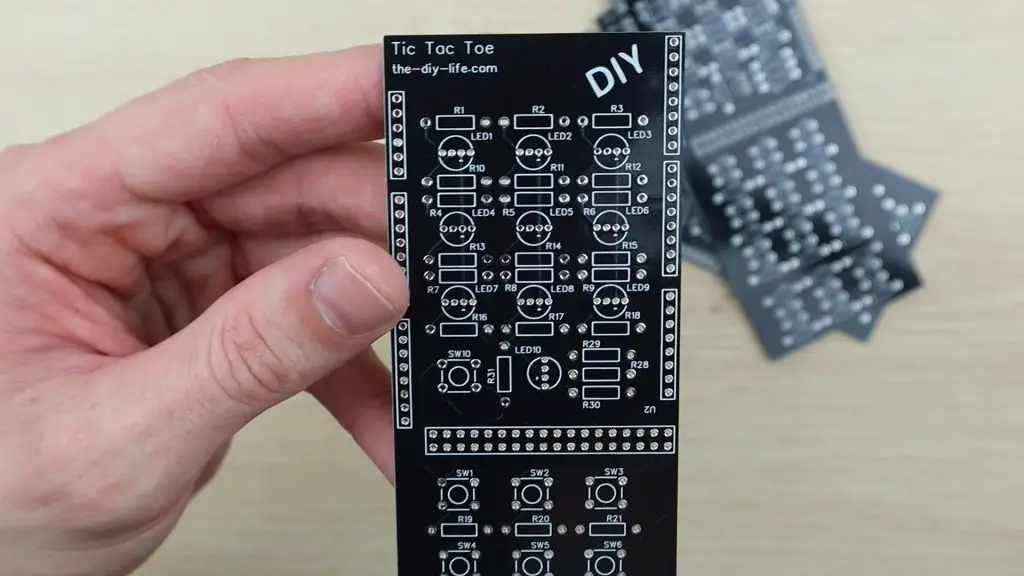
Building A Water Cooled Raspberry Pi 4 Cluster

A couple of weeks ago I built a single water cooled Raspberry Pi 4 just to see how well it would work. This was obviously crazy overkill for a single Raspberry Pi, but it isn’t actually why I bought the water cooling kit. I bought it along with 7 other Raspberry Pi 4Bs so that I could try building my own water cooled Raspberry Pi 4 Cluster.
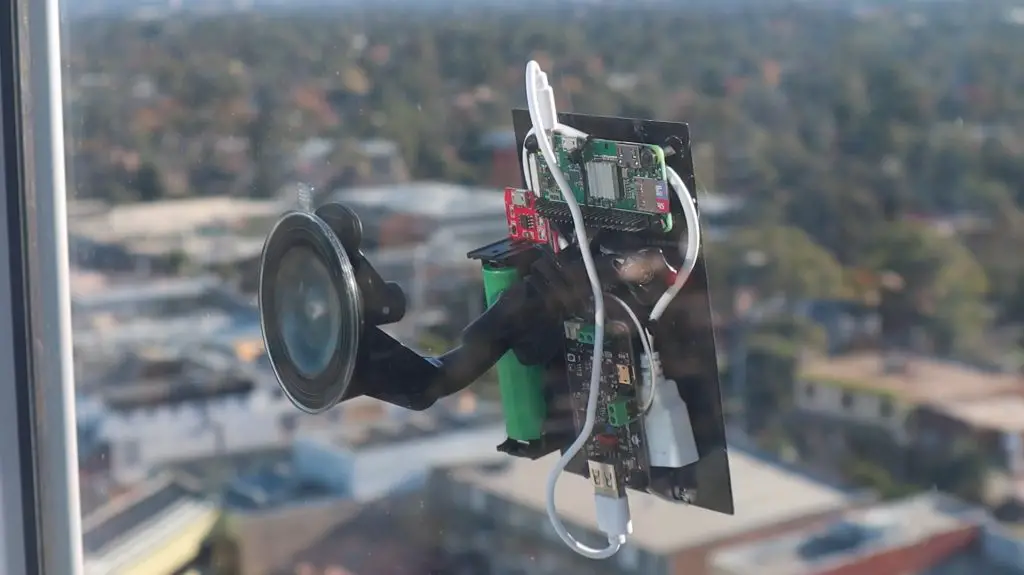
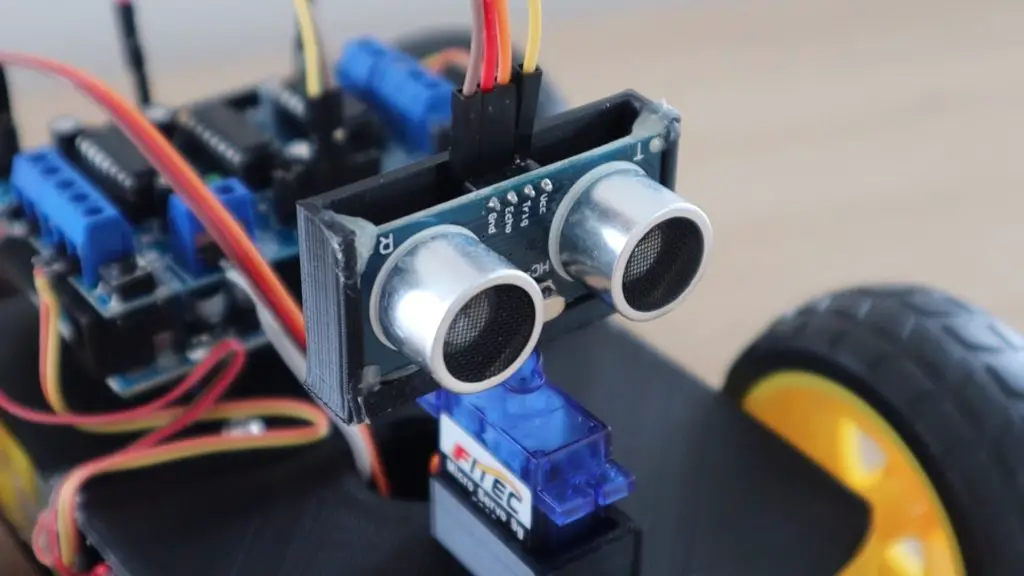
Here’s my video of the build, read on for the write-up:

While water cooling a single Raspberry Pi doesn’t make too much sense, water cooling a whole cluster is a bit more practical. The whole system is cooled by a 120mm fan, which is significantly quieter than even a single small 40mm fan. The water cooling system, while expensive by itself, actually costs a bit less than some other cooling solutions, given that I’d have to buy 8 of them.

An Ice Tower is an effective cooling solution for an individual Pi, but they’re quite noisy, and at around $20 each, you’re looking at $160 just for cooling the cluster. The water cooling system was only around $85 for the whole kit, blocks, and additional tubing.

Ice Tower On Raspberry Pi

For those of you who don’t know what a Pi Cluster is, it’s essentially a set of two or more Raspberry Pi’s which are connected together on a local network and work together to perform computing tasks, by sharing the load.

Raspberry Pi Cluster

There is usually one Pi which is designated as the host or master node and it is in charge of breaking up the task into smaller tasks and sending these out to all of the nodes to work on. The master node then compiles all of the completed tasks back into a final result.

The Parts I Used To Build My Cluster

To build my cluster, I got together 8 Raspberry Pis, a network switch, a USB power supply, and then the water cooling kit, cooling blocks and a bunch of network cables, USB C cables, standoffs, and screws to put it all together.

I also used a 3mm MDF board and some wood sections I had lying around to make up the mounting board and frame.

Building The Raspberry Pi 4 Cluster

Making & Assembling the Cooling Block Brackets

I started off by making up the 8 acrylic brackets to hold the cooling blocks in position over each Pi’s CPU.

Liquid Cooled Raspberry Pi 4B

These are the same design as the one used previously for my single Raspberry Pi, but are now red to suit the cables and fan.

Laser Cutting Cooling Brackets
Water Cooling Block Bracket

Each bracket consists of two parts which are glued together to hold the cooling block in place.

Gluing Brackets Together
Water Cooling Blocks

I also had to include a spacer to lift the cooling block a bit higher off the CPU so that it clears the surrounding components, otherwise, I’d have to remove the display connector from all 8 Raspberry Pis. I used a bit of thermal paste between the blocks and the spacers.

Spacer Blocks Installed

The cooling blocks were then mounted onto the Raspberry Pis. I started by securing the Pi between some red aluminium standoffs, which would be used to mount the Pi onto the base, and some nylon standoffs for the cooling block to screw into.

Installing Standoffs On Each Pi

The bracket picks up on the hole on the standoffs and clamps the cooling block down onto the Pi’s CPU.

Cooling Block Mounted With Standoffs

I then repeated this 7 more times for the other Pis needed to build the 8 node Raspberry Pi 4 Cluster.

All 8 Raspberry Pi's Prepared With Cooling Blocks

Deciding on the Cluster Layout

The traditional way to build a cluster is to place standoffs onto each Pi and then mount them on top of each other to form a stack. This is the easiest and most compact way to assemble them, but doesn’t really work that well with my cooling block bracket and isn’t all that eye-catching.

Raspberry Pi Cluster

This got me thinking of a way to better layout the Raspberry Pi 4 Cluster so that the cooling water circuit was clearly visible and the cluster was both functional and eye-catching. It would be even better if it could be mounted onto a wall to form a hang-up feature.

I played around with a couple of layout options, considering the placement of the components to minimise cable and tube lengths and trying to maintain some symmetry to keep it looking neat.

Pi Cluster Layout Option 1
Pi Cluster Layout Option 2
Raspberry Pi 4 Cluster Chosen Layout Option

I settled for having four Pi’s on each side of the radiators, keeping the large fan as the focal point in the design. I’d then put the reservoir and pump underneath the radiator to circulate the water through the loop. The Ethernet switch would be positioned at the top of the cluster to feed the network cables down to each node.

Ethernet Patch Leads To Be Used

I’d be connecting the Pi’s to the switch using some red patch leads. I found some red 50cm low-profile leads which looked like they would work well for this application. The thinner leads meant that that excess cable could be coiled up a bit easier and the runs were really short, so conductivity wasn’t a big issue.

USB C Cables and Charging Hub

To power the Raspberry Pis, I bought a high power USB charging hub and some short USB C cables. The hub provides up to 60W, distributed over 6 ports. I couldn’t find a suitable 8 port one, so settled on splitting two of the ports into two.

I’d also have to keep an eye on the power consumption as the official power supply for the Pi 4B is a 3 amp, so a bit more than this hub could supply to each. But, I have also never seen one of my Pis run over 1 amp in practice, even under load. If need be then I could buy a second power supply down the line.

Positioning the Pis on the Back Board

Once I had my layout in mind, I started making the backboard. I positioned all of the major components onto a piece of 3mm MDF and then marked out where they would be placed and the holes needed to mount them.

Checking Clearances With Cables Installed

I checked the clearances required for the cables and then started planning the cooling water tube routing. It was at this point that I realised that having four Pi’s arranged in a square would result in an unnecessarily complex cooling water loop, and I switched to having the four Pi’s in a straight line on each side. With the four in a line, the tubing could just be looped from one to the next along each side.

Change Layout To Two Vertical Lines

I also had to make a decision on how best to run the cooling water loop. If I put each Pi in series then the first will be the coolest in the loop and each will get progressively warmer, with the last one running the warmest. If I put the Pi’s in parallel then they’ll all receive the same temperature water, but balancing the flow rates becomes a problem and it’s quite likely that one or two which are the furthest away would receive little to no flow through them. I decided that warm water was better than no water and I didn’t want to buy 8 valves to try and balance the flow rate between them, so I set out connecting them in series.

Add A Display To The Middle Of The Raspberry Pi 4 Cluster

I also had a gap at the top where there was a lot of spare space, so I decided to pull out an old touch panel which I had used on a previous project. Having a display for the master node meant that I would have a way to monitor the system and even display stats, graphs or diagnostics directly on the cluster.

I then marked out the positions for each of the components on the back board and their mounting holes.

Marking Out Layout On The MDF

Making the Back Board

I decided to cut the corners off of the back board to give it a bit more of an interesting shape. I used a Dremel to cut the board to size, cut the corners off and cut a section out of the middle for the airflow through the radiator.

Use Dremel To Cut The Board
MDF Cutouts Made

To mount the Raspberry Pi’s onto the board, I decided to design and laser cut a small acrylic base to add a red accent and guide the power cable through to the back.

Designed And Cutout Bases For Pi's

Each base consists of a red bottom layer and a black top layer, which were glued together with some acrylic cement.

Glued Bases Together

I also designed a couple of cable and tube management stands to help with the routing of the cables and the tubes.

Cut Out Some Cable And Tube Mounts

I then checked all of the positions of the mounting holes and drilled them out.

Drilled Holes For Mounting Components

I decided to add some wooden sections to the back of the board to stiffen it and to create an area behind the board for cable management and the power supply. I used a spare section 0f 40mm x 20mm pine which I cut into three sections.

Glue Wood Strips Onto Back Of Cluster Board

I made holes underneath the acrylic bases for the USB cables to run through. These aligned with the large hole in the acrylic bases.

Cut Holes For Cabling

To complete the back board, I sprayed the front and back of the board black.

Spraying The Back Board Black

Assembling the Raspberry Pi 4 Cluster Components onto the Back Board

I then mounted the Pis, the network switch and cooling water components onto the back board.

Mounting The Raspberry Pi 4Bs

Each Pi was secured using four M3 x 8mm button head screws, which screwed into the aluminium standoffs.

Pis Secured With Button Head Screws

The cooling water components were mounted with the fasteners which came in the kit.

Mounted Switch And Cooling Water Components

I then cut the cooling water tube to the correct lengths and pushed them onto the fittings.

Cut Water Cooling Tubing Runs
Installed Water Cooling Tubing

I could then start adding the Ethernet and power cables. I started by plugging a USB C cable into each Pi and routing these to the back of the board, where I mounted the USB hub.

Feed Cables Through To Back Of Pi

I then added an Ethernet cable to each Pi, routing these up each side and into the cutout which would be behind the display, before bringing them back out to the front of the board and up to the switch. This meant that the excess cabling could be coiled up behind the board, out of ordinary sight.

Plugging In Network Cables on the Raspberry Pi 4 Cluster

I used the acrylic stand which I had cut out to hold and guide the Ethernet cables.

Use Stands To Secure Network Cables

The last thing to add was the display, which I mounted on an acrylic face panel with some acrylic side supports to hold it in place.

Mounted Touch Screen Display

You’ll notice that I had to mount the master node a bit lower than the others so that I could get the HDMI cable in without clashing with the Pi next to it.

Cable Routing On The Back Of The Cluster

I tied up all of the cables at the back of the cluster using some cable ties and some cable holders which I cut from acrylic and glued into place. The cabling at the back isn’t particularly neat, but it would be out of sight in any case.

I also made up a connector to take the 12V supply from the switch and split it off to power the 120mm fan and cooling water pump. They only draw around 150mA together while running, so there was some extra capacity in the power supply.

RGB Strip For Back Accent Colour

As a final touch, I added an RGB LED strip to the back to create some accent lighting on the wall behind it. The strip has an RGB remote control with a number of colours and features, but I was only going to be using the red LEDs.

Radiator and Fan Components on the Raspberry Pi 4 Cluster

Filling The Cooling Water Loop Up

With all that done, I just need to fill the cooling water circuit and hope that I didn’t drown one of the Pis. I had visions of filling it up and having water pour all over one of the new Pis.

I obviously kept everything turned off while filling the reservoir, although I did flick the pump and fan on twice to circulate the water a bit so that I could re-fill the reservoir.

I turned the cluster onto its side to fill it so that the reservoir was upright.

Filling Water Reservoir on the Raspberry Pi 4 Cluster

Luckily there were no major leaks!

There was one minor slow leak on the inlet to the first cooling block, probably because of the twist and pressure on the tube to get to the radiator. I clamped the tube with a small cable tie and the leak stopped.

All the cooling water loop needed now was some colour.

Adding Some Colour To The Cooling Water

Preparing Raspberry Pi OS On The Pis

I prepared a copy of Raspberry Pi OS Lite on 7 microSD cards and a copy of Raspberry Pi OS on the 8th for the master node which has the display attached.

Burned Pi Os Images To SD Cards

I could then power on the cluster and check that they all boot up. This was done primarily to check that all of the Pis booted up correctly, were able to run on the single power supply and were all recognised and accessible over the network.

I’m not going to get into the software side of the cluster in this post as there are a number of options, depending on what you’d like to do with it and how experienced you are with network computing, but I’ll be covering that in a future post, so make sure that you sign up to my newsletter or subscribe to my Youtube channel to follow my projects.

Running The Completed Water Cooled Raspberry Pi 4 Cluster

With all of the SD cards inserted and the water cooling circuit surviving a 10 minute run with no leaks, I powered up the USB hub to supply power to the Pis.

Raspberry Pi 4 Cluster System Running And Booted Up

The system was initially quite noisy as the air bubbles worked their way out of the radiator and cooling water loop, but it eventually settled down. You can hear an audio clip of the cluster running in the video at the beginning of the post.

Raspberry Pi 4 Cluster Running

The display is also a nice way to run scripts and visualise information or performance stats for the cluster.

Running Scripts On Touch Screen

Here I’m just running the script I used previously to display the CPU temperature of the Pi.

Stats Display on Raspberry Pi 4 Cluster

Have a look at my follow-up post in which I set up the cluster to find prime numbers and compare its performance to my computers.

I hope you’ve enjoyed following this Raspberry Pi 4 Cluster build with me, please share this post with a friend if you did and leave a comment to let me know what you liked or disliked about the build.