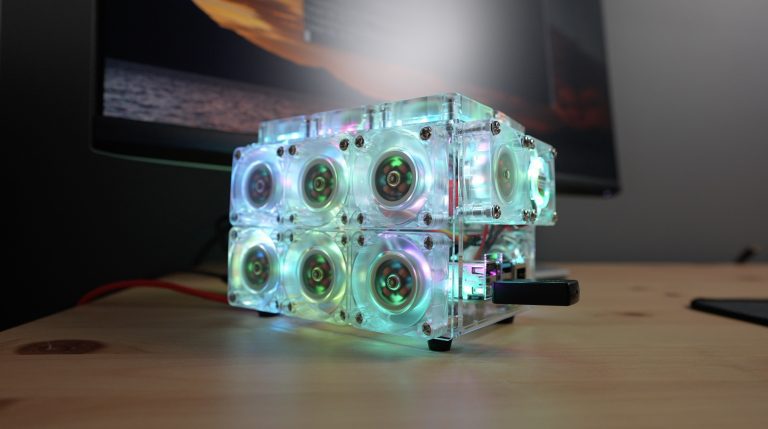
Home Blog Page 9

Acrylic Pi Cases, Gweike Cloud Review – Can It Compete With The Glowforge?

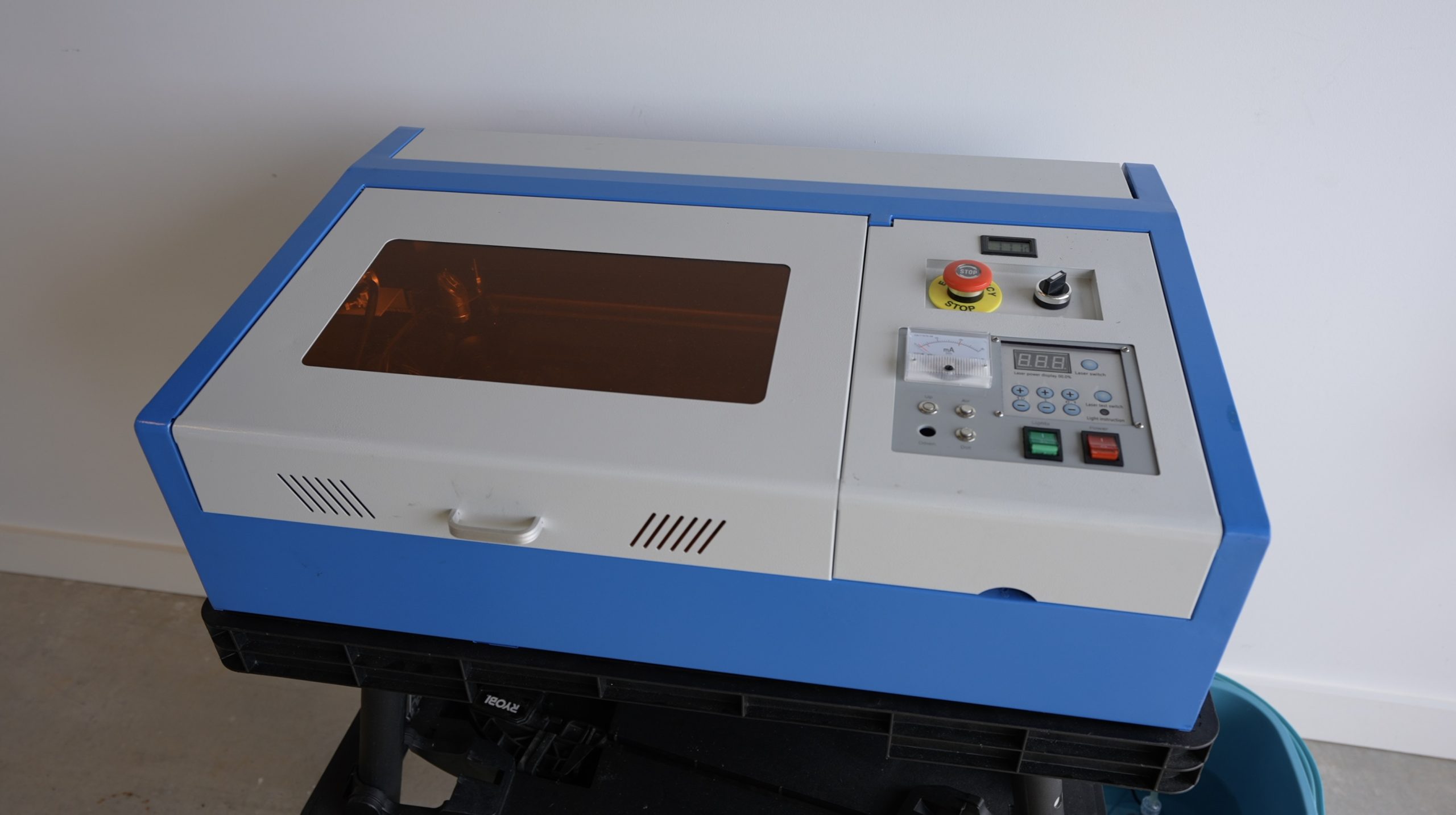
If you’ve seen some of my other projects, I often use my K40 laser cutter to cut and engrave acrylic and plywood sheets to make up components. I love how quickly I can make them up and having clear or semi-transparent panels on 3D printed enclosures really enhances the overall appeal. I bought my laser a couple of years ago as a tool that I thought I might use on occasion and it’s turned out to be my go-to favourite workshop tool.

It has its limitations though, the bed area is really small, the laser head is at a fixed height, making using different materials difficult, and the ventilation and water cooling systems look like an afterthought.

But then I got this….

Gweike Cloud Home Laser Cutter & Engraver

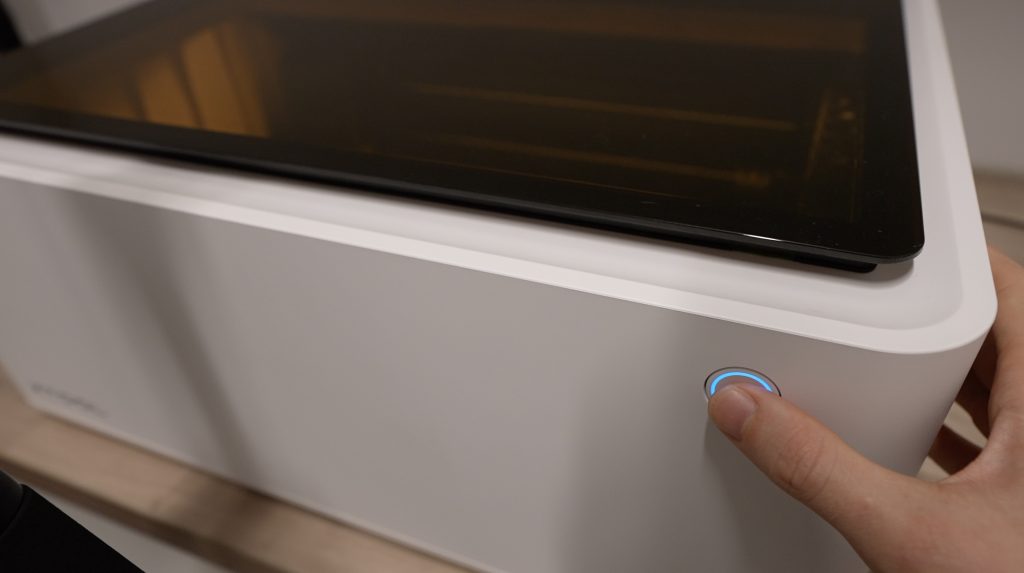
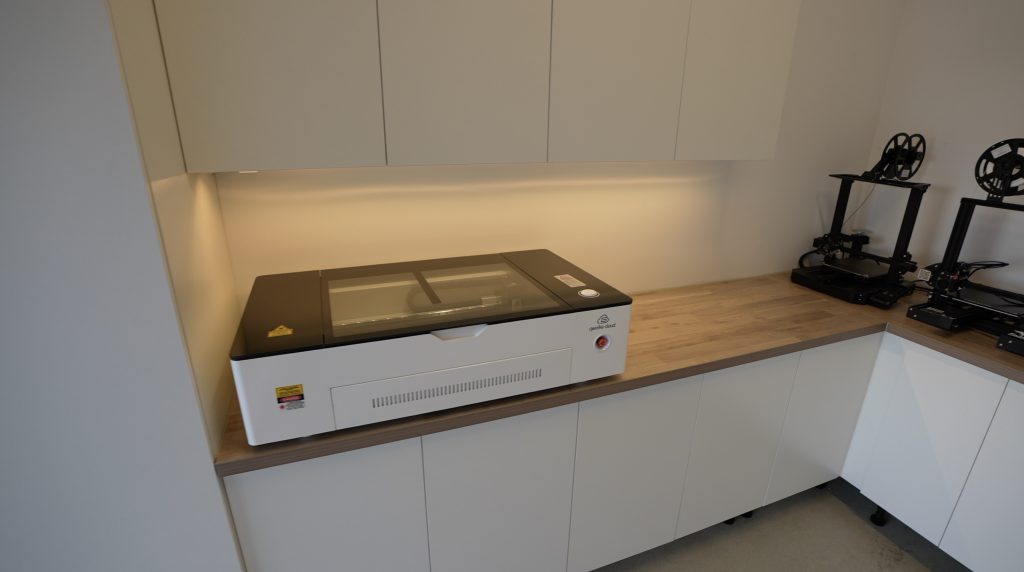
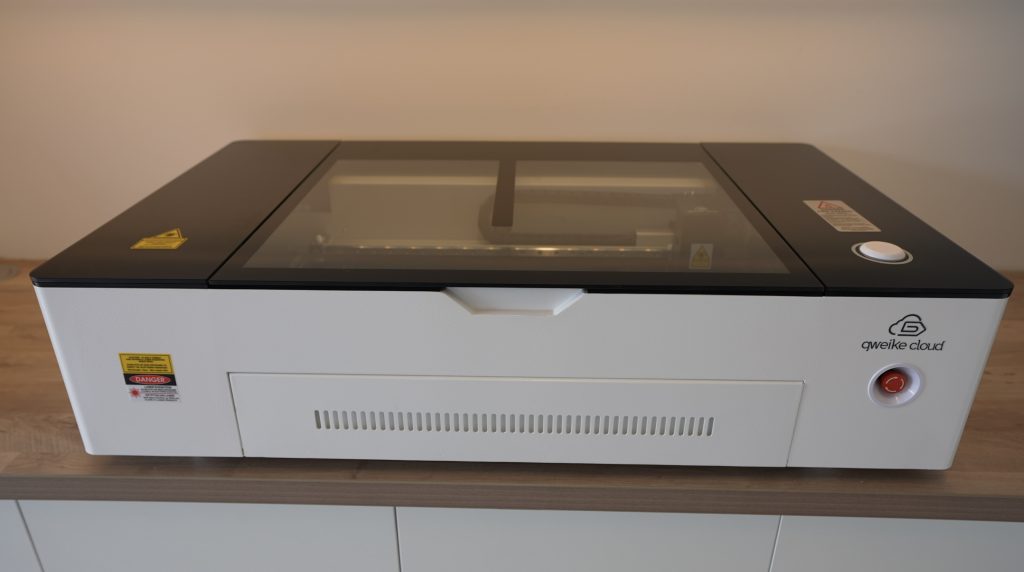
This is the new Gweike Cloud home laser cutter and engraver and, if you can’t already tell, it’s intended to compete with the Glow Forge.

Gweike Cloud CO2 Home Laser Cutter

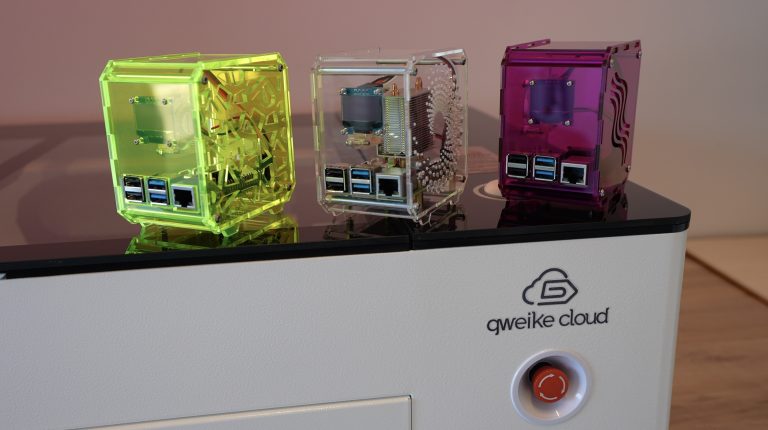
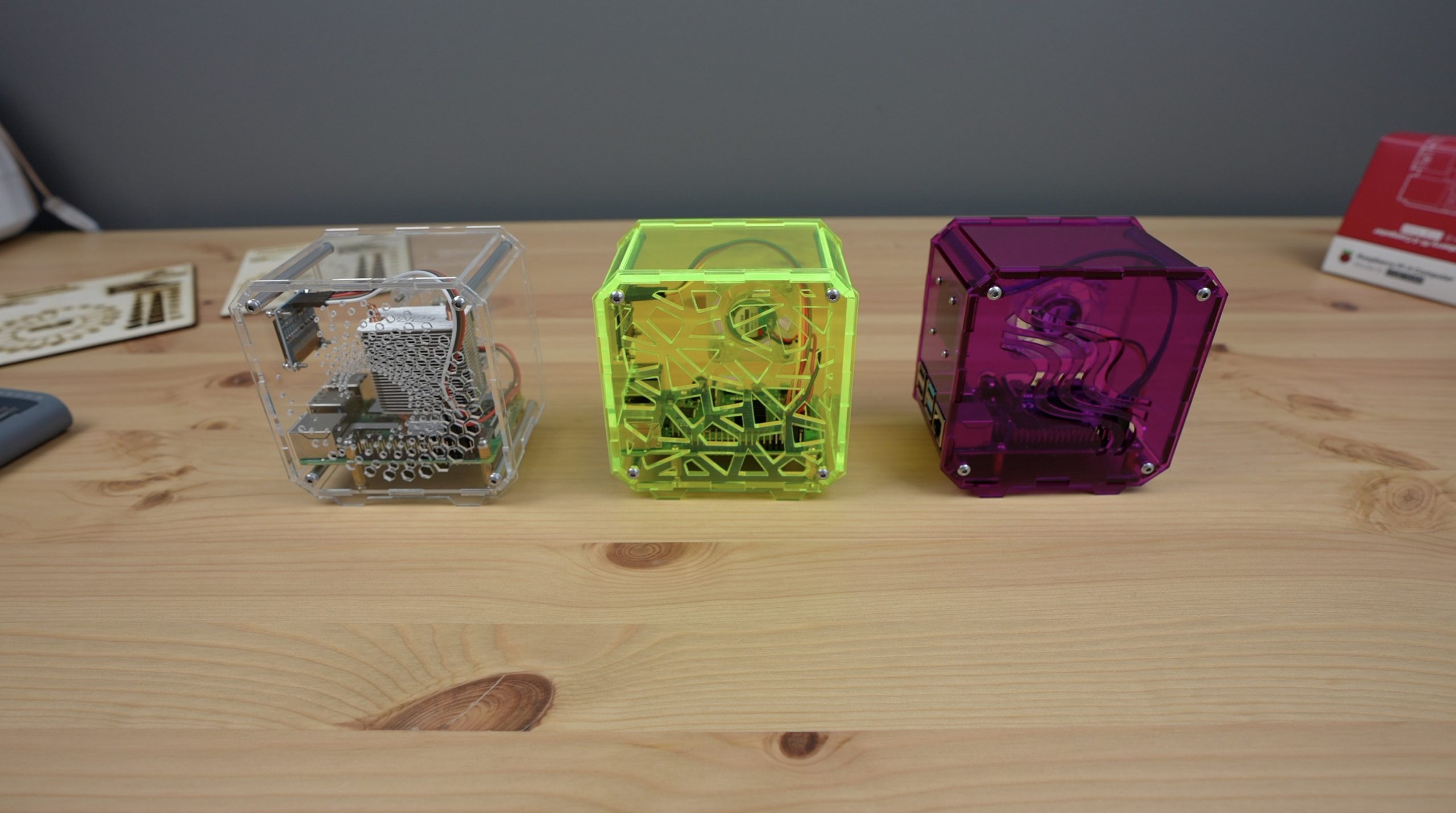
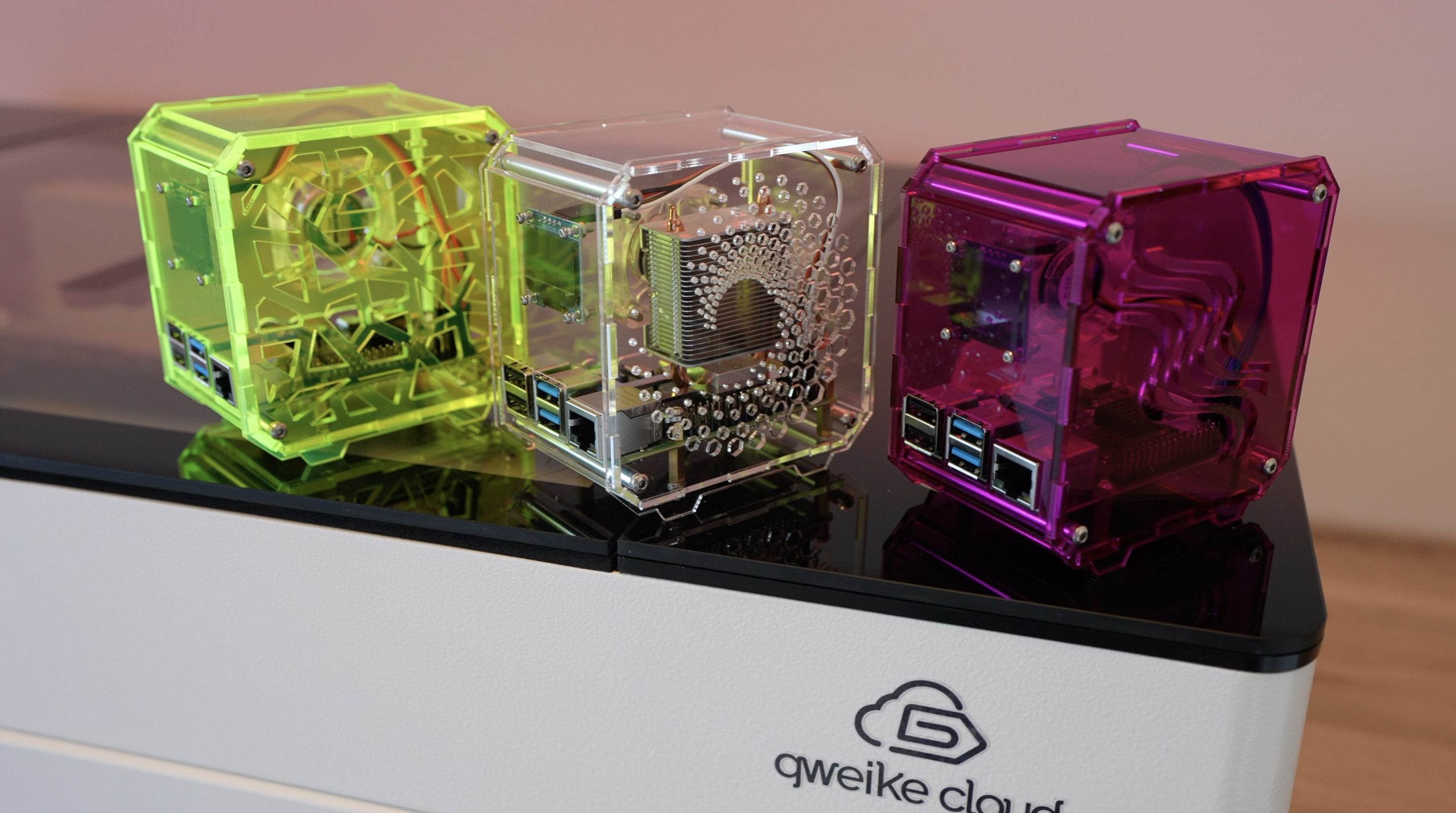
So today we’re going to take a look at some of its features and see how it performs by making up some Raspberry Pi cases from acrylic sheets.

Here’s my video of the Gweike Cloud being unboxed and used to make up the Pi cases, read on for the write-up:

Where To Buy The Gweike Cloud

  • Gweike Cloud Laser Cutter – Buy Here
  • Gweike Cloud Pro Laser Cutter With Rotary Attachment – Buy Here

Get $200 off the Gweike Cloud Laser by entering MK200 on checkout

What You Need To Make Your Own Pi Case

First Look At The Gweike Cloud Laser Cutter

I’ll start out by saying that I’ve looked at getting a Glow Forge a couple of times, but they’ve got some really significant downsides – at least in my opinion. For starters, they aren’t available here in Australia, so I’d have to use a third party to import one. Then the most significant drawback for me is that the Glowforge has to be connected to the internet and you have to use their own online software. You can’t use the laser with any other software packages and you can’t use it offline. So you’re fully locked into their system. The last is the price, the basic unit costs around $4000 and you’re in for nearly $8500 for the pro version which has a passthrough slot, better cooling to run continuously and an air filtration system. So you really have to get a lot out of a machine to make the price tag worth it.

So when Gweike told me about their new Cloud machines, this really caught my attention.

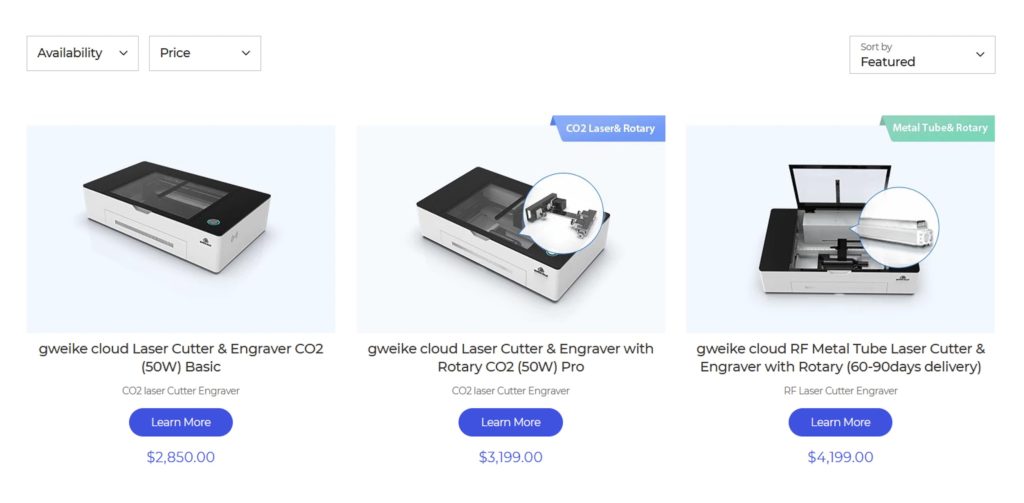
Gweike Cloud Pricing

The Gweike Cloud currently sells for $2850 for the base unit, $3199 for the pro unit that includes the rotary attachment and $4199 for the RF version that has an upgraded RF metal tube laser for increased speed, better laser precision and a significantly longer laser tube life.

The Gweike Cloud is a new offering by the company, but they’re not new to the industry. Gweike are a big name in industrial laser machines and they’ve been around for 18 years now, so they know what they’re doing and they know how to build machines that are tough enough to survive in industrial environments.

Unboxing & Setup

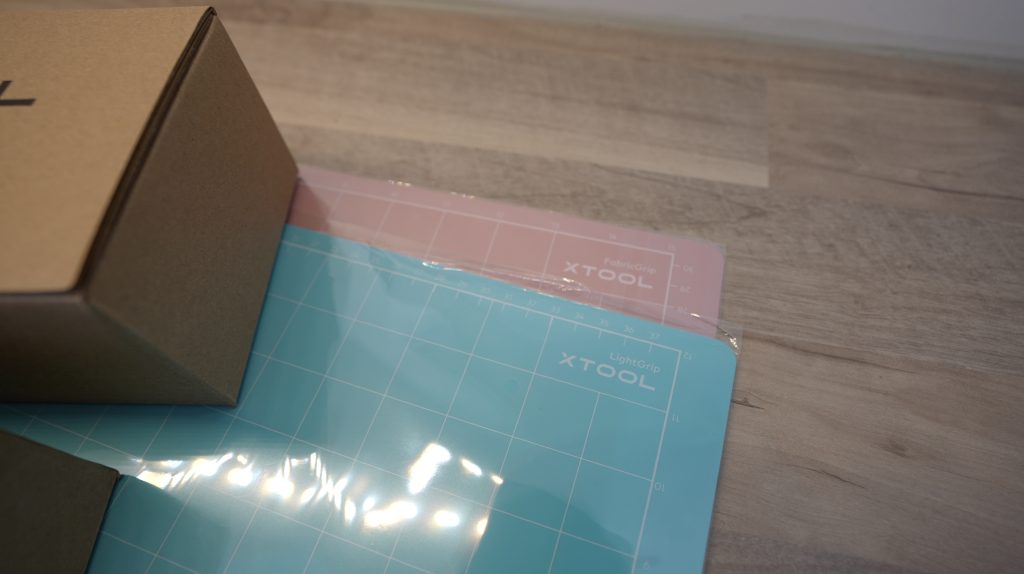
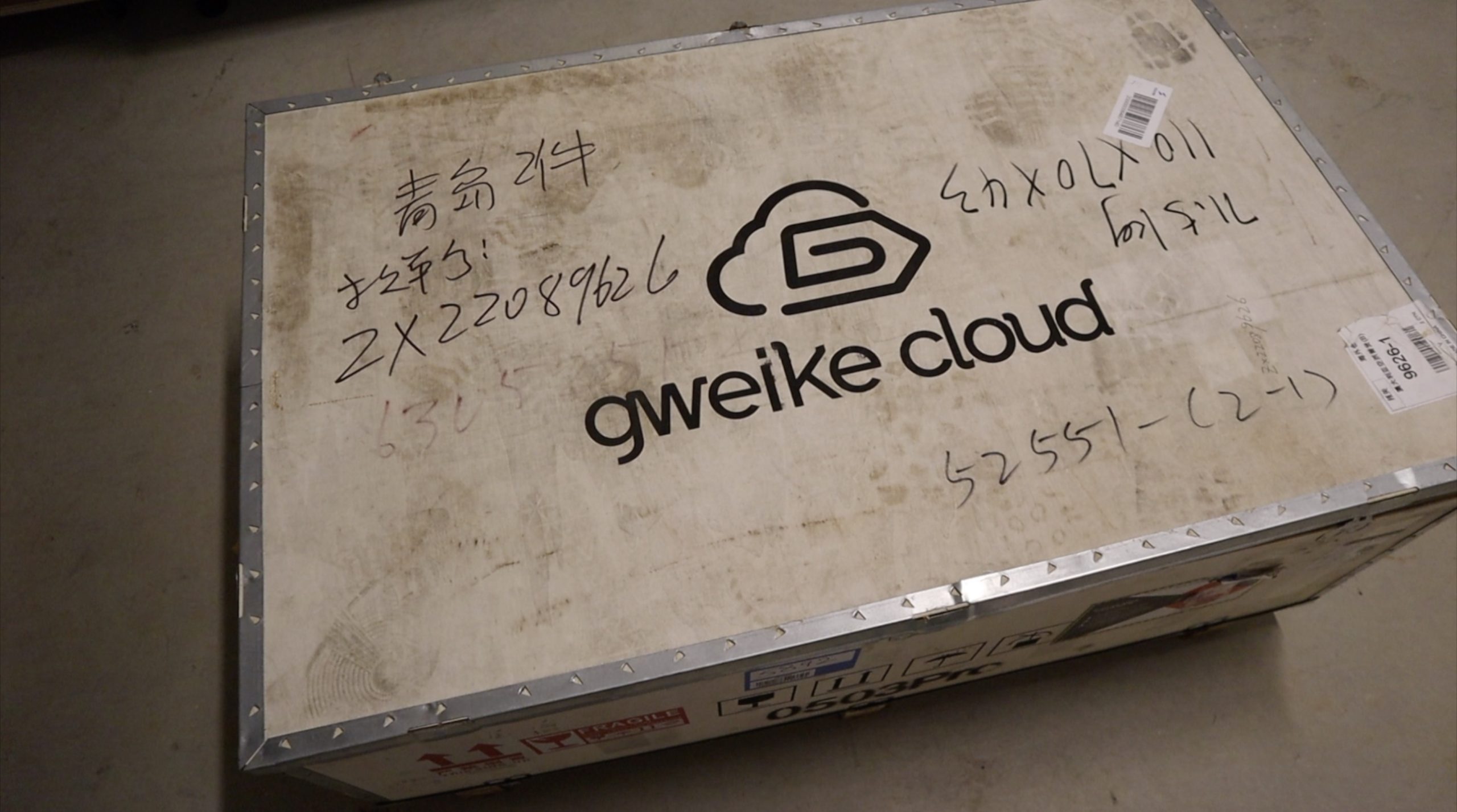
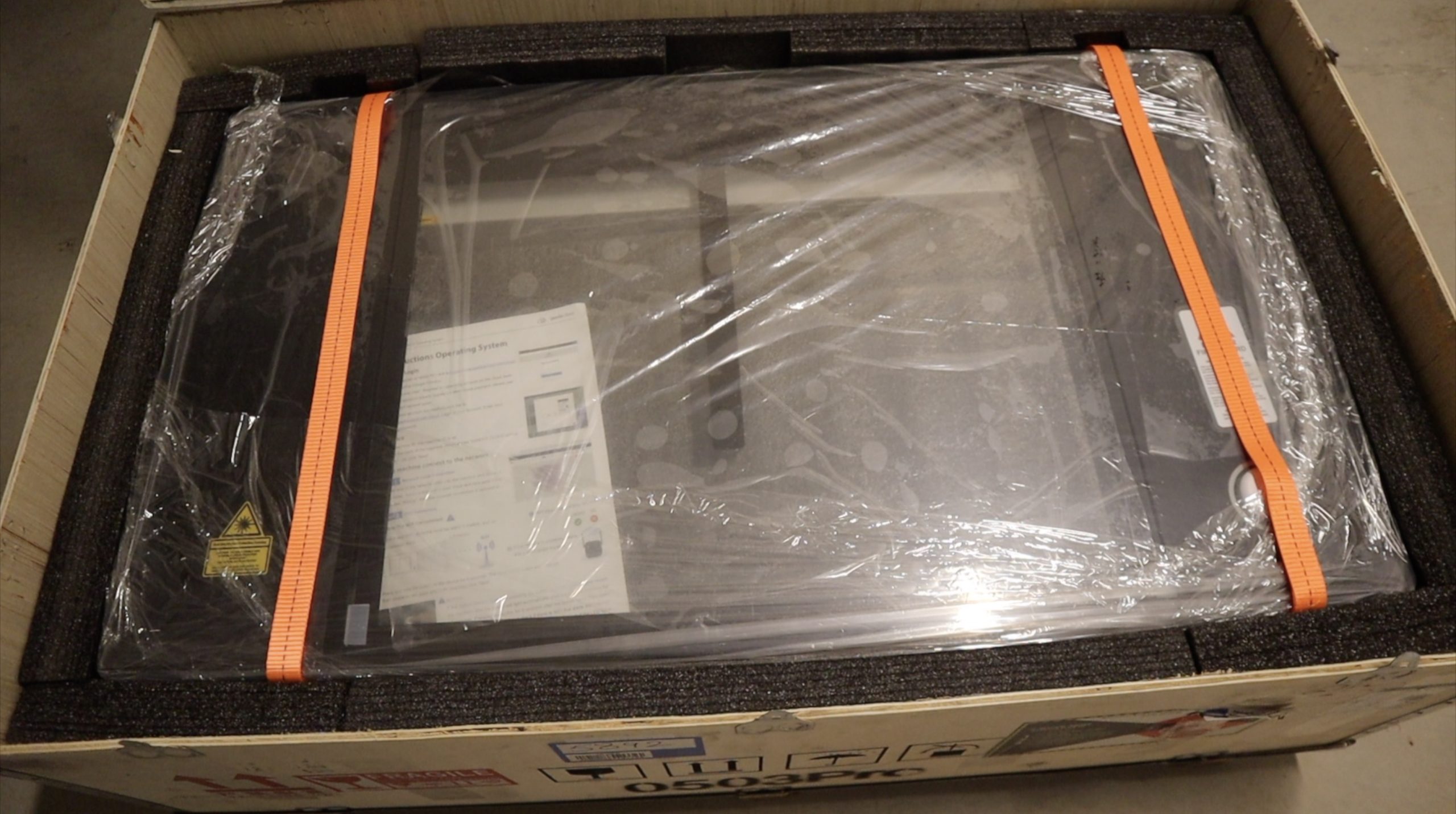
The machine arrives really well packaged in a large wooden crate, with evidence that it has been well tested. There is an individual quality check card and they include the samples from the test run aligning the laser.

Set up is a breeze, you don’t really need to assemble anything, it all comes pre-assembled. You mainly need to remove packaging and restraints that they’ve put into place to prevent damage during shipping.

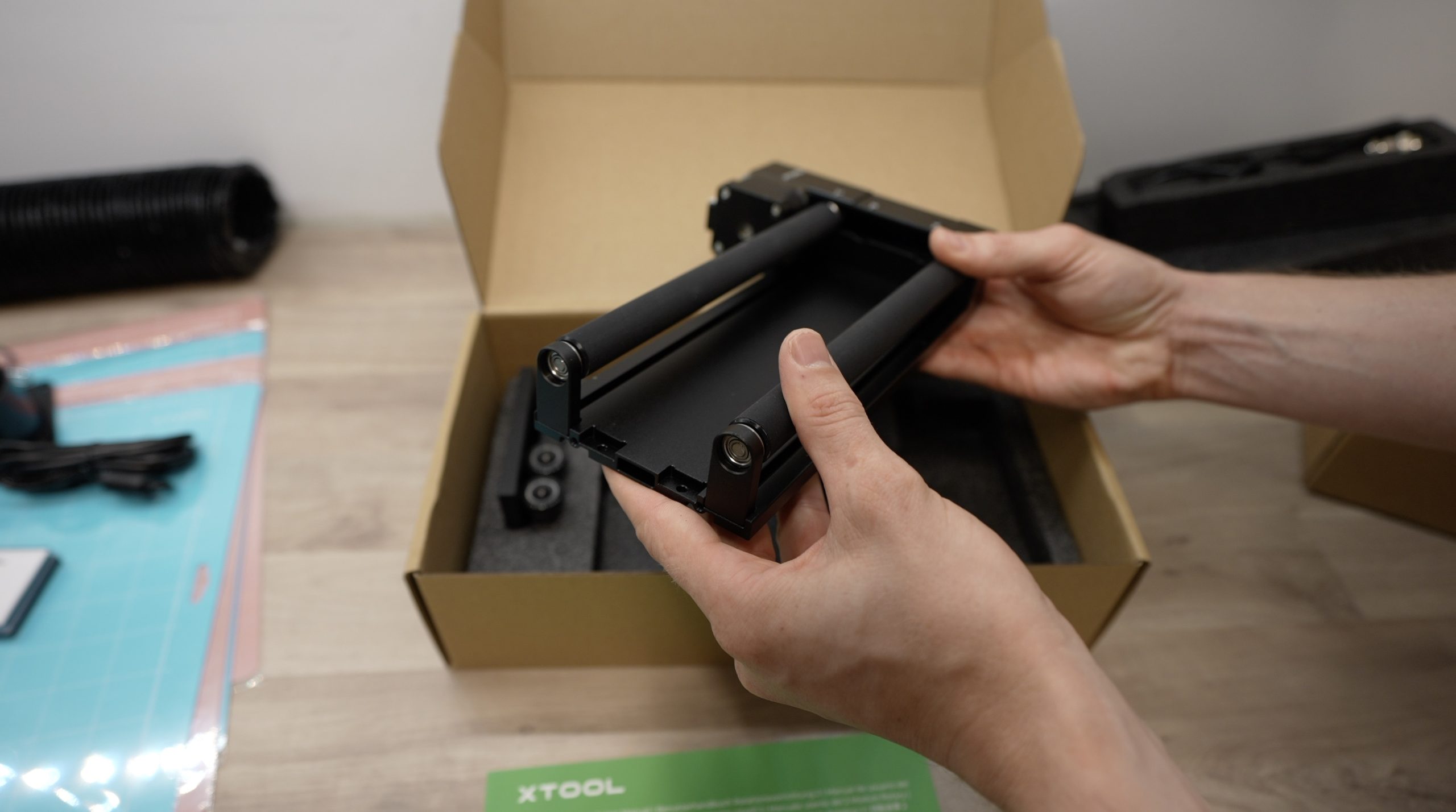
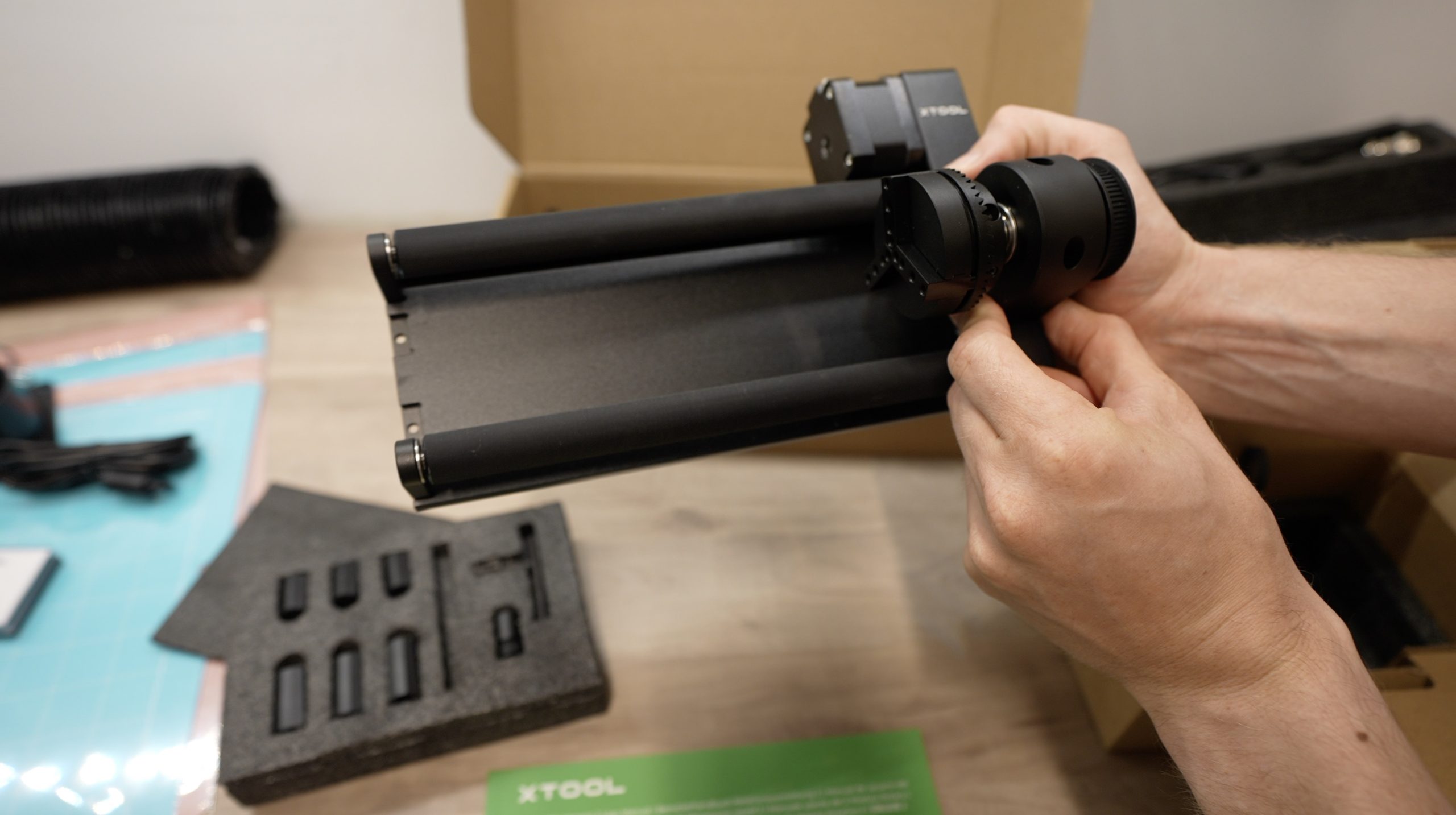
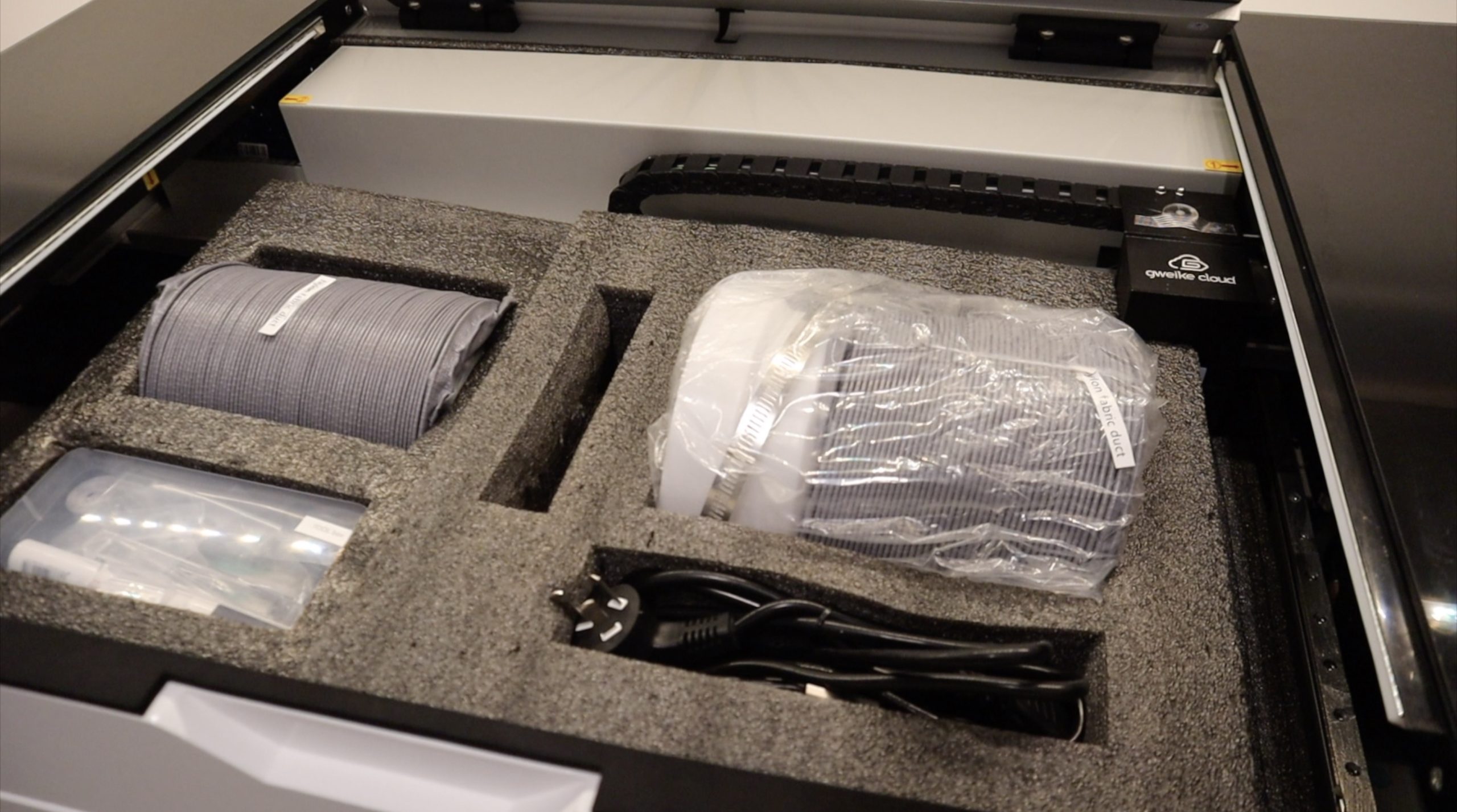
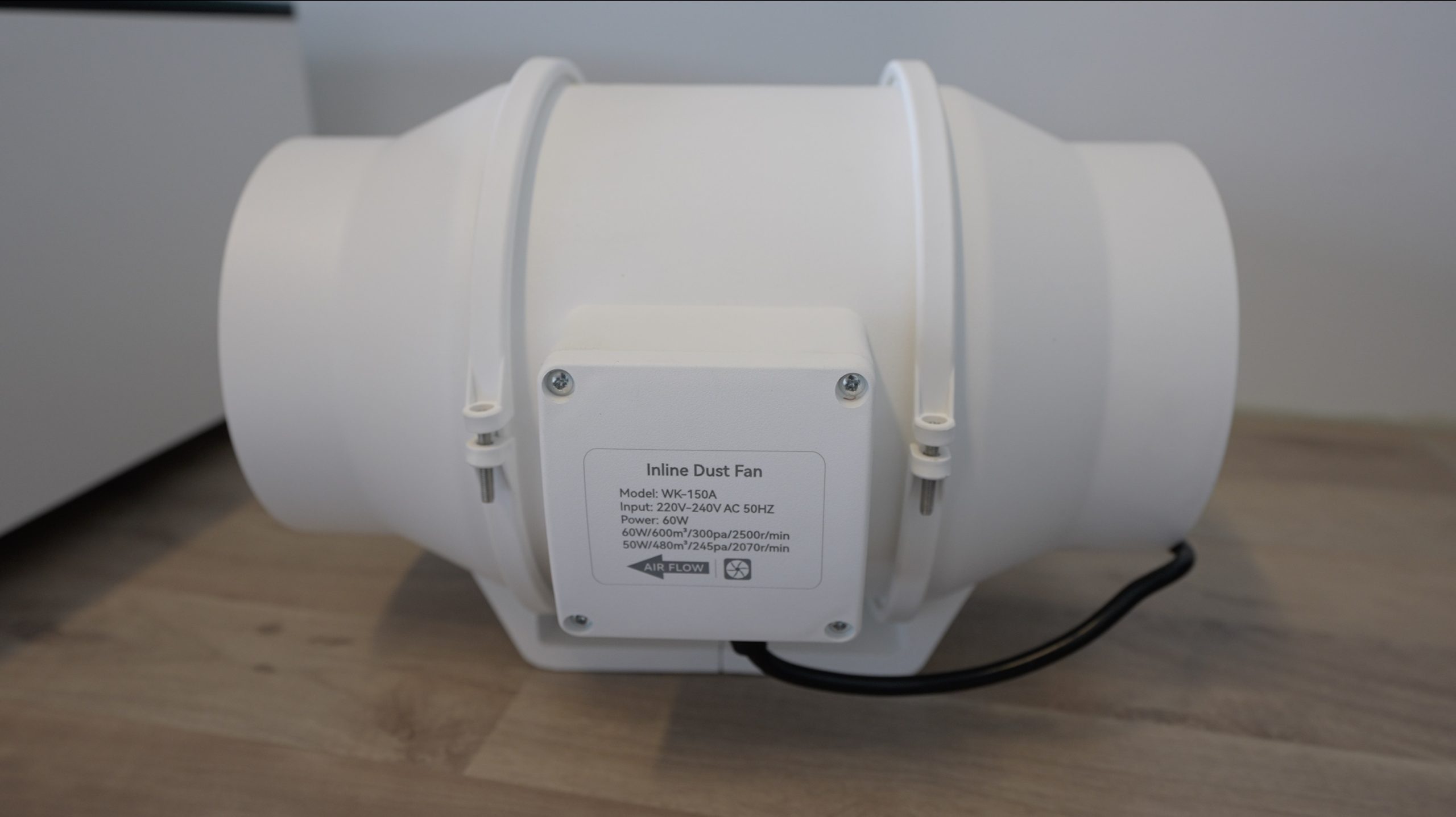
I’ve got the pro version that includes the rotary attachment and an exhaust ventilation fan.

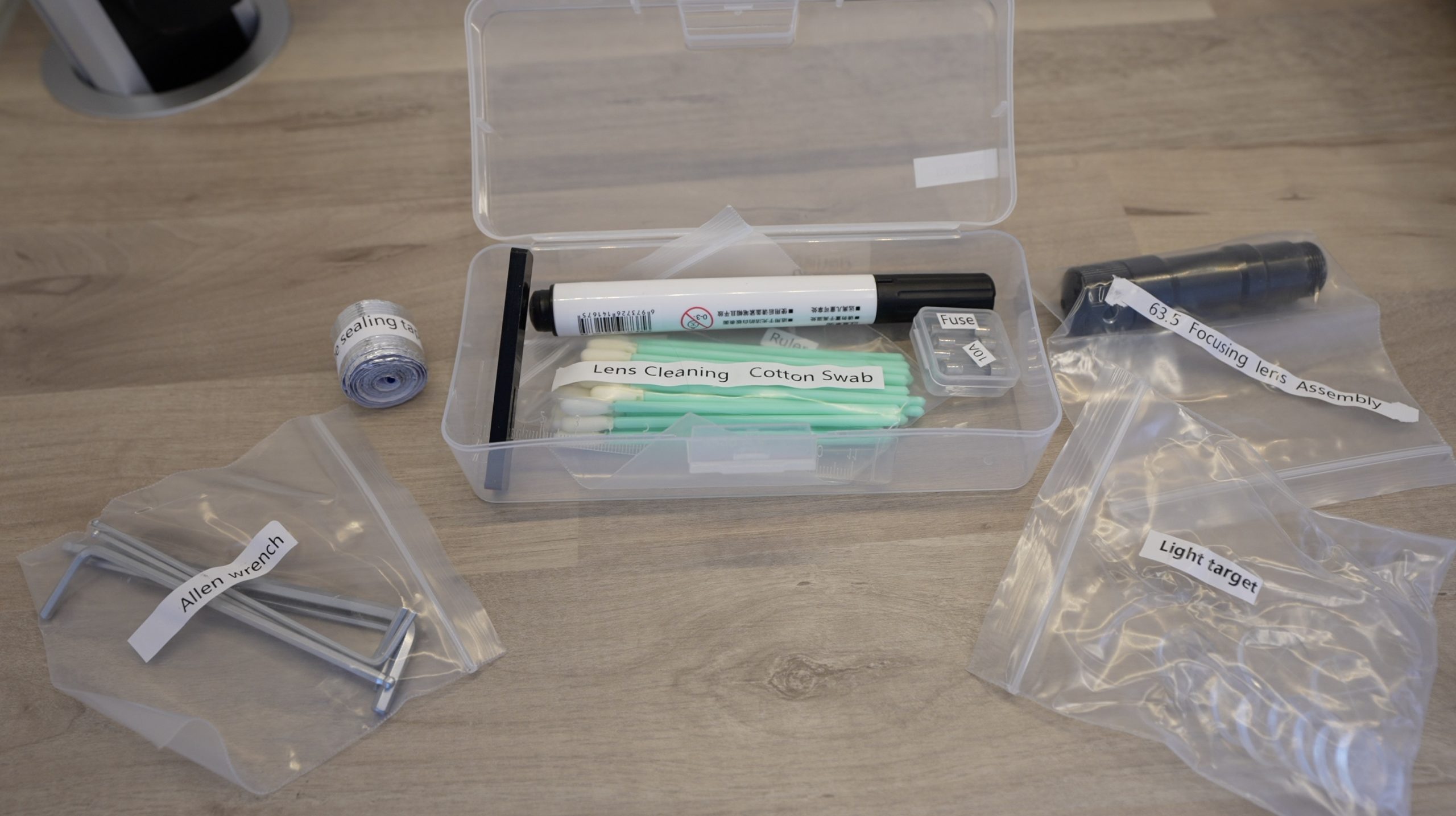
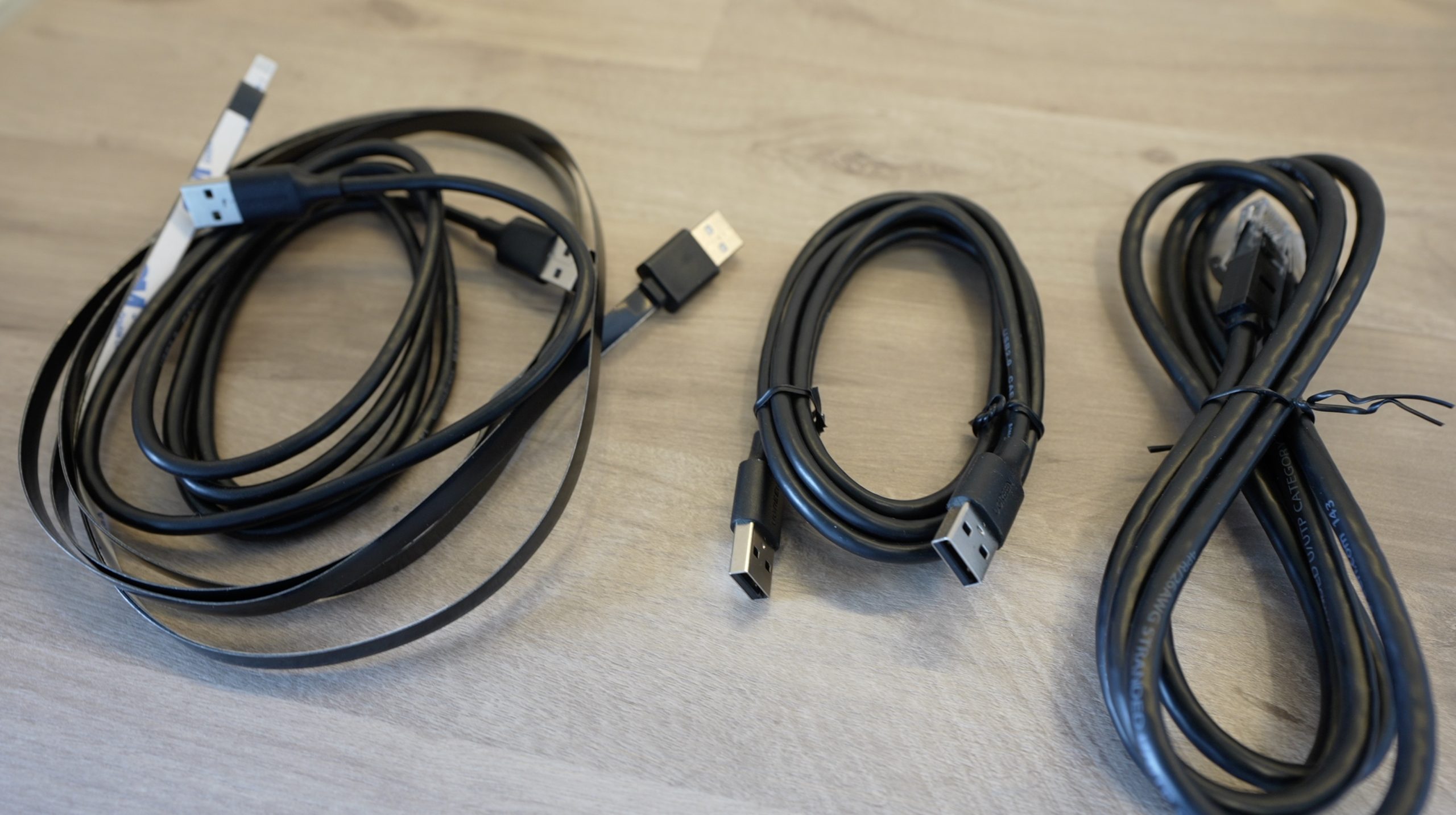
It also includes a basic toolkit as well as the USB cables, a USB camera cable adaptor to use the camera with Lightburn, and an Ethernet cable.

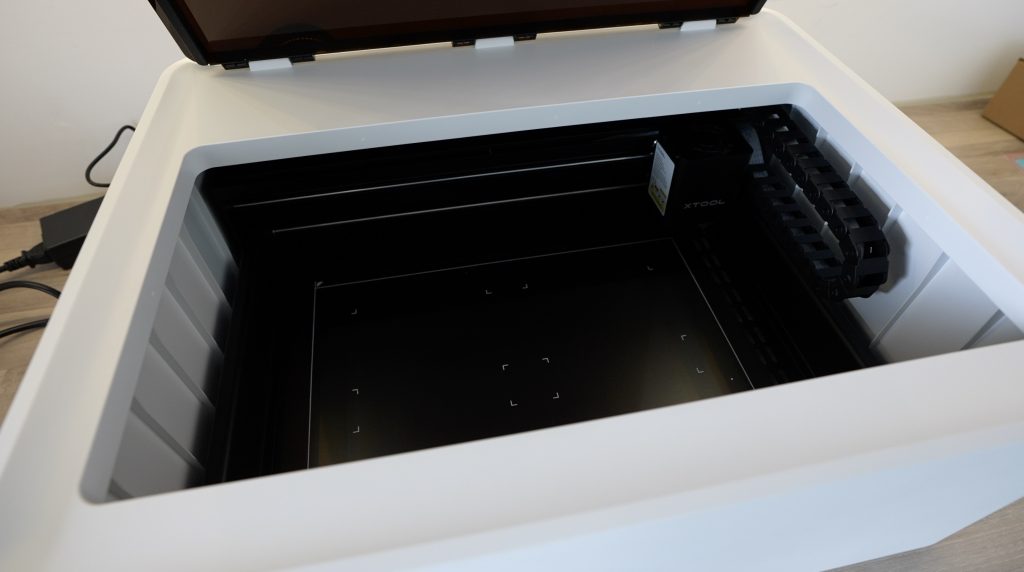
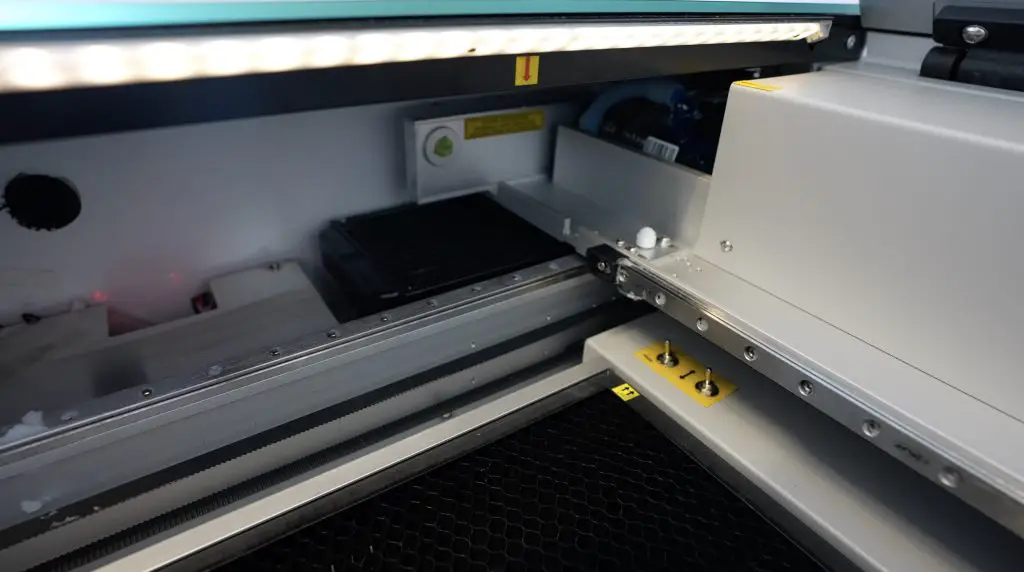
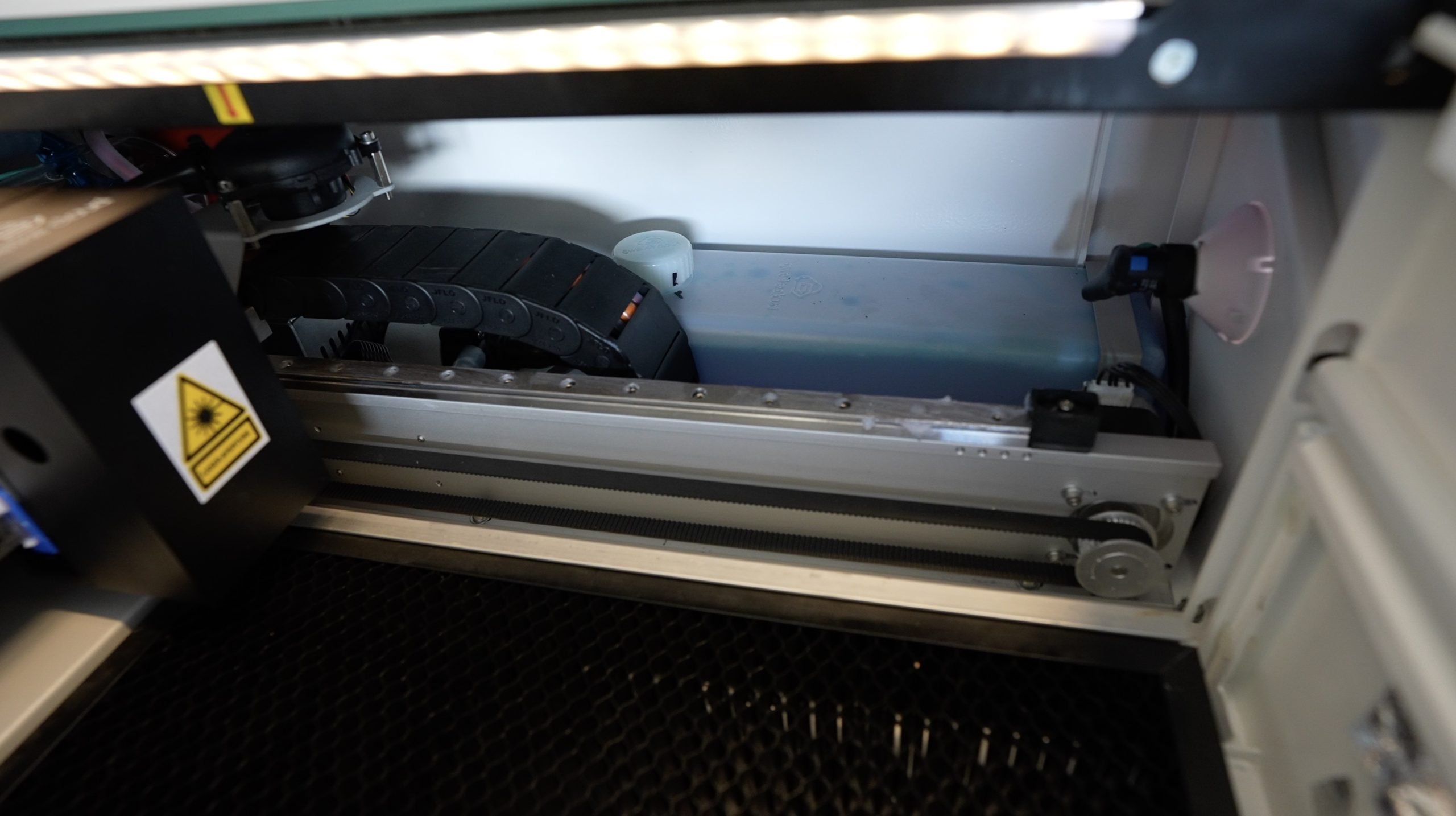
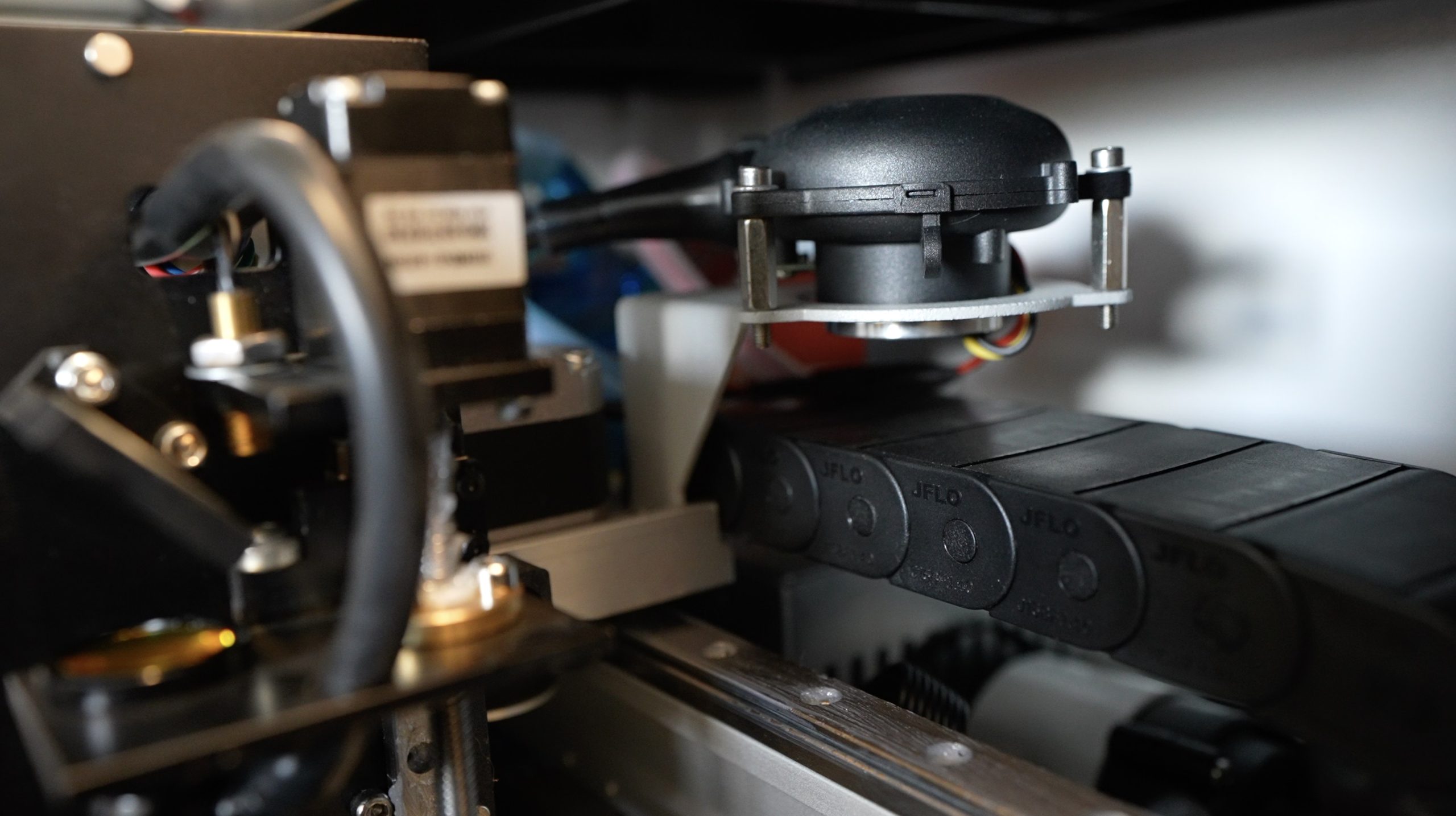
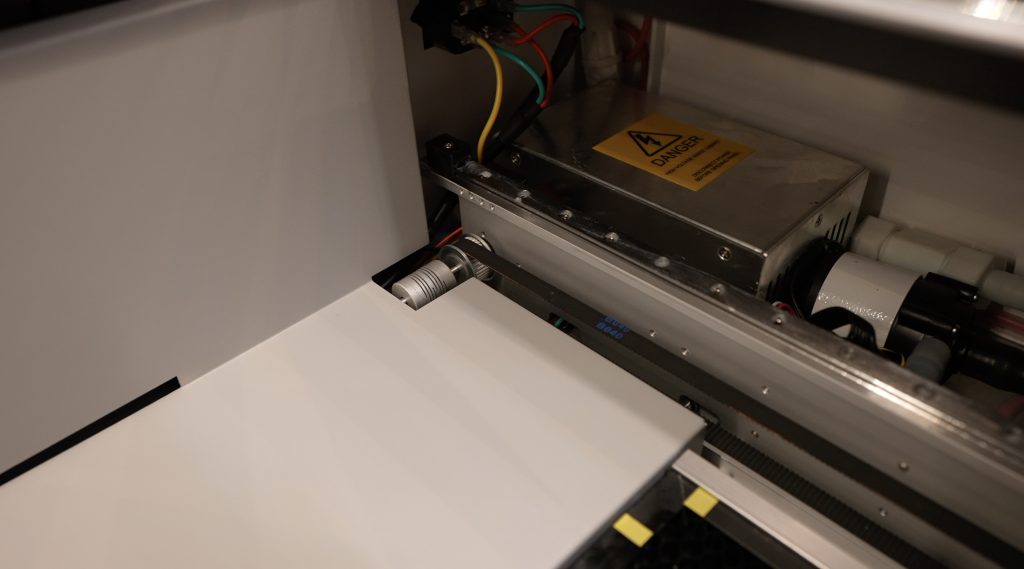
They’ve used really good quality components on the Gweike Cloud. It’s got linear rails for each axis, drag chains to support the tubing and cables and all metal covers and brackets.

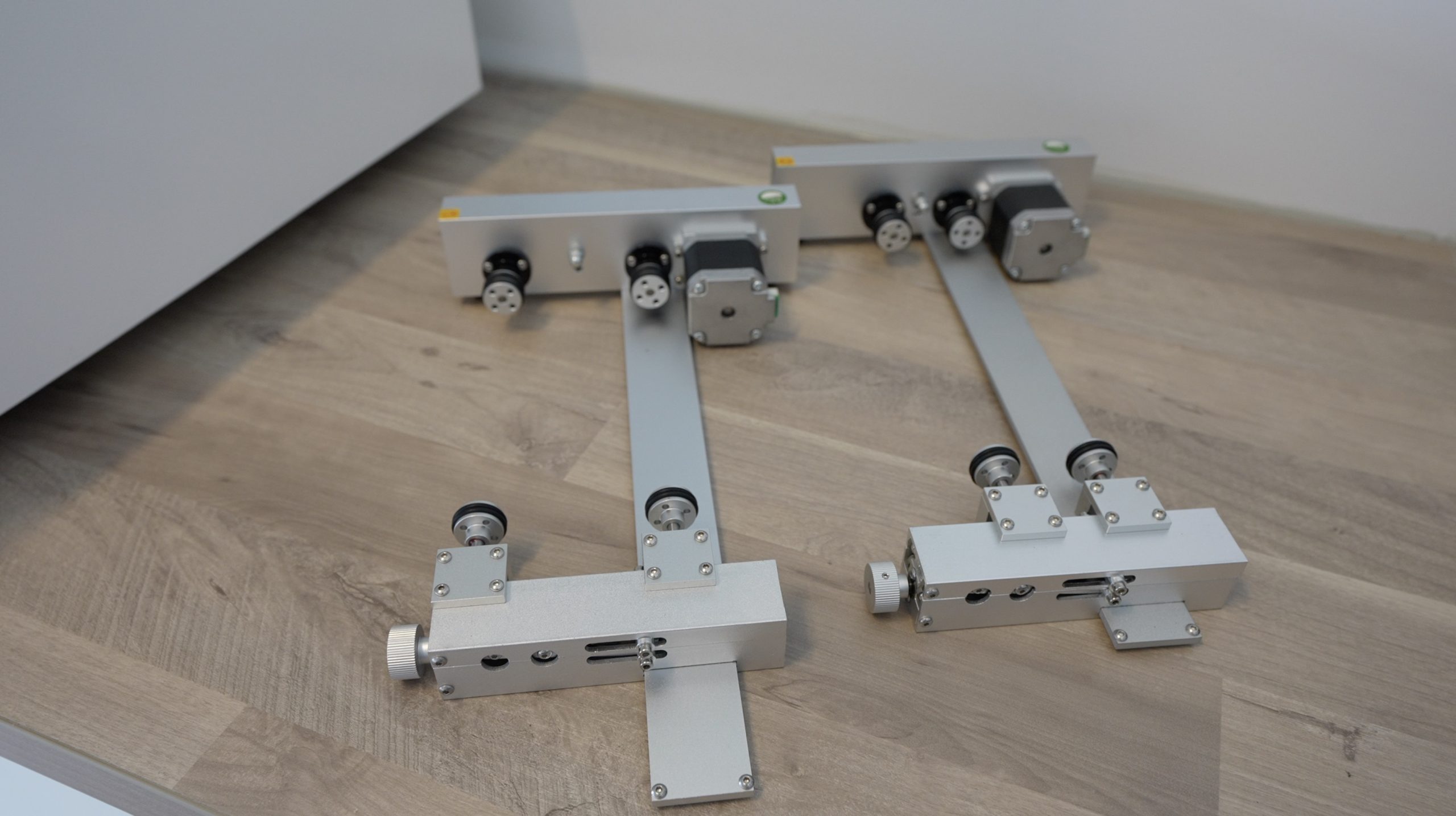
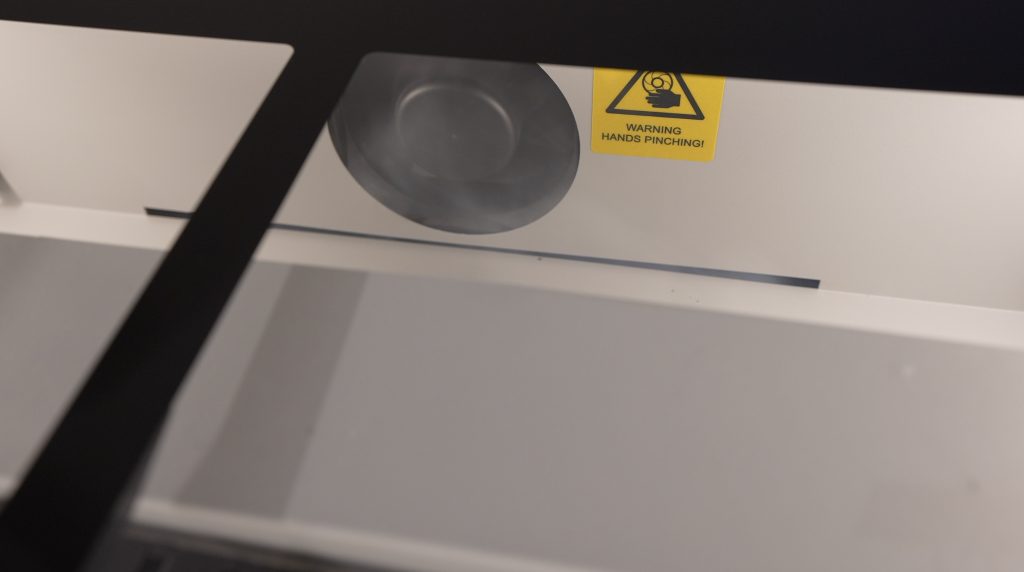
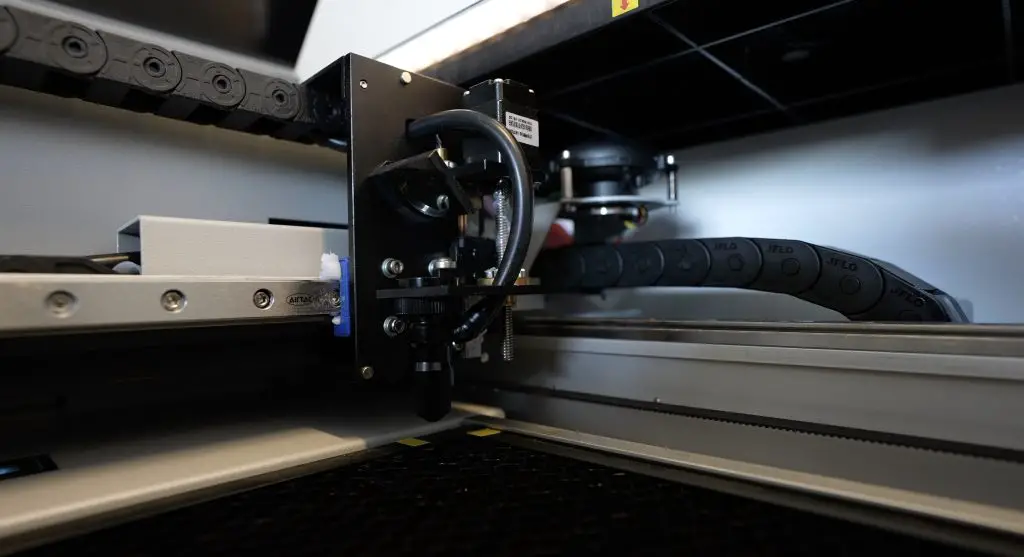
Mirrors Used To Direct Light To Focus Lens

The laser tube’s cooling system and air assist are also all built into the enclosure, so you don’t need any additional connections to water tanks with aquarium pumps or air compressors.

The actual enclosure is sheet metal, so it’s rigid and durable, and the top is tempered glass. All around, it feels like a premium product, and one which some thought has gone into.

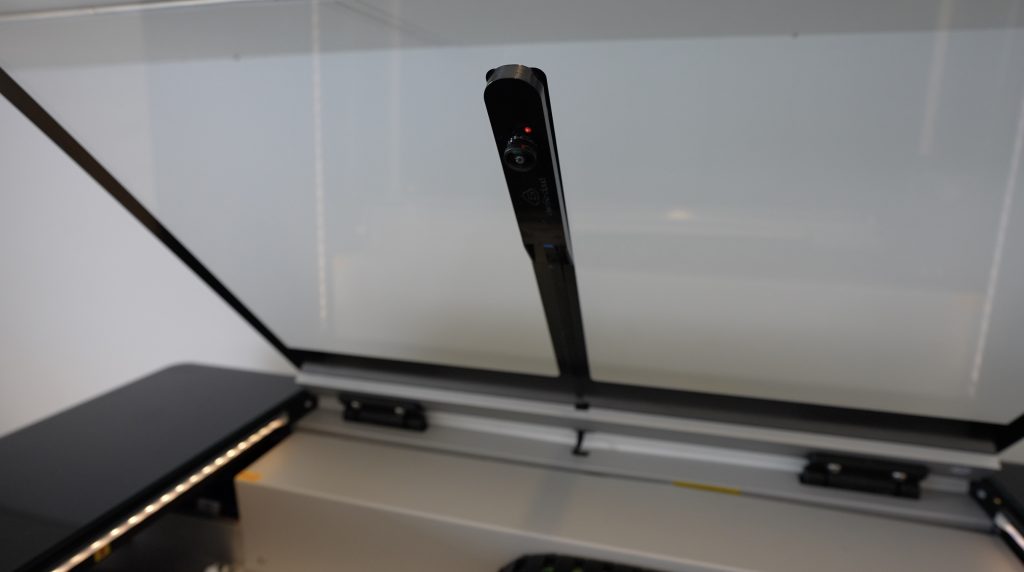
Camera For Positioning In Laser Bed

Other than removing the packaging materials, you just need to connect the air filter or exhaust fan to the outlet on the back and then connect it to your network or computer.

Using Gweike Cloud’s Online Software

To use their cloud platform, you connect the laser to the internet using WiFi or a wired Ethernet connection. They suggest using a wired connection if your machine is positioned further than a couple of meters from your WiFi network – I guess the all-metal enclosure reduces the WiFi range of the controller.

You then need to register an account and input your machine’s details. You’ll then be ready to start cutting and engraving from your browser.

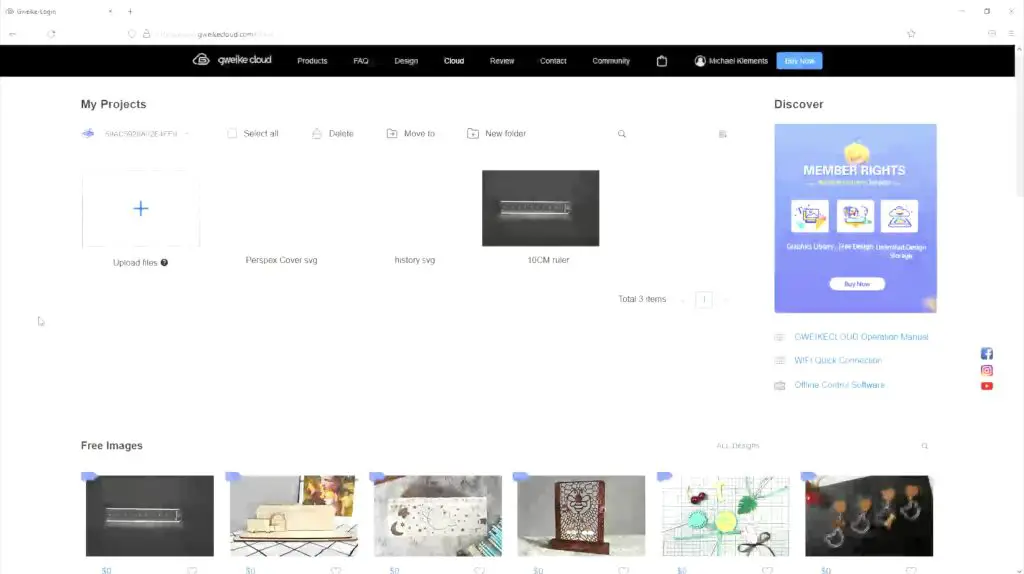
Gweike Cloud Online Software

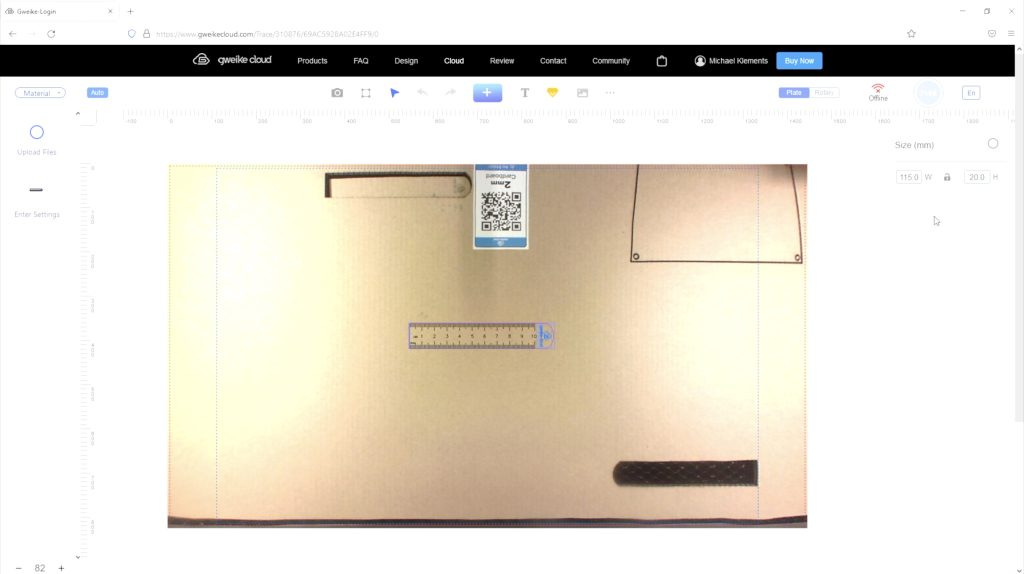
This works quite similarly to the Glowforge, you upload your file or choose from an extensive range of free online models, place the files into the print area using the built-in camera to guide the placement and then click print. The machine code is then sent to the machine and you can start your print by pressing the big button on the top, which goes green when ready.

Positioning Cuts With Online Software

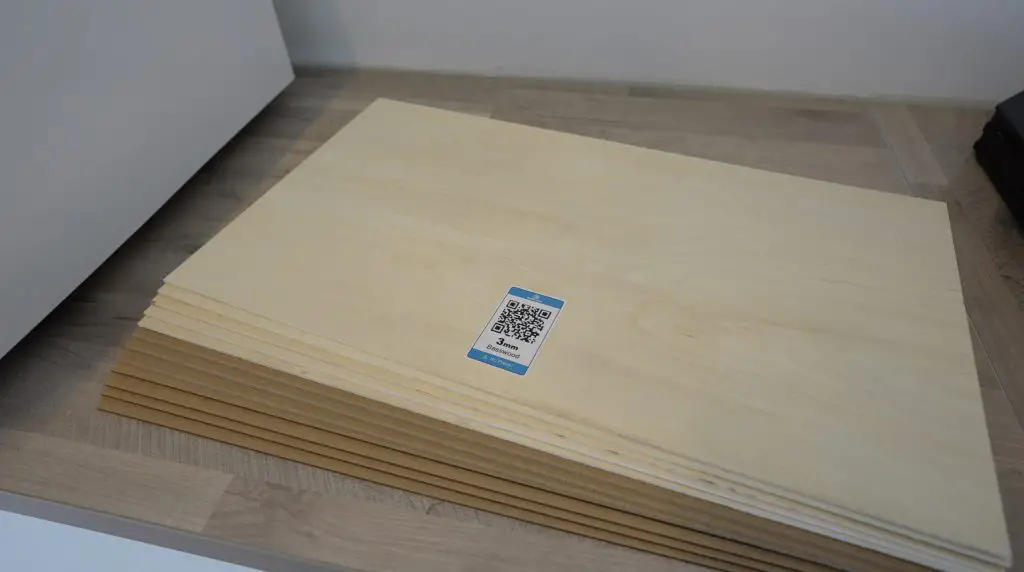
The machine also recognises their branded materials (available through their web store) using QR codes on each sheet. It’ll then automatically adjusts the focus and cutting or engraving settings to suite the material. So they’ve made it really easy to get started if you’re new to laser cutting and engraving.

Material Pack With Gweike Cloud Laser

I prefer using a local software package on a computer as I feel like this gives me better control over the settings. This machine works really well with Lightburn. So that’s what I’m going to use to make up the Raspberry Pi cases.

To use Lightburn, we just need to hook the laser up to a computer using the included USB cable, then install the USB driver and it’s ready to go.

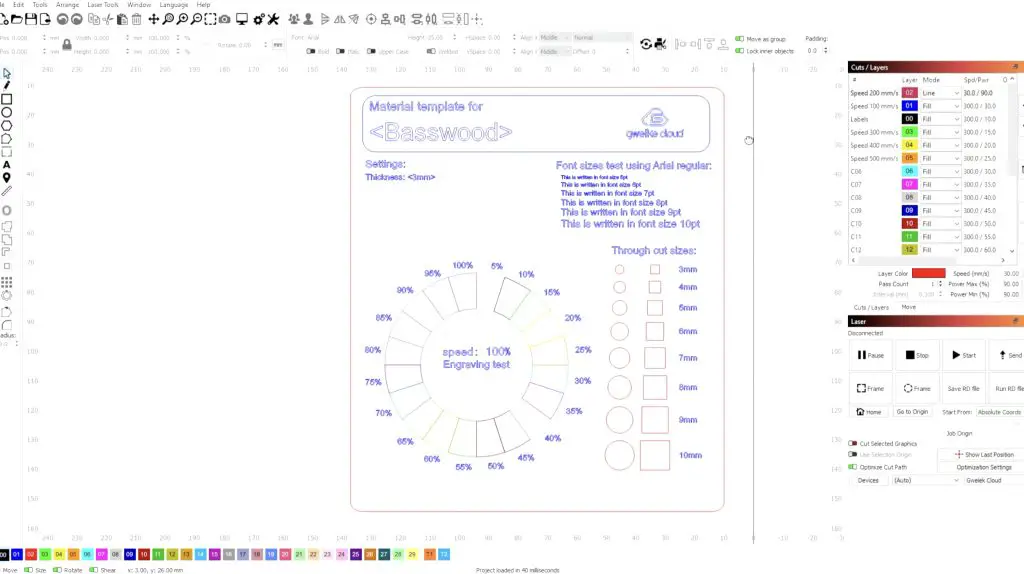
Cut And Engrave Test File

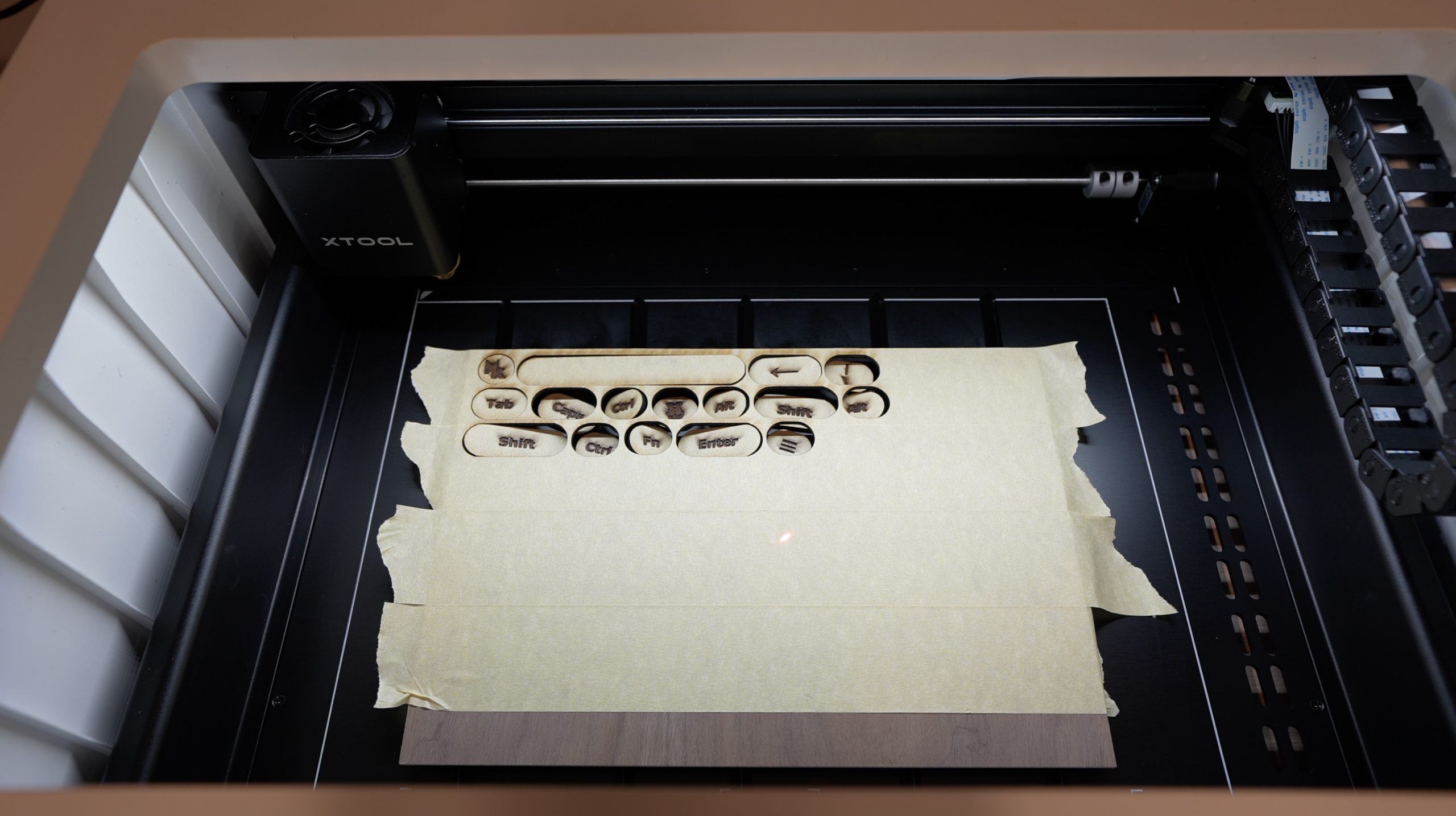
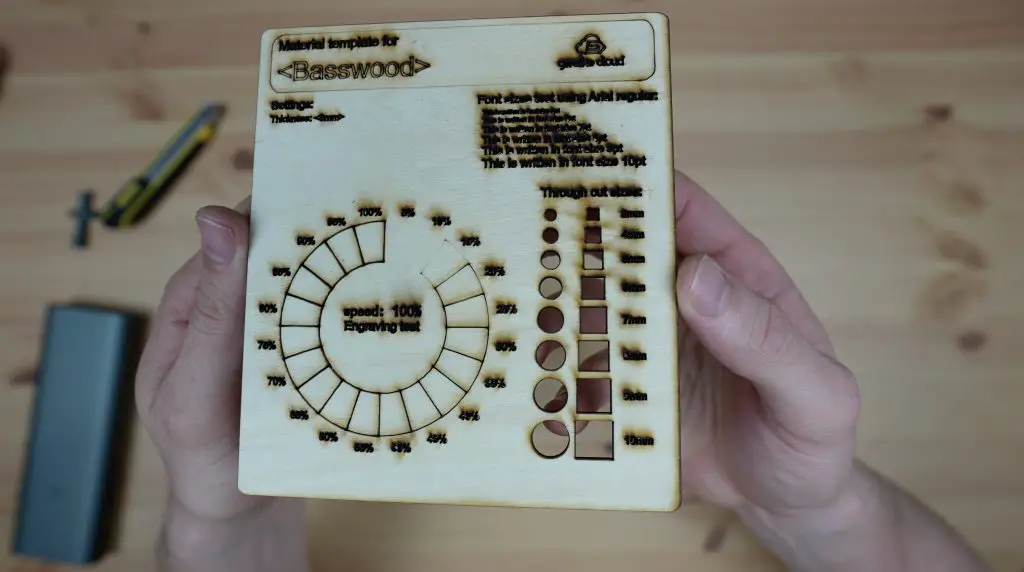
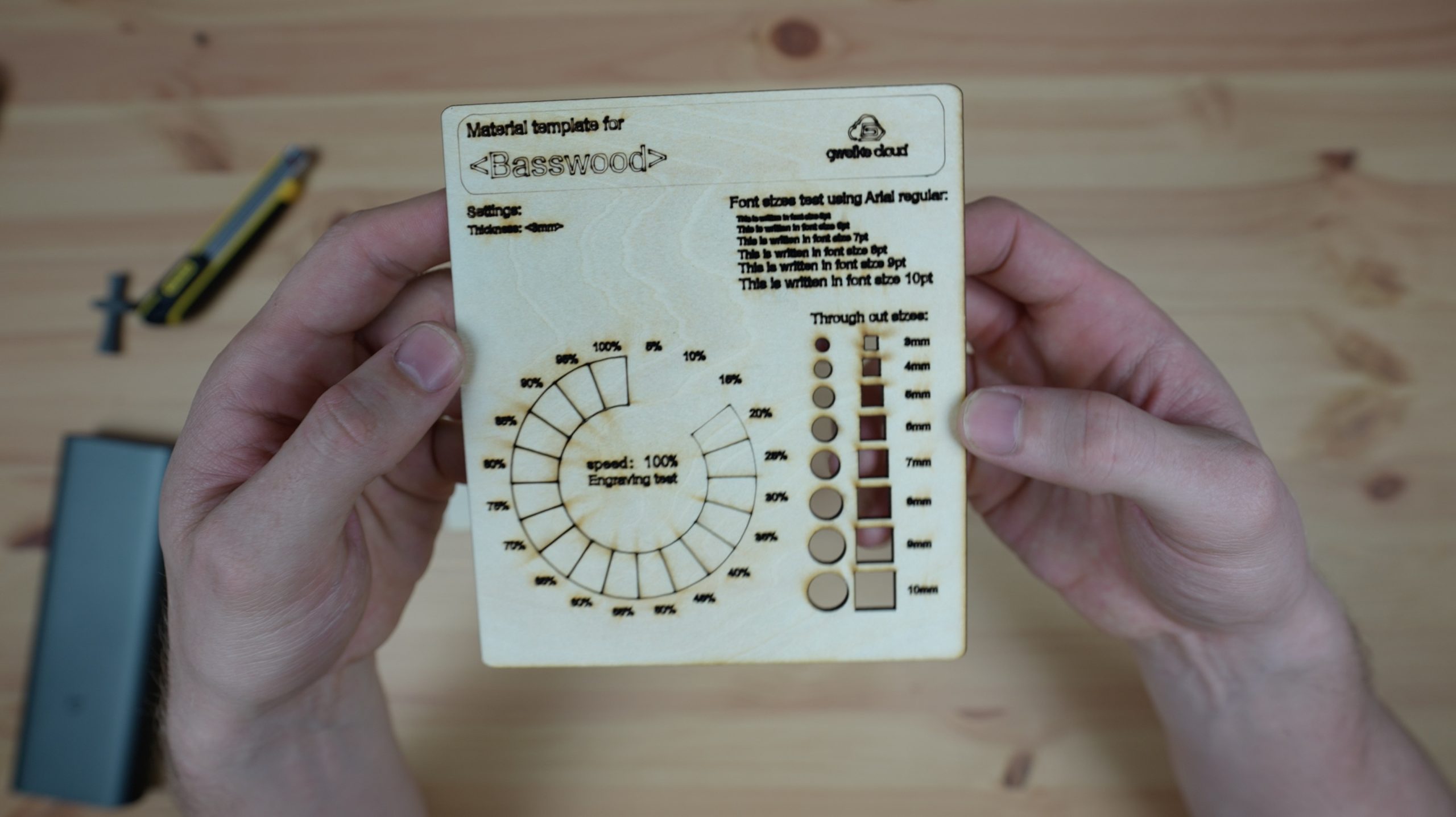
Gweike sent me a test file to try out first. This file demonstrates some of the cutting and engraving capabilities of the machine. The cutting is done at 30mm/s and 90% power and the engraving is all done at 300mm/s (this equates to 100% speed in their Cloud Software). The text is all engraved at 30% power and the engraving test ring starts at 5% power and increases to 100% power, with a 5% increase for each segment.

Test File In Lightburn

The speed of the Gweike Cloud is quite a lot faster than the Glowforge and my K40. The Glowforge is difficult to compare to as they only use a scale of 0-100% (they don’t use any actual metrics for speed), but articles I’ve found online suggest that the maximum speed is somewhere around 120-140mm/s. My K40 typically does 100mm/s for engraving and I use about 15mm/s for cutting plywood like this, so this machine is around three times faster at engraving and double the speed at cutting. Be careful when comparing these values with diode lasers as they typically quote their speed in mm/min, not mm/s like this. So when diode lasers say they can reach 10,000mm/min, that’s only a little over 160mm/s, so this machine is faster than most diode lasers available at the moment as well.

Cutting The Test File Using Lightburn

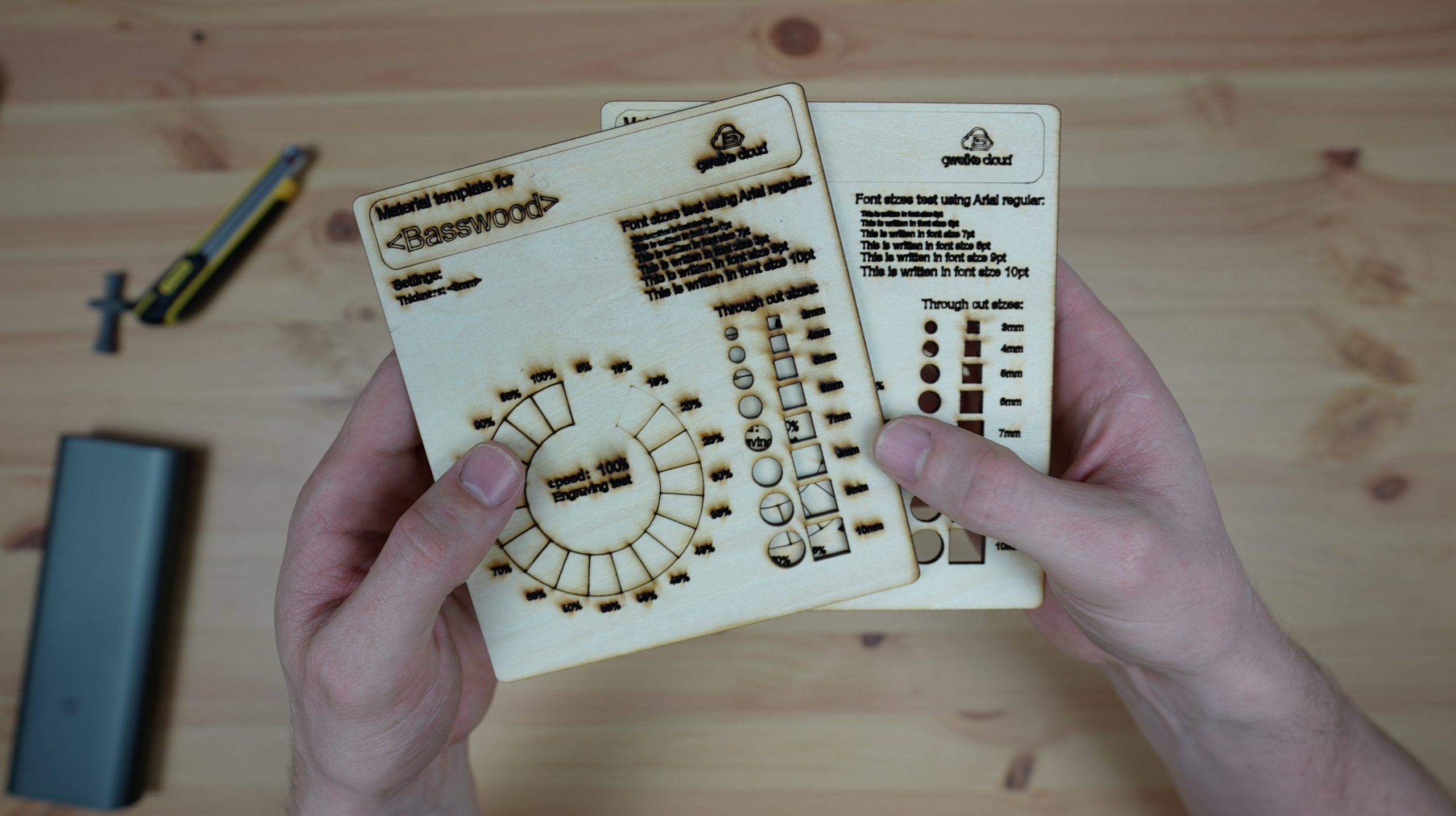
The first test using the default settings seemed to be overpowered on the text engraving, it burnt almost all the way through the wood and was virtually unreadable.

First Test File

I did a second test at the same speed but with the power reduced to just 18% and I turned off the air assist to reduce the smoke marks around the engravings.

The second test file came out much better than the first.

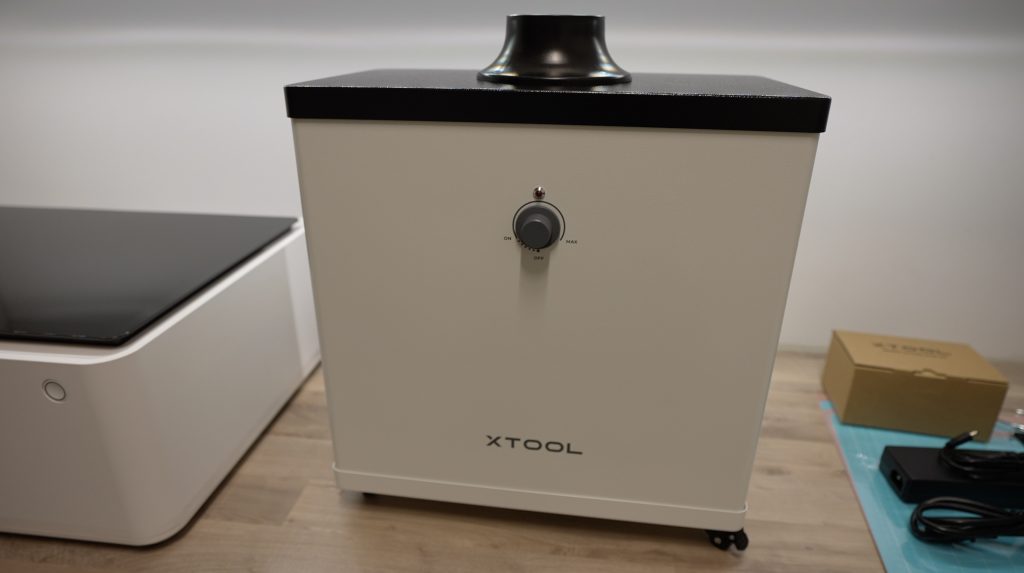
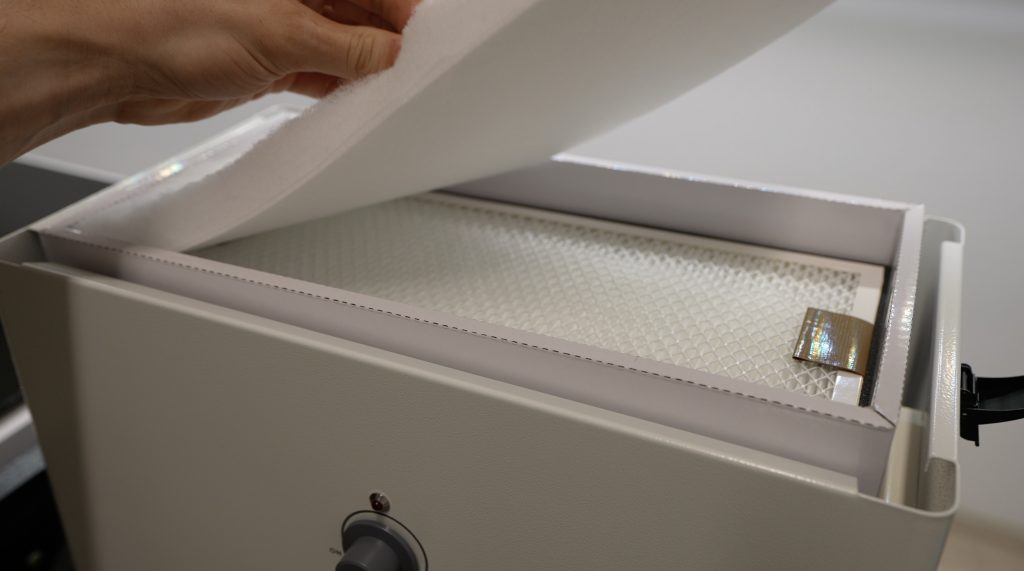
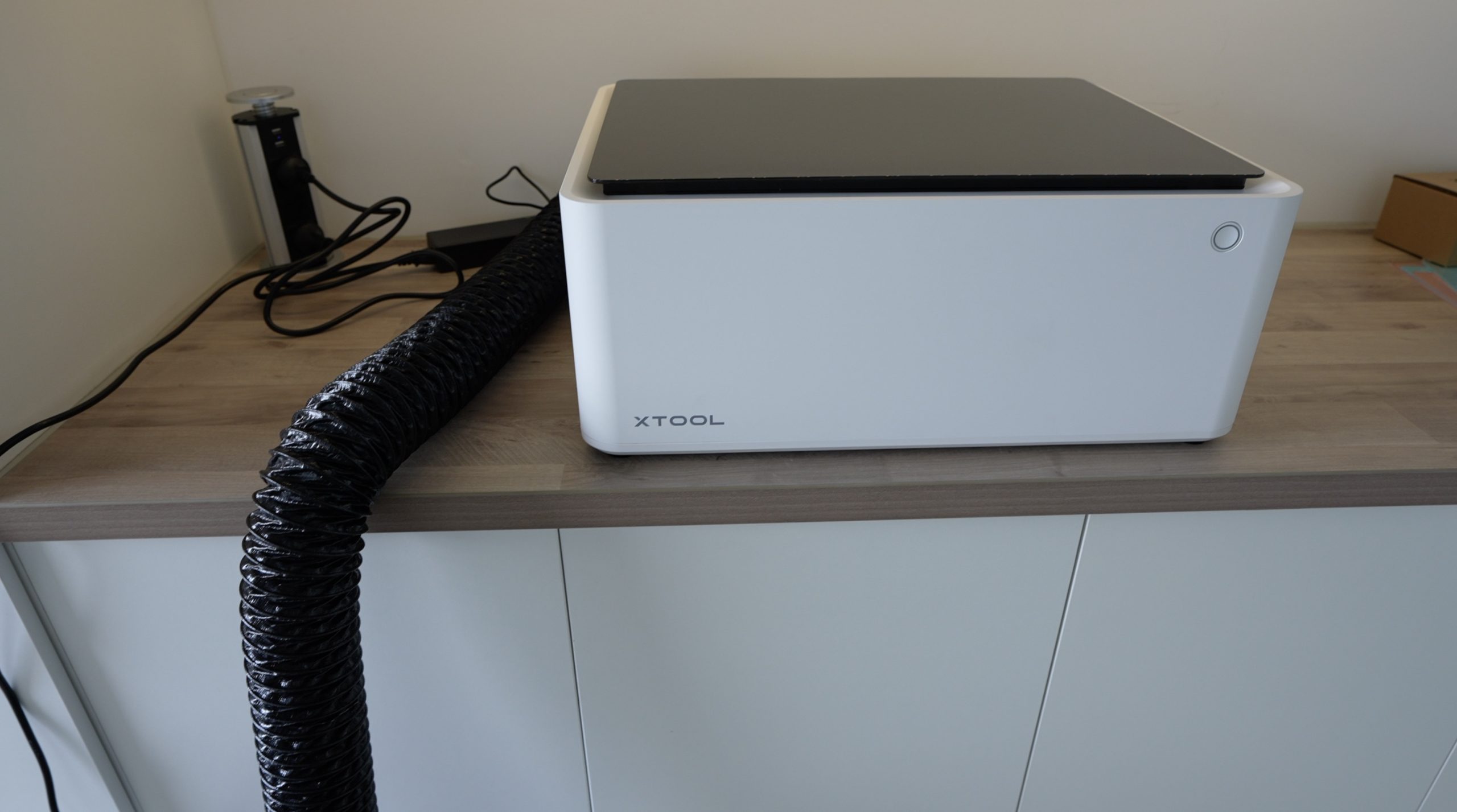
The fully enclosed cutting area and strong ventilation system work really well, There was no leakage into my workshop and no visible buildup of smoke within the machine either, even when producing quite a lot of smoke during cutting.

Ventilation Fan Removing Smoke From Enclosure

For me, I’m less interested in the speed and more interested in the quality and accuracy of the cuts. I’m not mass-producing anything, so I’d rather slow the machine down and get better quality work, even if that takes a few extra minutes.

Designing & Cutting The Raspberry Pi Case Components

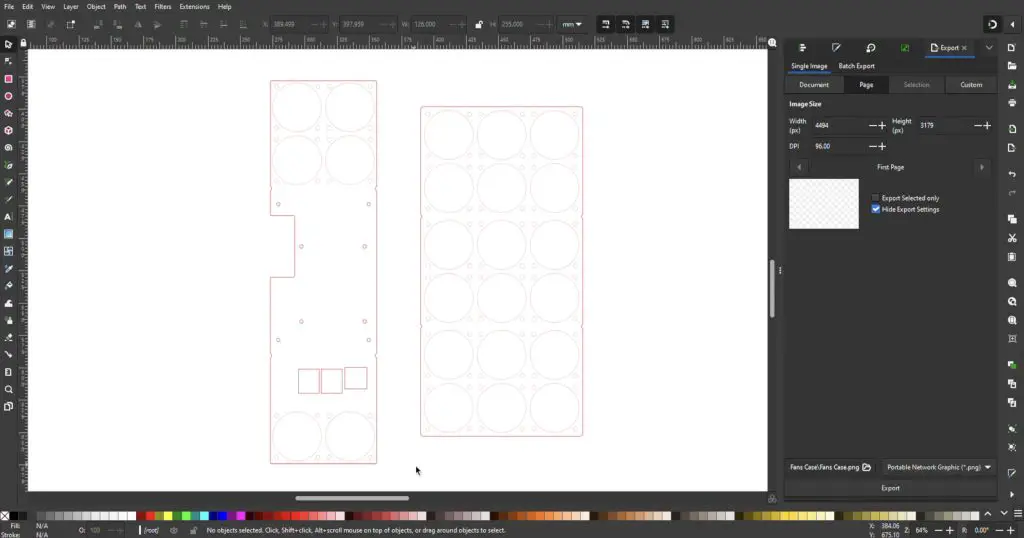
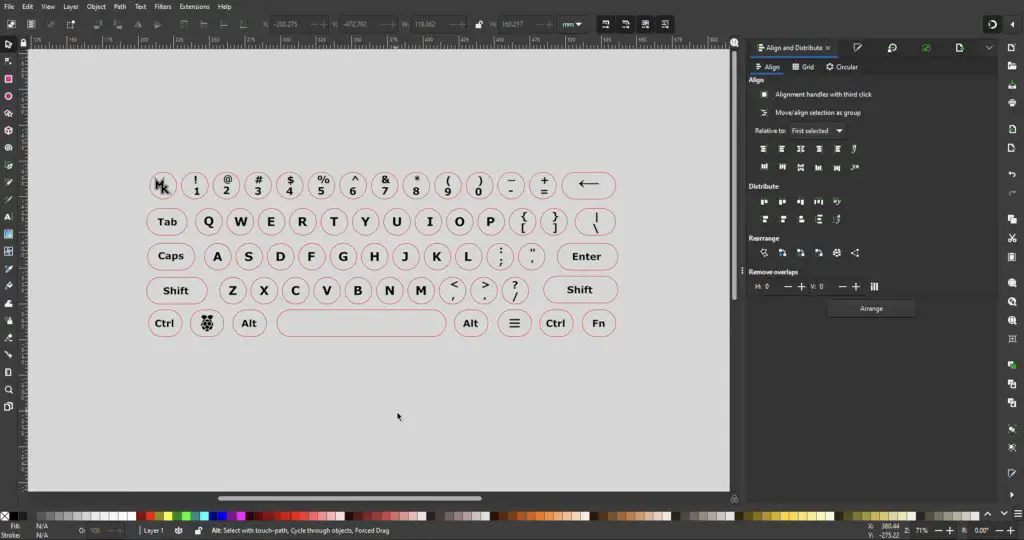
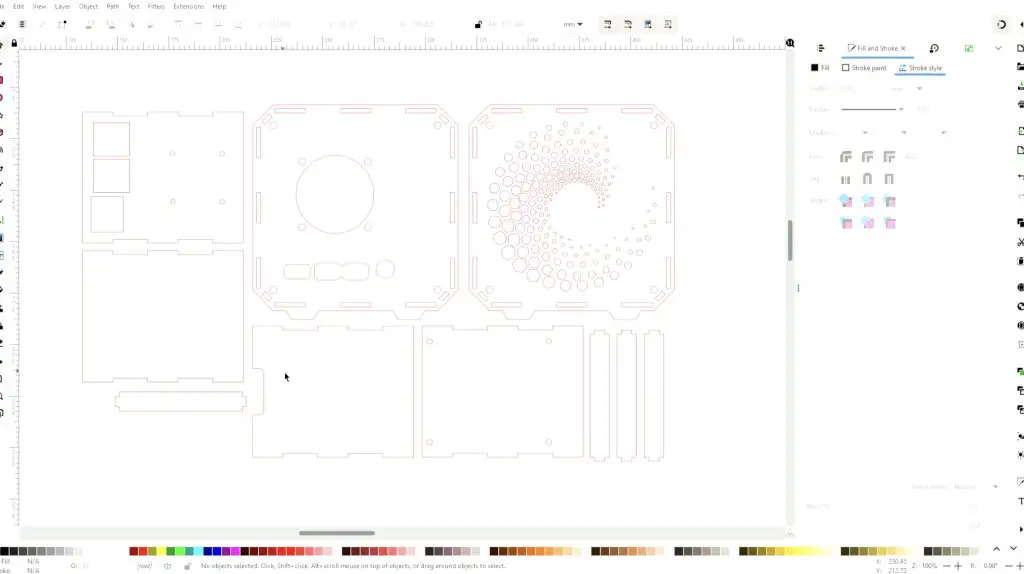
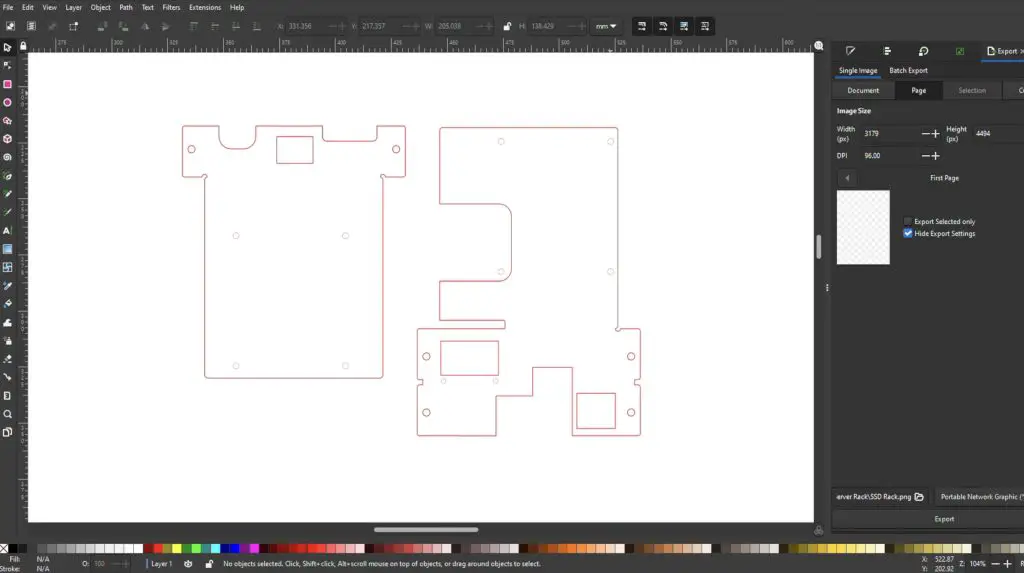
For the design of the cases, I sketched up the components in Inkscape.

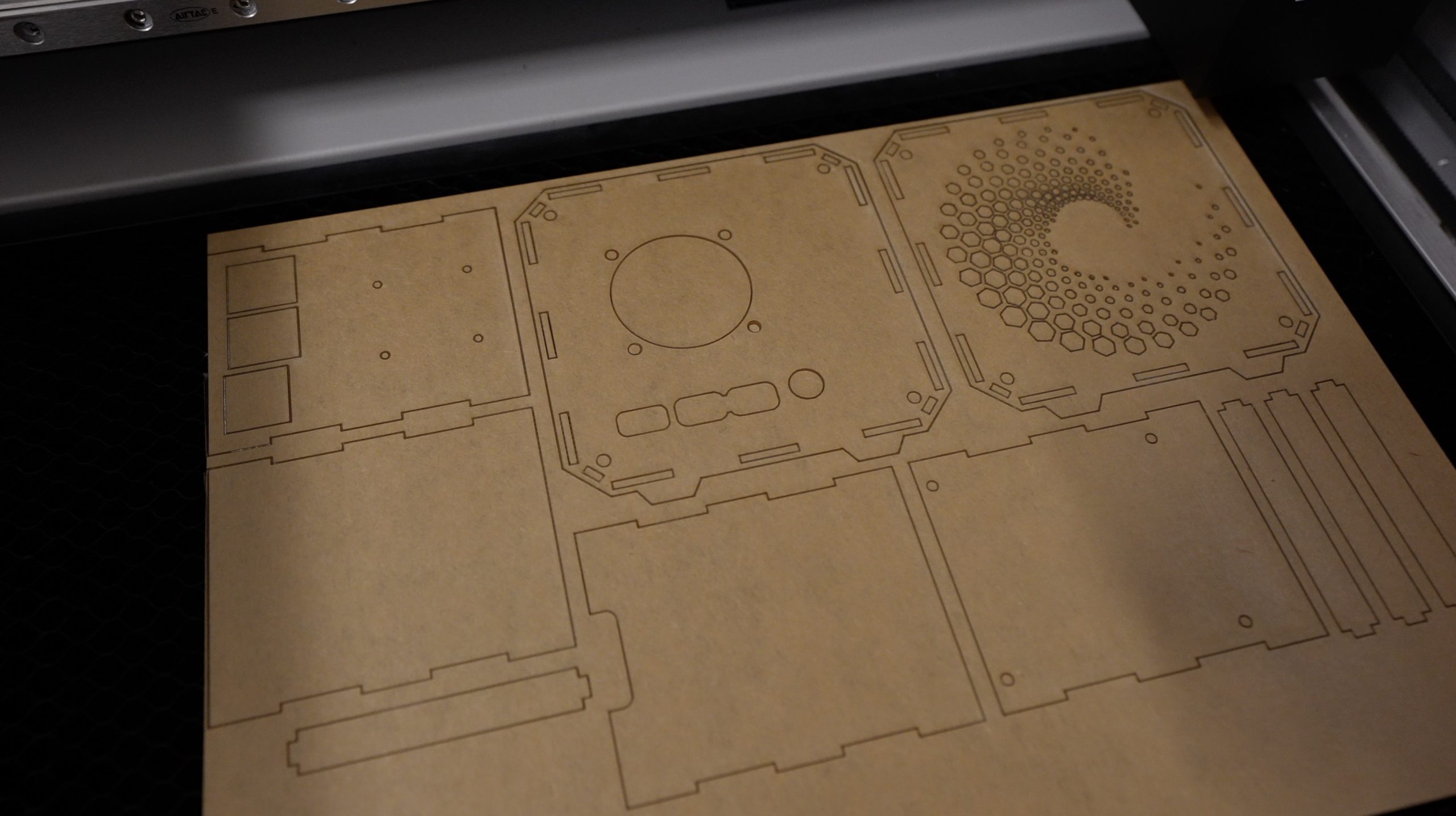
This is based on my 3D printed design but replaces the 3D printed housing with some interlocking acrylic parts. These will test the accuracy of the laser’s cuts as they fit together with 0.1 – 0.2mm tolerances and the parts need to fit the electronics that we’re going to be installing into the case as well. I also redesigned the ventilation panels for the sides opposite to the cooling fan to change things up a bit.

Inkscape Case Design

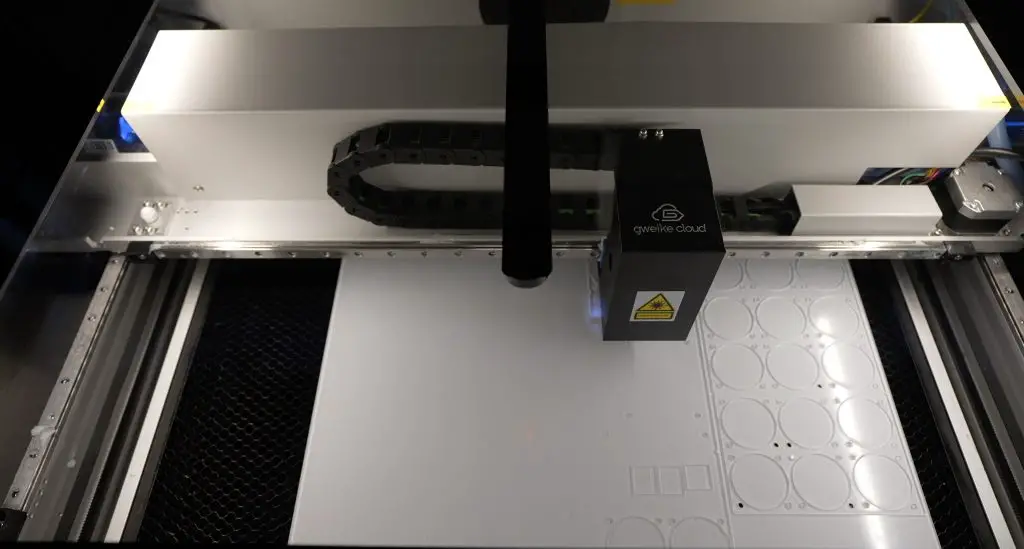
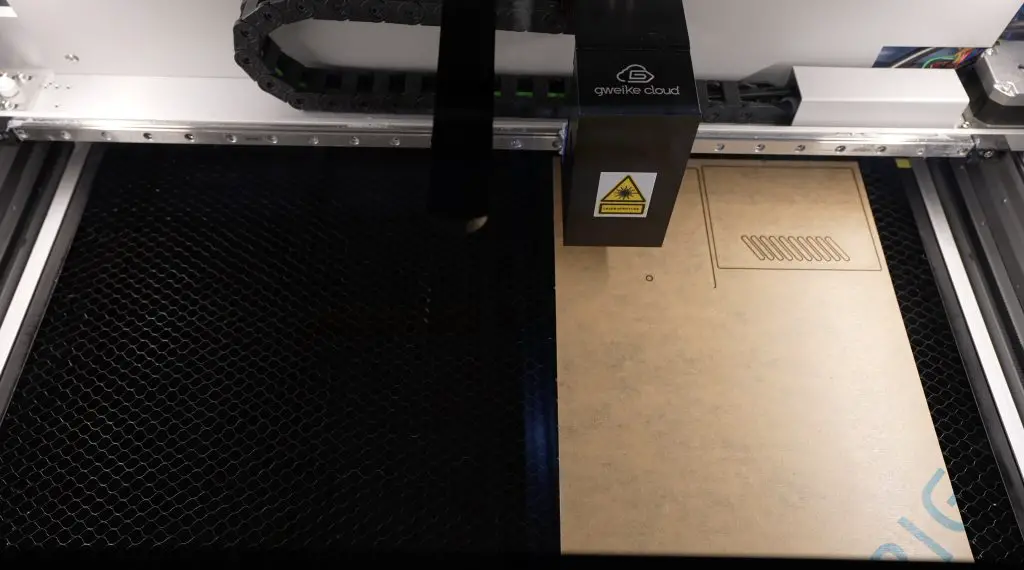
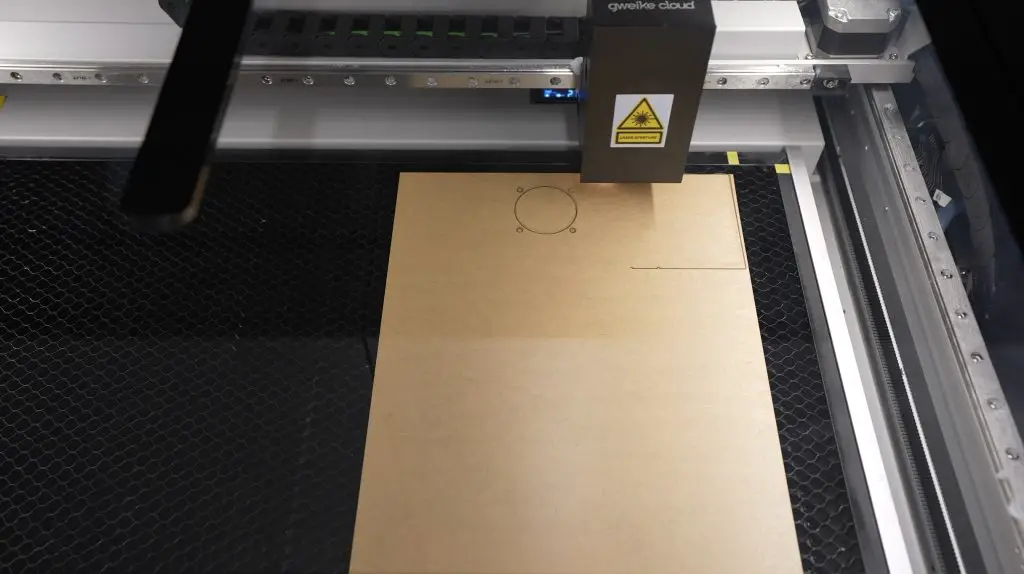
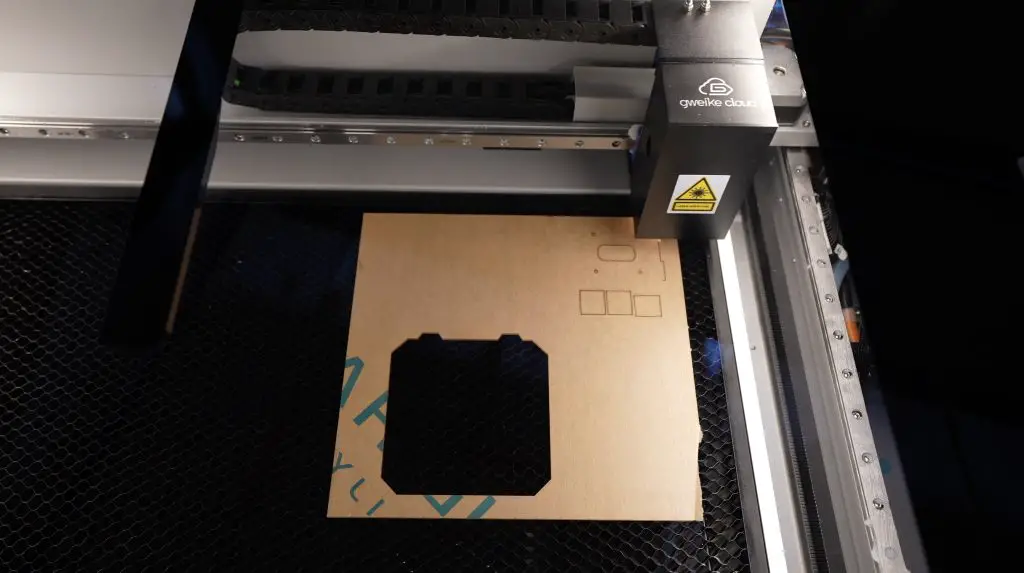
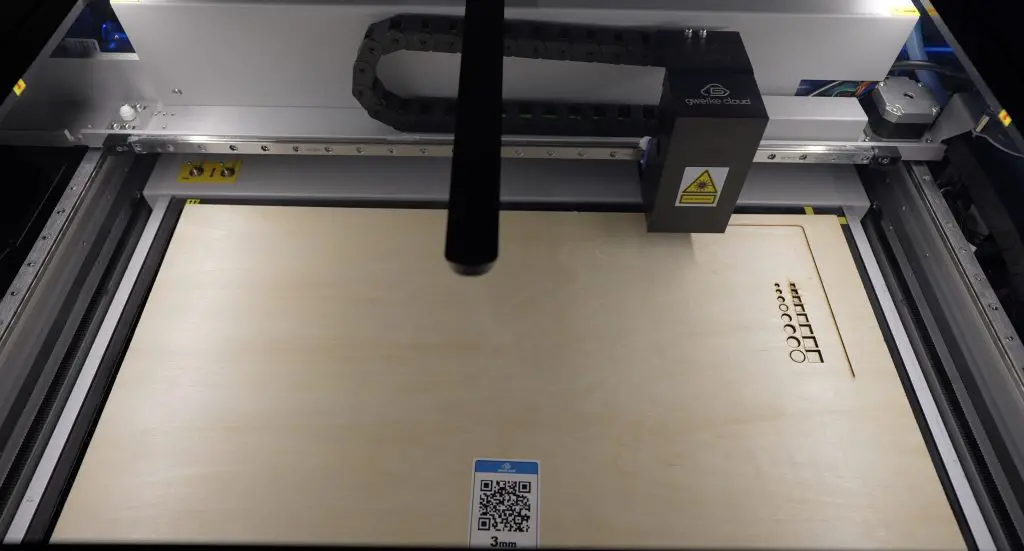
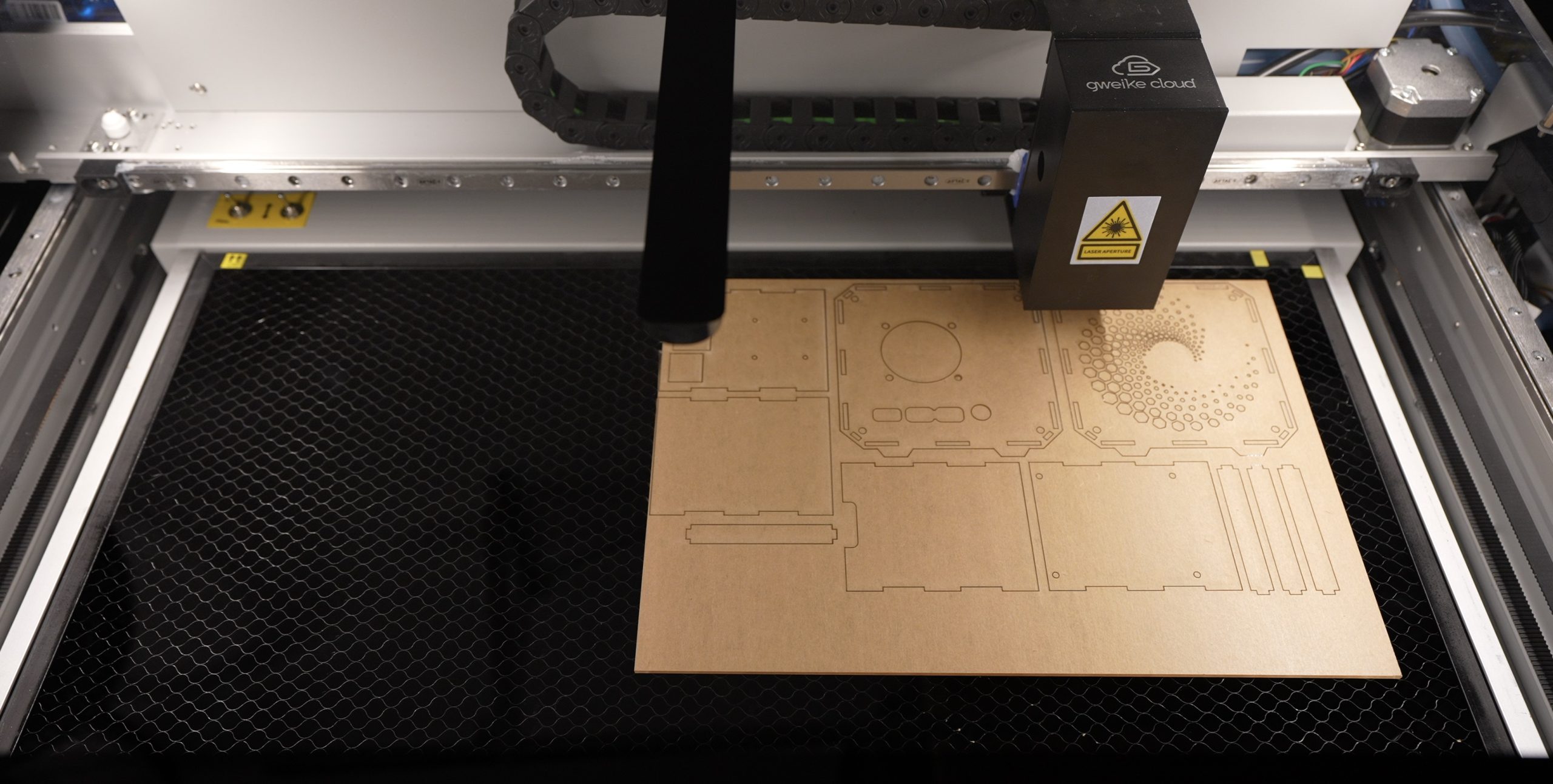
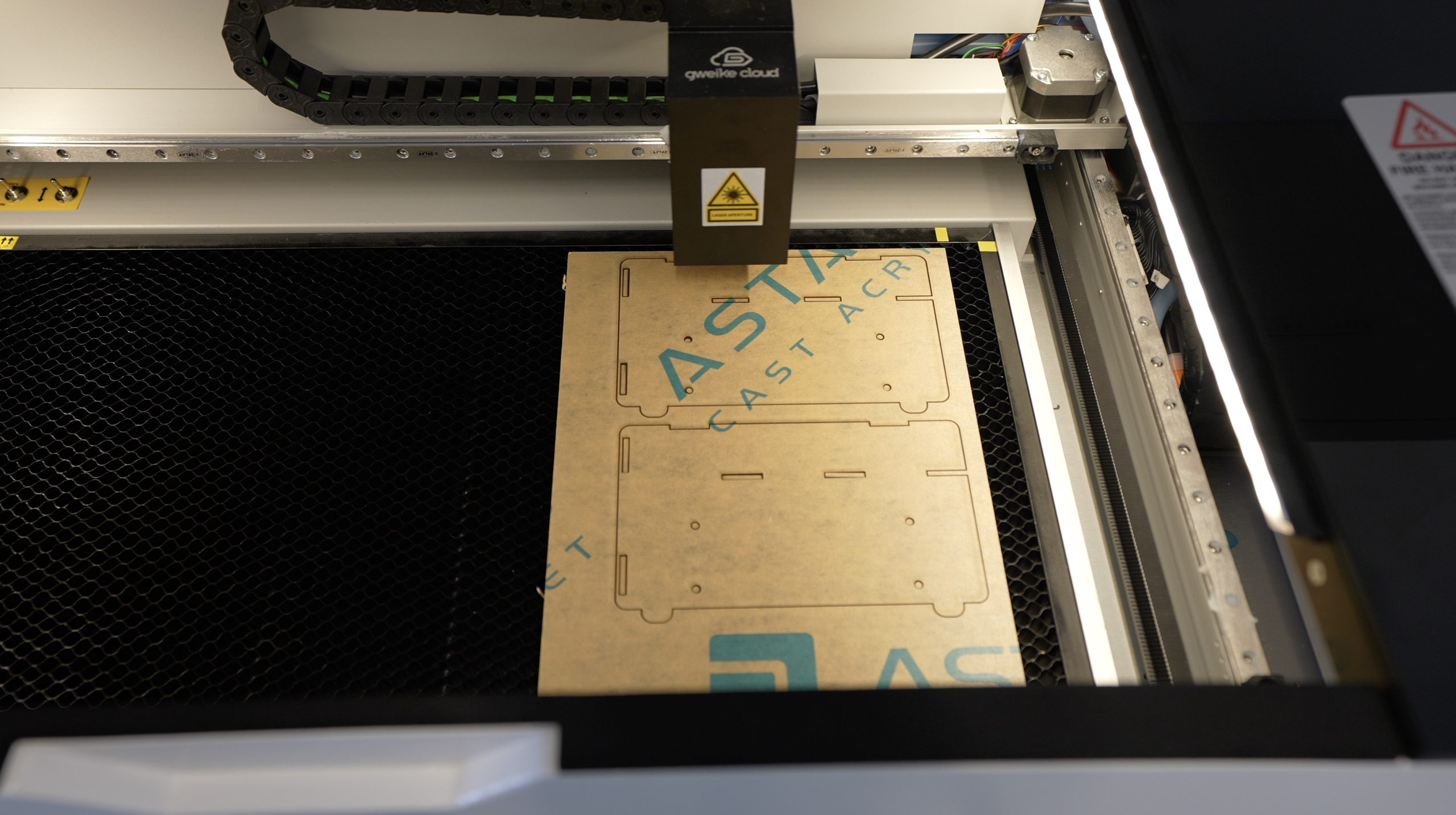
With the design done, we can load it into Lightburn and get them cut out. Each case fits onto an A4 sheet of acrylic, which easily fits into the 510mm x 290mm bed of the Gweiek Cloud. I could even use an A3 sheet and cut three cases out in one go. It’s got a 50W CO2 laser than sits within a metal housing on the Y-axis gantry. The laser is then directed through to the lens by a series of mirrors as with most CO2 laser designs.

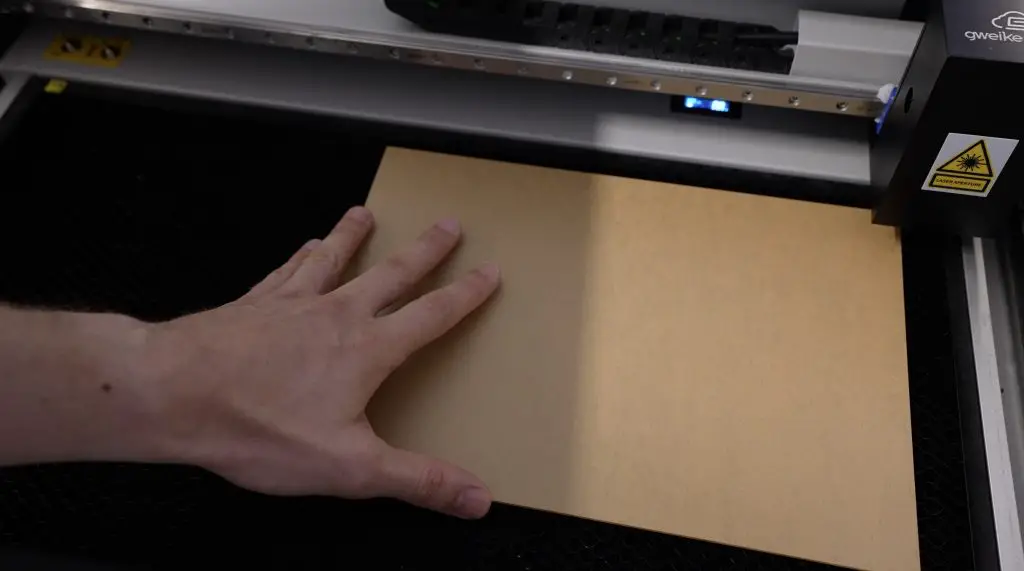
A4 Sheet Loaded Into Gweike Cloud

The Gweike Cloud can handle materials with a maximum height of 51mm and can handle materials that are longer than the bed of the machine through a pass-through slot in the front like the Glowforge Pro. This function is interlocked for safety, so you’ll need to actively bypass the interlock in order to use it, but it’s nice that it is an option.

I’m going to cut the cases out of a couple of different colours.

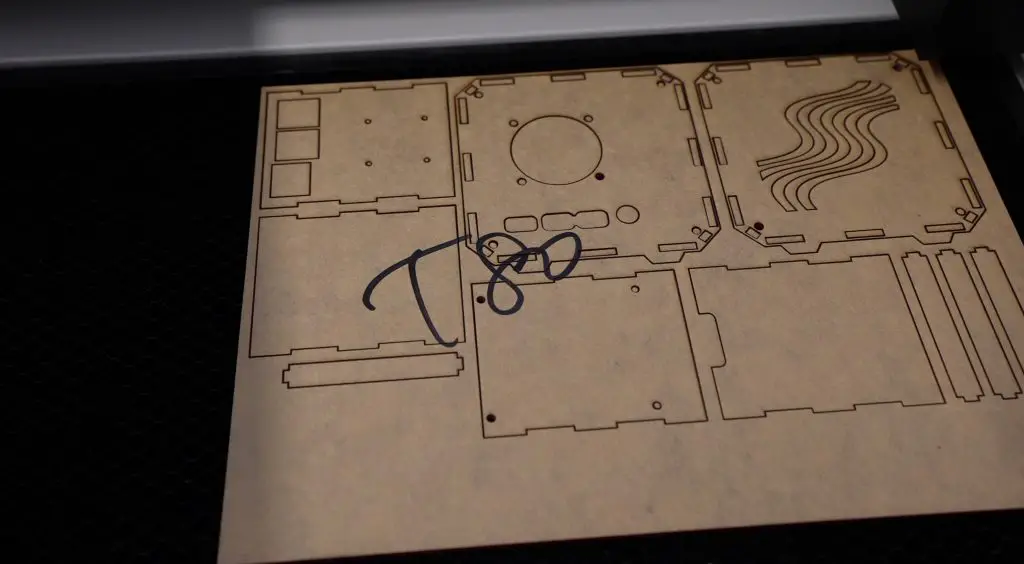
First up I’ll cut this design from 2mm clear acrylic.

They advertise the machine as having autofocus, although this is not quite automatic. It works automatically when using their cloud software and their branded materials with QR codes. The machine automatically recognises the code on the material and then adjusts the laser height to suit. When using it offline and with your own materials, you’ll need to set the focus height manually in Lightburn. The height adjustment of the laser head is done electronically though, so you don’t have to do it by hand.

Autofocus Mechanism On Gweike Cloud

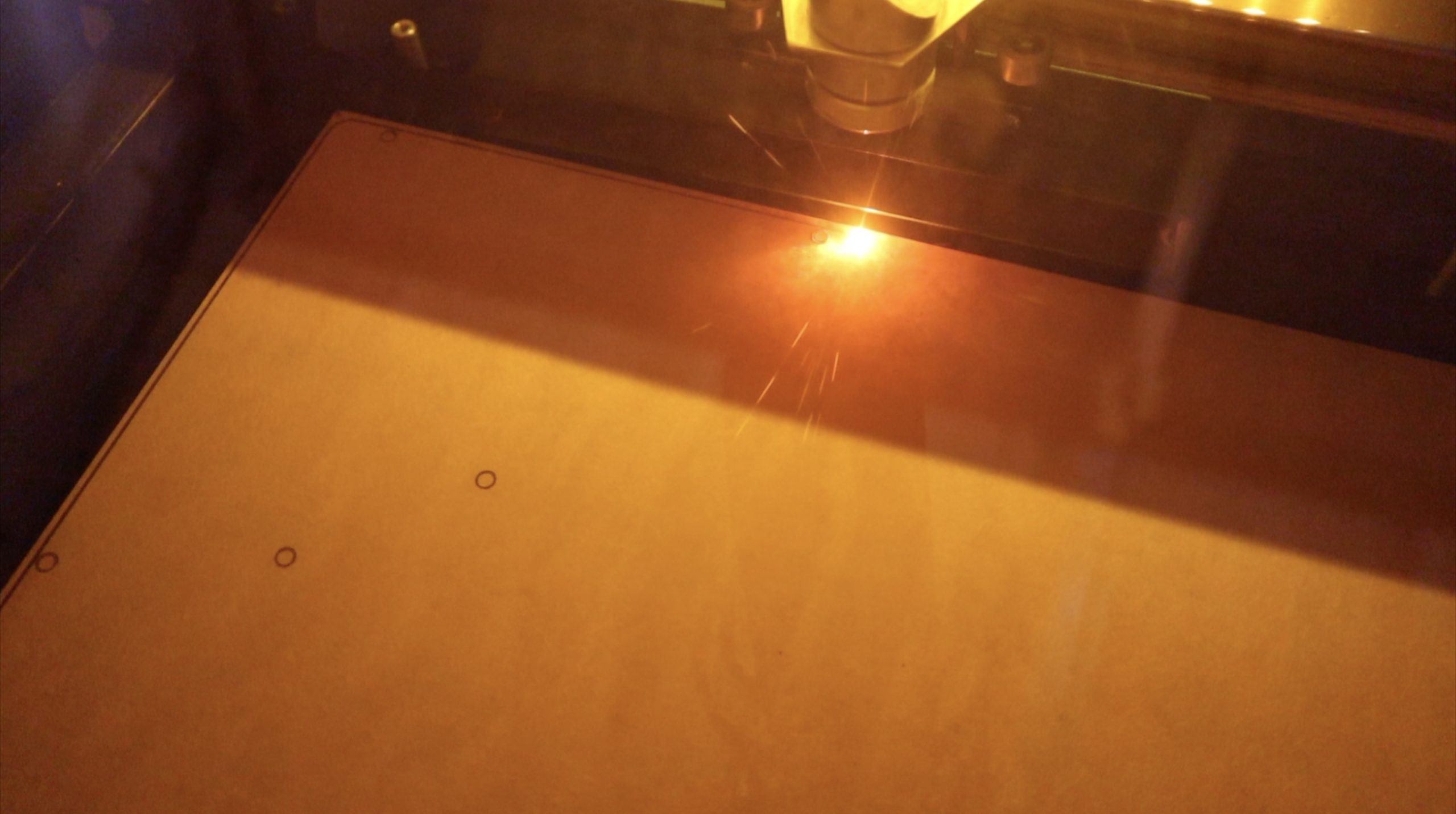
The machine breezed through the 2mm acrylic at 70% power and 30mm/s in a single pass.

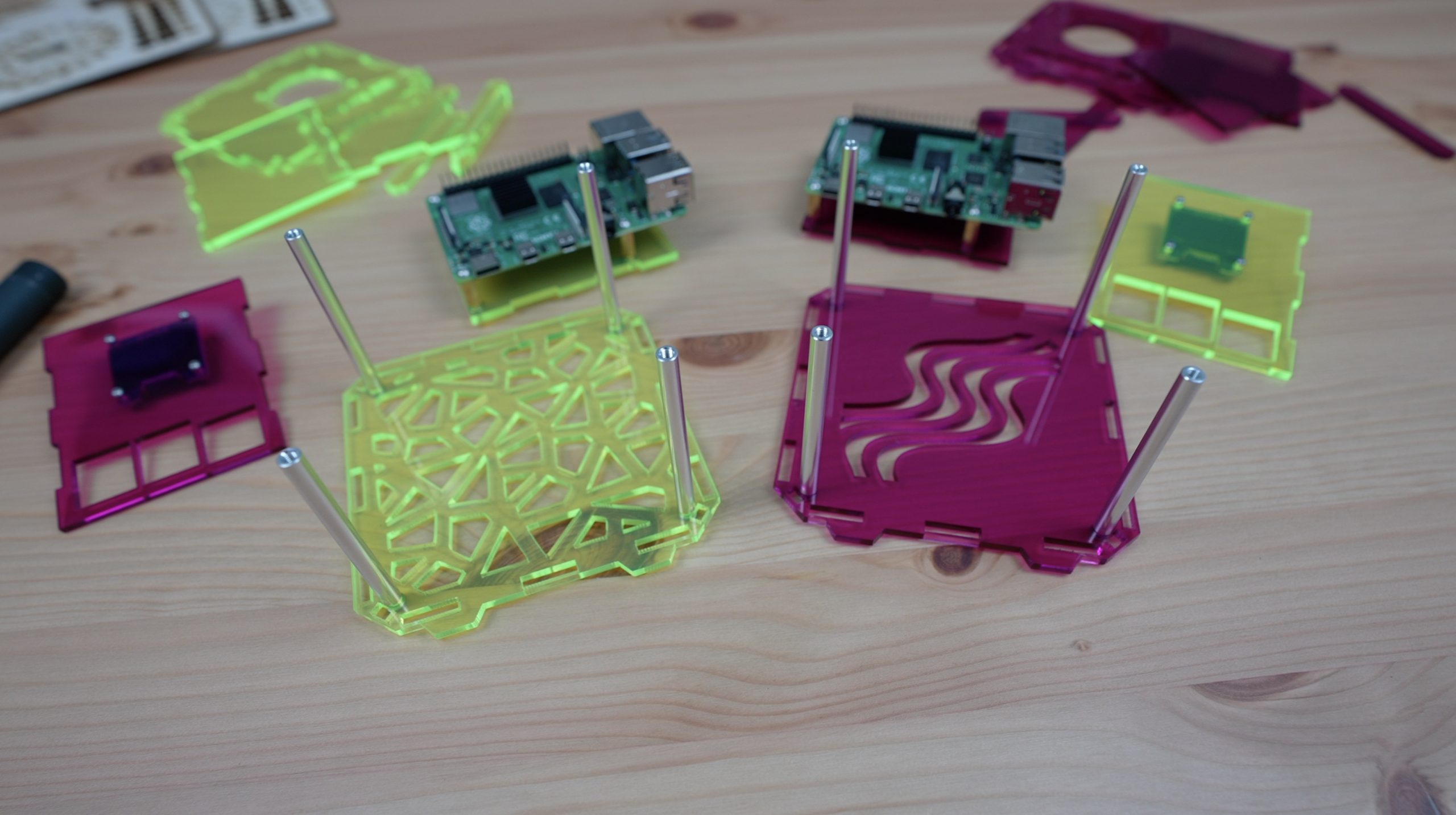
I then cut the two other designs from 3mm coloured acrylic, one from fluorescent green and one from translucent purple. The thicker acrylic required a bit more power but it still managed this at 90% power at the same speed.

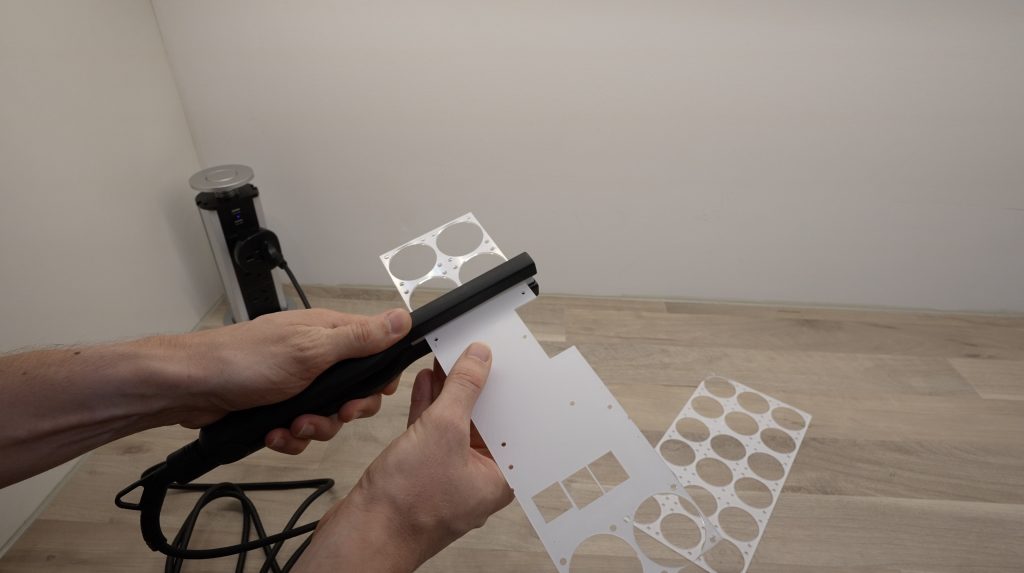
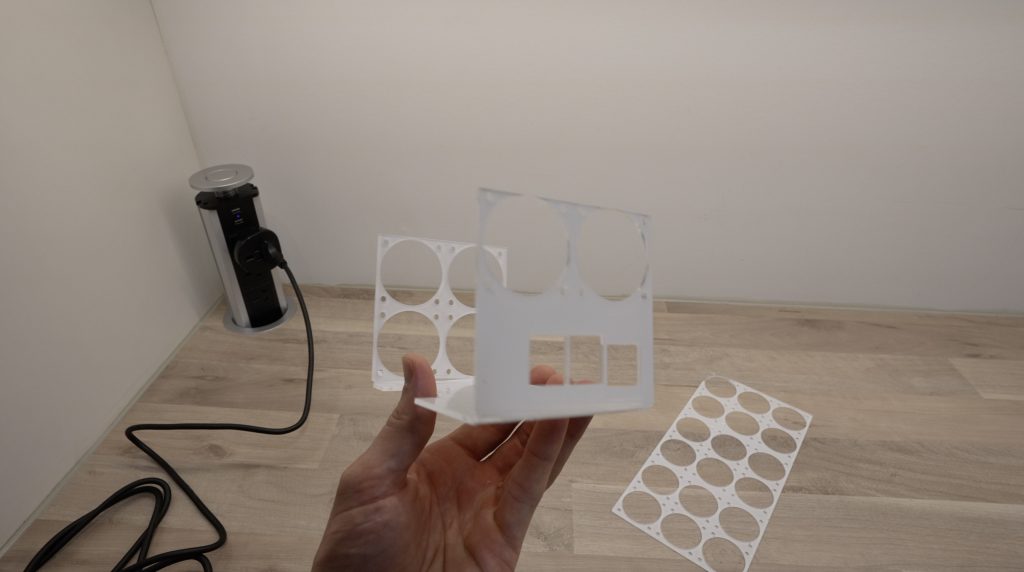
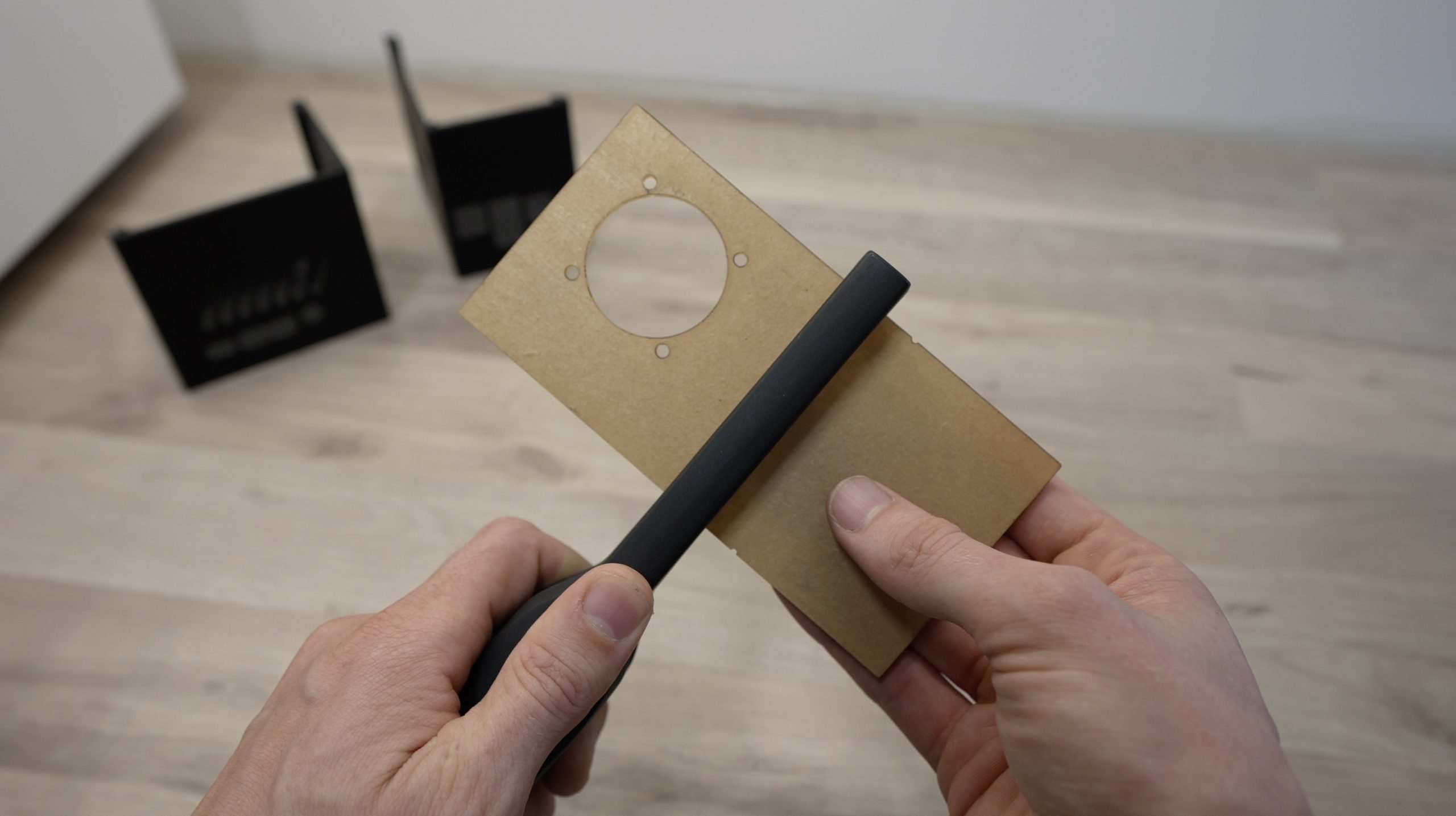
Components Cut From Coloured Acrylic

You could also easily cut the same design from plywood or even cardboard, so you’ve got loads of options. The machine can handle most wood-based sheets like plywood and MDF as well as acrylics and fabrics. They also say that it will cut rubber and plastics although you need to be careful with these as some plastics produce harmful fumes when they’re cut.

I think that the acrylic panels have come out really nicely, next we’ll see if they fit together well.

Assembling The Raspberry Pi Cases

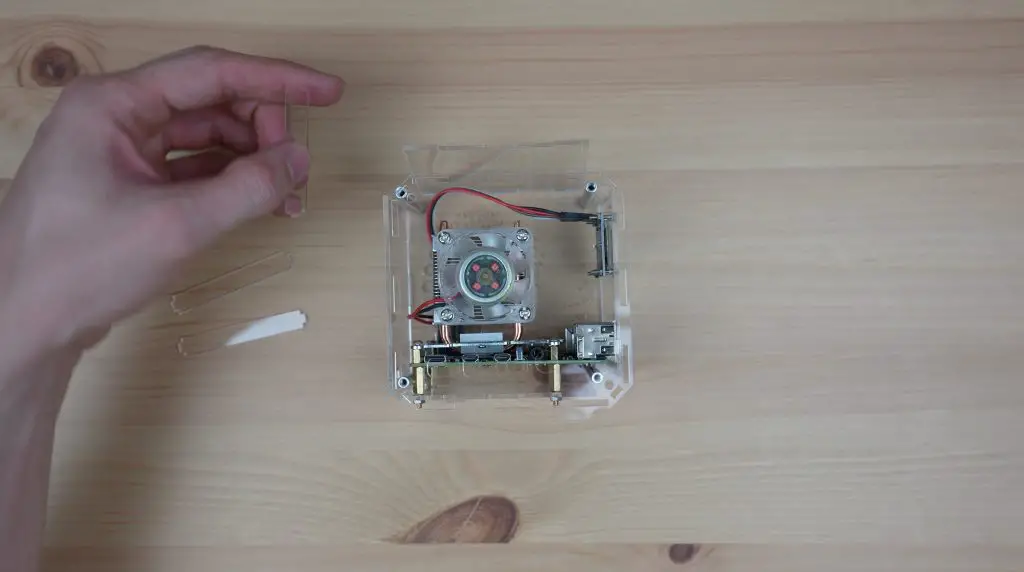
I’ll run through the assembly of the clear Pi case, but the coloured acrylic is the same process as well. The only difference between the two designs is the thickness of the slots that are cut into the main side panels.

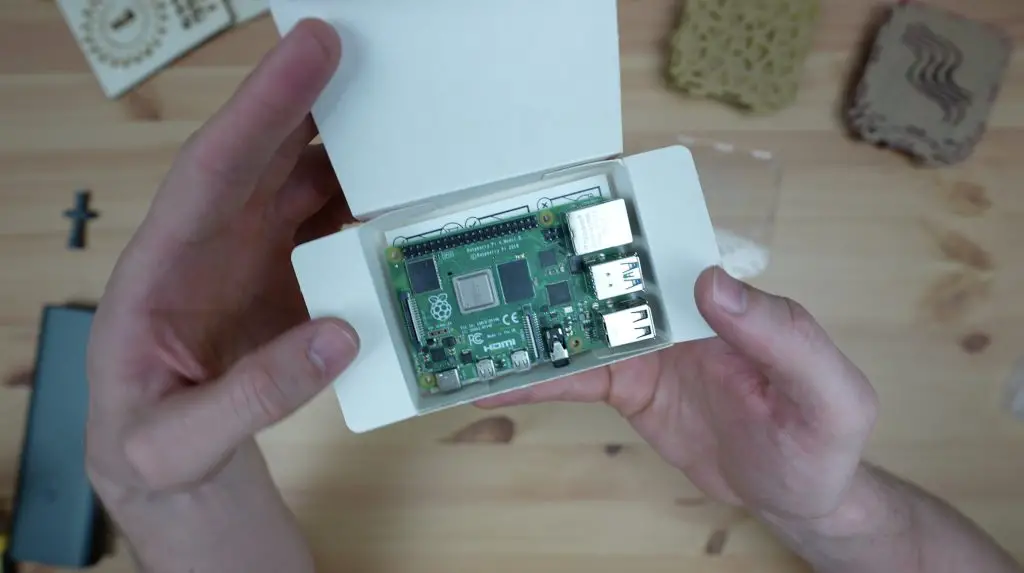
Raspberry Pi 4B

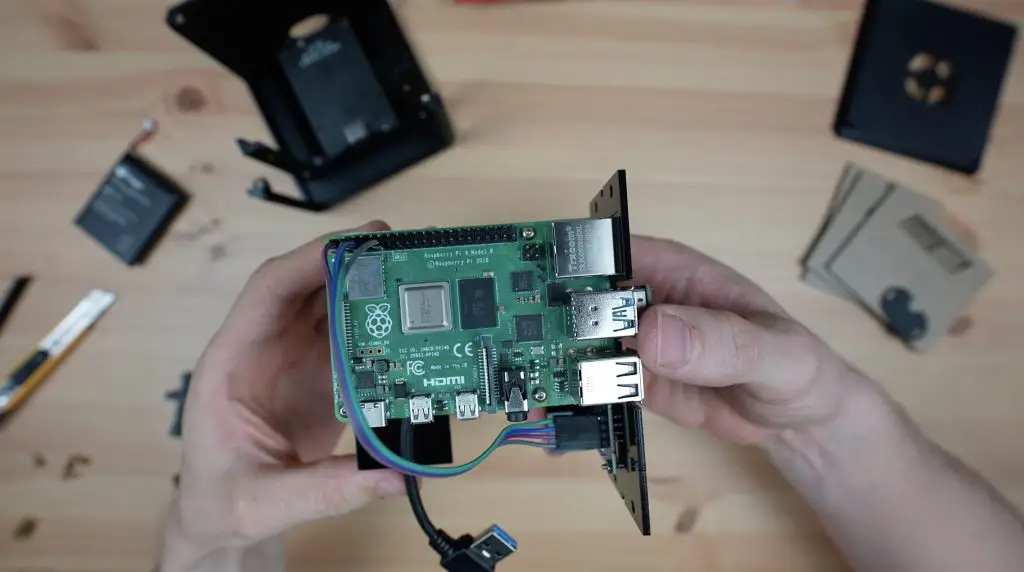
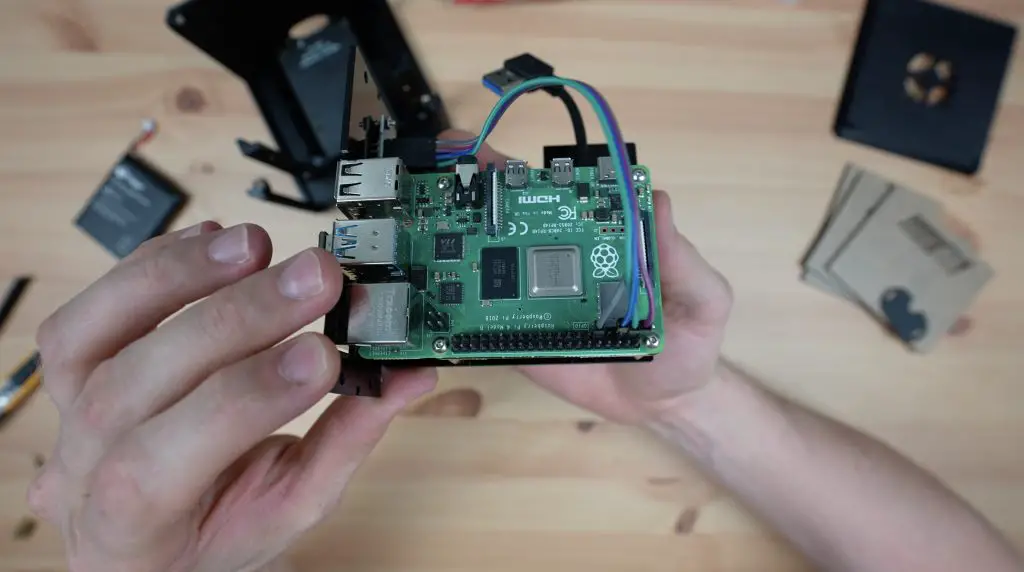
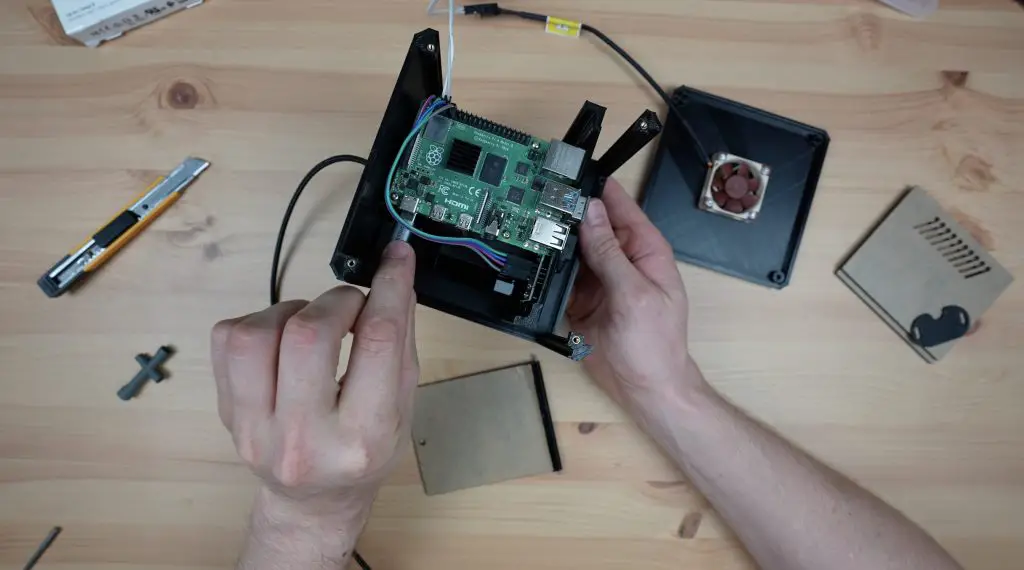
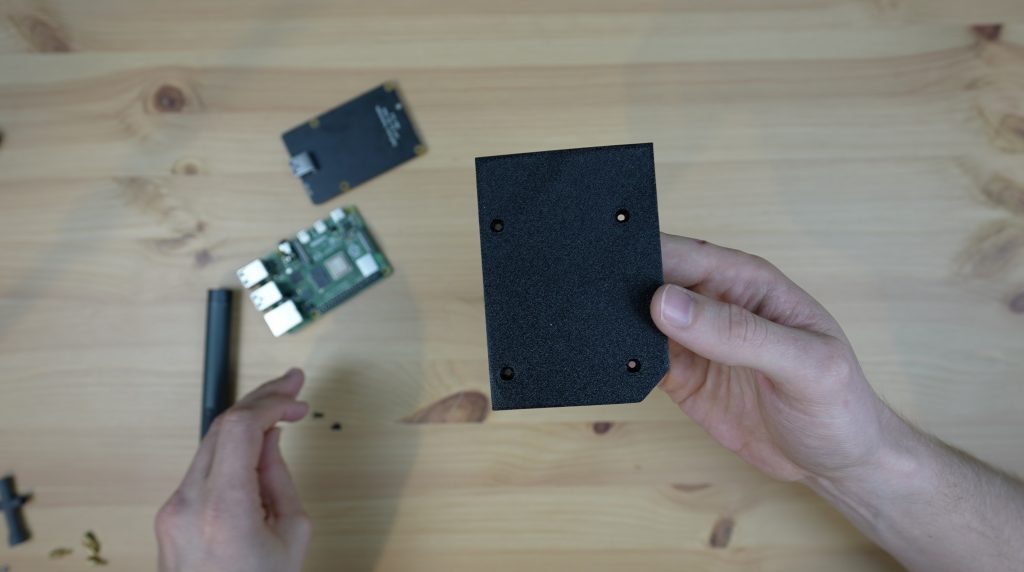
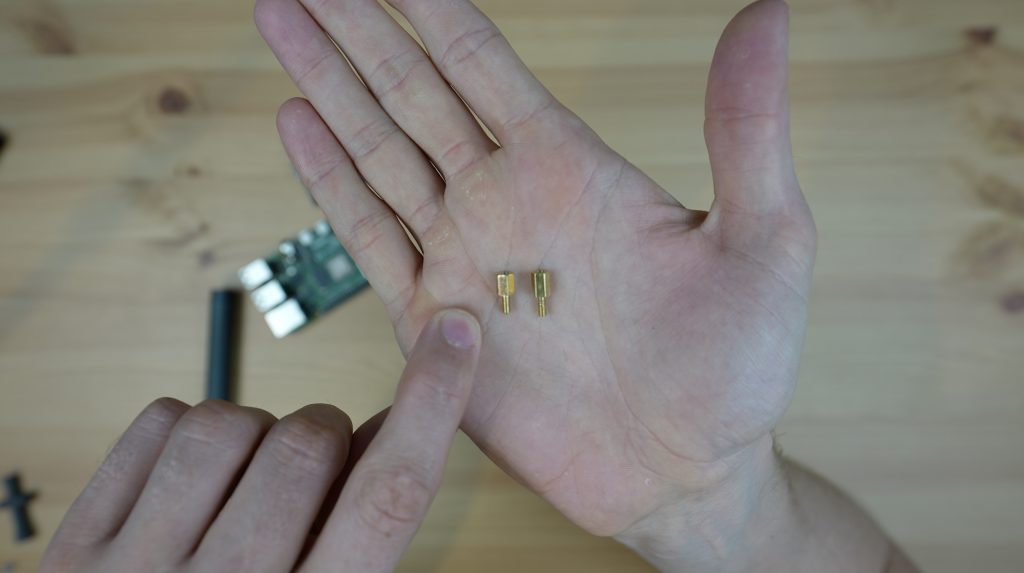
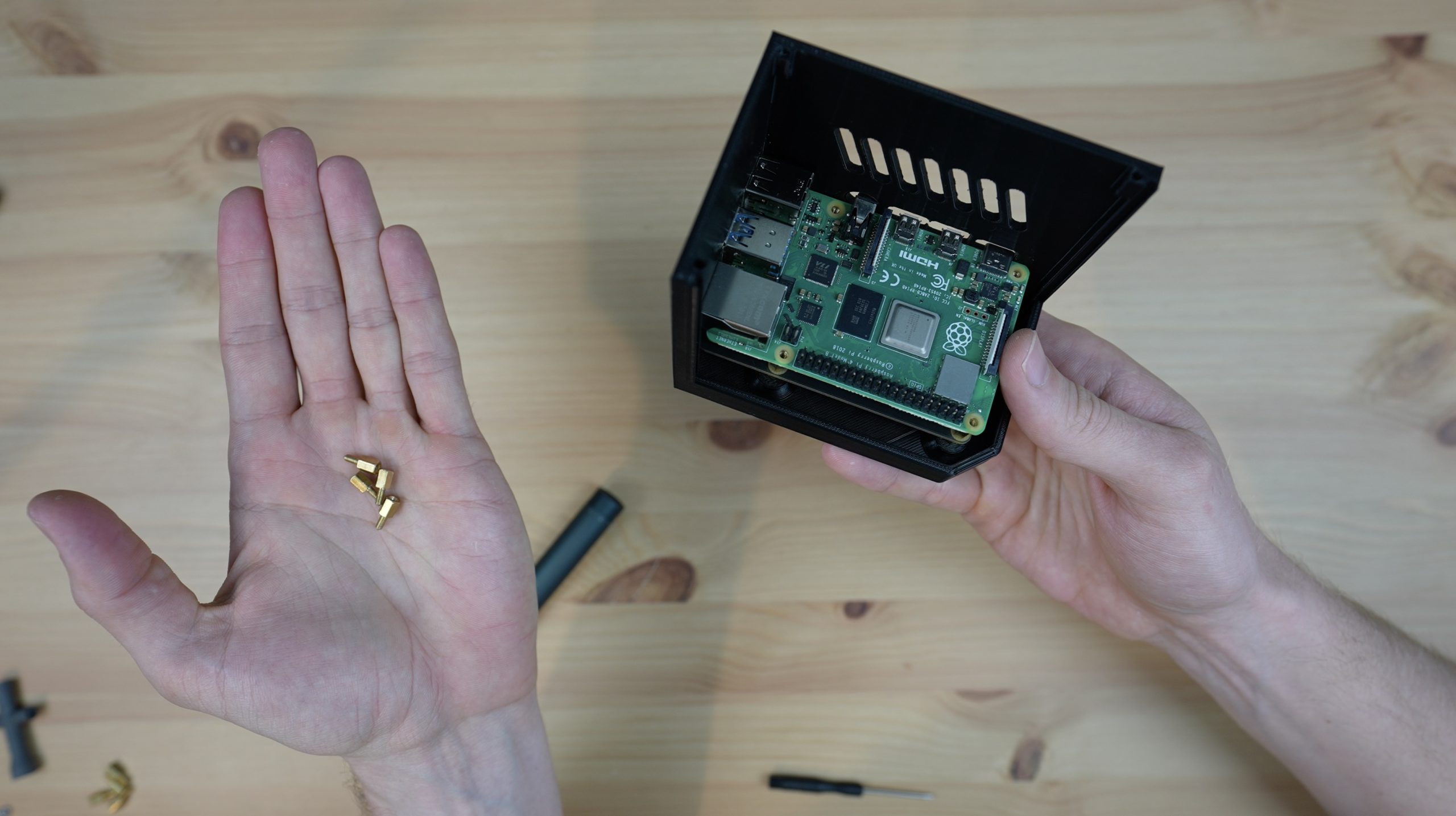
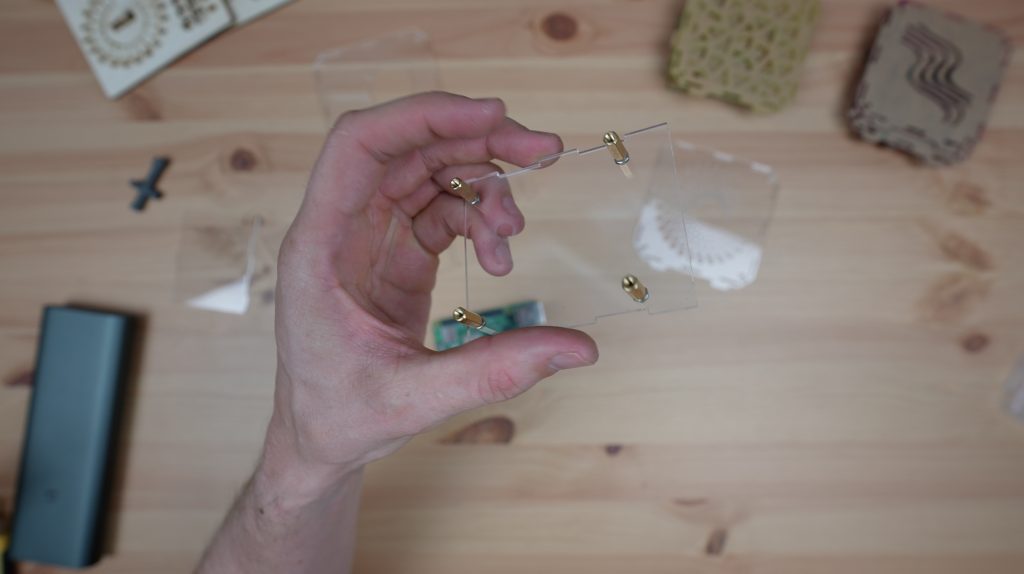
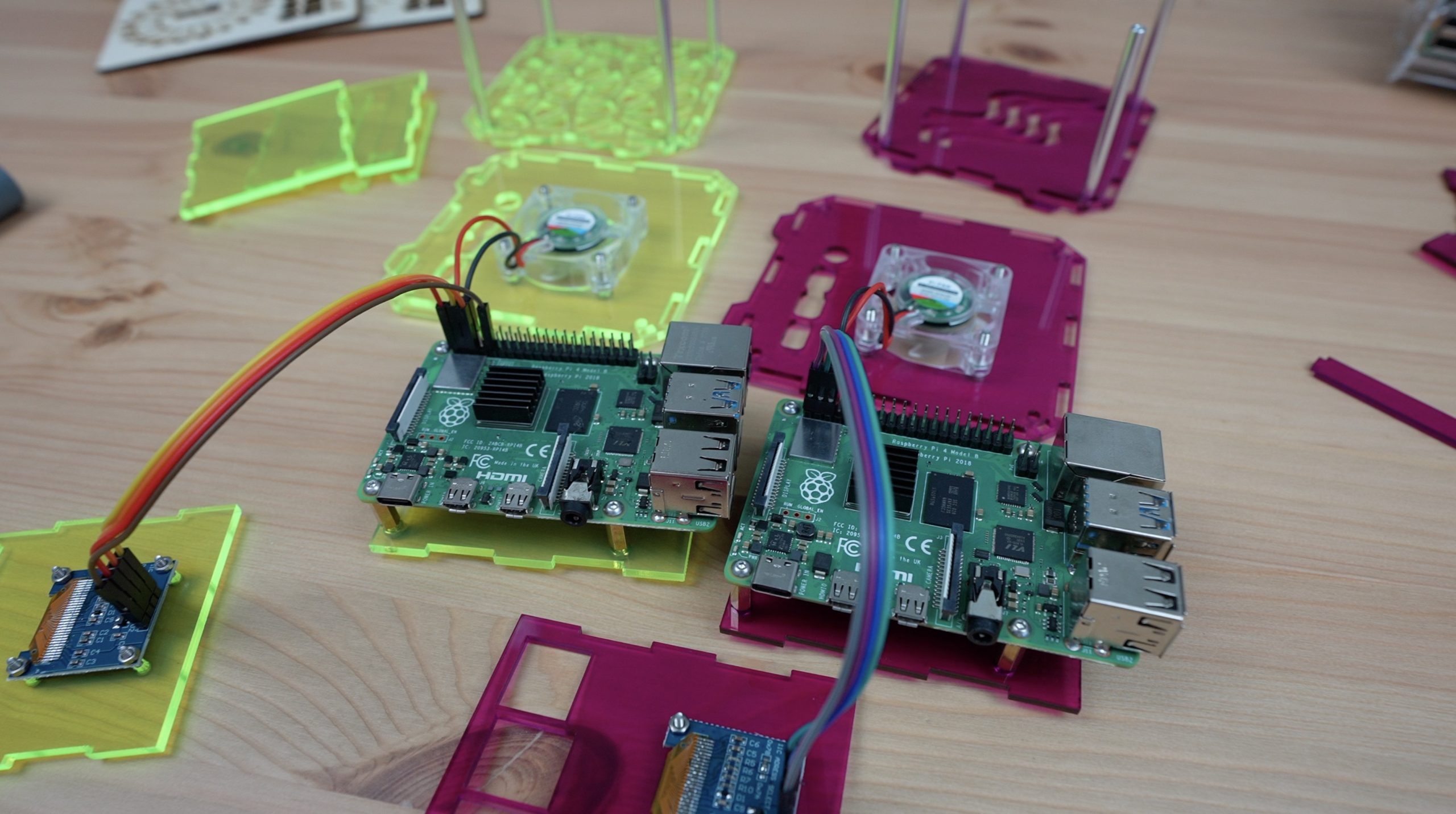
To assemble the case, let’s mount the Raspberry Pi onto the bottom panel using some M2.5x12mm brass standoffs held in place with an M2.5 nut on the bottom of each.

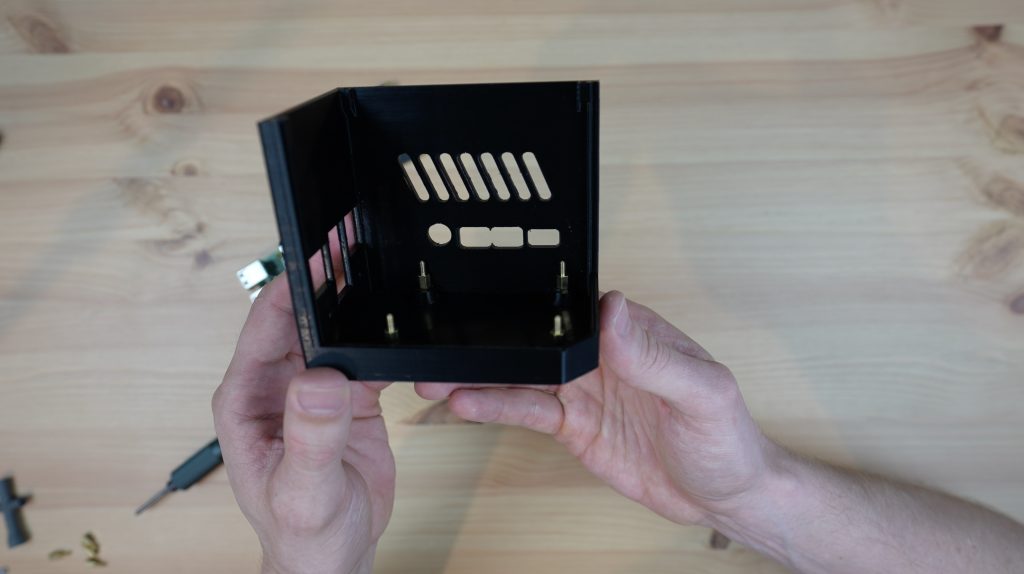
Standoffs Installed On Base

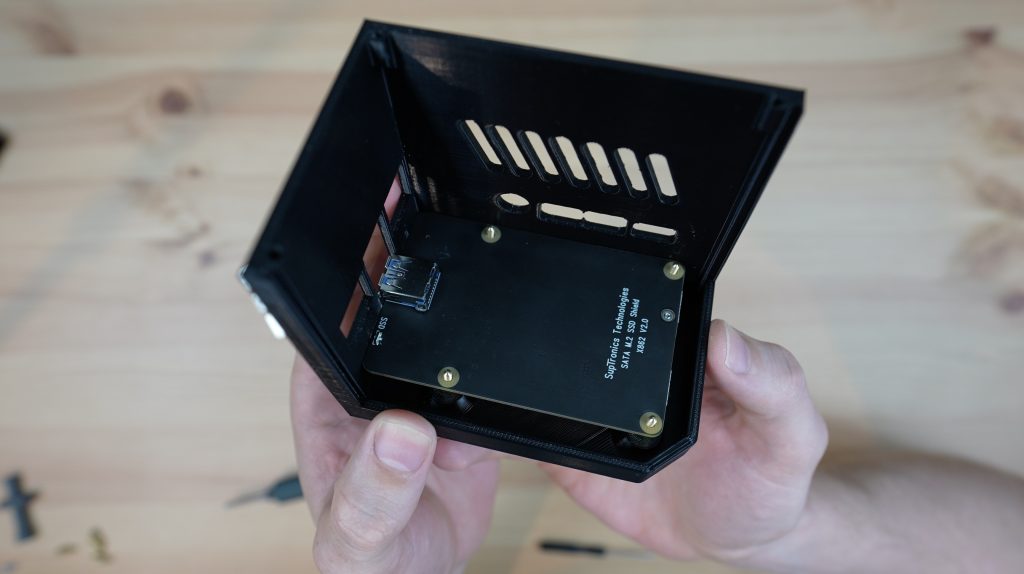
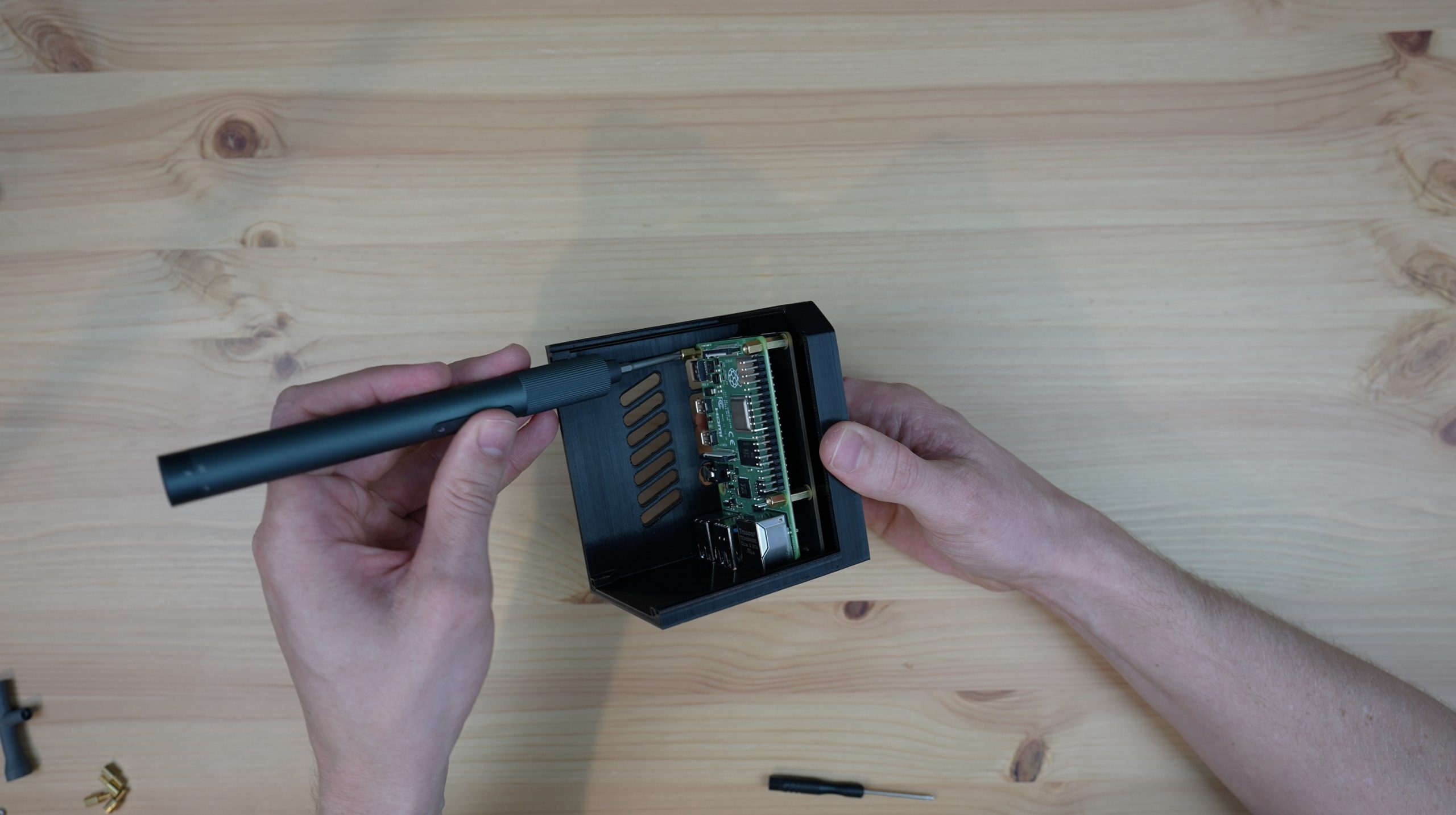
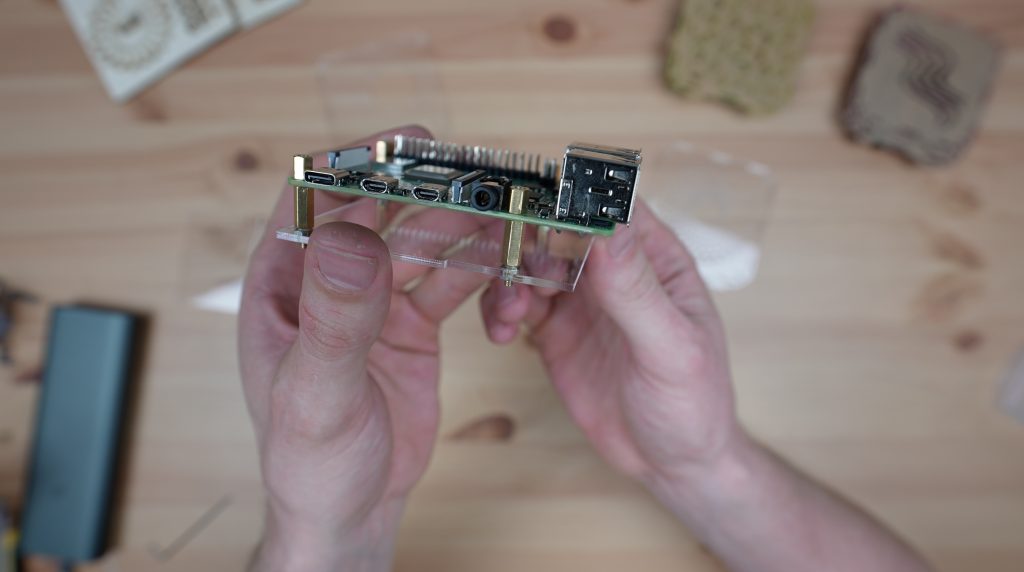
We’ll then hold the Pi in place with the 6mm standoffs that came with the heat sink assembly.

Raspberry Pi Installed On Standoffs

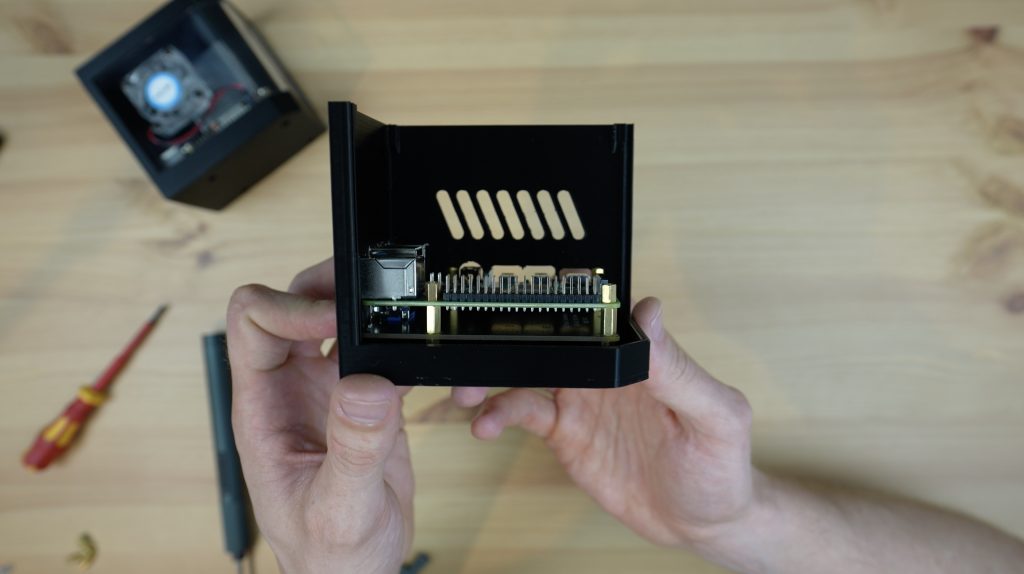
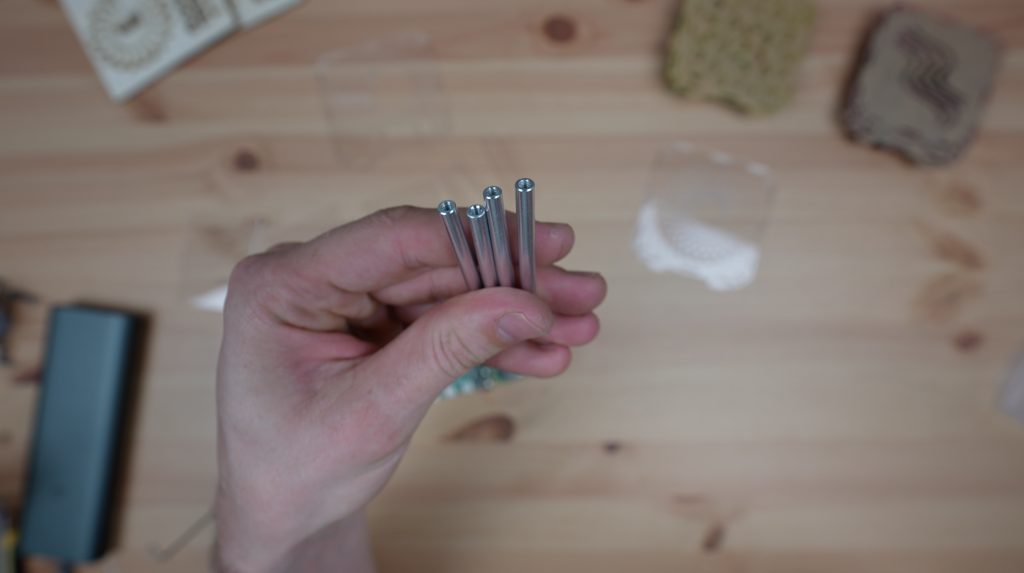
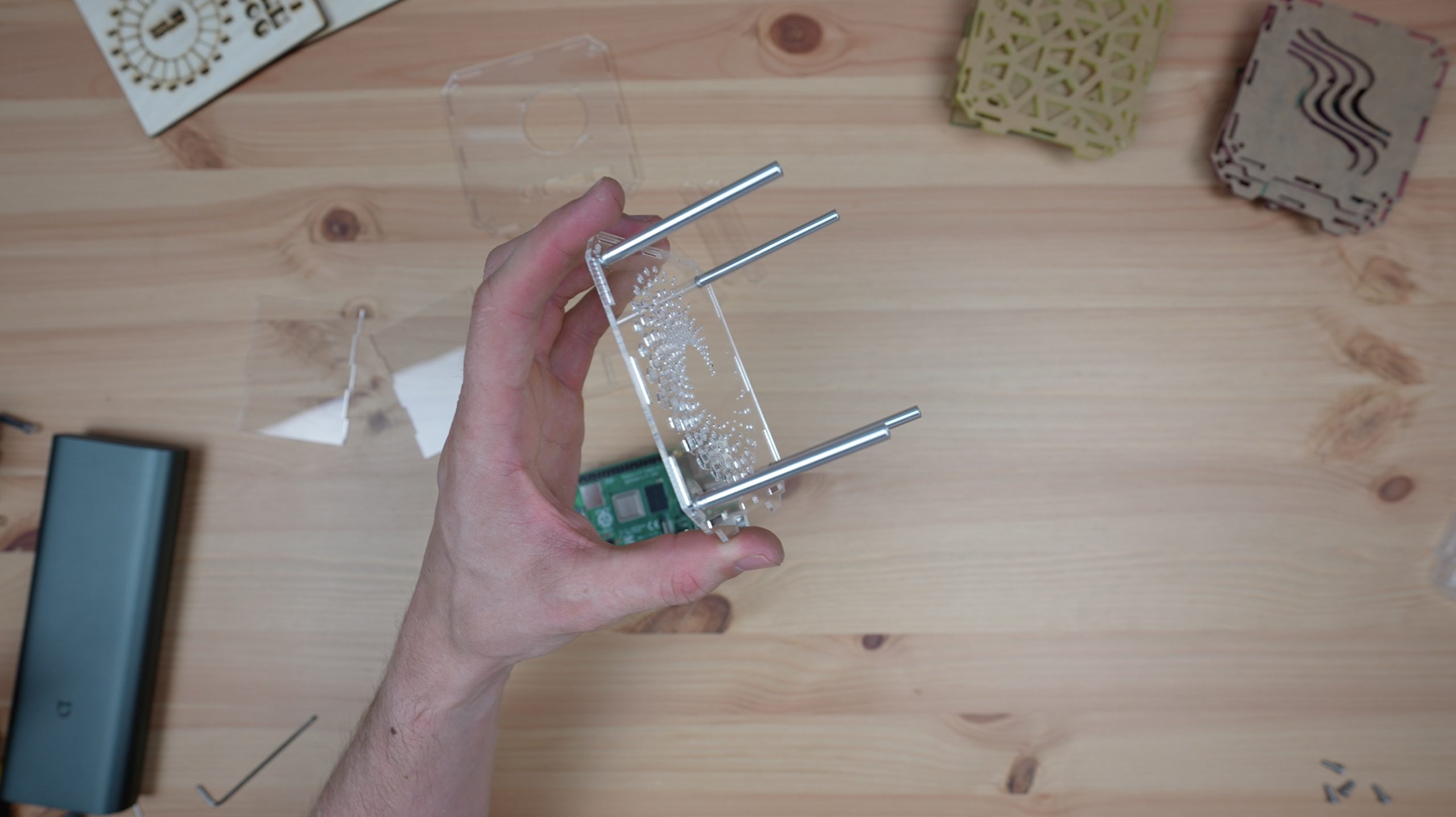
I’m going to use four 70mm standoffs to hold the two main sides together. If you don’t have 70mm standoffs, you can make them up using a combination of smaller standoffs from your kit (20mm + 20mm + 20mm + 10mm etc.). The side panels will then hold all of the other smaller sides in place.

Standoffs Used To Hold Side Panels In Place

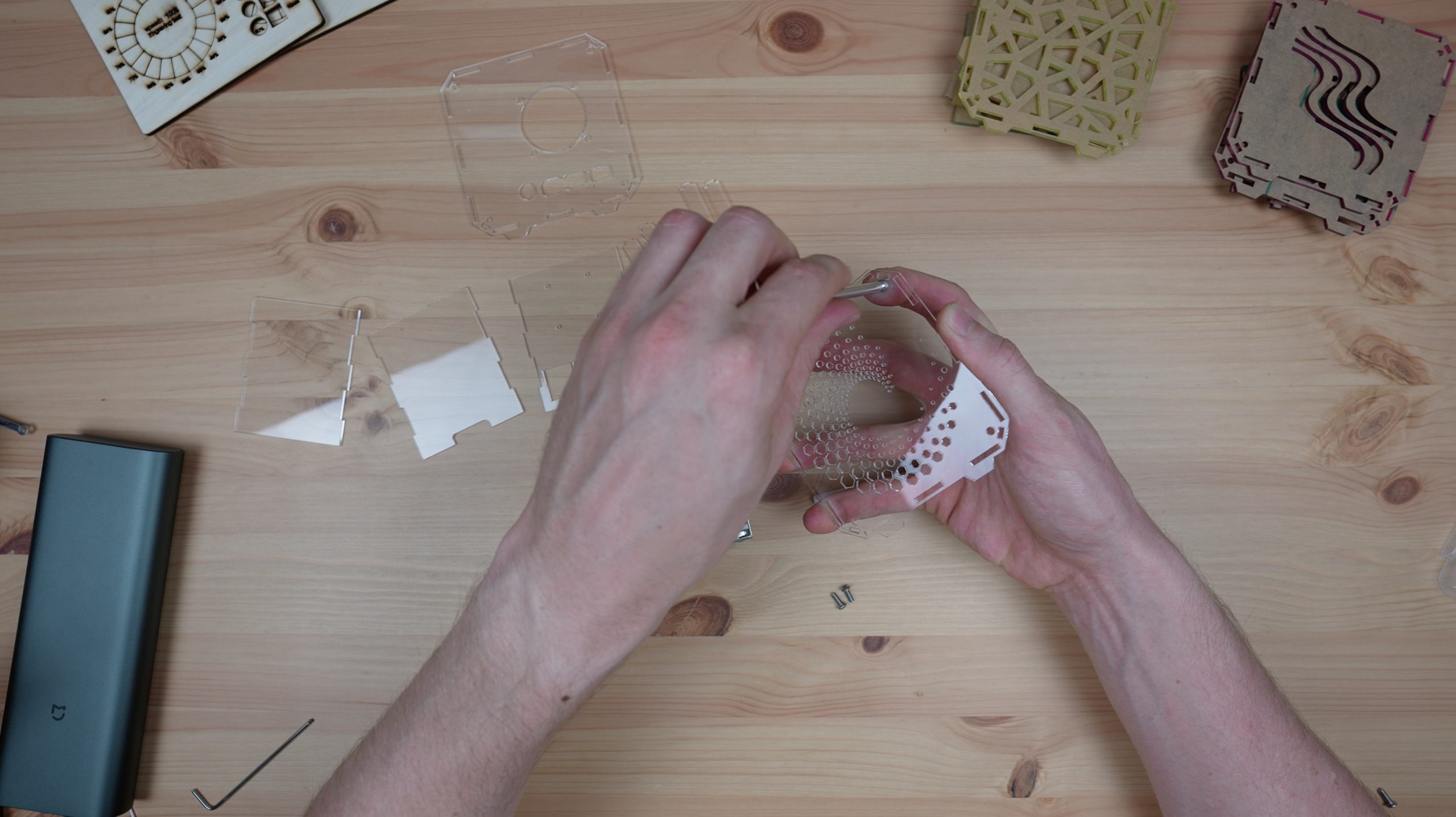
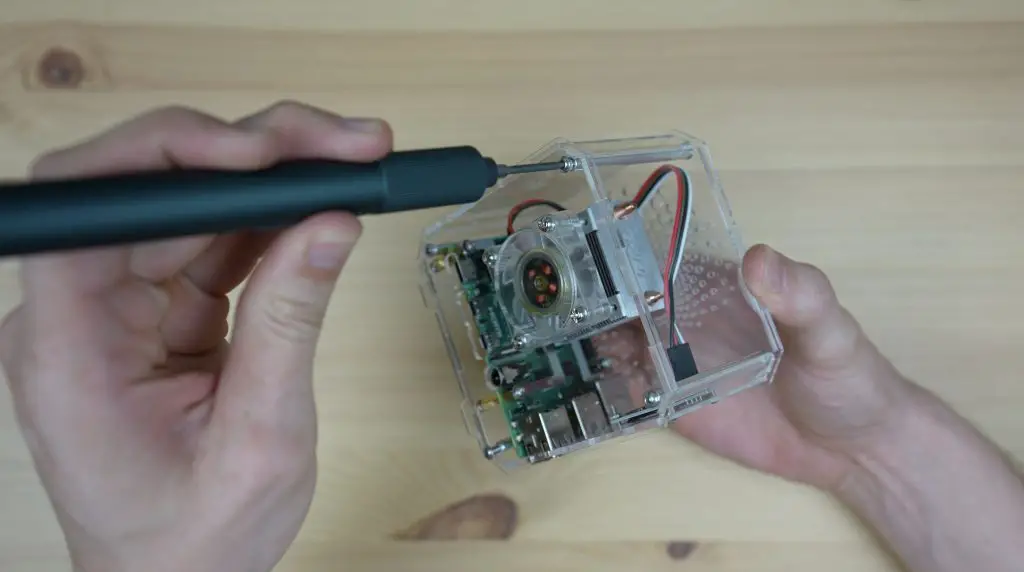
To start, let’s screw these standoffs in place on the ventilation side panel using some M3x8mm screws. If your standoffs are all male to female then just use an M3 nut to secure them on the back of the case.

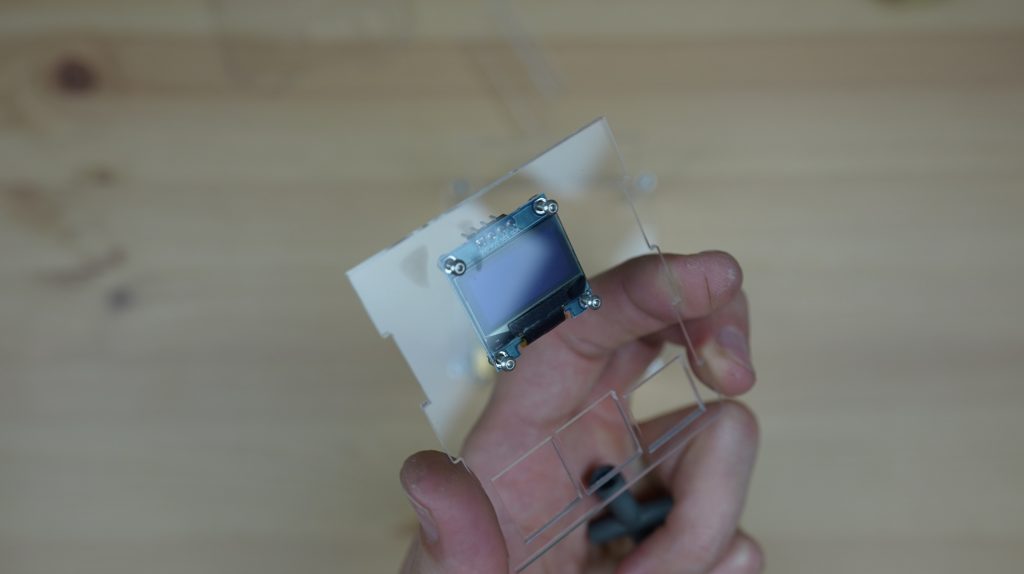
The OLED display can then be mounted onto the front panel with some M2 x10mm screws and M2 nuts. Be careful not to over-tighten these nuts or you might crack or damage the display. They should just be tight enough to hold the display in place.

Display Installed On Front Panel

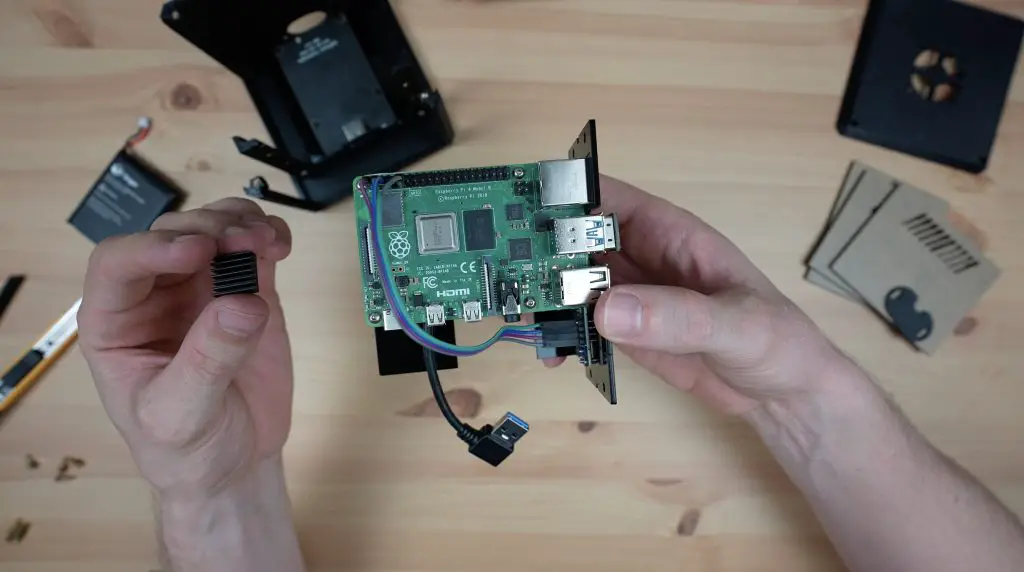
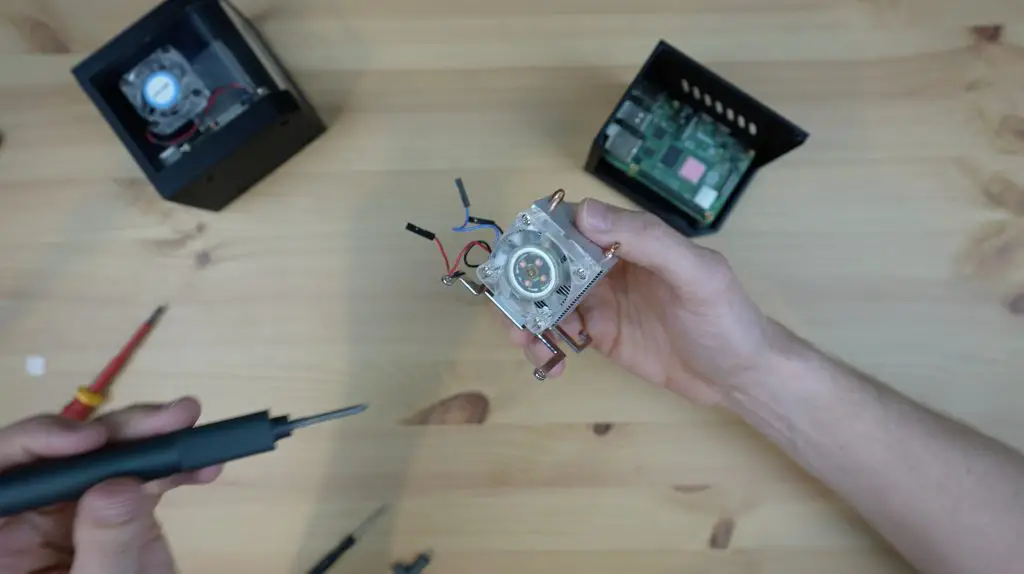
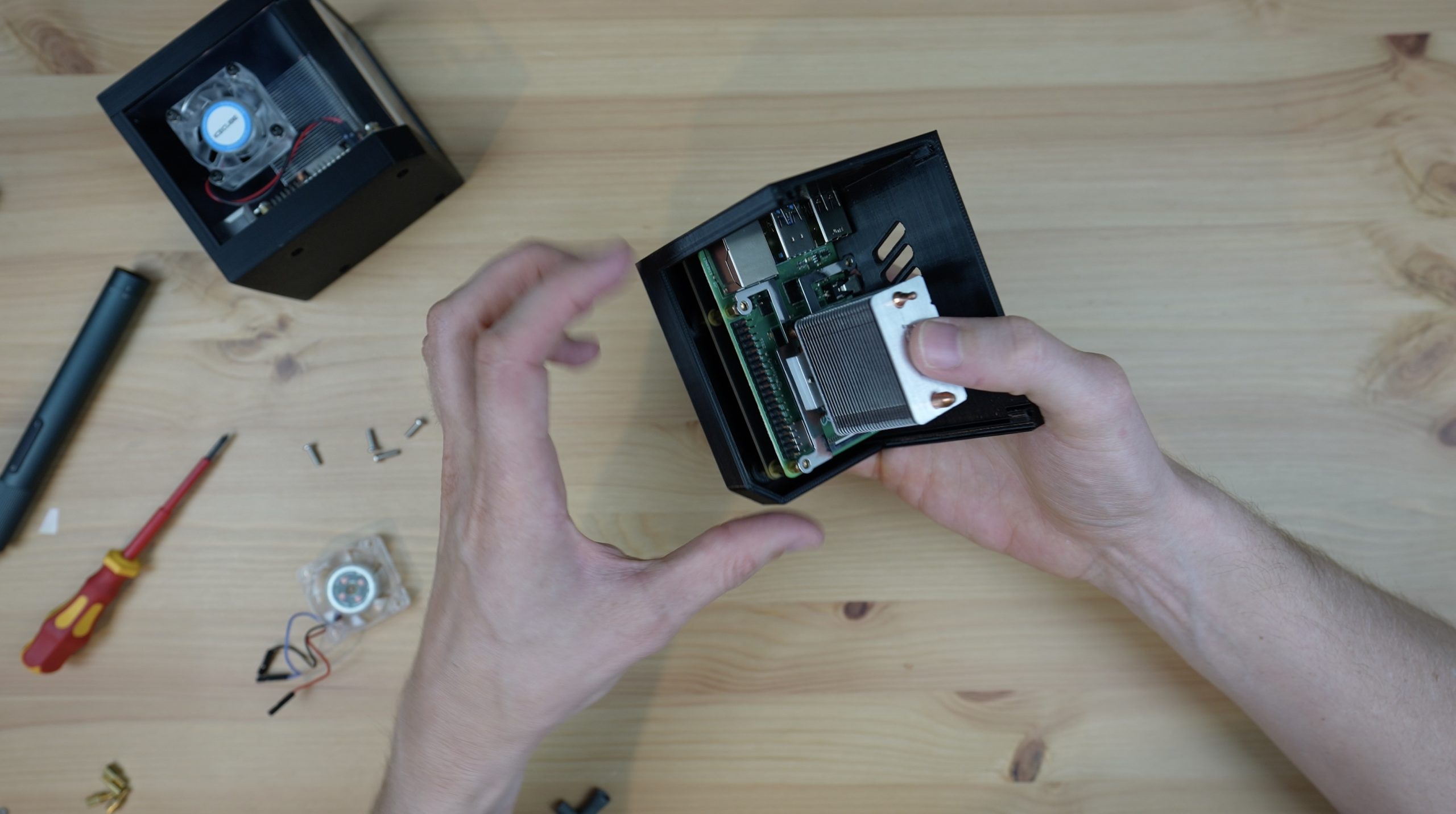
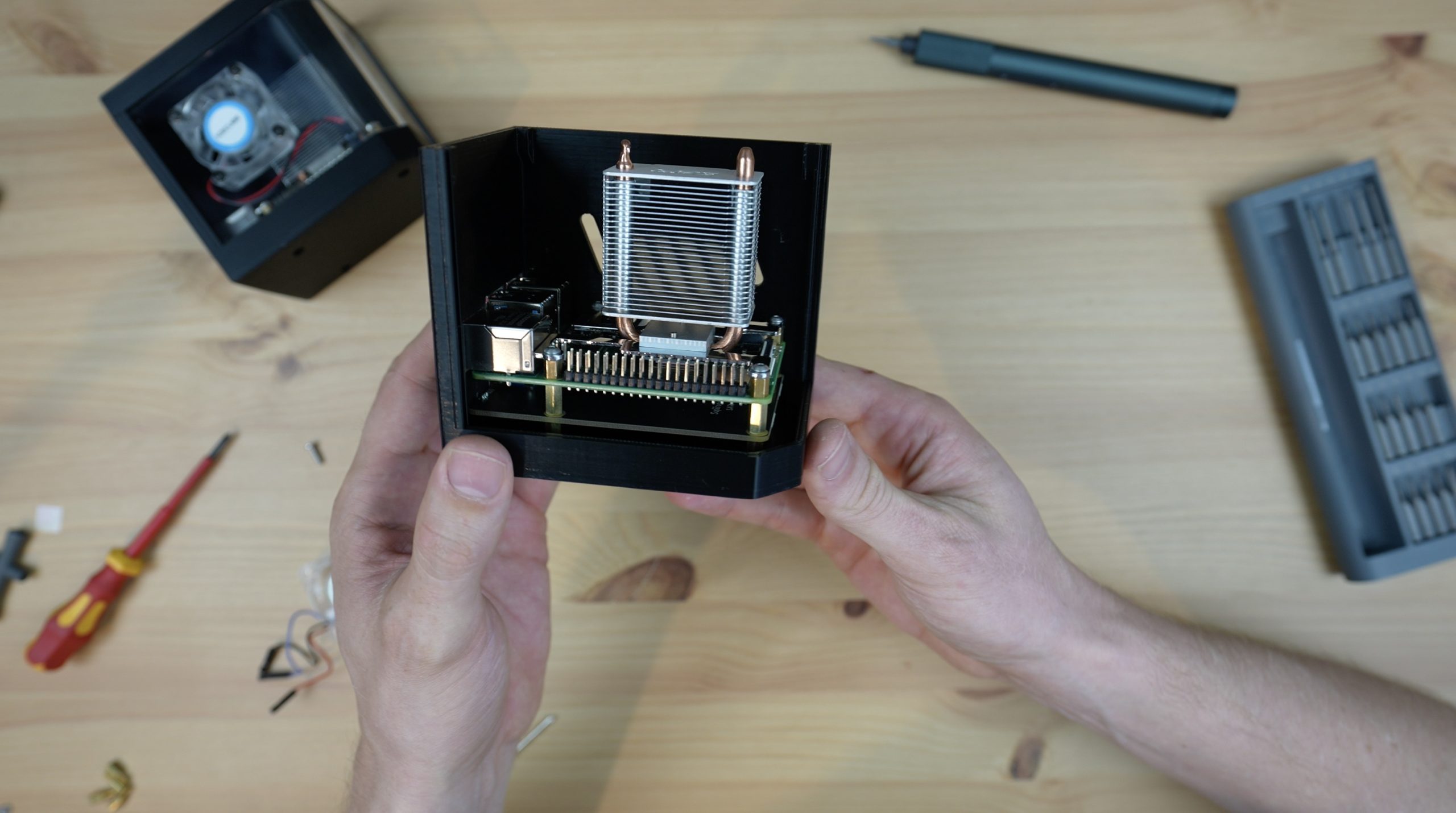
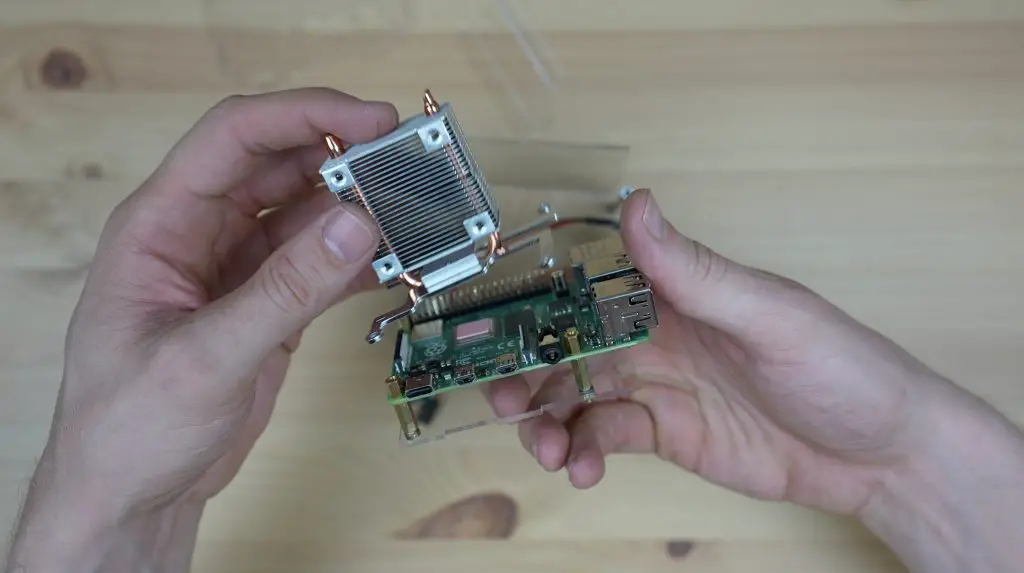
We can then mount the heat sink on our Raspberry Pi, making sure to put the cooling pad into place first.

Heat Sink Being Installed On Raspberry Pi

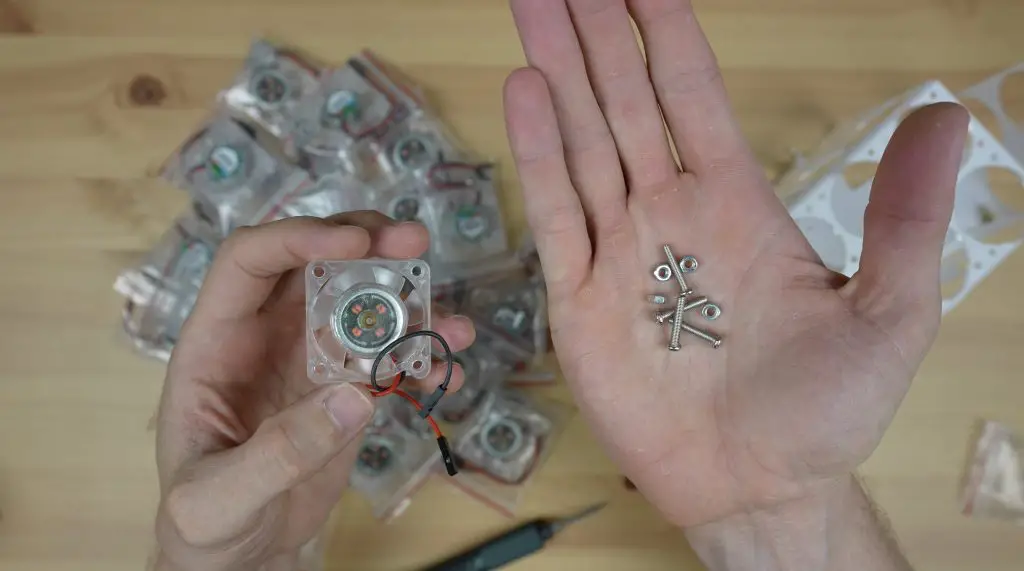
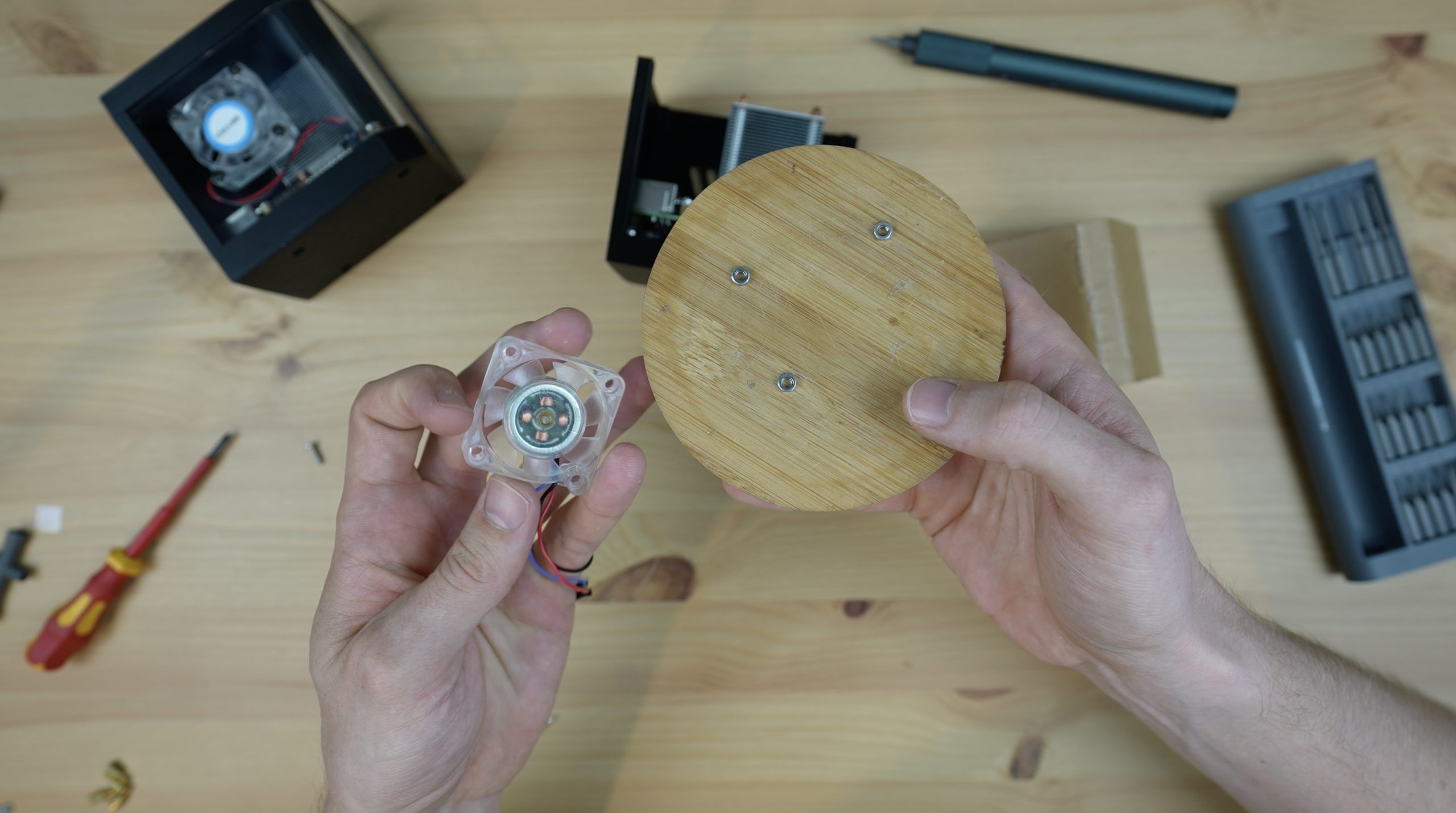
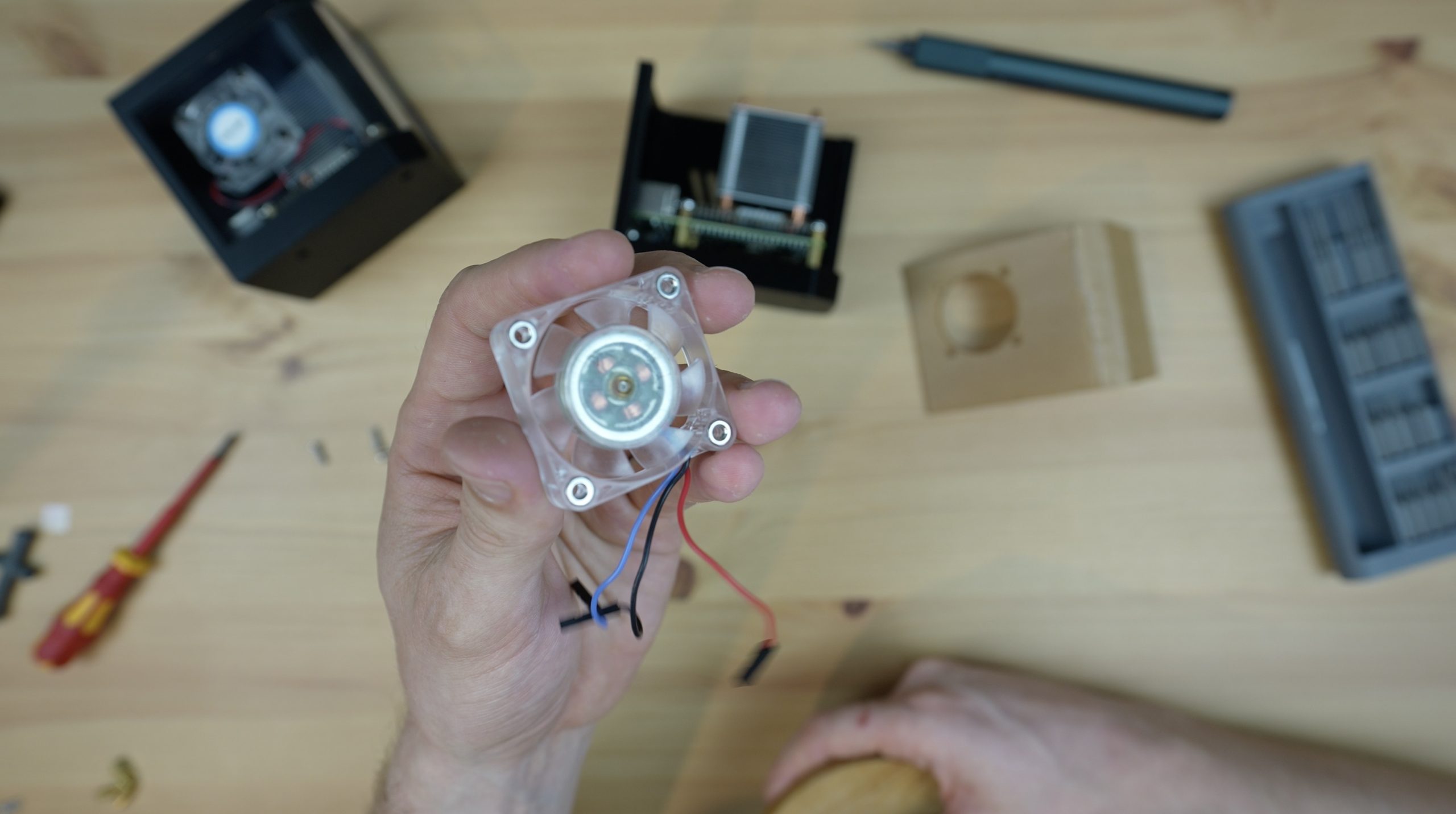
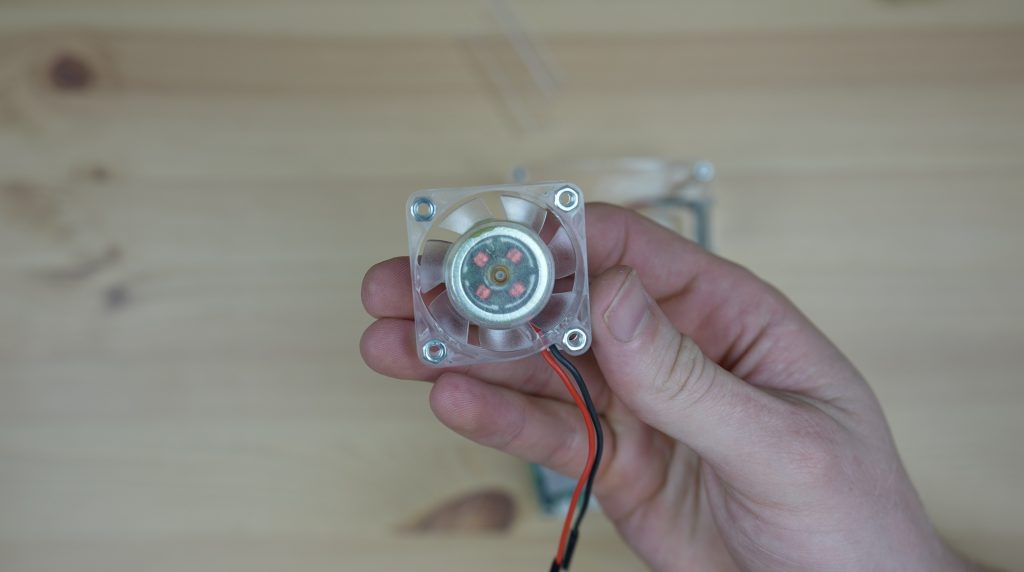
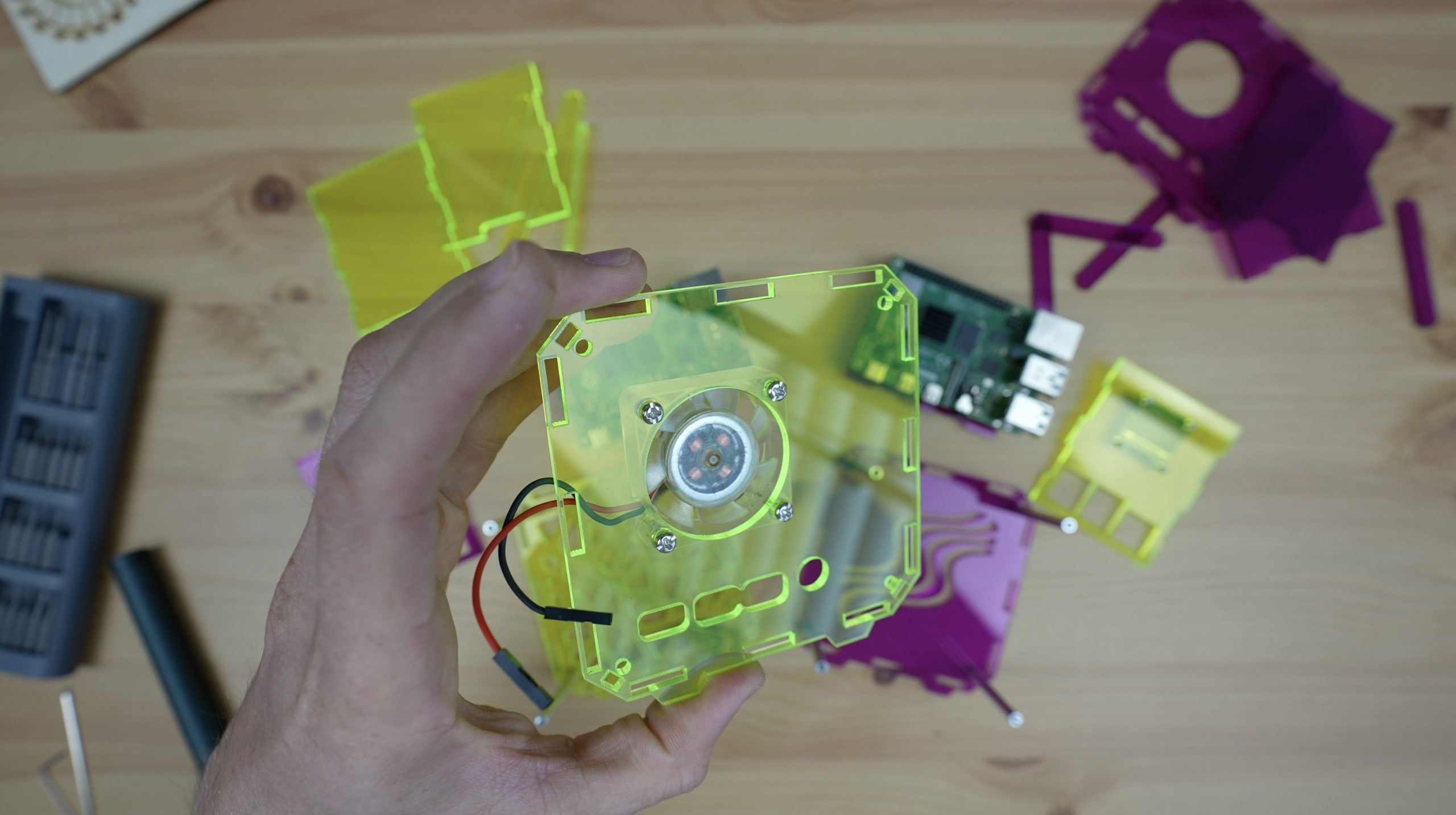
I’ve removed the fan from the side of the cooler and pressed some M3 nuts into the pockets on the face of the fan.

M3 Nuts Pressed Into Fan Pockets

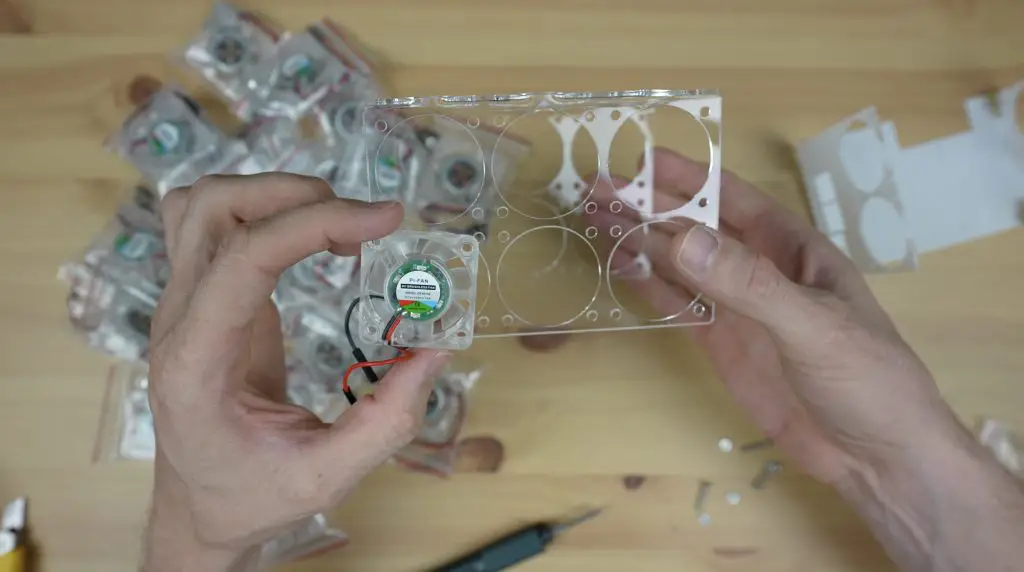
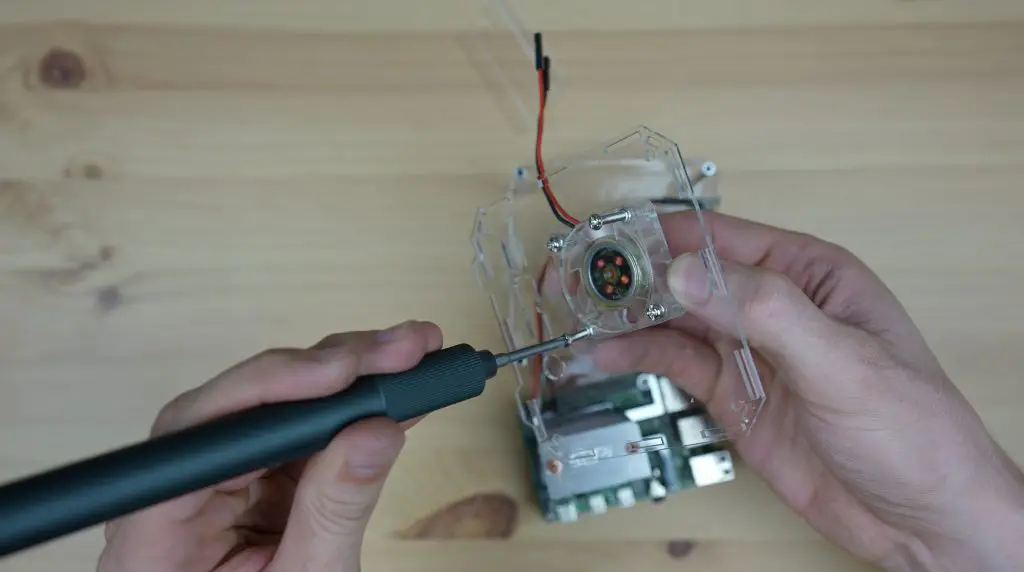
We can then mount the fan onto the side panel using the same M3 screws.

Fan Screwed Onto Acrylic Side Panel

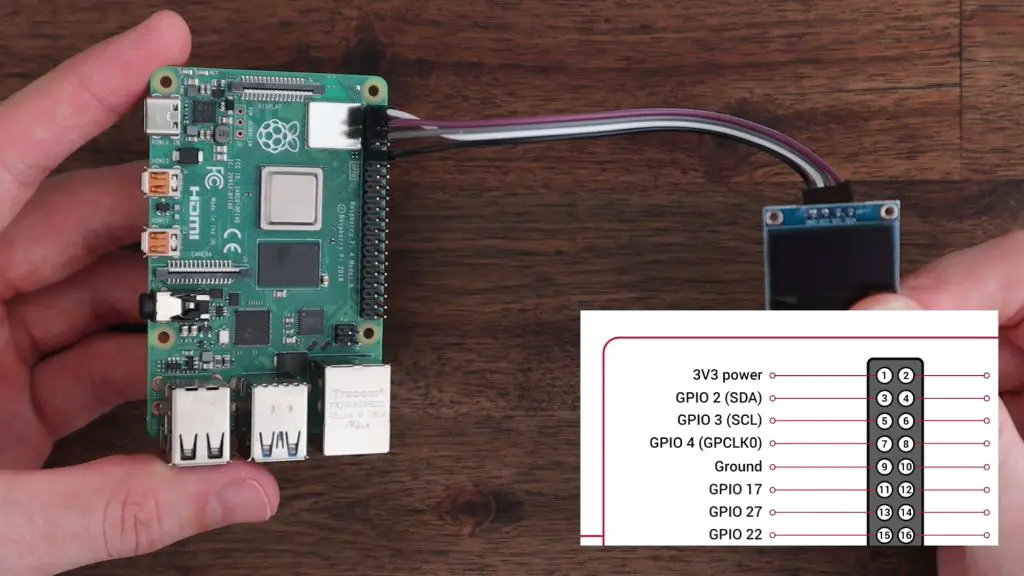
Next, let’s plug in our fan and display and put their panels into place. I’m connecting the fan to 5V and GND and I’m connecting the display to 3.3V, GND, SCL and SDA. Take a look at my guide on connecting an OLED Stats display to a Raspberry Pi for more information on this.

SDA and SCL Connections To Raspberry Pi

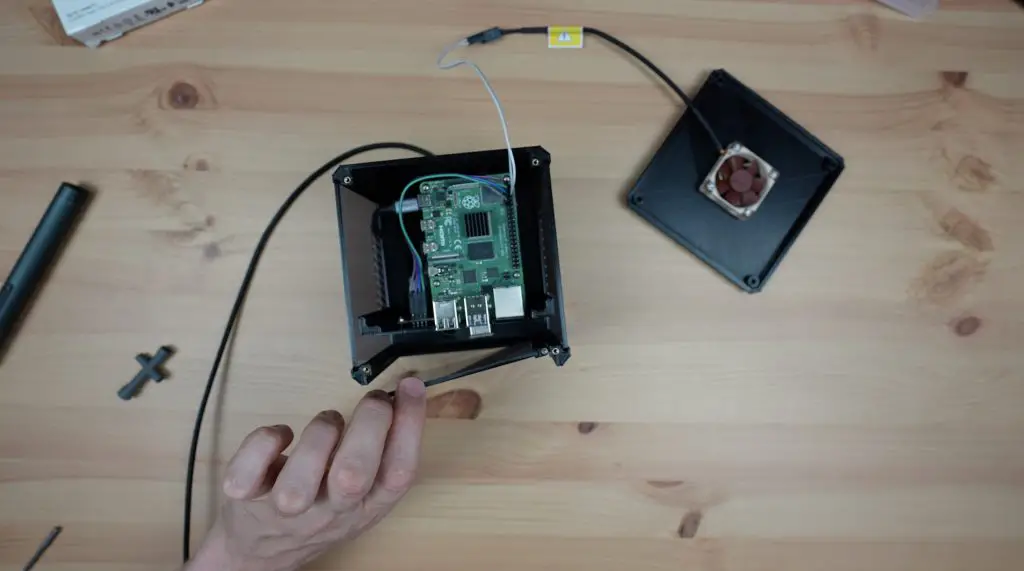
The rest of the panels can then be put into place, and we fill in the corners with the smaller pieces.

Inserts For Case Corners

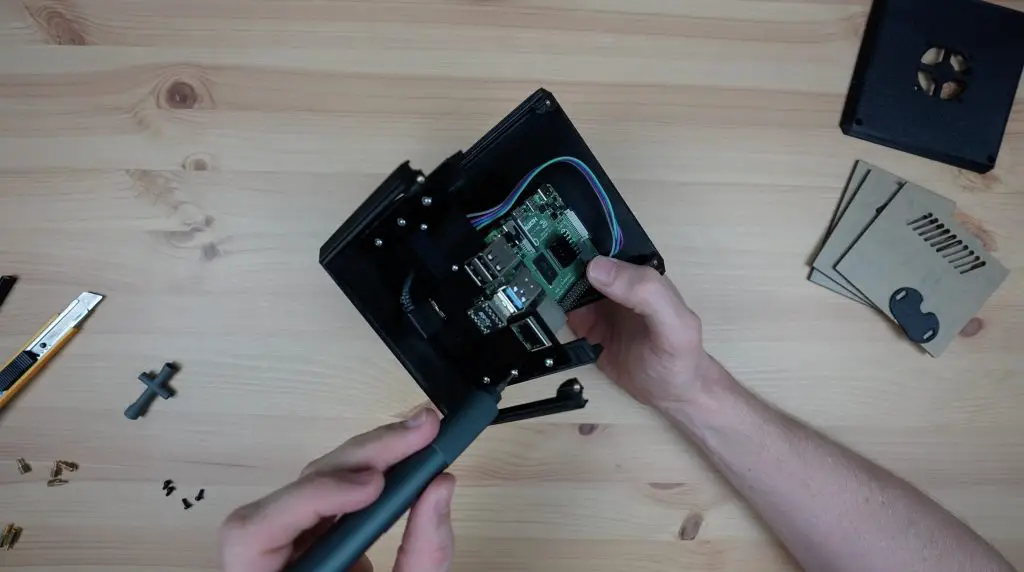
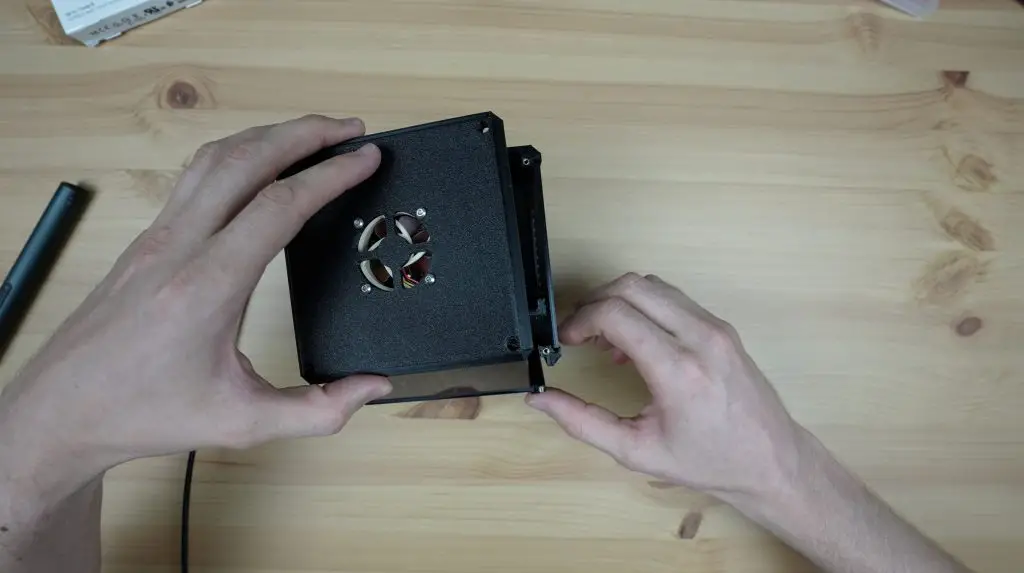
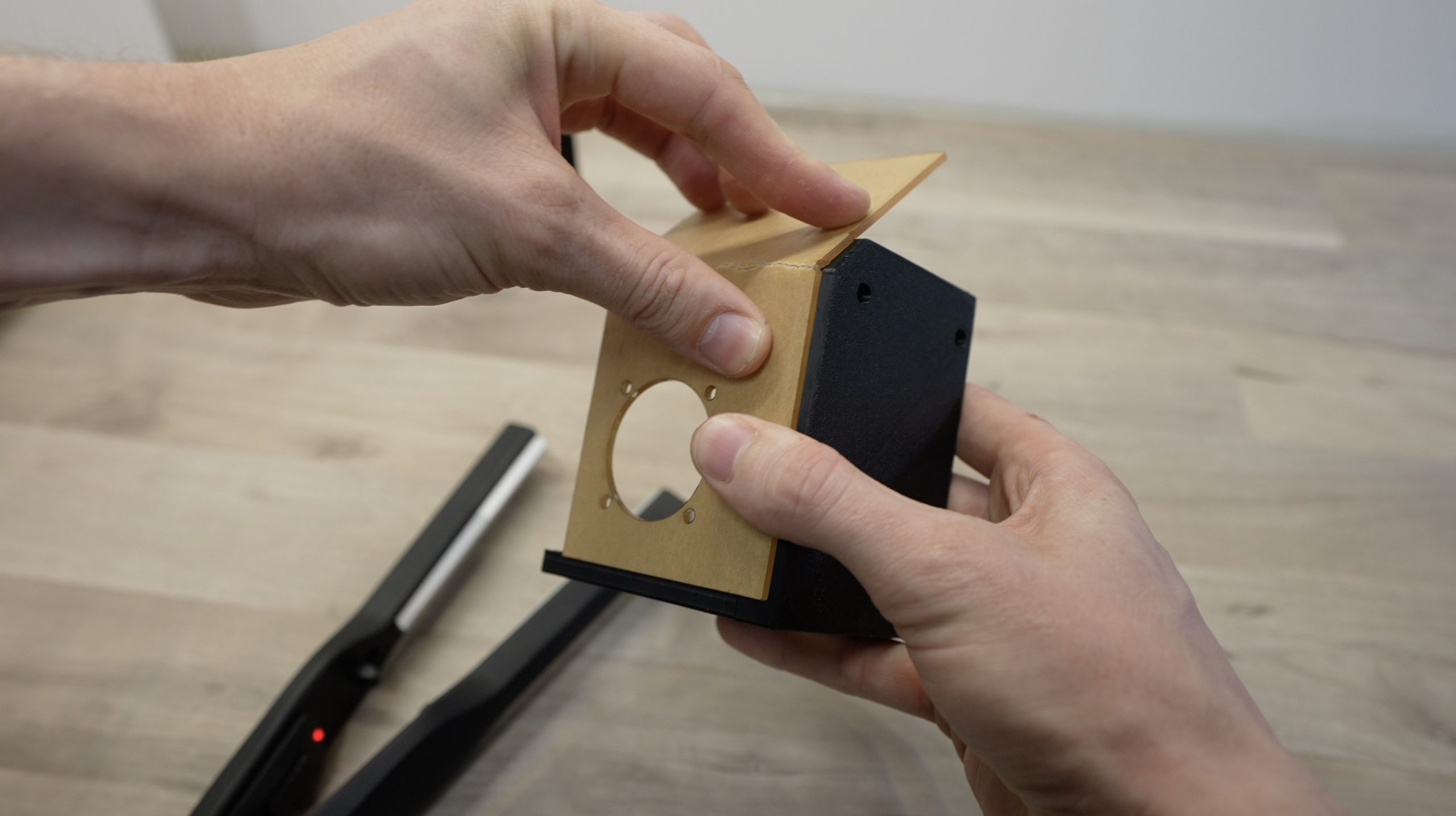
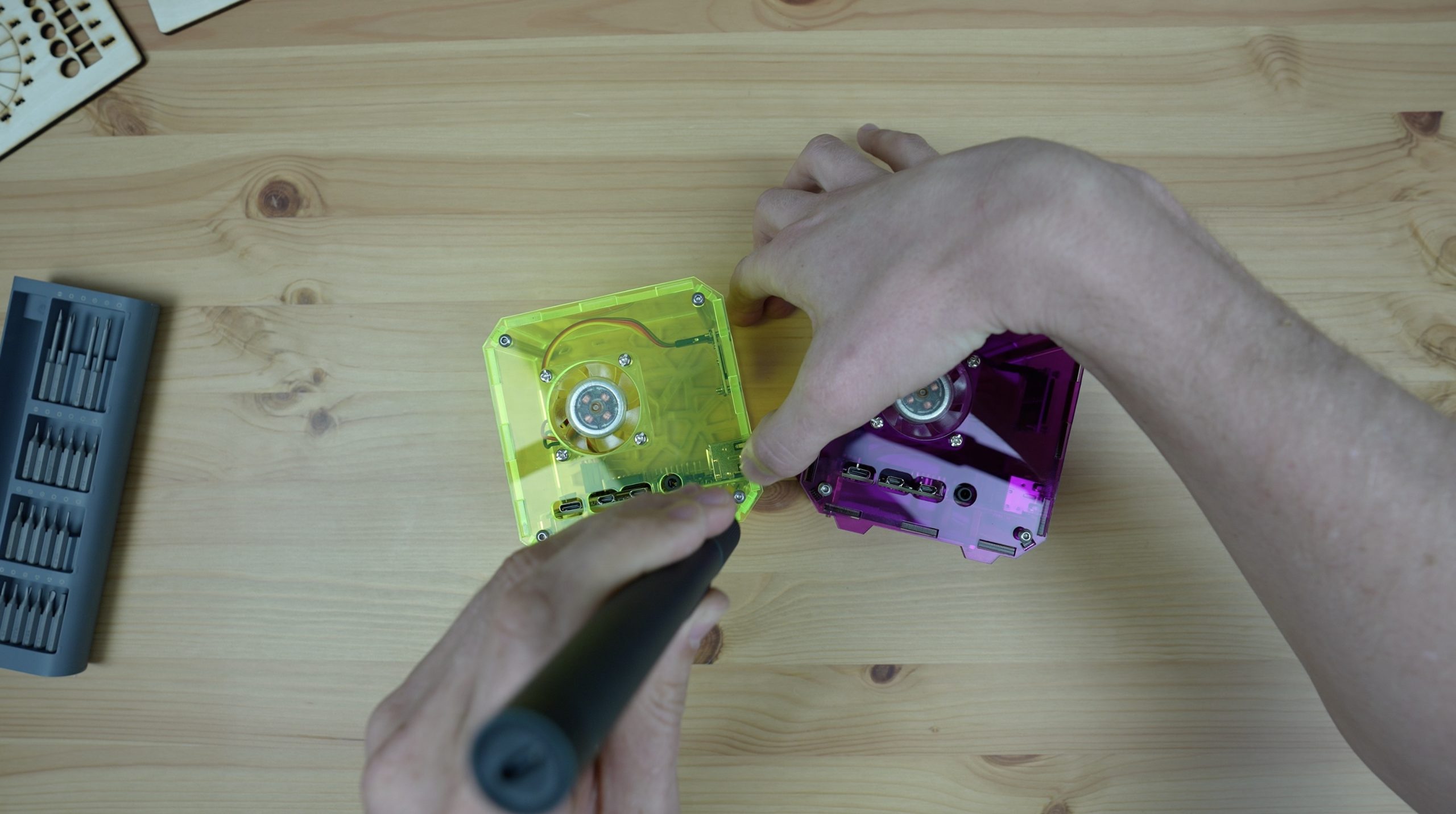
The fan panel can then be secured with some M3x8mm screws to lock the smaller sides into place. You may need to wiggle the sides around a little so that the slots all line up with the main panel. Try not to force them into place or you might crack the thin edges of the slots.

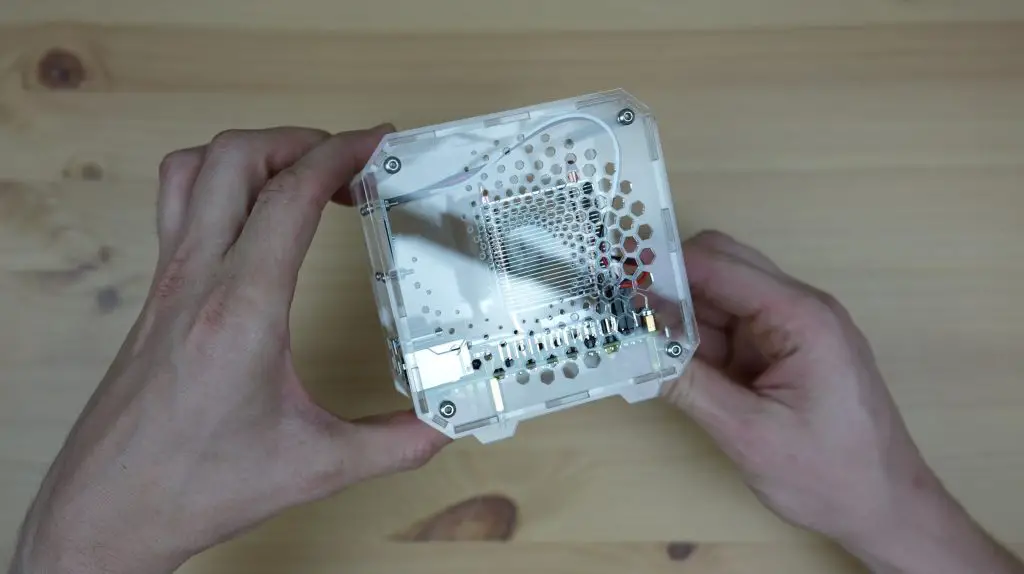
Side Panel Installed To Hold Case Together

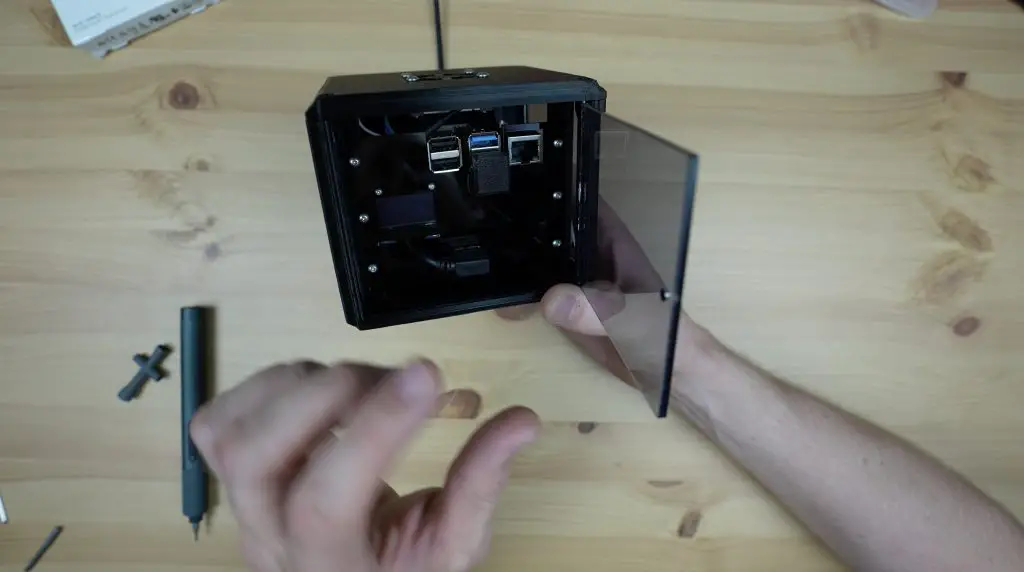
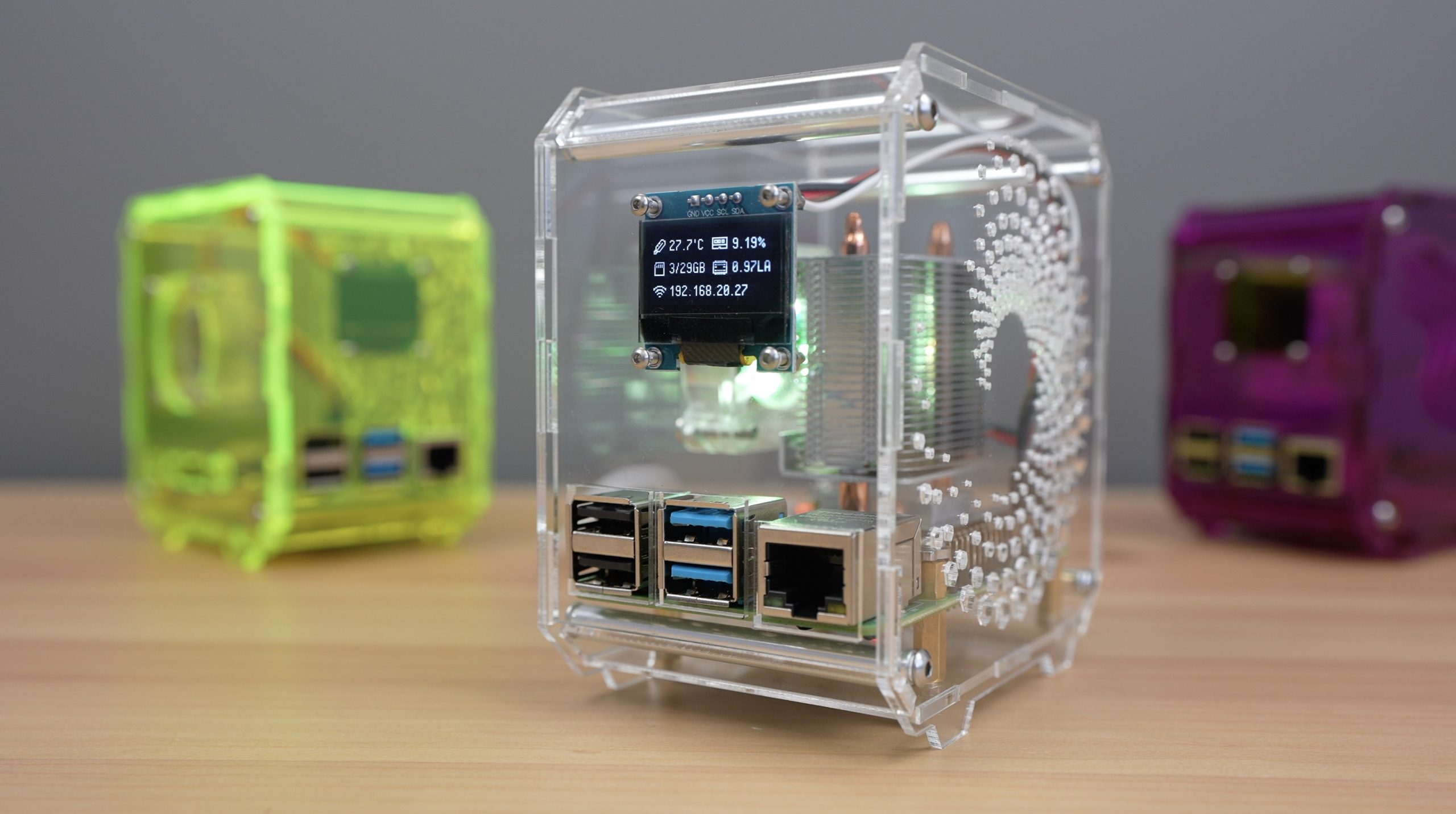
That’s the case finished up, now we just need to boot it up and load the script for the display.

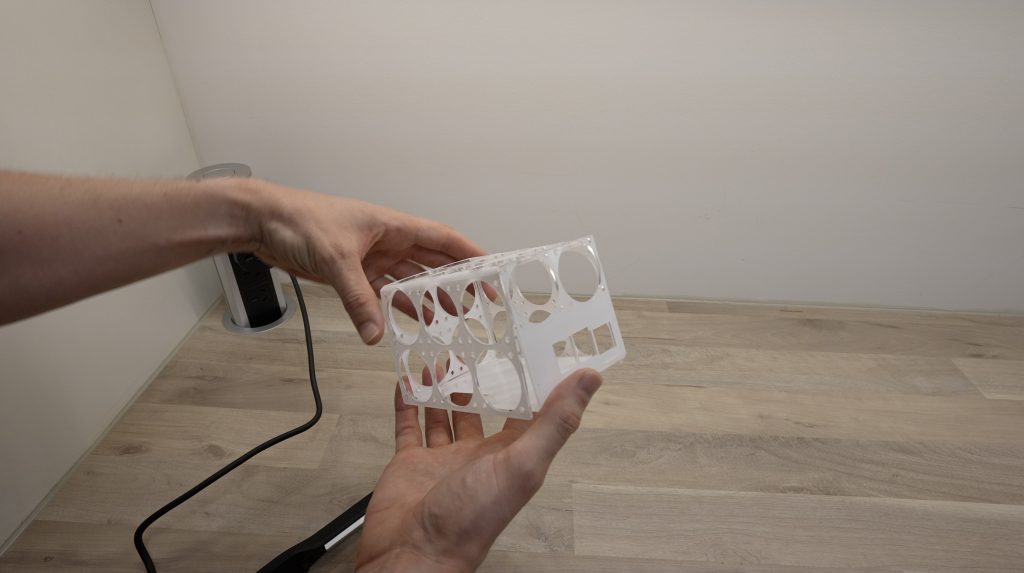
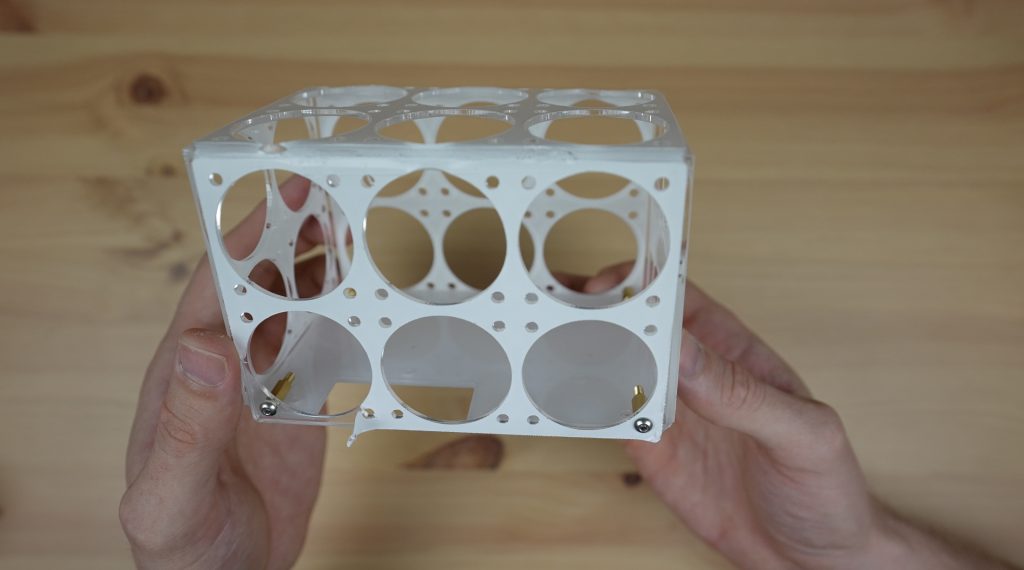
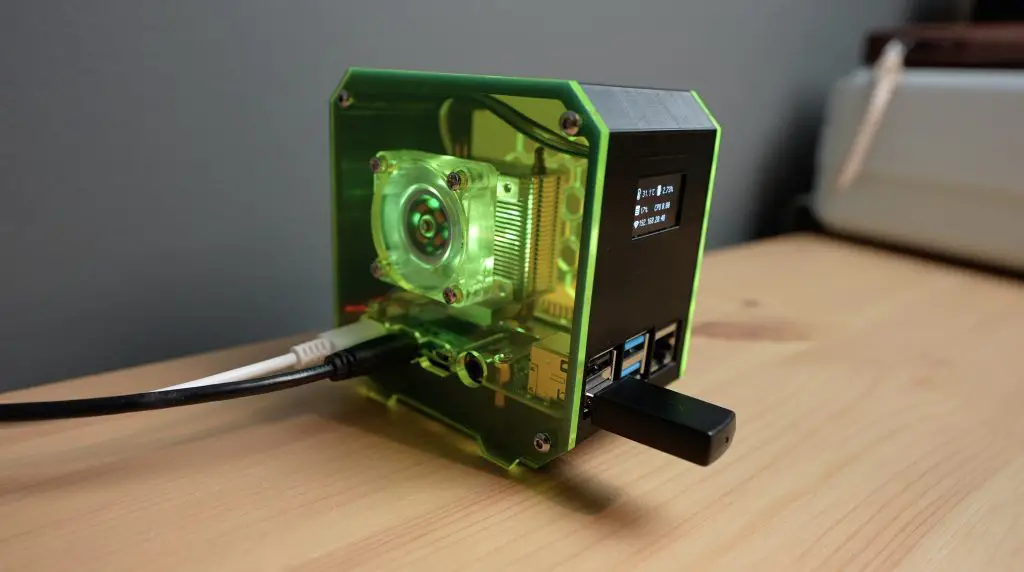
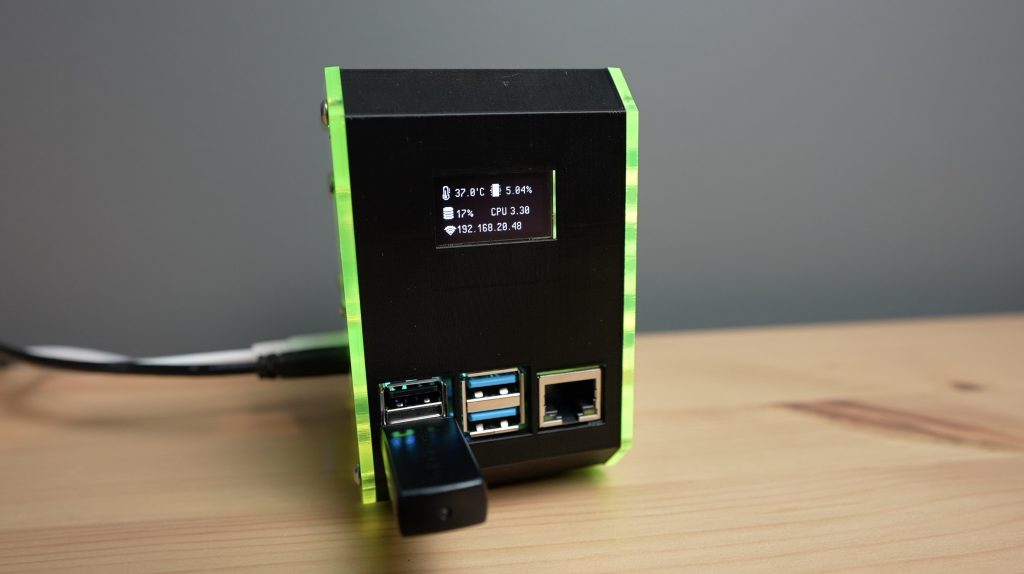
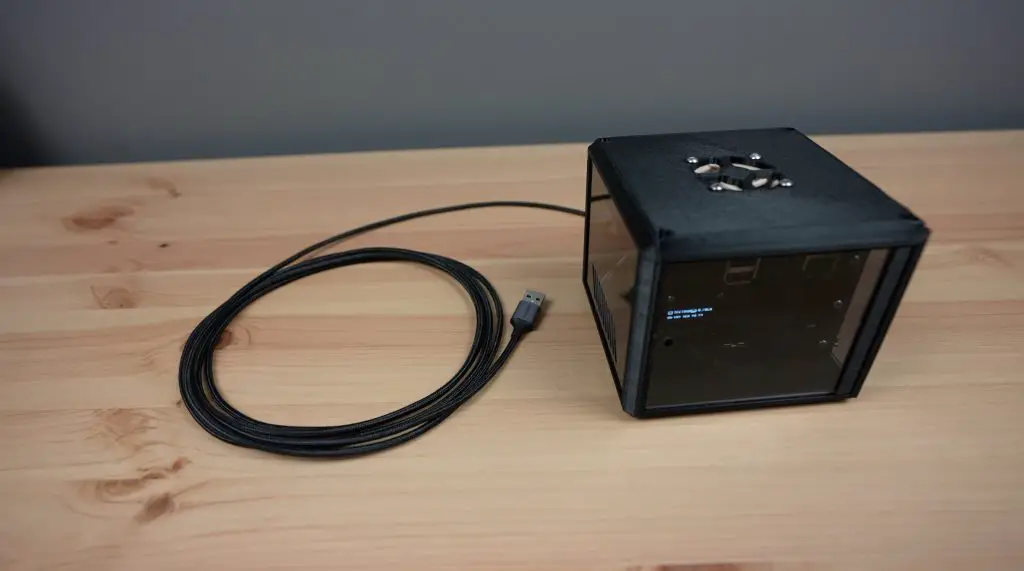
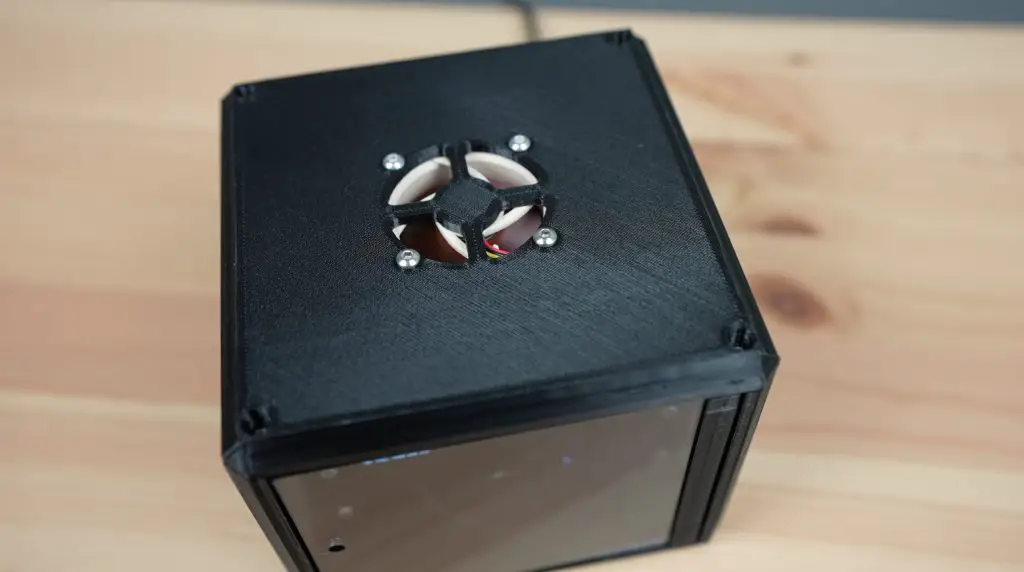
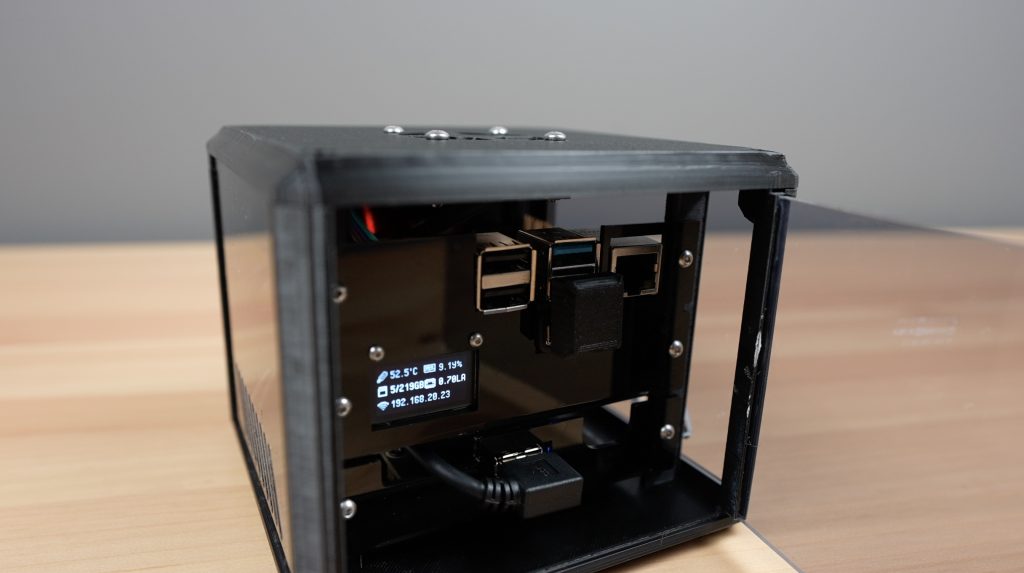
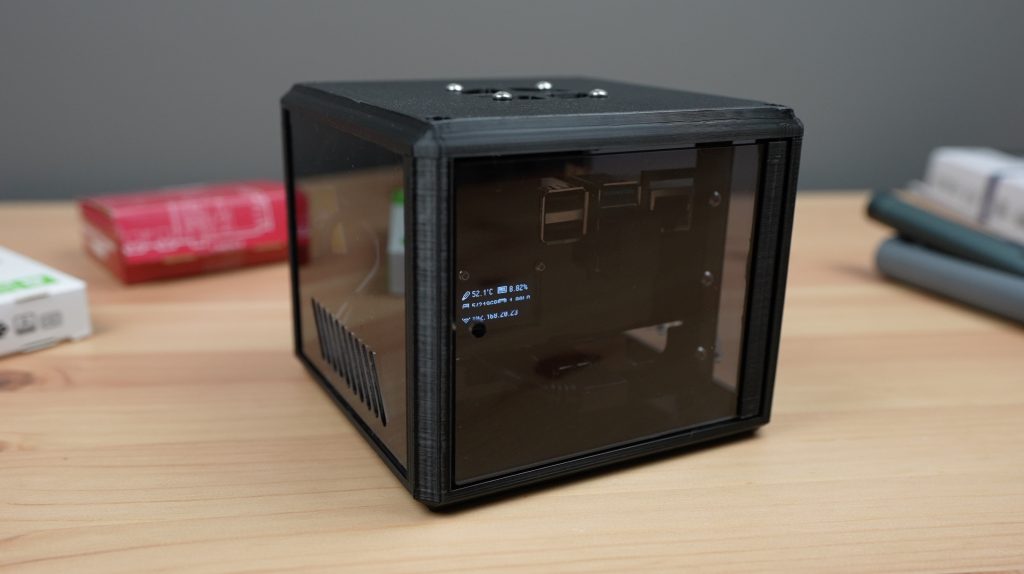
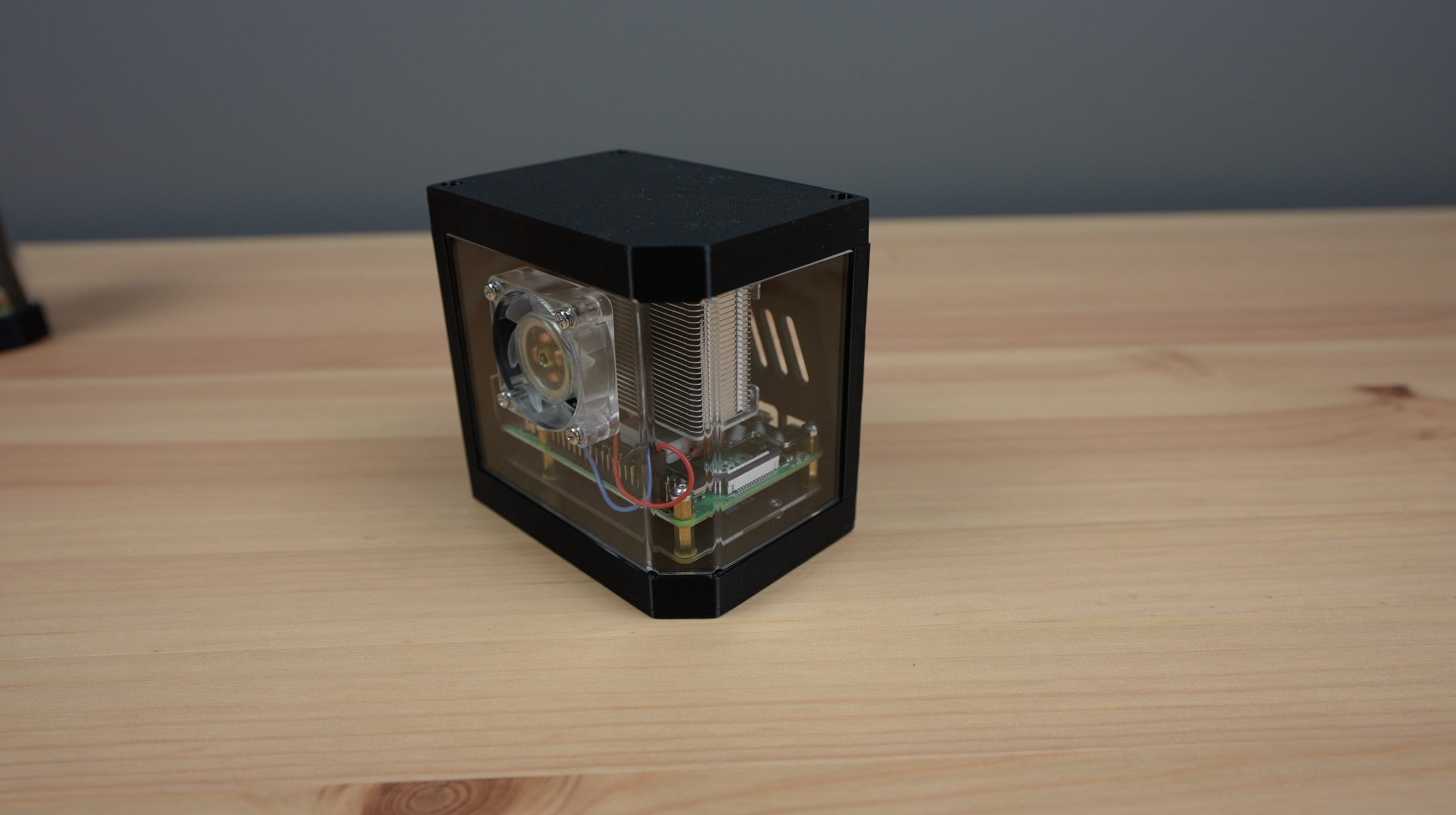
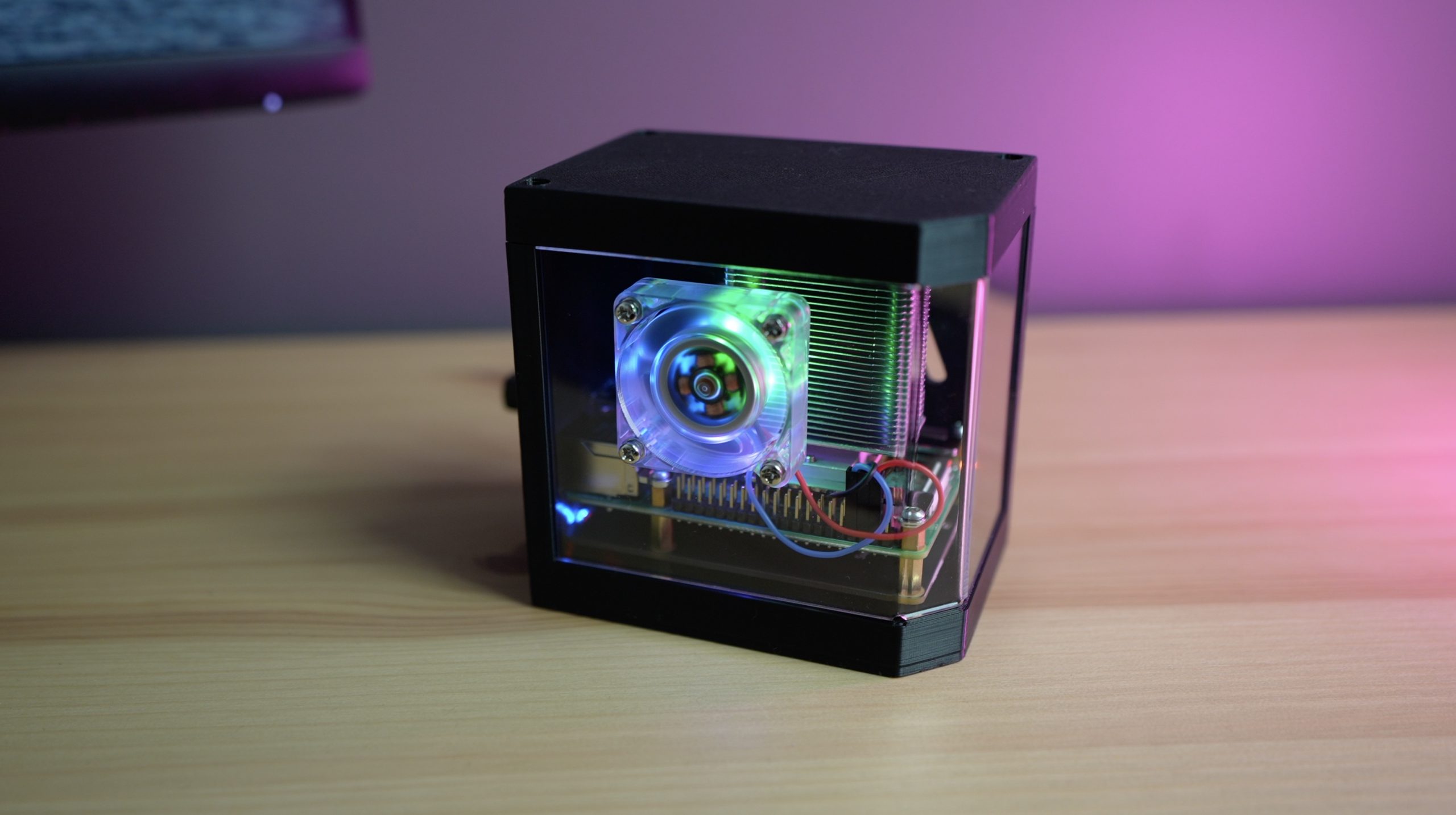
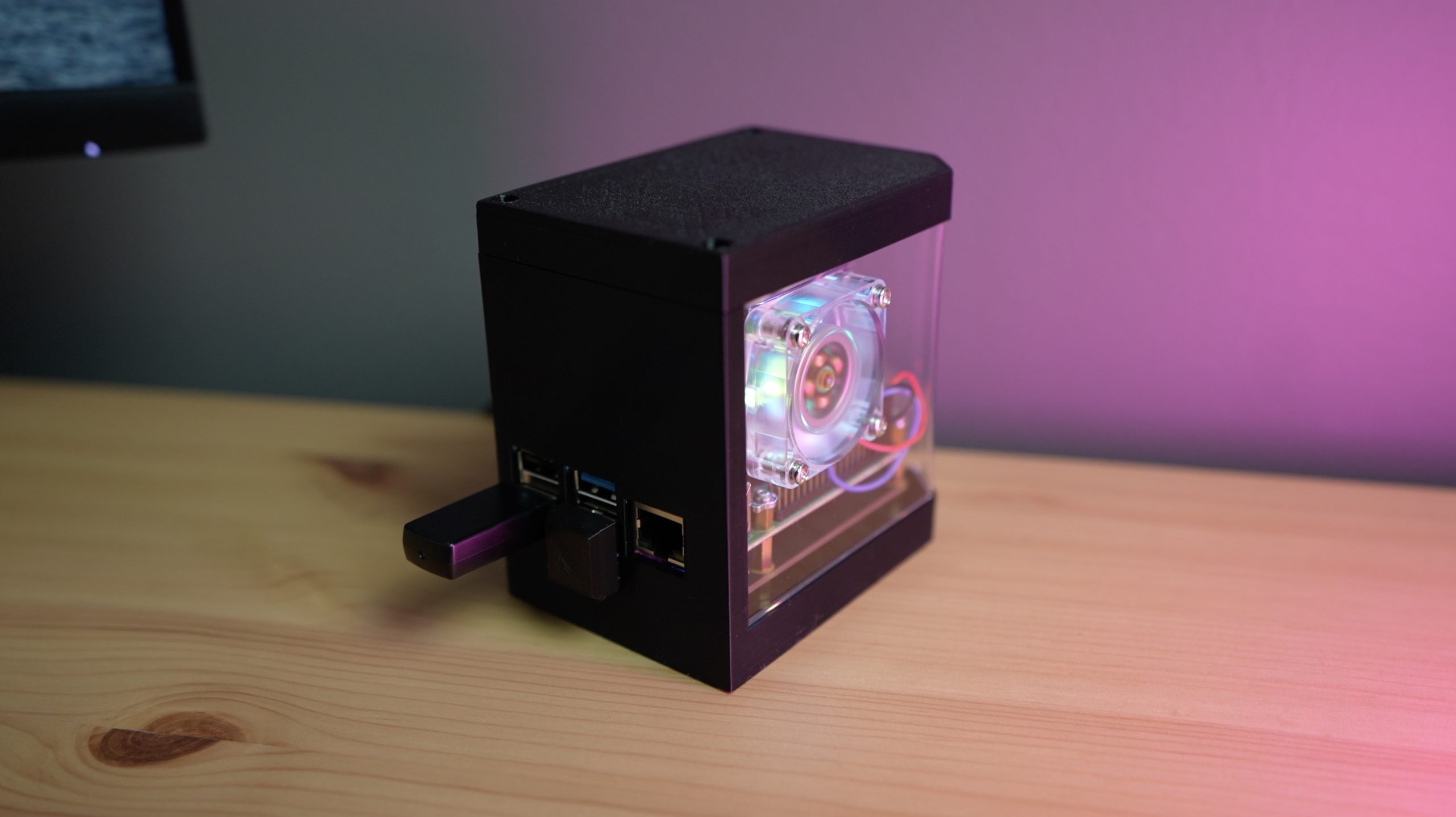
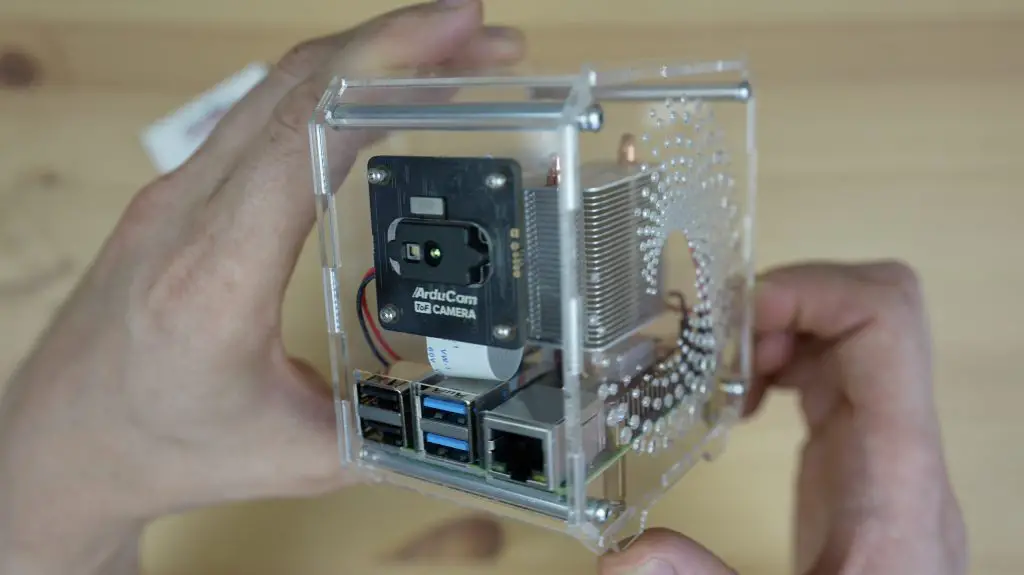
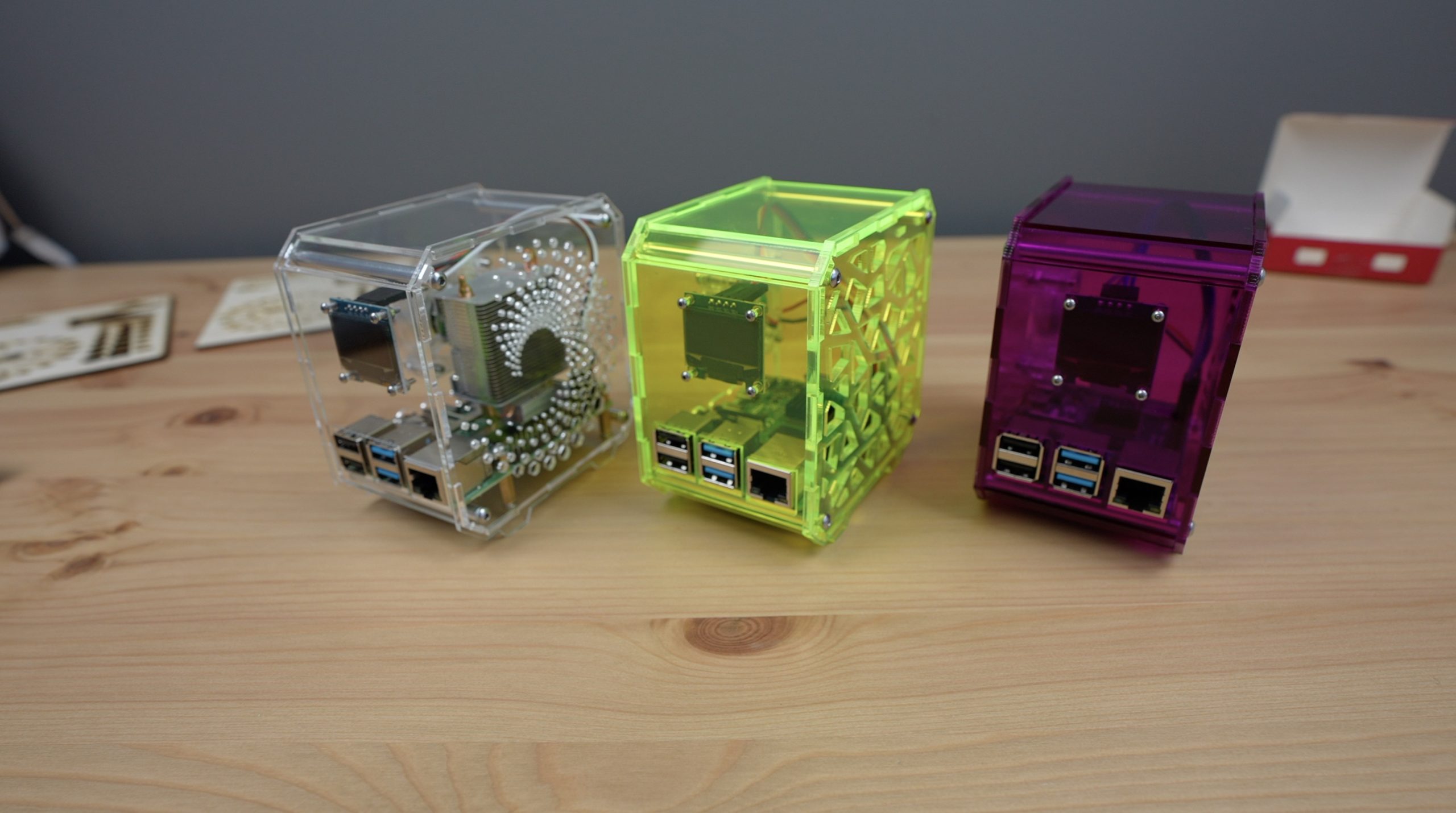
Completed All Clear Raspberry Pi Case

I’ve put together the two coloured cases in the same way.

I really like the look of the clear design with the new ventilation pattern. Let me know which case is your favourite in the comments section below.
Final Thoughts On The Gweike Cloud

Through my first few weeks of using the Gweike Cloud, I’m really enjoying the larger cutting area and the ease of use of the machine. I’ve found the Cloud Software to be a little unrefined (the machine often shows up as being offline, even with a wired connection) and I don’t really like things like the speed being in percentages. The machine works flawlessly with Lightburn though, which is what I’d be using it with in any case.

As for spare parts and servicing of the machine, Gweike have a technical support and service team that they say can help with supplying spares. It looks to me like this machine is built around fairly standard components for the industry though. The enclosures and brackets etc. are obviously all custom made, but the parts that are likely to wear out or need to be replaced look quite generic, so you likely wouldn’t have trouble finding replacements for them.

Spare Parts For Gweike Cloud Laser

So for basically half the price of the Glow Forge for a similarly spec’d machine with the ability to be used offline with Lightburn, I’d say that this is a fantastic alternative and I’m certainly looking forward to using it for my projects going forward.

Let me know what you think of the Gweike Cloud laser, or if you’ve got any questions on it in the comments section below. Take a look at their web store if you’re interested in getting one of their lasers and if you use my discount code MK200, you’ll get $200 off.
Raspberry Pi NAS vs. Asustor Drivestor 4, Is It Better to Buy or DIY?

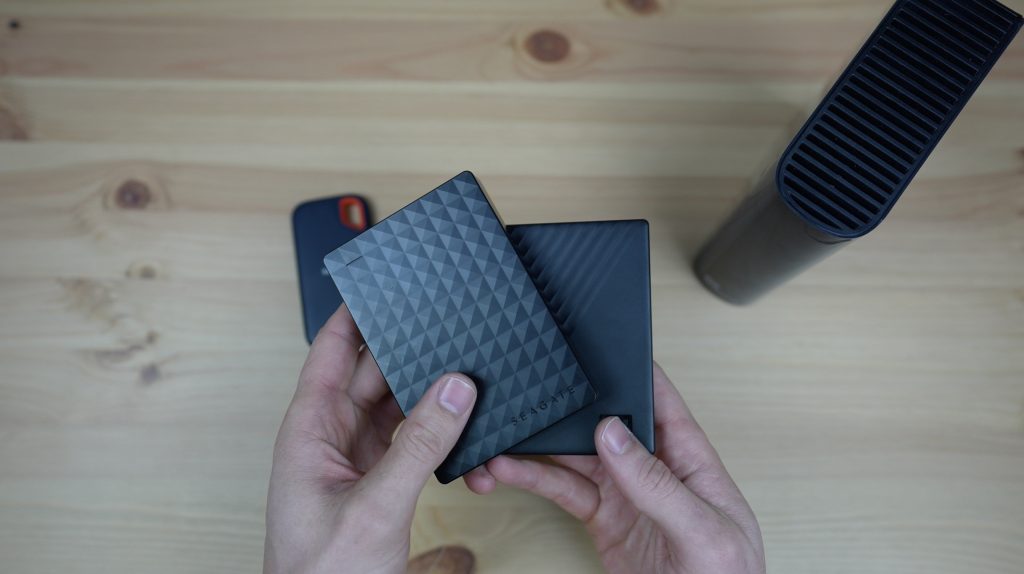
My current file storage system is a bit of a mess. I save my current video editing libraries on an SSD, I dump the archived libraries along with photos and documents onto a larger capacity hard drive and I have a few other smaller drives for on-the-go use and some backups. Mixed in with some cloud storage, it’s difficult to keep track of what lives where and when last it was backed up.

External Drives Used To Store Data

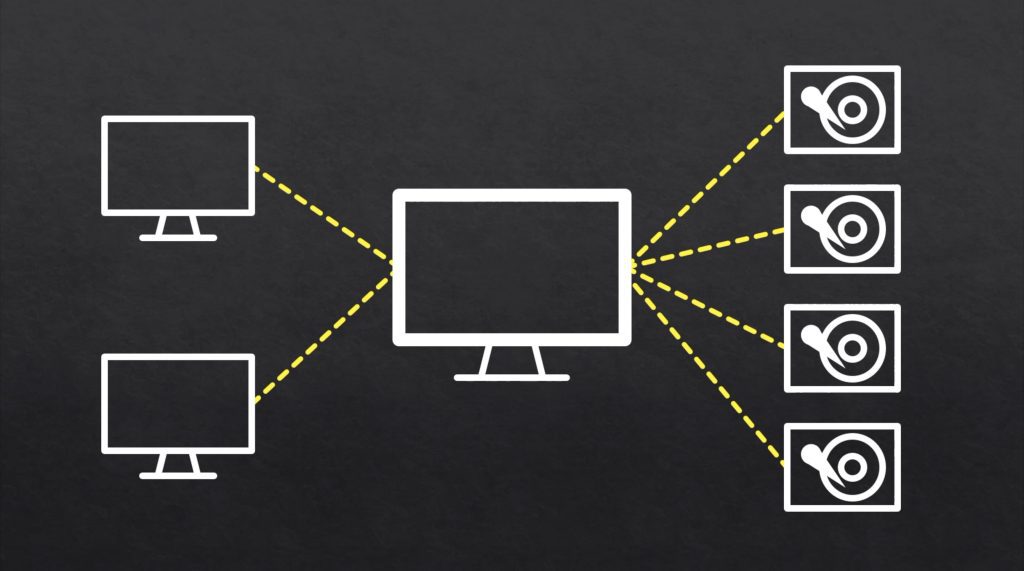
So I could really do with a NAS or Network Attached Storage device. A NAS is essentially a small computer that is hooked up to one or more storage drives to act as a sort of file server on your network, allowing you to access your files from any device. It can also be set up to manage and automate backups, so you’ll be at much lower risk of data loss.

Basic NAS Set Up

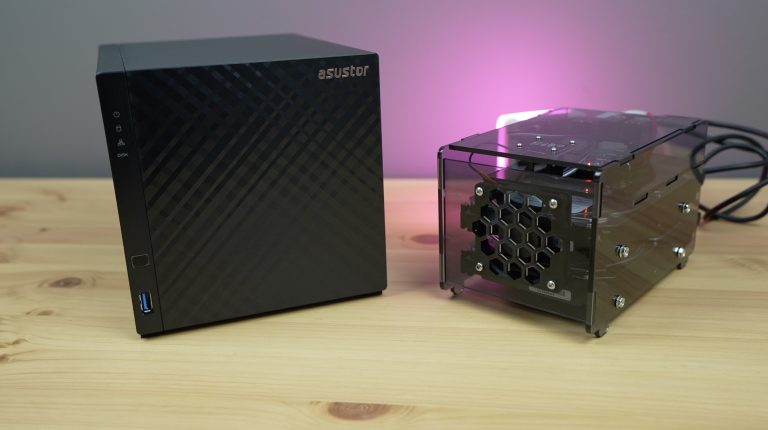
A Raspberry Pi can be used as that computer, so for this project, I’m going to see if I can build my own NAS that performs as well as a purpose-built NAS that I could buy online.

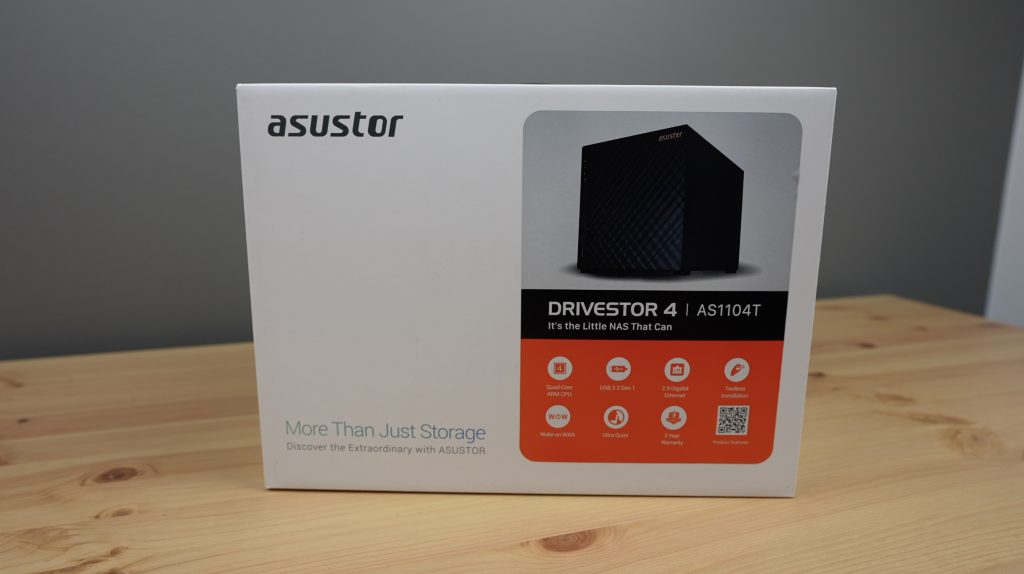
Asustor recently reached out and asked if I’d be interested in trying out one of their Drivestor NAS devices for a video. So we’re going to see how my Raspberry Pi NAS stacks up against their Drivestor 4.

Here’s my video of the build and comparison, read on for the write-up:

What You Need To Build Your Own NAS

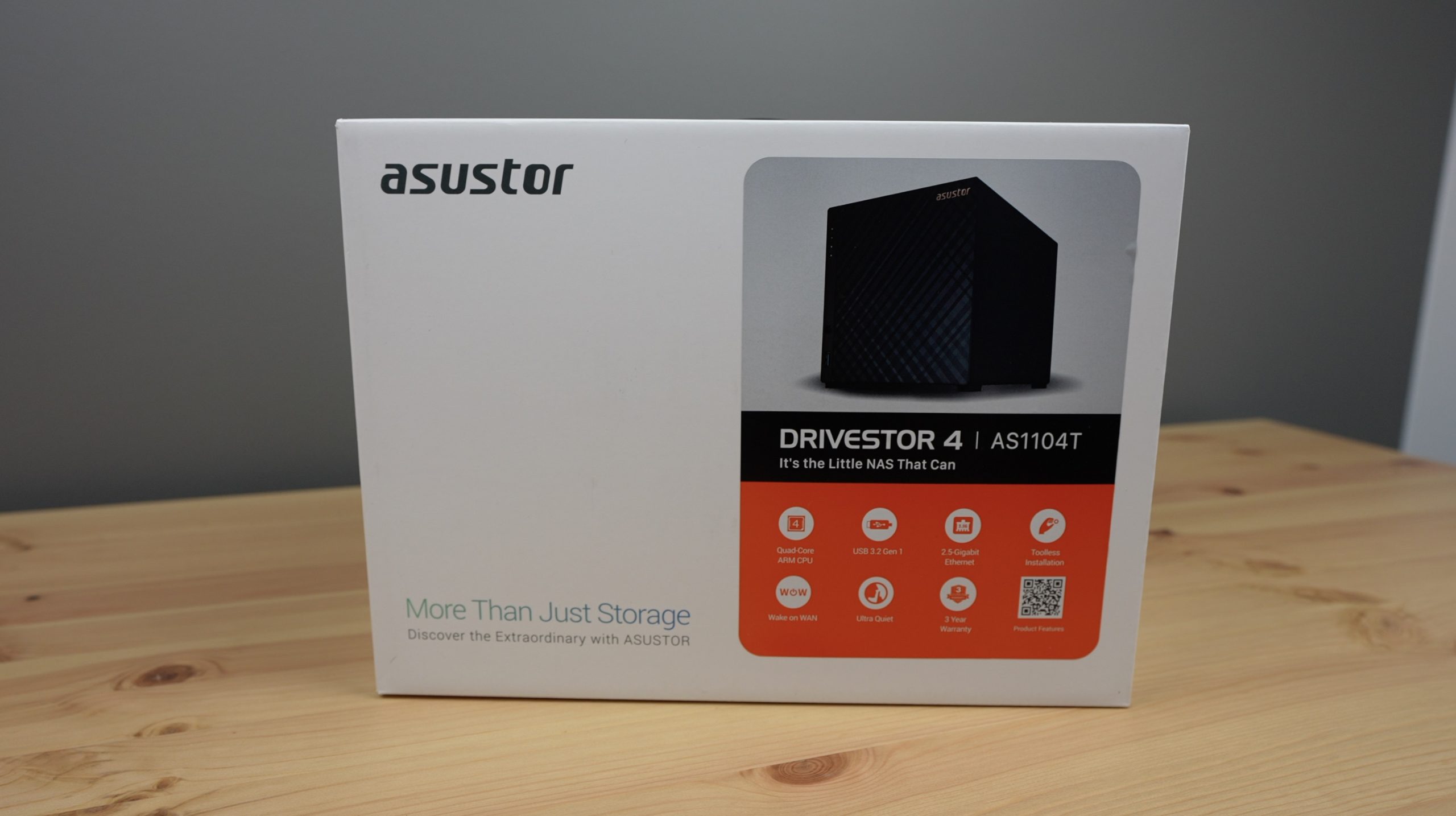
Asustor Drivestor 4 NAS – Pre-built Option

Or

Raspberry Pi NAS – DIY Option

Equipment Used

  • Gweike Cloud Laser Cutter – Buy Here
    • Get $100 off the Gweike Cloud Laser by entering MK100 on checkout
  • QNAP Q5W 2.5G Switch – Buy Here
  • 2.5G Ethernet Adaptor – Buy Here
  • USB C Screwdriver Set – Buy Here
  • Power Meter – Buy Here

Some of the above parts are affiliate links. By purchasing products through the above links, you’ll be supporting this channel, at no additional cost to you.

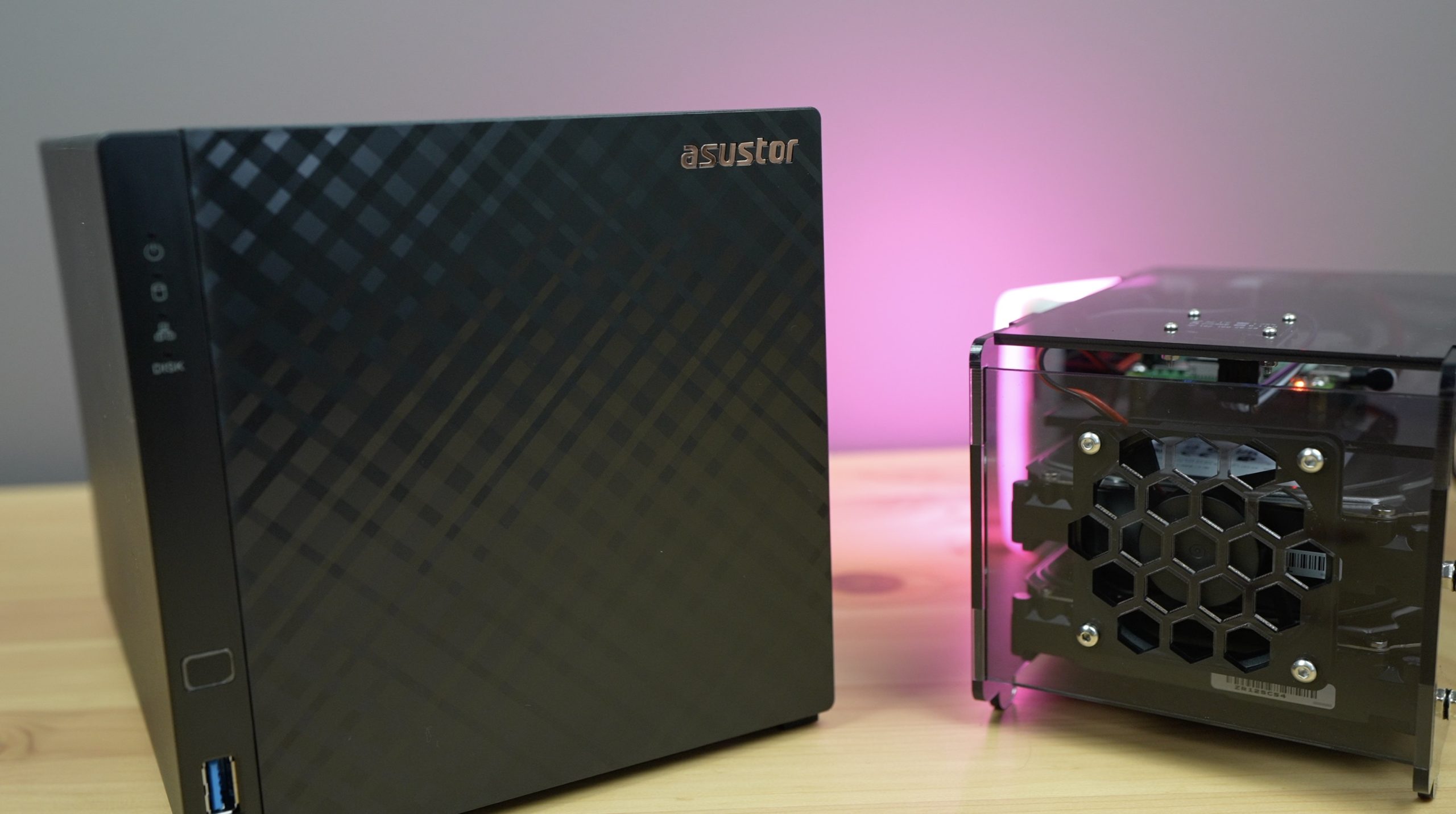
Let’s Take A Look At The Two Contenders

So we already know that we’re going to be comparing an Asustor Drivestor with a Raspberry Pi NAS, but let’s take a look at the details of each and what criteria we’re going to be using to compare them.

Their Drivestore 4 NAS is available in two versions, a standard version and a pro version. The standard version has a Realtek Quad-Core 1.4Ghz ARM64 CPU, 1GB of DDR4 RAM and 8GB of eMMC storage. It’s got 4 drive bays for 3.5″ SATA drives, 2 USB 3.2 Gen 1 ports and 2.5 gig Ethernet. The pro version has the same CPU and eMMC storage but with an extra 1GB of RAM, an extra USB 3.2 Gen 1 port and support for 2.5″ SATA drives as well – so you could use it with SSDs if you’d like to.

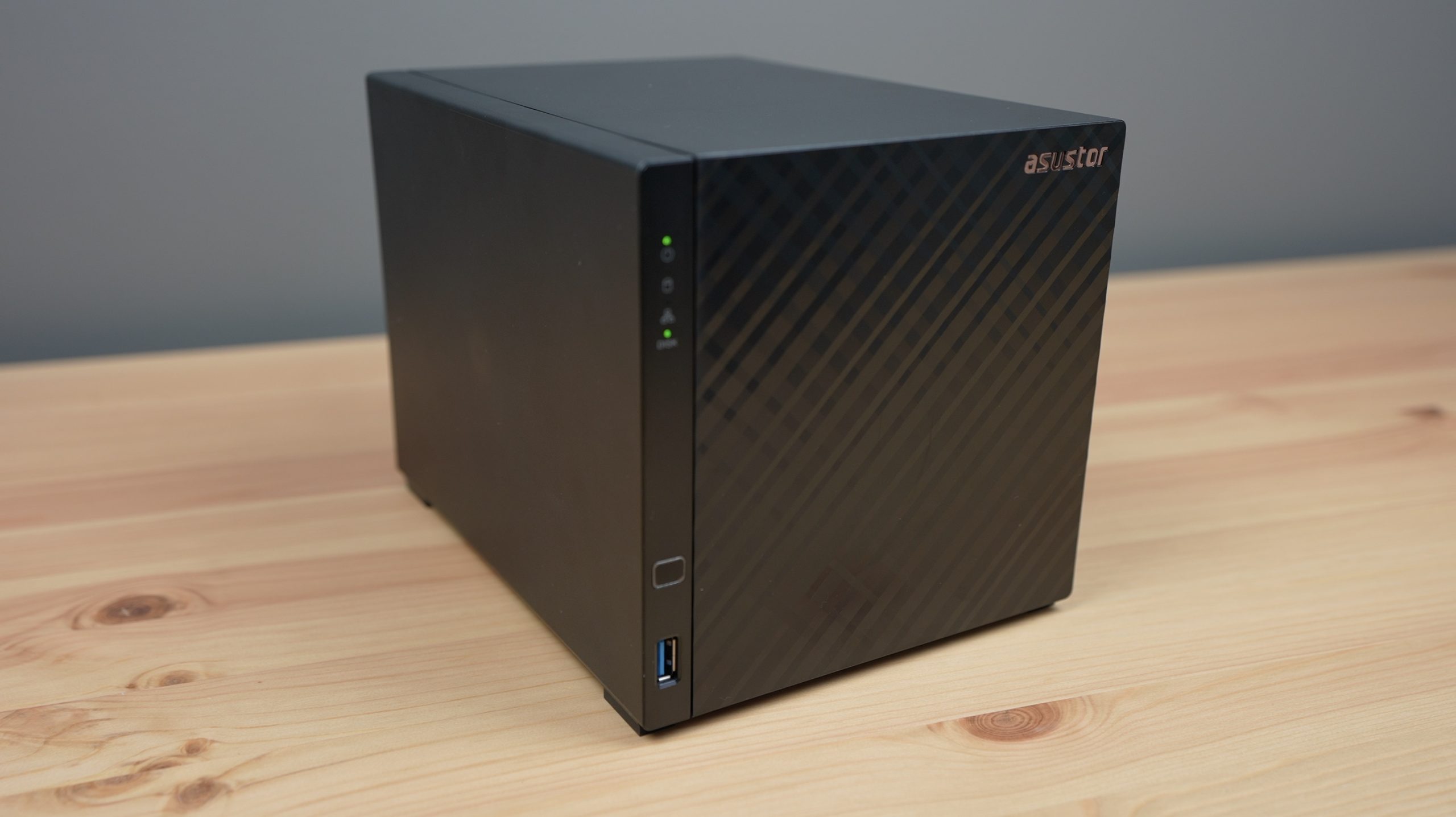
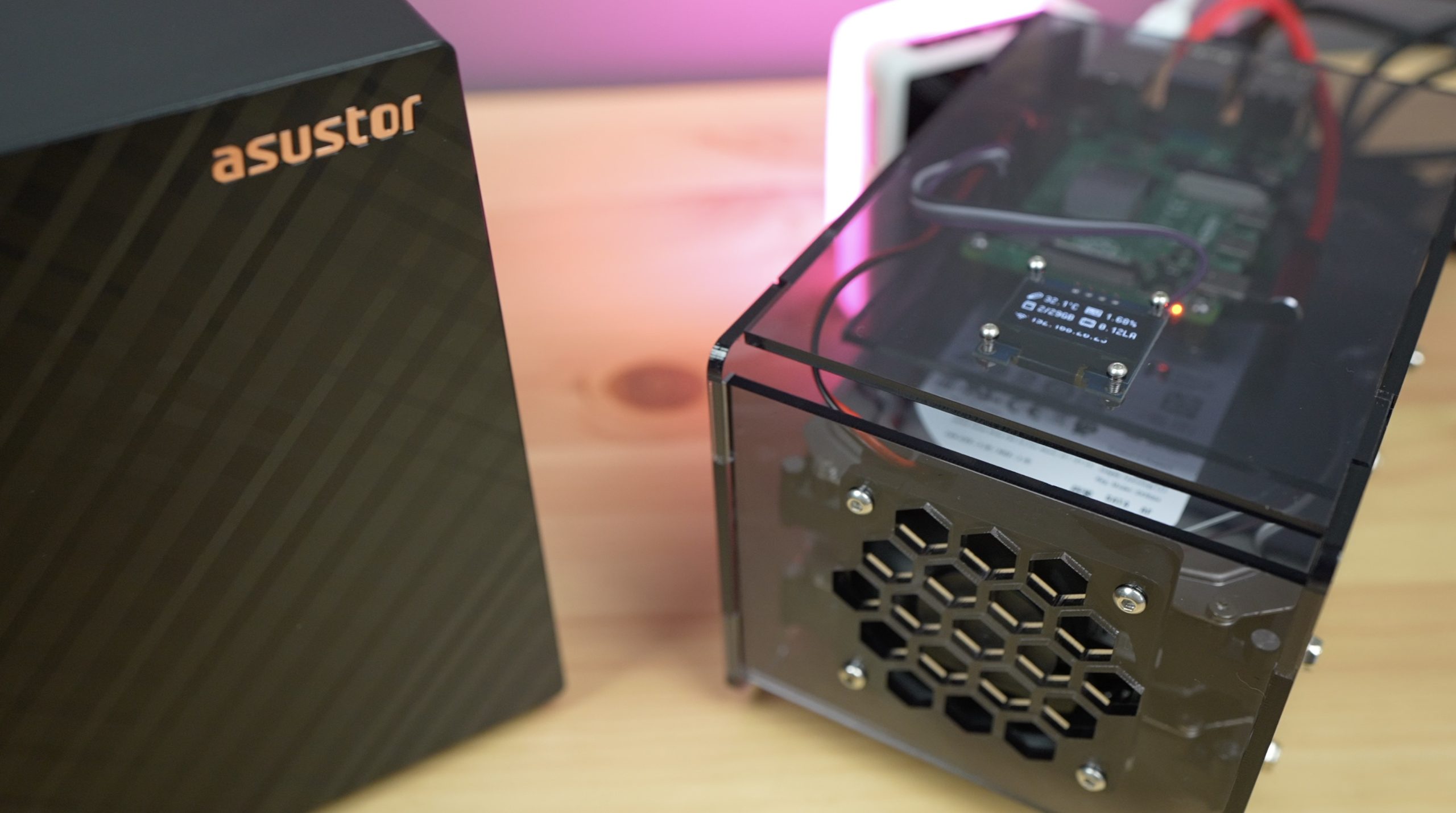
Asustor Drivestor 4

I’ve gone with the standard version as a more fair comparison with the Raspberry Pi NAS as it’s closer in price to the Pi hardware, being a little under $300.

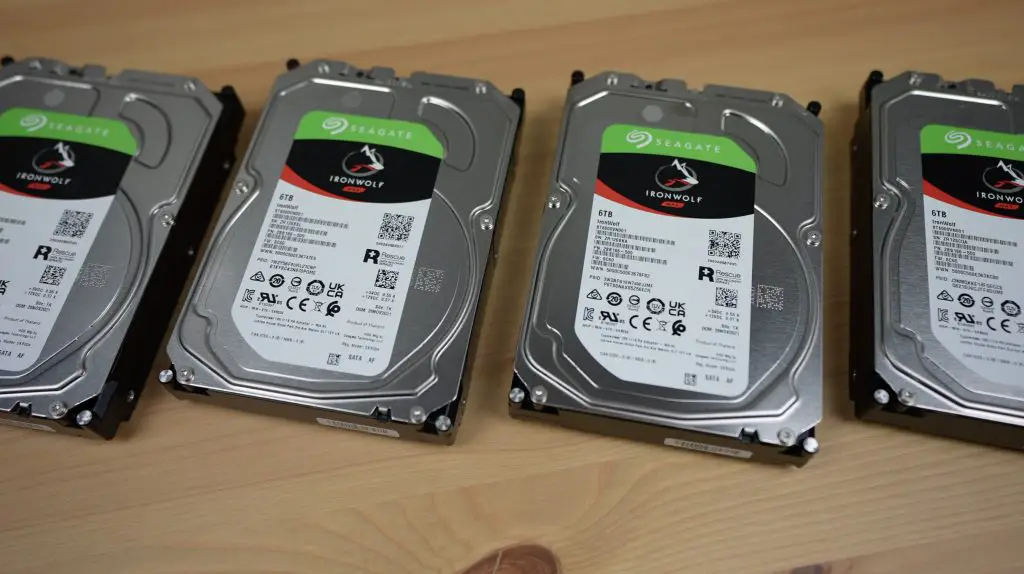
For the drives, Seagate were kind enough to send through four of their 6TB Ironwolf NAS drives to try out.

Seagate Ironwolf NAS Drives

One thing that is quite important for a long-term NAS build is making sure that you’re using the correct storage hardware. Drives are usually a significant part of the cost of a NAS, so you might be tempted to go with lower-cost standard desktop drives, but there are important differences between the two. NAS drives are designed to run continuously, 24 hours a day 7 days a week, with a higher workload rate and a higher Mean Time Between Failures (MTBF). For example, desktop drives are typically designed for an average workload of around 55TB/yr, whereas these Ironwolf drives have an average workload of 180TB/year. They also have an MTBF of one million hours, a figure that isn’t usually even shown for desktop drives. In addition to this, NAS drives are designed to be nested closely together, so they resist heat and vibration better than standard desktop drives. So it’s well worth spending the extra money for purpose-built NAS drives to suit the application.

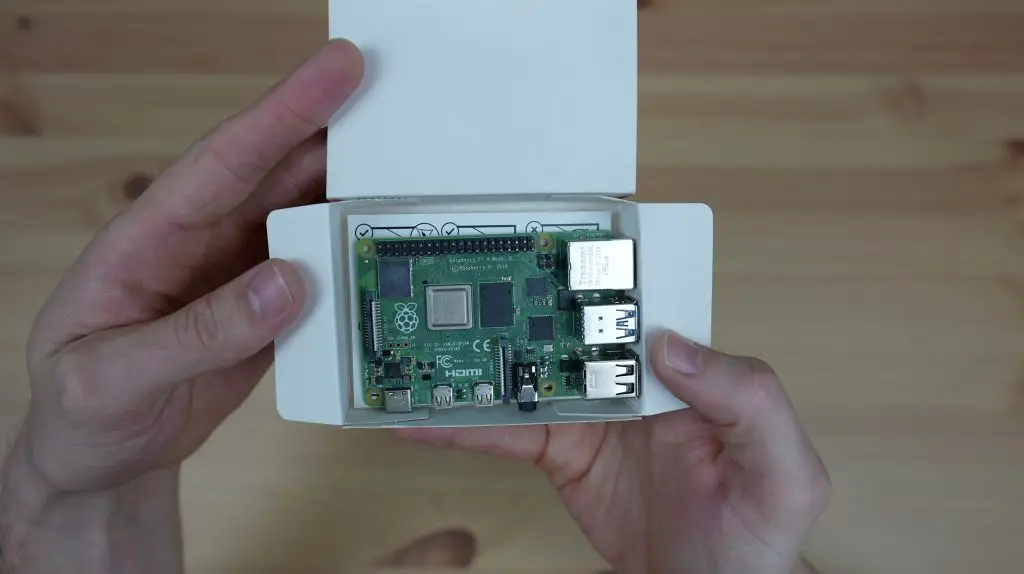
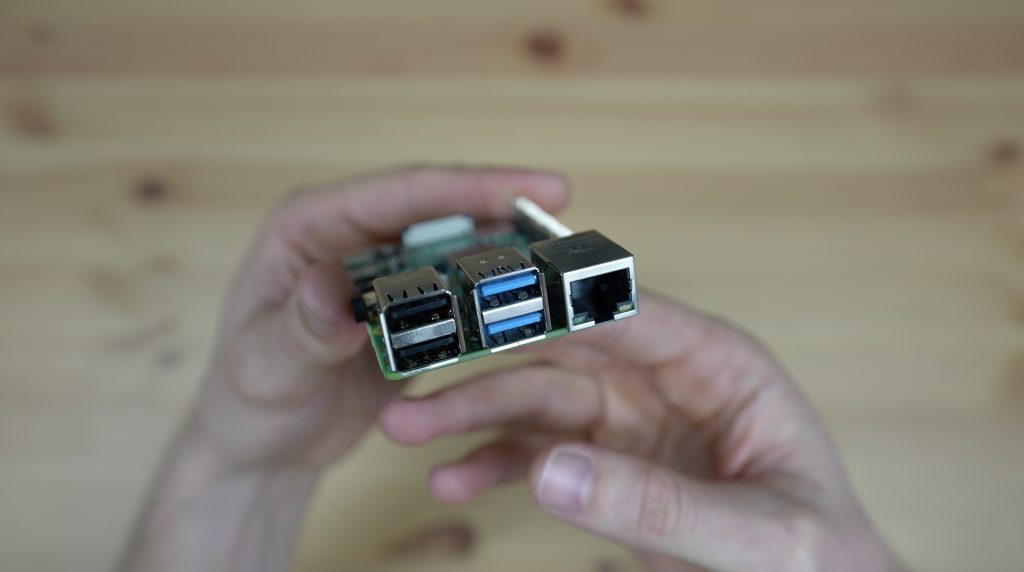
For my Raspberry Pi NAS, I’m going to be using an 8GB Raspberry Pi 4B. This has a 1.5Ghz quad-core ARM Cortex-A72 CPU, 8GB of DDR4 RAM and 32GB of storage through a microSD card. It’s also got 2 USB 3.0 ports which we’ll be able to connect our drives to, 2 USB 2.0 ports for slower devices, and gigabit Ethernet.

Raspberry Pi 4B 8GB

Because we’ve only got two USB 3.0 ports on the Raspberry Pi, I’m only going to connect two drives to it. Alternately we could also use a USB hub as the ports on the Pi all share a PCIe lane anyway, but we’d still be limited to the maximum bandwidth of this lane, which I think is 4 Gbps.

Ports Available on Raspberry Pi 4B

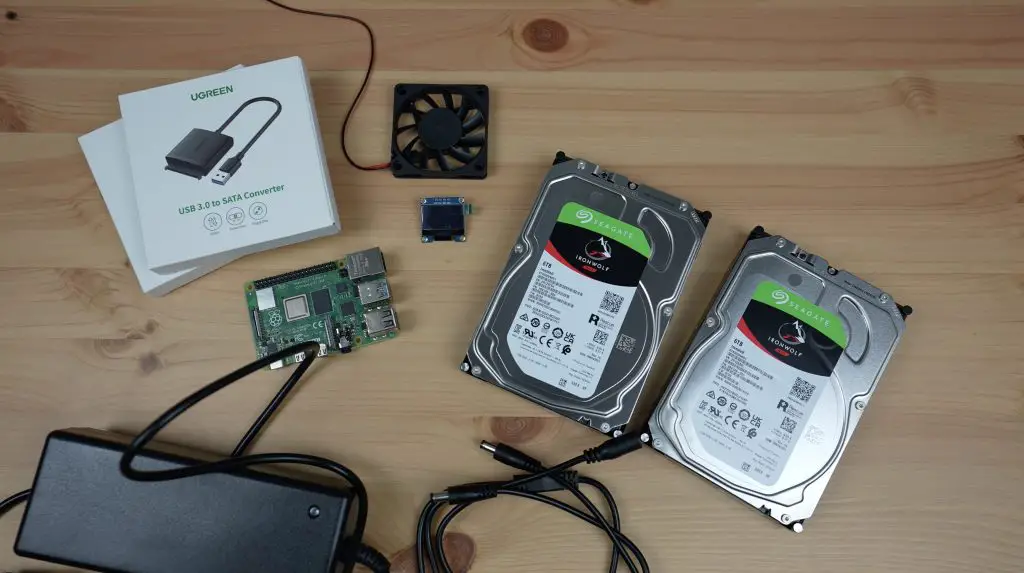
I’m going to use two USB 3.0 to SATA adaptors to connect the drives to my Pi and we’ll need to provide external power to them using a 12V adaptor and a barrel jack splitter. I’ll also need another power supply for the Pi as this runs on 5V. I could power the Pi from the 12V supply as well, but I’d need to add another splitter and a step-down converter from 12V to 5V. I’m going to add a small OLED display which will be used to display some metrics and the NAS’ IP address. And finally, to cool the Pi and drives I’m going to use a 60mm fan which I’ll power from the Pi’s GPIO pins.

Components To Be Used To Build The Raspberry Pi NAS

How Are We Going To Compare Them?

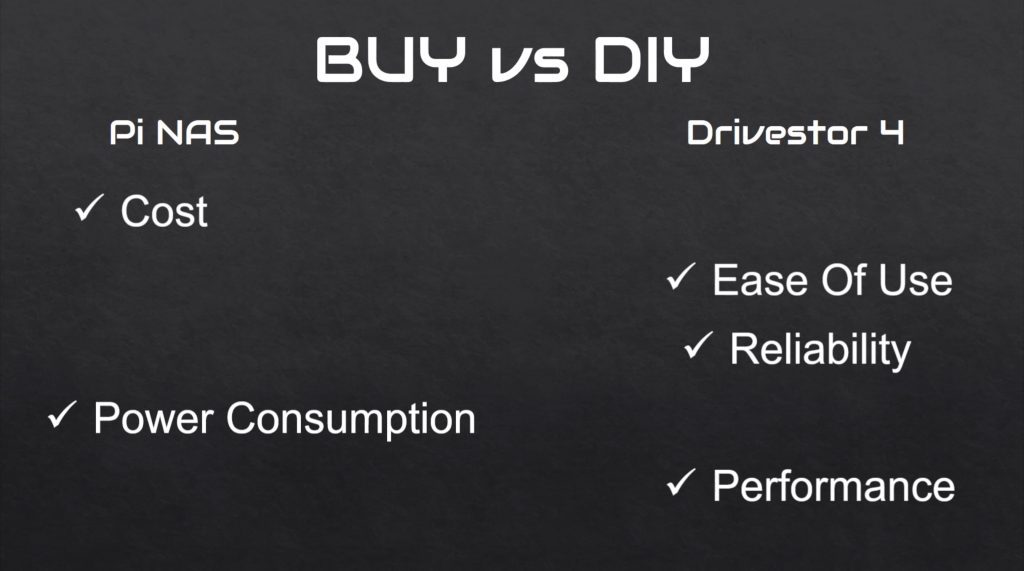
In order to decide which NAS is better at the end, we need to establish some criteria to asses them against. I decided on five criteria based on how a NAS would typically be bought and used for a home or small office application – the overall cost, ease of use, reliability, power consumption and performance.

Crieteria To Compare BUY vs DIY NAS

At the end of the build, I’ll compare the two solutions against these criteria to see which is the better solution.

Building The Raspberry Pi NAS

Building the Raspberry Pi NAS was quite a lengthy process in itself, so rather than extend the length of this comparison, I have separated the build guide. This allows me to include more detail in the guide so that you can easily follow along and build your own NAS if you’d like to.

The build essentially involved designing an enclosure, mounting the previously listed hardware into it and then installing Open Media Vault (OMV).

Testing The Raspberry Pi NAS

I’ve prepared three test files to use on both NAS setups, a 11.7GB video, a 1GB disk image and a 1GB folder of saved Arduino code with 4000 smaller files in 1300 folders. For each file, I’ll test the time taken to write the file to the NAS and then to read it from the NAS, and I’ll do this three times for each and take the average.

NAS Test Files To Be Copied

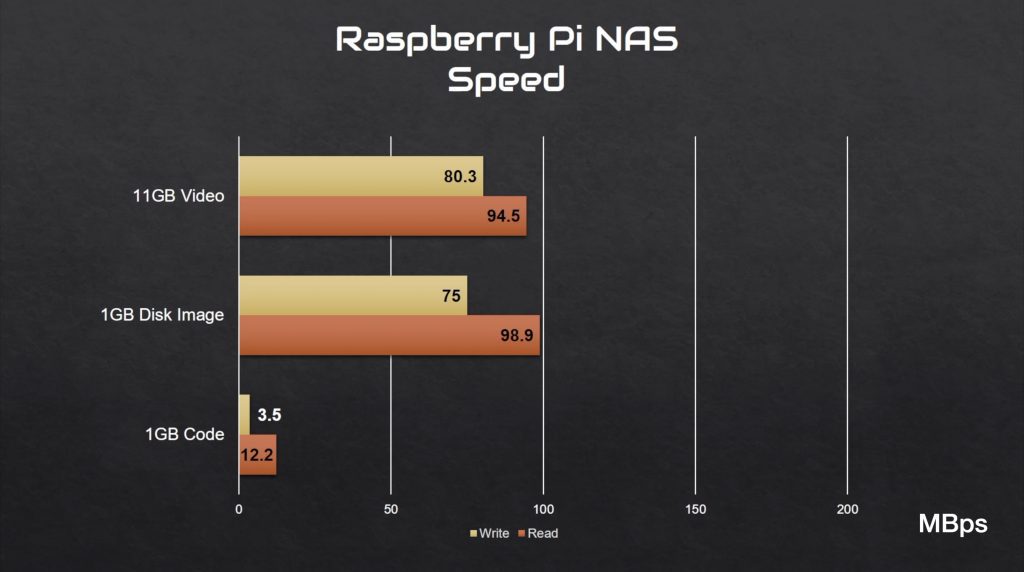
Copying the single large video file across to the NAS, I got an average write speed of 80.3 MBps. Copying the same file from the NAS, I get an average read speed of 94.5 MBps.

Raspberry Pi NAS Speed

For the disk image, I got a slightly slower write speed, but a faster read speed. For the Arduino code, I got substantially slower read and write speeds.

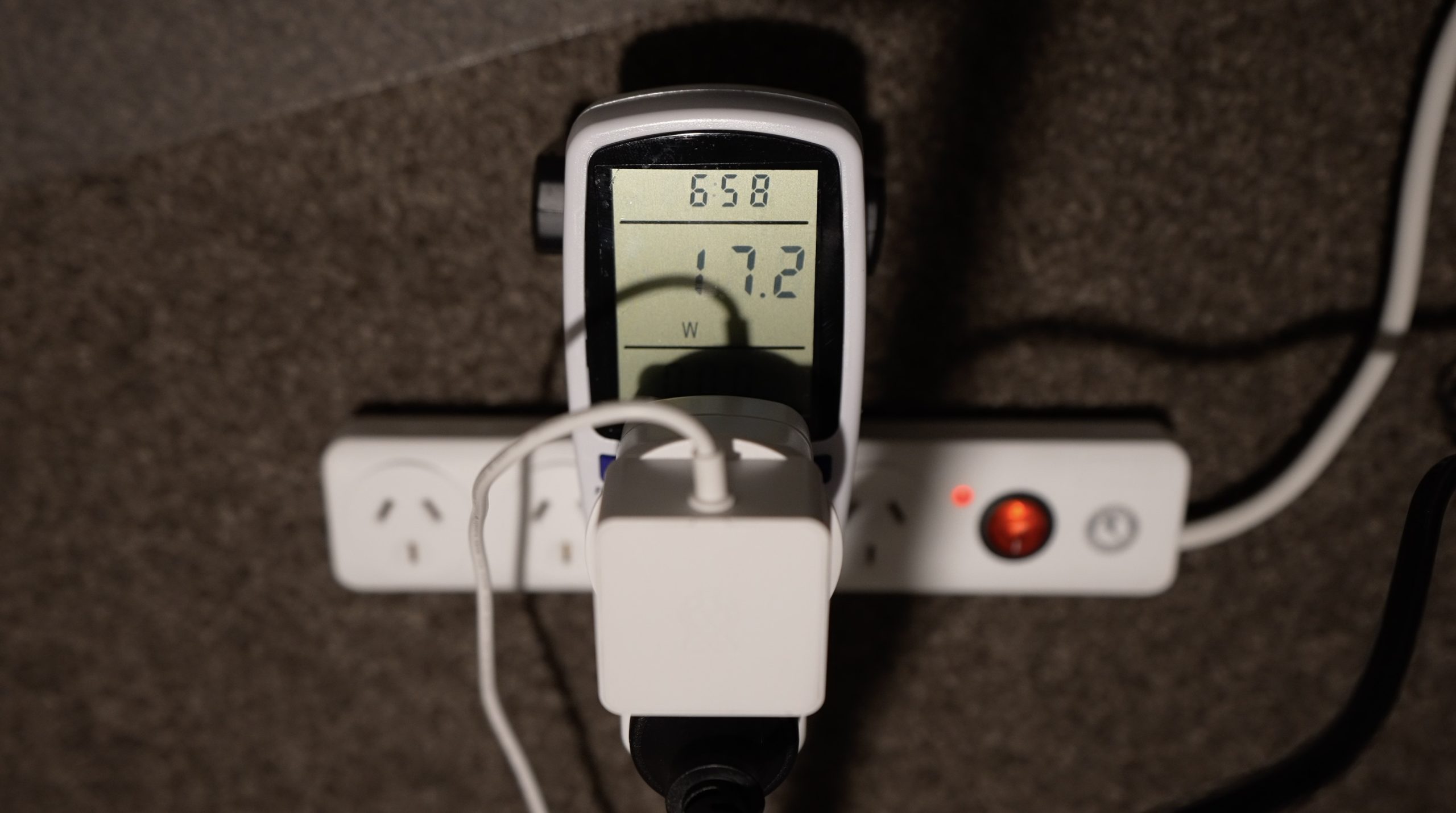
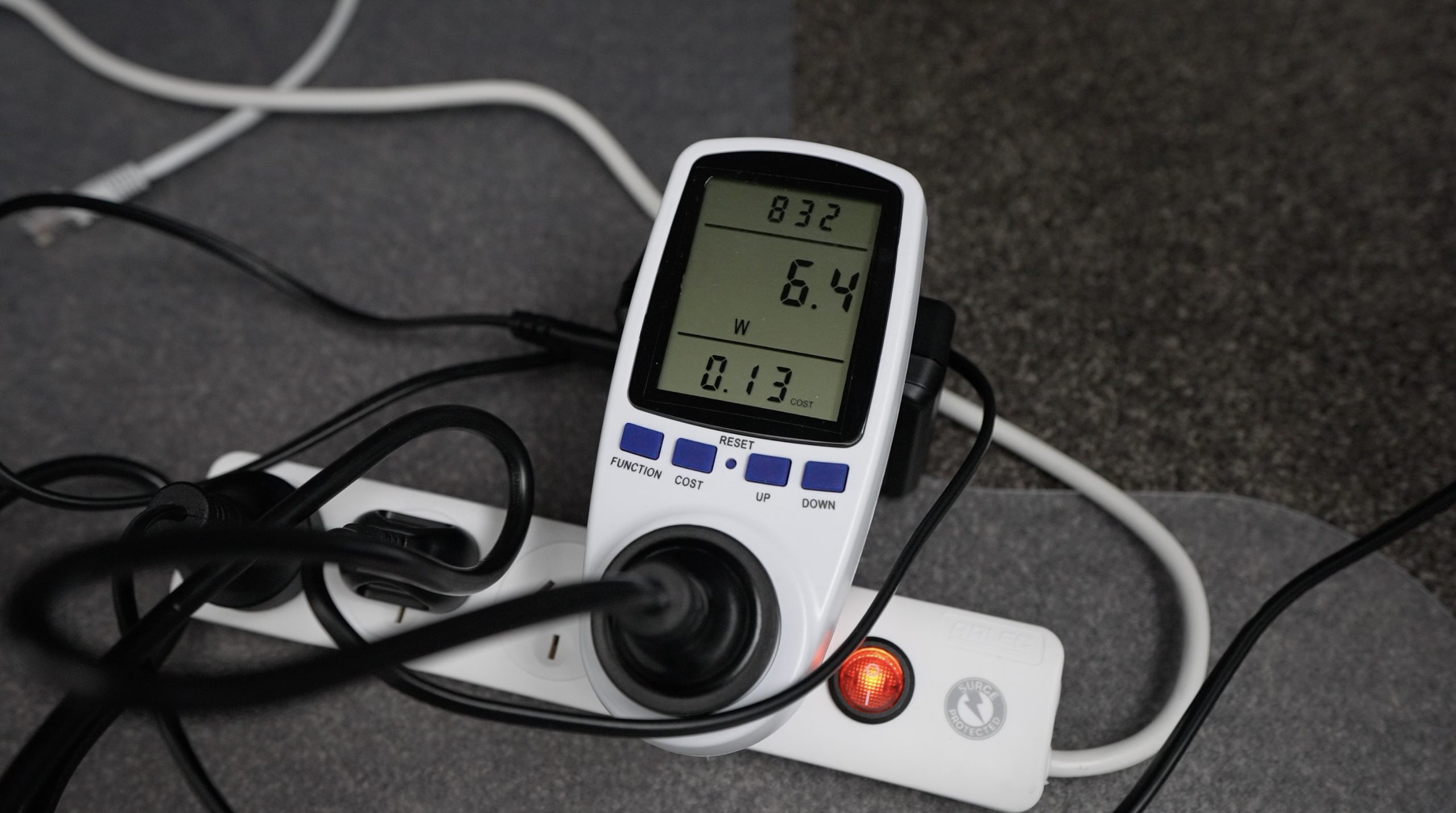
As far as power consumption goes, the Pi 4 NAS uses around 25W when booting up and spinning up the drives, and this settles at around 17W during use. The adaptors do spin the drives down when they’re not in use, so power consumption then goes down to around 6W.

So those are our benchmarks to beat, now let’s see what the Drivestor 4 can do.

Assembling & Setting Up The Drivestor 4 NAS

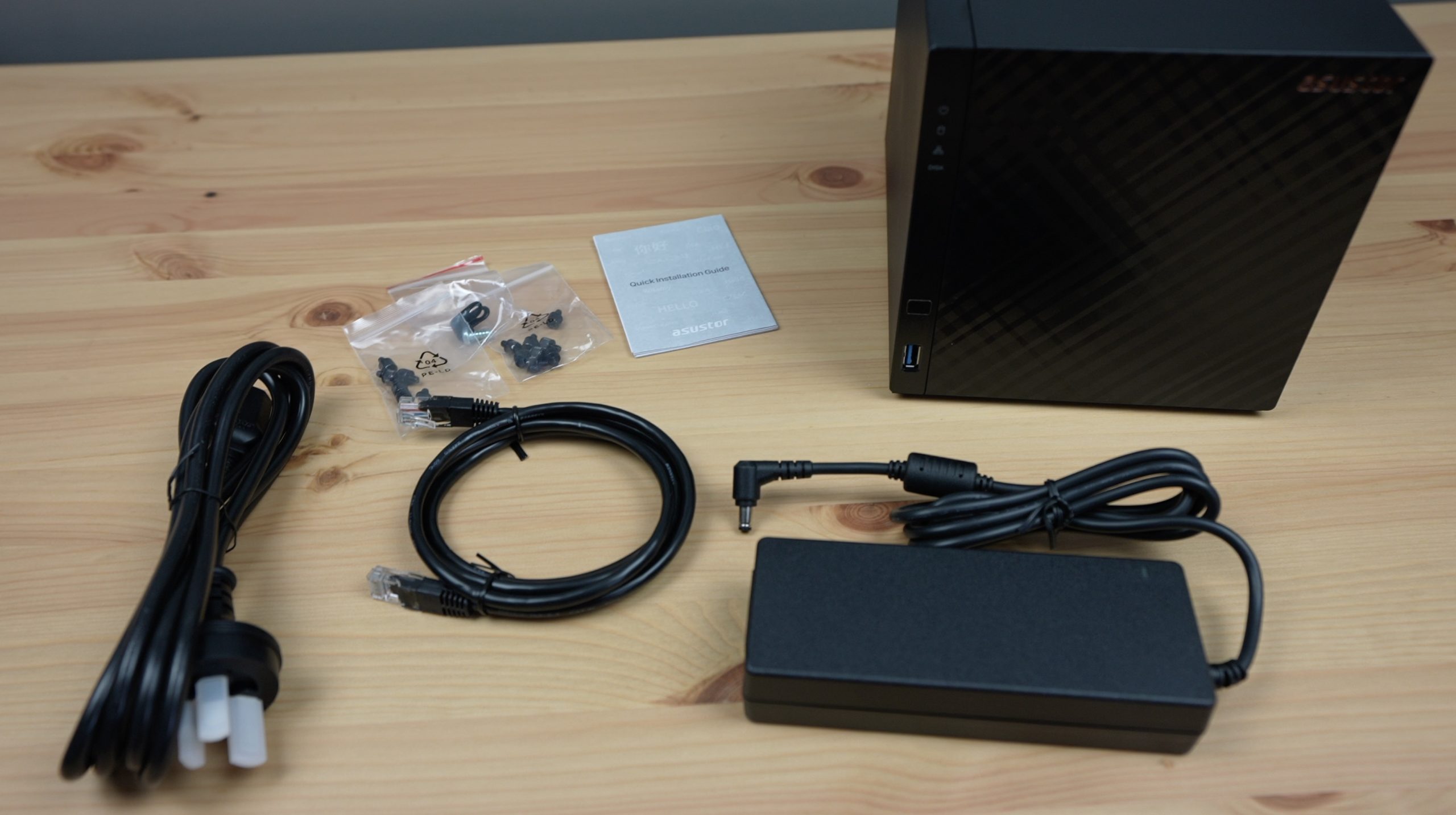
The Drivestor 4 comes as a pre-packaged solution with a 90W power supply included, so all we need to do is install the 3.5″ drives and it should then be ready to go.

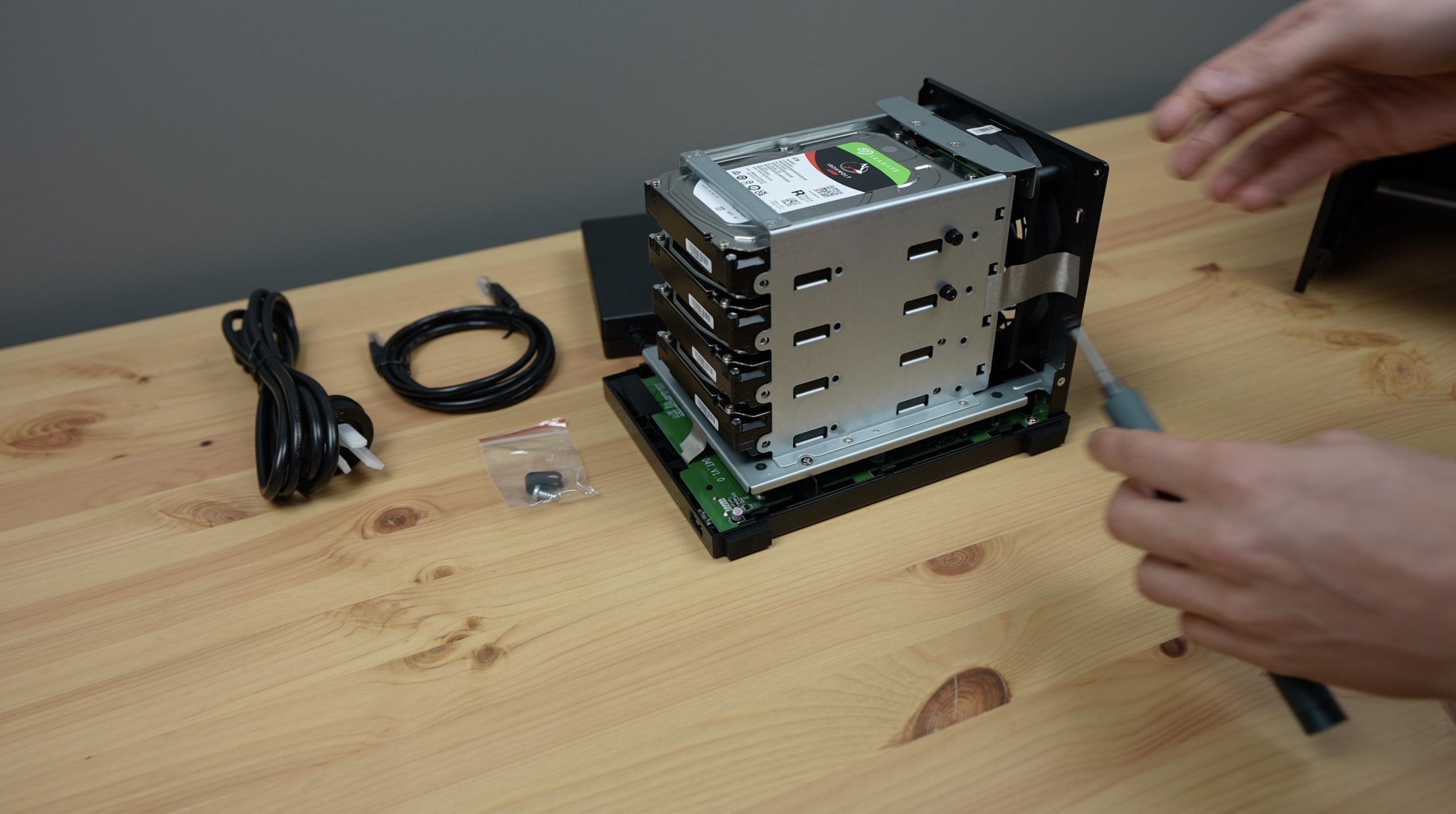
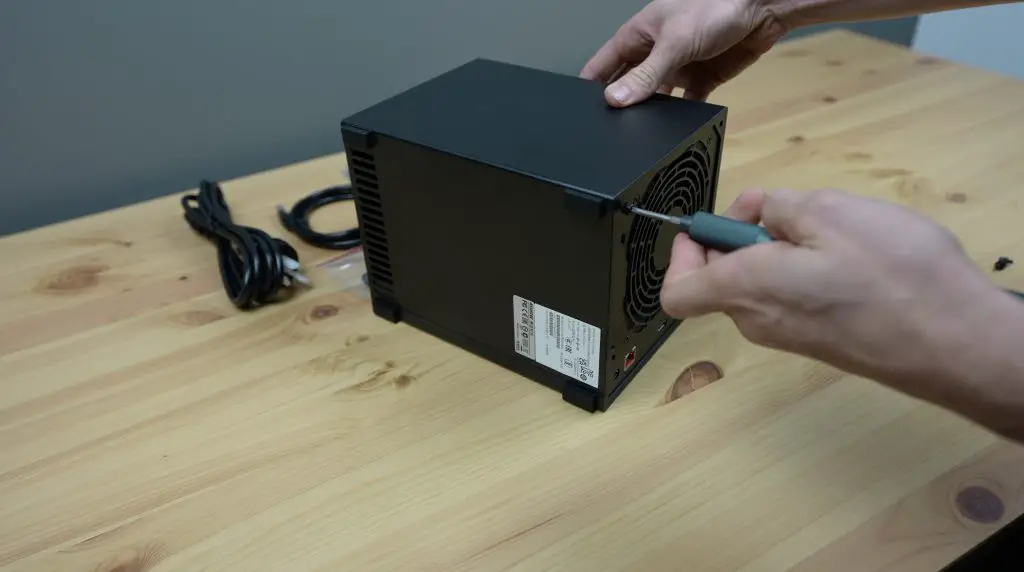
To install the drives, we need to remove the main cover.

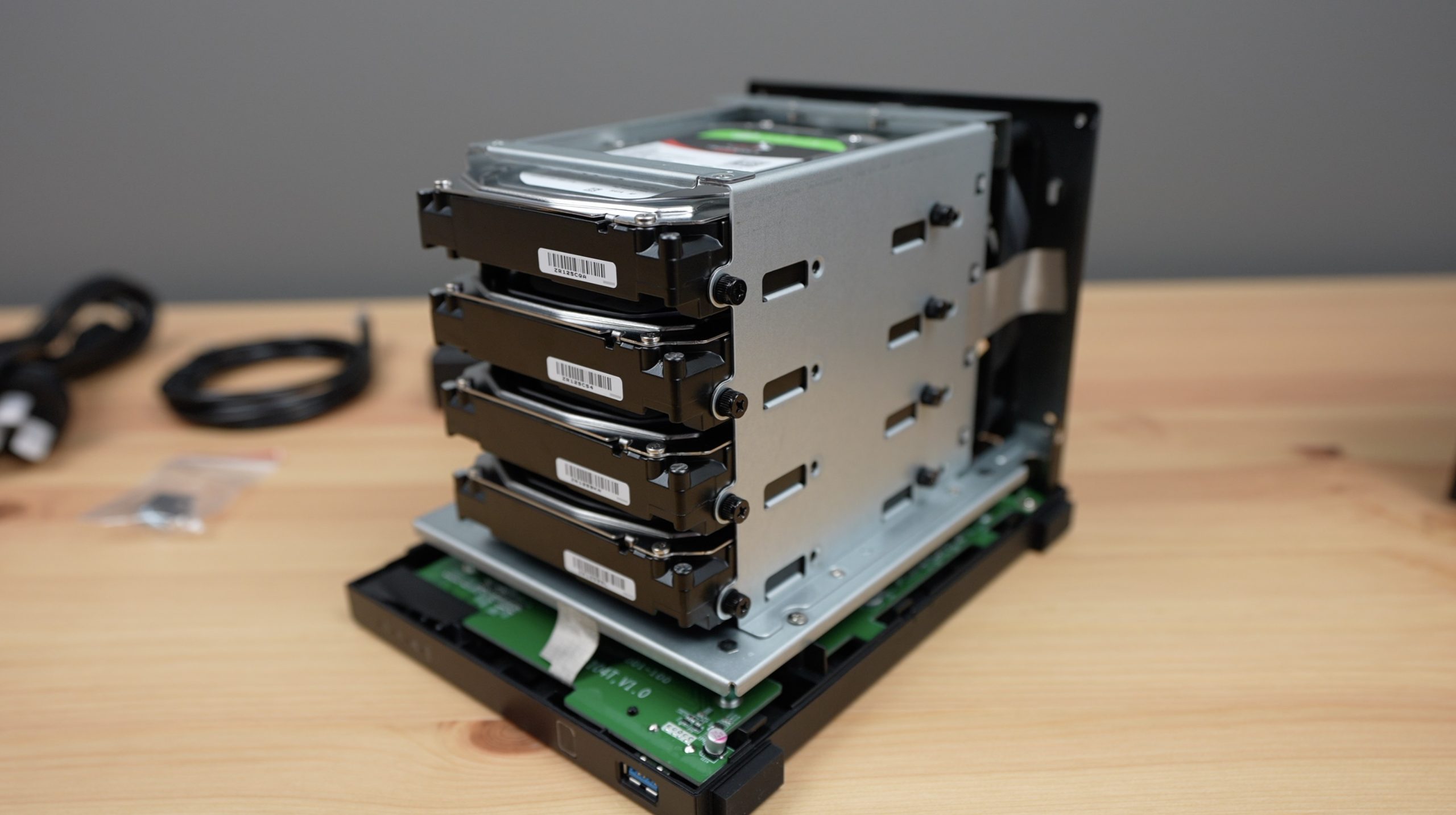
We can then slide a drive into each drive bay. I’m using all four bays, which is the maximum capacity of the Drivestor 4, but this is expandable to 12 bays using their optional expansion unit. So there is room to expand your NAS if you need it.

Installing Seagate Ironwolf Drives Into Drvestor 4

We then secure the drives with four screws into each.

That’s it for the assembly, we can close the cover and get it set up.

Replacing The Back Cover

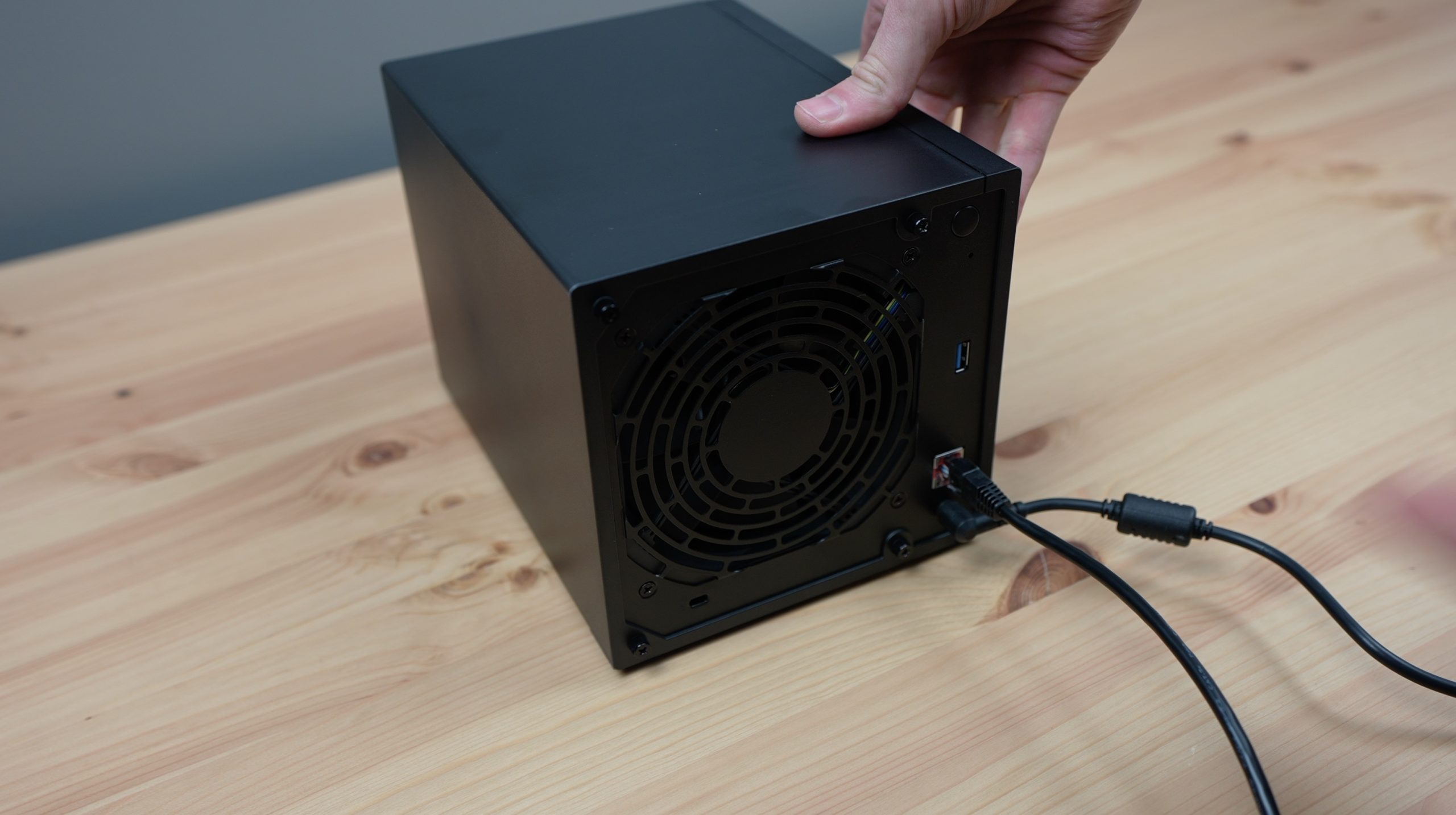
One thing you’ll notice on power-up is that the Driverstor powers the drives up sequentially, it doesn’t just spin them all up at once. It does this to manage the peak power consumption, as these 3.5″ drives use substantially more power to start up than when they’re running.

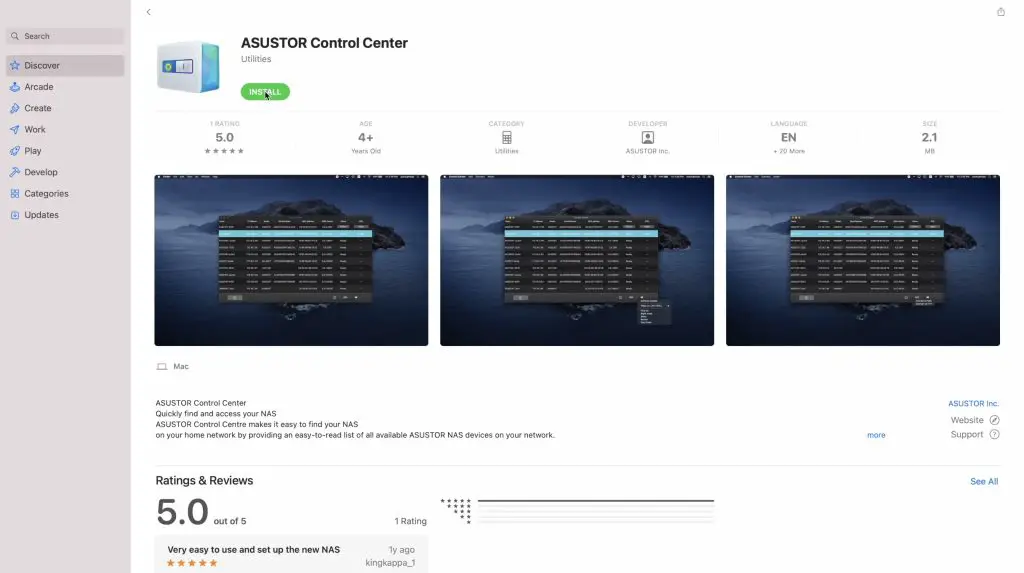
The Drivestor doesn’t have any display or HDMI output, so we need to figure out what IP address has been assigned to it by logging into our router’s DHCP table or using a tool like AngryIP Scanner. Asustor also provide a utility called Control Center which scans your network for their connected products, making it easy to set up.

ASUSTOR Control Centre Installation

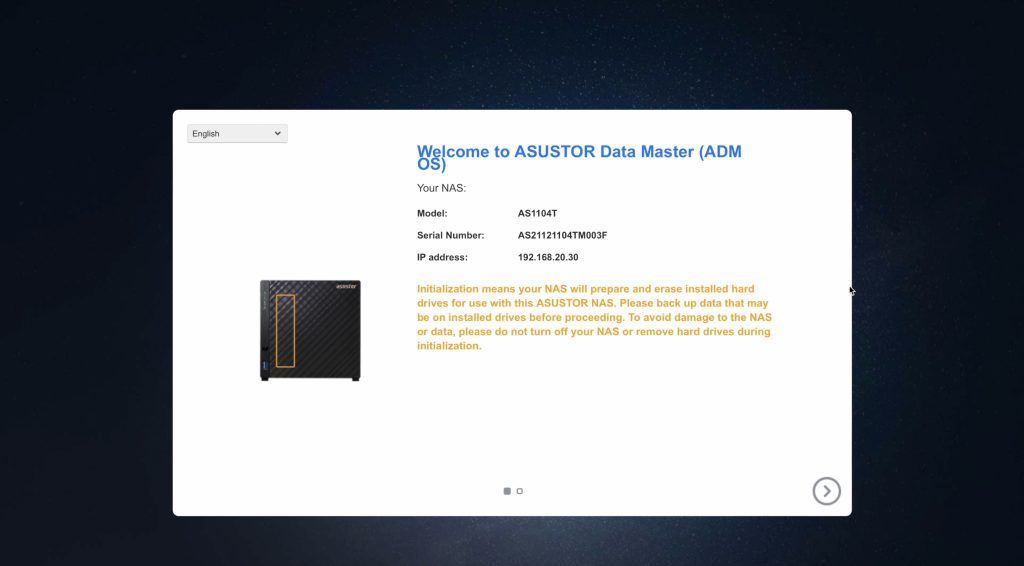
With the NAS’s IP address, we can head to the web dashboard to continue setting it up.

ASUSTOR Data Master OS

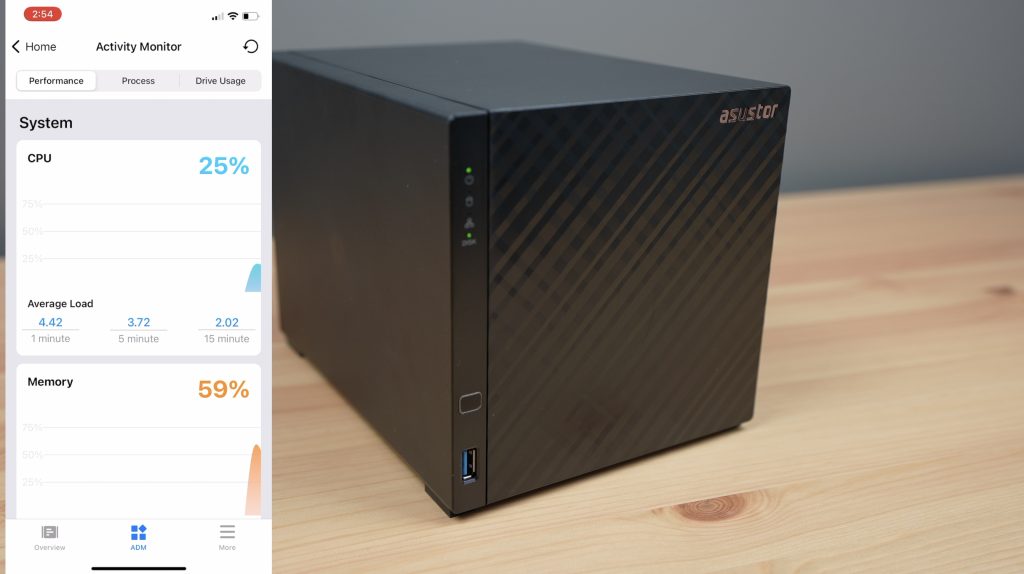
They also provide a mobile app called AiMaster which you can use to set up your NAS as well. I’m going to use the mobile app for now as it’s straightforward to use and guides you through each step.

Activity Monitor In AiMaster App

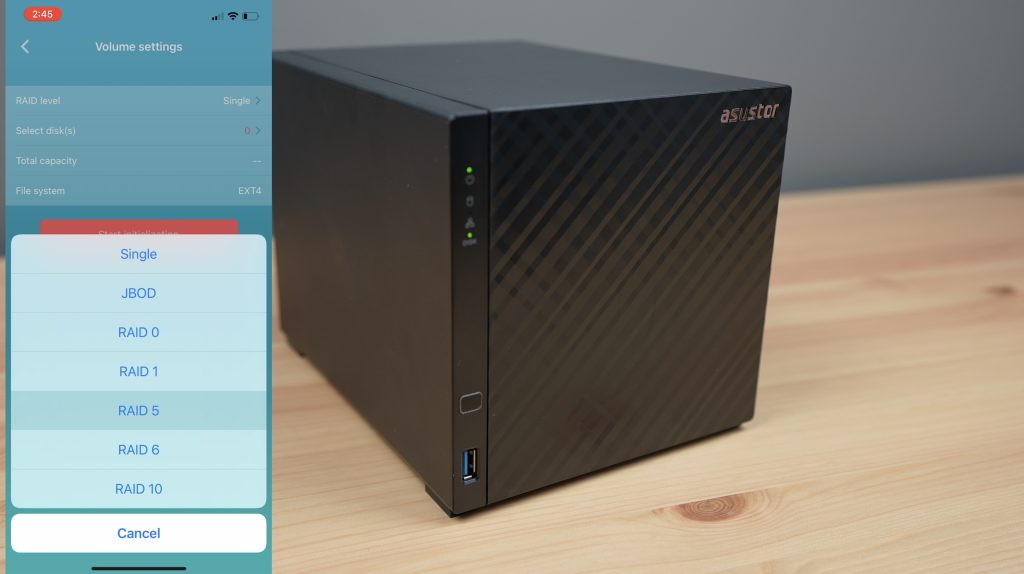
I’m going to go with a RAID5 configuration for the NAS as this strikes a good balance of redundancy and performance. This configuration means you still get to use the capacity of three drives, with only one volume being used for parity data, allowing the system to recover from a failure of any single drive, which is perfect for a home NAS setup.

Setting Up Asustor NAS From AiMaster App

You can then also set up folders and manage access control.

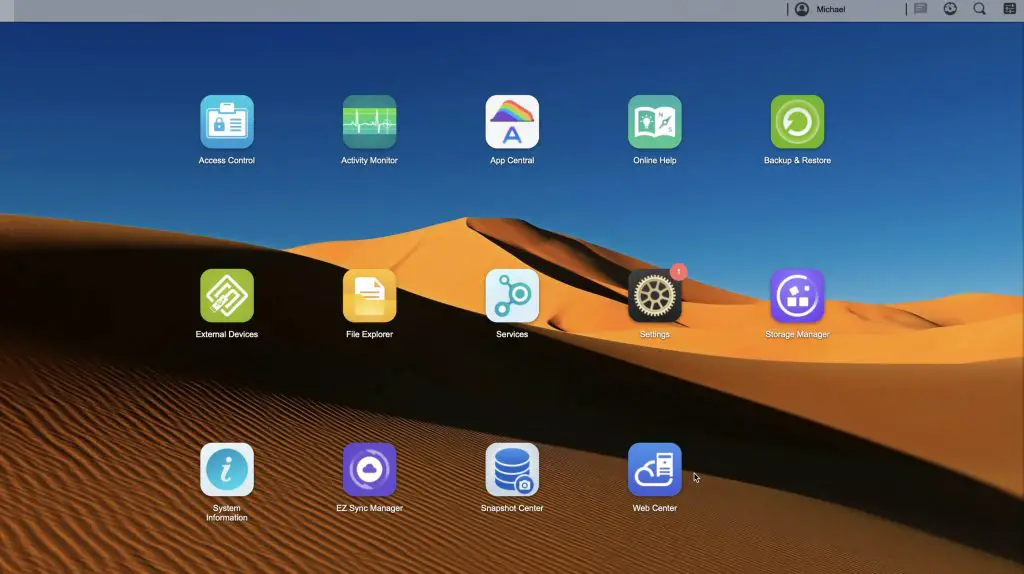
This was quite a bit easier to do on the Drivestor than on OMV. The app and web interface guide you through setting up the NAS really well, with explanations for all of the settings. They also provide a good set of defaults if you aren’t really sure what you’re doing.

ASUSTOR Data Master OS Home Screen

Testing The Drivestor 4 NAS

To test the Drivestor 4’s speed, I’m going to copy the same files that I used previously for my Raspberry Pi NAS test.

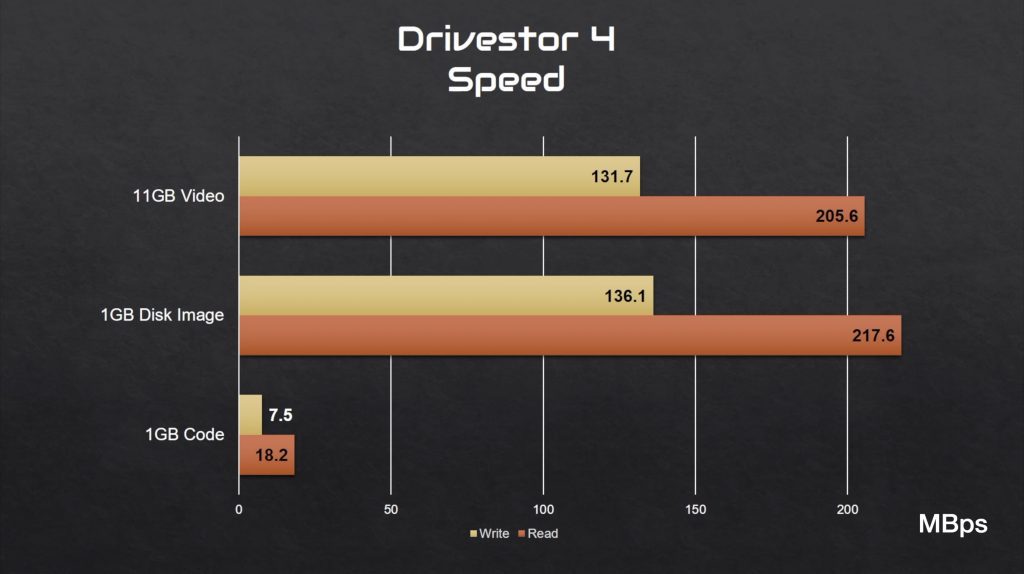
Copying the single large video file across to the NAS, I get an average write speed of 131.7MBps. Copying the same file from the NAS, I get an average read speed of 205.6MBps.

Asustor Drivestor 4 NAS Speed

The disk image resulted in faster read and write speeds than the video, and the code was substantially slower, as with the Raspberry Pi NAS.

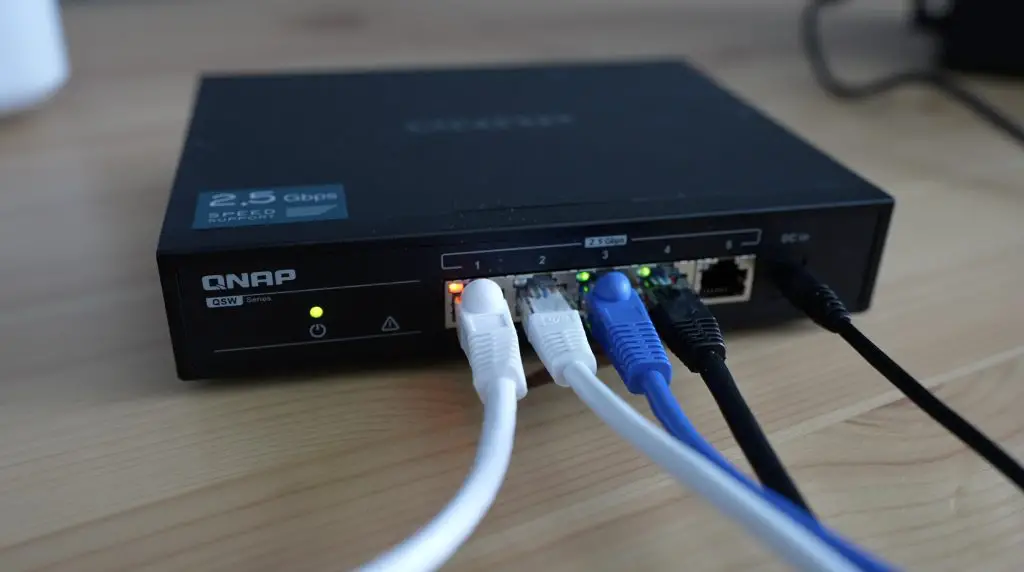
So the Drivestor is quite a lot faster than the Raspberry Pi NAS – around 60% faster write speeds and over double the read speed. This is largely to do with it having 2.5G Ethernet, which the Pi lacks. You could potentially improve this on the Pi by adding a 2.5G Ethernet adaptor to it, but you’d then need to either get rid of one of the drives or use a USB hub as you’ve only got the two USB 3.0 ports. If you used a hub, there would still be a limit to the amount of data that the Pi can handle through the USB ports, so you’d be sharing the bandwidth between the drives and any additional controllers.

QNAP 2.5G Ethernet Switch

This is one of the examples of something that is both a strength and weakness of the Raspberry Pi NAS. It’s great in that you’re starting with a blank canvas, so you can customize your NAS to your particular needs, but this can also be quite intimidating if you’re just getting started. There is a lot of information to sift through and decisions to make, all of which will have some influence on the complexity and performance of your setup.

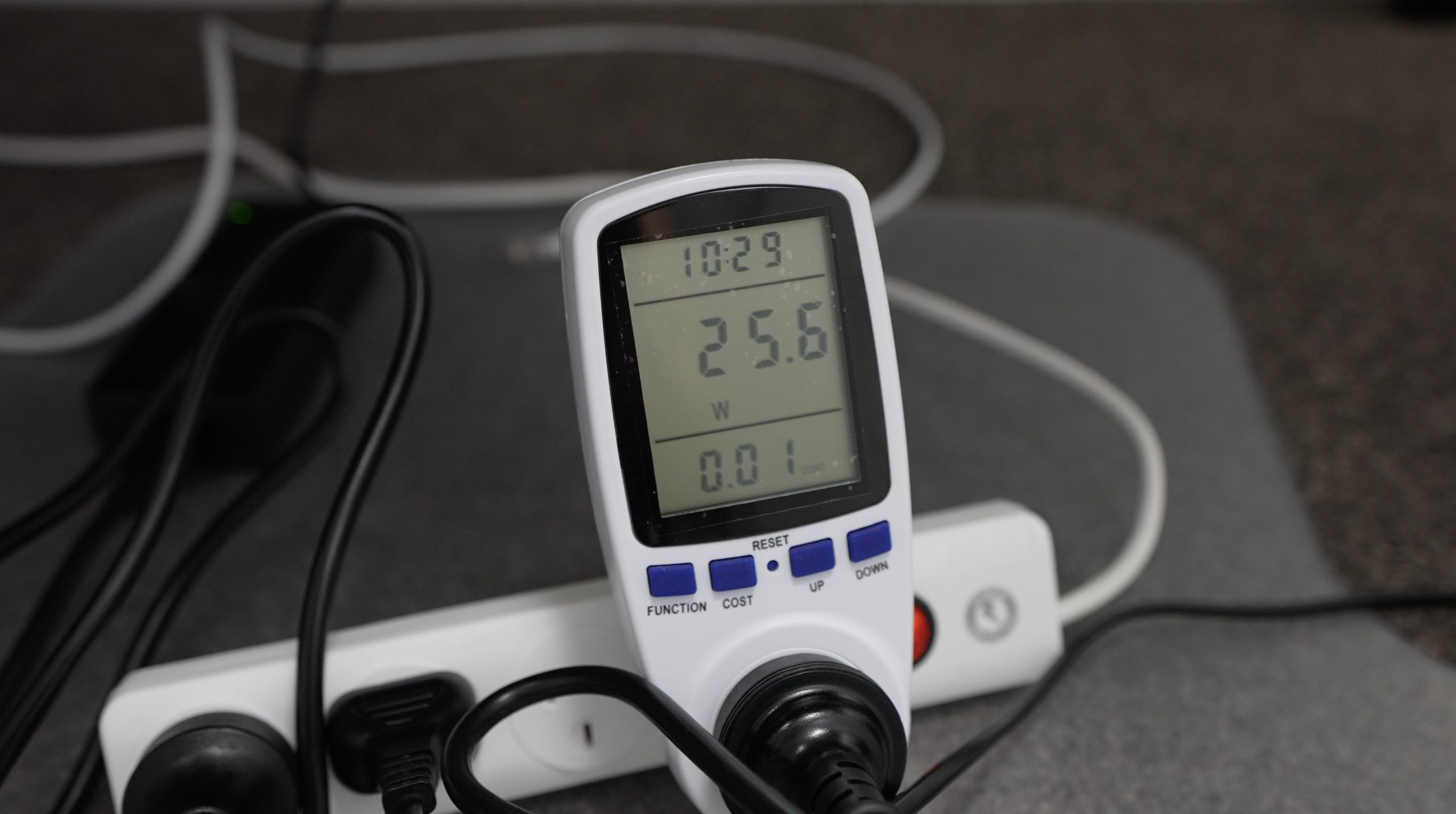
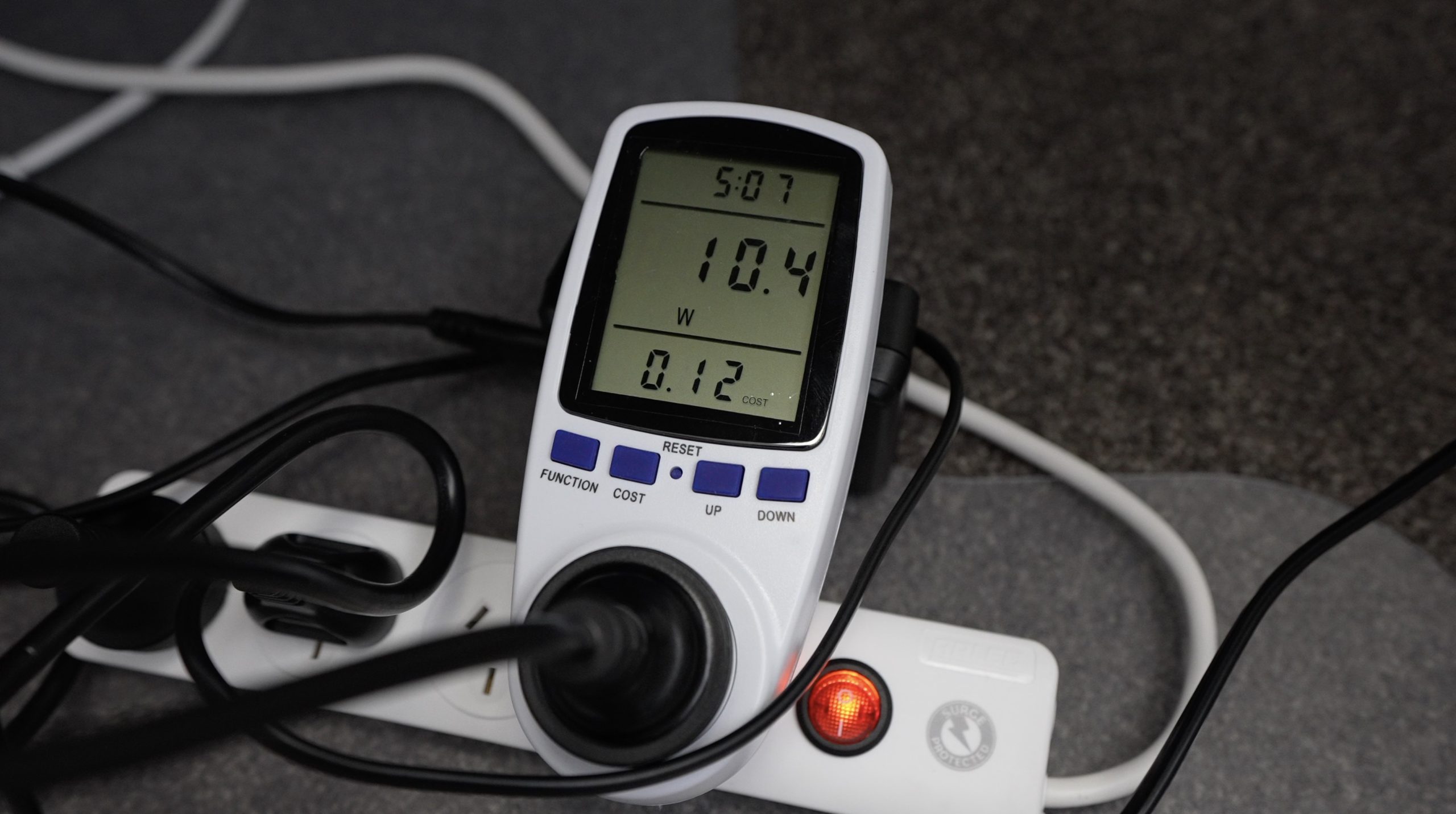
As for power consumption by the Drivestor, I was actually quite surprised to see how similar it was to the Raspberry Pi NAS. It used a much higher 50W on boot and spin-up, but this settled at around 25W once running. With the drives spun down, power consumption goes down to 10W and after a while, it seems to go into a lower power mode that reduces consumption to the same figure as the Pi – just 6W. Keep in mind for the running figures that this NAS has two more drives than the Raspberry Pi NAS.

So Is It Better To Buy or DIY?

Now that we’ve assembled and tested the two NAS solutions, let’s see whether it is better to buy a pre-built NAS or build your own DIY solution.

Cost

Let’s start off with cost.

The Pi NAS cost $162 for the parts to build the NAS without the drives and then the two drives cost an additional $270 for a total of $432. The Drivestor costs $290 and then the four drives cost an additional $540, for a total of $830.

BUY vs DIY Cost Comparison

I separated the drive costs to make the comparison between the actual NAS setups a bit more comparable, as the additional two drives on the Drivestor add quite substantially to the cost, and the Drivestor could run on only two drives if you wanted it to.

The Pi NAS still wins on cost for a total of $162 instead of the $290 Drivestor 4’s price tag.

Ease of Use

For Ease of Use, this hands down goes to the Drivestor 4, it’s a prepackaged solution that you just need to select drives for. Asustor even have a drive compatibility checker that you can use to check your drives before you buy them. It’s easy to assemble and configure and you’re not left looking for adaptors, power supplies or enclosures to finish it off.

Reliability

Reliability also goes to the Drivestor 4. The Raspberry Pi NAS is running off a MicroSD card, which are known to fail over time, and connecting the drives through the Pi’s USB ports means that no RAID options are available. That said the data is still being stored on the same drives, so although the Pi might need to be re-configured every so often, you shouldn’t have any data loss as long as the drives remain good.

Power Consumption

Power Consumption is much closer than I thought it would be, but goes to the Pi as a marginal win, albeit in a somewhat unfair comparison. The Drivestor uses more power when running as it’s got two additional drives, but when both NAS solutions are unused, they use basically the same.

Performance

Performance is lost to the Drivestor 4. Having 4 drive bays that support RAID and a 2.5G Ethernet port make it substantially faster than the Raspberry Pi NAS.

The Verdict

BUY vs DIY Final Results

So overall the Drivestor 4 is probably the option you’d want to go for if you’re looking for an easy-to-use, reliable NAS that offers good performance for the price. If you’ve got the time to learn, or you’d like to build a NAS that is very specifically designed to your needs, then the Raspberry Pi NAS offers a bit more flexibility. You could also save a few dollars by going with the Pi option, although if your time is worth anything to you then this will probably work out to be a bit more expensive as well as you’ll no doubt have to spend a day or two assembling and setting it up.

Check out Asustor’s Amazon store for some of their other NAS solutions available, or check out their Drivestor 4 and Drivestor 4 Pro options. They’re really good products for a home or small office environment when access to your data and data integrity is important to you.

Also, let me know what you think of my Raspberry Pi NAS in the comments section below.
How To Build A Raspberry Pi NAS Using Open Media Vault

This Raspberry Pi based NAS was built for my comparison with the Asustor Drivestor 4. Rather than cover the comparison and build in a single lengthy post, I have separated the build portion of the Raspberry Pi NAS to make it easier for you to build your own NAS along with me.

Here’s my video of the build and comparison, read on for the write-up and build guide:

What You Need To Build Your Own Raspberry Pi NAS

Equipment Used

  • Gweike Cloud Laser Cutter – Buy Here
    • Get $100 off the Gweike Cloud Laser by entering MK100 on checkout
  • USB C Screwdriver Set – Buy Here

Some of the above parts are affiliate links. By purchasing products through the above links, you’ll be supporting this channel, at no additional cost to you.

How To Build The Raspberry Pi NAS

For my Raspberry Pi NAS, I’m going to be using an 8GB Raspberry Pi 4B. This has a 1.5Ghz quad-core ARM Cortex-A72 CPU, 8GB of DDR4 RAM and 32GB of storage through a microSD card. It’s also got 2 USB 3.0 ports which we’ll be able to connect our drives to, 2 USB 2.0 ports for slower devices, and gigabit Ethernet.

Raspberry Pi 4B 8GB

Because we’ve only got two USB 3.0 ports on the Raspberry Pi, I’m only going to connect two 3.5″ SATA NAS drives to it. Alternately we could also use a USB hub as the ports on the Pi all share a PCIe lane anyway, but we’d still be limited to the maximum bandwidth of this lane, which I think is 4 Gbps.

Ports Available on Raspberry Pi 4B

I’m going to use two USB 3.0 to SATA adaptors to connect the drives to my Pi and we’ll need to provide external power to them using a 12V adaptor and a barrel jack splitter. I’ll also need another power supply for the Pi as this runs on 5V. I could power the Pi from the 12V supply as well, but I’d need to add another splitter and a step-down converter from 12V to 5V. I’m going to add a small OLED display which will be used to display some metrics and the NAS’ IP address. And finally, to cool the Pi and drives I’m going to use a 60mm fan which I’ll power from the Pi’s GPIO pins.

Components To Be Used To Build The Raspberry Pi NAS

Designing The NAS Enclosure

Now that we’ve got the hardware together, we need to start assembling it, and for that, we need an enclosure. There aren’t a lot of options for a Raspberry Pi NAS, so I’m going to have to make my own.

To do that, I’m going to head over to my computer and open up Inkscape. I’ve used Inkscape before for a number of projects, it’s a great open-source package for creating 2D designs for laser cutting.

I sketched up the parts I need to hold the drives, the Pi, display and fan – there are two main side panels that attach to the drives and then a front fan panel, a Pi mounting panel and a top cover on which the OLED display is mounted.

Inkscape NAS Component Design

I then cut them out on my laser cutter. I cut them from 3mm tinted acrylic for a blacked-out look that the OLED display would still be visible through. You could also use clear or coloured translucent acrylic sheets if you’d like a different colour.

Laser Cutting On Gweike Cloud

Assembling The NAS Hardware

To assemble the NAS, the fan gets mounted onto the front panel with some M3 x 12mm button head screws and M3 nuts.

60mm Cooling Fan Mounted Onto Side Panel

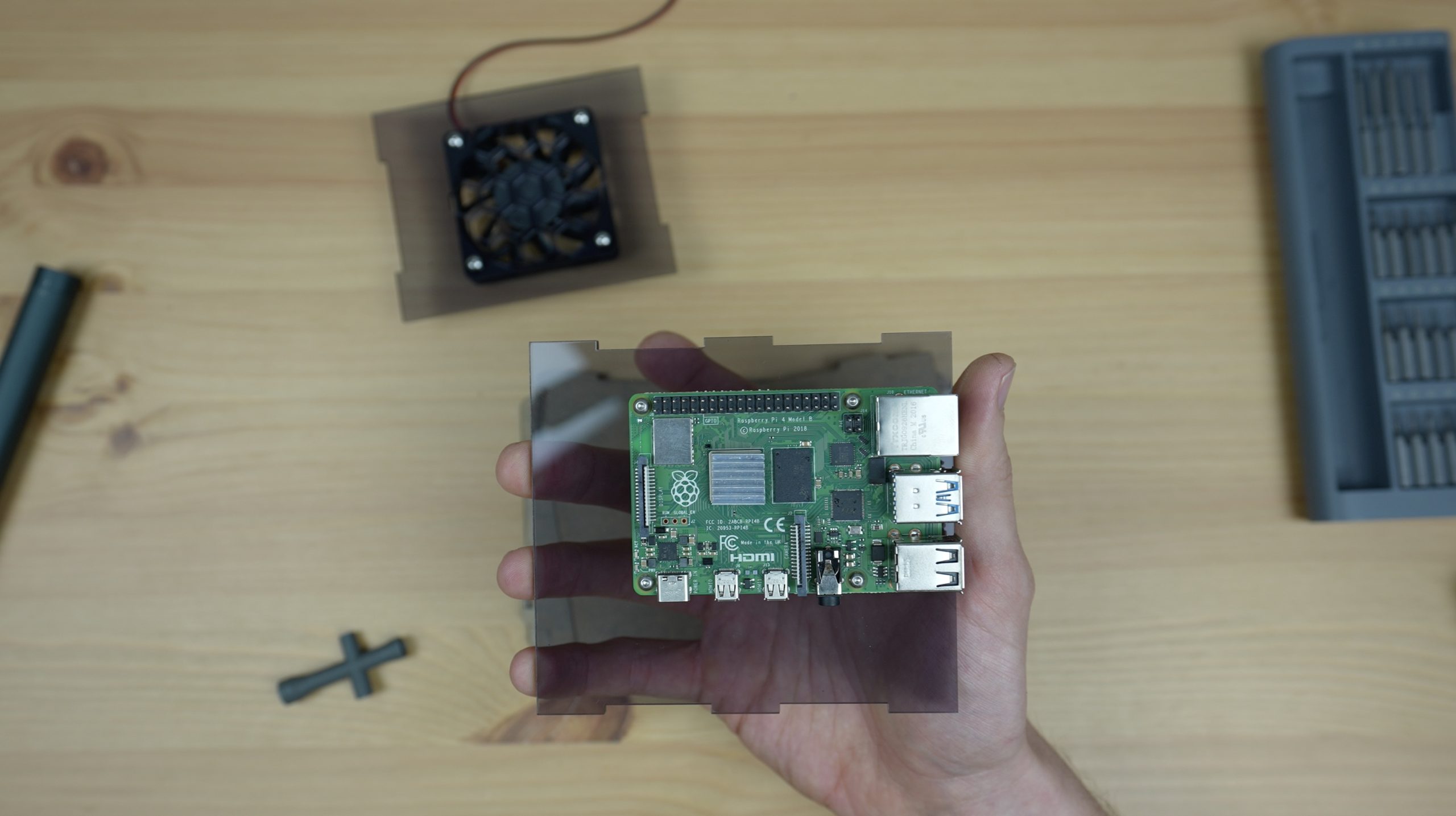
We can then mount the Raspberry Pi onto the middle panel with some M2.5 x 6mm brass standoffs, M2.5 x 6mm button head screws and M2.5 nuts.

Raspberry Pi Mounted On Standoffs

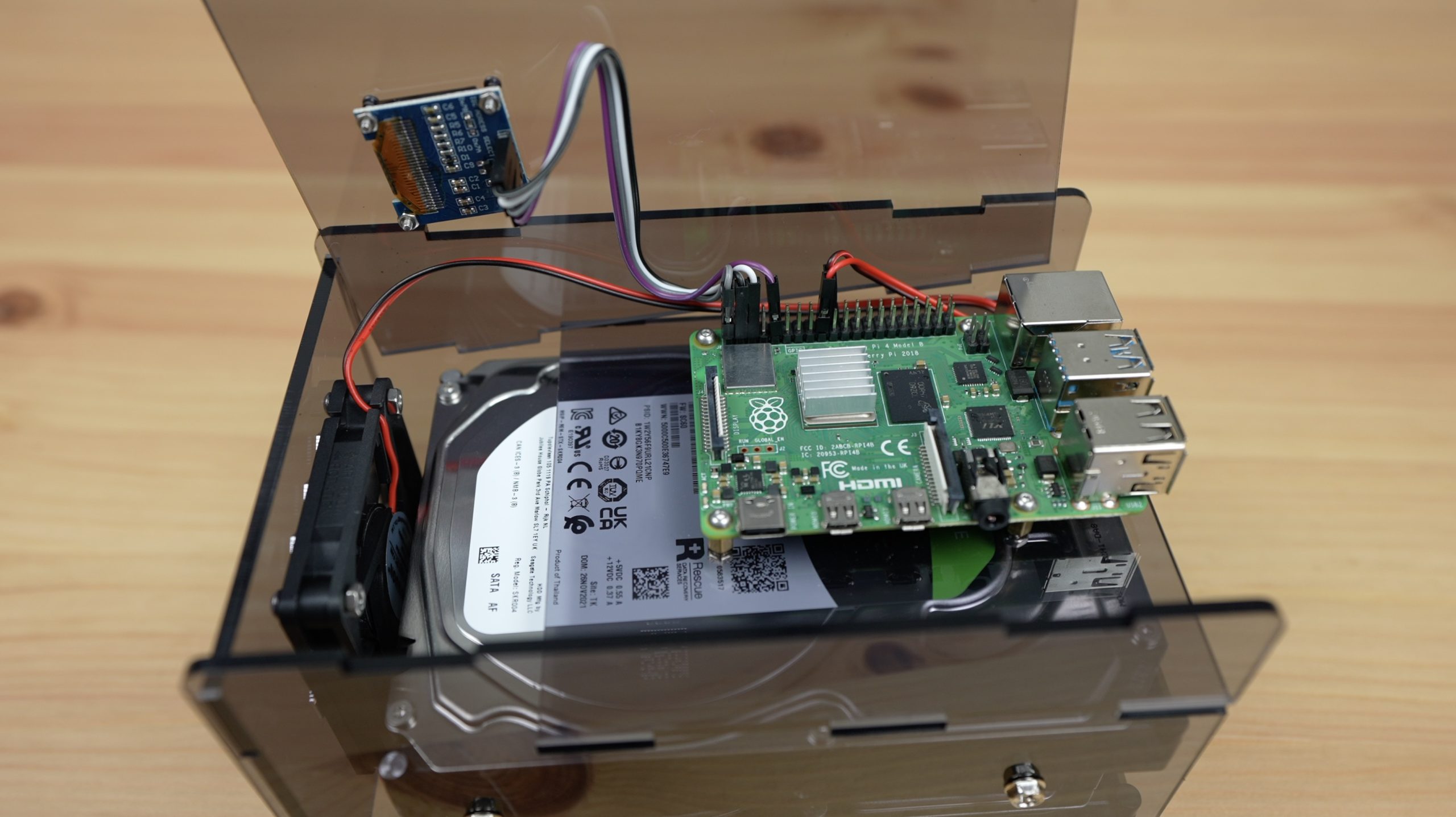
The drives hold the side panels in place using four #6-32 UNC Screws on each side (a total of 4 per drive), and these side panels then support the fan panel and Raspberry Pi panel. Make sure that you position the tabs on the fan and Pi panel within the slots in the side panels before securing the second side panel to the drives.

Lastly, we can mount the OLED display onto the top cover using four M2 x 10mm screws and M2 nuts. This top cover isn’t screwed down so that it is easily removable if we need to get to the Pi.

OLED Display Mounted On Top Cover

Before closing up the top cover, we need to connect the fan to 3.3V and GND (you can also use 5V, but I found that the fan ran quieter on 3.3V and still produced a fair amount of airflow), and connect the display to 3.3V and GND, and then Plug SCL into Pin 5 and SDA into Pin 3. If you need more help with this, take a look at my guide on connecting an OLED stats display to a Raspberry Pi.

To finish it off, we need to plug a SATA to USB adaptor into each drive and connect these to our Raspberry Pi’s USB 3.0 ports, use the splitter and 12V power adaptor to provide power to our drives and finally, plug our power adaptor into our Pi. Depending on the power supply you’re using, you might need to use a 90 degree USB C adaptor to direct the cable toward the back of the NAS.

All Drive Cables Connected

That’s the hardware part of our NAS build complete, so now we need to install and configure the software.

Installing and Setting Up Open Media Vault

To start, we need an operating system for our NAS to run on. For this, we’re going to be using Raspberry Pi OS Lite. We can flash this onto using Raspberry Pi Imager.

Choose Raspberry Pi OS Lite under alternate operating systems (OMV cannot be installed on the full desktop version, so make sure that you change to a Lite version), you can also give your Pi a new name, set up a username and password, your WiFi configuration if you’re going to be using WiFi to connect to your NAS and make sure that you enable SSH as we’re going to be setting the NAS up from another computer.

Flashing Raspberry Pi OS Lite

Insert the microSD card into your Pi and allow it to boot up. This usually takes around 5 minutes on a fresh install.

32GB Sandisk Ultra Microsd Card

Once your Pi has booted up, we can SSH into it to continue the setup. You can do this on a windows PC using a utility like Putty or from another Pi using the following command:

ssh UserName@IPAddressOrHostname

Obviously changing your username and pi’s name (hostname) to the ones set up in the imager. So for my NAS, I used:

ssh [email protected]

You’ll be prompted to enter the password for the username you just set up, then you’ll be able to enter terminal commands.

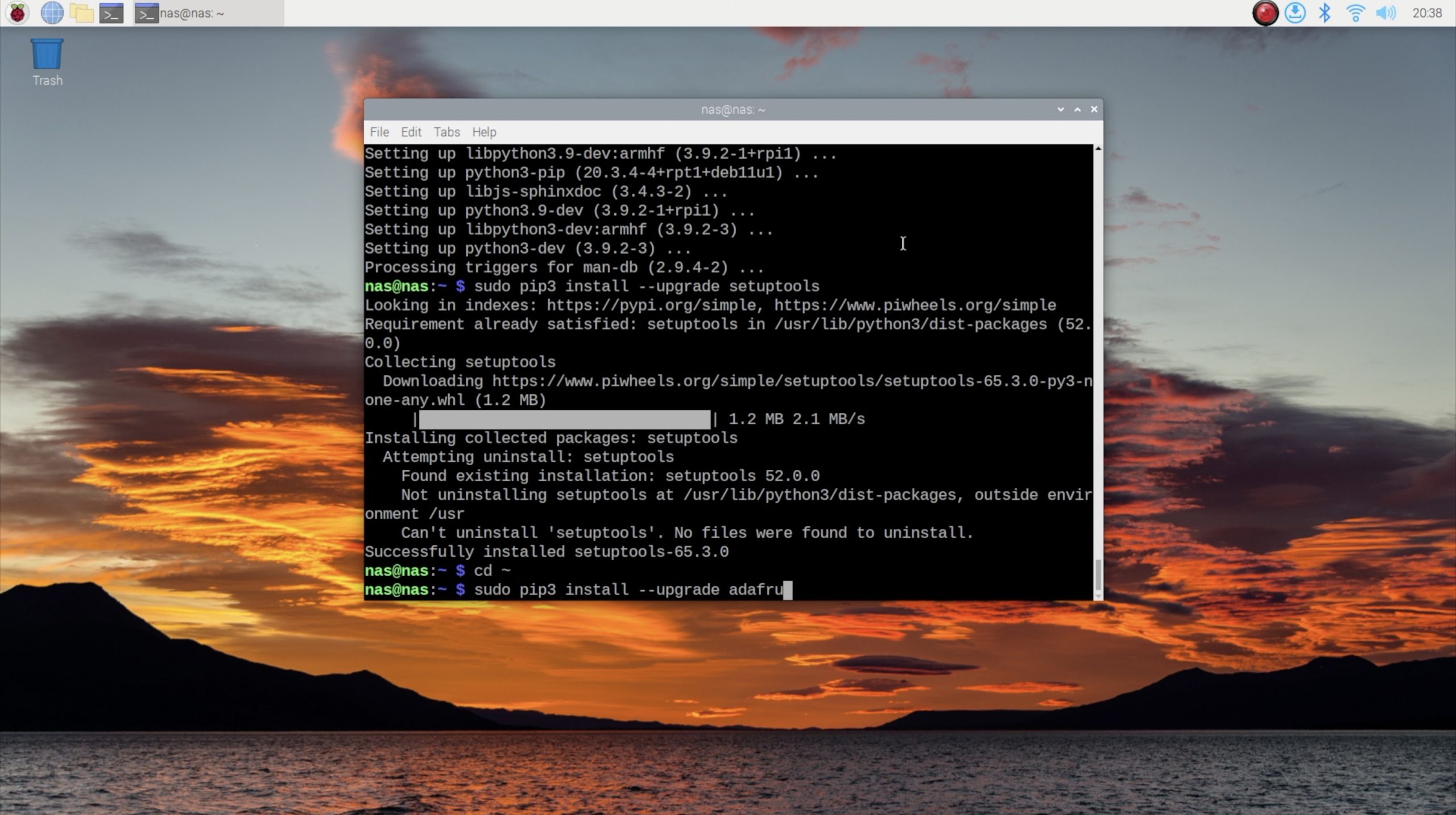
We’ll start by setting up the OLED stats display using my display script. Following the commands in this guide to set it up, starting with the updates. Each time you reboot your Pi, you’ll need to ssh into it again once booted to continue setting it up.

Next, we can move on to installing Open Media Vault or OMV. This is done with a single line:

wget -O - https://github.com/OpenMediaVault-Plugin-Developers/installScript/raw/master/install | sudo bash

This script may take up to 30 minutes to run through and will end with your Pi requiring to be rebooted.

Installing Open Media Vault

Once that is up and running, we can access our NAS through a web browser by going to the IP address shown on the OLED display. It’s also a good idea to set this up as a fixed IP address on your network as well, this will ensure that your NAS is given the same address each time it boots and will make it easier for the other computers on your network to find it. This is typically done through your router’s configuration interface but differs from brand to brand.

Log in to your NAS using OMV’s default username “admin” and password “openmediavault“.

The following instructions for the configuration of the NAS are quite high-level and assume that you’ve got some familiarity with OMV or other file-sharing packages, but should be sufficient to help you get started.

From the OMV web interface, you’ll probably be prompted to set up your dashboard. This doesn’t matter too much but just allows you to set up what information is displayed when you log in to the web interface. Choose which items you’d like to see on your dashboard and then click on save.

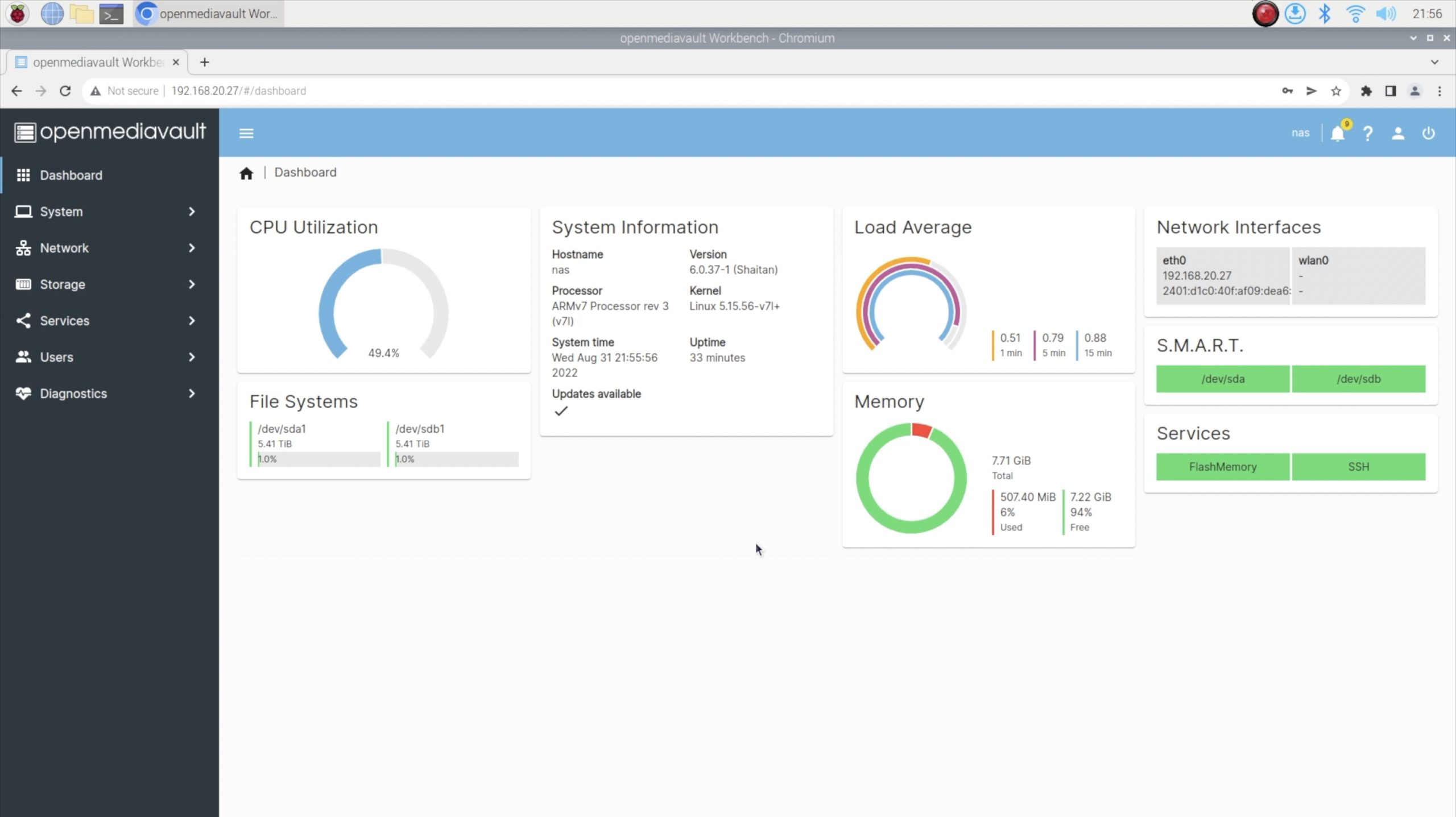
OMV Dashboard

The first thing you’ll want to do is to click on the gear in the top right and change your password to something other than the default.

Next, click on Storage in the menu on the left and then go to Disks. Both of your connected drives should show up here. If they don’t then shut the NAS down, check your connections and try again.

Drives Visible In OMV

If both of your drives show up, then click on File Systems in the menu on the left again and then click on the small plus sign to create a new file system.

Ideally, we’d want to use the two drives in a RAID 0 or RAID 1 configuration so that we’ve got a single storage volume and potentially some redundancy, but OMV and most other packages don’t support RAID across USB-connected drives, so we’ll only be able to set them up as two separate storage volumes.

RAID Configuration Options In OMV

I’ve created one volume for my documents and files and then one for media like music, photos and videos.

You’ll need to select your drive and the file system type – EXT4 is fine for most setups. You’ll then be asked to mount your new file system. You’ll notice a yellow bar at the top asking you to apply your configuration changes. You can do this as you go or all right at the end, it doesn’t really matter. I like to do it as I go through each step.

Once we have a File System, we then need to create a Share Folder, so click on that menu option on the left. Click on the small plus sign to create a shared folder, then give it a name and select the File System you’d like to create it on. Leave the other fields as their defaults.

The last thing that we need to do is activate the SMB service so that our folder is accessible over our network. We do this by going to Services, then SMB/CIFS (Server Message Block / Common Internet File System), then clicking on settings and toggling it to Enabled. The other fields can be left as defaults.

Shared Folders & Services In OMV

Then go back to SMB/CIFS and click on shares to create a share, toggle to Enabled and select the folder that you’d like to share over the network. You can also set permissions to allow Guests (users who haven’t logged in) to access the folder or require all users to log in (using their OMV username and password) to access the shared folder. Click on save, then accept the configuration changes at the top (yellow bar) and your NAS is then ready to be accessed on another computer.

It’s a good idea to set up users and roles as well, but for the purpose of this guide, the NAS is now usable on your network.

How To Access Your NAS On Your Network

The way in which you access your NAS on your network will depend on what device you’re accessing it from and what operating system it is running.

On a Mac, open up Finder then click on Go and Connect to Server. Enter the path of the network drive that you’re trying to map and then click on connect. You might be asked to enter login details, then click on Ok to mount the drive.

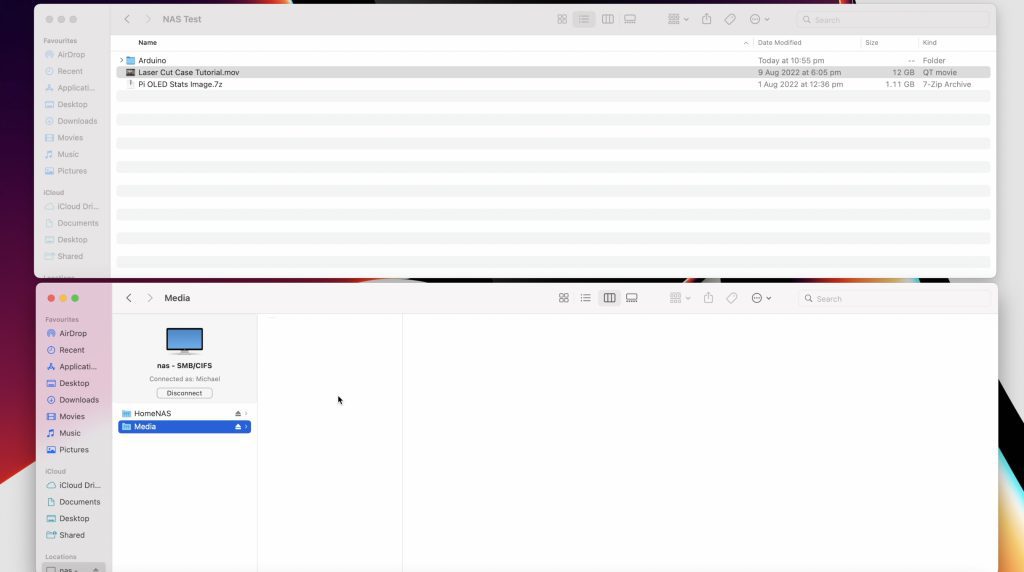
NAS Test Files To Be Copied

On Windows 10, open File Explorer, click on This PC from the left panel, then Computer from the tabs at the top and then Map Network Drive. Select an available drive letter, enter the path of the network drive that you’re trying to map (or use the Browse function) and then select Finish.

Copying Files To NAS In Windows

Let me know what you think of my Raspberry Pi NAS in the comments section below, or if there are any changes you’d like to see made to the design. Also, check out my comparison between this DIY NAS and the Asustor Drivestor 4.

I Upgraded My 3D Printed Speakers, Adding WiFi Streaming and AirPlay

I recently built a Bluetooth speaker for my workshop. It works quite well and I’ve been happy with the sound quality so far, but then Arylic reached out and asked if I’d be interested in trying one of their DIY amplifier boards, or more specifically the Up2Stream Amp V4.

Arylic sell a range of wired and wireless amps and speakers which are ready to use. They also sell the electronics separately in the form of DIY boards that allow you to build your own enclosures and speaker sets, or add streaming support to your existing setups.

Since I had designed my speaker with adaptability in mind, it would be fairly easy to swap out the amplifier I used, so I agreed to give it a try.

Here’s my video of the build, read on for the written guide:

What You Need To Build Your Own WiFi Speaker

Equipment Used

What Is The Arylic Up2Stream Amp V4?

The Arylic Up2Stream Amp V4 arrived in the mail about a week after shipping. It comes in a small plastic case along with a terminal block, screwdriver and manual.

Arylic Up2Stream Amp V4

The box it arrived in is from an older 2.0 model, the actual board is the V4 board. You can see this marked on the underside of the board later.

The biggest difference between this and the amplifier that I used previously is that this board adds WiFi to my speaker, with the ability to connect directly to online streaming providers like Spotify or Amazon Music to stream. This avoids any compression losses and any issues with the range of the speaker from the playback device. It also adds support for Apple AirPlay and you can use multiple Arylic Up2Stream boards for multiroom installations.

Arylic Up2Stream Amp V4 Listing

It does come with an increased price tag though as this board is currently being sold for $99 through Arylic’s web store.

The Up2Stream Amp has two 50W outputs at 24V when used with 4ohm drivers like the Dayton Audio drivers I used. It accepts a voltage input from 12 to 26V and can be used with 4 to 8 ohm drivers.

Unboxing The Arylic Up2Stream Amp V4

The board is jam-packed with plugs and pins to add inputs, buttons and displays, most of which are available as plug-in modules from their web store. So you can build your own custom setup. You can even add a DAC for enhanced audio quality.

Accessories For Arylic Products

At the front is a mode light to tell you what the mode or current sound source is, and an IR sensor for remote control. The remote control can also be bought separately from their web store.

Front Panel LED and IR Sensor

At the back is a power button, an RJ45 LAN Port for a wired connection, a USB port to play music from a flash drive, a micro-USB port for sound input from a computer, a 3.5mm line-in jack, speaker output terminals and a 12-26V DC power input jack.

Back Panel Ports

As mentioned previously, there are a number of ports and pins available for add-ons and these are all labelled on the underside of the board.

Underside of Up2Stream V4

Designing The New Amplifier Housing

To start off, we need to re-design the amplifier housing to hold the Arylic Up2Stream Amp between the two speakers. Because this amplifier is a bit wider, we’re also going to have to adjust the speaker handle to span a bit further, but we’ll pick up on the same screw holes so that we can use the speaker housings with either amplifier board.

Modified Speaker Housing

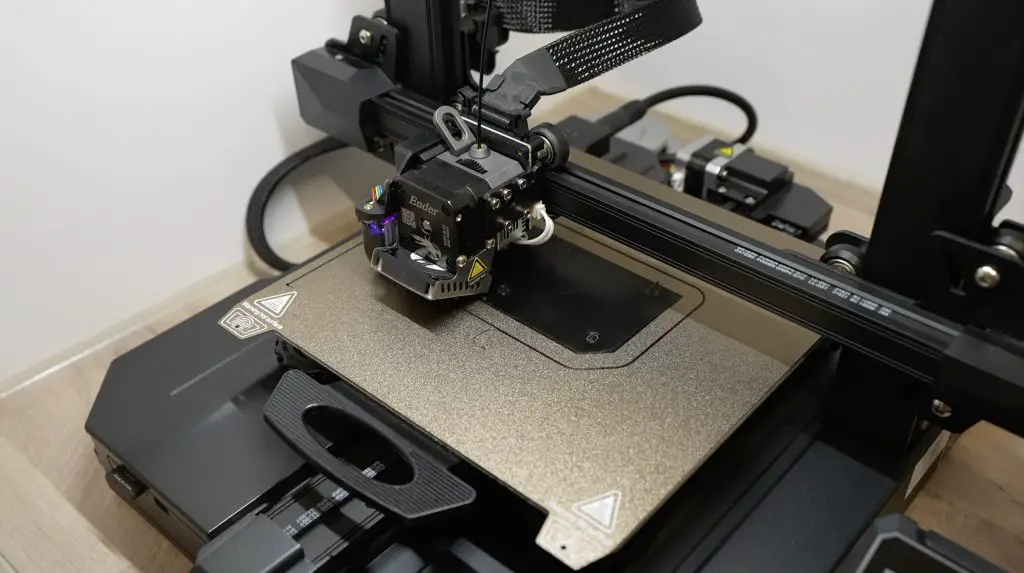
I printed the new housing and handle out on my 3D printer and laser cut a new acrylic cover for it. I also engraved some labels onto the acrylic cover for the ports on the back and the mode LED.

3D Printed and Laser Cut Components

If you’re making this speaker from scratch and not modifying the previous design, please visit the previous design page for more detailed information on making up the speaker housings and wiring the drivers.

Assembling The Arylic Amp & Speakers

Before we can assemble the components, we need to melt some M3 brass inserts into the newly printed parts for our screws to screw into. I did this on the previous build as well to improve the strength and durability of the screwed joints.

Brass Inserts For M3 Screws

These are just melted into place using a soldering iron set to a temperature higher than the 3D printing filaments melting temperature, 250-350C works well.

Melting In Brass Inserts

On the Arylic amplifier housing, you’ll need to add four inserts to the top four holes for the acrylic cover and then four inserts into the holes on the sides to mount to the speakers. The handle also needs six brass inserts as with the original design.

As with the previous design, the amplifier is mounted into the housing with some brass standoffs, although these are now M2.5 x 6mm standoffs. These just screw into the holes I’ve printed into the base of the housing and the amplifier is then held in place with an M2.5 screw into each standoff.

Brass Standoffs To Mount Amplifier

Before I screw the amp onto the standoffs though, I’m going to solder the speaker wires to the board. This is so that I don’t have to add the terminal block onto the back and have the speaker wires sticking out the back of the amp.

Removing The Old Amplifier

You’ll need to first remove the terminal block connector from the board by heating up the soldered joints either with a hot air device or your soldering iron.

With that done, we can now screw the amp into place.

We also need to stick the WiFi and Bluetooth antennas onto the sides of the amplifier housing.

Sticking On Bluetooth and WiFi Antennas

The top cover is then held in place with some M3 x 8mm button head screws.

Screwing Acrylic Cover Into Place

The handle can then also be replaced with the same M3 x 8mm button head screws, three screws on each side.

Installing Handle On Speaker Housings

We can then close up the speaker housings again by re-installing the side panels.

Installing Acrylic Covers On Speakers

That’s our speaker modification complete, so let’s turn it on and try it out.

Speaker Modification Complete

Using The Arylic Speaker & 4Stream App

I’m going to use the same 24V 3A adaptor that I used previously. It’ll also run using the 12V in-line UPS that I used previously although the battery life will likely be a bit poorer with this more power-hungry amplifier.

Once we have power to the amp, we need to download Arylic’s 4Stream App. We can then find our device and set it up on our WiF network. These steps are all guided pretty well from within the app.

Pairing The Speaker On 4Stream App

That’s it, it’s now ready to start streaming.

From the app, we can set up music streaming sources or play local music on the device. I obviously couldn’t stream music from Spotify or Amazon music for my test in the video, so I had to play a local file.

Streaming Music On Speaker

There was definitely a significant improvement in audio quality when compared to the Bluetooth amplifier.

Playing A Local File

We can now control the bass and treble settings from the app, rather than the previous physical controls.

Adjusting Treble and Bass Controls

We can also playback local files or play music through Apple music using AirPlay.

The 4Stream app by Arylic also allows you to set up device names and multi-room zones. You can even set up presets to easily access your favourite music playlists from the remote control or certain buttons, and you can set an alarm clock to start and stop playing music at a specific time.

Final Thoughts On The Arylic Up2Stream Amp V4

The Arylic Up2Stream Amp V4 has made a noticeable improvement in the audio quality of my speaker and I love that I’m now able to play music without having to keep my phone nearby.

The speaker terminals are one of the things I don’t really like on the board. If your speakers are separate from your amplifier, which is most often the case, then this arrangement works well, but I would have liked some pads next to the terminals or different terminals that could be used if you want to keep the speaker wiring internal, like with my design. It’s not a big issue, I just removed the terminal block and soldered the speaker wires to the board directly, but I feel like this should have just been an option.

I also think a nice feature for this amplifier would be to add PoE support. It would be great to have a single network cable plugged in to provide both the data connection and power to the device, which seems like it would fit in with the amp’s power requirements.

Other than those, their range of DIY boards and accessories are great for building your own custom speaker sets, or even if you’d just like to add streaming support to your current setup. Check out Arylic’s web store for some other amplifier options and to see their range of accessories.

Let me know down in the comments what you think of the Arylic Up2Stream board or if you’ve used one of their other products.

Connecting A PWM Fan To A Raspberry Pi

A month or two ago I got a 40mm RGB fan with a cooler. In addition to the usual black and red power input leads, it had a third blue lead for PWM input. This seemed like quite a nice idea, slow down the fan when the Pi doesn’t need it and I’d have a much quieter setup.

RGB Fan With PWM Control

So I plugged the lead into the nominated GPIO pin, downloaded the supplier’s script and ran it, only it didn’t do what I thought it would. The script just turned the fan on at full speed above a certain temperature (I think this was 55°C) and turned it off completely below this temperature.

Pi Fan Connected To Raspberry Pi

A bit puzzled by this odd use of the PWM control pin, I then searched for some other scripts and all of the ones I found had some variant of turning the fan on or off at a certain temperature. Some did this through a python script and some used Raspberry Pi OS’s built-in fan control setting.

Suppliers Script With 0% ot 100% On

This solution obviously has some benefits as the fan is only running when it needs to be. But it isn’t really using PWM control. In fact with the 5-6mA current draw that these fans typically have, you could probably just plug the 5V supply lead into one of the GPIO pins and turn it off directly, you don’t even need a PWM fan. I wouldn’t suggest doing this permanently as there is a higher start-up current and you’ll probably run into issues if you add multiple fans.

So in this tutorial, we’ll fix that and write a script to make proper use of our fan’s PWM input.

Here’s my video trying out the scripts and testing the fan noise, read on for the written instructions:

What You Need For This Tutorial

  • Raspberry Pi 4B (This will work on any Raspberry Pi model) – Buy Here
  • 40mm 5V Noctua PWM Fan (Preferred) – Buy Here
    • or
  • 40mm 5V RGB Fan (Not as quiet) – Buy Here
  • Jumper Leads (For Noctua Fan) – Buy Here
  • Raspberry Pi SSD Desktop Case – Buy Here

Some of the above parts are affiliate links. By purchasing products through the above links, you’ll be supporting this channel, at no additional cost to you.

Testing The 40mm 5V RGB FAN

I started out by writing my own PWM script that actually uses a varying PWM output to control the speed of the fan, not just turn it on or off. The script fetches the CPU temperature, then scales the temperature from a range of between 25 and 80 degrees and turns it into a fan speed between 0 and 100, then sets this as the PWM fan speed.

Creating My Own PWM Fan Control Script

You can download the script from my Github repository. I’ve included instructions further along on installing this script and configuring it to automatically run on startup.

I plugged the fan into 5V, GND and GPIO pin 14.

Then I hit run to try it out.

Pi Fan Running PWM Script

This is when I figured out why these scripts all just use 100% on or off as their so-called PWM control. These fans sound horrible if you actually try varying their speed. Running at any level of reduced speed, they’re way louder than they are when running at full speed, so there really is no point in reducing their speed.

I thought that this might be related to the PWM frequency. I had this initially set at 100Hz, as this is what was in the other scripts, but I tried reducing it to 50Hz, and increasing it to 120Hz. This made very little difference, it just changed the frequency of the noise that the fan produced.

Changing Fan PWM Frequency

And this wasn’t just a bad fan, I literally tested this on over 10 different fans and from different suppliers. Some were a little better or worse than others but they were all noisy to the point where it was quieter to just run the fan at full speed all the time.

RGB 40mm Pi Fans Tested

Testing The 40mm 5V Noctua Fan

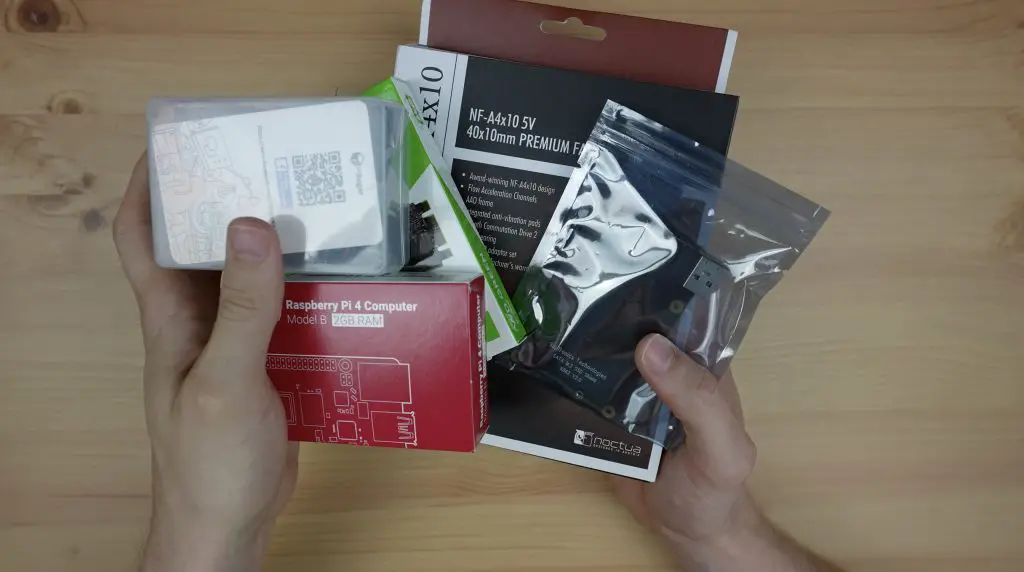
I then recalled buying a Noctua PWM fan for a build a while ago that I had never gotten around to using. This has a four-pin connector as it provides RPM feedback as well as PWM control, but we’ll just leave the RPM feedback disconnected for now.

Noctua NF-A4x10

You’ll need to replace the MOLEX connector or use some male-to-female jumpers to pick up on the pins to connect it to your Pi.

Connecting Pins To 4 Pin Connector

Like with the RGB fan, I plugged this fan into 5V, GND and GPIO pin 14 and tried out the same script.

Noctua Fan Connected To Raspberry POi

This time it ran perfectly. Noctua fans are known for being quiet, and being a small 40mm fan you can still hear some fan noise at full speed, but anything under 50% is practically silent. You can also actually slow the fan down to almost zero without any issues or weird noises coming from it – something the RGB fan struggled with.

Installing And Using The PWM Fan Control Script

When I was happy with the way in which the fan control worked, I then cleaned up the script. I actually landed up making two versions of it.

The first is the one that I used for my testing. It turns the fan on when a minimum temperature has been reached and then ramps the speed up sequentially to full speed at the Pi’s thermal throttling temperature of 80 degrees.

Proportional Temperature Script

This is fine for the Noctua fan, but if you use a fan that produces any noise or frequency hum then it gets annoying having the pitch of the sound constantly changing. So the second script addresses this.

The second script ramps up the fan speed in steps rather. So anything over 25 degrees is 25% on and this then increases in steps with each temperature band. This means that the fan operates at a fixed speed for a given temperature range, so the pitch of the sound it makes doesn’t change that often.

Stepped Temperature Script

To install the scripts from my Github repository and get them to run automatically on startup, use the following commands.

Update your Raspberry Pi’s software and reboot the Pi:

$ sudo apt-get update
$ sudo apt-get full-upgrade
$ sudo reboot

Download the fan script from Github:

$ git clone https://github.com/mklements/PWMFanControl.git
$ cd PWMFanControl
$ cp FanProportional.py ~/FanProportional.py
$ cp FanStepped.py ~/FanStepped.py

Set up crontab to run the script automatically on startup:

$ crontab -e

Add one of these lines to the end of the crontab file, depending on which script you’d like to use:

@reboot python3 /home/pi/FanProportional.py &

or

@reboot python3 /home/pi/FanStepped.py &

You can then remove the downloaded folder and reboot your Pi to test it:

$ sudo rm -rf PWMFanControl
$ sudo reboot

If a quieter fan is something you’d like to try, then I definitely recommend getting the 40mm 5V Noctua fan that you can actually PWM control without increasing the fan’s sound. It’s obviously a lot more expensive than the clear RGB ones shipped with most cases and coolers ($15 vs $5.50 at the time of writing), but it might be worth it if you value silence.

Noctua Fan In Raspberry Pi Desktop Case

I’m interested to see if anyone has had any luck with getting the clear RGB fans to run quietly under PWM control, if you have please let me know what you did in the comments section below.
A New Raspberry Pi Powered Laptop – The CrowPi-L

Today we’re going to be taking a look at the new CrowPi-L, a Raspberry Pi 4 based laptop by Elecrow. This is essentially a slimmed-down and slightly more refined version of the popular CrowPi2.

CrowPi L Raspberry Pi 4 Based Laptop

They’ve taken some of the community feedback on the CrowPi2 onboard in producing this laptop, so it’s got a number of nice upgrades. They have included an internal 5000mAh battery, which should power the laptop for up to three hours, and have simplified the way to install and remove your Raspberry Pi.

Take a look at my review video or read on for the written review:

Where To Buy A CrowPi-L

The CrowPi-L is primarily available through Elecrow’s web store. A single product page allows you to select from all of the available options for the laptop and add-ons.

First up are two versions, the basic kit which just includes the laptop and then the advanced kit which includes the laptop and the Crowtail starter kit. It’s also available with a black or a white keyboard and you can select it with an optional 4GB or 8GB Raspberry Pi. Given the price difference, I’d probably look at getting a Raspberry Pi elsewhere. You can then also select your plug type at the bottom.

CrowPi Product Page

I’d really like to see a slimmed-down version of the CrowPi-L for the Pi Compute Module 4, but until these are readily available again that’s probably not viable for them.

Alternately, it is also available through their Amazon store where you can select from the Basic Kit or the Advanced Kit that includes the Crowtail Starter Kit.

Unboxing The CrowPi-L

The CrowPi-L comes in a white branded box with a neat carry handle on the top.

CrowPi L Box

Opening up the lid, we’re greeted with the CrowPi-L.

Unboxing The CrowPi L

Alongside that is a white wireless mouse to match the laptop, some hardware to mount the Raspberry Pi within the laptop and then a little red adaptor board. They call this the Crowtail adaptor board and you basically use this in conjunction with the Crowtail starter kit to tinker with adding sensors and electronics to your Pi.

Crowtail Adaptor Board

In the compartment at the top, we’ve got a power adaptor. This has a USB type C connector on it but says it supplies 12V, so I assume it’s a USB type C power delivery adaptor although it doesn’t say that anywhere and it doesn’t have any specs for the other lower voltages, so I’m not too sure. I’d probably be cautious plugging this into a standard USB type C device.

USB C Power Adaptor

Taking a look around the CrowPi-L, we’ve got an 11.6″ IPS display with a webcam and microphone above it.

We’ve also got a nice full-size keyboard along with the power button and trackpad above it. I’m not sure why they’ve put the trackpad in this spot. It seems a bit odd to me, but at least it gives you a way to use the pointer if you can’t use the regular mouse or don’t want to carry it around. Alongside the trackpad is a GPIO pinout diagram.

CrowPi L Set Up

On the left side are the Pi’s ports, so we’ve got an Ethernet port, two USB 3 ports and one USB 2 port. The second USB 2 port on the Pi is used by the CrowPi-L presumably for the trackpad and keyboard input as well as the webcam.

Raspberry Pi Ports On CrowPi L

On the opposite side is a compact GPIO header, a 3.5mm audio port, HDMI port and the USB C power port.

GPIO Audio HDMI and Power Input Ports

The GPIO header is not the same size as the one on the Pi, it is a more compact version that the CrowTail adaptor board will plug into.

Raspberry Pi GPIO Pins

On the back, we’ve got two speakers for stereo audio and some ventilation holes in the middle.

Speakers On The Back

On the bottom, we’ve got two removable covers. The larger one that is held in place with some screws covers the battery compartment and this smaller one at the top is where we install our Pi. This is just held in place magnetically, to make removal of the Pi much easier – something that the community asked for on the CrowPi2. The adaptors are all designed for a Raspberry Pi 4, and you can use the 2GB, 4GB or 8GB variants.

Bottom Of CrowPi L

Taking a look at the battery, it looks like it’s two lithium-ion cells making up a 7.4V pack with a total capacity of 5000mAh.

Internal 5000mAh Battery

Installing The Raspberry Pi

To install our Raspberry Pi, we need to plug this adaptor board into the ports on the side, and a smaller one into the top USB port. The small adaptor connects to the larger adaptor with a short ribbon cable.

Adaptor Boards Plugged Into Raspberry Pi

We’ve then also got this really cool microSD card adaptor. This allows you to insert microSD cards into the slots on both sides and you can then use a switch on the A side to choose which card to boot from. So you can dual boot your Pi really easily without having to swap cards. I think this is a really cool feature.

MicroSD Card Adaptor With Pleflashed Card

The whole assembly then connects to the CrowPi-L through a ribbon cable.

The Pi is held in place magnetically, so we need to add some included screws to the bottom for the magnets to attach to.

Adding Screws For Magnetic Attachment

Lastly, we fit an adaptor onto the top to direct the Pi’s GPIO pins through to the port on the side of the CrowPi for the Crowtail adaptor board. This adaptor also has a fan on it to provide cooling to the CPU.

That’s our Pi installed and ready to be used. They’ve done really well with the design here, it’s one of the neatest and most functional I’ve seen. Usually, you need to connect a number of loose cables between the Pi and the laptop or tablet, so this is a really clean setup.

First Boot Of The CrowPi-L

Now that we’ve got our Raspberry Pi installed, let’s get it booted up.

CrowPi L First Boot

The first thing I noticed is that the display is really good. The details are sharp, the brightness is great and it’s got an anti-reflective coating which really helps when working in areas with bright lights or windows. A lot of these sort of products take shortcuts with the display to keep the cost down, they definitely haven’t done so with this one.

This is running Elecrow’s version of Raspberry Pi OS, so you get some nice features specific to the CrowPi-L, like the battery monitor in the bar at the top. This shows you the remaining battery capacity in quarters and indicates whether the battery is charging or being used.

Pi Panel Opens On Startup

The trackpad isn’t great. It is usable but you probably wouldn’t want to use it as your go-to device. You also can’t rest your wrist when using it or you’ll push keys on the keyboard, so it’s not comfortable to use for extended periods.

Using The Included Trackpad

Performance-wise, you’re going to get the exact same performance you’d get out of a standalone Pi. This is effectively just an all-in-one package for a Raspberry Pi, so it’s not going to give you any better or worse performance than the Pi itself would by itself.

CrowPi L Performance

Using The GPIO Pins & Crowtail Starter Kit

If you’ve looked at the pricing, you’re probably wondering why you’d spend around $350 for this laptop (once you’ve added in your Pi) when you could get a second-hand or low-end laptop with better performance for a similar price.

The biggest benefit I see is that this is a really good, ready-to-run learning platform. It comes with Pi Panel pre-installed and this guides you through a number of projects step-by-step. All of the required software, drivers and libraries are ready to run as well. You can start out with drag and drop block coding using Letscode and then move on to Python programming in Thonny once you get more comfortable.

To get the most out of this functionality, you’ll probably want to get the Crowtail starter kit or another 4-wire sensor kit so that you’ve got some basic electronic components to work with.

Crowtail Starter Kit

The Crowtail starter kit comes with 22 modules as well as some breadboard jumpers and 4pin cables. Some of the included modules are a PIR sensor, moisture sensor, buzzer, button, capacitive touch sensor etc.. The full list is available on their product page.

They also have Crowtail starter kits available for Arduino and Micro:bit, take a look at their full product range.

Included Modules With Crowtail Starter Kit

Each module has a four-pin interface that you can use an included cable to plug into the Crowtail board. So it’s all plug-and-play which is great for beginners.

Modules and Adaptor Board are Plug and Play

The kit also includes a base shield which you can use directly on your Raspberry Pi’s GPIO pins if you aren’t using the CrowPi laptop. It’s basically the same sort of adaptor as the Crowtail but to be used straight in your Raspberry Pi.

Crowtail Adaptor Boards

As a beginner, it can be quite intimidating to open up a box of electronics and have to figure out how to connect them while also learning how to code the software. This package makes the first step a lot more manageable with the modules all being plug-and-play and the software preconfigured, so you can progressively work on more and more advanced projects.

Trying Out An Included Project On The CrowPi-L

To get a feel for how the included modules and software work, let’s try one of the included projects. I’m going to go with connecting an ultrasonic sensor and display to the Pi and we’ll use Letscode to drag and drop the program.

Trying Out The Ultrasonic Program

The lesson takes you through each step, from what you need to how they work, and from the circuit connections to the actual program. They even give you an example program at the end of the lesson.

Drag and Drop Code

Now let’s see if I’ve got this right.

Ultrasonic Sensor Running

So yeah that’s all working the way it should and the whole program was pretty simple to put together by following their instructions. I didn’t have to install any additional packages, libraries or drivers to get this working.

They also have similar lessons for Python as well. These are obviously a bit more involved and are great for learning the basics of Python programming too.

Python Programming Example

Dual Boot Using The Included MicroSD Card Adaptor

When installing the Pi, we saw that we could boot from either microSD card. So I’ll show you how easy it is to switch to a different operating system.

We just shut down our Pi, open up the magnetic cover and flip the switch over to the second microSD card and turn it on again.

Flipping Dual Boot Switch To Change Boot Source

This is a really cool dual boot system that I haven’t seen implemented on a Pi before.

Booted To Ubuntu

Potential Issue With The 12V Power Adaptor

Getting back to the power adaptor. If I plug it into my USB tester it immediately comes up as being 12V, so I’m almost certain that this isn’t a power delivery adaptor and will likely fry any non-power delivery electronics you plug it into.

Power Delivery Adaptor Running At 12V

So that’s something to be cautious with. Generally, if you plug a power delivery adaptor into this tester it defaults to 5V because this meter doesn’t have to power delivery circuitry required to request a higher voltage.

Real Power Delivery Adaptor Running At 5V

This issue doesn’t affect the operation of the CrowPi laptop as they state in the manual that it can run using other USB C power delivery adaptors, but it’s something you’ll want to be cautious of if you ever use this adaptor with other USB C devices. I’d go as far as to suggest throwing it out and getting a replacement, you don’t want to forget about this issue and then use the cable to try and charge a mobile phone, action camera or even plug it into a Raspberry Pi and destroy it.

This might not be an issue – there is a chance that this adaptor does work with 5V devices and this is a non-issue, but given the results from my USB tester this is not something I’m willing to try out on my devices.

Final Thoughts On The CrowPi-L

Overall I think the CrowPi-L is a really great product. The design is well thought out and the display they’ve used is excellent.

I would have liked to have seen some internal support for an SSD, maybe through using one of the USB 3.0 ports instead of the USB 2.0 port. As I’ve mentioned earlier, the trackpad is also in an odd place, but that’s about it. I don’t really have any other complaints about it.

It feels like it is good quality, it runs well and the effort that they’ve put into making this an education platform rather than just a laptop I think makes it well worth the price tag.

Let me know what you think of the CrowPi-L in the comments section below and also let me know if there is anything you’d like to see me try out on it.

CrowPi L Raspberry Pi Laptop Computer

I Turned The New LattePanda 3 Delta Into A Rugged Cyberdeck

Today we’re going to be using the new LattePanda 3 Delta from DF Robot to build a cyberdeck that packs up into a rugged, waterproof case that you can take with you almost anywhere.

Cyberdeck In Pelican Case

The LattePand 3 Delta is a pocket-sized single board computer with a powerful processor and a great combination of IO. It can run a range of operating systems, like Windows 10 or 11 and distributions of Linux and it even has an onboard Arduino that provides 12 Analogue inputs, and 23 digital IO pins.

As the name suggests, this is the 3rd generation of LattePanda board and it features a few upgrades, the most significant being the new quad-core Intel N5105 processor running at 2.0Ghz, with a burst frequency of up to 2.9Ghz. It provides double the CPU performance of the previous LattePanda and three times the GPU performance.

Here’s my video on unboxing the LattePanda 3 Delta and building the cyberdeck, read on for the write-up:

What You Need To Build Your Own Cyberdeck

Equipment Used

  • Atomstack X20 Pro Laser Cutter – Buy Here
  • Electric Screwdriver Set – Buy Here

First Look At The LattePanda 3 Delta

The LattePanda 3 Delta comes in a black branded box with the board’s PCB and large heatsink and cooling fan as the main feature. It’s also got its specifications and contents listed on the side panels.

LattePanda 3 Delta In Box

First up when we open the box is the LattePanda in a clear plastic case. In addition to the board, this case also includes a quick start guide and a small packet with the Bluetooth and WiFi antennas.

LattePanda 3 Delta Unboxing

Beneath it are two power cables for different outlets (American and European), a set of nylon standoffs to mount it on and then the power adaptor.

Included With The LattePanda 3 Delta

The power adaptor is a branded 45W USB-C adaptor that supports power delivery up to 20V at 2.25A, so there is plenty of power for the LattePanda to work with. I like that the adaptor has a removable cable so you can replace it to suit your country’s power outlets. Or if it gets damaged.

LattePanda 3 Power Adaptor With Power Delivery

In addition to the upgraded CPU, the LattePanda 3 Delta also has 8GB of LPDDR4 RAM, 64GB of eMMC storage, dual-band WiFi 6 and Bluetooth 5.2.

First Look At The LattePanda 3 Delta

On the bottom of the board, we’ve got an M.2 B-Key port for a mobile network module or SATA SSD and an M.2 M-Key port for an add-on graphics card or NVME SSD. There’s also a sim and microSD card slot.

M.2 Ports On Bottom

There are three ways to hook it up to a display, you can use the obvious HDMI port on the side or the eDP connectors on the bottom or drive a display through the USB type C port that’s also used for power. So you’ve got support for dual 4K monitors through the HDMI and USB C ports.

Underside of LattePanda 3 Delta

There are three USB 3 ports on the side, one USB3.2 Gen 2 port (on the left) that supports data transfer up to 10Gb/s and two USB3.2 Gen 1 ports (on the right).

USB Ports on the Side

On the opposite side is the USB type C port for power input, a 3.5mm audio jack, a gigabit Ethernet port and the HDMI port.

Ports on the Top

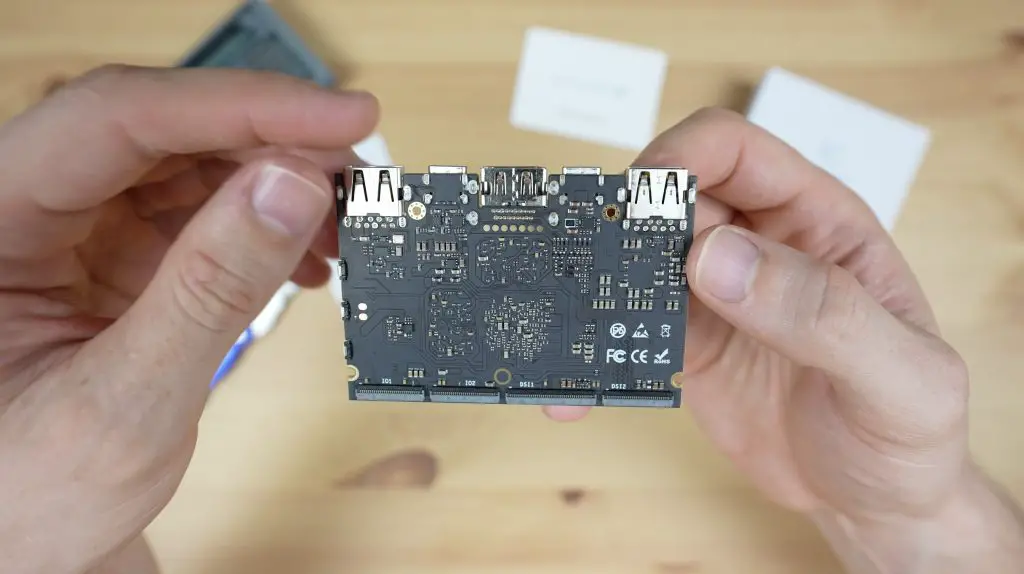
My favourite feature of the LattePanda 3 Delta is the onboard Arduino which gives you a lot of options for IO for your electronics projects. These pins along with a range of other interfacing pins are broken out on headers on either side of the cooling fan. The board has been designed with makers in mind, so it’s also got some additional features like a watchdog timer that’ll reboot your system if it detects that it is no longer responding or has crashed.

Booting It Up For The First Time

Now let’s install the antennas and get it booted up. The Bluetooth and WiFi antennas are physically identical and need to be installed on the pins alongside the small silver Intel adaptor on the bottom of the board.

Installing The Antennas on the LattePanda

The LattePanda 3 Delta comes with Windows 10 pre-installed but it’s easy to set up to dual boot a Linux OS as well. You can also upgrade the Windows 10 install to Windows 11 if you’d like.

First Boot To Windows 10

Another nice feature of the LattePanda is that it can be powered via USB C or through the 12V JST PH2.0 4 Pin connector next to it. Their documentation also says that you can switch between the two while powered without interruption, which is pretty cool. The board will automatically switch to the supply that provides the highest voltage.

The onboard fan is impressively quiet. It’s PWM controlled so it ramps up when the CPU is loaded, but with low-intensity tasks, you can barely hear it.

Fan Noise Is Impressively Low

Turning The LattePanda 3 Delta Into A Cyberdeck

Since the LattePanda 3 Delta is aimed at being a powerful mobile computer, I thought it would be great to turn it into a cyberdeck. So I’m going to do that by installing it in a Pelican case along with an HD touch display, a fold-up keyboard and a low-profile mouse.

Cyberdeck Components To Be Used

As the brains of the cyberdeck, I wanted the LattePanda to be visible, rather than hidden behind the display or keyboard. I also want to provide a path for adequate airflow and I want to be able to access the IO pins for hooking up sensors and other external devices if I need them.

LattePanda Should Be Visible On Cyberdeck

I want to maintain the Pelican case’s waterproof design, so I don’t want to drill holes in the sides for cables or ports. I’m going to rather reroute the ports on the board to ports on the main deck to plug into.

Making Up The Custom Components

I sketched up some parts to hold all of the components in Inkscape, these consist of the bottom deck with a holder for the LattePanda and divisions for the keyboard and mouse, and then the top deck to hold the display.

Design of Components in Inkscape

I then laser-cut the components from a sheet of 3mm mdf. You’ll need a sheet of about 400mm x 400mm to cut all of the components from. I laser cut the acrylic cover from some 3mm clear acrylic, 2mm acrylic will also work.

I glued the pieces together using some PVA wood glue, clamping them together while the glue dried. I first glued the port frames and magnet holder into place, then the edges of the keyboard and mouse holder and then finally glued the support box together.

Once the glue was dry, I gave the parts a coat of general purpose primer and then a few coats of satin black spray paint. I allowed the parts to dry for a few hours in the sun before moving on to assembling the cyberdeck.

Spraying Components With Black Spray Paint

Installing The Components In The Case

Now we can start putting the Cyberdeck together. I’m going to start by installing the display in the top holder.

To hold the display in place, I’m going to use some M3 x 12mm button head screws and nuts. I pushed a screw through the front panel and held it in place with a nut on the back. I then used a second nut as a spacer before the display and then held the display in place with another nut. I did this so that I could accurately control the depth of the display behind the front panel/frame so that it was flush.

Installing Button Head Screws For Display

We need two cables for the display panel, one HDMI cable for the display input and one micro-USB cable for power and the touch input.

Installing the HD Touch Display

These can be fed through the cutout at the bottom which will then run into the bottom of the case where the LattePanda is.

To mount the LattePanda, I’m going to use some 6mm high M3 nylon standoffs. I’m not using the ones that came with the LattePanda as I want to mount it close to the base board so that there is more room underneath the compartment for cables.

LattePanda 3 Delta Installed In Holder

I bought a couple of extension cables so that I can reroute the ports to the surface of the cyberdeck rather than having to reach the sides of the LattePanda to plug cables in. These press into the cutouts in the MDF so that the front of the port is flush with the deck surface. The press fit is quite tight so that they’re doing most of the support work for the port.

Pressing Cables Into Port Cutouts

We can then use a bit of hot glue on the back as an extra measure to hold them in place.

Gluing The Cables Into Their Holders

I cabled tied the extension leads together to neaten up the wiring and to make it easier to install into the base of the pelican case.

Cable Management Behind LattePanda

Now get them installed in our Pelican case.

The display panel fits into the top and we can then secure it with some hot glue. I tried to put the glue behind the panel as far as possible so that it’s less visible.

Installing Display Into Cyberdeck

I fed the HDMI and USB cables through to the LattePanda and again cable tied these to some of the existing cables to hold them in place. We can then glue the bottom into place in the Pelican case as well.

Installing Base Into Cyberdeck

To finish it off, let’s add the clear acrylic cover over the board. This has a cutout for the fan and I’m going to install four magnets in the corners to hold it in place on four magnets on the MDF panel. I’ve held all of these magnets in place with some UV glue.

That’s it, our Cyberdeck is now complete and ready to use.

Cyberdeck Completed

Final Thoughts

The onboard Arduino allows you to hook up sensors, servos and displays directly to the IO pins, so it’s great for tinkering with electronics or deploying as a project solution. By adding some of DF Robots hats to the Arduino pins, you can easily hook up grove sensors, I2C displays and even use industrial communication protocols like RS232 or RS485.

Plugging In Cables For First Boot

The touch display is a little small to work with comfortably, but it’s a nice addition if you’re working in an area where the mouse is not practical to use.

Using Touch Display To Interact With Lattepanda

I’ve hooked up the USB3.2 Gen 2 port to the top panel, so we’ve got a port that is perfect for use with high-speed devices, something like an SSD or a high-speed network adaptor would be ideal.

Plugging Drive into USB 3.2 Gen 2 Port

For additional IO you can also use a power delivery adaptor like this on the USB C port. This one adds an SD card reader, two more USB ports and an HDMI port while still allowing you to power the LattePanda through the same USB C port.

USB C Adaptor To Provide Additional IO

Overall I think the new LattePanda 3 Delta is an awesome little single-board computer. It has enough power to be used as a standalone computing device and, with the addition of the onboard Arduino, it’s perfect for makers to use for their electronics projects.

Let me know what you think of the new LattePanda Delta 3 in the comments section below. Also, let me know what you think of my cyberdeck and if there is anything you’d add or do differently.
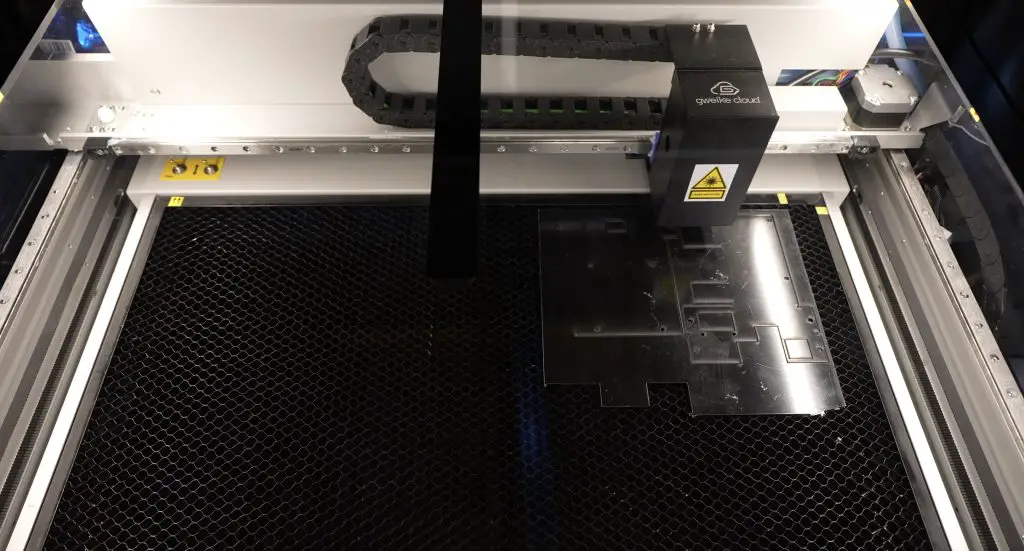
How To Design A Pi Case For Laser Cutting – In Depth Tutorial

The last couple of times I’ve done a project involving a laser-cut Pi case, people have asked me to put together an in-depth tutorial on how to design them. So I’ve prepared this tutorial using an open-sourced software package called Inkscape to do just that.

Inkscape is a free vector-based graphics editor that is available for Windows, Mac and Linux, so you can even run it on your Raspberry Pi. If you don’t have it installed already, visit their downloads page to download it for your device.

This tutorial is going to focus mainly on the design of the case, so I’m not going to go into much detail on how to use the basic functions of Inkscape. There are loads of guides and tutorials for this already, so it’ll be good to be somewhat familiar with the package to start.

Once you’ve got Inkscape installed on your device, grab your Raspberry Pi and a vernier or ruler to take measurements from it and you’re ready to start.

Design The Case In Inkscape

Cutting The Case Components Out

With the case design completed, let’s get the case components cut out and see how it looks.

I’m going to cut these on the Atomstack X20 Pro, this is a fantastic machine for cutting plywood and MDF sheets. The 20W diode is much faster than the 5W and 10W diodes and the air assist keeps the cuts really clean. I use LaserGRBL to control my diode laser machines as it’s easy to use and free.

Atomstack X20 Pro

I cut these components out using a speed of 250mm/min and the laser power at 90%.

Laser Cutting Plywood Ply Case Design

With the components cut out, we can then glue them together. I usually use PVA wood glue and either clamp or tape the components together for an hour or two while the glue dries.

Laser Cut Case Components

Next install the Pi into the case using some 6mm brass standoffs, M2.5 nuts and M2.5 button head screws. You can also add a 40mm fan to the lid and secure it using the included M3 screws and nuts.

It looks like our Pi fits into our case perfectly.

Laser Cut Raspberry Pi Case Design

So now you know how to design and build your own Pi cases using free software and a diode or CO2 laser cutter.

I hope you’ve found this tutorial helpful, please let me know if you’ve got any design questions on the tutorial in the comments section below and let me know if there are any other tutorials you’re interested in.

3D Printed Bluetooth Transmission Line Speaker

A couple of weeks ago I was inspired by an old LTT video to try to make my own portable Bluetooth speaker. They used some 2″ full-range Dayton Audio drivers and 1″ tweeters along with an inexpensive Bluetooth amplifier module. They set themselves a goal of beating the $180 price tag that the LG XBOOM Go PL7 carried at the time. They came up with a pretty cool design, it had some quirks but overall performed reasonably well.

LTT Bluetooth Speaker Build

They did however blow out quite spectacularly on the budget when they included their labour costs. So I thought I’d try out this type of project and see what I could come up with.

Here’s my video of the build:

What You Need For This Project

Equipment Used

Selecting The Bluetooth Speaker Components

I started off by scouring the internet for hardware and some design inspiration. I settled on using some 2.5″ full-range Dayton Audio PC68-4 drivers, which would be powered by a ZK-502T Bluetooth amplifier.

I felt that the slightly larger 2.5″ drivers would provide a bit more bass than the 2″ ones they used and I didn’t want to go down the path of including tweeters and a sub as this would increase the size and cost quite substantially and would require a larger amplifier and crossovers.

I also liked that the amplifier had bass and treble controls so there was some opportunity to make adjustments to the sound to suit the final speaker enclosure design.

Fosi ZK-502T Bluetooth amplifier

I primarily use a Bluetooth speaker in a fixed spot in my workshop or in my home office, so I don’t need it to be battery powered although this would be nice for portability. Rather than include a battery pack within the speaker design, I opted for a 12V inline UPS that I could use to provide portable power to the speaker if I needed it.

12V Inline UPS Module

Designing The Bluetooth Speaker

With the hardware selected, it was time to start working on the speaker enclosure design. I start off looking at different ported speaker designs but was eventually drawn to the visual appeal and experimental nature of transmission line speakers. This was a rabbit hole if ever I’ve seen one! It turns out that the best way to design a transmission line speaker is to follow a pretty rough design guideline and then do a lot of trial and error adjustments until it sounds good.

To start you need to use your speaker’s free air resonant frequency to calculate the corresponding wavelength. My speaker’s resonant frequency is 117.1 Hz, so the corresponding wavelength is 2.929m. We then need to divide this by four to get our recommended transmission line length, which for our speaker is 732mm.

Basic Design of a Transmission Line Speaker

So we essentially now need to design a transmission line housing with a 732mm path from the back of the speaker to the front of the housing. The easiest way to do this is by creating a labyrinth, or a path that crosses back and fourth a number of times, within the enclosure.

So I sat down with Fusion360 and spent a few hours designing an enclosure to house the drivers, provide a 732mm path from the back of the Bluetooth speaker to the front again and house the amplifier. This is the design that I came up with.

Fusion360 Design of 3D Printable Transmission Line Speaker

The main internal parts of the speaker, the amplifier housing and the handle would be 3D printed and I’d then use some laser-cut acrylic panels as covers to box them up.

Transmission Line Speaker Behind

Download the Design to Print your Own Bluetooth Speaker.

I liked this layout for a couple of reasons, it leaves the transmission line design visible, which I thought looked quite cool, but it also allows the sides to be opened up to add or remove damping material to get it to sound right. Another neat feature of this design is that the amplifier can be swapped out for a different model, or the speaker size can be changed without having to redesign the whole enclosure again. You can just redesign the new amplifier housing to drop in or scale the speaker enclosure to fit the new driver size.

Making Up The Speaker Components

Next came a lot of 3D printing. Each housing took around 36 hours to 3D print. I printed them using black PLA with a 20% infill.

3D Printing on Creality Ender 3 S1 Pro

We also had a couple of cold nights at the same time, causing the prints to fail by lifting at the corners, but I eventually got the four components made up.

I then laser-cut the side panels from 3mm clear acrylic. 3mm acrylic sheets are one of the most popular thicknesses, so you could easily replace the sides with other transparent or opaque colours or even just use matt black sheets if you don’t want them to stand out.

Assembling The Bluetooth Speaker

Now that we’ve got all of our components made up, we can now start assembling the speaker.

Preparing The 3D Printed Parts

If you’ve printed your parts the way I have then you shouldn’t have any supports to remove, but we do need to add some brass inserts to the parts before assembling them. I did this because I figured I’d be taking the side panels off quite often while experimenting with the sound and they need to be held in place quite tightly so that they don’t vibrate, which I didn’t think plain 3D printed holes would handle.

Brass Inserts To Hold Covers In Place

There are a number of 4mm holes around the four prints that we need to melt brass inserts into.

All of the 4mm holes in the amplifier housing – four at the top for the cover and two on each side to connect to the speaker housings (8 in total).

And then almost all of the 4mm holes in each speaker housing – four for the driver, seven on each side for the clear covers and four on the bottom for the feet (22 in total for each housing). The holes that don’t require inserts are the two on the inside bracket that connects to the amplifier housing and the three on the top for the handle – these are all clearance holes for the screws to pass through.

Lastly, all of the holes on the handle – three on each side to connected to the speaker housings (6 in total).

The inserts are just melted into place using a soldering iron that’s set above the melting temperature of the 3D printing filament. Make sure that you get them set as close to square with the print as possible, if they go in skew then try to straighten them up a bit before removing the soldering iron tip.

Completed 3D Printed Parts with Inserts

Preparing The Amplifier Housing

Next, let’s install our amplifier in its housing using the included standoffs. Look for the smallest M2 standoffs included with the amplifier, the ones with a short male thread on one side and a female thread on the other.

These need to be screwed into the four holes in the base of the amplifier housing. Use a small pair of needle nose pliers to do this. Alternately you can melt them into place with the soldering iron as well, but be really careful to set the correct height and ensure that they are perfectly upright.

Amplifier Housing With Brass Standoffs Installed

Add the amplifier to the housing by feeding the potentiometer stems through the three holes on the front first, then gently pressing the back into position.

Secure the amplifier to the brass standoffs with the included black M2 screws.

Securing Amplifier Into Housing

It looks like my initial hole measurements were off for these, so my front standoffs don’t align with the holes, but the two at the back hold it in place well enough. I have corrected this in the model, so your prints should all align correctly.

Lastly, you’ll need to stick the included heatsink onto the chip in the centre of the board – the one with the shiny surface.

Adding Amplifier Heatsink

Assemble The Remaining Components

Before installing the drivers in the housing, I’m going to solder some two-core wire onto them to run to the amplifier. You can use speaker wire for this or any spare wire you have at home of a suitable gauge. I used some wire from an old printer power cable.

Soldering Wire Onto Audio Drivers

Push the drivers into the holes in the front of the housing, feeding the wire through first. The drivers are then held in place with some M3 x 8mm screws. I used black screws for all of the ones that are visible on the outside to keep with the general aesthetic.

The inner acrylic side panels can then be installed on the housings, again using some more M3 x 8mm screws.

Securing Side Panels Onto Speaker Housings

We can then mount the amplifier housing between the two speaker housings. For this, I’m going to use slightly longer M3 x 12mm screws.

There are two holes in each speaker housing that feed through the 3D printed bracket at the bottom and through the clear acrylic cover to screw into the threaded insert in the amplifier housing.

Attaching Speakers To Amplifier Housing

Then we can install the handle on top of the speaker to provide some additional support and a place to carry the speaker around. This is a bit tricky to get the screws into from inside the housing, but you can get a hex key into the space to tighten them. I used M3 x 8mm screws for these as well.

Now let’s hook our speaker drivers up to the speaker outputs on the amplifier. These just hook up to positive and negative in the same way they’re connected to each driver. I tinned the ends of the speaker wires first before I screwed them into the terminals.

Attaching Speaker Wiring To Amplifier

Finally, we can close up the remaining covers with some more M3 x 8mm screws.

I really like how the engraving has come out on the amplifier’s cover.

Engraved Amplifier Cover

I’m going to throw some soft fabric into the bottom of the speaker enclosures as a starting point. You need to do some experimentation with different size materials to try and eliminate as much of the higher frequencies as possible, so this will probably need to be revisited a number of times but should be fine as a starting point.

To finish it off, I’m going to screw 8 rubber feet onto it so that it doesn’t vibrate on the surface that it’s placed on. These are also held in place with some M3 x 8mm screws – don’t screw these on too tightly or you risk bursting through the inside of the speaker housing.

Adding Rubber Feet To Bottom Of Speaker

Then we can press the silver knobs onto the amplifier’s controls.

Pressing Silver Knobs Onto Amplifier Controls

And that’s our speaker complete. All that’s left to do is to plug it in and try it out.

Testing Our New 3D Printed Bluetooth Speaker

I have to admit that I didn’t have particularly high hopes for this project when I started it, I’ve got very little experience with audio projects and everything I’ve done here is based on a few hours of googling, but I’m actually quite impressed with the final product. There is definitely some room for improvement and I’ll play around with different materials within the speaker as well, but I’m really happy with this as a starting point.

Turning The Bluetooth Speaker On

Have a listen to the audio at the end of my build video to hear it for yourself. It’s obviously difficult to convey the sound well through a video and audio recording, but you can get some idea of what it sounds like and what its limitations are.

To make the Bluetooth speaker portable, we just need to put the UPS in line with the power supply for an hour or so to charge and we can then unplug the power cable to use it.

Bluetooth Speaker Running Off Battery Pack

The controls on the amplifier are great for tuning it to the type of music you like to listen to and your listening preference.

Final Thoughts on the Bluetooth Speaker

Taking a look at the cost, the drivers and amplifier cost me $50, the UPS was another $35 for portability and the filament, screws, inserts, feet and acrylic cost me about another $25, so all up the hardware cost of this speaker was about $110. In terms of time, it took me about 30 hours in total to research, design and build the speaker, so even at minimum wage here in Australia, that is about another $450.

So if you’ve got time on your hands, $110 for the hardware is quite good value for money, but you can definitely get something a lot better than what I’ve built if you value your time.

I’m really happy with the finished product and I’m looking forward to using it in my workshop.

Transmission Line Bluetooth Speaker

Let me know what you think of my Bluetooth speaker design in the comments section below.
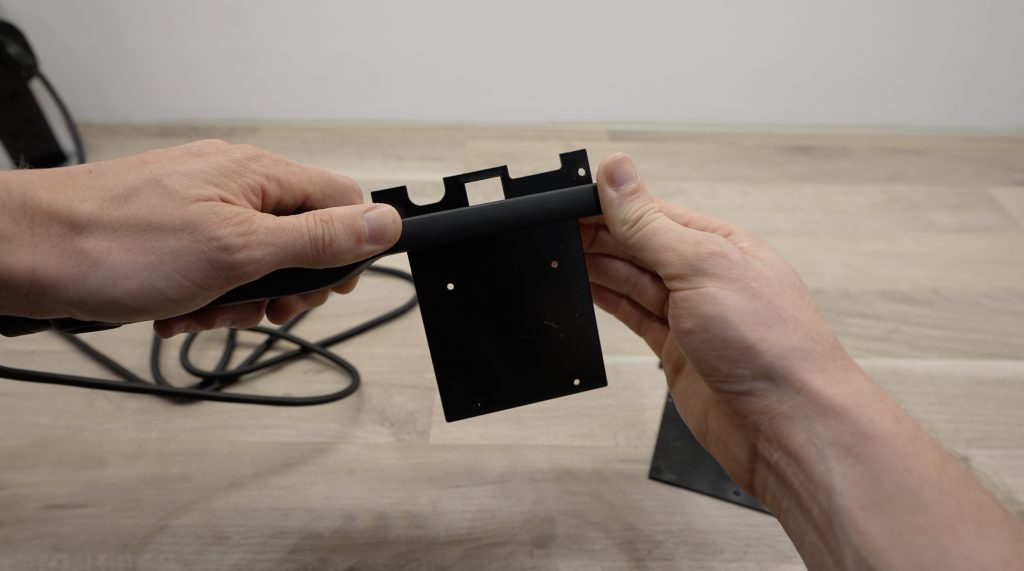
I feel like I might look at adding a bass driver to the void in the middle of the speaker as an optional add-on in future, so let me know if you’ve got any suggestions for that.

Pi Shortage – Are These Worthwhile Raspberry Pi Alternatives?

If you’ve tried to buy a Raspberry Pi in the past year or so then you’ve probably experienced some level of difficulty in getting one. They’re out of stock almost everywhere, there are generally purchasing limits on any that are in stock, and they’re often being sold at way over their recommended retail price.

Raspberry Pi Locator Out Of Stock

A big part of what makes Raspberry Pi boards so attractive is that they’ve got really good documentation and support and a large online community, so you’ll easily find projects, tutorials and answers to any issues you run into along the way.

With that said, there are a large number of single-board computers available that offer similar features to Raspberry Pi’s, so I thought it would be interesting to get a few and try them out.

Alternative Single Board Computers

The Raspberry Pi 4B is one of the most popular choices for current projects, so I looked for some alternatives that offered similar specs to the 4B and were similarly priced.

I’m not looking for high-end hardware, this isn’t meant to be a benchmarking exercise, my intention is for these boards to be suitable Raspberry Pi alternatives for tinkering with electronics as well as basic web browsing and video playback. There might be more powerful or newer versions of these boards available for an increased price, but I looked at the ones that I felt provided the best value for money for use as a tinkering board. I also had a brief look at the documentation available for each before buying them to make sure that they had some basic guidelines for getting started.

Here’s my video trying out the three boards, read on for the write-up:

The Raspberry Pi Alternatives That I Choose

After sifting through pages and pages of options, these are the three boards that I settled on.

Three Alternative SBCs To Raspberry Pi

First up is the Orange Pi 3 LTS:

Orange Pi 3 LTS

This board runs an Allwinner H6 Arm Cortex A53 quad-core processor running at 1.8Ghz. It’s got 2GB of DDR3 RAM and 8GB of onboard eMMC storage. It was the cheapest of the three boards at $35.

Allwinner H6 CPU

The second is the Khadas VIM2:

Khadas VIM2 SBC

This board has got an 8-core Amlogic A53 SoC running at 1.5Ghz. It’s got 2GB of DDR4 RAM and 16GB of onboard eMMC storage. This was the midrange of the three at $80.

AMlogic S912 SOC

The third, and the most expensive of the three, is the ASUS Tinkerboard 2S:

Tinker Board 2S

This board runs a 6-core Rockchip RK3399 SoC consisting of a dual-core Arm Cortex A72 processor running at 2.0Ghz and a quad-core Arm Cortex A53 processor running at 1.5Ghz. It’s got 2GB of DDR 4 RAM and 16GB of onboard eMMC storage.

Rockchip RK3399 SOC

This board cost the most, at $120, which is a little more than the recommended retail price of even the 8GB Pi 4B, but it looked like it had the most comprehensive documentation. It also looked like it was the most suited for electronics projects using the GPIO pins rather than being used as a media player or home server like the other two.

This was just my first impression when looking through the documentation of all three boards, so that’s why we’re going to try them out.

For each board, we’ll take a closer look at the hardware features, then have a quick look at the operating system that it is shipped with, then try to get an LED to blink using the GPIO pins (which may require a different operating system to be loaded) and finally we’ll look at the power consumption of each.

Trying Out The Orange Pi 3

Hardware

Let’s start by taking a look at the hardware around the board, we’ve got onboard WiFi and Bluetooth, an IR receiver, 26 PIN GPIO headers, USB 2.0 and USB 3.0 ports, a 3.5mm audio jack, microphone, full-size HDMI port, power button, USB C power input and then a microSD card slot on the bottom.

The GPIO pins roughly mimic pins 1 to 26 on a Raspberry Pi, so you may be able to use some shields and adaptors that only use a few pins on the Pi, but my experience is that these are few and far between. It’s more likely that this layout will just be useful if you’re already familiar with the Pis GPIO layout.

Orange Pi 3 LTS Pinout

Operating System It Ships With

The Orange Pi 3 ships out with an Android operating system image pre-installed on its eMMC storage, so let’s take a look at that first. This and the Khadas board look like they’re intended to be used primarily as media player devices – so this preloaded operating system is probably quite useful for that.

Orange Pi Andoird Operating System

The Android operating system that it ships with is quite bare, you’ll need to install your own apps on it to get any meaningful use out of it. The pre-installed apps will just let you play content from a connected drive. So we can’t really do much without installing additional software.

Using The Orange Pi Debian Distribution

If we want to use the Orange Pi for an electronics project that makes use of the GPIO pins, we’re going to need to install Debian. They provide a Debian operating system image on their website, so let’s get that installed on a microSD card and boot it up.

Orange Pi 3 Downloads

For all three boards, I’m going to use Win32 Disk Imager to flash the operating image to a 32 Sandisk Ultra microSD card.

With Debian booted up, let’s try playing some video content to see how the hardware handles it. I’m going to try to play Big Buck Bunny on Youtube on each device to see how they perform with video streaming.

Orange Pi 3 Playing BBB Low Resolution

The Orange Pi 3 seemed to handle this first pass reasonably well, with only a few missed frames. It looked like the display was running on a low resolution though, and heading over to the settings confirmed this. So I switched over to 1080p and tried again.

Orange Pi 3 Playing BBB 1080P

This time the Orange Pi really struggled with the playback. It was noticeably stuttering and dropping frames, and it required some buffering during playback, which is not a limitation caused by my network. So you probably wouldn’t want to use this Pi running Debian for media playback, even at only 1080P.

Turning An LED On and Off Using the GPIO Pins

As far as documentation goes, the user manual covers a pretty broad range of tests to check the basic functionality of almost all of the features of the Orange Pi. It’s written reasonably well too. They have a section in the manual on using the GPIO pins, with one in particular for the control of the digital pins, so I’m going to work through that.

Orange Pi Documentation On Using GPIO Pins

I ran an update, and then downloaded and compiled the wiringPi library, following the instructions.

Orange Pi 3 Installing Github Repository

Now let’s connect our LED to the GPIO pins. I first checked that the LED works when connected to a GND and 5V pin, so I knew that the pins are powered. I then connected it to Pin 7 to test.

Orange Pi 3 LED Connected

Using the GPIO readall command we can see what GPIO number corresponds to physical Pin 7 in the table, so that’s GPIO118 and wPi pin 2.

If we set it as an output pin we now see that the mode has changed to out.

Orange Pi 3 Turning LED On Using Terminal Command

Then we can try setting the pin high or low using a 0 or 1, and our LED is now turning on and off.

Orange Pi LED Turned On Using Terminal Command

There are also a few examples in the wiringPi library to help you get started with coding your own projects that use the GPIO pins.

So it was relatively easy to get an LED to turn on or off using the GPIO pins. They also have a dedicated forum with a reasonably active community. Most questions or issues raised get useful answers in a day or two and they cover a range of topics, from questions for beginners to troubleshooting assistance, help with drivers and even topics on various distributions – all of which seem to still be active.

Orange Pi Community And Forum

Power Consumption

Taking a look at the power consumption on the Orange Pi 3, it uses around 2.3W at idle and around 4.3W when the CPU is loaded. So it’s quite an efficient board – that’s less than 1A draw at 5V, even when loaded.

Orange Pi 3 Power Consumption

So for $35, I’d be happy with the hardware and the community around the Orange Pi 3.

Trying Out the Khadas VIM2

Hardware

Taking a look at the hardware around the board, we’ve got two USB 2.0 ports (so no USB 3.0), we’ve got Gigabit Ethernet, a USB C power input, a PWM fan connector, reset, function and power buttons, an RTC header, a 40-pin GPIO header, infrared receiver, and onboard dual-band WiFi and Bluetooth. On the underside, we’ve also got a microSD card slot and then a range of pads for power input, MCU and GPIO connections which are great if you plan to use this board on an expansion module or PCB.

The VIM2 has a 40-pin GPIO header like the Raspberry Pi, but the pinout is quite different so you won’t be able to use any Raspberry Pi shields or hats on the VIM2 directly.

Operating System It Ships With

Like the Orange Pi, the VIM2 also ships out with an Android operating system pre-installed. This version of Android has a few useful apps pre-installed, including the Chrome browser, so we can actually try streaming Big Buck Bunny directly.

Khadas VIM2 Android Operating System

The VIM2 actually did a much better job at streaming this than the Orange Pi. This wasn’t really a fair test and is probably also partially to do with the ligher weight operating system. To keep it fair, we’ll also see how well it runs on the Linux-based operating system. This is also running at 4K, so it’s at a much better resolution than the Orange Pi could handle as well.

Khadas VIM2 Playing BBB On Android OS

Using The Khadas Ubuntu Distribution

To be able to use the GPIO pins to turn an LED on and off, we’re going to need to install a Linux image. They provide a list of up-to-date operating system images in their product documentation, so it’s as easy as heading over to the page for your board and downloading the image that you’d like to use.

Khadas VIM2 Linux Images

With the operating system image loaded onto our microSD card, we now need to boot the VIM2 from the microSD card rather than from the built-in eMMC storage. To do this, we need to enter Keys mode using the side buttons.

Khadas VIM2 Boot In Keys Mode

Now that we’ve got it booted, let’s try streaming on it. Before playing the video, I also checked to make sure that it is running at 1080P like the Orange Pi was.

Khadas VIM2 Operating System

The VIM2 also struggles a bit with streaming HD content on the Linux-based operating system, with similar issues to the Orange Pi. So if you’re going to be using your board as a media player then you’re probably much better off running an operating system that’s designed for use as a media centre like Android, Plex or Kodi.

Khadas VIM2 Playing BBB On Linux OS

Turning An LED On and Off Using the GPIO Pins

Next, let’s try to plug the LED into the GPIO pins and turn it on. I’m going to plug it into GPIO pin 7. I again tested that the LED works on the 5V and GND pins first, so I knew that the GPIO pins have power at least.

Khadas VIM2 LED Connected

In the documentation, they tell you that the Amlogic chips include two GPIO ranges and they tell you to first figure out the range base for your GPIO pins using a terminal command. You can also get the pin index listed for each GPIO pin by entering another command. They provide this for both of the GPIO ranges but then there is no information on which range is used for what or how these are actually mapped to the GPIO pins.

I found it easier to just get the information using the GPIO readall function as I did previously on the Orange Pi.

If we look at the table, physical pin 7 corresponds to GPIO number 471.

Khadas VIM2 LED GPIO Pin Selected

So now let’s run through the process to set that pin up as an output pin and turn on the LED.

If we set it as an output in the terminal and then check its status in the table, we’ve actually now got pin 6 set as an output.

Khadas VIM2 Wrong Pin Set As Output

If we cycle it on and off, the LED is not doing anything and from the table it looked like it was cycling pin 6 on and off. So I moved the LED to pin 6 and tried again.

Now we can turn our led on and off.

Khadas VIM2 LED Working After Switching Pin

This obviously seems like a trivial issue, but small issues like this can leave you wasting hours fault finding. If I hadn’t used the GPIO readall table, I probably wouldn’t have found this issue and I would have spent time going back through the setup and control steps trying to figure out what I had done wrong.

Other Issues With The VIM2

In using the VIM2, I also found two issues that I found to be somewhat annoying.

The first is that the USB C power port is too close to the HDMI port, so unless you’re using a low-profile cable, you land up having to wedge the two in alongside each other. You can usually just force them into place but this puts unnecessary stress on the ports and you may land up eventually damaging the smaller USB C port.

Khadas VIM2 Ports Too Close Together

The second was that the buttons on the side were really easy to push when trying to remove cables. When trying to plug or unplug a device or cable in (made worse by the above issue), I’d often press one of the buttons by mistake when holding the board. This then caused it to turn off or reset, which was frustrating. You could simply be trying to plug in a mouse dongle and you press the reset button by mistake and then have to wait for it to boot up again (and risk corrupting the software).

Khadas also have fairly good documentation. There is a lot to work with, and they have a good spread of information on the hardware and software side, but there are some obvious omissions. They also have an online community and forum which has open topics, but the community doesn’t seem to be as active as the Orange Pi community.

Khadas Online Community

Power Consumption

Taking a look at the power consumption on the Khadas VIM2, it uses around 1.5W to 2.0W at idle and about 3.5W when loaded. So it’s a bit more efficient than the Orange Pi, and I already thought that that was quite good.

Khadas VIM2 Power Consumption

For $80, I’d say that this is probably a bit better than the Orange Pi for a media centre, but it looks like it’s got a smaller online community and a bit less support. So you’d probably want to stick with the Orange Pi for electronics projects and tinkering.

Trying Out the Tinker Board 2S

Hardware

The Tinker Board 2S, although the most expensive of the three, is probably the closest to a Raspberry Pi. It’s got the same footprint and general layout as a Pi 3b, with a couple of standout differences.

It’s got three USB 3.2 Gen 1 type A ports and a single USB 3.2 Gen 1 type C port, with the ability to drive an external display hooked up to the USB type C port – so you can run dual displays although it’s only got a single HDMI port. It’s also got dual-band WiFi and Bluetooth, a DSI and CSI connector, a 5.5mm DC barrel jack for power, 2 pin fan connector, a RTC battery connector and 40 pin GPIO header, and on the back is a microSD card slot.

Another appealing feature of the Tinker Board 2S is that the GPIO layout is exactly the same as the Raspberry Pi. Since they share the same footprint as well, you should be able to use some of the same shields and hats on the Tinker Board.

Tinker Board GPIO Pinout

Operating System It Ships With

I couldn’t find any information on whether the Tinker Board’s onboard eMMC storage was preloaded with a particular operating system, so let’s just plug it in and see whether it boots.

Tinker Board 2S Connected

After a few minutes, nothing had come up. So I guess it isn’t preloaded with any operating system, which is a bit strange for a device with onboard storage. But we can now move on to loading the operating system onto the Tinker Board.

Using Tinker OS

Tinker OS is ASUS’ distribution of Debian that is designed to be run on the Tinker Board series. There are two options to boot the Tinker Board from, the first is to load the operating system image onto a microSD card and the second is to load the image onto the built-in eMMC storage. I’m going to load it onto the microSD card as that’s what I’ve done for the others.

Tinker Board OS Debian for Tinker Board 2S

From their website, you can download a prepared operating system image. Make sure that you select the correct version for your Tinker Board version. They also have some other operating system options available.

Now that we’ve got TinkerOS installed and booted up, let’s check that the monitor resolution is set to 1080P and then try streaming Big Buck Bunny.

Tinker Board 2S Playing BBB

Of the three boards, this one did the best by far when playing video content on Linux. There were a couple of stutters initially, but the image quality is great and the stream is actually quite usable.

Turning An LED On and Off Using the GPIO Pins

Unfortunately, the good start was short-lived. It was at this stage that I realised that the documentation was quite in-depth on the hardware side but was almost nonexistent for the software.

After about an hour of reading through forums and pages online, I found a Github repository that was linked to by a few sources as being the best way to start using the GPIO pins.

Tinker Board 2S Github Repository

I tried this out a bunch of times in different ways and even on different versions of TinkerOS and just ran into errors – some of which said that this library could only be used on ASUS boards.

Tinker OS Errors Installing Library

I eventually found an answer to another person’s question on a semi-unrelated topic saying that you don’t need to do the install that I had been trying to do as the libraries were already integrated into the later versions of TinkerOS.

This then lead me to the next issue. All of the examples that I could find use GPIO pin numbers like 0, 10 or 12, but don’t ever say what physical pins these correspond to. These numbers aren’t mapped out on any diagram or in a table that I could find.

I eventually figured out that pin 12 referred to in the scripts, mapped to CPU pin 146, which corresponds to physical pin 32, which was labelled GPIO4C2. Not exactly a logical sequence to follow.
Tinker Board 2S GPIO Pin Figured Out

So after a few more hours than I’d like to admit, I eventually got a basic python script like this to turn the LED on pin 32 on and off.
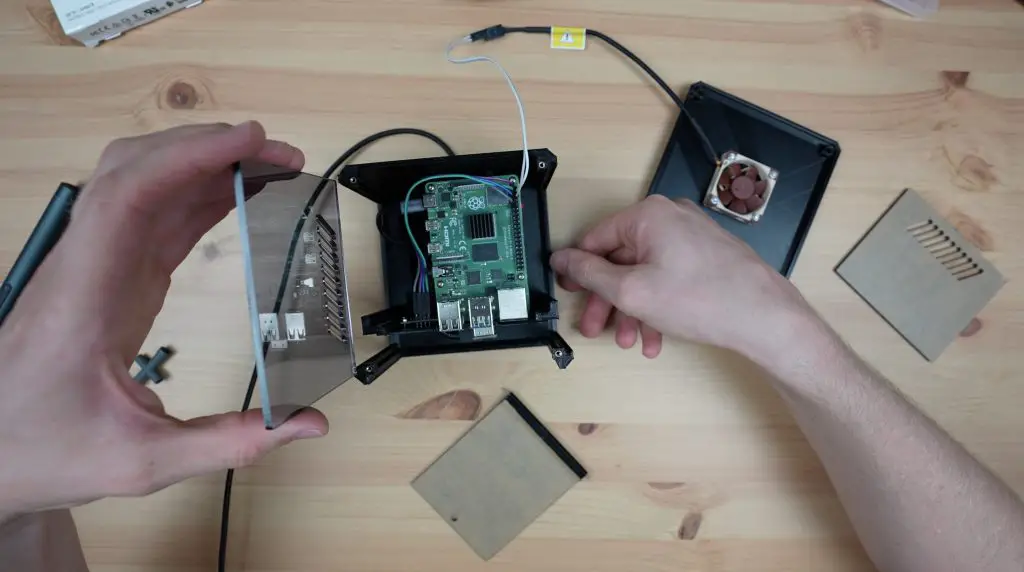
Power Consumption

In the documentation, they claim that the Tinker Board uses 3.65W at idle and 8.18W under load. My testing produced a result of about 3.3W at idle and 8.5W under load, so this lined up with their documentation reasonably well.
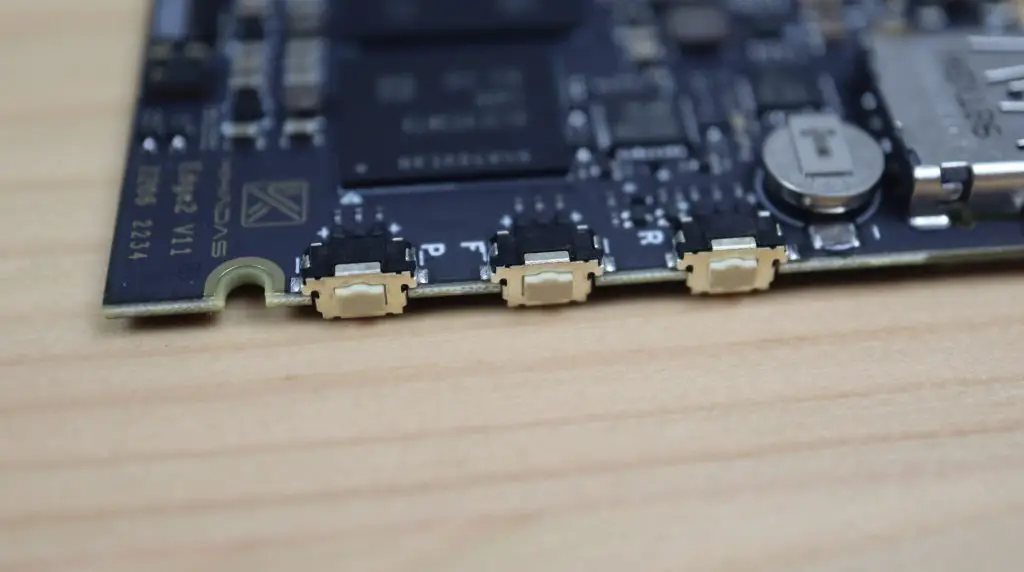
Tinker Board 2S Power Consumption

The Tinker Board can also handle substantially more than this through power delivery to connected USB devices and that’s why they’ve opted for the 12 to 18V barrel jack rather than a USB C power input like the other two boards.

If low power consumption is your goal then this board is obviously not as low as the previous two that we’ve tested, but it is a lot more powerful.

Final Thoughts On The Tested Pi Alternatives

So, the question I set out to answer, was whether any of these boards could be considered to be worthwhile Raspberry Pi alternatives, and would I recommend any of them?

Raspberry Pi SBC Alternatives

I’d say that the Orange Pi 3 is a worthwhile option for tinkering with basic electronics projects using the GPIO pins. At $35, it’s fairly cheap and you get a good set of features for your money with a reasonably online community to help you out. You’ll probably manage with basic digital inputs and outputs just fine, but I suspect you’ll get stuck with any components that require established libraries or communication protocols to communicate with the Pi.

The Khadas VIM 2 is probably the best option of the three for a media server or TV box. It’s Android software package seemed to handle video playback well, so I suspect it’ll do a good job with other media-related operating systems as well. You’ll probably run into issues if you try to use it for electronics projects and there isn’t a whole lot of online support for it.

The Tinker Board looked like a great option on paper, and the hardware was quite impressive too, but the documentation relating to the software leaves a lot to be desired. I wasted numerous hours going down the wrong paths on the basics and while this might not happen to everyone, you’ll likely eventually stumble upon a component or piece of software that you’d like to get working and aren’t able to. At $120, I just couldn’t justify buying this over even an overpriced Pi 3 or Pi 4.

Would I Recommend Any Of The Boards

Through using these three boards, I was reminded why Raspberry Pi’s are so sought after. Their documentation, software support and online community extend far beyond the actual hardware. Anyone can copy the hardware, but it’s so much harder to build a community around the product like they’ve done around the Raspberry Pi.

I literally spent about 18 hours working on these three boards to get the basic functions I’ve shown here to work, and nothing I’ve shown is anything remotely complex. It wouldn’t have taken me more than ten minutes to get a brand new Raspberry Pi running on a new operating system installation and blinking an LED. I would have also been be able to find numerous tutorials to explain how to do so.

So if you value your time and you expect to build projects that require more complex electronics or software to function then I’d definitely still recommend spending the extra money or buying an older Raspberry Pi. You’re not just buying the hardware, you’re buying into a community, and you’ll save yourself a lot of frustration in doing so.