Home Blog Page 8

Rock 5 Model B, A Powerful New SBC From Radxa

Today we’re going to be taking a look at the Rock 5 Model B, a new SBC or single-board computer from Radxa which is based on the powerful Rockchip RK3588 SOC.

The Rock 5B is available in three RAM configurations, 4GB, 8GB and 16GB. I’ve ordered the 8GB to try out and I’ve also got their passive heat sink to cool it with.

Radxa Rock 5 Model B In Box

Here’s my video review of the board which shows some of the video playback capabilities, read on for the written review:

Where To Buy The Radxa Rock 5 Model B

The board is available through a number of online retailers, I got this one from ALLNET the 4GB board is $129, the 8GB $149 and the 16GB board is $189.

Unboxing & First Look At The Rock 5 Model B

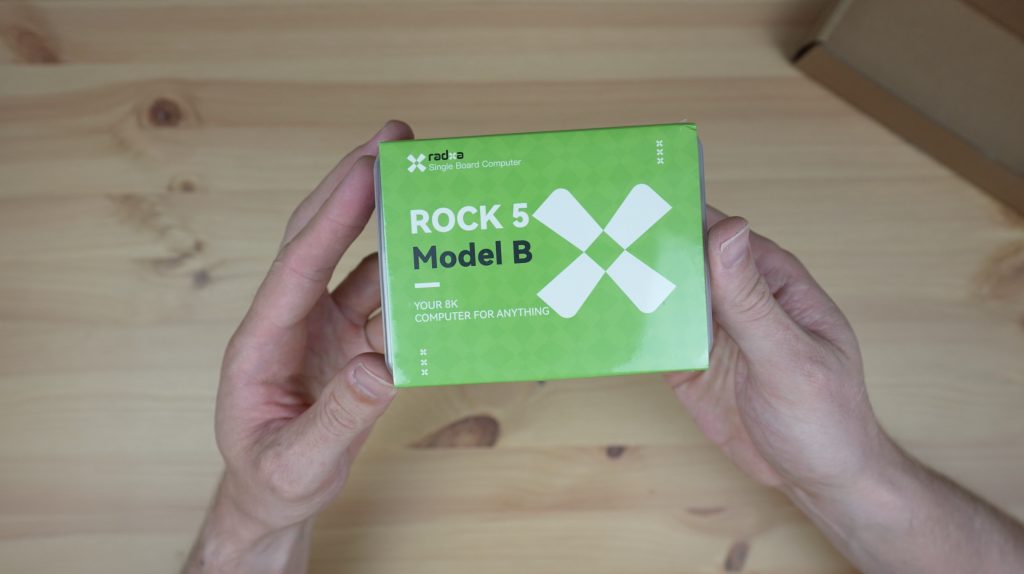
The Rock 5 Model B comes in a shrink-wrapped plastic case with a branded sleeve.

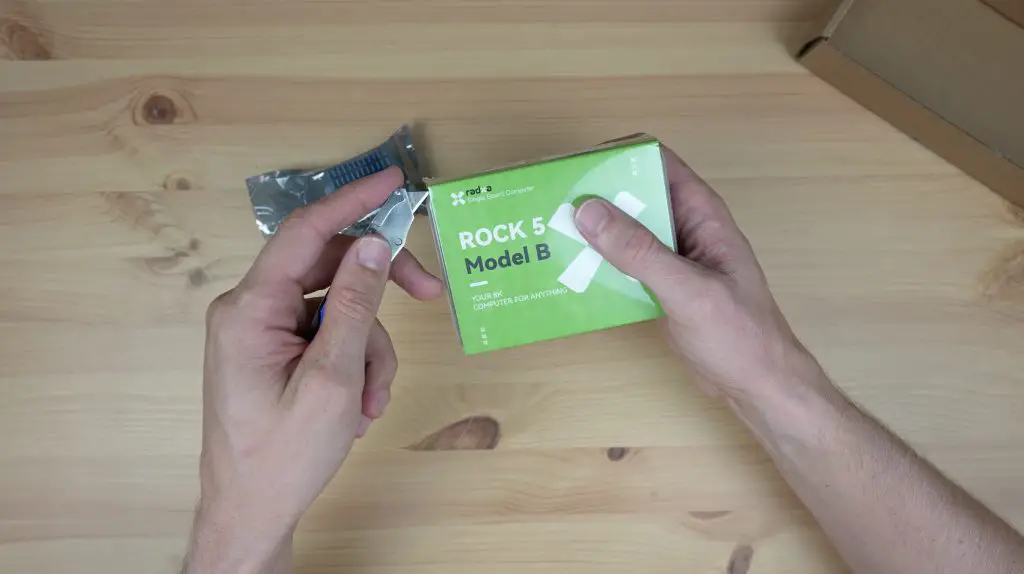
Radxa Rock 5 Model B Unboxing

Inside the case is the Rock 5 Model B in an antistatic bag which is placed on a card spacer to hold it in place and protect the pins and ports on the bottom. There are no cables, adaptors or accessories included with the board.

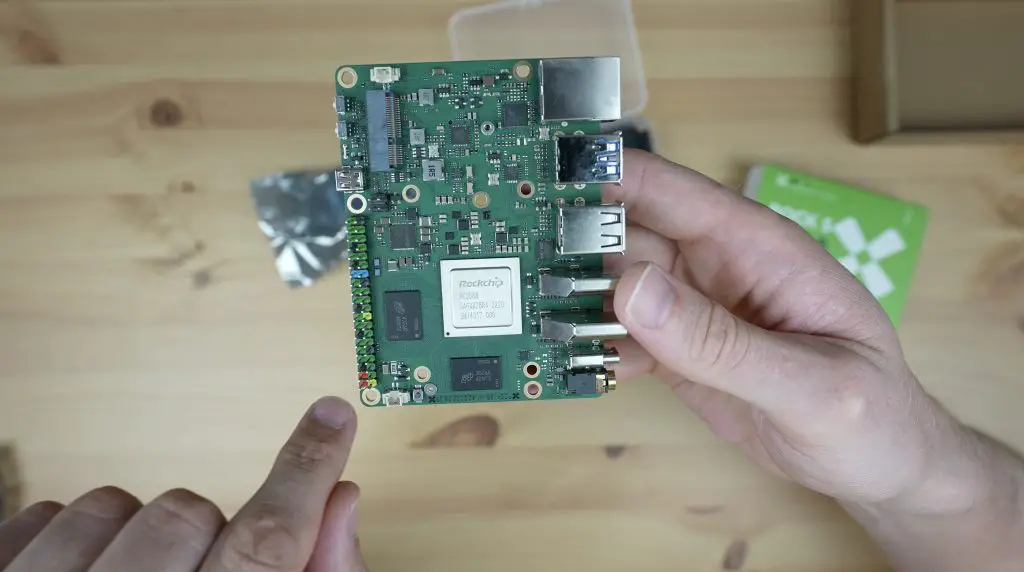
Radxa Rock 5 Model B First Look

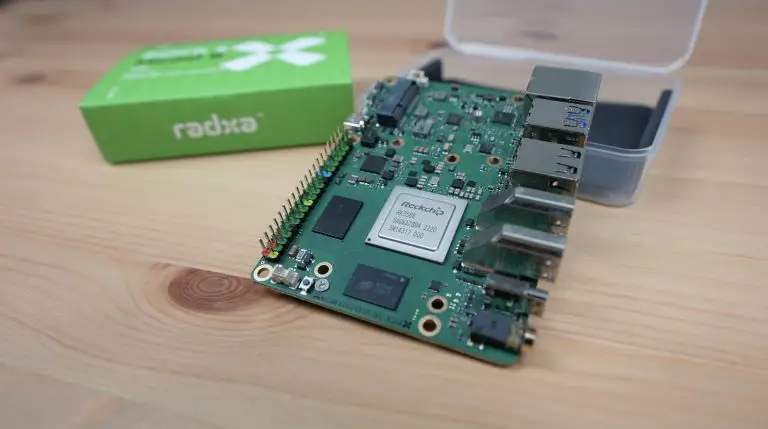
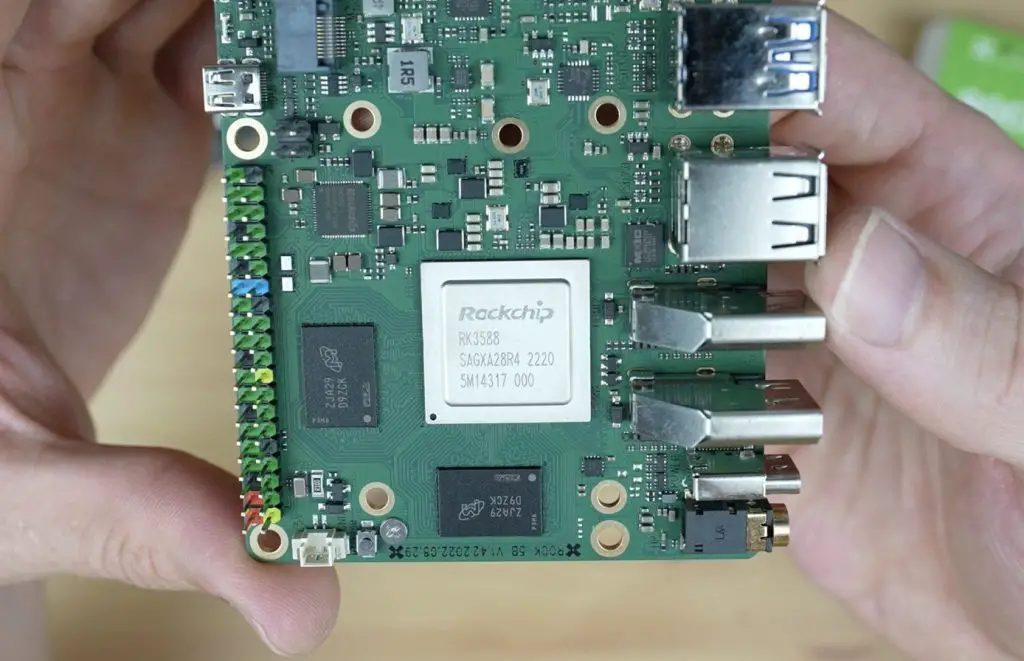
The RK3588 SOC has a 64-bit, 8-core processor which is made up of a quad-core A76 processor running at 2.4Ghz and a quad-core A55 processor running at a lower 1.8Ghz. The integrated Mali G610MP4 GPU can do up to 8K at 60 frames per second.

RK3588 Chip on Rock 5 Model B

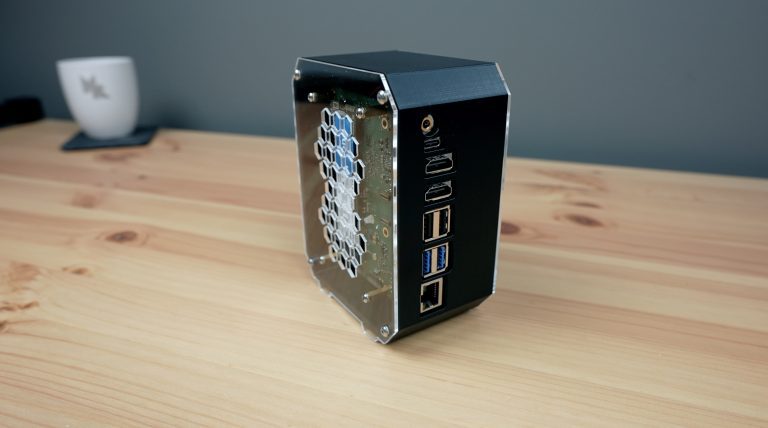
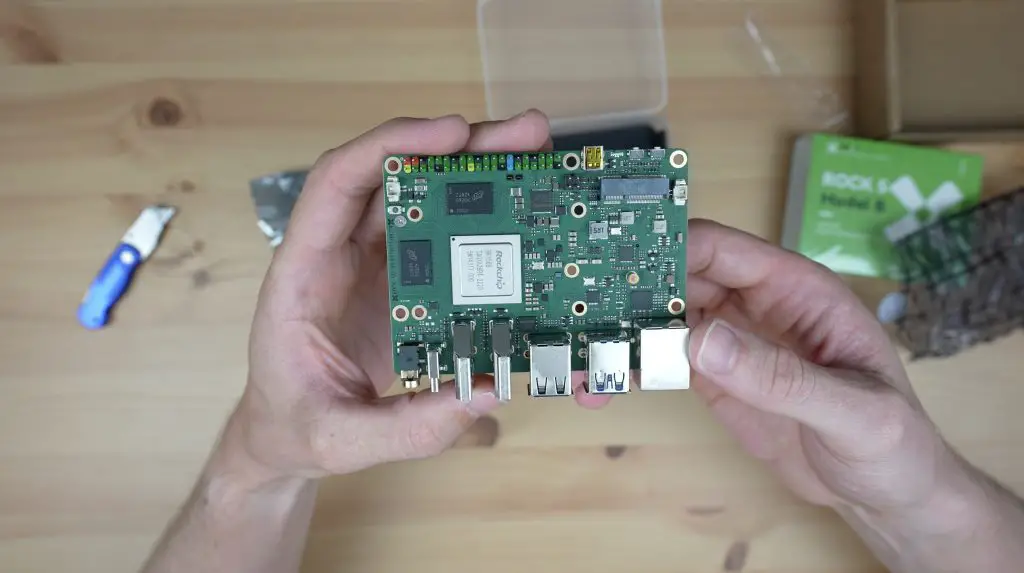
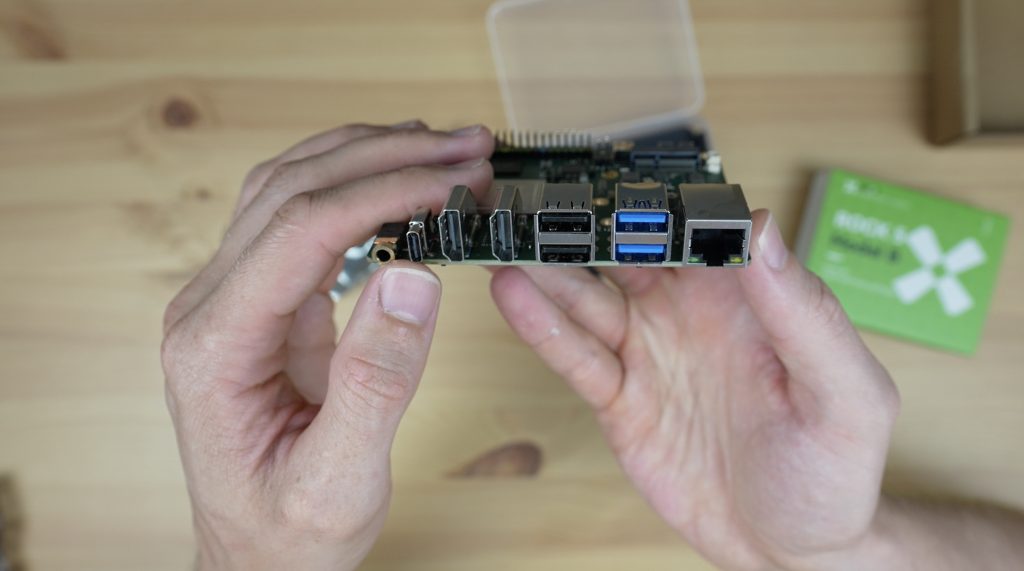
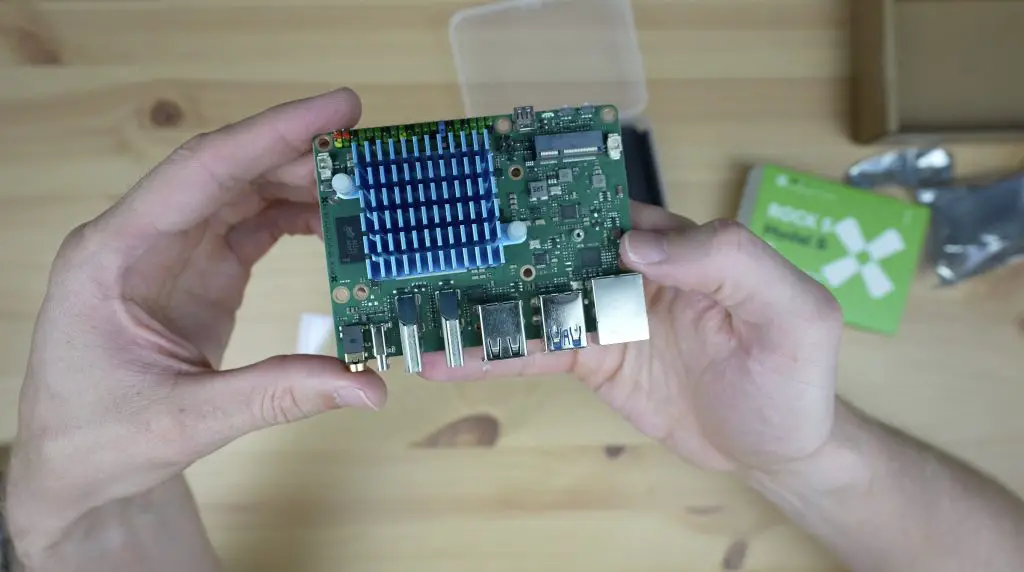
Taking a look at the primary ports along the side of the board, we’ve got a 3.5mm audio jack, a single USB C power input, that also supports power delivery. I’m not quite sure what its power delivery capabilities are as the product page had 9V and 12V listed while their wiki says 12V, 15V and 20V.

Primary Ports on Rock 5 Model B

Next to that are 2 full-size HDMI ports, 2 USB 2.0 ports, 2 USB 3.0 ports and then a 2.5G Ethernet port, which is really great to see on an SBC. They also mention that it has POE support, what I presume this means is that they’ve brought out these pins which look to be in the same position relative to the GPIO pins as on a Raspberry Pi, so you can probably use a POE hat made for a Pi to power this – but I don’t have any POE hats to try out.

POE Pins On Rock 5 Model B

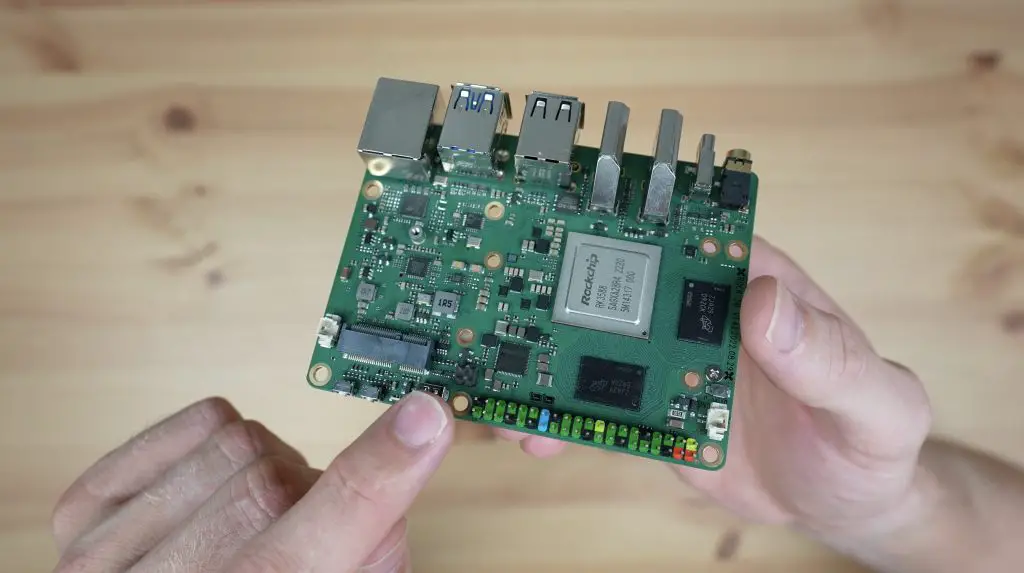
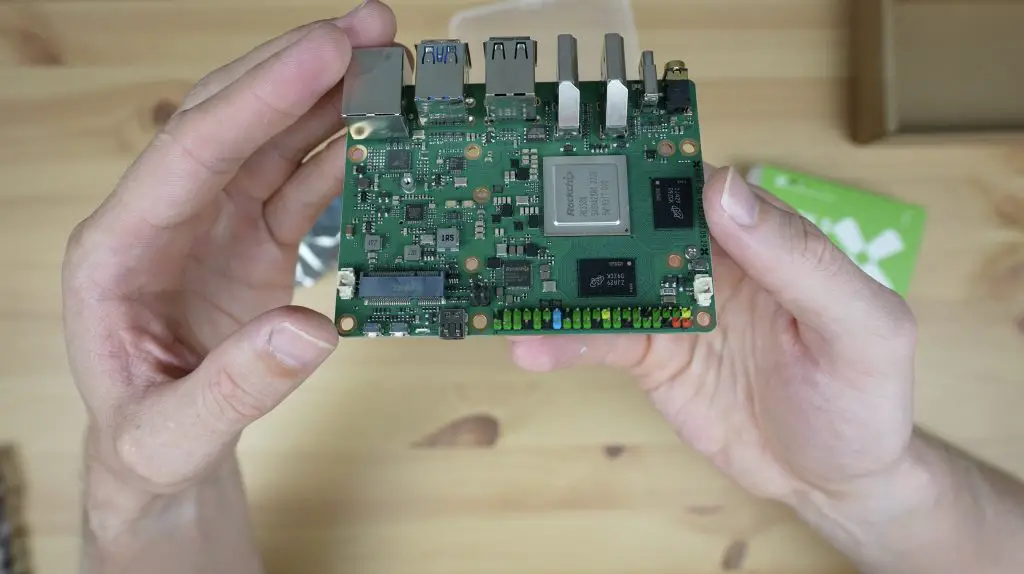
We’ve then got a white fan connector at the top to power the fan that comes with the active heat sink. Next to that is a 40-Pin GPIO header which follows the same general layout as a Raspberry Pi and is coloured coded which makes it a bit easier to identify the power pins.

Then there is a micro-HDMI input, which is a unique inclusion but essentially should allow you to input an HDMI video signal up to 4K 60 frames per second to display or record.

Next to that is a status LED and two buttons, one for power and one for recovery.

Rock 5 B Coloured GPIO Pins

Alongside the power buttons, we’ve got a white RTC battery connector and an M.2 E Key slot. This can obviously be used for a couple of add-ons but the most likely is going to be a WiFi module because the Rock 5B doesn’t have any onboard WiFi. I haven’t gone with this optional add-on as I prefer to use a wired connection and the included 2.5G Ethernet port is a faster and more reliable option.

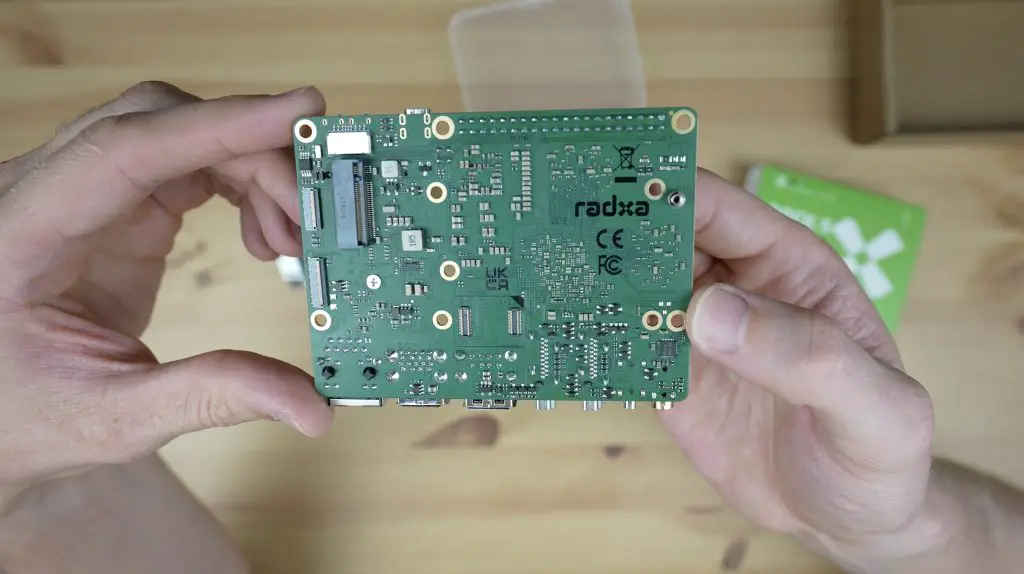
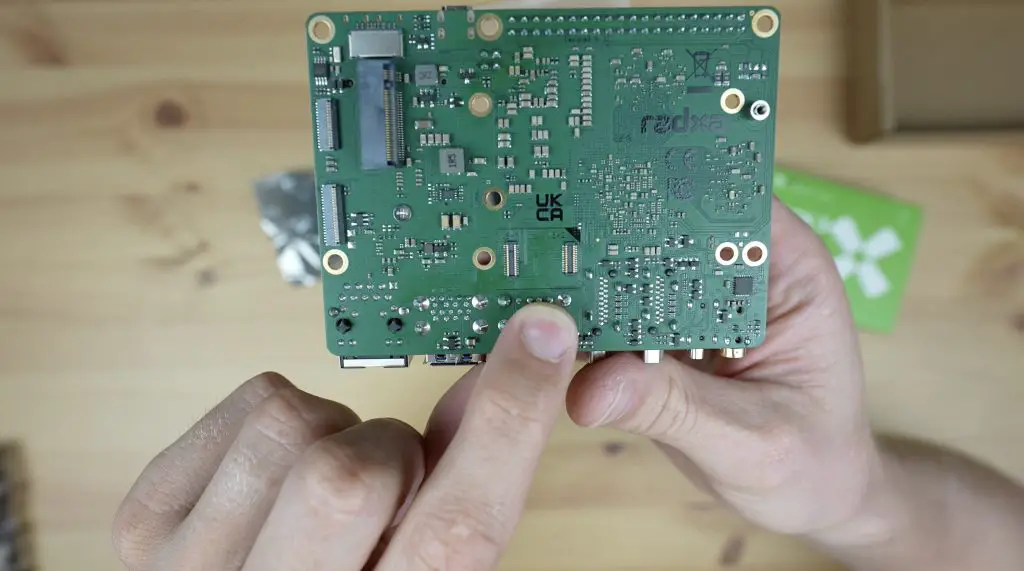
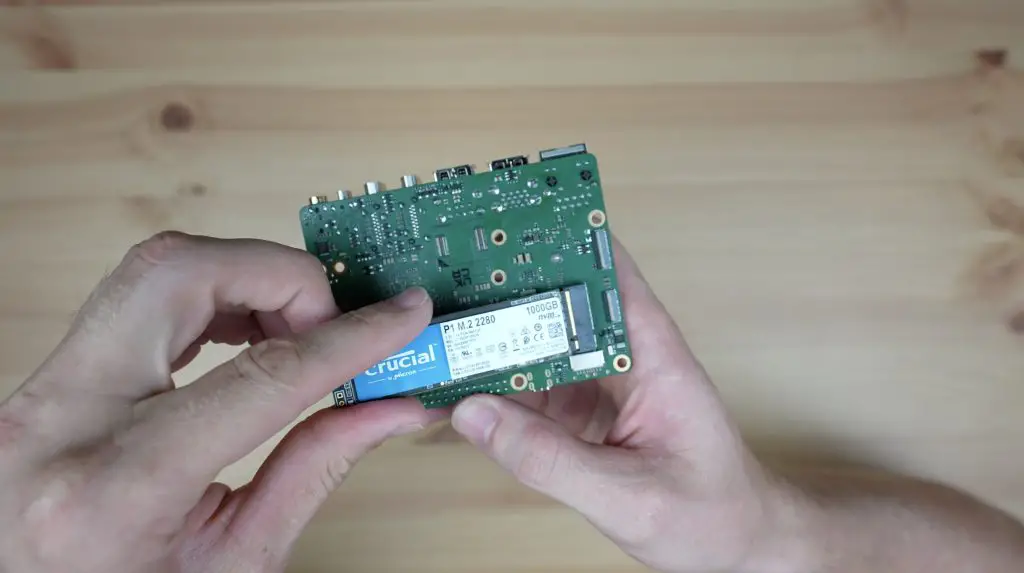
Flipping the board over, we’ve got a prominent M.2 M Key slot that supports a 2280 NVME SSD.

Rock 5 B Back of SBC

Along the shorter edge closest to the M.2 slot are a CSI and DSI port for a camera or display and alongside those and next to the M.2 slot is a microSD card slot. The microSD card slot is a sort of “half slot” that only holds the pin area of the microSD card.

There is also a socket for an optional eMMC module if you’d prefer to use that to boot off instead of an SD card or an SSD.

Rock 5 B eMMC Storage Port

The board is designed in a Pico ITX form factor and is 100mm long and 72mm wide. Although this is technically a standard form factor, you’ll still have a hard time finding an enclosure for it outside of the ones offered by the manufacturer as it’s just a very uncommon size.

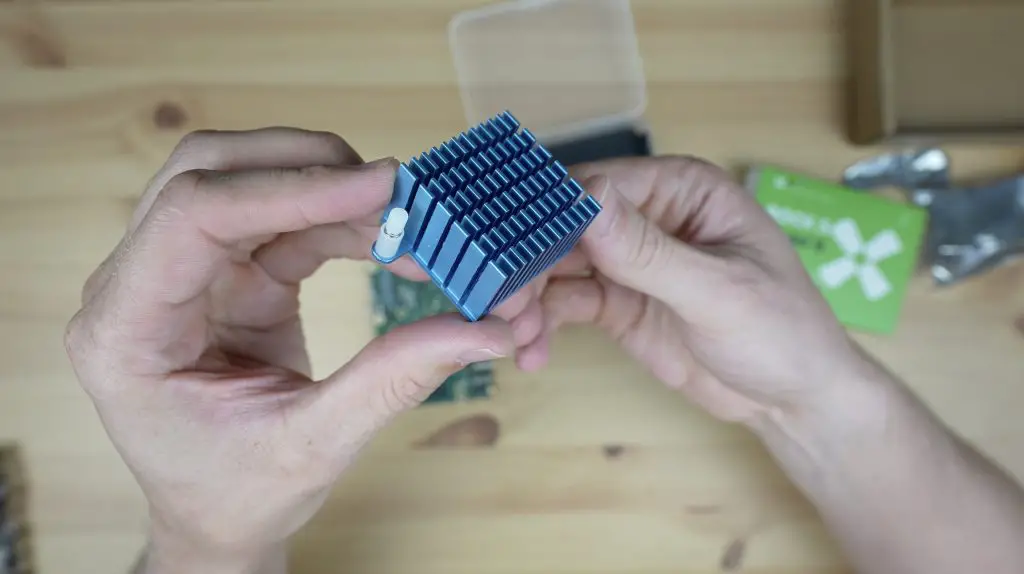
The passive heat sink is quite bulky so I don’t think we’ll have any cooling issues, even without a fan. They do have an option for a heatsink with a fan, which is a bit more compact but then you’ll obviously also have the fan noise.

Passive Heat Sink

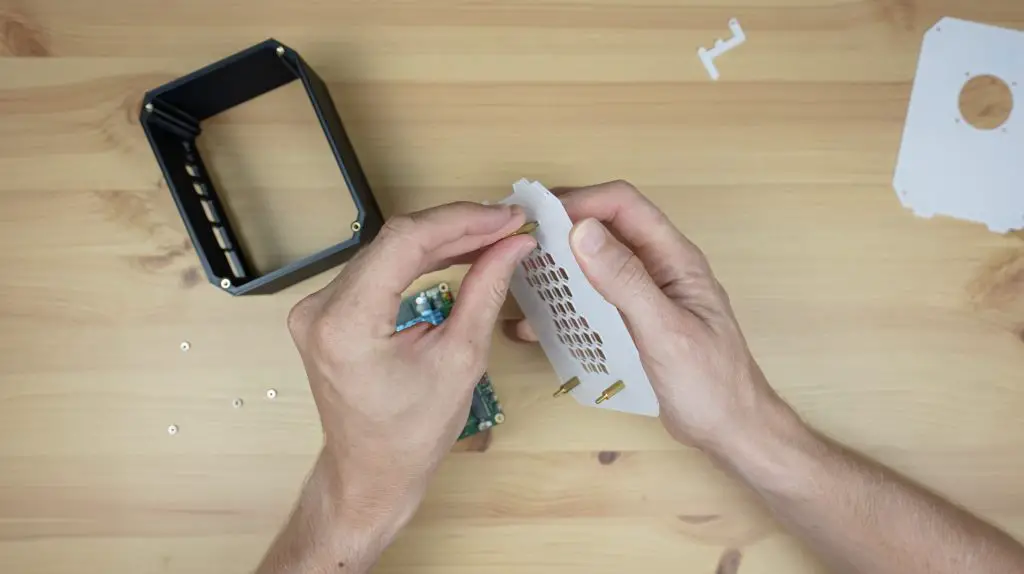
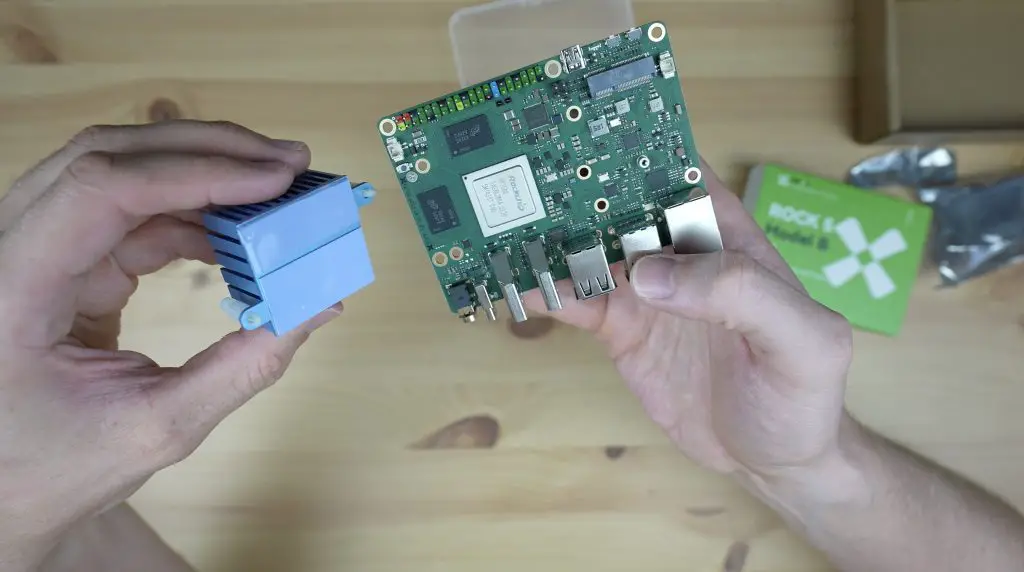
The heatsink just uses some snap-in pins to hold it in place over the CPU and has thermal pads preinstalled.

Cooling Pads on Passive Heatsink

The RAM is split between the two black chips alongside the CPU and strangely the heatsink is offset from the centre of the CPU, but only covers one of them. I’m sure this won’t cause any issues it just seems a bit odd.

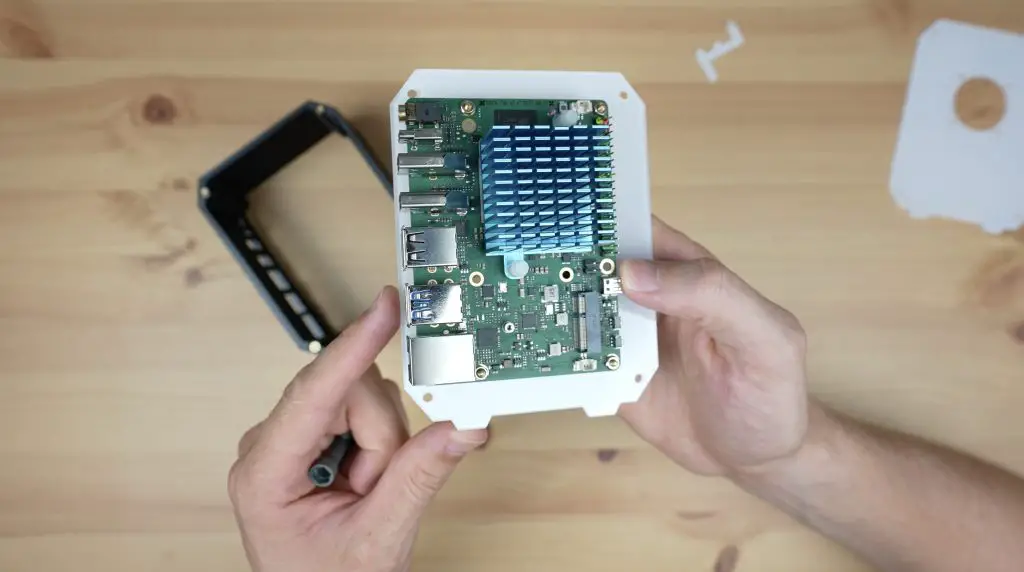
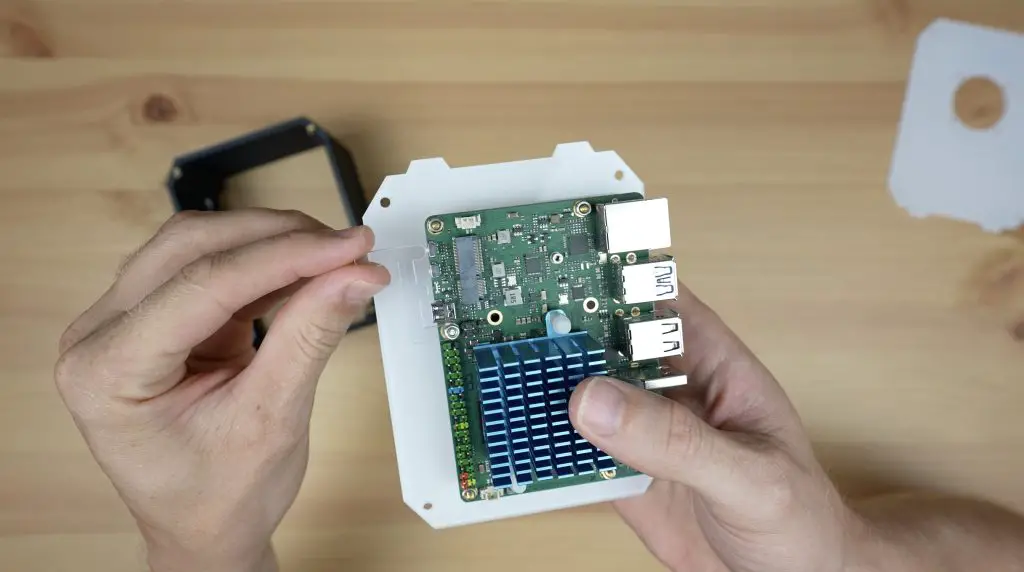
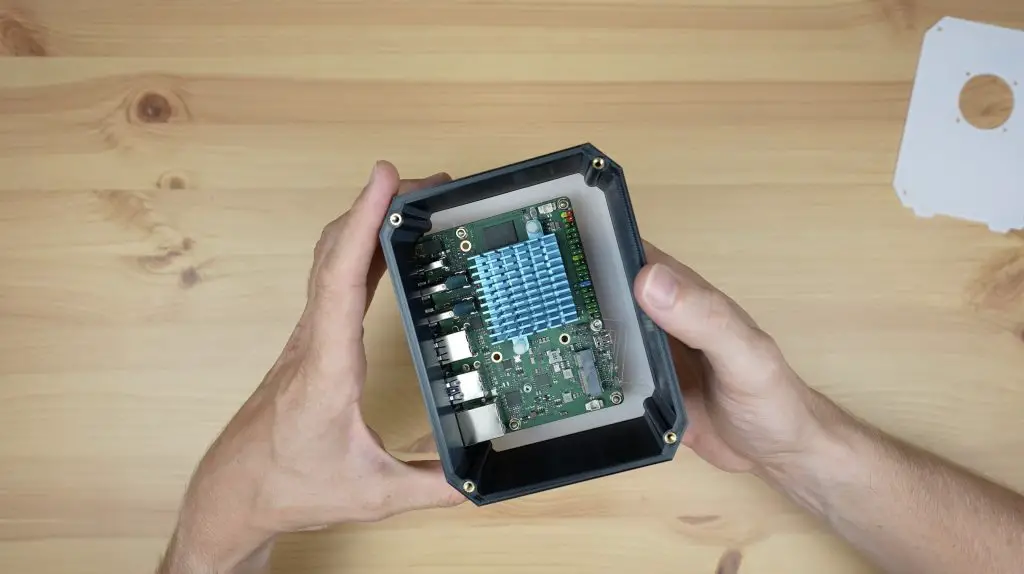
Passive Heatsink Installed On Rock 5 B

That’s all we need to do to prepare the board to be powered up, so we can move on to preparing the operating system on the boot drive.

Flashing The Operating System Onto A MicroSD Card

To start with, let’s get a microSD card prepared and then boot up the Rock 5 Model B.

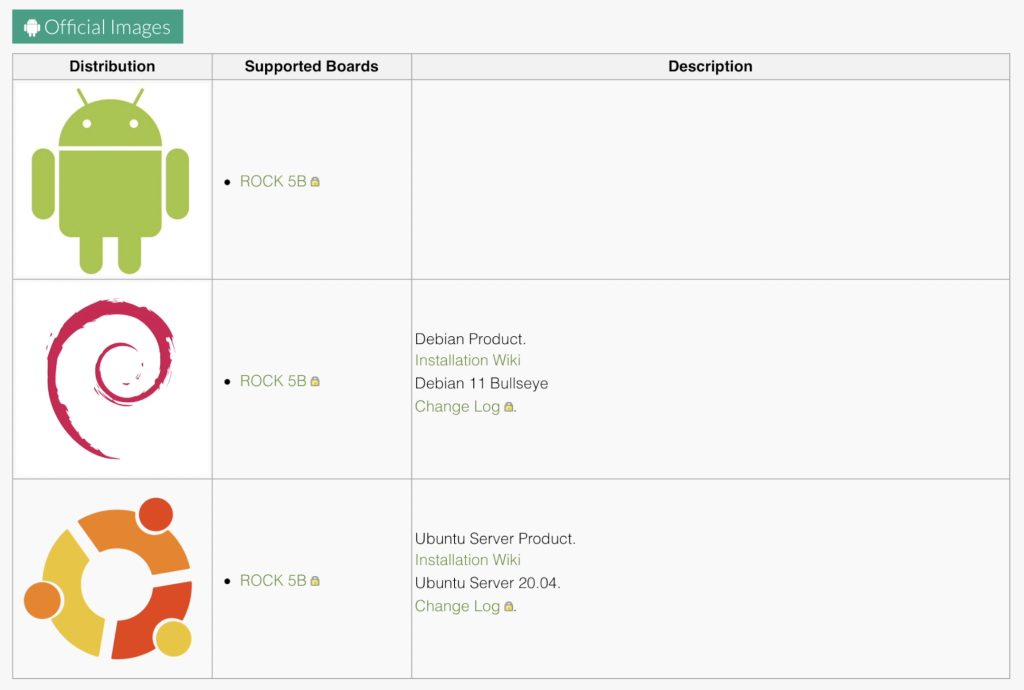
Radxa provides images for Android, Debian and Ubuntu. I’m going to go with the Debian image for now and we’ll see how that runs. The Ubuntu image is a server OS and does not have a GUI/desktop.

Operating System Images Available For Rock 5 B

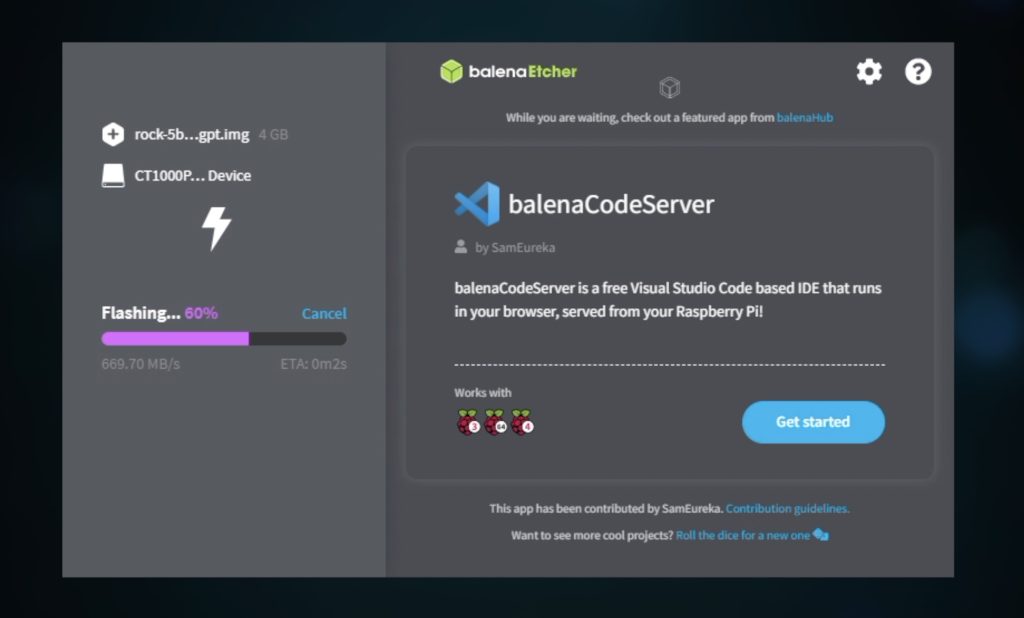
Flashing the microSD card is pretty simple, you just download the prepared operating system image, then flash the microSD card using a utility like Balena Etcher, then plug it into the board’s slot and it’s ready to go.

To power the Rock 5 B, I’m using a USB C adaptor with PD 2.0.

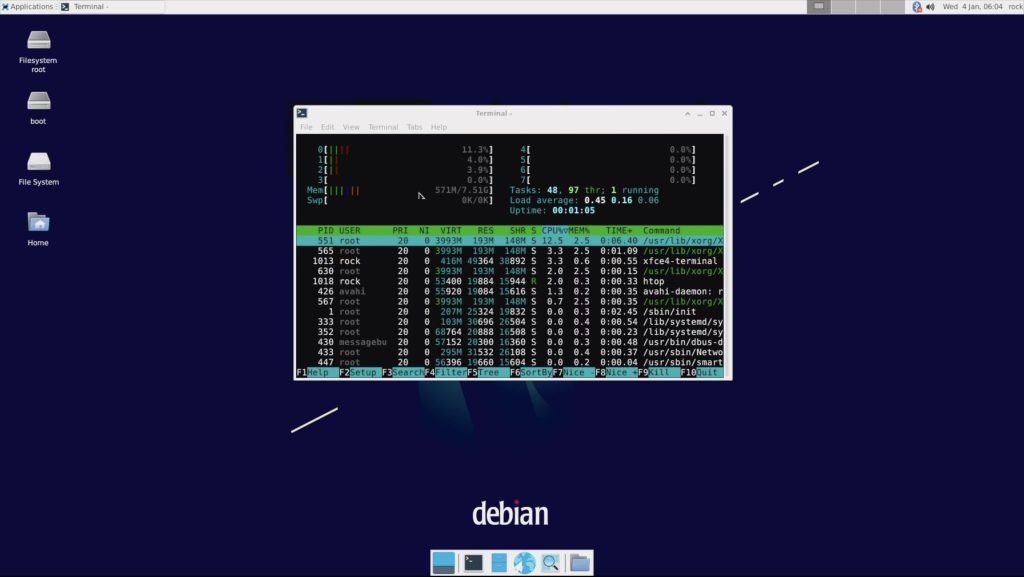
The first boot takes a little over 30 seconds and you’ll then be presented with a login screen. The default username and password are both Rock and you’ll then arrive at the Debian desktop.

Booted To Debian Desktop

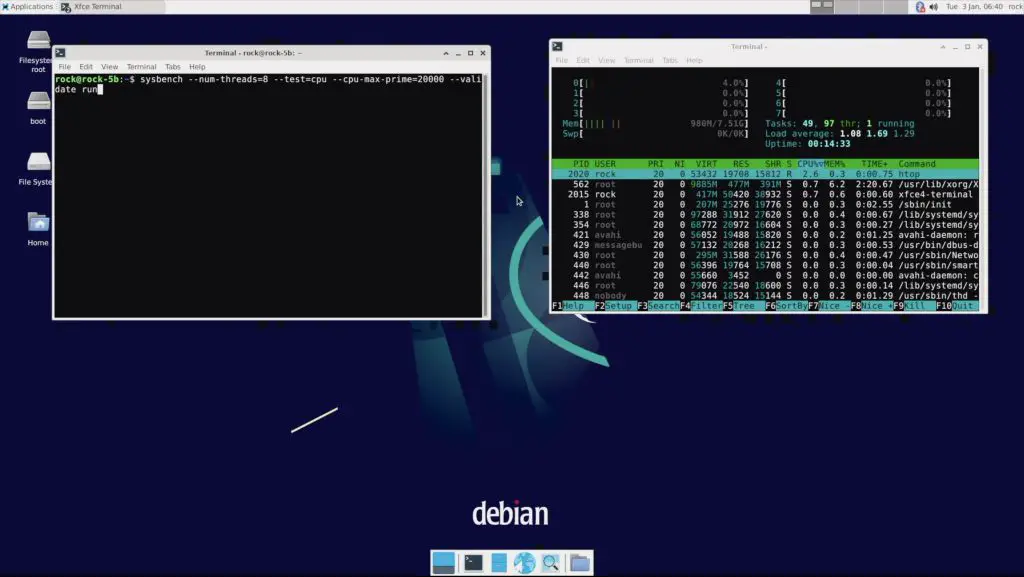
If we open up HTOP, you can see we have 8 processor cores listed, which don’t seem to be doing much at the moment and then our 8GB of RAM and we’re not using any swap.

HTOP Runnings on Debian Desktop

Youtube Video Playback On The Rock 5 Model B

Next, let’s try playing back a Youtube video in the default browser – Chromium. I’ll try this at both 1080P and 4K video resolution.

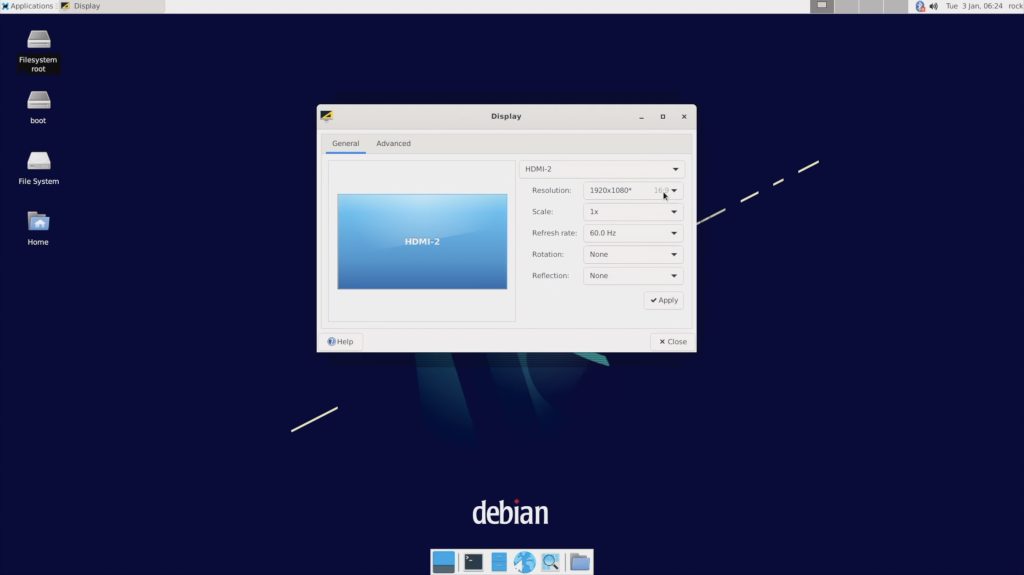
For the first test, let’s set the monitor to 1080P and then open up Youtube.

Adjusting Display Resolution to 1080P

We can then set the video resolution to 1080P and open up stats for nerds.

Playing Back Big Buck Bunny In 1080P

Video playback in the window is really smooth with a few dropped frames and playback is similar when we open it up to fullscreen. You can get a better feel for the video quality by watching my Youtube video at the beginning of the post – at 1080P, you have a really good quality stream that you wouldn’t have any trouble watching.

Next, let’s try to step it up to 4K.

Opening up the same video in 4K with playback in a window, we already start dropping some frames and playback is quite obviously stuttering. Opening it up to fullscreen is even worse, dropping a significant number of frames and stuttering to the point where playback is not really usable.

Playing Back Big Buck Bunny In 4K

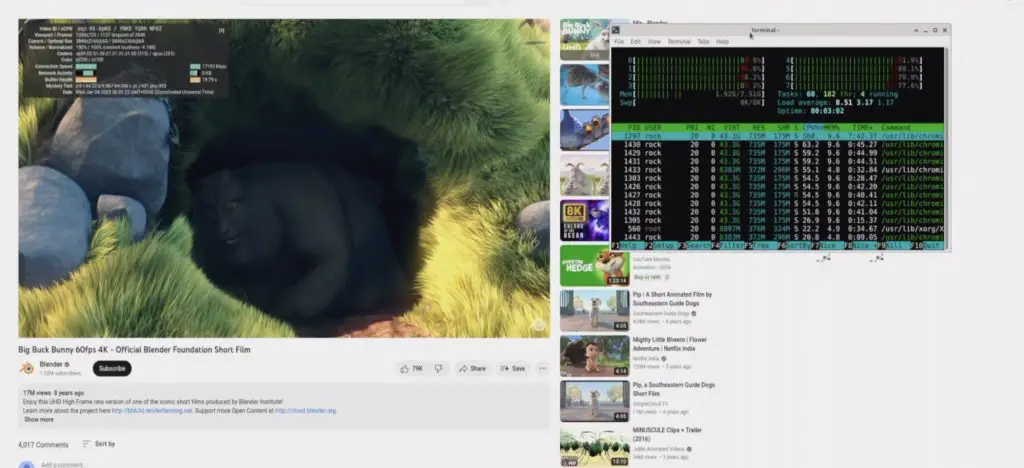
Like with the Khadas Edge 2, this is most likely because the browser is using software decoding instead of hardware decoding. This essentially means that we’re not using the GPU hardware for video playback but we’re relying on the CPU to do decoding through software, which is putting a lot of strain on it. We can see that if we open up HTOP while playing back the video, we’re basically maxing out our CPU continuously.

HTOP Indicating All Cores Maxed Out

So if you’re wanting to use the Rock 5 Model B for 4K video playback from an online source, you’ll probably want to use the Android operating system rather than Debian.

Running The Sysbench CPU Benchmark

Next I’m going to try running the Sysbench CPU benchmark on it and I’ll also do this with HTOP running alongside it so that you can see the load on each CPU core. We’ll give it 8 threads, one for each core, and set the maximum prime number limit at 20,000.

Running Sysbench Benchmark On Rock 5 B

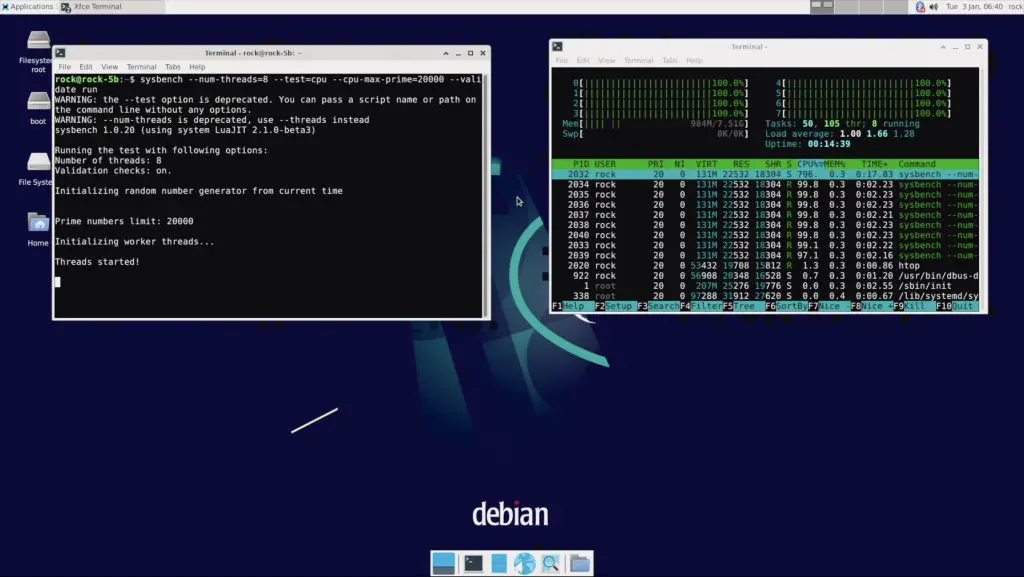
When we run the test, you’ll see all 8 cores are maxed out.

Sysbench Benchmark Running

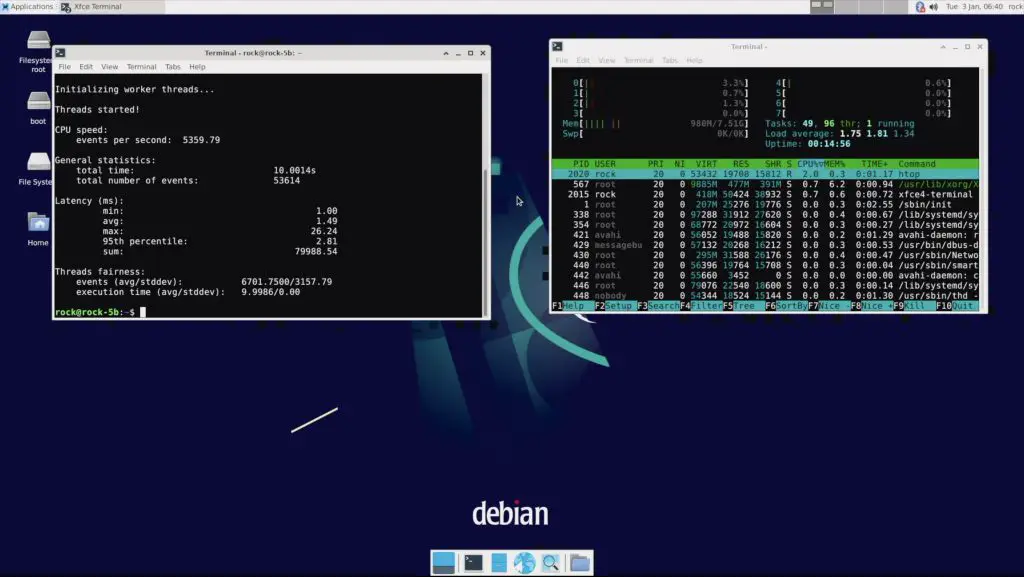
After 10 seconds, the benchmark is complete and the cores drop back down to idle. We managed to process a little over 5,300 events per second for a total of 53,600 events for the test.

Sysbench Benchmark Results On Rock 5 Model B

These numbers don’t really mean much on their own so I ran the test on the Khadas Edge 2 and a Raspberry Pi 4 for comparison.

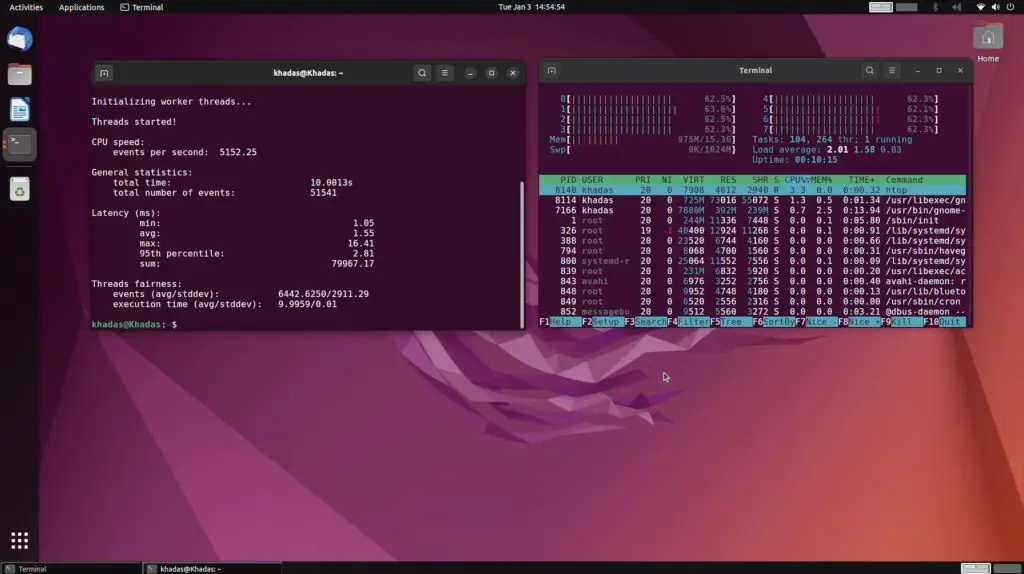
The Edge 2 managed 5,150 events per second for a total of 51,500, which is about 4% slower than the Rock 5B in this benchmark.

Sysbench Benchmark on Khadas Edge 2

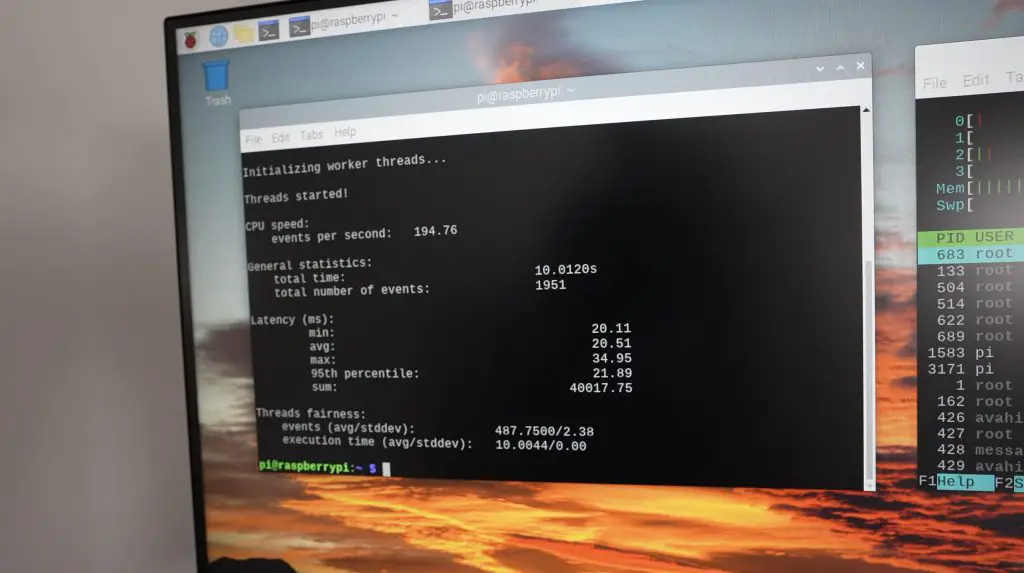
The Raspberry Pi only managed 195 events per second for a total of 1,950. This is obviously not a fair comparison as the Pi only has a 4-core CPU running at a lower frequency and is quite a bit cheaper than the Rock 5B. In any case, the Rock 5B and Khadas boards are both over 25 times faster than the Pi in this benchmark.

Sysbench Benchmark on Khadas Edge 2

How Much Power Does The Rock 5 Model B Use?

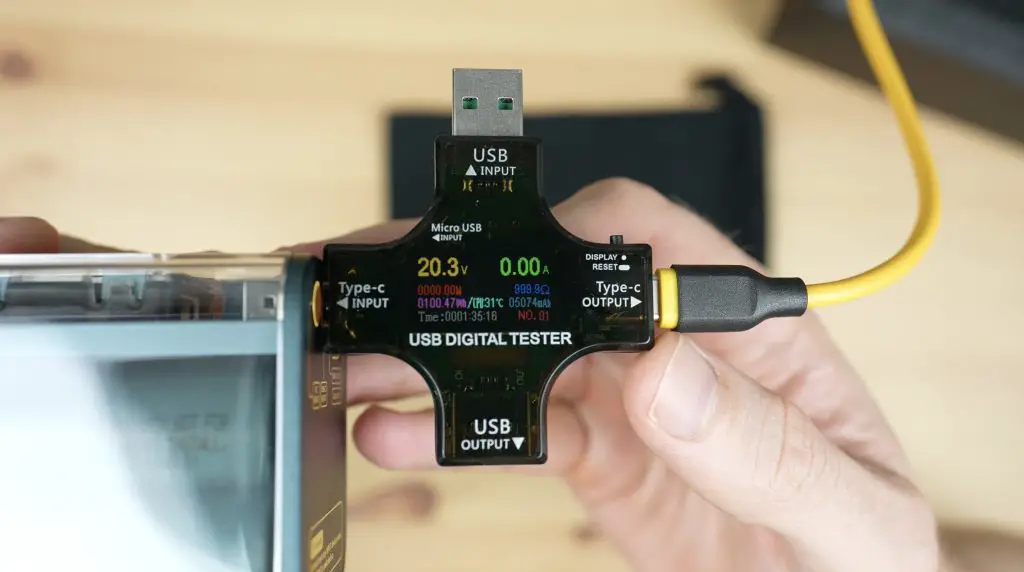
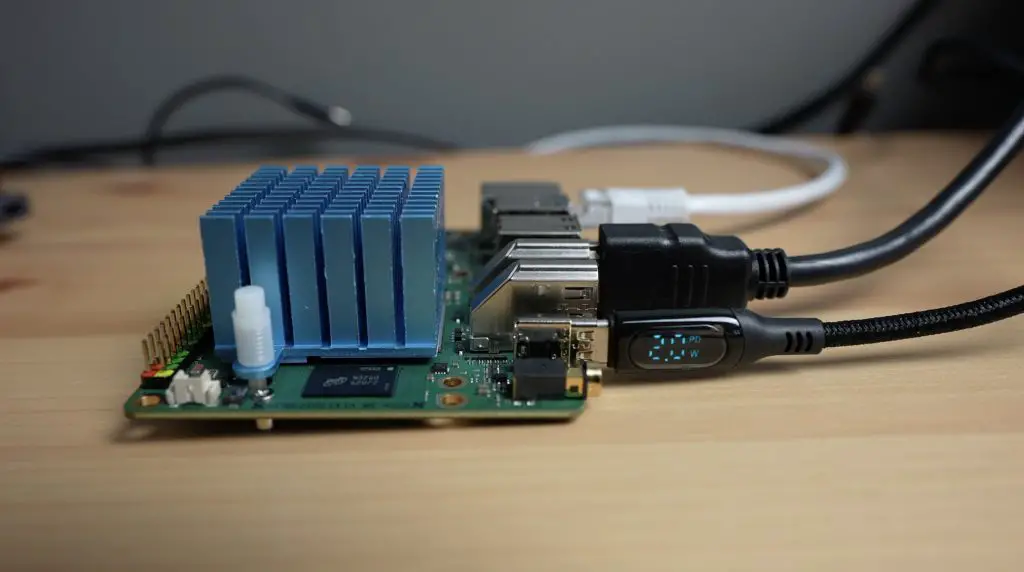
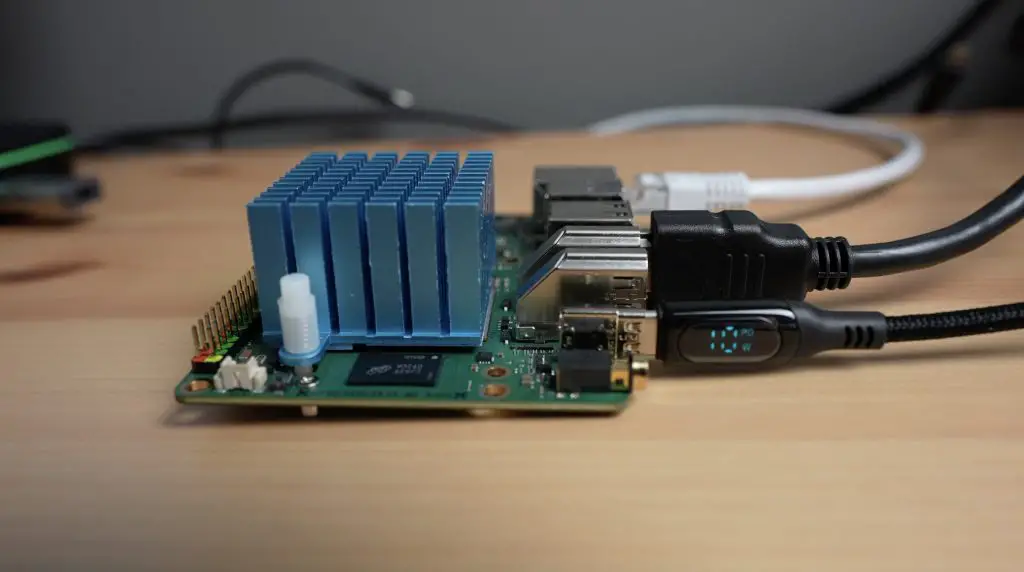
To measure the Rock 5’s power consumption, I used a USB C cable that supports power delivery. This shows that the Rock 5 Model B is indeed running on PD, indicated by the PD at the top. I found that the Rock 5B runs at 2W when idle and at 8-10W when the CPU is fully loaded.

Booting From An NVMe Drive

Lastly, I tried booting the Rock 5 Model B from an NVMe drive.

I prepared the NVMe drive in the same way that I did with the microSD card. I used the same disk image and flashed it to the drive using Etcher and an M.2 M Key to USB C adaptor.

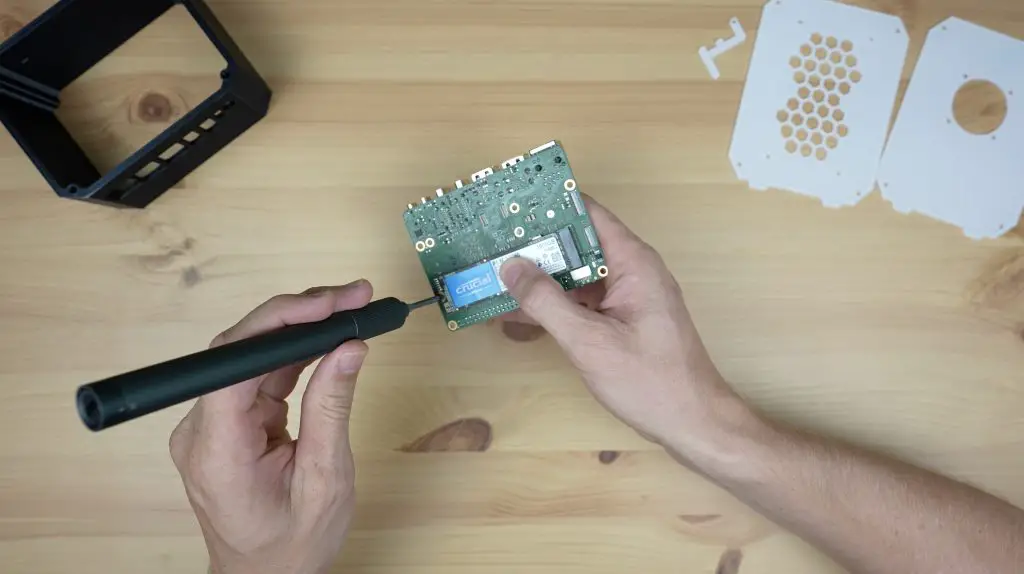
Installing an NVME Drive

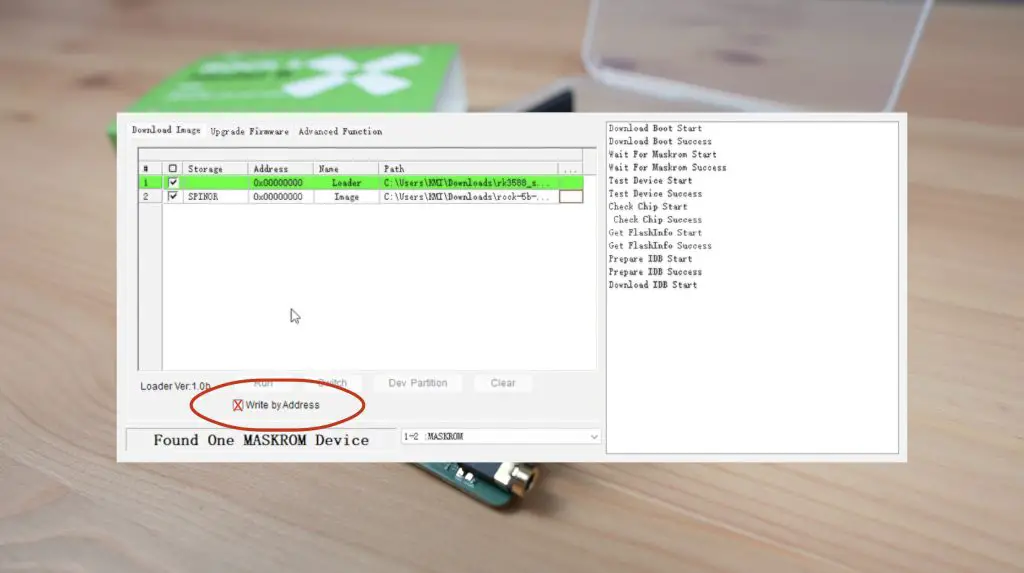
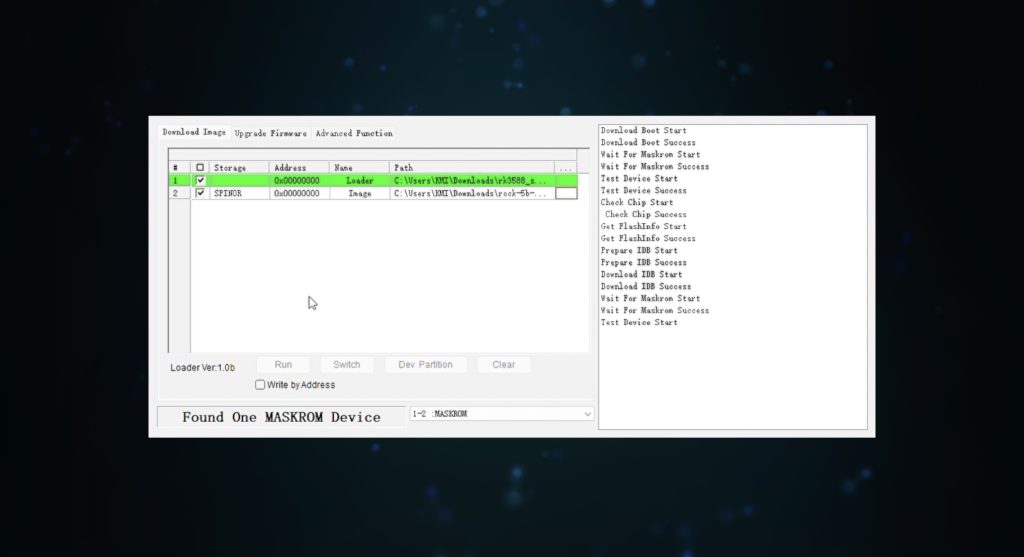
I then tried following their guide to reflash the bootloader on the Rock 5 Model B. You need to do this because the default bootloader doesn’t support booting from an NVME drive. They run you through a process using a utility called RKDevTool which you’ll need to load a configuration file, loader and SPI image into. You then need to get the Rock 5B into maskrom mode and then reflash it. I was able to do all of the initial steps and the utility could see the board, but it crashed whenever it completed the device test, which is when it then starts flashing the image.

Running RKDevTool to Reflash Boot Loader

I tried this on two different computers and with a number of different cables and had the same result, so I wasn’t able to get the board to boot from the NVME drive.

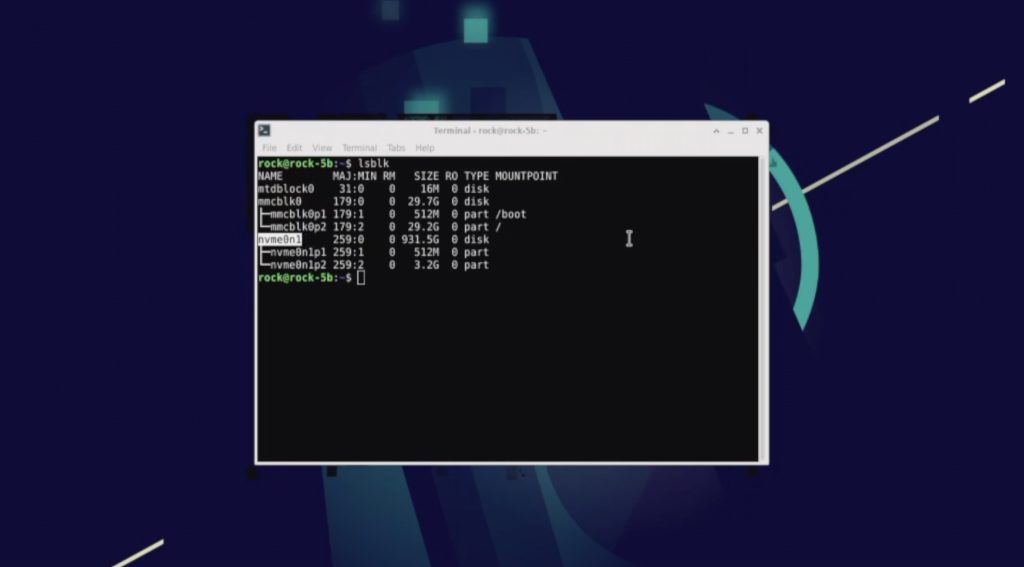
If I boot the Rock 5B form the microSD card with the NVME drive plugged in, we can see that the drive is being recognised but it obviously won’t boot from the drive without the bootloader being reflashed.

NVME Drive Being Seen By Rock 5 B

So it was a little disappointing that I wasn’t able to get this to work but hopefully there will be a fix for this issue soon.

Final Thoughts On The Rock 5 Model B

The Rock 5 Model B certainly has the potential to be a great choice for those looking for a powerful SBC with low power consumption. The RK3588 processor offers a significant performance improvement over a board like the Raspberry Pi 4, however, as with most of these alternatives, the Rock 5’s software and documentation still need a lot of work.

Most of the documentation and guides for the Rock 5 Model B are either at a very high level or are simply placeholders for development at this stage. I’d also like to see a full Ubuntu image for the Rock 5B as I personally prefer this OS over Debian.

With a starting price of just $129, this board is really good value for money given its specifications. The lack of WiFi is a bit disappointing, but I’m happy with the ability to add one through the M.2 E Key port if required and I really like that they’ve given us a 2.5G Ethernet port. I think the $20 increase to $149 is well worth it to double the RAM to 8GB. Most people won’t need 16GB of RAM, but it is nice to have this option if required.

Let me know what you think of the Rock 5B in the comments section below and let me know if there is anything you’d like to see me try to run on it.

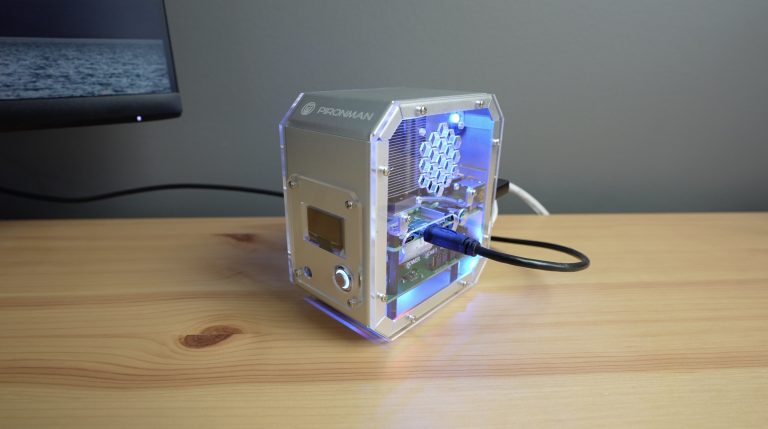
Awesome Cyberpunk Case For The Raspberry Pi 4 – Pironman by Sunfounder

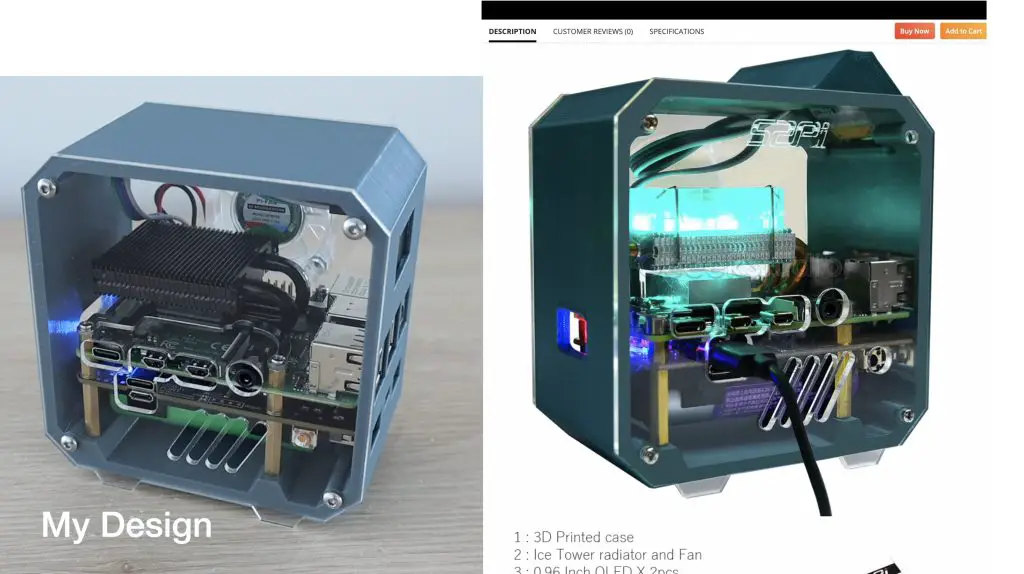
Since I created the first version of my Raspberry Pi desktop case back in 2020, a number of manufacturers have made spinoffs of the design, with some less spun off than others. Some even asked me to review the case design that they unashamedly copied.

Copy of My Raspberry Pi UPS Case

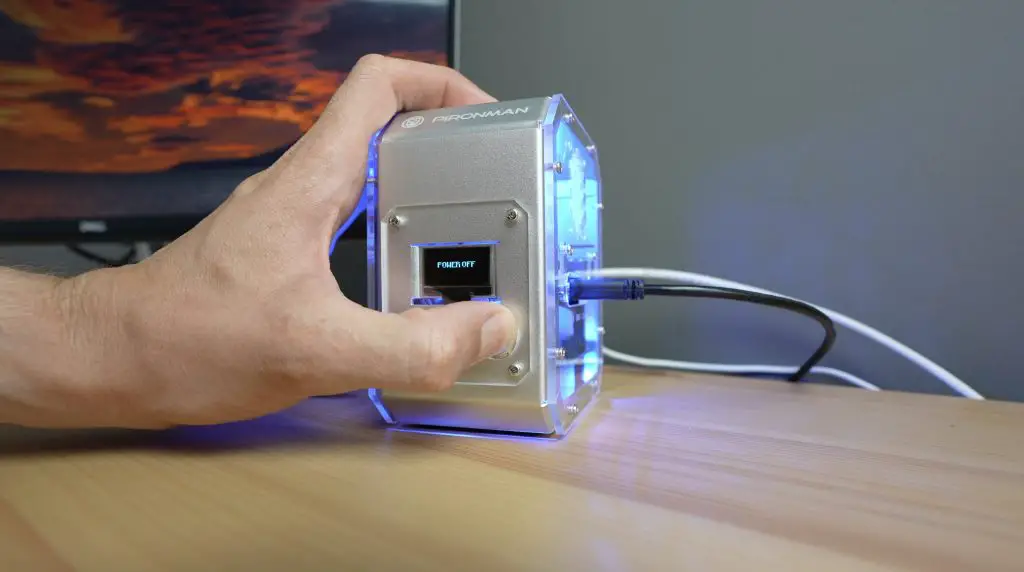
Then Sunfounder reached out a few weeks ago and asked me if I’d be interested in trying out their new Pironman case.

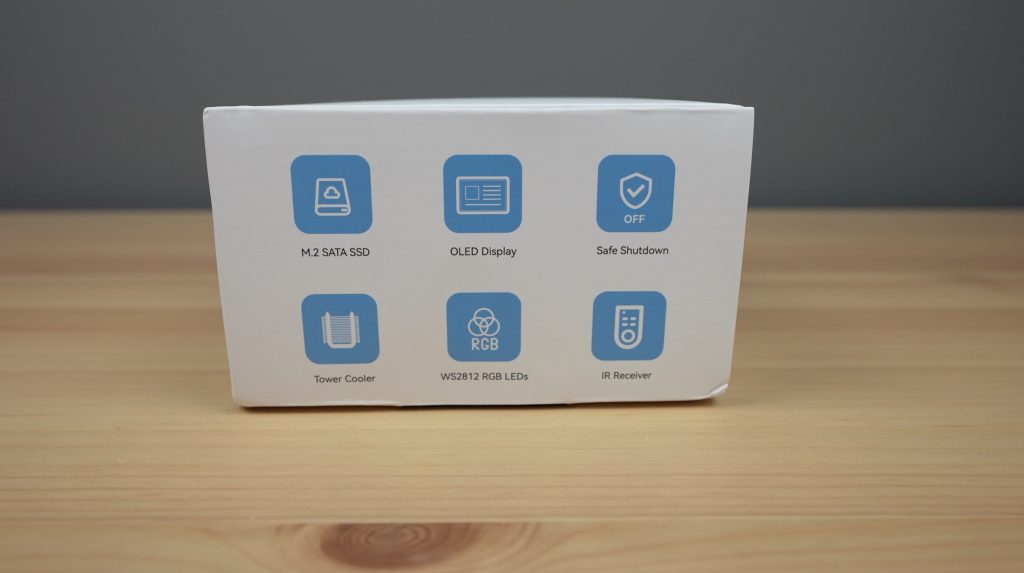
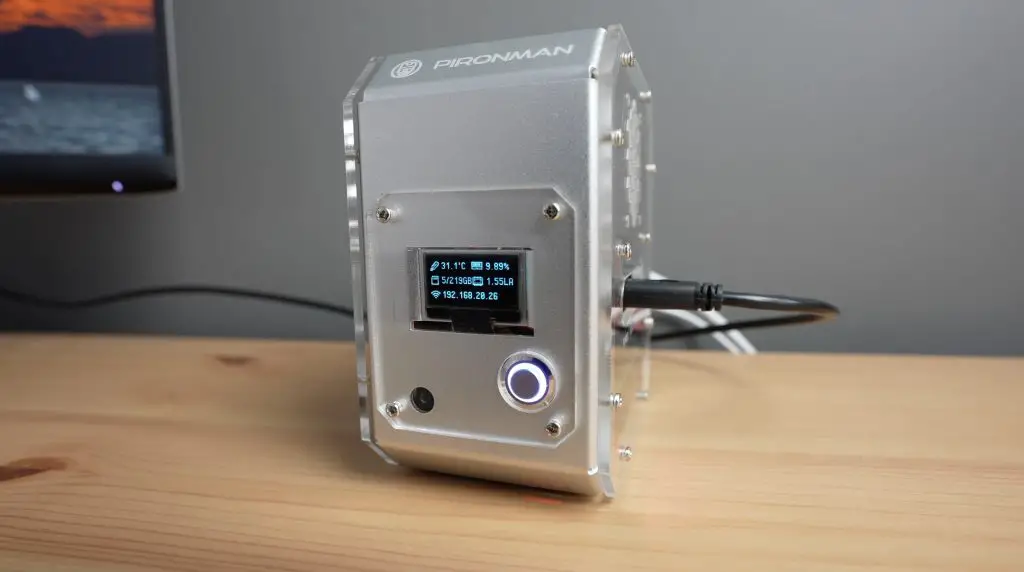
Unlike some of the others, this case, although bearing some resemblance, has actually been designed from scratch. They’ve also put some effort into designing a case that meets a number of the common things people look for in a Pi case.

Pironman Case Features

So let’s get it unboxed, take a look at what it includes and get it set up.

Here’s my video review which also shows some of the functionality of the case at the end, read on for the written review:

Where To Get The Pironman Case

Tool & Equipment Used:

Unboxing And First Look

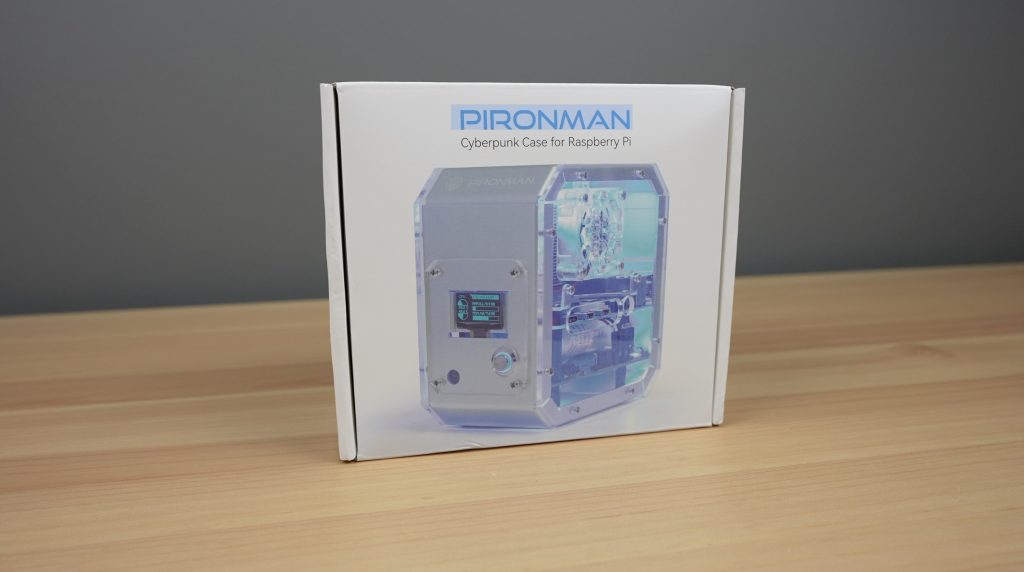
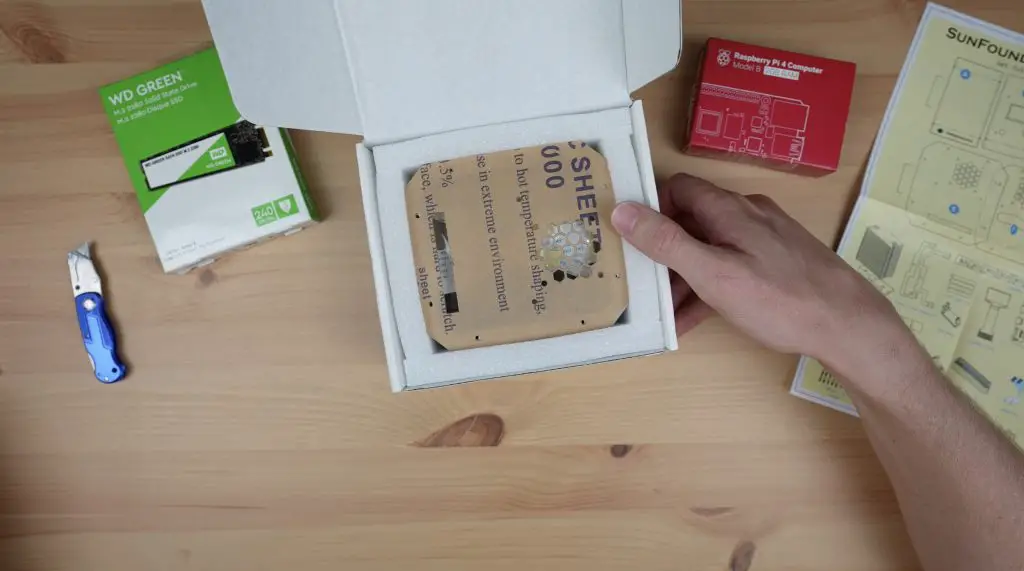
The Pironman Case comes in a branded white box with an image of the case on the front and some specifications on the back.

Pironman Cyberpunk Case by Sunfounder

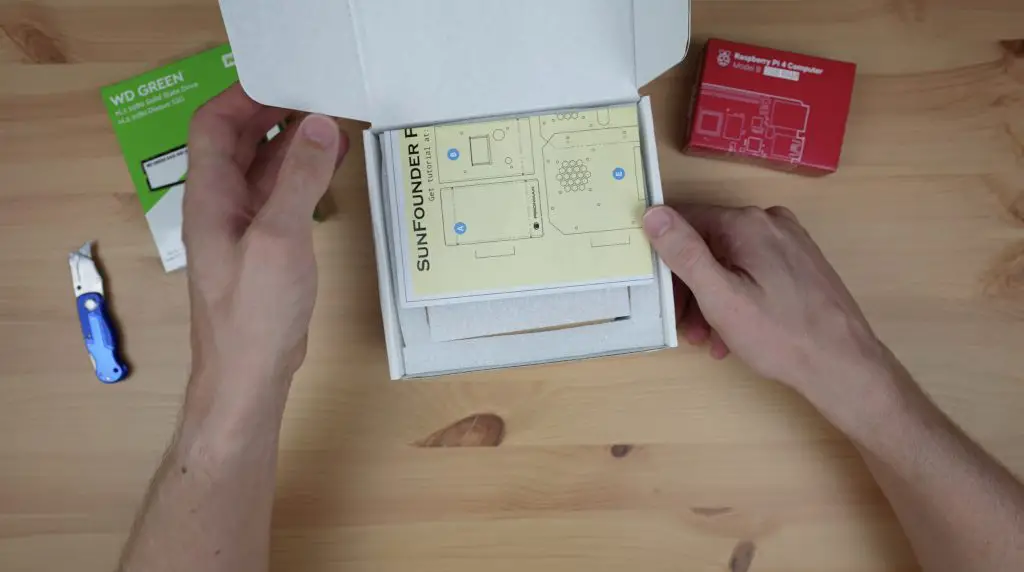
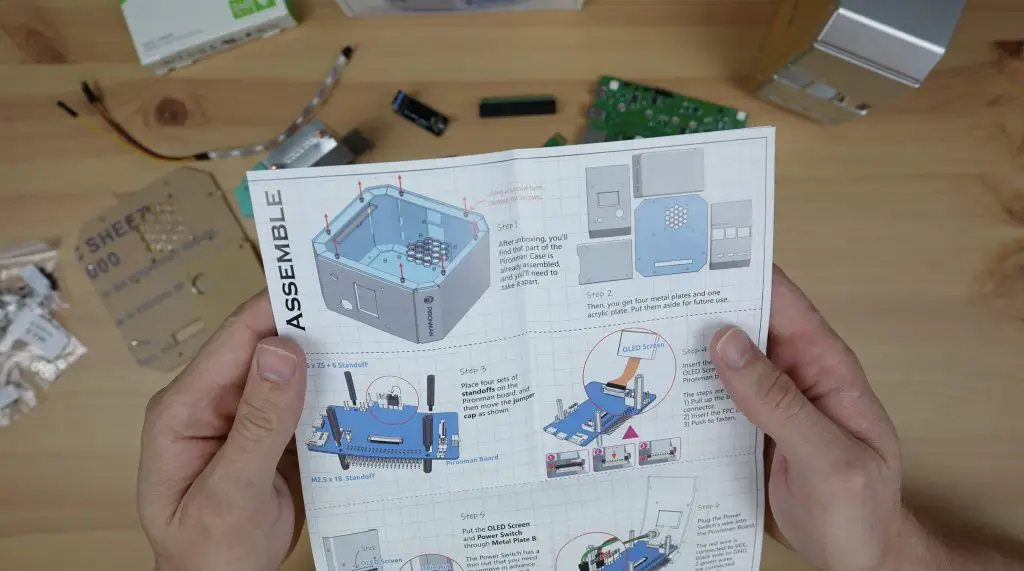
In the box, first up are the assembly instructions. I’ll go through the instructions in a bit more detail when putting the case together but at first glance, they’re quite well-written and are also illustrated to guide you through each step.

Pironman Case Unboxing

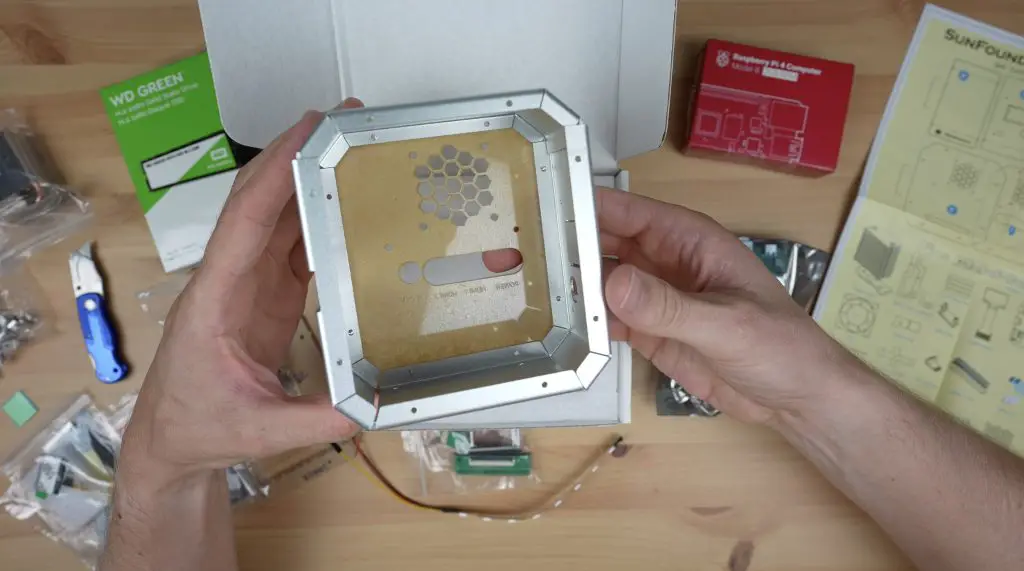
Below the foam insert is the case and components, with additional foam padding around the edges. Overall it is well packaged with very little chance of damage to the case or components.

Pironman Case Components

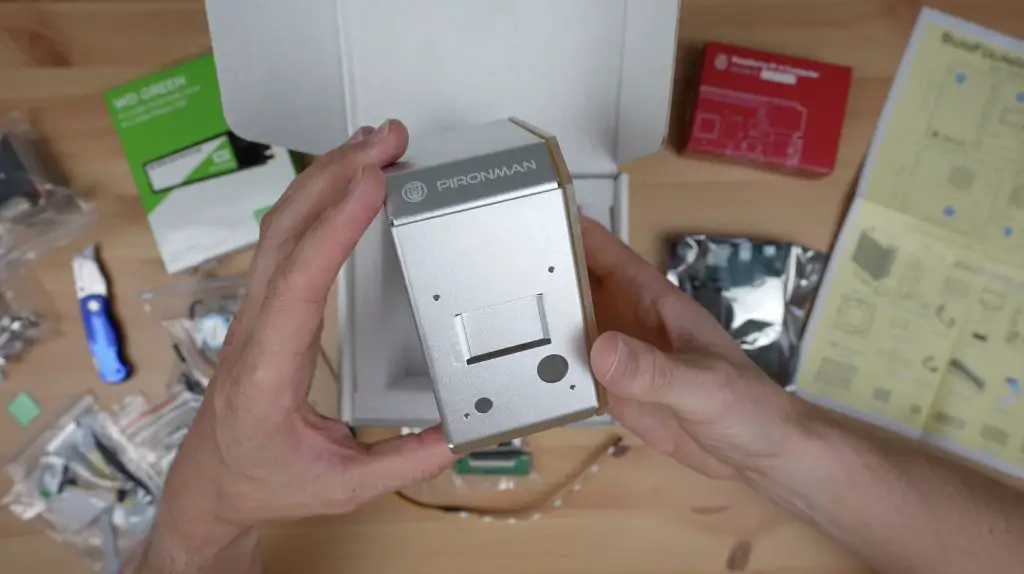
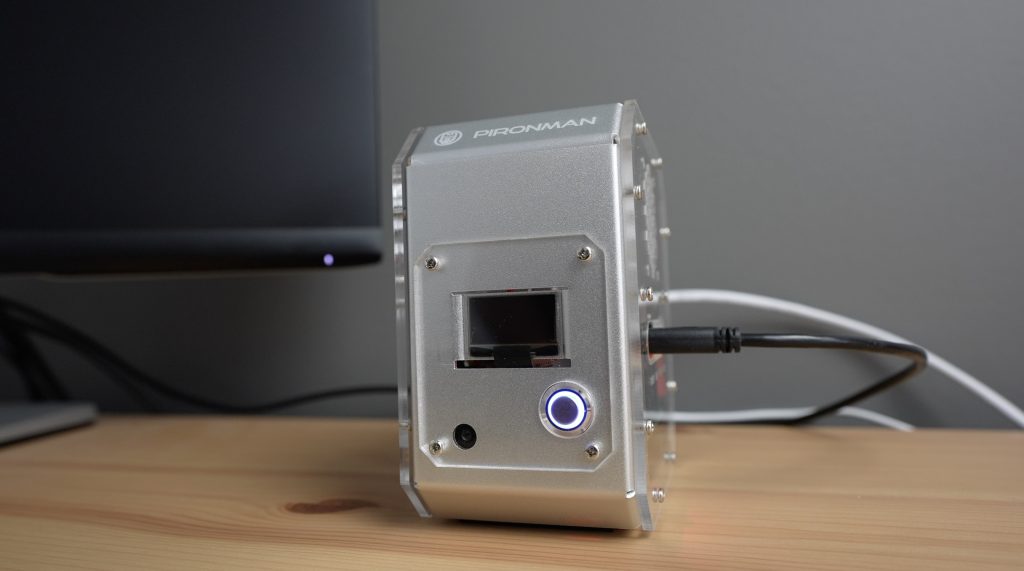
The main body of the case is a folded sheet metal design with a nice metallic silver finish and the ports or cutouts are all clearly labelled.

The side panels are 3mm clear acrylic and they’re sent with the protective film in place on one side so that they don’t get scratched.

Pironman All Metal Raspberry Pi 4 Case

It’s also got their Pironman logo laser etched onto the top front edge.

Pironman Raspberry Pi 4 Case, Laser Etched Logo

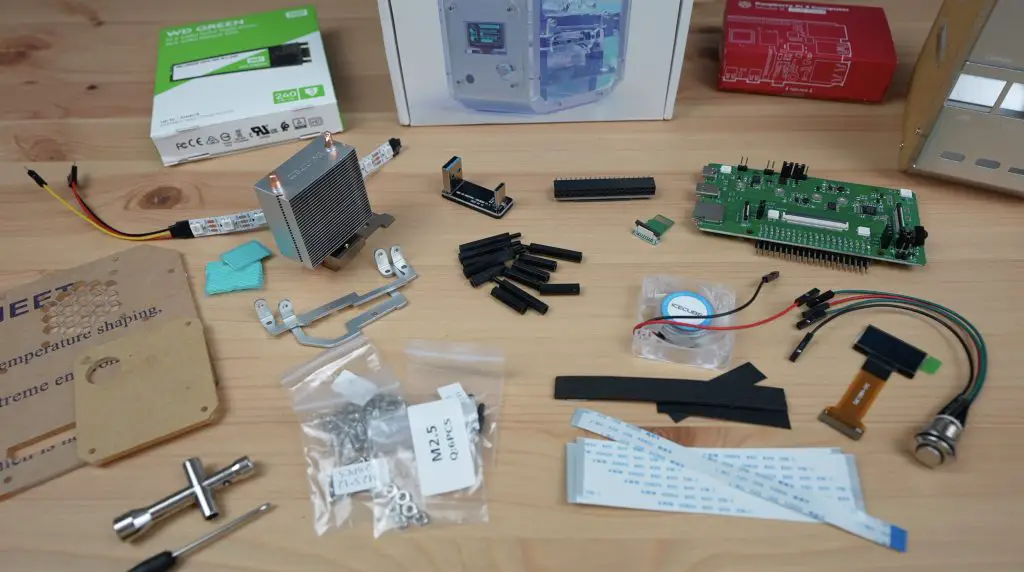
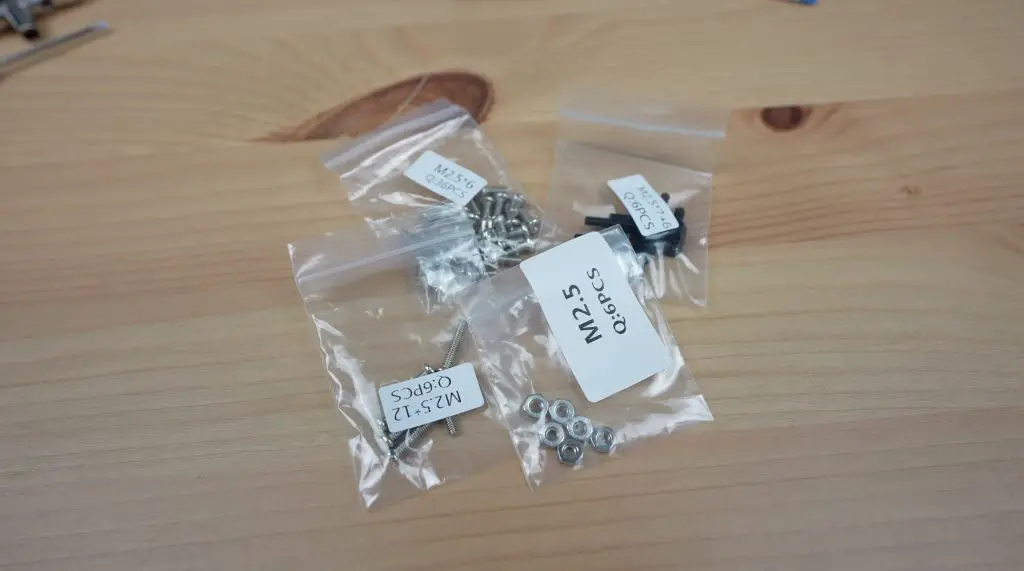
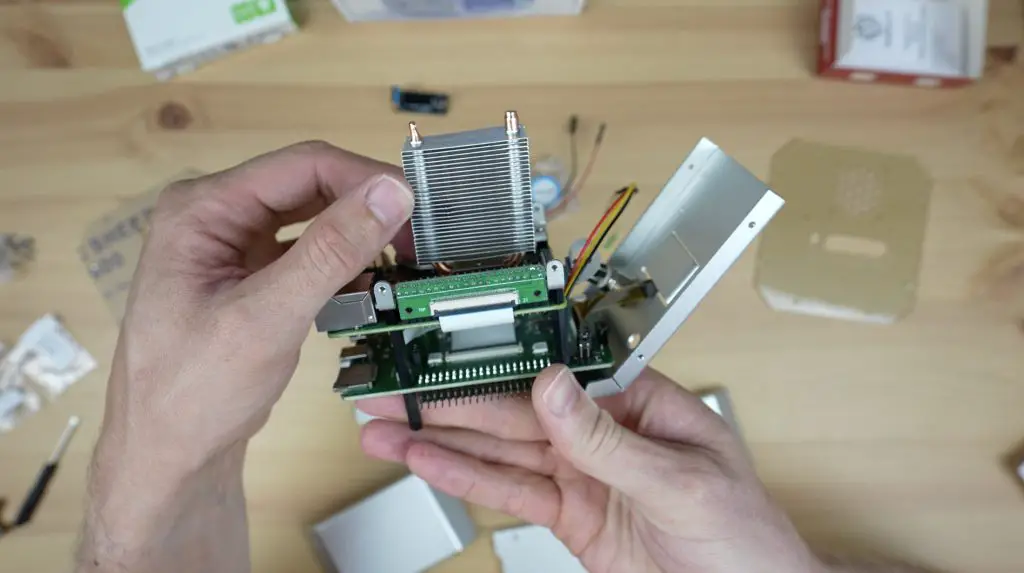
Included with the case are thermal pads for the cooler, ribbon cables for the carrier board, an I2C OLED display to show the Pi’s CPU, disk and ram usage as well as the temperature and IP address, a pack of standoffs and screws, an addressable RGB LED strip, an Ice Cube cooler which seems to be custom made for this case as it doesn’t have the screw holes to mount the fan directly onto it like their standalone cooler, some tools with the cooler brackets, a power switch, acrylic front panel cover and fan, a GPIO adaptor and USB jumper and finally, the main carrier board.

All Components Included With Pironman Raspberry Pi Case

So you can see you really get a lot with this case, but that also means that putting the case together is quite a process – mainly because there are so many parts.

The instructions are pretty good though and the screws and adaptors are all well-identified. So let’s get it assembled.

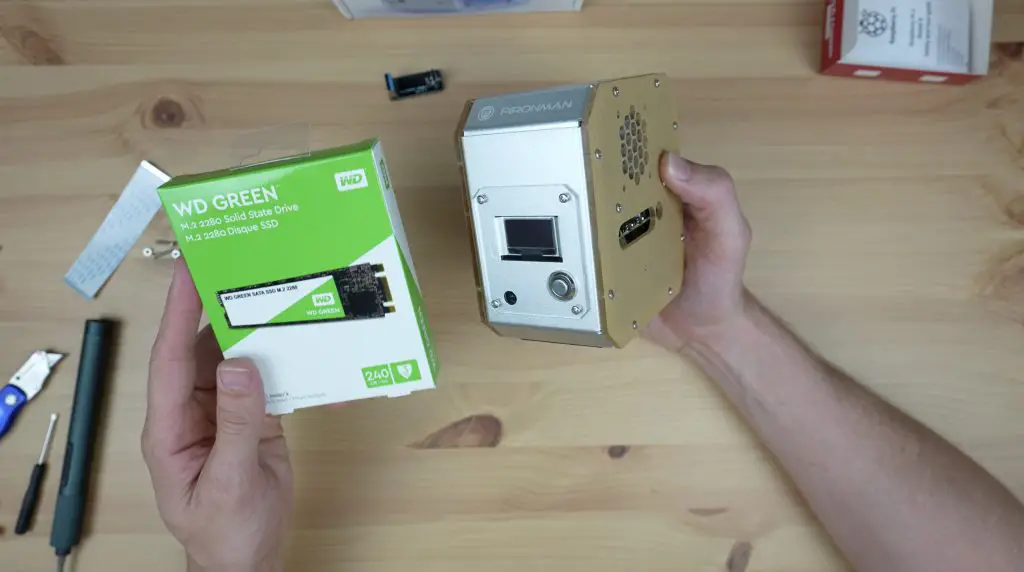
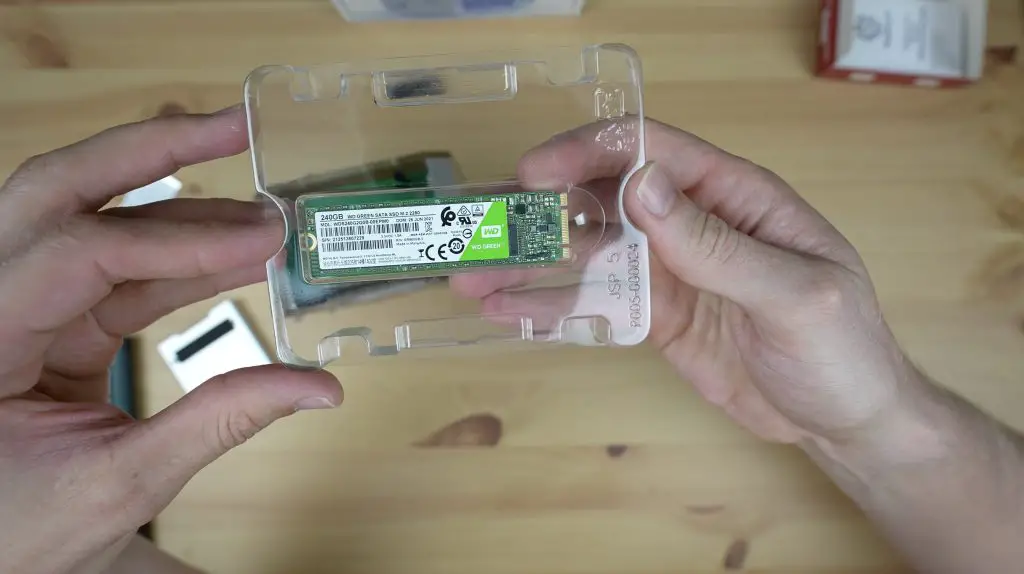
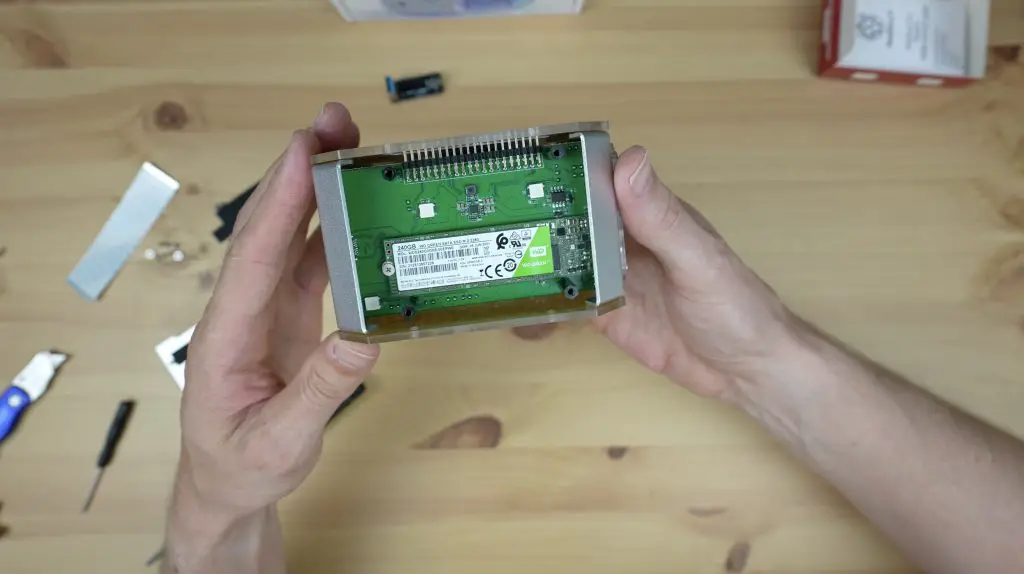
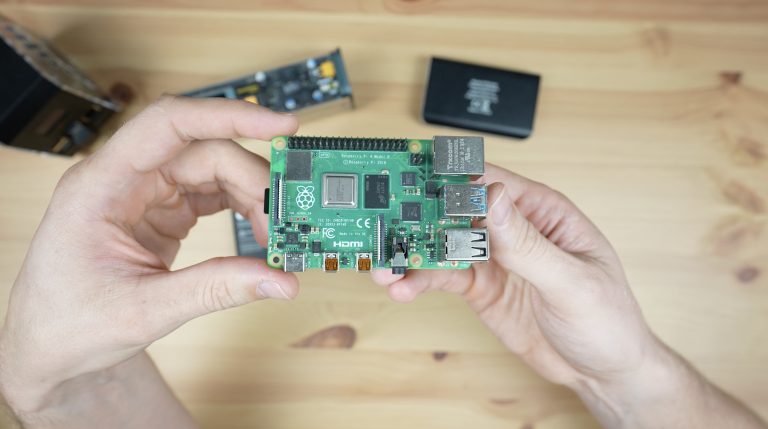
The case is designed for use with a Raspberry Pi 4 and also an optional M.2 SATA SSD. So I’m using a 2GB Pi 4 and a spare 240GB SSD which I’ve used recently on another build.

Assembling The Pironman Case

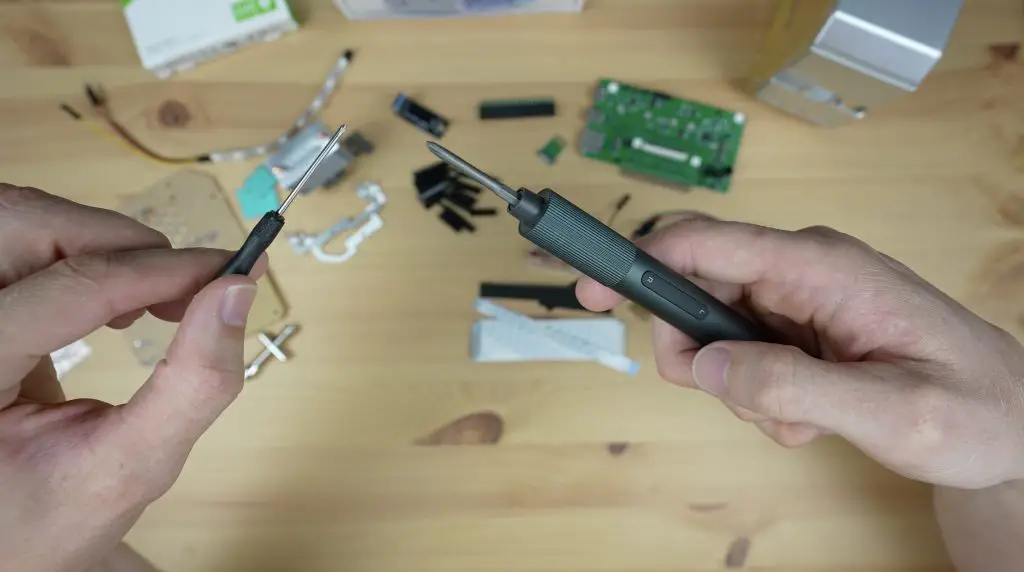
To get the case assembled, they include a small screwdriver but with the number of screws we’ve got, I’m going to rather use my electric driver.

Electric Screwdriver Instead Of Included Driver

I’m not going to go into too much detail on the assembly process here as it’s all in my video and mainly just follows the written instructions. I have however written about some of the issues I ran into and some of my thoughts on the components.

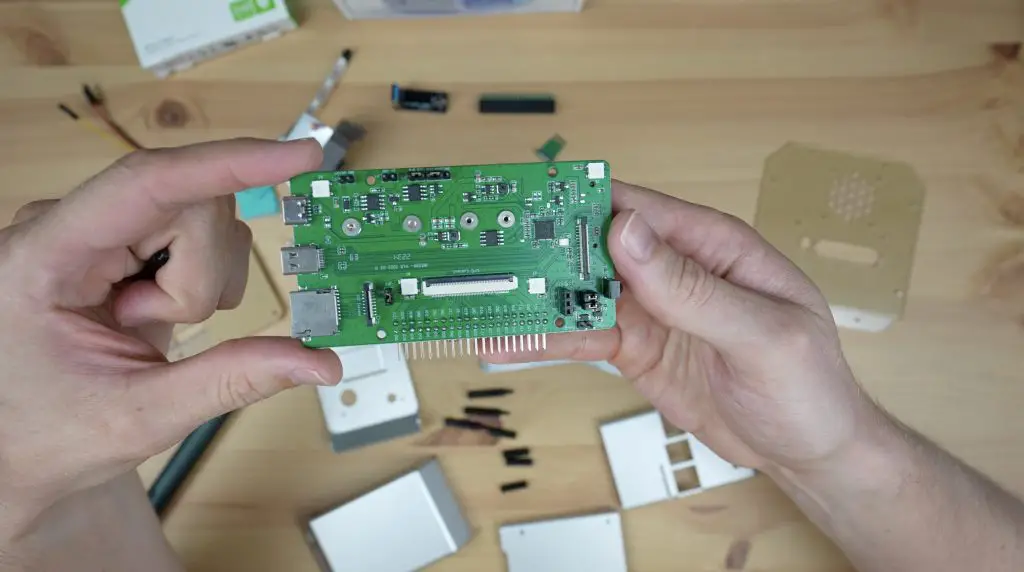
The assembly process starts with the carrier board. This is the best part of this design in my opinion. This board has an M.2 slot for a SATA SSD, pins to control the addressable RGB LED strip, an IR receiver if you’re going to use the Pi as a media player, an external GPIO header and a power button input. It’s also got an SD card slot that is brought out to the back of the case with a little adaptor so that you have the option to swap out the SD card without dismantling the case.

Pironman Case Custom Carrier Board

A ribbon cable connects the GPIO adaptor to the carrier board. This is to connect the Pi’s GPIO pins to the carrier board to control things like the display, LED strip, power button and fan. I don’t really like the way they’ve done this, I think it would have been easier to use an arrangement like the pogo pins used on some UPS shields.

Pogo Pins To Connect To Raspberry Pi 4

These ribbon cables are quite fragile and tear easily, although they do give you a spare, and it makes it more of a challenge to install this ribbon cable alongside the second for the SD card adaptor.

The Raspberry Pi is held in place on the carrier board using some M2.5 nylon standoffs and we can then plug all of the adaptors in.

Connections To The Raspberry Pi

Next up is fitting the Ice Cube cooler. I’ve said in a previous project that I prefer this to the Ice Tower cooler as it covers and provides cooling to the chips surrounding the CPU as well.

The fins on the heat sink are quite fragile and were already slightly damaged when it arrived. So take care not to put too much pressure on them.

Ice Cube Cooler Fins Are Fragile

The panels all go together with M2.5 x 6mm screws, which is quite easy, but there are a lot of them. I didn’t tighten them when I first installed them just so that there was a little allowance for movement to make sure they all lined up properly first.

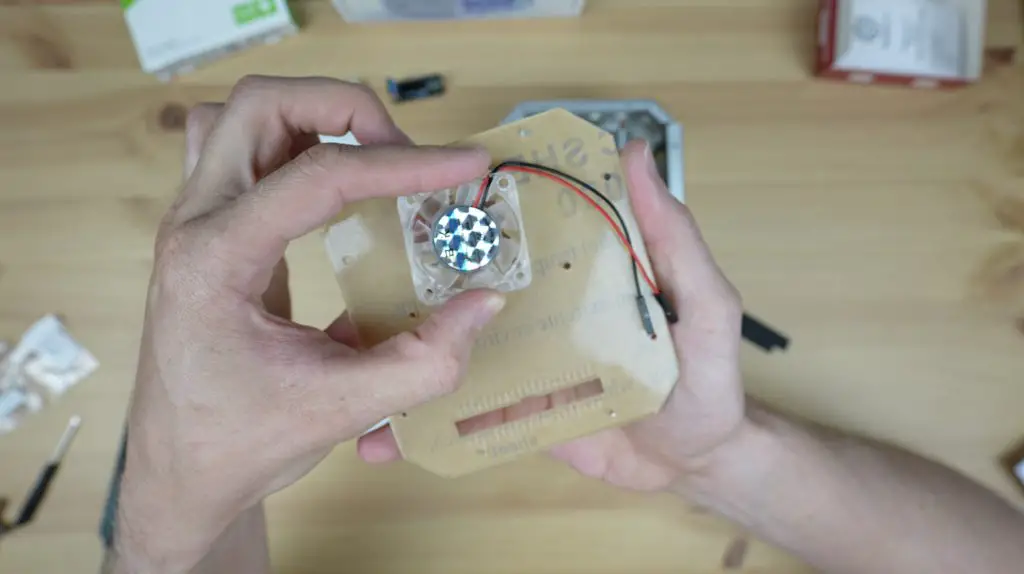
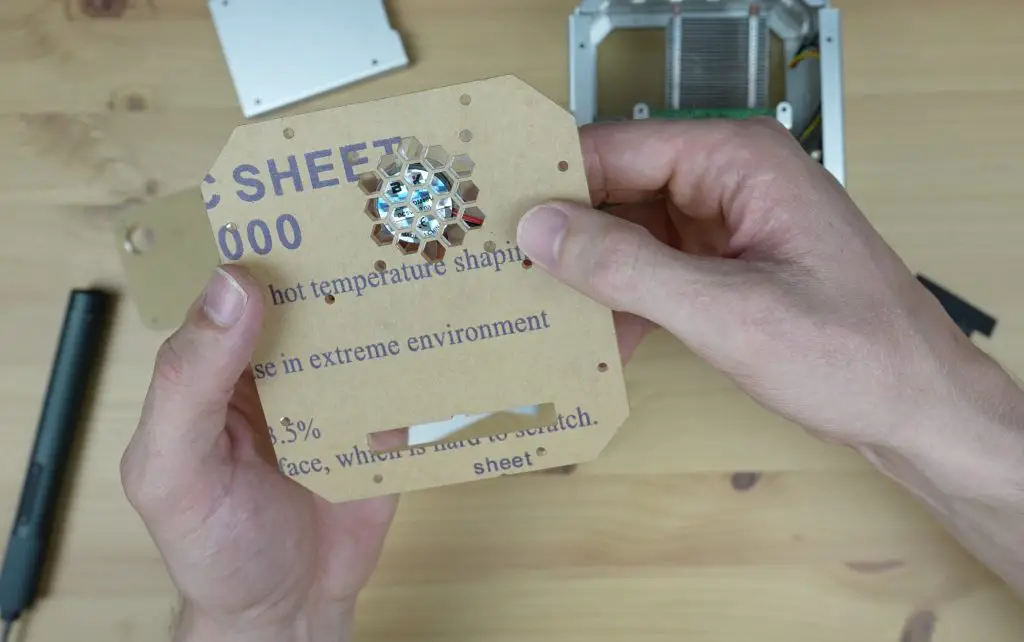
And before installing the second side panel, we need to mount the fan to it. They include mounting holes for the fan on either side of the case, so you can go with either option. One issue I did find with this though is that the fan hub protrudes from the housing enough that it catches on the acrylic. So you can only install the fan one way around, pushing air out of the case.

Fan Blades Catch On Acrylic Cover

This probably doesn’t make much difference to the thermals but I like having the hub side of the fan visible as the opposite side has an ugly sticker on it. I tried pressing the hub down onto the motor a bit further but that didn’t make any difference.

Fan Sticker Visible Through Acrylic Panel

Last up is installing the optional M.2 SATA SSD on the bottom of the carrier board. This is an easy process with 8 screws on the removable bottom panel.

Installing The M.2 SATA SSD

Just to be clear, this is an M.2 SATA drive, not an NVME drive. A lot of people told me in a previous project that it was a waste to use an NVME drive that is connected through a USB 3.0 port. This drive, being an M.2 SATA drive, actually has a pretty similar speed to the USB 3.0 ports on the Pi at around 600 MBps.

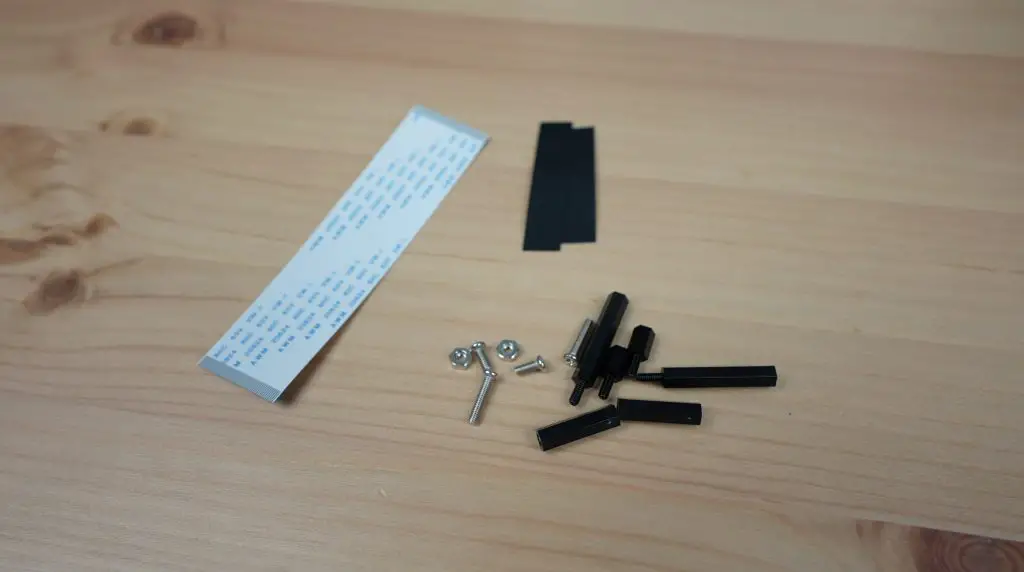
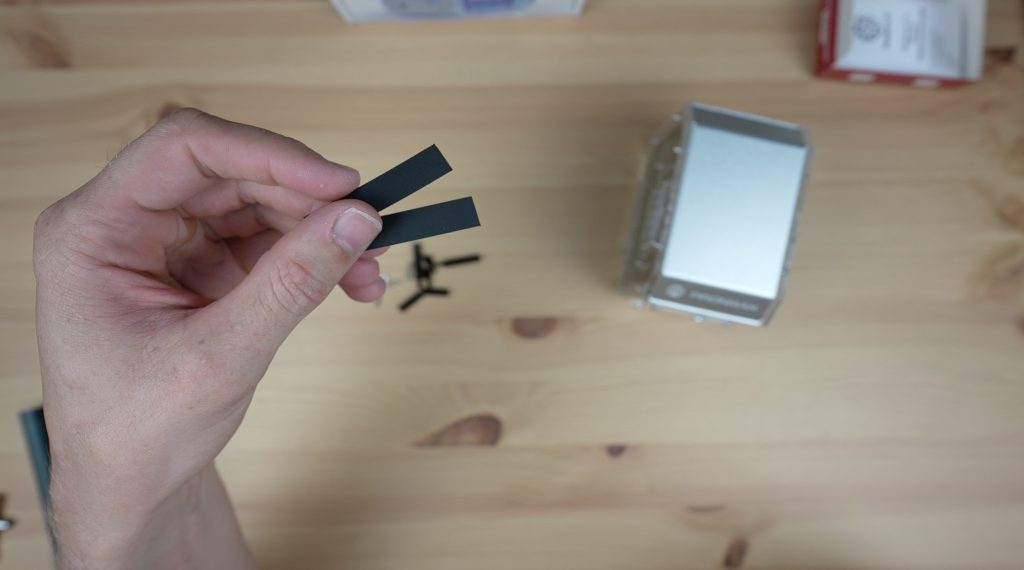
There were some parts left over after assembly, which I assume are spares. The two black strips look like ones typically used for cable management but aren’t mentioned anywhere in the instructions, so I’m not sure what the intention behind them is.

Installing Raspberry Pi OS and their Pironman Script

With the case all assembled, let’s get it booted up, load the Pironman script and see what it looks like.

I used this drive previously, so it’s already got Raspberry Pi OS loaded and it’s still got my stats script on it, which looks like it works with this display as well.

Pironman Case Original Stats Script Working

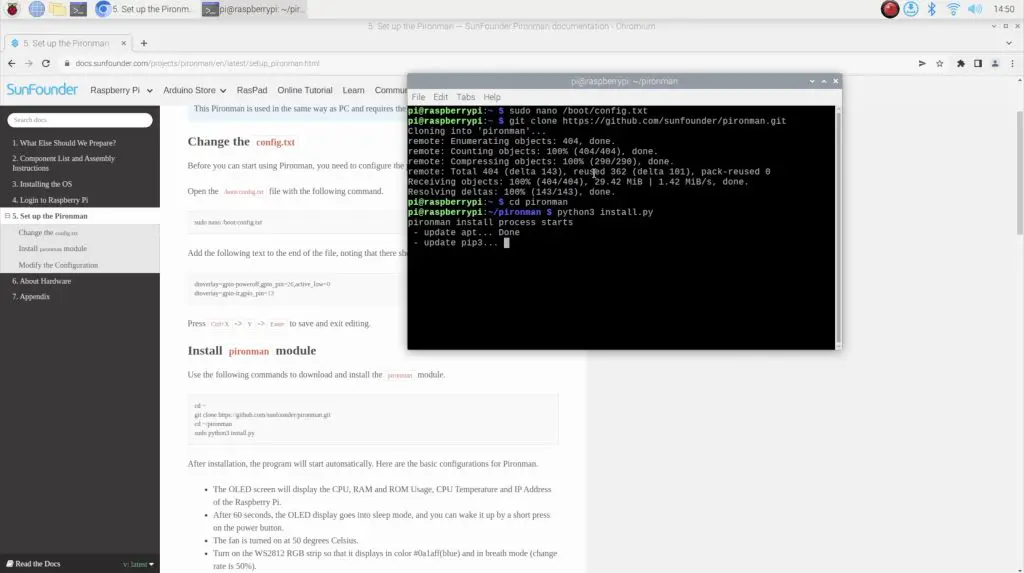
On their website, Sunfounder have got instructions on how to set up the software to control their custom components. First, you’ll need to make changes to the configuration file for the power button and IR receiver to work.

Then you’ll need to install a script from their Github repository which will control the OLED display, turn the fan on and off at a certain temperature, control the RGB LED strip and activate a safe shutdown of your Pi when you press and hold the power button.

Pironman Case Configuration

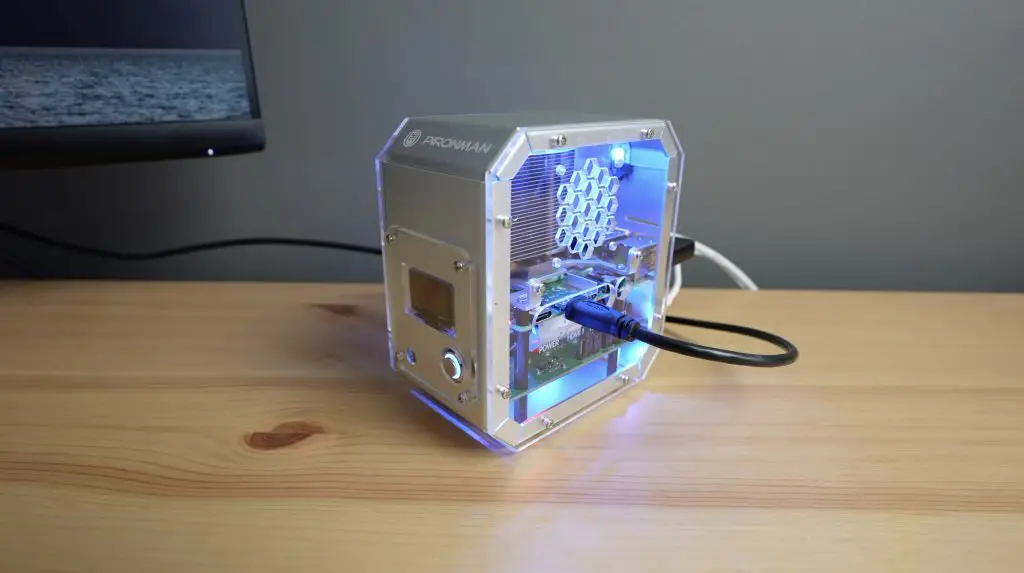
Once you’ve loaded it then the LEDs inside the case light up and this looks quite cool.

LED Lights Working After Setup

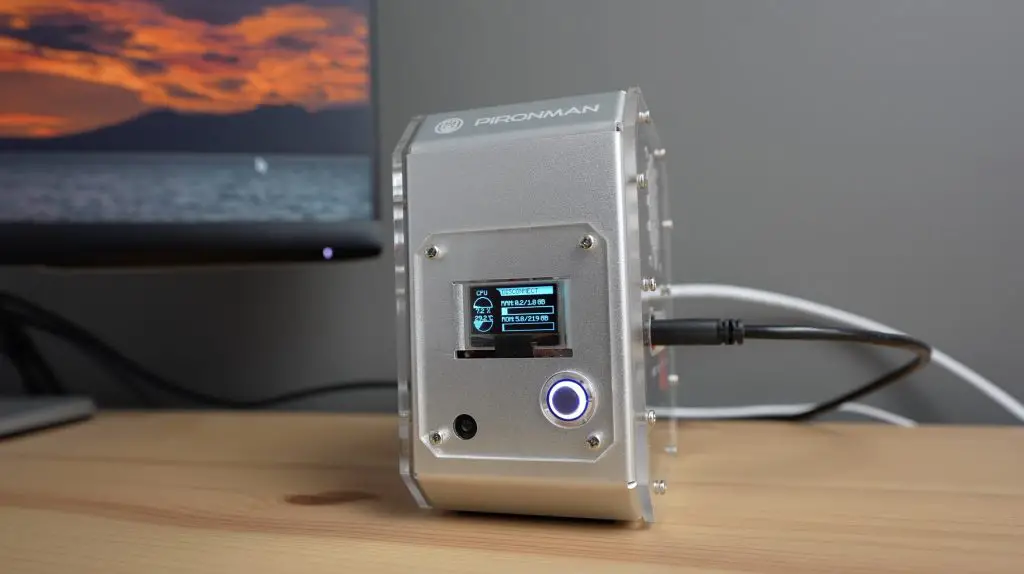
The display also shows their custom stats screen.

Pironman Case Stats Script Running

I tried a quick stress test to check if the fan would come on, which it did when the CPU went over 50C.

Fan Running When CPU Temperature Exceeds 50C

I then also tried playing around with some of the RGB light settings. You can change the light sequence and colours and also how quickly they change or pulse.

The display goes to sleep after a period of time, which you can customise, and you short press the power button to wake it up again.

Stats Script IS Displayed With Short Power Button Press

If you long press the power button, it’ll shut down your Pi. The lights and fan stay on for a while after the Pi shuts down but do eventually turn off as well.

Pi Shutdown With Long Button Press

And finally, pressing the power button wakes the Pi back up again.

Pi Shuts Down and LEDs Turn Off After A While

Final Thoughts On The Sunfounder Pironman Case

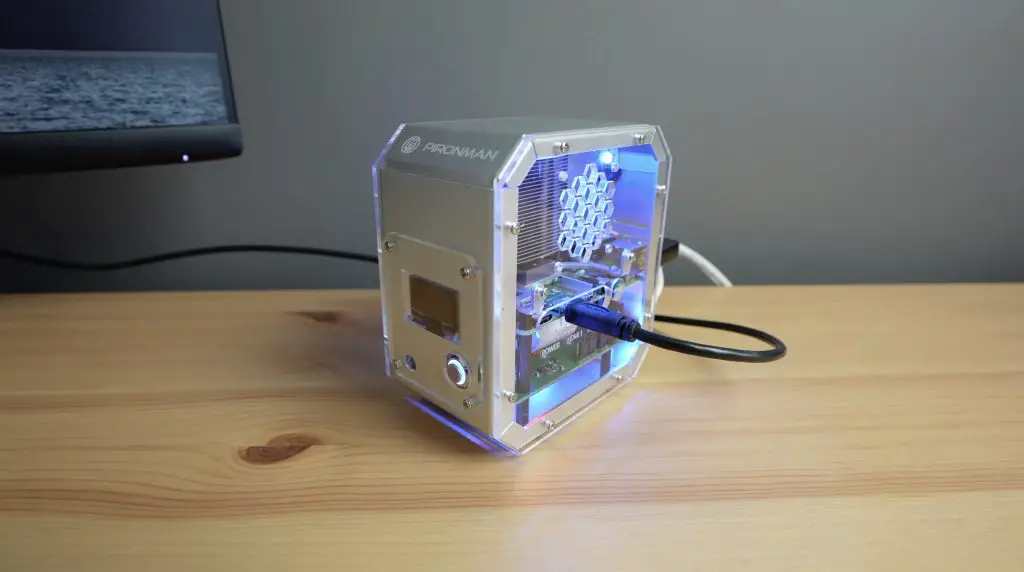
Overall, I quite like the detail that they’ve put into the case design. It’s a good quality case that will last a long time, and it’s really got all of the optional extras that you’d want if you’re going to be using your Pi as a mini-computer.

Pironman Case By Sunfounder

After putting the case together and using it for a few days, there are a couple of things I’d like to see improved.

I like that the fan is mounted onto the side panel rather than on the cooler so that it is actually drawing fresh air into the case, but I would have made the exhaust vents a little bigger than the input as you don’t want to restrict the airflow out of the case. They’ve obviously done this so that you can put the fan on either side if you’d like to.

The other more significant thing is the general assembly process. I think they’ve made the design slightly more complicated than it needs to be. The metal housing could have just been two parts instead of four. It’s great that the bottom is removable to get to the SSD but the other three sides should all be a single piece. This would make installation much easier and would reduce the number of screws required.

I’d definitely recommend having a look at the Pironman case for your Raspberry Pi, it’s one of the better ones I’ve seen and is good value with the SSD carrier board included as well. Let me know what you think of it in the comments section below.

I Made An Only Fans Case For My Raspberry Pi

Every time I’ve made a new case for my Raspberry Pi, there are always a few comments suggesting adding another fan or making improvements to the cooling, so today I’m going to put these suggestions to the test by building a case that has as many fans as possible to find out if more fans really result in lower CPU temperatures.

Raspberry Pi SSD Window Case Design

Now this wouldn’t be a test without some sort of data to compare it to, so we need a baseline to see what the CPU temperature is in my usual Pi case design.

I’m going to be comparing three configurations;

  • A baseline small heatsink placed onto a Pi in my standard desktop case design with a fan on the side panel,
  • An Ice Tower cooler on the Pi like I use in most of my designs,
  • An Ice Tower cooler in a case where every possible space is filled with a fan.

I’m going to run each test at the Pi’s base frequency of 1.5Ghz and I’ll then overclock the Pi to 2.2Ghz and see how that affects the temperatures.

Heatsink Test At 1.5Ghz

For each, I’ll be starting at room temperature, which is about 25 degrees, and I’ll run a utility called CPU burn which maxes out the Pi’s four cores and I’ll leave this running until the temperature stabilises or we start thermal throttling.

Watch my video of the build and test below or read on for the write-up;

What You Need For This Project

Equipment Used

  • Gweike Cloud Laser – Buy Here
    • Use my discount code MK200 on checkout to get $200 off
  • Electric Screwdriver – Buy Here
  • Acrylic Bender – Buy Here
  • TS100 Soldering Iron – Buy Here

Designing The Fan Case

To start off, I had to work out how many fans I’d need. Each fan is a square of 40mm and is 11mm deep, and a Raspberry Pi is 85mm long and 56mm wide.

So to cover the full length of the Pi with the SD card sticking a little out the back we’re going to need 3 fans, and to cover the width we’ll need 2 fans. We also need a bit of height to leave space for the Ice Tower on top of the Pi, so I’m going to make it two fans high. I’m not going to put any fans underneath the Pi as they’re restricted by the desk and there is nothing to cool on the bottom.

So I’ve got space for 6 fans on each side as well as 6 on the top, and space for 4 fans at the front and the back. We can’t have fans blocking the ports on the front of the Pi, so I’m going to get rid of the bottom two fans in that area and I’ll add some port cutouts into the design. So we’ll need a total of 24 fans for this design.

Fan Layout Around Raspberry Pi

A not-so-quick Aliexpress order and two weeks later these arrived.

Box Of Fans Arrived From Aliexpress

Now I could just glue them all together but that’s going to be a challenge at the corners and is going to make mounting the Pi difficult, so we need some sort of frame to hold the fans in place. The easiest way to make up this frame is going to be with some 2mm clear acrylic that I can laser cut.

I drew up the design below in Inkscape.

Laser Cutting Design

Laser Cutting Frame Design For Fan Case

The design doesn’t add any restrictions to the fan’s airflow, it is there purely to hold the fans in place, so the hole for each fan is slightly larger than the fan diameter. It’s made up of two parts which will each be bent into a U shape to fit together and I’ll then need some 90-degree brackets in the corners to hold the two pieces together.

Making Up The Fan Case Components

I laser cut the two parts from a single sheet of 2mm clear acrylic.

Laser Cutting Fan Case Design

I then bent the parts using an acrylic bending tool to heat up a line between the notches cut into the sides and I used a wide 90-degree bracket to make sure that the bends came out square.

Acrylic Bending Tool To Bend Case

Both of these turned out to be a bit more difficult than I had hoped. I bent the sides on the first piece the wrong way around and had to go back and reheat them to bend them the other way. The second piece was longer than the element on the bending tool so I had to reheat it from both sides a couple of times before it was hot enough to actually make the bend. But I eventually got the two parts made up correctly in the end.

Now that I’ve got the parts in my hands, I actually think it’s going to be easier to hold together if I glue some brass inserts onto the base for the sides of the top section to screw into, so I’m going to glue an M3x10mm standoff into each corner which aligns with the corner fan screws.

Frame Of Case Built Up

Mounting The Fans Onto The Case Frame

Next I need to get all 24 of these fans mounted onto the case frame. To do this, I’m using the four M3 button head screws and nuts that came with each fan.

Fans Mounted With M3 Screws

I realised at this stage that I hadn’t really decided which fans would be pushing air into the case and which would be pulling air out, so I decided that it would be best to have an even split and since people often complain about air dead spots in my case design I thought it would be best to have all of the fans on one side pushing air into the case and all of the fans on the other side pulling air out of the case. This is so that there are no fans opposing or competing with each other.

Fans Pushing Or Pulling Into Case

I then mounted all 24 fans onto the two case halves, with all of the fans on the left blowing air into the case and all of the fans on the right pulling air out of the case.

With the fans all done, we can mount the Raspberry Pi and Ice Tower assembly into the case. With the bend in the acrylic, the ports are slightly too high so I’ve added a nut as a spacer onto the bottom of each stand-off so that the Pi sits a little higher.

I’m also adding a small rubber foot on each of the four corners of the base so that it doesn’t vibrate itself around my desk.

Installing Rubber Feet Onto Bottom Of Frame

I’ve got some 90-degree cables for power and HDMI so that these can run through the base.

Plugging Power and HDMI Cables Into Pi

The next challenge is how to power the fans. Each one runs on 5V and draws around 0.1A. They’ll run individually on the Raspberry Pi’s GPIO pins, but when there are 24 of them, we easily exceed the capacity of the Pi. We probably even exceed the USB C power adaptor’s capacity with the Pi running as well. So I have to rig up another power supply just to run the fans – this power supply can do 5V 2.5A which is perfect.

Power Adaptor To Power 24 Fans

Now I just need to connect each of the fans to the power supply. I’ve made up a few connectors to connect the fans up in groups in a way that doesn’t have them all running through a single set of jumper leads, which would overload the leads.

Power Cable and Jumper Lead Adaptors

I then used some zip ties to neaten up the wiring and try to keep the wiring out of the fan blades. This also turned out to be a lot more difficult than I thought. There isn’t a lot of room within the case, so every time I put the two pieces together, some of the wiring landed up in a fan. After a bit of frustration, I eventually managed to sort it out and get the fans spinning freely.

I’m not going to power it up just yet, let’s first backtrack a little and let me show you the results from my first two tests.

Testing My Original Desktop Case Design

I wanted to use the same Raspberry Pi across all tests for consistency, so the Pi that is currently in the fan case is the same one that I used earlier for these tests.

For the first test, I put a small aluminium heatsink onto the Pi and then put it into my desktop case. It’ll be cooled by a single fan on the side of the case.

I booted it up and then ran CPU burn with the CPU clock frequency at the standard 1.5Ghz. The temperature actually stayed lower than I expected and it stabilised at around 53 degrees after 3 minutes.

I then overclocked the Pi to 2.2Ghz and ran the test again. This resulted in a significantly higher running temperature but still didn’t thermal throttle and stabilised at around 75 degrees after 4 minutes.

Here are the results from the Aluminium Heatsink test:

Heatsink Test Results

For the second test, I put the Ice Tower onto the Pi as I usually do with my case designs. This also has a single fan which is mounted directly onto the side panel of the case, pushing air into the case and onto the Ice Tower cooler, and vents out on the opposite side.

Raspberry Pi Running With Ice Tower Cooler

The 1.5Ghz test stabilised at about 39 degrees after 2 minutes.

The 2.2Ghz test stabilised about 10 degrees higher at 49 degrees but took about 4 minutes to get there.

So these are the results from the first two tests, which we’ll be looking to beat with more fans:

Ice Tower Cooler Results

Testing The Fan Case

Let’s start out by getting the fans powered up.

Powering Fan Case

I wasn’t sure what to expect, but to me, it was somewhat underwhelming. You’ll need to watch my video linked at the beginning of the post, but I expected a bit more noise and to feel a lot more airflow around the case. It still looks pretty cool though.

It was also quite nice to see the fans all start off the same colour and run the same RGB loop for a few seconds before slowly drifting off into a mix of colours.

Next, let’s boot up the Pi and see how it handles the test.

Fan Case Booted Up

First, let’s run the test at 1.5Ghz. The fans were making a difference at the start, our starting temperature was a little over 3 degrees lower than with the Ice Tower. The temperature jumped up to 34 degrees quite quickly but stabilised quickly as well.

Next let’s reboot it at 2.2Ghz and try again.

Our starting temperature is about 7 degrees warmer than at 1.5Ghz, so let’s see what it stabilises at.

With the tests done, the results are in. The fan case stabilised at 35 degrees at 1.5Ghz and 44 degrees at 2.2Ghz, both after around 3 minutes.

Fan Case Test Results

Comparing The Results From All 6 Tests

Here are the results from all 6 tests:

Combined Test Results

So the fan case did have an improvement over the standard case, but not in a way that I’d consider a dramatic improvement. The temperature decreased by an average of 4 degrees when running the 24 fans in place of the single fan.

Only 4 Degree Drop In Temperature Between Ice Tower and Fans Case

Given that we’re now using over 2000% more power just to run the fans and that most Raspberry Pi’s are not running flat out continuously, I’d say a single fan on a decent size heatsink like the Ice Tower or Ice Cube cooler is more than enough – even for overclocking.

And If you’re really keen on keeping the temperature of your Raspberry Pi as low as possible, you’ll have more fun water-cooling your Pi. It’s also quieter, more power efficient and cheaper than buying 24 fans.

Water Cooling On Raspberry Pi 4

Let me know what you think of my fan case and let me know if there is anything else you’d like to see me try to cool my Pi with in the comments section below.

I Made The World’s Smallest Server Rack – With UPS and SSD Storage

Having your own home server rack or homelab is really useful, but you have to have a relatively large space to set it up, it generates a lot of heat and can be pretty noisy. So that’s why I built this, the world’s smallest server rack that fits right in on my desk alongside a drink or cup of coffee.

Worlds Smallest Server Rack Running On UPS

It runs Docker, so it can handle a number of containerised network applications, it’s also got a built-in UPS to carry it through a power outage for an hour or so and it’s got an SSD which is used for file and media storage.

So in this guide, I’ll show you how I made it.

Here’s my video of the build, read on for the written guide:

What You Need To Make Your Own Mini Server Rack

Tool & Equipment Used:

  • Creality Ender-3 S1 Pro – Buy Here
  • Gweike Cloud Laser – Buy Here
    • Use my discount code MK200 on checkout to get $200 off
  • Electric Screwdriver – Buy Here
  • Acrylic Bender – Buy Here

Designing The Mini Server Rack

This project came about because when I made up a case for my Raspberry Pi to house a UPS then people asked me to add an SSD and when I made one up for an SSD, then people asked me to add a UPS.

The problem is that both of these boards are designed to sit directly underneath the Raspberry Pi, the UPS because it uses these pogo pins to connect to the Pi’s GPIO pins;

UPS Pogo Pins To Connect To Pi

And the SSD shield because of the jumper to hook it up to the Pi’s USB ports;

SSD Shields USB Jumper

So this got me thinking of a way to mount all three on top of each other, and the solution that came to mind is some sort of rack mount enclosure. These don’t exist in sizes suitable for a Raspberry Pi, so I decided to design my own.

I designed the rack in Fusion360 to look somewhat like a server rack that would be used for a typical home lab. It’s got a tinted acrylic swing door on the front and tinted acrylic side panels. The top, bottom and back are all solid panels, with the back having a cable entry point and the top having a 40mm fan for cooling.

Designing The Rack Mount Server Case

Download the CAD files to make your own Mini Server Rack

Inside, we’ve got space for three racks, one for the Pi, one for the UPS and one for the SSD. I’m also going to mount an OLED display alongside the Pi to provide some stats on resource usage on the server.

Making Up The Server Rack Components

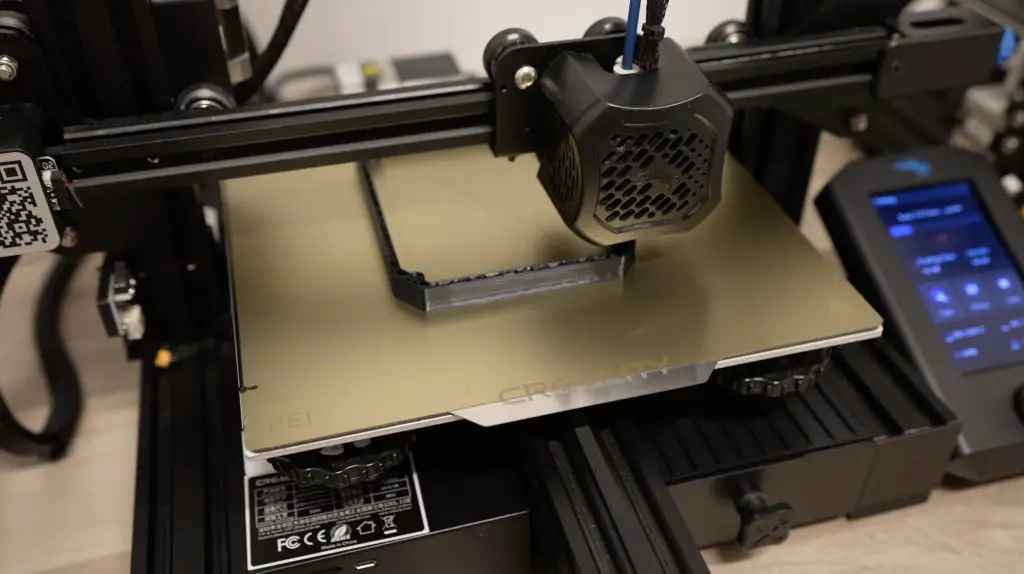
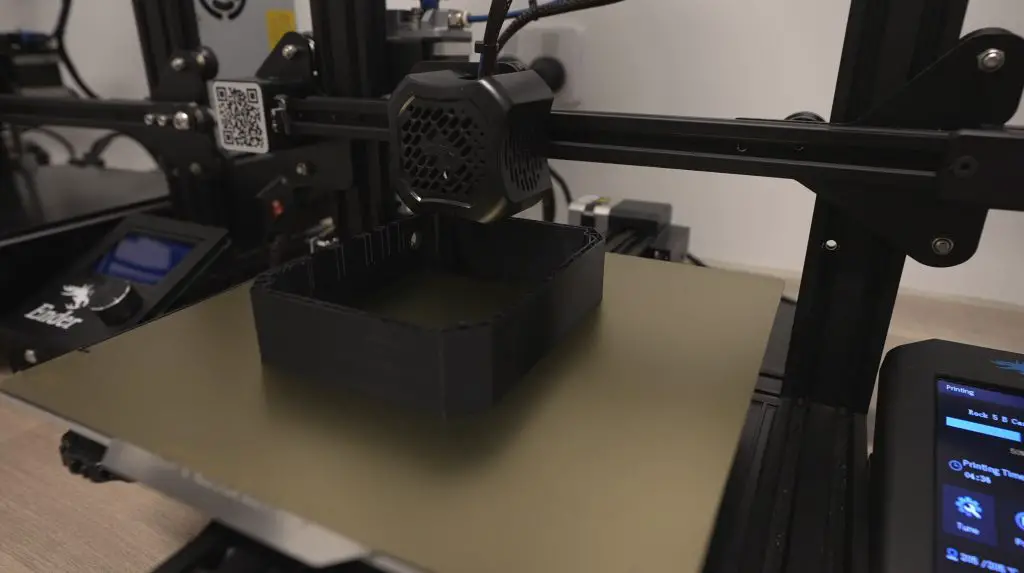
With the design done, I 3D printed the parts in black PLA.

3D Printing The Components

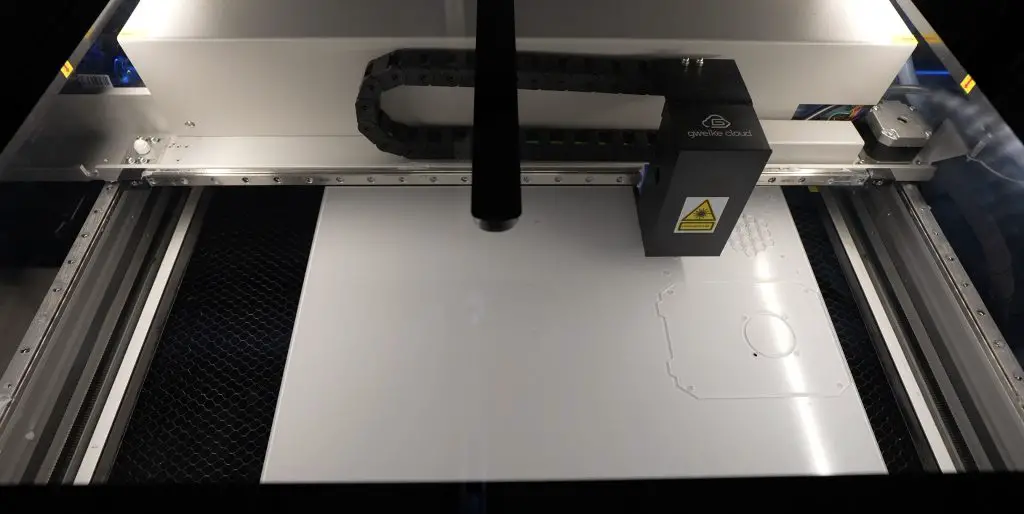
While they were printing, I also laser cut the door and two side panels from 3mm grey tinted acrylic.

Laser Cutting The Acrylic Sheets

So those are the main components for the housing made up, now we just need to add the racks to it to hold the electronics.

Electronic Components To Install In Server

The SSD will be on its own rack at the bottom as this can be plugged in or removed using a USB cable or jumper.

I’m using an M.2 NGFF shield with a 256GB Western Digital SSD.

250GB SATA SSD Plugging Into Shield

The UPS is a bit more complicated because of the pogo pins, so you can’t just slide it in underneath the Pi, it has to be physically screwed onto the bottom of the Pi. So, I’m going to have to combine these two racks into a single double-height rack.

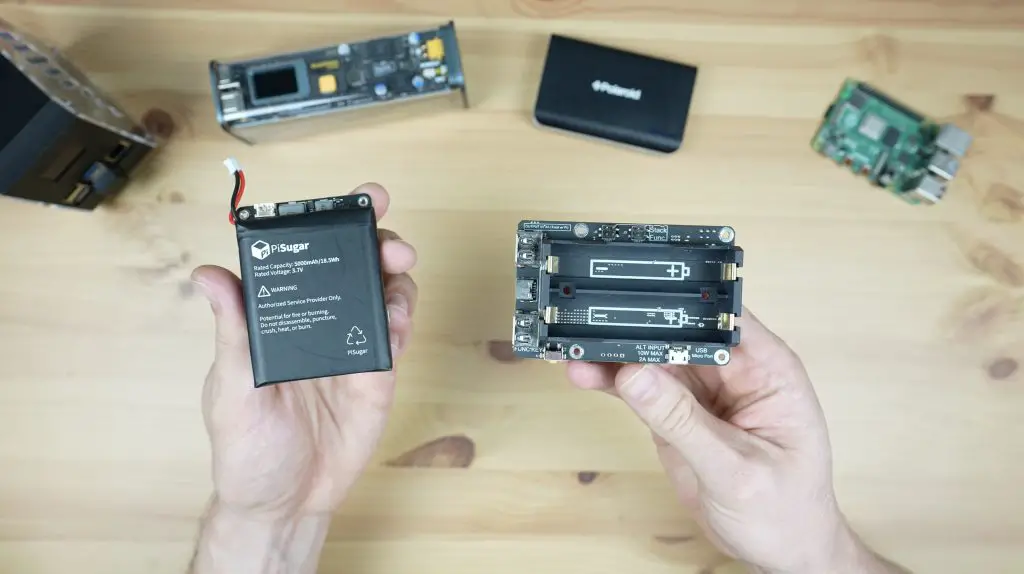
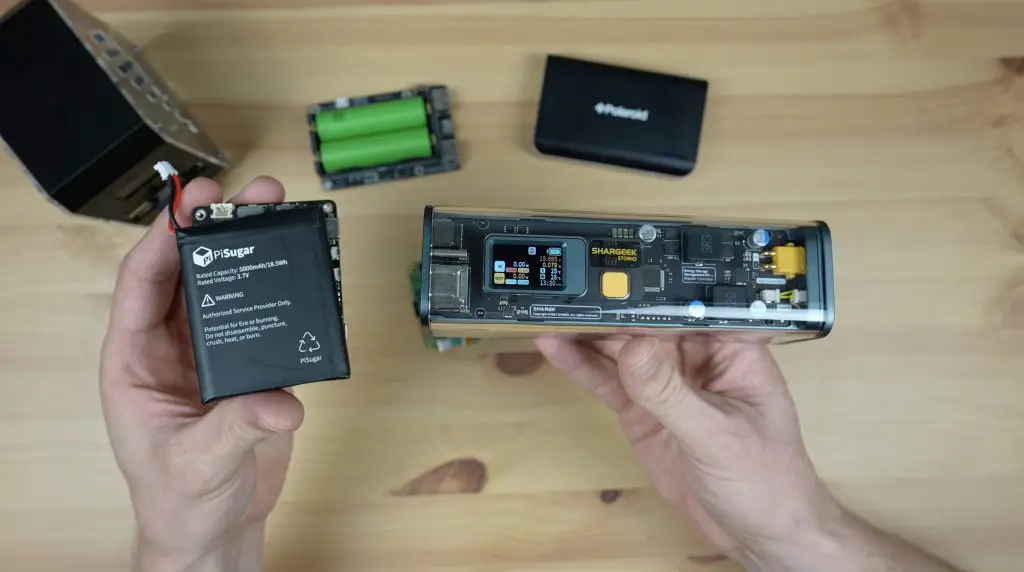
The UPS I’m using is a Pisugar 3 Plus. This has a 5000mAh battery which can run a Pi alone for around 5 hours, but with the SSD connected as well as the fan and display running, I expect this to go down to about an hour or two. It can handle a continuous output of up to 3A, so it’ll have no trouble supplying power to the additional equipment and the SSD as well.

The racks are going to be made from 2mm black acrylic which I’m going to bend at the front. So I drew up these flat patterns in Inkscape to laser cut.

Inkscape Laser Cutting Rack Designs

You could also 3D print these trays but it takes a minute to cut both of them from acrylic rather than a few hours to 3D print them, so it’s easier to make changes or adjustments if I need to.

Laser Cutting The Acrylic Racks

To bend the acrylic, I’m using an acrylic bending tool to heat up a line along the bottom.

Heating The Racks With Acrylic Bending Tool

Once the acrylic is soft, we can bend the front up and use a 90-degree bracket to make sure that the bend comes out square.

We can do the same for the second rack.

Assembling The Mini Server Rack

Now we’ve got all of the parts made up and we can move on to assembling our mini server rack.

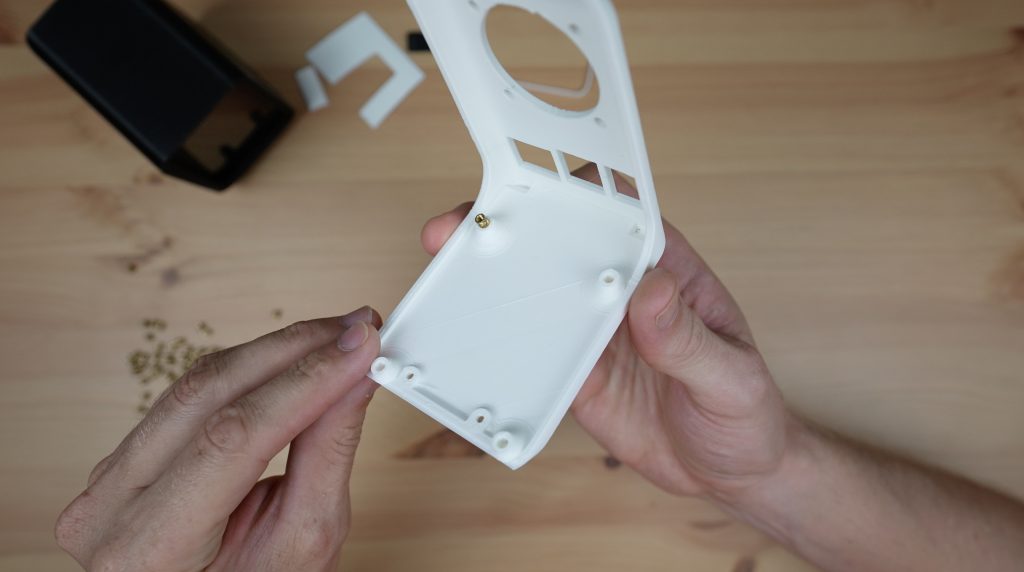
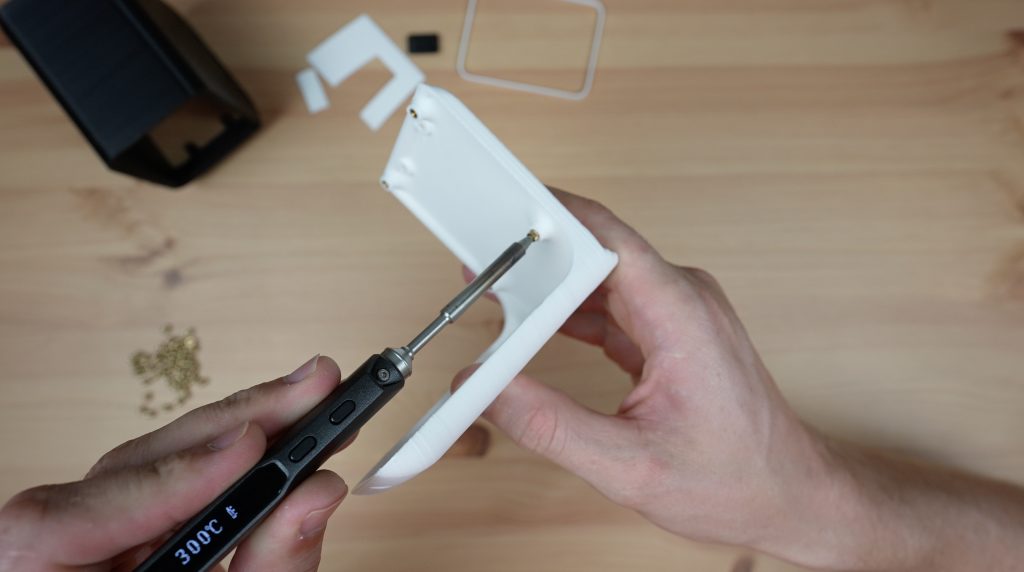
First, we need to melt some threaded brass inserts into the 3D-printed base and hinge for our assembly screws. To do this, we’ll use a soldering iron set higher than the melting point of our filament.

Melting Brass Inserts Into Place

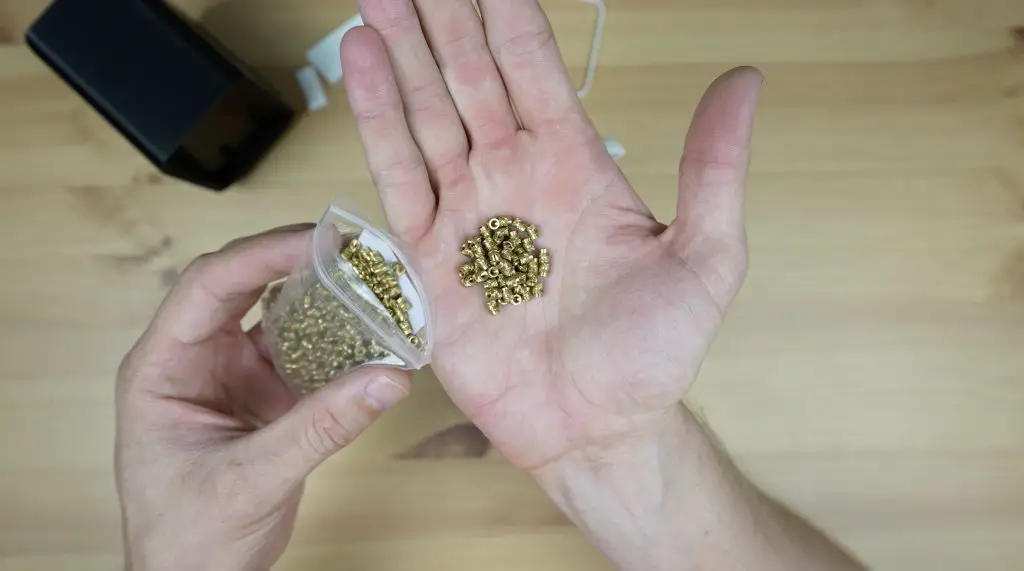
We’ve got four M2.5x6mm inserts for the top cover screws, six more for the racks, two for the cable cover at the back, and finally two M2x4mm brass inserts on the hinge for the hinge pins.

Now let’s install our components onto the racks.

We’ll start by mounting the SSD shield onto the bottom rack.

SSD Shield Ready To Install On Rack

The SSD shield is held in place using the M2.5x6mm brass standoffs that came with it and an M2.5 nut on the bottom. I’m still going to use the USB jumper that came with it, but I’ll use this on the Pi and then use a short USB jumper with a 90-degree cable to connect to the SSD.

We can then slide the SSD rack into place at the bottom and secure it with two M2.5x6mm screws.

Installing SSD Rack Into Enclosure

Now let’s move on to the UPS and Pi rack. I was initially going to use the included nylon screws and some 6mm standoffs to mount the Pi on the rack but, to fit the OLED display in next to it, I needed the Pi to be at the top. So I’m going to replace the nylon screws with M2.5x6mm stainless steel screws for additional strength and I’m going to use two M2.5x12mm brass standoffs for each leg to the rack.

Adding Brass Standoffs Onto Pi & UPS

The battery also doesn’t fit in between the legs, so I’m going to leave off one of the front legs so that there is some room for it to fit in under the Pi.

UPS Battery Installed Beneath Pi

The OLED display is held in place using two M2x16mm screws at the top with a nut on the back of each and is held in place along the bottom by the cutout through the bottom of the rack.

M2 Screws To Mount OLED Display Onto Rack

The SSD’s USB jumper plugs into the front of the Pi and I’m using a short USB extension cable with a 90-degree connector on one end to connect to the SSD.

We can then hold the Pi assembly in place on the rack with some M2.5 nuts.

I’m going to use a short female-to-female ribbon cable to plug the display into the Pi’s GND, 3.3V and I2C pins. If you need some help with this step, you can follow my guide on connecting an OLED stats display to a Raspberry Pi.

I’m also going to add a heatsink to the Pi to assist with cooling.

Aluminium Heatsink Connected To Pi

Before we slide the Pi rack into place, let’s add the battery and plug it into the UPS.

The Pi rack is then also held in place with some M2.5x6mm screws, 2 per rack unit.

Mounting Top UPS Rack

Next, we can mount the fan onto the top cover. I’m using a 5V Noctua fan for this to keep it nice and quiet. I’m going to mount it on the underside of the cover with some M3x16mm screws so that it is pulling the warm air out of the case.

I’ve added a short pair of breadboard jumpers to adapt the connector on the fan to fit the Pi’s GPIO pins, I’m using 5V and GND. You can also use 3.3V if you’d like the fan to run a little quieter although it then moves less air so the Pi will run hotter.

To make up the door, we need to glue the acrylic sheet into the recess along the hinge, which we can do with some super glue.

Super Glue Hinge Onto Front Door Panel

Then I made up some adjustable hinge pins by cutting the heads off of some M2x10mm screws. We can then screw these into the brass inserts and screw them in or out to position the door correctly within the frame.

The USB C power cable runs through the cable entry hole at the back and then up to the Pi.

Plugging Power Cable Into Raspberry Pi

We can then close up the cable entry cover. I made this hole much bigger than what is required for the USB C cable so that I can add an HDMI cable or Ethernet cable in future if I’d like to use those ports on the Pi.

The side panels are just held in place using the guides that are 3D printed into the main body of the rack, so they’re easily removable if you need to get to the ports on the side of the Pi or the GPIO pins.

Adding Acrylic Side Panels To Server Rack

The door pivots on the hinges that sit within the 3D-printed holes in the base and top cover.

Adding Front Door To Server Rack

Then we can then close up the top cover with four more M2.5x6mm screws.

Installing Top Cover On Server Rack

I also 3D printed a cover for the USB jumper.

3D Printed USB Jumper Cover

That’s it complete, so now I can get the software loaded and boot it up.

Booting The Mini Server Rack Up

As I said at the beginning of the video, I’m running Docker on this Pi so I’ve got all of my applications running in containers. This makes it really easy to experiment with applications and services. I’ve even got my stats display running in a container, which I’ve also made available on Github. Here’s a great guide on installing Docker on your Raspberry Pi if you’d like to set yours up in the same way.

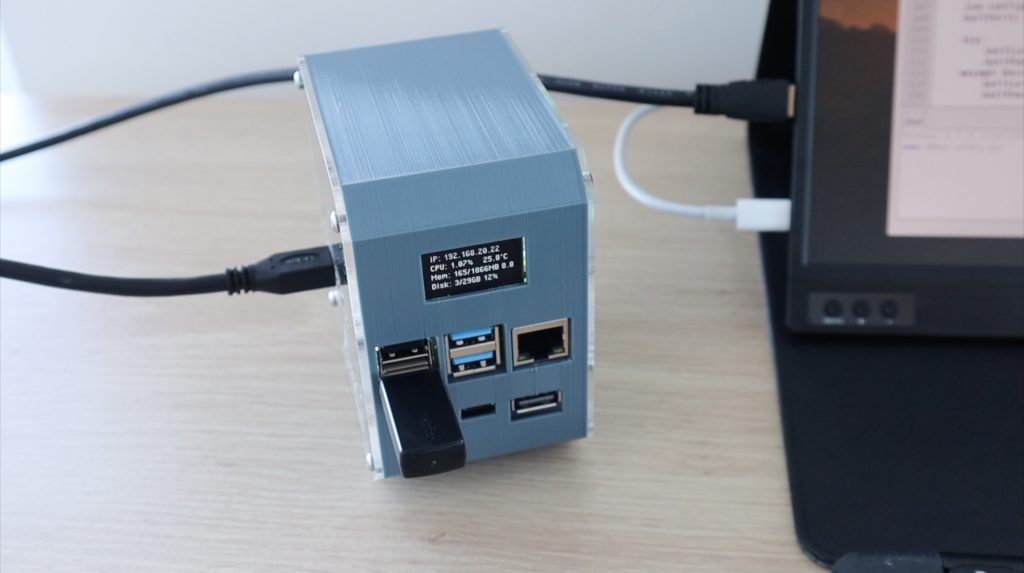
OLED Stats Display Running With IP Address Shown

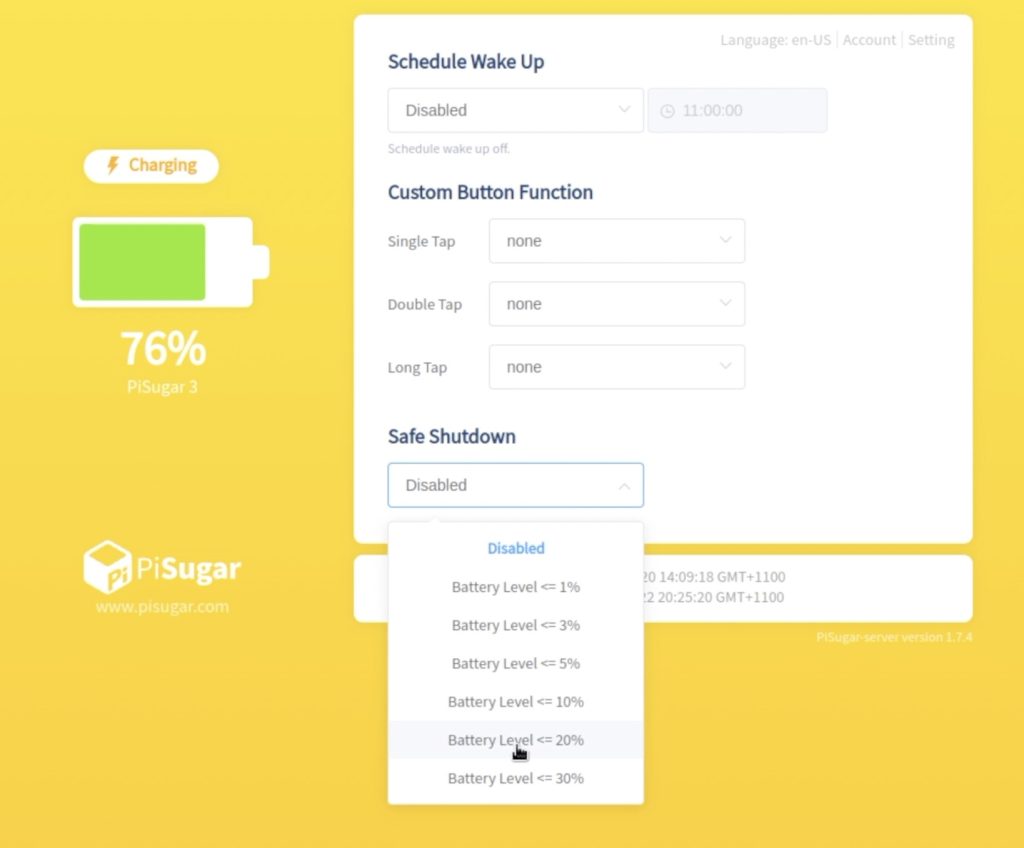
The Pi Sugar UPS also has a dashboard that is available through a web page on the network. I really like that you can access a range of settings and controls remotely.

PiSugar Web Dashboard

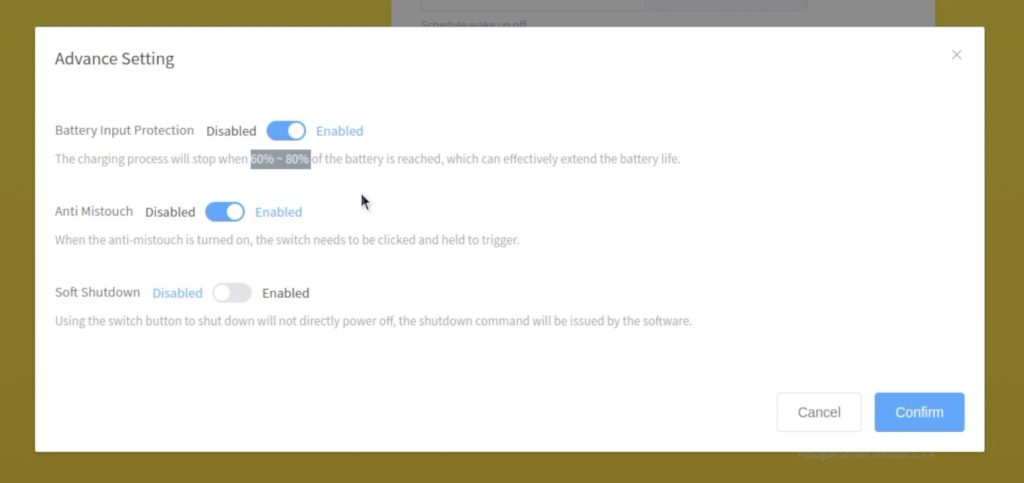
You can use the PiSugar’s built-in real-time clock to schedule a wake time, you can also add custom button functions, set the battery level that will trigger a safe shutdown and even extend the PiSugar’s battery life by not charging to its full capacity.

PiSugar Web Dashboard Settings

There are a bunch of commands that you can use in scripts on the Pi to get information from or modify settings on the UPS. These are useful if you’d like to adapt the OLED display to display stats specific to the UPS as well.

Additional Script Commands For PiSugar UPS

The only thing that I think is missing from the dashboard is a reboot or shutdown button to allow you to remotely reboot or shutdown the Pi.

Other than that the server seems happy to run entirely on battery power from the UPS, even with the fan and SSD running.

Final Thoughts On The Build

I’m really happy with how this project has come out. There are however a couple of things I still want to try.

I’d like to add a low-profile 90-degree ethernet cable to the Pi to rather use a hardwired network connection. A hardwired connection is a lot more reliable and stable, especially for a server-related project like this.

The Pi seems to run quite hot, even though it is near the fan, so I want to swap out the heatsink for a slightly larger one – perhaps use a low-profile Ice Tower.

The stats script also seems to lock up after a while, I assume because it is conflicting with the I2C interface on the UPS, so I need to look into a fix for this.

Let me know what you think of it in the comments section below and also let me know what other things you’d like to see me include in the rack design for a future build.

Bluetti AC200MAX Portable Power Station – Unboxing & Review

Have you ever needed power when camping? Or perhaps you’re somewhat addicted to your hobbies and can’t bring yourself to leave them at home when you head out.

We live in a world where almost everything requires electricity, even our watches can’t go more than a couple of days without a trip to the charger, so having a convenient power source is really handy, and that’s where the Bluetti AC200Max comes in.

Bluetti AC200Max

The AC200Max is an expandable portable power station designed to keep you powered when you’re away from home, or even powered in your home in the event of a power outage.

Here’s my unboxing and review video, read on for my written review:

Where To Buy The Bluetti AC200MAX?

The Bluetti AC200MAX is primarily available from Bluetti’s web store or from Amazon, but they are also stocked in a range of local camping, 4×4 and outdoors retailers.

  • Bluetti’s Web Store (USA) – Buy Here
  • Bluetti’s Web Store (Australia) – Buy Here
  • Bluetti’s Amazon Store (USA) – Buy Here
  • Bluettis Amazon Store (Australia) – Buy Here

Unboxing & First Look

The Bluetti AC200Max arrives in a large brown unbranded box and within that is the second branded box that you see below, so it’s well protected during delivery.

Bluetti AC200MAX In Box

In the rather sizeable internal box, you get an AC adaptor, a neat drawstring bag with some additional charging cables, and the usual manual, QC documents and a warranty card at the top.

Unboxing The AC200MAX - Charger & Accessories

Then the AC200MAX in some foam inserts below it.

Bluetti AC200MAX In Shipping Box

It’s a fairly compact all-in-one unit that combines a 2048Wh battery pack with a smart 2,200W pure sine wave inverter.

In the drawstring bag is a bundle of cables. You’ve got three charging cables – a PV cable that has standard MC4 solar connectors on it, a car charging cable that’ll plug into a cigarette lighter, and an XT90 to aviation-style plug that connects these cables or others to the AC200Max. Bundled with them is the power cable for the AC adaptor.

Bundle Of Included Cables

You also get a sleeve with a warranty card and a basic user manual that walks you through how to use the power station and what settings are available.

Bluetti AC200MAX User Manual

The internal battery is made up of Lithium Iron Phosphate cells, which are rated for 3,500 cycles when charging to 80% of the original capacity. Given that this is intended to be a portable power unit that you take along with you when you need it, you’re probably unlikely to be using close to 80% of a cycle every day, but even if you did, you’d still expect to get almost 10 years of life out of the battery.

Bluetti AC200MAX Unboxed

The battery capacity can also be expanded up to 8192Wh by adding their B300 or B230 expansion batteries, which plug into the expansion ports on the side.

Charging Ports On The Side

Thanks to the high-capacity battery, the AC200MAX isn’t exactly light. At 28kg, it’s not something you quickly throw into the back of your car, it’s a two-handed job at the very least. It is reasonably compact though, being 420mm wide, just under 400mm high and 280mm deep.

On the front panel, we’ve got the power button and a 4-inch touchscreen used to display the battery’s charge capacity, and energy being drawn, control the inputs and outputs and adjust settings.

Resistive Touch Display

The touchscreen is resistive rather than capacitive, which does require a firmer touch. However, it is still quite sensitive and is probably a more reliable option considering it might be used in situations where you’d have gloves on or have water on your hands.

Charging Options On The AC200MAX

To keep your battery topped up, the AC200MAX gives you a number of ways to recharge it.

You can plug it into a standard wall outlet, hook up a solar panel, charge it from your car, plug it into a generator, charge it from another battery source like a 12V battery bank, or use a combination of inputs together.

Included Accessories and Charging Adaptor

The beefy AC adaptor charges the battery at 400W and also has an internal fan for cooling, so it’s not going to be silent. Using this adaptor, you should be able to charge it up from empty to full in 5 to 6 hours.

There seem to be a few slight differences between the models available in different countries, it looks like the American version can charge at 500W. You can also add a second AC adaptor if you’d like to improve the AC charging time, you’ll obviously need to buy the second adaptor separately though. It looks like the separate adaptor is supplied with a barrel jack to XT90 connector, so you’ll plug it into the aviation port alongside the other charger.

AC Adaptor Charging At 450W

The solar input supports a maximum of 900W with an MPPT charge controller, which reduces the full charge time to about 3 to 3.5 hours. You also don’t have to use their own branded solar panels, the solar input is a standard MC4 connector, so you can use it with 3rd party panels that have an open circuit voltage of 10-145V.

MC4 Connectors On Solar Charge Cable

Combining both the AC and solar inputs, you can do up to 1300W using dual charging on AC and solar, so you could fully charge your battery in under 2 hours although I’m not sure how practical it is to use both inputs simultaneously. I’d imagine that you’d be using solar when you don’t have an AC outlet available and you’d be using the AC input to charge your battery when you get back home again, in which case you probably wouldn’t be setting up solar panels in your yard. But it’s nice to have the option to be able to combine them if you find the need.

Charging Inputs On The AC200MAX

The car charger is also an option, although it is the slowest charger at only 100W at 12V or 200W at 24V (although mine only managed 90W) so you’d need around 10 to 20 hours to charge up your battery. This is probably best suited for long road trips where you’re using the power in the evenings and charging the battery while driving during the day.

DC Power Options On The AC200MAX

To use the stored power, the AC200Max has 15 different outlets with a range of options to cover pretty much any power source you would have at home, and probably even a few extra.

From left to right on the front panel, you’ve got a 12V 10A DC cigarette lighter socket at the top, below that is a 12V 30A DC RV socket. Next to that are 2 12V 10A 5.5mm DC outputs. We’ve then got 6 USB ports, the two on the left are USB C ports supporting power delivery 3.0 up to 100W, alongside those are two 18W USB A ports and then two 5V 3A USB A ports.

Ports and Power Outlets On The Front

I really like the inclusion of power delivery on the USB C ports, this means you can leave your bulky laptop charger at home and just plug directly into the AC200MAX and still get similar charging performance.

Charging A Laptop With USB C Power Delivery

Four Outlets To Provide 2200W Of AC Power

On the right side of the front panel are four AC outlets which each support up to 10A. The AC200MAX has a pure sine wave inverter that can provide 2200W of power continuously and can handle a surge of up to 4800W.

To give you an idea of what you can run on it, you could run your Nespresso machine like this for about 150 cups of coffee, or 100 cups of steamed milk and coffee.

You can run a standard refrigerator for around 10-20 hours, so you’ll be all set for a power outage at home. Mine uses around 120W with the compressor running, but it only runs for a few minutes every half hour or so, so I actually found I used about 30 to 40Wh per hour, so I’d get close to 50 hours of run time. This obviously depends on the size of your refrigerator and the technology used, smaller ones designed particularly for camping can run for around 6-10 days on a single charge of the AC200MAX.

Next, let’s try run something closer to the load limit, I’m going to power my Weber Pulse 2000 with it. This is rated for 2200W, so should be right on the limit of the AC200MAX’s continuous rating.

Weber Pulse 2000 Running On Bluetti Portable Power Station

I’ll start with one side, which should be 1100W.

One Side Of The Pulse 2000 Running

That seems to be ok, so let’s add the second side.

We’re drawing a little over 2150W with both sides on their highest setting and the AC200MAX handles the power draw without any issues. In my video, you’ll hear that the fan on the side has come on as well.

Bluetti Mobile Phone App

Another awesome feature of the AC200MAX is smart control and monitoring through their Bluetti App. This allows your mobile phone to monitor and control your nearby Bluetti devices using Bluetooth.

You can create an account if you want to, but they also give you the option to just use the App without logging in. We can then select our device, which pops up in a list of nearby devices and can then monitor and control the AC200Max.

So we’ve got the AC output showing up as being on and we’re drawing almost 2170W.

Using The Bluetti App To Control The AC200MAX

We can control the outputs from the app. So if we turn off the AC output, the BBQ then turns off.

AC Output Turned Off

When we turn it back on again, the bbq comes back on again as well.

We can also turn the DC output on or off through the app, but there isn’t currently anything connected to it.

We can charge the Bluetti AC200MAX while it is being used, so let’s plug the AC adaptor in. Obviously, if the charging power input is lower than the power being drawn then the battery state of charge will still be reducing, just at a lower rate.

You’ll see the app is now showing that it is charging at a little under 450W.

Charging While Using The Output

I noticed the ring under the AC200MAX went orange when the state of charge dropped below 80%, so I presume this acts as a sort of battery level indicator.

Both AC and DC Outputs On

Under the settings menu, you can change the display’s auto-sleep time.

The app is pretty good for getting an overview of what’s on and allows you to turn inputs or outputs on and off, but I think there is still a lot that can be added to it. I’d like to see some power usage trend data or even some information on an estimated run time at the current power consumption or estimated time to fully charged.

The same goes for the display on the AC200Max. It’s got all of the basics, power readings, output toggles and you’ve got a nice set of settings, alarm logs. But it would be nice to have a bit of trend data and some forecasting.

Battery SOC Display

Additional Power Options On The AC200MAX

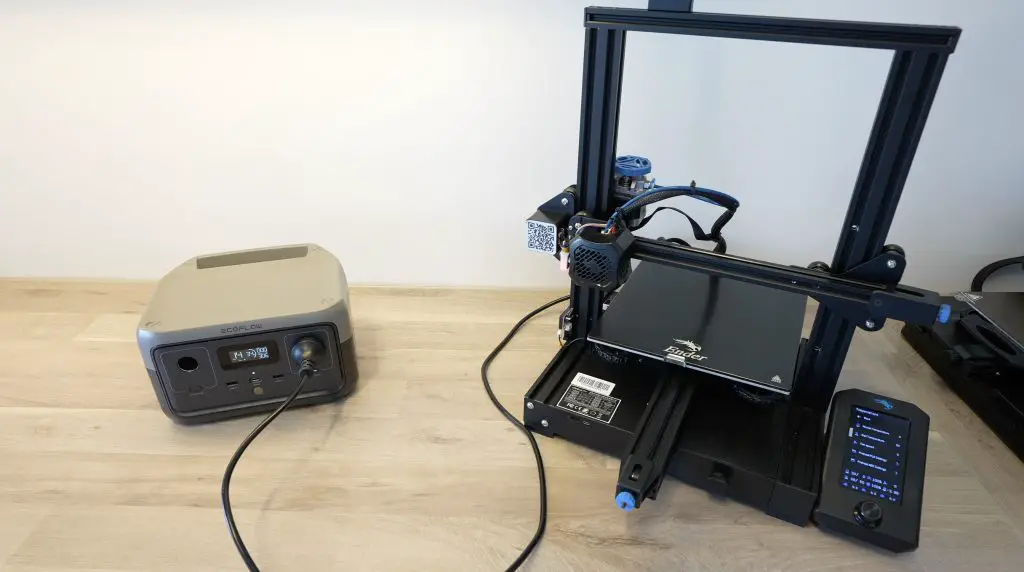
Lastly, if you’re addicted to your hobbies and want to take them with you, you can run a 3D printer like the Creality Ender 3 V2 for about 10-20 hours as well – depending on your hotbed, nozzle and environment temperatures.

That’s not it for power outputs, up top we’ve got two unsuspecting wireless charging pads that can each supply 15W, so they’ve got your mobile phone or airpods covered as well.

Wireless Charging An iPhone On The AC200MAX

One thing to keep in mind is that the onboard management system also uses some power to run, so you need to factor that into your calculations if you’re looking to run small appliances like a camping fridge or a WiFi adaptor for extended periods of time. Also, if you’re using it to power things like lights which are only on in the evenings then you should probably have the AC output turned off when you’re not using it to conserve battery life.

Camping Tent Light

It does have an Eco mode which will shut off the AC output if it hasn’t been used for 4 hours in order to conserve battery life, but this won’t affect the DC outputs.

How Much Does It Cost?

Lastly, let’s talk about the pricing. The AC200Max is not cheap, it retails for around $2,800 Australian dollars or around $2,000 US dollars, so that’s a fairly substantial amount of money. But being an all-in-one solution, keep in mind that you’re buying a battery, charger, inverter and voltage converter all-in-one. If you had to try to build your own system with similar specs, you’d likely spend the same amount of money, if not a bit more and then you’d still need to find a place to mount them and carry them around, making the convenience of the AC200Max well worth the price.

Bluetti AC200MAX Unboxing And Review

Final Thoughts On The Bluetti AC200MAX

After using the Bluetti AC200Max for the past three weeks, I’ve had a chance to test it in a number of different scenarios and with a number of devices, and here are my thoughts.

I like the compact design, it is heavy but I’d rather have a heavy unit like this that is able to do a higher AC output and has a larger battery capacity. I think it strikes a good balance between size, weight and portability – at least for me. There are smaller and lighter options if you’re looking for something a bit more portable, but you’ll then be sacrificing battery life, so it depends on your needs.

The build quality is really good – there are a wide range of power options so you shouldn’t need to bring any other charging bricks, adaptors or converters with you and I like that all of the ports have integrated port covers.

The only thing I don’t like is that the AC adaptor is separate. I would have preferred to have some sort of standard AC input on the unit, which would just require bringing a cable along (likely one that I’m bringing already for my camera or portable fridge). Lugging another power brick around and not being able to charge it from mains if you forget the brick is a bit of an inconvenience. The AC200MAX is already pretty big, so adding another few centimetres to the top or sides to incorporate a charger probably won’t be that noticeable. I’d also like to see a faster charging option from mains power if you really need it, 5-6 hours is a long time if you’ve forgotten to charge it or need it in a hurry.

As I’ve mentioned earlier, I think there is some room to add additional functionality to the display and app as well. All of the basics are there, but if you like stats and graphs like I do, then you’ll probably also want to see some additional things like estimates on battery life remaining, or the time remaining to fully charged. It’ll also be nice to have some trend data to see how your power has been used over the past few hours or days. These are both things that can be changed with software upgrades, so hopefully they’ll get better over time.

Charging While Using The Output

So the AC200Max is going to be great for those wanting portable power to run larger appliances, or in situations where you’re going to be away from grid power for more extended periods of time. It’s also perfect if you live in an area that experiences frequent power outages.

Be sure to check out Bluetti’s website and web store to find out more about the AC200MAX or to get your own. Let me know what you think of it in the comments section below.

I hope the Raspberry Pi 5 is this good – Khadas Edge 2 Pro

Today we’re going to be taking a look at the new Khadas Edge 2. I can tell you upfront that this is one of the fastest SBCs that I’ve tried out, which is made even more impressive by its really compact design and power efficiency.

This is an Arm-based SBC (single board computer) that Khadas have recently launched and they’ve sent me their pro version to try out and share with you. They’re currently running an early bird offer until the end of October, so you can get the Edge 2 for $199.

Here’s my video unboxing and review, read on for the written review:

Where To Get The Khadas Edge 2

Equipment Used During The Review

Unboxing & First Look At The Edge 2

Like Khadas’ other SBSs, the Edge 2 comes in a branded, compact white box.

Khadas Edge 2 SBC

Within the box, you’ll find a warranty card, a basic quick-start manual and then the Edge 2 itself. It doesn’t come with a power adaptor, so you’ll need to purchase this separately.

Khadas Edge 2 Unboxing

The Edge 2 is powered by an 8-core RK3588S SOC, which has 4 A76 cores running at 2.25Ghz and 4 A55 cores running at 1.8Ghz. Graphics are handled by an integrated ARM Mali-G610 MP4 quad-core GPU running at up to 1Ghz.

Rockchip RK3588S On Edge 2

There are two versions of the board, the Basic with 8GB of LPDDR4 RAM and 32GB of eMMC storage and then a pro version, which is this one, with 16GB of LPDDR4 RAM and 64GB of eMMC storage.

Khadas Edge 2 Ports

Taking a look at the ports around the edges, we’ve got two USB type A ports, the left one being USB 2.0 and the right one being USB 3.1, we’ve also got two USB type C ports, the left one being for power only and the right one being USB 3.1 with a display port. In the centre is a single full-size HDMI 2.1 port.

Alongside each USB C port is a small RGB indicator LED, the functionality of these can be configured in the software.

RGB LED Between Ports

On the side of the board are three buttons, a power button, a function button and a reset button.

Function Buttons Along Side

We’ve got three CSI camera connectors along the back.

Camera Ports Along Bottom Edge

You may have noticed that there is no Ethernet port, which is a little disappointing although the board does have WiFi 6 and Bluetooth 5.2, or you could just add a USB dongle.

WiFi and Bluetooth Chip

Lastly, we’ve got a PWM fan header that we can plug their fan and heatsink into, we’ll take a look at that shortly.

Along the bottom are two IO ports with interfaces like I2C, SPI, UART, PWM outputs etc, basically what you would have had if the Edge 2 had a set of GPIO pins, and then two DSI display connectors.

IO Ports Along Bottom Of Khadas Edge 2

Although you’ve still technically got the IO ports, they’re far less accessible than they are on a board like the VIM series, so this board seems to be primarily designed to be something like a media player or a low-power network device like a file server or a Docker server.

There are also some other features like dual microphones and a real-time clock with battery backup.

Dual Microphones

Edge 2 Active Cooling Kit

Khadas have also sent me an active cooling kit along with the board, this is sold separately for $25. The active cooling kit is only compatible with the Edge 2 and can’t be used with other Edge or VIM series boards.

Active Cooling Fan Kit

From their website, it looks like they’re working on a version that’ll be sold in a really cool-looking case and will include the cooling kit within it, but that version is only going to start shipping in December.

Khadas Edge 2 Case

If you’re using WiFi or Bluetooth, which is quite likely without an Ethernet port, then you’ll also need to connect the included antennas, which is possible to do with the active cooling kit installed.

So that’s a summary of the hardware, let’s try powering it up and see what it can do.

Flashing The OS With OOWOW

This is probably one of my favourite features of this board, the Edge 2 has an embedded service called OOWOW. This is basically a wizard that guides you through connecting your device to the internet, then it allows you to select an OS image from a list of up-to-date images and it’ll manage downloading and installing the OS so that the board is ready to run.

Oowow Wizard To Flash OS Image

This system provides a much easier out-of-box experience, you don’t need to mess around with flashing microSD cards or onboard storage, and you don’t even need another computer. You just plug the Edge 2 in and you use the OOWOW system to download and install your operating system.

We’ll start by getting the board connected to WiFi as we don’t have an Ethernet port to plug into. Then we can select our installation image, I’m going to install the Ubuntu 22.04 image, which was last updated a few days ago.

Flashing Ubuntu 22.04 To Khadas Edge 2

Then we just let OOWOW do its thing, it’ll first download the image and then give you a prompt to install it. Once installed it’ll ask you to reboot and your Edge 2 will then boot into your operating system. You can also access OOWOW again to flash a different image using the function buttons on the side of the board.

YouTube Video Playback On The Edge 2

Now that we’re booted into the operating system, if we got to about you can see we’ve got 16GB of RAM and 64GB of eMMC storage. The processor doesn’t show up and graphics are unknown. We’re running Ubuntu 22.04, 64-bit, gnome version 42.4 and we’re running the Wayland windowing system.

Ubuntu About Page

Next, let’s take a look at opening the web browser and playing back a Youtube video. Let’s first check what resolution our display is running at. We’re going to try 1080P first and we’ll then try 4K.

Display Resolution 1080P

So the monitor is set to 1080P, now let’s open up our browser.

If you watch my video at the beginning, you’ll notice how fast this board loads up the browser and web pages.

Big Buck Bunny at 1080P

I’m opening up Big Buck Bunny and we’ll now go make sure it’s playing back at 1080P as well.

1080P Youtube Playback of Big Buck Bunny

In playing back Big Buck Bunny at 1080P, we dropped a few frames at the beginning of the video and it then continues to drop one every two to three seconds, but you really wouldn’t notice that. Playback is really smooth and there isn’t any stuttering. This is a very usable video stream at 1080P and 60 frames per second.

Next, I’m going to switch the monitor resolution to 4K and see what playback looks like at a higher resolution.

Display Resolution 4K

We’ll open up Big Buck Bunny again. Then let’s set it to now playback in 4K.

4K Youtube Playback of Big Buck Bunny

In playing back the video in 4K, we were immediately dropping more than half of the frames and there is a lot of stuttering even with a good connection speed and good buffer health. 4K playback at 60 frames per second from Youtube through a browser isn’t really usable, but like the VIM series you’d be better off using Android if you’re using the Edge 2 primarily for media playback.

Note: The browser uses software decoding. The Edge 2 supports hardware decoding on the player that comes with the OC, so it is able to play back local videos in 4K without any issues.

Linux Games

Running videos in the browser doesn’t seem to use the GPU, but playing games certainly does. I’ve installed a game called Super Tux Kart to try out.

Super Tux Kart Choose a Kart

This runs really well on the Edge 2, we consistently get a little over 100 fps and it runs smoothly with no lag or stuttering.

Super Tux Kart Playback

PS2 Emulation Using Aether SX2

I then tried a PS2 Emulator called Aether SX2, which allows you to play your old PS2 games. You’ll need to create an image of your Playstations BIOS in order for it to run, so there is a bit of setup involved.

AetherSX2 Playstation 2 Emulator

To play games properly I also hooked up an Xbox One controller to the Edge 2. The controller is just connected to the Edge 2 using a micro-USB cable and you’ll need to install a driver for the controller to be recognised.

xBox Controller Plugged Into Khadas Edge 2

First up we’ll try Need for Speed Most Wanted.

This emulation is what impressed me the most on the Edge 2, there is a lot going on here, we’ve got other cars on the road, trees in the background, textures and shadows and the Edge 2 handled the game really well. I actually landed up playing this game a little too much, bringing back some old memories.

I then also tried GTA and that also played well, even with higher speed scenes like when driving a car. I struggled a bit in the beginning with the controller being an Xbox controller on a PS2 game with PS2 button prompts, but eventually got the hang of it.

So the Edge 2 is a great choice if you’re interested in running emulation software. I’d actually like to see if I can mount the Edge 2 along with a display onto my Xbox one controller as a sort of portable gaming platform, or maybe I should rather try to get an old PS2 controller working for that.

Khadas Edge 2 Power Consumption

As far as power consumption goes, the Edge 2 uses about 2.5W when Idle on the desktop, which is next to nothing for an SBC.

Khadas Edge 2 Idle

This goes up to about 6W when streaming 1080P video as we did earlier.

Khadas Edge 2 Video Playback

When playing games and we’re using the GPU as well, power consumption goes up to around 10W.

Khadas Edge 2 Gaming

Active Cooling Kit & Fan Speed

The fan has PWM speed control that is managed through an app, so you can set it to automatically adjust its speed based on temperature or run at a fixed speed.

Khadas Edge 2 Fan Noise

It is quite noisy, so I found running in auto was best as it then only came on intermittently. In automatic, I don’t think I ever heard it running faster than the low-speed setting, probably thanks to the large heatsink and not being in an enclosure.

The higher speeds can be really loud, as with most radial fan designs.

Some Things I Don’t Like On The Edge 2

Like with the VIM2 that I recently tried out in my Pi alternatives post, there are a couple of things that I don’t really like about the design.

I like that they have included the power, reset and function buttons, but I’d prefer these to be facing upwards or for them to be recessed slightly. When plugging in or removing devices or cables, I usually hold the board around the edges and the position of the buttons means I often accidentally press the power or reset button and kill the board while I’m using it.  Maybe this is just a habit I’ve formed, but I tend to avoid gripping the PCB or touching the components on the board, so for me, this is the most comfortable way to hold the board.

Pressing Buttons While Plugging In And Removing Devices & Cables

I’m also surprised that they didn’t include an M.2 port on the bottom like they’ve done with the VIM4.  This seems like a really capable daily driver, so the facility for some additional onboard storage would have been a nice feature.

Khadas Edge 2 No M.2 Port

Khadas are working on an Edge 2 I/O board which will add TF expansion and some other IO features. This will be similar to the Edge I/O board, but for the Edge 2.

My only other criticism is that the ports are a little too close together. I get that they’ve done this to keep the overall size down and to keep the ports all on a single side, but you need to use cables with slim connectors or you’re just not able to fit them in. And you can forget about using things like USB flash drives or card readers that don’t have cables as there just isn’t space for them.

Khadas Edge 2 Ports Too Close Together

Final Thoughts On The Khadas Edge 2

This board is really starting to blur the lines between a low-power single-board computer and a full-size PC. If you used this board for a couple of hours doing general day-to-day tasks, you’d probably be surprised to find out that you were working on an SBC, it’s really fast and responsive.

Khadas Edge 2 As A Daily Driver

The Edge 2 also makes a great little gaming device, perfect for playing retro console games or even lightweight Linux games.

Due to its low power consumption, it’s also an ideal home server where you don’t want to see a large spike in your electrical bill just to have access to your files and media.

Let me know what you think of the Edge 2 in the comments section below or let me know if you’ve got any questions about it.

I Made A Keyboard For My Pi Using The xTool M1

The M1 is a new new product by xTool, a company that is already well-known in the CNC diode laser space. This laser is quite different to their others though because it is fully enclosed, so it is much safer to use than open gantry style lasers, it properly manages smoke and fume extraction, and it’s got a trick up its sleeve for hobbyists.

Not only does it have a 10W diode laser module for cutting and engraving, but alongside it is a blade cutting tool, allowing you to accurately cut vinyl, paper, leather, fabrics and felt, all without leaving burn marks around the edges.

Here’s my video review and build, read on for the write-up:

What You Need To Make Your Own Keyboard

If you don’t get the deluxe bundle, you’ll also need two A4 size sheets of 3mm plywood to make up the keycaps.

Equipment Used

Some of the above parts are affiliate links. By purchasing products through the above links, you’ll be supporting my projects, at no additional cost to you.

Unboxing The xTool M1

The M1 is available in with a 5W laser and a 10W laser, with a $100 price difference between the two. I personally think that the additional capabilities of the 10W diode make it well worth the increase in cost.

xTool M1 In Box

The 10W version is available in a bundle with a rotary tool and materials pack and then a deluxe bundle which also includes an air purifier. This is the bundle that xTool have sent me to try out, so that’s what we’re going to be using in this project.

xTool M1 Laser Cutter, Engraver & Blade Cutter

This bundle includes everything you’re going to need to get started using both the laser and blade cutting modes on the M1 and will allow you to use the machine indoors without having to vent the machine out of a window or door.

xTool M1 Unboxed

The materials pack includes coasters, dog tags, a mobile phone stand and wooden tags to engrave on, and then a range of sheets of wood, pvc, vinyl, card to try out.

Materials Supplied In Materials Pack

They also include four cutting mats which you’ll use in the bed of the machine to grip your sheets when using the blade cutting tool. There are two of each type included, one light grip mat for PVC and vinyl and one strong grip mat for fabrics.

Included Cutting Mats

The rotary tool is really cool, the main system is a standard two-roller design with adjustable distances between the rollers. They also include a stand to help level odd-shaped cylindrical objects like wine glasses or tapered mugs and then they also have a chuck attachment which can be used to grip objects like pencils, round handles or dowels and even balls.

Unlike most other CNC diode lasers, and largely owing to the housing that fully encloses the laser, the M1 comes pre-assembled, so you only really need to remove the packaging, connect your ventilation system if you’re using one and then download their software package on your computer.

Bed Area Of xTool M1

Although the enclosed design makes the M1 quite a lot larger to ship and results in a smaller working area than most of their other machines, it’s definitely a safer and more user-friendly long-term solution. The amount of smoke that comes off the open gantry style CNC machines that I’ve used makes them impractical to use in a space that isn’t very well ventilated. I usually land up running mine on a table outside, which is unpleasant in the extremes of summer or winter and impossible when it’s raining. The second, and probably more important benefit to this design is safety. The laser is fully enclosed in a Class I FDA-certified housing and the transparent cover filters blue light to protect your eyes.

xTool’s Air Purifier

The air purifier included with the deluxe bundle allows you to use the machine in an enclosed area by filtering the exhaust fumes and then recirculating the air. It’s also compatible with xTool’s D1, D1 Pro, Laserbox Rotary and Laserbox Pro models.

It consists of an all-metal housing with a fan speed adjustment knob on the front, the power input and switch on the side and the input at the top.

xTool Air Purifier

Inside the housing is a stack of filtration media. There’s a pre-filter to capture the larger visible particles, a middle filter that removes particles down to 0.3um and then the main filter which absorbs harmful gases and odours.

xTool Air Purifier Filtration Media

They supply a spare pre-filter with the purifier and you can get a replacement filter kit from their web store. They don’t really provide any information on how long the filters should last or how often to replace them, although this obviously largely depends on what materials you’re usually cutting or engraving.

If you don’t go with the air purifier, the included ventilation fan and exhaust pipe will still allow you to duct the smoke produced by your machine out of a window or door.

Designing The Mechanical Keyboard For My Pi

Now that we’ve got the xTool M1 set up, let’s use it to make something. I’ve been wanting to make my own custom keycap set for a while and to be honest this project took a lot more time than I had initially anticipated.

To start with, I bought a DIY GK61 mechanical keyboard base. This is essentially a keyboard PCB with a base. You can then add your own key switches depending on the feel you’d like to go for and then add keycaps to the top of the switches to complete it.

DIY Mechanical Keyboard

The switches I went with are Gateron G-Pro series red switches. I chose these switches because they looked like a good mid-range starting point, not being too sensitive, not making much noise and most importantly not being overly expensive.

Gateron Key Switches

I quickly discovered that you can spend upwards of $1,000 making your own keyboard, which seems crazy when over 40,000 people are perfectly happy with a $35 one from Amazon that comes with a mouse as well.

Keyboard and Key Switches

With my base and switches unboxed, I then got to designing my keycaps, which took a few iterations to get right. I tried a range of options including square and round keys, different sizes, and different fonts. I also redesigned the part that attaches the keycap to the switch about 10 times before it felt like it fitted both the switch and the laser-cut cap correctly.

I finally settled on this design, the keycap is made up of two round wooden parts, both laser cut from 3mm plywood and then glued together. The keyboard letter is then engraved onto the top of the key and a 3D-printed holder is glued to the bottom to attach to the key switch.

Assembling Keycaps

This is obviously only one key, and I need 60 more of them, so let’s get them designed.

I drew up the keys in Inkscape, then gave them each a letter, symbol or name and then played around with some colour options.

Keyboard Layout Design In Inkscape

I quite like this piece of grey walnut-looking plywood that was included in the material pack that came with the M1, so I’m going to use this as is for the larger keys and I’m going to spray a piece of plywood from the material pack white for the smaller keys.

I’m not going to do too many coats of white so that we still get a slight wooden texture on the white keys as well.

Spray Painting The Plain Sheet White

So the finished keyboard should look something like this.

Keyboard Design In Colours

Cutting The Keycaps On The xTool M1

To get nice clean engraving without smoke marks surrounding the letters, I’m going to cover the wood sheets in masking tape before cutting the pieces out. I’ve used this technique quite often in the past when engraving on light sheets like these. The smoke from the laser then just marks the masking tape and we can peel it off afterwards.

Masking Tape Over Plywood For Engraving

To use the M1, you need to download and install their xTool Creative Space Software. Unfortunately, the M1 is not currently supported by Lightburn. Creative Space is an offline software package that doesn’t require registration or a connection to the internet to run, which I like.

It works quite well and allows you to create basic designs or import designs made in other packages, like Inkscape or Lightburn. You can then use or adapt these designs to laser cut, engrave, or cut out using the blade tool.

xTool Creative Space Software

Creative Space includes a wide range of free-to-use design elements and shapes, including prepared connectors for making up 3D models. It’s also got a selection of ready-to-use project files if you’re not quite ready to start making up your own designs. So it’s quite a capable package to do some design work in.

xTool Creative Space Included Designs

I’m going to load the grey sheet into the bed of the M1, propping it up on the supplied triangular prisms to allow airflow underneath the plywood.

When I close the lid it automatically takes a photo of the bed using an internal 16MP camera which then shows up in the software to help out with positioning the design without having to do any guesswork.

Plywood Sheet Placed In xTool M1 Bed

We can then import the keyboard design that I made in Inkscape to cut out, I’ve split the keys up into the white keys and the grey keys, and I’ll cut the bottom halves of the keys separately.

Placing Design In xTool Creative Space

The 10W laser is made up of two 5W lasers that are combined into a single spot, allowing it to cut up to 3mm acrylic and 10mm wood sheets in a single pass. The plywood supplied in the materials pack is only 3mm, so it should easily cut through it.

I’ve done a few tests already and found that the recommended settings for cutting worked perfectly, the engraving was a bit lighter than what I wanted for the keyboard so I’ve increased the laser power and reduced the speed a bit. We can then send the design to the M1 and press the button on the front to start.

Pressing Button To Start Engraving

While operating, Creative Space gives you an estimate on how long it’s going to take to complete the engraving and cutting – although this seems to be roughly accurate for engraving but can be quite far off for cutting, especially if you’ve got detailed design work.

While the xTool M1 is finishing off the keycap rings, let’s get the 3D-printed parts made up as well. These are just small inserts that go on the underside of each key to properly attach them to the key switches. I printed these out 17 at a time from black PLA filament using a 0.4mm nozzle and 0.15mm layer height.

3d Printed Keycap Holders

The keys came out quite well. There is a bit of smoke and charring on the surface as expected, but that’s why we added the masking tape so that should peel off when we’re done assembling them.

Laser Engraved Keys

Assembling The Mechanical Keyboard

To make up each key, we need to glue the ring onto the underside of each letter and then add a 3D-printed holder.

Now I just need to glue the other 60 keys together and get them installed on the keyboard.

First Completed Keycap

With the keys all in place, I thought it might look better to add some colour to the keyboard, so I’ve cut out two more keys and cut my logo and a raspberry outline from some red stick-on PVC sheets that I used the blade-cutting tool to cut out.

All Laser Cut Keycaps Installed

I really didn’t expect much from them because they’re so small, but the xTool M1’s blade cutting tool actually managed to cut them out reasonably well.

The Finished Keyboard

Now that the keyboard is finished, let’s peel off the masking tape and see how it looks.

I forgot to mention that it’s also got RGB lighting behind the keys, so that’s one of the reasons why I went with the round keys instead of the square keys.

I also tried cutting out some additional designs for my home server rack using the blade cutting tool. I also cut these from the PVC sheets included in the materials pack.

Stickers Cut Using xTool M1 Blade Cutting Tool

Engraving Other Objects On The xTool M1

Out of interest, I played around with some of the other included objects in the materials pack. I first tried engraving my logo onto one of the included slate coasters.

Coaster Engraving In Creative Space

I used their suggested settings and these came out amazingly well. I haven’t engraved onto slate before, but the result was much better than I had anticipated.

Coaster Engraved Using xTool M1

I then used the rotary tool to engrave onto a mug. I used the roller tool along with the height-adjustable stand to support the mug. I also had to prop the laser up on the risers to allow the rotary tool to fit in beneath the laser head at the correct focus distance.

xTool M1 Riser Set For Rotary Engraving
Rotary Engraving Onto A Mug

I used Cermark on the mug to get a better finish and I was again impressed with the final results.

Rotary Engraving Onto Mug Using xTool M1

Final Thoughts On The xTool M1

Through using the machine for the past two weeks, I don’t really have too many negative things to say about it. The machine is great, it works well in both modes, it’s easy to use and I haven’t run into any problems with it.

If you’re wanting to use the machine for cutting plywood, then I’d definitely suggest getting the more powerful 10W version. I haven’t tried the xTool M1’s 5W laser, but from experience with other lasers, you’ll either need to do multiple passes or run really slowly to cut 3-5mm plywood.

xTool Blade Cutting Tool

The air purifier is quite noisy but it is also moving quite a lot of air through it. I haven’t got a calibrated air quality meter in my workshop, but it does a good enough job at filtering the air that you can’t smell any traces of wood or acrylic being cut. After cutting and engraving everything in this project, the first layer of the filter is clearly showing signs of being used, but it’s still got a lot left in it before it’ll need to be replaced.

The materials pack that was included is really useful if you’re a crafter, although I think it is a little bit too heavily weighted towards the blade cutting tool. There is a lot of included vinyl, leather, pvc, cardstock and sticker sheets, but only one piece of walnut plywood and one sheet of regular plywood. There are also a lot of objects to engrave, but I personally would have liked to have a bit more plywood and possibly a sheet of acrylic as well. They do however have a wide range of materials packs available from their web store and these are tailored to particular applications.

The rotary attachment was easy to hook up and use and I like the included height adjustable stand so you don’t have to try and balance the rollers or the object you’re engraving at weird angles.

The blade cutting tool works better than I expected on a dual-purpose machine, it’s able to cut very fine details without any issues and it’s great that they include a few spare blades as well. I’d also like to see xTool develop some additional attachments for the tool holder, like tools for embossing, scoring or even drawing.

Docker Sticker Made On xTool M1

The xTool M1 is clearly aimed at crafters for home or small business use, it’s going to be perfect for creating home decor items, small home or business signs, customising clothing or other textiles and making or customizing jewellery.

It’s much easier to set up and use than traditional CNC diode laser machines due to its fully enclosed, pre-assembled design. So it’s perfect for people who have never used a CNC machine before. The included camera really helps out with positioning your designs on your materials, making sure you don’t waste them.

As for limitations or downsides to this machine – due to the enclosure design, the bed area of 385 x 300mm is quite a bit smaller than the 430 x 400mm you’d get on an open gantry style laser like their D1. The maximum laser power also caps out at 10W, so if you’re wanting to cut thick materials then you’ll probably want to go with a 20W laser on an open gantry machine.

Bed Area Of xTool M1

xTool also make a number of add-ons and accessories for the M1, like a complete air assist system and a riser base with a honeycomb bed and acrylic sides, so check out their web store to see what is available.

Let me know what you think of the xTool M1 and the keyboard I’ve made in the comments section below.

My Raspberry Pi Case Now Has An M.2 SSD, and It’s Way Faster!

I’ve been using one of my Raspberry Pis in my case with a wrap-around acrylic panel for the past few months, but one of the things that has been missing is an SSD. I don’t mind using a microSD card for tinkering with the Pi and for switching operating systems but when I start using it a bit more regularly with the same OS, then I prefer to use a faster and more reliable storage medium.

Previous Wrap Around SSD Case

I used an mSATA drive in my last case and that has been serving me well, but this time I thought I’d try out an M.2 solution. The shield I’m going to be using is an M.2 NGFF shield from Geekworm that supports an M.2 B Key SATA SSD with a 22×80 form factor.

M.2 B Key NGFF Shield

I chose this board because it seems like one of the most widely available SSD shields, and it is reasonably priced, selling for around $30 depending on where you buy it from.

A number of people in the comments on my last SSD build asked why I didn’t use a faster NVME drive. That’s because there really won’t be any speed benefit. The bottleneck in adding an SSD to a Raspberry Pi is with the Pi’s USB 3.0 ports, which only support a maximum speed of up to 600MB/s. This aligns pretty well with what you can expect from a SATA or mSATA SSD but is way under an NVME drive’s speed, which can typically be over 3,000MB/s. While the price of NVME drives has been steadily decreasing, until they’re the same price or cheaper than SATA SSDs, there really isn’t any point in using them on a Pi.

I’m using a 240GB SSD, which is way more than I really need for my Pi, but was only a few dollars more than a 120GB one.

240GB M.2 B Key Drive

To cool my Pi, I’m going to be using an Ice Tower. I used an Ice Cube cooler on my previous build and I actually prefer this cooler as it provides cooling to the USB and Ethernet controller chips, and it feels like it’s better quality. I only have one of them at the moment though and this is still installed in my previous case, so I’m going to use an Ice Tower for this particular build.

Ice Cube Cooler and Ice Tower Cooler

Here’s my video of the build, read on for the written guide:

What You Need To Build Your Own M.2 SSD Pi Case

Tools & Equipment Used

  • Creality Ender-3 S1 Pro – Buy Here
  • Gweike Cloud Laser – Buy Here
    • Use my discount code MK200 on checkout to get $200 off
  • Electric Screwdriver – Buy Here
  • Acrylic Bender – Buy Here

Some of the above parts are affiliate links. By purchasing products through the above links, you’ll be supporting this channel, at no additional cost to you.

Making The M.2 SSD Raspberry Pi Case Components

To start off, we need to make some modifications to the existing case to fit the SSD underneath the Raspberry Pi. To do this, I raised the Raspberry Pi’s cutouts on the case and moved the ventilation cutouts higher as well. I also made some small changes to the standoff positions, enlarged the centre USB port cutout for the USB jumper and moved the fan up a little to clear Pi.

Download the 3D model files to print and cut your own case.

There still seems to be enough headroom above the Raspberry Pi for the Ice Tower, so let’s get it printed and see if it fits.

I printed the case components out on my Creality Ender 3 S1 Pro using black PLA filament with a 0.2mm layer height and 20% infill.

3D Printing Pi Case On Ender 3 S1 Pro

While the case is printing, let’s make up the acrylic side panel. This is just laser cut from a piece of 2mm clear acrylic.

Laser Cutting Side Panel On Gweike Cloud Laser

To bend the acrylic panel, I’m going to use an acrylic bending tool that heats up a line between the two notches I’ve cut into the side panel. Once the acrylic has been heated, we can just use the side profile of the case to bend it.

With the side panel and 3D printed case components completed, we can now move on to installing our Raspberry Pi and SSD.

If you don’t have a 3D printer or laser cutter, you can also buy a case kit from my Etsy store.

3D Printed Lid On Case

Installing The Raspberry Pi & M.2 SSD Shield

For this build, I’m going to be using a 2GB Raspberry Pi 4B

Raspberry Pi 4B 2GB

Before we start installing the components in the case, let’s install our SSD on the M.2 SSD shield. This just plugs into the socket and is held in place using a single small screw supplied with the shield.

Installing M.2 Drive Onto NGFF Shield

Next, I’m going to secure the M2.5 x 6mm brass standoffs to the bottom of the case using the M2.5 screws that come with the SSD shield.

M2.5 Screws Through Bottom Of Case

If you’re trying this build for your Raspberry Pi, make sure that you use a set of 6mm standoffs for these, the ones included with the M.2 SSD shield are slightly longer and will then cause your Pi’s ports to not be aligned with the cutouts in the case.

Standoff Lengths For Installation Into Case

The screws go into the female side of the standoffs through the base of the case so that you’ve got the male sides of the standoffs facing upwards for your M.2 SSD shield to fit onto.

M2.5 Brass Standoffs Installed In Case

We can then put the M.2 SSD shield in place on the standoffs on then hold it in position using the longer brass standoffs that came with the shield. The shield is installed with the drive facing down towards the bottom of the case.

M.2 NGFF Shield Installed Into Case

We can then hold the Raspberry Pi in place with the standoffs from the Ice Tower or Ice Cube kit.

It looks like our ports are all positioned correctly within the cutouts. So let’s get the Ice Tower cooler installed.

Pi Installed Into Case

If you’re using an Ice Tower cooler, stick the cooling pad onto the CPU. If you’re using an Ice Cube cooler, it’s easier to stick the pads onto the bottom of the cooler first so that they line up with the components on the Pi.

I’ve already installed the legs on the bottom of my cooler, so now I’m going to remove the fan from the cooler to mount onto the acrylic side panel.

Removing Fan From Ice Tower Cooler

We can then install the Ice Tower and secure it with the M2.5 screws that were supplied with it.

Installing The Fan On The Acrylic Side Panel

To hold the fan onto the acrylic side panel, we need to press some M3 nuts into the pockets on the front of it. This is easiest to do by laying the nuts down on a flat surface and then pressing the fan down over them.

We can then hold the fan in place with some M3 screws through the acrylic side panel, I’m just using the screws that were holding the fan in place on the Ice Tower.

If you’d prefer, you can swap out the M3 screws for slightly longer ones and then just use the nuts on the back of the fan as it would typically be installed. Make sure they’re only a little longer than the fan and nut so that they don’t clash with the cooler once installed.

Installing Fan Onto Side Panel

Now let’s plug the fan into 5V and GND, if you’re using a PWM fan like the one I’m using then you can either leave the PWM pin disconnected or plug it into a GPIO pin to control the fan. I’m going to plug it into GPIO pin 14, which is the one next to the ground pin so that I can turn it on only when I need it.

Plugging Fan Into Raspberry Pi Pins

I don’t like using these fans with a PWM speed control script because they’re actually noisier when slowed down, for a silent fan you’re better off using a good quality Noctua fan.

The top cover is held in place with three M3x8mm screws. Hold off on doing this just yet if you haven’t prepared your SSD as you might want to use the microSD card slot to do so.

Installing Case Lid Using M3x8mm Screws

To finish it off, we just need to plug in our USB jumper and put the 3D-printed cover over it.
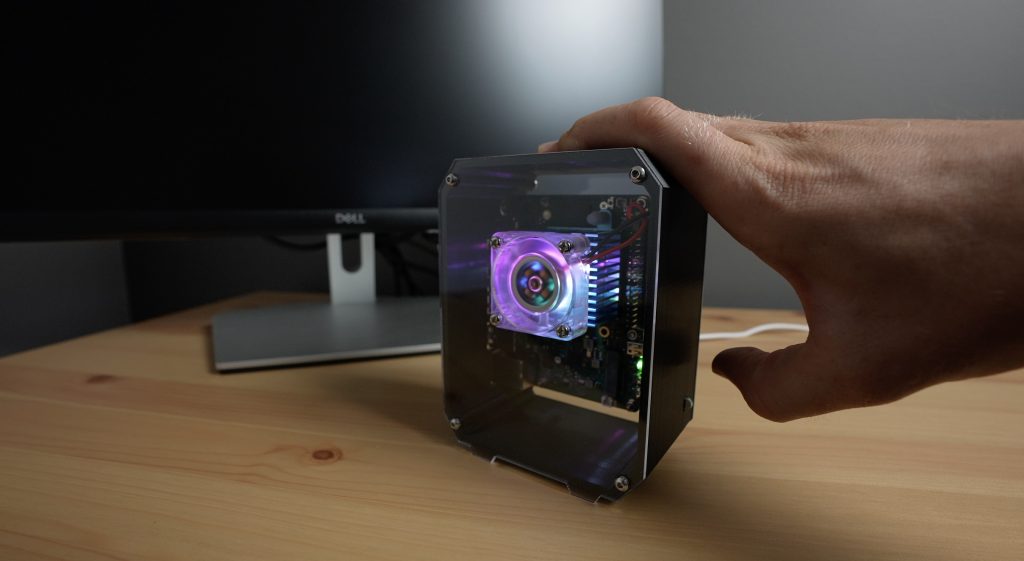
Plugging In Jumper and Jumper Cover

Loading The Operating System Onto Your SSD

Before closing it up, if you haven’t already flashed your operating system image onto your SSD, there are two easy ways to do this;

The first is to use a USB A to A cable to plug the shield into your computer and then use Raspberry Pi imager to flash the operating system image directly onto the SSD like you would with a microSD card.

The second, if you already have your Pi running on a microSD card, is to boot it up with the microSD card plugged in, then use the SD card copier utility to copy the microSD card to your SSD, then remove the microSD card.

Copying MicroSD Card To SSD

If you need help with this, I’ve got a separate guide on booting your Raspberry Pi up from an SSD.

Testing The M.2 SSD On Our Raspberry Pi

Now that we’ve copied the microSD card to our M.2 SSD, let’s boot it up and see how our SSD performs.

Raspberry Pi Running On M.2 SSD

You’ll likely already notice a dramatically reduced boot time, but we’re also going to run the built-in SD card speed test, which will test the speed of the SSD if the Pi is booted from it.
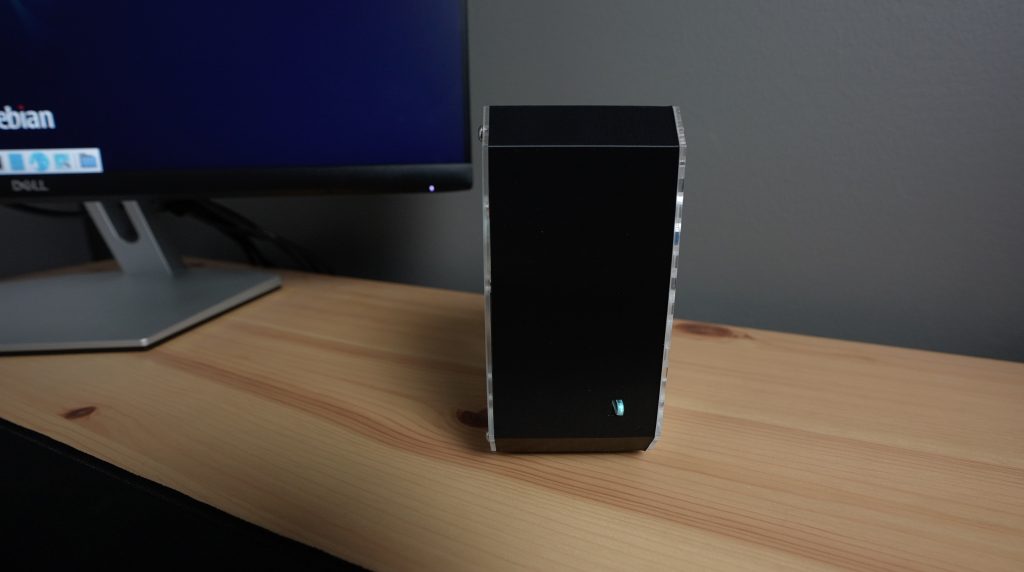
Raspberry Pi M.2 SSD Speed Test

If we open up the results, we get a sequential write speed of just under 200MB per second, which is a substantial increase over the 10MB/s required as a pass for the test.

M.2 SSD Speed Test Results

We also get a random write speed of 9199 IOPS – IOPS stands for Input/Output Operations Per Second, which is also way over the target of 500 and a random write speed of 10632 IOPS.

So those are really good results and they’re much better than what you’d get from even a good quality microSD card. Our Raspberry Pi now boots up faster than it did from the microSD card and will be a lot more reliable going forward.

Let me know what you think of this modification to my case in the comments section below and also let me know if there is anything else you’d like to see me do with the case design.

New ArduCam Time of Flight (ToF) Camera – Your Pi Can Now See In 3D

Today we’re going to be taking a look at the new ArduCam Time of Flight (ToF) Camera. This is a new camera by ArdCam that gives your Raspberry Pi 3D vision by adding an IR laser illuminator alongside the camera lens.

Arducam ToF Camera Close Up

The ArduCAm ToF camera emits modulated infrared light and then measures the time it takes for the light to return to the camera lens to calculate the distance to the objects in frame – hence the name Time of Flight or ToF for short.

Here’s my review and unboxing video, read on for the written review:

Where To Buy An ArduCam ToF Camera

The ArduCam ToF Camera is a new offering that is currently almost finished funding through their Kickstarter campaign.

The Kickstarter price is listed at $29.99 and will likely retail for around $50 once the campaign ends.

Other Components Used For This Review

Equipment Used

  • Gweike Cloud laser – Buy Here
  • Use my discount code MK200 on checkout to get $200 off
  • USB C Screwdriver Set – Buy Here

Some of the above parts are affiliate links. By purchasing products through the above links, you’ll be supporting this channel, at no additional cost to you.

Unboxing And Setup Of The ToF Camera

The ArduCam ToF Camera comes in a small branded box a little larger and a little flatter than their ArduCam Hawk-eye camera. It’s fairly generic, with no mention that this is their ToF camera apart from a stick-on label on the back.

Arducam ToF Camera Box

Included with the camera module is a power cable to supply 5V to the camera from your Pi’s GPIO pins and then a CSI ribbon cable to plug the camera into your Raspberry Pi’s CSI port. The additional 5V power input is an unusual inclusion but is required to supply power to the onboard processor.

The camera sensor can do an impressive 30 frames per second with depth tracking on a Raspberry Pi, at an image resolution of 240 x 180 pixels. It can measure the distance of objects that are within 2m in near mode and within 4m in far mode.

ArduCam ToF Camera Module

As for accuracy, they claim that it’s accurate to within 2cm in far mode and 4cm in near mode, so you’re not going to be doing any fine measurements with it, but it’s perfect for tasks requiring basic depth of field understanding.

It’ll also work on older Raspberry Pi models like the Pi 3, with a reduced frame rate of around 10 fps and on a Pi Zero 2W at 15fps.

To use the camera, we’re going to plug it into our Raspberry Pi’s CSI port, that’s the long thin port labelled camera between the audio and HDMI ports.

I’ve also flashed a fresh install of Raspberry Pi OS onto a 32 microSD card to test it.
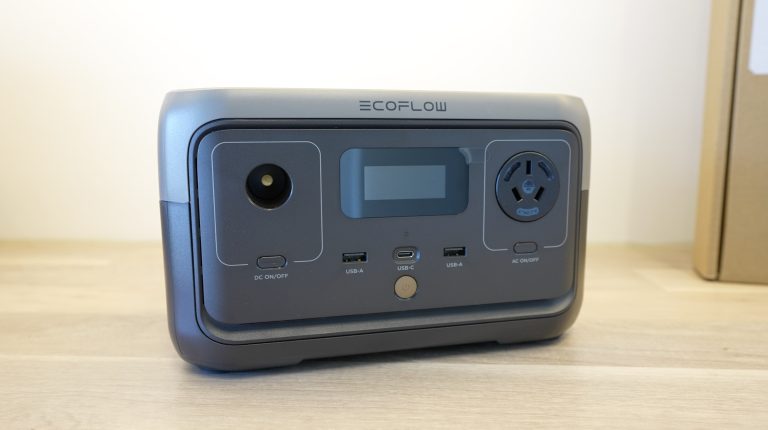
SanDisk MicroSD Card Plugging Into Raspberry Pi

The power cable needs to be connected to any of your Pi’s 5V and GND pins, I’m using the two on the outside near the end.

ArduCam Power Cable Being Plugged Into Raspberry Pi

Then the ribbon cable is plugged in with the blue tab on the black side of the connector, and the same on the camera module.

Plugging Ribbon Cable Into ArduCam ToF Camera

That’s all we need to test it, so let’s boot it up and install the software.

Plugging Cables Into Raspberry Pi 4B

Testing The Camera Using The ArduCam Example

Arducam have made the software installation a pretty straightforward process, you just need to clone their GitHub repository and then run a simple script to install the drivers and dependencies.

Installing ArduCam ToF Libraries and Dependencies

Clone the GitHub repository:

git clone https://github.com/ArduCAM/Arducam_tof_camera.git

Navigate into the cloned directory:

cd Arducam_tof_camera

Run the script to install the drivers and dependencies:

./Install_dependencies.sh

When prompted to reboot, enter y

After the reboot, compile and run the example script by entering:

./compile.sh

In the first example, two windows will pop up, the bottom black and white image is a raw representation of the infrared light being received by the camera and the top image is the processed data in the form of a heat map, where closer objects within in the image show up red and further away objects blue.

Arducam ToF Camera Distance Example

The terminal window tells you the calculated distance to an object you’ve selected in the heat map window and the frames per second currently being processed. It’s showing up as zero in my terminal because I haven’t selected a point in the heat map to take measurements from.

Installing The ArduCam ToF Camera Into My Desktop Case

Now that I’ve got the camera working on my desk, I’m going to take it to my workshop and test it on some objects with a bit of depth to them, but first I’m going to install the camera into my desktop case so that it’s easier to stand it up on a flat surface.

To do that, I just laser-cut a new front panel for the clear Pi case I recently made.

Laser Cutting Camera Front Panel

This swaps out the OLED stats display for the Arducam ToF camera and I can now just stand it on a desk or tabletop pointing at what I’d like to measure.

ArduCam ToF Camera Installed In Case

Tests On More Objects In My Workshop

To start with, I’m using their built-in example to create a heat map of these boxes on my workbench. You’ll notice a small black square near the centre of the heat map and if I put my hand infant of this square, the distance measurement shows the distance to my hand.

Measuring Distance To Objects On Desk

We can also move the boxes around and then their colour on the heat map will change.

Measuring Distance To Boxes On Desk

You can also use the Arducam ToF camera to generate a point cloud. This is a set of data points in space that represent a 3D shape or object. Creating point clouds usually requires some sort of 3D scanning device or a camera with a dual-lens system to capture depth. Pairing the Arducam ToF camera with a Raspberry Pi is a great way to create a relatively inexpensive 3D scanner that is capturing actual depth data rather than trying to estimate it based on the relative position of objects within images.
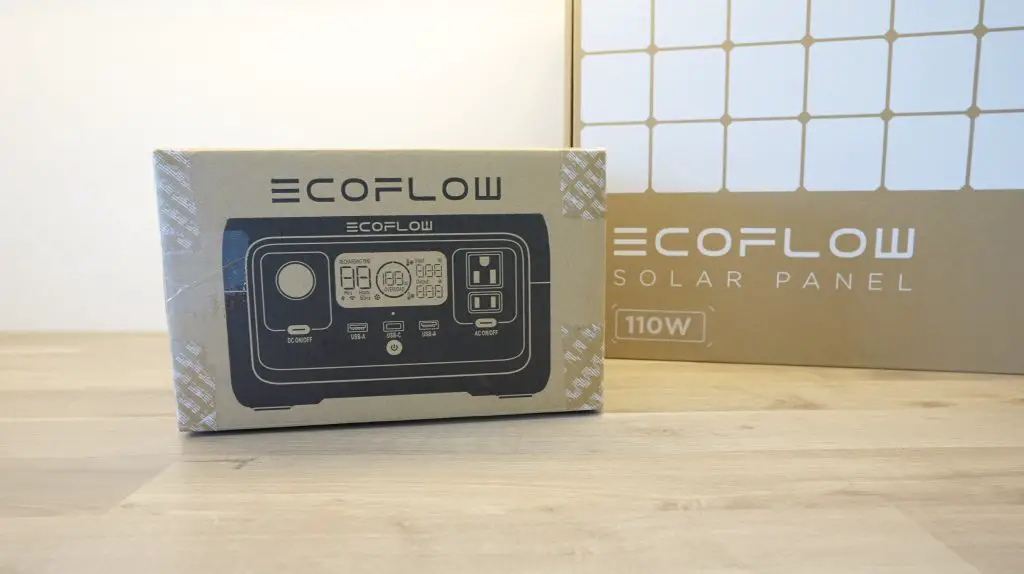
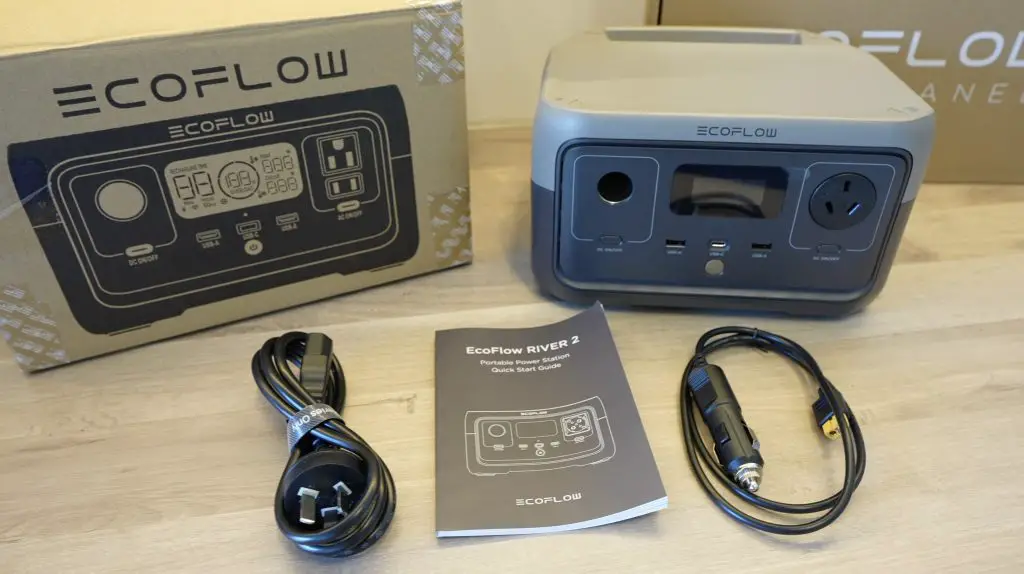
Boxes Stacked In Heatmap Image

Front on it doesn’t look like much, but if we rotate the cloud in 3D space then you can see the shape of the object.

3D Point Cloud Of Boxes In Image

Currently the camera has only seen one angle for these objects, so there is just empty space behind the surfaces that are facing the camera. But if we rotate these objects or rotate the camera around the objects then we can build up a better 3D image of the object, and this is basically how a 3D scanner works. So you could use this camera to build a 3D scanner with a bit of processing.

Normally, an infrared camera has trouble outdoors due to the amount of naturally occurring infrared light from the sun. But ArduCam have given this camera a laser that operates at a wavelength of 940 nanometers which is able to suppress the interference from ambient light outdoors well enough to still offer fairly good results, especially if you’re looking at large objects without complex geometry, like big boxes or human figures.

Outside Use Of Arducam ToF Camera

The camera acts as a standard V4L2 or Video4Linux2 device, so you can use it with a range of vision libraries like OpenCV and Tensorflow without having to do a lot of additional coding.

You can also use the Arducam Time of Flight camera with other distributions as they have development kits for C, C++ and Python.

Hand Distance Measurement Using Python Example

They even have examples that you can install and run on an NVIDA Jetson Nano.

Final Thoughts On The ArduCam ToF Camera

The ArduCam ToF camera is going to be a great addition to your Pi if you’re working on a project that requires a basic level of depth of field understanding, primarily on large objects or the surrounding environment. This could be monitoring for certain shapes or size objects, or building an obstacle-avoiding robot. It’s probably not going to be useful for fine or very accurate distance measurements, and it’s resolution isn’t high enough to be useful for small objects.

The point cloud generation features and standard V4L2 also mean that you could easily use this camera for course 3D modelling or to generate 3D style maps onboard your robots. This sort of functionality would give your robots a much better understanding of their environment than they would be able to obtain from a standard video feed – even with much more processing power.

I think it would be a nice addition to have a good quality standard camera feed coming from the same module, although there are probably some hardware limitations preventing this at the moment.

Let me know what you think of the ArduCam ToF camera in the comments section below and let me know if you have any project ideas that you’d like to see me try with it.
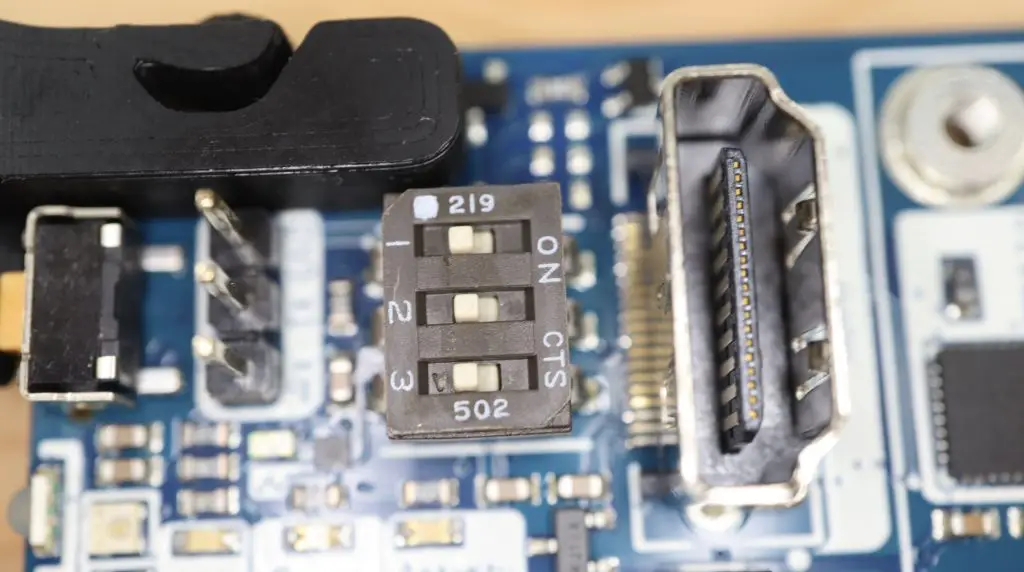
Hand Distance Measurement Using C++ Example

Taking My Workshop Offgrid Using EcoFlow Power Kits

2

EcoFlow are a popular name amongst campers and adventurers for their portable power stations and solar generators. These allow you to store power in a portable unit to take with you to charge devices, run small appliances and provide lighting.

They’re now taking it a step further with their launch of EcoFlow Power Kits. This is a modular system designed specifically for RVs, camper vans and trailers and small off-grid installations. The idea being that the system eliminates the complexity of traditional setups, being plug and play, compact and efficient, and allowing modern monitoring and control.

EcoFlow Power Kits General Layout

EcoFlow have sent me their 2kWh kit to set up in my workshop to show you how it works.

EcoFlow Power Kits Power Hub

Here’s my video of the unboxing of the EcoFlow Power Kits package and installing it into my workshop to take it off-grid:

Where To Buy EcoFlow Power Kits?

EcoFlow products are stocked through a number of local distribution partners, but the easiest way to buy from them or to find a local stockist is through their web store:

  • EcoFlow Power Kits 2kWh System – Buy Here
  • EcoFlow’s Amazon Store – Visit
  • EcoFlow Website – Visit

What Are EcoFlow Power Kits?

EcoFlow Power Kits is essentially an all-in-one package for powering your off-grid home, camper van, mobile home or trailer. It allows you to take a variety of input sources to charge one or more batteries and then use this power in AC or DC form to power your devices and appliances.

The core system consists of the EcoFlow Power Hub, a Smart Distribution Panel and a Control Panel. These arrive in this awesome matt black packaging, protected with foam inserts.

I really like the sleek and modern design they’ve gone with and they’ve used high-quality materials as well. This feels like a premium product that’s built to last.

EcoFlow Power Kits Power Hub Logo

You can then add up to 3 of these 2kWh or 5kWh batteries to power the system. What makes this system great is the ability to easily add or remove battery capacity to your setup, so you can start small and expand as you need to. The batteries are also stackable, you can stack up to three of the same size batteries on top of each other when you scale up your capacity.

EcoFlow 2kWh Battery

A Closer Look At The Main Components

EcoFlow Power Hub

The power hub is the main storage and generation controller. This includes a pure sine wave inverter which can produce up to 3,600W of mains power and can handle a surge of up to 7200W.

It has a range of ports along the bottom and side, into which their pre-made cables plug into, making this an easy-to-install, plug-and-play solution. It can also do up to 1000W supply of DC power at either 12V or 24V.

EcoFlow Power Hub Inputs

To charge the batteries or supply power to the system, it’s got a 3000W AC charger.

Power Hub AC Charger Input

The DC input for the alternator can take a 1600W alternator or PV input and the other two solar inputs can each also do 1600W, all with MPPT charge controllers. So you can have up to 4800W of charging capacity on the DC input.

Power Hub DC PV and Alternator Inputs

Power is then provided to your devices and appliances through the two ports on the side of the power hub.

EcoFlow Power Hub Port Outputs

On this side, we’ve got two RJ45 ports for CAN communication as well as the AC and DC outputs that supply power to the smart distribution panel.

EcoFlow Power Hub Outputs

So through the available inputs, you’ve got options to charge the system through solar, through one of their smart generators, through an alternator, an AC power source or through a generator.

EcoFlow Power Kits Configuration Options

EcoFlow LFP Battery

The Power Hub manages the flow of power to and from the system, but we still need a way to store it. This is done by connecting up to three batteries, or two batteries and one of their smart generators.
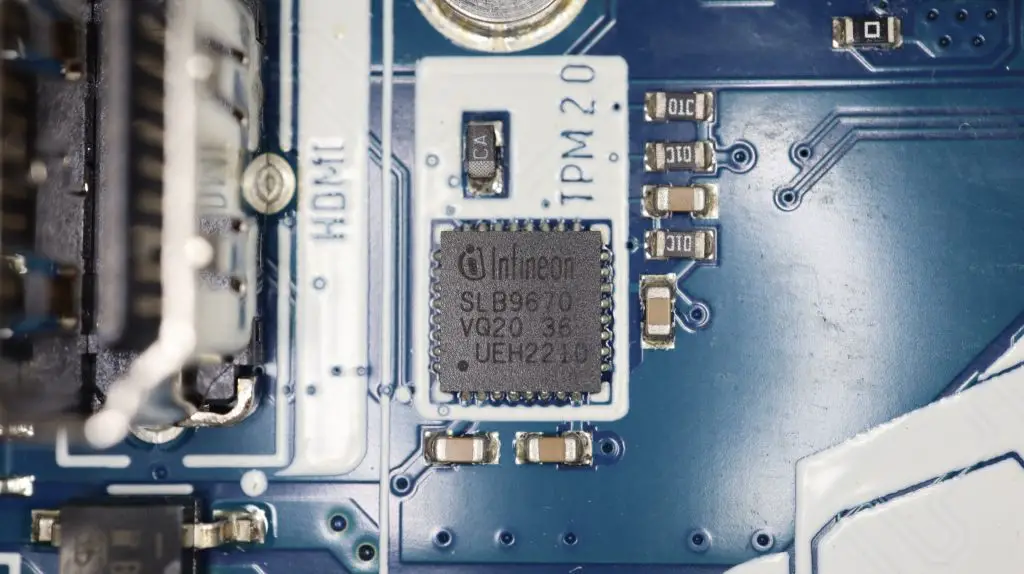
EcoFlow LFP Battery

The batteries are Lithium Iron Phosphate batteries and both models run at 51.2V. The 2kWh ones have a capacity of 40Ah and the 5kWh ones have a capacity of 100Ah.

2kWh Battery Specifications

They’re rated for 3000 cycles with a discharge depth of 80%, so they should be good for around 8 years when used daily. They’ve got an integrated battery management system with auto heating for use in cold environments, a built-in fuse and other safety protection features.

EcoFlow Smart Distribution Panel

We’ve got the two main AC and DC outputs on the side of the power hub, but EcoFlow have made it easier to use these outputs by running them through their smart distribution panel.

Power Kits Smart Distribution Board

The Smart distribution panel is designed to replace your existing van or trailer’s distribution board. This board provides 6 20A protected AC mains outputs and 12 fused DC outputs, which are controllable by the Power Kit Console or through the App, and they give you full power monitoring capabilities as well.

Smart Distribution Board Internals

Important Note: In some countries or regions a qualified electrician is required to do any electrical work/connections on 110VAC or 220VAC supplies. Please make sure that you check your local regulations beforehand.

EcoFlow Console

The console is a 7-inch IPS touch display with an RJ45 CAN communication interface. This is the primary means to interact with the system if you’re not using the mobile App.

EcoFlow Power Kits Console

Preterminated Cables

The cables are included with the kit as well and are pre-terminated to quickly hook up to the distribution board, alternator or solar panels.

EcoFlow Power Kits Cables

Each cable has a clearly labelled plug on the end and the plugs are different so you won’t be able to plug them into the wrong ports, so you’re protected against damaging your equipment.
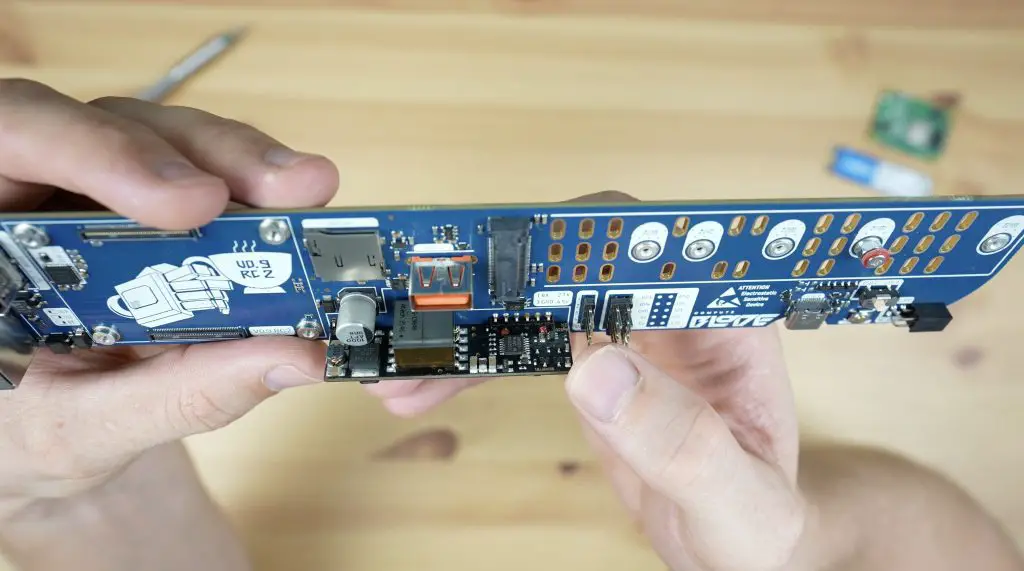
Testing The Power Kits System On My Workbench

Connecting The System Components Together

Before I install the system in my workshop, I’m going to hook up some of the main components on my workbench so it’s easier to see how it all connects together and works.
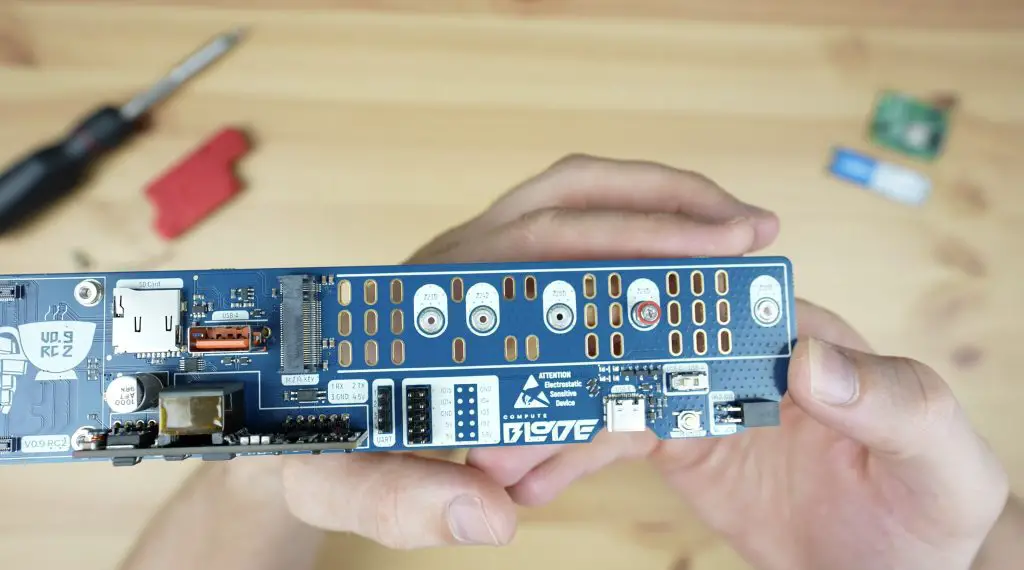
Connecting the components up is really simple you just remove the covers from the ports you want to use and plug them in.

First, let’s hook up the battery to battery port 1.

Plugging Battery Into Power Hub

We can then connect the CAN interface to the smart distribution board to control the circuits and get power consumption data back.

Connecting Up CAN Communication

Then connect the console with another RJ45 CAN cable. The console is where we’ll be able to control the system and see energy usage information.

With those hooked up, we should be able to turn the system on.

Turning The System On For The First Time

From the console, you get information on the battery capacity remaining as well as the expected run time at the current power consumption until the batteries are empty. You can also turn loads and inputs on or off and access the system’s settings. I’m going to connect it to my WiFi network so that I’ll have access to the system remotely through the EcoFlow app as well.

Console Powered Up

The battery is only at 29%, so I can plug the AC input into one of my mains outlets to charge.

AC Charger Charging Battery

They’ve also got some really clever features here. The built-in charger can charge at 3000W, but if you’re at a small campsite or RV park then your site probably won’t have the capacity to supply this much power, so you can limit the charger’s power draw as well. You can also easily adjust it up or down to suit new sites.

AC Charger Current Limiting

Now we can see that the Home Screen has switched to tell us how many hours it’s going to take to fully charge the battery.

AC Charger Time To Charger

If you’ve got multiple batteries connected, you can also get more detailed information on each of the individual batteries.

The power hub has some status indicators along the top to tell you which inputs and outputs are currently active and you can use the buttons below the indicators to turn the AC and DC outputs on or off.

Indicators Show Active Inputs & Outputs

The battery’s indicator shows its charge capacity and has a little indicator in the corner when charging as well.

Battery Capacity Remaining

Trying A 3D Printer As A Load On The System

As a first test, I’ve connected one of my 3D printers to the smart distribution panel. This should provide a relatively light load of around 250-350W.

Smart Distribution Board Connected Up

We can see its power consumption start showing up if we set it to preheat and if we turn off the AC input, the system is then running solely off of the battery. So now the panel is indicating that it’ll be able to run for a little over 2 hours at this output.

AC Output Running On Batteries

The 3D printer only draws this much power when heating up, once it is running then it uses around 100 to 120W continuously. So the 2kWh battery should be able to power it for around 13-14 hours using 80% of its capacity.

If we switch the printer off again then the load drops back down to almost zero.

The system can also easily replace 12V or 24V systems that you might already have installed as it’s got a built-in DC-DC step-down converter. I’m going to try powering one of my printers directly since they all run at 24V anyway. This should actually be more efficient because we’re using direct DC power from the battery rather than converting it to AC and then the power supply on the printer is converting it back to DC.

To do that, I soldered an XT60 connector onto the end of a power lead that is fed from one of the Smart Distribution Board outputs. My older Ender 3 Pro still uses one of these connectors between the power supply and control board, so it’s easy to bypass.

Adding Connectors To Run My 3D Printer on 24V Supply

Taking My Workshop Offgrid Using EcoFlow Power Kits

So now that you’ve seen how the system works on my work bench, I’m going to get it installed in my workshop and really load it up.

My Workshop Going Offgrid

I’ve bought two of these benchtop plug points which I’m going to install on either side of my workbench. One in my work area, which will also be used for the laser cutter and one on the 3D printer side which will run my 3D printers.

I’m also going to connect my workshop lights to another 24V DC output.

To install the equipment, EcoFlow have again made things really simple, each part of the system comes with a manual and its own set of mounting hardware including brackets and screws. They also give you a few different fuses for the DC circuits.

EcoFlow Power Kits Manuals

Each device to be mounted also includes a mounting template to make sure that you get the holes in the right places and that you allow enough room around the power hub for cooling and cabling.

EcoFlow Power Kits Mounting Templates

I’ve got solar panels on my home which provide excess power during the day, so I’m going to set the system up to charge during the day and I can then use the stored battery power overnight for lighting and to run my printers. I could also add a dedicated solar panel to this system in my workshop, but since I’ve already got panels installed and the power available, I may as well use it.

Configuring The Power Kits System Using The EcoFlow App

With the system installed, I’m now going to configure it using the EcoFlow app.

The app gives you a similar set of controls to the console, with the added benefit of being able to control the system remotely. So you can turn power inputs on or off and you can control all of your loads. You can also see what supplies are connected and the charge state of the batteries.

Starting Up The EcoFlow App

It also gives you more detailed information on your daily, weekly and monthly energy inputs and consumption.

EcoFlow App Enegry Monitoring

You can get more detailed information on each of the connected batteries and see the remaining time to fully charged or the remaining run time when using the battery’s capacity.

EcoFlow App Battery Monitoring

They’ve really put a lot of effort into this app, even the graphic of the home on the main screen is animated. You’ll notice things like the batteries change to show your configuration and the inputs glowing when active.

Testing The Power Kits System Under A Heavy Load

With the system now set up in my workshop, I can now really load it up. I’m going to do this by switching on a 3D printer on the 24V DC supply, two on the AC supply and a heater on another AC supply.

I turned these on in sequence and kept the AC mains charger switched on to keep the battery charged.

EcoFlow Power Kits Loaded

The system was drawing slightly less from the AC supply than what it is supplying, I assume because the battery is full, so it doesn’t want to overcharge. The system ran without any issues producing 2.5kW through a mix of AC and DC loads.

Now let’s see if we can turn off the AC supply and run entirely from the battery. This is going to be quite a significant load on this single 2kWh battery – it’ll be drawing around 50A just to keep up with this load.

Power Kits Running 2.5kW From Battery

The system and the battery run without any issues with that load as well, which was quite impressive. I then also allowed the system to recharge at maximum power.

Power Kits Recharging Battery

Final Thoughts On The EcoFlow Power Kits

EcoFlow have made some smart decisions in the design of the system. All of the DC voltages have been kept below 60V, so they’re safe to handle. They’ve also gone with a 48V battery voltage instead of the usual 12V or 24V so that the cabling is carrying a lower current for the same power output. This means less heat is generated and the system is more efficient.

The other great thing about the modular design is that you aren’t locked in to a particular size system, it’s really easy to expand or reduce capacity and even add or remove charging options as you grow into your van, RV or off-grid home installation.

I’m really excited to see how my workshop does on this system. It allows me to keep a much closer eye on my power consumption and it also helps me use the excess solar power that I generate during the day to run my printers, tools and laser cutter at night.

Let me know what you think of the Ecoflow power kits in the comments section below, and let me know if you’ve got any questions about it or if you’d like to see me try something out on it.

Be sure to check out EcoFlow’s web store if you’re interested in getting your own EcoFlow Power Kits system for your off-grid installation, camper van, RV or trailer.