Home Blog Page 10

The reTerminal E10-1, the First Expansion Board for the reTerminal

Last year Seeed Studios launched the reTerminal, a Raspberry Pi Compute Module 4 based touch display terminal with a pretty good list of features. One of the features that looked promising was their high-speed expansion interface on the back, which they said would be used to add plug-in modules to expand on the reTerminal’s functionality and IO.

reTerminal High Speed Expansion Interface

At that stage, they hadn’t released any details on these expansion modules, but they reached out a few weeks ago and said that their first one has now been launched.

So here it is, the reTerminal E10-1, the first expansion module for the reTerminal.

reTerminal E10-1 Expansion Board

Let’s open it up and see what it does and how it works.

Where To Buy The reTerminal E10-1

The reTerminal E10-1 is currently available through the Seeed Studio online store:

Unboxing the reTerminal E10-1

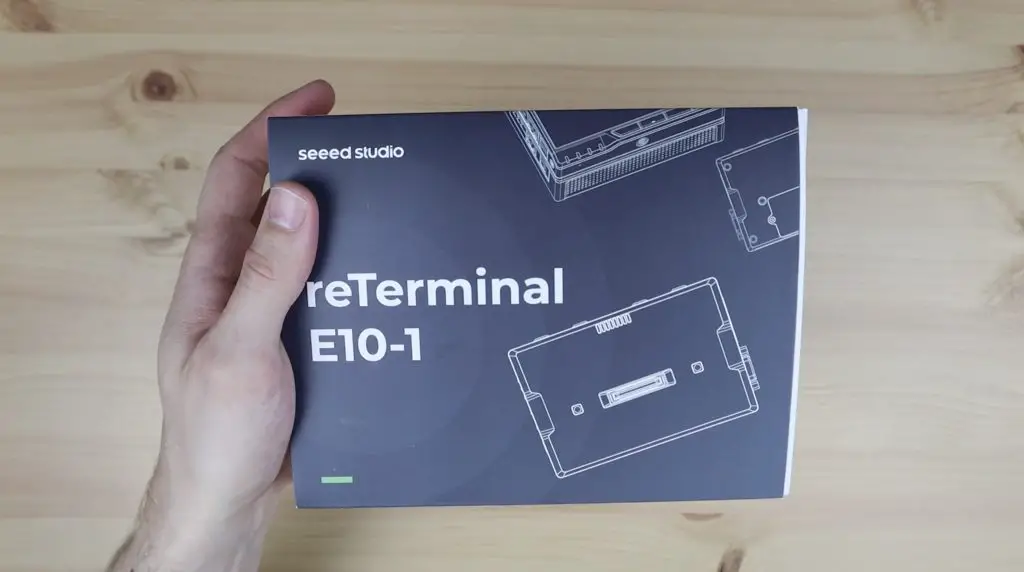
The reTerminal E10-1 is packaged quite similarly to the reTerminal, in a similarly sized box as well.

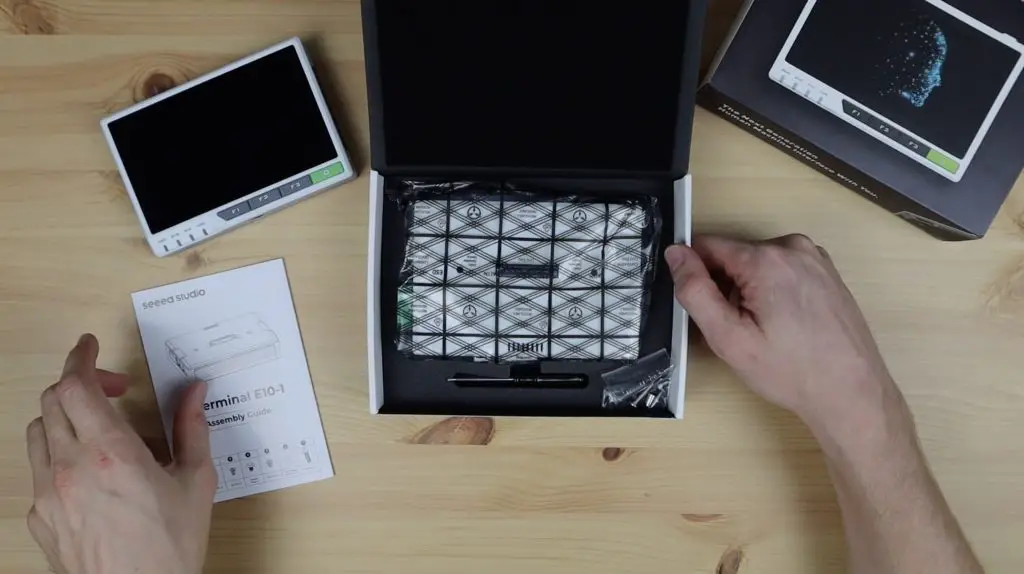
On the top, we’ve got a user manual and underneath it is the E10-1. They also include a small screwdriver and a pack of screws.

Unboxing the reTerminal E10-1

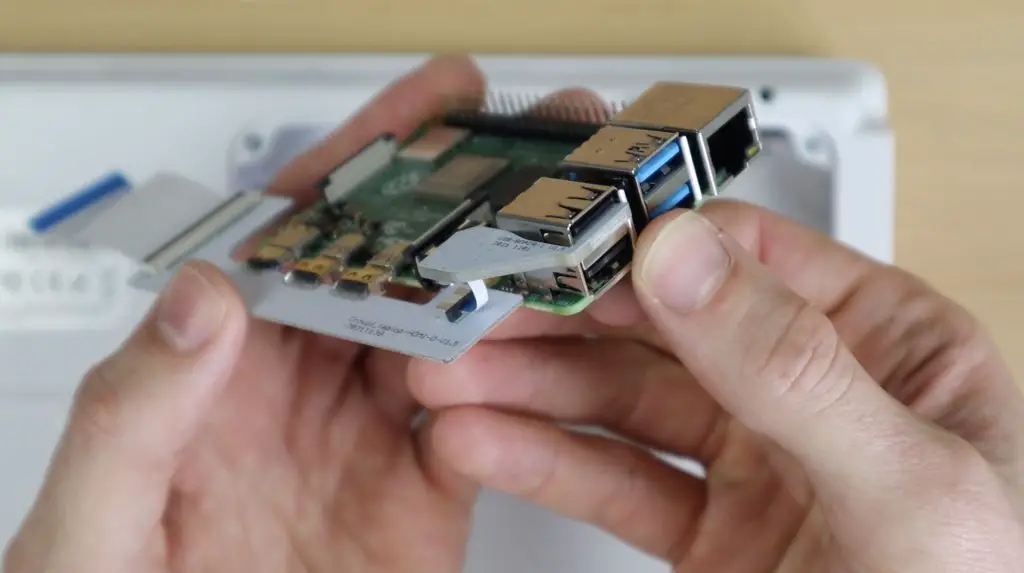
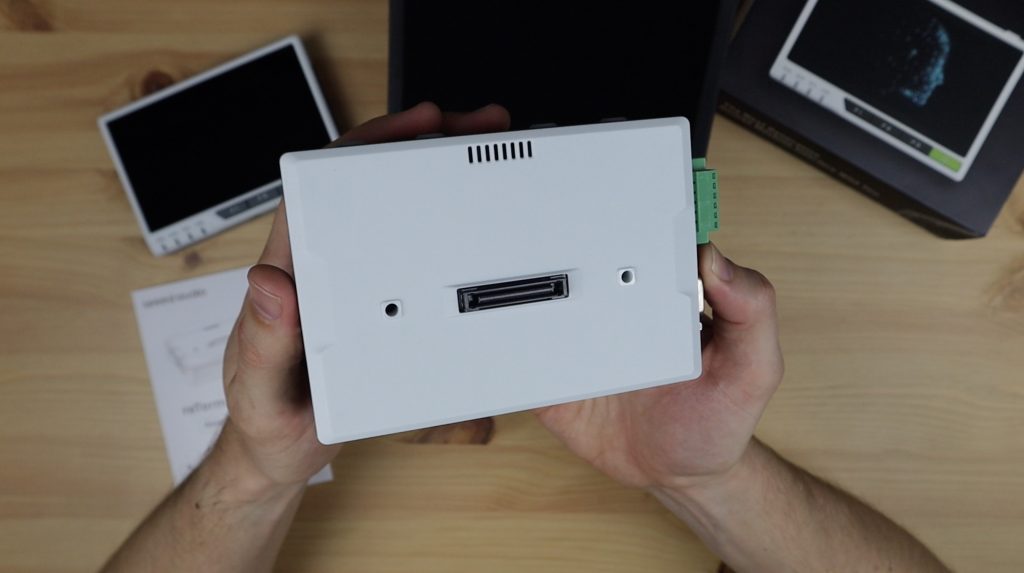
On the front of the E10-1 is the high-speed expansion port that’ll plug into the back of the reTerminal, along with a screw hole on each side to hold it in place.

First Look At The reTerminal E10-1

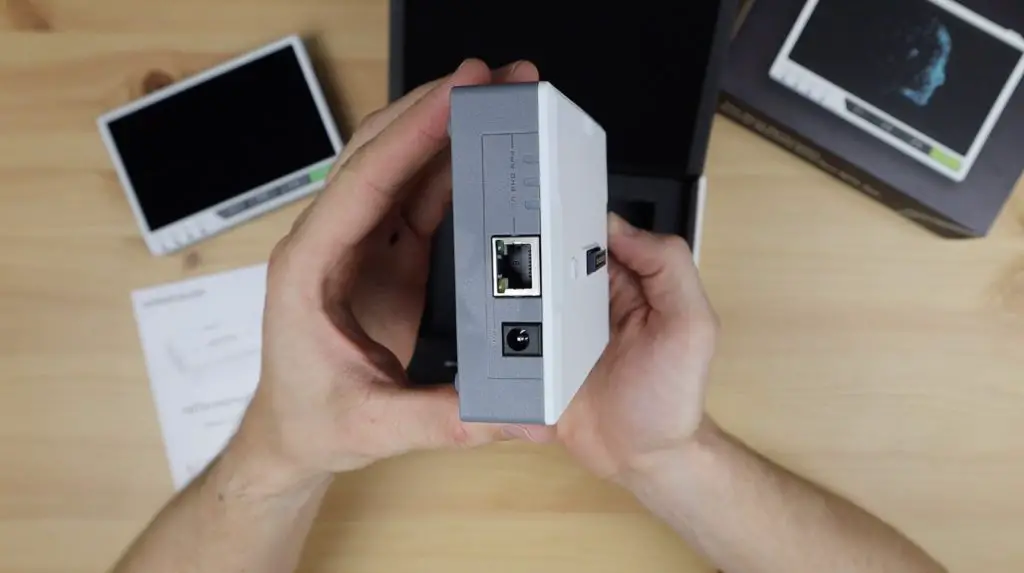
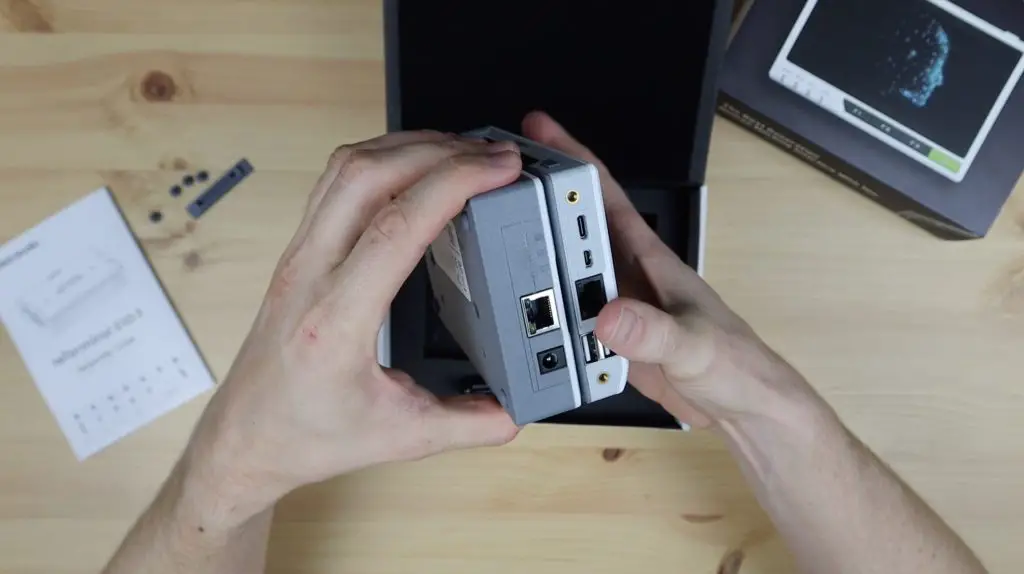
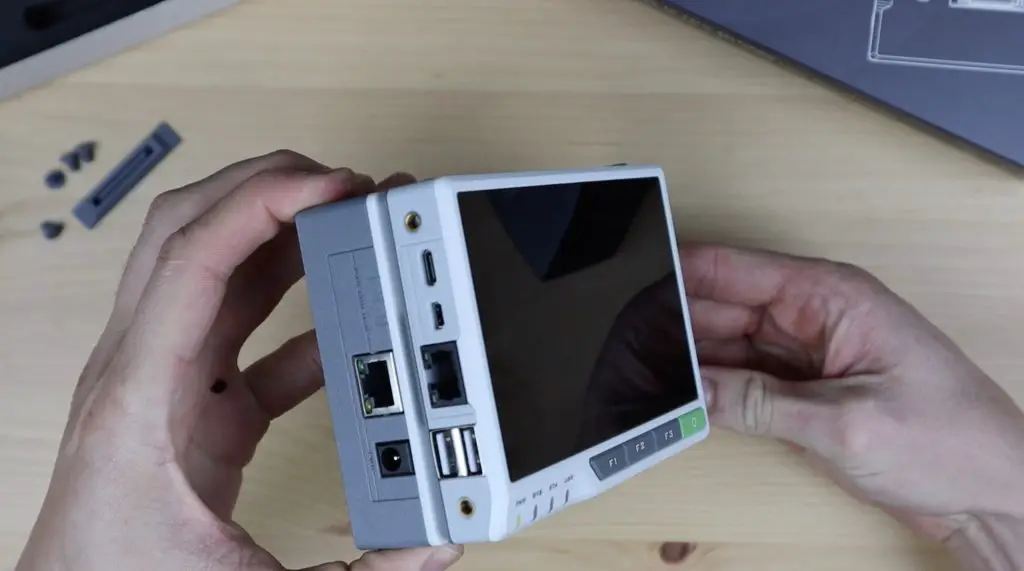
On the left side, we’ve got some status LEDs, an Ethernet port and a power port.

Left Side Ports, Ethernet and Power

You may be wondering why we’ve got the Ethernet and power ports, as these are both already on the reTerminal. That’s because this module allows you to power the reTerminal in a few additional ways. The Gigabit Ethernet port on the E10-1 supports power over Ethernet, so you can power your reTerminal through a PoE enabled network without having to use a separate power adaptor. If you don’t have a PoE network adaptor or aren’t using Ethernet for your project then you can use the 12V barrel jack to power the reTerminal instead of the 5V USB C input on the reTerminal. Additionally, the E10-1 also has a built-in UPS circuit that runs on two 18650 batteries. So this allows the reTerminal to function as a fully standalone wireless, battery-powered device, something that was requested quite a lot when the reTerminal was released.

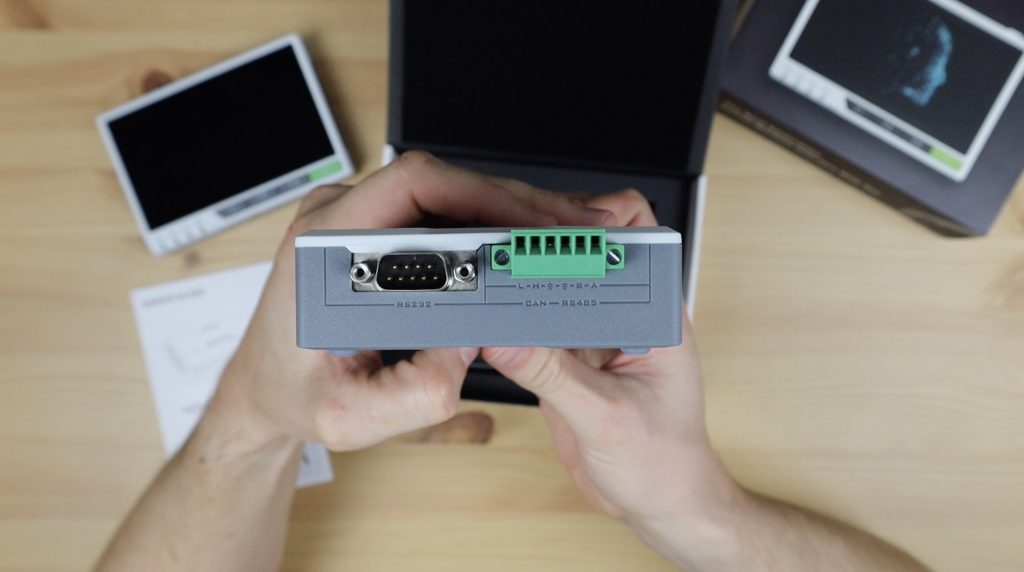
On the right side are two industrial ports, a DP9 connector for the RS-232 interface and a 6-pin terminal connector for the onboard RS-485 and CAN interfaces. So you’ve now got a number of options for industrial interfaces on the reTerminal, something that’s not very common in the Raspberry Pi expansion board range.

Right Side Ports, Rs485 and RS232

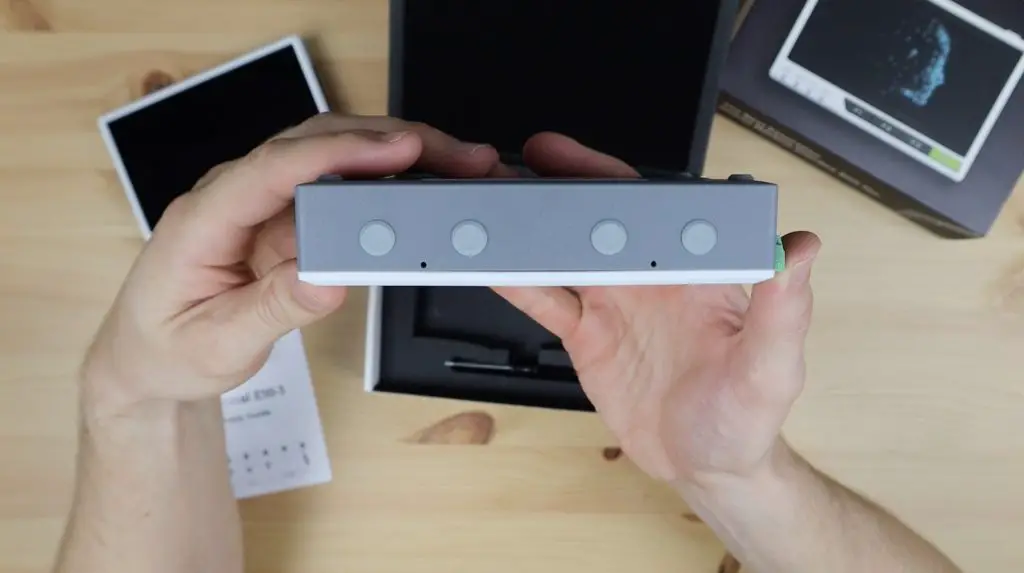
Along the top are some rubber plugs, one of which is an antenna interface.

Top Side, Antenna Ports

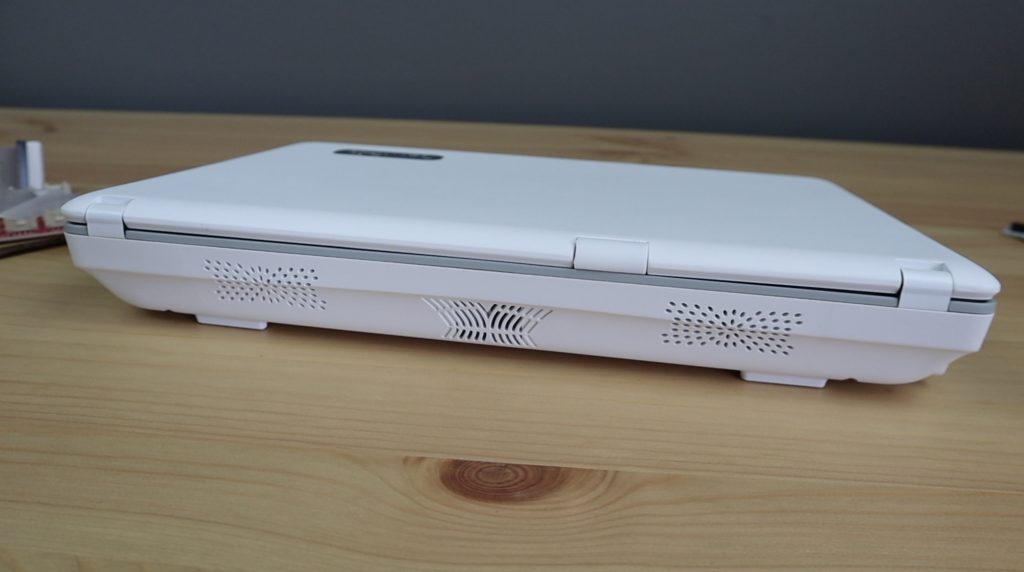
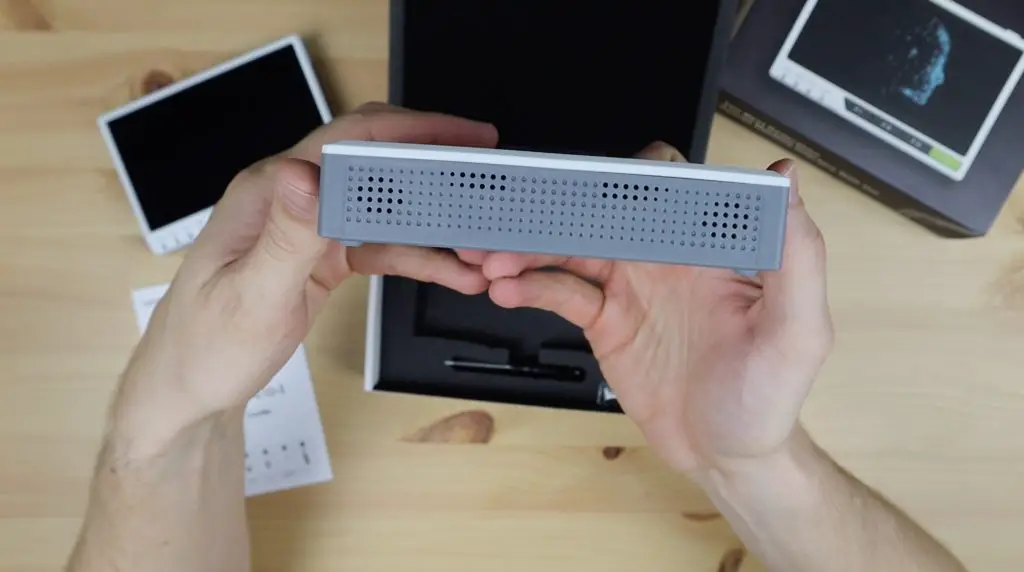
On the bottom are some vents to allow airflow for the internal fan and speaker.

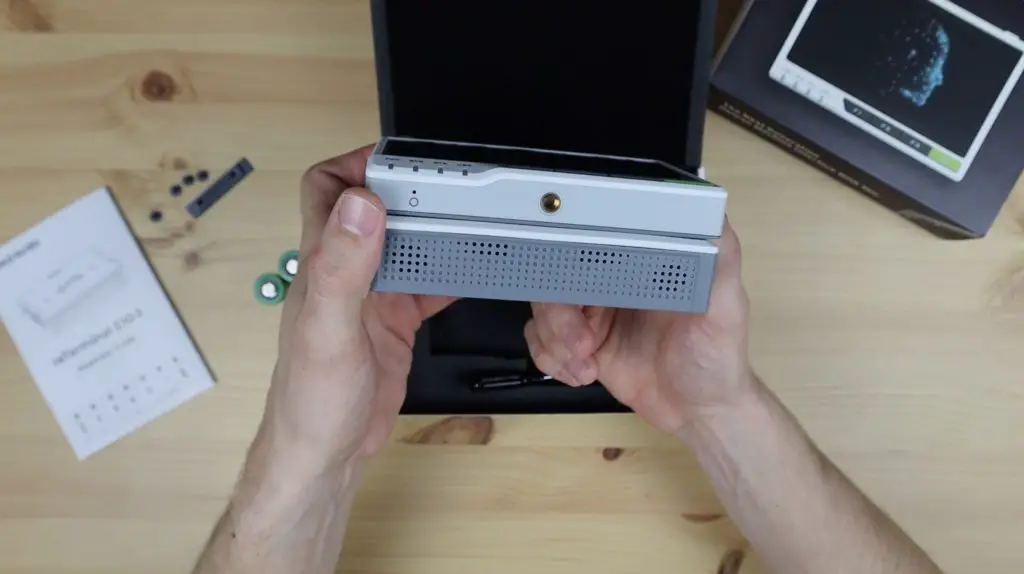
The E10-1 is a bit thicker than the reTerminal, I guess that’s to allow enough space for the 18650 cells and the upright internal fan.

Bottom Side Speaker and Fan Vent

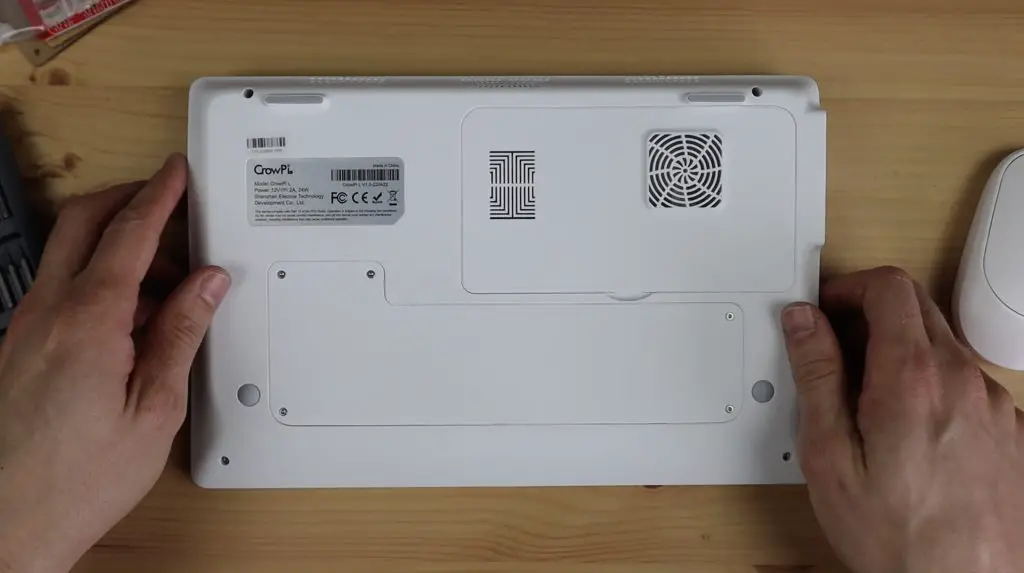
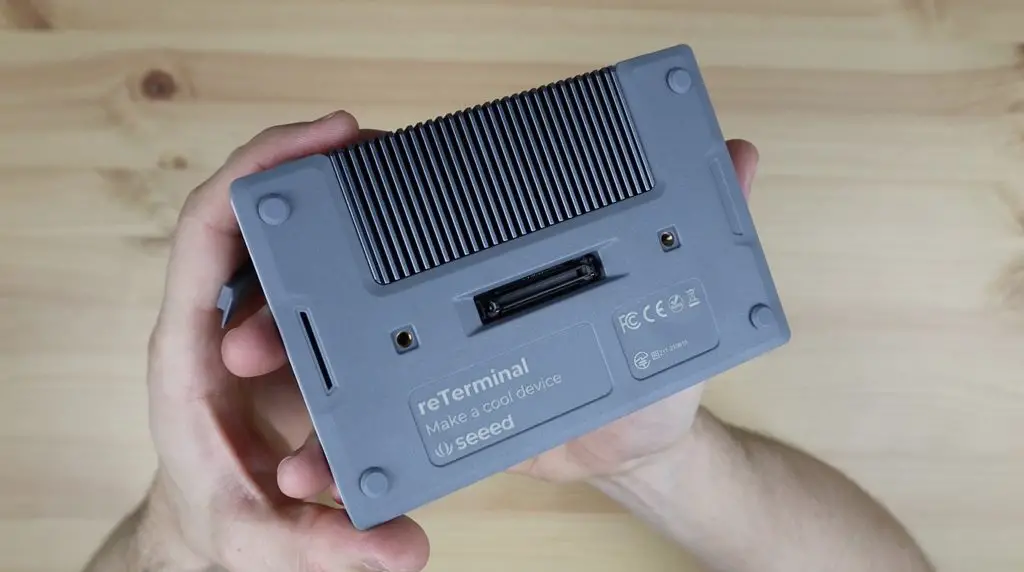
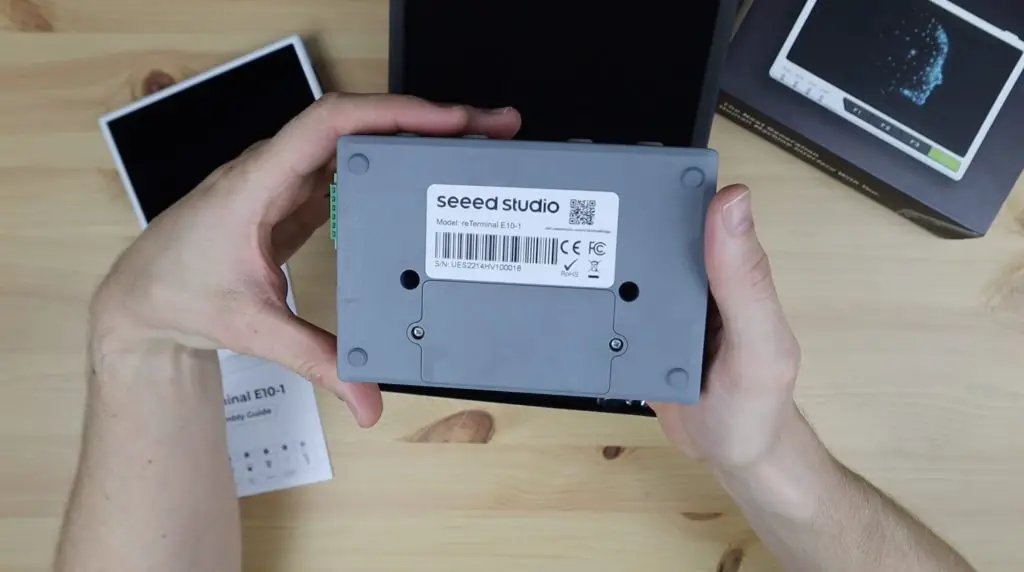
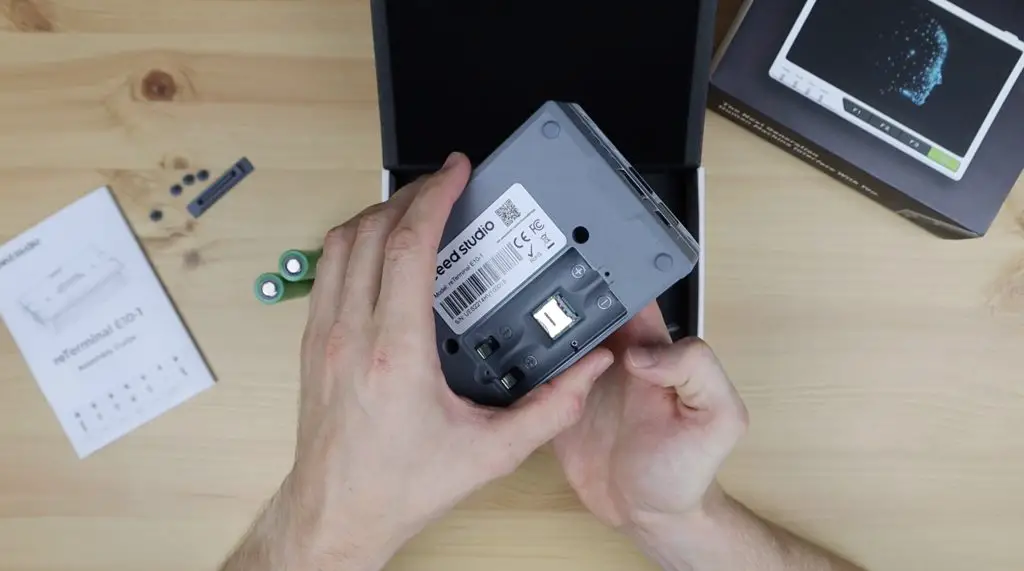
On the back we’ve just got the cover for the battery compartment. There isn’t an expansion port on the back of the E10-1 as well, so you won’t be able to stack multiple modules together as more become available, you’ll have to use them one at a time.

Back Side, Battery Compartment

Let’s get the E10-1 attached to the reTerminal and try it out.

Attaching and Using the reTerminal E10-1 for the First Time

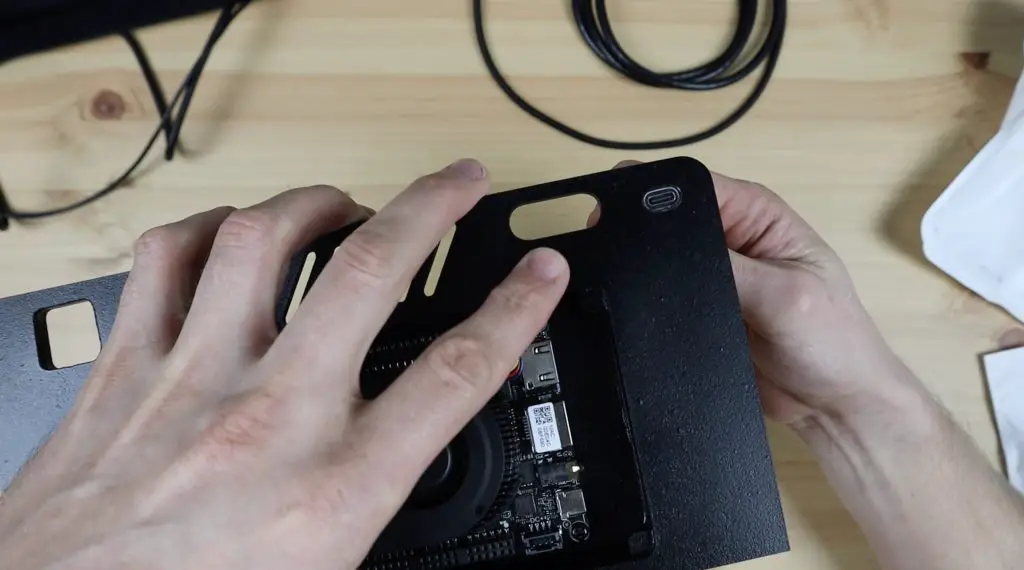
To install the E10-1 on the reTerminal, we need to first remove the rubber plugs on the back of the reTerminal to allow the E10-1 to plug into it. We can then secure it with the two included screws.

Plugging the reTerminal E10-1 onto the reTerminal

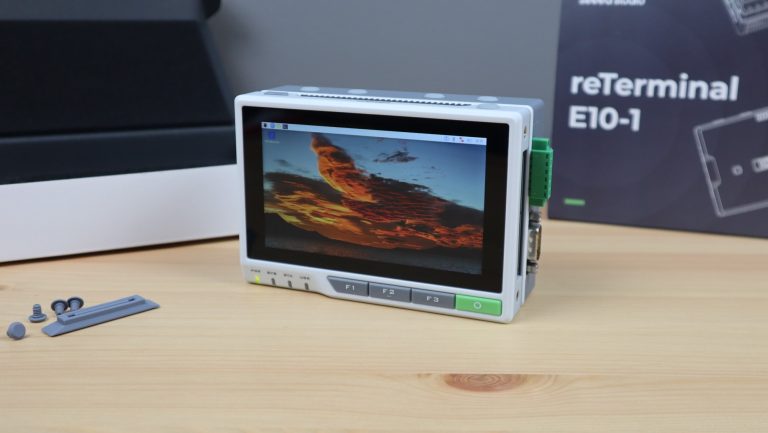
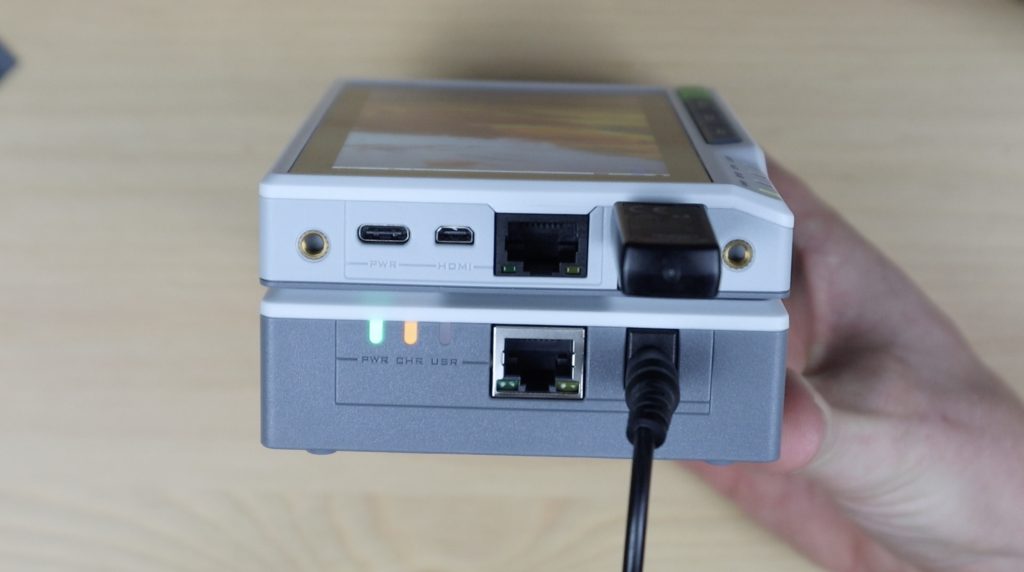
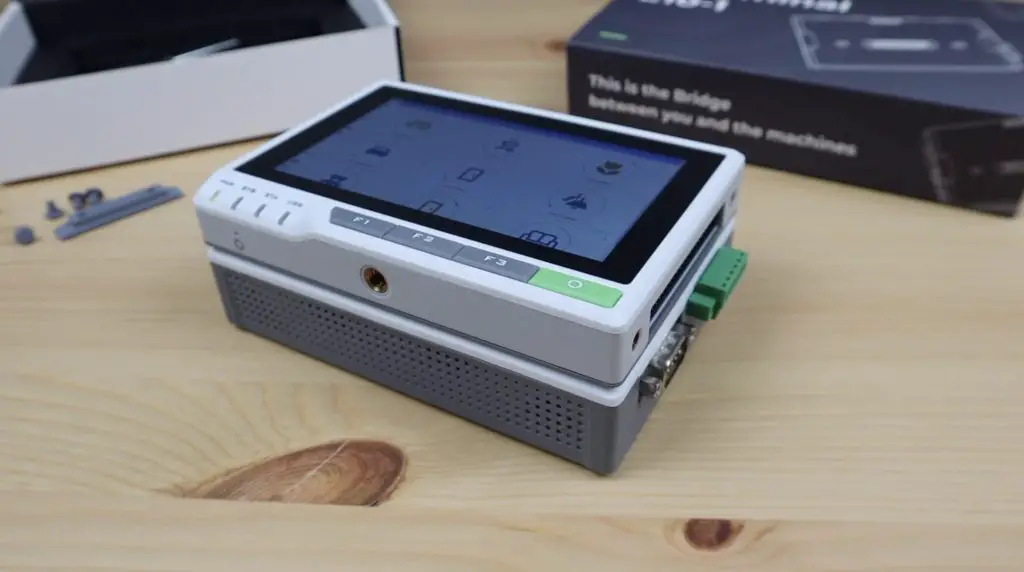
Once installed, the entire reTerminal assembly is now quite thick.

E10-1 Installed on the reTerminal

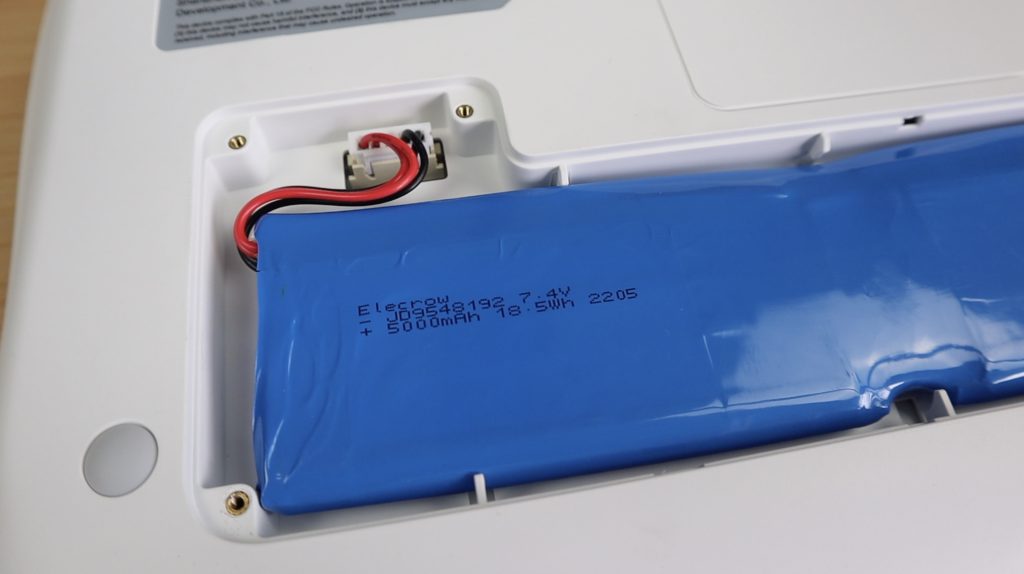
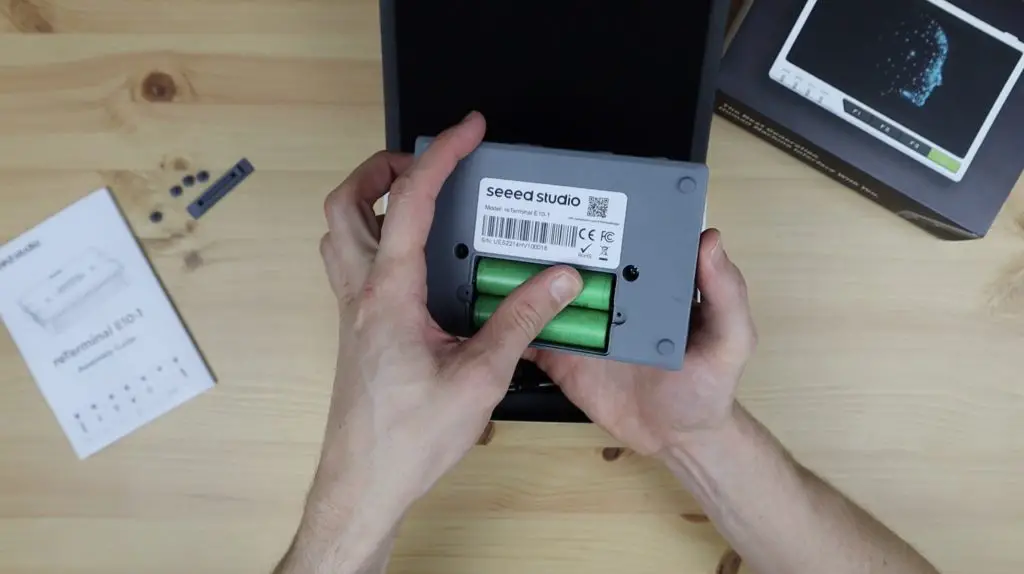
I’m also going to install two 18650 cells into it so that we can try out the UPS functionality. These just go into the battery compartment on the back of the E10-1.

Installing the 18650 Cells into the reTerminal

With the E10-1 installed, it feels solidly built and like a good quality device, but it’s a bit too bulky to be a truly handheld device. It would be best to have it installed on a wall panel or into an electrical enclosure- which is made easy with the multitude of threaded mounting points.

E10-1 Solidly Attached to the reTerminal

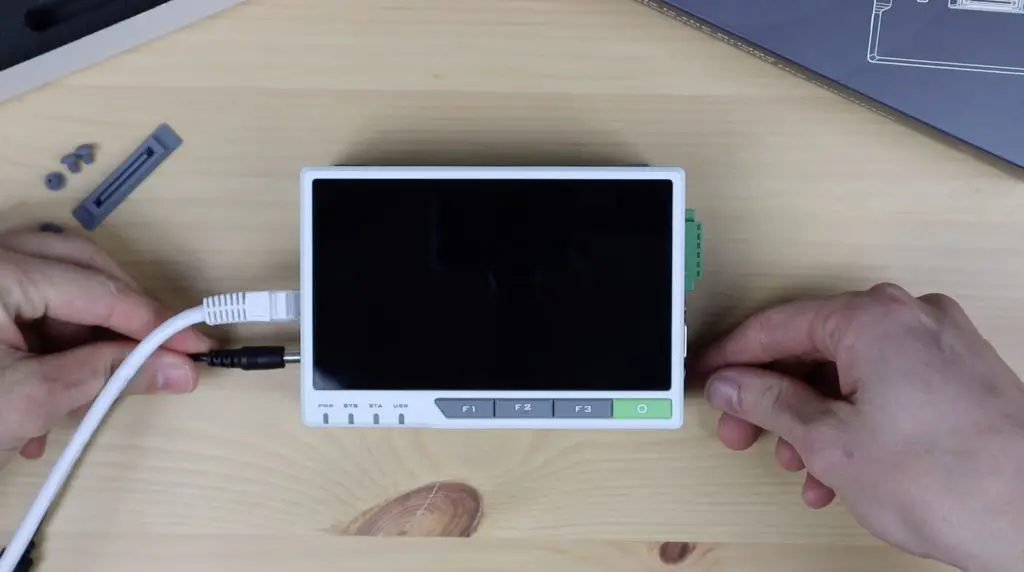
Let’s plug in our ethernet and power cable and power it up. The CM4 module in the reTerminal has onboard WiFi, so you can use a wireless connection if you’d like to.

Plugging in Ethernet and Power

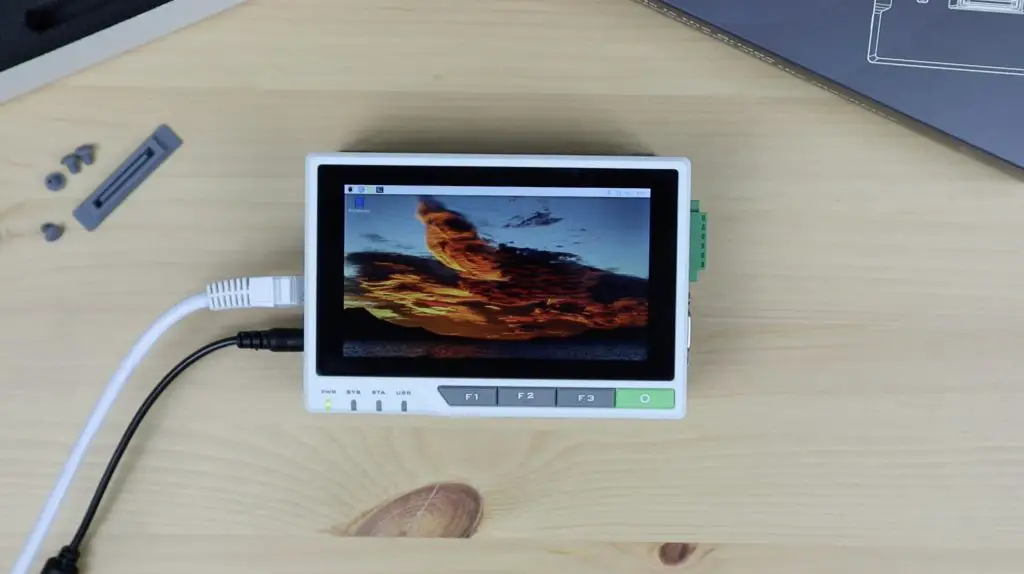
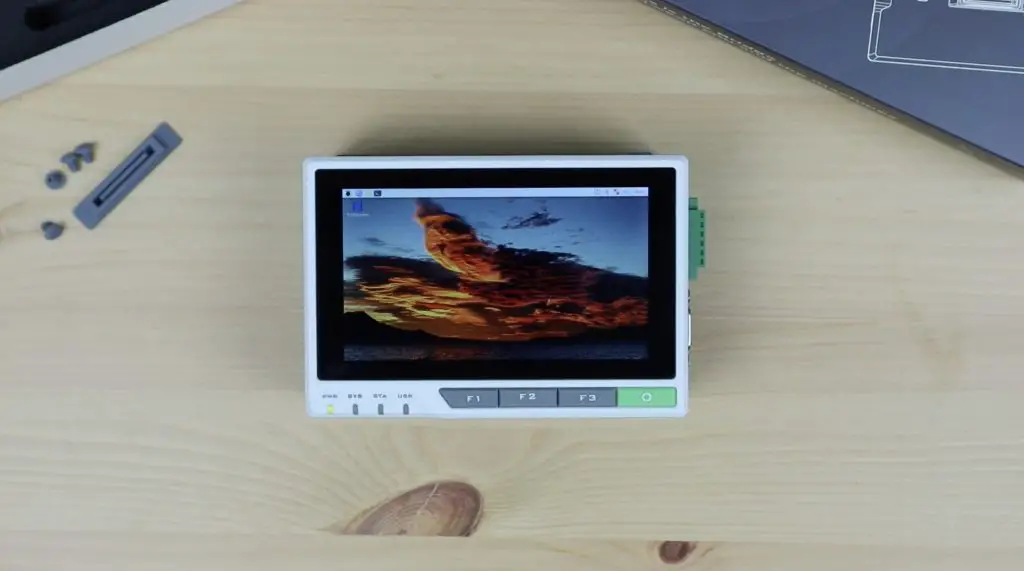
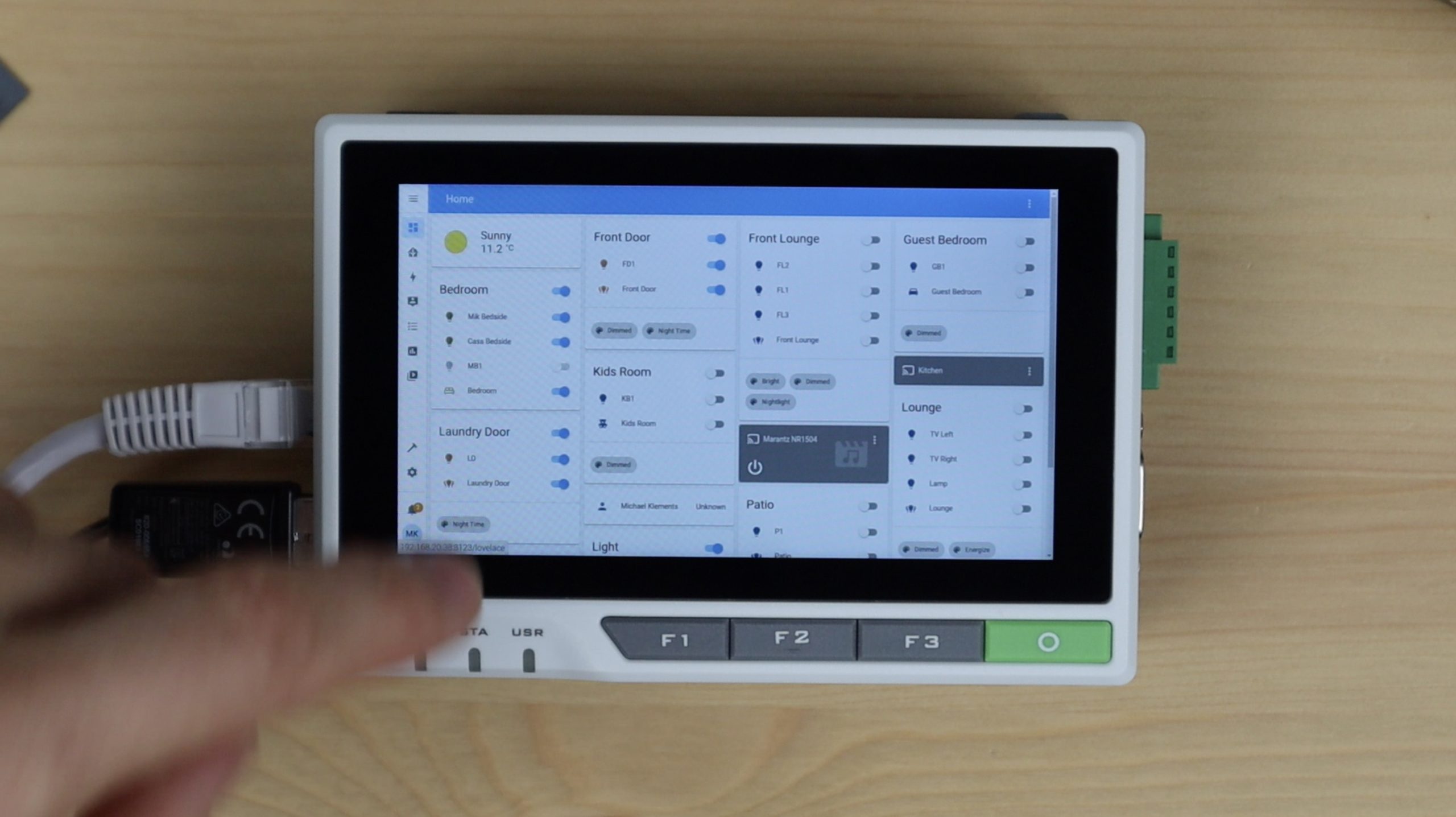
It looks like it works right away, the reTerminal powered up and has booted to the desktop.

reTerminal E10-1 First Boot

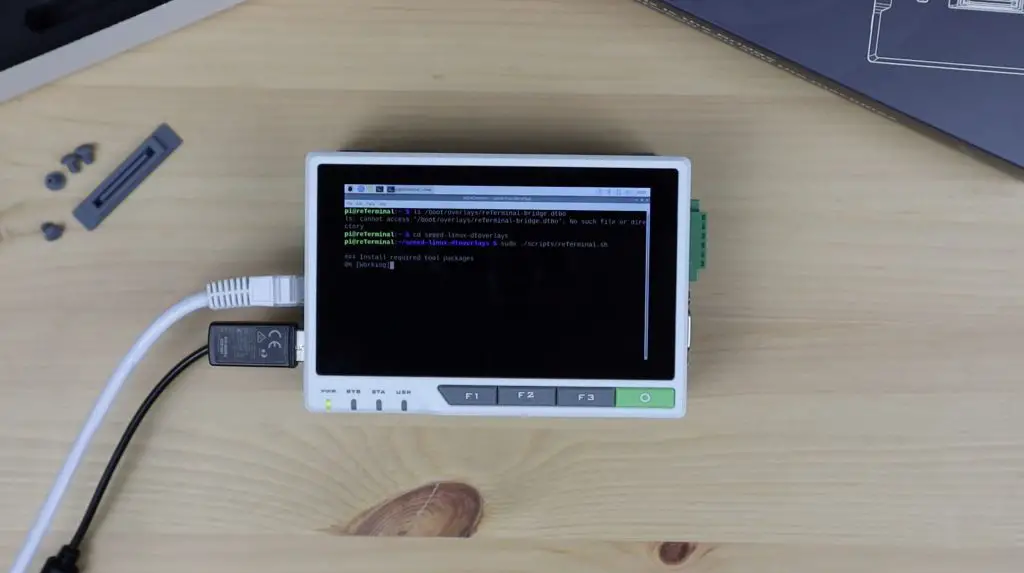
There is a driver that they say needs to be installed to use the functions of the E10-1. The driver is installed using the following terminal commands:

$ git clone https://github.com/Seeed-Studio/seeed-linux-dtoverlays.git
$ cd seeed-linux-dtoverlays
$ sudo ./scripts/reTerminal.sh

Reboot the reTerminal and then enter the following command to complete the installation:

$ ls /boot/overlays/reTerminal-bridge.dtbo
Installing the reTerminal Drivers

I’m not sure what works with or without the drivers as I reloaded the operating system on my reTerminal to get Raspberry Pi OS Bullseye loaded. Part of this process is the installation of the latest reTerminal driver which appears to include the E10-1 drivers as well. I haven’t specifically installed the E10-1 driver and as far as I can tell everything I’ve tried has worked correctly, but I haven’t tested any of the industrial interfaces yet.

Testing Some of the reTerminal E10-1 Basic Functions

Inside the reTerminal E10-1 is a small cooling fan that is controlled using GPIO pin 23. This fan is off by default, so you need to turn it on through the terminal or through a script that runs in the background.

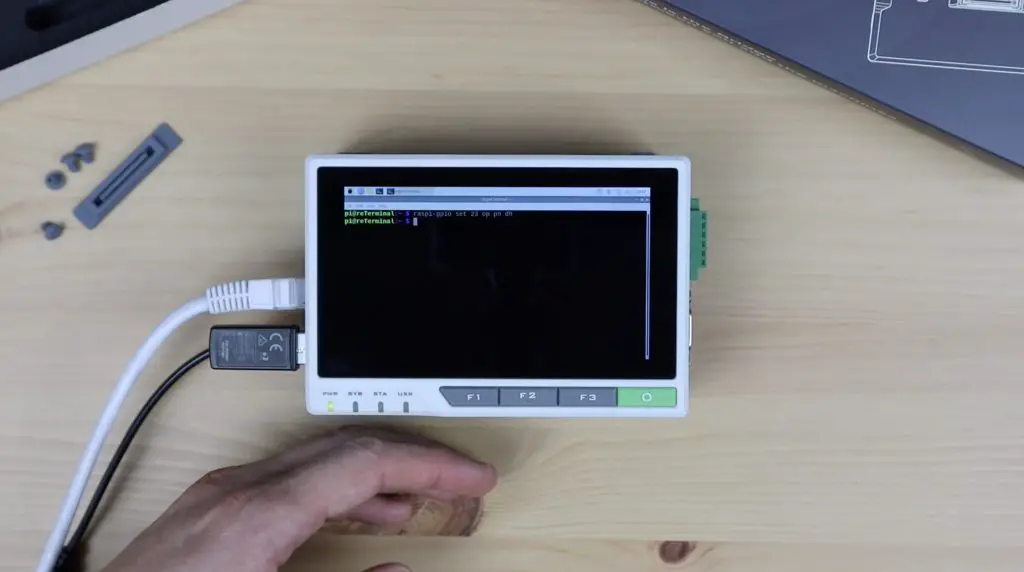
Let’s try turn it on through the terminal using the following command:

$ raspi-gpio set 23 op pn dh

You’ll then be able to hear a faint humming sound coming from the reTerminal E10-1.

Turning on the GPIO Fan

I’m going to turn it off again as we probably don’t need it if we’re not using an SSD or something generating a lot of heat within the enclosure. This can be done with the following command:

$ raspi-gpio set 23 op pn dl

Now let’s see if it stays on when I remove the power supply. My batteries were partially charged before I put them into the reTerminal, so it shouldn’t need much time to charge first.

That looks like it has worked. It’s still running with the power cable removed.

reTerminal E10-1 Running On Batteries
reTerminal Running Fully Wireless

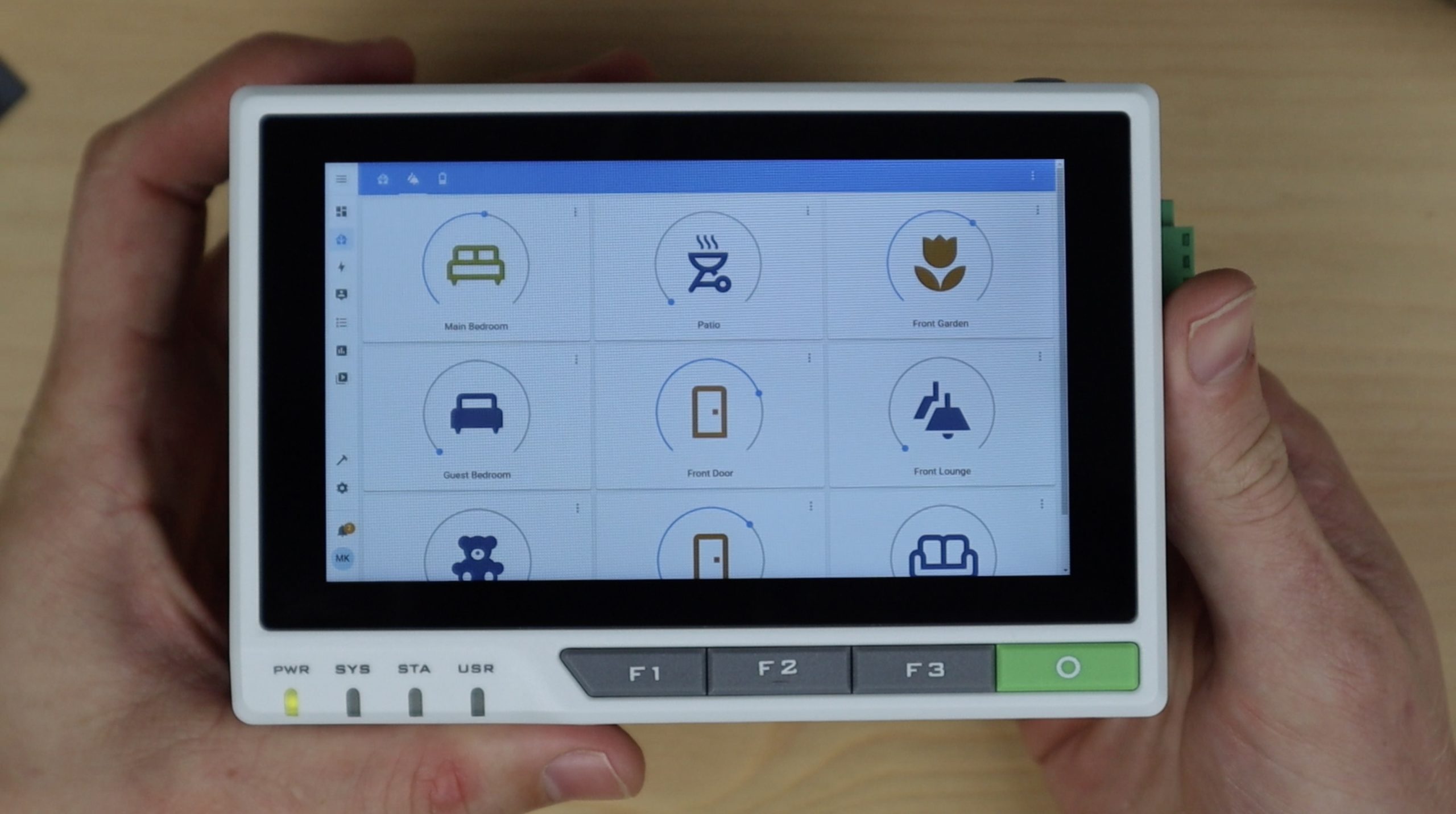
The indicator LEDs on the side show when it’s receiving external power and when the internal batteries are charging.

Charing and Power Indicators on Side Panel

I also wasn’t sure if the Ethernet port on the reTerminal is disabled when the E10-1 is plugged in, so I tried that out. Both ports worked equally well, so it looks like you can use either port if you’re not using PoE.

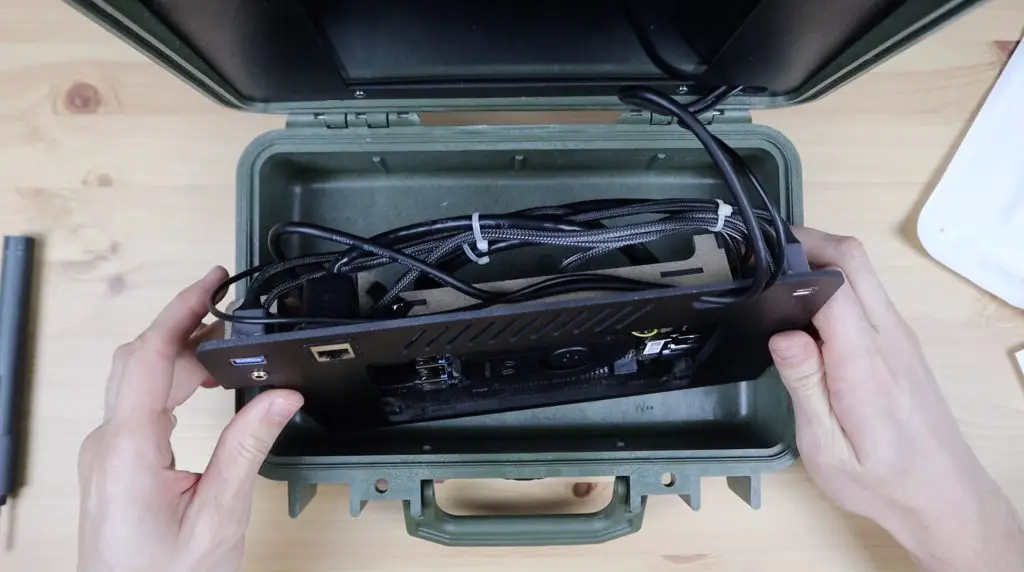
Opening Up the reTerminal E10-1

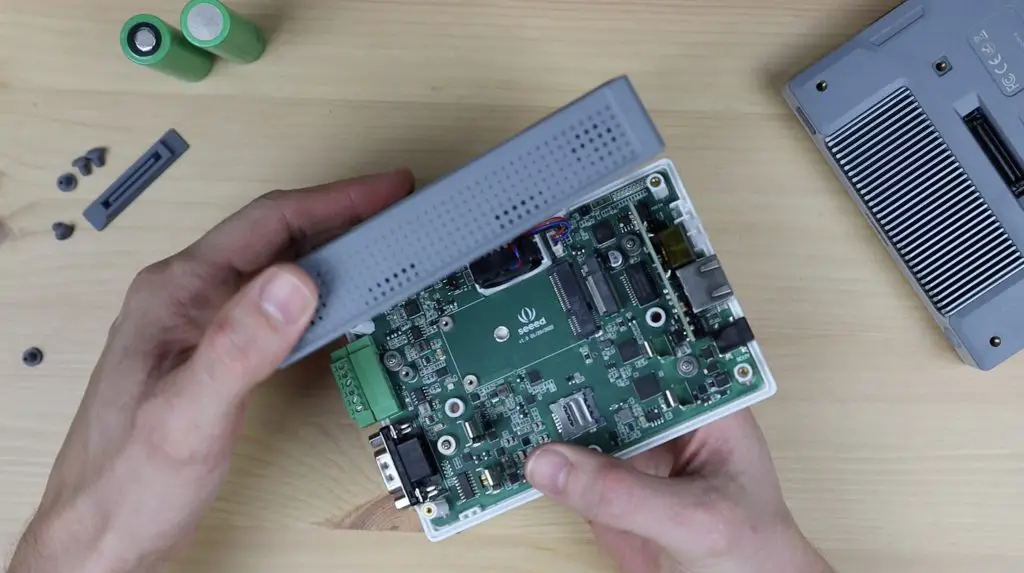
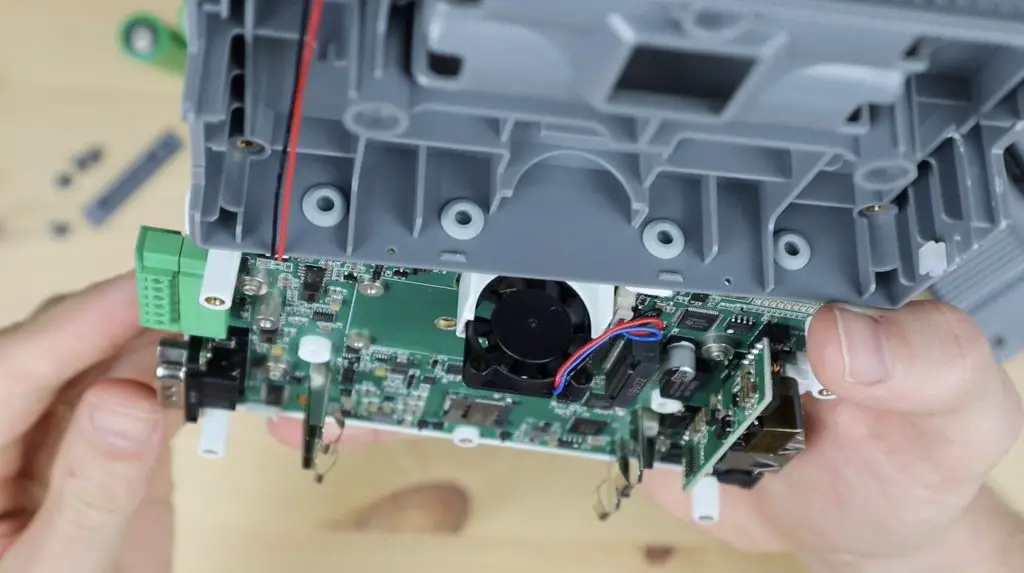
The reTerminal E10-1 is not just limited to external features, it’s also got a host of internal interfaces to allow for expandability. Let’s remove it from the reTerminal, then open it up and take a look at what’s inside it.

Opening Up the E10-1

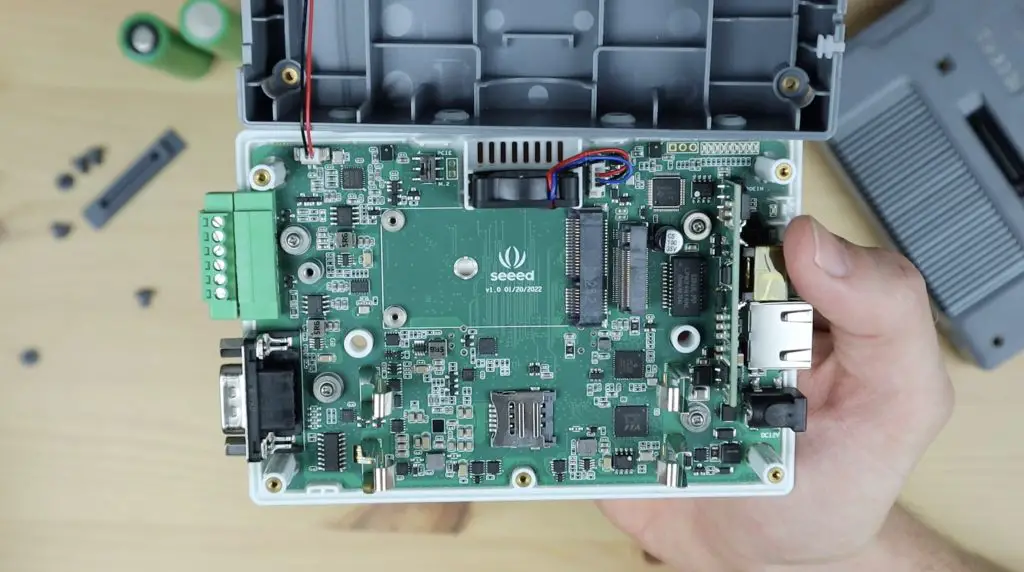
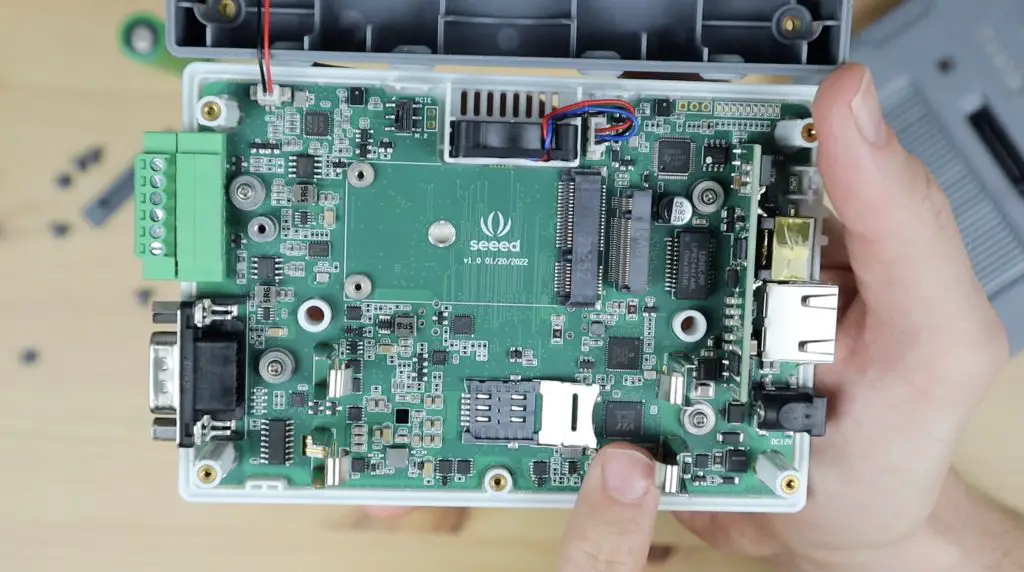
The main internal interfaces are the mini-PCIe connector, that allows you to add a 4G, LTE or LoRa module, and the M.2 B Key connector which allows you to add an SSD, or USB 3.0 ports or a 4G or 5G wireless module.

Inside the reTerminal E10-1

Seeed have provided a list of devices that they’ve tested with the reTerminal on their product Wiki. I’m going to try one or two of them out in a future video.

We’ve also got a sim card slot for the wireless modules, dual microphones and a speaker along the top and the PoE adaptor for the Ethernet port.

SIM Card Slot For Expansion Modules
Fan At The Top Of The reTerminal E10-1

Final Thoughts on the reTerminal E10-1

I think the reTerminal E10-1 and even the reTerminal itself are geared more heavily towards mild industrial applications than home use, but could certainly be useful in certain home applications.

The touch interface on the reTerminal along with the UPS and industrial interfaces that the E10-1 add make this a great device for building industrial system HMI’s to interact with machines, systems and sensors. It’s even great for creating home automation dashboards through applications like Home Assistant, which will now be battery backed. With the addition of a wireless 4G or 5G module you can be notified of power outages and even run some security routines and still have some level of control when your home’s power is disabled or interrupted.

With the batteries and fan in the enclosure, the reTerminal E10-1 is quite a bulky add-on, but since it’s designed to be wall or panel mounted rather than handheld, this probably won’t affect most use cases.

Let me know what you think of the reTerminal E10-1 in the comments section below and let me know what kind of devices you’d like to see me test on it.

reTerminal E10-1 Installed and Running

What Makes TMC2208 Stepper Motor Drivers Silent

A while ago I did a bit of an experiment to compare the sound level between TMC2208 and A4988 stepper motor drivers. At the time, A4988 drivers were more commonly used on 3D printers and other hobby CNC devices. Since then, most 3D printer and CNC laser manufacturers have moved towards replacing at least the X and Y axis motors with the silent TMC2208 stepper motor driver or some other variant of silent motor driver. A question that has come up quite a lot in the video’s comments was how these drivers manage to drive the motors with such a significant sound reduction and if there was any trade-off.

So rather than just show you some diagrams, I thought I’d set the motor and drivers up again and try to show you through actual measurements.

Here’s my video of the test – read on for the write-up, although the video is the best way to hear the sound difference for yourself.

What You Need To Set Your Own Test Up

To set up your own test like I’ve done, you’ll need a few basic components:

I’m going to be using a Pokit multimeter to take current measurements using the oscilloscope function. You don’t need one of these if you just want to hear the sound difference or tinker with controlling the motors.

Understanding How Stepper Motors Work

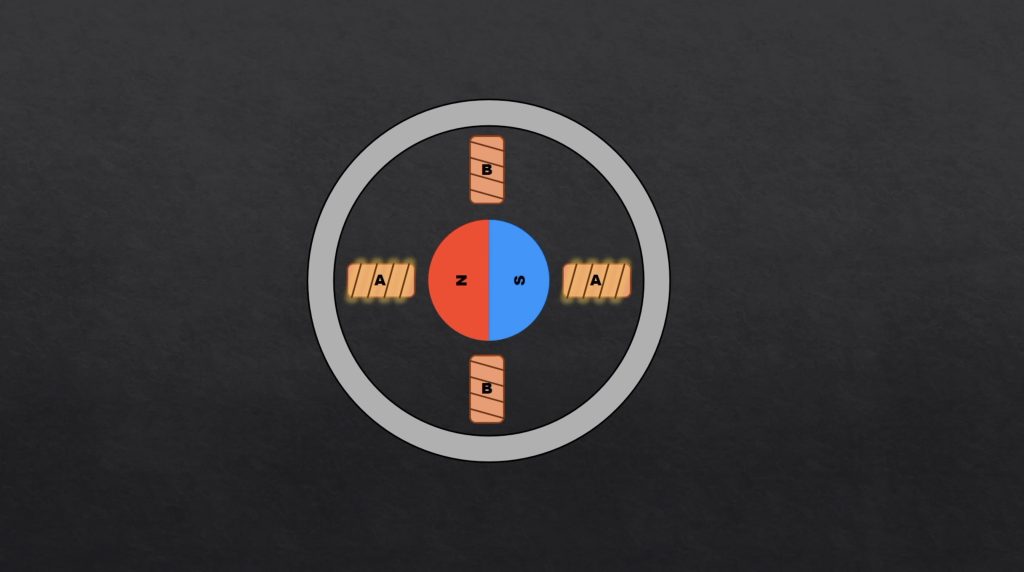
There are some really good resources online to explain how stepper motors work, so I’m not going to go into too much detail. The simple explanation is that stepper motors have a number of poles and the driver energises the coils in the motor to align the rotor with these poles in a sequence to rotate it.

Stepper Motor Operating Principle

The simplest way to do this is to turn one pole on and the other off, causing the rotor to jump from one pole to another. This is simple to do electrically but causes the most noise as it induces a lot of vibration within the motor.

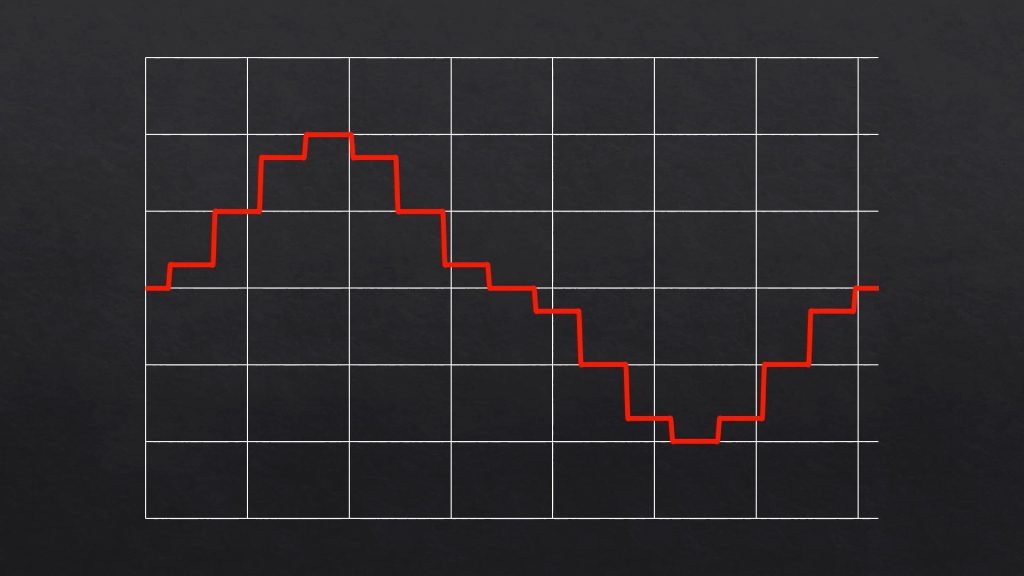
We can reduce the noise by rather slowly energising the one coil while de-energising the second coil so that we gently pass the rotor from one step to the next. The most optimal way to do this without producing any vibration is by producing a sinusoidal wave.

Sine Wave Produced By Stepper Motor Driver

The better the stepper motor driver can replicate a sinusoidal waveform, the quieter it’s going to be able to run the motor. But replicating a sine wave perfectly requires more expensive electronics, so there is a bit of a tradeoff.

There are a few other sources of noise or humming in a stepper motor caused by things like magnetic fields, current ripple and chopper frequency. But their contribution is generally significantly less than this is.

So let’s have a look at the current waveform that the two drivers produce.

The TMC2208 Driver Test Setup and Code

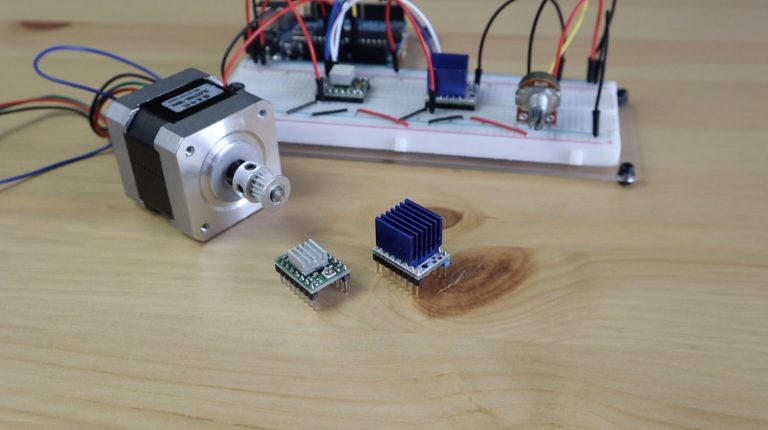
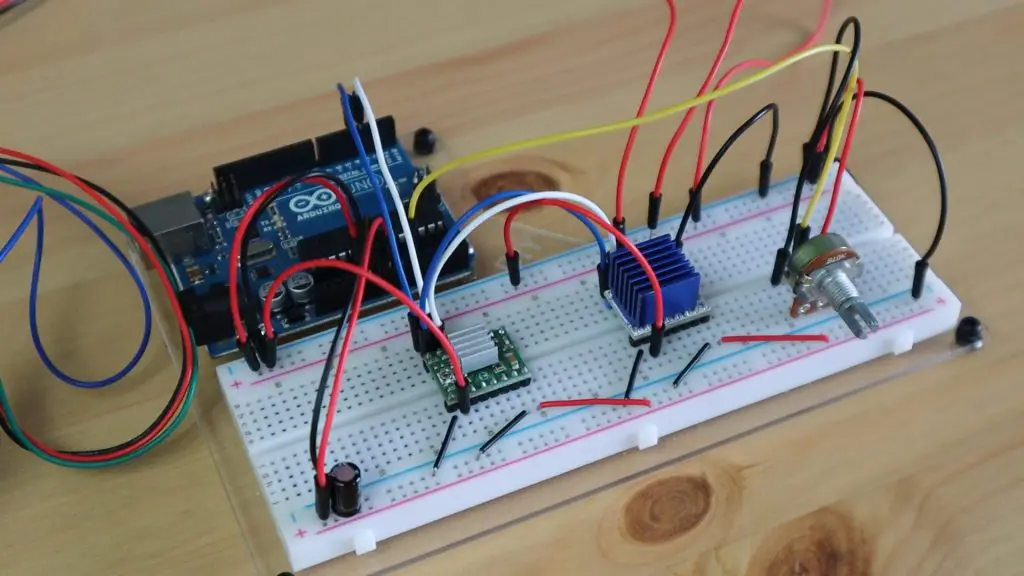
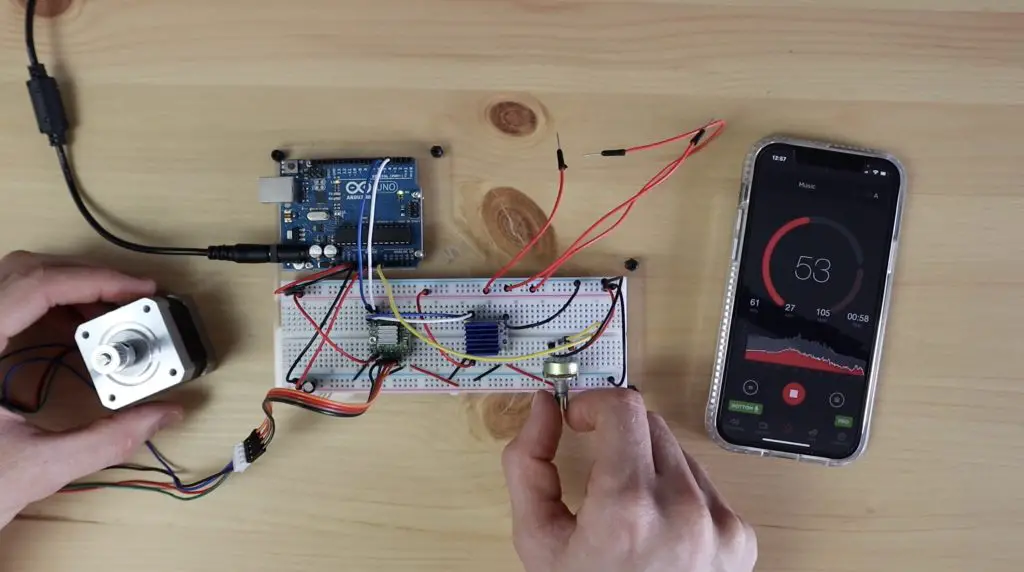
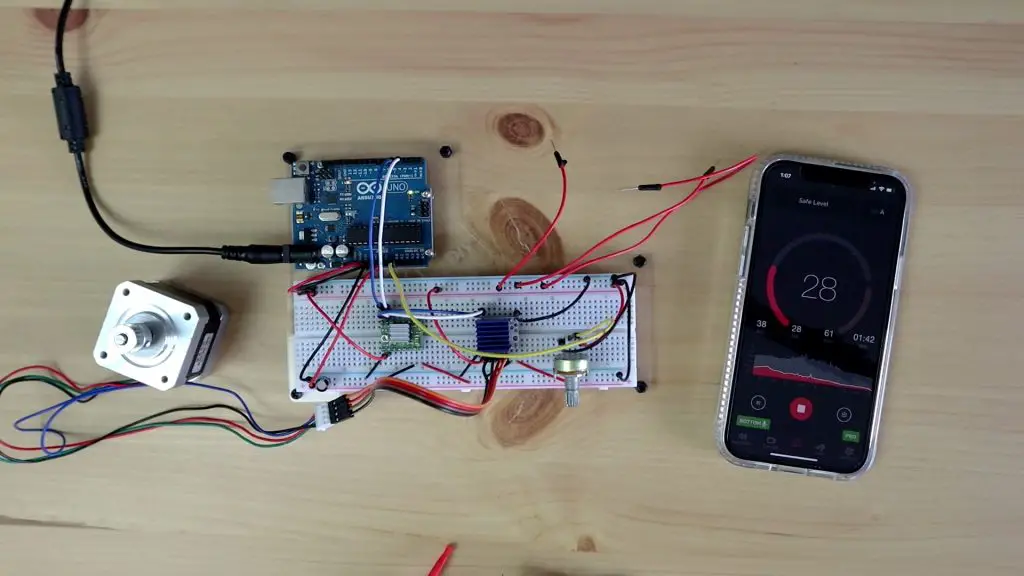
I’ve got a similar setup to the last test with the two drivers hooked up in the same way to an Arduino.

TMC2208 Motor Driver Test Setup

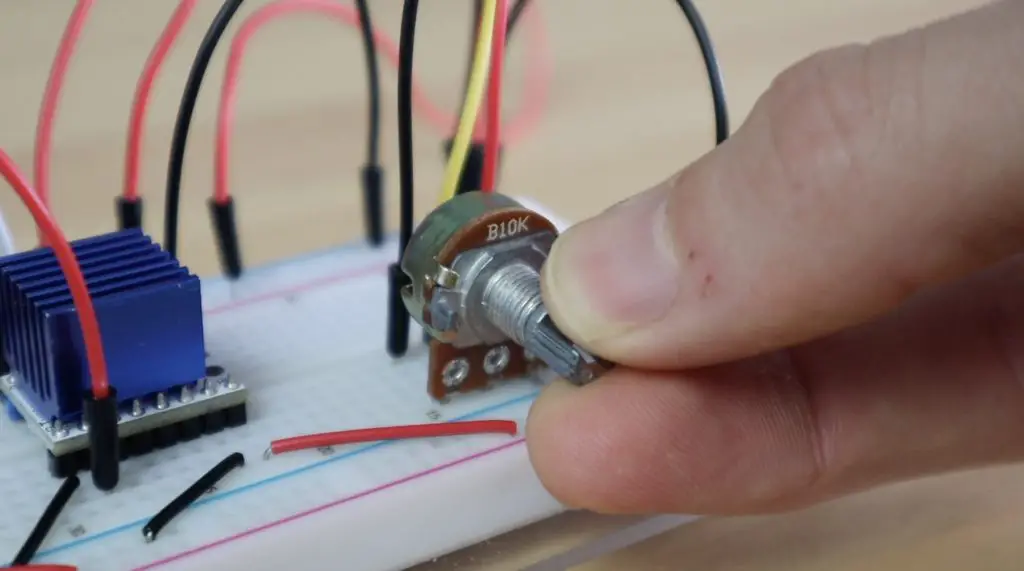
The drivers are both connected to digital outputs 3 and 4 on the Arduino for step and direction control respectively. So we just need to plug our motor into the one we want to test. I’ve also added a 10K potentiometer, connected to analogue pin A0, to adjust the time delay between step pulses, which in turn will control the motor speed.

Potentiometer To Adjust Stepper Motor Speed

The Arduino sketch is very basic, just assigning the pin modes in the setup function and then looping through reading in the potentiometer position and stepping the motor with the measured time delay.

//The DIY Life
//Michael Klements
//30 April 2020

int stepPin = 3;          //Define travel stepper motor step pin
int dirPin = 4;           //Define travel stepper motor direction pin
int motSpeed = 5;         //Initial motor speed (delay between pules, so a smaller delay is faster)

void setup() 
{
  pinMode(stepPin, OUTPUT);                 //Define pins and set direction
  pinMode(dirPin, OUTPUT);
  digitalWrite(dirPin, HIGH);
}

void loop() 
{
  motSpeed = map(analogRead(A0),0,1023,50,1);           //Read in potentiometer value from A0, map to a delay between 1 and 50 milliseconds
  digitalWrite(stepPin, HIGH);                          //Step the motor with the set delay
  delay(motSpeed);
  digitalWrite(stepPin, LOW);
  delay(motSpeed);
}

Testing the Waveforms from the A4988 and TMC2208 Stepper Motor Drivers

We’re going to start with the A4988 driver by first taking a look at the sound level at different speeds.

Adjusting Stepper Motor Speed on A4988 Motor Driver

The sound level throughout the range of speeds was an average of around 50-60dB. The sound was obviously being amplified by the wooden desk and wouldn’t be that loud with a proper vibration damping mount, but this way you get a good idea of the improvement.

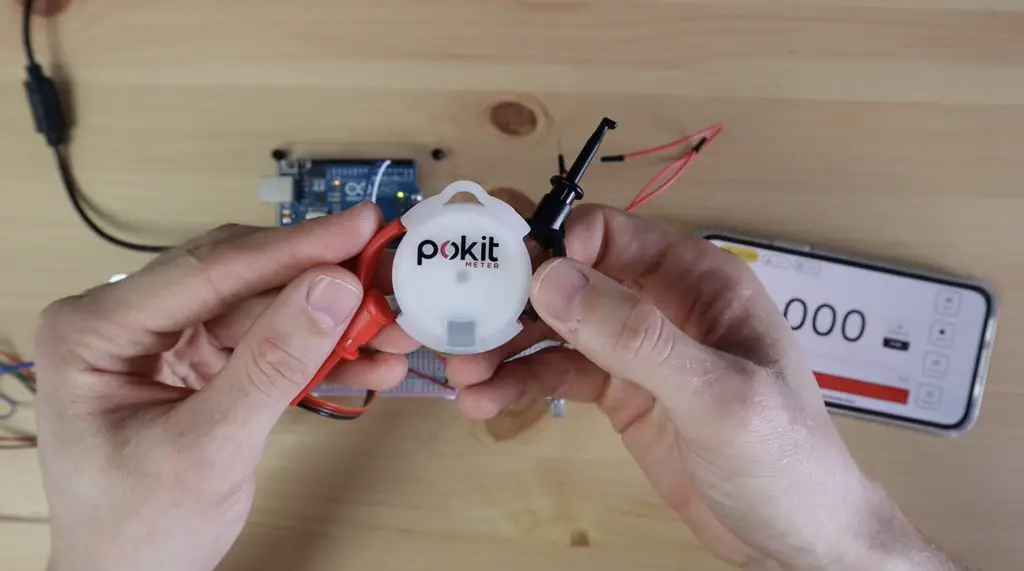
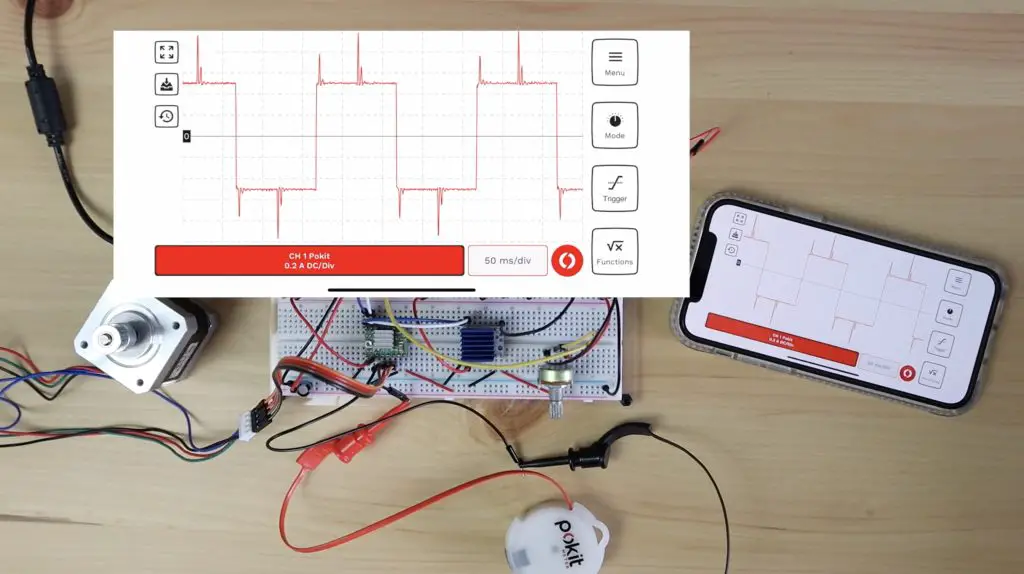
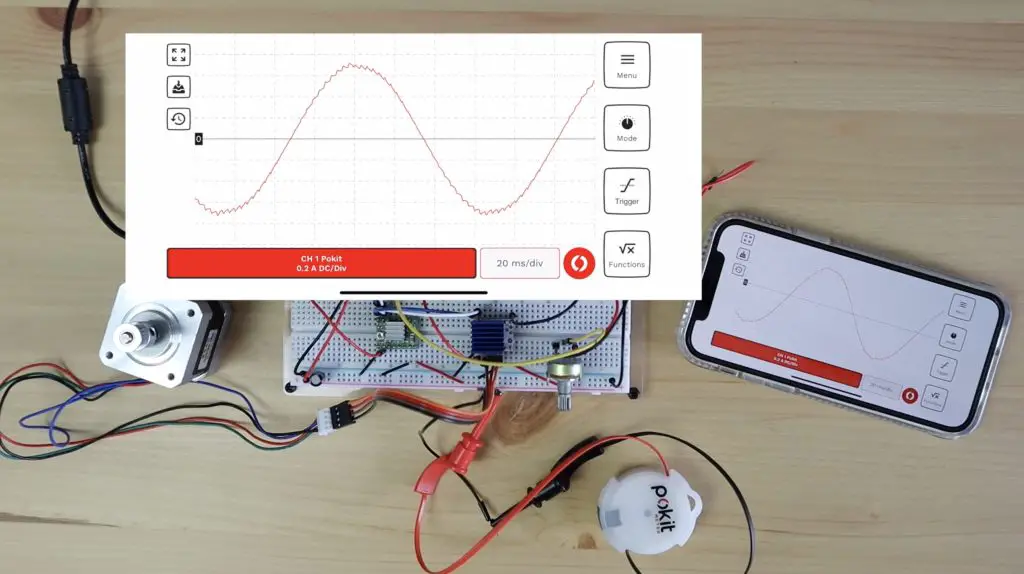
To measure the waveform I’m going to use this Pokit multimeter and oscilloscope and I’m going to connect it in series with one of the motor coils to measure the current flowing through the motor coil.

Pokit Multimeter

In the video, you may notice that the motor sounds a bit weird when it’s connected and the oscilloscope isn’t measuring anything. This is because the oscilloscope opens the circuit when it isn’t taking readings. So the motor effectively only has one coil connected to the drive. You’ll see the shaft isn’t turning any more and is just sort of jumping in the same spot. So we’re only interested in the sound the motor makes during readings after I’ve pushed the red record button.

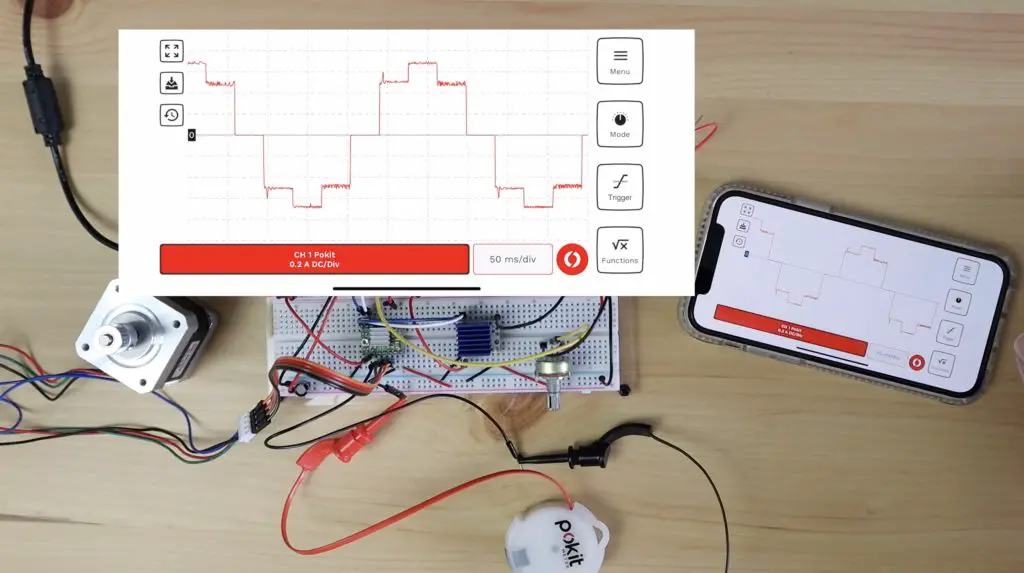
A4988 in Full Step Mode

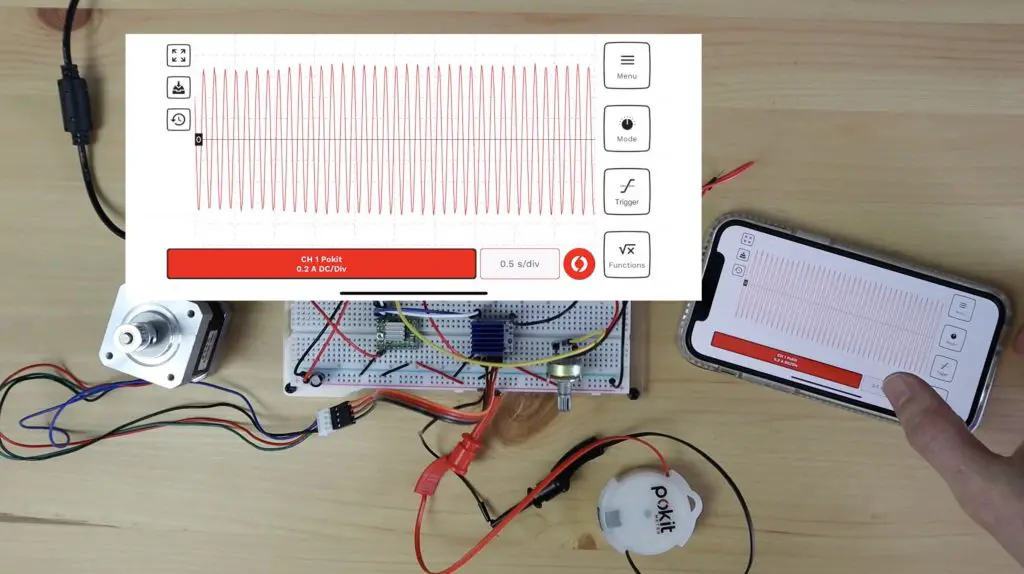
With the A4988 driver running in standard full-step mode, you can quite clearly see that the driver is producing a very square wave.

Current Waveform Full Step A4988

It also doesn’t matter if we increase the motor speed, we still get a similar square wave that just repeats more often in the same timeframe. So this waveform is obviously quite far from a sine wave and therefore produces the most vibration within the motor, leading to the most noise being generated.

That’s not the end of the road for the A4988 driver, it can actually produce somewhat of a sine wave through microstepping.

Microstepping is essentially the ability for the driver to partially energise the coils to position the rotor in positions between the two poles, and it does so in a way that resembles a sine wave. So the most positions (microsteps) you can do between each pole, the better your sine wave is going to look.

The A4988 can do half, quarter, eighth or sixteenth step microstepping by pulling a combination of three pins high. So let’s see what those look like – we’ll start with half step mode.

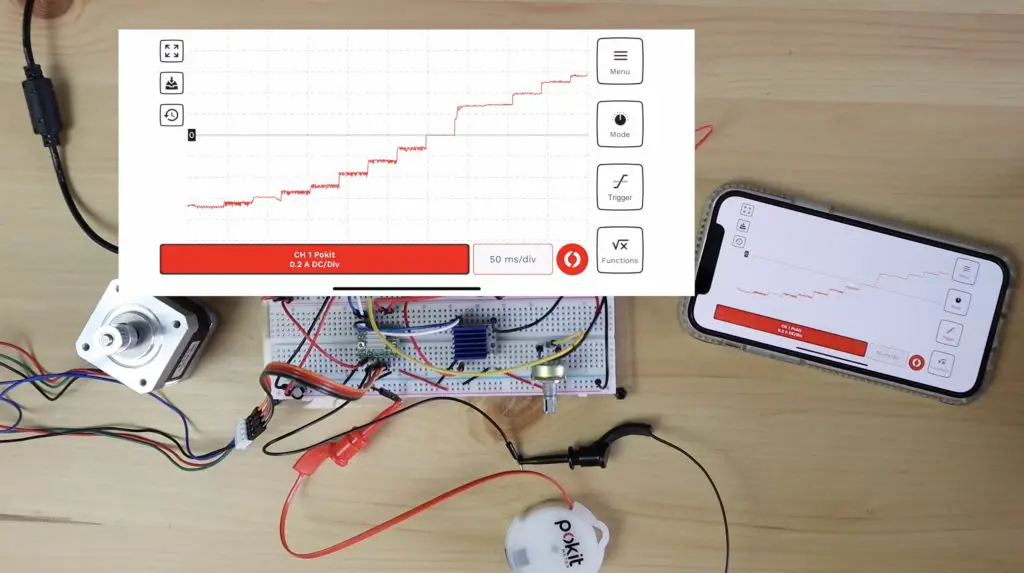
A4988 in Half Step Mode

With the A4988 driver running in half step mode, we now got something that is starting to look a bit like a sine wave – but there is obviously still a lot of room for improvement.

Current Waveform Half Step A4988

The motor also sounded like it was running a little smoother than in full step mode. Looking at the waveform produced, you can clearly see two steps on our sine wave above and below 0.

A4988 in Eighth Step Mode

Now let’s try and improve upon our results with eighth step mode. So in this test, we should now have eight increments between the zero and the maximum on our sine wave.

Current Waveform Eighth Step A4988 No Scaled

The first thing you’ll notice is that the sine wave doesn’t fit into our timeframe anymore. That’s because the driver now only moves 1 micro step for each pulse, so our motor is effectively moving 8 times slower than it was in full step mode. So, for example, a motor with 200 steps per revolution running in eighth step mode will now have 1600 steps per revolution.

Current Waveform Eighth Step A4988 Scaled

If we adjust the time scale, we can see our full sine wave and we’ll also notice that our motor is again moving smoother, and slower than it was when in half step mode.

A4988 in Sixteenth Step Mode

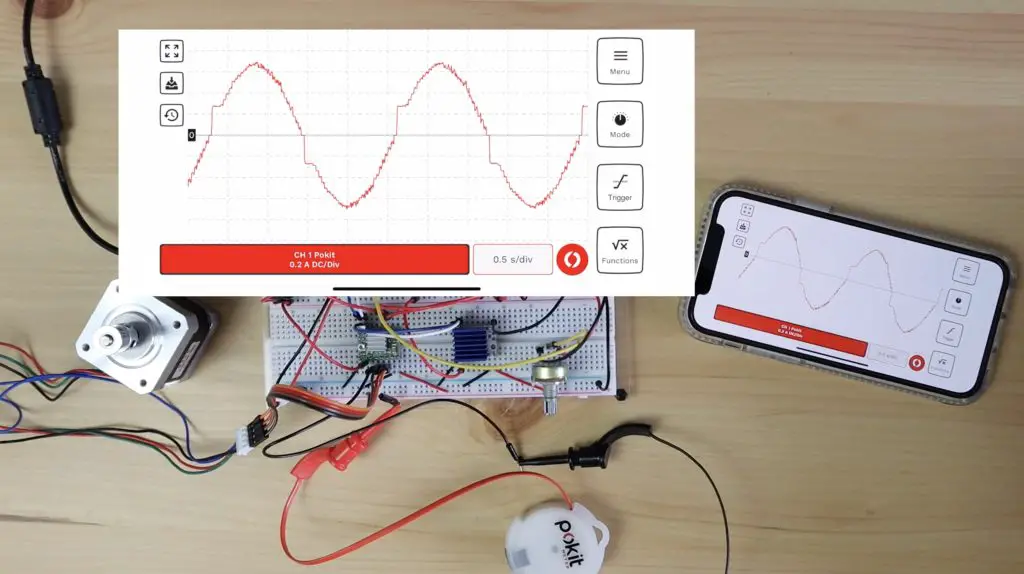
Lastly lets try sixteenth step mode, which is the most that this A4988 driver can do.

Current Waveform Sixteenth Step A4988

You’ll again notice that the motor is moving half as fast as eight step mode and we’re getting a wave that’s now looking a lot like a sine wave.

That’s now the end of the road for our A4988 driver. The micro stepping has made it run much smoother and a bit quieter, but it’s still quite noisy. So let’s swap over to our TMC2208 driver now.

TMC2208 Running In Legacy Mode

For compatibility with the A4988 driver’s code, we’re going to be running the TMC2208 driver in Legacy Mode. This mode essentially allows the driver to act as a drop-in replacement for the A4988 driver.

TMC2208 Sound Level

If you watched the video, at this stage you probably hadn’t noticed that the motor was running. That’s obviously a significant improvement over the A4988 drivers that produced around 50-60dB. The TMC2208 driver operates nearly silently, even when you change the speed.

A big part of how it does this is that the TMC drivers produce 256 microsteps, so sixteen times more than what the A4988 drivers do.

Let’s now hook up the oscilloscope and see what the waveform look like.

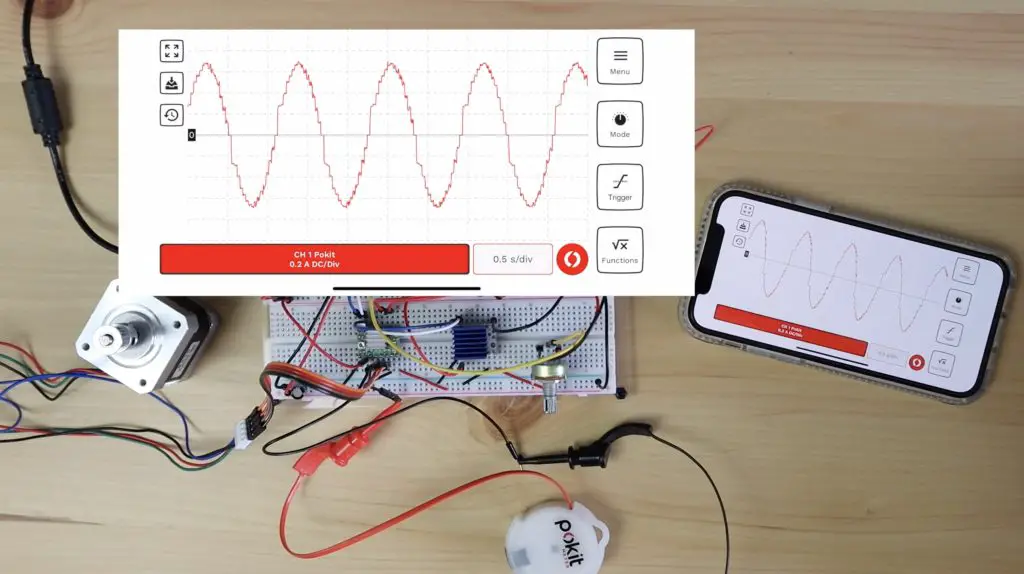
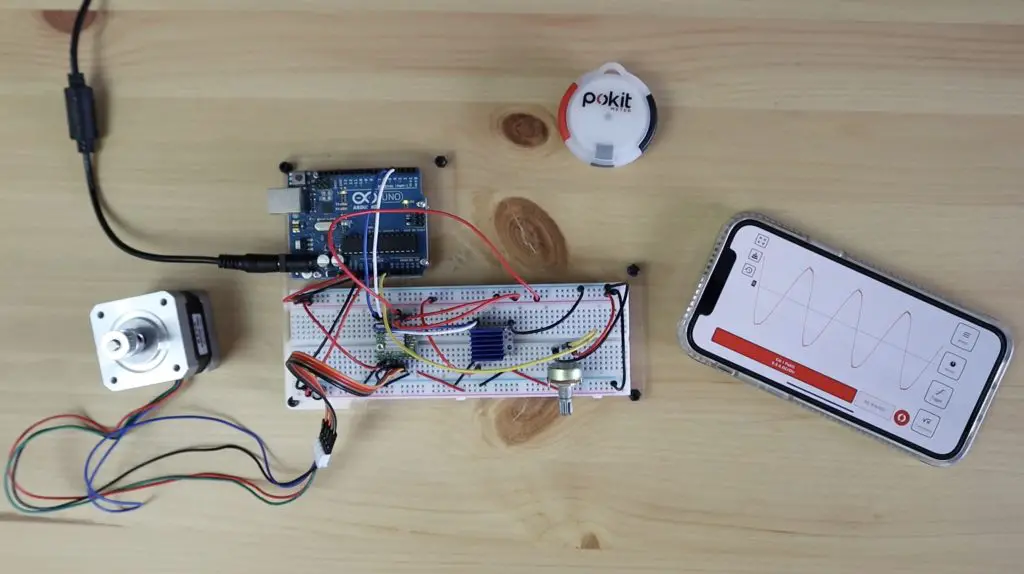
Current Waveform TMC2208

As with the previous test, the motor makes a bit of noise when the oscilloscope isn’t taking measurements as its only got a single pole connected, so it’s jumping back and fourth around the same pole. It does however go silent again when the oscilloscope is running.

As with the A4988 driver, if we change up the speed we still get the same smooth sine wave, it just repeats more often in the same time interval.

Current Waveform TMC2208 Higher Speed

So you can see that’s a significantly improved sine wave over even the best one that the A4988 driver was able to produce.

Finals Thoughts on the TMC2208 Motor Driver Test

So now you have a basic understanding of what the TMC2208 drivers do differently to run almost silently.

As for any drawbacks. There are two primary ones.

One is a slight reduction in incremental torque, which is not usually an issue unless you’re operating near the motors torque limitations.

The second is not so much to do with the motor but to do with the microcontroller telling the driver what to do. As I’ve mentioned earlier, microstepping requires more pulses from the microcontroller to move the motor a full step. So, running in sixteenth step mode requires your microcontroller to output 16 times more pulses than it would need to in full-step mode. If you’re doing this across multiple motors or while doing other tasks, your controller quickly gets bogged down just keeping the motors running and may not be able to keep up.

Out of interest, during the tests, I was running the drivers with a 12V supply to the motor.

That’s it for today, I hope you’ve learned something and found this explanation useful. Let me know in the comments section what you’ve used these drivers for and check out some of my other projects for ideas.

Test Setup of A4988 and TMC2208 Stepper Motor Driver

I Made A Home Assistant Hub Using The Atomstack X20 Pro

I’ve been slowly adding more and more devices and sensors to my home automation setup and it’s gotten to a stage where I now have a pretty significant number of apps to control them on my phone and iPad. I’ve also wanted to set up automations and routines between devices, but the interfacing across platforms and between brands isn’t usually available or is buggy at best.

Home Automation Devices & Brands

If you’ve done anything home automation related on a Raspberry Pi then you’ve probably heard of Home Assistant. It a free and open-source software package that is designed to be a central hub or control system for all of your smart home devices and it’s got a pretty substantial online community working on integration. So, for example, it allows you to do things you wouldn’t normally be able to do like use an Ikea motion sensor to turn on a Philips hue light. Something that isn’t supported by either ecosystem individually.

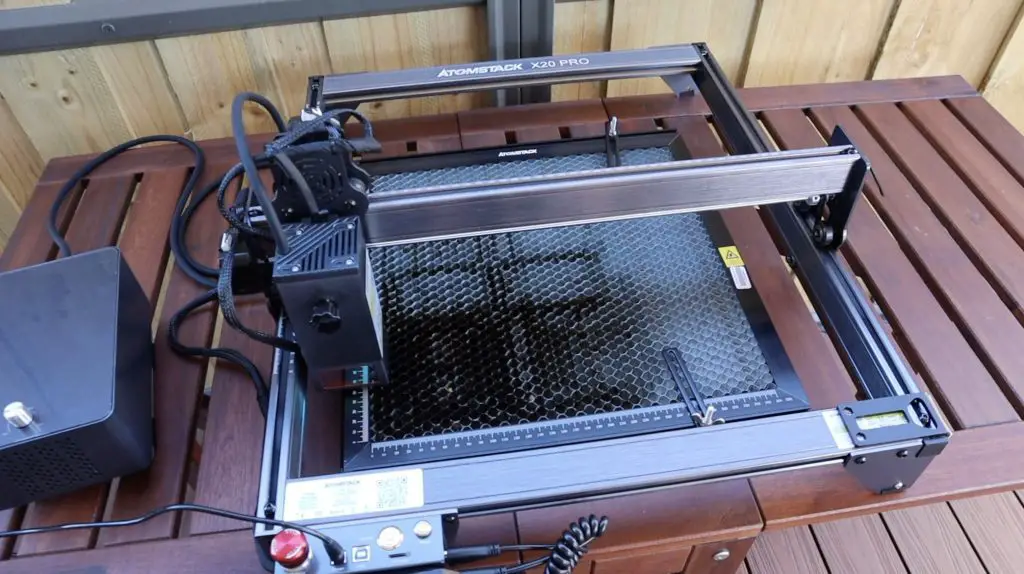
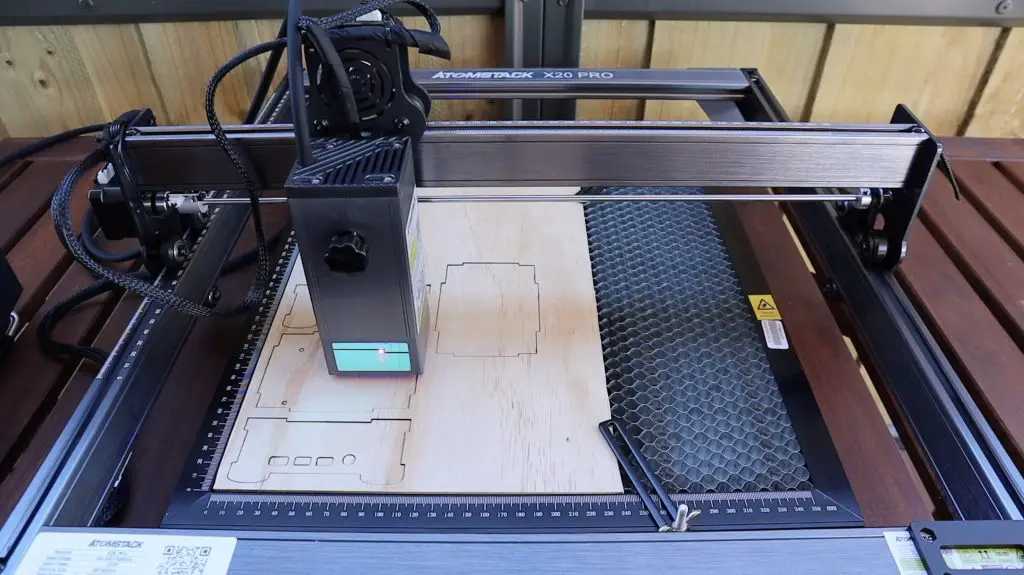
So today I’m going to be installing Home Assistant onto a Raspberry Pi and I’m going to use a new laser cutter, the Atomstack X20 Pro, to laser cut a housing for it so that I can put it somewhere convenient in my house without it looking like a jumble of wires, dongles and PCBs.

Here’s my video of the build, read on for the full write-up:

What You Need to Build Your Own Home Assistant Hub

Equipment used:

Unboxing and Setting Up The Atomstack X20 Pro

The X20 Pro is a new diode laser engraving and cutting machine from Atomstack that uses a clever quad diode laser module to deliver 20W of optical power. The laser is so powerful that they claim that it can even cut 0.05mm sheet metal, which as far as I can tell is a first for consumer-level diode lasers. They also say that I can cut up to 12mm sheets of wood in a single pass and up to 8mm sheets of opaque acrylic.

Unboxed Atomstack X20 Pro

The 20W laser module is quite a bit stockier than the one on the X7.

Atomstack X20 Laser Module

The control PCB and cooling fan are built into the metal housing and an air port on the top feeds down to a nozzle around the lens for the included air assist system. I really like how well the air assist system is integrated into the design of the module and doesn’t look like an afterthought.

Atomstack X20 Laser Module Air Assist Nozzle

The included air assist is their own branded system. I’ve used an industrial aquarium air pump previously on my K40 laser cutter, so I was expecting this to be something along those lines, but it’s actually a lot better. The unit apparently uses a two-cylinder compressor to deliver 10-25L/min of air to improve cutting and and engraving quality and speed, we’ll see how it works in a bit.

Atomstack X20 Pro Included Air Assist System

At a little over $1,000, it has a hefty price tag, so I’m hoping that this machine can do some cutting that’s at least equivalent to most entry-level 40W CO2 lasers.

So let’s get it assembled.

As with the X7 model, the X20 Pro comes largely preassembled, so assembly is pretty straight forward.

Atomstack X20 Pro Installation and Assembly Manual

There are a couple of pages for assembly in the manual and the components are labelled for each step, so they’ve made it really easy.

Screws and Components Packaged Into Step by Step Bags

The gantry is all pre-assembled so you mainly need to assemble the four-sided frame and then mount the gantry and belts onto it along with the laser module. The only fiddly job is feeding the belts through the gantry wheels and toothed pulley on either side.

It took me about 20 minutes to assemble the X20 Pro and to adjust the legs so that it sat perfectly flat on my desk.

Assembled Atomstack X20 Pro

Test Cut and Engraving on The X20 Pro

I then tried turning it on, particularly to try the air assist pump to see how loud it would be. I have to say that I was pleasantly surprised. The industrial aquarium pump that I’ve used in the past is basically as loud as a standard workshop compressor. This system is substantially quieter in comparison.

Turning on the X20 Pro Air Assist

It makes quite a noise if you turn the power all the way up, but you probably don’t need to use it at more than half power for most applications. You can feel a decent amount of air coming out of the nozzle at half speed, and you’ll then hardly hear it over the fan on the actual laser module (which is quite loud for a laser module). Even at full speed its quiet enough to comfortably talk over and you don’t feel like you need hearing protection when its running. It’s not something that you’re going to want to leave running unnecessarily but it’s definitely bearable for a small workshop.

If we plug in the included MicroSD card, there are two test files ready to go, one to cut and one to engrave.

Plugging in the MicroSD Card

So let’s try those out first, I’m going to get it moved to my workshop so I don’t burn a hole in my desk.

Two Prepared Test Cutting Files

The first file is a dog that was labelled to be used on 2mm plywood. I’ve only got 3mm plywood so I thought I might need to do a second pass to cut all the way through. I used the offline controller to position the laser and run the test cutting file and I used the included distance tool to set the focus distance between the laser and the wood.

Focusing the X20 Pro Laser Using the Distance Piece

The laser seemed to cope just fine with the 3mm plywood and made quick work of the dog, cutting through the sheet in a single pass.

Laser Cut Test Dog

I then tried the engraving and that too produced a great quality finish with the air assist on about 30% power. There is some debate as to whether air assist is required when engraving as it tends to blow the smoke back onto the piece. I still prefer using some masking tape over the wood that I peel off after engraving – this produces flawless results every time.

Laser Engraving Test File

It looks like the X20 Pro is ready to take on a project, so we need to design the housing to hold the Raspberry Pi.

Designing The Home Assistant Hub Housing

I’ve sketched up a cubic style housing with some feet to lift the Pi off the shelf or desk and a fan on the top for cooling.

Take a look at my video on how to design your own Pi cases in Inkscape.

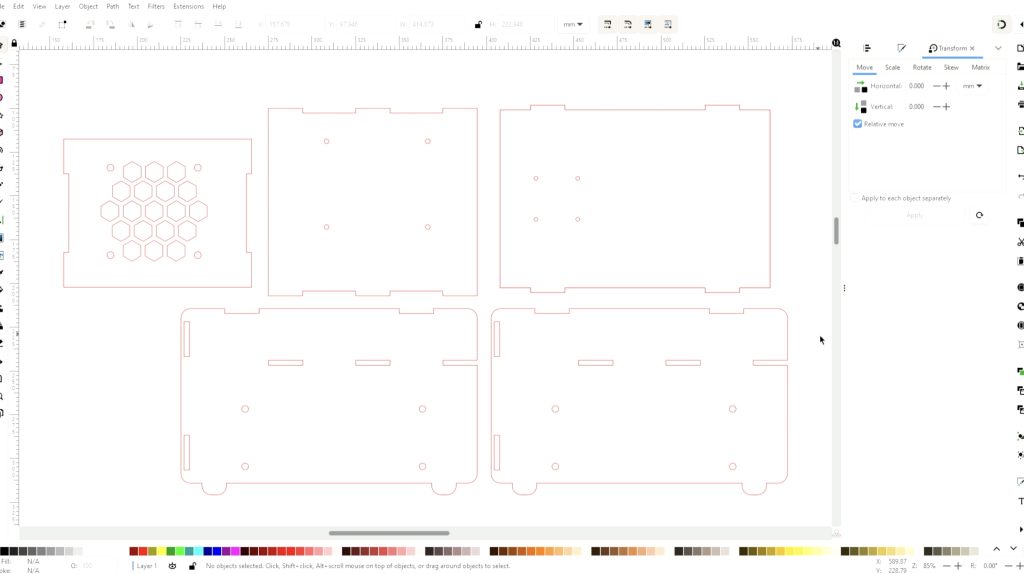
Cube Case Design For Laser Cutting

I wanted to integrate the Home Assistant logo into the design in some way, so I initially planned on engraving it. That made the housing look a bit too much like an ordinary box, so I decided to rather laser cut the logo out on each side.

Home Assistant Logo On Cubic Case Design

I can then glue some clear acrylic or clear plastic sheets onto the inside of the case to keep the dust out. The RGB lighting on the fan should light up the inside of the case just enough to give the logo a bit of a glow – which will hopefully look quite good.

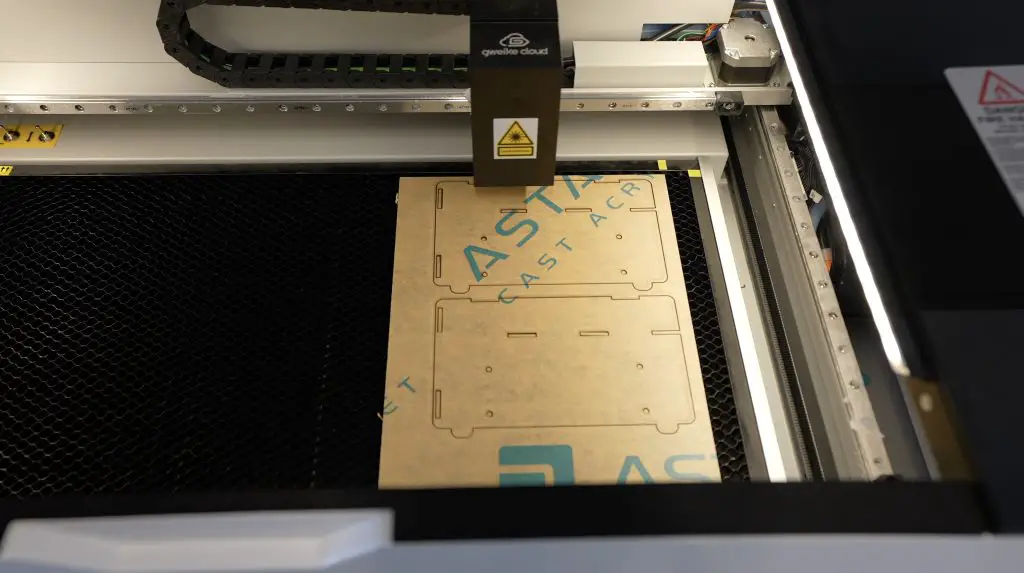
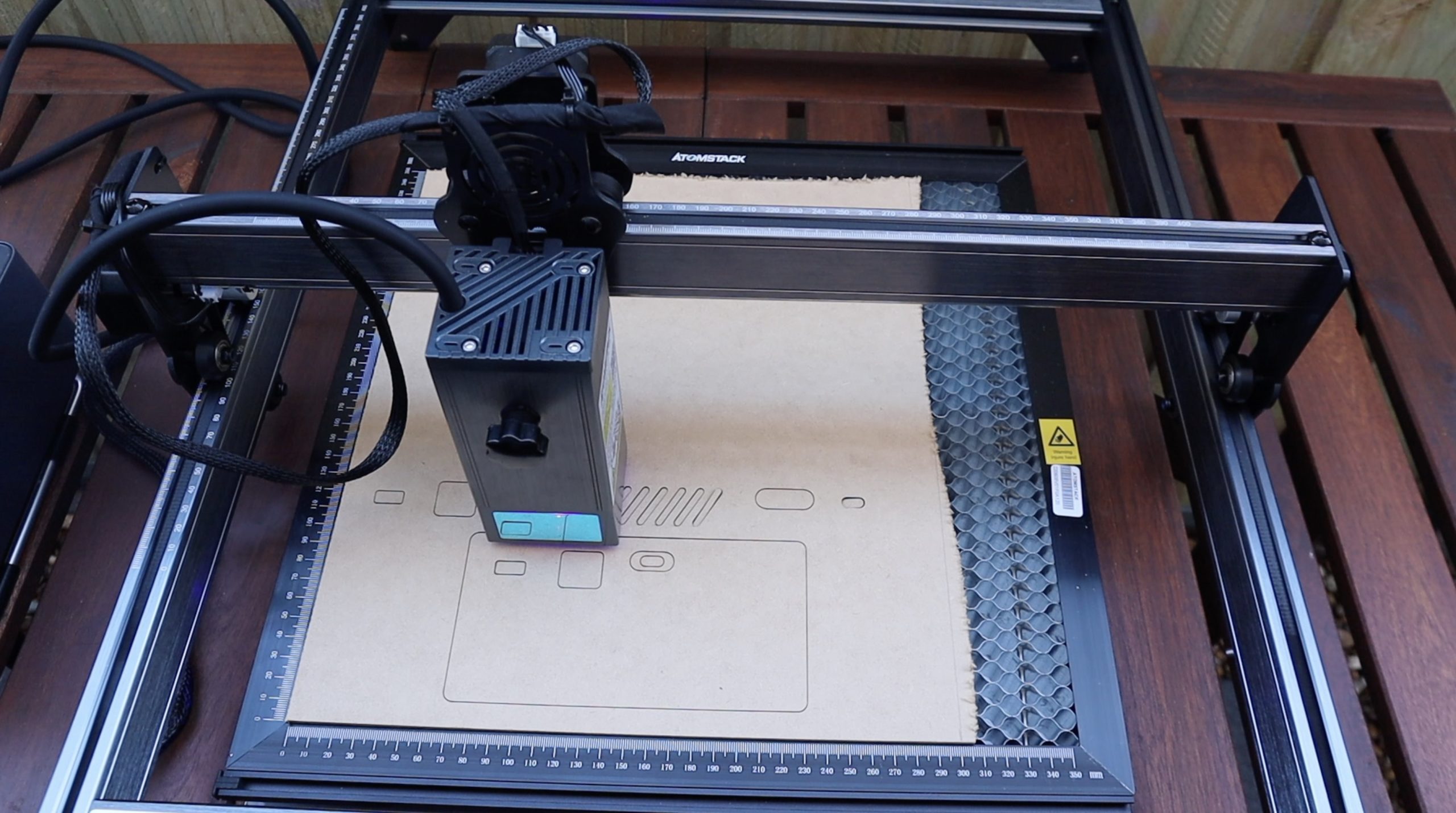
Let’s get the components cut on the Atomstack X20 Pro. I’m going to be cutting the components from the same sheet of 3mm plywood. I’m cutting at 300mm/min and 90% power. I’ve prepared the files in laserGRBL and I’m going to again use the microSD card and offline controller to do the actual cutting. I find this easier than having to set up a laptop near the laser.

Laser Cutting the First Home Assistant Housing Panel

The first piece came out perfectly and you can really see how the air assist has helped to keep the smoke away from the plywood. I started without it for the first USB C port cutout and you can see it’s surrounded by smoke stains. I then turned the air assist on to about 30% power and the rest of the cuts are really clean on the surface.

Laser Cut Second Home Assistant Test Panel

The underside gets marked from some of the reflected laser’s light, so I’ll probably look at adding a honeycomb bed at some stage. I also noticed that the localised heat from the laser caused pretty significant warping on the metal sheet once all of the pieces had been cut.

One thing that is a bit of an issue with all of these diode lasers is that there is no smoke extraction system, and cutting wood produces a lot of smoke. So you need to work in a well ventilated area.

Laser Cutting the Lid

Just as a test, I tried a piece of 6mm plywood that I had lying around. I set the laser to 200mm/min and 100% power and it had no problem cutting this out in a single pass either.

Assembling & Painting The Hub Housing

Now that we’ve got the pieces cut out, lets glue them together and give the housing a light sand.

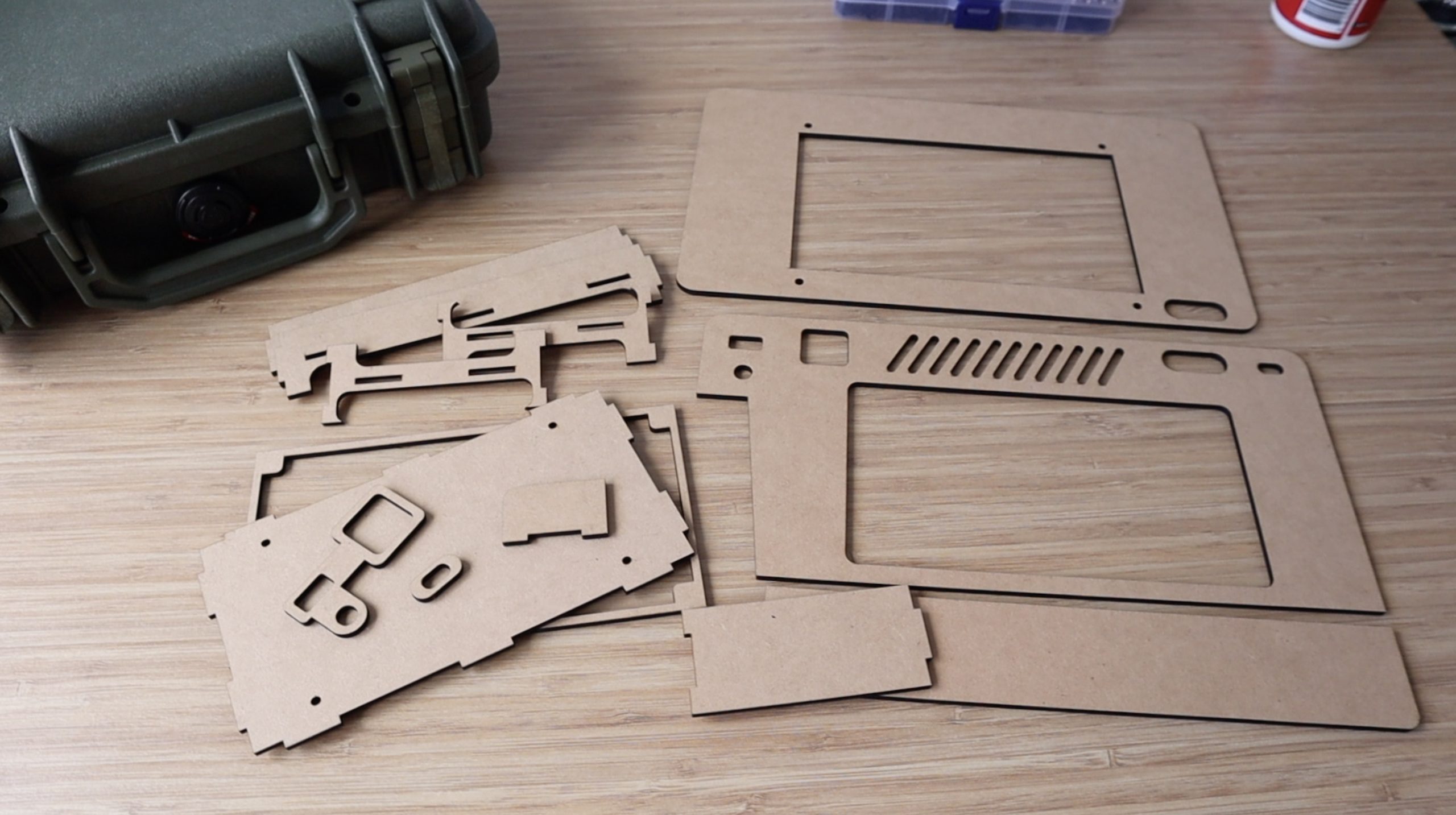
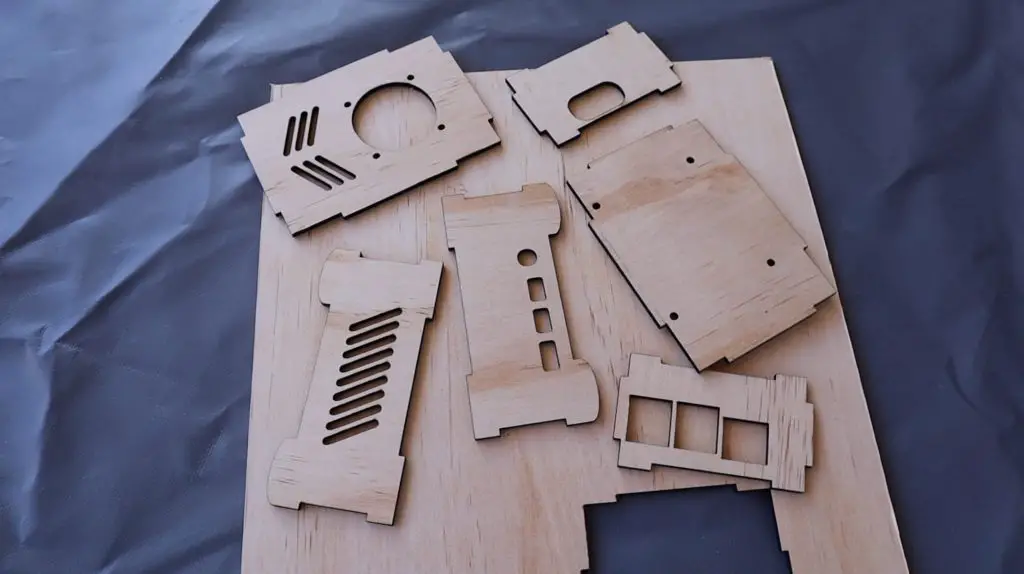
All Case Components Complete

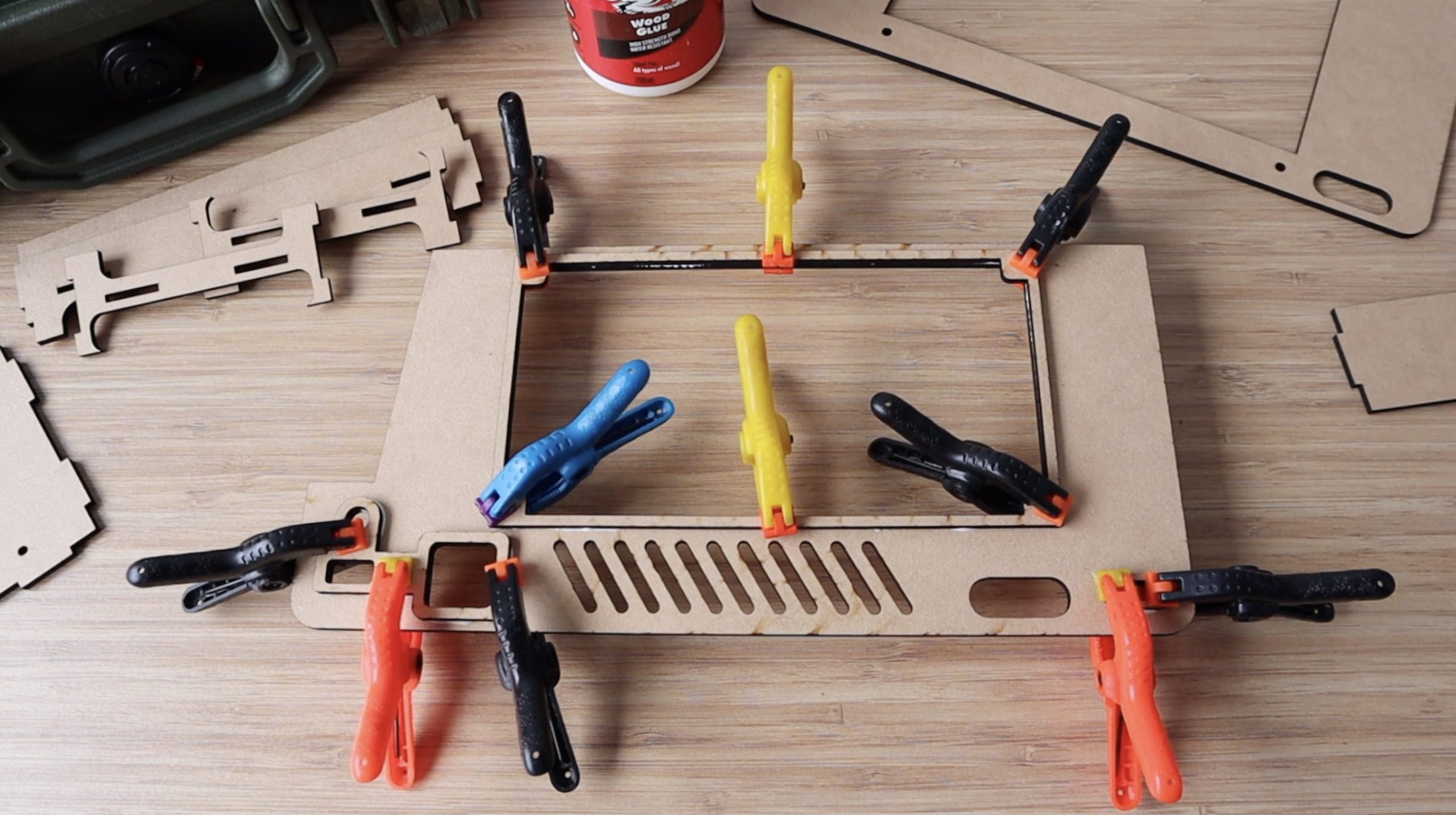
I’m just going to use regular PVA wood glue to glue it together and then I’ll leave it to dry for a few hours before sanding it.

Gluing the Home Assistant Housing Together

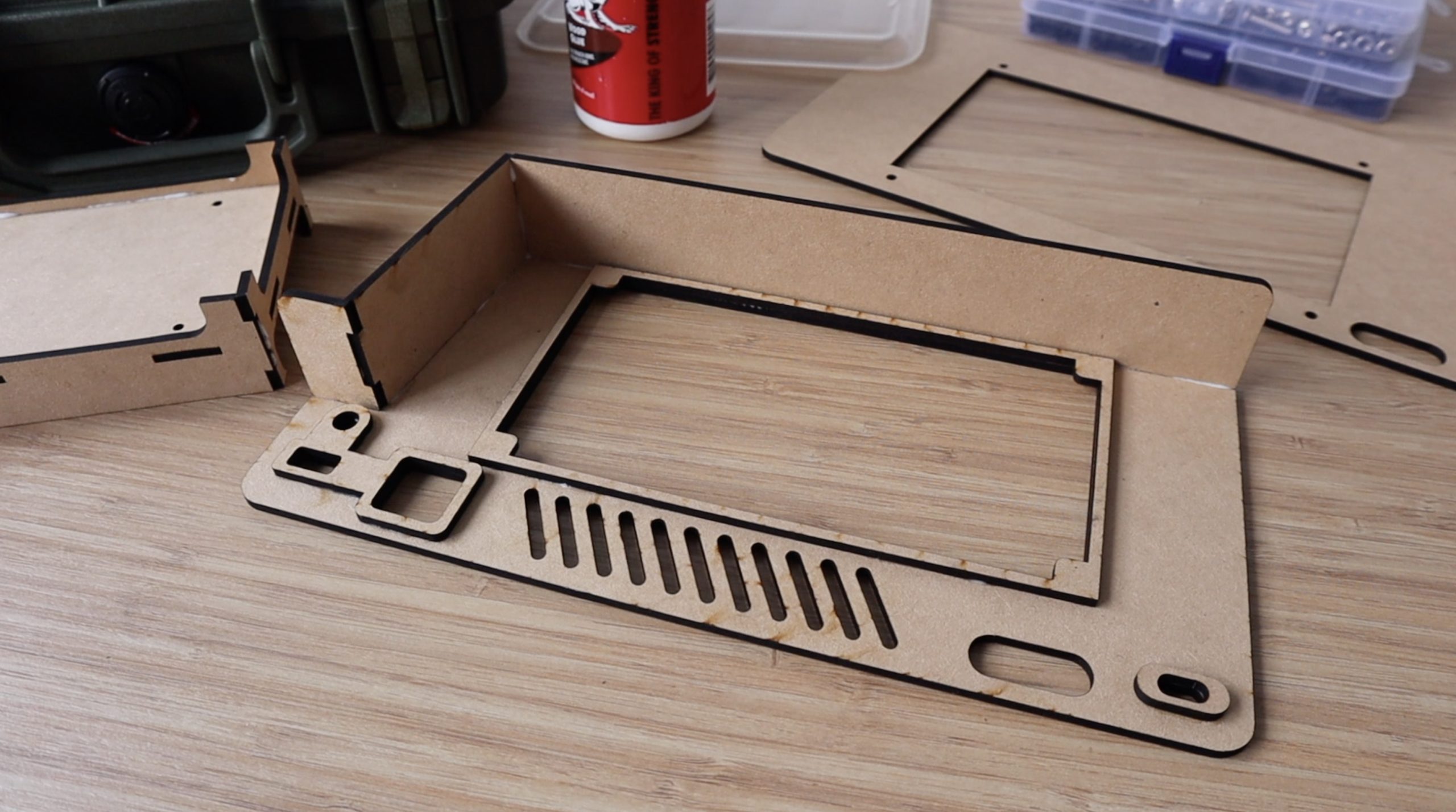
I used a couple of strips of masking tape to hold the sides together while the glue dried.

Holding The Housing Together With Tape While Drying

I’m going to paint the housing with two coats of a white universal undercoat and then two colour coats. I couldn’t find the exact colour of the Home Assistant logo, but this colour (called Fish Pond for some reason) is about as close as I could find – so I’m going to try it out and see what it looks like.

Dulux Duramax Undercoat and Enamel Paint

Once the glue was dry I gave the corners, edges and faces a light sand with 240 grit sandpaper.

Sanding the Housing with 240 grit sandpaper

I then painted the housing with the two coats of undercoat and two coats of enamel paint, allowing each coat to try for about half an hour before applying the next one.

After a second colour coat, it’s starting to look pretty good. I just want to fill in the edges a little more and it’ll then be done.

Engraving the Lid Using the X20 Pro’s App

Atomstack have also added an app on the software side that allows you to quickly import and engrave or cut shapes, sketches and images wirelessly, which is great to improve your workflows.

Using the Atomstack App to Laser Engrave the Lid

So I’m going to try and use the app to add some text to the lid of the housing. I’m going to quickly sketch my name in the app’s freehand editor and then engrave it onto the lid.

Laser Engraving My Name onto the Lid

The app definitely has its limitations, but it’s a great way to quickly add details to pieces where accuracy isn’t particularly important. For anything important, I’d probably still resort to using my computer or the offline controller to control the laser more accurately.

My Name Laser Engraved Onto The Lid

Installing The Home Assistant Hub Electronics

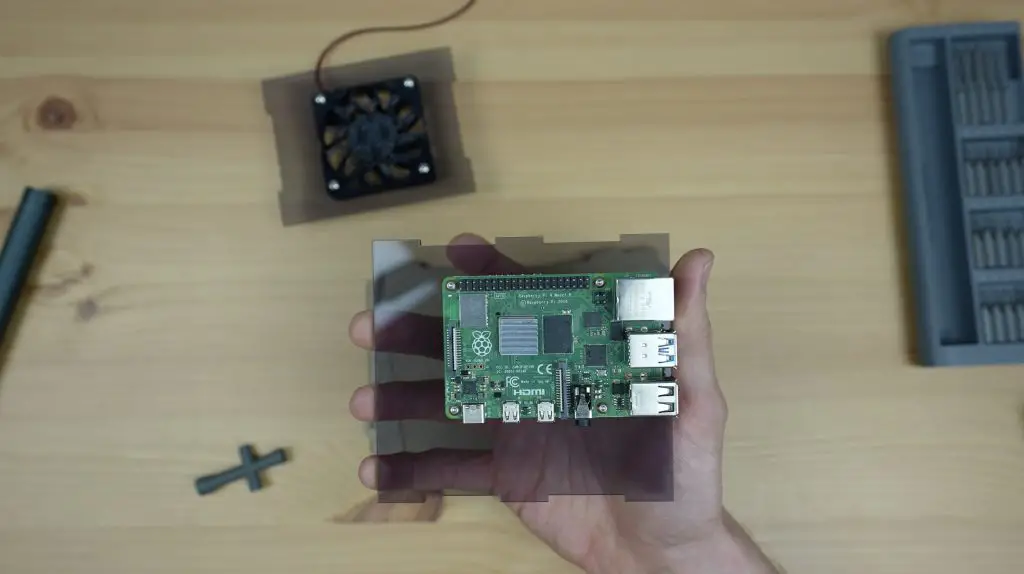
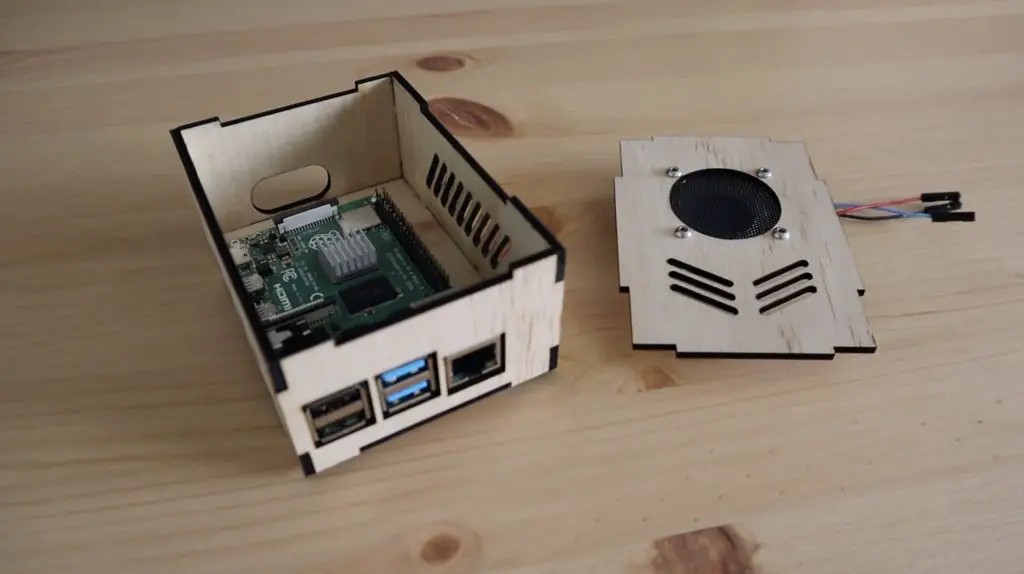
Now let’s get our Pi and fan installed in the housing. I’ve intentionally left a bit of headroom in the top so that there’s space to add shields, adaptors or devices onto the GPIO pins in future as I need them.

The Pi is held in place with some M2.5 brass standoffs that are secured through the base of the housing with a nut each on the bottom.

M2.5 Brass Standoffs and Screws

The Pi is then secured to them with an M2.5 screw into each. You can use additional brass standoffs if you want to mount a hat or shield onto your Pi as well.

Raspberry Pi Secured In Case

A small aluminium heatsink on the Pi will provide adequate cooling as the CPU isn’t going to be under much load during normal operation.

Heatsink Added to CPU for Cooling

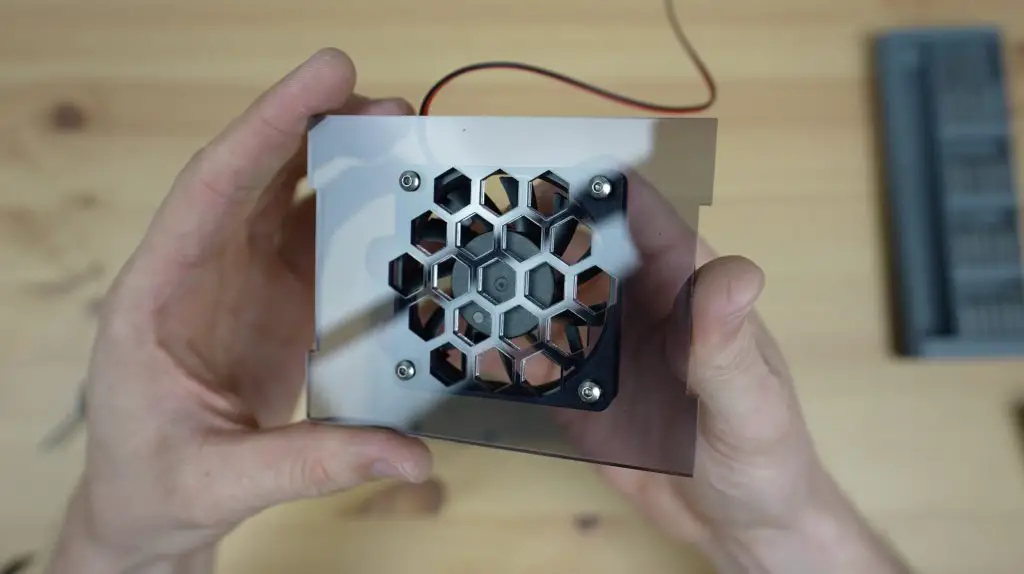
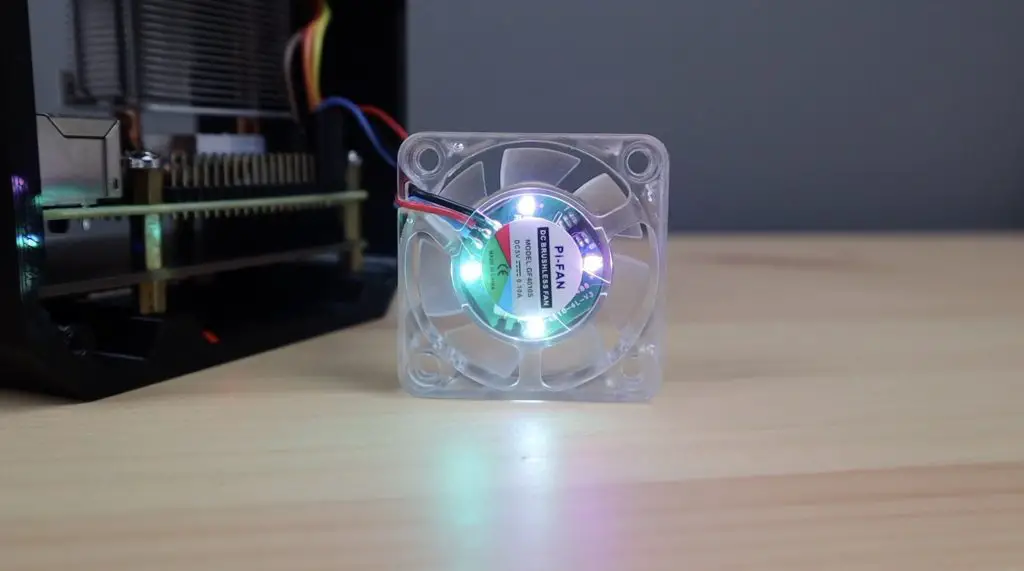
For the fan, I’m going to use a 40mm RGB fan to light up the inside of the case and I’m also going to use a small black dust screen between it and the plywood.

Clear RGB Fan and Dust Screen

Like I’ve done previously, I’m going to press an M3 nut into each pocket in the fan to screw into. This is easiest done by putting the nuts on a desk or flat surface and pressing the fan pocket down onto them one by one.

M3 Nuts Pressed Into Fan Pockets

The fan and dust screen are then held on the lid with four M3x8mm screws.

Screws to Secure Fan to Lid

I’m going to flash the home assistant image onto a 32GB Sandisk Ultra microSD card, which we can plug in through the slot on the back of the housing. You’ll probably need to use some tweezers or needle-nose pliers to reach the card slot.

Plugging in MicroSD Card with Home Assistant Image

To finish the housing off, I’m going to stick some clear acrylic panels onto the inside behind each logo so that dust cant get in around the logo cutouts. These will also provide a bit of support to the thin branches on the logos so that they’re less likely to get damaged or break off.

Cutting Clear Panels to Block Out Dust

If you don’t have acrylic you can also use some clear plastic sheets or even old containers with clear flat sides.

I’m gluing the acrylic in place with hot melt glue in four spots along the edges.

Hot Melt Glue to Hold Clear Acrylic In Place

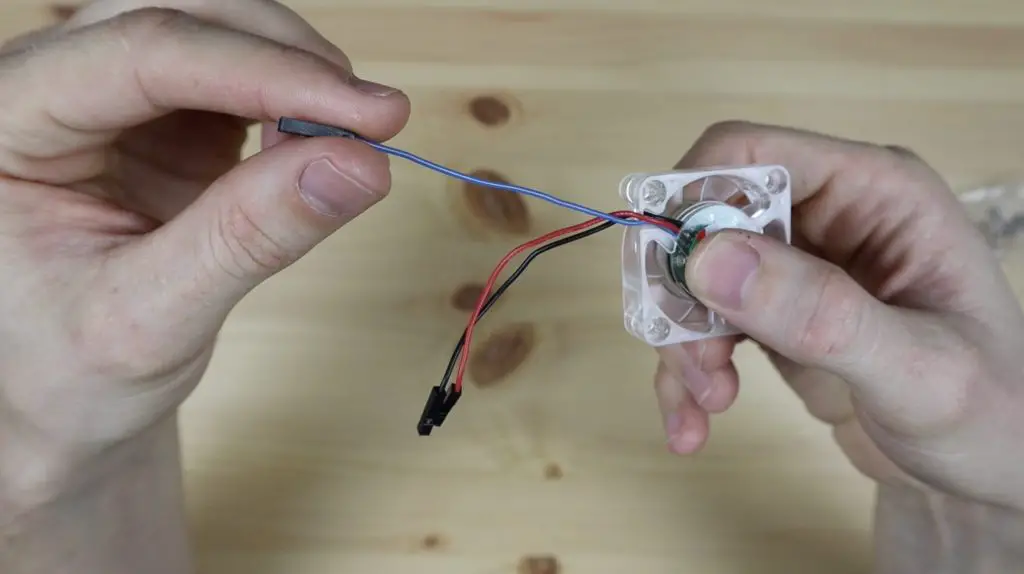
Now we just need to plug the fan into the 5V and GND GPIO pins and we can close up the housing. You can also plug the fan into one of the 3.3V pins if you’d like it to run at a reduced speed and be a bit quiter.

Plugging Fan Into 5V and GND GPIO Pins

Adding a Zigbee Gateway to the Hub

There are two main low-power communication protocols used by smart home devices – Zigbee and Zwave.

Zigbee and ZWave Communication Protocols

They’re both mesh networks, meaning that every device on the network connects to every other device in range of it and they then dynamically co-operate with each other to send data between nodes through the most efficient route.

Zigbee Mesh Network

I don’t really have a preference between the two, but most of the devices I’ve got so far operate on the Zigbee standard. So, rather than have my Home Assistant hub have to talk to the hub from each manufacturer in order to communicate with its devices and sensors.

Home Assistant Working With Smart Home Hubs

I’m going to add a Zigbee gateway to the Home Assistant hub so that it can communicate with them directly.

Home Assistant Working Without Smart Home Hubs

This will also allow me to use 3rd party Zigbee devices and sensors that don’t have hubs or aren’t part of other ecosystems – so they’re generally cheaper.

The Gateway I’m going to be using is this little USB adaptor called the ConBee II as it seems to be the most well supported by Home Assistant.

Conbee II Zigbee USB Adaptor

Ideally I’d like to use one that uses the GPIO pins on my Pi so that I can keep it within the housing, so if you know of any that use the Pi’s GPIO pins and work well with Home Assistant please let me know in the comments section at the end of the post.

That’s basically it, we’re now ready to start using our new Home Assistant hub to control our smart home devices, let’s get it booted up.

Powering Up The Home Assistant Hub For The First Time

Using the Home Assistant Smart Home Hub

Once set up, you can scan your network to find all of your compatible smart home devices and then start building dashboards, automations and routine to control them.

Home Assistant Control Dashboard
Adding Automations in Home Assistant

You can access your dashboards through any web browser on your network so you can take control of your home through your laptop, tablet and mobile phone, or even build your own dedicated dashboards with another Raspberry Pi and a touch display.

Home Assistant Light Control Dashboard

Check out Smart Home Solver’s channel for some great ideas for home automation routines and automations – he’s got some really creative and unique ideas using a range of sensors and devices.

Zibgee Gateway on Home Assistant

Using Home Assistant I’ve now got the motion sensor on my driveway camera to brighten my porch light for a minute when its on during the evening and it’ll even turn it on for a minute during the night if its off.

Next I’m going to be setting up some motion sensors or magnetic switches to turn on my pantry and closet lights when the doors are open.

Final Thoughts on the Atomstack X20 Pro

The Atomstack X20 Pro is without a doubt the best diode laser machine I’ve personally used. The powerful laser allows you to work with thicker materials and is now actually quite useful for thinner ones as well. I’m able to cut 3mm plywood three to four times faster than I could with a 5W laser. So it’s actually becoming a worthwhile alternative to my CO2 laser at this point.

Laser Cutting Plywood on the Atomstack X20 Pro

The air assist works really well to get cleaner cuts and engravings and won’t leave your eardrums ringing after you’ve used it. And finally, the inclusion of WiFi and a phone app means that you’ve got another way to easily use the X20 Pro, streamlining your workflow.

I’ll definitely be looking to add a honeycomb mesh bed to the X20 Pro and I need to design an enclosure for it so that I can contain and direct the smoke out of my workshop.

Let me know what you think of the Atomstack X20 Pro in the comments section below. Also let me know if you’ve used Home Assistant in your home and what interesting devices and automations you’ve set up.

3D Printed Raspberry Pi Case Using The Creality Ender-3 S1 Pro

I’ve been using my Raspberry Pi in this case that I 3D printed almost two years ago. It’s been a great way to protect and cool my Pi and I’ve even made up a few other varients for UPS and SSD shields.

Original Raspberry Pi Desktop Case

I printed these cases on my original Ender-3 Pro, so when Pergear reached out and said that they’d like me to try out the new Creality Ender-3 S1 Pro, I thought this would be a great opportunity to give my case a refresh.

The Creality Ender series has been my go-to 3D printer for the past three years, I started with an Ender 3 Pro, then got the Ender 3 V2 and then added a second Ender 3 V2. These three printers run for about 10 hours a day and have been doing so for two years now without giving me any significant problems.

Creality Ender-3s Running 10 Hours A Day

I’ve kept them stock for the most part and have found that a well setup Ender-3 prints as capably as other printers that are 3-5 times more expensive. They also have a large online community, a range of upgrades and easily accessible spare parts. So I’m excited to see how the Ender S1 Pro stacks up, as it’s got a number of upgrades and improvements over the original.

Here’s my video of the build, read on for the full write-up:

What You Need To Assemble Your Own

Equipment Used

Designing The New 3D Printed Raspberry Pi Case

Let’s start out by getting the new case designed so that we’ve got something to print. I’m going to use Fusion360 this time around for a more refined finish.

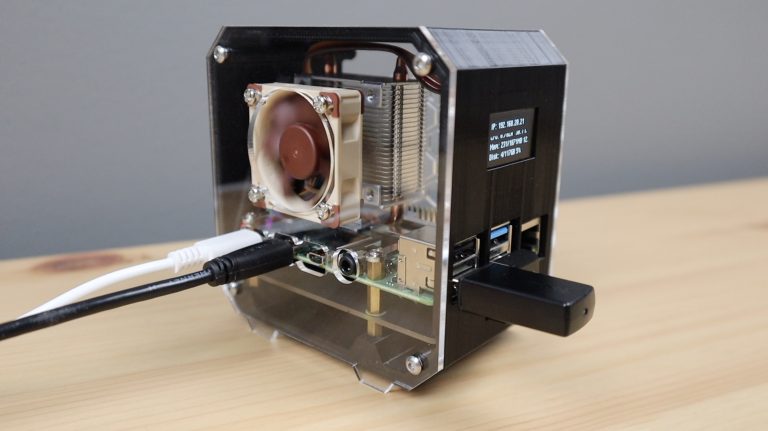
The previous case had a solid body with two clear sides, so I want to mix that up by now having a wrap-around clear panel from the side to the front. A small 45-degree section adds a bit of character to the design and will make the acrylic bends a bit more gradual, rather than a sharp 90-degree.

Desigining The Raspberry Pi Case In Fusion360

I’ve also put the USB and Ethernet ports on the back and left some headroom to add an Ice Cube cooler and fan. On the other side, we’ve got the power, HDMI and audio ports and I’ve added some vents above them for the exhaust air.

Ports on the Back and Sides

You can download the design from my Etsy store to 3D print your own case or alternately buy a kit that includes the case, bent acrylic side panel and screws so it’s ready to be assembled.

Now, let’s export the parts and get them printed on the Ender 3 S1 Pro. First, we need to get it unboxed and assembled.

Unboxing & Assembling The Ender-3 S1 Pro

Like with all my Enders, the Ender-3 S1 Pro comes well packaged and protected in a sturdy box with foam inserts.

Creality Ender-3 S1 Pro Packaging

Within the box, the Ender-3 S1 Pro is a lot more pre-assembled than the original. The whole gantry is ready to be mounted onto the base and you then just need to mount the extruder, add the display and add the filament holder.

Ender 3 S1 Pro Components Unpacked

The base is quite a bit bigger than the original Ender-3 and Ender-3 V2, so keep that in mind if you have limited desk space.

Assembly took around 15 minutes and is really simple with the included step-by-step instructions and tools.

Assembling The Creality Ender-3 S1 Pro

The general shape and layout is similar to the original Ender-3 series, but they’ve made a number of quite significant upgrades with the S1 Pro.

Printer Set Up and Ready To Print

The extruder is now a direct drive, full metal, dual gear design with a hot end that can reach 300C. This opens up the possibility to print with a wider range of filaments, including flexible and high-strength materials.

New Dual Gear Direct Drive Extruder

They’ve also added a filament runout sensor that’ll automatically pause the print if your filament runs out mid-print.

Filament Runout Sensor

The display has been upgraded to a full-colour touch display, allowing them to do away with the rotary pushbutton on the older models.

Touch Display on Ender-3 S1 Pro

They’ve also done away with a vertical axis limit switch, and have added their own CR Touch automatic bed levelling sensor to compensate for any print bed height differences. They also include a limit switch and cable as an option to add on if you don’t want to use the CR Touch sensor.

Creality CR Touch Bed Levelling Sensor

A new overhead LED light bar is a great addition for overnight prints and for keeping an eye on your prints remotely using a camera in a dark environment.

LED Light Bar Overhead Print Bed

The print bed is now equipt with a spring steel magnetic build plate, and it’s got dual z-axis motors on the back, something that was a common first upgrade on the original ender.

Dual Z-axis Extruders

Those are the main upgrades made to the original Ender-3 and Ender-3 V2, it also got a number of now fairly standard features like silent stepper motor drivers, a 32-bit control board and adjustable belt tensioners.

The Ender-3 S1 Pro currently retails for $499 on Pergear’s Amazon store or $480 on their web store. This is quite a bit more than the standard Ender-3 series, but you’re also getting a number of upgrades and features that are typically only available on higher ender printers.

Once assembled, I used the automatic bed levelling, set the nozzle offset and then set the printer to work on the rabbit test print with the included filament.

Printing The Rabbit Test Print on Ender-3 S1 Pro

The results were really good – keep in mind that is a print straight out of the box without any adjustments or tinkering with the printer. I didn’t even touch the bed levelling adjustment knobs, I just let the automatic bed levelling take care of it.

Making Up The Case Components

For my case print, I’m going to use black PLA for the print and I’ll use 100% infill as the walls are already quite thin. I used 0.2mm layer height, a wall thickness of 0.8mm and a top and bottom thickness of 1.2mm.

Slicing The Desktop Case In Cura

I’m going to print the two parts separately rather than print them at the same time so that there aren’t any imperfections or seams caused when moving between the two parts.

While the 3D print is being printed, let’s make up the acrylic side panel.

I’m cutting this panel from 2mm clear acrylic and I’ll then use a bending tool to heat up the two edges where we need to make the 45-degree bends. I’ve added a cutout for the fan and some guides for the two bend lines.

Laser Cut Side Panel Design

Let’s get the panel cut out on my laser cutter.

Laser Cutting The Side Panel

These prints came out really well for one of the first prints I’ve done on the Ender-3 S1 Pro. I’m impressed by the quality of the prints and how smooth the layer lines are, they look quite professional.

Now that the two halves are printed, we need to clean up the 3D printed parts by removing the print supports.

Removing Print Supports From 3D Prints

Next let’s bend the acrylic panel to fit the case. You’ll see the small laser-cut notches along the edges that I’m going to use as guides for my bend lines – so I just need to put the bending tool between these two points and allow it to soften the acrylic.

Using The Acrylic Bending Tool

Once the first bend has been heated, I can bend it into place to follow the profile of the case, which I’ll do with the front edge.

Bending The Acrylic To Follow The Case Profile

Now let’s do the second bend in the same way. This one I’ll need to do in place as I can’t follow the front edge again or it’ll be too big.

Bending The Second Bend To Fit The Case

I’ve designed guides along the edges to hold the acrylic, so I’ll use those guides to get the final shape right.

I think that’s come out quite nicely and it looks like the acrylic follows the profile of the case quite well.

Wrap Around Clear Acrylic Side Panel

Installing The Pi And Cooler Into The Case

For cooling, I’m going to use an Ice Cube cooler by Sunfounder. This cooler is an improvement over the Ice Tower I used previously as the base has now been designed to cover the CPU, RAM, Ethernet and USB controller chips rather than just the CPU – so this should provide better cooling to the whole board.

As with my previous design, I’m going to remove the fan from the Ice Cube and move it onto the acrylic side panel rather so that it draws cool air in from outside the case.

Removing Fan From Ice Cube Cooler

I’m going to be installing my 8GB, Rasberry Pi 4b, running from a 32GB Sandisk Extreme microSD card with Raspberry Pi OS Bullseye flashed.

Raspberry Pi 4B 8GB

To install the Pi into the case, we need to first secure the brass standoffs in the base of the case. These protrude through the printed standoffs and are held in place with an M2.5 nut on the bottom.

Securing Brass Standoffs To Underside of Case

Next we can position our Raspberry Pi on the standoffs and then add a second standoff onto each to hold it in place.

Securing The Pi With The M2.5 Brass Standoffs

Lastly, we can install the Ice Cube cooler on the Pi. Remember to add the cooling pads to the heat sink before you install it.

Adding Thermal Pads To Ice Cube Cooler

Now we just use the included M2.5 screws to hold the cooler in place.

Screwing Ice Cube Cooler To Raspberry Pi

With the acrylic’s shape already formed, let’s mount our fan onto it using four M3x8mm button head screws and nuts. As I’ve done previously, I’m going to press the nuts into the pockets in the fan to screw into. This is easiest done by putting the nut on a flat surface and pressing the fan pocket down onto it.

Pressed M3 Nuts In RGB Fan

I’ve also got this carbon fibre fan grill I found online that I’m going to install over the fan. You can skip this if you want to see the RGB fan more clearly.

We can then peel off the rest of the protective film and install the clear side panel.

The fan is plugged into the 5V and GND GPIO pins.

Raspberry Pi 4 Pinout
Source: RaspberryPi.org

You can also use on of the 3.3V pins if you’d like the fan to run a bit quieter, but it’ll lose a bit of performance too.

Plugging Fan Into Raspberry Pi

Finally, the lid of the case is held in place with three more M3x8mm screws.

Screwing Lid Onto Desktop Case

And that’s it, our case is now complete. So let’s boot it up and run a test to see how the Ice Cube cooler handles a full load.

Stress Testing The Raspberry Pi & Cooler

The stress test I’m going to use is called CPU burn. It’s one that I’ve used previously for a couple of thermal tests as it seems to generate the most heat out of the tests I’ve tried.

To download it on your Raspberry Pi, open a new terminal window and enter the following commands:

wget https://raw.githubusercontent.com/ssvb/cpuburn-arm/master/cpuburn-a53.S
gcc -o cpuburn-a53 cpuburn-a53.S
Installing CPU Burn

Then CPU Burn can be run using the following command:

while true; do vcgencmd measure_clock arm; vcgencmd measure_temp; sleep 10; done& ./cpuburn-a53
Testing The Thermal Performance of the Pi

So running at full load on all four cores pushed the temperature up quite quickly from 23 degrees to 26 degrees, and it seems to have stabilised there, which is not much of an increase at all.

Without a cooler, the Pi thermal throttles in a few seconds with this test, so these large coolers work really well.

Let’s try overclock the Pi to 2Ghz and see how that does.

Overclocking The Raspberry Pi

After a quick reboot, let’s run the test again.

Testing The Overclocked CPU Performance

So at 2Ghz it still stabilises at around 35 degrees, so there is probably room to overclock it a bit further if you’d like to try that. But for now, I’m really happy with the results and with how the case has turned out.

Final Thoughts on the Creality Ender-3 S1 Pro

Overall I’m really impressed with the print quality from the Ender-3 S1 Pro and I’m looking forward to trying out some more challenging materials. I’d like to try to print this case in a matt carbon fibre filament to see how that turns out.

I also like that Creality have paid attention to the community’s requests with this design, particularly in addressing the common issues that have been reported on the older models like the dual z-axis and automatic bed levelling. Even relatively minor issues like making the filament roller an actual roller has been taken care of.

Roller Filament Holder

As with any 3D printer, I’m sure this one with have a weakness or two and I’ll post some updates here after I’ve used it for a few months. I’m interested in seeing how the fan angled towards the print bed holds up with pulling in strands of filament and dust etc..

Check out Pergear’s Amazon store or their web store to get your own Ender-3 S1 Pro and visit my Etsy store to get your case kit to assemble your own Pi Desktop Case

Let me know what you think of the Creality Ender-3 S1 Pro in the comments section below and let me know what you think of my new case design.

Meet Bittle, an Advanced Open-Source Robot Dog by Petoi

This is Bittle, a ready-to-run advanced open-source robot dog by Petoi that is based on the OpenCat robotic pet framework.

If you’ve ever wanted to explore building your own robotic quadruped, but have felt overwhelmed by the amount of information and options available or have been at a loss with where to start, then Bittle is the perfect product for you. So in this review, we’ll take a look at what Bittle is, how it works and what it can be used for.

Have a look at my video review to see Bittle in action, or read on for the written review:

Where To Get Bittle

Bittle is primarily available for purchase online through Petoi’s website or their Amazon store and comes in three packages:

  • Base Kit – Includes all of the parts required to assemble your own robot dog
  • Pre-assembled Kit – All of the components included in the base kit, but pre-assembled and ready-to-run
  • Developer Kit – The pre-assembled kit with 10 replacement servos and an extra battery pack

Petoi have sent me the pre-assembled kit to try out and share with you, so that’s the kit that we’ll be taking a look at in this review.

What’s Included In The Box

The base kit comes in a branded box with clear protective inserts to hold the included components in place.

Bittle Packaging

Included is Bittle, along with a battery pack with an integrated charging circuit, and then an accessories kit.

Inside Bittles Pre-assembled Kit Box by Petoi

The accessory kit includes an infrared remote, a spare servo and some screws, a calibration tool, a small screwdriver and a pack of modules that allow communication with Bittle. These modules include a USB programming module, a Bluetooth module and a WiFi module.

Included Accessories With Bittle

Assembling Bittle

If you’ve bought the base kit then you’ll need to do some assembly work before you can start using Bittle, including making up the legs, mounting the servos in place at the joints and connecting the wiring through to the control board that makes up Bittle’s body.

Bittle By Petoi Packaged

If you’ve got the pre-assembled kit, like I do, then you’ll just need to snap the head into place and plug in the battery. You’ll also need to move the servos to the correct starting position as they’re packed with the joints bent in the opposite direction to make Bittle more compact.

Preparing Bittles Legs For Power Up

The body and components feel like they’re well made and are good quality. Part of what makes this robot dog look great and function so well is that they’ve taken the time to design and manufacture custom parts – like the servo arms that have been specifically designed to join the leg components with the inclusion of a spring to provide a bit of shock absorption.

Bittles Servo Joints

Controlling Bittle With The Infrared Remote

Once assembled, the included 21 button IR (infrared) remote allows you to start playing around with some of the core functions of Bittle right away. It’ll allow you to walk, run, turn and do a couple of pre-programmed skills right out of the box using a small infrared receiver on Bittle’s back.

Included IR Remote Control

The arrow keys control Bittl’s walking/movement directions along with speed settings and 11 skill buttons allow you to execute some of the pre-programmed skills.

Getting the first movement out of Bittle is as easy as plugging in the battery pack and then aiming the remote at his back when you press one of the buttons.

Here’s Bittle waving hello…

Bittle Waving Hello For The First Time

Exploring Bittle’s Control Board

Once you’ve tried out Bittle using the IR remote, you can either dive right in to coding your own skills or you can download the mobile app (for iOS or Android) to unlock some additional functionality, including calibration and customized commands. Either way, you’ll need to remove the black cover on the top to get to the control board to plug in one of the communication modules.

Under the cover is a custom-designed controller called NyBoard with an integrated Atmega328P chip, PCA9685 PWM servo driver, MPU6050 motion sensor, an infrared sensor and a number of ports and interfaces to add sensors and devices to.

Nyboard, Bittle's Control Board

There appears to have been some revisions made to this board as some of the versions I’ve seen online have a row of RGB LEDs along one side. The core functionality however seems to be largely the same.

NyBoard Controller

I really like that they haven’t trimmed this board down to only suit the functionality and IO that the standard Bittle configuration requires. Leaving additional servo outputs, I2C interfaces and digital IO ports gives you a lot of options to build upon the basic design and make your own modifications and additions to the robot dog. This along with the open-source software means that you’re getting a development platform to learn on, build upon and explore, rather than just a finished product that you’ll probably get bored with after a couple of weeks. Part of the fun in building your own quadruped or robotic pet is that you never really finish it, there is always something else you can add, tune or modify and Bittle retains this – being a platform to build upon rather than just being a finished product.

Coding Routines, Skills And Features

Coding is best done through the Arduino IDE, and you’ll need to use the included communication module to allow your computer to program Bittle. This allows you to plug Bittle into your computer using the included micro-USB cable.

Plugging In The USB Programmer and Cable

If you’re not comfortable with the Arduino IDE, you can use Python as an alternative. They even have a drag-and-drop coding interface for beginners. So there really is something for every level of experience.

Bittle's Drag and Drop Programming Interface

Their documentation is really good and covers everything you may need to do to use and maintain Bittle as well as documentation and instructions for adding your own sensors, skills and features.

Coding New Skills On Bittle Using The Arduino IDE

Calibrating Bittle’s Leg Positions

In Petoi’s documentation, they mention that the pre-assembled kit is only coarsely tuned. So they recommend running through the calibration process for best results. I’m going to run through the calibration sequence using their iOS app. To use the app, I need to plug in the Bluetooth communication module to allow my phone to communicate with Bittle.

Installing The Bluetooth Communication Module On Bittle

To help out with the calibration process, I also 3D printed their stand with the calibration arms built into it.

We can then open up the app to pair Bittle to the phone and start the calibration process. If you head over to calibration mode, the legs will move to their calibration positions and you can then make adjustments to their positions.

Bittles Legs In Calibration Mode

Course adjustment is made by removing the arm from the servo and aligning it as best you can. You’ll need to remove the screw that holds the servo arm to the servo in order to remove it.

Course Calibration Adjustment

Fine adjustment is then done in the app until Bittle’s legs are at perfect 90-degree angles, by aligning the legs with the stand or with the included calibration tool.

Using The Calibration Tool To Check Bittle's Legs

You can select each join in the image at the top of the screen and then make adjustments to it using the + and – signs. It’ll only let you just the servo between an upper and lower limit before asking you to rather make a course adjustment.

Fine Calibration Adjustment Using The App

The stand is also useful for trying out new movements and testing commands without having to worry about where Bittle is going or if it’s going to fall off your desk.

Working On Or Repairing Bittle

All of Bittle’s components either screw or snap into place. So it’s super easy to take apart if you need to swap out a servo, change a spring or make changes to the wiring or control board. You just need a screwdriver and you’re good to go.

Replacing A Joint Servo

If you’re doing a lot of work on it then you’ll want to get a better screwdriver than what’s included with the kit as it’s a bit small and cumbersome to work with.

The wiring is also all held in place and partially hidden by snap-on covers over the legs. These help ensure that they don’t interfere with the joint movements and also keep Bittle looking neat.

Using The iOS App To Control Bittle

We’ve already paired the app with Bittle in the calibration process, so now let’s try some customized commands. Bittle has a number of controls and skills that are preprogrammed, these can be set up to run individually or as part of routines using text inputs through the app or the Arduino IDE.

So let’s try one of them. The code to look or check around is ck, so we type in kck to run the command and we can give the quick command a name “Look Around”.

Using Text Commands To Control Bittle

We now have a quick button to look around, which he’ll do each time we push the button.

Creating Custom Butttons For Bittle In The App

We can try commands that aren’t available through the infrared remote, like play dead, or march on the spot. We can also string commands together to create routines and behaviour sequences.

Bittle Playing Dead

The onboard IMU knows the orientation of Bittle, so if he stumbles or falls over, it will automatically activate a routine to flip him back over and onto his feet.

Bittle seems to manage quite well on most flat surfaces. It walks best on surfaces that are a little bit rough, like wood or concrete, but struggles on very uneven or loose surfaces like stones, sand or pebbles.

You can also use the IMU to allow Bittle to balance on uneven surfaces or when pushed or bumped.

Bittle Balancing When Being Pushed Externally

Final Thoughts on Bittle

Petoi have clearly put a lot of time and effort into creating a good quality product that is great for a range of experience levels. If you’ve never programmed anything in your life, you’ll still be able to get started with the basic drag-and-drop interface, and the open-source code allows experienced programmers to make any changes they’d like to build upon and improve Bittle.

They also have a number of external sensors already available and are working on some additional ones to add functionality to Bittle.

Additional Sensors Like Camera Vision For Object Tracking

These include sensors like obstacle avoidance and object tracking through a smart camera. So definitely check out the sensors if you’ve already got your own Bittle, and visit their web store if you’d like to get your own robot dog or cat.

Let me know what you think of Bittle in the comments section below and let me know if you have any project ideas that you’d like to see me try out with him.

Bittle Waving Goodbye

128 Cores for AI Vision Projects, the reComputer Jetson-10

Today we’re going to be looking at the reComputer Jetson-10, a palm-sized AI computer that can recognise people, animals and objects, while still being efficient enough to run on a battery pack.

reComputer Jetson-10

The reComputer Jetson-10 is a new product by Seeed Studios, that consists of a palm-sized aluminium case that houses a passively cooled NVIDIA Jetson module. The module runs on their custom carrier board that is designed for AI application development and deployment. They have sent me their H0 model which runs a Jetson Nano module with 128 NVIDA CUDA cores that can deliver up to 0.5 TFLOPS of computing performance. It’s also got a Quad-core ARM A57 CPU running at 1.43 GHz, 4GBs of LPDDR4 RAM and 16GB of EMMC storage.

Here’s my unboxing and testing video, read on for the write-up:

Unboxing And First Look At The reComputer Jetson-10

The reComputer Jetson-10 comes in a matt black box within a branded sleeve. The packaging is really good, with branded foam inserts to protect the reComputer and to divide the box into two compartments.

Branded Foam Inserts

Included in the box along with the reComputer Jetson-10-1-H0 is a 12V, 2A power supply with some options to suit a variety of international power outlets. Mine came with two euro adaptors, which I assume was a packing mistake.

Included Power Adaptor With Plugs

The case is a really minimalistic, aluminium design with three plain sides and all of the ports on the back.

Seeed Studios reComputer Jetson-10

On the bottom it’s got large ventilation holes around the edges and four slotted mounting points so that it can be mounted onto a wall for deployment.

Jetson-10 Underside

One of the sides features rubber feet so that it can stand horizontally or vertically on a desk or table. If you’re running intensive applications then it’s probably best to position the reComputer on its side as this allows the hot air to rise up through the ventilation holes.

reComputer Jetson-10 Standing Up

On the back, there is a bit of variation depending on the model, but the Jetson-10-1-H0 has got a 12V power input, HDMI and display ports, 4 USB 3.0 type A ports, gigabit Ethernet and a microUSB port which is for recovery and flashing the onboard storage.

Ports on Back of reComputer Jetson-10

The top is my favourite part of the case design. It’s clean and unsuspecting, but to access the Jetson module, you just push up on this silver rod hidden by one of the vents and this pops the magnetically latched top cover off.

So it’s super easy to access the Jetson module to connect a camera or use the GPIO, you don’t even need to use a screwdriver. The four magnets hold it in place very well, you really can’t tell that the top cover is held in place magnetically and isn’t screwed or snapped into place.

Under the top cover, you’ll see the large passively cooled heatsink on the Jetson Nano module that’s seated in the custom carrier board.

Jetson Nano on Seeed Carrier Board

The board has a wide range of IO, some of the nice additions are support for PoE (Power over Ethernet), an optional 4-pin fan plug, control and UART pins. On the bottom of the carrier board, you’ve got a M.2 M Key slot and an optional battery holder to supply the onboard RTC (real-time clock) module.

Underside of Carrier Board

Preloaded Software On The reComputer

Now that we’ve had a look at the hardware, let’s plug it in and try running some software on it.

It comes preloaded with NVIDIA’s JetPack SDK, so it’s ready to plug in and boot up right away. The JetPack SDK includes the Jetson Linux Driver Package running on a Linux based operating system (Ubuntu) as well as CUDA-X accelerated libraries and APIs for deep learning, computer vision, accelerated computing and multimedia.

NVIDIA JetPack Software

Through JetPack, the reComputer can run a wide range of fairly complex AI systems like full native versions of machine learning frameworks like TensorFlow, PyTorch and MXNet. So you can use it for things like people, animal and object recognition, for smart systems like traffic control and vehicle detection and even in manufacturing and logisitics.

Running Neural Networks on the reComputer

NVIDIA have really good documentation and a great introductory series of tutorials to get started with AI and computer vision.

Hello AI World NVIDIA Jetson

The tutorials use a number of TensorRT-accelerated deep learning neural networks, which you’ll need to build from source code. This process is all explained in detail and in doing so you’ll learn a lot along the way.

I’ll show you some of the cool things that you can do on the reComputer once you’ve worked through them.

Object Recognition Using ImageNet

The first neural network that I’m going to show you is one that does object recognition, and we’ll start off with a still image. We’ll send a neural network called ImageNet the still image and it’ll then use TensorRT and the imagenet class to recognise the object in the image. It’ll then overlay the classification result and it’s confidence level for the result onto the image.

The package comes with a few sample images to try out, so if we run this on one of the sample images and then go to the image output folder, we can see that the reComputer is 99% sure that this is a banana.

Still Sample Image Object Recognition Banana

So it’s pretty confident that it’s got this one right.

I don’t like using sample images as they’re generally chosen so that the system generates good results, so I also tried this network on three of my own images as well. I used a picture of an elephant, one of my dog and one of the Sydney harbour bridge.

My Sample Images For Object Recognition

One thing I did notice when running these images is that they were much slower to process. This is because I sent the full-size original images to the program and not reduced resolution images like the sample images. You’ll notice this with the result text size as it’s now much smaller than the image.

So ImageNet is 62% sure that this is a tusker, which is sort of on the right track, although this elephant is missing its tusk on the camera side.

Tusker Sample Image Object Recognition

It’s also 56% sure that my dog is a Toy Poodle. I think this confidence is a bit low because there are a few different poodle type dogs that it has been trained to recognise and they’re all quite similar.

Toy Poodle Sample Image Object Recognition

And finally, it’s 73% sure that this is a steel arch bridge. So it got all three of the objects correct in the still images.

Steel Arch Bridge Sample Image Object Recognition

We can also pass the program a saved video or a live video stream and it’ll do the same thing in real-time. To do this we obviously need to add a camera to our reComputer Jetson-10, so let’s plug that in first. You can use a CSI camera like the official Raspberry Pi camera module or use a USB camera. I’m using a CSI camera for this example.

CSI Camera Connected To Jetson Nano Module

So if we try this out on different objects on my desk, you can see that we’re getting an ImageNet overlay telling us what objects have been detected in the image as well as their certainty. So it’s 98% sure that this is a teapot.

Teapot Certainty Live Object Recognition

It eventually decided that the broccoli wasn’t a green lizard (better demonstrated in my YouTube video) although it wasn’t very confident in its decision.

Broccoli Live Object Recognition

You’ll also notice that a warning popped up when this live feed started saying that the heatsink is hot and shouldn’t be touched. So it was getting quite hot when running this neural network on a live video stream with a screen recording utility running in the background as well. It’s still quite impressive that the Jetson Nano is able to run this neural network at around 50-70 frames per second while also capturing the screen contents.

It was also able to recognise a keyboard, a pair of sunglasses and my MacBook.

Another interesting thing to look at is the data in the terminal during or after the network has been run. It displays information on the classes that the network thought were most applicable to the sample frame, along with its confidence level in each. It also displays the most likely object and its associated confidence level.

Terminal Text Showing Classification Certainty

Object Recognition and Location with DetectNet

To actually use this object recognition functionality in a project, there is another network called DetectNet that’ll also give you the location and size of the object detected in the image.

Object Detection Running On Live Feed

So with this information, you could then build something like a robot car that follows a certain object, like your dog or cat, or a counter that keeps track of birds or certain wildlife visiting your garden etc..

Pose Estimation Using PoseNet

The next network that I had some fun with is one that does pose estimation on people, or just their hands, called PoseNet. This neural network estimates the position of joints and body parts and again can be run on still images, videos or a live video feed.

Pose Detection Running On Live Camera Feed

This is really useful for building robots or machines that accept gestures as inputs, like AR or VR systems or can be use to build systems that monitor human behaviour, like counting people who are sitting or standing or estimate which direction people are walking in.

Pose Detection On Hand Running On Love Feed

So there are just some of the basic computer vision systems that you can run on the reComputer Jetson-10, but they should give you a good idea of the capability of the system.

Power Consumption of the reComputer Jetson-10

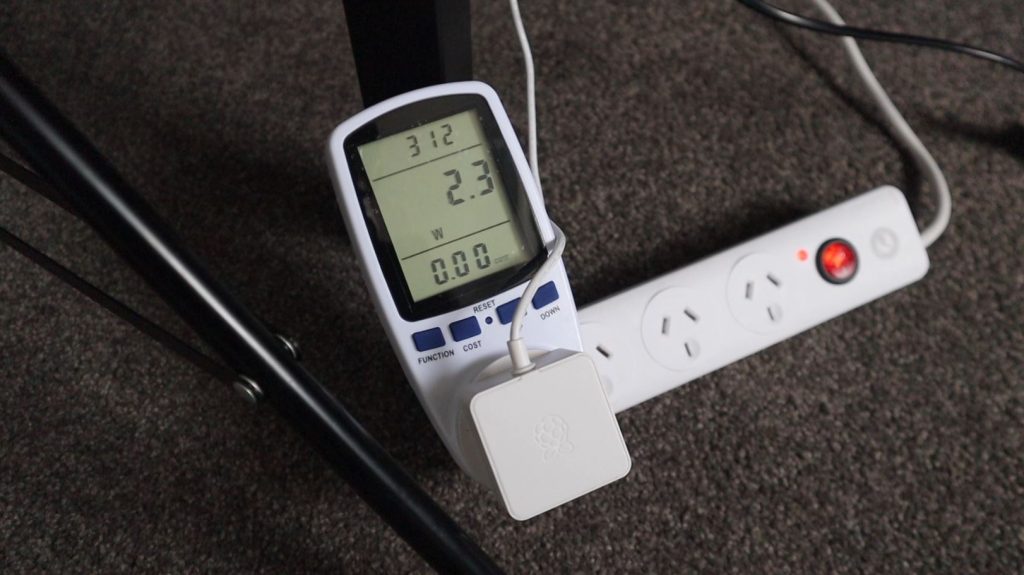
The last thing I wanted to have a look at is the power consumption. The reComputer comes with a 12V, 2A power adaptor that you’d use if you have it plugged into a permanent or non-portable setup.

Running from the power adaptor with its standard configuration, it uses around 2-3 watts when at idle on the desktop with no applications open.

Power Consumption Running Idle

It uses around 8-10 watts when it is heavily loaded – running one of the object recognition models I’ve shown you previously along with a screen recording utility.

Power Consumption At Full Load

8-10 watts is fairly low for a device running on mains power, but at this power consumption, you’d work through a set of batteries quite quickly. This is obviously not ideal for building robots and portable devices, so JetPack has a settings option that allows you to switch the Jetson module to a 5W low-power mode.

Switching JetPack To 5W Low-power Mode

In this mode, the power consumption of the module is limited to a maximum of 5W. So if I turn this on through the toolbar, the power consumption drops.

Power Consumption At Reduce Power Mode

Mine dropped to around 6W. This is probably higher than the 5W stated as I’ve got a keyboard, mouse and flash drive plugged into it as well. If you switch to low-power mode, you’ll also notice that the frames per second drop with the reduction in power. So this power reduction comes at the expense of performance, but still allows about 20-30 fps to be processed and you’ll get an improvement in battery life. So, depending on the project, this might be a suitable option for your application.

Final Thoughts

I’ve really enjoyed trying out the reComputer Jetson-10 over the past two weeks. It’s a neat, ready to run solution that would look right at home on your desk, but still has the versatility to be used in an actual project.

The magnetically latched lid makes tinkering with the carrier board or Jetson Nano a breeze, so it’s definitely one of my favourite features.

Top Cover Popped Open

I think they could have possibly included an optional fan, as the Jetson Nano did get quite hot during my testing. This was running “flat out” though with a neural network running continuously and a screen recording utility capturing the display contents, so this is probably a worst-case scenario.

The reComputer Jetson-10 is fantastic for getting started with neural networks and deep learning on computers. Be sure to have a look at Seeed Studio’s product page and check out their store for loads of other tech and electronics products and project inspiration.

Let me know what you think of the reComputer Jetson-10 in the comments section below and let me know if there are any computer vision projects that you’d like to see me try out with it.

Raspberry Pi CM4 Cluster Running Kubernetes – Turing Pi 2

Today I’ve got an exciting package to share with you, it’s the new Turing Pi 2 which the guys at Turing Machines have sent me to try out and share with you. So a big thanks to them for making this project possible.

This is the successor to the original Turing Pi, and if you’re wondering what a Turing Pi is, it’s essentially an all-in-one solution for creating a compact Raspberry Pi cluster, without the hassle of sourcing power supplies, cables and network adaptors, and then finding a way to connect them together. Something that I know all too well from my last cluster build.

Unboxing The Turing Pi 2

All of the components required to build your ARM cluster are built into a single board. The original allowed 7 Pi Compute Module 3’s to be clustered together. While this new board has a number of improvements and upgrades over the original, the most significant being that it’s designed to use the newer Compute Module 4’s, so it’s a lot more powerful.

Here’s a video of my unboxing and assembly of my Turing Pi 2 cluster, read on for the write-up:

What You Need For This Project

First Look At The Turing Pi 2

Now that you have a rough idea of what the Turing Pi 2 is, let’s take a closer look at the board.

The Turing Pi 2 has 4 SO-DIMM slots that can each accommodate either a Pi Compute Module 4, through an adaptor board, or a NVIDIA Jetson module.

4 SO-DIMM Slots For CM4 or Jetson Modules

It’s Mini ITX design means that it’ll also fit into standard ITX computer cases.

It’s got an onboard managed gigabit ethernet switch that networks the 4 slots and makes them accessible through one of the two onboard Ethernet ports.

Onboard Gigabit Ethernet Controller

An onboard management controller manages things like fan speed through a J17 connector, interface buttons and LEDs, as well as power to each slot.

Onboard Management Controller

Each slot also has some additional interfacing associated with it, so you’ve got HDMI, GPIO and a mini PCIe port available to slot 1, a mini PCIe port available to slot 2, two SATA III ports available to slot 3 and four USB 3 ports available to slot 4.
Turing Pi 2 Layout

If you’re going to be using CM4 modules, like I am, then you’ll need to use these adaptor boards to be able to plug them into the SO-DIMM slots.

CM4 Adaptor Board

These adaptor boards also have onboard SD card slots, which you’ll need for the operating system image if you’re using a Compute Module without onboard EMMC storage.

Preparing The CM4 Modules

If you can source the right CM4 modules, you can theoretically create a 16 core cluster with 32GB of ram. Unfortunately, CM4 modules are pretty scarce at the moment, so I have to use what I’ve got available. I’ve got two 4GB CM4 modules with 32GBs of onboard EMMC storage, and I’ve got two 2GB CM4 Lite Modules, meaning that they don’t have any onboard storage. One of these Lite modules has WiFi and the other doesn’t, but we’re not going to be using that in this cluster in any case.

Raspberry Pi Compute Module 4s

The CM4 modules just snap into place on the adaptor boards. There are four holes in the corners to hold them together with some machine screws, but I prefer not to use these as they tend to bend the CM4 modules if you don’t use the right size spacers.

On the two Lite modules, I’ll need to use micro-SD cards to load the operating system. I’m using Sandisk Ultra Plus cards for this, they’re reasonably cheap but are still fast and reliable.

Sandisk Ultra Plus MicroSD Cards

The modules can then just be pressed into the SO-DIMM slots and they’re then ready to go. They are also apparently hot-swappable, meaning you can plug in or remove them from the slots without having to turn the power off, although I’d prefer not to chance this.

Snapping CM4 Module Into Adaptor Block

Before I plug all of them into the board, we need to do something to assist with keeping the modules cool. I’m going to be using these black aluminium heatsinks by Waveshare. They are just screwed into place over the CM4 module, using the four screw holes in the corners, with some thermal tape between the heatsink and the CPU and Ethernet controller.

Aluminium Heatsink For CM4 Module

Waveshare’s instructions are for the nuts to face outwards, but I think they look better with the brass standoffs and screws the opposite way around so that the screw heads face outwards. This doesn’t seem to cause any issues with the spacing, the nuts fit perfectly between the CM4 modules and the adaptor boards.

Attaching Heatsink To CM$ Module

Let’s add the heatsinks to all of the modules and we can then plug them into our Turing Pi 2 board.

Snapping CM4 Module & Adaptor Into Place

With that done, our cluster is basically assembled. All we need to finish it off is to plug in a power supply and an Ethernet cable.

Powering The Turing Pi 2

Power is supplied to the board through a 24 pin ATX connector from a typical computer power supply. They recommend using a compact supply, like the PicoPSU, mine hasn’t arrived yet, so I’m going to be using a 450 watt power supply from another project.

24 Pin ATX Power Supply Connector

The board only needs a maximum of around 60 watts, so I’ll definitely be changing over to the PicoPSU as soon as it arrives.

Designing & Laser Cutting A Case For The Turing Pi 2

As I mentioned earlier, you can put the Turing Pi 2 board into any mini ITX case. I had a look online for some options, but they’re all too bulky for what I am going to be using the cluster for. I also like the look of the Turing Pi 2 board and modules, especially once all of the power and activity lights are on, so I’m going to design and cut my own from clear acrylic.

I started out with a similar form factor to my water-cooled Raspberry Pi build. Since the mini-ITX board already has screws in the four corners, I could use nylon standoffs and do away with the 3D printed corner pieces. So I could make an all-acrylic design.

Turing Pi 2 Case Design

I added cutouts for the ports at the back and cutouts for three 40mm 5V fans on the front. You could rather use a single 120mm fan on the side as a quieter solution, but they’re quite thick and the fan will then cover up the CM4 modules, which is what I wanted to avoid in the first place. I also added a cutout for a power button on the front panel and then some ventilation holes to allow the fan’s air to escape at the top and on the back.

With the design done, let’s get it cut out on my laser cutter.

I’m going to use 6mm clear acrylic for the larger side panels to give it some rigidity.

Laser Cutting The 6mm Components

The other panels will all be cut from 3mm acrylic.

Laser Cutting The 3mm Components

Assembling The Turing Pi 2 Case

Once the panels are all cut, we can start assembling our case.

Laser Cut Case Components

As mentioned earlier, I’m going to be mounting the board using some M3 nylon standoffs. So let’s start by melting an M3 brass insert into each of the holes in the back side panel so that we’ve got something to screw the standoffs into. The melting temperature of acrylic is about 150-160°C, so if your soldering iron has an adjustable temperature setting then set it at 160°C or slightly higher.

Melting Brass Inserts Into Place

Once those are in place, we can screw in our Nylon standoffs. I’m using 8mm standoffs on the bottom and then a series of 20mm standoffs on top of the board until we clear the CM4 modules.

Nylon Standoffs To Mount Board

So let’s screw in the 8mm standoffs first.

Screwing Nylon Standoffs Into Place

We can then place the board over them, with the ATX power cable and connector running beneath it. This is hopefully temporary and will be replaced with a small cable and barrel jack once the PicoPSU arrives.

Let’s then add the remaining nylon standoffs to each so that the front side panel clears the CM4 modules. I found that 3 x 20mm nylon standoffs provided enough room for the CM4 modules, so the overall internal width is 70mm.

Securing Turing Pi 2 To Back Side Panel

Now we can peel the protective film off of our other acrylic pieces and push them into place.

Installing The 3mm Acrylic Side Panels

Before we close up the main side panel, we also need to mount the power button and fans onto the front panel.

I’m going to use three 40mm RGB fans that I’ll screw into place using some M3 button head screws and nuts. I’m going to leave them unplugged for now as I’ll need to make up a harness to connect them to the 5V supply pins.

M3 Nuts Pressed Into 40mm RGB Fans

The power button I’m going to use is the same one I used for my water-cooled Pi build, the cable should just be long enough to reach the required pins on the opposite side of the board.

Power Button With Cable Attached

Once the fans and power button are secured on the front panel, we can re-insert the front panel into the slots on the 6mm back side panel.

Front Panel Assembled With Fans and Power Button

The last thing we need to do is to place the 6mm front side panel over the top to lock the other pieces into place. We’re not going to do that just yet as we need to first flash the operating system onto and prepare SD cards for our CM4 modules. So let’s move on to the software.

Loading The Operating System Onto The CM4 Modules

Before we can boot the Pi’s up, we need to load the operating system that we’re going to be using on each of them. This is where you have a few options, depending on what you’re going to be doing with your Turing Pi 2.

You could load different operating systems and or apps onto each of your Pi’s and use them as individual servers on your network, so for example have Pi-hole running on one, OpenMediaVault on another, Home Assistant on the third and a Plex server on the fourth. Each Pi will have its own IP address, will be identifiable by its own mac address, and will act in the same way it would if it were individually connected to any switch on your home network.

Deploying Apps On Turing Pi 2

Another option, which is the option that I’m going to be setting up, is to install Rapsberry Pi OS on each, then install Kubernetes. Kubernetes will have a master node and three worker or slave nodes and I’ll then be able to just tell Kubernetes what apps I’d like deployed on the cluster and it’ll manage the deployment of the apps automatically. So it’ll decide which Pi to run each app on and can do things like load balancing and adjust for a missing node if one is removed.

Kubernetes Deploying Apps On Turing Pi 2

So I’m going to start by flashing Raspberry Pi OS onto each Pi. I’ll have to do this in two ways because two of my modules have onboard storage and two require SD cards.

The ones that have onboard storage need to be installed on the board (or another carrier board) and need to be powered up with boot mode disabled. They can then be individually connected to my computer using the slave USB port so that they act like SD cards, visible to Raspberry Pi Imager.

Flashing Raspberry Pi OS Onto CM4 Modules

For the ones without eMMC storage, I need to just flash two microSD cards using a microSD card reader.

In Raspberry Pi Imager, I’ll set the name of each node and turn SSH on so that we can access it over the network to continue the installation of Kubernetes.

I’ve put the SD cards back into nodes 3 and 4, which have our Lite modules on them, and I’ve flashed Raspberry Pi OS onto nodes 1 and 2. So we can now power it up.

To close up the case. the acrylic pieces need to be lined up with the slots in the main side panel and we can then push it down into place and secure it with four M3 button head screws into the nylon standoffs.

Adding The Front Side Panel To The Case

I’m not going to screw the side panel down just yet as I might need to open it up again to get to the modules or SD cards while setting it up.

Boot Up The Cluster For The First Time

I’ve now connected the fans up to get 5V from a USB port, so let’s try boot up our Pi’s and continue with the installation of Kubernetes.

When you push the power button, the board’s management system starts up each Pi in succession, so first node 1, then nodes 2, 3 and 4.
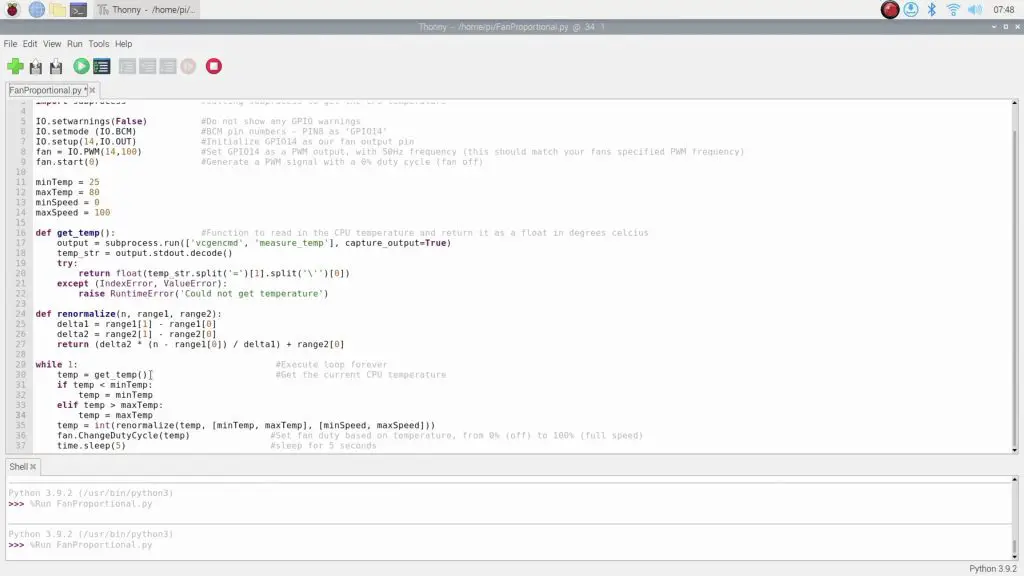
Powering Up The Cluster For The First Time

There are a number of LEDs assigned to each slot and on the adaptor boards. These show power to the slot, Ethernet activity, power on the adaptor board and activity for each CM4 module. So those are what I wanted to keep visible with the clear case design.
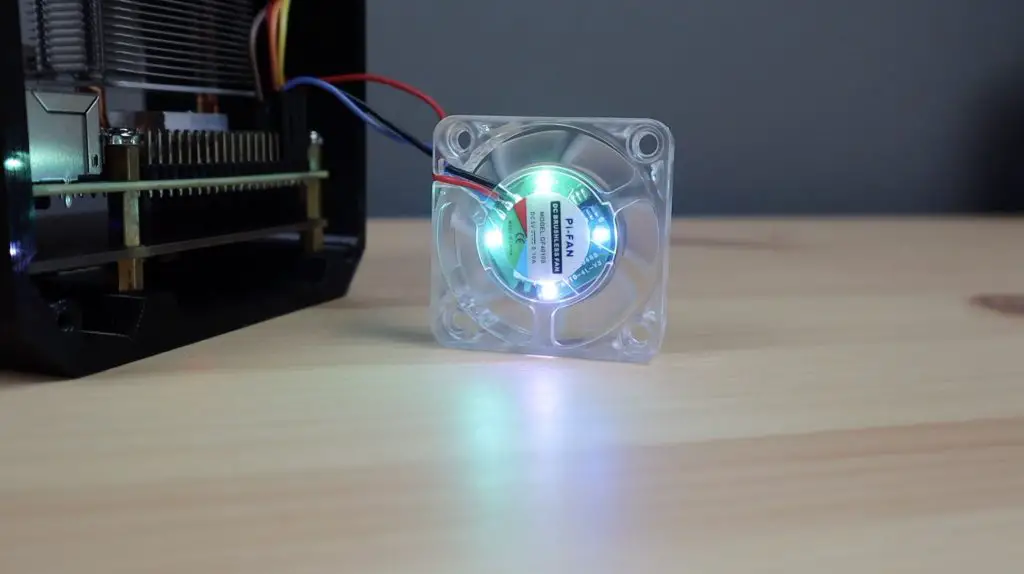
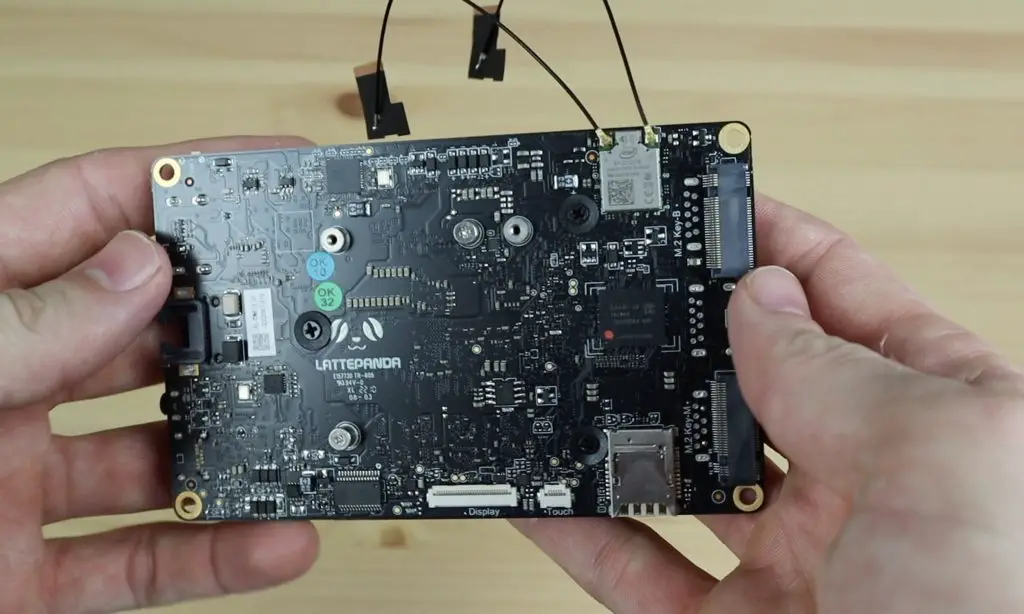
Indicator LEDs on Turing Pi 2 Nodes

After a few minutes, the Pi’s should all have finished their first boot process. You can also monitor the progress on node 1 by plugging the Turing Pi 2 into a monitor.

Allow Each Node To Boot Completely

You should notice significantly less flashing of the activity LED on the back of each carrier board. You can then move on to setting up Kubernetes.

Setting Up Kubernetes On The Turing Pi 2

I’m just going to go through a summary of the installation process of Kubernetes, if you want to set it up on your own cluster I suggest following Network Chuck’s video, he’ll take you through the entire process step-by-step.

The Kubernetes distribution that I’m going to be installing is called K3S, which is a lightweight distribution that is designed for use on resource-constrained devices like our Raspberry Pis.

After allowing the Raspberry Pis to boot up, we’ll need to SSH into them to install and set up Kubernetes. I’ve already assigned hostnames and static IP addresses to each node on my local network, this ensures that each node is given the same IP address by my router every time it comes online.

I’m going to SSH into each node using Putty on my windows PC and I’m going to start by setting up the master node.

We’ll install Kubernetes as the root user using a single line with some setup information following it:

curl -sfL https://get.k3s.io | K3S_KUBECONFIG_MODE="644" sh -s -
Installing K3S Onto The Master Node

Once it is installed, we’ll need to copy our master nodes key or token as we need this to set up our worker nodes:

sudo cat /var/lib/rancher/k3s/server/node-token

We now have a basic cluster running, although it only consists of a single node. So let’s log into our other three nodes and install Kubernetes so that they can join our cluster.

We do this with a similar command to the master, but this time including the master node’s token and IP address:

curl -sfL https://get.k3s.io | K3S_TOKEN="<INSERT TOKEN>" K3S_URL="https://<INSERT SERVER IP>:6443" K3S_NODE_NAME="servername" sh -

Replace <INSERT TOKEN> and <INSERT SERVER IP> with the token that you copied from the master node and your master node’s IP address.

Once we have completed the setup on the fourth node, we should have our cluster ready.

We can confirm that all of our nodes are connected and available by again running the kubectl command on our master node:

kubectl get nodes
All Nodes Are Now Available

Our 4 nodes are now available and our cluster is ready for us to deploy apps on it. I’m not going to go into this in this video as it’ll then be too long, but this essentially involves creating a .yaml configuration file for each app you’d like to deploy on your cluster and then a single command line to deploy it from our master node.

Final Thoughts On The Turing Pi 2

Before we finish off, let’s take a look at its power consumption. The cluster uses around 25W once it is running a few apps, and when heavily loaded this goes up to a maximum of about 30W. So this is significantly less than running an old laptop or computer instead of the cluster.

Power Consumption 25 Watts

It’s also worth keeping in mind that this is with a 450W power supply, so it’ll probably come down by about 5-10W once I switch the cluster over to a smaller PSU. I’ll post an update here when I do.

Overall, I really like how the case has turned out. It’s simple, protects the Turing Pi 2 and still allows you to see into it and see all of the activity and indication LEDs. One addition I might make on the next version is to add some space for one or two 2.5″ SATA drives to be mounted so that they can be easily plugged into the available ports.

Turing Pi 2 In Clear Acrylic Case

Is there anything else you’d like to see me add to the case design? Let me know in the comments section below.

I think the Turing Pi 2 has a lot of potential; the upgrade to CM4 modules unlocks a significant amount of computing power and the all-in-one solution really makes it easy to get started. There is a lot of interfacing available on the board and it’ll hopefully all be made available and accessible through updates to the firmware in the coming months. I look forward to improving my cluster as the community evolves with it.

This Turing Pi 2 board and it’s firmware are still beta versions, so there will likely be a few tweaks and changes made before the final production runs. But the good news is that they’re launching on Kickstarter this week, so definitely go check their campaign out. I’ll leave a link to it as soon as it goes live. You can sign-up for their newsletter and updates in the meantime to stay informed.

Let me know what you think of the Turing Pi in the comments section below, what are you going to use it to run?

Mini Plex Server Running On A ZimaBoard With A 480GB SSD

In this project, we’re going to be making a Mini Plex Server with SSD storage using a ZimaBoard. If you haven’t heard of a ZimaBoard before, it’s a low-cost, feature-rich single board server – we’ll take a look at some of its features once we get it unboxed.

Zimaboard Single Board Server

This is a limited edition set that was sent to me by Seeed Studios to try out and share with you. It comes in this awesome branded case with the components all packaged and protected with foam cutouts.

Zimaboard Limited Edition Set

Take a look at the video of my build, or read on for the written instructions. The video is particularly helpful for the software setup.

What You Need To Make Your Own Mini Plex Server

Equipment Used:

Some of the above parts are affiliate links. By purchasing products through the above links, you’ll be supporting my projects, at no additional cost to you

Unboxing The ZimaBoard Limited Edition Set

The box is divided into two layers, each with foam cutouts. On the top layer, we’ve got the Zimaboard 832 single-board server.

Zimaboard In Limited Edition Set Case

On the layer underneath it is a Kioxia 480GB SSD, a 12V power supply, a PCIe adaptor, a SATA Y splitter, a SATA cable, an Ethernet cable and a Mini DisplayPort to HDMI adaptor.

Contents of Zimaboard Limited Edition Set

The Zimaboard runs a quad-core Intel CPU, and it’s x86 architecture means that it can run a wide range of operating systems, including Linux, Windows and Android. There are three variants of this board, the one included with this set is the most powerful 832 varient. This board has a 4 core Celeron Apollo Lake processor that runs at 1.1Ghz, with a 2.2Ghz burst frequency. It also has 8GB of LPDDR4 RAM and 32GB of onboard eMMC storage.

The full specifications for the ZimaBoard 832 and other variants are available from their website.

Zimaboard 832

Its a fanless design with a dual purpose housing and heatsink on the top and a gloss acrylic bottom. What separates this board from other similarly sized single board computers is the inclusion of a PCIe 2.0 x 4 slot and two SATA ports. On the opposite side to the SATA ports are two USB 3.0 ports, two Gigabit Ethernet ports, a Mini DisplayPort and the power input. So you’ve got a lot of options for connectivity and peripherals.

One thing to mention is that it doesn’t have WiFi connectivity, so you’ll need to use a dongle if you’re not planning on using a wired connection.

The included SSD is a 480GB Kioxia 2.5” SATA drive, which the included SATA cable plugs into. The included SATA cable looks like a proprietary cable with a unique power plug, but it seems to be included in the individual board packages as well.

Included 480GB Kioxia SSD

The 12V, 3A power adaptor can deliver up to 30W, so there is plenty of power available for storage drives and USB devices as well. It also includes a couple of different wall adaptor options to suit different countries.

Power Adaptor With Multiple Plug Options

The SATA Y splitter allows you to power two SATA drives from the single power supply on the Zimaboard.

Dual Sata Y Harness

Then lastly, the included PCIe adaptor allows you to connect an M.2 NGFF or NVME drive to the board. It would have been nice to have a way to “secure” any PCIe cards to the ZimaBoard somehow, perhaps using the backplates provided for use with computer cases, but it’s great to have the option to use PCIe cards with the ZimaBoard.

NVME and NGFF PCIe Adaptor

So that’s a basic overview of the ZimaBoard and what’s included in the Limited Edition set, so let’s move on to setting up our Plex server.

Designing The Plex Server Stand & Making The Components

As usual, I don’t like having loose cables and drives lying around, so I’m going to start by designing a drive holder and stand for the Zimaboard to hold two 2.5” drives underneath the board. I did this in Fusion360.

The 3D printed stand picks up on the holes underneath the ZimaBoard to hold the acrylic sheets in place and then provides a bay for each of the 2.5″ drives. The screws that secure the drive to each bay will also be used to hold some clear acrylic side panels in place as a stand.

One side panel is notched at the top to clear the PCIe port on the ZimaBoard.

Zimaboard Stand Model In Fusion360

I’ll make the files for this stand available to my Patrons on Patreon if you’d like to make your own.

I’m going to 3D print the adaptor bracket in black PLA and laser cut the clear acrylic sides.

Since I’m going to be using it as a Plex server, I’m going to laser engrave the Plex logo onto the side and try to put a coloured insert into the acrylic for the orange part of the logo.

Let’s laser engrave and cut the side panels first.

Laser Cutting The Plex Logo and Stand

Now we just need to cut two orange inserts for the section of the logo that I cut out. I cut these from a separate sheet of translucent orange acrylic.

3D Printed and Laser Cut Components

We can then add these to our 3D printed bracket, and we’re then ready to start assembling our Plex server.

Assembling The Mini Plex Server

To assemble our Plex server, we’ll also need a couple of M3 screws and nuts.

I’ve put aside four M3x16mm screws to go into the Zimaboard and then eight M3x8mm screws for the drives. I’m using the four M3 nuts because I’m not installing a drive in the bottom bay for this build, so these will secure the M3x8mm screws in place of the second drive.

Screws Required To Complete The Stand

To finish off the side panels, we need to first glue the inserts into place. I’m going to do this with a drop of super glue along the top and bottom edges of each insert.

Super Glue The Plex Logo Into Position

I’m not going to remove the protective film yet as this helps stop any glue or vapour from marking the acrylic.

Plex Logo Glued Into Place

While the glue dries, let’s install the bracket onto the bottom of the Zimaboard.

Start by removing the four black screws on the bottom of the ZimaBoard. Make sure that you hold the acrylic in place while you do so, else these layers will drop off. Keep the black screws in a safe place in case you want to remove the drive holder in future.

Remove Black Screws From Underside of Zimaboard

Place the stand onto the bottom of the Zimaboard, with the edges aligned with the board, and then replace the screws with the M3x16mm button head screws. These should just be long enough to get three to four turns into the board.

Install 3D Printed Stand Onto Zimaboard

With the stand in place, we can now peel the protective film off of the acrylic panels so that we can install them.

Plex Logo With Protective Film Peeled Off

The insert is a bit less orange than I would have liked, but it still looks quite good I think.

I’m going to use the top bay for the SSD so that I can easily add a second drive through the bottom in future if I’d like to.

The drive and panels are held in place using the M3x8mm screws, which screw into the SSD.

Screwing Side Panels Onto 3D Printed Stand

Now I’m going to add some M3x8mm screws and nuts to the bottom holes. This will give the side panels a bit more support and will close up the holes so that the finished assembly looks a bit neater.

Screwing Screws Into Bottom Of Stand

Now we just need to plug in our cables to finish it off.

For the SSD, I’m going to use the single SATA and power cable that came with the set. This can easily be replaced if a second drive is added in future.

Plugging SATA Drive Into Port And Power

On the opposite side, we need to plug in our power and Ethernet cables. You’ll also want to plug in your mini DisplayPort adaptor so that you can plug your ZimaBoard into your monitor or TV to configure it.

Plugging Ethernet and Power Into Zimaboard

Our Plex server is now built, so we can move on to configuring it.

Mini Plex Server Running On A Zima Board With A 480GB SSD

Booting The ZimaBoard For The First Time

The first time I booted the Zimaboard, it required a few updates, so I did those first. It comes preloaded with CasaOS, which is a software package by IceWhale that is built around the Docker ecosystem, but with a user-friendly web interface. Have a look at the CasaOS GitHub repository for some additional resorces on the package.

CasaOS GUI Vs Docker Back End

The default password is CasaOS and you’re then taken to the desktop.

If we open the system monitor, we can see that we’ve got our 4 processor cores, 8GBs of RAM and 32GBs of eMMC storage.

Zimaboard System Stats

Once your Zimaboard is connected to your local network, you’ll be able to access the web interface through the assigned IP address. You can also access the web interface locally through the quick launch on the toolbar.

The first time you log in to the CasaOS web interface, you’ll need to create an account and you’ll then land on the dashboard shown below. This is where you will manage your server and monitor its performance.

CasaOS Web Interface On Zimaboard

Installing Plex On Your ZimaBoard

From this step onward, it’s best to watch the video at the beginning of this post. The video shows you a lot more detail about what to click on and where to type commands etc. I’m now going to connect the Zimaboard to my network and re-load the web interface so that we can install Plex.

If we open up the App Store, we can find Plex and then click on install. This will download a preconfigured Docker image and launch it on our Zimaboard.

Installing Plex App On Zimaboard

It’ll then appear alongside the other containers running on our board and we can click on it to open up its web interface as well. The IP address for your Plex server will be the same as your ZimaBoards – but on a different port.

We’ll then need to create another account, this time for our Plex server.

Plex will then run through a configuration wizard.

We’re not going to be using any premium features for this build, so we can just close the window about monthly subscription offers.

You’ll then be asked to name your server, I’m going to give mine the name – My Plex Server.

We can then start adding our Media Libraries. These are basically locations or folders that contain our media files.

Adding Libraries To Plex Server

I’ll set up Movies and TV Shows as these are what I’m going to be using my Plex server for. Before we can finish this step off, we need to know where our media is being stored on our Zimaboard.

So let’s open up the File Browser app from our CasaOS web dashboard.

File Browser’s default username and password is usually admin, so it took me a few tries to figure out that it has been configured as CasaOS as well.

Using File Browser To Locate Files and Folders

We can now see our files stored on the Zimaboard and we can see that there is a folder called Media. This folder contains further folders for Movies, Music and TV Shows. We’ve got the Movie Big Buck Bunny preloaded in our Movies folder. So let’s add these locations to our Plex server as libraries.

Big Buck Bunny In The Media Folder

We’ll start by adding Movies and then add the Movie folder that we found in our File Browser app. Then we can do the same for TV shows.

Lastly, we can choose what content we want to be visible as pinned sources and we’ll then land on our Plex server’s web interface home page, where we can see our Movie is available.

Big Buck Bunny On Plex Server

TV Shows is empty because we had nothing in this folder yet.

You can add media to either of these folders using the File Browser app, which can be accessed using it’s IP address and port on any other computer on your network.

Adding Our SSD Storage To The Mini Plex Server

We’re almost finished, but we still need to make the media on our SSD available on our Plex server. Currently only the content on our onboard eMMC storage is available.

If we open up storage on the CasaOS dashboard, we can see that our drive is being seen, but it’s not available as a storage location.

Adding SSD To CasaOS Storage Manager

I ran into a bit of an issue here. I tried using this tool to create a storage location a number of times. I left it open for a while and the storage location never popped up. I tried creating it again. I tried restarting the system. I tried again after restarting, but I couldn’t get this tool to work. If anyone with more experience using CasaOS knows what I’m doing wrong here, please let me know in the comments section below – this looked like it should have been pretty straightforward.

I eventually managed to get the drive formatted and mounted using the Disks utility on the desktop. Remember to mount the drive after it is formatted, otherwise it still won’t be available.

Using CasaOS Disk Utility To Add Storage Drive

Once the new storage location on our SSD is available, we need to open up the App settings for Plex and add the volume to make it available to our Plex server as well.

Do this by adding the Host location as /media/casaos/SSDStorage and the container as /SSDStorage.

Add Storage Drive To Plex Server To Give It Access

When you click save, it’ll relaunch Plex with the new configuration, so you’ll need to give it a few seconds to start up and you’ll then be guided through the wizard again, so we’ll just repeat what we did previously.

When we get to the libraries step, we need to add a folder to our Movies and TV Shows media type. You’ll see that we now have our SSDStorage folder available, but it’s got nothing in it. So we need to create folders for Movies and TV Shows.

I’m going to do that quickly through the CasaOS desktop, and they’ll then be available on our Plex server.

Add Folders To The Drive For Movies and TV Shows

If you also want the local eMMC storage locations to be available on your Plex server then you can either add them as additional libraries or you can add their storage locations to the existing two libraries you’ve just created.

Add New Libraries To The Plex Server

If you add them as additional libraries then you’ll have multiple libraries for Movies and TV Shows and they’ll each only have the content from their respective folders.

If you add their storage locations to your existing libraries then you’ll have a single library for Movies and a single library for TV Shows and they’ll be pooled from the two storage locations. I prefer this option as I can then add media to either location and it’ll show up in one of the two libraries.

And that’s it, our Plex server is now ready to use.

Playing Media From The Mini Plex Server

You can play media locally, directly on the Zimaboard or on a network-connected device like a tablet or Apple TV. Plex also has an option to make your media available outside of your local network as well, so you can access your media library from any internet-connected device.

Big Buck Bunny Running On Plex Server

It’ll also remember where you stopped watching and will allow you to resume playback on a different device.

I have installed the Plex app on my Apple TV, so I’m able to watch my media on my computer, tablet or TV with ease.

Plex Running On Apple TV

Final Thoughts On The ZimaBoard

With CasaOS and docker, you can also use your Zimaboard to run a range of other applications along with Plex. I’m going to use mine to run PiHole and Home Assistant as well. You can install these apps through the App store on the CasaOS web interface in the same way that we installed Plex.

Zimaboard Mini Plex Server

Overall I think it’s a great option if you’re looking for a low-power device to run server applications on your personal network. It’s got a host of useful ports and interfaces and it’s powerful enough to comfortably run a few applications without slowing your network down.

Let me know what you think of the Zimaboard and my Plex server in the comments section below.

They’re currently being shipped to backers from their Kickstarter campaign and they’ll then be made available for sale. Be sure to have a look at Seeed Studio’s product page if you’d like to get your ZimaBoard. As I mentioned earlier, they have three variants available, so there are some options available depending on your requirements.

3D Printed Wireless Joystick Controlled Animatronic Eyes

In this project, we’re going to be making a set of wirelessly controlled animatronic eyes. I’ve been wanting to do this project for a while, so when Quantum Integration launched their new Motor & Servo Driver board, this project immediately came to mind. Their new board is based on the PCA9685 driver chip, so you can also build a similar setup using an ESP32 or Arduino if you’d like.

Here’s my video of the build, read on for the write-up:

What You Need For This Project

Equipment Used

Some of the above parts are affiliate links. By purchasing products through the above links, you’ll be supporting this channel, with no additional cost to you.

Designing & Printing The Animatronic Eye Components

I started out by drawing up a 3D model in Fusion 360. I knew roughly what I wanted the final set of eyes to look like, but naturally had to make a few tweaks along the way.

Fusion360 Animatronic Eye Model

I wanted the eyes to be able to move left and right as well as up and down, so I needed two servos for each of them. I also wanted to have eyelids that could blink, and in future maybe wink independently, so I needed another two servos for those movements as well. At the centre of each eyeball is a small brass universal joint and I’m going to use some cotton thread to connect each eyeball to the servos rather than using solid pushrods.

I had to go through a couple of trial prints to see what tolerances and clearances worked well. My first set of eyeballs was too big and got caught on the eyelids, but making them too small also left large weird looking gaps between the eyes and the eyelids, so that was also no good.

I also had to split the base to allow the screws that hold the eyelids to be installed so close together.

But eventually, I had a set of 3D prints that could be assembled into a working set of eyes.

3D Printed Animatronic Eye Components

If you’d like to 3D print your own eyes, the 3D model files for my projects are now available to my Patrons on Patreon or on my Etsy store.

Assembling The Eye Components

To assemble the eyes, we just need two small universal joints for 3mm shafts and some M2 screws and nuts.

M2 Screws and Universal Joints

These are the ones that were locally available for me. I’ve linked very similar ones in the parts list, but you might need to make some minor adjustments to fit the ones that are available to you. You’ll also some cotton thread or thin string to connect the eyeballs to the servos.

Let’s start by adding the thread to the eyeballs. We just need to glue a 10cm length of thread to four opposing inside edges of each eyeball. The eyeballs are round and don’t have any holes in them, so it doesn’t matter which four locations you choose, as long as they are equally spaced. I used a drop of superglue on the end of each length of thread.

Glue Threads Onto Back Of Eyeball

We can then press the universal joints into the 3D printed bases. Mine are a tight fit, but if yours are a bit loose you can secure them with a little bit of glue as well. Just make sure that you don’t get glue in the universal joint’s pins or it’ll lock up.

Press Universal Joint Into 3D Printed Base

Then we can push each of the eyeballs onto the universal joints as well.

Press Eye Onto Universal Joints

Now let’s add our eyelids. These pivot around some M2 screws in the holder on either side of each eye. Prepare the base by screwing these M2 screws into each side, with just one or two turns of thread exposed on the inside.

Screw Eyelid Screws Into Base Supports

A 3D printed pushrod is then going to be connected between each eyelid and the servo behind it to open and close it. The top pushrod is the longer one with a small extension on it to connect to the bottom pushrod.

Screw Pushrods Into Eyelids

The screws need to be adjusted a bit, you want them tight enough that they hold the components in place, but still allow free movement. You might need to iteratively tighten or loosen them to get them right.

Pushrods Assembled Onto Eyelids

Place the set of eyelids between the screws on the base and slowly tighten them until the eyelids are held in place. Make sure that the screws don’t protrude too far on the inside of the eyelids and touch the eyeballs.

Assembled 3D Printed Components And Eyeballs

The pushrod should be free and easy to gently push and pull to open and close the eyelids.

Pushrods Should Be Easy To Open and Close Eyelids

Once we have our eyes and eyelids assembled, we can add our servos. I’m using 6 micro servos, three for each eye. 

These are just glued into place on their supporting faces as they’re shown in the model. Install the servos on both base assemblies with the second eye being a mirror image of the first.

Glue 3 Servos Onto Each Eye Assembly

Lastly, tie the cotton thread to your two front servos. This was quite a fiddly job – make sure that you tie them off so that there is a bit of tension on the eye to stop it from wobbling. Also, don’t screw the white control arms onto the servos yet as you might need to adjust them once the servos are powered and centred.

Servos Connected To Eyeball and Eyelids

With that done, the eyes are now complete and are ready to add the electronics to.

Connecting The Electronics

As I’m using the Quantum Integration system, I need a build base to wirelessly control the eyes and I’m going to use one of their four new DIY kits, the Motor and Servo Driver to drive the servos.

Quantum Integration Builder Base

The Motor & Servo driver board allows you to control up to 8 servos and 4 motors with the I2C interface on your builder base, so it’s perfect for the 6 servos used in our project. The boards come as a kit with all of the surface-mounted components pre-soldered, you just need to add the through-hole ones.

Quantum Integration Motor And Servo Driver Board

Once the board is assembled, we can pair up the driver and builder base and plug in our servos. As I mentioned earlier, the driver uses the I2C interface, so we just need to make connections between the 5V, GND, SCL and SDA pins on each. The builder base is going to get its power through the servo driver board, so we only need to supply power to the driver board, which we do through the 5V and GND pins on the left of the board.

Note: You don’t actually need the jumper between 5V and VM that I’ve used as the servos are powered through the 5V supply. VM only supplies power for the DC motor outputs.

Connecting Power Jumpers To Motor and Servo Driver Board

Then just plug the servos into the driver board and we can then move on to programming it. I’ve connected the servos on outputs 1-6 as below:

  • 1 – Left Eye – Left Right
  • 2 – Left Eye – Up Down
  • 3 – Left Eye – Blink
  • 4 – Right Eye – Left Right
  • 5 – Right Eye – Up Down
  • 6 – Right Eye – Blink
Completed Electronic Components

Creating The App and Firmware

Now let’s log into our Q-Server and have a look at the App to control the eyes. 

Quantum Integration Animatronic Eye App

We’d got two joystick inputs on the left, one for the left stick and one for the right stick. The x and y axis on the left stick will control the eye movement and the button on the right stick will control the blinking.

These then feed into the three controls on our web dashboard, so that we can control the eyes from the web interface as well. We have two analogue sliders, one for the left and right movement and one for the up and down movement, and then a button to blink.

The web controls then feed into some ranging blocks which set directions and travel limits for the servos and then finally feed into each of the six servos on the right. So we have the left and right movement servos at the top, the up and down movement servos in the middle and the blinking servos at the bottom.

Lastly, before we run the app, we need to create our builder base firmware to tell the builder base which servo is connected to which driver output. These are identified by a channel number for each servo object as follows:

  • Servo 1 – Channel 3
  • Servo 2 – Channel 2
  • Servo 3 – Channel 1
  • Servo 4 – Channel 0
  • Servo 5 – Channel 15
  • Servo 6 – Channel 14
Builder Base Firmware

I started out by only enabling a single eye to test the App and firmware. It looked like the eye movement was set up nicely and the blinking worked well too.

Testing A Single Eyeball's Movement

We can now finish off the build by screwing the two bases together and marking the eyeballs with a pupil using a black Sharpie. If you’ve printed the eyeballs with the back surface on the print bed then the concentric circles of each layer can be used as a guide for marking the pupils.

Screwing The Base Together
Drawing on the Pupils With Sharpie

The Completed Eyes & Final Thoughts

Completed Eyes

Overall I’m quite impressed with how well these animatronic eyes turned out. The blinking works better than I expected it, and the cotton thread to the eyes holds up really well as a cheaper alternative to solid pushrods. I definitely think that solid pushrods are a more robust solution, but these work perfectly for a short term solution. 

Let me know what you think of them in the comments section below.

Making Laser Cut Raspberry Pi Cases Using The Atomstack X7 40W

Today we’re going to design and laser cut some new Raspberry Pi cases from 3mm plywood using the Atomstack X7 40W. This is a new laser engraving and cutting machine from Atomstack which is largely the same as their flagship X7 Pro, but with a slightly lower power 40W laser module.

Atomstack X7 40W

Being similar to their flagship model, it’s got a number of great features, including an offline independent control terminal, so you can operate the laser without it needing to be connected to a computer, a 32-bit ESP32 based mainboard, and a really high-quality all aluminium frame and electronics housing with a metal e-stop and buttons. Even the laser module is well packaged with an all-metal protective enclosure and a small acrylic window to see the laser.

Atomstack Offline Control Module

They claim that the 40W laser module can cut through 15mm thick wood and acrylic, although the acrylic will need to be opaque black as a diode laser can’t cut through clear or translucent materials. I haven’t tested the machine up to 15mm, I’ve only used 3mm plywood, but it had no problems with it even though plywood can often be a challenge to cut.

Laser Cutting Plywood With Atomstack

Watch my full video below, or read on for the write-up:

What You Need For This Project

Some of the above parts are affiliate links. By purchasing products through the above links, you’ll be supporting this channel, with no additional cost to you.

Unboxing & Testing The Atomstack X7 40W

The assembly of the Atomstack X7 40W was pretty simple. The gantry is all preassembled with the motors, so you’re really just assembling the four sides frame and installing the gantry onto it.

Unboxed Atomstack X7 Components

That said, if you haven’t put one of these machines together or used one previously then you might need to look at some photos or videos online to help out as the manual is a bit too brief in my opinion. It’s basically just a single page for the actual three-step assembly of the machine, with the packets of screws marked for each of the steps.

Installation Instructions

To control the laser and/or generate the required gcode for your cutting and engraving, you have the option of using a free software package called LaserGRBL, which I’ve used previously on other lasers, or a paid-for software package called Lightburn. Lightburn does have a lot more functionality than LaserGRBL, so if you’re going to be using the laser for more complicated work or as a daily workshop tool then you’ll probably want to invest the $83 for a license key. LaserGRBL is only able to provide basic control of the laser, while Lightburn allows layout and editing features as well as more advanced control.

LaserGRBL Homescreen

I used LaserGRBL for all of the work done in this project and it worked well for what I needed it for.

Once I had the Atomstack X7 40W set up, I tried a test engraving on one of the supplied sample pieces of plywood and I also did some test cuts on my own plywood.

Atomstack Engraving Sample

The sample engraving came out really well, the small laser dot size is able to produce high levels of detail, and it works fairly quickly too.

There is a lot of variation in the wood and adhesives used to make plywood, so you usually have to do a bit of experimenting to get clean cuts.

Laser Cutting Plywood Test

I used the example laser powers, speeds and passes provided by Atomstack as a rough guide and found that two passes at full power and 200mm/s seemed to work best for my plywood.

Example Cutting Parameters

Designing & Cutting The Compact Raspberry Pi Case

Once I was happy with the quality of the cuts, I moved on to designing the case. I’ve been wanting to create a more compact or low profile version of the 3D printed case that I made previously. An added benefit is that if I made it from plywood, then it could be assembled and painted in any colour to suit the project that I’m working on.

I came up with this rectangular design, which I drew up in Inkscape.

Take a look at my video on how to design your own Pi cases in Inkscape.

Simple Plywood Case Design

It has a similar form factor to my other cases but has a fan on top of the case rather than the side. The fan blows down onto the Pi’s CPU and exhausts air out of vents along the side.

When I was happy with the design, I put a fresh sheet of plywood into the bed of the Atomstack X7 40W and got cutting.

Cutting is pretty simple once you’ve got the hang of it. You’ll need to home the laser, then set the starting location for the cut. You also need to remember to adjust the focus of the laser to suit the material thickness that you’re cutting. This is easily done with the single thumbscrew on the front of the laser module, allowing the laser to be slid up or down on a track on the gantry. You’ll need to use a small piece of acrylic as a spacer between the bottom of the laser and the wood you’re going to be cutting.

Adjusting Laser Focus

You’ll also need to use an extractor fan or work in a very well ventilated room. One downfall of these open gantry designs is that the smoke made when cutting is not contained or filtered in any way. I worked near a large door and had a fan set up to blow the smoke out of the room.

Laser Cutting The Simple Case Components

One thing that this laser module does quite well is to blow the air away from the immediate area being cut. The internal cooling fan exhausts air out of the laser end which helps keep the lens clean and the smoke away from the immediate cutting area.

Cutting the plywood for this case in two passes took around 20 minutes to complete.

Simple Plywood Case Components Cut

Assembling The Compact Raspberry Pi Case

With our case components cut, we can now start assembling it.

I’m just going to be using PVA wood glue to glue the pieces together. The tabs on the sides of each piece interlock to hold them in position and keep the components square, so it’s quite easy to do.

Gluing The Simple Case Together

I’m going to first glue the four vertical sides together around the base. I’m also going to use the top cover to help hold them in place and hold them square, but I haven’t used any glue on it.

Once the sides are dry, we can add the 45-degree corner pieces to give it a bit more rigidity and close up the gaps along the edges.

The case is now complete and we can install the Raspberry Pi and fan into it.

Simple Pi Case Glued Together

This is just done with four M2.5 x 12mm brass standoffs pushed through the holes in the base and secured with some M2.5 nuts.

Brass Standoffs Installed Into Simple Pi Case

The Pi is then held on the standoffs using either some M2.5 x 6mm screws or additional standoffs if you’re going to be using a hat with the Pi.

M2.5 Screws To Secure Pi Into Simple Case

On the top cover, I initially planned on using some M2.5 x 12mm screws and nuts to hold the fan, but the pockets for the nuts are on the wrong side of the fan for the air to be pulled into the case and the screws are too short to go all the way through the fan. So I’m going to have to revert back to pressing some M3 nuts into the pockets and use the screws that came with the fan to secure it.

M3 Nuts Pressed Into 40mm Fan

The fan is then held on the top cover using the M3 screws that came with it.

Screw 40mm Fan To Top Cover

Lastly, I’m going to glue some 6mm brass standoffs to the inside of the side panels. These are needed to hold the top in place with four M2.5 screws. It’s easiest to screw these onto the top cover first, with the flat edge aligned with the edge of the cover. Then put a drop of glue onto each before pushing the cover down into place and allowing the glue to dry before removing the screws. Make sure that the glue doesn’t seep up the side of the standoffs and onto the cover or it might accidentally glue the cover to the case.

Glue Standoffs To Inside Walls Of Pi Case

We can then open up the cover, plug the fan into the 5V and GND pins and then close up the case again.

40mm Fan Plugged Into 5V Pins

Our basic, compact Raspberry Pi case is now complete. As mentioned earlier, the plywood finish can easily be painted or stained in a colour that suits your project.

Complete Simple Plywood Pi Case
Simple Plywood Pi Case On Ports Side

Designing & Laser Cutting More Detailed Cases

Now, this case looked a bit basic and didn’t really require much effort from the laser, so I decided to try and step the design up a bit and cut a pattern into the top and side panels as well.

I integrated two patterns into the original design, one with a hexagonal geometric pattern and one with a diagonal line geometric pattern.

Diagonal Pattern Pi Case Design

This was a lot more work than I thought it would be, and really challenged my Inkscape abilities, but it eventually started to look promising.

So let’s see what the laser can do with these patterned pieces.

Cutting Out Patterned Pi Case Components

And with that, we now have the parts to make two more cases.

Well if I’m honest, it took a few more attempts to get right. More cuts mean more time and more opportunities for things to go wrong, like the laser being bumped while cutting, pieces getting caught on the end of the laser and causing the wood to move and even a bit of variation in the plywood causing the laser not to cut through in the usual two passes.

Scrap Plywood From Test Cutouts

So my one hour of planned laser cutting turned into 5 hours, but I eventually had all of the pieces I needed to make up the two extra cases.

Patterned Components Cut Out

Painting & Assembling The Detailed Cases

I’m going to glue these two together in the same way as the previous one and I’m then going to paint them.

Gluing Patterned Cases Together
Completely Glued Patterned Pi Cases

I’m going to use two speciality spray paints that looked interesting at my local hardware store. I haven’t tried either of them before, but hopefully they come out looking good.

Spray Paints and Undercoat

The first is a pearl white colour, which has a bit of a glittered finish to it. The second is a grey, stone finish, which has speckles of black and white in it to create a natural stone appearance.

And, since I learned my lesson in the comments section of the last project that I didn’t use a primer or undercoat on, I’m going to be using a white undercoat on both cases before adding the colour.

So let’s give both cases a spray of the white undercoat to start.

Undercoat Sprayed Onto Patterned Cases

After a few hours, the undercoat is dry and we can move on to spraying on the colour coats.

I’m going to start with the glittered pearl white and I’ll be painting the diagonal patterned case with this colour.

Pearl Glitter Pi Case Painted

Next, I’m going to paint the hexagon patterned case with the grey stone finish. This paint needs 24 hours to dry and is applied quite thick, so I’m going to avoid doing too much around the edges where the top cover goes and I’m not going to do the underside of the top cover. If too much paint builds up in these areas then the lid isn’t going to fit properly anymore.

Granite Stone Finish Pi Case Painted

24 hours later, the two cases are ready to install the Raspberry Pis into. I really like the way the pearl white has come out, it looks great with the laser-cut pattern. The glitter effect is quite hard to capture on camera, but it looks really interesting when the light catches the edges.

Both Patterned Pi Cases Painted

The stone finish also looks great, it just took a really long time to dry. I’m glad I used the white undercoat with this paint as I think it would have come out too thick if I had tried to cover up the bare wood.

I’m going to install a plain black fan on the grey stone finish case and a clear RGB fan on the pearl white coloured case.

As with the previous plain case, the Pi’s are secured with some M2.5 x 12mm brass standoffs and some M2.5 x 6mm button head screws.

Raspberry Pis Installed Into Patterned Pi Cases

The fans are screwed onto the top cover with the included screws and some M3 nuts pressed into the pockets.

Fans Installed On Patterned Pi Cases

The top covers are secured with some M2.5 brass standoffs glued to the sides of each case and some M2.5 x 6mm screws to hold each in place.

Gluing Brass Standoffs Onto Patterned Pi Cases

That’s it, our two detailed cases are now completed. Although the general shape is the same, they look really different now that they’re finished off.

Completed Patterned Pi Cases
Running Pis Made Using Atomstack X7 40W

I also like how you can partially see into the cases and you can also see the Pi’s LEDs.

Final Thoughts On The Atomstack X7 40W And The Complete Cases

Overall I think that the Atomstack X7 40W is a good value for money, high-quality diode laser cutter and engraver. I really like the build quality and all-metal construction and the full-colour touch control panel makes it a breeze to use without a computer – something that most machines in this price range don’t have. The X7 40W is perfect for cutting and engraving woods and opaque plastics, but you’ll need to look at a CO2 laser if you’re wanting to cut clear materials. Be sure to have a look at the Atomstack website to get your own Atomstack X7 40W.

Atomstack X7 40W Unboxing

Let me know what you think of the two cases in the comments section below. Do you like the laser cut patterns on the sides? They obviously open the case up to a bit more dust, but they still provide a lot more protection to the Pi than just having the Pi exposed.

I think for future versions, I’d probably add an SD card slot into each of them to make it a bit easier to swap out the cards.

SD Card Slot To Be Made On Patterned Pi Case

I’d also like to re-look at the screws that hold the lid in place. It would probably be better to design slots in the sides for the screws to screw into and do away with the brass standoffs entirely.

Screws Slots To Be Added To Patterned Pi Case