Home Blog Page 12

ClonerAlliance UHD Pro Video Capture Box Unboxing & Review

Today, we’re going to be taking a look at the ClonerAlliance UHD Pro video capture box which was sent to me by the team at ClonerAlliance to review and share with you.

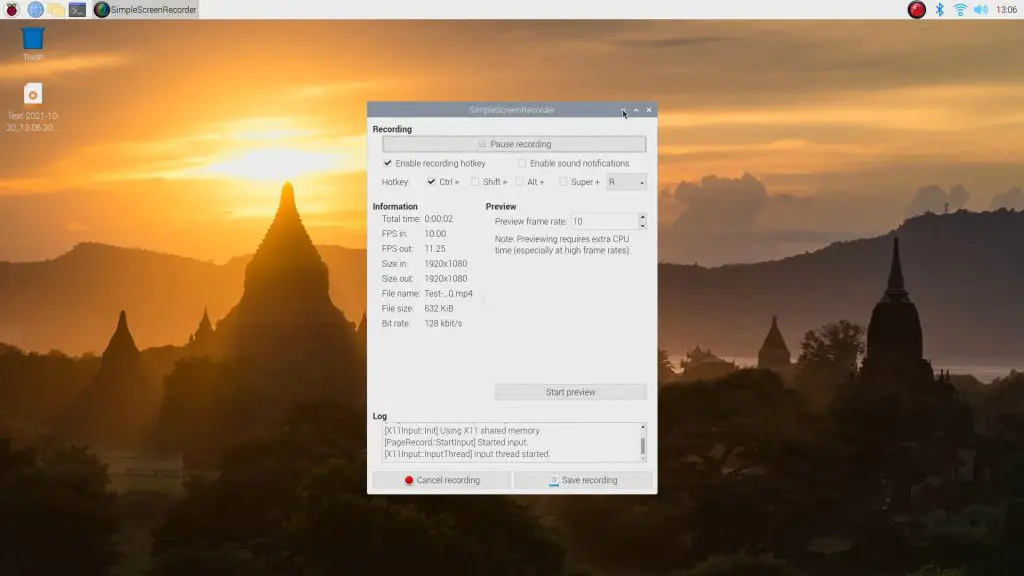
I often get asked on my Raspberry Pi tutorial videos why I’ve used the full desktop version of Raspberry Pi OS when the project is intended to be run without a monitor or external display connected once it has been set up. There’s actually quite a simple answer. I use a screen recording utility, typically SimpleScreenRecorder, running in the background to capture the screen contents for the tutorial.

Simple Screen Recorder Raspberry Pi

Although it looks a bit odd to immediately open up a terminal window and do the whole setup from there, it works pretty well for a tutorial because you can then follow along in either version of the operating system.

It does however have one pretty significant drawback, and that is that it uses a bit of the Pi’s processing power in the background to capture the screen contents. It also slows down the read and write speed to the SD card or SSD in the process as the Pi is continually writing to it.

SSD Case CPU Usage

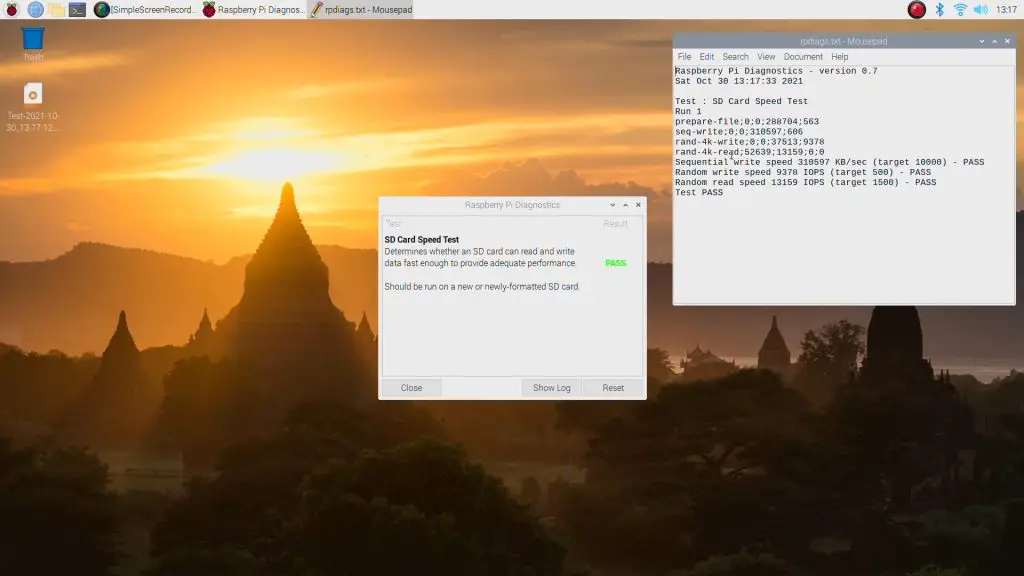
This goes unnoticed for general command line inputs, but if you’re running any speed tests or benchmarks then they land up being affected by the screen recording, which Is obviously not ideal.

Screen Recording Affects Benchmarks

Another issue is that I can only start recording once the desktop is reached, so I can’t include any initial setup or boot-up footage or prompts and I can’t record the screen contents of builds that do not have a traditional desktop interface.

So when ClonerAlliance asked me if I’d be interested in reviewing their new UHD Pro video capture box, it definitely caught my attention.

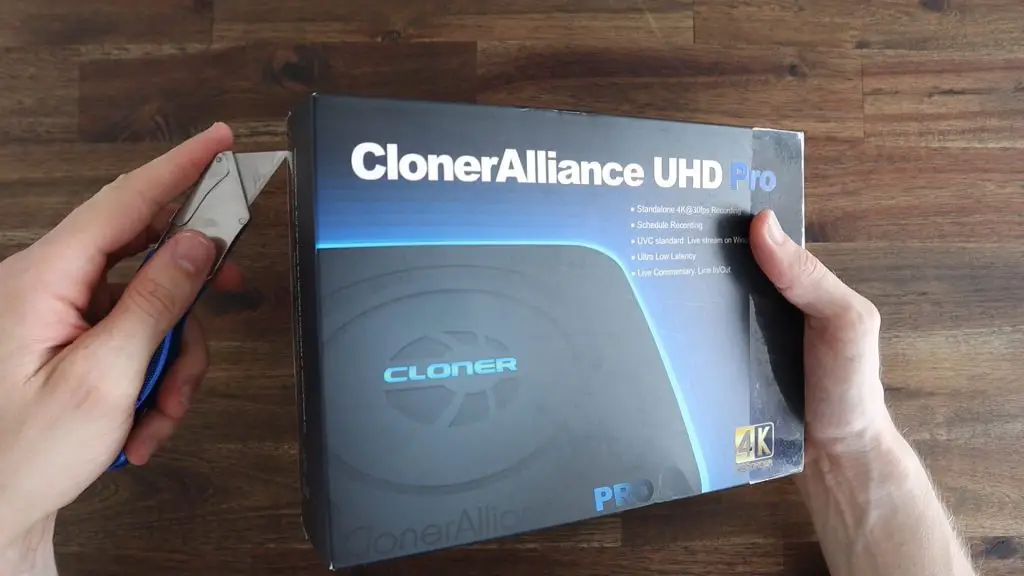
Have a look at my unboxing and review video, otherwise, read on for the write-up.

I’ve also tried using a video capture card in the past, but these become messy because you need a second computer to record the video output and there is usually a significant amount of latency involved. This means that the inputs made on the Pi only show up on the video output on the secondary computer’s monitor after a second or two, which makes it almost impossible to work with.

ClonerAlliance UHD Pro Functions

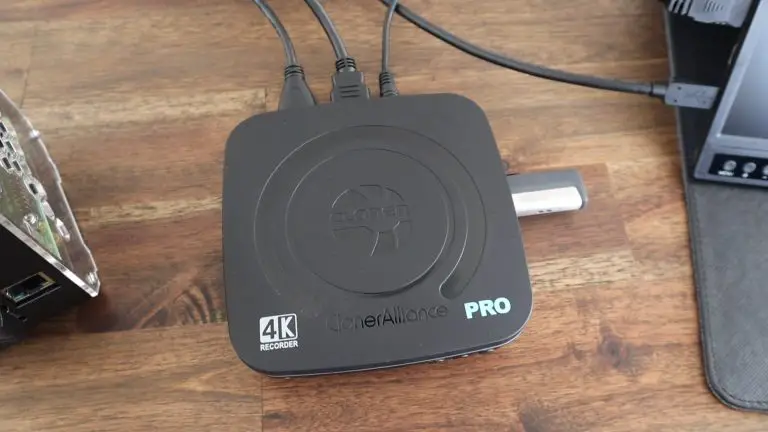
The ClonerAlliance UHD Pro addresses all of these issues in the form of a standalone device that sits between the video source and the monitor and allows you to capture 4K video with very low latency directly to a USB attached drive. So it’s ideal for gamers on consoles, and even computers, as you don’t have to try to run any capture software in the background. Your computer’s processor and graphics card are fully dedicated to the game you’re playing.

The CLonerAlliance UHD Pro also has provision for audio and microphone inputs and has a USB interface for live streaming.

With all that said, let’s get it unboxed and have a look at how it works.

Unboxing The ClonerAlliance UHD Pro

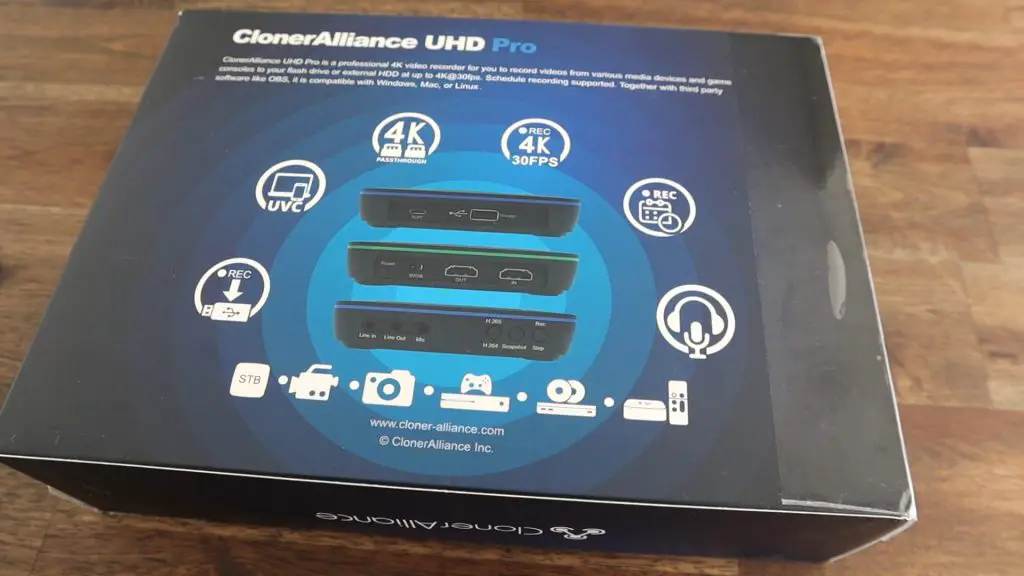
The ClonerAlliance UHD Pro comes in a box that is similar in size to an iPad’s.

ClonerAlliance UHD Pro Unboxing

The device is in a protective sleeve within a cardboard insert that divides the box into three sections, the other two of which contain the cables and accessories.

ClonerAlliance UHD Pro Unboxing - Inside

Included in the box you’ve got the Cloner Alliance UHD Pro capture box;

ClonerAlliance UHD Pro Recorder

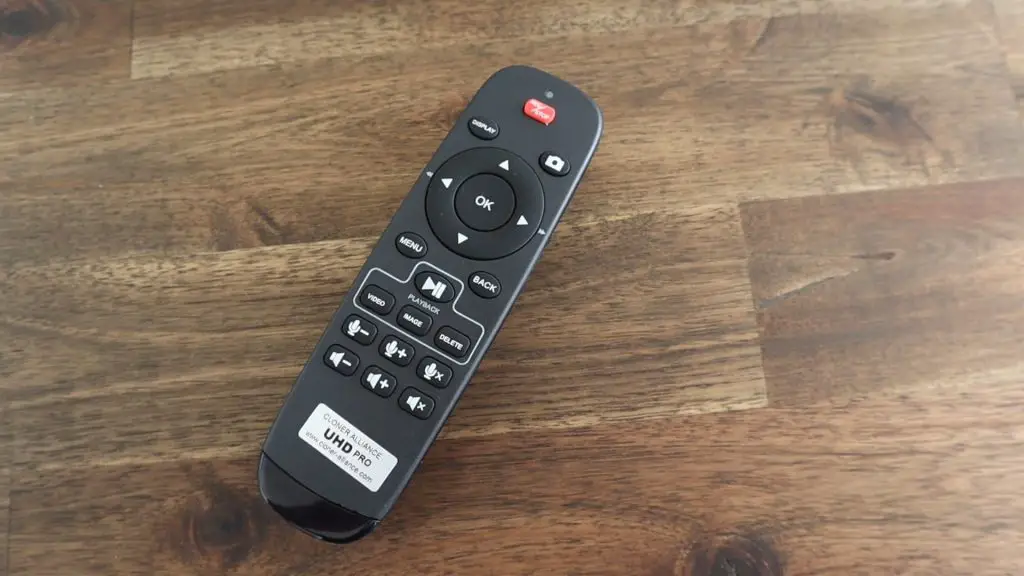
A remote control, which is pretty basic, but has all of the functions you’ll need including arrows and buttons for navigating through menus, a set of buttons to control video capture and playback and some audio controls;

Remote Control

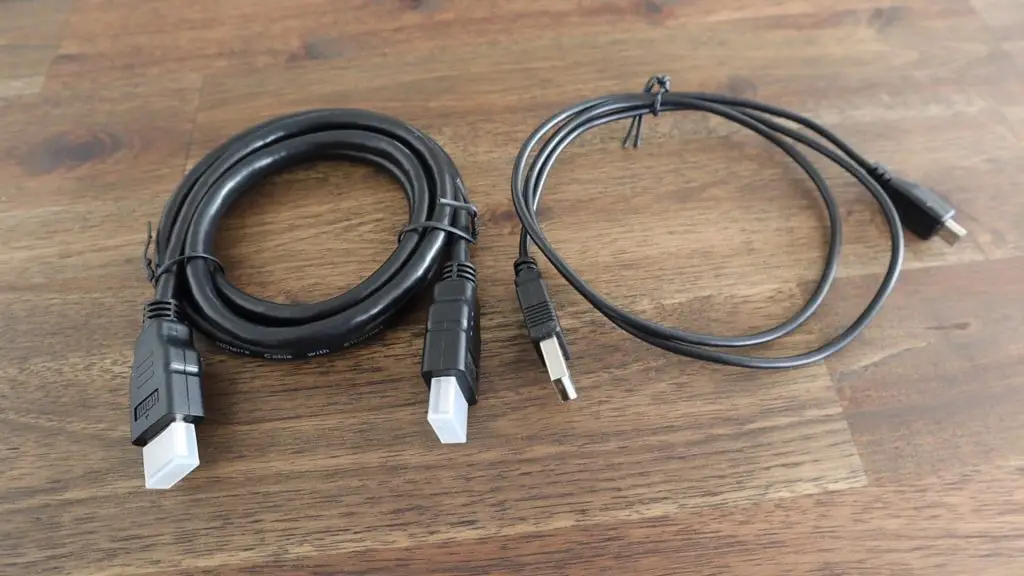
You’ve also got an HDMI and micro-USB cable. You’ll need two HDMI cables to use the box as a passthrough device, so they’re relying on you having the first as part of your current setup;

HDMI and MicroUSB Cable

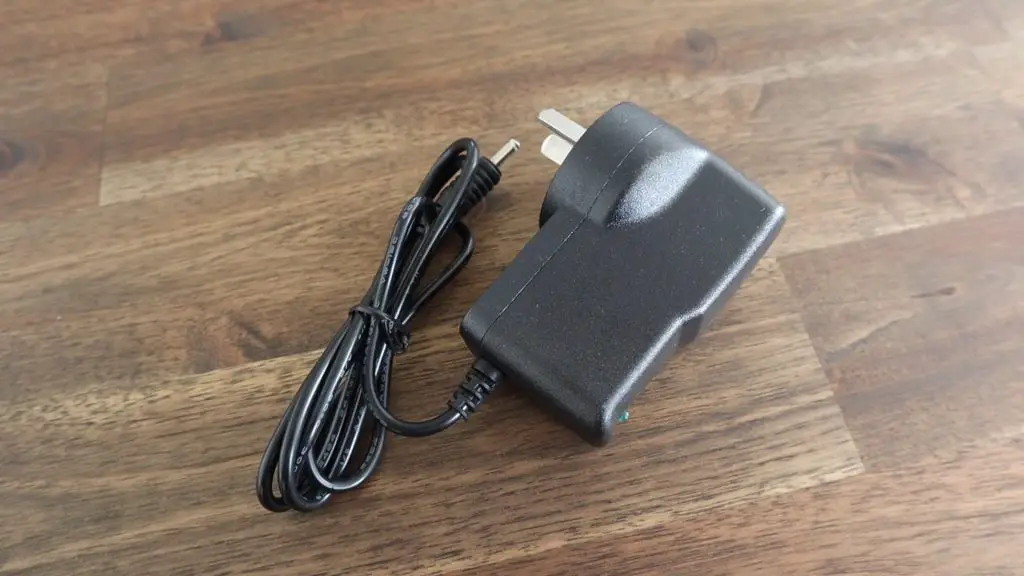
A 5V, 2A power adapter, which is customised to suite your country of order’s outlets (it looks like US, UK, EU and AU options are available). I’m not sure why they didn’t just make this a USB C power adaptor given that it’s running at 5V anyway, that would make it a lot easier to power as part of a mobile setup.

Power Supply

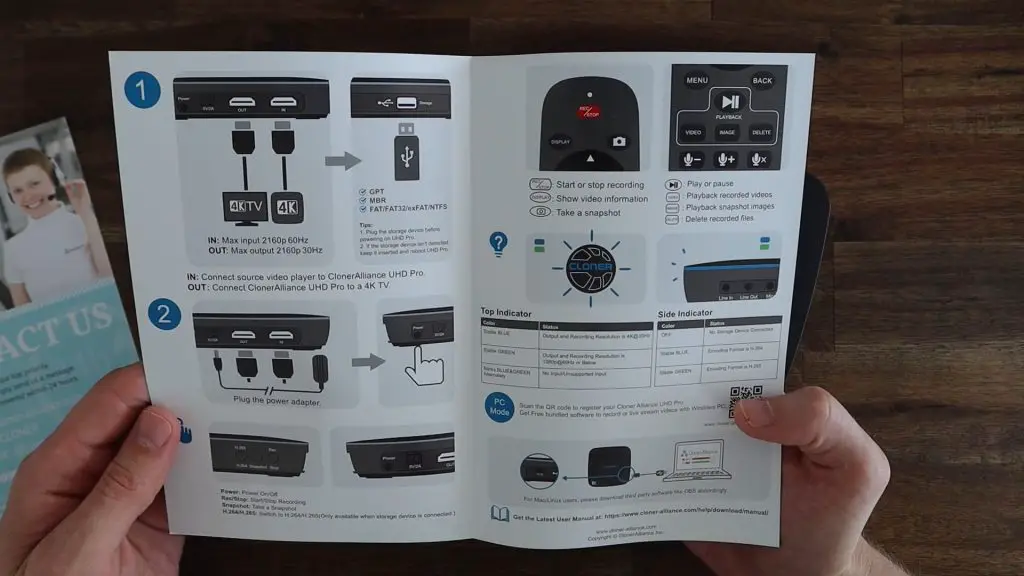
And a quick start guide. The quick start guide is a summary of the basic setup and operating instructions. It’s pretty well written, is in full colour and has images to support the text.

Quickstart Guide

The ClonerAlliance UHD Pro Ports & Interfaces

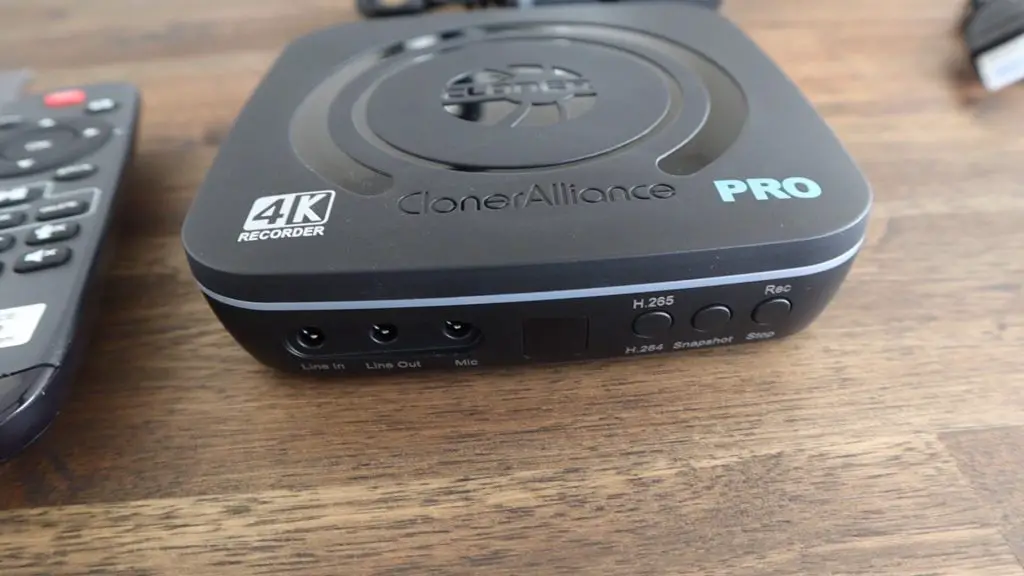
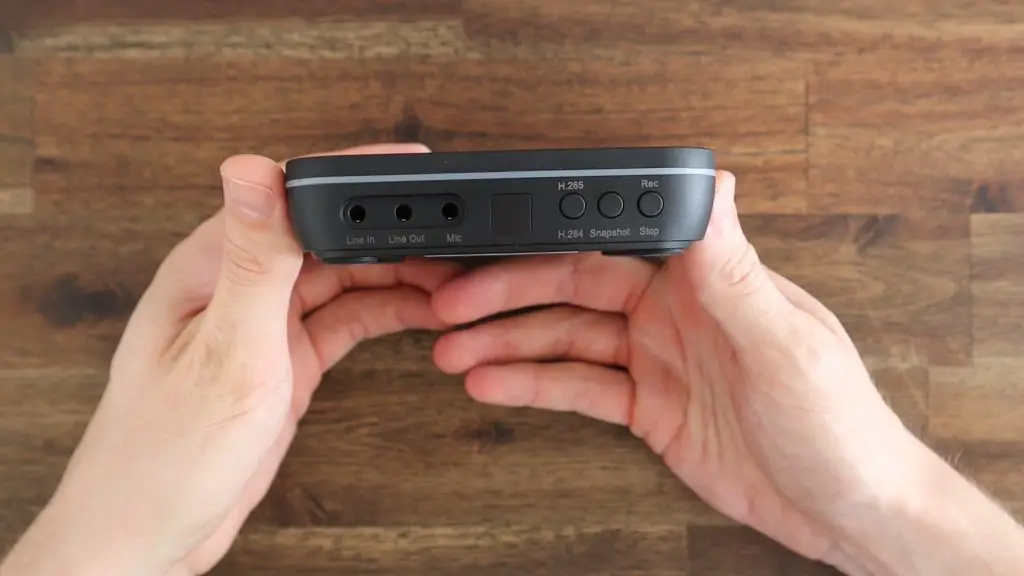
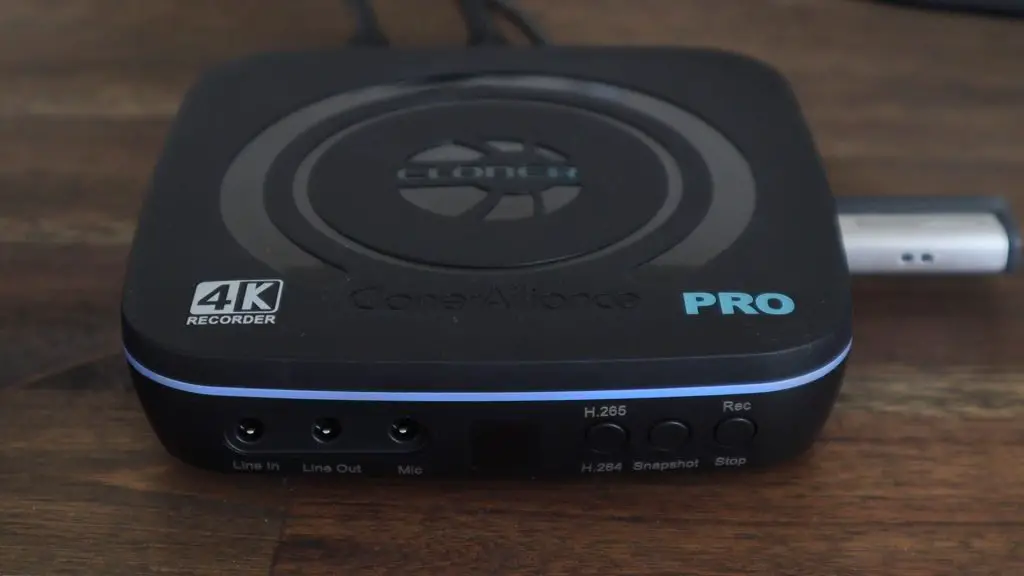
Taking a closer look at the capture box, on the front you’ve got 3.5mm audio ports for line in, line out and a microphone input as well as three buttons, one for the compression mode, one to capture still frames and the last to start and stop recording.

There is also a tinted window in the middle for the IR receiver for the remote control.

UHD Pro Front

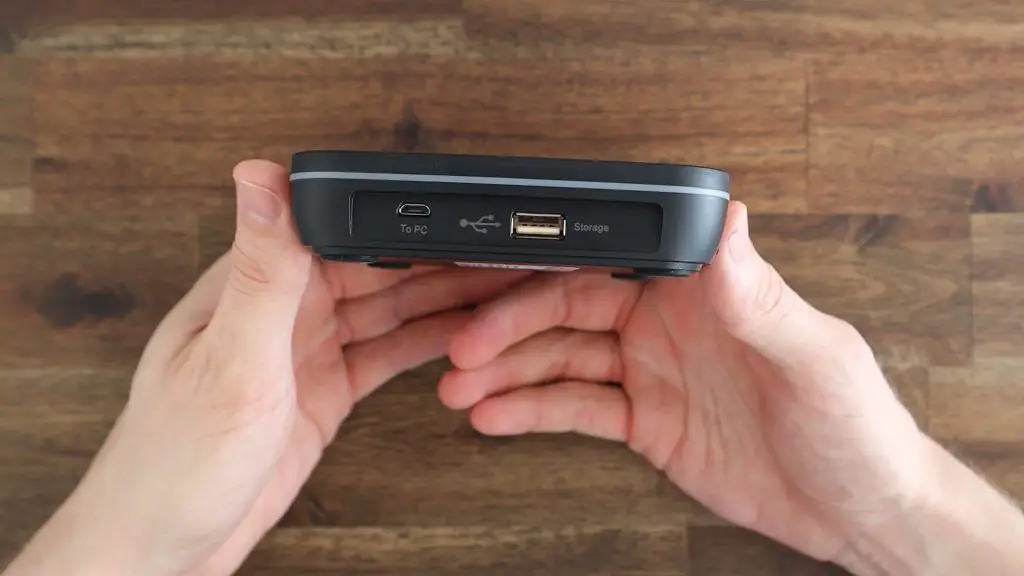
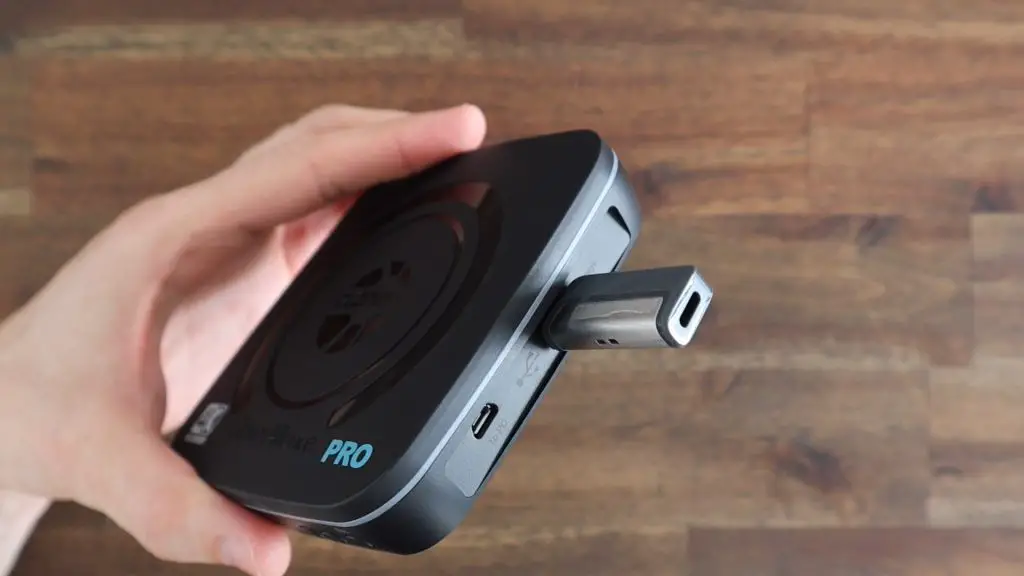
On the right side, we’ve got a USB type-A port to plug in a storage device and a micro-USB port to plug into a computer if you’d like to capture video directly to your computer or use the box for live streaming.

They don’t really mention anywhere what speeds are required for the external drive, they just say that it should be a high-speed drive. I’d imagine that you would want to use a USB 3.0 flash drive or SSD if you’re recording 4K video, you’ll likely run into bandwidth issues on USB 2.0 drives.

UHD Pro Side

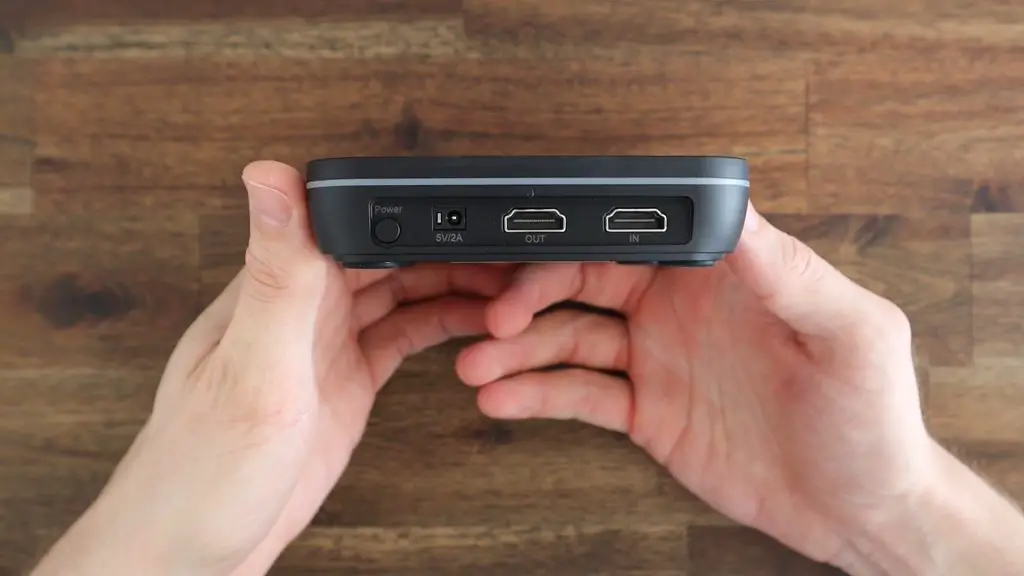
On the back, you’ve got your full-size HDMI in and out ports as well as the power supply input and a power button.

UHD Pro Back

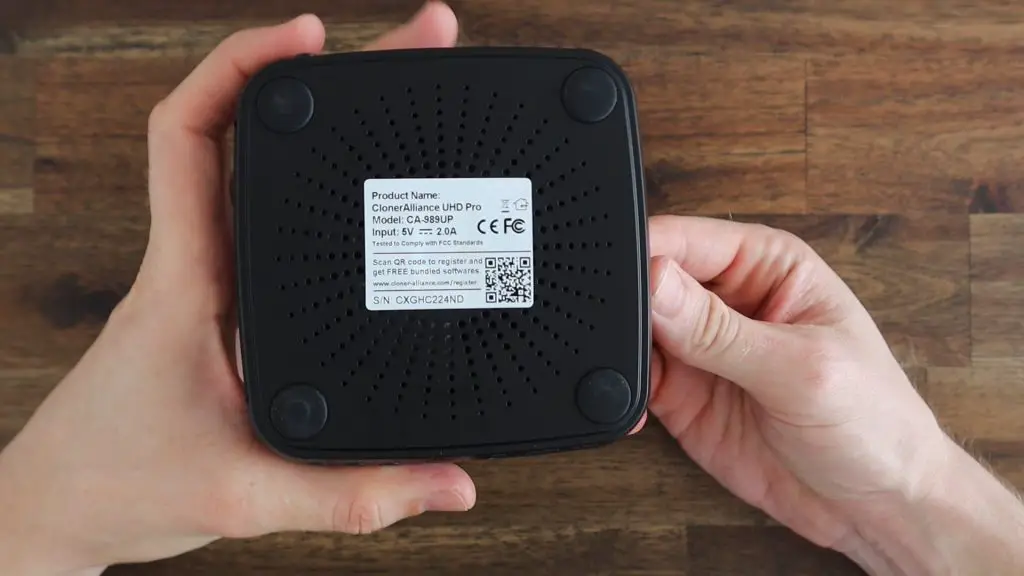
The bottom of the case is raised with large rubber feet and is vented to provide some cooling.

UHD Pro Bottom

Setting Up The ClonerAlliance UHD Pro

Setup is really straightforward, you just need to plug a fast storage device into the USB port on the side. As mentioned earlier, you’ll probably need to use a USB 3.0 flash drive or SSD for 4K recording.

Plug Drive Into Side of ClonerAlliance UHD Pro

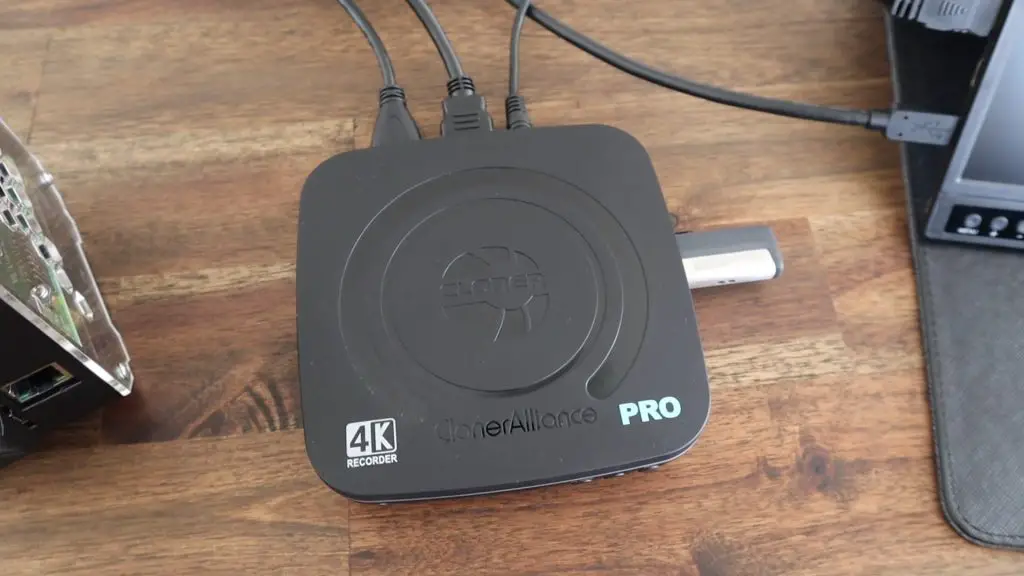
Then hook up your source and monitor to the HDMI ports and plug in your power supply.

Connect Up Ports and Power

When you switch it on, you’ll notice a green or blue LED band around the rim which is used to indicate the compression mode being used – blue for H.264 and green for H.265. This can be changed using the leftmost button on the front or from the remote control.

It’s a nice addition to support H.265 video compression. This more modern compression standard dramatically reduces the file size of the video files without any reduction in quality, which is particularly useful when you’re recording 4K video or when you’re streaming on a subscription plan where your data usage matters.

LED Band For Recording

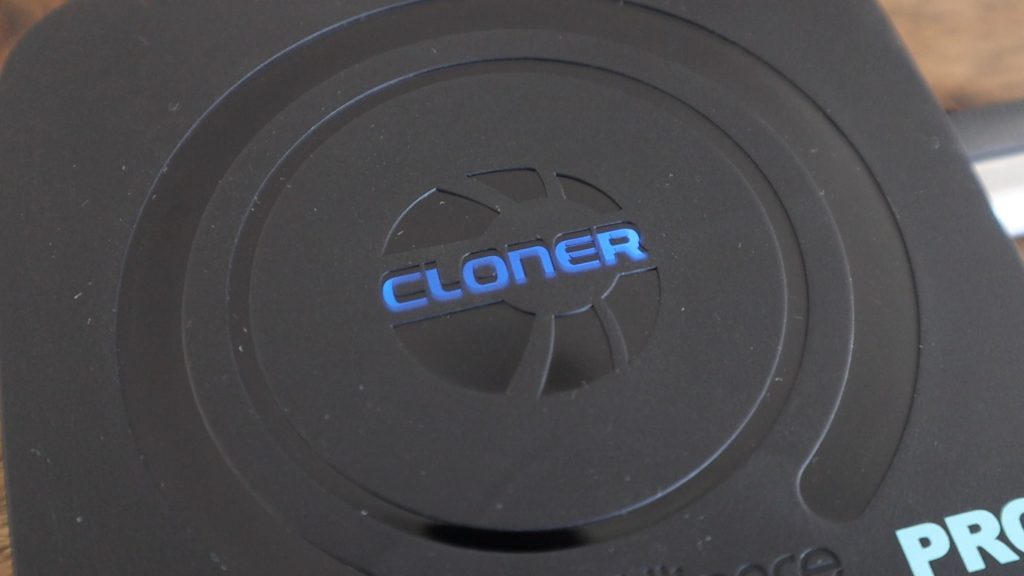
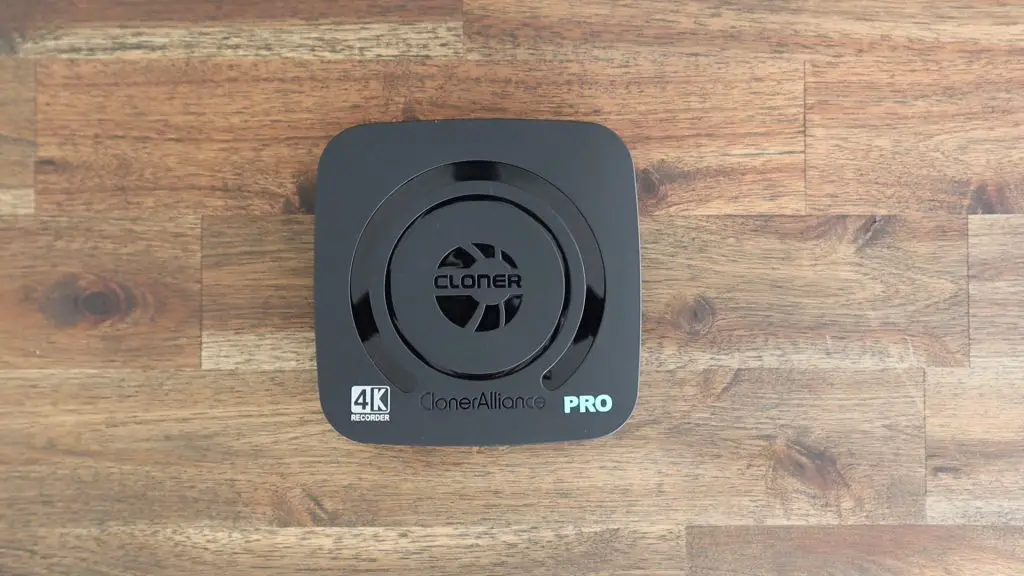
The Cloner logo on the top also lights up in green or blue to indicate 1080P or 4K output and recording resolutions respectively. It also flashes between green and blue when there is no input or the input is unsupported.

LED Logo For Resolution

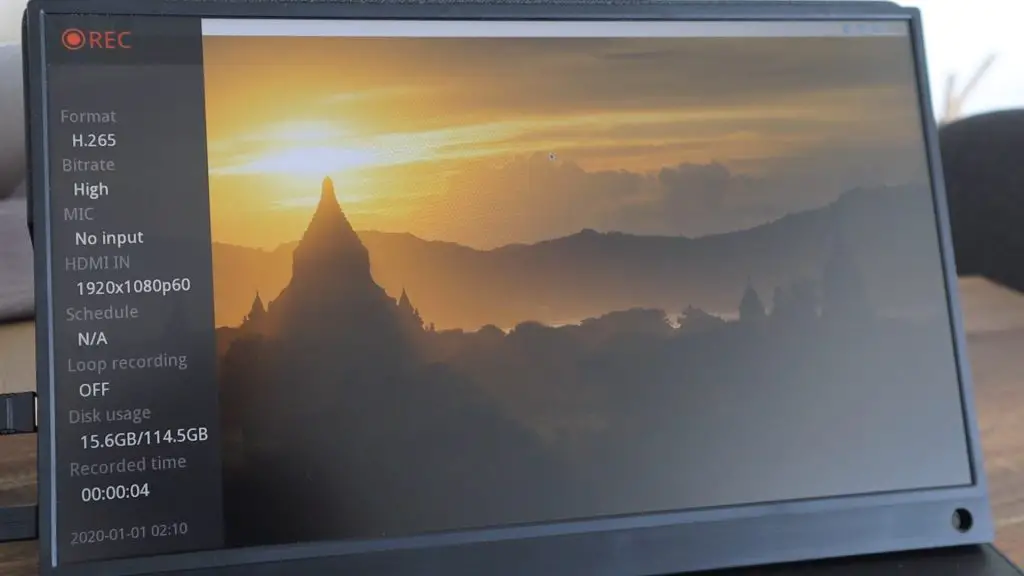
Once your computer, console or set-top box is running, your display will look exactly the same as it does without the UHD Pro. You’ll now be able to hit record on the remote control and a side panel will show up temporarily, to display the recording settings, and the contents of your screen are then being recorded. This is indicated by a small red “REC” icon on the top left, which can be turned off if you’d like.

Overlay While Recording

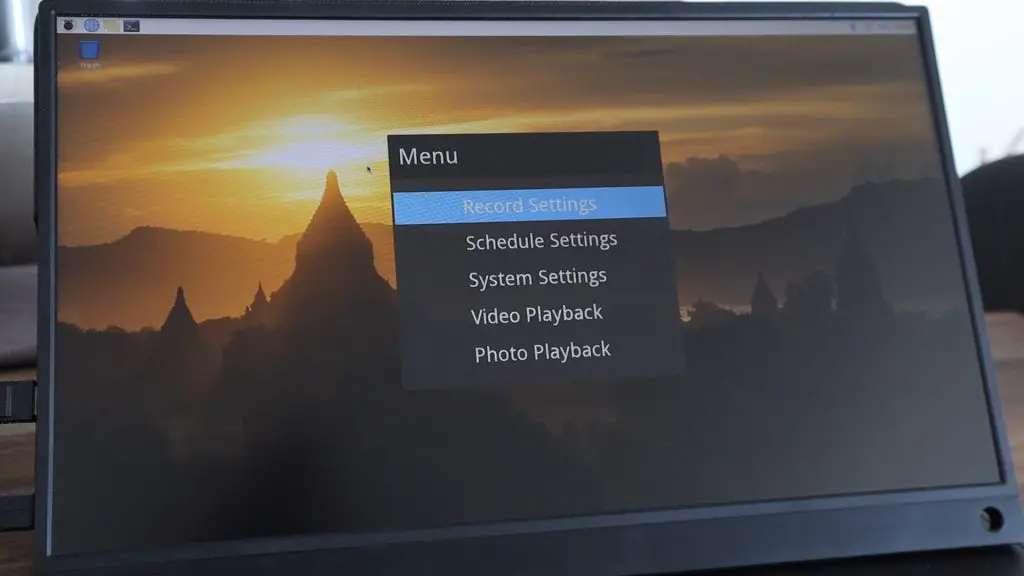
You can also access a range of overlaid settings menus with the remote control. These settings allow you to make changes to the recording output, set the system date and time, modify the display settings (like the “REC” icon) etc..

This is also where you can schedule recordings so that you don’t miss any live TV or sporting events. If you leave your ClonerAlliance UHD Pro connected, you can set it to start recording automatically on a particular date and time.

Settings Menus

Test Footage From The ClonerAlliance UHD Pro

I tested the ClonerAlliance UHD Pro on a number of devices, including obviously one of my Raspberry Pis, my Apple TV and Xbox and it worked really well with each of them.

Recording Options

The capture box also records any sound being provided over HDMI as well.

Video capture from the Apple TV and Xbox worked immediately. I had to change the display output settings through raspi-config on the Raspberry Pi to get the input to be seen by the ClonerAlliance UHD Pro, but it then worked without any further issues.

I’m not really sure what the issue was, the output resolutions are all listed as compatible with the Cloner Alliance UHD Pro, so it seemed to be an issue with the encoding, although this only seems to affect some output resolutions on the Pi and not others.

Screen Recording Affects Benchmarks

There is one limitation to its 4K recording ability and that is that it can only record 4K video at 30 frames per second. It’ll allow inputs of 4K 60 frames per second and it supports passthrough of the full 4K 60 fps, so it won’t interfere with your framerate for gaming, but it will only capture up to 30 fps in 4K. Alternately you can also configure it to record at 60 fps, but at a reduced 1080p resolution.

Recording Gameplay

Because it just requires an HDMI input, it also works on older platforms. So the ClonerAlliance UHD Pro video capture box is also ideal for capturing retro games, as well as for creating digital copies of old VHS tapes or DVDs. If your media player has an HDMI output and can be seen by your TV then it’ll likely work with the recorder box.

Recording Old Style Games

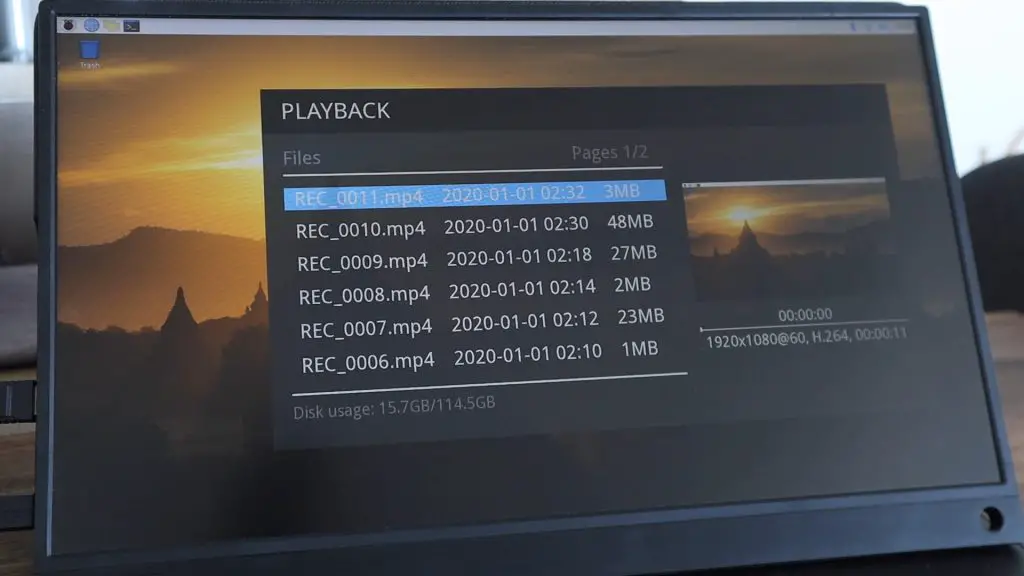
When you’re done recording, you can also playback your footage directly from the device. So you don’t have to wait to get it onto a computer first.

This interface could be a bit more user friendly, but it has all of the information you need and it is relatively easy to find the video that you’re looking for.

Video Playback Directly From ClonerAlliance UHD Pro

Final Thoughts

The ClonerAlliance UHD Pro is a powerful and compact standalone video recorder that is particularly useful for gamers on consoles and PC’s that don’t want to have to run screen recording utilities in the background. Its’ simple and easy-to-use interface makes it a breeze to get set up and running and I’ve been impressed with the quality of the screen recordings that I’ve taken over the past week.

If I had to nitpick, I’d say that it would have been more functional to replace the barrel jack power supply with a USB C power supply so that it could be used as part of a mobile setup and I would have liked to see an SD or microSD card slot for the footage to be saved to in addition to the USB drive.

I’m definitely looking forward to using it on my upcoming tutorials and project videos!

Let me know what you think of the ClonerAlliance UHD Pro in the comments section below.

ClonerAlliance UHD Pro 4K Video Recorder

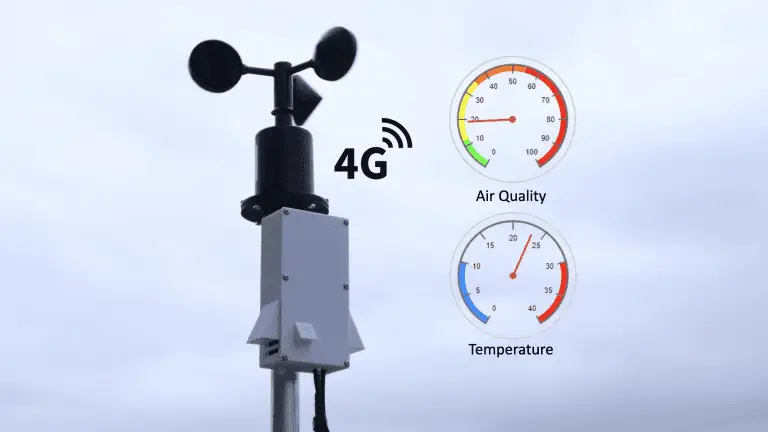
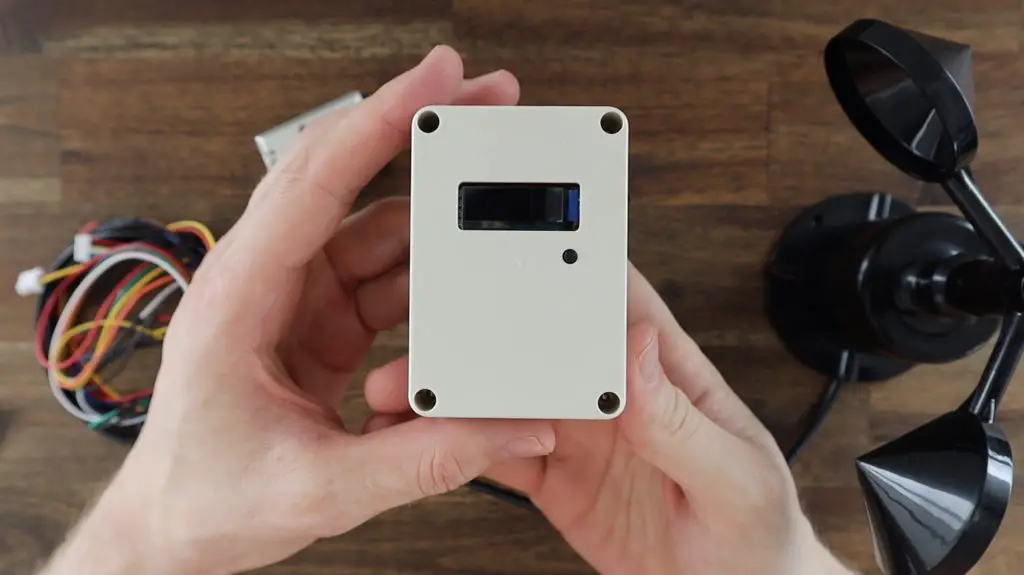
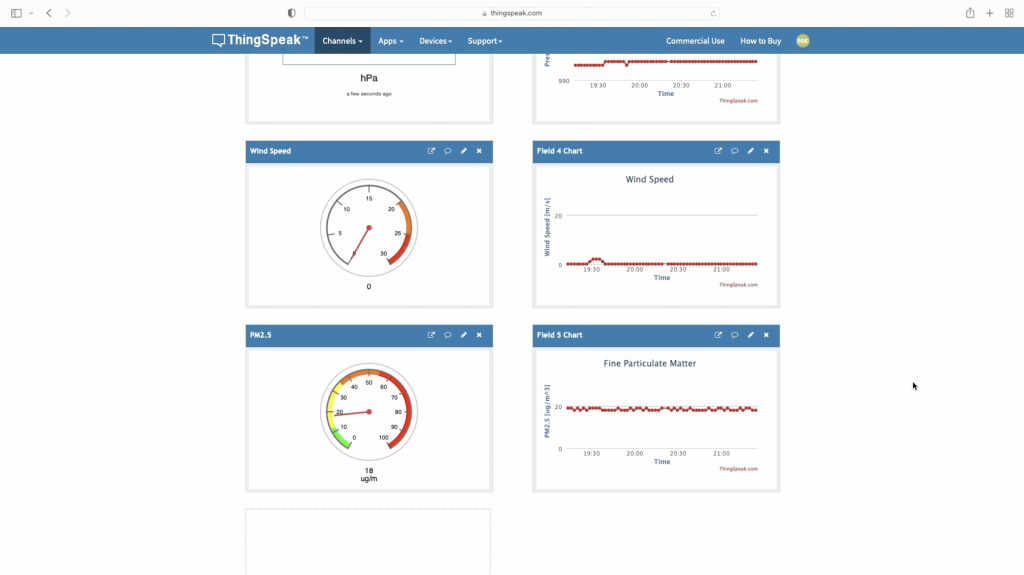
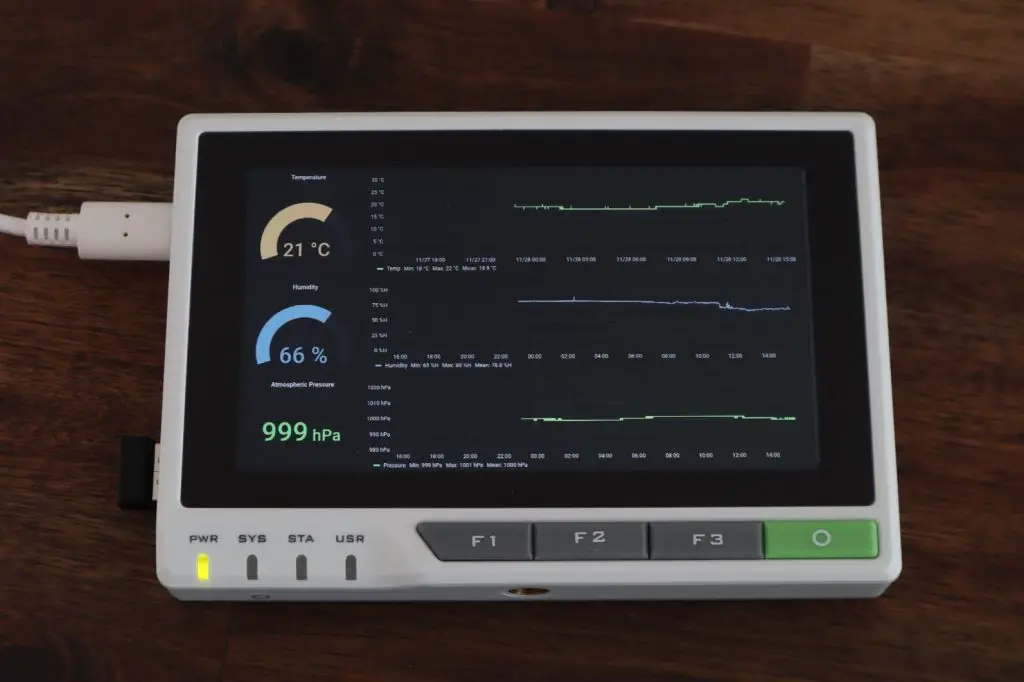
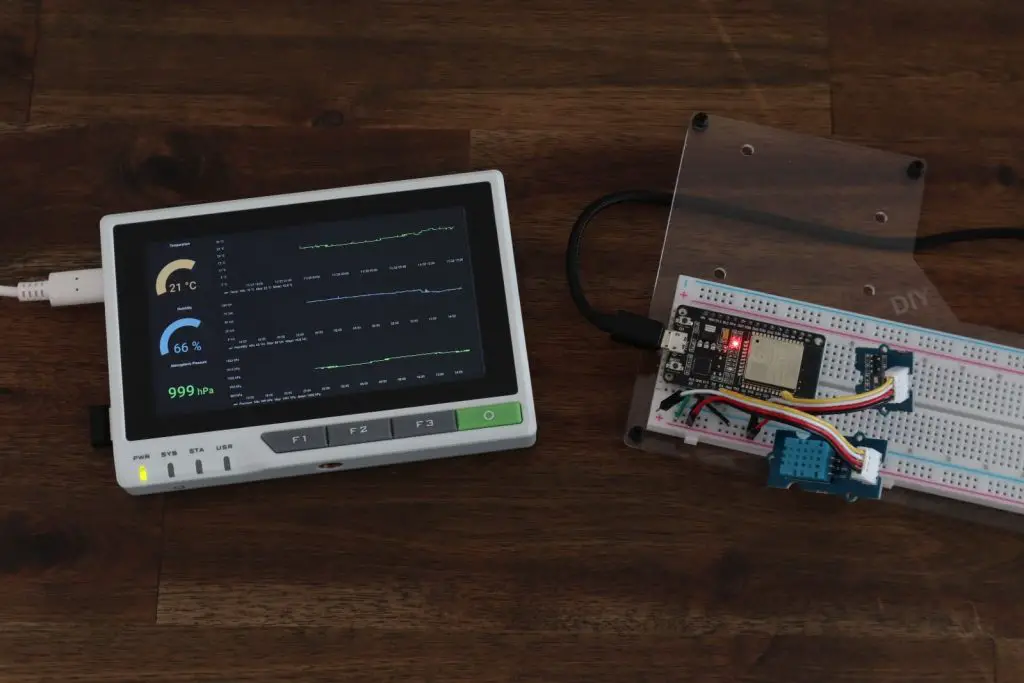
3D Printed IoT Weather Station Dashboard

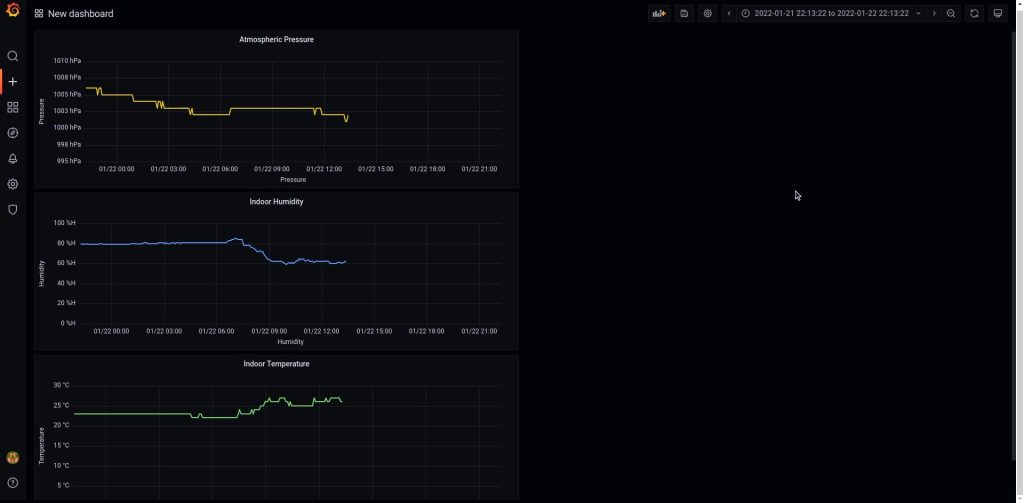
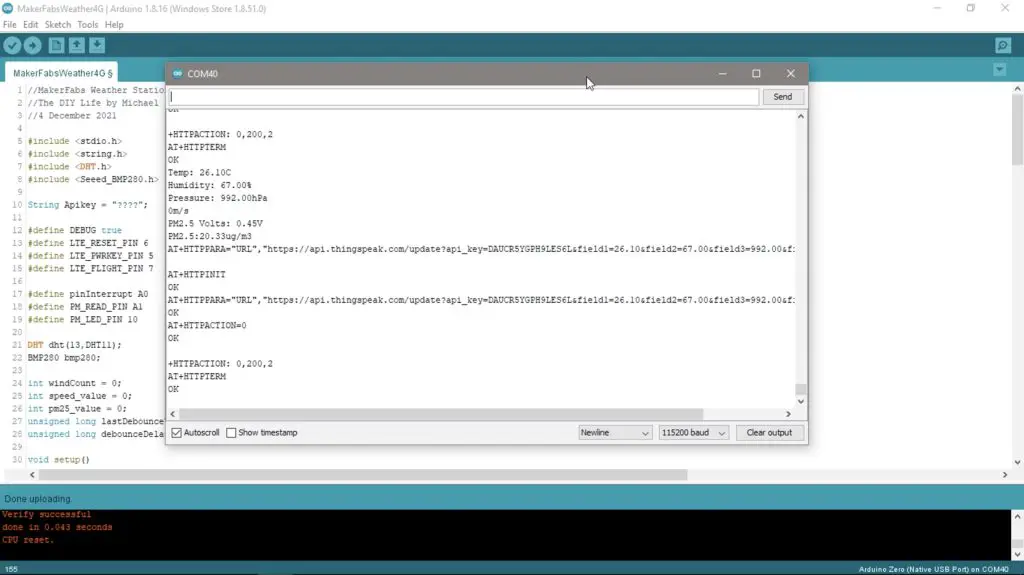
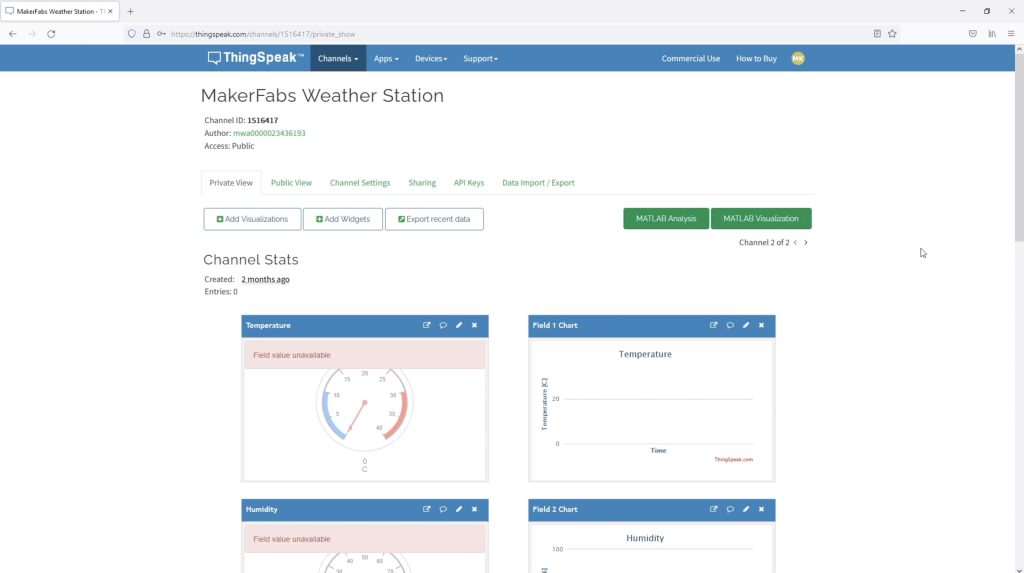
This is my dashboard for my 3D Printed IoT Weather Station project, you can build your own by following my build guide.

You can also view the data on my public Thingspeak Channel.

Temperature

Humidity

Barometric Pressure

Wind Speed

Light Level

I Upgraded My 3D Printed Weather Station Using Your Suggestions

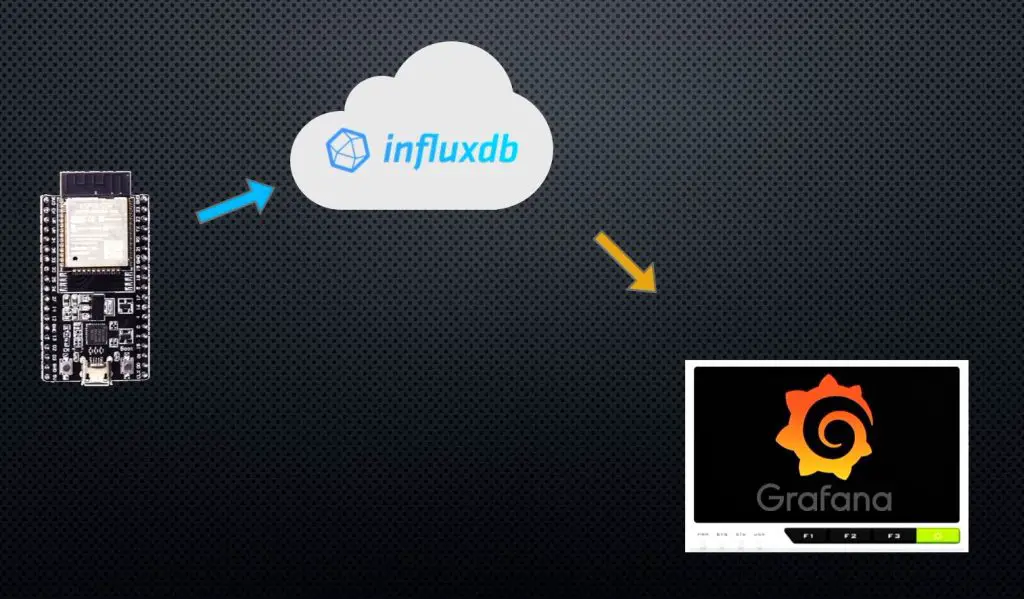
Today we’re going to be making some upgrades to my previously built IoT weather station using suggestions that you guys made in the comments section. We’ll see how well the weather station performs after the upgrades and I’ve included a link to the public Thingspeak channel, so you can have a look at the most recently recorded data.

Here’s my video of the upgrades I’ve made, read on for the written guide:

Upgrade Components Needed

In addition to the components that we’re going to re-use from the last project, you’ll need the following:

I also use the following tools and equipment in this build:

What Hardware Are We Going To Be Replacing?
Let’s start off by taking a look at what hardware we’re going to be replacing within the original weather station.

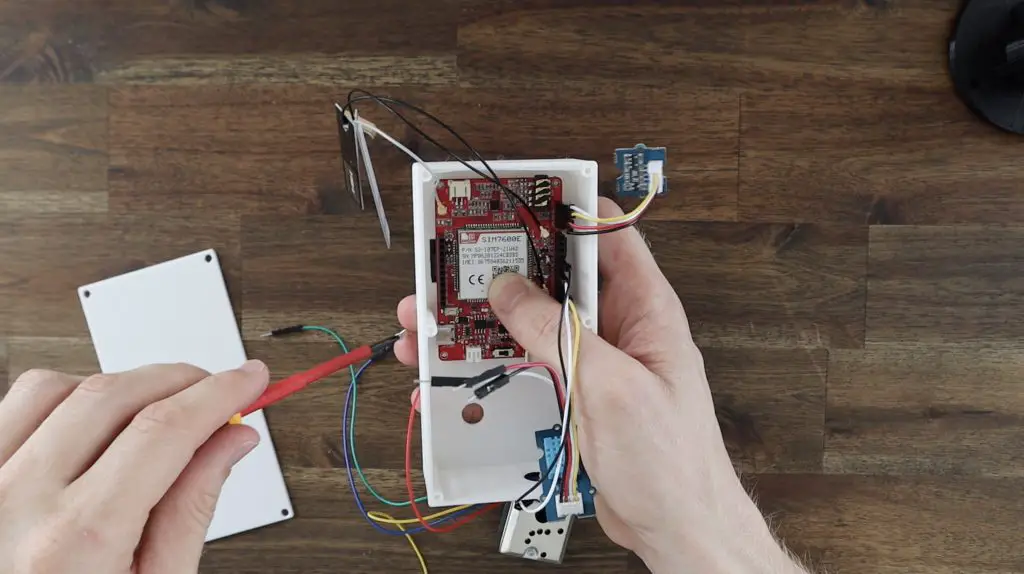
3D Printed Weather Station Internals

The original build used a DHT11 temperature and humidity sensor. Quite a few people mentioned that this sensor isn’t particularly accurate and is quite slow.

DHT11 Temperature and Humidity Sensor

Most suggested replacing it with a BME280 sensor, so that’s what we’re going to do. This sensor measures temperature, humidity and pressure, so I can also remove the separate pressure sensor from my original build. I’ll leave the light sensor at the top in place.

BME280 Temperature, Pressure and Humidity Sensor

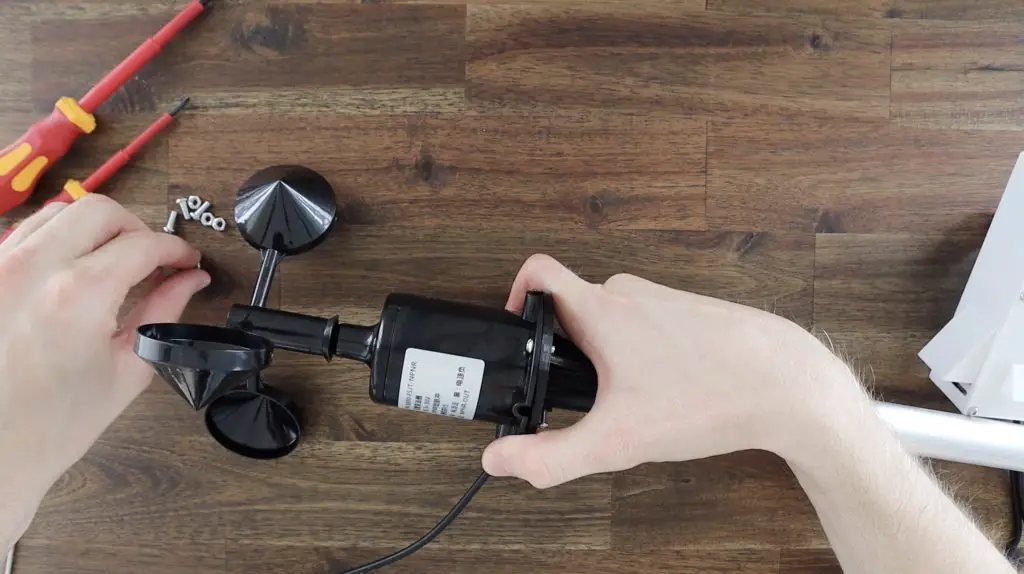
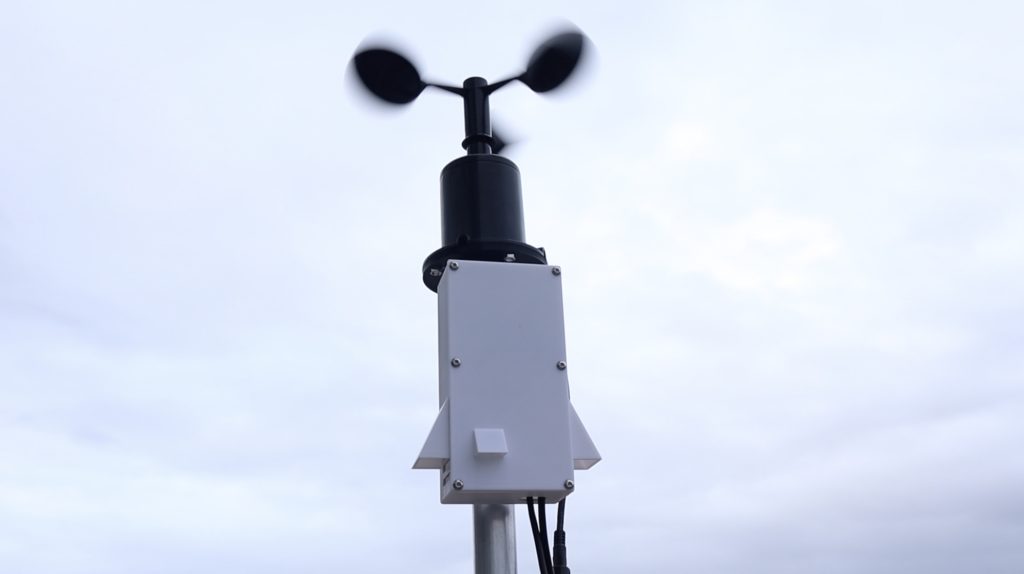
The next change that was suggested was again made by a number of people, and that was to replace the reed switch on the anemometer, or wind speed sensor, with a Hall Effect sensor. The reed switch, being a mechanical device, has a limited number of operating cycles before it wears out. Given that it could be switching up to 150,000 times a day, it probably won’t take too long to wear out either.

Anemometer Reed Switch

I haven’t used a Hall Effect sensor on a project before, and there are quite a few different options available, so the one I choose was an Allegro A3213. This sensor is polarity independent and has a latched digital output, so it’s quite a good fit as a replacement for a reed switch.

Allegro A3213 Hall Effect Sensor

The final hardware change that I’m going to make is to replace the original 1850 lithium-ion cell with a higher capacity 3000mAh lithium polymer cell. This cell will give the station about 30-50% more energy storage capacity, so it’ll be able to run longer between charges. It also has built-in overcharge and over-discharge protection.

Replace 18650 Cell With 3000mAh Lipo

While we’re on the topic of powering the weather station, I’m going to be adding a solar panel and solar power management board nearby to re-charge the battery. This isn’t a modification to the actual weather station as such but is another useful addition.

5V Solar Panel To Charge Station

Replacing The Weather Station’s Sensors & Battery

I’m going to install the BME280 module with the sensor facing towards the stand. This allows me to re-use the original sensor’s mounting holes and I won’t have to modify the sensor pints. This also shields it from any direct sunlight that manages to get into the housing and gives it a bit more protection from moisture. The sensor is still spaced slightly away from the stand, so there aren’t any pockets of air trapped around it.

Mounting BME280 Sensor

Replacing the reed switch with the Hall Effect sensor is a bit more involved. I have to first remove the reed switch, which I moulded in place with resin because I didn’t intend to ever remove it. I also didn’t want to have to print a whole new housing just for the new sensor.

After a couple of failed attempts, a drill eventually worked to crack the switch’s glass tube and I could then pull out all of the pieces. I also cracked the top of the housing in the process, but fortunately, resin prints repair quite well with additional resin, so that’ll be an easy fix.

Removing The Reed Switch

I soldered some wiring to the sensor before installing it in the housing so that I can again pour some resin around it to hold it in place and seal off the top of the sensor housing. It’s important to make a note of the wire colours connected to each leg of the sensor as you’ll need this when connecting them to your Firebeetle board.

Soldering Wiring To The Hall Effect Sensor

I bent the legs of the Hall Effect sensor at 90 degrees about 3mm from the sensor so that they could be directed through the hole in the housing and the face of the sensor would then be facing towards the bottom of the anemometer.

I shouldn’t need to do anything with the magnets in the anemometer, if they worked for the reed switch then they should easily work with the Hall Effect sensor as well, as they’re typically a bit more sensitive.

Hall Effect Sensor In Place

I then filled the void and area around the sensor with some resin to hold it in place. I then left this outside in the sun for a few hours to cure before lighting sanding it with my Dremel for an even finish.

Hall Effect Sensor Moulded Into Place

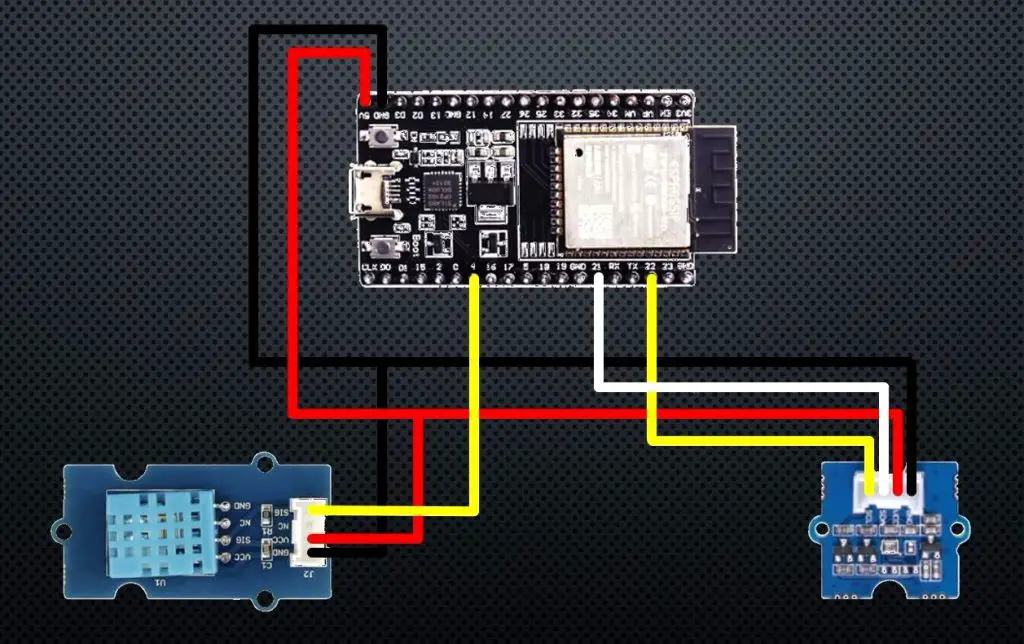
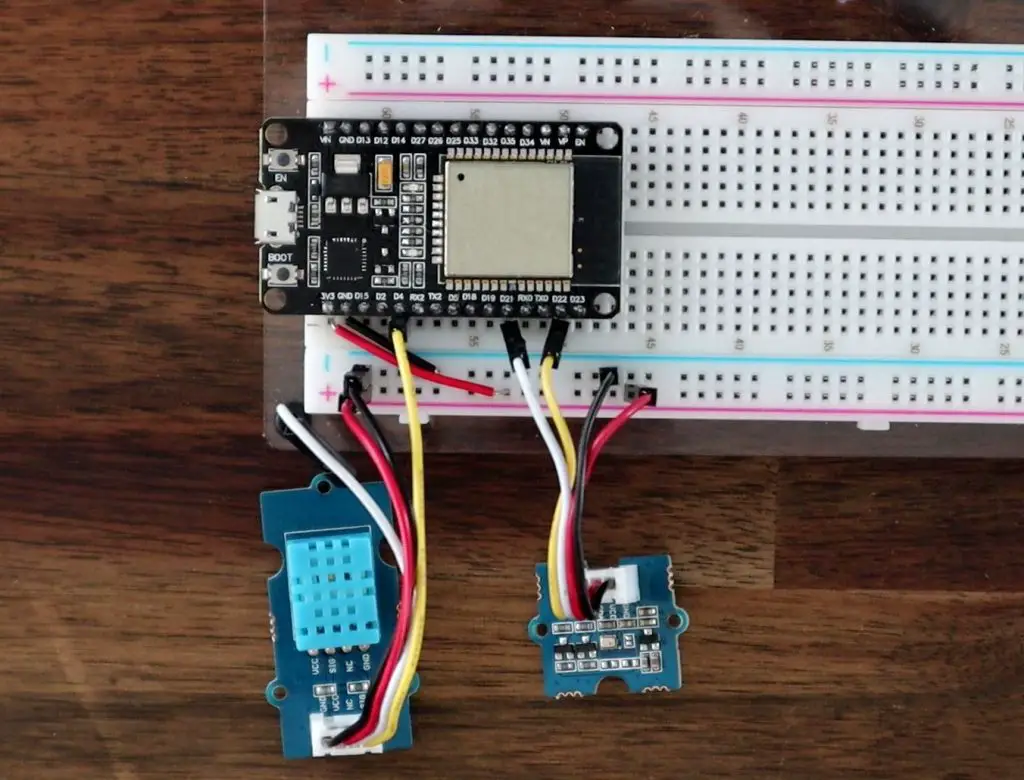
Now that the sensors are in place, we can make up a new wiring harness to connect them to the Firebeetle board. I also made some changes to the wiring to power the sensors. Rather than connect them directly to power and have the sensors stay on the whole time, a suggestion was made to turn the sensors on and off using the IO pins, as they don’t draw much current.

So I’ve got the BME280 sensor’s power pin (VIN) connected to digital pin 16 and the light and Hall Effect sensor’s power pins connected to digital pin 17. This means I can now turn the sensors on only when measurements are taken, so this should further extend the battery life.

The other connections remain as per the original design. The BME280 sensor is connected to the I2C pins, the light sensor to pin 36 and the Hall Effect sensor to pin 0 on the Firebeetle board.

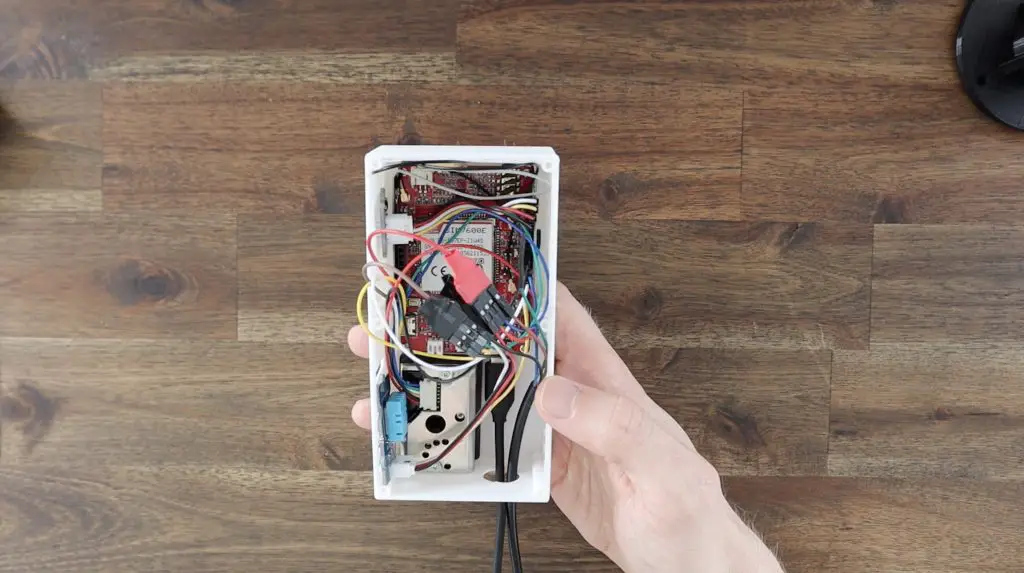
New Wiring Harness For Firebeetle Board

Improvements Made To The Code

Now that we’ve got the sensors connected up to the board, we obviously need to make some changes to the code so that they can be used.

Here is my revised version of the code:

The first and probably most significant is a look-up table for the wind speed. Ian Finnimore had a number of ideas to improve this part of the code, pointing out that the relationship between the wind speed and the rotation time is not linear. He also included a formula to use as a starting point. I used this along with some measured data to eventually calibrate the sensor, and the code now uses this lookup table to find the actual wind speed based on the rotation time. This also allows calibration adjustments to be made to select individual speeds or the complete range.

Wind Speed Calibration Map

I also reduced the cycle time to about 8 seconds, as this is all that is needed by the wind speed sensors. Even at the lowest measurable wind speed, the anemometer would rotate at least three times during this period, which is enough for the calculation.

Next I made the changes to the digital pins to turn the sensor on and off as they’re needed, rather than staying on all of the time. This just involved setting each sensor’s digital pin high a little before taking the reading from them and then turning them off again.

Lastly, I moved the WiFi connection right to the end of the cycle so that the WiFi connection isn’t active for the full cycle time, which saves power. I also added a timeout to the WiFi connection attempt routine. In my previous code, the board would stay on and keep attempting to connect to the WiFi network even if it was temporarily unavailable or there was an error. Getting stuck in this loop obviously dramatically drained the battery and resulted in the station dying in a day or two if it occurred. It’ll now try for only 10 seconds and if there is no connection available it’ll timeout and go to sleep anyway.

Testing The Weather Station’s New Power Consumption

We’ve made a few improvements to the hardware and software, which should result in lower power consumption, especially during the sleep period, so let’s test it.

I connected my multimeter to the supply and turned the board on.

The current draw spikes to a little over 100mA when starting up and then quickly settles around 45-55mA while it is taking readings, which is for the majority of the “on” period.

Current Draw When Running

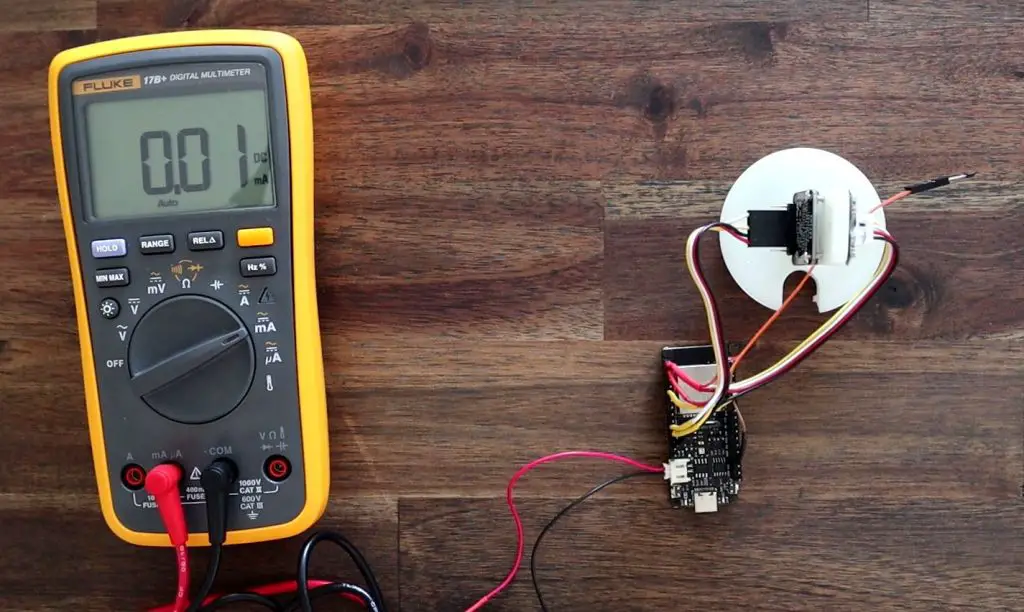
The most significant improvement was during the sleep period. It now goes down to just 0.01mA or 11µA, which is a large improvement over the last version. This is using almost 100 times less power during sleep mode than the previous version.

Note that the multimeter below is now in µA rather than mA shown above. So this is 11.3 thousandths of a mA.

Current Draw During Sleep Mode

So if we calculate the expected battery life using a 10 minutes cycle time, with 10 seconds of “on” time and 590 seconds of “sleep” time in each cycle, and an average draw of 60mA while on, with the new battery we should get a little under 3000 hours or 124 days of run time. So that’s around four months off a single charge, which is also a great improvement.

Run Time Calculation

Mounting And Adding Solar Power

I previously mounted the weather station directly onto a flat surface using the three feet on the base. This time, I want to rather mount it onto a pole so that there are no flat surfaces around it to affect the wind speed and I want to add a solar panel mount onto the same pole.

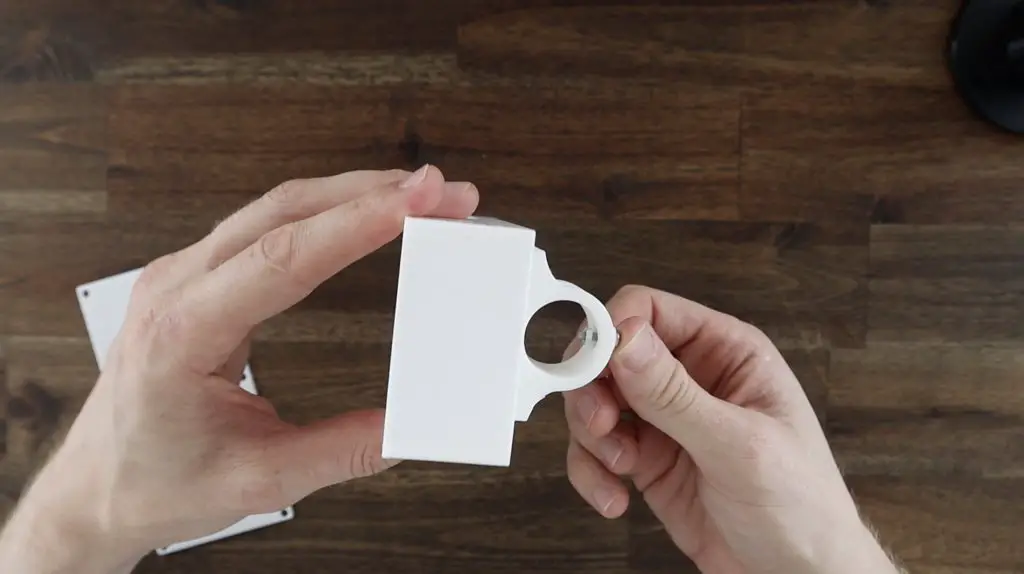
So I designed and 3D printed a bracket to mount the weather station onto a 25mm pole, which is easy to then mount onto a railing or fence post.

Now I know that improving the battery life means that it hardly ever needs to be charged, but to make it a truly plug-in and forget weather station, I wanted to add a solar panel so that the battery is kept charged without me having to remember to charge it.

I’m using this 5V panel which I have from a previous project. It claims to be a 1A panel, but that seems a bit optimistic for its size. In any case, it’s way more than what we need to replace the 25 or so milliamp hours used each day. It’ll work well to provide some additional capacity for longer periods of overcast days and allow for a drop in efficiency over time.

5V Solar Panel To Charge Station

I’m going to use a DF Robot solar power management board to control the charging of the battery. This board basically takes the power provided by the solar panel and uses it to charge the battery and provide a regulated supply to the Firebeetle board.

DF Robot Solar Charge Controller

I’ve also made a 3D printed bracket and housing to hold the panel and the solar power management board and these will be installed on the same pole underneath the weather station.

The bracket for the solar panel and the holder for the solar power management board are glued onto the solar panel using some epoxy. I used four nylon standoffs to hold the board in place and provide supports for the cover.

Glued Into Place On Holder

The cover can then be held in place using four screws that came with the solar power management board.

Solar Power Management Cover

I drilled an 8mm hole in the bottom of the weather station base to run the wiring to the battery and to the Firebeetle board. Be careful drilling through resin prints as they’re quite brittle. It doesn’t take much force to crack them entirely (like I did with the sensor housing).

Drill Hole In Bottom Of Weather Station Housing

The solar panel bracket is then mounted onto the pole and the weather station is mounted onto the 3D printed bracket on the end of the pole. An M3 screw and nut are used to hold each in place, the nut sits on the inside of each bracket and helps press the screw against the pole to secure them. The wiring is fed through the base and then plugged into the battery and the Firebeetle board.

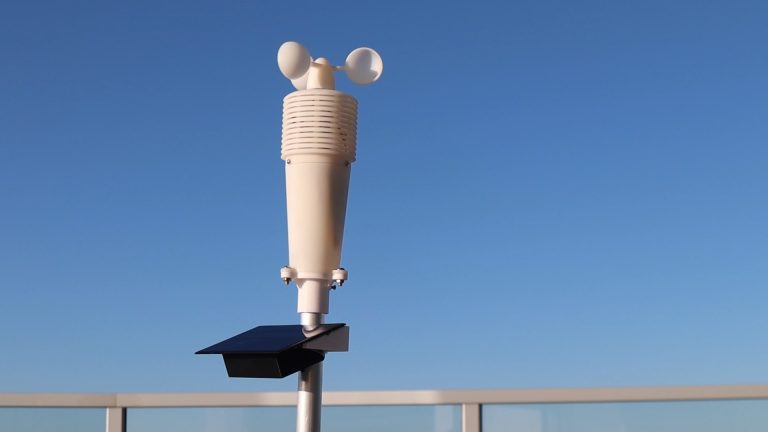
Assembled Components On Pole

Using The Modified Weather Station

I mounted the weather station’s pole outside and it has been running for about three weeks at the time of writing this post.

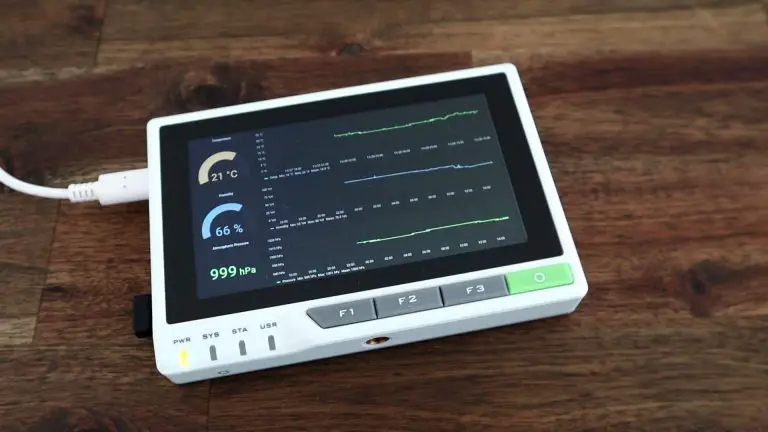
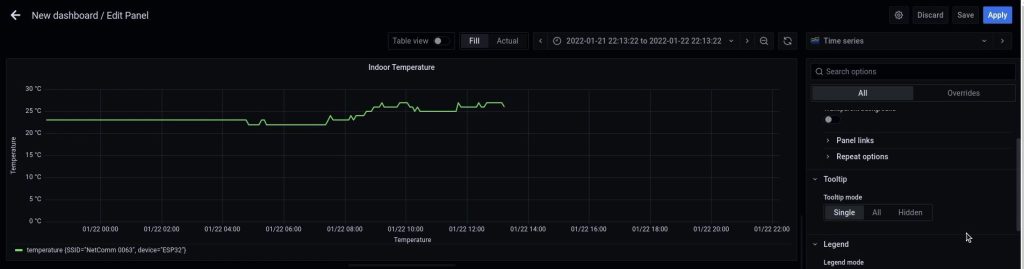
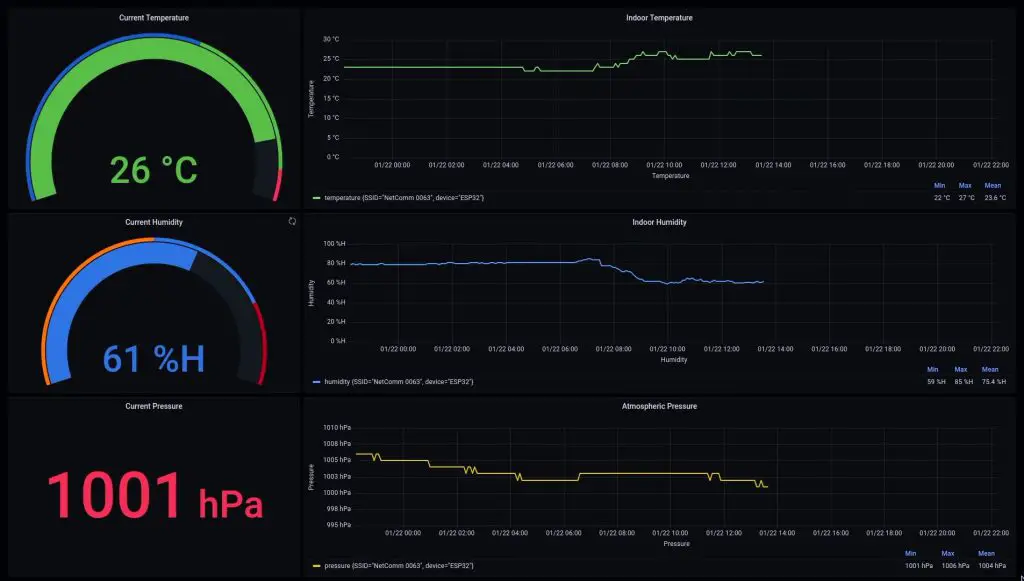
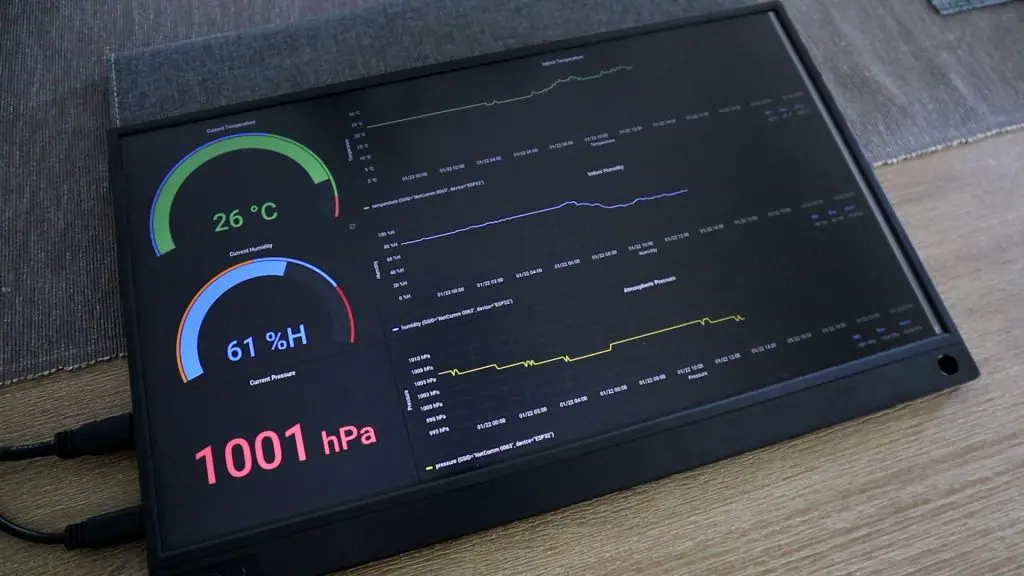
This is a sample of the temperature graph, you can view my full weather station dashboard here, or visit my public Thingspeak channel.

Since the weather station’s power consumption has gone down quite substantially, I’ve been thinking of trying to power it using some sort of supercapacitor arrangement rather than a battery.

Let me know if you’ve done this or if you’ve got any suggestions for this in the comments section.

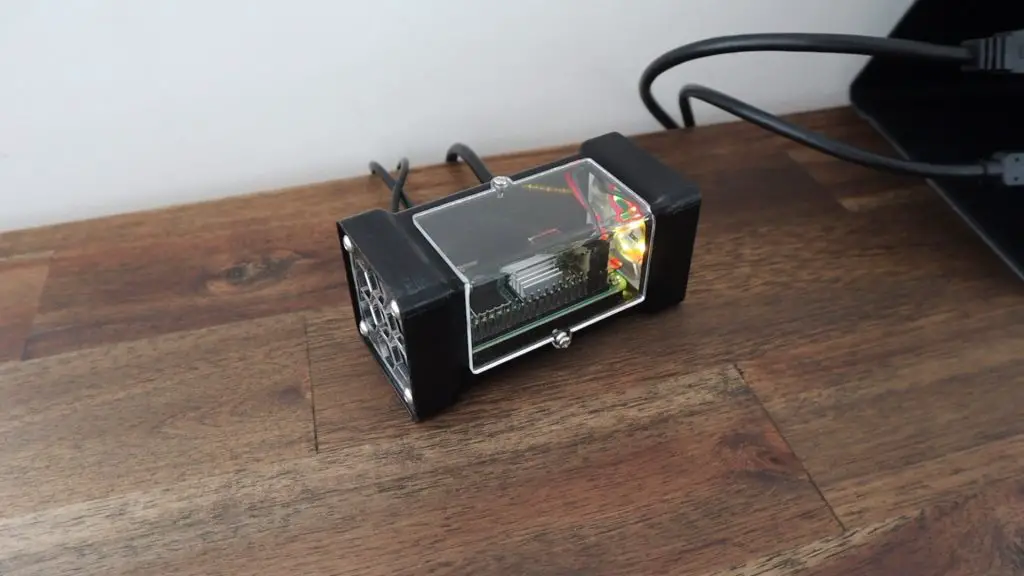
Raspberry Pi 4 SSD Case With Stats Display

In this project, we’re going to be taking my previous Raspberry Pi Desktop Case design and adapting it to accommodate an SSD underneath the Pi.

The case uses the same Raspberry Pi and Ice Tower combination that I used on the last version, but this time I’m going to add a Geekworm mSata SSD shield and a 128gb SSD. I’ve chosen an mSata shield and drive as these are typically quite a bit cheaper than NVME drives, and you don’t get that much benefit from using an NVME drive as you’re limited by the maximum speed of the USB 3 port in any case. You only really benefit from an NVME drive if it is connected through a PCIe port.

This case design is also compatible with the Geekworm M.2 NGFF SSD shield.

You can buy a premade kit to assemble your own Pi SSD Case from my Etsy store.

Watch my video of the build below or read on for the full project details:

What You Need For This Project

or

Equipment Used

Components Required

Preparing Your Components

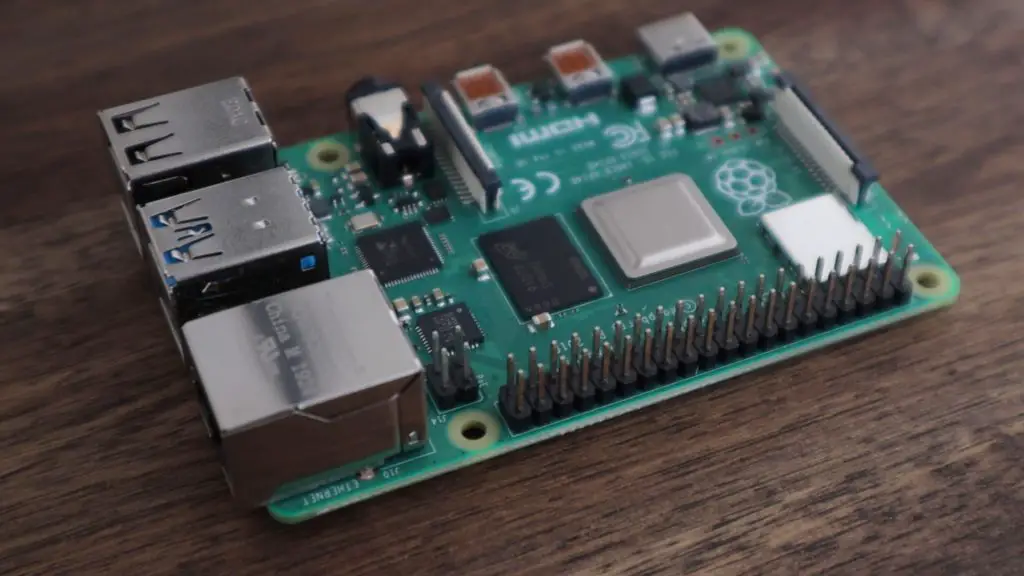
I’m using an 8GB Raspberry Pi 4B, but you can use the 2GB or 4GB version as well as they’re identical in their layout. Unfortunately, this case won’t be compatible with the Pi 3 or 3b+ as their port layouts are different to the Pi 4.

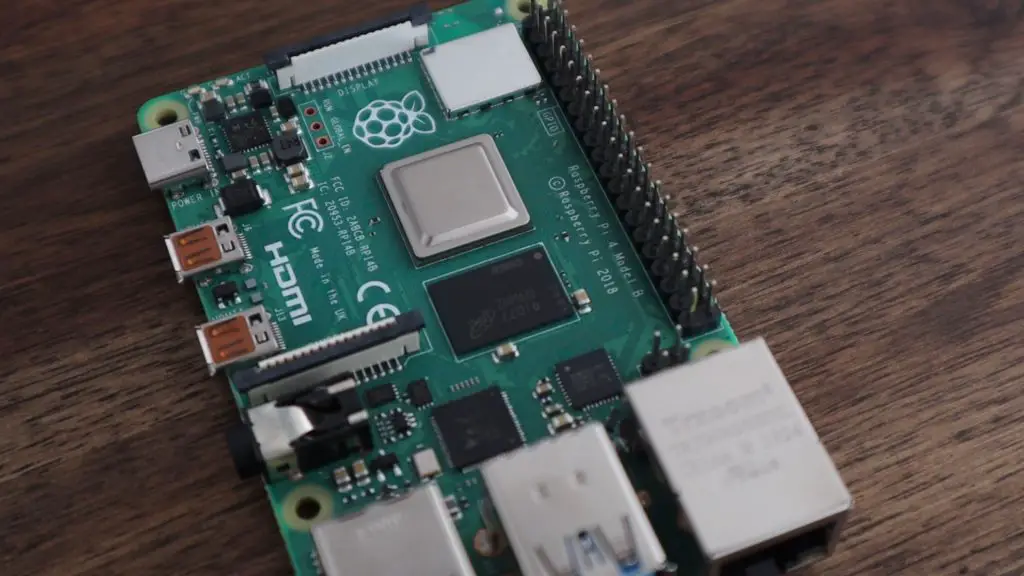
Raspberry Pi 4B 8GB

I’m designing this case around the Geekworm mSATA SSD shield. This is version 2 of this shield, so it is powered directly through the USB port and is slightly lower profile than the earlier versions. It supports UASP and up to a 2TB mSATA SSD.

Geekworm mSATA SSD Shield

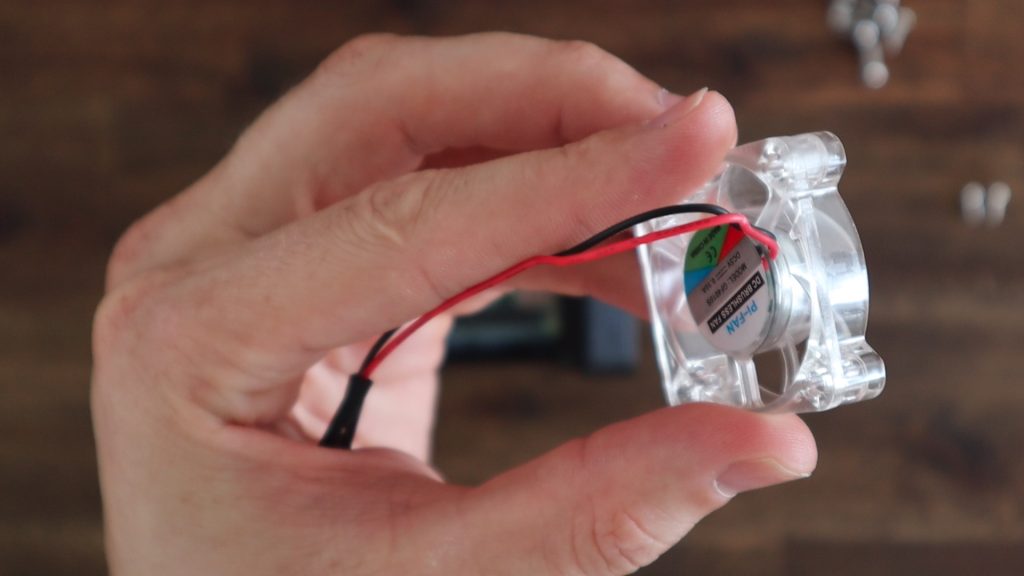
Cooling will be provided by an Ice Tower, which is a large heatsink that sits on top of the CPU. We’re going to move the fan off of this heat sink and onto the side of the case. It’ll be positioned so that it pulls air in from outside the case and blows it across the heat sink and out vents on the opposite side.

Ice Tower Cooling Fan

Assembling The Pi & SSD Stack

Let’s start off by assembling the Pi stack so that we can take measurements from it so that we know what we need to modify on the case.

First, we need to mount the legs onto our Ice Tower. These are just installed as per the instructions supplied with the Ice Tower and screw in underneath the heat sink.

Legs Installed on Ice Tower

Next, let’s remove the fan from the Ice Tower so that we can mount it on the side of our case later on. Set the screws aside as well as we’re going to re-use them.

Fan Removed From Ice Tower

The Ice Tower and the SSD shield both come with some screws and standoffs to mount them onto the Raspberry Pi.

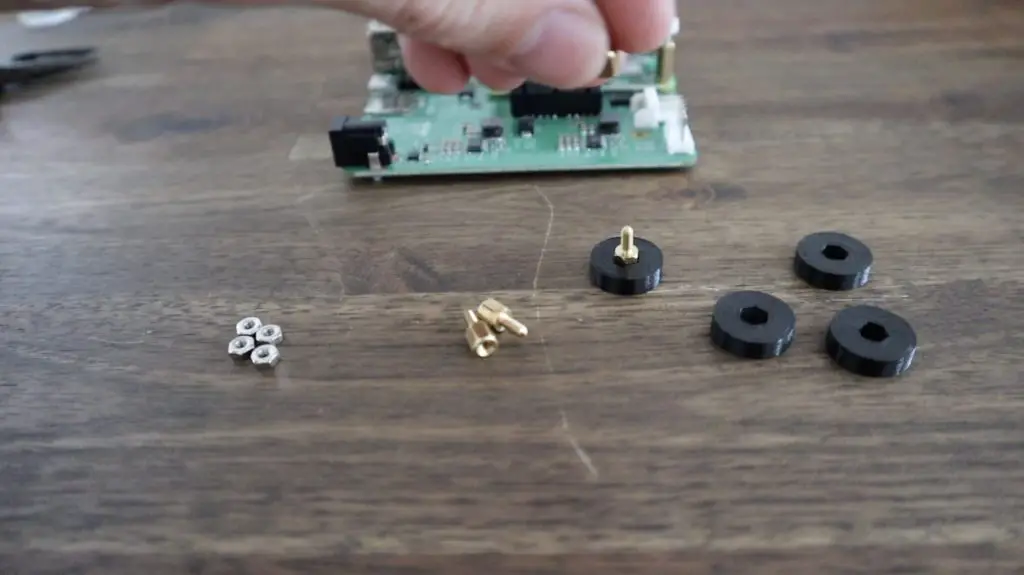
For this case, we’re going to use the 4 female-to-female standoffs and 4 black screws from the SSD shield, leaving the longer screws and male-to-female standoffs unused. We’re also going to use 8 brass standoffs from the Ice Tower and four silver screws to secure it. We won’t be using the four nuts or the spare screw and standoff.

Although the male-to-female brass standoffs that come with the SSD shield might look similar to the Ice Tower ones, they’re actually a bit longer, so don’t muddle them up.

Screws Required For The Build

Screw the female-to-female standoffs to the SSD shield using a male-to-female standoff on the opposite side. The female-to-female standoffs go on the USB port side of the shield.

Standoffs Installed On Shield

The Pi is then held on top of the standoffs with the second set of standoffs from the Ice Tower.

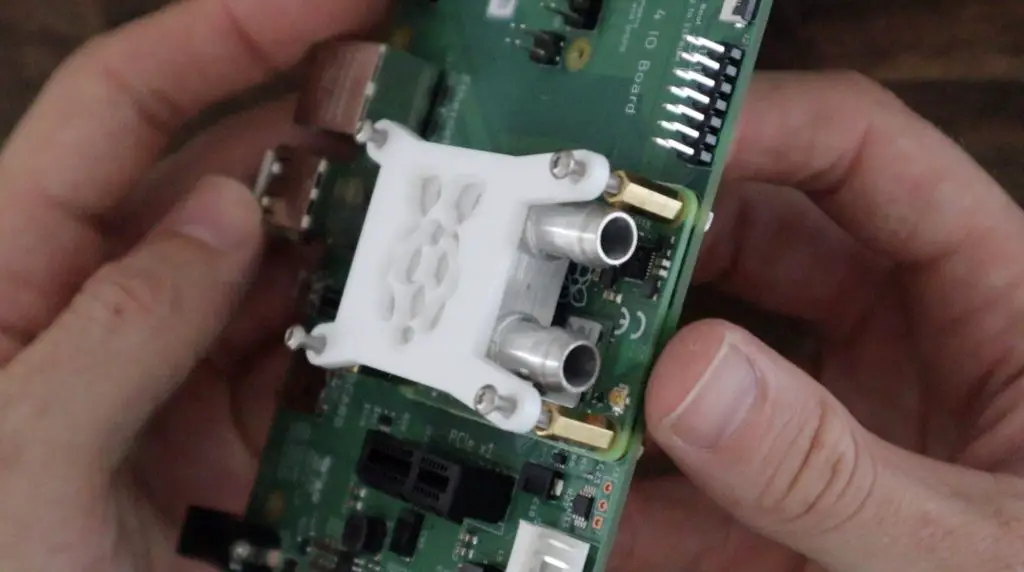
We can then add the Ice Tower to the Pi, remembering to first add the thermal pad on top of the CPU. The four silver screws hold the Ice Tower in place.

Our stack is now complete and ready to install in our case, so let’s modify the case design.

Ice Tower Installed On Pi

Designing and 3D Printing The Pi SSD Case

Now that we know what we’re going to be mounting in the case, we can start modifying the previous design to fit the SSD shield in underneath the Pi.

I took some measurements from the stack and adapted the design by moving the ports higher up on the front, slotting the middle USB port cutout to accommodate the jumper, and modifying the holes in the base to allow the screws to screw into the brass standoffs from underneath.

Case Design Modifications Complete

If you’d like to 3D print your own case, you can download a copy of the 3D print files, including a version with the ports on the back of the case, from the following link.

With the case design done, let’s print it out in Black PLA with a 15% infill. We’ll need to print it on its side and add some supports to the front for the ports.

3D Printing The Case

We then need to clean up the case and remove the supports before putting our Pi into it. Also, remember to remove the supports from the bottom holes in the case if you added them there as well.

Removing The 3D Print Supports

Installing The Stats Display

Last time, I put the Pi in before the display, but it’s actually a lot easier to put the display in first so that you’ve still got space to screw the bracket’s retaining screw in.

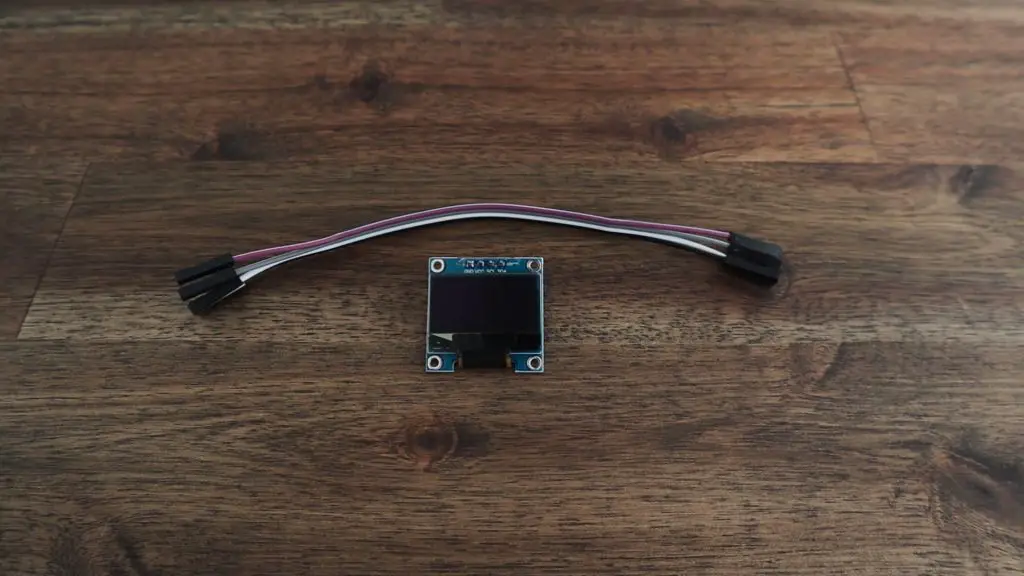
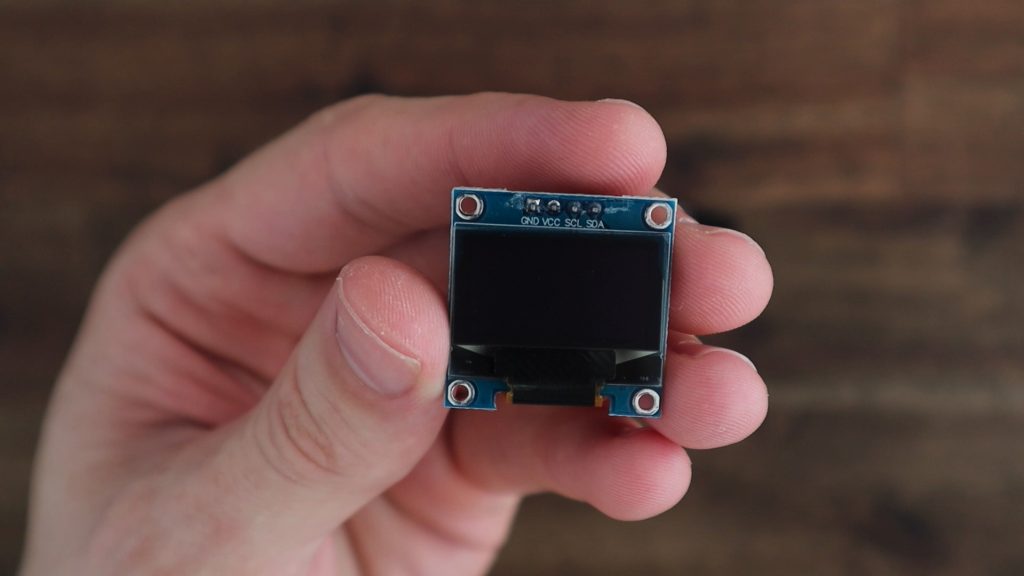
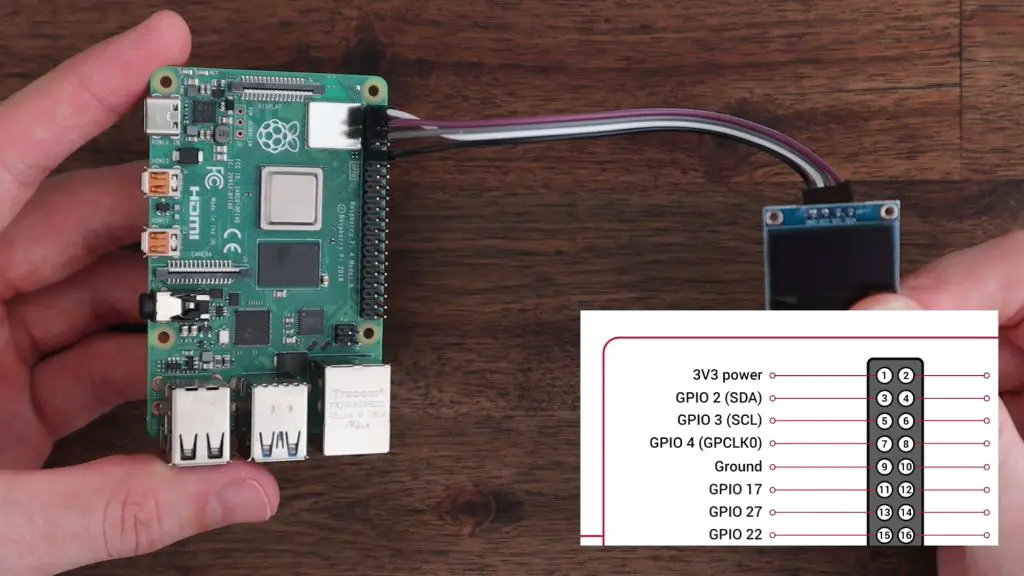
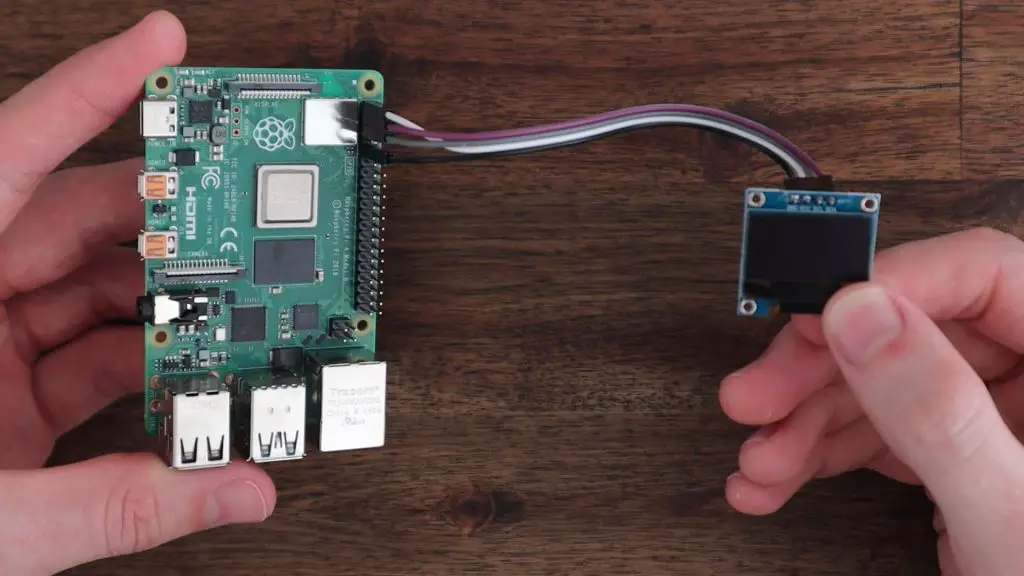
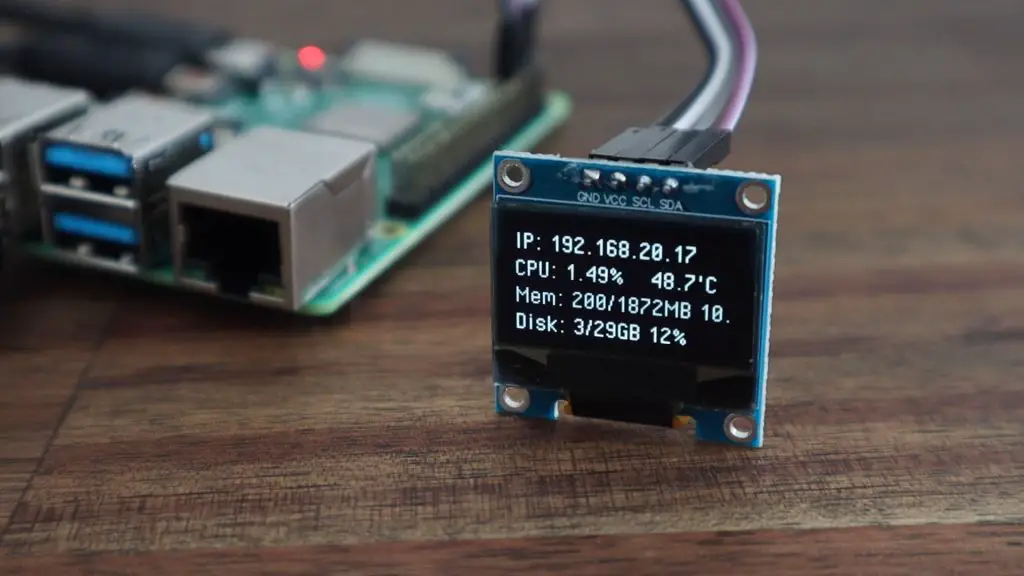
I’m using a small I2C oled display that is perfect to be driven straight from the GPIO pins. Make a note of your pin labels on the front of the pins before installing the display as they’ll be hidden once it is in place.

Installing The OLED Display

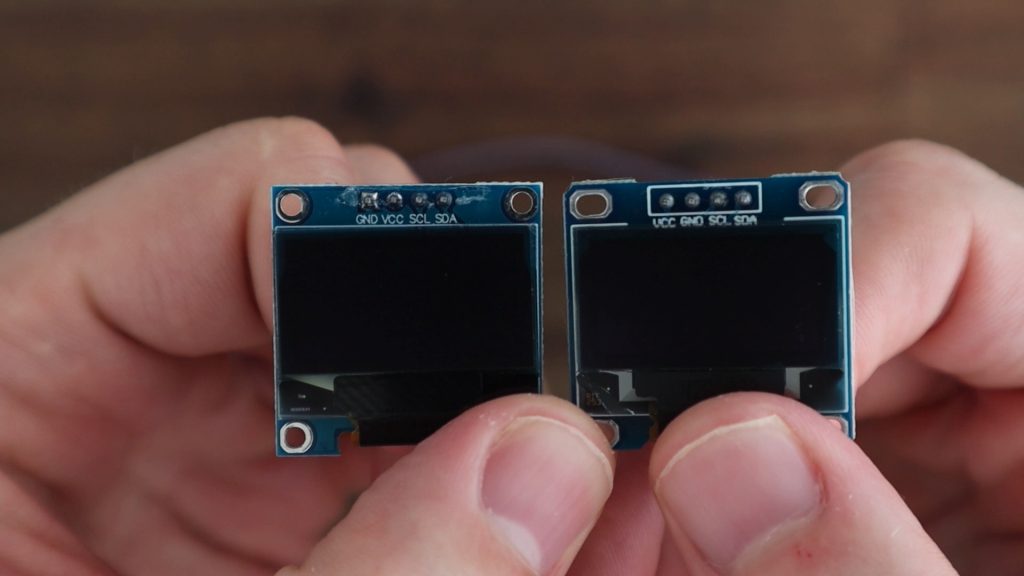
There are also two different versions of these displays online, and they have the VCC and GND pins swapped around, so don’t just copy my wiring because you might damage your display. They don’t have reverse polarity protection.

OLED Display Differences

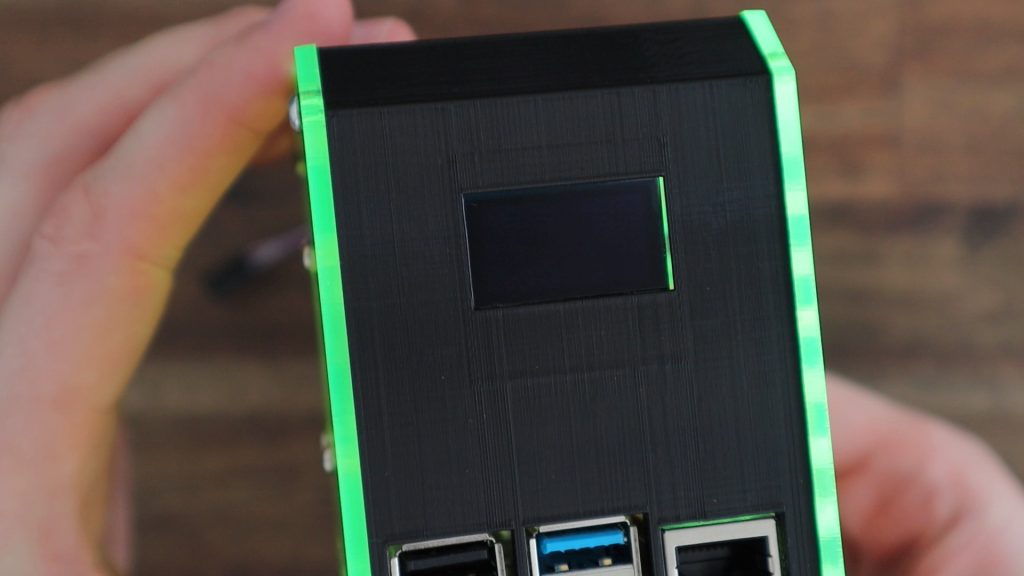
Slide the top edge of the display in underneath the top clips in the case and use the 3D printed bracket and black M3x8mm screw to hold it in place. Don’t screw it down too tightly or you might crack the display. This bracket just needs to gently hold it in place.

OLED Display Installed

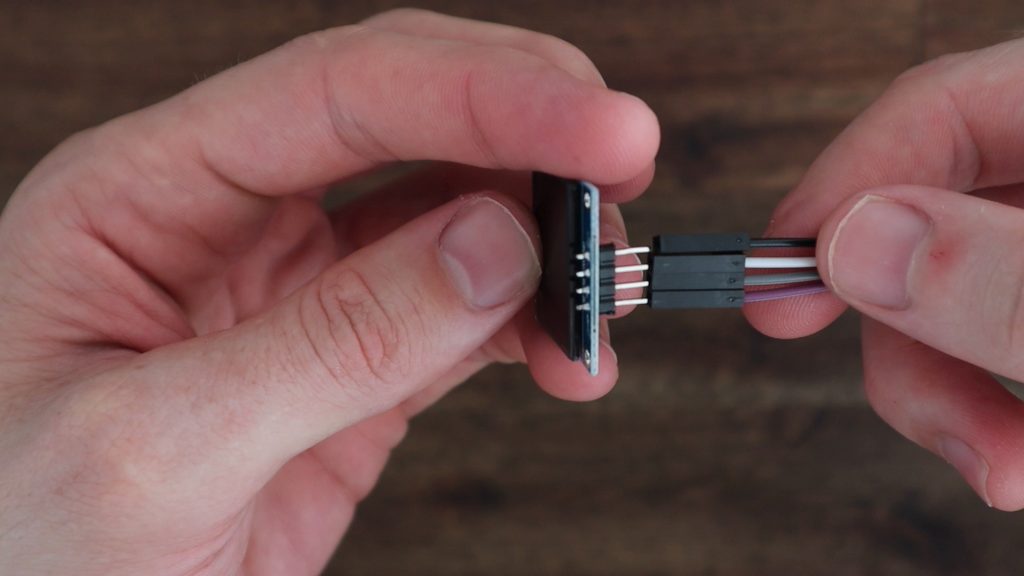
Push the ribbon cable connectors onto the pins on the back of the display. It doesn’t matter which colour goes onto which pin, just make a note of which way around yours are connected for now.

Ribbon Cable Connected To Display

Installing The Raspberry Pi Stack Into Our SSD Case

Before putting our Pi stack into the case, we need to install the SSD. I’m using a 128GB drive as this is just a secondary computer for me. You can use up to a 2TB drive if you’re going to be using yours as a NAS or media centre.

Installing The SSD

You’ll also want to configure your Pi to boot from the SSD and flash the operating system image to your SSD before putting it into your case, as you can’t get to the SD card to remove it after the Pi is installed. The Pi also often isn’t able to supply enough power to power two SSDs simultaneously. So if you intend on copying the operating system image from another SSD, you’ll need to use a powered hub or self-powered drive.

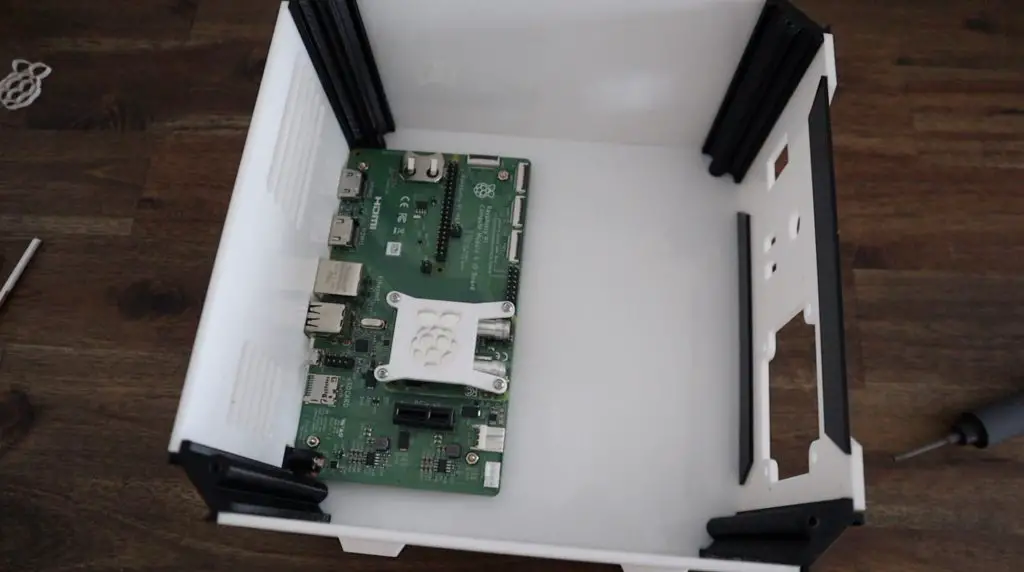
Put the Pi stack into the case and secure it with the small black screws which go through the holes in the base and into the brass standoffs.

Securing The Pi Within The Case

Making Up The Acrylic Side Panels

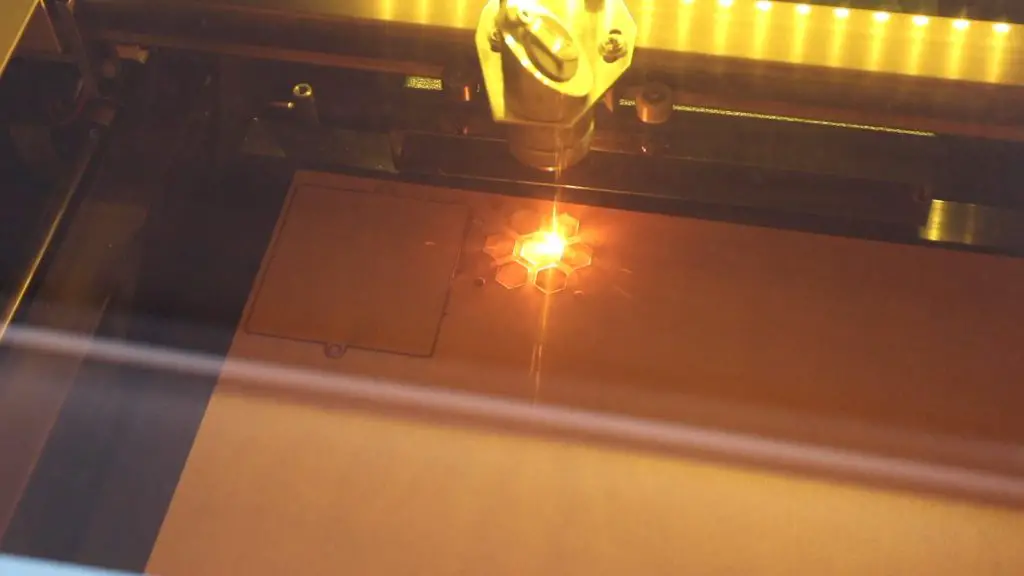
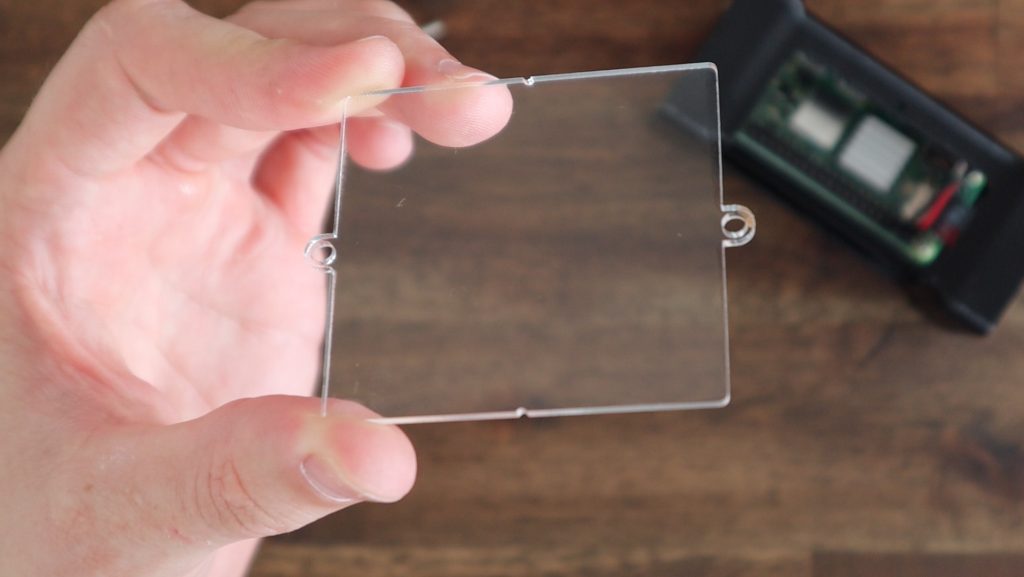
Now we just need to close up the sides of the case with our acrylic side panels. I’m going to laser cut these from some 2mm clear acrylic. If you don’t have access to a laser cutter, you can either buy them as part of my kit or cut your own by hand using a fine-tooth saw to cut the profile and an electric drill to make the screw and vent holes.

Laser Cutting The Side Panels

The template and laser cutting file for these side panels is available in the same download as the 3D print files for the case. I’ve also included a 3D printable version of the panels. They won’t be clear if they’re 3D printed but give you another option if you can’t get the side panels made up.

Laser Cut Side Panels

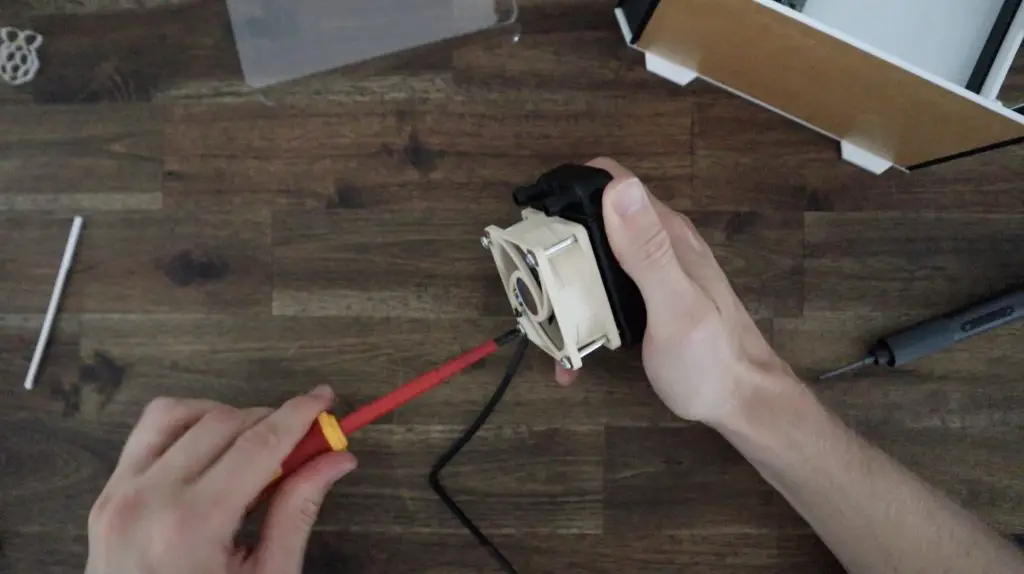
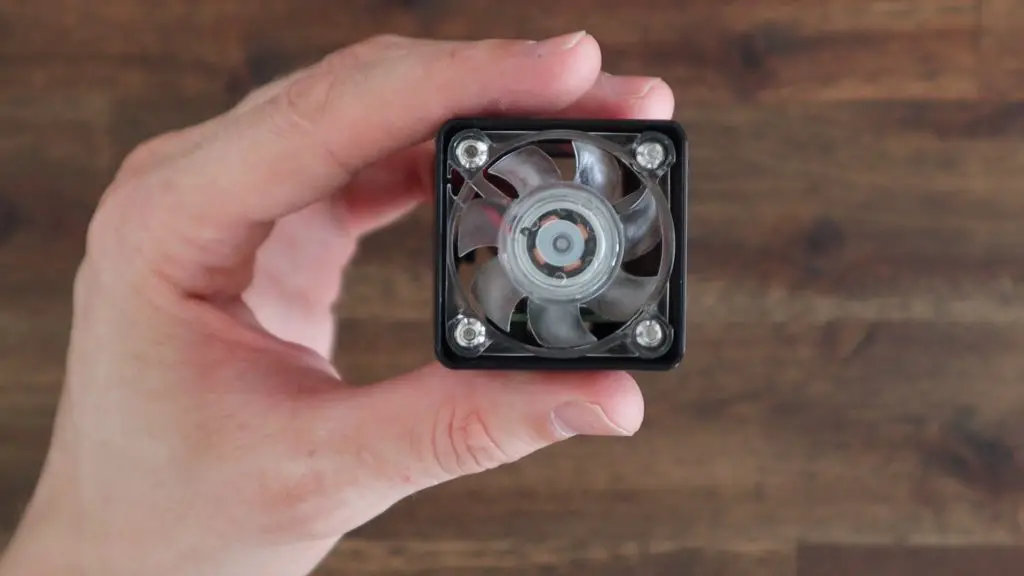
To mount the fan onto the side panels, we need to push four M3 nuts into the pockets on the fan. These enable us to use the existing screws that come with the Ice Tower to hold the fan in place.

This is easiest done by putting the nuts down on a flat surface and gently pressing the fan pocket down onto each one.

Adding M3 Nuts To Fan Pockets

The nuts sit on the acrylic side of the fan, so the fan is held using the press-fit on the nuts, the screws don’t go all the way through the fan.

Securing Fan To Side Panel

The side panels are then each held in place with four M3x8mm button head screws, one in each corner. Don’t overtighten these screws as it is very easy to strip the 3D printed plastic and they’ll then be a bit loose.

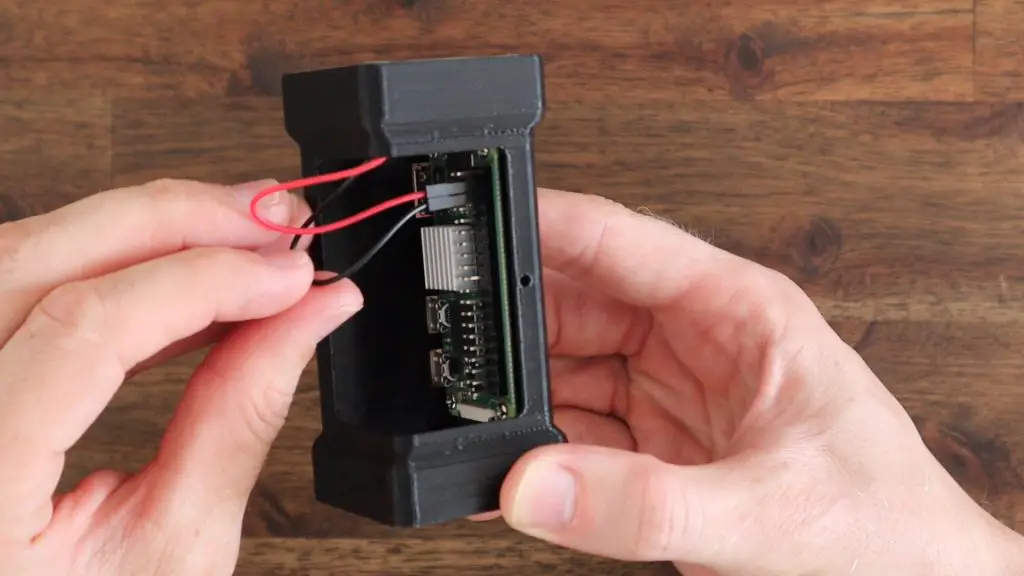
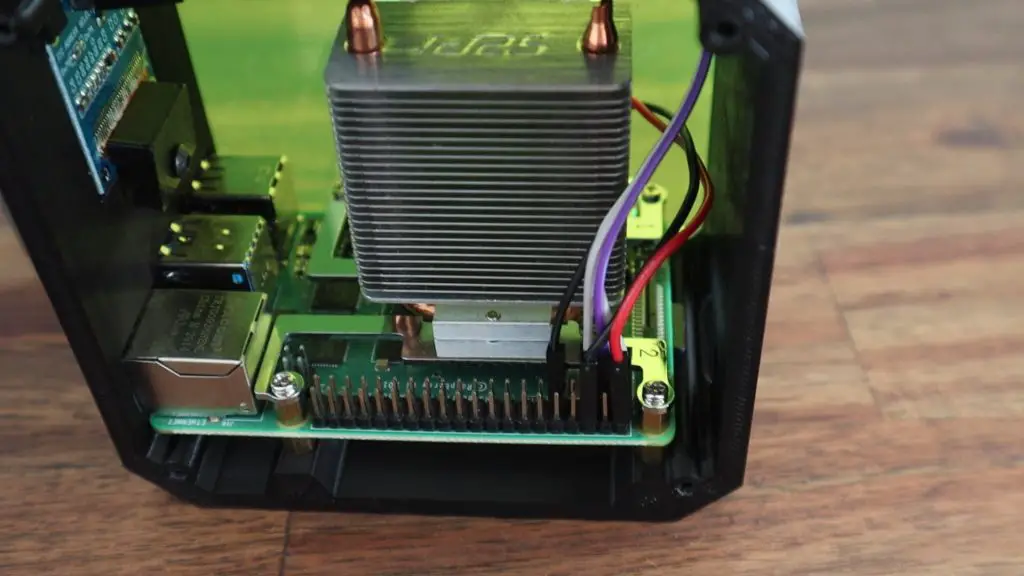
Before putting the opposite side panel on, you’ll need to connect your display and fan to the GPIO pins. I connected my display to power and the I2C pins and the fan to 5Vs. If you need help with this and programming the display, follow my guide on connecting and programming the OLED stats display.

Connecting Display and Fan To GPIO Pins

We can now close up the second side with the next four M3x8mm screws.

Lastly, let’s plug our USB jumper into the shield and Pi. I 3D printed a small cap to cover the jumper and make it blend in with the case a bit better.

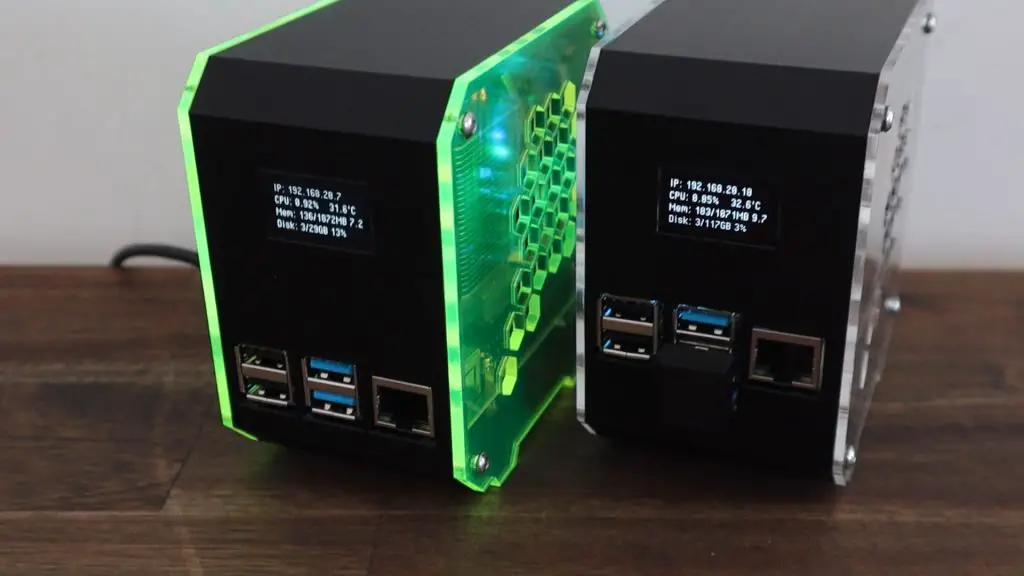
Pi SSD Case Complete

The Completed Pi SSD Case

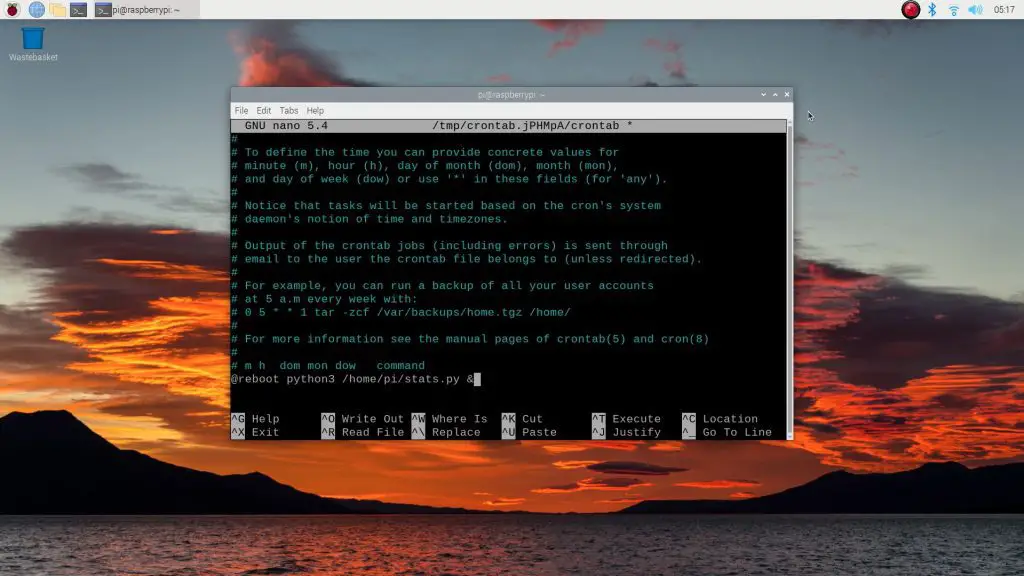
Our Pi SSD Case is now complete, so let’s turn it on and try it out. Mine will work right away as I’ve cloned my SD card from the previous project which already has the stats display programmed to run on startup using crontab.

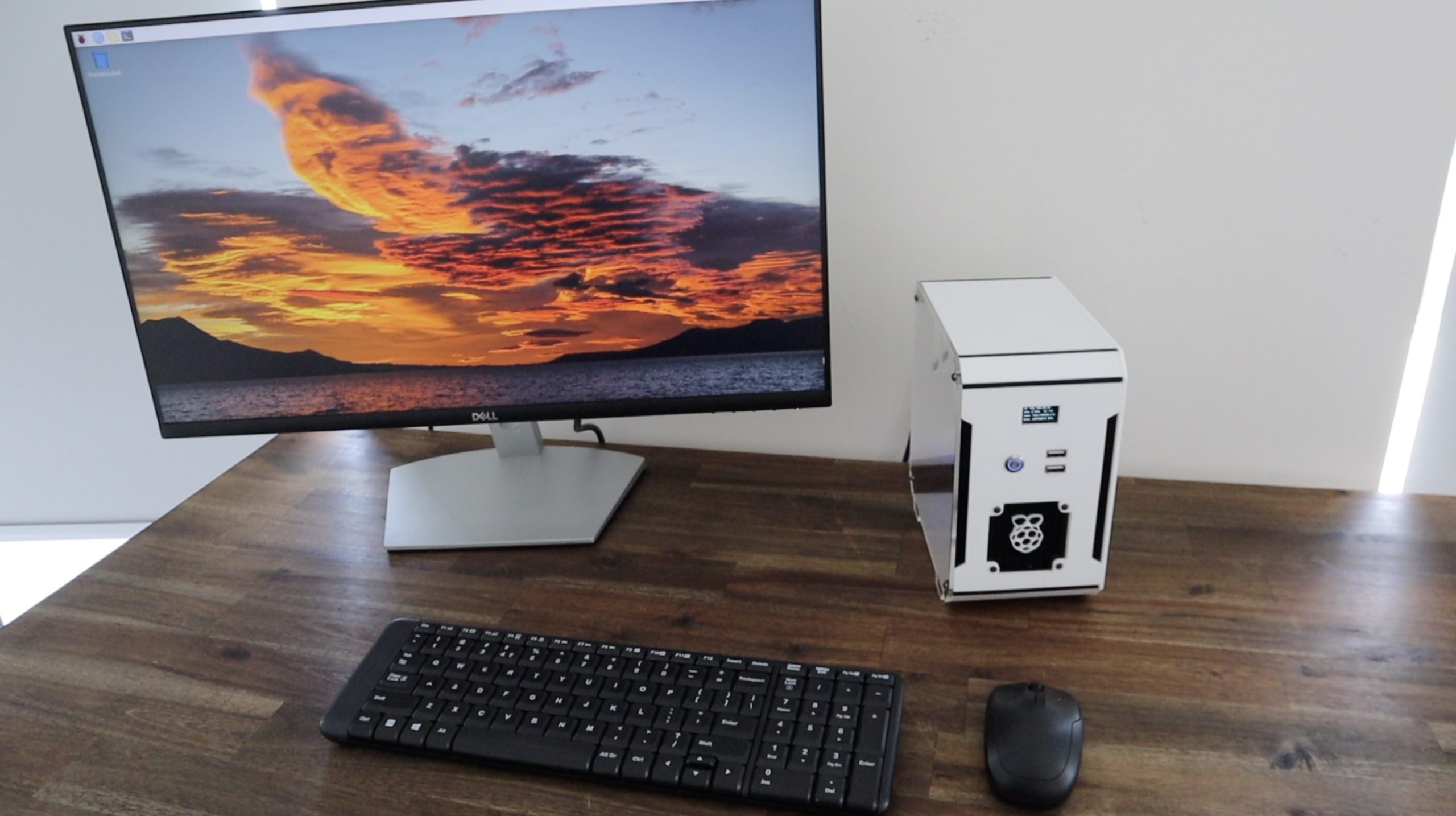
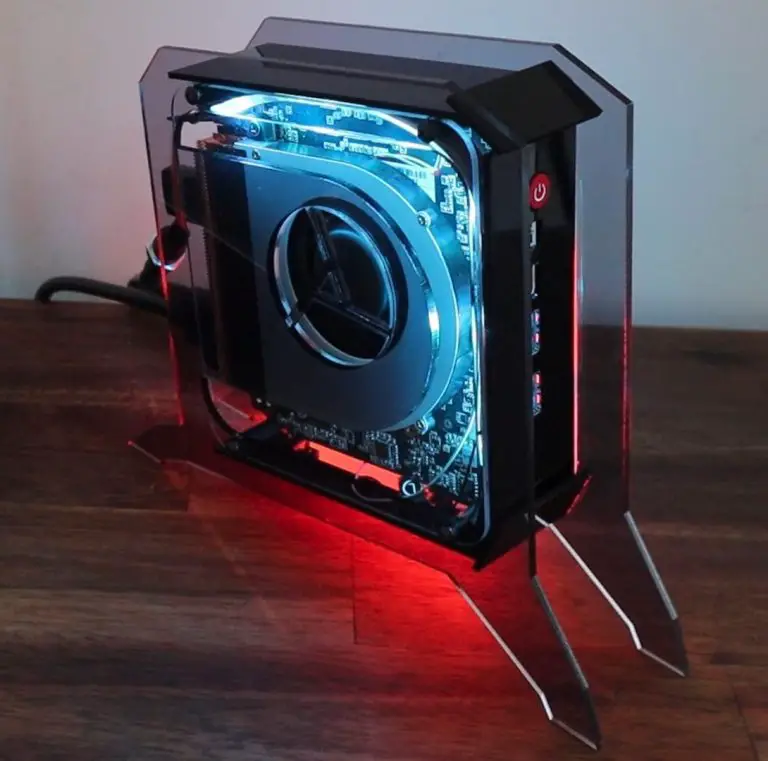
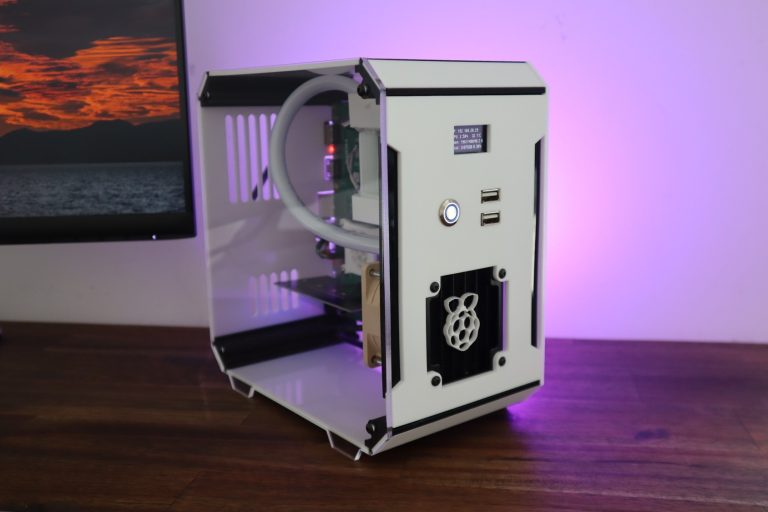
Pi SSD Desktop Case Complete

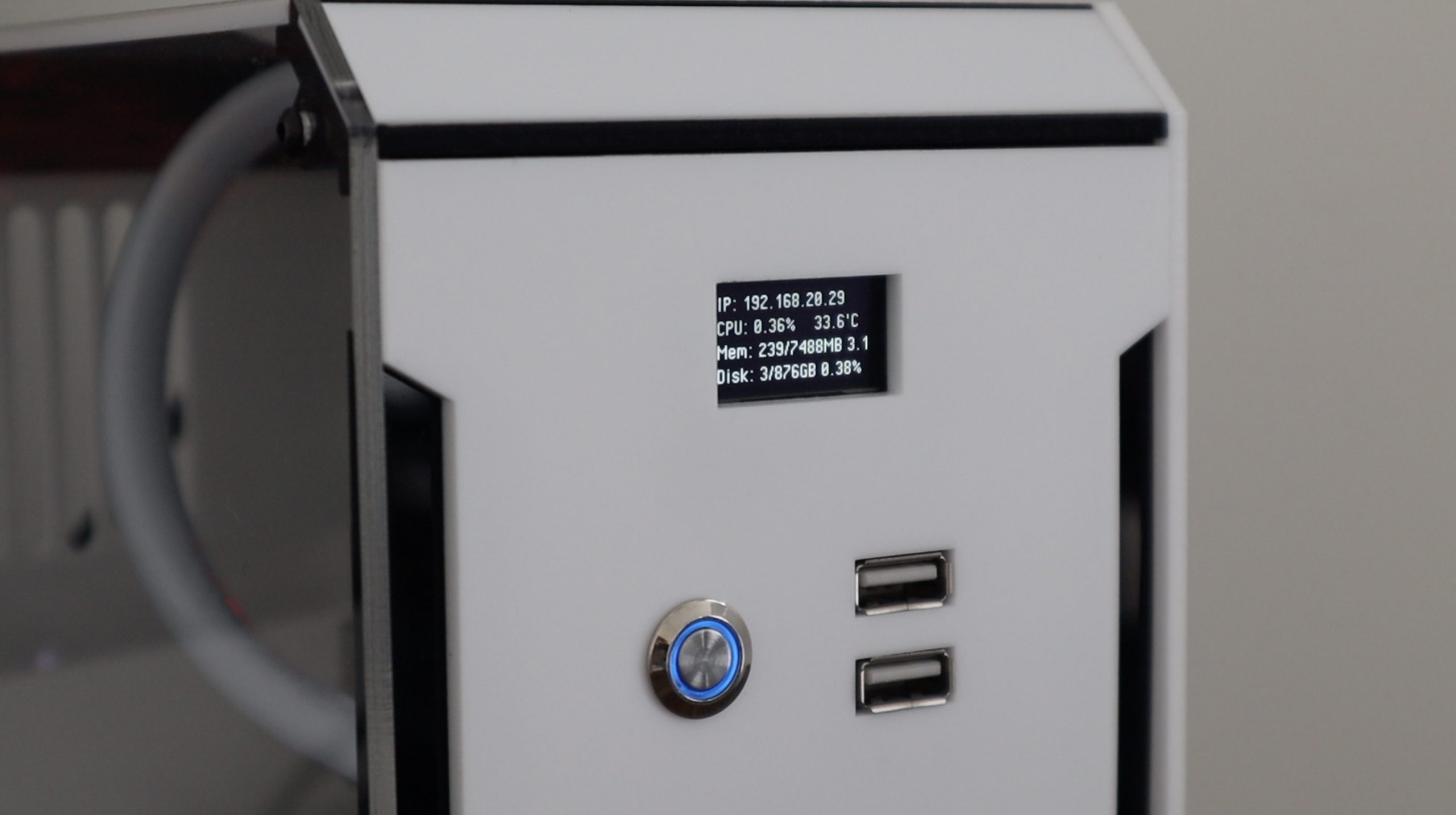
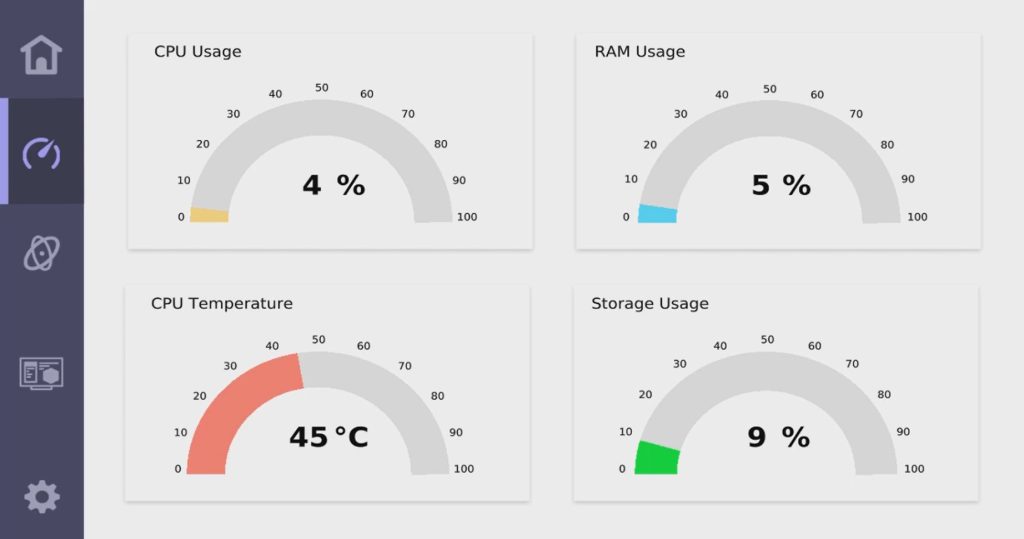
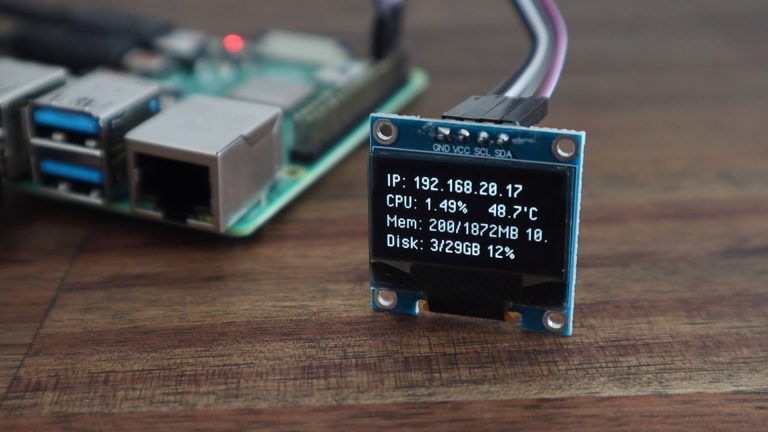
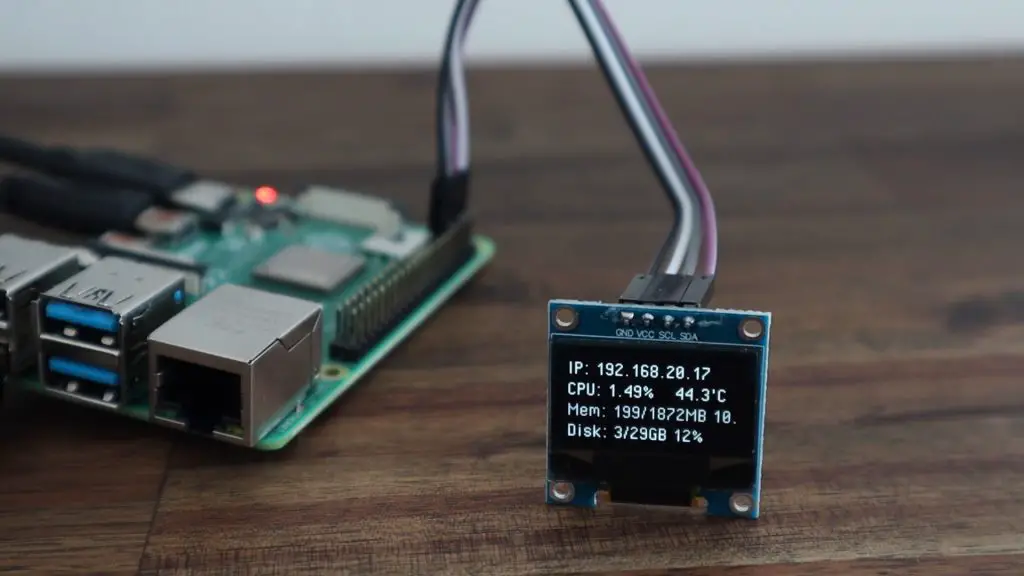
The display shows your local IP address, which is useful for network-related projects, as well as the CPU load, CPU temperature, memory and disk usage. The python script is fully customisable, so you can add or remove stats as you’d like and even integrate stats from other utilities like Pi-hole or Openmediavault.

Stats Display Running On Pi

Let me know what you think of the case in the comments section below. Are you going to try to build your own?
Pi Desktop Case With SSD
Fan Side of Pi Desktop SSD Case
Vent Side Of Pi SSD Desktop Case

How To Boot A Raspberry Pi 4 From An SSD

In this tutorial, we’ll work through setting up a Raspberry Pi 4 to boot from a USB connected SSD or other USB storage media. There is quite a bit of information on this online already, but I’ve had a lot of questions recently about how to do this, so I thought I’d share my method.

I’m going to be doing this on my latest plywood Pi case build with an M.2 NVME drive, but the process is the same for any USB attached solid-state, flash or disk drive. It also doesn’t matter what type of SSD you’ve got, as long as you’ve got an adaptor to convert the SSD interface to a USB interface, then you should be able to get your Raspberry Pi 4 to boot off of it.

Here’s my video tutorial if you’d prefer:

What You Need For This Tutorial

Preparing Your SD Card

To make it easier for beginners to follow, I’m going to assume that we’re starting from scratch. If you’ve already got your Pi running on a microSD card then skip past this first section.

I’m using a 32GB SanDisk Extreme microSD card, but you can use a smaller 16GB card if that’s what you have available.

32GB Sandisk Extreme SD Card

We’re going to start out by using Raspberry Pi Imager to flash the Raspberry Pi OS image to our SD card. This is done by selecting the operating system, which in our case is going to be the 32bit version of Raspberry Pi OS. We’ll then choose our target, which is our SD card, and then click on write. This will then download the operating image and flash it to your SD card. So, depending on your internet speed, this may take around 5 to 20 minutes to complete.

Raspberry Pi Imager

When it is complete, plug the SD card into your Pi. Don’t close up any covers on your case yet as you’ll want to remove it again once your Pi is booting from the SSD.

Format Your SSD

The next step may or may not be required, depending on what filesystem your SSD has been formatted in. If you’re unsure, try plugging the drive into your Pi when it has booted up and see if the drive icon appears on your desktop.

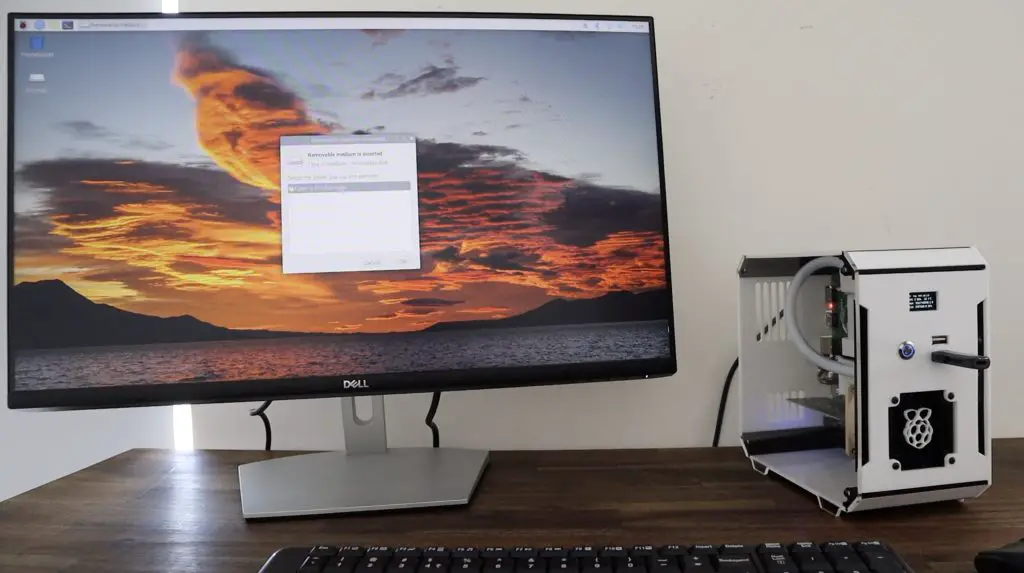
SSD Appearing on Raspberry Pi OS Desktop

If it doesn’t appear, you’ll need to reformat the drive to use the FAT32 file system. This is easily done in windows by right-clicking on the drive and selecting format, or on a Mac by using the disk utility and selecting MS-DOS (FAT) and the default scheme.

Formatting Drive Mac OSX

Once this is done, you can plug in your SSD and boot up your Pi if you haven’t done so already. Remember to plug the SSD into one of your USB 3.0 ports, which are the blue ones in the middle.

Your SSD should then appear on your desktop after a few seconds. If it doesn’t appear then it is likely using an incompatible filesystem and should be reformatted to FAT32. If you have done this and it still isn’t showing up then check your USB adaptor and ensure that the drive is properly inserted into the holder/plug.

Configuring Your Pi To Boot From The SSD

Now that you’ve got your Pi booting off your SD card and your SSD is being seen by your Pi, we can move on to configuring the Pi to rather boot from the SSD.

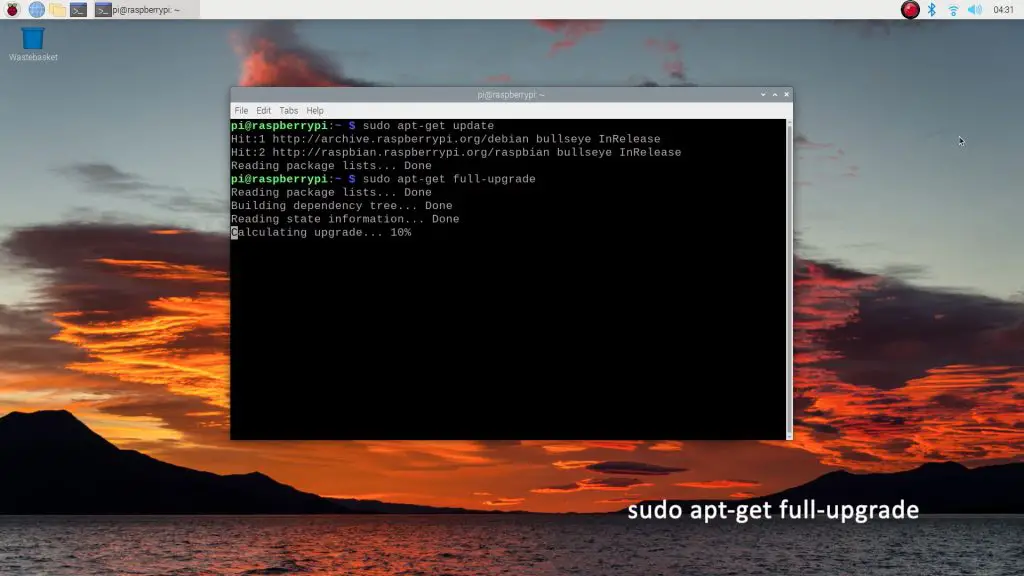
First, open up a new terminal window and, as usual, it is best to start out by making sure that your Pi’s software is up to date. Do this by entering the following commands:

sudo apt update
sudo apt full-upgrade

Once this is done, run the following command to update your Pi’s firmware.

sudo rpi-update

Enter y when prompted.

Updating Firmware

Once the firmware update has been completed, you’ll need to reboot your Pi.

sudo reboot now

When you’re back on your desktop, go to your menu, then accessories and then SD Card Copier. This will open a simple window with a from and a to dropdown list. Select your SD card as the “from” target and your SSD as your “to” target. Then click on Start and Yes to continue.

SD Card Copier Raspberry Pi OS

This will partition your SSD and copy the contents of your SD card to each partition.

Now we just have to tell the Pi to boot from the SSD instead of the SD card.

Open up a new terminal window and enter the following command to make sure that you’ve got the latest boot loader.

sudo rpi-eeprom-update -d -a
Checking Firmware Versions

Mine looks like it is already up to date.

Next, open up the configuration tool by entering the following command:

sudo raspi-config

Then go to 6 Advanced Options and then A7 Bootloader Version. Select the first option E1 Latest Use the latest version boot ROM software to use the latest software, then select Ok and then No so that it doesn’t revert to defaults.

Raspberry Pi Configuration Tool

Next, go back to 6 Advanced Options and select A6 Boot Order. Select the second option B2 USB Boot Boot from USB if available, otherwise boot from SD card.

You can then Finish and then select No when asked if you would like to reboot. Then rather shutdown your Pi.

Once your Pi has shut down. Remove the power cable and then the SD card.

Remove SD Card From Pi

Our Pi should now boot up from the SSD, so let’s power it up and see.

SSD Running In Raspberry Pi Case

You’ll notice right at the top when booting that it says that the boot mode is now USB-MSD and that no SD card is detected.

Raspberry Pi Booting Off SSD

When your desktop loads, you’ll also notice that you no longer have the SSD mounted as an external drive, so you won’t have an icon for it on the desktop anymore.

Running A Quick Speed Test On Our SSD

We can do a quick and basic write test by opening up our terminal and entering the following command to write a 100mb file:

dd if=/dev/zero of=./speedTestFile bs=20M count=5 oflag=direct

Our file took just over half a second to write at a speed of 190 megabytes per second

Next we’ll try reading the same file with the following command:

dd if=./speedTestFile of=/dev/zero bs=20M count=5 oflag=dsync

This takes a little under half a second, with a read speed of 215 megabytes per second.

Raspberry Pi SSD Speed Test

This is a very basic indication of the speed increase you get from an SSD. There is a lot more to the speed of a drive than simply writing or reading a single large file. Here are two good drive speed comparisons, one by Jeff Geerling and one by leepspvideo

Raspberry Pi Ice Tower

Let me know in the comments section below if you’ve got your Pi booting from an SSD and if there is anything you do differently when setting it up.

If you’re interested in putting together your own plywood Pi case like mine, you can buy a kit from my Etsy store.

Mecanum Omnidirectional Robot Car using the Quantum Integration System

In this project, we’re going to be building a wireless robot car that uses mecanum wheels to enable omnidirectional movement. If you haven’t heard of mecanum wheels before, they’re tireless wheels with a series of rubberized rollers around the circumference.

Mecanum Wheels LH and RH

These rollers are typically at an angle of 45 degrees to the wheel’s axle line and opposing wheels are of the opposite hand. This enables the usual forward, backward and turning movements of standard wheels, but also allow unique translational movements horizontally and diagonally depending on which direction the wheels are turned.

We’re going to be using the Quantum Integration system to take inputs from a joystick controller and drive the motors. We’ll be using two Builder bases, one as a transmitter on the controller and one as a receiver on the robot car, so the starter bundle is perfect for this project.

We’re also going to use three of their DIY PCB kits – the power supply, the four motor driver and the joystick controller.

Quantum Integration DIY PCB Kit

Here is my project video, read on for the full written instructions:

What You Need For This Project

You’ll also need some basic soldering tools to assemble your PCBs, these are the tools that I use:

Assembling The Robot Car

I’m going to use the same car that I’ve used for my previous obstacle avoiding robot and object tracking robot projects, but this time I’ll replace the Arduino with a Quantum Integration Builder Base.

If you’d like to 3D print the same chassis that I’ve used, use the below link to download the files. I printed them in black PLA with a 15% infill.

Let’s start out by assembling the power supply module. This module just takes a DC input of 7-12V provided through a 2.1mm barrel jack and converts it to 3.3V or 5V to be used by the Builder Base and Motor Driver.

Power Supply Module Kit

I’m going to be using a 3 cell LiPo battery to supply power to the car, but you can use three 18650 lithium-ion cells or 4 AA cells to power yours. It’s worth mentioning that 9V block batteries typically can’t produce enough current to drive four motors, so you’ll need something more substantial.

Power Supply Module Assembled

Next we’re going to assemble the Four Motor Driver kit. This kit features two L293D motor drivers along with a PWM expander and the supporting components required to independently drive up to four small DC motors, so it’s perfect for four-wheel drive robots.

4 Motor Driver Kit PCB

Once the motor driver is complete, we’re going to connect the motors to the driver and the driver to the builder base. This is done as per the project notes on the Quantum Integrate wiki, so it’s easy to follow.

If you’ve 3D printed your own robot chassis parts from my previous project, you’ll need to assemble your chassis and install the motors before you add the driver.

Original Robot Car Chassis

Connect the two wires from each motor to each of the motor terminal blocks as follows:

  • Front Left – M1
  • Front Right – M2
  • Back Left – M3
  • Back Right – M4
Installing the 4 Motor Driver Board

Then connect the motor driver to your builder base using the following pins:

  • XLAT – GP1
  • GSCLK – GP0
  • BLANK – GP2
  • SIN – GP3
  • SCLK – GP4
  • GND – GND
  • 5V – 5V
Quantum Integration Builder Base

I’m going to put the original wheels back on for the first part of the project and we’ll then look at expanding the functionality for the mecanum wheel movements.

Adding Original Wheels To The Robot Car

Assembling The Joystick Controller

We’ve got our robot car built, now let’s assemble the joystick controller to control it with.

The joystick controller is the last PCB kit to assemble, and it features two two-axis joysticks with pushbuttons as well as a third pushbutton in the centre. It’s also got an onboard voltage regulator, so it can be powered directly using a 9V battery.

Joystick Kit Assembled

To add our builder base, we need to remove it from the plastic housing and screw it onto the brass standoffs provided on the joystick PCB.

Removing The Builder Base PCB

One thing to be aware of is that the battery holder is right up against the terminals on the builder base, and so is the joystick cover on the other side. So you need to use some flexible or 90-degree terminals to fit in alongside them.

Installing The Builder Base On The Joystick PCB

Quantum provide a 3D printable housing for the joystick as well. I’ve printed that out in white PLA to put the PCB, builder base and battery into. The screws for this housing are also included with the joystick PCB kit.

Installing The Joystick PCB In The Housing

The back cover is then held in place with two more screws. The controller can be switched on and off using the slide switch at the bottom and the green LED is illuminated when the controller is on.

Joystick Controller Complete

Programming The Robot Car

Our robot car and joystick are now complete, so we can move on to programming them.

I’m going to start by testing that the system is receiving all of the inputs from the Joystick controller correctly. To do this I created a basic app that takes the three hardware objects, the two joysticks and the centre pushbutton, and displays their outputs on our app dashboard.

I also created the controller’s firmware and mapped the hardware objects to the pins that they are connected to on our controller’s builder base.

Quantum Integration have a similar project where they map the outputs to some analogue sliders if you’d like to try this as well.

With the app running, it looks like all of the axis are working correctly. We’re also able to see when each of the three buttons are pushed.

Joystick Output Testing

So now we can add our robot car to the app so that the joystick controller’s outputs drive the car.

I’m going to use Quantum Integrations base app for their robot car as a starting point, you can download the app and the firmware from their project page and this can then be imported into your server.

Importing The Mecanum Car App

You should then see the following app.

Robot Car App, Forward and Backward

This app takes the Y-axis of each of the two joysticks and maps the output to drive the left and right sets of wheels in pairs. So the left joystick drives the left two wheels and the right joystick drives the right two wheels.

There are also three dashboard buttons, drive left, drive right and drive forward which enable the car to be controlled from the dashboard.

We’ll also need to upload the firmware to our robot car’s builder base, again this can be downloaded from the Quantum Integration project page.

We don’t need to worry about the joystick as we did this for the test we ran previously. We can then run the app and try out our robot car.

Lastly, we’ll need to assign the hardware objects that our app is going to use.

Assign The Hardware

Controlling The Robot Car

Now that our app is running, we can switch on the controller and the car’s power supply and try it out.

Pushing forward or backward on the left joystick drives the left wheels forward or backward and similarly for the right joystick and the right wheels.

To drive forward in a straight line, push both joysticks forward. To turn slightly push one forward at a time, and to turn on the spot push one forward and one backward.

Mecanum Wheel Car

We can also use the buttons on the dashboard, which we can access through our phone, to control the car rather than the joystick. These buttons don’t give you as much control as the joysticks do as they’re just on and off signals, not analogue signals, but you get the idea.

Using The Mobile App To Drive The Car

Adding The Mecanum Wheels & Omnidirectional Movements

Now that we’ve got the basic robot car working, we’re going to look at adding the mecanum wheels. I’m going to replace the wheels on the robot car each with a mecanum wheel.

There are two different wheels, they are a mirror image of each other. They’re usually labelled with an LH or an RH on the inside of one of the hubs. You need to make sure that the wheels on the front and back are opposite hands so that they create a sideways reaction force when the rotate in opposite directions.

This is how I’ve installed them into my car.

Mecanum Car Top View

You might need to use an adaptor to connect your wheels to your motor shafts. I used a 3D printable one by Pro Know.

Next we need to add some logic to the app to drive the wheels on one side in opposite directions when we want the car to move sideways. We could use the x-axis on one of our joysticks but I thought that it would be easier to use the joystick pushbuttons. So you push the left joystick to move left and the right joystick to move right.

I wrote a custom function block to produce a forward and backward signal when a button input is triggered. I connected the input to the left joystick button output and the forward and reverse outputs to our four motors. I then duplicated the function block for the right side as well.

Adding The Mecanum Wheel Controls

Let’s save and run the app and see if it works. We don’t need to worry about the firmware as we’re using the same hardware that we used previously. Just make sure that the functions are mapped correctly and then run the app.

Driving The Robot Car

Our car is now able to move forward and backward, turn in either direction and move sideways without turning.

Mecanum Wheel Car Running

Let me know what you think of the mecanum wheels and this mecanum car in the comments section. Are you going to try to build your own mecanum car?

Laser Cut Plywood Raspberry Pi Case

I recently reviewed the Ortur Laser Master 2 Pro, but rather than just engrave and cut a range of test pieces, I thought I could use the laser to make something useful. I decided to make up a Plywood Raspberry Pi Case, which is loosely based on my 3D printable Raspberry Pi Desktop Case.

Here is my video of the unboxing and setup of the laser along with the build of the case. Read on for the full written instructions.

What You Need To Make Your Own Plywood Raspberry Pi Case

How To Assemble Your Case

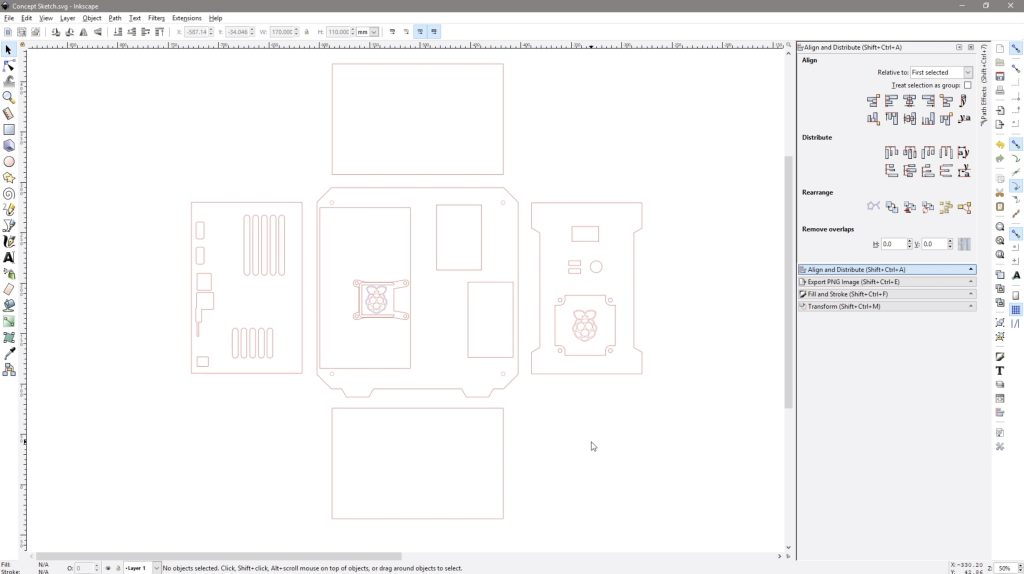
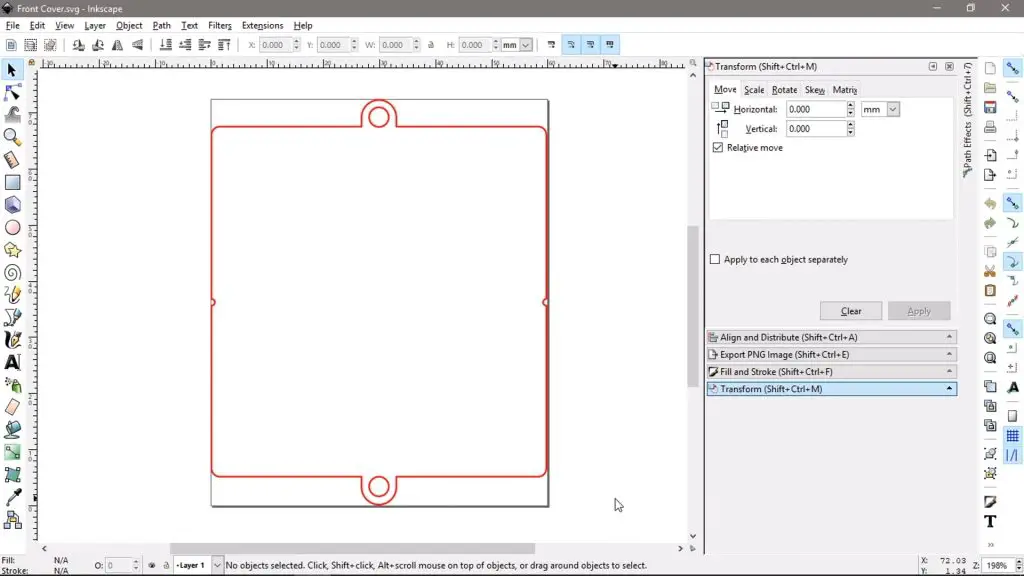
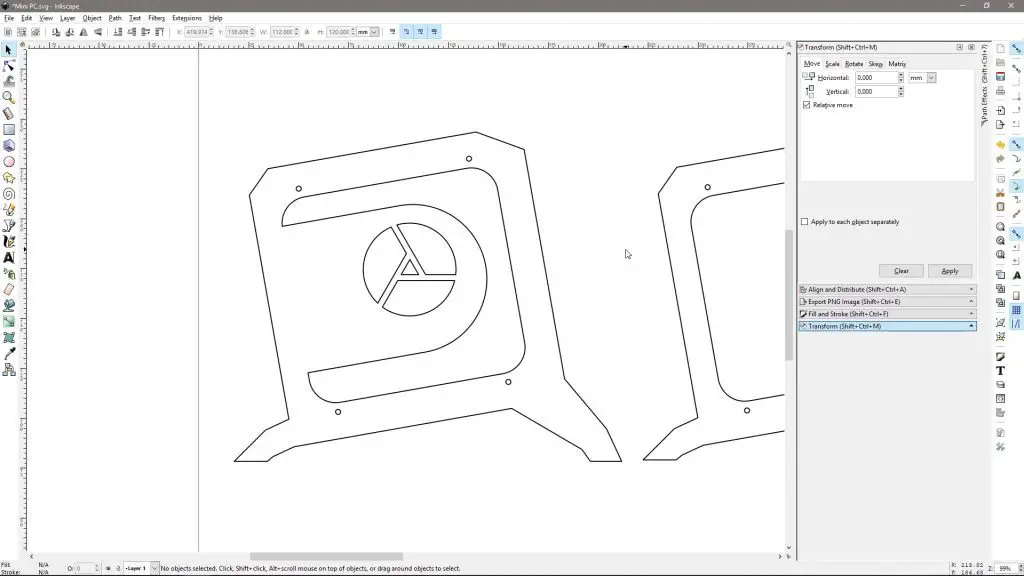
I started out by drawing up an interlocking case, similar to my other desktop cases in Inkscape. This one is designed to hold my Raspberry Pi with an Argon case port adaptor to direct the ports to the rear of the case and hold two 40mm fans on the front.

Take a look at my video on how to design your own Pi cases in Inkscape.

Inkscape Case Design

If you’ve got your own laser cutter, you can download the files to cut your own case, or you can buy a pre-cut kit that includes the plywood sides and screws as well as the acrylic cover panel.

I loaded the files into LaserGRBL and tried cutting them with the recommended settings for 3mm plywood.

Laser GRBL Pi Case Layout

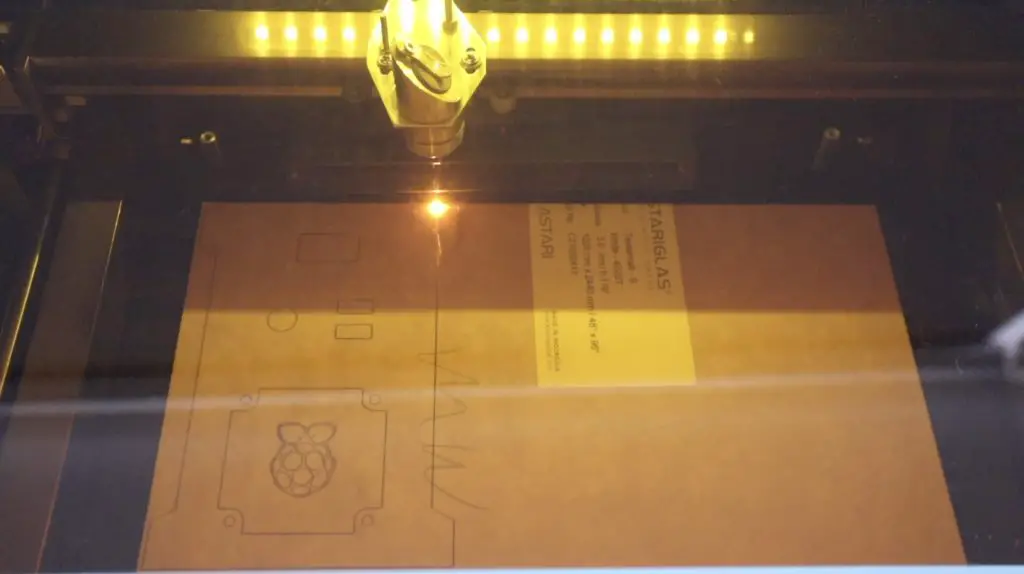
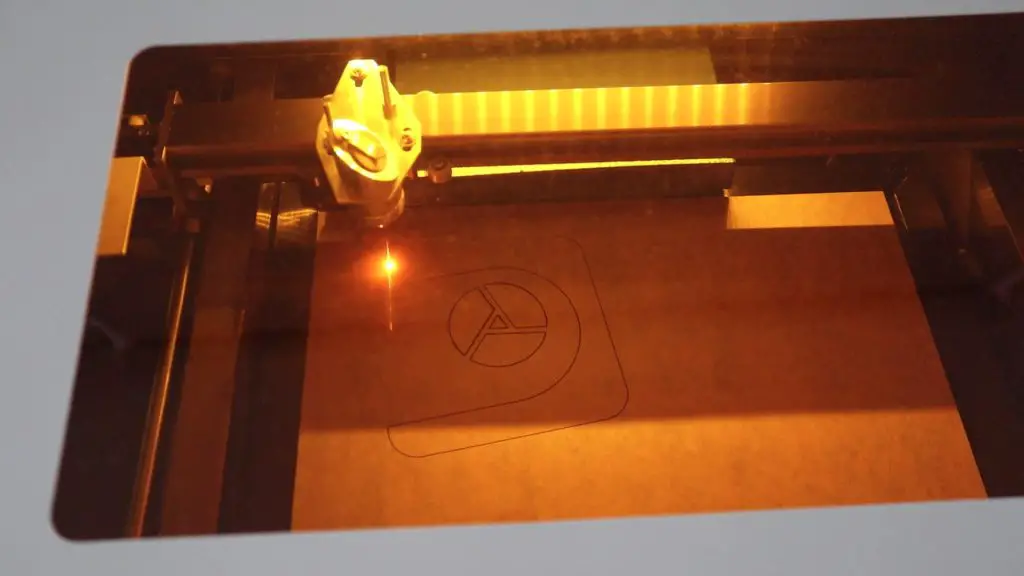
Cutting on the Laser Master 2 Pro took a bit of experimenting to get right. I had to play around with speeds and the number of passes until I found something that worked well with my 3mm plywood. In the end, I found that two passes at 250mm/minute seemed to work the best.

Laser Master 2 Pro Cutting 3mm Plywood

Once the parts were cut, we need to glue them together with some PVA wood glue. You could also use epoxy adhesive, but wood glue works best and leaves the best finish.

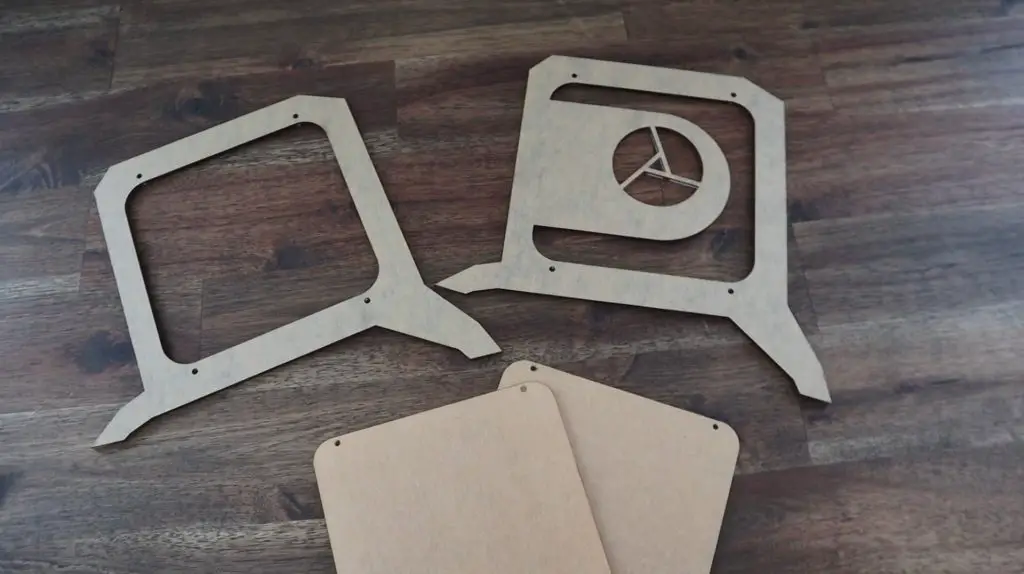
All Components Have Been Cut

I’ve tried to make the design as easy as possible to assemble, so the top and bottom are interchangeable and these two, along with the front panel can also be installed with either side facing inside or outside.

To start, lay the large side with the 5 holes in it down on a flat surface. Glue the four side panels into place as shown below, remembering to glue the edges to the large section and to the adjacent sections as well.

Assembly Process
Gluing The Pi Case Together

Once the four sides are in place, glue the second large section into place on top of the four sides.

Plywood Pi Case Complete

If you’ve got some large clamps handy then clamp the sides to keep them in place while the glue dries. Don’t clamp them too tightly or the wood will bend/distort and may dry this way.

Clamping The Case

Once the glue has dried, glue in the two small pieces to close up the gaps along the top and bottom front edges.

Glue The Corner Pieces Into Place

Allow the last bit of glue to dry and we can then start installing the components. I’m using a 2GB Raspberry Pi 4B with a low-profile Ice Tower for cooling.

If you’d like to protect the plywood and not leave it bare, now is a good time to give it a coat of clear lacquer or varnish. You could also paint or stain it in a colour of your choice if you’d prefer that to the bare wood look.

I’ve also added a 1TB M.2 NVME drive with a USB adaptor, two 40mm fans for the front to pull air into the case, and an adaptor from an Argon case to move the ports to the back of the case. If you don’t have an Argon case adaptor, try looking on eBay for someone selling a spare or use a 90-degree micro HDMI cable for your display.

Components To Be Installed In Pi Case

Start off by pushing five standoffs through the case and hold them in place with a nut on the back of each. The standoffs and the nuts are all included in the Ice Tower kit.

Nuts on Back Of Standoffs

We then need to add our USB power cable while the port cutouts are still open. I trimmed one side of a USB C cable down to fit into the Pi alongside the Argon adaptor as the adaptor comes very close to the USB C port. Push it through the HDMI port cutout before installing the Pi.

Installing The USB Cable

We can push the Argon adaptor onto the ports on the Pi and then position the Pi on the standoffs. The Pi is then held in place with a second brass standoff on each. Tighten these gently using needle-nose pliers.

If you haven’t remembered to install your SD card (if you haven’t already set up your Pi to boot from your SSD), the SD card can be inserted through the fan hole. We won’t need to remove or replace the SD card afterward as we’re going to be booting off the SSD once it is set up.

Tightening The Brass Standoffs

I then installed the Ice Tower and held it in place with the 4 included screws. A fifth screw holds the Argon adaptor in place using the 5th standoff. This is not critical, but provides a bit of extra support when plugging in and removing the HDMI cables.

Installing The Ice Tower Onto The Pi

We can then plug in the USB power cable.

Back Of The Pi Case

Once that is done, we can install the fans. I pushed M3 nuts into each of the pockets in the fans to screw into. This is easiest done by placing a nut on a hard surface and then pushing the fan pocket down onto the nut. The nuts go on the wood side of the fan, so the screws do not extend all the way through the fan and each fan is supported by the press-fit of the four nuts.

Fans With M3 Nuts In Pockets

When you install the fans, pay attention to which side the cable is on. Make sure that you have got enough length to reach your Pi’s GPIO pins. The fans are then secured with eight M3x8mm screws.

Screwing Fans Onto The Front Of The Case

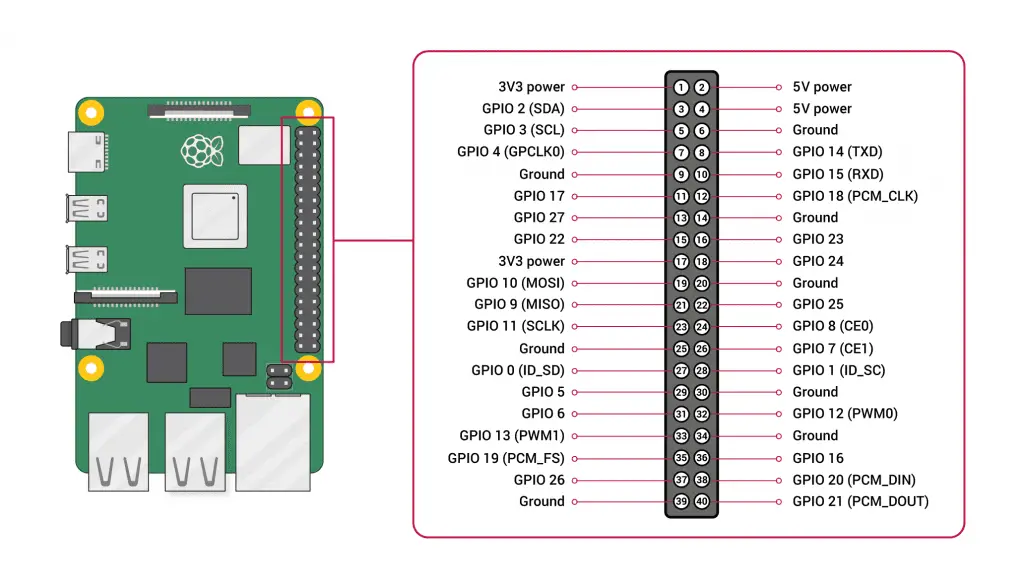
We can then plug the fans into the power pins on the Pi. I used 5V pins for the front two fans and a 3.3V pin for the Ice Tower fan.

Raspberry Pi 4 Pinout
Source: RaspberryPi.org

Next, we’ll install the NVME drive into the USB adaptor and then into our case. Your USB adaptor may vary, this is one that I found on eBay, but they are generally similarly sized though.

I used a strip of thick double-sided tape to hold it in place on the underside.

Adding The NVME SSD

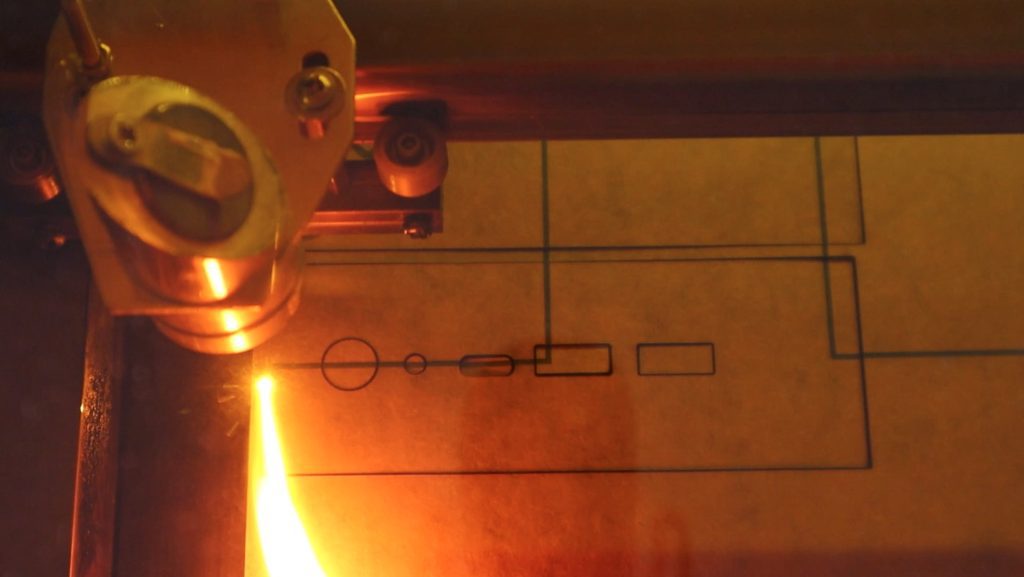
Now we can install the clear side panel. It’s worth mentioning that I had to cut this on my CO2 laser cutter as diode lasers can’t cut clear acrylic. Acrylic can also just be cut by hand using a fine tooth saw or jigsaw.

The cover is held in place with some M3x8mm screws.

Installing The Clear Acrylic Side Panel

With that done, the case finished. So let’s power it on and try it out.

Desktop Computer Running

With three fans, the case is quite noisy, but it looks pretty cool as a mini desktop computer. I also noticed that one of the LEDs on my bottom front fan is faulty, which is a bit disappointing. But I don’t have another one spare at the moment.

Raspberry Pi Desktop Computer

I really like the RGB legs in the fans and the clear side panel to see the internals. Let me know what you think of it in the comments section below.

My Plywod Pi Case

Ortur Laser Master 2 Pro Unboxing and Review

Today we’re going to be taking a look at the Ortur Laser Master 2 Pro which the guys at Ortur have sent through to me to try out and review.

Ortur are a popular CNC laser engraver manufacturer and have been around for a number of years. They are one of the most reputable brands in the space and have shifted their focus towards making better quality and safer laser cutting and engraving systems that are centred around diode lasers, with their core products being these gantry-style engravers.

Ortur Laser Master 2 Pro

The Laser Master 2 Pro is their latest upgrade to their popular Laser Master 2 and is available for purchase from the web store, Made The Best, for around $460 at the time of this review.

They also sell a number of accessories and upgrades for the Laser Master 2 Pro, including an offline controller, full metal enclosure, Z-axis height adjuster, and even a Y-axis roller for engraving on cylindrical objects.

Here is my video review, read on for the full written review.

Laser Master 2 Pro Specifications

Laser ModuleLU2-4 24V/2A (Electric Power 20W, Optical Power 5W)
Engraving Area400mm x 400mm
Mechanical PrecisionX & Y Axis – 12.5µm
Pixel Accuracy300 pixels per inch
Wavelength445+-5nm
Focal Length50mm Fixed Focus
Engraving Speed0-10,000mm/min
Adaptor Input Voltage110V-220V
Controller Input Voltage24V/2A
Gantry ConstructionAluminium & Powder Coated Steel
MotorsNema 17 Stepper Motors
Safety FeaturesPosition Protection, Exposure Duration Limitation, Laser Beam Safety Guard, Flame Detector, Emergency Stop
Engraving MaterialsWood, Paper, Black Acrylic, Leather, Food, Stainless Steel, Powder Coated Metal
Cutting MaterialsWood, Paper, Black Acrylic, Leather, Felt, Dark Plastic

Unboxing The Laser Master 2 Pro

Shipping from Ortur is really fast. The kit arrived after about 6 days in a relatively large box as it is partially assembled – which is not often the case with cheaper gantry style engravers. Inside the box, the components are really well packed and protected using formed foam inserts. The components are also individually wrapped in plastic for additional protection.

Ortur Laser Master 2 Pro Box

It comes with everything you need to assemble it, including zip ties for cable management, a small tool kit and even some sample pieces of wood and acrylic to experiment with. The x-axis gantry is pre-assembled and the drag chain is also pre-wired with connectors on each end.

Unboxing The Ortur Laser Master 2 Pro

Also included in the box is an assembly manual, power adaptor, USB cable, focus gauge, and some safety glasses.

Some nice features that you’ll notice right away are the measurement scales on the aluminium extrusion and the all-metal gantry construction. In fact, aside from the components that really need to be other materials (like belts, clear covers, wheels etc.), almost everything on this laser engraver is metal. You’ll also notice that the metals have been painted or anodized after being drilled, which is also great for a good quality look and feel.

Measurements Etched Into Aluminium Extrusions
All Metal Gantry

Safety Features

Before we get into the assembly of the Laser Master 2 Pro, let’s have a look at its safety features. The control board is where the Laser Master 2 Pro really stands out from the competition. It’s got a number of safety features built-in, which most others don’t have.

Ortur Laser MAster 2 Pro Front Panel

It’s got built-in flame sensing, which stops the laser if it detects that the material has caught on fire and sounds an alarm.

Ortur Flame Detection

It’s got a tilt sensor to detect if the laser has been bumped or knocked off the desk. It’ll also stop the laser if it has been burning in the same spot without movement for over a minute and it’s got a prominent e-stop on the top.

Ortur Estop

There is also a protective shroud around the laser beam to prevent the beam from reflecting onto the other surfaces and to protect objects (and fingers) from getting in its path.

Assembling The Laser Master 2 Pro

When it comes time to assemble your kit, it’s definitely worth heading over to their technical documentation link to download the pdf version of their manual. It’s much better quality than the included one and is more up to date with better pictures. I put mine together with the included manual and the images are a bit small to really see what is going on. There are a couple of changes that have been made to the construction that haven’t been updated in this printed manual – like the wiring to the limit switches being incorrect.

Ortur Online Assembly Manual

In any case, it is relatively easy to put together.

While assembling your laser engraver, you’ll again notice a few extras like these additional L-brackets in the corners – which really go to show that they’re determined to give you a good quality product.

Corner Re-enforcement Pieces

One thing I don’t really like is the belt tensioning on the y axis. You pull the belts through slots in the legs and secure them with a screw and washer. It works fine, but you really need to pull on them to get them tight. They also don’t look good when finished off and you can’t make adjustments to the belt tension very easily. They would have been fine for an anchor point at the back, but it would be nice to have some sort of screw tensioning mechanism on the front ends.

Legs with Belt Tensioning

The diode module is mounted onto a dovetail slider and is secured with a thumbscrew on either side. If you land up engraving different thickness materials quite often then you’ll want to get the adjustable z-axis as it can be quite cumbersome to hold the module at a precise height while tightening the two thumbscrews.

Ortur 20W Diode Laser

The drag chain is great for cable management to the motors and laser module. Most of these style laser engravers just leave the cables hanging free on one side, which obviously opens up to the risk of getting them caught in the gantry or running the laser over them and melting the insulation.

Cable Management

There isn’t really much to say about the actual assembly process. It is about as simple as it can be made (without arrival completely assembled) and the online manual is really helpful with the more complex parts.

As I mentioned earlier, the only issue I had was with the wiring to the switches – but I have worked with these on numerous 3d printers, I knew they were incorrect and fixed them up before turning it on.

Testing Engraving and Cutting

With the laser engraver assembled, I downloaded LaserGRBL and tried a couple of test engraves and cuts. Having never used LaserGRBL before, I had to do a bit of playing around first in order to familiarize myself with it. LaserGRBL is quite a simple package, which I like, but if you’d like more functionality then you’ll probably want to rather use Lightburn – which you need to pay for. I tend to use Inkscape for all of my 2d design work, so only having the laser functionality without the drawing tools is fine for me.

Laser GRBL Pi Case Layout

To start off, I drew up a cutting area grid with some dimensional markings along the two axis and The DIY Life logo in the centre.

This came out really well with the sample speeds and powers that Ortur suggests in the software.

Laser Master 2 Pro Engraving

I didn’t have any issues with engraving during my first few tests, although I did accidentally stop the laser while engraving the grid when I was familiarising myself with the software. When I restarted it, the laser homed to a slightly different position so you’ll notice some of the squares engraved in the second half are off by a few millimetres along the x-axis. But for the most part I was really impressed with the results.

Laser Operating

I then also tried engraving on some metal. You can’t actually etch the surface of metals, but I’ve used this product called CerMark to engrave on metals. You spray it onto the surface to be engraved, then engrave over it, and then wash it off with water. It leaves a durable black marking that works on a range of metals and glass.

Steel Etching With Laser Master 2 Pro
Ruler Engraving Afterward

This worked quite well on a stainless steel ruler and even on a dog tag. It’s worth mentioning that CerMark is quite sensitive to using the correct laser power and speed. If you don’t use enough then the marking washes off afterward or wears out quickly and if you use too much then you lose resolution. The ruler engraving was probably a little overdone.

The dog tag below is gold plated, so it can’t just be engraved like painted ones.

Engraving A Dog Tag

I then tried cutting some 3mm plywood and that worked quite well too. I’ve seen a lot of complaints about diode lasers not being powerful enough to cut wood, but this laser had no trouble cutting through 3mm plywood in just two passes. As with the engraving, it took a bit of experimenting to get right, but once the settings were dialed in it cut effortlessly.

Ortur Laser Master 2 Pro Cutting 3mm Plywood

You can’t really see in the photos or video, but cutting produces a lot of smoke. You’ll definitely need to use an extractor or ventilation fan to remove it or cut in a covered outdoor area. Just be careful outdoors as the flame sensor can be set off by the sun’s UV rays which will then stop the laser and potentially ruin your cut.

I then decided to try to make up a new plywood case for my Raspberry Pi, so if you’re interested in following that project, head over to the build post – Plywood Raspberry Pi Case.

I Made a New Raspberry Pi Case using the Ortur Laser Master 2 Pro

Final Thoughts On The Ortur Laser Master 2 Pro

Being around as long as they have, Ortur have had the time and resources to put a lot of effort into making a good quality and reliable product. They have taken a lot of the safety concerns people have had with diode laser engravers and have tried to address them. I say tried because there are still inherent safety risks with using a laser that is not entirely enclosed. It doesn’t take much to not tighten one of the thumbscrews properly and have the laser module fall off the gantry during a burn and you’ve got a rogue laser traveling around your workshop. If you’re looking to do a lot of work with your laser then I’d definitely recommend buying or building an enclosure for it. At the very least you’ll want to always use your safety glasses when working with the Laser Master 2 Pro.

This brings me to a point about the glasses that I raised in my video. I haven’t done a lot of research on these (so I might be completely wrong), but I suspect that they’re not the correct ones for this particular laser. In order to block certain wavelengths, the colour of the lenses is usually the complementary colour of the laser. This is a blue laser, so the complementary colour is orange. This explains why the shroud around the laser is orange. The glasses included with the kit are green, so are actually best for red light. They’re probably better than nothing, but I’d be looking to replace them with some better-quality ones quite soon.

At $460, the Laser Master 2 Pro is certainly not cheap, but you do get what you pay for. This engraver is a substantial upgrade over the cheaper ones available online, and the power 20W diode laser has no trouble engraving and cutting a wide range of materials. That being said, if you do intend to do more cutting than engraving then you’ll probably want to look at getting a CO2 laser rather than a diode laser – they’re just better suited to the application.

Overall I think the Laser Master 2 Pro is about as good as it gets for a diode laser setup. There are a couple of areas that could still be improved upon, like belt tensioners and the included manual, but these are really looking for faults. I have no doubt that you’d be happy with your purchase of the Laser Master 2 Pro

Ortur Laser MAster 2 Pro Front Panel

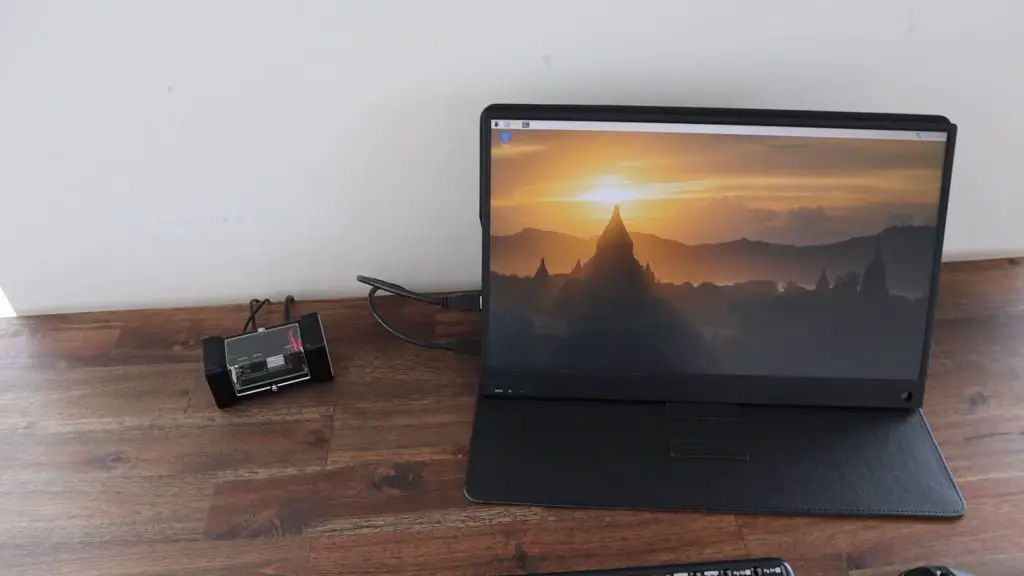
Trying Out The RasPad 3, My Unboxing & Review

Today we’re going to be taking a look at the RasPad 3, an all-in-one tablet-style device designed around the Raspberry Pi 4B that Sunfounder have sent me to review and share with you.

The RasPad 3 was brought to life through a successful Kickstarter campaign in October 2020 which saw almost 2000 backers pledge over $300,000, so it definitely gathered a lot of early interest.

Raspad 3 In Box

Watch my unboxing and review video below, or read on for my write-up.

Where To Get Your Own RasPad 3

The RasPad 3 sells for around $250 on Amazon or $220 from their web store, each often having discounts of $10 to $40. I’ll talk about the price a bit more once we’ve had a look at what is included and what it does.

Amazon – Buy Here

Sunfounder – Buy Here

In addition to the RasPad, you’ll also need to get yourself a Raspberry Pi 4B and an SD card to complete the build. I’m going to be using an 8GB version in this review as this is one that I’ve got available at the moment, but you can use a 2GB or 4GB version as well.

Raspberry Pi 4B 8GB – Buy Here

Raspberry Pi 4B 4GB – Buy Here

Raspberry Pi 4B 2GB – Buy Here

Sandisk Extreme MicroSD Card 32GB – Buy Here

Raspberry Pi 4B 8GB For Raspad

RasPad 3 Specifications

Raspad 3 Specifications

Sunfounder doesn’t really have a specification list or table on their product page for the RasPad, so I’ve summarized some of the key information below:

Dimensions 260 x 170 x 50mm
Weight890g
Display10.1″ Touch Display – 1280 x 800 Pixels
16:10 Aspect Ratio
SoftwareRasPad OS, Raspberry Pi OS, RetroPie, Raspbian
Ubuntu Desktop, Chromium OS, Android
Compatible BoardsRaspberry Pi 4B
Battery3 Cell 11.1V Lithium-Ion 3200mAh
Battery Life3-5 Hrs
PortsEthernet, 3 x USB 3.0, HDMI, 3.5mm Headphone Jack
5.5mm Barrel Power Jack, MicroSD Card Slot
FunctionsPower, Volume, Brightness, Auto-rotate Display
Built-In SensorsAccelerometer Gyroscope

Unboxing The RasPad 3

Let’s open it up and take a look at what’s included in the box.

First up is the user manual.

Raspad User Manual

It’s is one of the better ones I’ve seen for these types of kits. It is very well presented, with illustrations for each step, and I’m pretty sure that even a child of around 10 years old wouldn’t have much trouble following the instructions to put it together. The English is also pretty good for the most part, but there are a few gems along the way.

RasPad User Manual Inside

Underneath the sponge protector, we’ve got the RasPad in a plastic sleeve.

Plastic Sleeve Over Raspad

And under that, we’ve got a compartment with the power cable, internal cables, and accessories and even a screwdriver to put it together with.

Included In The Box

So the RasPad includes everything you need to get it running, even the heatsinks for your Pi. You literally just need to your Raspberry Pi and an SD card.

From the manual (on flashing the image) it looks like there is a version available with a pre-flashed microSD card included but I couldn’t find an option for this on their website or on Amazon, so this is possibly a carryover from a previous version.

So that’s what’s included in the box, now let’s take a look at the device.

RasPad 3 First Impressions

Taking a look at the RasPad device, on the front we’ve got the large 10.1” touch display. It’s surrounded by a prominent black bezel, similar to other 10″ tablets. There are no additional buttons, no camera lens, or mic or speaker holes on the front.

RasPad 3 Tablet

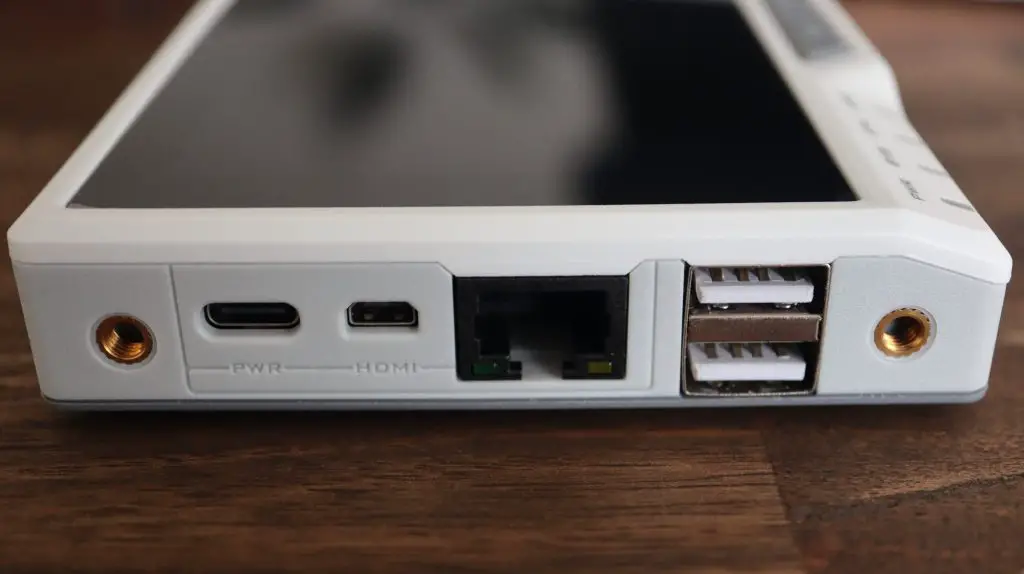
On the left side, we’ve got an Ethernet port, 3 x USB 3.0 ports, a full-size HMDI port, a 3.5mm headphone jack, and a 5.5mm barrel power socket. You’ll notice side-on that the tablet is much thicker on the back than it is on the front and that it sits on the table with the display tilted at an angle.

Left Side Ports

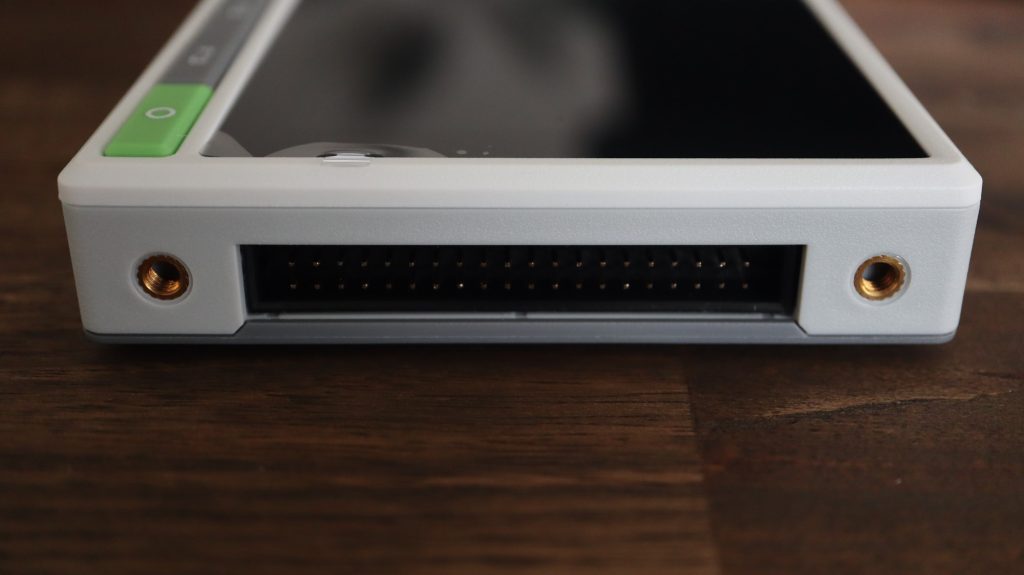
On the back is just a thin slot to pass a GPIO ribbon cable through so that you can access the Pi’s GPIO pins.

Rear GPIO Slot

And on the right side, we’ve got a battery indicator, buttons to control the volume and brightness, a power button, and a microSD card slot.

Right Side Buttons and Indicators

There isn’t really much on the bottom. We’ve just got 5 screw holes which hold the bottom cover in place as well as some ventilation holes and speaker grills. It’s also got rubber feet on each corner to rest on to elevate it slightly for ventilation.

Bottom Ventilation and Speaker Holes

The RasPad is roughly the same size as the 10.2” iPad although it is obviously quite a bit thicker, especially along the back edge.

RasPad Compared to iPad Size

Overall, the RasPad feels like a reasonably well-built, good-quality product. The glass touch display looks and feels like a higher-end tablet and the plastic case is sturdy and sits perfectly flat on the desk. There is a prominent join line around the edge between the bottom and top halves, but this is to be expected on a device that is intended to be taken apart and re-assembled.

Assembling The RasPad and Raspberry Pi 4

Now that we’ve had a look at the outside, let’s use the included screwdriver and put the Raspad together.

Underneath the back cover, you’ll see the relatively large breakout board on the right side, a pair of speakers on the bottom, a second smaller breakout board on the left side, and a 3-cell 3200mAh battery pack along the top.

Inside the RasPad

The main breakout board on the right is responsible for power management, sound, control of the fan, management of the touch display, and the control buttons.

Primary Breakout Board

We start off by plugging the USB and Ethernet cables into the Pi, then add the HDMI and power cables. These fit really well between the Pi and the control board and there are even small tabs for cable management to prevent the cables from covering the center screw hole. We then add the SD card adapter and screw the Pi down.

Raspberry Pi 4B Instaled Inside RasPad

The SD card adaptor plugs into the Pi’s SD card slot and brings the slot out to the side of the case so that you can change or modify the operating system without having to take the back cover off.

SD Card Connected To Breakout Board

We then stick the three heatsinks onto the Pi.

There is also an accelerometer shim to push onto the GPIO pins to auto rotate the display. I’m not sure why they don’t have proper female header pins on the shim, it’s just supposed to be pushed onto the exposed pins as shown below. I don’t really like this design as it feels like the shim can just fall off if the pad is bumped and you aren’t sure that all of the pins are actually making contact with the pins. The centre pins for example could be exactly in the centre of their holes and would then be making very poor contact with the pins if any at all.

Accelerometer Shim Connected To Raspberry Pi

Lastly, we need to add the fan to the back cover. This is mounted directly onto the cover and pushes the air out of the case rather than pulling air in. When the case is closed, the fan is positioned directly above the Pis heatsink.

Cooling Fan To Draw Air Out Of RasPad

Once we’ve got everything installed, we can close it up.

Replacing The Bottom Cover

Flashing RasPad OS To The SD Card

Next, we need to burn the operating system image to our SD card. They have their own operating system, RasPad OS, which I’m going to try first. This can just be downloaded from the RasPad website and is then flashed with a utility like Balena Etcher.

Flashing The RasPad OS to SD Card

Once the SD card has been flashed, we can insert it into the microSD card slot and plug in the power adaptor. The power adapter is a bit bulky, but it needs to provide quite a lot of power to the Raspad to power the Pi, the display, and charge the battery when empty.

The first boot takes about a minute to complete and you’ve then got a couple of settings to get through. It would have been nice if this step included setting up a WiFi network as well, but you can just head over to the WiFi menu in the taskbar to set that up afterward.

RasPad OS Setup

Subsequent boots take a little under 30 seconds on RasPad OS and they do have an option to just turn off the display with a short press of the power button if you’re going to be away briefly. This obviously doesn’t turn the Pi off though, so you won’t want to do this if you’re not using it for longer than about 10-15 minutes.

Using The RasPad 3

Their operating system looks quite similar to Raspberry Pi OS, but it does have a custom menu, which they call RasPad Launcher. This launcher suits a tablet-style interface a bit better and makes it easier to open applications on the touch display.

RasPad OS Homescreen
RasPad OS Main Menu

They’ve tried to make their operating system reasonably touch-friendly and you are able to get through tasks like using a spreadsheet or word processing app using the onscreen keyboard, but the keys are quite small and it’s just not anywhere near as easy as just using a keyboard and mouse.

This isn’t a fault with the hardware, the touchscreen on the Raspad is pretty good, it’s responsive and fairly accurate. These apps are just inherently designed to be used with a keyboard and mouse and so there are things that can’t be done easily with the touch screen, like a right click, and the small icons are difficult to press accurately.

Their documentation does guide you through installing a script to allow a long press to register as a right-click, but this needs to be installed as an extra on most operating systems.

Loading Websites on the RasPad Browser

Take an app like Minecraft for example, if you attempt to do anything on the touchscreen, it just results in downward digging. You’re also unable to close the app as clicking on or around the window just results in further downward digging.

Playing Minecraft on the RasPad

It does work well with some games and I think the tablet would be well suited to education where students do drag and drop programming. It would also work well or for home automation apps with a touch interface or other purpose-built touch screen apps. I’m thinking of registration systems for buildings/businesses, point of sale systems, questionnaires, and surveys – the ones with tick boxes and yes/no answers.

Drag and Drop Programming on the RasPad

I think you’d have a hard time using the tablet for apps that require regular text input without using an external keyboard. Fortunately, this is quite easy to add and works just like a regular keyboard and mouse on a Raspberry Pi.

Keyboard and Mouse on the RasPad

The speaker quality is also not bad if you’re using it to play or stream music or videos.

I tried connecting an external display to the Raspad and while this works well, it does disable the touchscreen. I’m not sure why they have done this as it would still be useful to use touch inputs with an external display, but that’s just something to be aware of if you’re planning on using it in this way.

Touch Display Is Disabled When An External Display Is Plugged In

The specs claim 3-5 hours of battery life. I managed to get a little under 4 hours, but this obviously depends on how you use it. If you’re running apps that don’t require much processing and you’ve dimmed the display then you’ll get better battery life.

I then tried the auto-rotate function and that didn’t seem to work. There isn’t anything mentioned in the manual about setup or use conditions, so I assume that this should just work when using their operating system.

Accelerometer Not Working

I wondered if the shim that I was initially concerned about wasn’t connected properly, so I opened it up and added my own header pins to it. I then closed it all up again and this didn’t work either, so I think my auto-rotation shim is just faulty.

Accelerometer Shim Header Pins

Running Different Operating Systems on the RasPad

Another great feature of the RasPad is that you have the option to run different operating systems or flavours of operating systems on it quite quickly and easily. They have listed a couple of options on their product page, but I would imagine that any operating system that runs on a Raspberry Pi would run on the RasPad as well.

I tried booting up Raspberry Pi OS and that worked perfectly, including with the touchscreen input, without any additional setup.

Running Raspberry Pi OS

I also tried running RetroPie and that worked well too. It’s actually quite a nice package for a RetroPie system as you’ve got a portable battery-powered display and speakers all in one unit. Just plug in a controller and you’ve got a portable console that’s ready to go.

Running RetroPi

Suggestions For Future Versions Of The RasPad

After using the RasPad for a couple of days, I got to thinking of a couple of things that I would like to see on future versions.

One of the first that came to mind was battery level feedback to the operating system. There is a battery level indicator on the side and the device overlays a low battery level warning on the display when it gets low, but if you don’t actually turn the Raspad off then it just eventually dies. I would like to see a low-power shutdown script integrated into the operating system.

Battery Indicator on the Side

Next would be an option to add an internal SSD. There is a lot of free space inside the Raspad, and there is even a free USB 3.0 port. It would have been pretty easy to add a space or adaptor to add a small SSD, a slot built into the control board for an NVME drive would be even better.

Main Internals of the RasPad

Although there is a slot on the top for a GPIO ribbon cable to pass through, you either have to open up the case up every time you want to connect something to the GPIO pins or have a ribbon cable dangling out the back permanently. I would have preferred to see a set of GPIO pins (male or female would work) brought out to the side of the case, like the M5 Stack Modules, which can then be plugged into and removed easily.

GPIO Ribbon Cable Slot on the Back

My last suggestion is not so much a change to the Raspad but perhaps a future variant, and that would be to create a CM4 version. I get why they have designed the Raspad around the much more common Raspberry Pi 4B board, but given that it’s mounted inside and has a number of cables connected to it, it would be a lot simpler to just plug in a CM4 module. It could just be an easy option for those who want a Raspberry Pi tablet and intend on leaving their Pi inside the tablet permanently.

Main Control Breakout Board

Final Thoughts On The RasPad 3

Getting back to the price point I mentioned earlier. At around $220 to $250, once you’ve added a Pi to it you’re pretty close to $300. This does seem quite high if you consider that you can get other tablets for around $200, but I think you need to take into account the use cases for the RasPad. There are definitely better options if you’re looking for a cheap tablet, but the RasPad offers makers the same level of flexibility and adaptability that a Raspberry Pi comes with. Being centered around a Raspberry Pi, you have a world of possibilities for operating systems, peripherals, sensors, adaptors, and input devices, which typically don’t exist on other platforms. How many tablets do you know of that have GPIO pins available to directly connect a moisture sensor to or drive a servo with?

With the RasPad, you’re paying for the convenience of the Raspberry Pi platform in a compact, all-in-one form factor, and that’s pretty cool!

Let me know what you think of the RasPad in the comments section below.

Automated IoT Indoor Hydroponic Farm Using Quantum Integration

In this project, we’re going to be building an automated IoT indoor hydroponic farm using the Quantum Integration system. We’re going to try to automate the grow house so that the flood cycles and grow light timing happen automatically, all we’ll need to do is keep an eye on the nutrient solution level.

Here’s my video of the build, read on for the detailed written instructions:

What Is The Quantum Integration System?

The guys at Quantum Integration sent me their starter kit and some additional builder bases to share with you. You can buy your own bundle through their Quantum Integration web store or through Amazon.

Quantum Integration Starter Bundle & Builder Bases

The Quantum Integration system is a wireless electronics platform that enables you to build IoT devices and apps quickly and easily thanks to an easy-to-use set of hardware and a drag and drop programming interface.

The heart of the system is a central server, this is where all your apps are stored and run. You can also access your apps and their control dashboards from any device on your network with a web browser.

Quantum Integration Q Server

You use these Q-client builder bases on your projects and devices to bring them to life. Each builder base has 7 GPIO pins as well as a dedicated I2C interface. They’re also designed to be able to be used in low power applications, so are able to run for months on a single small battery.

You can currently connect up to 5 builder bases to your server at once and these can then be used on the same project or on different projects.

Quantum Integration Builder Base

One of the strengths of the Quantum Integration system is its seamless wireless connectivity. You can easily build projects that communicate wirelessly between builder bases or between one or more builder bases and a customised web dashboard through your browser on a laptop, tablet, or phone.

What You Need To Build Your Own Indoor Hydroponic Farm

There are quite a few parts to this hydroponic project and a number of them may vary, depending on what you have available locally. I’ve put together this parts list that matches what I bought as closely as possible.

Indoor IoT Hydroponic System Parts
  • Quantum Integration Starter Bundle – Buy Here
  • 60 x 40 x 60cm Grow Tent (Similar Size) – Buy Here
  • 600W LED Grow Light – Buy Here
  • 2-3 x Storage Containers (Either Same Capacity or One Double The Other Two)
  • 50mm Mesh Grow Pots – Buy Here
  • Clay Grow Beads – Buy Here
  • 1L Nutrient Solution – Buy Here
  • 3 x 5V Pumps – Buy Here
  • Flexible Tubing To Suite Pumps – Buy Here
  • 8 Channel Relay Board – Buy Here
  • DHT11 Temperature & Humidity Sensor – Buy Here
  • I2C 16×2 LCD Display – Buy Here
  • Breadboard Jumpers – Buy Here
  • 3mm Acrylic (Optional) – Buy Here
  • Nylon Standoffs (Optional) – Buy Here

How To Make Your Indoor Hydroponic Farm

Assembling The Grow House & Containers

I started out by assembling the grow house. Mine is just a generic 60x40x60cm tent-style grow house which is quite commonly available online. You might not be able to find the exact same size as mine, but any similar size will do. I chose this smaller one because I intend growing lettuce and other small leafy vegetables that don’t need a lot of headroom.

Hydroponic Grow Tent

I bought three containers to use to hold the grow pots. Two smaller ones that could each hold six small hydroponic grow pots and one larger one for two larger grow pots. You can use any individual containers or combination of containers with the same volume as the nutrient solution will be pumped from one to the next. My large one holds 6 litres and my two smaller ones 3 litres each. I connected the smaller ones together with a couple of sections of tubing, so when one fills the other does too.

I measured the rim of my pots and then used a laser cutter to cut the lids of the containers to hold them.

Laser Cutting Grow Pot Holder Lid

I just used two plastic cups for the larger grow pots and used a soldering iron to make some holes in them for the nutrient solution to fill and drain from.

Grow Pots Installed on Grow Beds

Attempting To Make Float Switches

My initial intention (and probably still my long-term goal) was to use float switches to control the levels in the containers. This would ensure that each container was properly filled and that the pumps wouldn’t run dry.

I looked at some local stores for small float switches but couldn’t find anything small enough for my containers, so I decided to try to make my own using some syringes, magnets and reed switches.

The basic idea was to use the syringe without the rubber seal as a guide for the float and to stick a magnet onto the end of the plunger to close the reed switch at a certain limit.

So I took the rubber part out of some small syringes I found and added a magnet to the end of the plungers.

Making Syringe Level Sensor

I then glued a cork float onto the bottom of each plunger.

Gluing Float To Level Sensor

I then also glued a reed switch onto the side of the syringe to pick up on the position of the magnet and close the circuit when the water level gets to a certain point. This setup can be adjusted by moving the reed switch up and down on the syringe.

Level Sensor Operating

This worked pretty well for my cup test, but once installed on my containers I noticed that if the small magnets were rotated to a certain point, the magnetic field was no longer strong enough to close the reed switch. I also couldn’t use larger magnets as these were as big as could fit into the syringe already.

Preparing The Hydroponic Flood System

Now that the containers are prepared, we need a way to move the nutrient solution from the reservoir to container one, from container one to container two, and then back from container two to the reservoir. To do this, we’re going to use three small 5V pumps.

I just used a 3-litre milk bottle as my reservoir. You need to use a container that isn’t too tall or you put extra pressure on the small pumps and reduce the flow rate.

Put a pump into each of the containers and then connect them up with some flexible tubing. The ends of each tube should be pushed through the lids of the containers, but shouldn’t protrude too far as they might then siphon the solution back into the original container when the pumps are turned off. You want them each to pull in air when the solution runs back through the tube to the container it’s being pumped from.

Pumps Connected Up To Grow Beds

I cut the USB connectors off the ends of my pumps and replaced them with some Dupont connectors which can then be screwed into the terminals on the relay board.

Dupont Connectors On Pump

Connecting The Builder Base Control System

Now we need to automate the flood cycle using one of our builder bases and the relay board. The pumps are connected to individual relays and the builder base then drives the relays to turn each pump on and off.

Builder Base Driving Relay Board

I have connected all of the negative terminals of the pumps to GND and the positives to the relay terminals which in turn then go to 5V. The relays act as a switch to turn the 5V on and off to each pump.

The builder base is connected to the input side of the relay board as follows:

  • VCC to 5V
  • GND to GND
  • Relay 1 to GP0
  • Relay 2 to GP1
  • Relay 3 to GP2
  • Relay 4 to GP3

I then made up a quick demo app to test each pump and the grow light relay using a button on the web dashboard.

There was one minor complication that I found during this step. My relay board energises each relay by grounding the input pin, which is the inverse of my individual relay boards. So they are off with a 5V signal and on with a 0V signal. This requires the logic in the code to be flipped as well, so you’ll see a NOT gate ahead of each relay output in the app.

Running Pumps Manually

Automating The Hydroponic Grow Cycle

Once the pumps were working, I started working on the automated app.

The app consists of three sections:

Quantum Integration Hydroponic Farm App

An environment tab, which displays the current temperature and humidity using the DHT11 sensor, as well as creates a notification alert if the temperature exceeds 30 degrees.

A pump tab, which has manual controls for each of the three pumps, similar to the test example, but also includes controls for the automated cycle. This runs each pump in sequence for the flood cycle and then waits for a period of time before executing the next flood cycle. From what I’ve seen online it looks like a good starting point is to flood your beds for around 5-10 minutes at a time and to repeat this every 2-3 hours.

Lastly, there is a grow light tab. The grow light tab has a slide switch to turn the grow light on or off and also has an automated cycle that turns the grow light on for a 10 hour period and then off for a 14 hour period.

There is a bit more to do than just create the app, you also need to generate and upload the firmware for each builder base, but this is quite straightforward and in essence just tells the builder bases what is connected to which pins.

You can download the app and firmware to import into your Quantum Cloud here.

Once this is done, the dashboard can be accessed through the server and we can start using the controls.

The environment tab has the temperature and humidity readings from our DHT11 sensor.

Environment Temperatures

The water cycle tab has the three manual pump control buttons as well as the buttons to start and stop the automatic flood cycle. It’s worth mentioning here that if you push stop midway through the flood cycle, it’ll still complete that cycle before stopping.

App Dashboard

The grow light tab has a slider to turn the light on and off as well as buttons to start and stop the automatic light cycle.

Grow Light Dashboard

You can see a clip of the automatic flood cycle running in my video at the beginning of the post.

As mentioned earlier, after a lot of trial and error, I couldn’t get the float switches to operate reliably. There wasn’t enough space in the small syringes to put a large magnet and the small magnets only triggered the reed switch when they were in a particular orientation. This was fine 90% of the time, but on the odd occasion when the switch didn’t close properly, it either flooded my desk or left one pump running dry. I did eventually found some small float switches online, but they’re on a long delivery, so I’ll only be able to put them in in a couple of weeks’ time. So the system runs on a time-based cycle at the moment. This works well for about two to three days and then needs a couple of minutes of adjustment using the manual pump controls, which is alright as a temporary solution.

Installing The Grow Light

The final part of our system is the grow light. We’ve already got the controls on our dashboard and the relay wired up to our builder base to turn the light on and off.

I hung the light in the grow tent using the included wire hanging loops.

Grow Light Running

Both the light and the light’s built-in switch operate at 220V. I made up a new power lead to replace the included one which had a branch off to the relay to enable it to be switched on and off remotely.

Note: Check your local regulations before modifying any cables or appliances, this often requires qualifications and/or permits. Also, do not attempt to do work on 110V or 220V AC supplies if you are not qualified or competent to do so, you run the risk of electric shock, which may result in injury or death, and you risk starting an electrical fire.

Making Up The Control System Housing

To support and protect the electronics, I made up some laser-cut acrylic panels to mount them onto. This panel could then be installed on the side of the grow tent.

Laser Cutting The Back Board

There is a back panel to mount the components onto and then a front cover plate to protect the wiring. The cover plate will be mounted onto 6 nylon standoffs.

Control System Base Assembly

You could use a similar setup for a range of home automation projects as well. You’ve got a temperature and humidity sensor and also a relay board with up to 8 usable relays on it – although you’d need to use some relays together as you’ve only got 6 free pins on the builder base after the DHT11 sensor is connected.

Assembled Builder Base Control System

Adding A Remote LCD Display Panel

The last thing I’m going to do is to add a remote LCD display panel that can be used to keep an eye on the temperature and humidity in the grow tent from a different location. This will also be useful once my level sensors are installed.

This is as easy as dragging two LCD blocks into the app and dragging the sensor outputs to them.

Adding The LCD Display To The App

We can then connect the display to another builder base’s I2C interface and it’s ready to go.

  • SDA to SDA
  • SCL to SCL
  • VCC to 3.3V
  • GND to GND
LCD Display Running

Finishing Off The Hydroponic System

I connected the board to the pumps and grow light and then mounted it in the back of the grow tent.

Control System Mounted Into Grow Tent

I then started up the server and tested the pumps again, this time from my phone.

Testing Pumps In Grow Tent

Once I was happy with the way the hydroponic system was working, I added the plants. As mentioned earlier, I’m going to be starting off by growing a few different types of lettuce. I’m pretty new to hydroponics as well, so I expect that it’s going to take some experimenting to see what works and what doesn’t. But I think the basics are all here and this will be a good start to indoor farming.

Lettuce Growing In Hydroponic Grow Bed

I hope you enjoyed this project. Let me know what you think of it in the comments section below and have a look at the Quantum Integration system if you’re looking at getting into building wireless or IoT projects.

If you’d like to build a simpler version of an indoor smart garden, have a look at my Micro:bit smart garden project.

Quantum Integration Hydroponic Farm
Grow Light On Lettuce