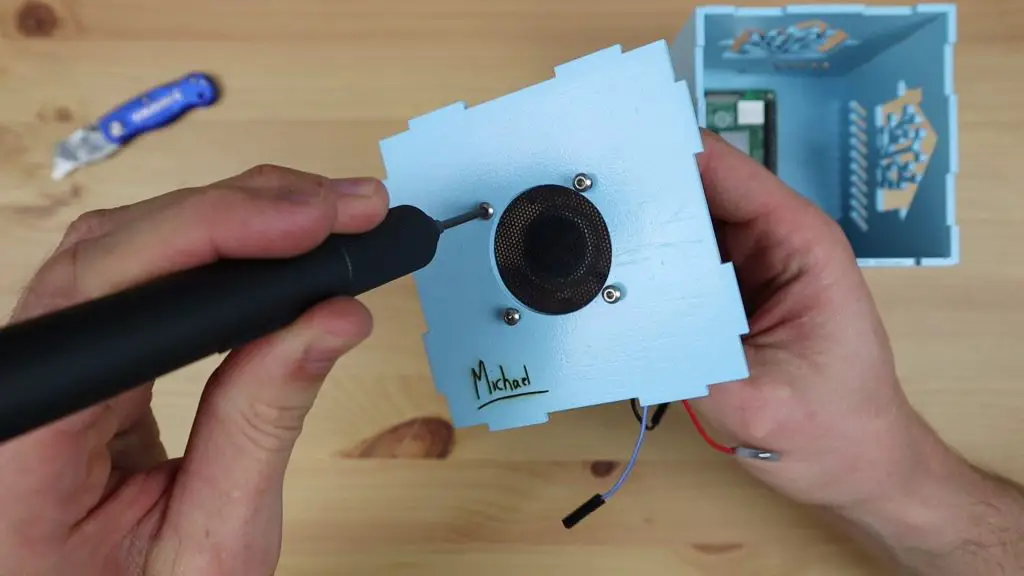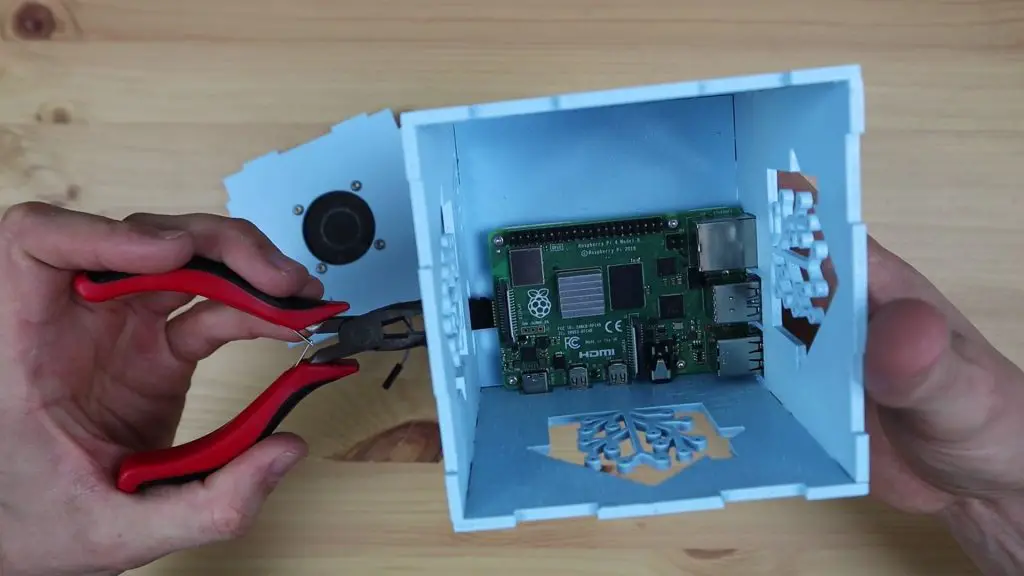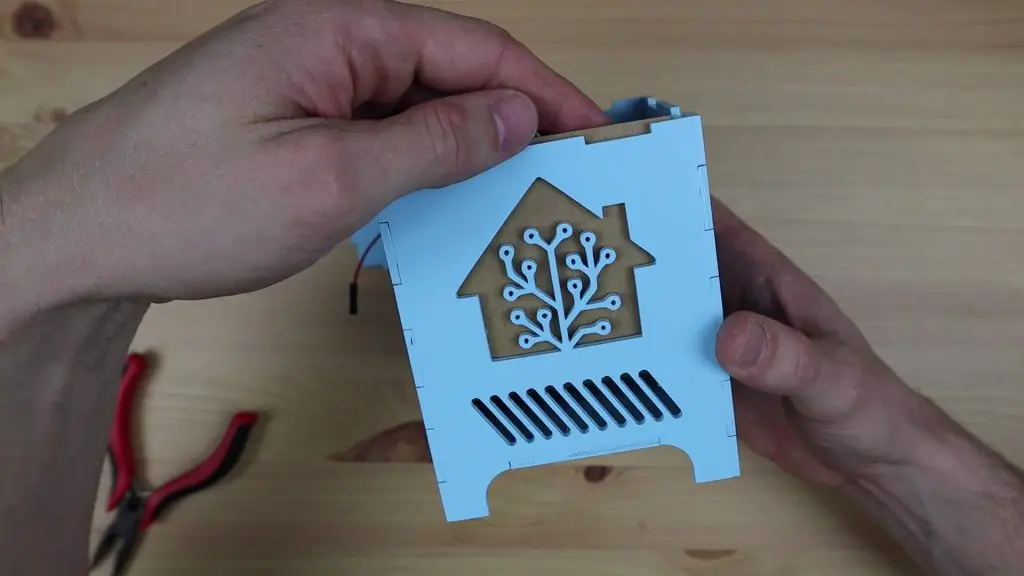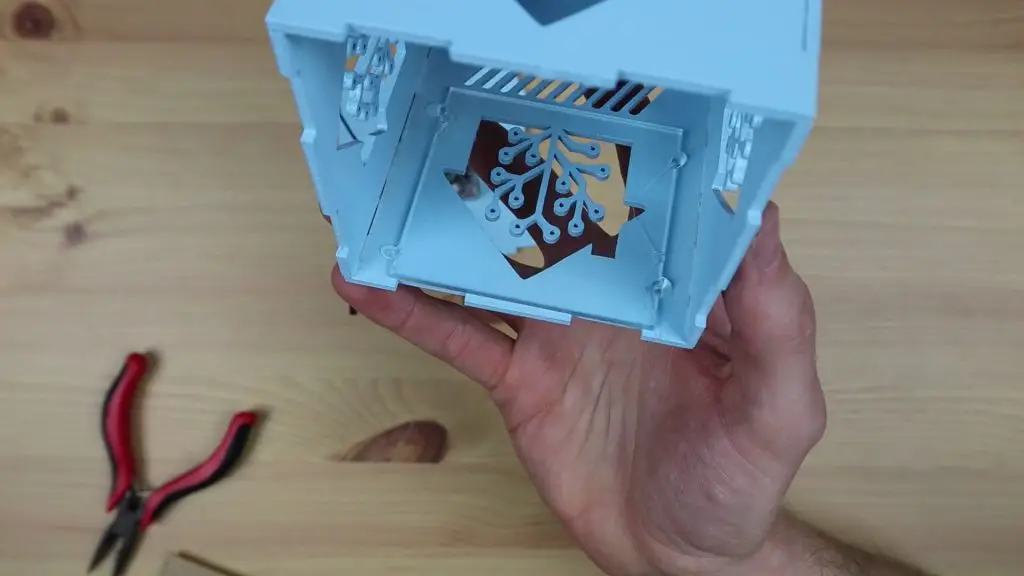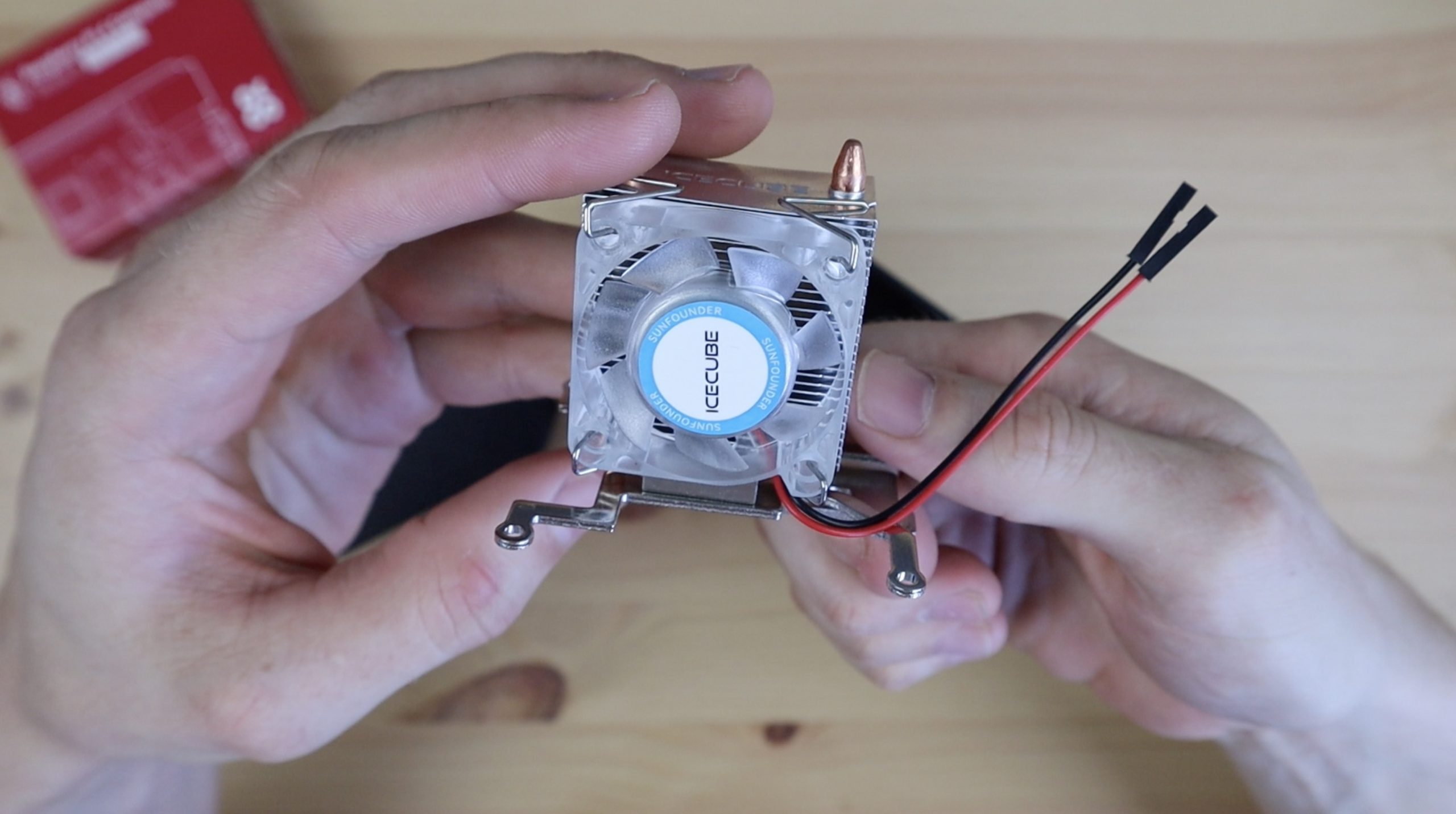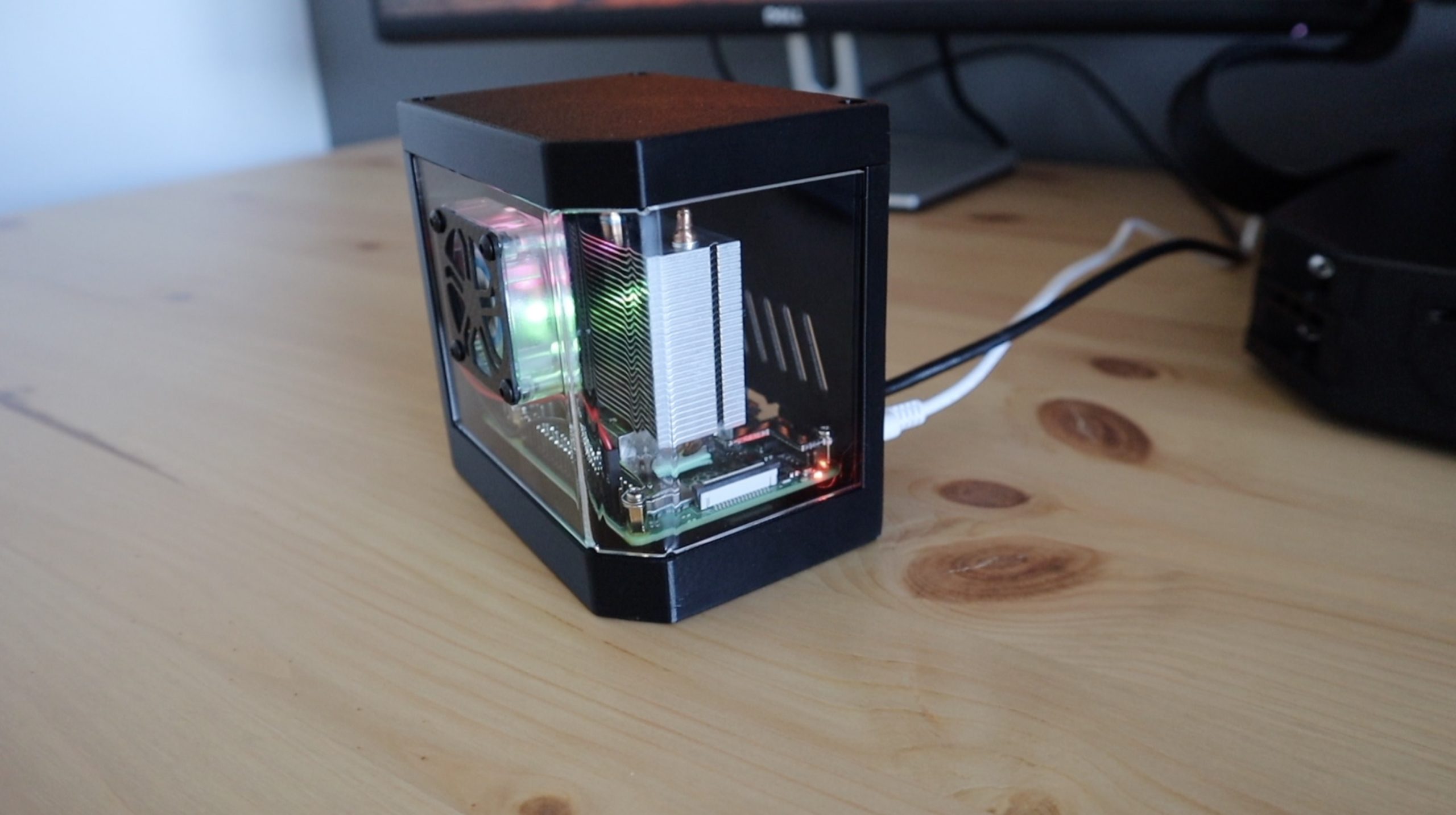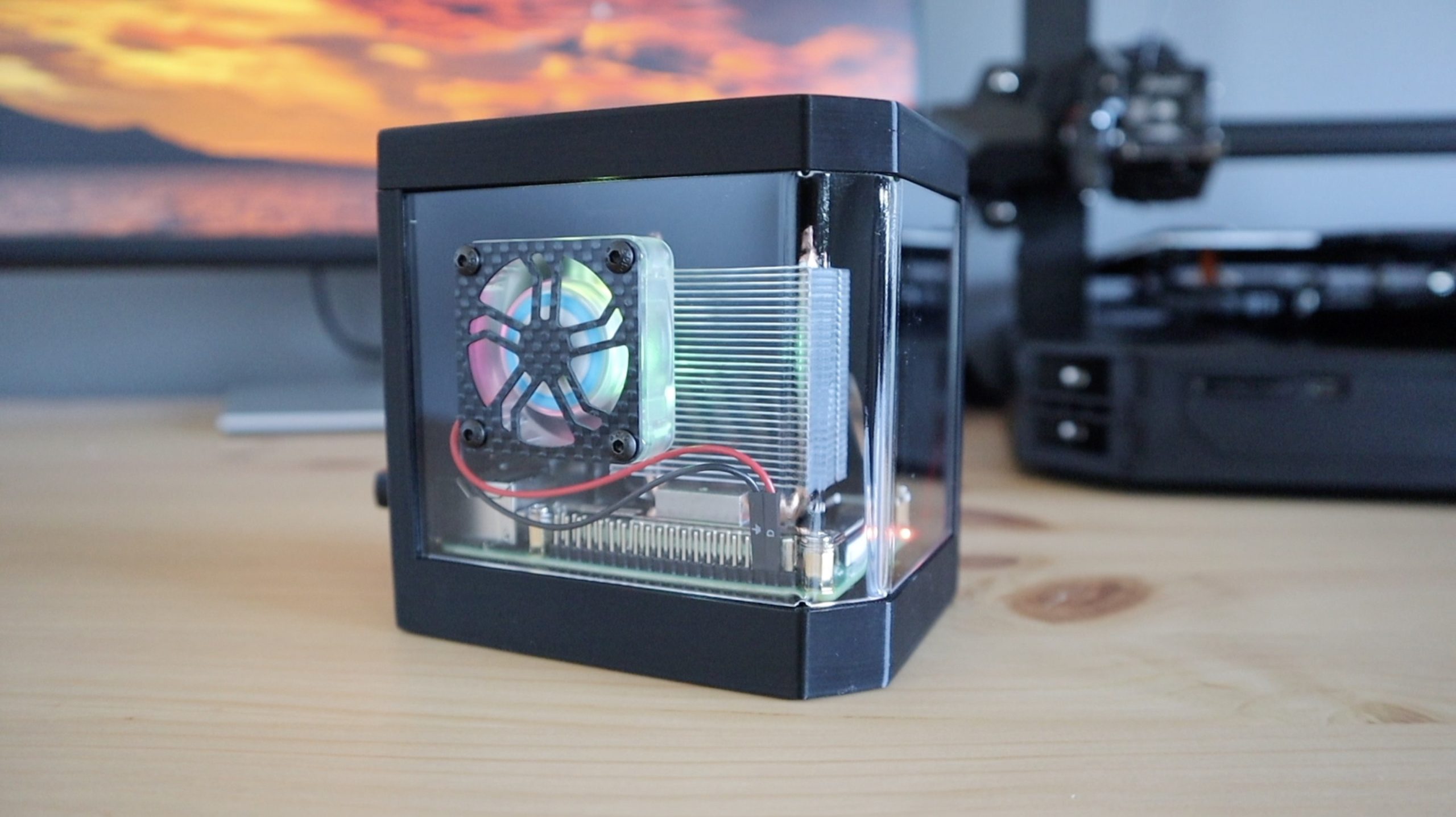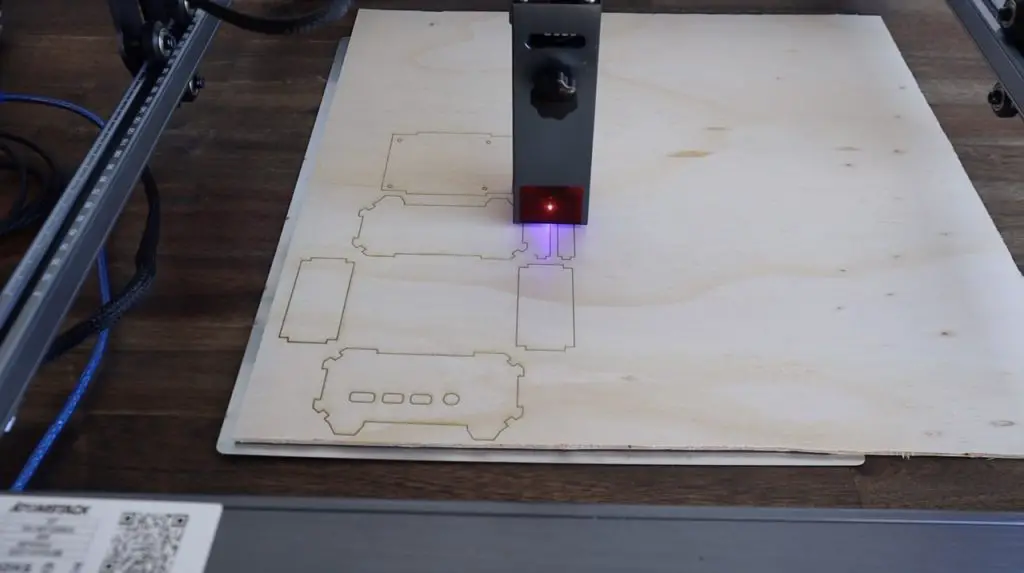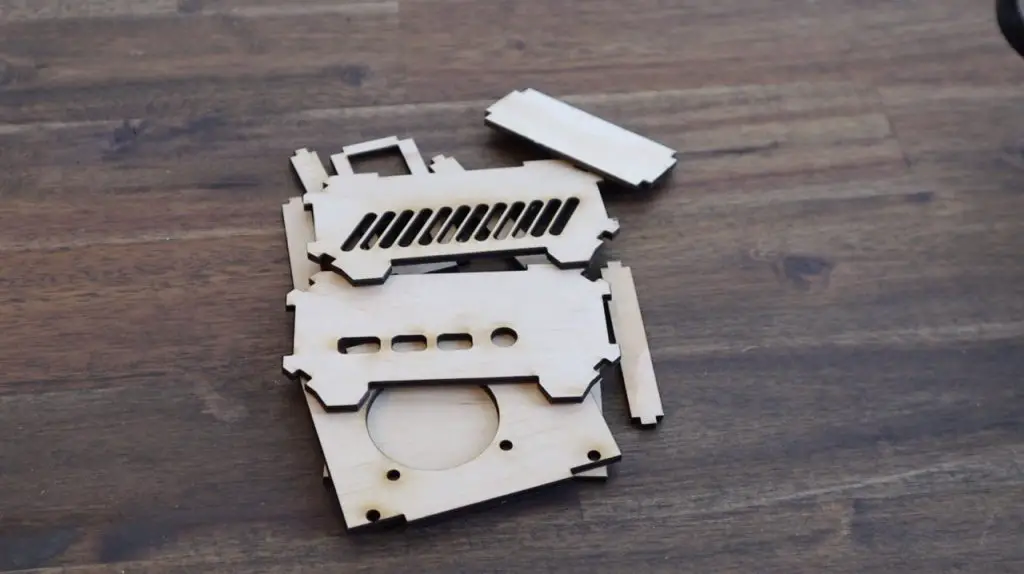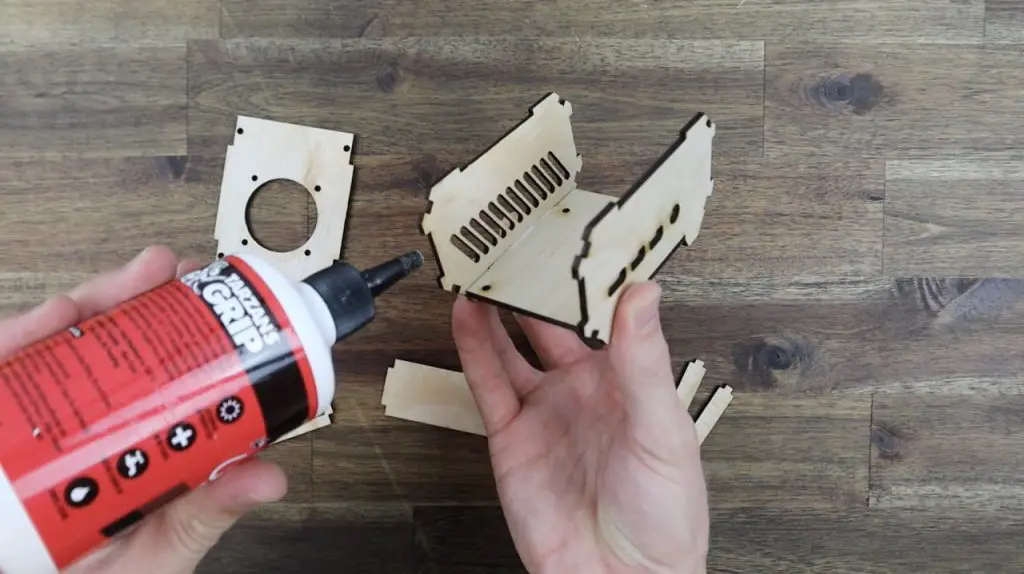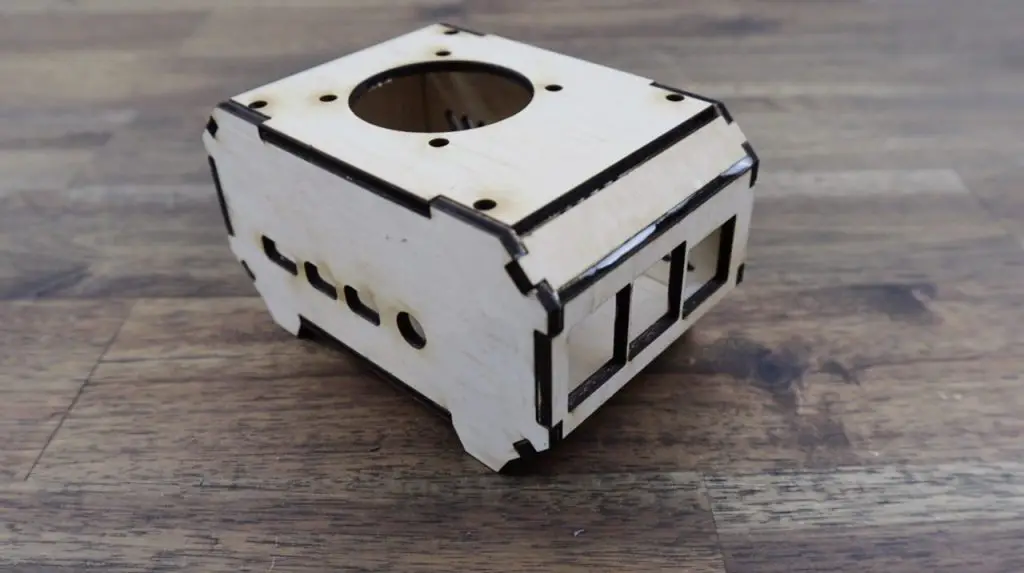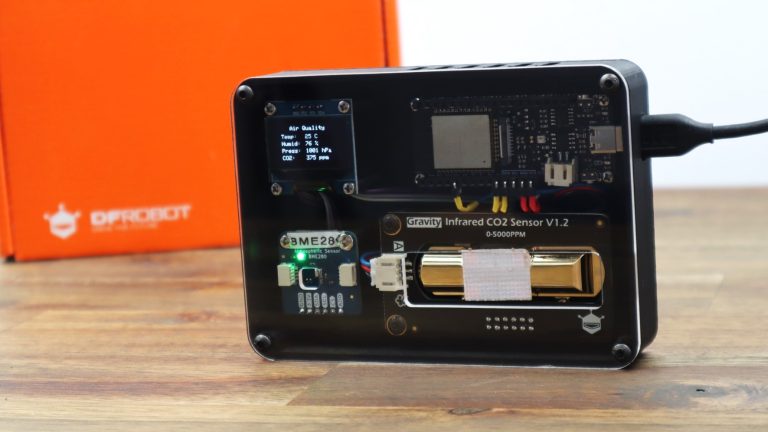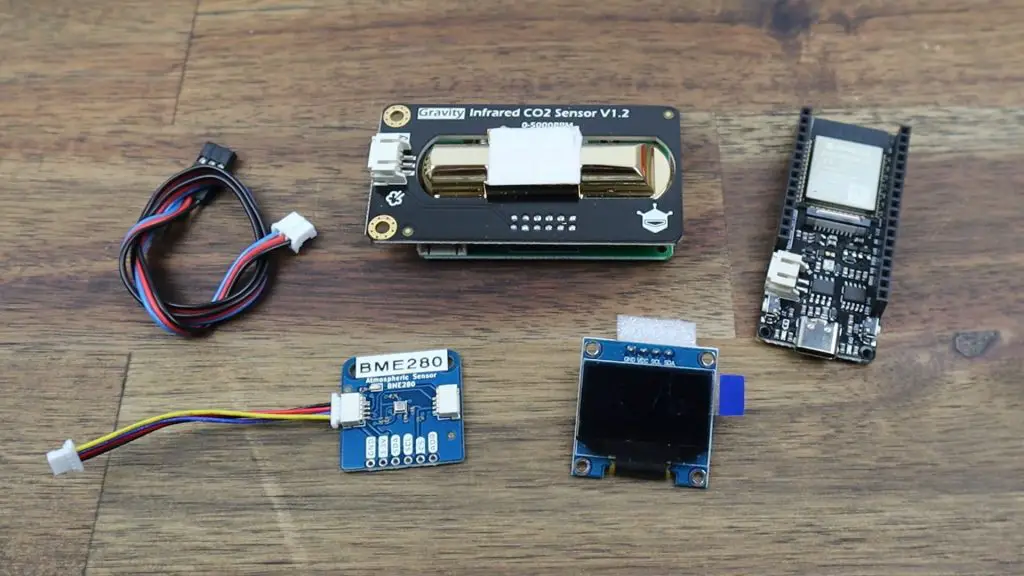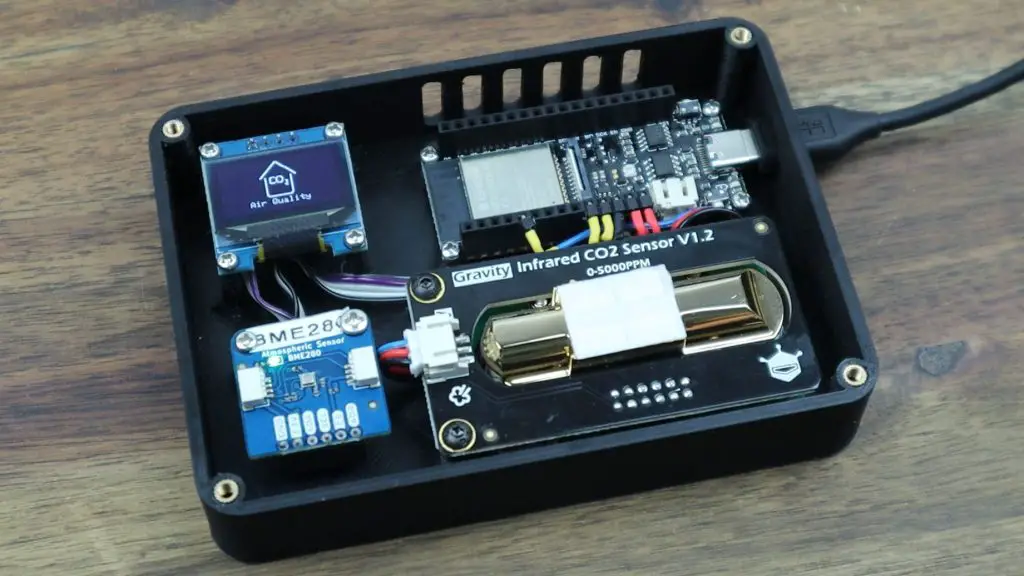
In this project, we’re going to be making an all-in-one indoor air quality monitor with an IOT dashboard using an infrared CO2 sensor from DFRobot and a BME280 environment sensor.
CO2 is a colourless and odourless gas that is a by-product of combustion, produced by gas heaters and stoves, and also by metabolic processes in humans and animals. It typically exists in a concentration of around 300-400 ppm (parts per million) outdoors, but when the average adult exhales, they can produce a concentration almost 100 times greater than this. With poor ventilation, the CO2 concentration in an indoor space can build up quite quickly. Early signs of increased concentrations of CO2 include the inability to concentrate and tiredness, while high concentrations of CO2 can lead to headaches, dizziness and even difficulty breathing, and eventually loss of consciousness.
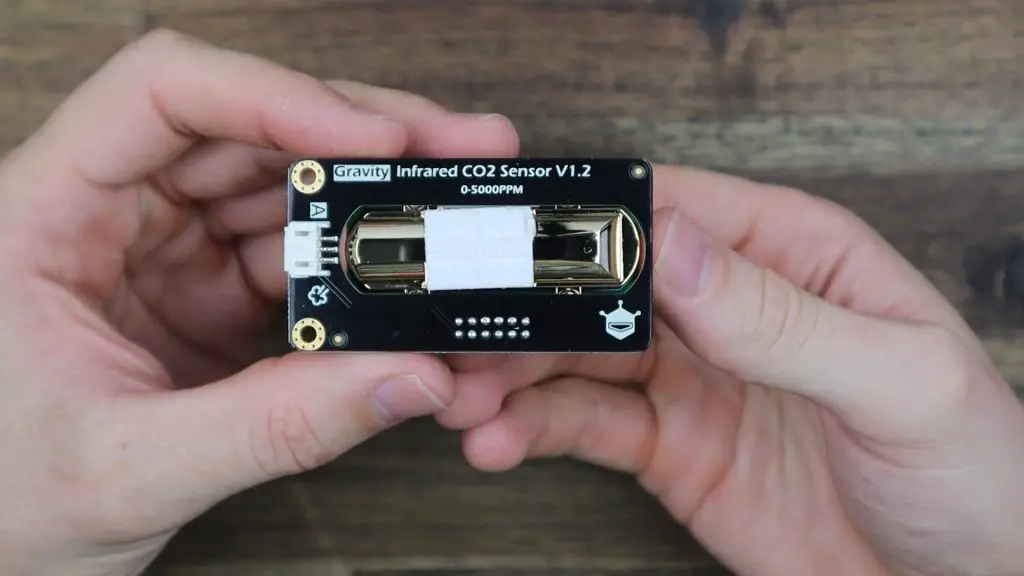
Ideally, we’d like to keep the concentration of CO2 in an indoor environment below 1,000 ppm, anything above this starts to lead to drowsiness and impaired concentration and the upper limit for what is considered to be safe is 5,000 ppm – so that’s actually the upper limit for our infrared CO2 sensor – since it has been specifically designed for this sort of use.
Our CO2 sensor uses infrared light to measure the concentration of CO2 within the air and then produces a 0-2V analogue signal.
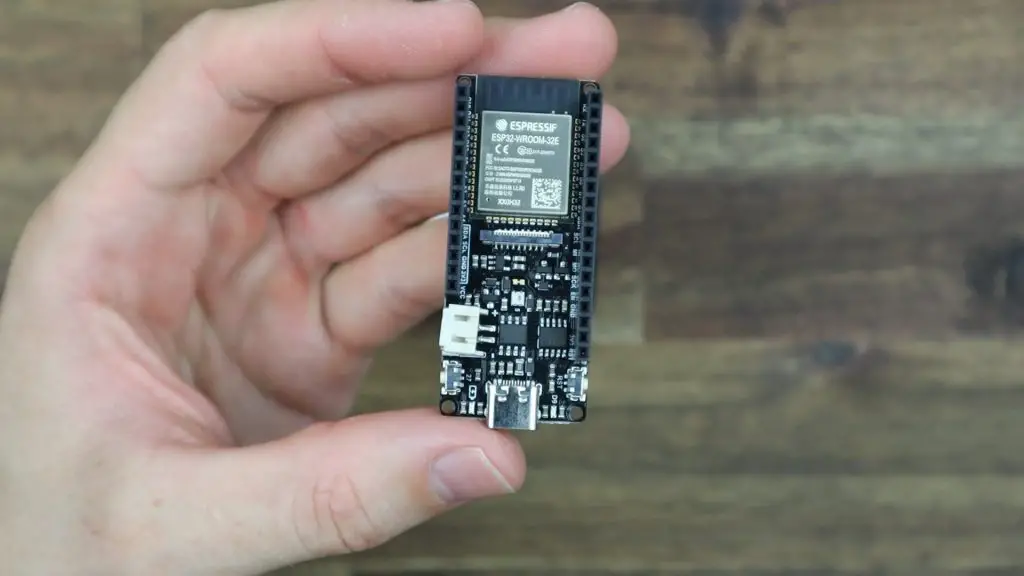
We’re going to read this signal using an ESP32 based microcontroller by DFRobot called a Firebeetle board. I’ve used one of these boards previously for my weather station because they have a great range of IO, integrated WiFi and Bluetooth connectivity and they’re designed to be power efficient. They even include a battery charging circuit and a JST connector plug for a lithium-ion or lithium-polymer battery.
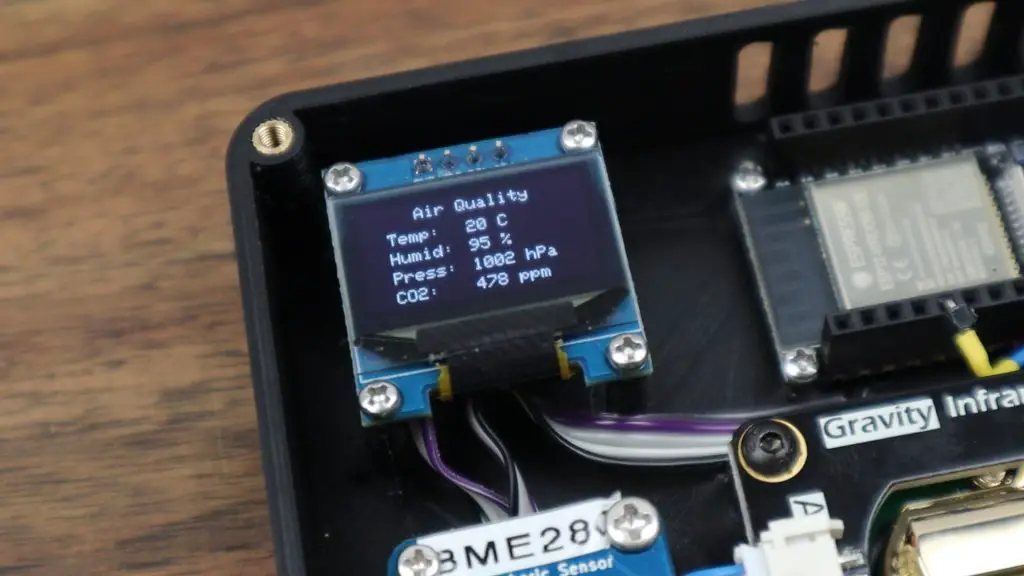
I’m going to be using the board’s WiFi connectivity to send the measured data to Prometheus, which is an online time-series database, and I’ll then be creating a dashboard to view the data using Grafana. This dashboard will be able to be accessed on any internet-connected device with a browser and will allow time-based trends of the data to be created. I also want to include some local indication on the device so I’m going to be doing that with an I2C OLED display.
Finally, since I’ve already got a microcontroller and display, it would be good to measure some other environment metrics as well, so I’m going to also include a BME280 temperature, pressure and humidity sensor.
Watch my video of the build here, or read on for the full write-up:
What you Need For This Project
To complete this project, you’ll need the following main components in addition to basic wiring, header pins etc.:
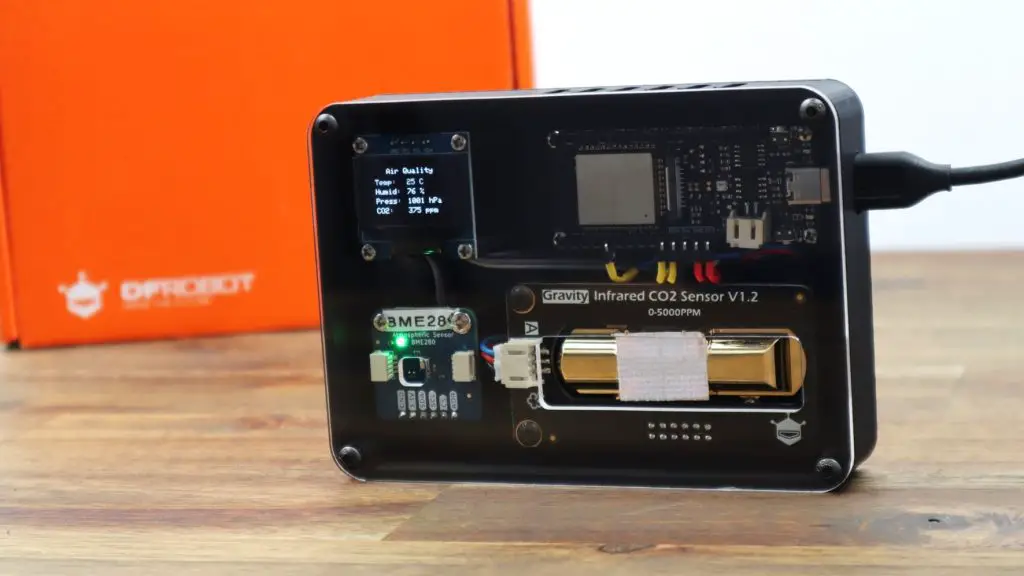
My goal is to build all of the components into a single desktop or wall-mountable device that I can power using a USB outlet and move around the house if I want to.
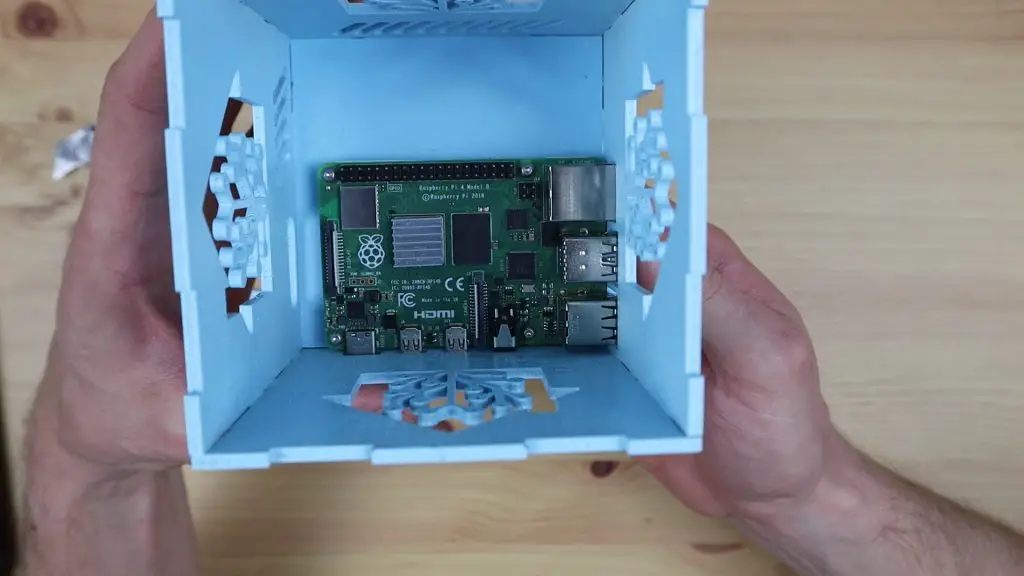
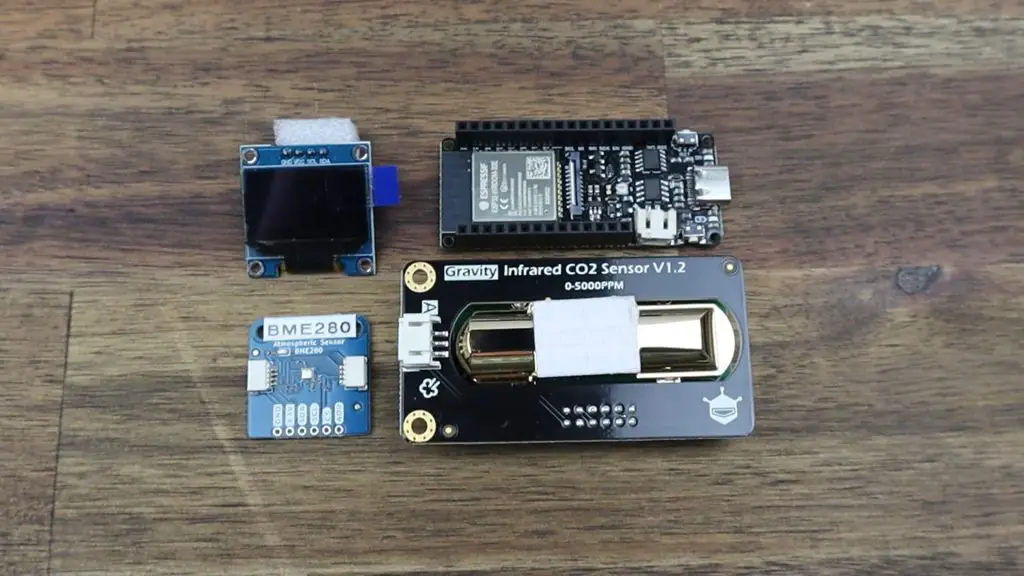
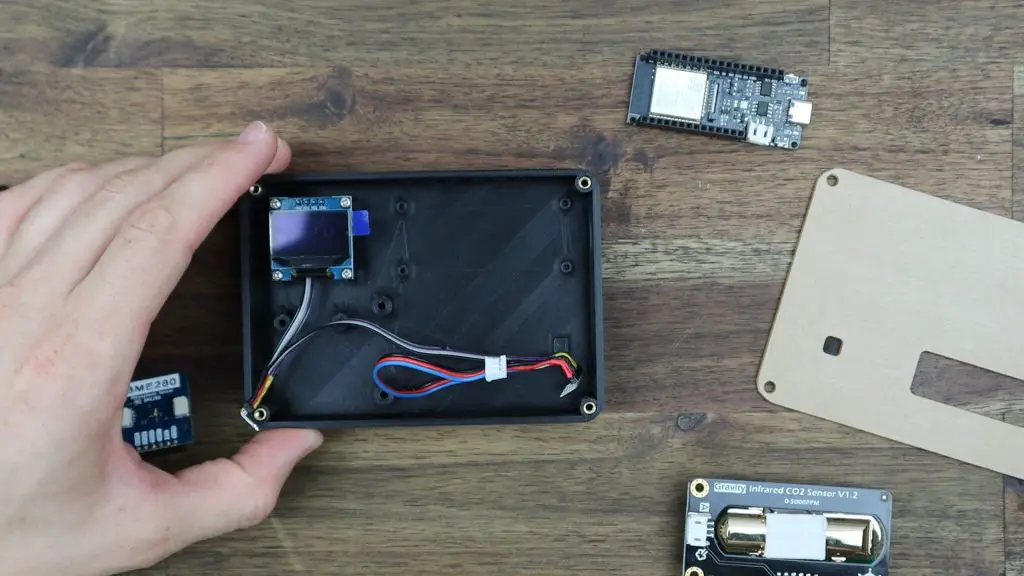
I quite like the futuristic look of the CO2 sensor, so I’m going to make the front cover of the housing clear so that we can see into it, and see the microcontroller, display and sensors. So for this reason it would be good to mount the four boards in a flat, rectangular layout as shown below.
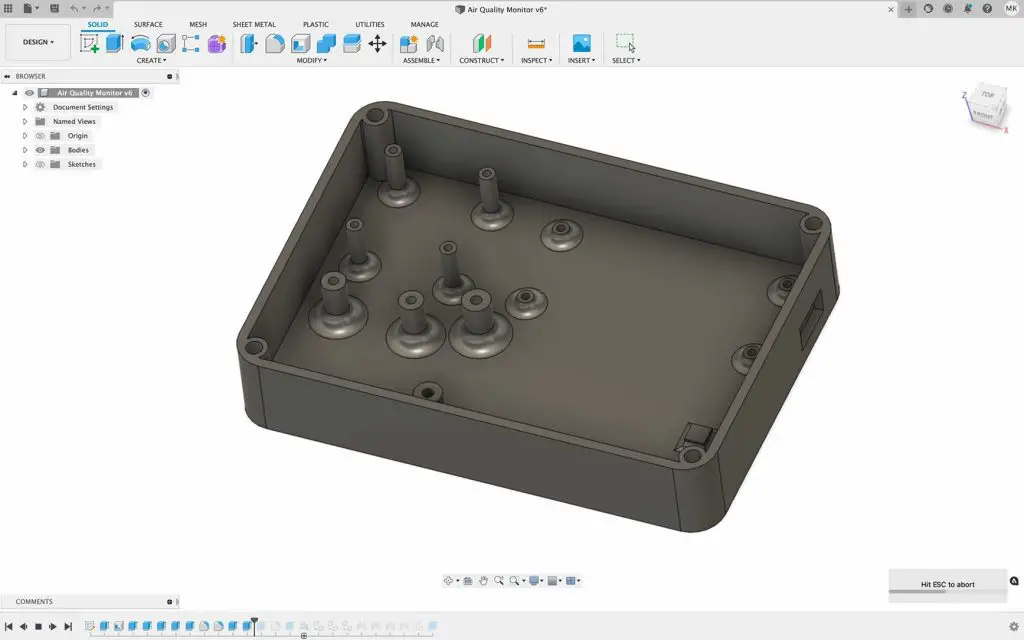
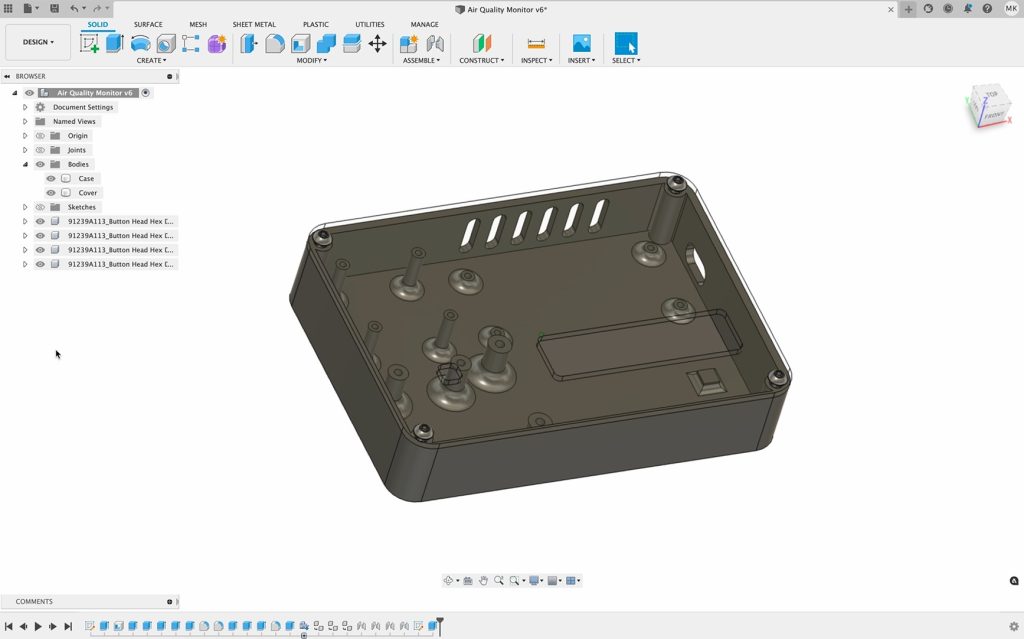
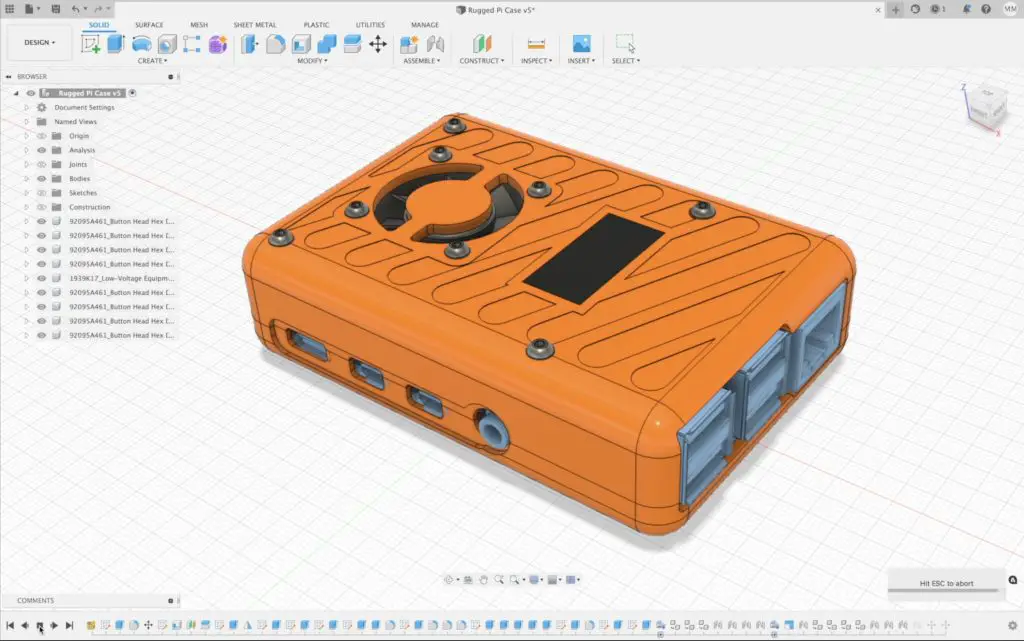
I designed the case in Fusion360, using a simple layout with 3D printed standoffs to mount each of the four components.
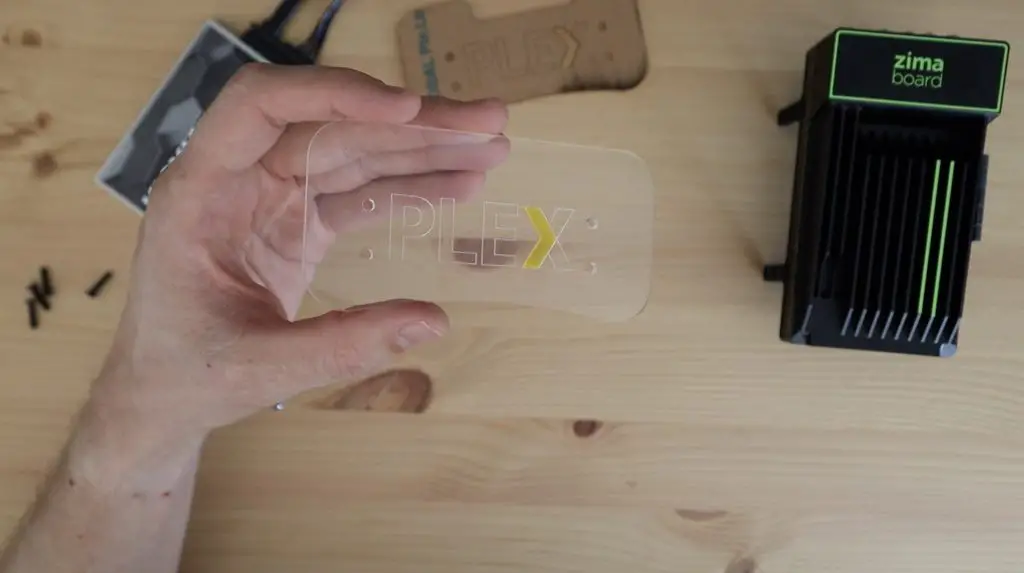
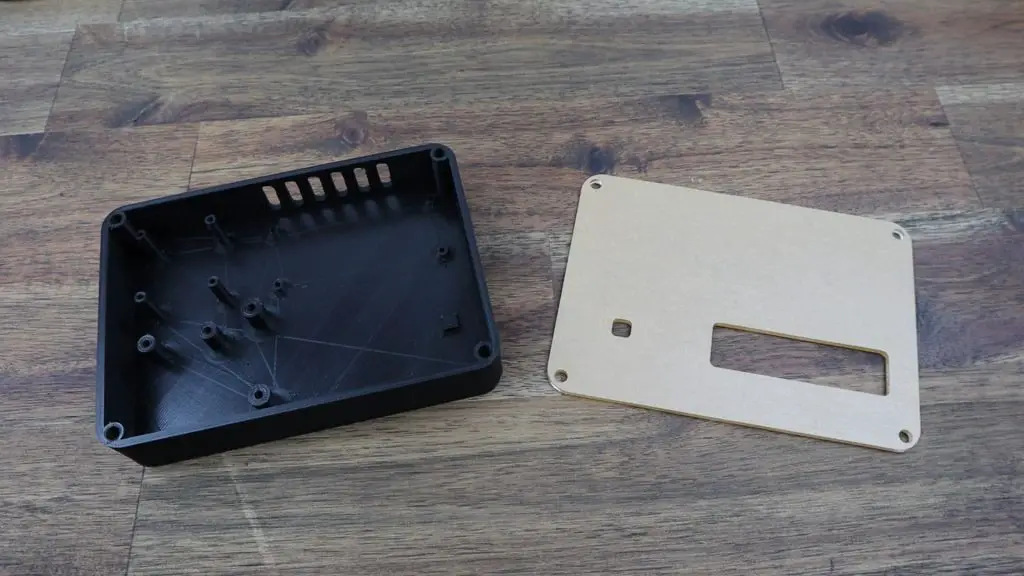
I then added a screw on a clear acrylic cover to the front. I also added some ventilation holes along the top and a cutout for the USB cable on the side.
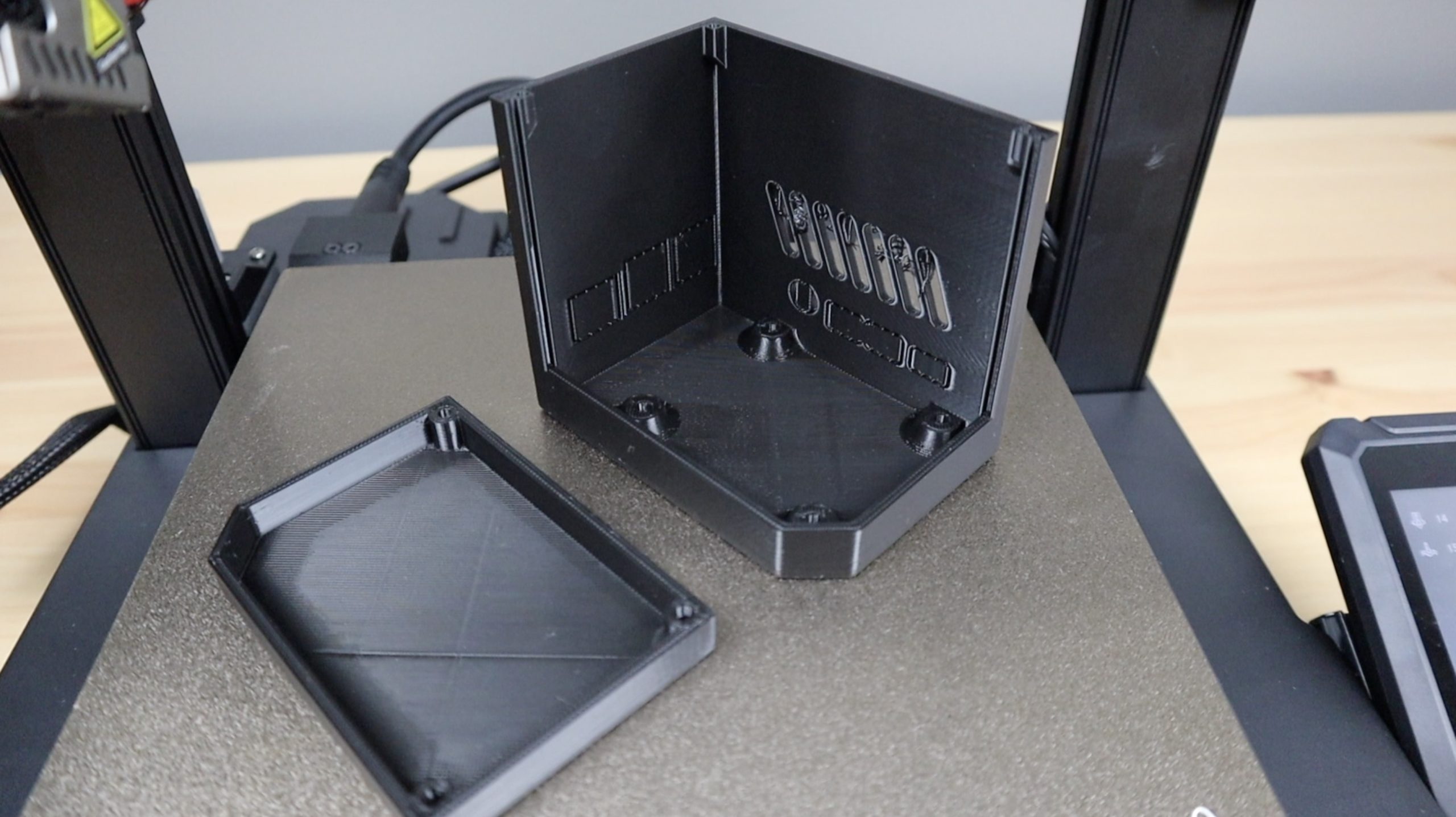
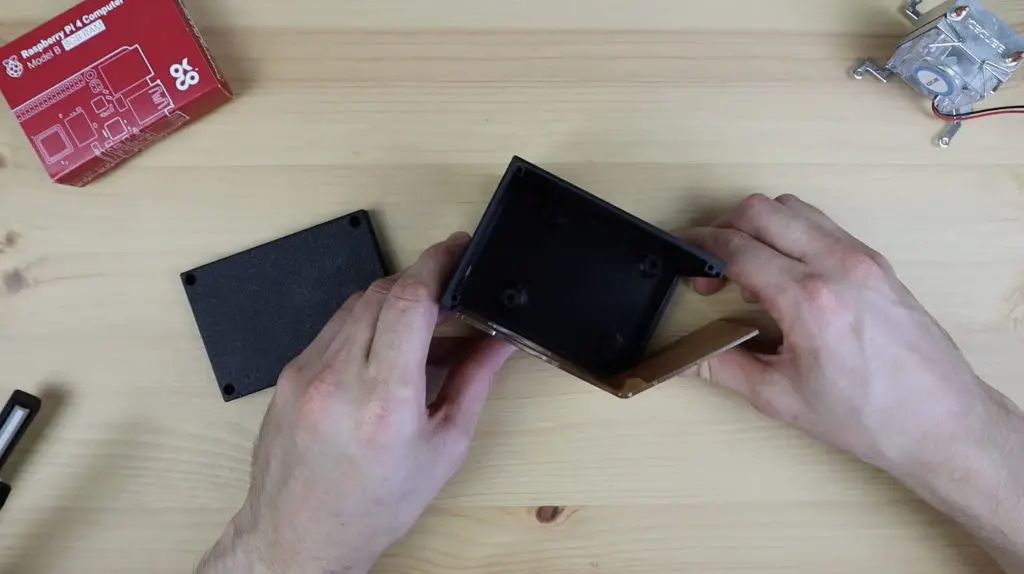
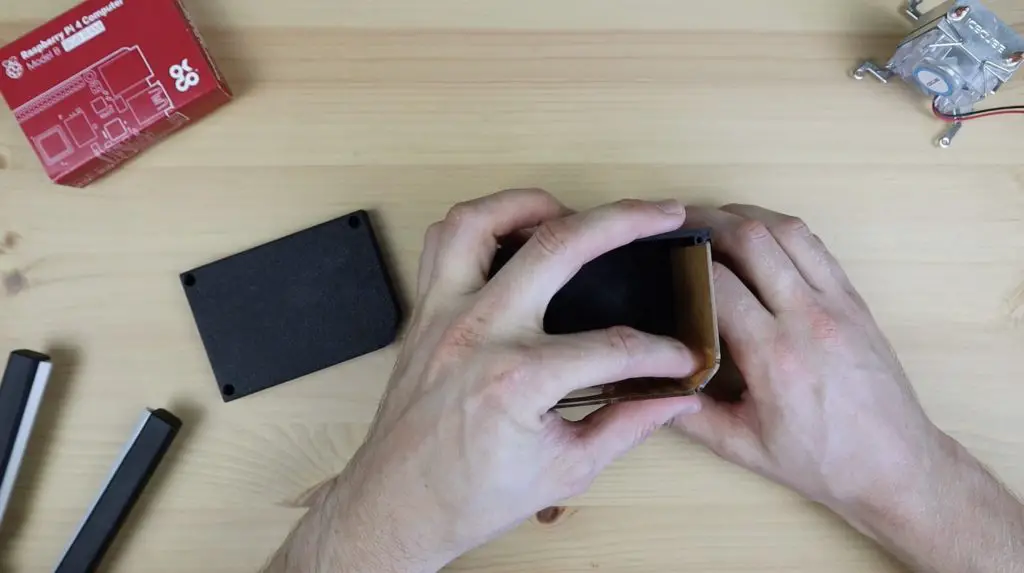
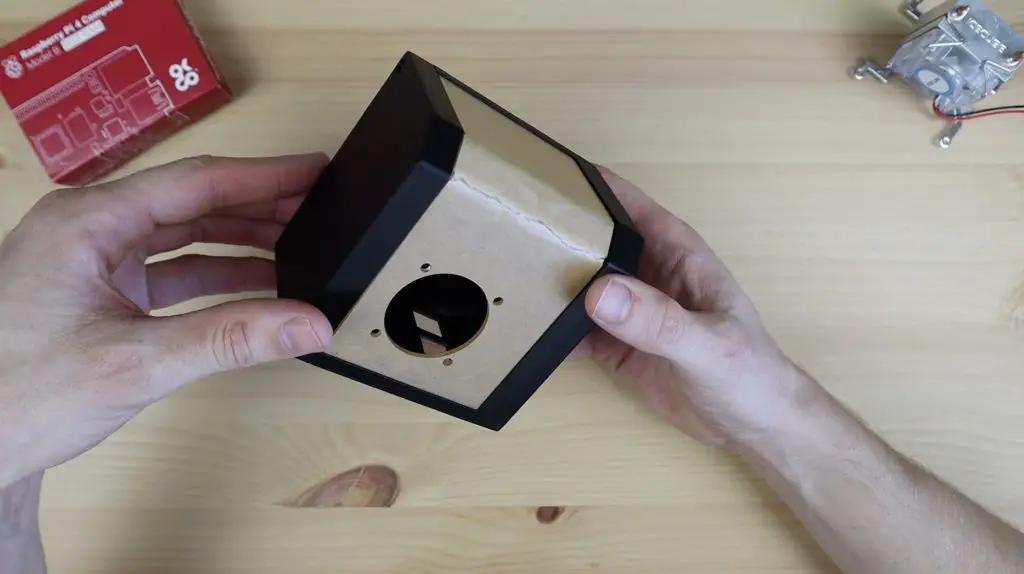
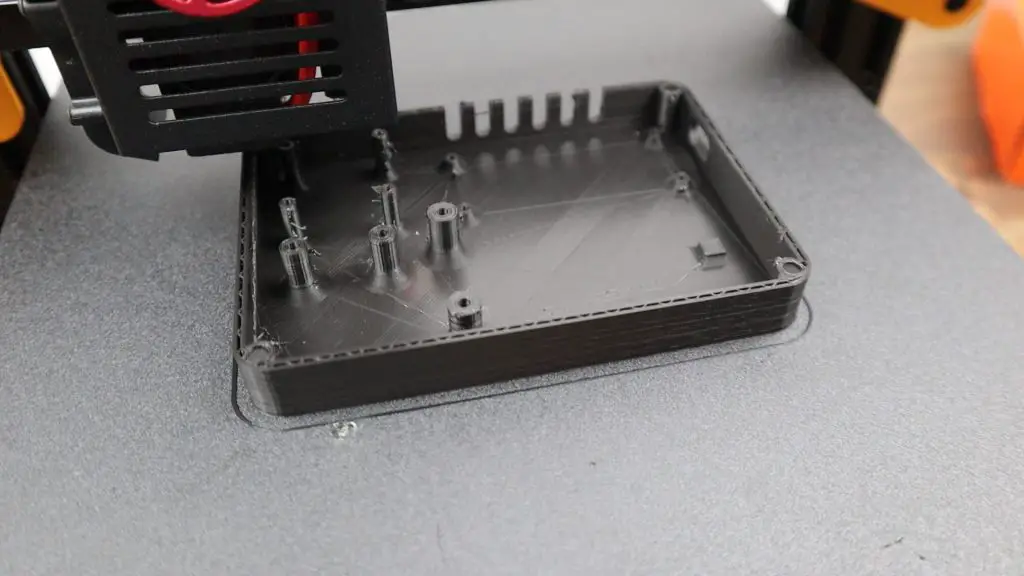
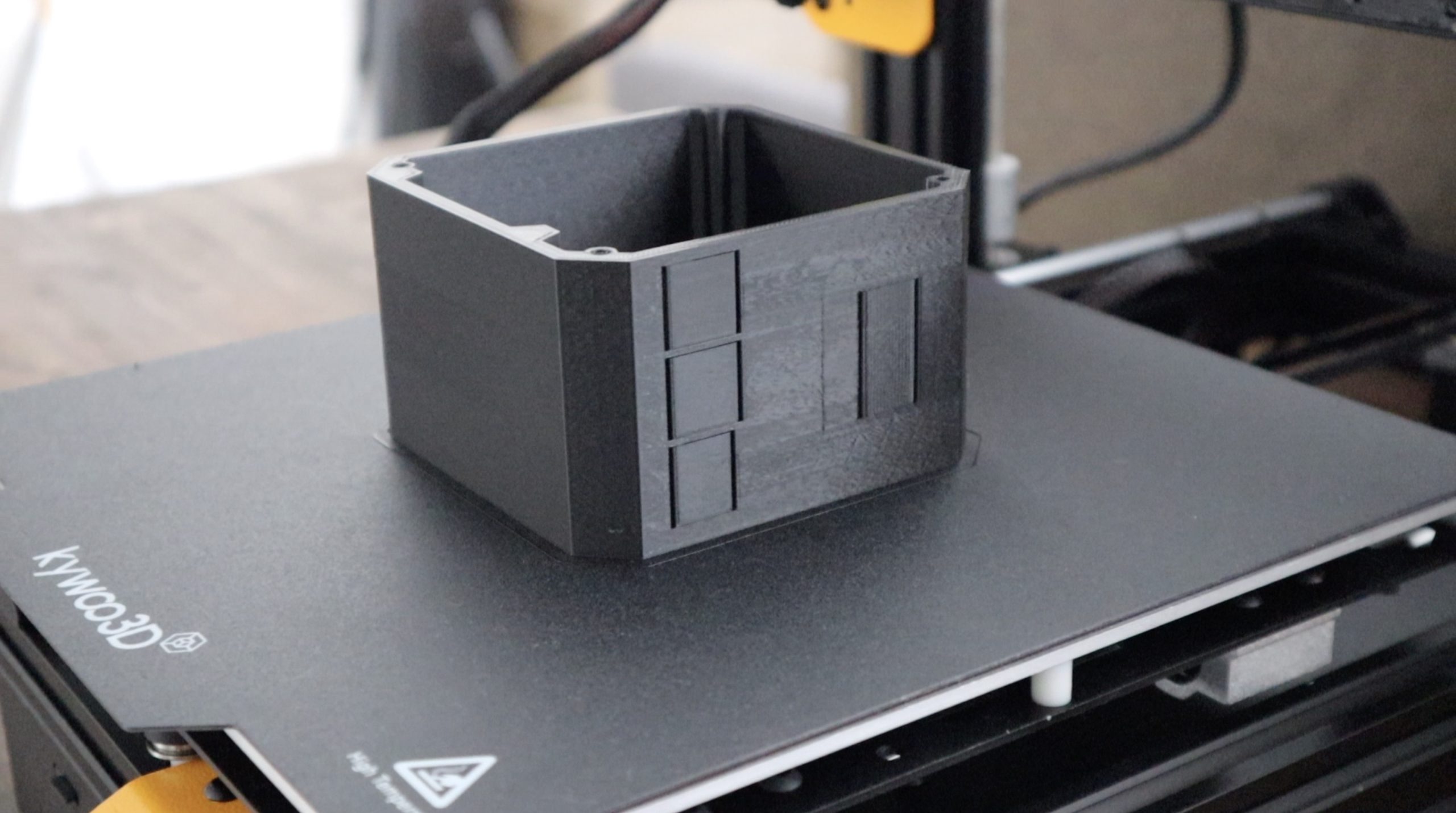
I 3D printed the case in black PLA. It’s just a single print and I didn’t need to add any supports as the cutouts are relatively small and are rounded at the corners. This depends on your printer’s abilities but I think most printers would cope with these small overhangs without requiring any print supports.
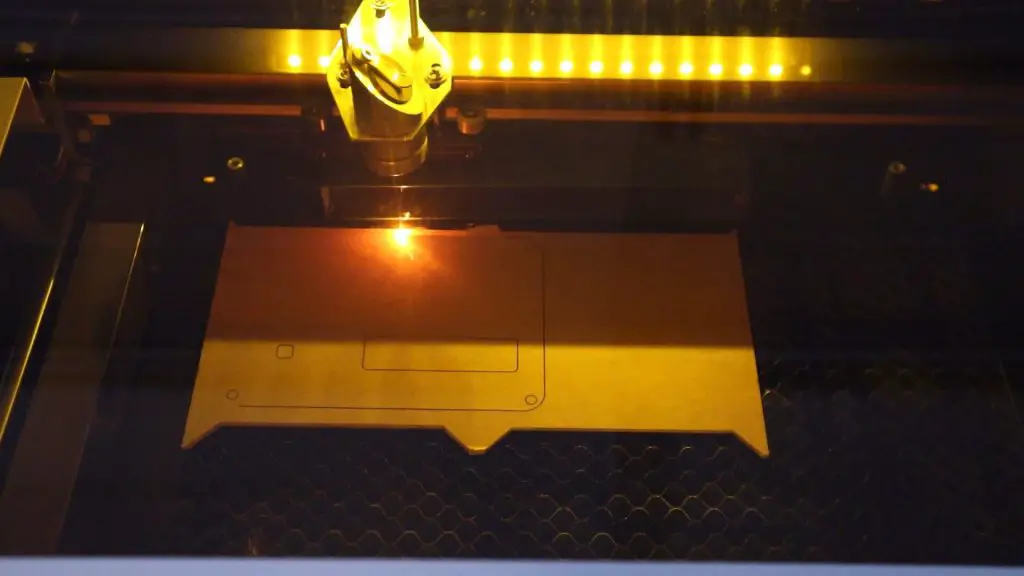
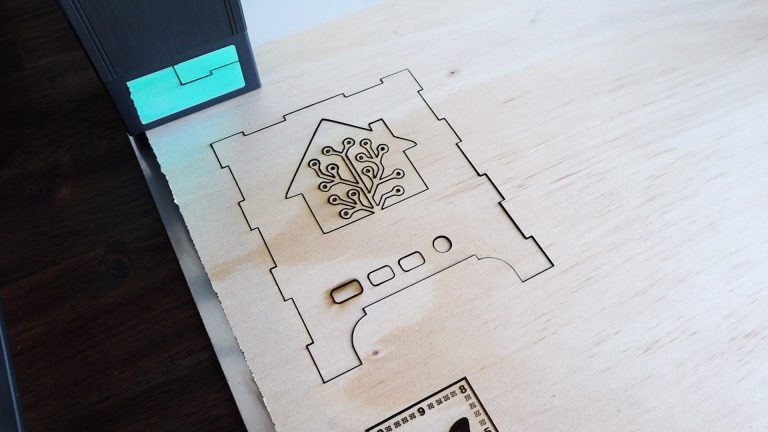
I laser cut the front cover from 2mm clear acrylic.
The front cover is a basic rectangular shape with the same profile as the housing and I’ve added a cutout for the CO2 sensor and one for the BME280 sensor so that they’re both exposed to the outside air.
Making Up A Wiring Harness
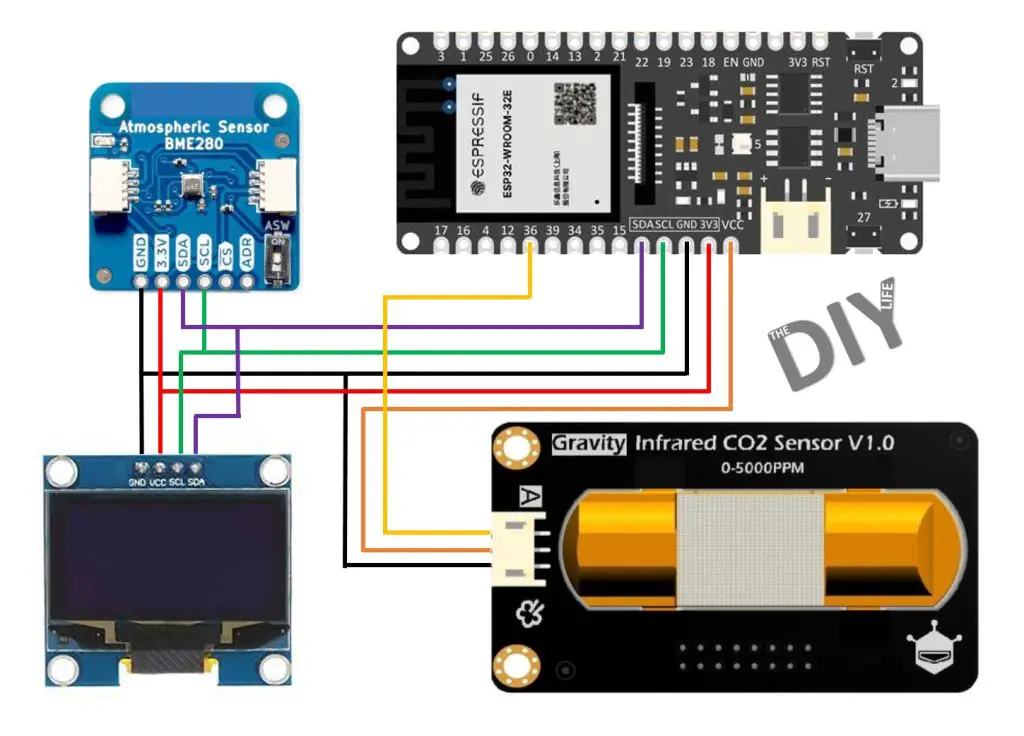
Before I install all of the components into the case, I’m going to make up a wiring harness to connect them together. The display and BME280 sensor both use the I2C interface to send and receive data and the CO2 sensor just needs a power supply and a connection to one of the analogue inputs.
Here is a basic wiring diagram for the connections:
I initially used analogue input A4, shown in the subsequent photos, but I moved this to A0 as A4 doesn’t work when using WiFi on the Firebeetle board.
One important note is that the CO2 sensor requires a 5V supply. Its analogue output is compatible with 3.3V microcontrollers as it doesn’t go above 2.0V, but it still requires 5V to power it. For this reason, I’m going to be powering the sensor with 5V directly from the USB supply, while the display and BME280 sensor will be powered using 3.3V from the Firebeetle’s onboard regulator.
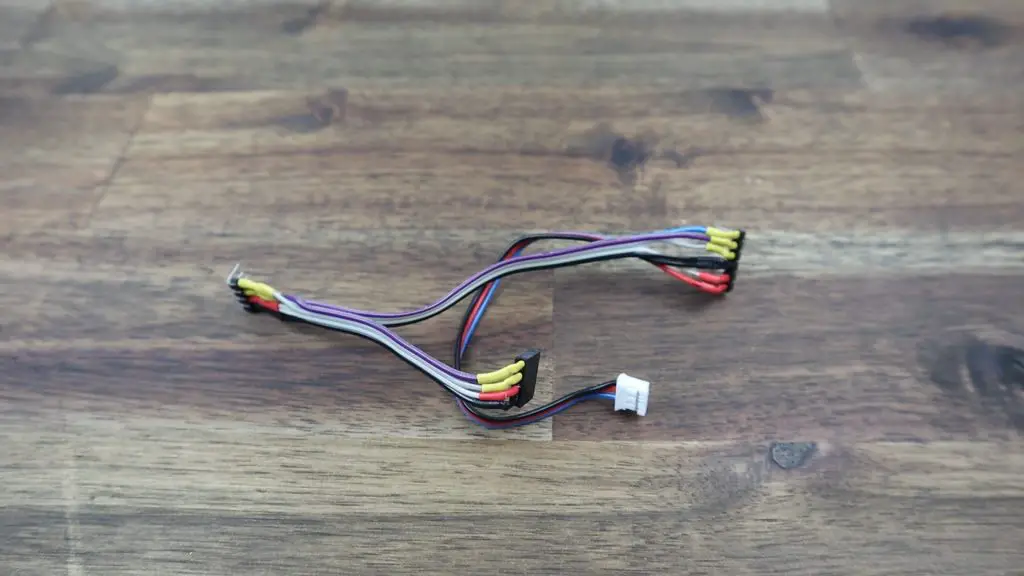
I made the wiring harness up using coloured ribbon cable as well as male and female header pins and I added some coloured heat shrink over the soldered connections.
Installing The Components In The Case
With the standoffs already 3D printed on the housing, it’s relatively simple to install all of the components in the case.
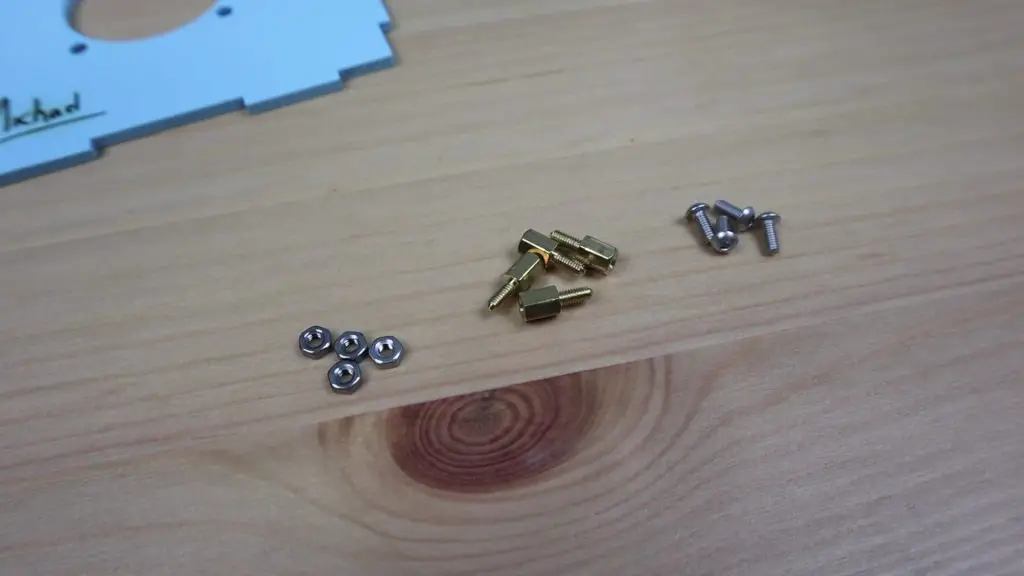
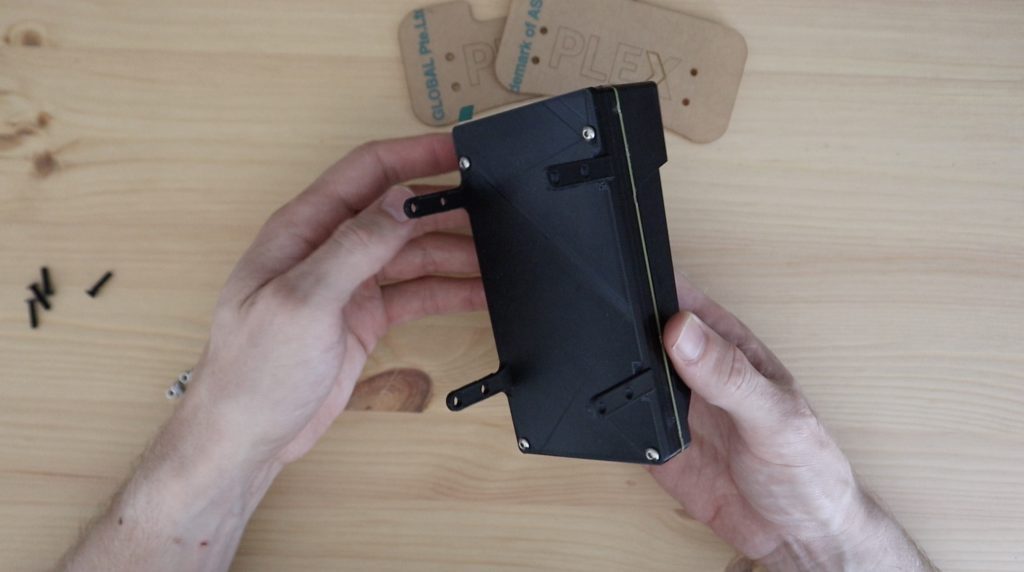
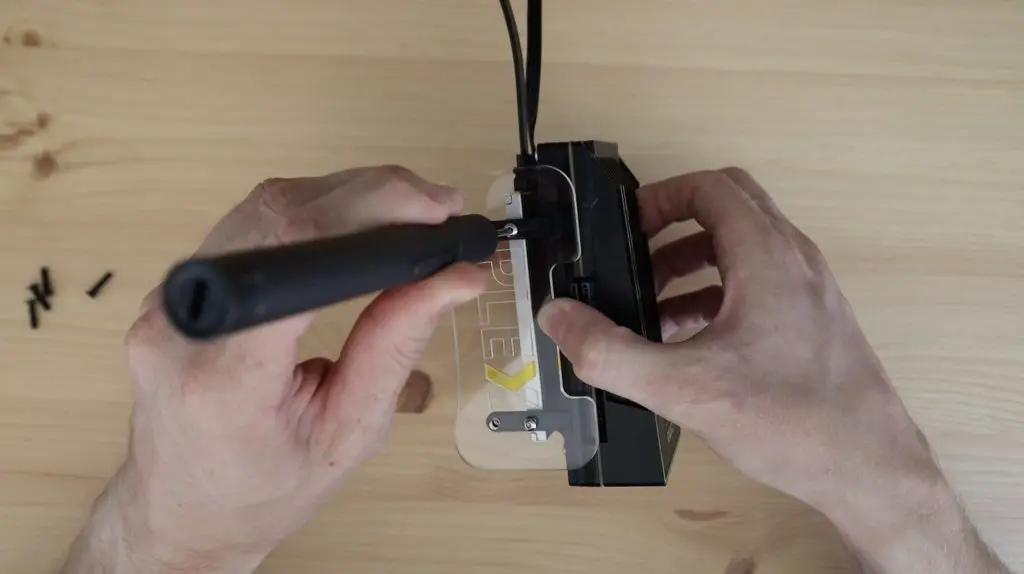
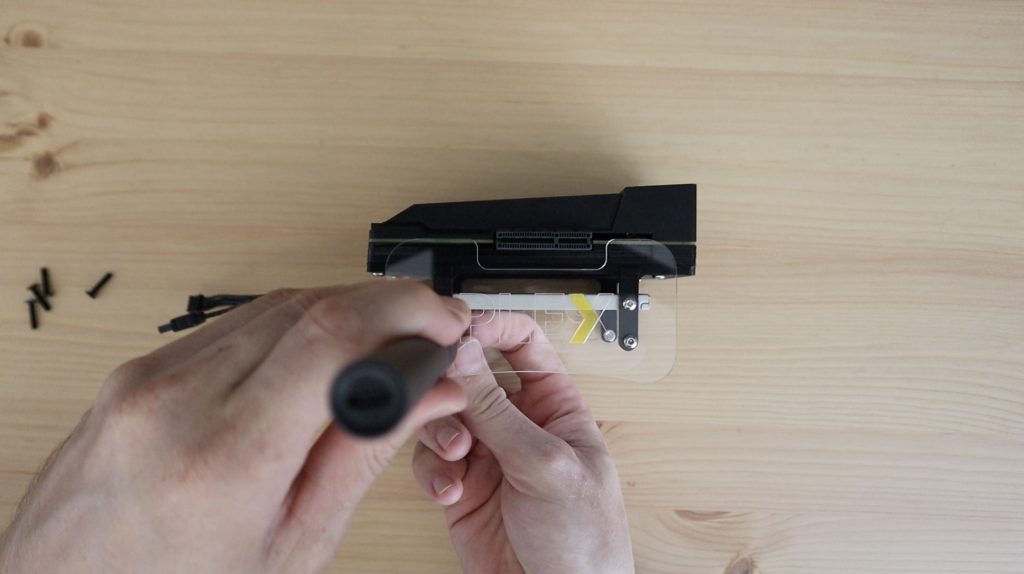
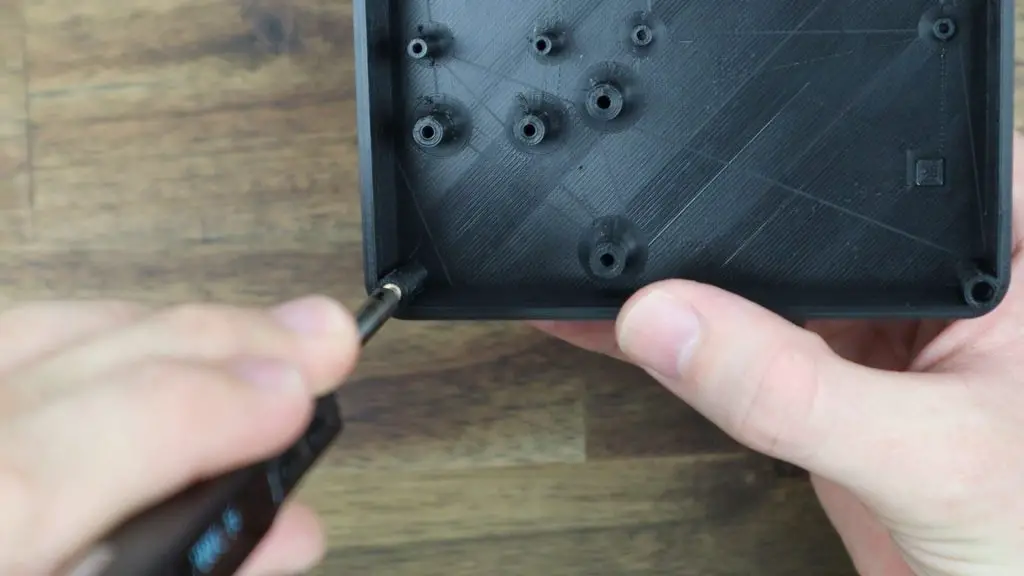
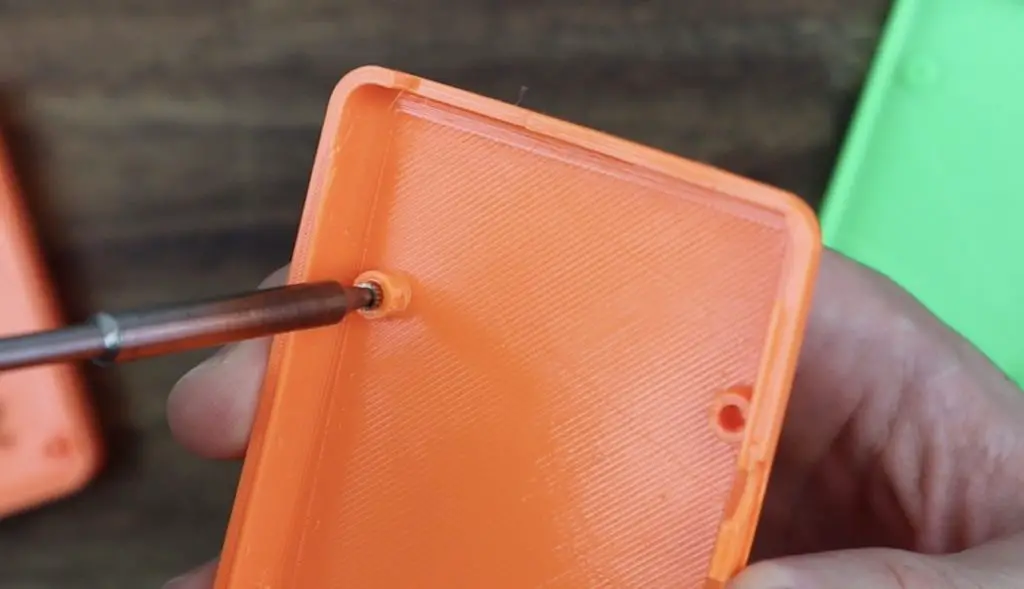
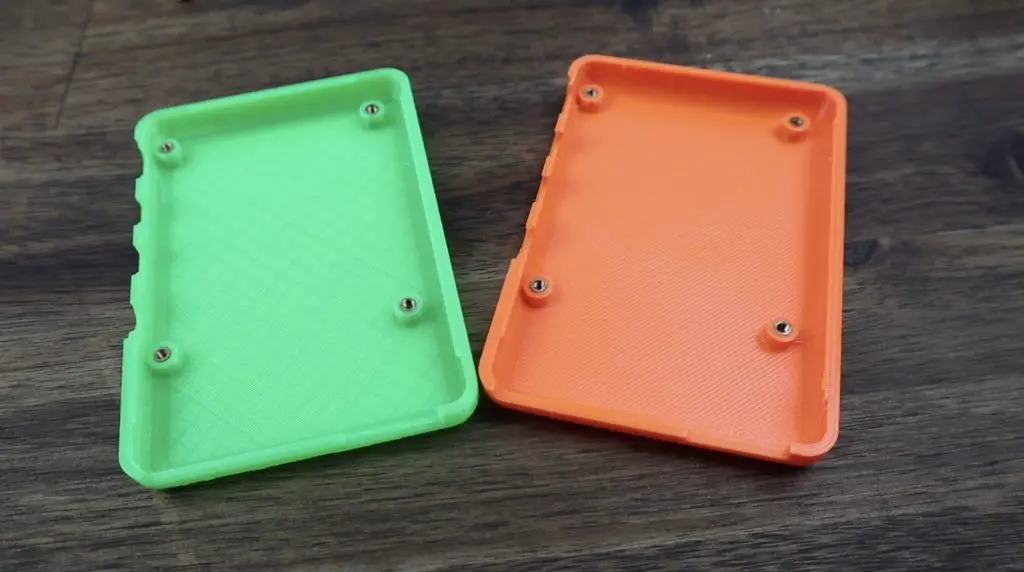
I’m going to start by using some M3 brass inserts to make the M3 screws that hold the lid in place a bit more durable. These are just melted into place in the printed pockets using a soldering iron which I’ve set to 200 degrees – which is about the same temperature as the PLA filament is printed at.
I’ll use a range of small screws to hold the boards in place, mostly M2.5 x 6mm screws, with the wiring running below the boards as far as possible. Make sure that you plug your connectors onto the correct pins and that they’re the right way around or your might damage your boards when you supply power to them.
With that all done, we can now close up the case using four M3x8mm button head screws and move on to programing our Firebeetle board.
Programming The Firebeetle ESP32-E Board
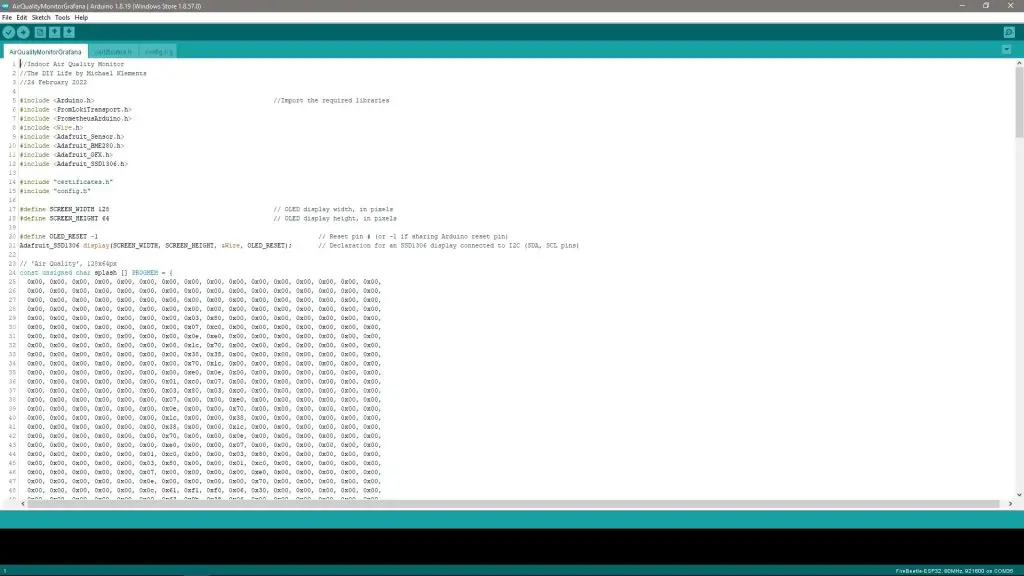
I’ve written up an Arduino sketch that takes readings from each of the sensors every minute and then updates the display and uploads the data to Prometheus.
You can download the code from my Indoor Air Quality Monitor Github repository.
The posting to Prometheus part of the code is largely based on the example provided on the Grafana Cloud information page, which is linked to a GitHub repository called IoT with Arduino and Grafana.
There is a bit of setup involved in the code as you’ll need to set up your WiFi details as well as your Prometheus configuration information. The IoT with Arduino and Grafana repository explains this all in detail with screenshots, so head over to their repository if you need some additional help. Essentially, you need to update the config.h file to include your WiFi network name and password as well as your Grafana Cloud Remote Write Endpoint address, your Username and your API Key.
Once that is all done, you can upload the sketch and you should then start seeing some information being displayed on the OLED display and on your serial monitor.
Using The Indoor Air Quality Monitor
The CO2 sensor needs around 3-5 minutes to pre-heat, during which time it’ll give a reading of about 0.2V and it’ll then start producing a voltage between 0.4V and 2.0V, which corresponds to a CO2 concentration of 0-5000ppm.
I’ve set up the code to recognize these voltages and to indicate that the CO2 sensor is preheating before a reading is displayed.
While preheating, we can still see that we’ve got readings from our BME280 sensor for the environment temperature, pressure and humidity.
After about 3 minutes, the CO2 concentration has now shown up on the display.
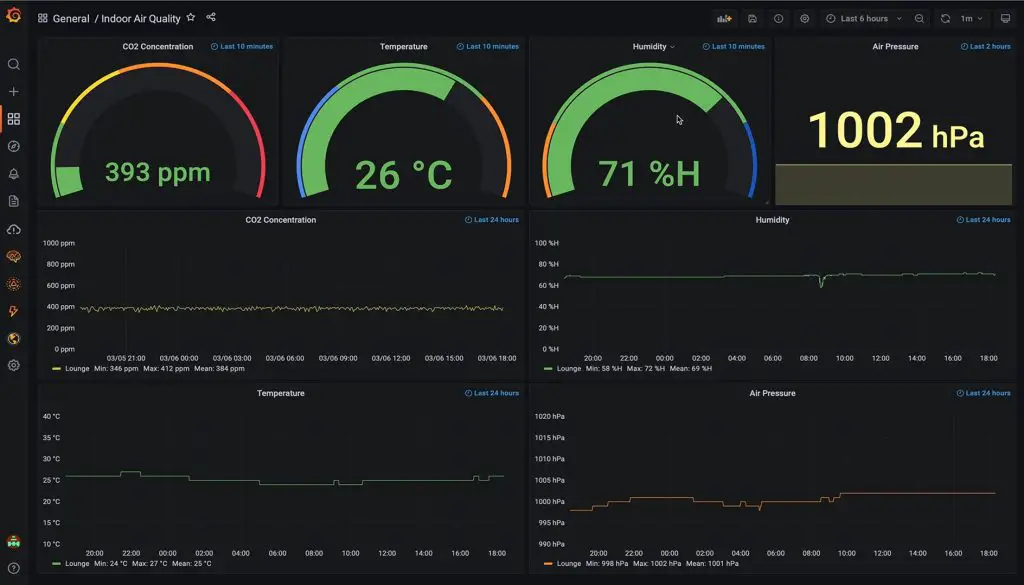
I’ve created a Grafana dashboard with an instantaneous gauge for each of the four metrics along the top and then a time-based trend below them.
The CO2 sensor hasn’t really picked up many spikes in CO2 concentration but it is currently being used in a fairly large living space and we tend to keep some windows or doors open during the day for fresh air.
You can read up a bit more on creating dashboards and visualisations in Grafana from my full Grafana tutorial.
So we’ve now got a portable indoor air quality monitor that we can leave in any room to monitor the air quality and we can access remote logs and trends of the data through any internet-connected browser.
Let me know what you think of my Air Quality Monitor in the comments section and let me know if there is anything you’d add to it or change.
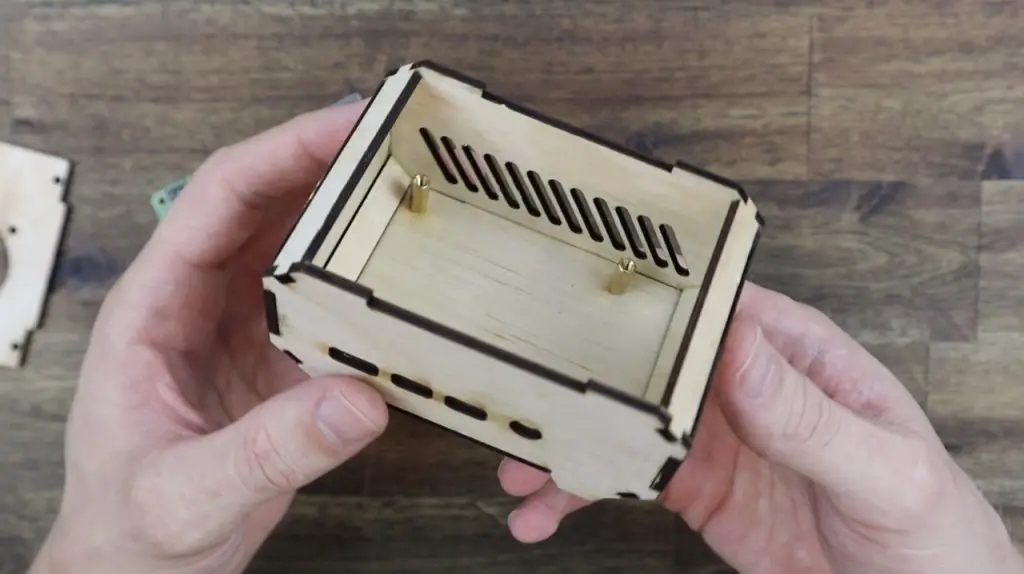
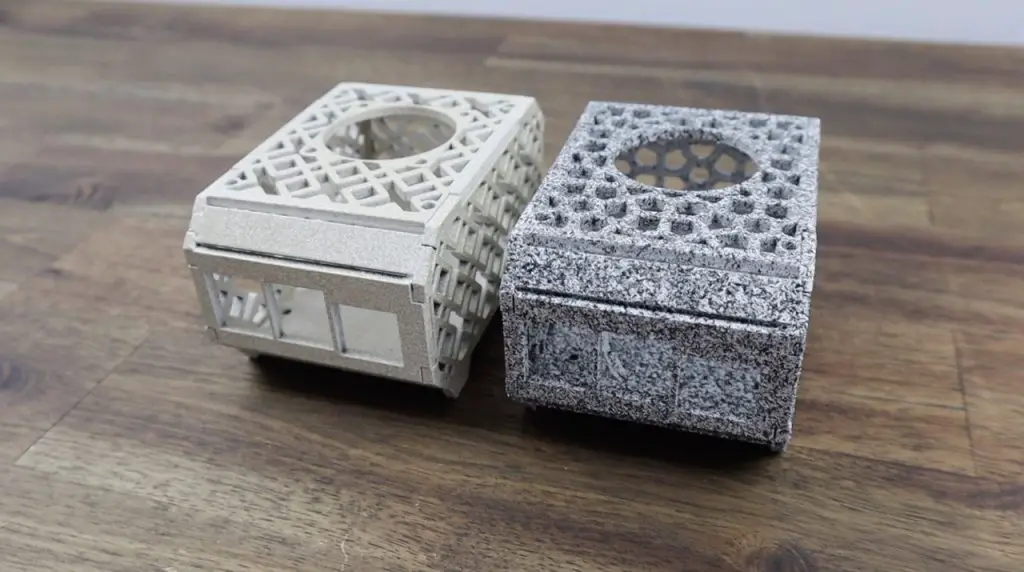
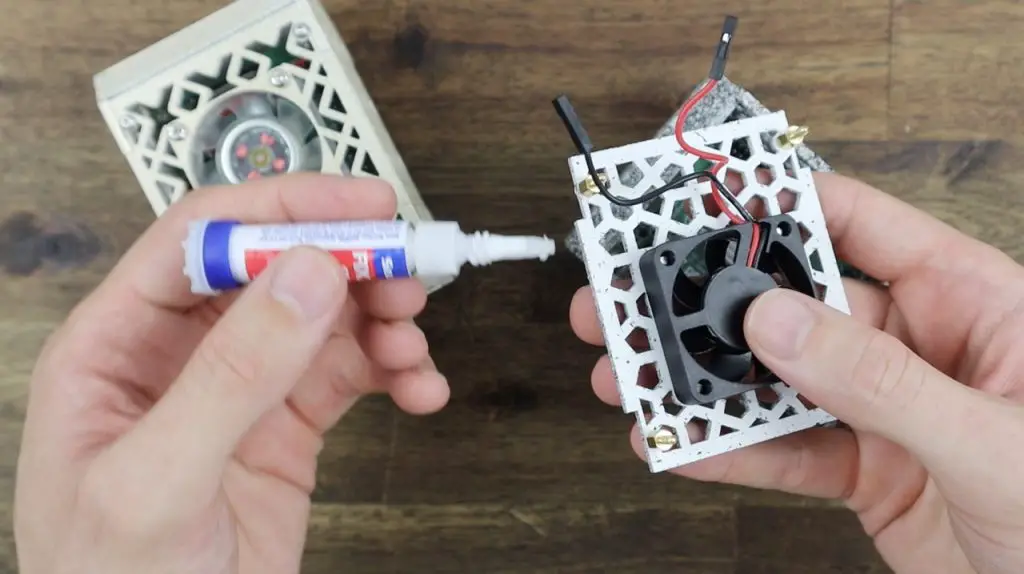
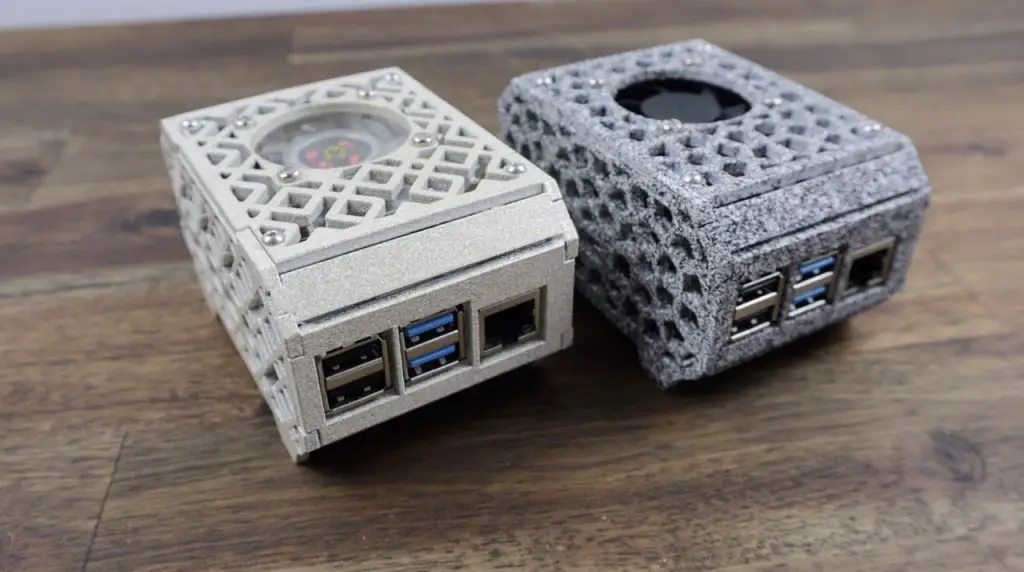
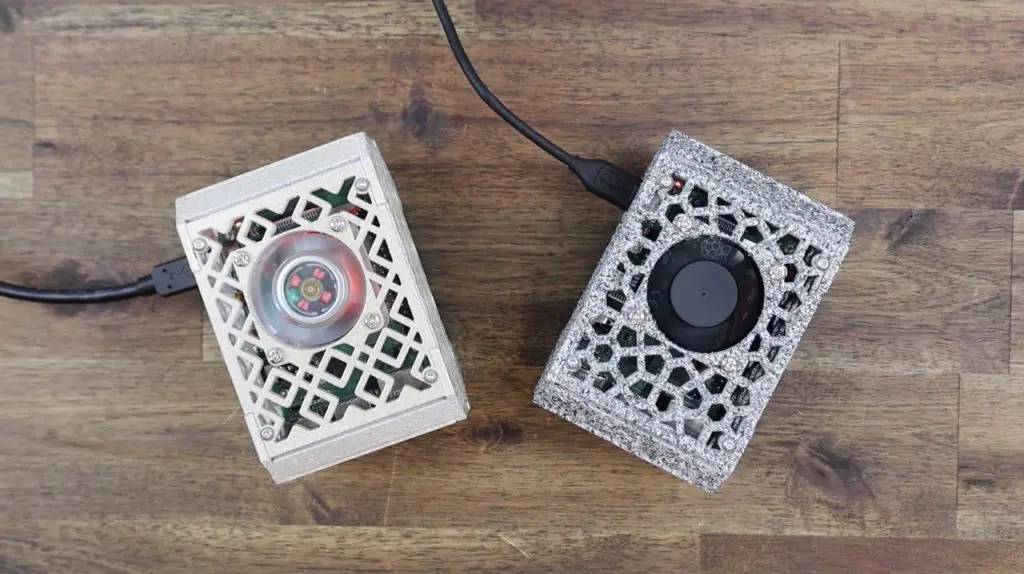
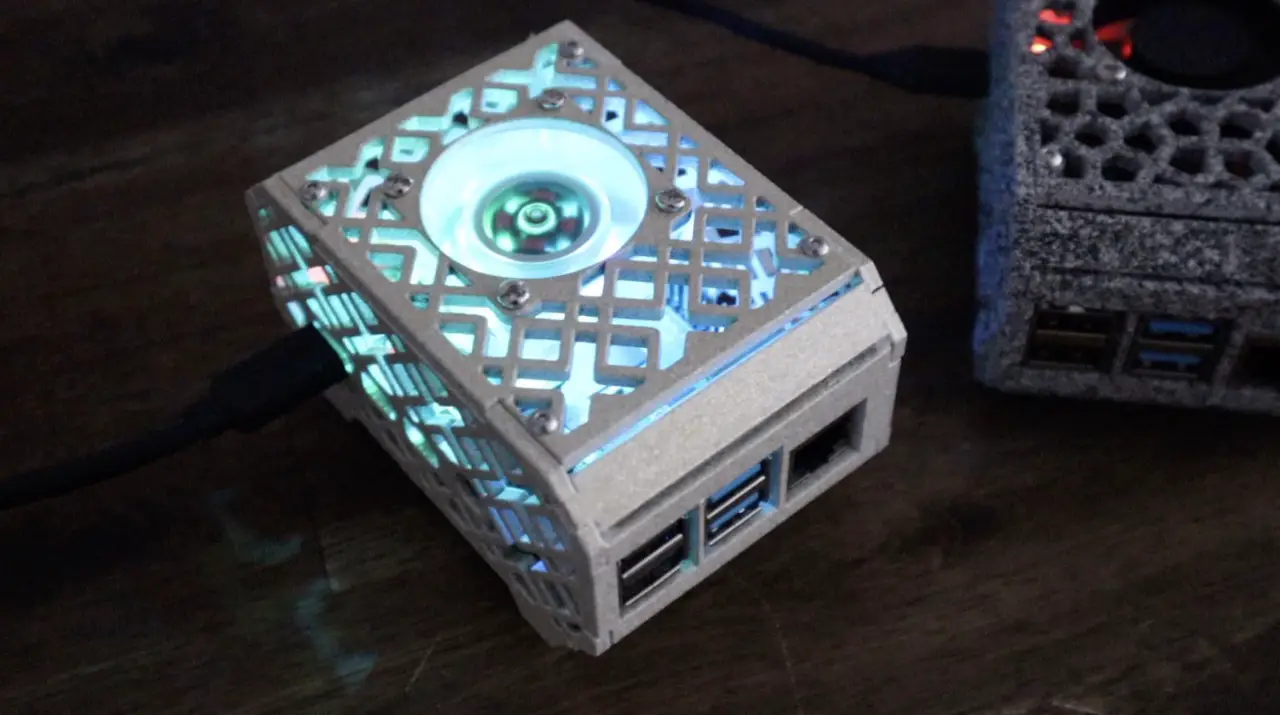
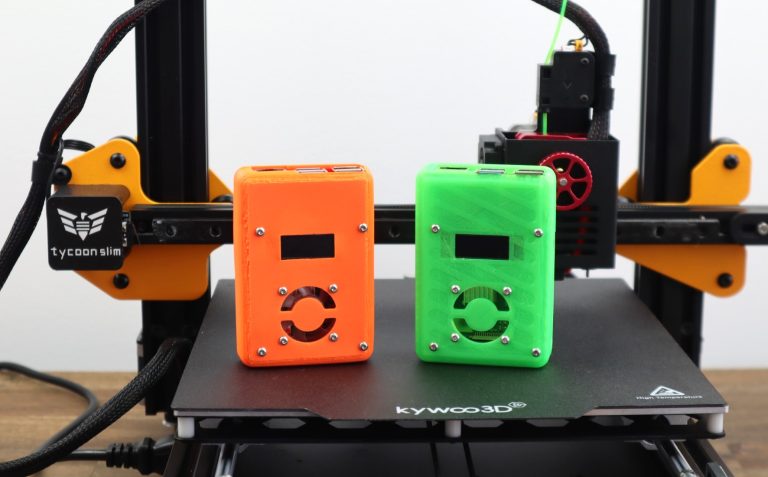
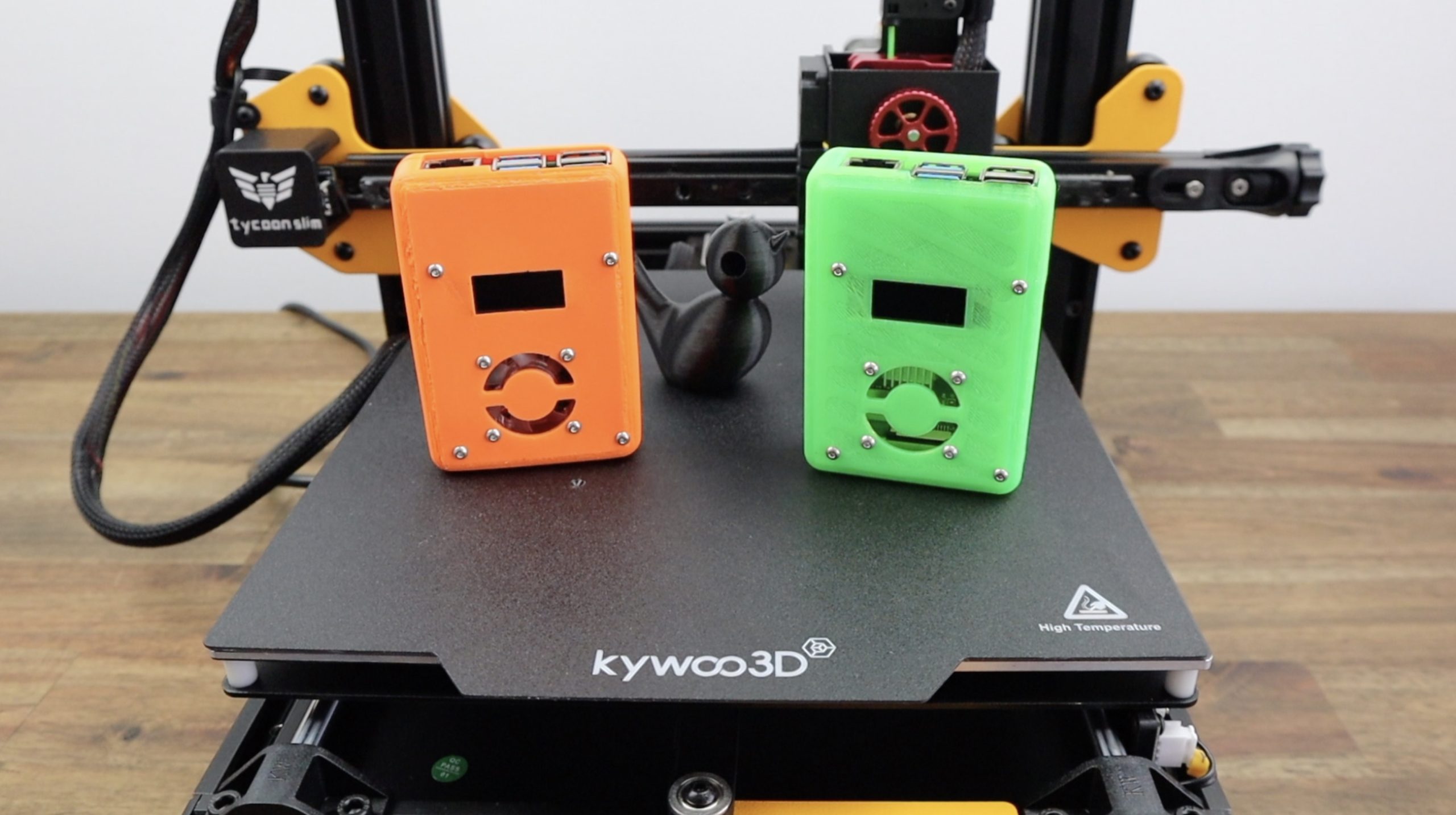
Today we’re going to be using the new Kywoo3D Tycoon Slim 3D printer to print two new cases for my Raspberry Pis. I’ll be printing one in regular PLA to get an idea of the print quality that the Tycoon Slim can achieve and one in TPU, which is a flexible filament that is perfect for creating bump and drop resistant cases – but is also notoriously difficult to print with. The TPU version will be especially useful for Pi’s that you’re going to use for travelling, like a portable media server or NAS.
This 3D printer was sent to me to try out and share with you by Kywoo3D through the online 3D printing store Tinker Hive. Tinker Hive is an authorised re-seller of Kywoo3D products and they offer three payment options, with the option to pay your printer off in four interest-free instalments, making it more affordable for tinkerers to get into 3D printing.
Kywoo3D is a relatively new company to the 3D printing game, having successfully launched their Tycoon 3D printer on Kickstarter in April last year. They’ve now brought out a more compact, and cheaper version called the Tycoon Slim, and that’s what we’re going to be taking a look at and using for today’s prints.
Here’s my video of the project, read on for the full write-up:
Some of the above parts are affiliate links. By purchasing products through the above links, you’ll be supporting my projects, with no additional cost to you.
First Look At The Tycoon Slim
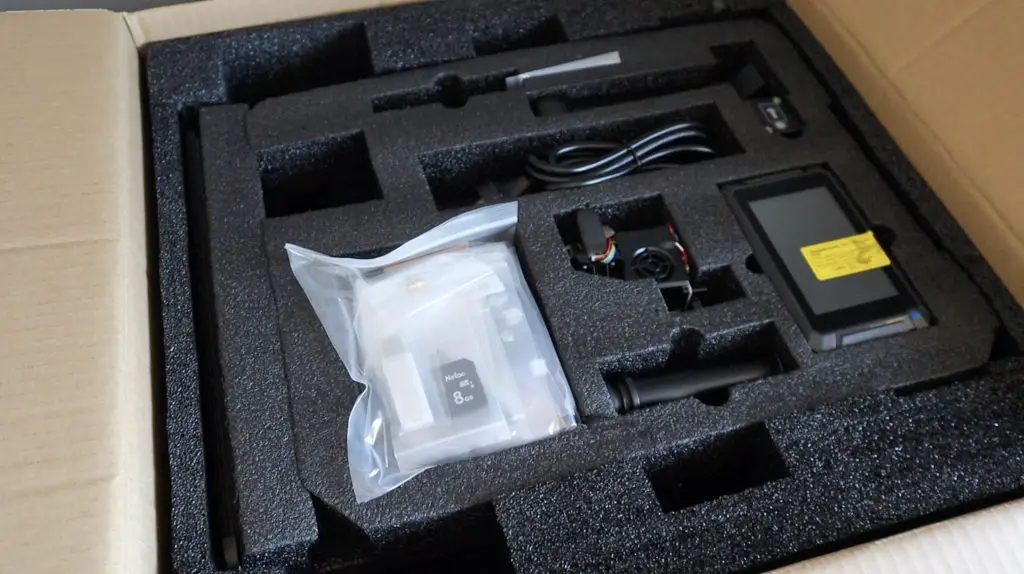
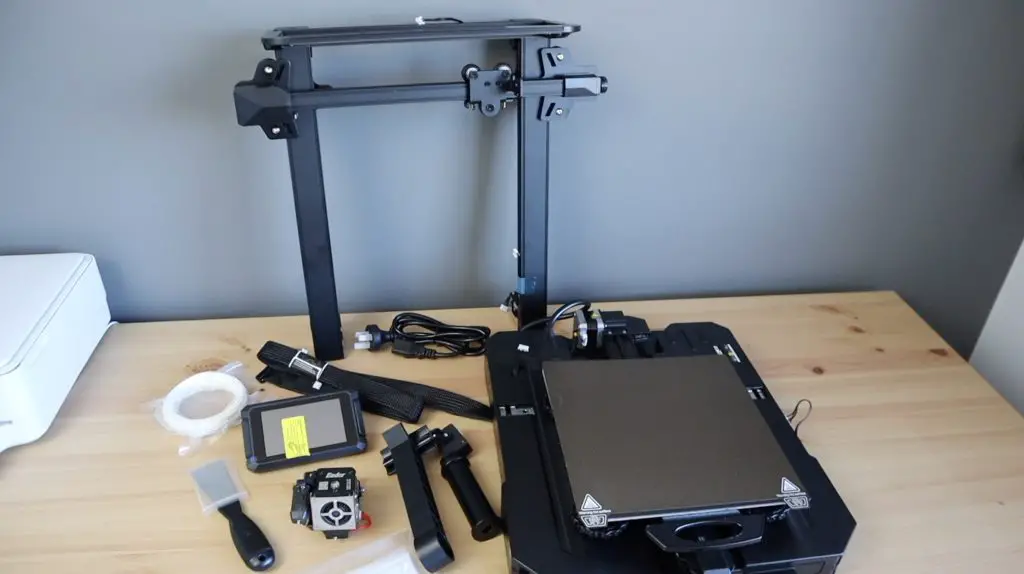
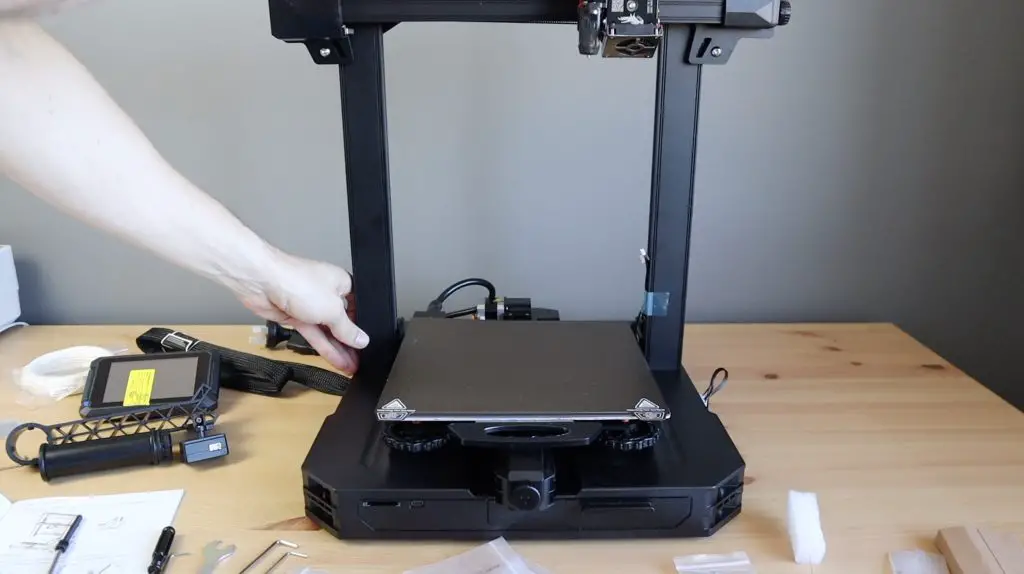
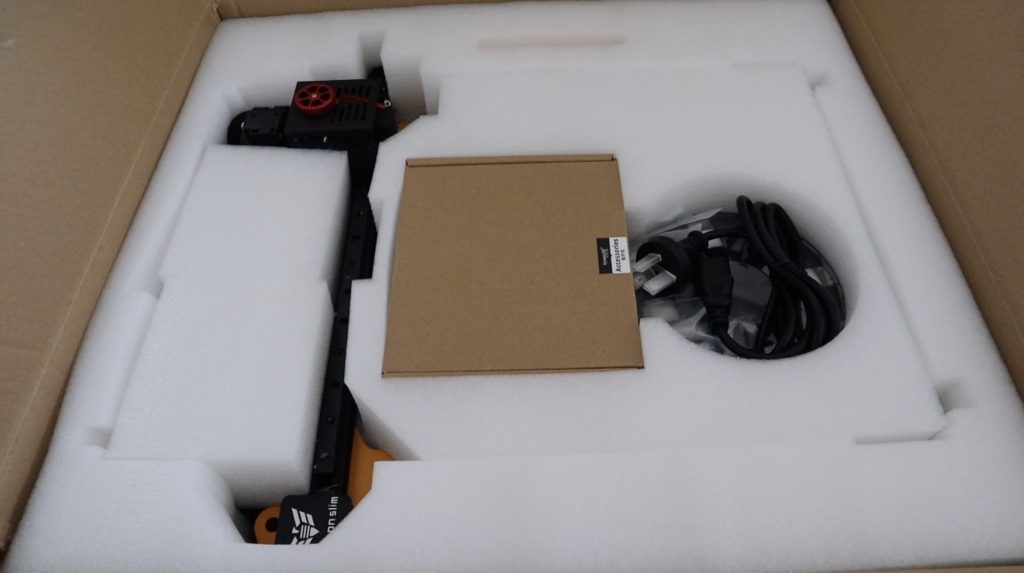
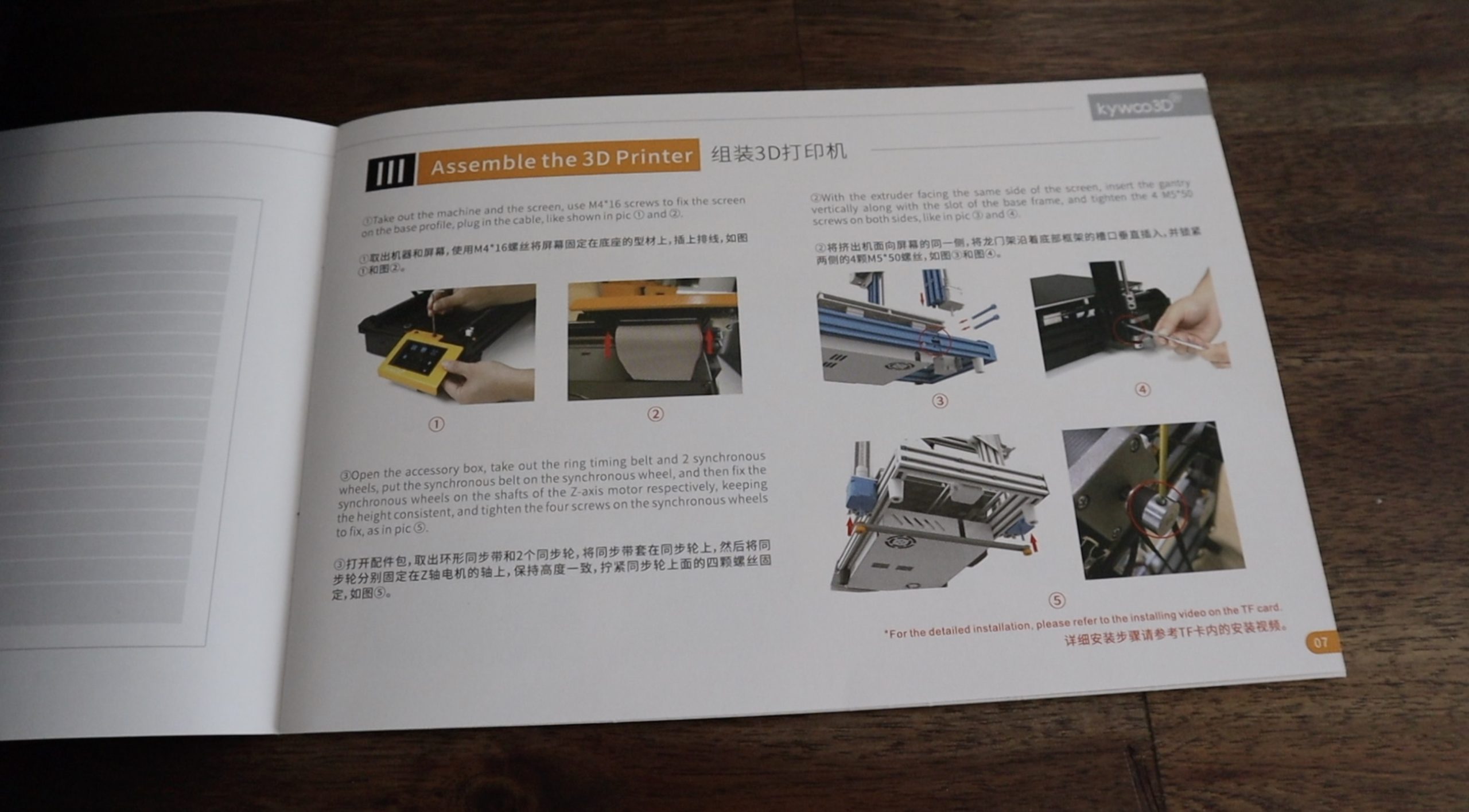
The Tycoon Slim comes mostly pre-assembled and is well packed with fitted foam inserts.
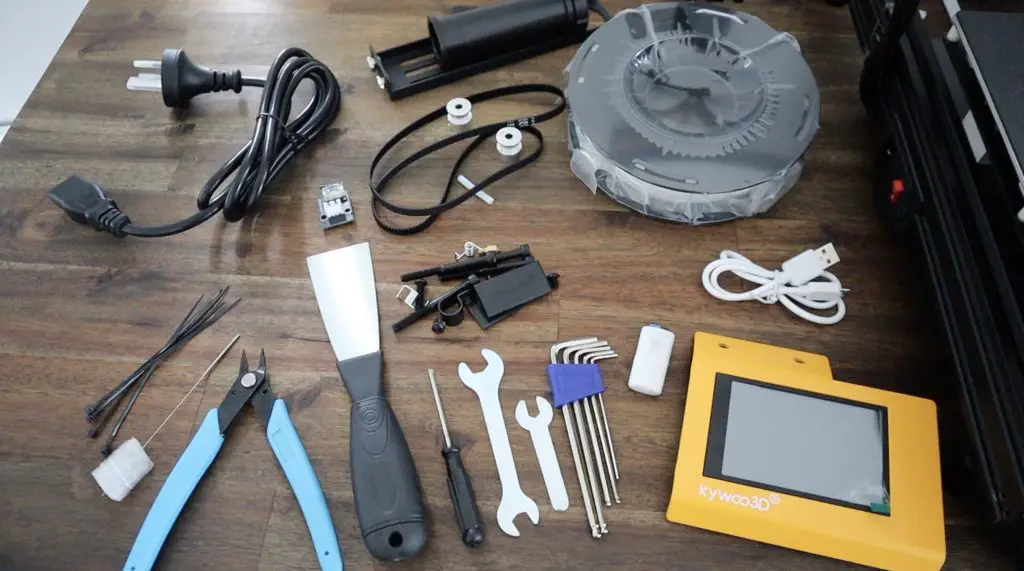
It comes with all of the tools required to assemble and operate the 3D printer and even includes a mini-sized spool a filament – something I haven’t seen supplied with a new printer. You usually just get a coil of a couple of turns of filament that is barely enough to complete the pre-loaded test print.
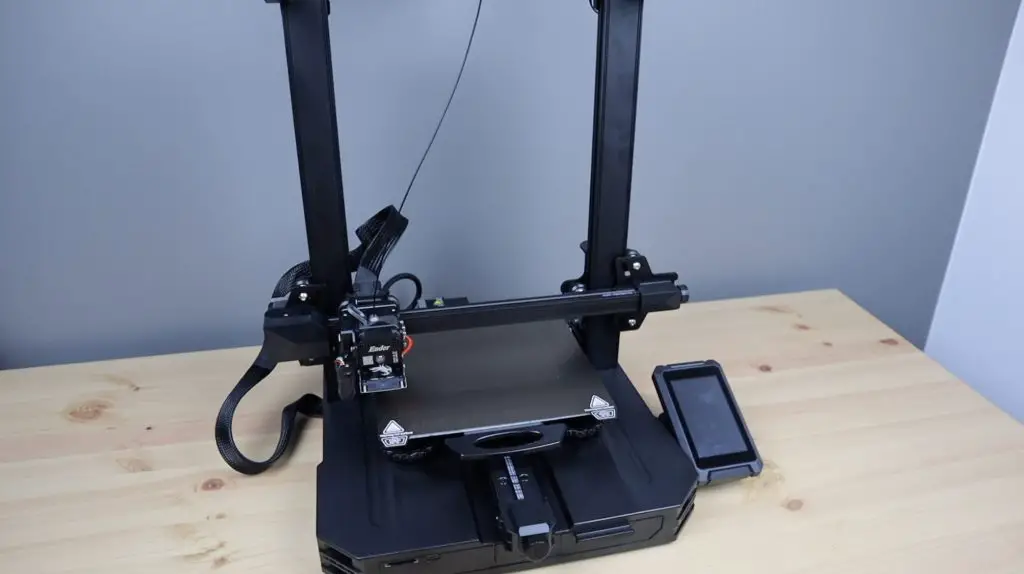
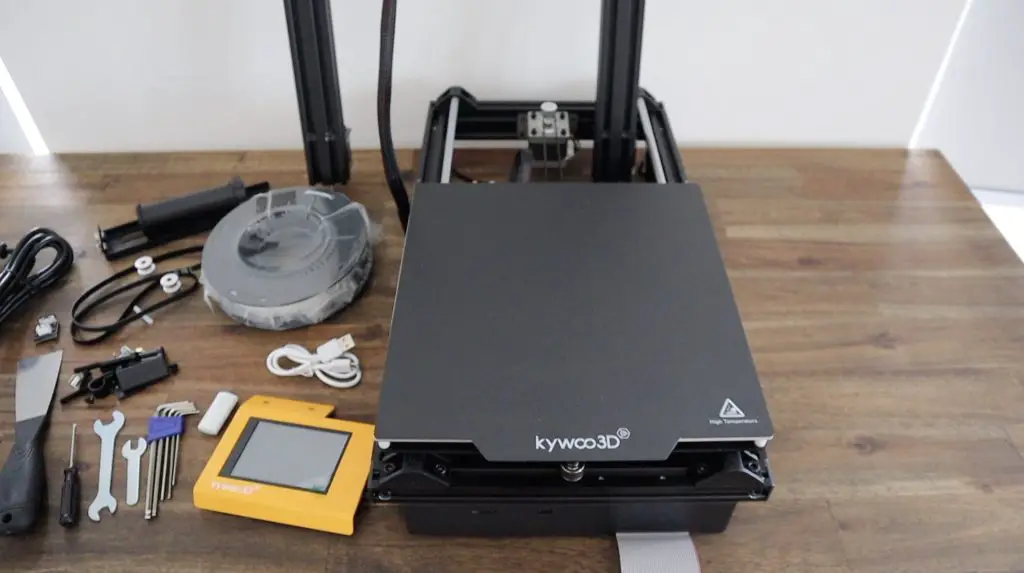
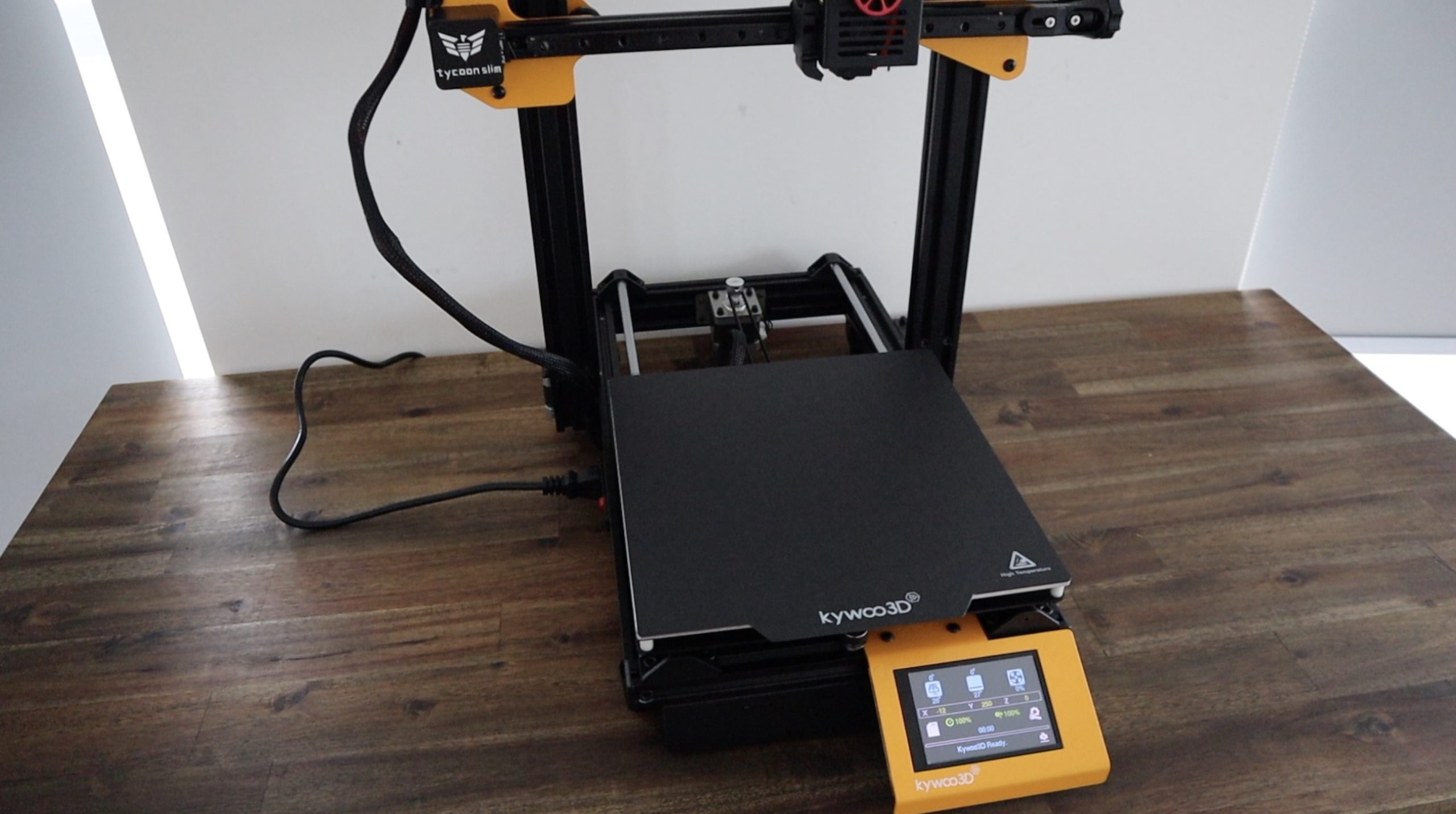
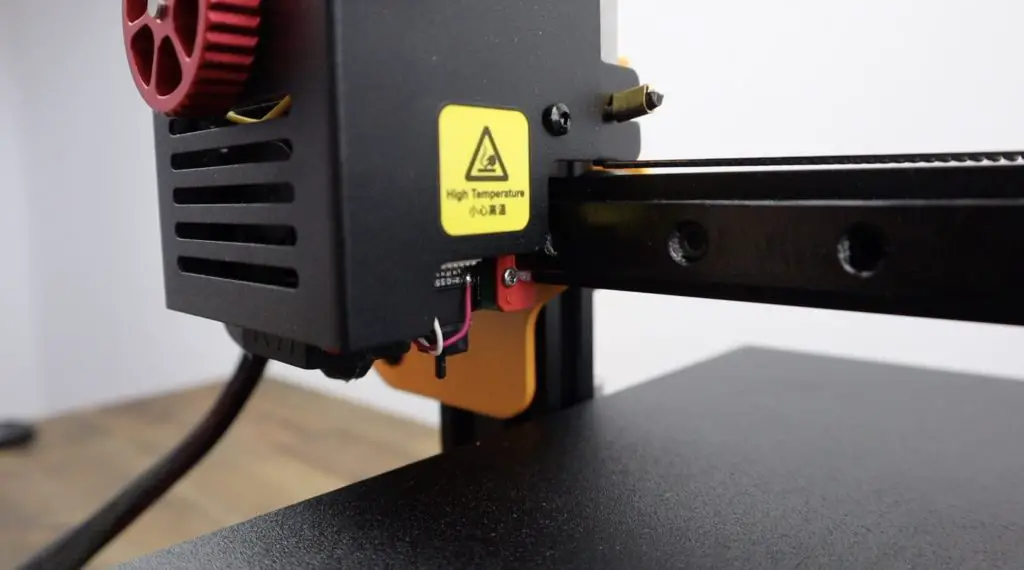
With the Tycoon Slim unpacked and set up, you may notice that its print volume is slightly larger than the Creality Ender 3 V2, but it is also around $100 dollars more expensive. I’m going to be comparing it a lot to the Ender 3 V2 as this is one of the printers that I’ve got the most experience with, I’ve got three of them and they are running for a large portion of each day – so I really know their strengths and weaknesses well and I can see that Kywoo3D have tried to address some of these weaknesses in the design of the Tycoon Slim.
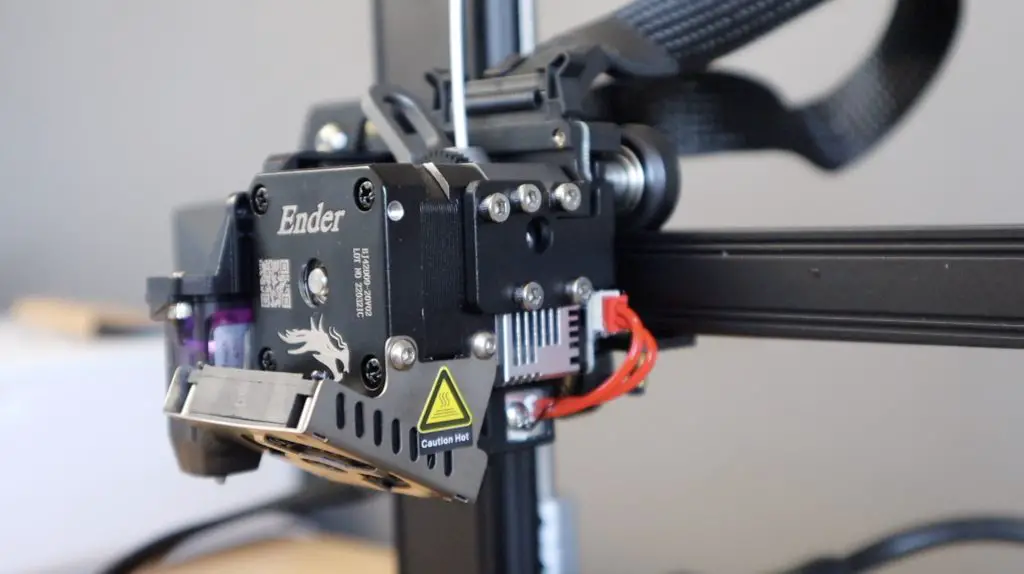
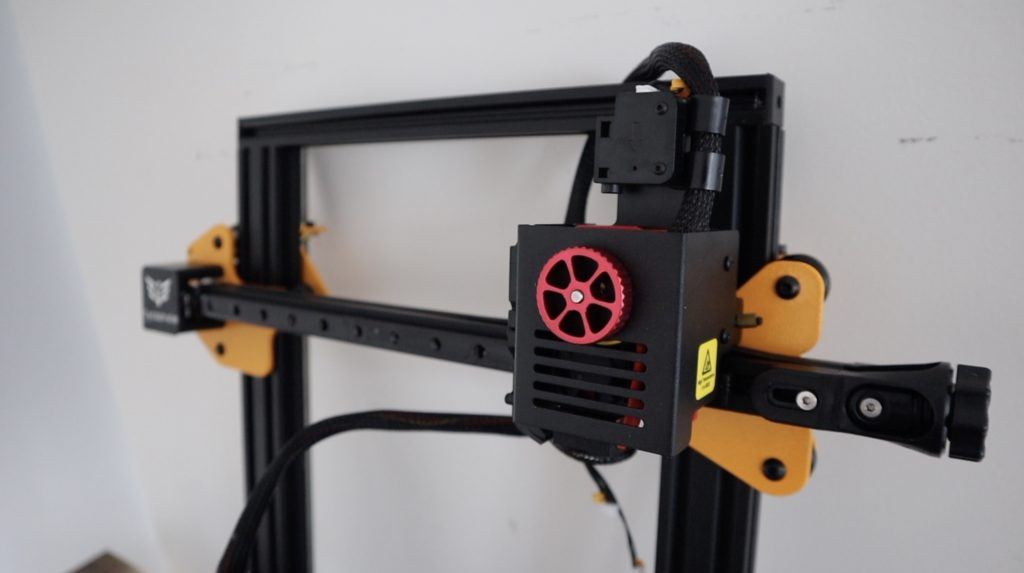
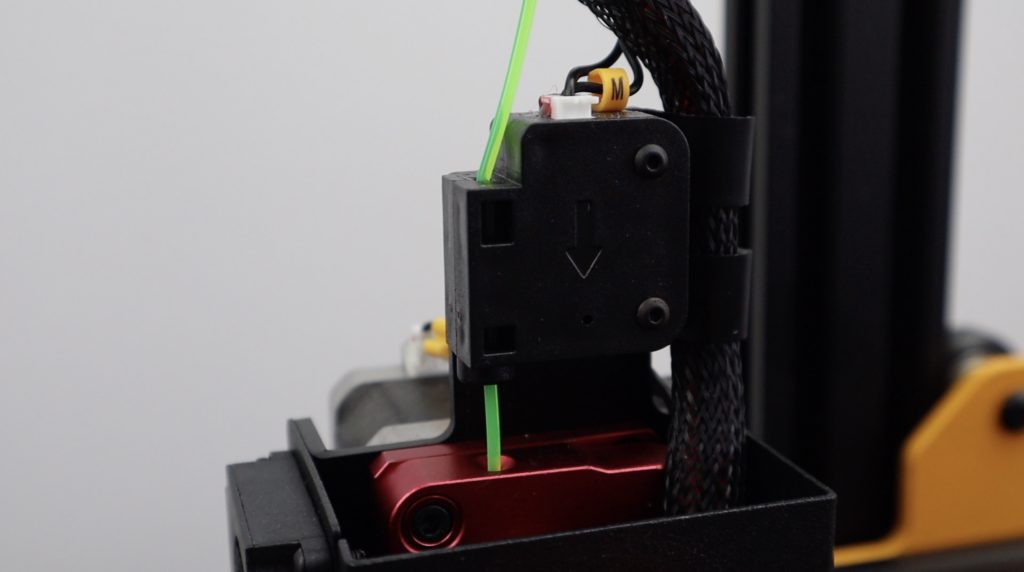
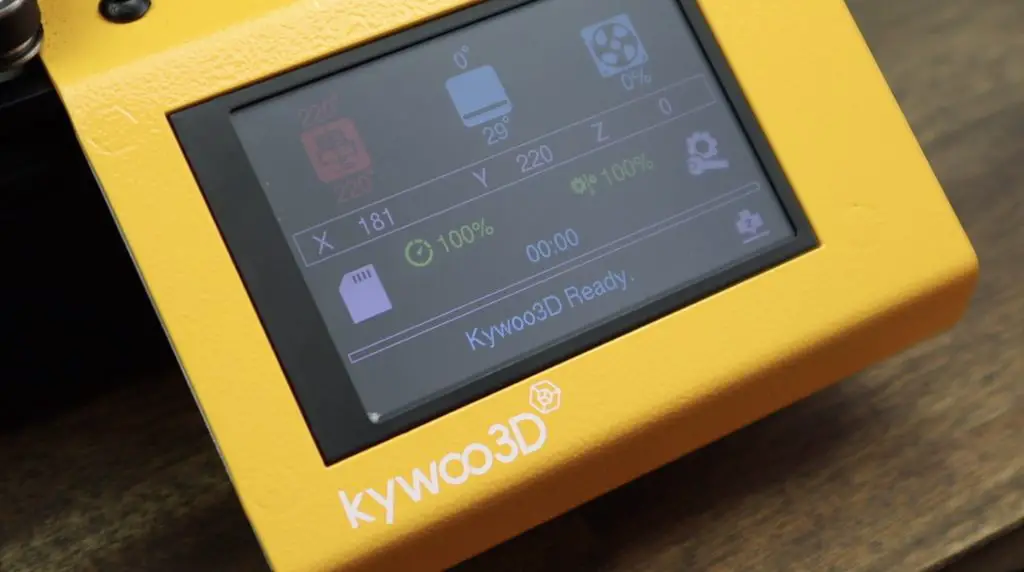
The first and probably most noticeable is that the Tycoon Slim has a direct drive extruder with a filament runout sensor.
Now I wouldn’t classify the extruder type as a weakness on the Ender 3, but it does limit the materials that you are able to print with. With a direct drive extruder, you are able to print with flexible materials like TPU, so that’s one of the materials that we’re going to be trying out to make our Raspberry Pi case.
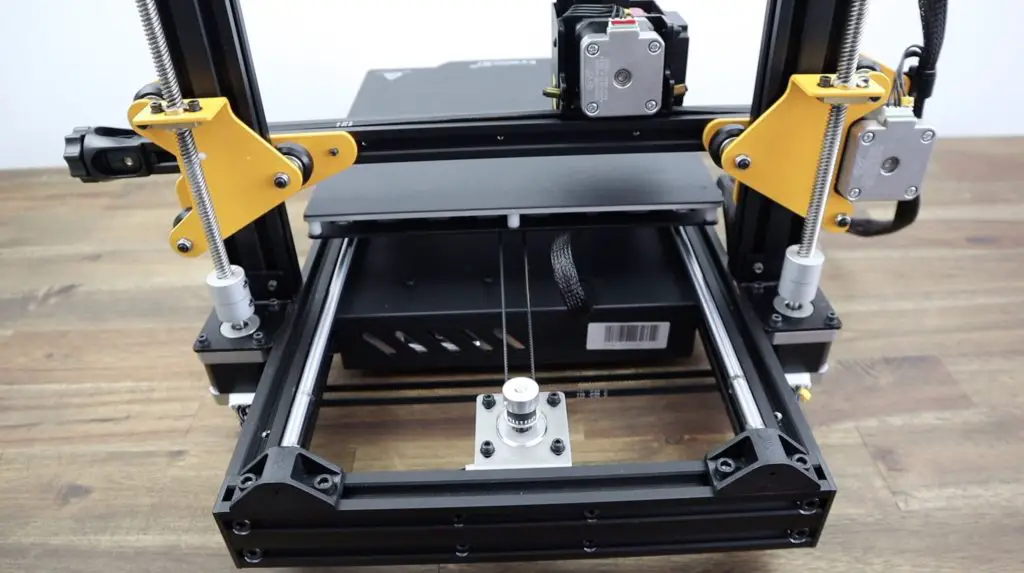
Next, they’ve added a double vertical axis drive and they’ve addressed a common problem with axis misalignment by coupling the two lead screws together with a belt underneath the printer. This ensures that both motors always start up in the same position and move together.
They’ve also done away with v-slot gantries and rather provided a linear rail design for the x-axis and a dual rod slider design for the y axis.
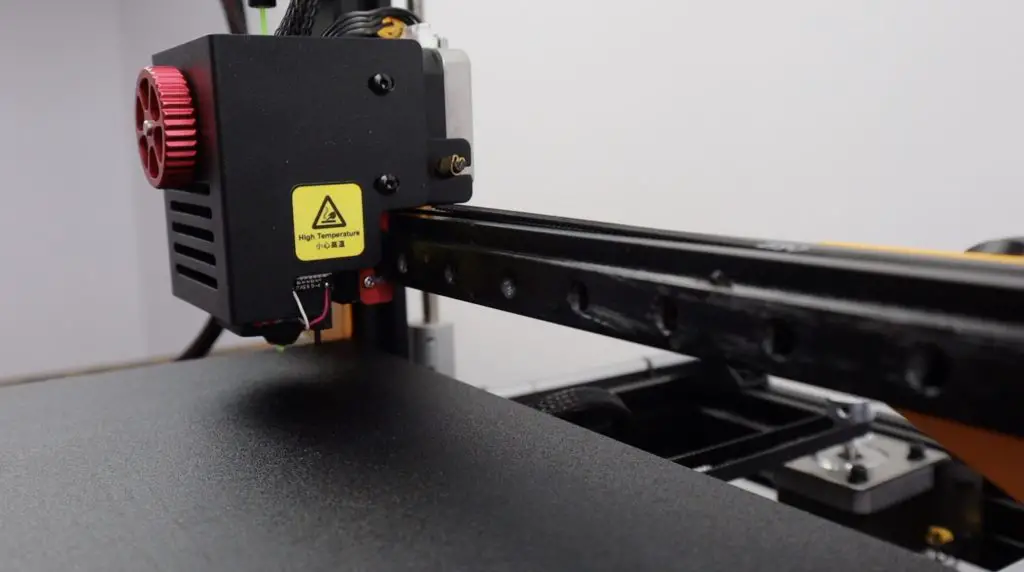
You’ll also always get great first layer results with an integrated Kywoo Touch bed levelling sensor.
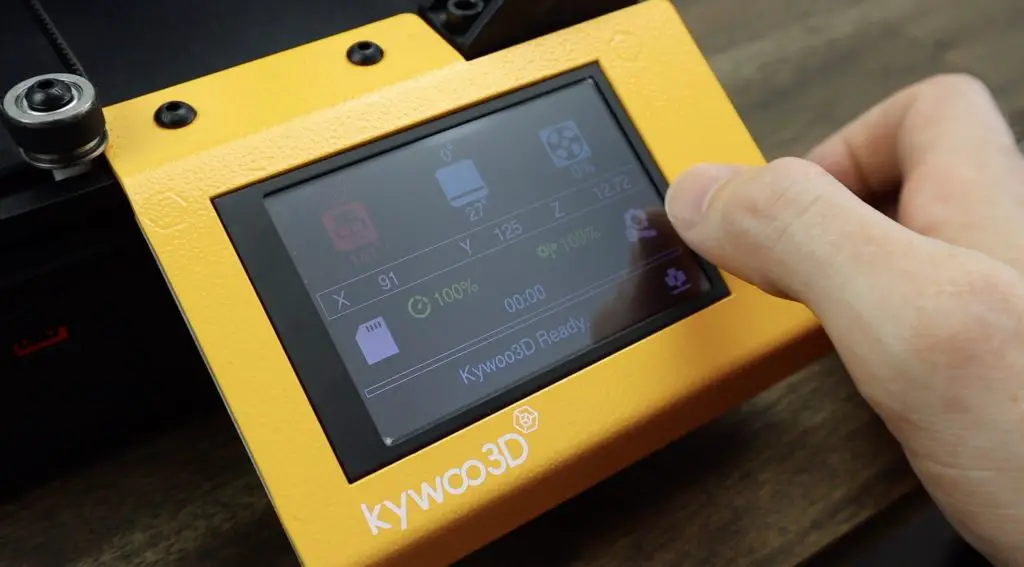
You’ve also got a number of now fairly standard design elements, like a colour touch display, silent TMC2209 drivers, print resume from power-off and adjustable belt tensioners.
Assembly of the Tycoon Slim was really simple as it is largely pre-assembled when it is shipped out. It probably took me around half an hour to get it set up to the point where I was able to start my first prints.
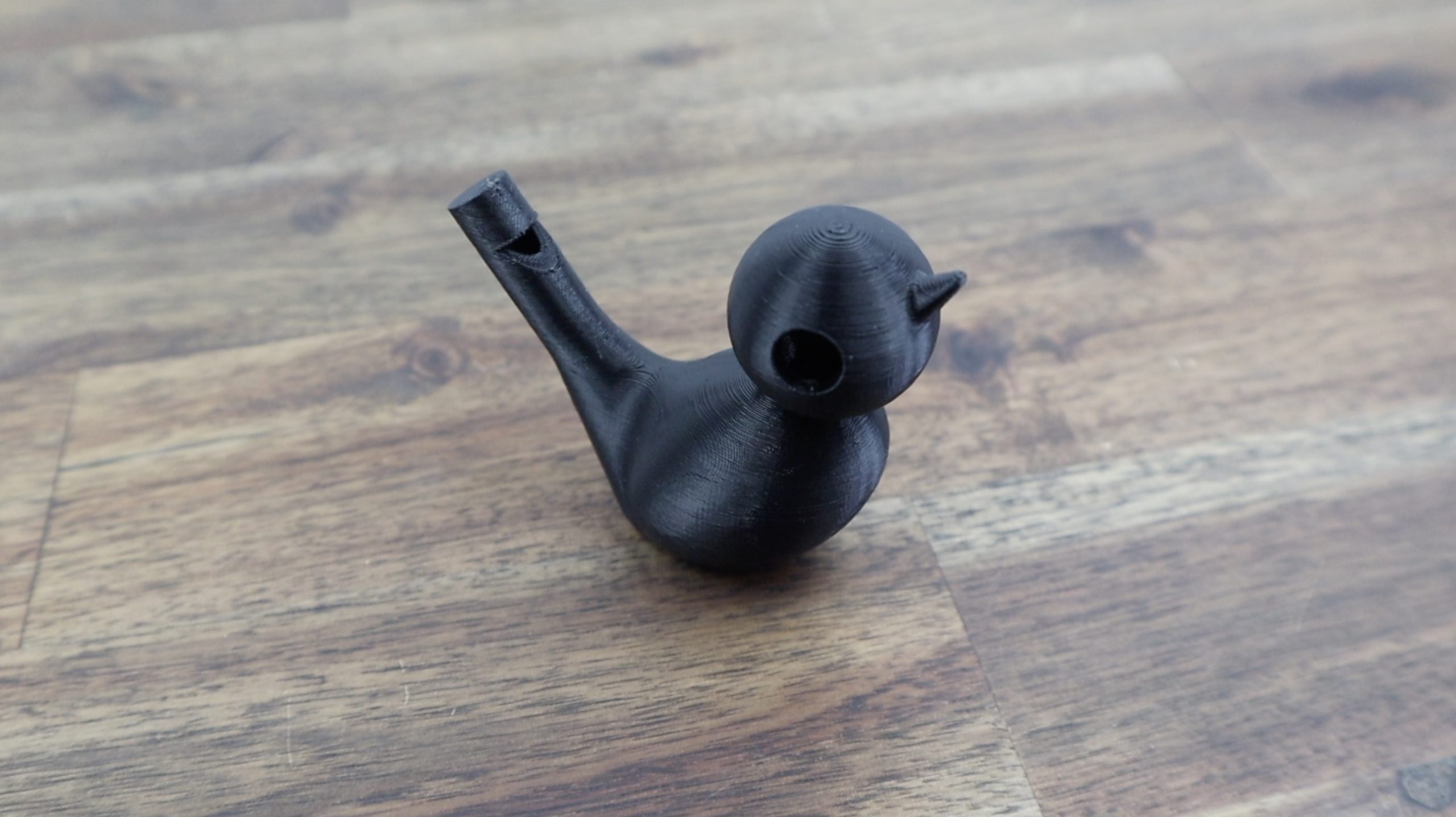
I printed one of their test prints, which is a bird whistle and then a version of my Raspberry Pi Desktop Case and these both came out really well.
These were both printed using their standard recommended printing profile without any tweaks and the print quality right out of the box is quite impressive for a printer that also didn’t need any manual levelling or adjustments to be made to the bed.
So now that we’ve got the printer working, let’s design our case and see how it handles printing with a flexible filament.
Designing The Raspberry Pi Case
I designed the case in Fusion 360 using a traditional split design – although I’m going to be using the Raspberry Pi’s mounting points and some brass standoffs to close the case up rather than using separate screws just for the case. There are obviously some pros and cons to this, so I’ll see how it holds up.
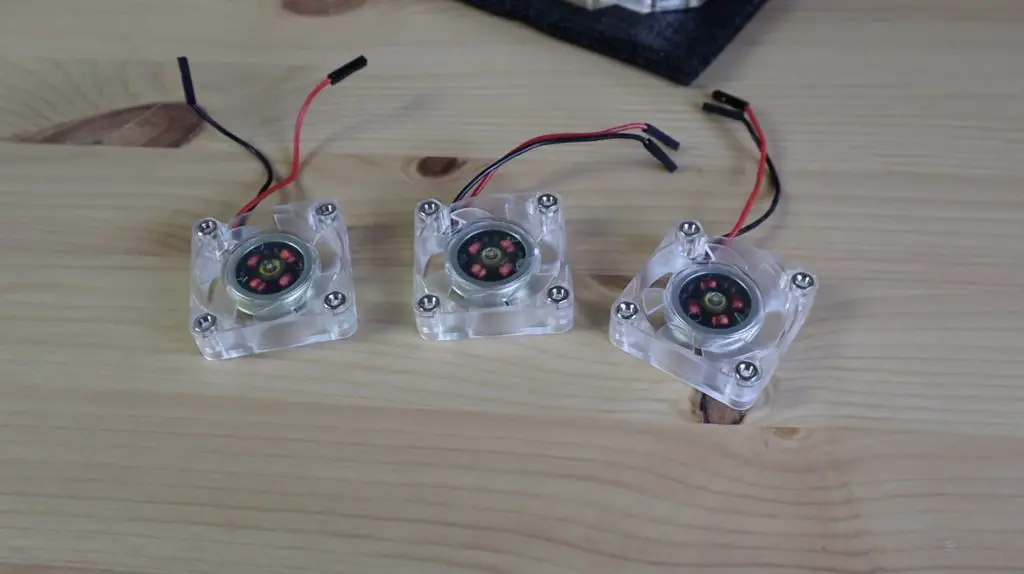
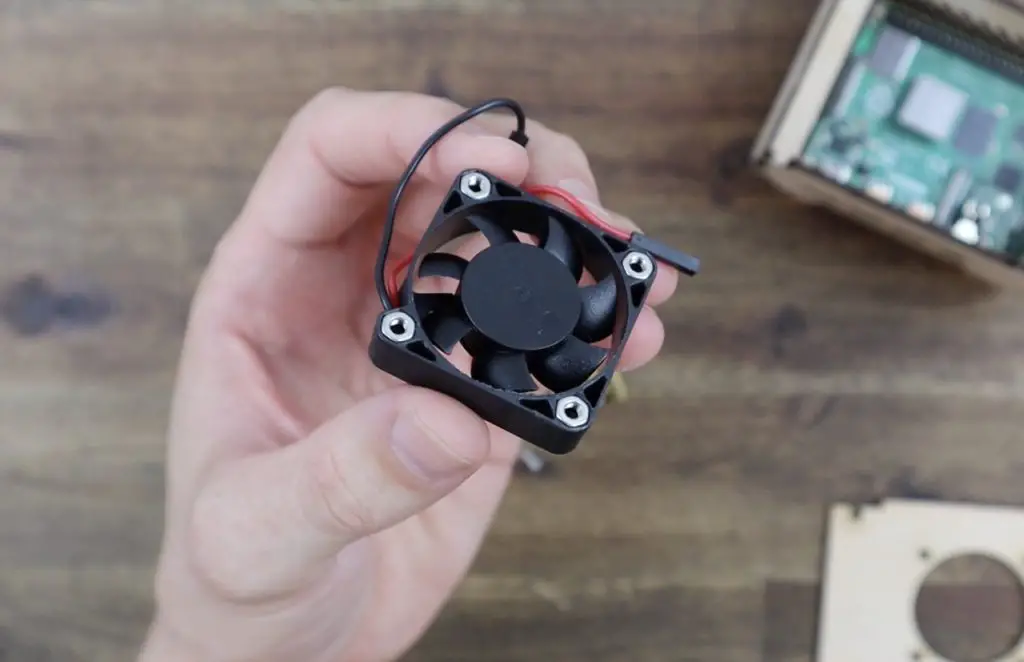
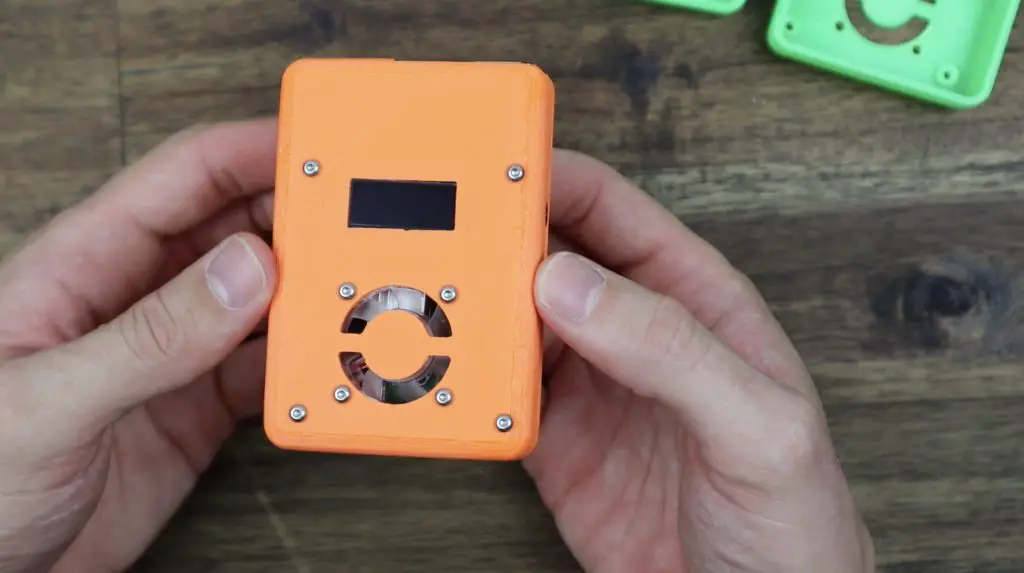
I’m going to use a small 30mm fan for cooling, which will draw air in through the top of the case and exhaust it through the enlarged holes between the USB and Ethernet ports.
I’m also going to add a slim I2C OLED display to display stats or status information if it is running in a headless setup.
3D Printing The Raspberry Pi Cases
I exported the case shell halves and opened them up in Cura for slicing. I haven’t used TPU before, so I’m still going to have to experiment with the print settings, but I did find some general guidelines online and used these, along with Kywoo3Ds suggestions as a starting point.
Printing in TPU did have its challenges and I had to play around with the settings to get reasonably good quality prints. Because TPU filament is flexible, it’s really easy to run the extruder too fast and you land up with the filament folding over itself blocking the top of the hot end. I had two initial prints fail quite early on because I was trying to print too quickly and at too low a temperature. After a couple of test prints, this is what I managed to achieve.
There are a few signs of under extrusion, which is a bit of balancing act between under extrusion and a successful print or over extrusion and blocking the nozzle. I’ll hopefully eventually find the perfect combination of speed and temperature to get near perfect prints. But other than that, this print is really good, the small features are still quite clearly defined and the fit around the Pi is fantastic.
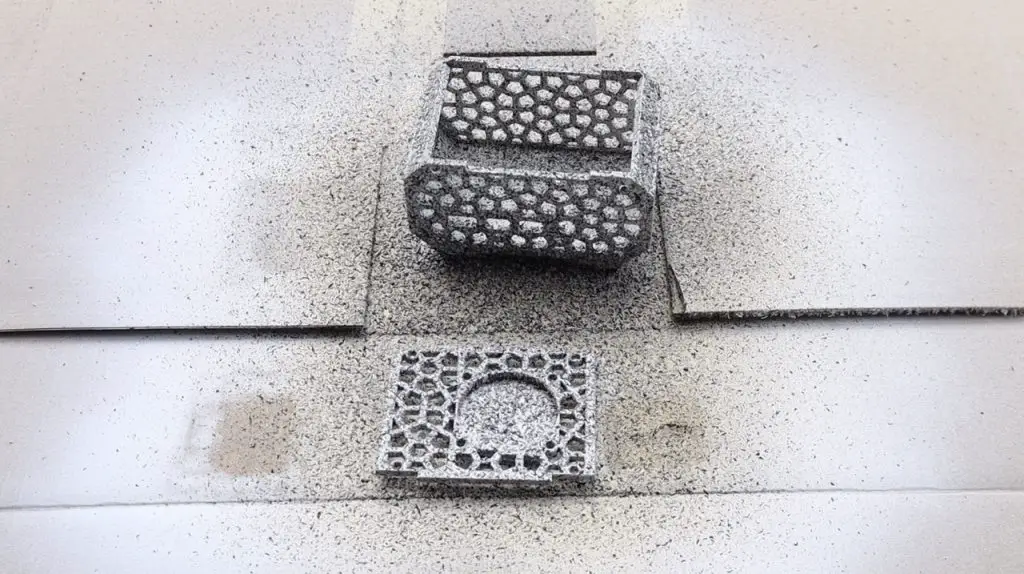
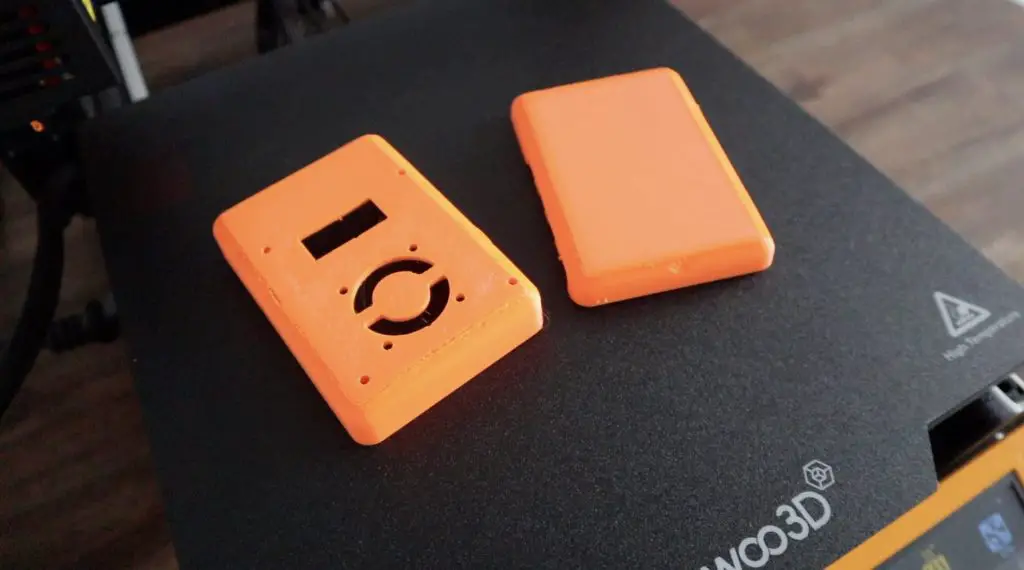
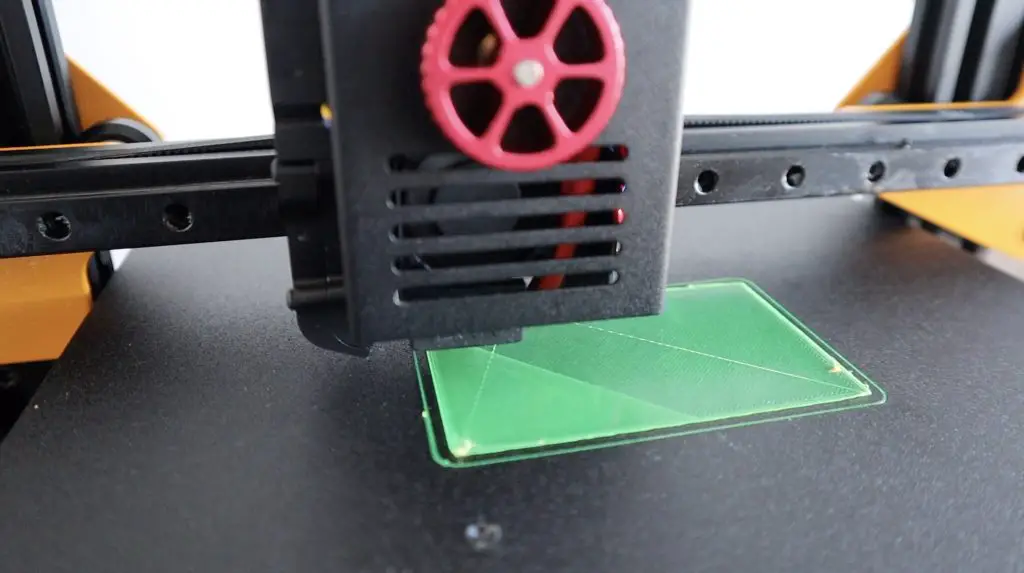
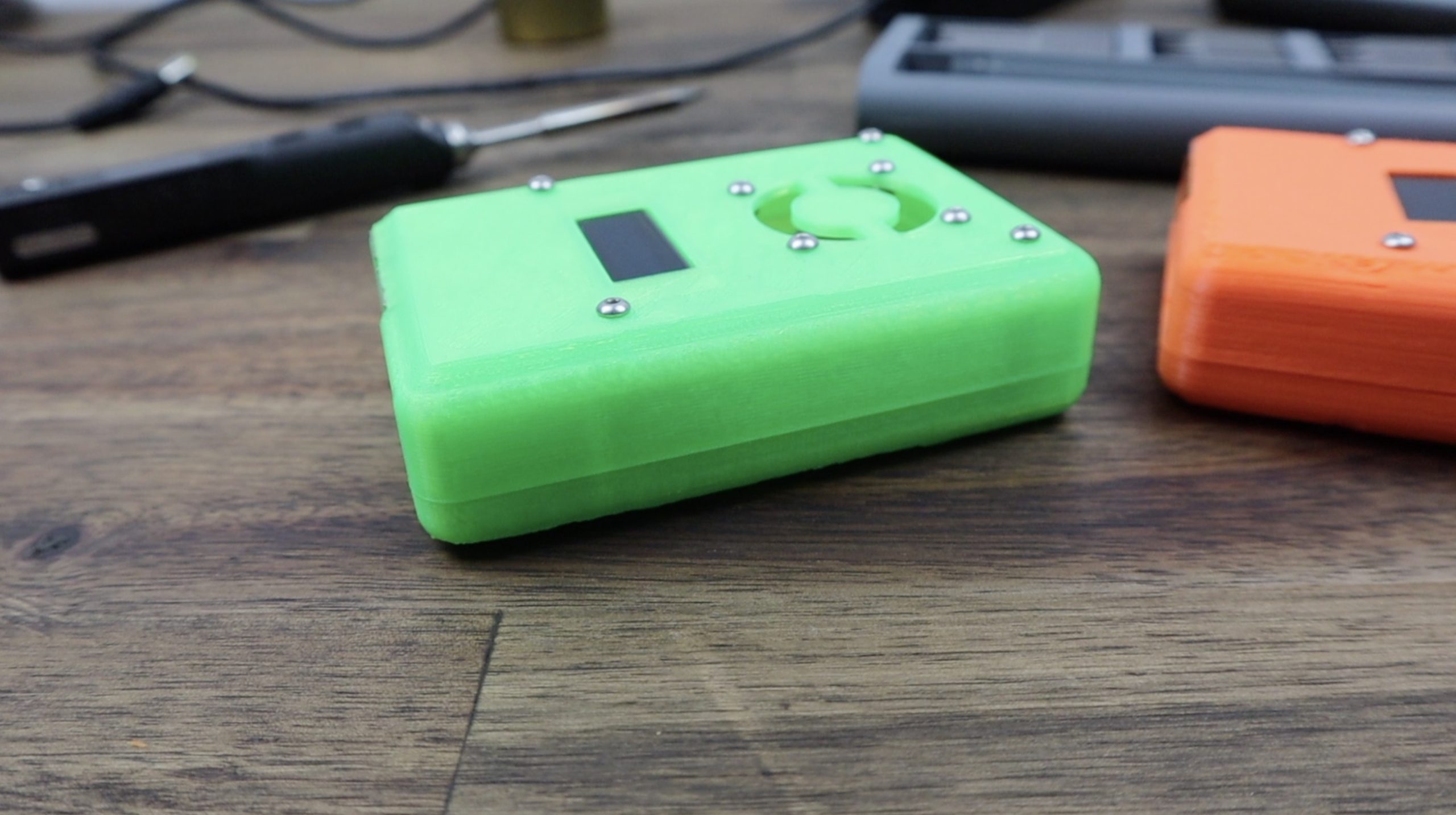
I then printed out a second case in translucent green PLA as well, so that you can see the quality difference between the two different filaments. The translucent green PLA case came out really nicely, the print lines are clean, the layers are consistent and the parts fit together perfectly.
Assembling The Cases & Installing The Pis
Now that we’ve got our cases printed, we can move on to installing the components.
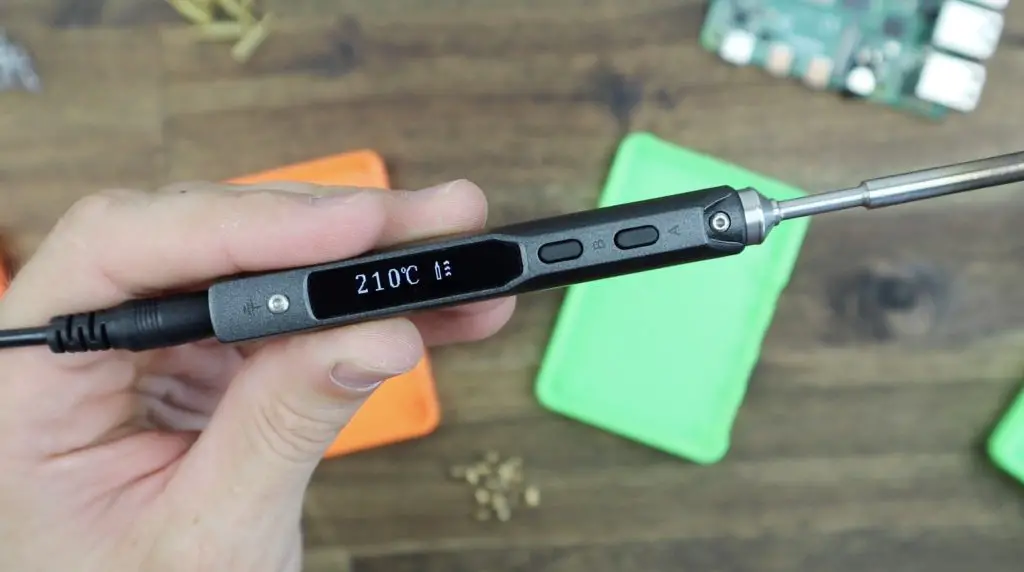
To start, we need to add our brass inserts to the case to secure the Pi and hold the standoffs. I’m using M2.5 inserts and they’re melted into place using the tip of a soldering iron. I’m going to set the temperature to 210 degrees, which is in the middle of the recommended nozzle temperature for TPU, so should work perfectly.
Just place the tip of the soldering iron into the brass insert and wait for it to heat up and melt into place. This shouldn’t require any force.
I’m also going to do the same on the PLA print while I’ve got it out.
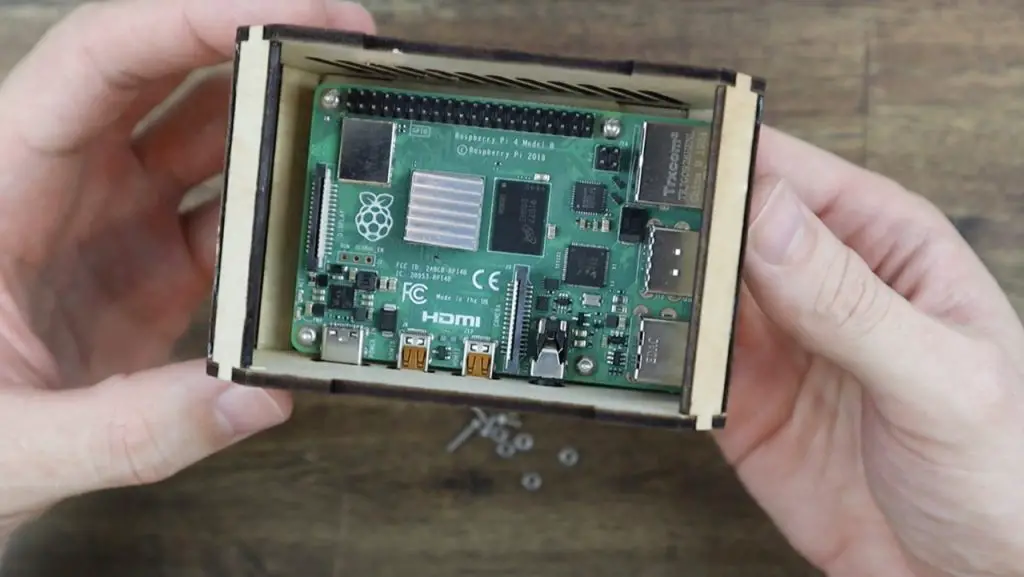
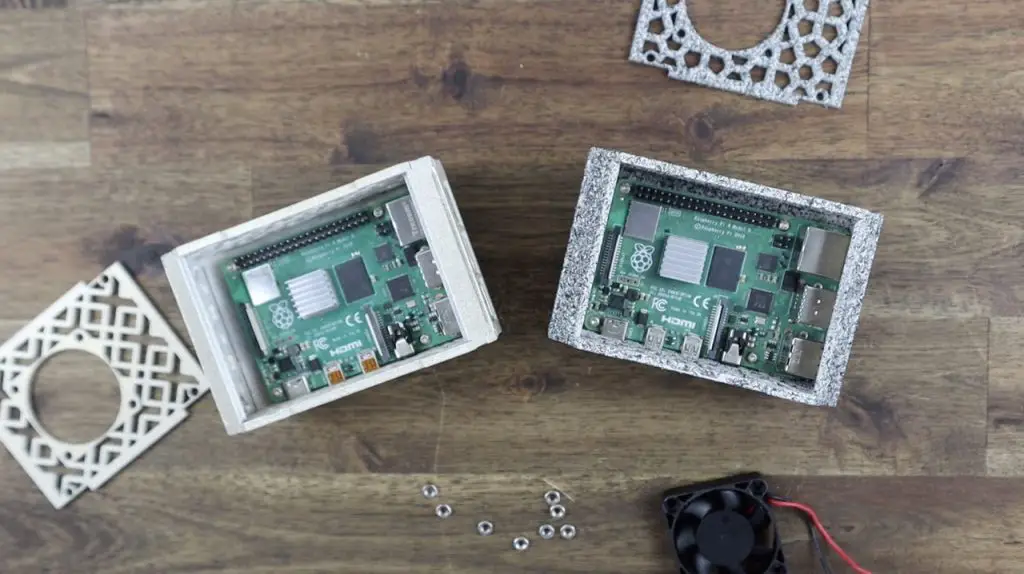
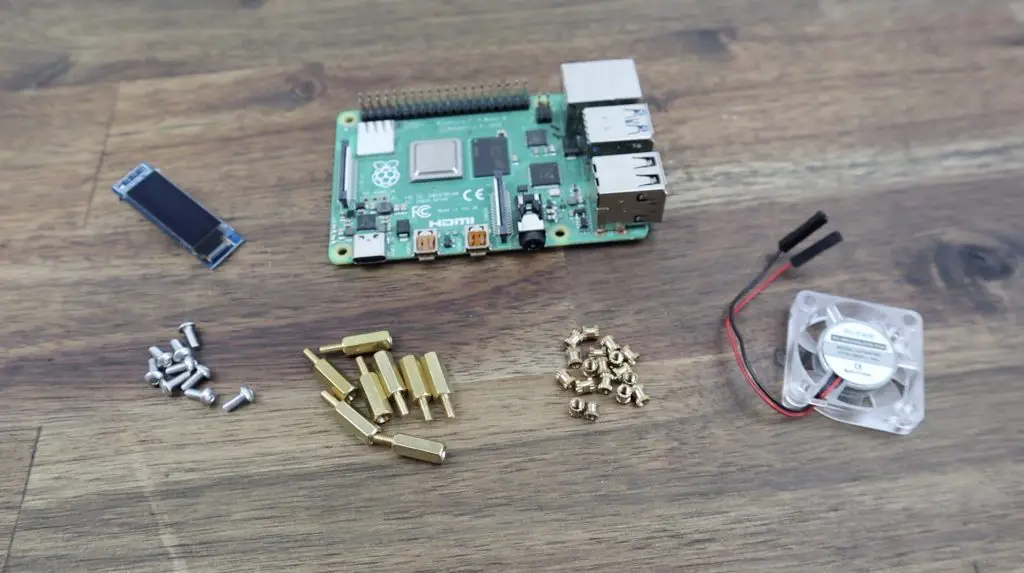
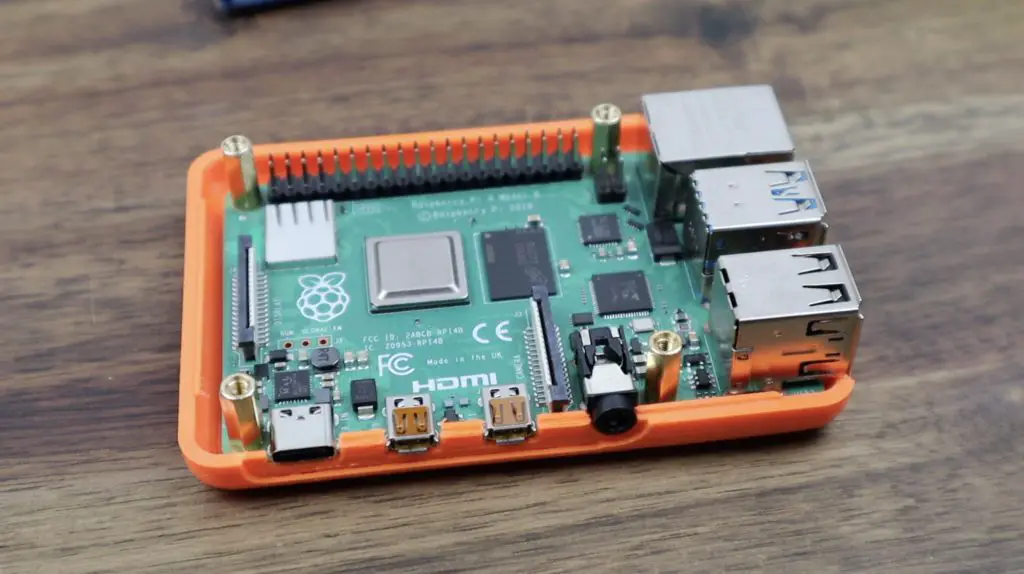
Now we can install our Raspberry Pi into the case. The Pi is then held in place on the base using some M2.5 brass standoffs.
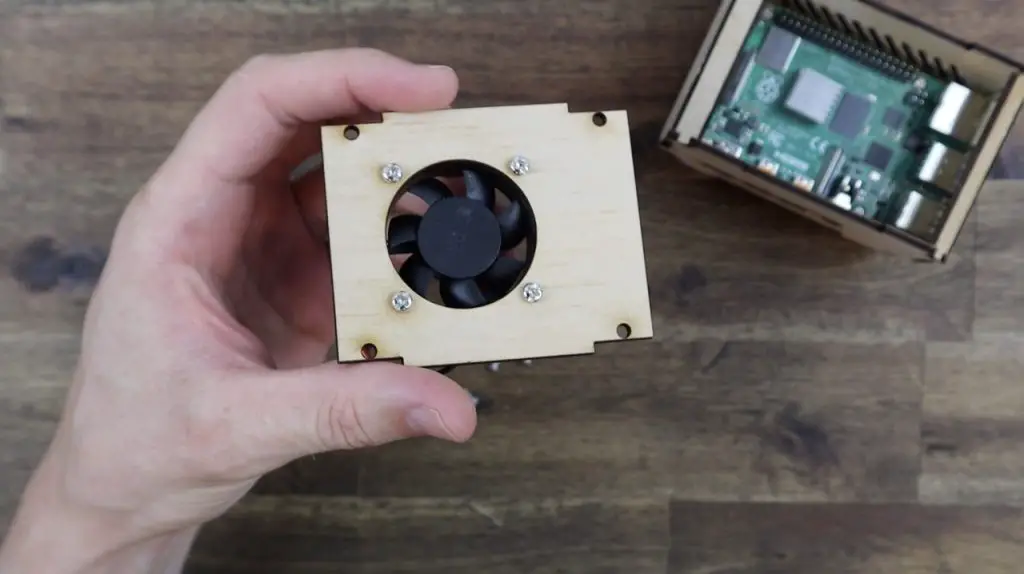
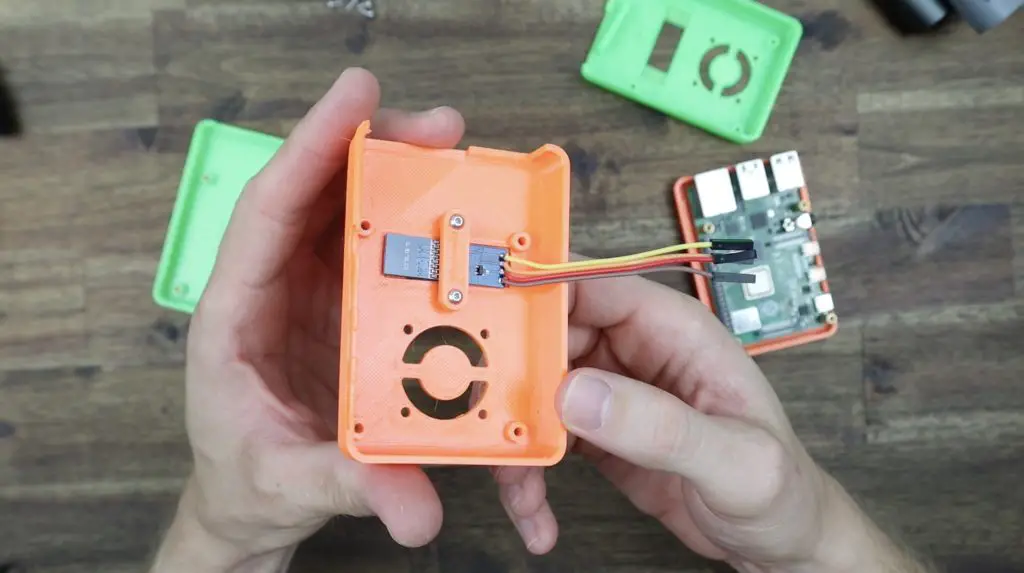
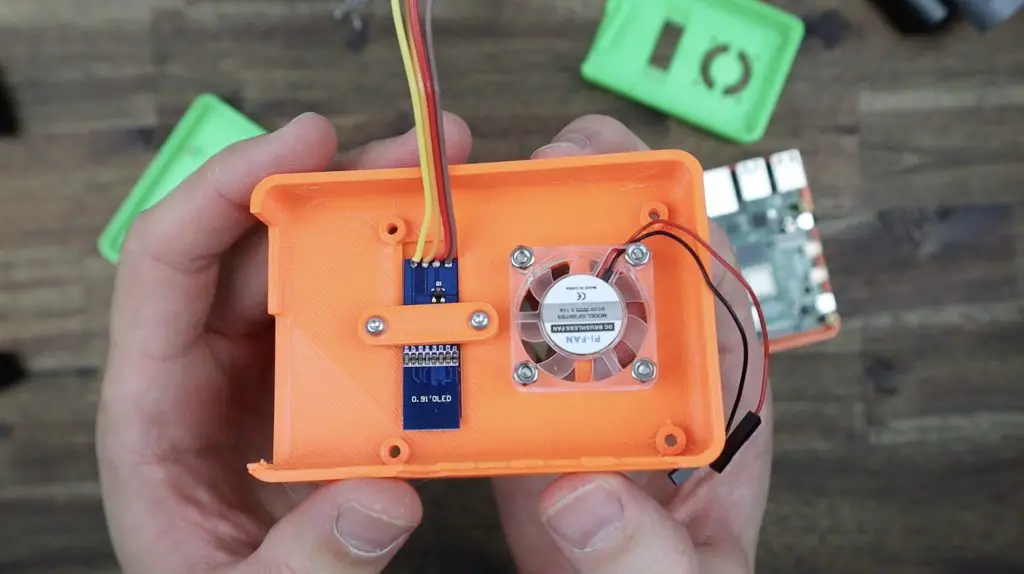
On the case lid, we can mount our 30mm fan and the I2C OLED display.
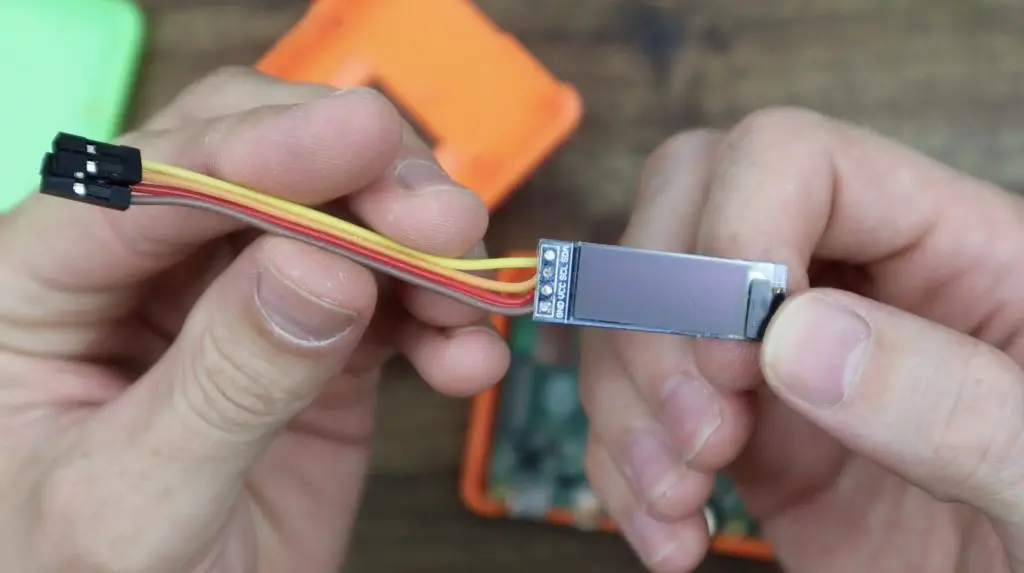
I’ve had to remove the header pins on the display so that it is compact enough to fit into the case. I just added a short lead directly to the pads on the PCB.
The display is held in place using some M2.5 screws which hold a retaining clip around the back of the display and screw directly into the printed standoffs.
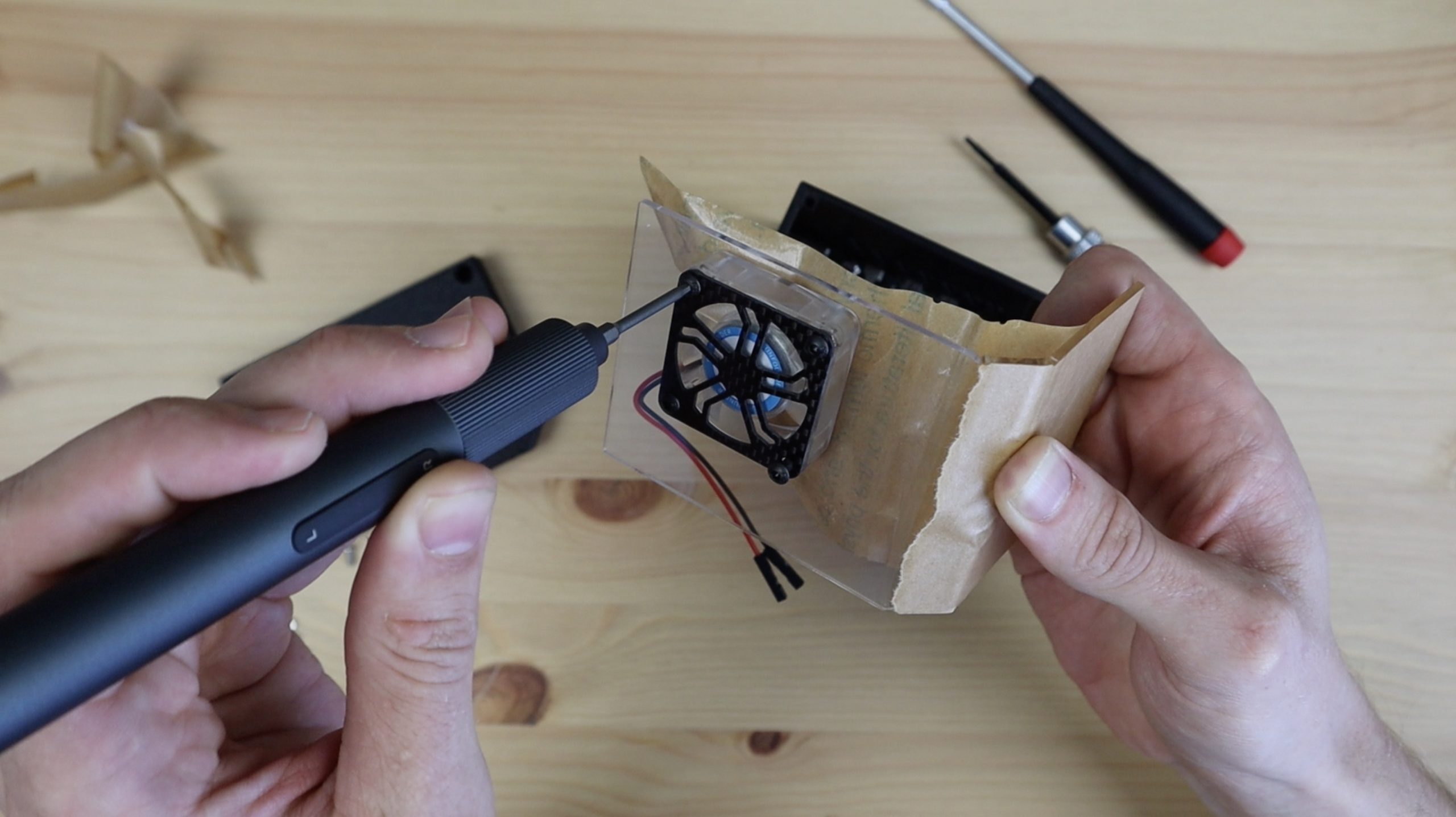
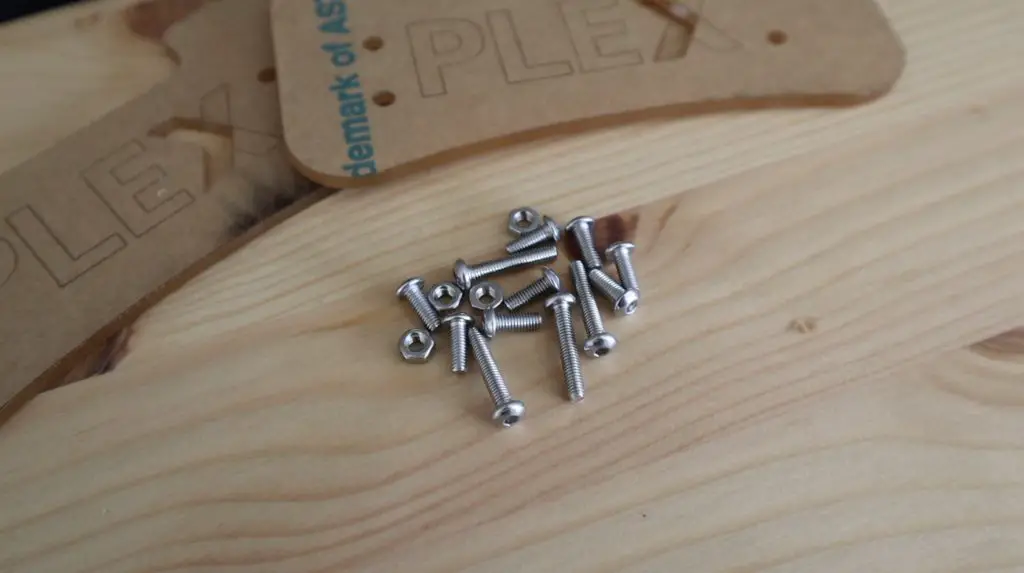
The fan is held in place with some M2.5 button head screws and nuts on the inside.
We can then connect our fan and display to our Pi’s GPIO pins. I’ve connected the fan to 5V and GND and the display to GND, 3.3V and then the two I2C pins SCL and SDA.
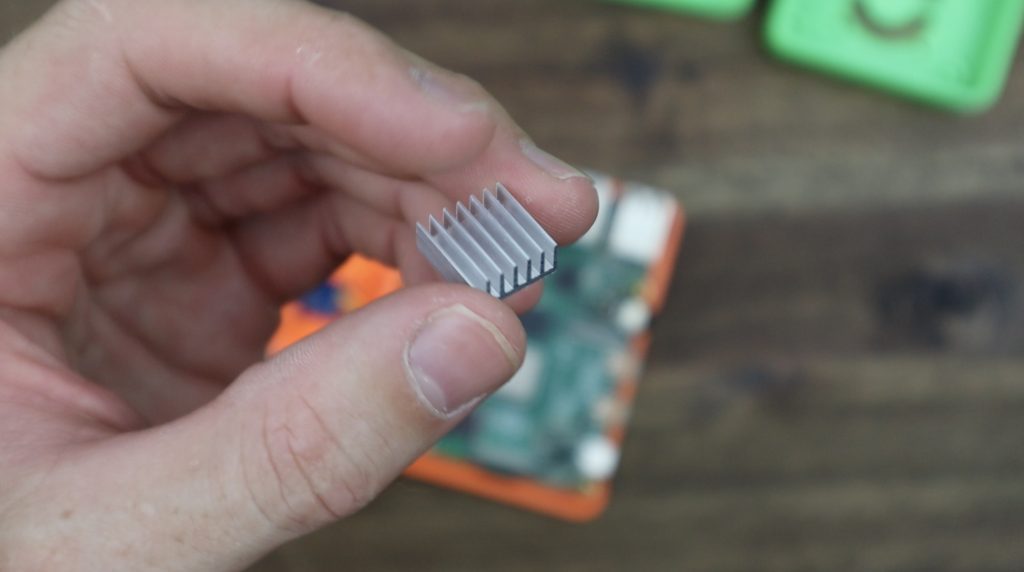
I’m going to stick a small heat sink onto the CPU which, with the fan directly overhead, should be a good compact cooling solution.
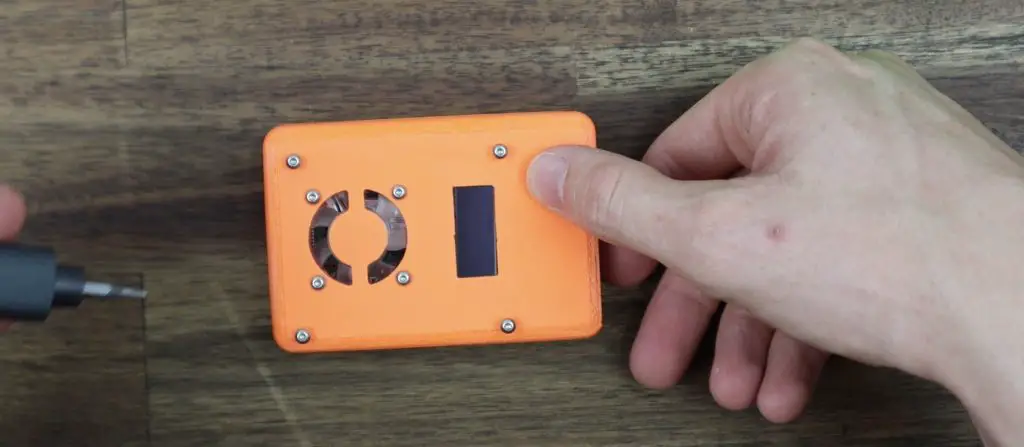
We can then close up the case using some more M2.5 button head screws which screw into the brass standoffs.
And that’s our Pi installed in the case. When you turn it on you’ll still need to program the I2C OLED display to show our Raspberry Pi’s performance stats. You can do this using the script that I’ve used previously on my other designs, you’ll just need to change the display size to suit this more compact version.
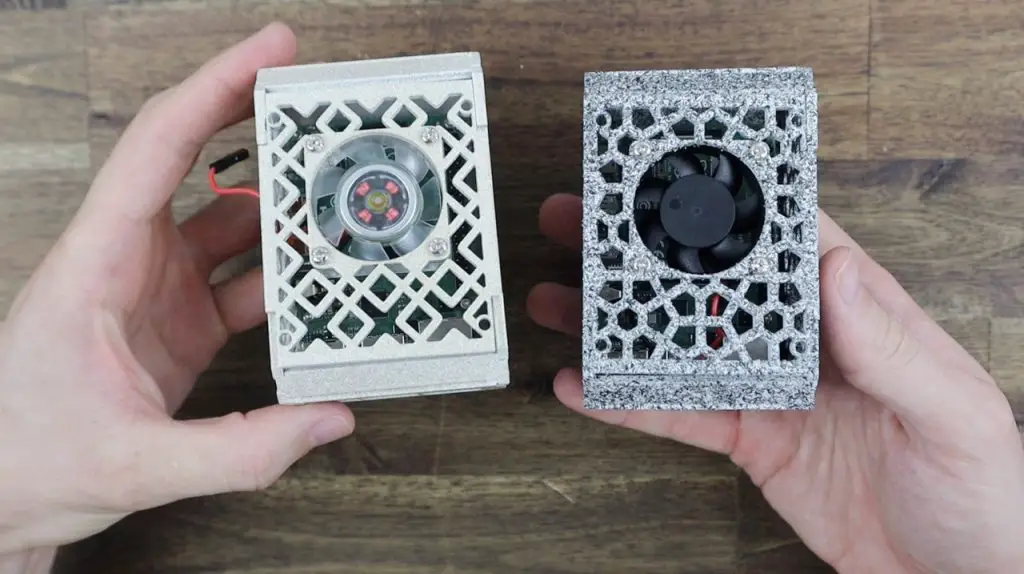
Our case is now complete. We’ve got a durable cover that provides a bit of protection against drops and bumps, which is great for throwing into a travel box or your car.
I’ve assembled the translucent green case as well, to get a feel for how it looks and fits. I, unfortunately, didn’t have a second 30mm fan, so I’ll be running this one without the fan for a few days until the fan arrives. But it should still be ok for light tasks.
Final Thoughts On The Tycoon Slim
By using the Tycoon Slim over the past few weeks, I have been quite impressed by how well it has worked and how little I’ve had to do to get some good quality prints.
As with any new company and product, there are a couple of things that could be improved on and Kywoo3D have already told me that they have made some improvements to the latest version of this printer which is currently being shipped out.
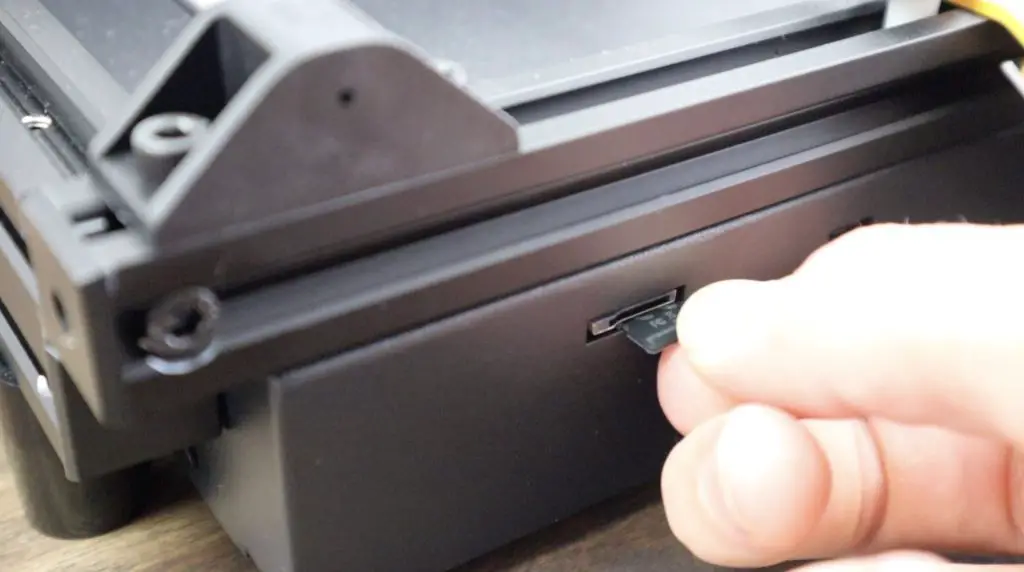
The clearance around the SD card slot is a little bit too big, so it’s easy to push the card into the metal housing instead of the slot. Kywoo3D are aware of the issue and have made up a 3D printable bracket to prevent this, which you can print out and install yourself.
Some other things they’ve changed is an improved bed levelling sensor and a glass print bed. The glass print bed is great once you’ve dialled in your bed levelling, and I use these on my other 3D printers, but I actually quite like the simplicity and ease of use of these magnetic print beds.
My only real complaint with this printer is that the user interface on the touch display is not as intuitive as I would like. There are a couple of missing features or features that I haven’t been able to find. Things like pre-heat that automatically set a preheat bed and nozzle temperature, or just generally being able to find options or settings since there isn’t really a main menu – each item’s settings are within each icon on the display. This is obviously not a deal-breaker but does take a bit more time to get used to.
Overall I think it’s a great first printer and it makes getting started with 3D printing about as simple as it can be.
Let me know what you think of the Kywoo Tycoon Slim in the comments section and be sure to check out Tinkerhive for all your 3D printing needs.
If you’ve been following my projects for a while then you’re probably aware that I like to do unnecessary things, like building a water-cooled Raspberry Pi cluster, or this desktop version of a water-cooled Pi. As cool as these may look, they’re not all that practical, so today we’re going to build something that is a little more practical, although is still a bit unnecessary.
We’re going to build the ultimate water-cooled Raspberry Pi desktop computer and try to give it all of the bells and whistles, including front-facing USB ports, a power button, an OLED stats display and an NVME SSD.
I’m going to be using a Raspberry Pi Compute Module 4, or CM4 for short, for this build so that I can use the CM4 IO Board for a number of features which we’ll get into in a bit.
I’m going to be adding a 1TB NVME drive which will be attached to the Pi using the PCIe Gen 2 socket on the IO Board and a PCI express adaptor.
Lastly, for the unnecessary part, I’m going to water cool the CM4 module using 60mm radiator and Noctua fan as well as a small cooling block and pump.
On the front of the case, I’m going to add two USB ports, a power button and an OLED display.
Here’s my video of the build, read on for the full write-up:
What You Need For This Project
There are a number of smaller parts used in this build that I just had lying around or repurposed, but these are the main components you’ll need if you’d like to try to tackle building your own ultimate Raspberry Pi desktop computer.
Raspberry Pi CM4 Lite 8GB WiFi (Out of Stock on Most Online Stores) – Buy Here
Some of the above parts are affiliate links. By purchasing products through the above links, you’ll be supporting my projects, with no additional cost to you.
Let’s Take A Closer Look At The Hardware We’re Going To Use For Our Raspberry Pi Computer
Let’s start out by taking a look at the IO board and some of the reasons why I decided to use it over a regular Pi 4.
For a start, all of the ports are on one side and we have access to two full-size HDMI ports. We also have a J17 barrel jack for a 12V power supply, so we can drive 12V components like devices connected to the PCIe slot and the Noctua fan. This also ensures that we have enough current to power the Pi and an attached SSD, which can be a problem with the Pi 4.
The IO board also has header pins available for external USB ports, a 12V Molex fan connector with I2C PWM drive and tacho feedback, a full set of GPIO pins and a number of additional IO connectors.
I’m going to be using a CM4 Lite module. This means that it doesn’t have onboard eMMC storage, but we’re not going to use this anyway because we’re using an NVME SSD drive.
I’m using a variant with 8GB of RAM as well as WiFi and Bluetooth connectivity. There is a pretty broad range of these CM4 modules available and some are more common than others. There is also a shortage of these modules at the moment due to the global silicon shortage, so they’re not all easy to come by.
For storage, we’re going to use a 1TB Crucial NVME drive which we’re going to connect to our Pi’s PCIe Gen 2 x1 Socket using an M.2 to PCIe adaptor.
For cooling, we’re going to use a 60mm Noctua NF-A6x25 FLX fan which I’m pairing with a 60mm radiator.
The 120mm one I used on my previous desktop build was obviously way bigger than necessary, and this is the smallest radiator I could find.
We’re going to use the same 40mm cooling block that I used previously as it fits over the CM4 module as well.
To move the coolant around, we’re going to use a small 5V pump, which I’m hoping I can run on 3.3V so that it is a bit quieter. I’m going to need to build a small reservoir for coolant storage and we’ll connect the components together with some clear flexible tubing.
On the front of the case, I’m going to add an I2C OLED display as I’ve done on a lot of my other case builds to display the IP address and some stats. I’m also going to add a power button, which I’ve chosen with a LED ring light around it which will light up when the computer is on. And lastly, I’m going to add two front-facing USB ports. I couldn’t find ones with four female pins on them locally, so I’m just going to cut up this splitter and put my own Dupont connectors onto each of the leads.
Designing The Acrylic Case
Now that we know what hardware we’re going to be using, we can move on to designing a case to house it all. I designed the case in Inkscape using my previous builds as inspiration. Inkscape is open source and is great for producing 2D part designs for laser cutting.
Five of the sides of the case will be cut from 3mm matt white acrylic, and the other main side panel will be clear acrylic so that the internals are all visible. I’ve then got two small black acrylic accent pieces for the front panel and I’ve designed a new water cooling block bracket to keep the block positioned directly over the CM4 module’s CPU.
Acrylic doesn’t join very well at 45-degree angles (unless you mitre the edges) and I don’t like 90-degree edges on all of the sides as it starts to look too “boxy”. So I designed some corner sections in Tinkercad which I’m going to 3D print. Tinkercad is a free, browser-based basic CAD package that works by combining or removing shapes to form 3D models. These corner sections will support the side panels and hold another section of matt white acrylic along the 45degree edge as an accent piece.
I sketched up the rest of the case in Tinkercad as well to get a feel for what it would look like and made some tweaks to the design along the way.
I was a bit undecided about framing the clear acrylic side with a white acrylic border as well, but I think it looks better being entirely clear.
Cutting & Assembling The Case
With the design done, let’s cut the acrylic parts out on my laser cutter. I’m using a K40 laser cutter, which is a fairly generic name for a range of 40W desktop CO2 lasers that are available from a number of manufacturers, particularly in China. They’re quite inexpensive and work well for cutting and engraving thin acrylic and wood.
With the acrylic cut, we can start assembling the case.
I’m going to peel off the protective film on the inside face of each piece, but I’m going to leave as much of the outside film in place as possible so that it doesn’t get dirty or scratched while assembling it.
Let’s start with the main white side panel and add our 3D printed corner pieces to it so that we can then glue the other four smaller side panels into place. I just printed the corner pieces out in black PLA on my Creality Ender 3 V2 using a 20% cubic infill.
One of these pieces will go in each corner and I’ll hold them in place with some black M3 button head screws. This will also allow me to remove the main clear side panel after it is built for maintenance.
With that done, I’m going to also temporarily screw on the clear side panel to hold the corner pieces square while we glue the other edge pieces into place. This will give the whole case a bit of rigidity while we work with it.
To glue each of these pieces into place, I’m going to use some super glue. I don’t often use superglue, but it works well for bonds between acrylic and PLA and is quick and easy to use in this case.
Once the four edge pieces are glued into place, we can remove the clear side panel and add the black accent pieces.
I’m going to use weld-on 3 to glue these into place. This is a water-thin adhesive that is great for producing strong acrylic bonds that are virtually invisible. You could also use superglue for this, but you have to be careful to not create white vapour marks on the black acrylic.
While I’ve got the weld-on 3 out, let’s also glue the retaining ring on the back of our water cooling bracket. This will hold the cooling block in the right place over the CM4 module.
With that, the acrylic part of the case is mostly complete, so we can move on to installing the hardware.
Installing The Computer Hardware Into The Case
Let’s start off by putting our Raspberry Pi CM4 module onto our IO board and checking that the bracket that we’ve made lines up correctly.
I’m going to be using some M2.5 brass standoffs, M2.5x12mm button head screws and M2.5 nuts to secure it. The nuts and standoffs will hold the CM4 module in place, although they’re mainly there to support the cooling block bracket. I’m not even going to tighten them as they’ll then bend the CM4 module and I might break some of the surface components.
I’m going to add a small thermal pad between the cooling block and the CM4 module to assist with heat transfer between the two components.
With the bracket installed, it looks like it fits quite well and we should have enough room to get out tubes past the standoffs on the inlet and outlet.
Mounting The Raspberry Pi IO Board In The Case
Now let’s mount our completed Raspberry Pi IO board in the case. Rather than drill holes through the side of the case and then have nuts stick out the outside, I’ve 3D printed some supports to each hold an M2.5x4mm brass standoff. I’ll glue these onto the white side panel and these will then hold the board in place.
We just need to trial fit the board to get the position of each standoff and we can then glue them into place. I did this a couple of times to be sure before actually gluing them down, but it seems to have worked well.
Mounting The Front Panel Components
Next, let’s move on to mounting all of the components required on the front panel.
First, I’m going to mount the fan to the radiator and I’ll then mount the complete assembly onto the front panel. This way I don’t have to try to fit a screwdriver within the case.
The holes on my radiator don’t align very well with the holes on the case, but I was able to get them in eventually. For some reason, the radiator seems to be a little narrower than it should be, so the holes aren’t quite square.
The black radiator against the white front panel is starting to look quite good, now we’ve just got one final touch to add – our Raspberry Pi logo which I glued into place using some superglue.
I 3D printed a rectangular housing to hold the two USB ports together. We need to trim a little bit of the plastic off around each port so that the port sits flush with the front of the acrylic rather than behind the acrylic. We can do that with a craft knife.
We then also need to cut the other end off of the cables and add some female header pins to them. There are only four pins on each, two for power and two for data, but I’m going to use a 5 pin cover to match the 5 pin arrangement on the IO board so that I know which way around to plug them in. You might find that one of the leads on your splitter only has two wires for power. If this is the case then you’ll need to use a port from a second splitter as well because you need to have all four wires in order to transfer data.
The pins are crimped onto the stripped ends of each wire using a Dupont crimper and the plastic cover or holder then slips onto each pin to hold it in place. You’ll notice the wiring arrangement matches the above pin layout from the IO board’s schematics.
Now that we’ve got the pins on, let’s glue the USB ports into place.
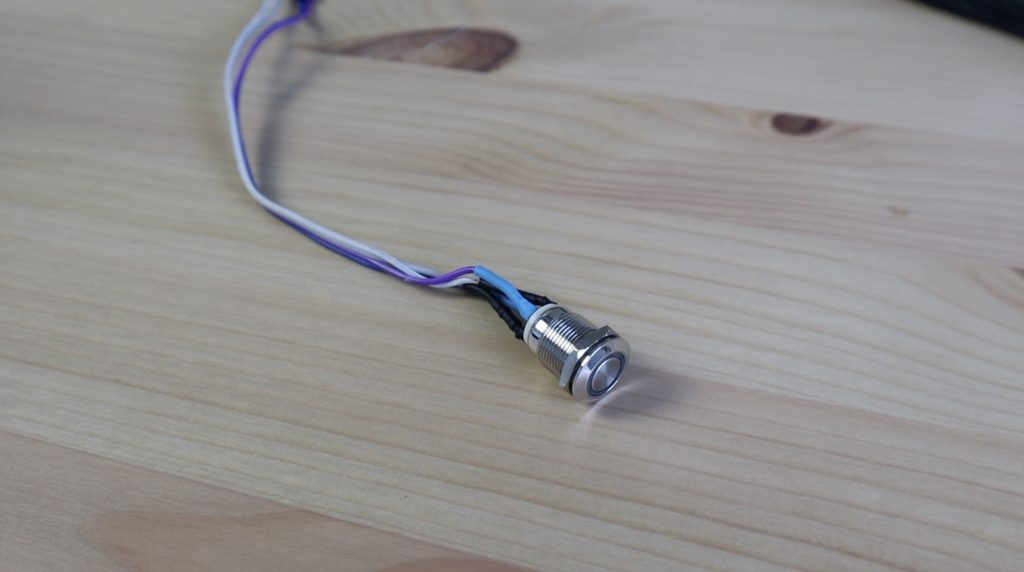
I’ve gone ahead and added some leads and female pins to the power button, which is just held in place with a nut on the inside. The power button has four wires, two for the LED ring light which I can just plug into any 3.3V and GND GPIO pins and two for the switch contacts. You’ll need to also solder a 220-750 ohm current-limiting resistor onto one of the LED legs to protect it. The higher the resistance, the dimmer the LED will be, so choose this to suit your preference.
I’m going to connect the power button’s contacts to pins 13 and 14 on header J2 as outlined in the documentation. This probably means that the button won’t work to shut down the Raspberry Pi, it’ll only wake it up once it is off, but I can live with that.
I’ve also 3D printed a holder for the display which we can also glue into place. The display just used some 20cm breadboard jumpers to plug into the power and I2C GPIO pins.
Making The Reservoir & Completing The Water Cooling Loop
I couldn’t find a reservoir that is small enough for this size case, so I’m going to make a custom one up using a small clear container. This is easier than trying to glue acrylic pieces together with the hope that it will eventually be watertight.
It just needs to be tall enough to hold the pump, so we can trim down the bottle quite a bit.
I’ve designed and 3D printed some caps to go onto each end which will also be used to mount the reservoir onto the side of the case.
We can then push one end of the tube onto the pump, put the pump into the reservoir and then install the two end caps using some hot glue. The hot glue seals up the edges a little so that if the case is bumped, the coolant doesn’t spill out of the reservoir.
I’m going to use a section of foam strip to stick the reservoir to the side panel to dampen any vibrations from the pump which will hopefully result in a quieter running system.
I’ve installed the reservoir near the top of the case so that there is less risk of it overflowing and it’ll make it easier to top up.
I’ve run the flexible tubing on the shortest paths between the components. The cooling block should probably rather have had the upper port as the outlet on the return back to the tank so that air is less likely to be trapped in the void, but this complicates the tubing run to the radiator, so I’ve run it like this.
Installing The NVME Drive
Next, we can move on to installing our NVME drive. We need to remove the metal bracket that is supplied with the adaptor. They give you a shorter one as well but we don’t need these on this build as it’s not a standard case size.
We can then plug our SSD into the adaptor, add the small screw to secure the drive and plug the adaptor into our PCIe slot.
Finishing Off The Ultimate Raspberry Pi Desktop Computer Build
To finish off the case, we just need to glue on the acrylic accent pieces. These fit into the holder on the 3D printed corner pieces and I’ll glue them in place with some superglue.
We can then fill up the reservoir, then close it up with a 3D printed plug and screw on the clear side panel. I’m going to use opaque white coolant in the system to match the white acrylic. It would also be good to eventually get some white sleeving for the cables to neaten them up a bit in the future as well.
Let’s peel off all of the remaining protective film and see what it looks like.
But it’s all working correctly now and I can use the front USB ports for basic interfaces. I haven’t read too much into the documentation but I suspect that these are only USB 2.0 ports. That’s ok for using them for accessing documents and small files on a flash drive or using basic USB peripherals.
Let me know what you think of the Raspberry Pi computer build in the comments section below! Is there anything you think I missed or should have done differently? I was thinking of maybe bringing out the GPIO pins to one of the 3D printed corner pieces, perhaps one of the two at the top?
Following one of my previous projects where I built a weather station dashboard using InfluxDB and Grafana on the reTerminal, I had quite a few requests to do a more in-depth tutorial on how to get each part set up and running. So in this tutorial, I’m going to be going through each part of the process, step-by-step, so that you can get a similar setup running on your Raspberry Pi.
In this example, we’re going to use an ESP32 as our data collection node to collect temperature, humidity and pressure readings from some attached sensors. It’ll then post these readings to an InfluxDB database and we’ll then use Grafana to visualise the data. Don’t worry if you don’t understand what these are or how they work together just yet, I’ll explain them each in more detail as we work through them.
Here’s my video tutorial, read on for the written tutorial:
You’ll also need a monitor (my portable monitor shown at the end), keyboard and mouse for your Raspberry Pi in order to install and set up your Grafana weather dashboard.
Some of the above parts are affiliate links. By purchasing products through the above links, you’ll be supporting my projects, with no additional cost to you.
Setting Up Your ESP32 Microcontroller To Capture Sensor Readings
Connecting Your Sensors To Your ESP32 Microcontroller
Let’s start with setting up the ESP32 microcontroller and sensors.
You’ve probably seen people use a Raspberry Pi for this part as well, but I prefer to use a microcontroller like an ESP32 or Arduino for a number of reasons.
The first, and probably the most important, is that once you’ve programmed your microcontroller, you can switch it on and off as often as you’d like without having to go through a shutdown and bootup process. You don’t have to worry about it corrupting its memory card or locking up. It is entirely dedicated to the task you’ve programmed it to do and it’ll do it very reliably, even when you’ve had power interruptions.
The second is its power consumption, which really comes into play if you’re building a battery-based project.
You’ll struggle to get even a Raspberry Pi Zero W to run at under 260mA or a little over 1W, while I’ve managed to get an ESP32 based device like the Firebeetle board used in my weather station to run as low as 0.01 mA, or at an average of 1 mA when transmitting data over WiFi. So this is over 250 times more power-efficient, meaning that it can either run 250 times longer than the Pi or you can use a battery 250 times smaller than with the Pi – both of which can be a huge advantage.
We’re going to connect two sensor modules to our ESP32, the DHT11 sensor on the left connected to pin 4 for measuring the temperature and humidity and then a BMP280 sensor on the right connected to the I2C interface to measure atmospheric pressure.
I’m going to connect the two sensors to my ESP32 on a breadboard using some jumpers for this example so that it’s easy for you to follow. The sensors I’m using are also from Seeed studios, they call them grove sensors and they’re particularly useful for people who are new to electronics because they include all of the components required to drive the sensor on the PCB so you don’t need to worry about adding resistors or making multiple power connections to drive them. I’ve cut the ends off the grove connectors to plug them into my breadboard, you could do this or just plug your jumpers straight onto the grove sensor pins.
We can then connect our ESP32 to our computer and use the Arduino IDE to program it.
Sending Our Sensor Data To InfluxDB
Now that our sensors are connected, we want our ESP32 to take readings from them and then post these readings to an InfluxDB database over WiFi.
InfluxDB is a time series database package, which you can think of as a sort of large excel spreadsheet where each data point that you send to it will be stamped with the date and time that it was received. So if you send it a temperature reading, it’ll stamp it with the date and time that it was received and then store it in the table. This makes it really useful for any information that changes over time – like a weather station.
This database can either exist in the cloud, on InfluxDB’s servers, or it can be installed on our Raspberry Pi and run on our local network. I’m going to use InfluxDB’s servers in this example because this option works well if you’ve got a number of microcontrollers collecting information that are not all on the same network and it also allows you to reboot and make modifications to your Pi’s software without interrupting the collection of data as well. Either way, this setup process is largely the same for both options.
Programming Our ESP32
Let’s have a look at our code and how to get the information into our database. I’ve put together this example sketch which I’m going to load onto it.
You’ll need to have installed the ESP32 board using the IDE’s boards manager. Then make sure that you’ve got your board selected as “ESP32 Dev Module” and check that you’re using the correct COM port.
In the code, we start by importing our required libraries, these are basically packages of code that have been written to make it easier to interface with certain devices or objects. So for example, the DHT.h library contains all of the code required to communicate with our DHT sensor and we can then just use a single line in our code to ask this library to send us the temperature reading.
We’ve then got a section to define our WiFi and InfluxDB connection settings. Don’t worry too much about these yet, they’ll make sense when we get to the Influx DB setup portion of the tutorial.
We then need to create two sensor objects using our libraries, create three variables to store each of the fields that we want to measure and then set up our InfluxDB connection.
We then have our setup function, which is a set of code that is run just once when the ESP32 is first switched on.
This function starts communication with our computer for debugging, then sets up our sensors using the libraries we called up earlier, then connects to our WiFi network and then connects to our InfluxDB database.
Next, we have our loop function. This is a set of code that is run over and over as long as the ESP32 continues to be powered. So in our case, we add another line of readings to our table in our database each time we loop through this set of code.
First, we use our DHT11 and BMP280 libraries to get the current sensor readings from the two sensors.
We then tell our database library which column of our table each of these values should be stored under.
We then check our WiFi connection and re-connect to the network and database if we need to.
Finally, we write our measured values to our database as a single line of data so that the three measured values will all have the same timestamp.
This last portion of the code just displays the measured values on the Serial monitor, which makes it easier to debug. We can then check that the information that is showing up in our database is the information that our ESP32 is measuring.
Before we go ahead and upload the code to our ESP32, we need to add those network and database parameters at the beginning of the code.
The first two are our WiFi network name and password, so we can enter those right away. Remember that the network name is also case sensitive and needs to include any spaces or underscores as well.
The next five parameters are all required for our InfluxDB connection, so we’ll need to open up InfluxDB and create our database before we can finish this off.
Creating Our InfluxDB Database
Create an InfluxDB Account
Now that we’ve got our ESP32 set up to record the data from our sensors, we need a place to store the data. So let’s go to influxdata.com and then go to “Login” in the top right and click on “Login to InfluxDB Cloud 2.0”.
You’ll then be given an option to log in to your existing account or sign-up for a new account. I’m going to register a new account for this tutorial.
Once you have confirmed your email address, you’ll arrive at this page. You can leave the default Amazon Web Services provider, just select your correct region, then enter your name or company name and tick the box if you agree to their service agreements.
You’ll then be asked to select a plan. Unless you’re wanting to capture large amounts of data or store the data for long periods of time, the free plan will be fine.
You should then arrive at your home page.
Get Your Database Connection Details
InfluxDB have already done some work on interfacing with Arduino based devices, so we can take advantage of that to make the integration easier. So let’s click on “Load Your Data” and then find the “Arduino Client Library”.
Now you’ll see two boxes with a generic API token and bucket, and below that are some prepopulated snippets of code.
We can then just copy these fields across to our Arduino sketch. My sketch is based on this example code, so you can just copy the whole snippet and replace the section in my sketch if you’d prefer.
It’s perfectly fine to use this generic token and bucket, but if you’re going to be using multiple devices to capture data and if you want to set an expiry on your data so that it’s automatically deleted after a period of time then you’ll want to create your own, which you can also do right from this page, so let me show you how to do that as well.
First, let’s create our Token. This is basically a key that allows an external device to read, write and manage the information in our database. We can set this up with customizable options to limit what the device with the key can do, but for simplicity let’s just create an “All Access API Token”. This will enable our device to read, write and modify our database.
Give the token a name, which is commonly the device name, then click save. We can then copy this token and replace the one in our Arduino sketch.
Next, we want to create our bucket, which is essentially a fresh database. In InfluxDB each database needs to have a retention policy. The retention policy is how long data is stored in the database before being automatically deleted. This prevents the database from becoming bulky and slow to query, so it should be chosen based on how often you’re writing data to it and how long you expect to need to see historic trends.
In our case we’re only going to be writing to our database every few minutes, so let’s go with 30 days. This will also allow us to visualise monthly trends as well as highs and lows on our dashboard.
Make sure that the new bucket is selected and we can then go down to the code and copy the field across to our sketch.
The last field to set in the sketch is the timezone, this should be set correctly so that your database entries are stamped with your local time, which you’ll need to establish yourself. They give you some examples for common locations and a web resource for naming other locations, mine is set up for Sydney Australia.
Adding The Database Connection Details To Your Sketch
With our InfluxDB and network settings added to our code as above, we can now upload the code and make sure that our ESP32 is writing the information to our InfluxDB database.
I’m also going to quickly change the delay between readings to 5 minutes as the indoor temperature and humidity don’t change that quickly.
Once your code has successfully been uploaded to your ESP32, open up the serial monitor and check that you’re getting the expected feedback. This will also give you the latest readings that are being taken from the sensors. Any errors in connecting to the WiFi network or InfluxDB should also come up here.
Now we’ve got our information being sent to and stored in our database, but it’s pretty intimidating to look at a table full of numbers, so we need a way to gather the information we’re interested in from our database and display that information in a format that’s easier to visualize and that’s where Grafana comes in.
InfluxDB does now have its own visualisation tools, but I find Grafana to be a lot more powerful and user friendly.
Installing Grafana on Our Raspberry Pi
As with InfluxDB, Grafana can be run in the cloud, on their own servers, or on a Raspberry Pi on our local network. For this example, I’m going to be installing and running it on my reTerminal, which is a Raspberry Pi based touch display terminal.
I’m starting with a fresh install of Raspberry Pi OS Buster, and we can install Grafana by entering the following commands into our terminal.
echo "deb https://packages.grafana.com/enterprise/deb stable main" | sudo tee -a /etc/apt/sources.list.d/grafana.list
sudo apt-get update
sudo apt-get install grafana-enterprise
Once we’ve got Grafana installed, we then need to start the application, you’ll see in your terminal window from the previous step that it explains to you how to start the service and verify that it is running.
So let’s enter those commands:
sudo systemctl daemon-reload
sudo systemctl start grafana-server
sudo systemctl status grafana-server
You should then see a green message like this saying that it is running.
Lastly, we need to set it to automatically run on start-up.
sudo systemctl enable grafana-server.service
Creating Our Grafana Weather Dashboard
Connect Grafana To Our InfluxDB Database
With Grafana now running on our Pi, we can access the dashboard by opening a new browser window and entering the URL – http://localhost:3000/login
You’ll then need to enter your username and password, the defaults are admin for both, and you’ll probably then be prompted to create a new password.
Now that we’re on the Grafana user interface page, we need to configure a data source to be able to read the information stored in our InfluxDB database.
So let’s click on “Add your first data source”.
We can then choose our data source type, which in our case is InfluxDB and we’ll then land on a configuration page like this.
This is a similar process to the one we followed to allow our ESP32 to write information to the database, we’re now just telling Grafana how to read information from the database.
You can change the name of the data source if you’d like, I’m going to leave it as InfluxDB.
Next, we’re going to change the Query Language to Flux. Flux is more of a scripting-style query format rather than an SQL query format, so is a bit more versatile than InfluxQL.
The URL is the same as the one used in the Arduino code, so we can just enter it or copy it across from our code.
You can leave most of the default settings selected for now.
Let’s add our username and password here.
Then lastly we need to enter our database details.
These are the same details that we used in the Arduino sketch, with the exception of the token. The token is similar to the ESP32 token except that that token could be a write-only token and this could be a read-only token. I say “could” because they’re just “all-access” tokens in this example, but in practice should be read-only or write-only. So let’s open InfluxDB to generate this token.
We’ll go to tokens, then click on Generate API Token.
I’m going to create this as an all-access token again, but you can configure it as a read-only token if you’d like.
Then we just need to copy the generated token over to our configuration page.
I’m going to set the minimum time interval to 60s as we’re only writing to our database every 5 minutes and I’ll leave the max series as 1000.
Now click on “Save and Test” to see if Grafana is able to access your database.
If it has worked correctly then you should get a green tick and it’ll tell you how many buckets have been found.
So that’s great, we can now move on to creating our dashboard.
Creating Your First Dashboard Panel
Let’s go back to our Dashboard’s home page using the menu bar on the left. We can then click on this box on the right side to create our first dashboard.
A dashboard is a page that is used to display a set of information. We’re going to create a single dashboard to display our three weather parameters. Each of the graphs or gauges that we want to display can be created in a panel, so let’s create our first graph by clicking on “Add a new panel”.
We then get a page that gives us a number of options to set up what data is displayed and how it is displayed. It might look quite intimidating the first time you land on this page, but it’s quite simple once you get the hang of it.
Using the toolbar on the right side you can configure how you want the information displayed, like the title, axis labels and colours. At the top of this section, you can choose the type of visualisation, like a time-series graph or an instantaneous indicator gauge.
Using the toolbar at the bottom, you can configure your database query that selects what information from your database is displayed.
Let’s enter our first query to get the temperature information from our database.
We start by telling it which bucket to read the information from.
We then select the range to look at, we’re going to look at the past day.
We then need to add a filter to tell it which field to look at, we’re going to be using temperature first.
Lastly, we’re going to name the set of data returned as “_results”.
If you click on the graph area, it’ll run the query and you should now see a data trend being displayed as a time-series graph.
We can then configure how we can this information to be presented by making changes to the graph’s parameters on the right. Try changing each of these fields and see what effect it has on the displayed graph, you can’t really mess it up too much and if you do you can just set it back to the original value or setting.
You can changes things like the title and axis labels, add trend lines and legends, and even change the series colours.
Creating The Rest Of Our Dashboard
Let’s do the same for the humidity and pressure as well.
We’ve now got three graphs that show a time-based trend of our data, but it’s difficult to see what the current values are, so let’s create an instantaneous gauge for each parameter by following the same process.
We can use the same query as we’ve done previously but instead of one day, we only need the data recorded in the past 5 minutes as this is how often we’re taking new readings.
Gauges are quite a useful visualisation tool as you can set up limits and define coloured thresholds or bands showing the normal and extreme conditions for each metric or field.
I’m really just scraping the surface of what you can do with each of these visualizations, so you should definitely read up a bit more about what options are available and try customizing yours further.
The last thing I want to add is a bit more information on the high, low and average values for the past 24 hours. We can do this quite easily by adding these values to each graph’s legend.
Search for each value in the text field, or select them from the drop-down list. I’m also going to change the legend mode to Table rather as I prefer the way this presents the values.
Resizing The Dashboard To Run In Fullscreen Mode
This dashboard looks fine if we’re viewing it on the web, but if we want to use it on something like a touch display, then we don’t want the browser and toolbars to be visible, we just want to see the information on the dashboard.
We can do this by first hiding the taskbar and browser toolbars by setting the browser to fullscreen mode.
Then we can hide the Grafana toolbars by cycling the view mode using the icon in the top right.
We can also then re-size the panels to suit the fullscreen mode on our device.
That’s it, we’re now done creating our first Grafana dashboard from data that we’re recording to InfluxDB using our own sensors and microcontroller.
Remember to save your Dashboard before exiting or leaving it running.
This is a really basic example. There are loads of tools and plugins available to create really powerful graphics and trends, so do a bit of reading up on them and try creating some unique ones for your data.
I hope this tutorial was helpful, let me know what you’re going to be using your new Grafana dashboard to monitor in the comments section below.
Today I’m going to be unboxing and trying out the POP 3D portable scanner, which Revopoint have sent to me to share with you. This is a handheld 3D scanner that Revopoint say can scan with an accuracy of within 0.3mm using dual infrared sensors and an RGB camera. The addition of the RGB camera means that you can capture RGB colour information for each data point and render full-colour 3D models.
Here’s my unboxing and review video, read on for the write-up:
The options mainly differ in their inclusion of a turntable, that automatically rotates your models and a mobile accessory kit that makes it easier to use your phone in conjunction with the scanner.
At around $600, they’re not cheap, but they are priced quite competitively when you compare them to what else is available in the consumer-level at-home 3D scanning space.
Specifications
Scanning Technology
Dual Camera Infrared Structured Light
Single Point Accuracy
Up to 0.3mm
Single Frame Capture Range
210mm x 130mm
Operating Distance
275mm ± 100mm
Minimum Scan Volume
30mm x 30mm x 30mm
Scan Speed
Up to 8fps
Light Source
Class 1 Infrared
Output Format
.stl, .ply, .obj
Scanner Weight
225g
Scanner Dimensions
155mm x 38mm x 26mm
Compatible With
Window, Mac, iOS & Android
Unboxing The Revopoint POP Scanner
Now that we’ve taken a look at its basic specifications, let’s open up the box and see what it looks like.
Revopoint have sent me the POP 3D starter kit, which is the kit that includes the turntable and a mobile phone mount.
In the box we’ve got some marker stickers and a black background sheet, then a box containing the POP Scanner, a sample object to scan (a white bust), a mobile phone holder and then the turntable with tracking markers already stuck onto the table.
Now let’s open up the POP Scanner and see what’s included in its box.
We’ve got a quick start guide, user manual and warranty card, we’ve also got two scanner cables, one with USB type A and one with USB type C connectors. We’ve got a strip of blue-tac (I’m not entirely sure why – possibly to secure models on the turntable), a telescopic stand for the scanner and lastly the POP Scanner itself.
So altogether you get quite a bit with the kit. It literally has everything you need to be able to complete your first couple of scans, including a few consumable items like the markers, and the black background to make it easier to scan more difficult objects.
The cables are a little bit strange looking, they’re a USB 3, micro-USB port on the scanner end that also have a thumbscrew on either side of the port to secure it to the scanner.
This helps to ensure that the cable isn’t pulled out of the scanner while it’s being move around which is a nice addition. You’re given a USB A and a USB C version of the cable so it’s compatible with more devices, like the newer Macbooks which have done away with USB A ports.
The actual scanner is quite compact, on the front there are four visible elements, at the centre is a projector, which I assume emits the infrared light for the two outer infrared sensors to detect, and on the left side of the projector is an RGB camera which shows you where the scanner is pointed and captures colour information for each scanned point.
On the bottom is a tripod mount.
And on the back is an indicator LED, a button. Which to be honest, I’m not sure what it does, it doesn’t seem to be mentioned in any manual that I’ve seen. I thought it might have been a WiFi pairing button or something similar but this doesn’t seem to be the case either. And next to the button is the micro-USB port.
Handy Studio is only available on Windows at the moment but is only used for editing and refining the models, for which Handy Scan has some basic functionality as well.
It’s also worth noting that Handy Scan is also available as a mobile app for IOS and Android. You can pair the scanner with your phone over WiFi and scan directly on your mobile device, so you don’t even need to use a computer.
Their website also has a number of instruction manuals in a few different languages.
In addition to the standard user manual and the quick start guide, they have more in-depth instructions for some common features that people might be trying to scan, including:
Face and Body Scanning
Marker Scanning
Scanning Small Objects
Scanning Black Object
Scannable and Unscannable Objects
These each take you through the best settings to use and the process to get a good quality scan of the feature type. In the Scannable and Unscannable Objects manual, they even tell you what you can do to be able to scan objects that are typically unscannable.
Scanning The Test Object
Let’s set up the scanner and try our first scan of the test object that came with the kit.
I’ve got the USB A cable hooked up to the scanner and the software running on my computer.
I’ve put the object onto the turntable and aimed the scanner near the top, looking slightly downward at it. You don’t have to capture the whole object in one go, you can move the scanner or object around to capture different viewpoints, we’ll look at this in a bit.
In the scanning utility, you can see a feed from the RGB camera in the top left and the infrared feed in the bottom left. You get a current render of the model and what the scanner is seeing in the middle of the screen.
I’m going to start a new project and select to scan a feature and no colour as the model is all white in any case.
We can then just click on start to start capturing the point cloud information, and we can now see the model developing as the scanner captures it.
Once all of the features at this angle have been captured, we’ll need to re-position the scanner at a new angle to capture the features that were hidden. We just pause the scan while we move the scanner and then hit resume to continue scanning.
We can also change the orientation of the model on the turntable and the application will automatically detect the new orientation and continue capturing the point cloud. I was actually quite impressed by how well this works. I expected it to have some difficulty reorienting itself when I turned the model on its side but it picked it up really quickly and continued the scan.
Once you’re done scanning, you can click complete and the application does some post-processing of the model.
There are a few points that I can see have been scanned outside of the model area, so I’m going to open the model up in Handy Studio to edit.
I can then crop these addition points off of the model after meshing it. We can now also see that the surface of the model is a little rough, so I’m going to run the smoothing function on it to smooth it out a bit.
After 7 hours of printing, this was the result.
I’m actually really impressed with how well this print turned out. You can see it has lost a tiny bit of definition in the features, but it has captured the model really well. Even the scale is pretty much perfect. I have used some 3D scanning apps on my phone before and I can tell you that this is a massive improvement over anything I’ve seen from a phone app.
Scanning A Mug With Limited Features
Next, I tried capturing a mug. I choose a mug because it was one of the objects mentioned in the manuals as being difficult to scan. So I figured that if I could get good results with a difficult object then I’d definitely be able to scan easier models.
What makes the mug difficult to scan is that it doesn’t have many distinct features for the scanner to keep track of as it rotates. The handle is pretty much the only feature on an otherwise cylindrical object. So we have to make use of the white dots on the turntable to help keep track of the rotation of the object.
I’ve put the mug in the middle of the turntable and I’ve got the scanner set up to look down at the mug so that it captures a portion of the yellow inside edge.
By setting the software up in marker mode, you can see that the white markers on the turntable are being identified and displayed in red on the main model view in the middle.
I then started the scan and allowed the model to make one full rotation. When using the markers, you can’t adjust the orientation of the object. So I have to do two scans to get both sides of the mug. One upright and one turned over so that we capture the bottom part of the handle and bottom face of the mug.
So I saved the upright model and then started a new scan to scan the underside of the mug.
I again let it scan a little over one full revolution before stopping and saving the model. I’m also quite impressed by how well the image and text on the mug have come out in the point cloud.
Now that we’ve got the two sides of the mug scanned, we need to combine them. We can do this in Handy Studio using the merge function. This allows you to combine two models into a single model. You could also repeat over and over if you have multiple angles of the same object which have each captured different details.
The auto-align feature didn’t work at all on the mug, but this is again probably due to it not having enough features to properly identify the orientation of each model.
So the second option is to identify alignment markers on the models to tell the software how to merge them. This was quite easy to do with the text and image on the mug.
I mapped out 6 identification markers and then tried to merge them again. This time it worked really well.
The only real issue is that some of the resolution in the image (just the coloured texture, not the 3D model) has been lost and the white areas have developed a bit of a blue hue. I can only assume that this is because the images were probably not perfectly aligned.
This also got me wondering why you couldn’t use the distinct graphics on an object as an aid in tracking its orientation. The scanning app only seems to “track” an object using the infrared data, the RGB camera data is then just overlaid onto it. So as soon as the handle on the mug went out of sight, the scanner lost track of its orientation, although the text and graphics were still clearly visible and would have been an easy way to track the movement of the object. This was just a thought, I might be oversimplifying or misunderstanding how the “spatial awareness” of the scanner works entirely.
In any case, the actual 3D model came out pretty well for an object that was said to be difficult to scan.
Scanning A Full Colour Textured Model
Next, I wanted to try a model with some colour. I chose this one as it’s still light coloured, so should be easy to scan, but it has some texture to it and also some smaller features, including a hole between the arms – which are usually a challenge for scanners.
This also scanned impressively well. There were a couple of small spots on the face and neck which were obscured by the arms and weren’t captured, but it actually did a pretty good job overall.
I tried the meshing option in the Handy Scan app and this did quite a good job of filling in the gaps. The only downfall was that it lost a bit of definition in the bird – making it a bit fatter or thicker than it actually was on the model.
When I printed it out, you could see that the bird didn’t quite look like the original model.
Handy Studio had another effect. It meshed fine and kept the definition in the bird, but when trying to fill in the gaps in the chest and face area, it filled the gap between the arms as well. There didn’t seem to be a way to tell the app to leave this “gap” open.
My 3D printer also had some trouble printing the bird in that level of detail, but you can see it looks much more similar in size to the original model, although the arm area is now filled in.
All in all, I still think it did a pretty good job on both, aside from the bird, the model looks almost perfect, even the carved texture on the surface of the model was captured.
Final Thoughts
Overall I’m really impressed with the performance of the Revopoint POP 3D Scanner and I’d definitely recommend checking it out if you’re interested in reproducing 3D models at home or if you’ve been looking for a portable and affordable scanner.
It definitely is a bit more difficult to scan darker objects and it struggles with smaller objects – anything smaller than about a 5cm x 5cm x 5cm cube is quite difficult to get a meaningful model of.
Revopoint have also recently launched the POP 2 scanner, so have a look at that as an option as well and let me know what you think of this scanner in the comments section below.
In this project, we’re going to be making a case for the Raspberry Pi Zero 2 W. This is a new and more powerful version of the original Pi Zero W, and has a quad-core 64-bit Broadcom BCM 2710 A1 chip. The CPU is similar to the original Pi 3, but with a few tweaks made specifically for the Pi Zero 2 W.
This new, more powerful board is a significant improvement over the original Pi Zero, but it also uses more power and produces more heat. So we’re going to design a case which uses a 40mm fan to provide some additional cooling to the CPU.
The original Pi Zero and the new Pi Zero 2 have the same footprint and form factor, so this case will be compatible with both versions.
Here’s my video of the build, read on for the full written instructions:
What You Need For Your Pi Zero 2 W Case
You’ll need the following components to complete this project:
Some of the above parts and equipment are affiliate links. By purchasing products through the above links, you’ll be supporting my projects, with no additional cost to you.
Soldering Header Pins Onto Your Pi Zero 2 W
Most Pi Zero 2 W boards are sold without the header pins pre-soldered, so you’ll probably need to solder your own on. We need access to the pins in this project to power our 40mm fan, so let’s start by soldering the pins to the board. These will also be accessible through the front of the case to add a displays, sensors or other peripherals.
Just push the short end through the board and solder them on the under side of your Pi Zero 2W.
When you’re done, you should have your full set of GPIO pins accessible on your Pi Zero 2W.
Designing And 3D Printing The Case
I’m going to design the case in Autodesk Fusion360. I’ll start by creating a generic model of the Pi Zero and then design the case around it.
I decided on a basic rectangular design with the fan blowing across the Pi and out of a vented panel on the other side. I added a large acrylic window to the front so that the Pi is visible and this will also provide access to the GPIO pins.
The Pi and main acrylic panel are secured with M2.5 screws and the fan and vented side cover are held in place with some M3 screws. I’m going to use a thinner 2mm clear acrylic for the two covers so that they don’t protrude from the case as much.
We can then export the main body of the case for 3D printing and open it up in Cura to slice it.
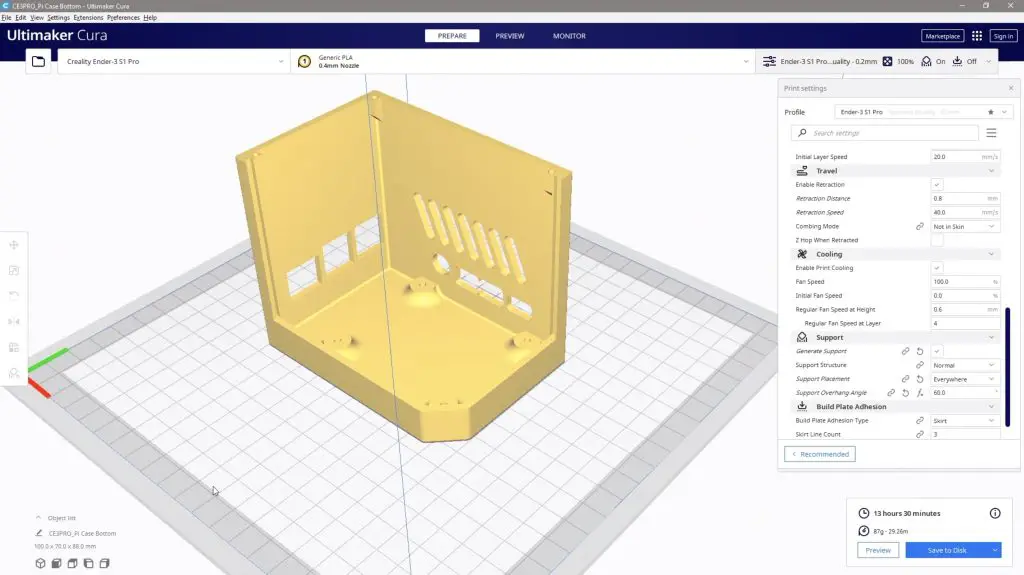
I’ve designed the case with a 1.2mm wall thickness, which is perfect for 3 layers with a 0.4mm nozzle and I’ve added in supports for the cutout on the front and the mounting points on the inside.
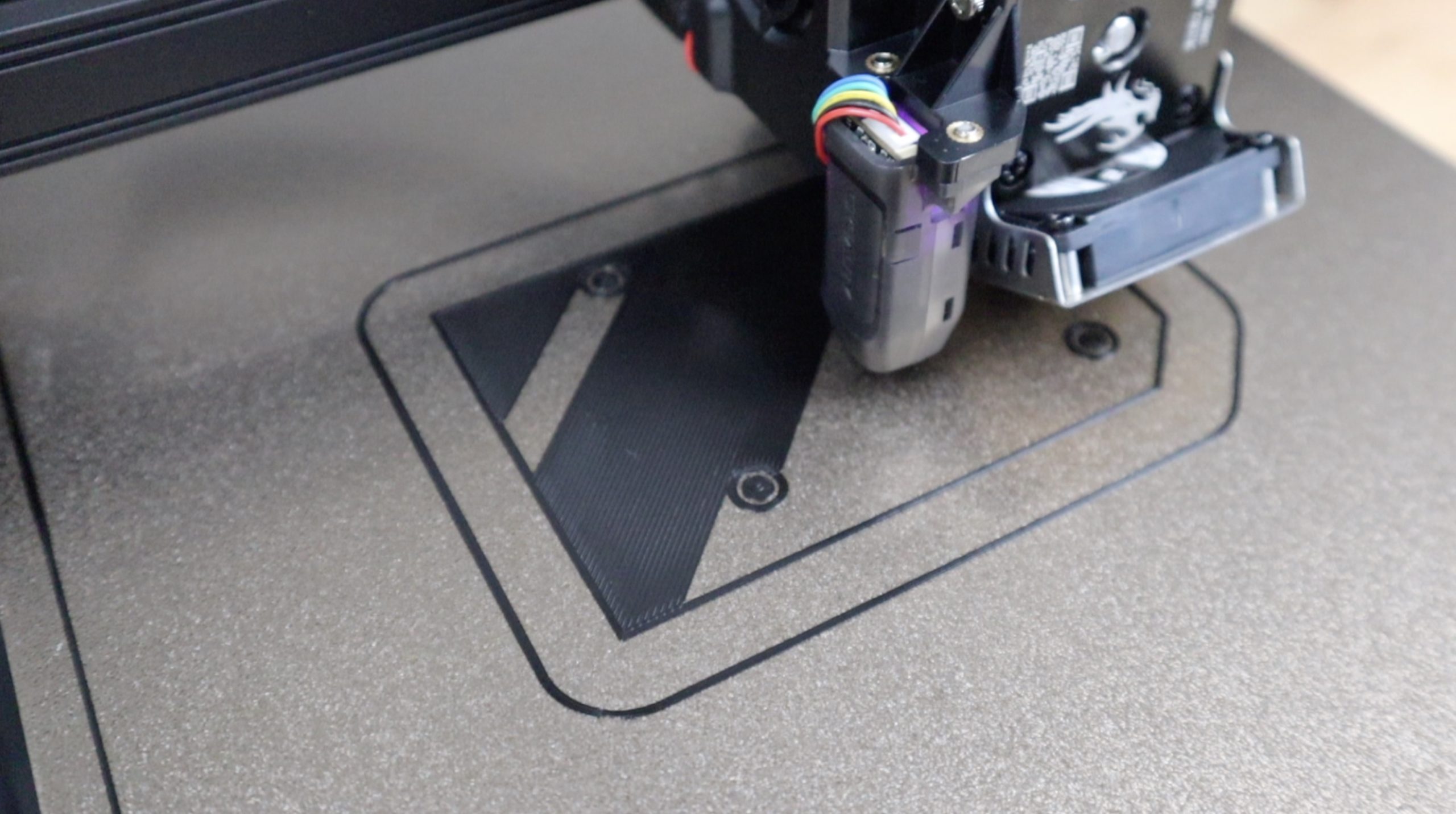
I’ve also added a brim around the bottom of the print so that there is a bit more contact area with the build plate. I initially tried printing the case without the brim, but due to the rounded edges, there is only a single line contacting the build plate which caused warping on subsequent layers.
I printed the case out on my Creality Ender 3 V2 in black PLA, which took about 5 hours to complete.
Installing The Pi Zero 2 W In The Case
Before we can install the Pi Zero 2 W, we need to remove the brim and support material from the print.
Most of the brim can just be gently snapped off by hand, the remaining edges can be cleaned up with a sharp craft knife. The supports can then be removed using a screwdriver, craft knife or some needle nose pliers.
Make sure that you remember to remove the internal supports around the standoffs and fan mounting points.
The Pi can then be mounted in the case, with the GPIO pins on the open side and the ports aligned with the cutouts on the opposite side.
The Pi Zero 2 W is then secured using some M2.5x6mm screws which screw into the 3D printed standoffs. These standoffs also provide some room underneath the Pi for airflow as well.
Next let’s add the heatsink to the CPU. I’m just using a small aluminium heatsink which should provide more than enough cooling with a 40mm fan. These is quite a bit of room in the case though so you can try using a different heatsink design if you’d like. There are a few options available online with taller fins. The one I’m using is quite compact and just has a peel and stick backing.
Before adding the fan, we also need to install the SD card with our operating system on it. The one I’m using came with the Pi Zero 2 W a few months back, so I assume it’s going to be the older Raspberry Pi OS Buster rather than Pi OS Bullseye but this can be upgraded at a later stage if need be.
Installing The 40mm Cooling Fan
I’m using a 40mm, 5V, clear RGB fan, you can also use a plain black one if you don’t want any lights on your case. Either way, first make sure that the power cable comes out the back of the fan and not off to the side. You might need to pull the cable out of the little retaining clips on the side like I’ve done.
I originally planned on using some M3x8mm screws for the fan and opposite side panel to keep them consistent, but they don’t protrude all the way through the fan so I’ll need to use M3x12mm screws on this side and M3x8mm screws on the opposite side for the acrylic cover.
When you position the fan, make sure that the cable is on the top corner on the GPIO pin side of the case and secure it with the M3 screws. Make sure that it is mounted as shown so that it is pushing air into the case rather than pulling it out of the case.
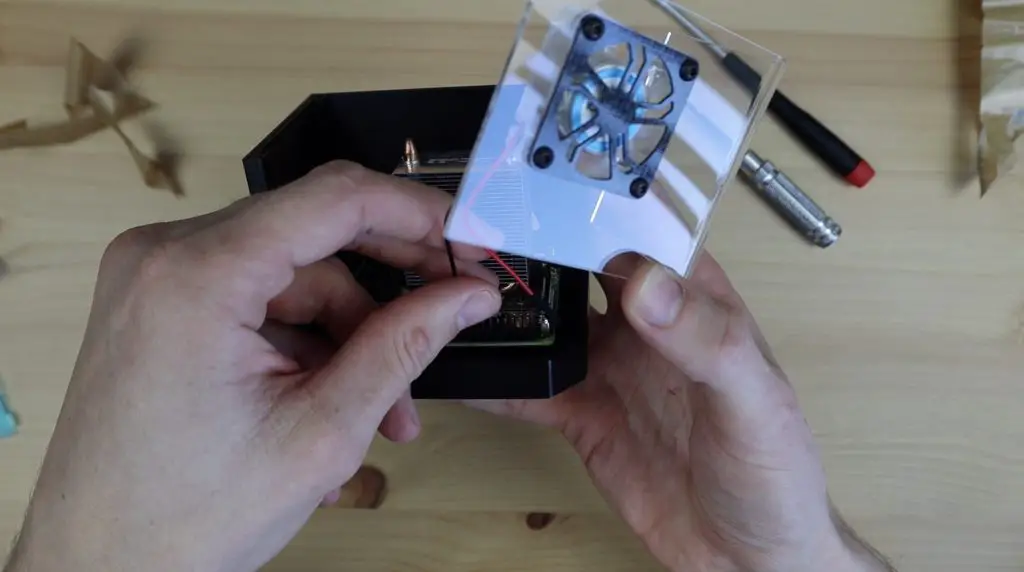
Now we can plug the fan into the GPIO pins to power it.
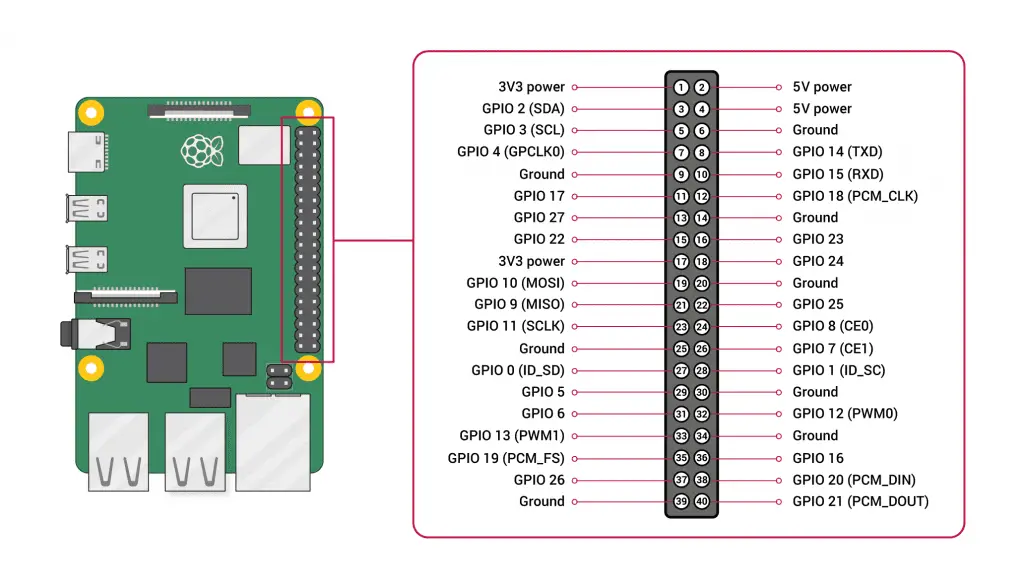
Most of these 5V fans can run on either 5V or 3.3V. 5V will give you more power and 3.3V will be a bit quieter, so try either depending on your use case. You need to plug the black wire from the fan into any ground pin and the red wire from your fan into any 5V power or 3V3 power pin.
Source: RaspberryPi.org
The 5V and ground pins are the two pins in the front as shown here:
The 3V pin is the pin on the end in the second row. I’m going to use 3.3V as the fan is then a bit quieter as it turns slower.
Now we’re got the fan hooked up, we can start making our acrylic covers for the ventilation side and the main front and top of the case.
Making The Acrylic Covers For The Pi Zero 2 W Case
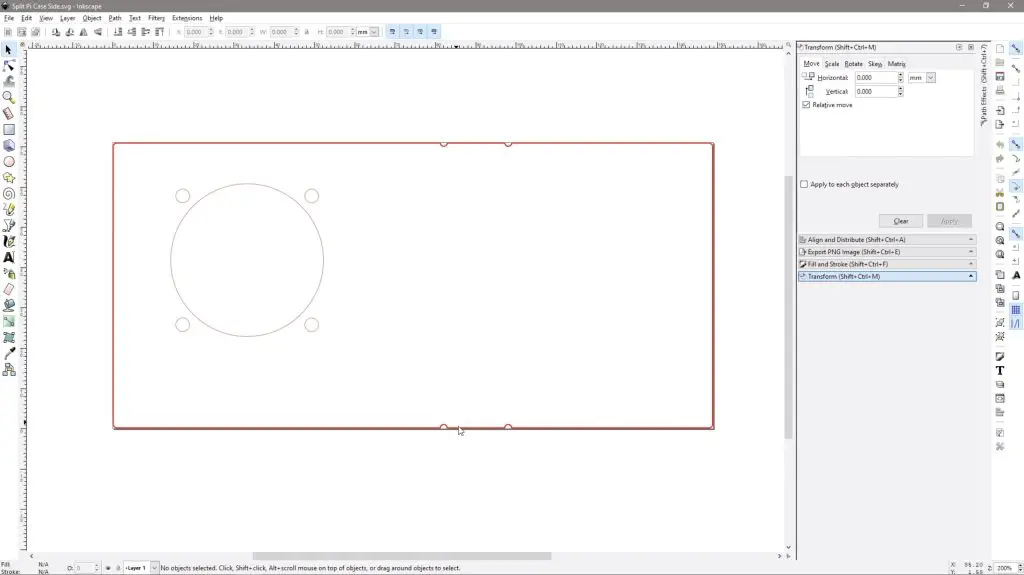
I drew the up in Inkscape to match the ones modelled in Fusion360.
The front cover has a screw hole on each end and some notches on the sides to indicate where it should be bent.
The ventilation cover has the same form factor and mounting holes as the 40mm fan and I’ve added some hexagon ventilation holes which are similar to my other case designs.
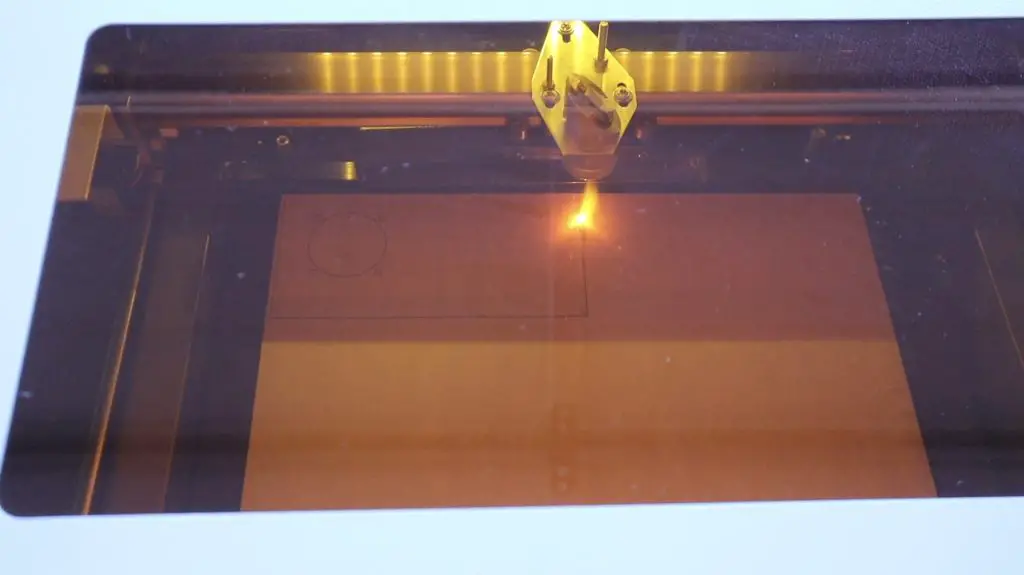
I then cut these out on my laser cutter from 2mm clear acrylic.
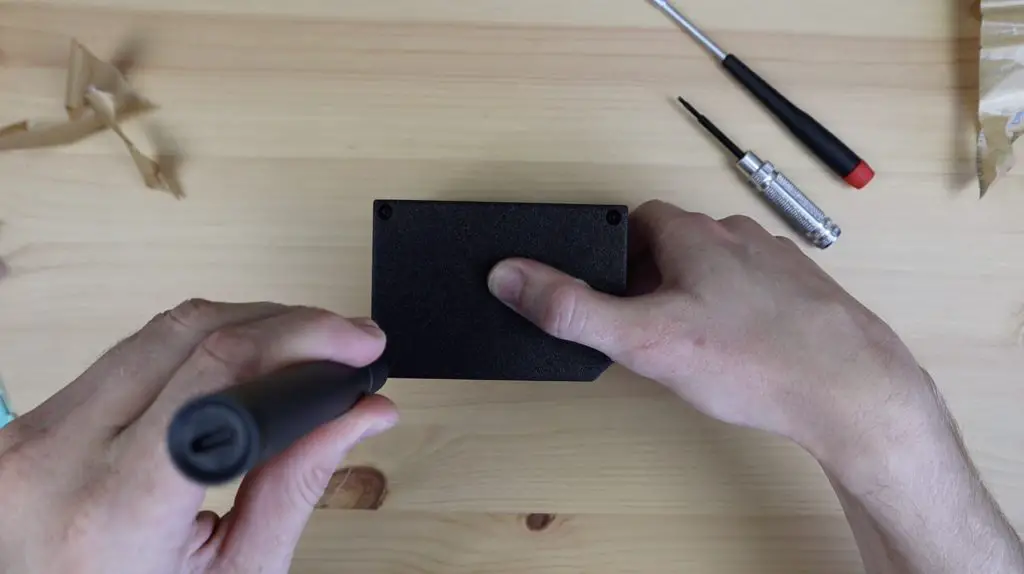
As mentioned earlier we’ll be mounting the ventilation cover with four M3x8mm screws and the main cover with two M2.5x6mm screws.
Install the ventilation cover first, using the four M3x8mm button head screws. The cover is symmetrical so can be installed in any orientation.
Before we can mount the main cover, we need to bend it 90 degrees to follow the shape of the case.
We first need to peel off the protective film and we can then use a heating tool to soften the acrylic along the bend line – the line through the two notches on the sides.
The tool looks like a hair straightener but it’s actually made to bend small sections of acrylic sheets and you can buy them online for about $15 (from Aliexpress). Be careful when working with the tool and the acrylic once it is soft, it is very hot and can easily cause burns.
With the acrylic soft, I’m going to use a second print to bend the acrylic to get a nice clean line. This is not entirely necessary, you can just use the case you’ve already got printed, I just want to support the whole bend while it is hardening.
Now we need to add the two M2.5 screws to hold it in place.
With that done, the case is now complete. So let’s turn boot up the Pi and see how it looks.
Booting Up The Pi Zero 2 W
Depending on what you’re going to be doing with your Pi, you can now plug in your power supply, monitor and and USB devices and boot it up.
I quite like the look of the RGB LEDs on the fan, I think this came out quite nicely. You can also add a fan grill or dust filter to the inlet if you’d like, I quite like the fan being open and visible.
This makes for a really neat compact computer for a number of projects. I’ve been running Pi-hole on a Pi Zero W for a bit over a year now and that’s worked well. I’ve also used one as a security camera using MotionEyeOS.
Let me know what you use yours for in the comments section below, and let me know what you think of the case design. What would you add or do differently?
In this project, we’re going to use the Maduino Zero 4G by Makerfabs to make an air quality and environment monitor that transmits the recorded data wirelessly over a 4G mobile network to a Thingspeak dashboard.
Watch my video of the build or read on for the step by step instructions:
The Makerfabs Maduino Zero 4G LTE
A couple of weeks ago, Makerfabs sent me their Open Wind Station to try out. It’s a compact Arduino compatible device that records temperature, humidity, pressure, wind speed and air quality information and uses a mobile network to transmit the data to a remote database or cloud service.
Unfortunately the built in A9G chip only works on a 2G mobile network, all of which have been decommissioned in Australia for a few years now.
But fortunately, they have been working on an alternative – the Maduino Zero 4G LTE. This new board uses a more modern SIM7600 chip which operates on a 4G network. They say can reach upload speeds of up to 50Mbps and download speeds of 150Mbps.
The best part about this board is that it is also a fully programmable Arduino compatible microcontroller with 12 digital IO pins, 6 analogue pins and an I2C interface. So it’s perfect for projects that require data to be sent to or from a remote location. You can set this up anywhere that you have 4G coverage and have full control over it from any internet connected device.
Some of the Maduino’s features include:
LTE Cat-4, with upload speed of up to 50 Mbps and download speed of up to 150 Mbps
GNSS positioning
Arduino IDE compatible
Dual USB type-C ports, one for MCU programming/UART, the 2nd for SIM7600 USB connection
Some of the above parts are affiliate links. By purchasing products through the above links, you’ll be supporting this blog, with no additional cost to you.
Testing The Maduino Zero 4G And Sensors
Now that we’ve taken a look at the Maduino Zero 4G, we’re going to use it to make an air quality and environment monitor. I thought it would be good to take the wind and air quality sensors from the Open Wind Station and integrate these with the new Maduino Zero 4G board.
I’m also going to add some additional grove DHT11 and BMP280 sensors to create a truly wireless air quality and environment monitor. These two sensors are just taken from the Grove Beginner Kit and already have the supporting electronics built into them so they just have a three or four wire interface to the Arduino.
We also need to add some pin headers to the Maduino board so that we can plug our sensors into them. The board comes with male pins but I’d prefer to use female pins so that there are fewer exposed pins within the case when it is complete.
I just cut these from some lengths of female header strips and soldered them into place on the top side of the board.
I’m going to do a trial assembly of the components on a breadboard to start with because the original sensors operate on 5V while the Maduino Zero 4G operates on 3.3V, so there is a chance that they won’t even work with it.
I’ve connected the sensors to the same pins that they were connected to on the Open Wind Station so that the original code doesn’t need to be completely re-written for the new system.
The sensor connections are:
Anemometer
5V – 3V3
GND – GND
Data – A0
DHT11
VCC – 3V3
GND – GND
Data – D13
BMP280
GND – GND
VCC – 3V3
SCL – SCL
SDA – SDA
PM2.5
Sens VCC – 3V3
Sens GND – GND
Sens Data – A1
LED VCC – 3V3
LED GND – GND
LED On/Off – D10
Now we just need to add the sim card to the tray at the back and plug the three antennas into the connectors on the front.
We’ve got it all assembled, now we just need to program it.
Programming The Maduino Zero 4G
I’ve created a sketch using two examples sets of code, one being the 4G example code that Makerfabs have put together for the Maduino Zero 4G and the other being the original code for the Open Wind Station.
Here is the code if you’d like to try it on your Maduino:
The original code has the calculations and settings for the sensors, although I suspect that I might need to re-calibrate these at some stage as my change in cycle time will change the wind speed calculation and the lower voltage probably affects the brightness of the air quality sensor’s LED and its analogue output.
In any case, running the sketch on the breadboard setup seems to work correctly and I’m able to see some values from the sensors, so that looks promising.
I have created a new Thingspeak channel with it’s own write API key which will need to be copied into the sketch. This key allows the Arduino to write the data to the Thingspeak channel and it can then be accessed through any internet connected browser.
I added a gauge and chart widget for each of the fields/sensors and scaled them according to the expected values.
If you’d like a more detailed look into how to publish data to Thingspeak, have a look at my 3D Printed Weather Station project. The sketch in this project uses a more user-friendly Thingspeak library.
3D Printing A Case To Hold The Components
Now that we’ve got the electronics working, we need something to mount it in. So, I’m going to use Tinkercad to design a case to hold the board and sensors in such a way that it can be mounted onto a 25mm pole.
The case consists of 3 parts, the main body, a cover plate and a bracket. I’ve also made up a bracket to mount the anemometer onto the end of the pole. The components were all printed in PLA on my Ender 3 V2.
Assembling The Air Quality & Environment Monitor
Let’s start by installing the bracket onto the back of the case. The bracket is held using two M4x8mm screws and nuts. The nuts fit snugly into the cavities in the bracket. A small M3x12mm screw is then used to lock the bracket into place on the pole by pressing against an M3 nut in the cavity on the inside of the bracket.
The board is then held in place with some M2 screws and the sensors and components then fit in around it.
I was initially going to add the original battery from the Open Winder Station, but it’s only 1,000mAh, and I suspect this 4G board is going to draw a lot more power than the original one, so this probably won’t provide much benefit. I’ll instead use a USB cable to power it from a 30,000mAh power bank.
I’m going to be using this in a partially covered area, so it doesn’t need to be rain proof, but I designed a couple of vent covers just in case it does get a bit wet if there is a lot of wind. I just stuck these on with some epoxy adhesive.
The anemometer is mounted onto the end of the pole using the 3D printed bracket, which is also held in place with an M3x12mm screw and nut.
We can then slide the main control board onto the pole underneath it and tighten the M3 screw to lock it in position.
The anemometer is then plugged in using the 4 pin connector.
Testing The Maduino Zero 4G Air Quality & Environment Monitor
I decided to first test the power consumption to see how long it would last on my power bank. My USB power meter showed that it used around half an amp fairly consistently.
So my 30,000mAh power bank should power it for about 40 hours. If you’re going to be using it for longer periods of time then you’ll probably need to use a mains adaptor or solar power to keep it running.
Now let’s get it mounted outside and start recording some data.
After a few hours it looks like we’re consistently getting data from all of the sensors.
The air quality reading definitely looks to be a bit higher than what I was expecting, so I’ll need to work on calibrating that.
The wind speeds looks about right when I compared it to my other anemometer after a couple of days of use.
Let me know what you think of the Maduino Zero 4G in the comments section below. Do you have any project ideas for a 4G Arduino?
Speaking of other ideas, you can actually also use this device to provide a 4G internet connection to your computer or Raspberry Pi and you can use it as a fully functional mobile phone to make calls. So there are a lot of options for it.
Today we’re going to be taking a look at the reTerminal, by Seeed Studio. We’ll unbox the device to see what is included and we’ll then set up a weather dashboard on it using Grafana. We’re going to use weather data that is being recorded by an ESP32 microcontroller and is being posted to an InfluxDB database.
The reTerminal is a compact HMI (human-machine interface) device that is powered by a Raspberry Pi compute module 4 (CM4). It has a 5″ capacitive touch display, along with four physical function buttons, some status LEDs, and a host of IO options.
Watch my unboxing and setup video, or read on for the write-up:
Where To Buy Your Own reTerminal
You can pick one up from Seeed studio’s online store or from Amazon;
The reTerminal is shipped in a white box with a sleek matt black sleeve around it. The box is a little smaller than the display area of an iPad and is about 5cm thick.
It comes standard with a 4GB WiFi variant of the Raspberry Pi Compute Module 4, running a quad-core Cortex-A72 CPU, and has 32GB of built-in eMMC storage.
It features dual-band, 2.4GHz/5GHz WiFi and Bluetooth 5.0, Gigabit Ethernet, Dual USB 2.0 ports, and a crypto-auth chip. It also has a built-in accelerometer, light sensor, and real-time clock.
The reTerminal is packaged in a protective sleeve and is surrounded by dense back foam.
In the box, you get the reTerminal, a small pack of mounting screws, and a small screwdriver. There isn’t a manual or datasheet in the box, but there is quite a lot of information available on their product page and the reTerminal wiki.
First Look at the reTerminal
The reTerminal is a bit smaller than what I was expecting but also feels like a much better quality product than I had anticipated. It is quite dense and feels solidly put together, with good quality materials.
On the bottom, we’ve got a 1/4″ camera mount and a small hole to access the reset button on the left side.
Along the top is a power button to the left, used to turn the reTerminal on again once it has shut down, a large aluminium heat sink along the back for the CM4 module, and a threaded mounting point on the right.
On the left side, we’ve got a USB C port for power, a micro HDMI port, Gigabit Ethernet, two USB 2.0 ports, and two M4 threaded mounting points.
On the right side, we’ve got a 40 pin GPIO header that has the same pinout as the other Raspberry Pi boards which is great for interfacing with sensors and expansion modules. We’ve also got another two M4 threaded mounting points.
On the back of the reTerminal we’ve got the large heatsink, two more threaded mounting points, a slot for the camera connector ribbon cable, and under a dust cover, a high-speed PCIe Gen 2 lane.
Let’s Take A Look Inside The reTerminal
I’m not sure if the screwdriver is meant to be used for the mounting screws or to open it up, but we’re going to open it up anyway to take a look at what is inside the reTerminal.
First, we need to remove the 4 rubber feet/plugs that cover the screws securing the back plastic cover.
One thing the reTerminal is not short of is mounting points. There are literally threaded mounting points on almost every side of the device, so you won’t have any issues securely mounting it for a project.
Removing the first cover and heat sink allows you to access the boot switch to re-flash the operating system on the Compute Module’s eMMC storage.
Removing the second cover exposes all of the remaining electronics.
The Pi 4 Compute module, can be replaced if you’d like, but I think they’ve chosen a good variant to ship with. You might want to go with the 8GB variant if you’re going to be doing a lot of multitasking or running more resource-intensive applications, but that seems unlikely on a device like this.
On the board, some of the main features we’ve got are 15-pin and 22-pin camera ports, a 30-pin display port, a microSD card slot, a real-time clock module and a cryptographic co-processor with hardware-based key storage.
All of the electrical schematics are also available in their documentation.
This is version 1.6 of the board in my reTerminal.
Let’s close it back up and turn it on.
Booting Up The reTerminal
The reTerminal comes with Raspberry Pi OS Buster pre-installed, so when you power it up the first time, you’ll need to go through the usual first boot setup process.
It also comes preloaded with a reTerminal demo app, which just shows some of the basic functionality and use cases for the device.
The touch display is really responsive and is quite accurate for its size. As I’ve mentioned in previous reviews, like my review of the RasPad 3, Raspberry Pi OS itself isn’t the greatest for use with a touch display as the icons land up being really small and quite difficult to touch accurately. But if you’ve going to build your own dashboards and interfaces, which is the point of the reTerminal, then you have the opportunity to make the icons a bit bigger and these should work well.
Creating A Grafana Dashboard
I’m going to use an ESP32 to collect temperature, humidity and pressure readings. These will then be posted to a time-series database in InfluxDB. Influxdb can be run locally on a Raspberry Pi or on their cloud server, we’re going to be using their cloud server. We’re then going to be using an analytics and visualisation application called Grafana to display the information that has been stored in the database. Grafana can also be run locally on our Raspberry Pi (or reTerminal in this case) or on their cloud server. We’re going to be installing and running it locally on our reTerminal. You don’t need to use a separate Pi for influxdb and Grafana, you could run both locally on your reTerminal if you’d like to – I just don’t want to have to leave the reTerminal running all the time in order to collect the data.
Collecting The Weather Data Using an ESP32 And Posting To InfluxDB
To collect the weather data, we’re going to be using an ESP32 with a DHT11 sensor connected to pin 4 and a BMP280 pressure sensor connected to the I2C interface (pins 21 and 22). I’m using two Grove sensor modules from the beginner kit as they already have all of the required electronics built into them (additional resistors etc.).
I’ve written up an Arduino sketch based on the InfluxDB interface instructions to read in the sensor values and post the data to InfluxDB every 30 seconds.
If you set up your API token and bucket, the generated code on the Arduino interface page accessed from your InfluxDB dashboard will already contain the correct setup information, so you just need to copy it into your code.
After a while, we can see that the information is now available in our InfluxDB database, so we know that our ESP32 is working correctly.
So we can now move on to installing Grafana on our reTerminal and setting it up to display the information in our database.
Installing and Setting Up Grafana On The reTerminal
Next, we’re going to install Grafan by following the terminal instructions outlined on their website for an installation on Debian or Ubuntu.
Then we just need to start Grafana and set it to re-start on bootup.
We can then access the Grafana web interface by opening up a new tab in our browser, pointing to localhost, port 3000.
We then need to configure it to read in the data from InfluxDB by entering the sever and authentication information. This can all be found through your InfluxDB web interface and is quite similar to the information your ESP32 is publishing data to.
Once that is done we can start building our dashboard by creating panels. Each panel is essentially a graphic, gauge or other graphic which uses a query to pull information from the database. You can then customise the appearance of each panel through a number of settings and optional plugins.
Im going to set up a gauge and historic trend for each of the three metrics.
I’ll also set each trend to display the minimum, maximum and mean or average value recorded for the time period.
Grafana gives you a lot of options for building dashboards and is a really powerful visualisation tool for your data.
Now it still looks like a web page on our reTerminal, so to get it to fill the complete screen, we set the browser to fullscreen mode by selecting the three dots in the top right and selecting fullscreen mode next to zoom. We then also need to cycle the view mode in Grafana by clicking on the monitor icon in the top right corner.
Now lets just resize the panels to fit onto the single fullscreen display.
And now we’ve completed our basic dashboard. If you’ve got a lot of data, it would be great to add multiple tabs to your dashboard and use the buttons on the reTerminal to cycle between them.
If you guys would like me to go through the setup of InfluxDB and Grafana step by step, let me know in the comments section.
Also, let me know what you think of the reTerminal, and be sure to check out their product page.
Seeed Studios sent me this reTerminal to review and share with you, but I was not paid to review or endorse the product.
Today we’re going to be taking a look at the new SER 3 series Mini PC from Beelink which has an AMD Ryzen 7 3750H processor and Radeon RX Vega 10 graphics.
People often ask me if they can run Windows on their Raspberry Pi, and I generally answer this by saying that – yes, there are ways to run windows or windows look-a-like operating systems on a Raspberry Pi, but you’re better off running Windows on a system that was designed to run it. That’s what the SER 3 is, it’s a mini PC that has been specifically built to run Windows, and to run it really well.
I’m obviously not comparing the SER 3 to a Raspberry Pi. This is a way more powerful computer, and it also costs a few times more than even the most powerful Pi. But, this is a compact computer that can easily be used in similar mobile environments.
Here’s my video of the unboxing and new case build, read on for the write-up:
Where To Get The Beelink SER 3
Beelink’s full range of Mini PCs are available through their website and a number of them are also available on Amazon.
The SER 3 comes in a black cubic box with prominent red text on the front. It has some information on the specifications on the back, but there isn’t much else printed on the box.
Inside the box, we’ve got the SER 3 on the top, which is protected by a layer of foam on the top and bottom. Taking it out of the box, it’s got some weight to it and the full metal enclosure is cold to the touch. It immediately feels like a well-built and good-quality computer.
Underneath the computer is the user manual and in a compartment below that we’ve got a power adaptor, HDMI cable, short HDMI cable, VESA mount to attach it onto the back of a monitor or onto a wall, and a pack of screws.
I like the addition of the mount and short HDMI cable so you don’t need to buy any additional hardware to mount it onto the back of your monitor.
The power adaptor is quite large, being able to supply 3A at 19V, or a total of 51W. It’s pretty similar to a typical laptop charger although the plug is integrated into the adaptor, whereas most laptops have another lead to the plug. It would have been nice to have swappable plug designs to suit different countries, but this isn’t really a big deal.
The user manual covers all of the basic functions and how to use the mounting hardware.
Exploring The SER 3 Hardware
On the front of the computer, we’ve got two USB 3.0 ports, a USB C port, a 3.5mm audio port, and a power button. This USB C port is able to drive a third monitor (in addition to the two HDMI ports on the back). I like that you have the option to be able to drive an additional monitor with it, but I probably would have preferred it to be on the back if I was going to use a USB C monitor full-time. That said, for my use case, I like having the USB C port on the front.
There are cooling vents on either of the two sides. On the back, we’ve got the processor fan exhausts along the top and an Ethernet port, two more USB 3.0 ports, two full-size HDMI ports, and the power port underneath them.
The top of the case is also vented to provide airflow to the CPU fan. I like the fine mesh finish rather than having some sort of fan intake pattern. It gives it a more refined look.
The computer is powered by an AMD Ryzen 7 3750H processor, which is a 4 core, 8 thread processor that runs at 2.3 GHz with a maximum boost up to 4GHz.
Graphics are provided by a Radeon RX Vega 10 GPU which can drive up to 3 external displays, two through HDMI and one through the USB-C port on the front.
Let’s open it up and take a look at the internal components.
Under the all-metal shell, we’ve got a compact motherboard. This particular version has 16GB of DDR4 RAM and a 512GB NVME SSD. These are expandable to 64GB of RAM and a 2TB NVME drive, it also has a bay for up to a 1TB 2.5-inch drive on the right side.
As far as connectivity goes, it’s got gigabit Ethernet, dual-band WiFi, and Bluetooth 4.0.
On the other side of the board is the processor and its cooling fan. The cooling system is a heat pipe and fan assembly as typically used in laptops.
Running The Beelink SER 3
When you first turn it on, it’ll take you through the usual Windows setup process on a fresh install of the operating system. It is shipped out with Windows 10 Pro loaded, so you’ll need to run an upgrade to get it onto Windows 11.
I decided to run a quick Geekbench CPU benchmark on it. With Geekbench opened up, you can see the 16GB of RAM listed as well as the processor clock speeds.
I ran the CPU benchmark and got a single-core score of 906 and a multi-core score of 3024, which for a computer of this size is not all that bad.
Designing and Building A New Case For The Beelink SER 3
Now that we’ve had a look at the specs, I thought it would be a good idea to take it overboard and design a new case for it. The stock case has a really clean and minimalistic look that fits in well on a modern desk, but I’d like it to be a bit more eye-catching.
So let’s open up Inkscape and get to work on a design for a new case.
I want to stand the computer upright, more like a traditional PC and I want to add clear acrylic side panels so that the internals are visible. A bonus is that both sides of the computer are interesting to look at, so I can add clear panels onto both sides of the case.
My idea was to build the body of the case out of dark-tinted acrylic so that it is still partially translucent and then add the clear panels on the sides to highlight the internals.
I also plan to add some LED strip lights to the inside to illuminate the components.
Now that we’ve got a design, let’s cut the parts out on my laser cutter.
I’m going to use some nylon standoffs to mount the computer between the side panels and I’ll then measure and make up the filler pieces and port cover plate.
I realised that I didn’t make a cutout for the fan on the one clear side, so I had to revisit the design to add it afterward.
I then measured up and cut the filler pieces.
The sides are just glued into place along one edge using acrylic adhesive. I usually use a Fast Set Acrylic Adhesive.
Now let’s add some LEDs to the inside of the case to light up the internals. I cut the LED strip into two sections of 6 LEDs each and glued the strips into place around the edge of the case. I had to solder a short jumper between the strips on each side of the case.
And that’s the case complete. Let’s turn it on and see what it looks like.
Using The SER 3 Mini Ryzen 7 Gaming PC
So now we’ve got a mini Ryzen 7 gaming PC. Obviously not having a standalone graphics card has its performance limitations, but it works well for light gaming and in a tiny package, so it’s great for taking along when you’re traveling.
Beelink have also recently released their Ryzen 9 version of these mini PCs, called the GTR 5, I’d definitely recommend having a look at it if you’re interested in a more powerful mini PC – particularly if you’d like to use it for gaming. They’ve currently got an Indiegogo campaign running for them and they expect to start shipping them out this December.
Let me know what you think of the case design in the comments section below. Do you prefer the original modern metal enclosure or the acrylic gaming style case?
Raspberry Pi OS Bullseye has recently been released and with it comes a number of improvements, but most of them are under the hood. There aren’t that many visual differences, the most noticeable is probably the new default desktop background which is now a sunset over a dam or lake.
With this operating system upgrade, we’ve also got the usual bugs and software incompatibilities. These have caused my previous OLED stats display tutorial, that I used for my Raspberry Pi Desktop Case, to no longer work correctly. If you follow the previous tutorial, you’ll be presented with a host of errors.
So in this tutorial, I’ll take you through the installation and setup process to get the same 128×64 I2C OLED display running on Raspberry Pi OS Bullseye.
Here’s the video tutorial, read on for the written steps and commands.
Connecting Your OLED Stats Display To Your Raspberry Pi
To start out, we’re going to go through the same process to connect the OLED stats display to our Raspberry Pi. To do this, you’ll need a 4 wire female to female jumper cable. The colours don’t matter, they’re just there to help you keep track of which wire goes to which terminal.
The OLED display’s terminals are labelled on the front, which seems to confuse a lot of people since the pins extend out the back of the display.
This is especially difficult to spot once the display has been installed into the case and the front area of the display is no longer visible. So make sure that you jot them down before installing the display into a case or holder.
The pin arrangement is most commonly GND, VCC, SCL and SDA. Don’t just copy this arrangement, make sure you check your own display as there are versions of these displays with the VCC and GND pins switched around. If you connect power to them incorrectly they’ll most likely be damaged and will no longer work, even if you correct the wiring afterwards.
Plug your ribbon cable into these four pins and then take note of which colour you’ve got connected to which pin. If you’re installing the display into your case before connecting it to your Raspberry Pi then it’s a good idea to write down which colour is connected to which pin so that you don’t forget.
Next we can plug the other ends of the jumpers into the Raspberry Pi’s GPIO pins. The Pi’s GPIO pinout diagram can be found quite easily online and is available from the official website.
Source: RaspberryPi.org
Make sure that your Pi is off and the power is disconnected before plugging or unplugging jumpers from the GPIO pins. You don’t want to short a connection or plug a lead into the incorrect pin by mistake and not have a chance to check your connections before powering it up.
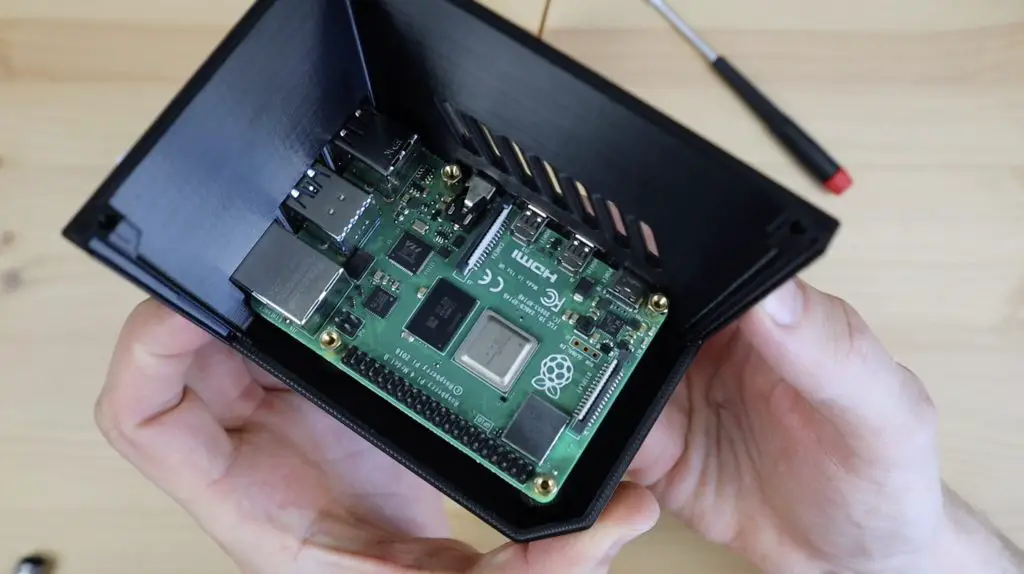
You’ve got a few options for the GND and VCC jumpers. I usually plug the GND jumper into Pin 9 (you can use any pin labelled GND). And I plug the VCC jumper into Pin 1, which is a 3.3V power pin. These displays can operate on 3.3V or 5V inputs, so any power pins on the Pi’s GPIO header will work.
Next, we need to connect the communication jumpers SCL and SDA, which just get plugged into the corresponding GPIO pins. Plug SCL into Pin 5 and SDA into Pin 3. Don’t get confused between the GPIO numbers and the Pin numbers, ignore the GPIO numbers on the diagram and just go by the SDA and SCL labels and the corresponding pin numbers.
Check all of your connections again and you’re then ready to power your Pi up and get started with programming the display.
Programming The OLED Stats Display
Now that we’ve got the display connected, we can look at programming our Raspberry Pi to display the performance stats. I’m going to be doing this on a fresh install of Raspberry Pi OS Bullseye by using the Raspberry Pi Imager utility to flash the operating system image to a new microSD card.
Put the SD card into your Pi’s SD card slot and plug in your power adaptor. Once you’ve booted up your Pi, you should be on the Raspberry Pi OS desktop. It’s possible to do this installation on a headless Pi as well using the same steps.
Update Your Pi and Install The CircuitPython Library
Open up a new terminal window and start by making sure that your Pi’s software is all up to date by running the following commands:
sudo apt-get update
sudo apt-get full-upgrade
sudo reboot
sudo apt-get install python3-pip
sudo pip3 install --upgrade setuptools
Next, we’re going to install the Adafruit CircuitPython library using the following commands:
Hit yes to any prompts which may come up and yes (Y) to reboot at the end.
Check That Your Display Can Be Seen
This previous installation script should also have enabled I2C communication, which is needed to communicate with the display. You can check that it is enabled and your Pi is able to see the connected display by entering the following command:
sudo i2cdetect -y 1
You should then see a table, similar to the one shown below, which has a single set of characters in it (typically 3c for these displays). This code indicates the I2C address of your display.
If it hasn’t shown up then either I2C communication isn’t turned on, which can be done through the configuration utility, or your wiring is not correct. If you get a table full of characters (all addresses shown) then you’ve probably made a wiring mistake as this happens if SDA is shorted to ground. Go back and re-check your connections to your Pi and display and re-check that you’ve got I2C communication enabled after a reboot.
To enable I2C communication, use the configuration utility by entering:
sudo raspi-config
Don’t proceed with trying to get the script to work if you don’t get the correct response in this step. If your Raspberry Pi isn’t able to see the display that is connected to it then it won’t be able to communicate with it to get anything displayed.
Install The OLED Stats Display Script
Next, we need to install the CircuitPython libraries specific to the display. Start by entering the following commands:
sudo pip3 install adafruit-circuitpython-ssd1306
sudo apt-get install python3-pil
Now we just need to download the actual script. Rather than trying to edit it on the Pi, I’ve made it available on Github in its completed form, so you just need to run the following line to copy it to your Pi:
Now we’ve got the display running, but it’ll stop as soon as we close the terminal window and we’d like it to run automatically on startup. We’re going to do this using crontab.
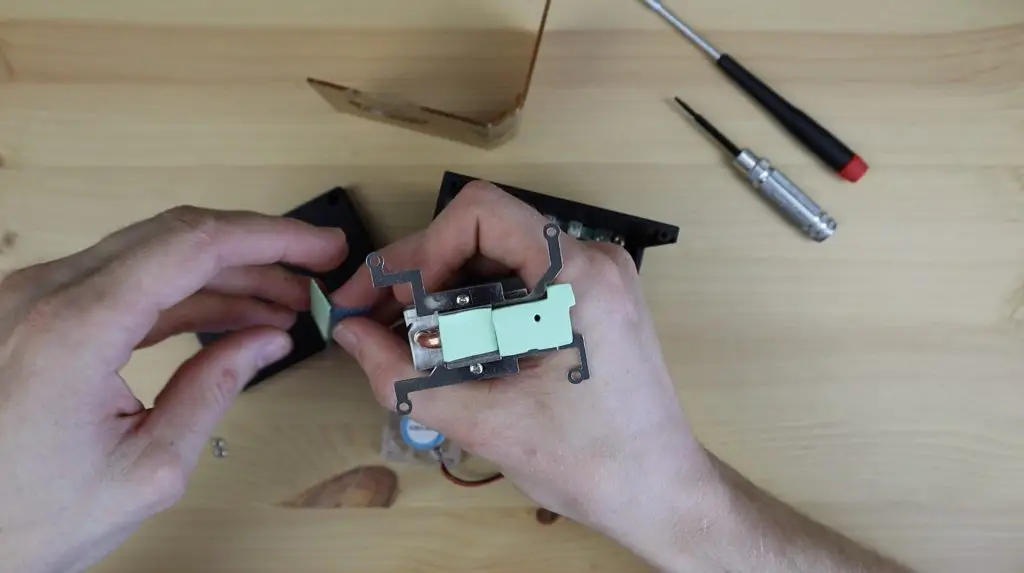
Open up crontab by entering the following command:
crontab –e
If this is the first time you’re opening crontab then you’ll be prompted to select an editor, select 1 and hit enter.
Add the following line to the end of the file to run the script:
@reboot python3 /home/pi/stats.py &
Don’t forget the “&” at the end to tell the Pi to continue starting up and to run the script in the background.
We’ll also need to copy the stats.py script and font into the home directory. You can also just reference the correct path in the previous step, but I find that this is less reliable.
Make sure that you copy both the stats.py script and the PixelOperator font into the /home/pi directory.
If you do leave them in the downloaded directory, you’ll need to amend the crontab command to read:
@reboot cd /home/pi/OLED_Stats && python3 stats.py &
Save the crontab file when you exit and then try rebooting your Pi to see if it is working correctly.
If you’ve followed the process correctly, you should now have a working OLED stats display that starts up automatically each time your Pi boots up. You can now go ahead and install it into your case if you haven’t done so already.
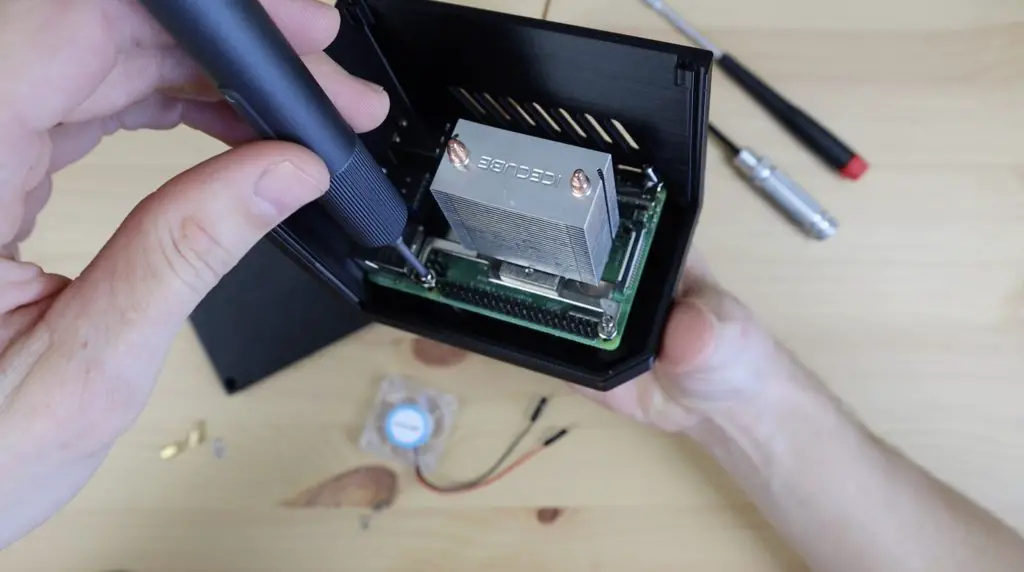
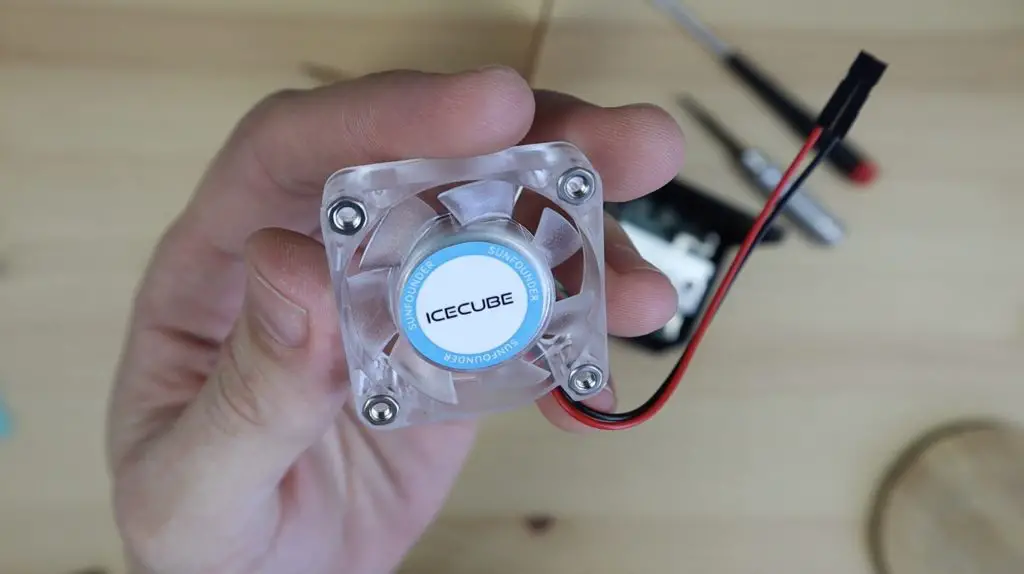
Finish Off Your Pi Desktop Case Build
If you’re using an Ice Tower with your OLED stats display, plug the fan’s power cables into the 5V and GND GPIO pins next to the display’s connections as I’ve done.
Close up your case and your Raspberry Pi Desktop Case build is now complete.
Let me know how you find this tutorial in the comments section below. I’d love to hear your feedback and suggestions.